Bank Reconciliation Applet
Purpose and Overview
The Bank Reconciliation Applet streamlines monthly/periodic reconciliation for each cashbook. You create a recon session (cashbook + date range), set opening balances, upload one or more bank statements, match cashbook transactions to statement lines (manually or via automatching), and then generate reports that explain variances.
Primary Menus
- Bank Reconciliation
- Create and manage reconciliation sessions per cashbook and period.
- Upload statements, match transactions, and produce reports.
- Imported External Cashbook
- Import and manage external GL/cashbook movements for reconciliation assistance.
- Settings, Personalization
- App‑level configuration and user personalization features (theme, layout, grid presets).
Menu and structure live under src/app/components/* and src/app/models/menu-items.ts.
User Roles and Benefits
- Accountant: drives the monthly process—create sessions, upload statements, match, report.
- Finance Manager/Controller: oversees controls, reviews variance, ensures period completeness.
- Auditor/Reviewer: inspects reconciliations and supporting listings for audit evidence.
Settings
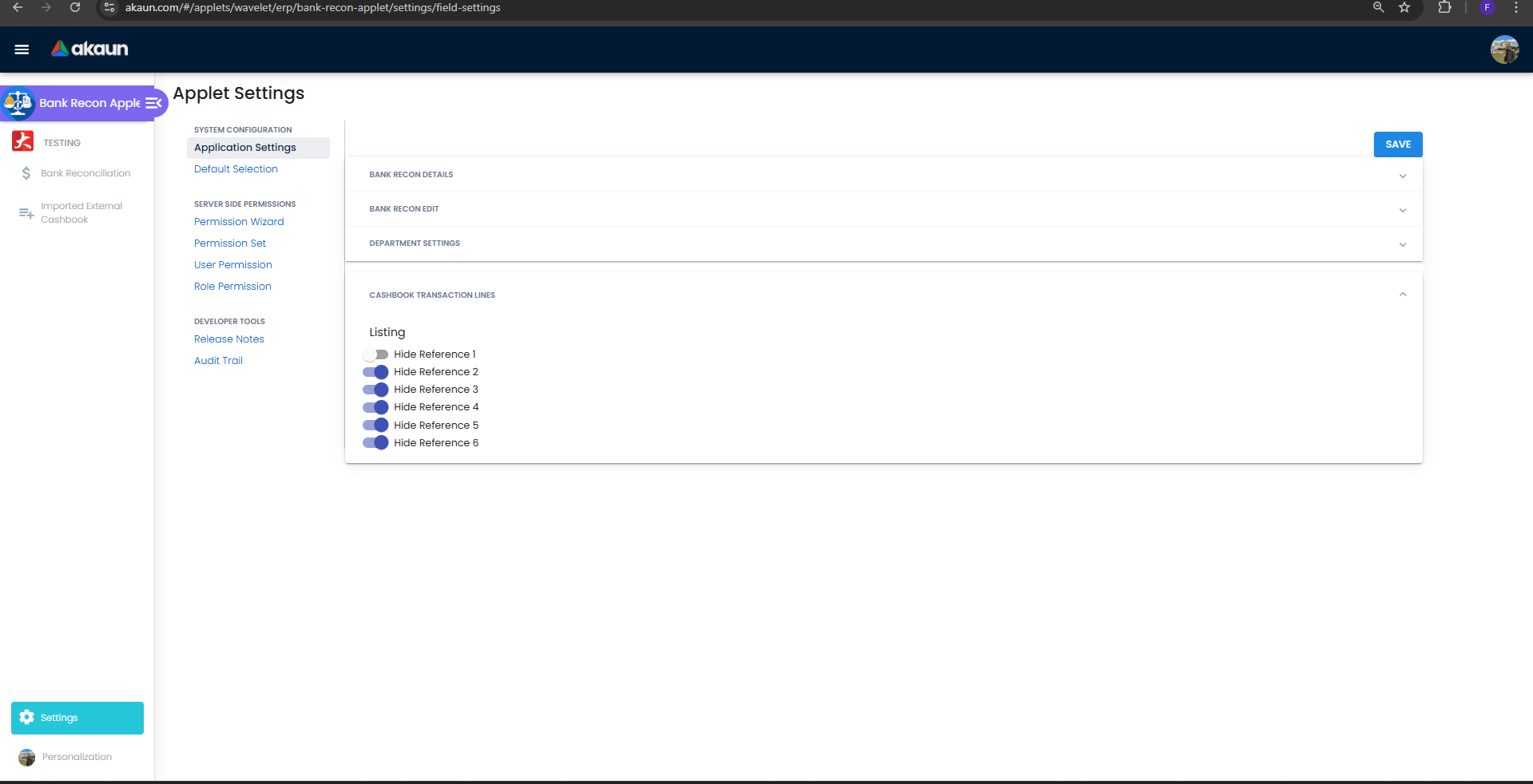
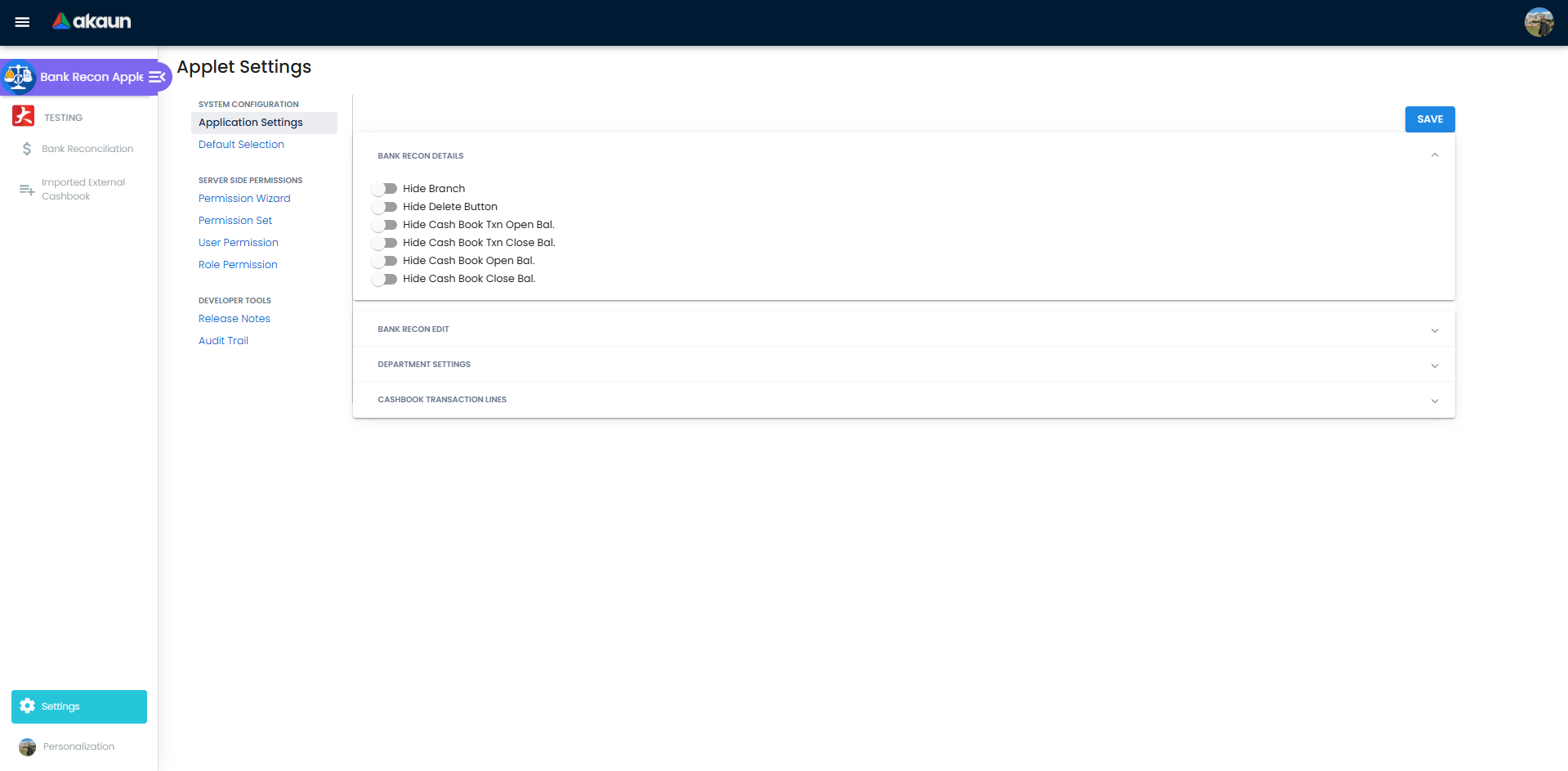
The applet exposes configuration under Settings → Application Settings. Toggle visibility of fields/sections for Details, Edit, Department settings, and Cashbook Transaction Lines. Use this to simplify the UI for end users and align with internal controls.
Key Behaviors and Business Rules
- Recon Session (Header) and Balances
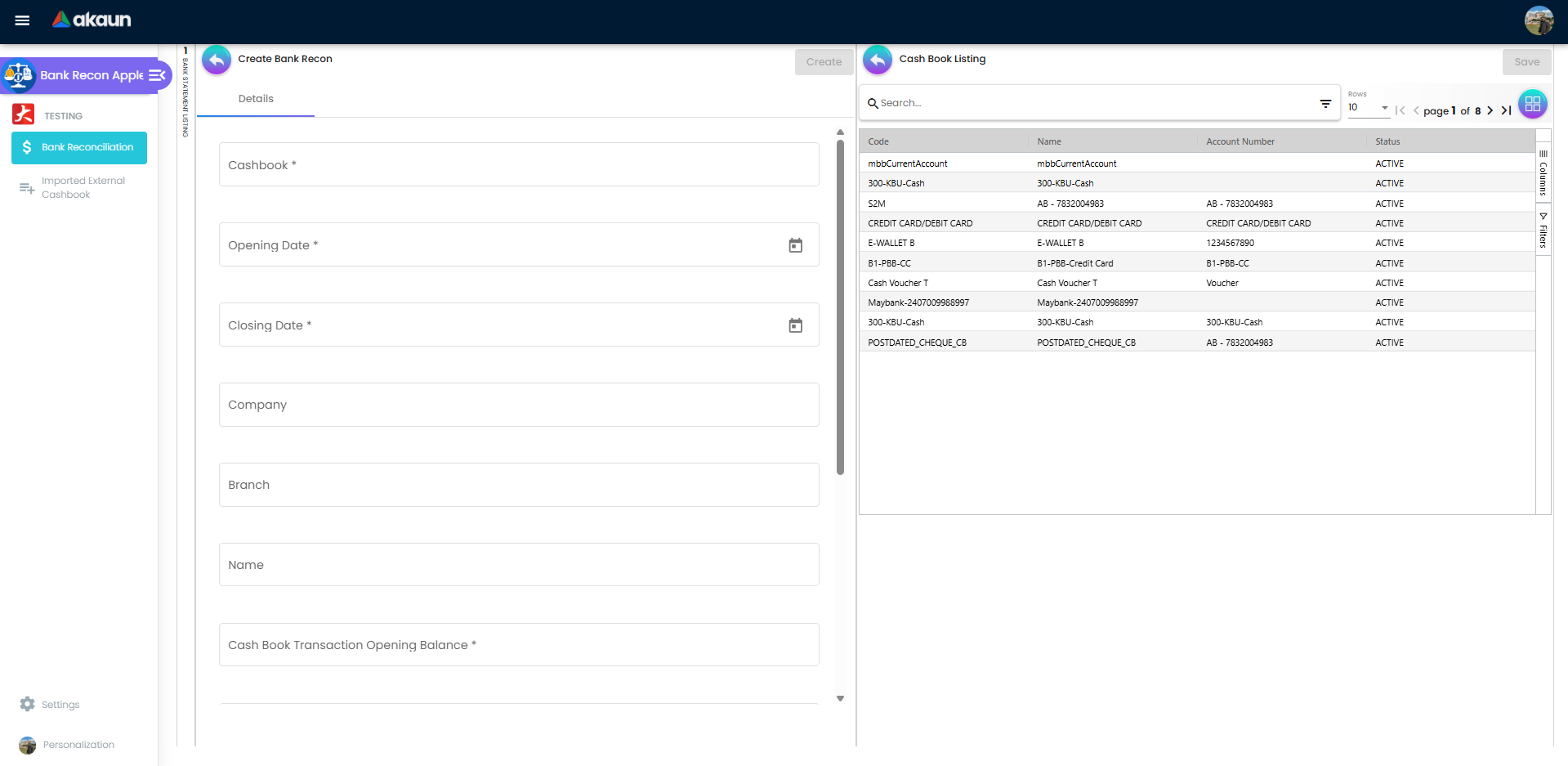
- Required fields: Cashbook, Opening Date, Closing Date, Cash Book Transaction Opening Balance, Cash Statement Opening Balance.
- Optional context: Company, Branch, Name/Label.
- System aids:
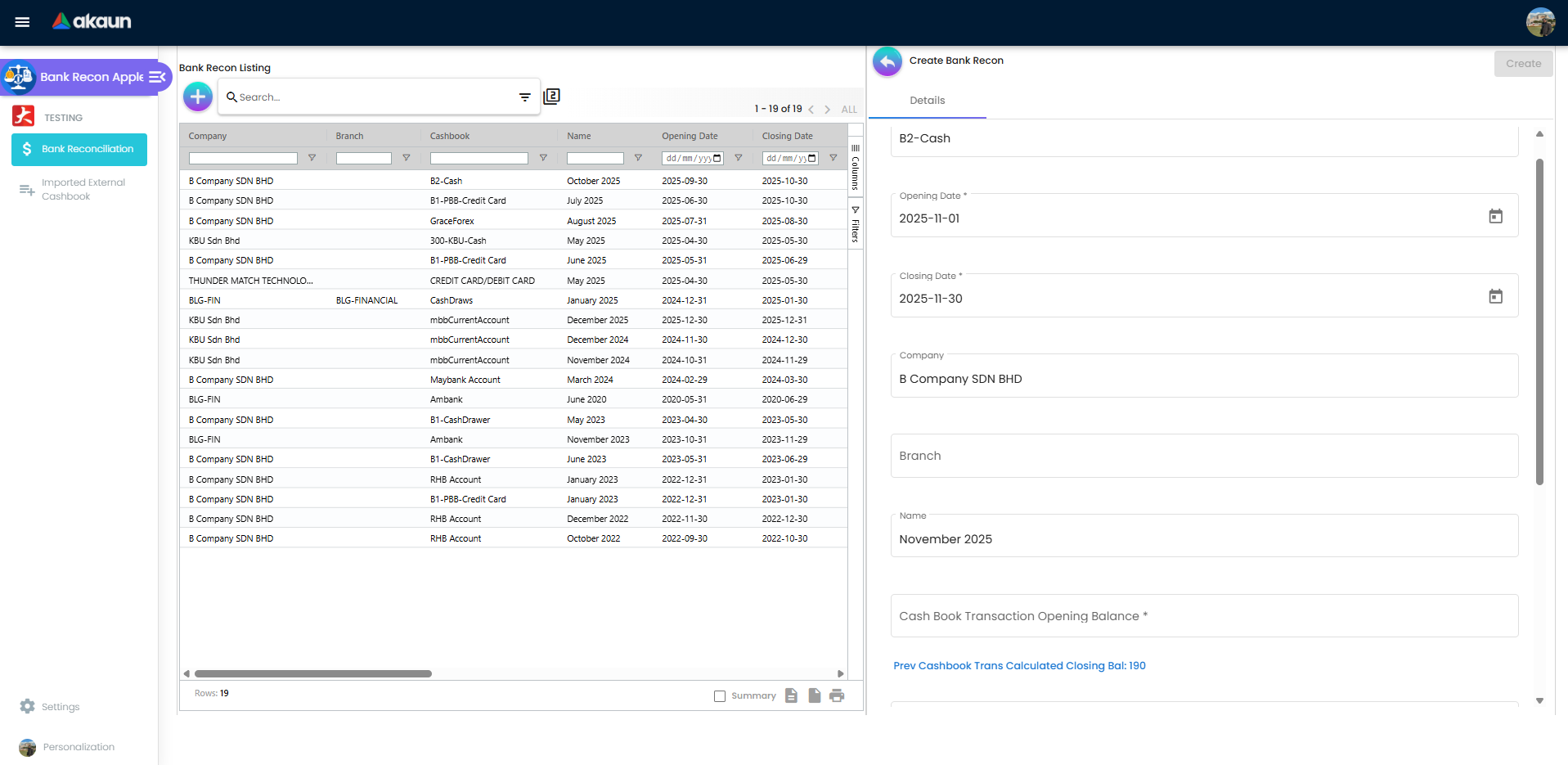
- Prev Cashbook Trans Calculated Closing Balance: quick link/check to last period outcome.
- Calculated Cash Book Transaction Closing Balance: computed hint based on transactions within the period.
- Status lifecycle observed: Processing (additional statuses may exist in API; the UI enforces required fields and permissions for Create/Save).
- Statement Upload
- Upload one or more CSV/flat files per session.
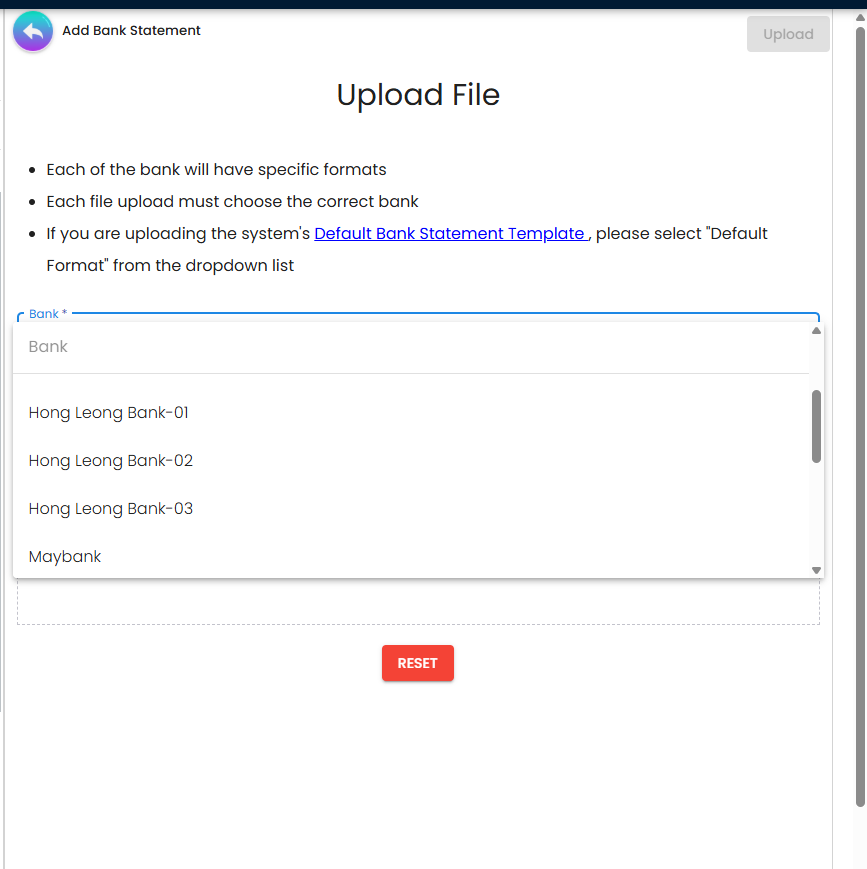
- Select the correct Bank (format) or choose the system Default format.
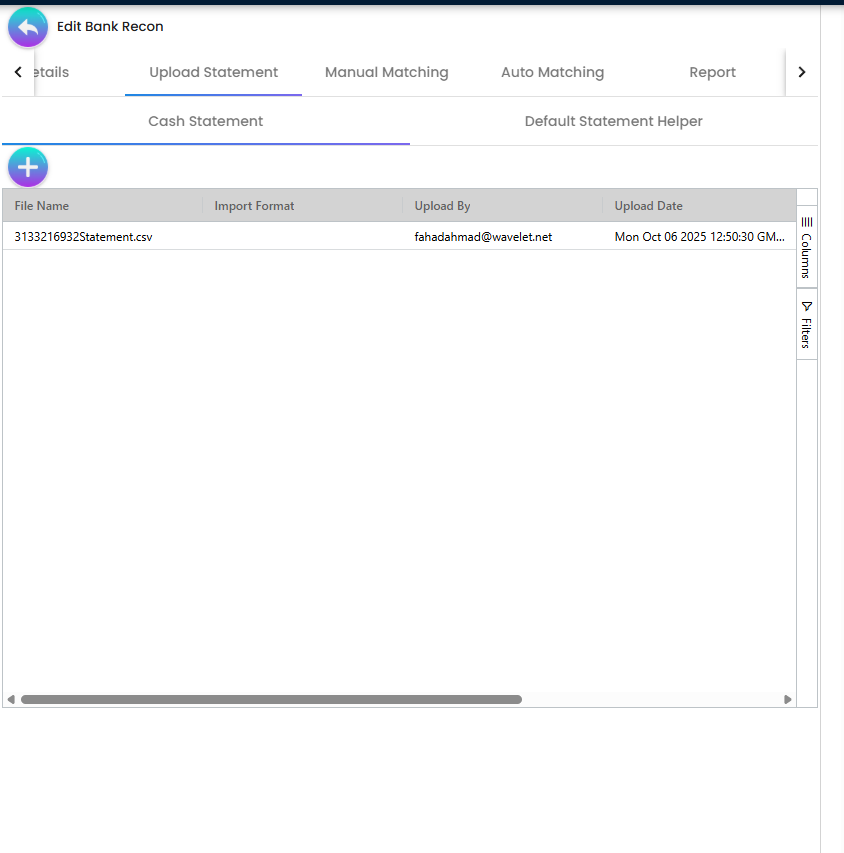
- Uploaded files are listed in a grid with columns like File Name, Import Format, Uploaded By/Date.
- Manual Matching
- Tabs:
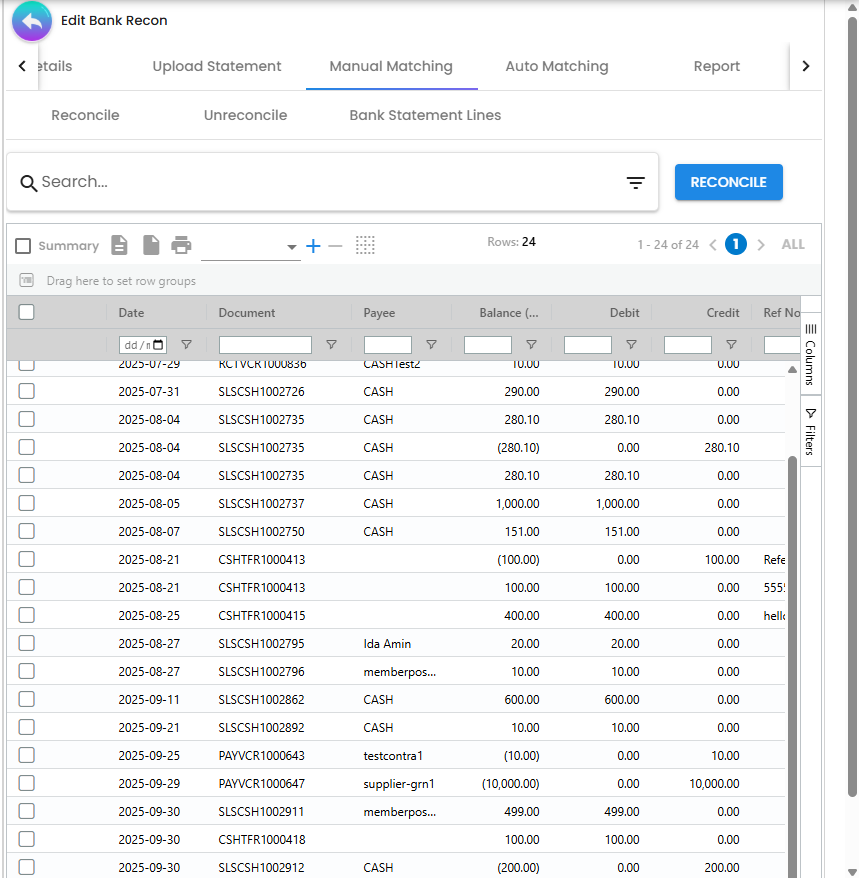
- Reconcile: select cashbook transactions and candidate bank lines, then reconcile.
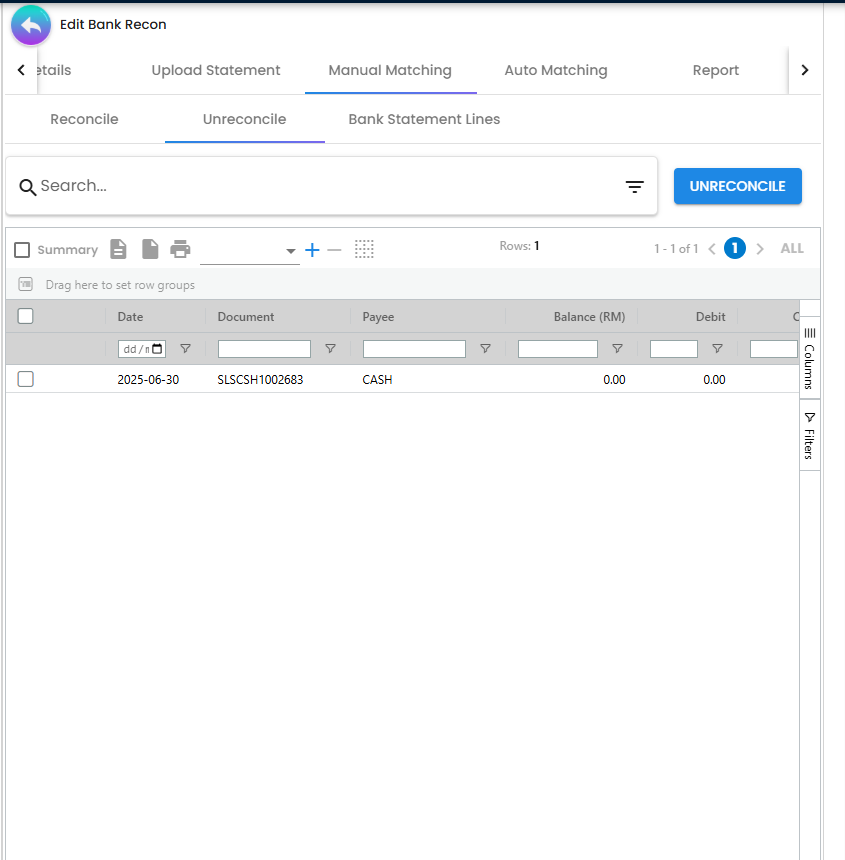
- Unreconcile: view and reverse prior matches.
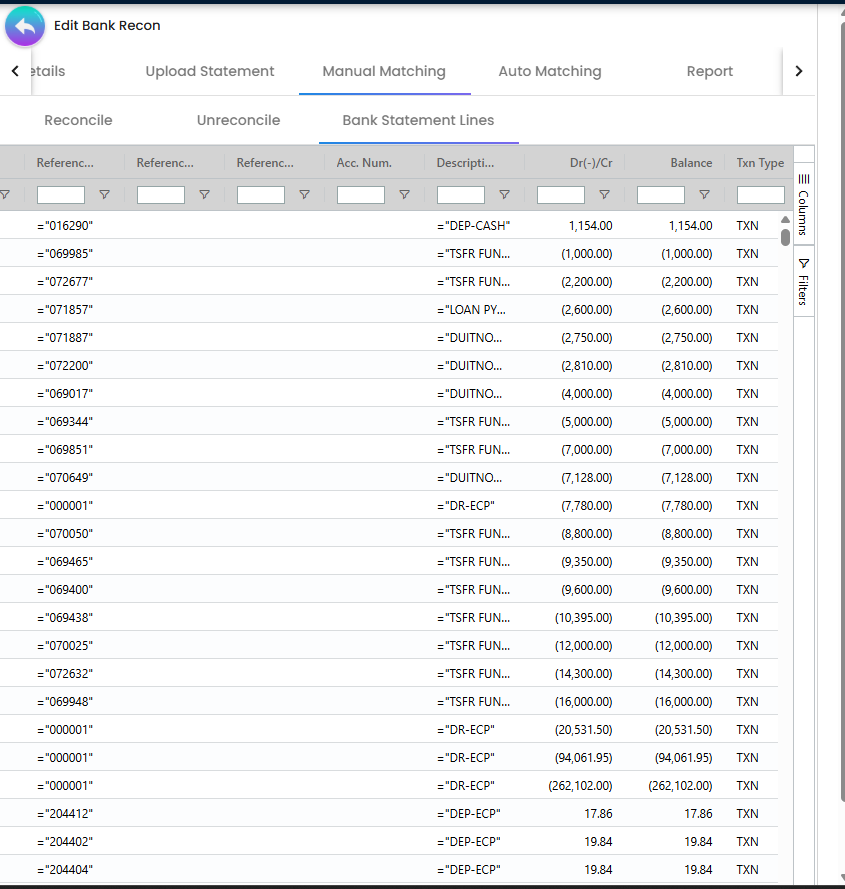
- Bank Statement Lines: inspect parsed statement lines (date, payor/payer, references, description, Dr/Cr, balance, etc.).
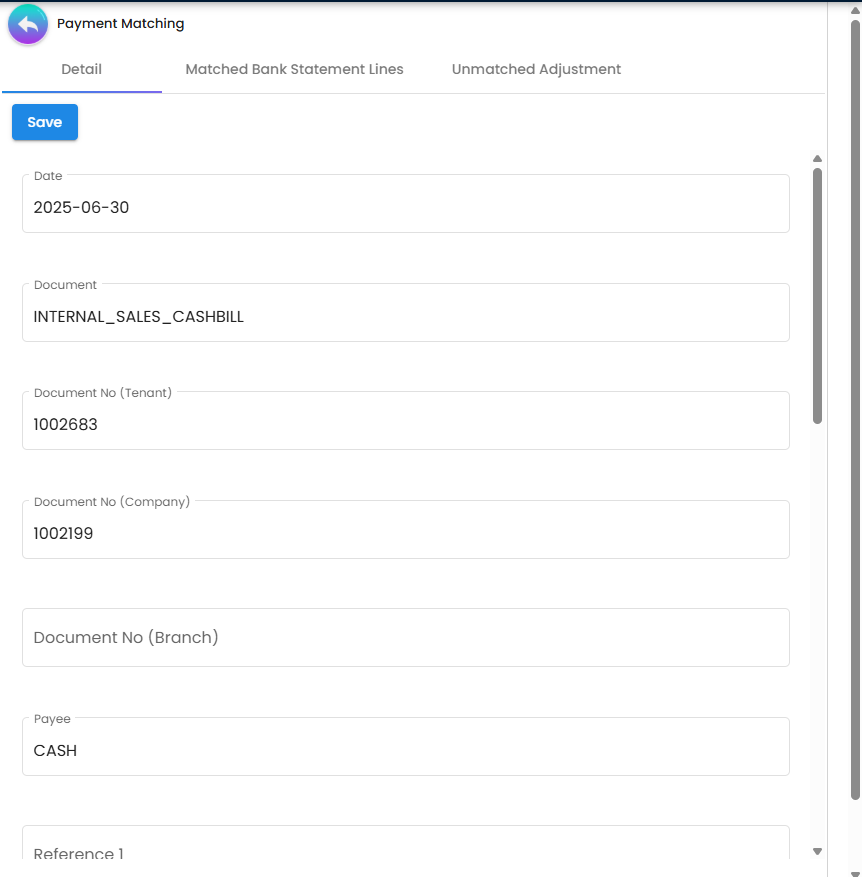
- Payment Matching view (Detail | Matched Bank Statement Lines | Unmatched Adjustment) opens to complete a match, review linked lines, or apply adjustments.
- Auto Matching
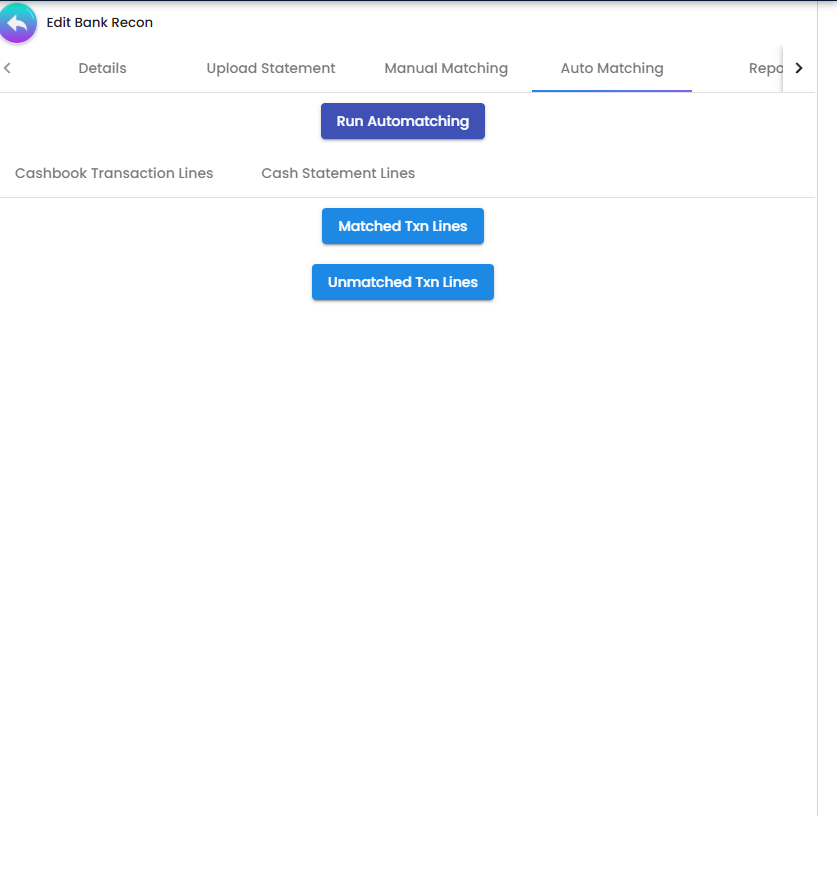
- One‑click Run Automatching executes rules to suggest/link matches.
- Review results via Matched Txn Lines and Unmatched Txn Lines.
- Reporting
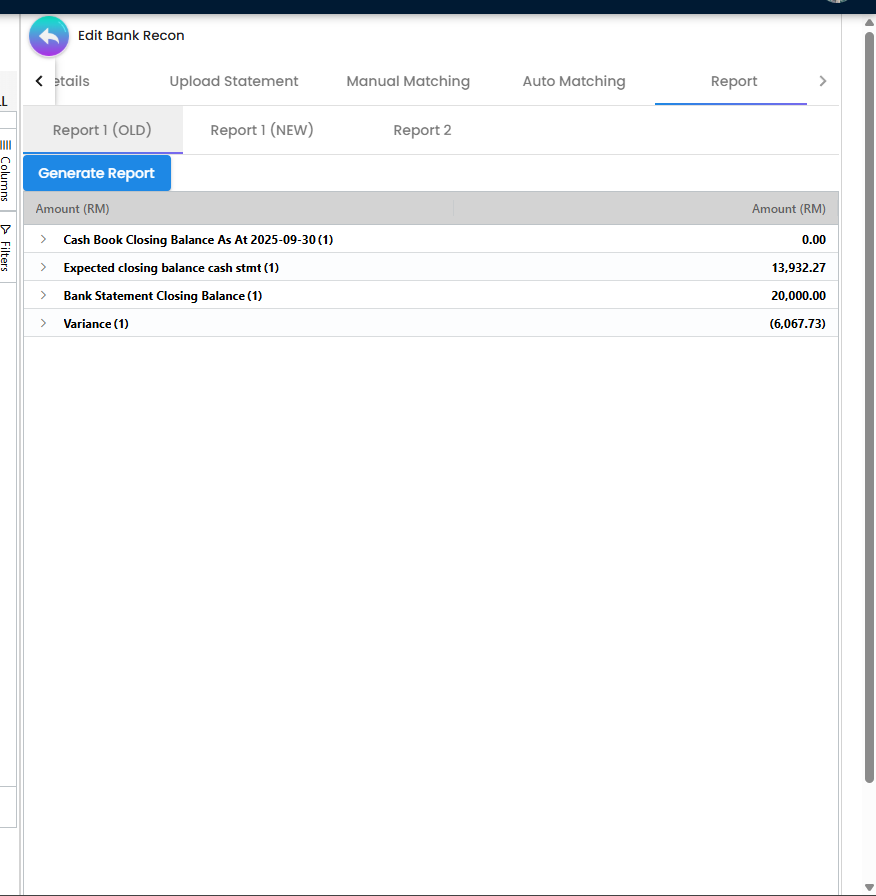
- Report 1 (OLD): compact summary—cashbook closing balance, expected closing per statement, statement closing, and variance.
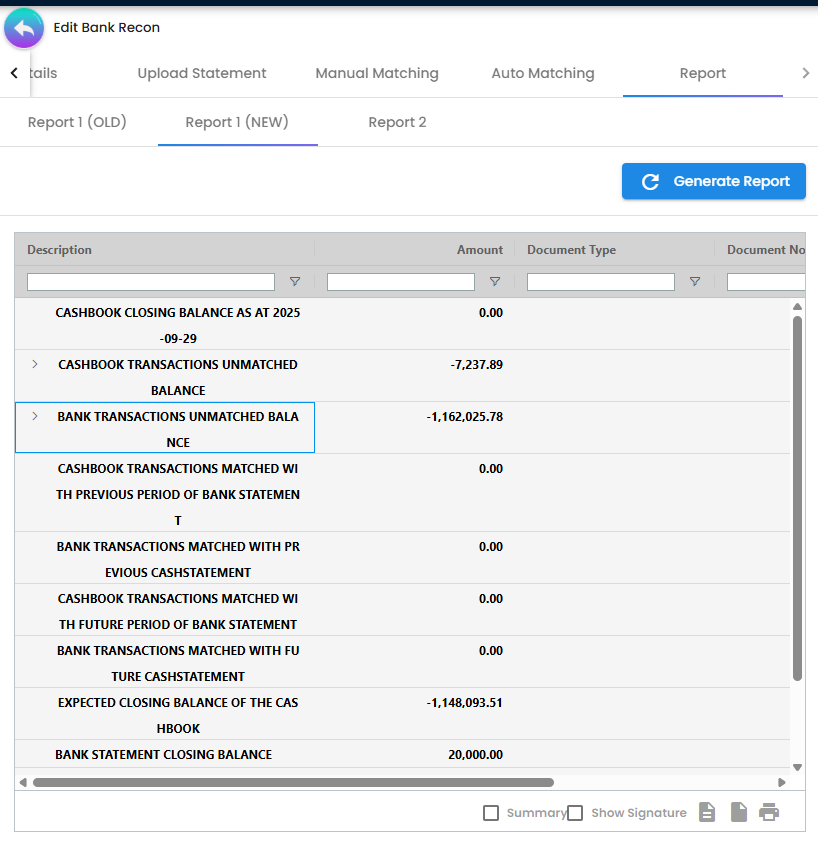
- Report 1 (NEW): grouped details showing unmatched cashbook and statement items with subtotals.
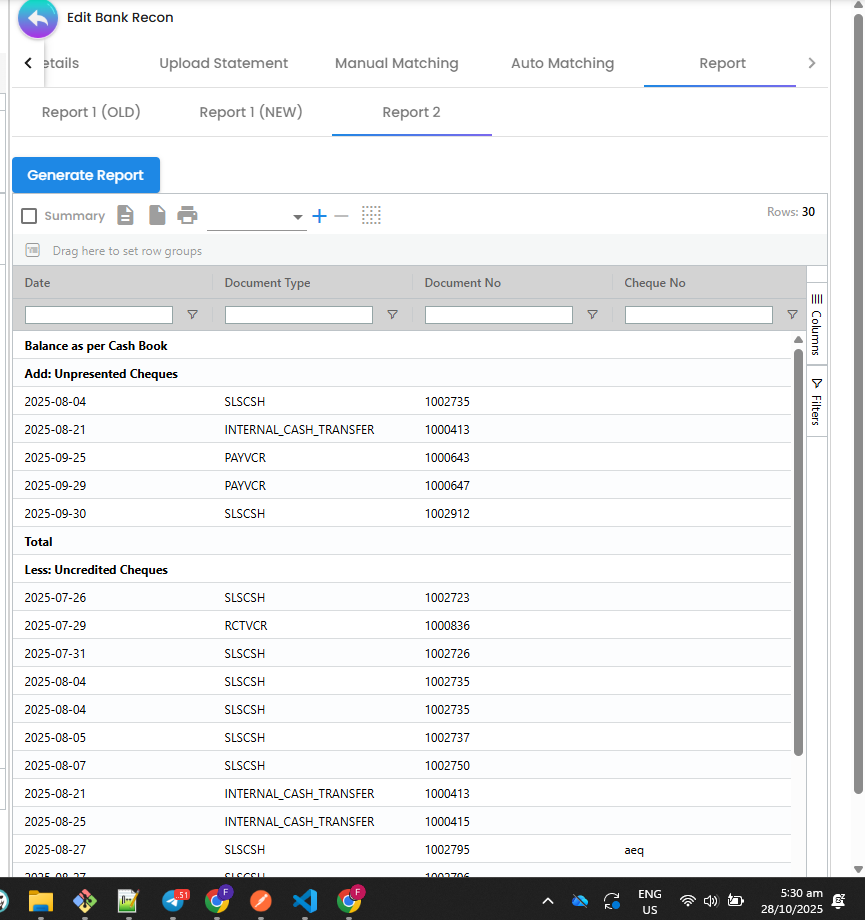
- Report 2: a printable schedule (e.g., Unpresented/Uncredited cheques) with dates, doc numbers, cheque numbers, and totals.
- All reports rely on the same reconciled dataset; outputs are grid‑based and export/print friendly.
- Listings and Grids (Shared)
- AG Grid with search, filters, column chooser, and pagination.
- Numeric columns are right‑aligned; amounts show thousands separators with two decimals.
- Dates render as YYYY‑MM‑DD.
Screens and Workflows
Create a Bank Recon Session
- Open Bank Reconciliation → click “+”.
- Fill required fields:
- Cashbook, Opening Date, Closing Date, Opening Balances (Cashbook and Statement).
- Optional: Company, Branch, Name.
- Observe helper hints (previous/expected closing values); click Create/Save.
Upload Bank Statement(s)
- Go to Upload Statement tab → “+”.
- Pick a Bank format (e.g., Hong Leong Bank variants, Maybank) or “Default Format”.
- Upload the CSV/flat file; the grid lists uploaded statements with metadata.
Manual Matching
- Reconcile tab: select cashbook transactions and matching bank lines, then click Reconcile.
- Unreconcile tab: review previously matched items and undo as needed.
- Bank Statement Lines tab: inspect all parsed lines (helpful when investigating outliers).
- Payment Matching view provides detailed context (document numbers, references) and shows matched/unmatched sets.
Auto Matching
- Click Run Automatching; the system applies matching rules.
- Review Matched Txn Lines to confirm results; inspect Unmatched Txn Lines for follow‑up manual actions.
Reporting
- Open the Report tab and choose a report: Report 1 (OLD), Report 1 (NEW), or Report 2.
- Generate Report to compute the latest figures.
Data Models (conceptual)
Recon Header (selected fields)
- cashbook, opening_date, closing_date
- company, branch, name, status (e.g., Processing)
- opening_balance_cashbook, closing_balance_cashbook (calculated hint)
- opening_balance_statement, closing_balance_statement
- audit: created_by/updated_by, created_date/updated_date
Cashbook Transaction (summary)
- date, document_no, payee/payer, debit, credit, balance, references
- reconciliation flags/links
Bank Statement Line (summary)
- date, payor/payer, description, account_no, references, amount (Dr/Cr), balance
- import format/source, upload metadata
Match Entity (link)
- recon_session_guid, cashbook_txn_guid(s), bank_stmt_line_guid(s)
- method: manual/auto, created_by/date
Form Architecture
- Angular Reactive Forms with required validators for core header fields.
- Number formatting: amounts show two decimals with thousands separators; numeric columns are right‑aligned.
- Date pickers/renderers use YYYY‑MM‑DD.
- Actions (Create/Save/Unreconcile/Reconcile/Run Automatching) are permission‑aware.
Demo Script (quick walkthrough)
- Create Recon
- Bank Reconciliation → “+”.
- Choose Cashbook, set Opening/Closing dates.
- Enter Opening Balances for Cashbook and Statement; note helper values.
- Save.
- Upload Statement
- Upload Statement tab → “+”.
- Select Bank format (or Default) and upload the CSV.
- Confirm it appears in the uploads grid.
- Manual Matching
- Manual Matching → Reconcile: select lines and reconcile.
- Use Payment Matching detail to review document metadata.
- If needed, Unreconcile to revert.
- Auto Matching (optional)
- Auto Matching → Run Automatching.
- Review Matched vs Unmatched sets.
- Reporting
- Report → pick a report → Generate Report.
- Export/print as needed.
Troubleshooting
- Can’t create: ensure required fields (Cashbook, dates, opening balances) are provided.
- No statement lines: verify you selected the correct Bank format for the CSV.
- Wrong matches: use Unreconcile, adjust filters, and re‑match manually or rerun Auto Matching.
- Variance persists: check Report 1 (NEW) for unmatched lists and resolve outstanding items.
Summary
The Bank Reconciliation Applet provides a controlled, auditable process to reconcile cashbooks: define the period, upload statements, match transactions (manually or automatically), and publish reports that explain variances. It standardizes formatting, enables powerful grid filtering, and supports reversibility (unreconcile) for safe, iterative reconciliation.