Blanket Purchase Order Applet
Purpose and Overview
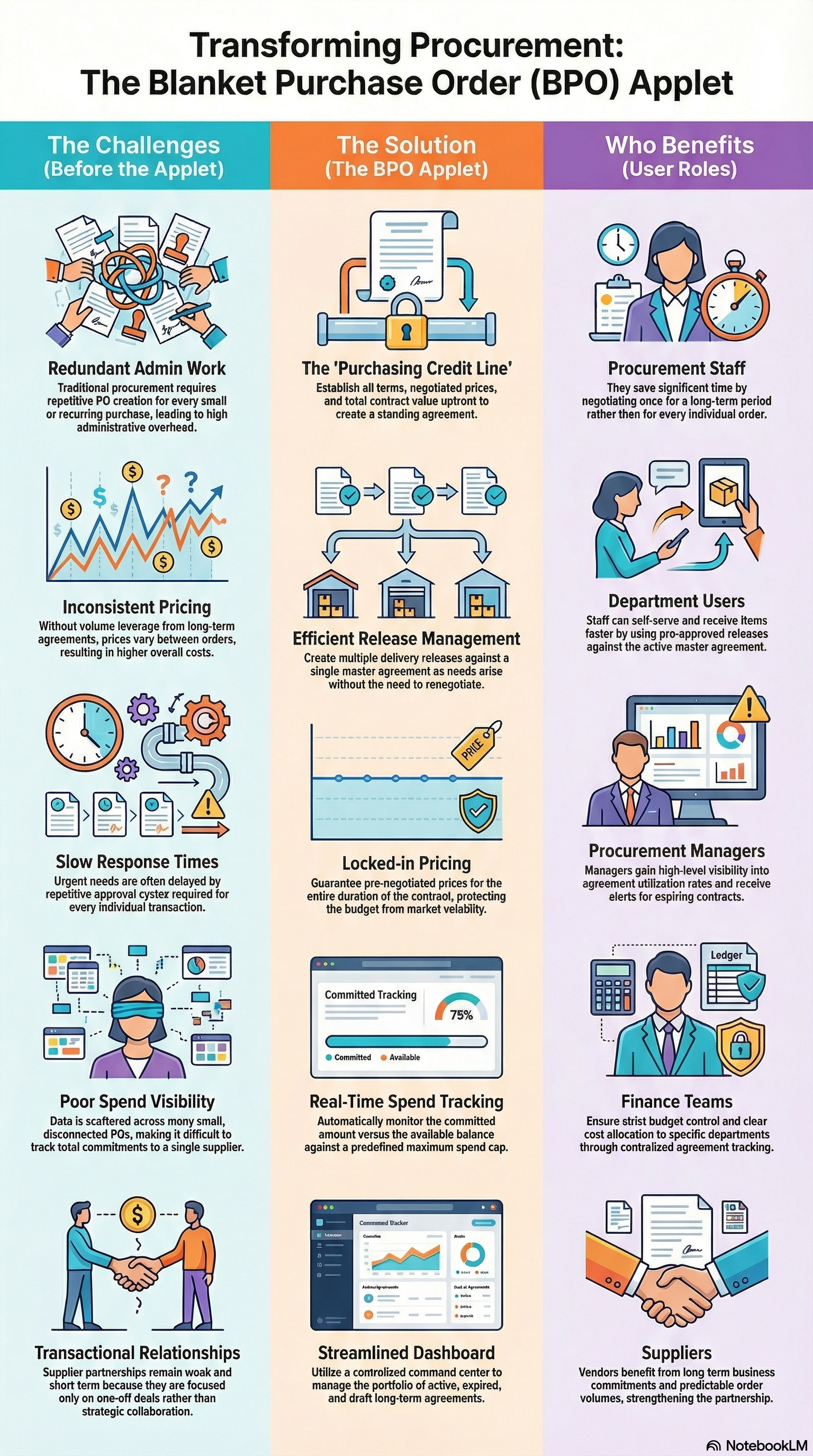
The Blanket Purchase Order Applet streamlines the management of long-term purchase agreements with suppliers. Instead of creating individual purchase orders for recurring needs, you establish a single agreement covering multiple deliveries over time—saving administrative effort, negotiating better prices through volume commitment, and simplifying supplier relationships.
What is a Blanket Purchase Order?
Think of it as a standing agreement with your supplier:
Traditional Approach (Without Blanket PO):
Month 1: Create PO #001 for office supplies → Negotiate → Approve → Order
Month 2: Create PO #002 for office supplies → Negotiate → Approve → Order
Month 3: Create PO #003 for office supplies → Negotiate → Approve → Order
Result: Repetitive work, inconsistent pricing, high admin overhead
Blanket PO Approach:
Jan 1: Create Blanket PO #2024-OFFICE-SUPPLIES
       Agreement: $50,000 over 12 months
       Pre-negotiated prices for 200+ items

Then throughout the year:
Week 5: Release $1,200 → Paper, pens, folders
Week 12: Release $800 → Toner cartridges
Week 20: Release $1,500 → Office chairs
Result: One-time negotiation, consistent pricing, minimal admin work
Key Features Overview
Who Benefits from This Applet?
Procurement Staff:
- Negotiate once, benefit all year with long-term agreements
- Reduce administrative workload by 70%+ (one agreement vs. dozens of POs)
- Build strategic supplier partnerships
- Better pricing leverage through volume commitment
- Clear audit trail for compliance
Department Users & Requesters:
- Fast requisitioning against pre-approved agreements
- No waiting for negotiations or approvals
- Predictable pricing (no budget surprises)
- Self-service release creation
- Clear visibility of available balance
Managers & Approvers:
- Better budget control with maximum spend caps
- Real-time visibility into committed vs. available amounts
- Early warnings for expiring or near-exhaustion agreements
- Simplified approval process (releases, not full POs)
- Spend tracking by department, project, or supplier
Finance & Accounting Teams:
- Accurate budget forecasting and tracking
- Reduced invoice processing time
- Better cash flow management with predictable commitments
- Complete spend visibility by supplier
- Simplified period-end accruals
Suppliers & Vendors:
- Long-term business commitment and revenue predictability
- Reduced quote/proposal effort (one negotiation)
- Faster order fulfillment (pre-approved releases)
- Stronger customer relationships
- Guaranteed volume for better capacity planning
What Problems Does This Solve?
The Manual Procurement Process Problem:
Traditional procurement requires creating individual purchase orders for every transaction—even for routine, recurring purchases from the same supplier. Common issues include:
- Lost in paperwork - Multiple PO approvals clog the system
- Wasted negotiation time - Renegotiating prices for the same items monthly
- Inconsistent pricing - No volume leverage, prices vary between orders
- Delayed fulfillment - Approval bottlenecks slow urgent needs
- Poor spend visibility - Scattered data across dozens of small POs
- Weak supplier relationships - Transactional, not strategic partnerships
- Budget overruns - No central cap on total supplier spend
The Blanket PO Applet Solution:
- Digital agreements - Create long-term contracts with suppliers in minutes
- Automated release management - Departments self-serve without bottlenecks
- Volume-based pricing - Lock in discounts for the entire period
- Spending caps - Built-in maximum amount prevents overruns
- Real-time tracking - Monitor committed vs. available balance instantly
- Complete traceability - Full audit trail from agreement to delivery
- Flexible reporting - Analyze by supplier, department, or time period
- Integration ready - Connects with ERP, accounting, and approval systems
Key Features at a Glance
- Long-term agreements — Define 3-month, 6-month, or yearly purchase contracts
- Maximum value contracts — Set spending caps with automatic tracking
- Release management — Create multiple delivery releases against one agreement
- Pre-negotiated pricing — Lock in prices for the contract duration
- Multi-item contracts — Cover multiple SKUs in a single blanket PO
- Validity period tracking — Monitor active, expiring, and expired agreements
- Spend monitoring — Track committed vs. available balance in real-time
- Flexible releases — Release full quantities or partial amounts as needed
- Supplier relationship — Build long-term partnerships with preferred vendors
- Audit trail — Complete history of all releases against each agreement
Key Concepts
Understanding the Blanket PO Framework
Every blanket purchase order must establish three fundamental agreements. The Blanket Purchase Order Applet provides structured handling:
| Aspect | Component | Practical Example |
|---|---|---|
| Who is the supplier? | Supplier / Account | ABC Office Supplies Ltd. |
| What are we buying? | Line Items with agreed prices | Paper (RM 25/box), Pens (RM 15/pack), Toner (RM 120/unit) |
| How is it managed? | Agreement terms & releases | Max RM 50,000, valid Jan-Dec 2024, release as needed |
Blanket PO Lifecycle
Annual Planning
│
├── Create Blanket PO ──→ WHO supplies and WHEN is it valid?
│   │
│   └── Main Details (Supplier, Validity Period, Max Value, Reference)
│       │
│       └── Account (Supplier entity, Contact person, Delivery address)
│
├── Line Items ──→ WHAT can be purchased?
│   ├── Item Details (code, description, agreed unit price)
│   ├── Maximum quantity (optional)
│   └── Item-specific terms
│
└── Throughout the Period ──→ HOW are purchases made?
    ├── Release #1 (deliver 500 units to Warehouse A)
    ├── Release #2 (deliver 300 units to Branch B)
    └── Release #N (continue until budget exhausted or period ends)
Flow Through the Lifecycle:
- Agreement Creation: Procurement negotiates terms and creates the Blanket PO
- Approval: Management approves the maximum spend and period
- Activation: Blanket PO is finalized and becomes active
- Release Cycle: Requesting departments create releases as needed
- Delivery & Receipt: Goods delivered and received against each release
- Spend Tracking: System tracks cumulative spend vs. maximum value
- Contract Closure: At period end, review utilization and renew or close
This structure enables:
- Centralized negotiation — One team handles pricing for all departments
- Decentralized execution — Departments release as needed without bottlenecks
- Budget certainty — Maximum spend is locked, preventing overruns
- Supplier confidence — Long-term commitment encourages better service
- Fast turnaround — Pre-approved releases ship immediately
The “Agreement Triangle”
To effectively manage blanket purchase orders, understand how Line Items, Releases, and Spend Tracking work together:
| Component | Analogy | Definition | Example |
|---|---|---|---|
| Blanket PO Header | The “Contract” | The overall agreement with terms, supplier, and maximum value | BPO-2024-001: ABC Supplies, RM 50,000, Jan-Dec 2024 |
| Line Item | The “Price List” | Specific products/services covered with agreed prices | Paper at RM 25/box, Pens at RM 15/pack |
| Release/Call-Off | The “Delivery Order” | Individual purchase transaction against the agreement | Release 100 boxes of paper to Warehouse (RM 2,500) |
How they link:
- You create a Blanket PO Header (Supplier, Period, Max Value).
- You add Line Items (products with negotiated prices).
- As needs arise, you create Releases (specific quantities to deliver).
- The system tracks cumulative spend against the maximum value.
- When the maximum is reached or period expires, the agreement closes.
Quick Start Guide
Get up and running quickly with these role-specific workflows.

For Procurement Staff: Create Your First Blanket PO
Goal: Establish a long-term purchase agreement with a supplier in 7 steps.
- Navigate: Go to Blanket Purchase Order from the sidebar
- Create New: Click "+" → A blank Blanket PO form opens
- Fill Main Details:
- Enter Document Number (or use auto-numbering)
- Set Transaction Date to today
- Set Valid From and Valid To dates (e.g., Jan 1 - Dec 31, 2024)
- Enter Reference (e.g., “2024 Office Supplies Agreement”)
- Set Maximum Amount (e.g., RM 50,000)
- Select Branch and Location
- Select Supplier: Go to Account tab → Search and select supplier (e.g., “ABC Office Supplies Ltd.”)
- Add Line Items: Go to Lines tab → Click “Add Line Item”:
- Select item code (e.g., “A4 Paper - 80gsm”)
- Enter agreed Unit Price (e.g., RM 25.00)
- Optional: Enter Maximum Quantity if applicable
- Repeat for all items covered by the agreement
- Assign Department (Optional): Go to Department tab → Assign cost center or department code
- Finalize: Review all details → Click FINAL → Blanket PO is active

What happens next? The Blanket PO is now active. Authorized staff can create releases against it. The system tracks cumulative spend and prevents releases exceeding the maximum value.
Pro Tips:
- Set Realistic Maximum Amounts: Base on historical spend data (review last year’s transactions)
- Add Buffer: Set max at 110-120% of expected spend for flexibility
- Use Round Numbers: RM 50,000 is clearer than RM 47,350 for budget discussions
- Document Supplier Contact: Add key contact details in the Account tab
- Attach Signed Agreement: Upload the supplier-signed contract for audit compliance
Common Mistakes to Avoid:
- Creating Blanket POs without supplier confirmation (get written agreement first)
- Setting unrealistic validity periods (too long = stale pricing, too short = admin overhead)
- Forgetting to add line items (a Blanket PO without items can’t be used)
- Not assigning departments (makes cost tracking difficult later)
For Requesting Departments: Create a Release Against Blanket PO
Goal: Order goods from an active Blanket PO in 4 steps.
- Find Active Blanket PO: Go to Blanket Purchase Order Listing → Filter by Supplier or Item
- Open the Agreement: Click on the relevant Blanket PO → View available balance
- Create Release:
- Go to Doc Link tab
- Click “Create Release” or “Create Purchase Order”
- System pre-fills supplier and pricing from Blanket PO
- Enter required quantity and delivery location
- Submit: Release goes to supplier → Goods delivered → Receive via GRN
Pro Tips:
- Check Available Balance First: Avoid rejected releases due to insufficient budget
- Use Descriptive References: “Marketing Dept - Q1 Materials” vs. “Release 1”
- Attach Supporting Docs: If internal approval needed, attach request form
- Monitor Delivery Status: Follow up on releases stuck in “Sent” for > 5 days
- Coordinate with Team: Share BPO reference number with colleagues to avoid duplicate agreements
What to Do if Balance is Insufficient:
- Check if you selected the correct Blanket PO (maybe another agreement covers this item)
- Review Doc Link tab to see where budget was spent
- Contact Procurement to request budget increase or renewal
- Consider splitting your order across multiple periods if renewal is imminent
For Procurement Managers: Monitor Agreement Utilization
Goal: Track spend and identify expiring agreements in 3 steps.
- Review Active Agreements: Go to Blanket Purchase Order Listing → Filter by Status: “Active”
- Check Utilization:
- Review Committed Amount vs. Maximum Amount for each agreement
- Identify agreements with < 20% utilization (underused) or > 90% (near exhaustion)
- Check Valid To dates to spot expiring agreements (< 30 days remaining)
- Take Action:
- Underused: Investigate why departments aren’t utilizing the agreements
- Near Exhaustion: Coordinate renewal or increase maximum amount
- Expiring Soon: Renew if needed, or let expire and create new agreement with updated terms
Going on Leave? Delegate Blanket PO approval authority to your deputy to avoid blocking urgent releases.
For Finance Teams: Budget Control and Reporting
Goal: Monitor procurement spend against approved budgets.
- Access Blanket PO Reports: Go to Reports or Blanket PO Listing
- Filter by Department/Branch: See committed spend by cost center
- Export for Analysis: Download to Excel for detailed budget variance analysis
- Review Releases: Check Doc Link tab on each Blanket PO to see all releases and their status
What to Watch For:
- Blanket POs approaching 100% utilization (may need budget increase approval)
- Expired Blanket POs with open releases (clean up or extend agreement)
- Duplicate agreements with the same supplier (consolidation opportunity)
For Admins: Initial System Setup
Goal: Get the Blanket PO system ready for your team in 5 steps.
Step 1: Configure Default Branch and Location (Settings > Default Selection)
- Set the default branch and location for new Blanket POs
- Reduces data entry time for procurement staff
Step 2: Set Up Field Configuration (Settings > Application Settings)
- Toggle which fields are required, optional, or hidden
- Customize the Blanket PO form for your workflow
Step 3: Add Printable Formats (Settings > Printable Format Settings)
- Upload templates for Blanket PO documents
- Enable procurement to send professional PDFs to suppliers
Step 4: Configure Permissions (Settings > Permissions)
- Define who can create, approve, and release Blanket POs
- Typically: Procurement creates, Managers approve, Departments release
Step 5: Test End-to-End
- Create a test Blanket PO as procurement staff
- Create a test release as a department user
- Verify approval workflow and reporting
Ongoing: Review utilization reports monthly to optimize agreement management.
New to Blanket POs? Start small:
- Procurement should create 1-2 agreements with high-volume suppliers (office supplies, consumables)
- Train 2-3 department users on creating releases
- Monitor utilization for 1-2 months and refine processes
- Gradually expand to more suppliers and categories
Spend Tracking & Monitoring
Monitor your agreement budgets and utilization rates in real-time.
What is Spend Tracking?
Spend Tracking shows procurement staff, managers, and finance teams how much of each Blanket PO’s maximum amount has been committed through releases and what remains available. Think of it as your “agreement budget dashboard.”
For Procurement Staff:
- See which agreements are being actively used vs. underutilized
- Identify agreements approaching exhaustion (need renewal)
- Spot unusual spending patterns that require investigation
- Demonstrate value delivered (cost savings, efficiency gains)
For Department Users:
- Check available balance before creating releases
- Avoid rejected releases due to insufficient budget
- Plan requisitions across the remaining agreement period
For Managers:
- Monitor team spending against approved budgets
- Get early warnings for agreements needing renewal
- Track utilization rates to optimize future agreements
- Identify opportunities to consolidate spend
For Finance Teams:
- Real-time visibility into procurement commitments
- Accurate accrual forecasting for financial close
- Budget consumption tracking by supplier, category, department
- Audit trail for compliance and variance analysis
How to Check Spend Status
Method 1: BPO Listing View
- Go to Blanket Purchase Order Listing
- See at-a-glance spend data for each agreement:
- Maximum Amount: Budget ceiling (e.g., RM 50,000)
- Committed Amount: Total releases created (e.g., RM 13,550)
- Available Balance: Remaining budget (e.g., RM 36,450)
- Utilization %: Percentage consumed (e.g., 27%)
Visual Example:
BPO-2024-001 | ABC Office Supplies      | RM 50,000 | RM 13,550 | RM 36,450 | 27%  | Active
BPO-2024-002 | XYZ Steel Trading       | RM 500,000| RM 475,000| RM 25,000 | 95%  | Critical!
BPO-2024-003 | Tech Solutions Inc      | RM 120,000| RM 45,000 | RM 75,000 | 38%  | Healthy
BPO-2024-004 | Corporate Uniforms Ltd  | RM 150,000| RM 8,500  | RM 141,500| 6%   | Underused
Method 2: Individual BPO Detail View
- Open any Blanket PO
- View the Header section for spend summary
- Go to Doc Link tab to see itemized releases
Visual Spend Dashboard:
Blanket PO: ABC Office Supplies - 2024 Annual Agreement
━━━━━━━━━━━━━━━━━━━━━━━━━━━━━━━━━━━━━━━━━━━━━━━━━━━━━━━
Maximum Amount:     RM 50,000.00
Committed to Date:  RM 13,550.00 (27%)
Available Balance:  RM 36,450.00 (73%)
Valid Period:       Jan 1 - Dec 31, 2024 (4 months elapsed, 8 months remaining)

[████████░░░░░░░░░░░░░░░░] 27% utilized

Status: HEALTHY ✓

Recent Releases (Last 5):
- Mar 15: RM 1,550 (Office supplies) - Approved
- Mar 8:  RM 950  (Stationery)      - Received
- Feb 22: RM 800  (Paper & pens)     - Invoiced
- Feb 10: RM 1,200 (Folders)         - Delivered
- Jan 28: RM 2,050 (Mixed items)     - Invoiced
Key Spend Tracking Features
Real-Time Updates:
- Balance updates immediately after each release is created
- No manual calculation needed—system tracks automatically
- Prevents accidental over-commitment
Multi-Currency Support:
- View balances in MYR, USD, SGD, or other currencies
- Auto-conversion for consolidated reporting
- Exchange rate tracking for foreign suppliers
Breakdown by Category:
- Supplier-level: Total spend across all BPOs with a supplier
- Department-level: Total spend by cost center
- Category-level: Office Supplies vs. Raw Materials vs. Services
- Time period: Monthly, quarterly, or yearly trends
Validity Period Tracking:
- See how long the agreement has left
- Calculate burn rate (spending pace)
- Predict if budget will last until period end
Release Status Visibility:
- Drafted: Created but not sent
- Submitted: Awaiting supplier confirmation
- Approved: Confirmed by supplier
- Received: Goods delivered
- Invoiced: Payment processed
Common Spend Monitoring Scenarios
Scenario 1: Planning Your Department’s Requisitions
Your team's needs for Q2: RM 15,000

Check Blanket PO status:
Maximum:   RM 50,000
Committed: RM 35,000 (70% used)
Available: RM 15,000

Analysis: Exactly enough! But...
- 2 more pending releases totaling RM 3,000
- Actual available: RM 12,000

Decision:
- Release urgent items first (RM 8,000)
- Defer nice-to-have items until renewal or create separate BPO
Scenario 2: Procurement Manager Monthly Review
Monthly Check (Day 1 of month):

BPO Status Overview:
┌─────────────────────────────────────────────────────────────┐
│ 15 Active Agreements                                         │
│ - 3 at >90% utilization → URGENT: Plan renewals            │
│ - 8 healthy (40-75% utilization)                            │
│ - 4 underutilized (<20% after 6 months) → Investigate why   │
│                                                              │
│ Expiring Soon (next 30 days): 2 agreements                  │
│ - Contact suppliers for renewal quotes this week            │
└─────────────────────────────────────────────────────────────┘

Actions:
1. Call suppliers for 3 near-exhaustion BPOs
2. Email departments about 4 underutilized agreements
3. Prepare renewal proposals for 2 expiring BPOs
Scenario 3: Finance Period-End Accruals
Task: Calculate procurement commitments for March financial close

Steps:
1. Export all Active Blanket POs
2. Sum "Committed Amount" across all agreements: RM 2.5M
3. Filter for uncommitted balance: RM 1.2M
4. Analyze:
   - RM 2.5M committed → Will need payment within 30-60 days
   - RM 1.2M uncommitted → Flexible (can roll forward)
5. Report to CFO: "Open purchase commitments: RM 2.5M"
Scenario 4: Supplier Performance Review
Question: "Should we renew with Supplier XYZ for another year?"

Data from Spend Tracking:
- BPO Value: RM 200,000 for 12 months
- Actual Utilization: RM 85,000 (43%) → Underutilized
- Release Count: 24 releases
- Average Release: RM 3,542

Analysis:
- Either: We overestimated need (reduce next year's BPO to RM 100K)
- Or: Departments aren't using it (pricing not competitive?)
- Or: Alternative supplier emerged mid-year

Action: Survey departments before renewal decision
Utilization Health Indicators
The system categorizes agreements into health zones based on utilization and time remaining:
| Utilization % | Time Elapsed | Status | Interpretation | Action |
|---|---|---|---|---|
| 0-25% | <50% of period | Slow Start | Normal if just started | Monitor |
| 0-25% | >50% of period | Underutilized | Budget too high or not communicated | Investigate |
| 26-50% | Any | Moderate | Reasonable pacing | Monitor |
| 51-75% | Any | Good | Healthy usage | Continue |
| 76-90% | <75% of period | High | Fast burn rate | Watch closely |
| 91-99% | Any | Critical | Nearly exhausted | Renew urgently |
| 100% | Any | Exhausted | No more releases possible | New BPO required |
Visual Health Dashboard:
Your Blanket PO Portfolio Health (15 Agreements):

Status Distribution:
━━━━━━━━━━━━━━━━━━━━━━━━━━━━━━━━━━━━━━━━━
 4 | Healthy      ████████████  (27%)
 6 | Good         ████████████████████████  (40%)
 2 | Moderate     ████████  (13%)
 1 | Underutilized ████  (7%)
 2 | Critical     ████████  (13%)
━━━━━━━━━━━━━━━━━━━━━━━━━━━━━━━━━━━━━━━━━

Action Items:
⚠️  3 agreements need immediate attention
✓  10 agreements are on track
ℹ️  2 agreements need investigation
Best Practices for Spend Monitoring
Daily (5 minutes):
- Quick scan of new releases created
- Check for any agreements hitting 100% utilization
Weekly (15 minutes):
- Review agreements approaching 80%+ utilization
- Check for pending releases stuck in Submitted status
- Monitor agreements expiring in next 45 days
Monthly (1 hour):
- Deep analysis of utilization rates vs. planned pace
- Identify underutilized agreements (training issue? communication gap?)
- Supplier performance review (on-time delivery, quality)
- Budget vs. actual variance analysis
- Prepare renewal pipeline for expiring agreements
Quarterly (2 hours):
- Portfolio review with department heads
- Consolidation opportunities (can we combine agreements?)
- Category spend analysis (are we getting best pricing?)
- Forecast next quarter’s budget needs
- Executive summary for leadership
Tips for Effective Spend Tracking
For Procurement Staff:
- Set Up Alerts: Configure system to email you when agreements hit 85% and 95% utilization
- Use Filters Smartly: Create saved views (“Expiring Soon”, “High Utilization”, “Underused”)
- Track Trends: Compare this year’s spending patterns to last year—spot anomalies early
- Document Assumptions: When setting maximum amounts, note the basis (helps with next year’s budgeting)
For Department Users:
- Check Before You Release: Always verify available balance before creating release requests
- Respect the Budget: If balance is low, coordinate with other departments sharing the BPO
- Report Issues: If you can’t find a needed item in the BPO, tell Procurement immediately
- Use Descriptive References: Help Procurement track which dept/project is consuming budget
For Finance Teams:
- Export Regularly: Download utilization reports weekly for trending analysis
- Reconcile with AP: Match committed amounts to supplier invoices received
- Forecast Accruals: Use uncommitted balances to estimate period-end liabilities
- Variance Analysis: Investigate agreements with >20% variance from planned consumption
Common Questions
Q: Why is my available balance lower than expected?
A: Pending releases (created but not yet received/invoiced) consume the balance immediately to prevent over-commitment. Check the Doc Link tab for pending releases.
Q: Can I increase the maximum amount mid-period?
A: Depends on your organization’s policy. Some allow amendments with approval; others require creating a new Blanket PO. Consult your procurement policy or system admin.
Q: What happens if I try to create a release exceeding the available balance?
A: The system will block the release and show an error: “Insufficient balance. Available: RM X, Requested: RM Y.” You’ll need to reduce the release amount or request a BPO amendment.
Q: How do I track spending by department across multiple Blanket POs?
A: Use the reporting feature to filter by Department and export. You can also assign departments to releases, then aggregate by department in your analysis.
Q: Does voiding a release restore the available balance?
A: Yes. When a release is voided or canceled, the committed amount is released back into the available balance automatically.
##Blanket Purchase Order Listing - Your Agreements Dashboard
What is the BPO Listing?
This is your central command center for all purchase agreements—active, expired, and draft. Think of it as your “contract portfolio view.”

What You Can Do:
- View all Blanket POs with status (Draft, Active, Expired, Voided)
- Filter by supplier, branch, department, or validity dates
- See spend utilization (Committed Value vs. Maximum Value)
- Identify expiring agreements (< 30 days remaining)
- Create new Blanket POs or edit drafts
- Generate reports on agreement utilization
Key Columns Explained:
| Column | What It Means | Why It Matters |
|---|---|---|
| Document No | Unique Blanket PO number | Reference for releases and reporting |
| Supplier | Agreement partner | Quick identification of supplier relationships |
| Valid From / To | Contract period | Spot expiring agreements at a glance |
| Maximum Amount | Spending cap | Budget control—cannot exceed this |
| Committed Amount | Total releases to date | Real-time spend tracking |
| Available Balance | Remaining budget | Know how much you can still spend |
| Status | Agreement state | Draft / Active / Expired / Voided |
| Final Date | When agreement was activated | Audit trail |
Common Scenarios:
Scenario 1: Finding an Agreement to Release Against
Task: Department needs to order office supplies

Steps:
1. Open Blanket Purchase Order Listing
2. Filter: Supplier = "ABC Office Supplies"
3. Check: Status = "Active" and Available Balance > 0
4. Open agreement → Create release
Scenario 2: Identifying Expiring Agreements
Task: Avoid disruption from expired contracts

Steps:
1. Open BPO Listing
2. Filter: Valid To = "Next 30 days"
3. Review list of expiring agreements
4. Contact suppliers to renew critical agreements
5. Create new Blanket POs with updated terms
Scenario 3: Per Utilization Review
Task: Identify underused agreements (wasted effort)

Steps:
1. Open BPO Listing
2. Calculate: Committed Amount / Maximum Amount
3. Flag agreements with < 20% utilization after 3+ months
4. Investigate: Why isn't the department using it?
5. Action: Either promote usage or cancel and free up budget
Best Practices:
- Daily 5-Minute Check: Quick scan of new releases and status changes
- Weekly 15-Minute Review: Check expiring agreements and utilization rates
- Monthly Deep Dive: Analyze spend patterns, supplier performance, and budget consumption
- Use Smart Filters: Create saved filter views for common queries (“Expiring in 30 Days”, “Near Exhaustion >90%”)
- Monitor Near-Exhaustion: Agreements at >90% utilization need urgent action
- Clean Up Drafts: Delete or finalize draft Blanket POs older than 30 days
- Document Decisions: Use the Notes/Attachments section to record why agreements were created or modified
- Set Reminders: Calendar alerts 45 days before major agreements expire
Red Flags to Watch For:
- Blanket PO at 95%+ utilization with >60 days remaining (budget underestimated)
- Multiple agreements with same supplier (consolidation opportunity?)
- <20% utilization after 50% of period elapsed (overestimated or not communicated to departments)
- Draft agreements older than 2 weeks (stuck in approvals or forgotten?)
Line Items - What You’re Buying
What are Line Items?
Line items define what products or services are covered by the Blanket PO and at what pre-negotiated prices. This is your “shopping catalog” for the agreement period.

Key Fields:
| Field | Purpose | Example |
|---|---|---|
| Item Code | Product/service identifier | PAPER-A4-80GSM |
| Description | What it is | A4 Paper - 80gsm White |
| Unit Price | Agreed price per unit | RM 25.00 per box (500 sheets) |
| UOM | Unit of measure | Box, Each, Kg, Litre |
| Maximum Quantity (Optional) | Quantity cap for the period | 1,000 boxes (prevents over-ordering) |
| Tax Code | Applicable tax | SST, VAT, GST |
How Line Items Work:
Without Maximum Quantity:
- You can release unlimited quantities (up to the overall Blanket PO maximum value)
- Example: “Paper at RM 25/box” — release as much as you need until RM 50,000 total is reached
With Maximum Quantity:
- You set a specific quantity limit for that item
- Example: “Paper at RM 25/box, max 1,000 boxes” — system prevents releasing more than 1,000 boxes even if budget remains
When to Use Maximum Quantity:
- When supplier offers volume discounts only up to certain quantities
- When storage space limits how much you can receive
- When you want to force variety (don’t spend entire budget on one item)
Adding Line Items:
Step-by-Step:
- Go to Lines tab in the Blanket PO
- Click “Add Line Item”
- Select Item: Choose from inventory master or enter custom description
- Enter Unit Price: The negotiated price (this locks the price for all releases)
- Set UOM: Ensure it matches your inventory unit
- Optional - Set Maximum Quantity: If you want a quantity cap
- Set Tax Code: Select applicable tax treatment
- Save → Line item added to agreement
Repeat for all products/services covered by the Blanket PO.
Common Scenarios:
Scenario 1: Office Supplies Agreement (No Quantity Limits)
Blanket PO: ABC Office Supplies - RM 50,000 - 12 months

Line Items:
1. A4 Paper (500 sheets/box) - RM 25.00/box - No max qty
2. Ballpoint Pens (12/pack) - RM 15.00/pack - No max qty
3. Staples (1000/box) - RM 8.00/box - No max qty
4. Folders (10/pack) - RM 20.00/pack - No max qty

Usage: Departments release as needed until RM 50,000 total is spent
Scenario 2: Steel Supply Agreement (With Quantity Limits)
Blanket PO: XYZ Steel Ltd - RM 2,000,000 - 6 months

Line Items:
1. Steel Grade A (per tonne) - RM 3,500/ton - Max 400 tons
2. Steel Grade B (per tonne) - RM 3,200/ton - Max 300 tons
3. Steel Rebar (per tonne) - RM 2,800/ton - Max 200 tons

Rationale: Supplier offers these prices only up to specified volumes;
beyond that, pricing changes or availability uncertain.
Scenario 3: IT Services Agreement (Service-Based)
Blanket PO: Tech Solutions Inc - RM 120,000 - 12 months

Line Items:
1. Server Maintenance (per hour) - RM 200/hour - Max 400 hours
2. Help Desk Support (per ticket) - RM 50/ticket - No max
3. Network Cabling (per point) - RM 150/point - Max 200 points

Usage: IT department releases as projects arise
Tips for Defining Line Items:
- Be Specific: “A4 Paper - 80gsm White, 500 sheets/box” is better than “Paper”
- Include Specifications: “HP CF217A Black Toner” vs. “Toner” prevents order errors
- Lock Competitive Prices: Once unit price is in the Blanket PO, it won’t change even if market prices rise (your protection)
- Use Maximum Quantities Strategically: For volatile items where you want flexibility to renegotiate if volumes change
- Include Common Variants: Cover all sizes/colors in one Blanket PO rather than creating multiple agreements
- Standardize UOM: Ensure Unit of Measure matches your inventory system (Box vs. Piece, Kg vs. Litre)
- Document Item Codes: Use supplier’s item codes in description for faster order processing
- Review Periodically: Remove never-released items on renewal to simplify the agreement
Common Line Item Mistakes:
- Vague descriptions leading to wrong items delivered
- UOM mismatches (ordered “pieces” but supplier ships “boxes”)
- Forgetting to link item to the Blanket PO account (system won’t allow releases)
- Setting maximum quantities too low (causes premature exhaustion)
- Not including tax codes (invoice reconciliation nightmares)
Doc Link - Tracking Releases and Related Documents
What is Doc Link?
The Doc Link tab shows all releases (call-offs, delivery orders, or purchase orders) created against this Blanket PO. It’s your transaction history—connecting the master agreement to actual purchases.

What You Can See:
- All releases created from this Blanket PO
- Release dates and amounts
- Cumulative spend vs. available balance
- Status of each release (Draft, Sent, Received, Invoiced)
- Quick navigation to release documents
Common Release Scenarios:
Scenario 1: Department Creates a Release
Active Blanket PO: Office Supplies - RM 50,000 total
Current Committed: RM 12,000
Available Balance: RM 38,000

Department Action:
1. Open Blanket PO → Doc Link tab
2. Click "Create Release" or "Create Purchase Order"
3. System pre-fills:
   - Supplier: ABC Office Supplies
   - Pricing: From Blanket PO line items
4. Enter quantities needed:
   - 50 boxes of A4 Paper @ RM 25 = RM 1,250
   - 20 packs of Pens @ RM 15 = RM 300
   Total Release: RM 1,550
5. Submit → Supplier receives order

Updated Blanket PO:
- Committed: RM 13,550 (was RM 12,000)
- Available: RM 36,450 (was RM 38,000)
Scenario 2: Tracking Multiple Releases Over Time
View in Doc Link Tab:

Release #1 - Jan 15 - RM 1,200 - Status: Received
Release #2 - Jan 28 - RM 800 - Status: Invoiced
Release #3 - Feb 10 - RM 1,550 - Status: Sent
Release #4 - Feb 22 - RM 950 - Status: Draft
...

Total Released: RM 13,550 of RM 50,000 (27% utilized)
Visual Spend Tracking:
Blanket PO: Office Supplies 2024
━━━━━━━━━━━━━━━━━━━━━━━━━━━━━━━━━━━━━━━━━━━━
Maximum:    RM 50,000
Committed:  RM 13,550 (27%)
Available:  RM 36,450 (73%)

[███████░░░░░░░░░░░░░░░░] 27% utilized

Status: HEALTHY ✓ (plenty of budget remaining)
Utilization Health Indicators:
| Utilization % | Status | Action Required |
|---|---|---|
| 0-50% | Healthy | Monitor normally |
| 51-75% | Good | Track more frequently |
| 76-90% | Caution | Plan renewal/extension |
| 91-99% | Critical | Immediate action needed |
| 100% | Exhausted | Create new agreement |
Key Benefits of Doc Link Tracking:
- Complete Audit Trail: See every transaction against the agreement
- Spend Visibility: Real-time tracking of committed vs. available budget
- Fast Navigation: Click on any release to view or edit details
- Status Monitoring: Know which releases are pending, received, or invoiced
- Supplier Performance: Identify delivery delays or issues by tracking release fulfillment
Tips:
- Review Regularly: Check Doc Link tab weekly to monitor utilization patterns
- Close Old Releases: Mark completed releases as “Closed” to keep the list clean
- Use Release References: Add clear references (e.g., “Manufacturing Floor - Week 8”) for easy tracking
- Monitor Pending: Follow up on releases stuck in “Sent” status for too long
Department Assignment
Why Assign Departments?
Department assignment allocates the Blanket PO (and its releases) to specific cost centers for accounting and budgeting purposes.
Use Cases:
- Budget Allocation: Track which department’s budget is being consumed
- Cost Control: Limit release creation to authorized departments
- Financial Reporting: Generate spend reports by department or cost center
- Charge-Back: Allocate supplier invoices to the correct department for internal billing
How to Assign:
- Go to Department tab in the Blanket PO
- Select Department or Cost Center from dropdown
- Save → All releases against this Blanket PO will inherit this assignment
Tip: For multi-department agreements (e.g., company-wide IT services), you can either:
- Assign at release level (each department creates their own releases)
- Use a central “Procurement” department and re-allocate costs later via journal entries
Export and Attachments
Export - Professional Documents
Generate PDF documents for:
- Sending formal Blanket PO agreements to suppliers
- Internal approval documentation
- Audit records
How to Export:
- Go to Export tab
- Select Printable Format (e.g., “Standard Blanket PO”, “Supplier Copy”)
- Click Export as PDF
- Email to supplier or save for records
Attachments - Supporting Documentation
Store all agreement-related files:
- Supplier quotes and proposals
- Signed contracts
- Approval emails
- Negotiation correspondence
- Supplier certifications
How to Add Attachments:
- Go to Attachments tab
- Click “Add Attachment”
- Upload file (PDF, Excel, Word, images)
- Add description
- Save
Best Practice: Attach the signed supplier agreement copy for audit compliance.
Configuration & Settings
The Settings page provides system-wide configuration for the Blanket Purchase Order Applet. Navigate via Settings in the sidebar.
Application Settings
What Are Application Settings?
Application Settings control the core behavior of the Blanket PO Applet—what features are available, which fields are mandatory, and how the workflow operates.
Feature Visibility (Settings > Application Settings > Feature Visibility)
Control which navigation menu items and features users can access.
| Feature | Description | When to Hide |
|---|---|---|
| BPO Listing | Main dashboard of all agreements | Never (core feature) |
| Create BPO | Button to create new Blanket POs | For users who only create releases |
| Reports | Analytics and reporting section | For basic users |
| Settings | Admin configuration area | For non-admin users |
| Doc Link | Release tracking tab | Never (essential for monitoring) |
| Department Assignment | Cost center allocation | If not using department tracking |
How to Configure:
- Go to Settings > Application Settings > Feature Visibility
- Toggle features ON/OFF for different user roles
- Click Save
Field Configuration (Settings > Application Settings > Field Configuration)
Control field-level behavior on Blanket PO forms. For each field, set it as:
| Field State | Behavior | When to Use |
|---|---|---|
| Required | Must be filled before saving | Critical data (Supplier, Valid From/To, Maximum Amount) |
| Optional | Shown but can be left blank | Nice-to-have data (Reference Number, Notes) |
| Hidden | Removed from view entirely | Features not used by your organization |
Recommended Field Settings:
| Field Name | Recommended State | Reason |
|---|---|---|
| Document Number | Required | Unique identifier for tracking |
| Supplier | Required | Core agreement component |
| Valid From | Required | Start date mandatory |
| Valid To | Required | End date mandatory |
| Maximum Amount | Required | Budget control essential |
| Currency | Required | Financial clarity |
| Branch | Optional/Required | Depends on multi-branch setup |
| Location | Optional | Only if inventory location matters |
| Reference | Optional | For cross-referencing with external systems |
| Department | Optional/Required | Depends on cost tracking needs |
| Description/Notes | Optional | Free-text annotation |
How to Configure:
- Go to Settings > Application Settings > Field Configuration
- For each field, select Required, Optional, or Hidden
- Click Save Changes
- Test by creating a Blanket PO to verify behavior
Approval Workflow (Settings > Application Settings > Approval Workflow)
Define who must approve Blanket POs before they become active.
Workflow Components:
| Component | Purpose | Example |
|---|---|---|
| Approval Levels | Sequential approvers | Level 1: Manager → Level 2: Finance → Level 3: CFO |
| Amount Thresholds | Trigger extra approvals for high-value agreements | > RM 100,000 requires CFO approval |
| Department-Based Routing | Route to different approvers by department | Marketing Dept → Marketing Manager |
| Document Status Triggers | Actions that trigger approvals | Changing status from Draft → Submitted |
Common Approval Scenarios:
Scenario 1: Small Organization (Single Approver)
All Blanket POs → Procurement Manager → Finance Officer → ActiveScenario 2: Large Organization (Tiered by Amount)
< RM 50,000     → Department Manager → Active
RM 50K - 100K   → Department Manager → Procurement Manager → Active
> RM 100,000    → Department Manager → Procurement Manager → CFO → Active
Scenario 3: Release-Level Approval
Blanket PO Creation → Procurement Manager (one-time approval)
Each Release       → Department Manager (ongoing approval as needed)
How to Configure:
- Go to Settings > Application Settings > Approval Workflow
- Click “Add Approval Level”
- Define:
- Level: 1, 2, 3 (sequential order)
- Approver Role: Select from roles/users
- Conditions: Amount thresholds, departments, etc.
- Click Save
- Test with a sample Blanket PO
Best Practices:
- Keep It Simple: Too many approval levels = delays and frustration
- Use Amount Thresholds: Small agreements shouldn’t need CFO approval
- Set Backup Approvers: Avoid bottlenecks when approvers are on leave
- Document the Process: Create a flowchart for employees to understand routing
- Review Quarterly: Remove unnecessary approval steps that add no value
Auto-Numbering (Settings > Application Settings > Auto-Numbering)
Configure automatic document number generation for Blanket POs.
| Field | Purpose | Example |
|---|---|---|
| Prefix | Start of document number | BPO- |
| Number Format | Padding and structure | 0000 (4 digits) |
| Suffix | End of document number (optional) | -2024 |
| Starting Number | First number in sequence | 1 (results in BPO-0001) |
| Reset Frequency | When to restart sequence | Yearly, Never |
Example Configurations:
Config 1 (Simple):
  Prefix: BPO-
  Format: 000
  Suffix: (none)
  Result: BPO-001, BPO-002, BPO-003...

Config 2 (With Year):
  Prefix: BPO-
  Format: 0000
  Suffix: -2024
  Result: BPO-0001-2024, BPO-0002-2024...

Config 3 (Branch-Specific):
  Prefix: HQ-BPO-
  Format: 00000
  Suffix: (none)
  Result: HQ-BPO-00001, HQ-BPO-00002...
How to Configure:
- Go to Settings > Application Settings > Auto-Numbering
- Enter prefix, format, suffix, starting number
- Set reset frequency (Yearly recommended for new year reset)
- Click Save
- Create a test Blanket PO to verify numbering
Cut-Off Period (Settings > Application Settings > Cut-Off Period)
Set monthly or period-end deadlines for Blanket PO and release submissions.
Why Use Cut-Off Periods?
Finance teams need to close accounting periods. Cut-off periods ensure:
- All releases for the month are submitted by a deadline
- Finance can process without late entries disrupting closed periods
- Clear communication to employees about submission windows
How It Works:
Example: Monthly Cut-Off = 25th of each month

Timeline:
- Jan 1-25: Employees create releases for January transactions
- Jan 25 (5 PM): Cut-off deadline
- Jan 26-31: Finance processes January releases
- Feb 1: New period opens for February transactions
Configuration Options:
| Setting | Options | Impact |
|---|---|---|
| Cut-Off Date | Day of month (e.g., 25th) | Deadline for submissions |
| Grace Period | 0-5 days | Extra time for late entries with manager approval |
| Hard vs. Soft Close | Hard = System blocks, Soft = Warning only | Enforcement level |
How to Configure:
- Go to Settings > Application Settings > Cut-Off Period
- Set cut-off day (e.g., 25th)
- Set grace period (recommend 2 days)
- Choose hard or soft enforcement
- Click Save
Best Practice: Communicate cut-off dates clearly to all users via email and training sessions
Default Selection
Set defaults that pre-populate when creating new Blanket POs, saving time and ensuring consistency.
Why Use Defaults?
Users creating Blanket POs typically work from the same branch/location and use the same currency. Pre-filling these values:
- Reduces data entry errors
- Saves 30-60 seconds per Blanket PO creation
- Ensures consistency across agreements
- Simplifies onboarding for new procurement staff
Available Default Settings:
| Setting | Purpose | Example | Impact |
|---|---|---|---|
| Default Branch | Pre-fills Branch on new Blanket POs | Headquarters, Regional Office South | Saves selection time |
| Default Location | Pre-fills warehouse/fulfillment location | Main Warehouse, Distribution Center 1 | Automatic release routing |
| Default Validity Period | Auto-calculates “Valid To” date | 12 months, 6 months, 90 days | Consistent agreement lengths |
| Default Currency | Pre-selects currency | MYR, USD, SGD | Matches local operations |
| Default Maximum Amount | Pre-fills a placeholder max amount | RM 10,000, RM 50,000 | Starting point for discussion |
How Defaults Work:
Without Defaults:
1. Click "Create BPO" → Empty form
2. Select Branch: (scroll through 20 options)
3. Select Location: (scroll through 15 options)
4. Select Currency: (scroll through 10 options)
5. Enter Valid To: (calculate date manually)
Time: ~90 seconds

With Defaults:
1. Click "Create BPO" → Form pre-filled
2. Verify defaults are correct (usually are)
3. Proceed to supplier and amount
Time: ~30 seconds (60% faster!)
How to Configure System-Wide Defaults:
- Go to Settings > Default Selection
- Select preferred defaults for:
- Branch
- Location
- Validity Period (months)
- Currency
- Click Save
User Override:
Individual users can set personal defaults under Personalization > Personal Default Selection. These override system defaults.
Example: Multi-Branch Setup
System Default (Headquarters):
  Branch: HQ
  Location: Main Warehouse
  Currency: MYR

User Override (Regional Manager):
  Branch: Regional Office - Penang
  Location: Penang Warehouse
  Currency: MYR

When the Regional Manager creates a BPO, their personal defaults take precedence.
Best Practices:
- Set Conservative Defaults: Use the most common values (typically HQ branch)
- Train Users on Overrides: Let power users know they can personalize
- Review Annually: Update defaults if organizational structure changes
- Match Accounting: Ensure default branch matches financial setup
Printable Format Settings
Manage Blanket PO print templates for professional supplier documents and internal records.
What Are Printable Formats?
Printable Formats are PDF templates used to generate formal Blanket PO documents. Each template can have different layouts for different purposes (supplier copy, internal approval, executive summary).
Why Multiple Formats?
| Format Type | Audience | What It Includes | When to Use |
|---|---|---|---|
| Standard Blanket PO | Supplier | Full agreement: terms, line items, T&Cs | Sending to supplier for signature |
| Supplier Agreement | Legal/Supplier | Legal terms, signatures, conditions | Formal contracts |
| Internal Approval | Management | Summary, justification, cost breakdown | Seeking management approval |
| Executive Summary | Leadership | High-level: supplier, amount, period | Board reporting |
| Purchase Requisition | Finance | Budget allocation, account codes | Internal budget authorization |
Configuration Fields:
| Field | Purpose | Example |
|---|---|---|
| Format Code | Unique identifier | BPO-STD, BPO-SUPPLIER, BPO-EXEC |
| Format Name | Display name in dropdown | “Standard Blanket PO”, “Supplier Agreement” |
| File Name | Jasper/template file on server | blanket_po_standard.jrxml |
| Description | Admin notes | “For external supplier with T&Cs” |
| Default Format | Auto-selected format | Yes/No |
How to Add a Print Format:
- Prepare your Jasper report file (.jrxml) or template
- Upload file to server’s report directory
- Go to Settings > Printable Format Settings
- Click “Add Format”
- Enter:
- Format Code: BPO-SUPPLIER
- Format Name: Supplier Agreement
- File Name: blanket_po_supplier.jrxml
- Default: Check if this should be default option
- Click Save
Testing Your Format:
- Open an existing Blanket PO
- Go to Export tab
- Select your new format from dropdown
- Click “Export as PDF”
- Review PDF output for formatting issues
Common Format Customizations:
- Logo & Branding: Add company logo, colors, fonts
- Language: Multilingual templates (English, Malay, Chinese)
- Terms & Conditions: Include legal clauses
- Signature Blocks: Areas for authorized signatories
- QR Codes: For digital verification
- Barcodes: For document management systems
Best Practices:
- Test Thoroughly: Use sample data to verify all fields render correctly
- Version Control: Name templates with versions (BPO_Standard_v2.jrxml)
- Backup Old Templates: Don’t delete—archive in case rollback needed
- Document Changes: Maintain a changelog for template modifications
- User Training: Show users which format to use when
Webhook
Configure webhook notifications to integrate Blanket PO events with external systems.
What Are Webhooks?
Webhooks send real-time HTTP notifications when specific Blanket PO events occur. Think of them as “automated phone calls” to other systems when something happens.
Why Use Webhooks?
Without Webhooks (Manual):
Event: New Blanket PO created
Manual Action:
1. Export data from BPO Applet
2. Open ERP system
3. Manually enter details
4. Send email to team
5. Update dashboard
Time: 15 minutes + human error risk
With Webhooks (Automated):
Event: New Blanket PO created
Automatic Action:
1. Webhook fires → ERP receives data
2. ERP auto-creates PO record
3. Slack notification sent to team
4. Dashboard auto-updates
Time: < 1 second + zero errors
Available Webhook Events:
| Event | When It Triggers | Typical Use Case |
|---|---|---|
| BPO Created | New Blanket PO saved as draft | Notify procurement team |
| BPO Finalized | Blanket PO activated | Push to ERP, notify departments |
| BPO Modified | Changes to active agreement | Audit log, alert approvers |
| Release Created | New release against BPO | Send to supplier automatically |
| Agreement Expiring | 30 days before Valid To date | Alert procurement to renew |
| Near Exhaustion | Committed > 95% of maximum | Urgent notification to manager |
| Agreement Expired | Past Valid To date | Archive notification |
Webhook Configuration Fields:
| Field | Description | Example |
|---|---|---|
| Webhook Name | Descriptive label | “ERP Integration - New BPO” |
| Event Type | What triggers this webhook | BPO Finalized |
| Target URL | Endpoint to send data | https://erp.company.com/api/blanket-po/receive |
| HTTP Method | Request type | POST, PUT |
| Headers | Authentication and content type | Authorization: Bearer {token} |
| Payload Template | JSON structure sent | Custom mapping |
| Active | Enable/disable | Toggle on/off |
| Retry Policy | What to do if endpoint fails | Retry 3 times with 5-min intervals |
How to Add a Webhook:
- Obtain API endpoint from target system (ERP, Slack, etc.)
- Get authentication credentials (API key, bearer token)
- Go to Settings > Webhook
- Click “Add Webhook”
- Fill in:
- Name: “Send to ERP”
- Event: BPO Finalized
- URL: https://your-erp.com/api/receive
- Method: POST
- Headers: Authorization, Content-Type
- Click Test to verify connection
- Click Save
Common Integration Examples:
Example 1: Slack Notifications
Event: BPO Near Exhaustion (>95%)
URL: https://hooks.slack.com/services/YOUR/WEBHOOK/URL
Method: POST
Payload:
{
  "text": "🚨 Blanket PO Alert",
  "attachments": [{
    "color": "danger",
    "fields": [
      {"title": "BPO Number", "value": "{document_no}"},
      {"title": "Supplier", "value": "{supplier_name}"},
      {"title": "Utilization", "value": "{utilization_percentage}%"},
      {"title": "Available", "value": "{available_balance}"}
    ]
  }]
}
Example 2: ERP System Integration
Event: BPO Finalized
URL: https://erp.company.com/api/purchasing/blanket-po
Method: POST
Headers: {
  "Authorization": "Bearer abc123xyz",
  "Content-Type": "application/json"
}
Payload:
{
  "erp_action": "create_blanket_po",
  "document_number": "{document_no}",
  "supplier_id": "{supplier_id}",
  "amount": "{maximum_amount}",
  "currency": "{currency}",
  "valid_from": "{valid_from}",
  "valid_to": "{valid_to}",
  "line_items": "{line_items_array}"
}
Example 3: Email Notification Service
Event: Agreement Expiring (30 days)
URL: https://mail-service.company.com/send
Method: POST
Payload:
{
  "to": "procurement@company.com",
  "subject": "Blanket PO Expiring Soon - {document_no}",
  "body": "The Blanket PO with {supplier_name} will expire on {valid_to}. Please review and renew if necessary."
}
Testing Webhooks:
- Use the Test button to send sample data
- Monitor webhook logs for success/failure
- Check target system to verify data received correctly
- Test error scenarios (what if endpoint is down?)
Troubleshooting:
| Issue | Possible Cause | Solution |
|---|---|---|
| Connection Failed | Wrong URL or blocked firewall | Verify URL, check network |
| 401 Unauthorized | Invalid API credentials | Update Authorization header |
| Timeout | Endpoint responding slowly | Increase timeout setting |
| Data Not Appearing | Payload format mismatch | Check target system’s expected JSON structure |
Best Practices:
- Use HTTPS Only: Never send data over unencrypted HTTP
- Secure API Keys: Store credentials securely, rotate regularly
- Monitor Webhook Logs: Regular review to catch failures
- Set Up Alerts: Get notified if webhooks consistently fail
- Document Integrations: Maintain wiki of which webhooks do what
- Test Before Production: Use staging environment first
Permissions
Control who can access and perform actions within the Blanket PO Applet.
Why Permissions Matter:
Without Proper Permissions:
- Junior staff accidentally void million-dollar agreements
- Unauthorized users see sensitive supplier pricing
- Departments create duplicate agreements
- Audit compliance fails
With Proper Permissions:
- Clear role separation (procurement creates, managers approve, departments use)
- Sensitive data protected
- Audit trail shows who did what
- Compliance with SOX, ISO, internal policies
Permission Architecture:
| Permission Type | Scope | Use When |
|---|---|---|
| Permission Set | Named groups with bundled permissions | Creating role-based access (e.g., “Procurement Officer” set) |
| User Permission | Individual user access | Granting specific user unique permissions |
| Team Permission | Assign to entire teams | Giving all Finance team members view access |
| Role Permission | Assign by organizational role | All “Department Managers” can create releases |
Permission Levels Explained
Read vs. Write vs. Approve vs. Admin:
| Level | What They Can Do | Who Should Have It |
|---|---|---|
| Read Only | View Blanket POs, releases, reports | Finance analysts, auditors, general employees |
| Create | Create draft Blanket POs | Procurement staff |
| Edit | Modify draft Blanket POs | Procurement staff |
| Finalize | Activate Blanket POs | Procurement managers |
| Create Release | Make releases against active BPOs | Department users, requesters |
| Approve | Approve Blanket POs in workflow | Managers, approvers |
| Void | Cancel active Blanket POs | Procurement managers, finance |
| Export | Download reports and data | Analysts, managers |
| Admin | Full access including settings | System administrators |
Recommended Permission Levels by Role
Detailed Permission Matrix:
| Role | Read | Create BPO | Edit BPO | Finalize | Create Release | Approve | Void | Export | Admin |
|---|---|---|---|---|---|---|---|---|---|
| Procurement Staff | ✓ | ✓ | ✓ (own drafts) | - | ✓ | - | - | ✓ | - |
| Procurement Manager | ✓ | ✓ | ✓ (all) | ✓ | ✓ | ✓ | ✓ | ✓ | - |
| Department User | ✓ (active only) | - | - | - | ✓ | - | - | - | - |
| Department Manager | ✓ | - | - | - | ✓ | ✓ (releases) | - | ✓ | - |
| Finance Officer | ✓ | - | - | - | - | - | - | ✓ | - |
| Finance Manager | ✓ | - | - | - | - | ✓ | ✓ | ✓ | - |
| Executive/CFO | ✓ | - | - | - | - | ✓ (high-value) | ✓ | ✓ | - |
| System Admin | ✓ | ✓ | ✓ | ✓ | ✓ | ✓ | ✓ | ✓ | ✓ |
| Auditor | ✓ | - | - | - | - | - | - | ✓ | - |
How to Set Up Permissions
Step 1: Create Permission Sets
- Go to Settings > Permissions > Permission Sets
- Click “Create Permission Set”
- Name it: “Procurement Officer”
- Select permissions:
- Read: ✓
- Create BPO: ✓
- Edit BPO: ✓ (own only)
- Create Release: ✓
- Export: ✓
- Click Save
Repeat for other roles: “Department User”, “Procurement Manager”, etc.
Step 2: Assign Permission Sets to Users
- Go to Settings > Permissions > User Permissions
- Search for user: “John Doe”
- Assign permission set: “Procurement Officer”
- Click Save
User John Doe now inherits all permissions from “Procurement Officer” set.
Step 3: Grant Individual Exceptions (If Needed)
Sometimes a user needs permissions outside their standard role:
- Go to Settings > Permissions > User Permissions
- Find user: “Sarah Lee”
- Her role: “Department User” (normally can’t finalize)
- Add exception: Grant “Finalize” permission
- Reason: Sarah is backfilling for Procurement Manager this month
- Click Save
Advanced Permission Scenarios
Scenario 1: Multi-Branch Organization
Branch A users: Can only view/create BPOs for Branch A
Branch B users: Can only view/create BPOs for Branch B
HQ users: Can view/create BPOs for all branches

Setup:
1. Create permission sets: "Branch A Procurement", "Branch B Procurement"
2. Add branch filters to each set
3. Assign users to respective sets
Scenario 2: Amount-Based Tiering
<RM 50,000: Department Manager approval
RM 50K-100K: Procurement Manager approval
>RM 100,000: CFO approval

Setup:
1. Configure workflow with amount thresholds
2. Assign "Approve" permission with conditions:
   - Department Manager: Amount < 50,000
   - Procurement Manager: Amount 50,000-100,000
   - CFO: Amount > 100,000
Scenario 3: Temporary Delegation
Situation: Procurement Manager on leave for 2 weeks
Solution: Grant temporary admin rights to deputy

Setup:
1. Go to user's permission settings
2. Checkbox: "Temporary Permission"
3. Set start/end date
4. Permission auto-revokes after end date
Permission Audit & Compliance
Regular Review Process:
- Quarterly Access Review: Export user permission report, verify all users still need their access
- Separation of Duties: Ensure no single user can create AND approve high-value BPOs
- Least Privilege Principle: Remove unnecessary permissions
- Onboarding/Offboarding: Add/remove permissions when employees join/leave
Audit Questions to Answer:
- Who has Finalize permission? (Should be only managers)
- Who has Void permission? (High-risk action)
- Can anyone bypass approvals? (Should be no)
- Are terminated employees’ access revoked? (Essential)
- Who modified permission settings? (Admin audit log)
Compliance Considerations:
| Regulation | Requirement | How Permissions Help |
|---|---|---|
| SOX (Sarbanes-Oxley) | Separation of duties in financial processes | Different users create vs. approve BPOs |
| ISO 27001 | Access control and least privilege | Role-based permissions limit data exposure |
| GDPR | Data access logging | Audit trail shows who accessed supplier data |
| Internal Policy | Manager approval for spending | Workflow enforces approval before activation |
Best Practices Summary:
- Start Restrictive: Easier to grant permissions later than revoke
- Use Permission Sets: Don’t assign individual permissions—use role-based sets
- Document Decisions: Maintain a permission matrix document
- Regular Audits: Quarterly review of who has what access
- Test User Workflows: Verify users can do their job (not too restrictive)
- Monitor High-Risk Actions: Set alerts for Void, high-value approvals
- Train Users: Explain why permissions exist (not just restrictions, but protection)
Personalization
Individual users can set preferences that override system defaults.
Personal Default Selection
Set your personal default Branch, Location, and Currency. When you create a Blanket PO, these values pre-fill instead of system defaults.
How to Set:
- Go to Personalization > Personal Default Selection
- Select preferred Branch, Location, Currency
- Click Save
Who Should Use This:
- Procurement staff who always work from one specific location
- Branch managers who handle agreements for their branch only
Sidebar Customization
Customize your sidebar navigation to prioritize frequently used features.
Common Scenarios
Scenario 1: Annual Office Supplies Agreement
Business Need: Company spends RM 60,000/year on office supplies across 3 branches, ordering monthly from the same supplier.
Traditional Approach:
- 12 POs per year × 3 branches = 36 purchase orders
- Each PO requires approval, negotiation, and processing
- Pricing varies month-to-month (no volume discount)
Blanket PO Solution:
1. Create Blanket PO:
   - Supplier: ABC Office Supplies
   - Period: Jan 1 - Dec 31, 2024
   - Maximum Amount: RM 60,000

2. Add Line Items (negotiated prices):
   - A4 Paper (80gsm, 500 sheets/box) - RM 25/box
   - Pens (12/pack Ballpoint Blue) - RM 15/pack
   - Folders (10/pack A4 Manila) - RM 20/pack
   - Staples (1000/box) - RM 8/box
   - Toner (HP CF217A Black) - RM 120/unit
   ...20 more SKUs

3. Finalize → Blanket PO Active

4. Throughout the year:
   - Branch A releases RM 1,500 in January
   - HQ releases RM 2,200 in January
   - Branch B releases RM 900 in February
   - ...continues monthly

   Total released: RM 58,750 (98% utilization)
Results:
- Reduced from 36 POs to 1 Blanket PO + 36 simple releases
- 15% cost savings from volume pricing
- Procurement time reduced from 40 hours to 8 hours
- Consistent pricing throughout the year
Scenario 2: Manufacturing Raw Materials (Quarterly Agreement)
Business Need: Factory needs steel, aluminum, and copper for production. Demand fluctuates weekly based on orders.
Blanket PO Solution:
1. Create Blanket PO:
   - Supplier: XYZ Metals Trading
   - Period: Q1 2024 (Jan 1 - Mar 31)
   - Maximum Amount: RM 500,000

2. Add Line Items with quantity caps:
   - Steel Plate (Grade A, per tonne) - RM 3,500/ton - Max 100 tons
   - Aluminum Sheet (6mm, per tonne) - RM 8,500/ton - Max 30 tons
   - Copper Wire (per kg) - RM 35/kg - Max 2,000 kg

3. Production Planning triggers weekly releases:
   - Week 1: 12 tons steel, 3 tons aluminum (RM 67,500)
   - Week 2: 8 tons steel, 150 kg copper (RM 33,250)
   - Week 3: 15 tons steel, 5 tons aluminum, 200 kg copper (RM 102,000)
   ...continues based on production schedule
Why This Works:
- Pre-negotiated prices locked for the quarter (price protection)
- Fast releases (no re-negotiation delays)
- Quantity caps prevent over-commitment if market prices drop
- Renew quarterly to adjust for price changes
Scenario 3: IT Services Retainer
Business Need: Company needs ongoing IT support but usage varies monthly.
Blanket PO Solution:**
1. Create Blanket PO:
   - Supplier: Tech Solutions Inc
   - Period: 12 months
   - Maximum Amount: RM 120,000 (RM 10,000/month average)

2. Add Service Line Items:
   - Server Maintenance (per hour) - RM 200/hour - Max 400 hours/year
   - Help Desk Support (per ticket) - RM 50/ticket - No max
   - Network Setup (per point) - RM 150/point - Max 200 points
   - Software Installation (per license) - RM 100/license - No max

3. IT Department creates releases as needed:
   - January: 15 hours maintenance + 20 tickets (RM 4,000)
   - February: Security audit project (RM 8,500)
   - March: 10 hours maintenance + 15 tickets (RM 2,750)
   - ...varies by IT incidents monthly
Benefits:
- IT can respond quickly to issues (pre-approved budget)
- Finance has cost certainty (capped at RM 120,000)
- Supplier relationship strengthened (12-month commitment)
- Hour tracking prevents over-billing
Scenario 4: Multi-Branch Uniformed Apparel
Business Need: Retail chain with 10 branches needs staff uniforms. New hires join monthly.
Blanket PO Solution:
1. Create Blanket PO:
   - Supplier: Corporate Uniforms Ltd
   - Period: 12 months
   - Maximum Amount: RM 150,000

2. Add Line Items (all sizes):
   - Polo Shirt (Male, S-XXL, Navy) - RM 45/piece
   - Polo Shirt (Female, S-XXL, Navy) - RM 45/piece
   - Trousers (Male, 28-40, Black) - RM 65/piece
   - Skirt (Female, S-XXL, Black) - RM 60/piece
   - Name Badge - RM 15/piece

3. Each branch creates releases:
   - Branch A: New hire in March → 3 shirts, 2 trousers, 1 badge
   - Branch C: Uniform replacement in April → 15 shirts, 10 trousers
   - HQ: Bulk order for 5 new hires → order across all sizes
Why This Works:
- Branches self-serve (no central bottleneck)
- Consistent branding (same supplier, same styles)
- Cost tracking by branch (department assignment per release)
- Volume pricing across all branches (better rates than individual orders)
FAQ
Q: What’s the difference between a Blanket PO and a regular Purchase Order? A: A Blanket PO is a long-term agreement covering multiple deliveries over time at pre-negotiated prices. A regular PO is a single transaction for immediate delivery. Think: Blanket PO = subscription/contract; Regular PO = one-time purchase.
Q: Can I modify a Blanket PO after it’s finalized? A: Generally no—finalized Blanket POs are locked to protect agreement integrity. If terms need changing (e.g., increase maximum amount), you typically create a new Blanket PO or an amendment document. Consult your procurement policy.
Q: What happens when a Blanket PO reaches its maximum amount? A: The system prevents creating new releases once the committed amount reaches the maximum. You’ll need to either:
- Create a new Blanket PO with the supplier (if the period is ongoing)
- Request a budget increase and amend the Blanket PO (if permitted by your policy)
- Wait until the period ends and create a new agreement
Q: Can releases exceed the maximum amount if approved by management? A: This depends on your system configuration and company policy. Most systems enforce a hard cap to prevent budget overruns. If you need to exceed the cap, create an additional Blanket PO rather than breaching the original agreement.
Q: How do I handle price changes from the supplier mid-period? A: Blanket POs lock prices for the agreement period—that’s their key benefit. If the supplier requests price increases:
- During the period: Typically reject (you have a signed agreement)
- At renewal: Negotiate new prices for the next Blanket PO period
- Market volatility clause: Some agreements include clauses for extraordinary price changes (e.g., steel prices surge 50%)—review your contract terms
Q: Can multiple departments create releases against the same Blanket PO? A: Yes! That’s a primary use case. A centralized procurement team creates the Blanket PO, then multiple departments create releases as they need. Each release can be assigned to the requesting department for cost tracking.
Q: What’s the ideal period length for a Blanket PO? A: Depends on the category:
- Office supplies, consumables: 12 months (annual agreements)
- Raw materials (volatile pricing): 3-6 months (quarterly reviews)
- Services, maintenance: 12-24 months (longer relationships)
- Project-specific: Duration of the project (may be irregular)
Balance between: (1) Longer periods = less admin work, (2) Shorter periods = flexibility to adjust pricing.
Q: How do I prevent departments from exceeding their allocated budgets using Blanket POs? A: Use department assignment + maximum quantity limits on line items. Some systems also support “sub-allocation” where you distribute the total Blanket PO budget across departments (e.g., RM 50K total: Dept A = RM 20K, Dept B = RM 15K, Dept C = RM 15K).
Q: Can I link Blanket POs to specific projects or cost centers? A: Yes, use the Department or Cost Center fields. Some organizations create separate Blanket POs per major project to track project-specific procurement spending.
Q: What happens to unreleased amounts at the end of the Blanket PO period? A: They typically expire. For example, if you have a RM 50,000 Blanket PO but only release RM 35,000 worth, the remaining RM 15,000 becomes unavailable after the “Valid To” date. This prevents budget hoarding—plan utilization carefully.
Q: How do I track supplier performance against Blanket POs? A: Use the Doc Link tab to monitor:
- On-time delivery: How many releases were delivered late?
- Quality: Any rejected deliveries or returns?
- Responsiveness: Time from release creation to delivery
- Utilization: Are we actually using the agreement (< 50% utilization may indicate pricing isn’t competitive)?
Q: Can I create a Blanket PO with multiple suppliers? A: No—each Blanket PO is tied to one supplier. To cover the same items with multiple suppliers (for redundancy or competition), create separate Blanket POs (e.g., BPO-2024-001 with Supplier A, BPO-2024-002 with Supplier B).
Q: How do I renew an expiring Blanket PO? A: Typical process:
- Review utilization and supplier performance from the expiring agreement
- Contact supplier 30-45 days before expiry to negotiate renewal terms
- Create new Blanket PO with updated dates, prices, and maximum amount
- Finalize new agreement before old one expires
- Notify departments of the new Blanket PO reference number
Q: Can I track GRN (goods receipt) against Blanket PO releases? A: Yes—when goods are delivered for a release, you create a GRN referencing the release document (which is linked to the Blanket PO). This provides full traceability: Blanket PO → Release → GRN → Invoice.
Q: What reports should I run regularly for Blanket PO management? A: Key reports:
- Utilization Report: Committed vs. maximum amount by Blanket PO
- Expiring Agreements: Blanket POs with < 30 days remaining
- Near-Exhaustion: Blanket POs at > 90% of maximum amount
- Supplier Spend: Total released across all Blanket POs by supplier
- Department Spend: Total released by cost center or department
- Underutilized Agreements: Blanket POs with < 20% utilization (wasted effort)
Q: Can I set email alerts for Blanket PO events? A: Yes (if configured by admin). Common alerts:
- Blanket PO expiring in 30 days (to procurement)
- Blanket PO reaches 80% of maximum amount (to approver)
- New release created (to supplier, optional)
- Blanket PO finalized (to authorized release creators)
Configure via Settings > Webhook or notification settings.
Need More Help?
- For Procurement Questions: Contact your Procurement Manager
- For System Configuration: Contact your System Administrator
- For Supplier Issues: Check the Account tab for supplier contact details
- For Technical Support: Refer to the system help documentation or raise a support ticket