Budget Applet
Purpose and Overview
Budget control shouldn’t be about saying “no” to departments—it should be about providing the visibility and tools to make smart spending decisions. The Budget Applet transforms budgeting from a restrictive annual exercise into an active, real-time management tool that prevents problems before they happen.
Who Benefits from This Applet?
Finance Directors & Controllers:
- Enforce budget discipline without becoming a bottleneck
- Get instant visibility into organizational spending
- Prevent budget overruns through automated validation
- Generate comprehensive variance reports in minutes
Department Heads & Managers:
- Know real-time budget status without waiting for month-end
- Make informed spending decisions based on current availability
- Quickly reallocate budgets as priorities shift
- Avoid embarrassing overspend situations
Procurement & Purchasing Teams:
- Validate budget availability before creating purchase orders
- Prevent unauthorized or over-budget purchases
- Streamline approval workflows
- Maintain complete audit trail
Executive Leadership:
- Confidence that spending stays within authorized limits
- Early warning system for budget pressures
- Better cash flow predictability
- Data-driven budget allocation decisions
What Problems Does This Solve?
The Spreadsheet Budget Problem:
Traditional budget management relies on spreadsheets distributed across the organization. By mid-year, you have:
- Multiple versions with conflicting numbers
- Manual reconciliation consuming days each month
- Budget overruns discovered weeks after they occur
- No enforcement mechanism—budgets are advisory at best
- Incomplete audit trail for changes
The Budget Applet Solution:
- Single source of truth - One system, one set of numbers, always current
- Real-time validation - Over-budget transactions blocked automatically
- Instant visibility - Know budget status in seconds, not days
- Complete traceability - Every change logged with user, timestamp, and justification
- Flexible reallocation - Move funds between budget lines in minutes
- Comprehensive reporting - Summary dashboards and detailed audit trails
Key Features Overview
Key Concepts
Understanding the Budgetary Framework
Every budget system must answer three fundamental questions. The Budget Applet provides structured answers:
| Question | Component | Practical Example |
|---|---|---|
| Who is spending? | Profit Center | Faculty of Science, Marketing Department, Regional Office |
| What are they spending on? | Category & Budget Item | Laboratory Equipment, Digital Advertising, Office Rent |
| How are funds allocated? | Votebook & Register | Annual Budget 2025, distributed across 12 monthly periods |
Budget Hierarchy Structure
Think of the budget hierarchy as an organizational tree structure for financial control:
Organization (Your Company)
│
├── Profit Centers (Departments) ──→ WHO is responsible?
│   │
│   └── Votebooks (Annual Budgets) ──→ WHEN and HOW MUCH?
│       │
│       └── Budget Items (Expense Categories) ──→ WHAT to spend on?
│           │
│           └── Categories (Multi-Level Classification) ──→ HOW to analyze?
│               │
│               └── Budget Registers (Period Allocations) ──→ WHEN to spend?
Flow Through the Hierarchy:
- Organization: ABC Corporation
- Profit Center: Marketing Department (who manages this budget)
- Votebook: Marketing Budget 2025 (annual budget document)
- Budget Item: Digital Advertising (specific spending category)
- Category: Online Marketing (classification for reporting)
- Budget Register: March 2025 - Digital Advertising (monthly allocation)
This hierarchical structure enables:
- Precise control at the transaction level
- Flexible reporting at any level of aggregation
- Clear accountability through organizational assignment
- Period-based tracking aligned with financial reporting
Core Features in Detail
1. Budget Item Management

Why Budget Items Are Critical
Budget Items form the foundation of your entire budget management system. Without them, you can’t consistently track what money is spent on, compare across departments, or generate meaningful reports.
The Business Case:
Imagine three departments independently buying office supplies:
- IT Department calls it “Office Supplies”
- HR Department calls it “Administrative Materials”
- Finance Department calls it “Stationery & Supplies”
Result? Consolidating supply spending across departments becomes impossible. Budget Items solve this by creating a common vocabulary.
Industry-Specific Budget Item Examples
Design your budget item catalog based on your industry and operational needs:
Educational Institutions
Academic Operations:
- Faculty Salaries & Benefits
- Laboratory Equipment & Maintenance
- Library Resources & Subscriptions
- Research Grants & Projects
- Student Scholarships & Financial Aid
Support Services:
- Campus Facilities & Maintenance
- Student Services & Activities
- IT Infrastructure & Software
- Marketing & Recruitment
- Administrative Overhead
Corporate Business
Revenue-Generating:
- Sales & Marketing Expenses
- Product Development & R&D
- Customer Success & Support
- Business Development
- Channel Partner Programs
Support Functions:
- IT Infrastructure & Software
- Human Resources & Training
- Finance & Accounting
- Legal & Compliance
- Facilities & Office Operations
Government Agencies
Program Delivery:
- Personnel Costs & Benefits
- Program Operations & Services
- Capital Projects & Infrastructure
- Public Outreach & Communications
- Grant Programs & Subsidies
Administrative:
- Administrative Salaries
- Office Operations & Supplies
- IT Systems & Maintenance
- Professional Services
- Training & Development
Healthcare Organizations
Clinical Operations:
- Medical Supplies & Equipment
- Pharmaceutical Inventory
- Clinical Staff Salaries
- Medical Equipment Maintenance
- Patient Care Services
Support Services:
- Administrative Staff
- Facilities & Utilities
- IT & Medical Systems
- Professional Liability Insurance
- Marketing & Community Outreach
Creating Budget Items Step-by-Step
Establish your budget item catalog with these systematic steps:
Step 1: Navigate to Budget Items
- Open the Budgetary Applet
- Select Items from the menu
- Click "+" Add button to create new item
Step 2: Fill in Essential Details
| Field | Purpose | Best Practice Example |
|---|---|---|
| Item Code* | Unique identifier for system | MKTG-001, LAB-EQUIP, HR-TRAIN |
| Item Name* | Human-readable description | Marketing Expenses, Laboratory Equipment, HR Training |
| Description | Usage guidelines and restrictions | “For digital and traditional marketing campaigns. Excludes employee events.” |
Step 3: Save and Categorize
- Click Save to create the budget item
- Navigate to Category Tab (see Multi-Level Categorization below)
- Link appropriate categories for classification
- Save category assignments
Naming Convention Best Practices:
Option 1 - Dept-Function: HR-TRAIN, IT-MAINT, MKTG-DIGITAL
- Pros: Immediately clear which department, easy to remember
- Cons: Doesn’t scale if items used across departments
Option 2 - Category-Sequential: MKTG-001, MKTG-002, LAB-001
- Pros: Clean sequential numbering, scales indefinitely
- Cons: Requires lookup to know what 001, 002 mean
Option 3 - Function-Activity: OPS-SUPPLIES, OPS-UTILITIES, RD-EQUIPMENT
- Pros: Groups related items functionally
- Cons: Ambiguous department ownership
Recommendation: Choose one convention organization-wide and document it. Consistency matters more than which system you choose.
Multi-Level Category Assignment
One of the Budget Applet’s most powerful features is multi-dimensional categorization—classify each budget item across up to 10 independent category dimensions.
Why Multiple Category Levels?
Different stakeholders need different views of the same spending:
Executive Team wants to see:
- Total spending by division (Sales, Operations, R&D)
- Strategic vs operational expenses
- Discretionary vs committed spending
Finance Team needs to see:
- Spending by account type (Capital, Operating, Personnel)
- Funding source (Operating Budget, Grants, Donations)
- Tax treatment (Deductible, Non-Deductible, Capitalized)
Department Heads want to view:
- Their department’s spending in detail
- Project or initiative-based allocation
- Cost center or profit center breakdown
Compliance Officers require:
- Grant-funded vs unrestricted spending
- Restricted use fund compliance
- Regulatory reporting categories
How It Works:
Budget Item: Laboratory Microscope Purchase (RM 50,000)

├── Category Level 0: Organizational Unit
│   └── Faculty of Science
│
├── Category Level 1: Expense Type
│   └── Scientific Equipment
│
├── Category Level 2: Financial Classification
│   └── Capital Expenditure
│
├── Category Level 3: Functional Area
│   └── Research & Development
│
├── Category Level 4: Funding Source
│   └── Grant-Funded (NSF Award #12345)
│
├── Category Level 5: Asset Class
│   └── Laboratory Equipment
│
├── Category Level 6: Depreciation Type
│   └── 7-Year Straight Line
│
├── Category Level 7: Strategic Initiative
│   └── Nanotechnology Research Program
│
├── Category Level 8: Geographic Location
│   └── North Campus Research Lab
│
└── Category Level 9: Project Code
    └── PROJECT-2025-NANO-001
Reporting Flexibility:
With this rich categorization, you can generate reports by ANY dimension:
- Show me all Grant-Funded equipment purchases (Level 4)
- What did we spend on R&D across all departments? (Level 3)
- How much capital expenditure did North Campus make? (Level 2 + Level 8)
- Report all spending on Nanotechnology Research (Level 7)
Configuration Steps:
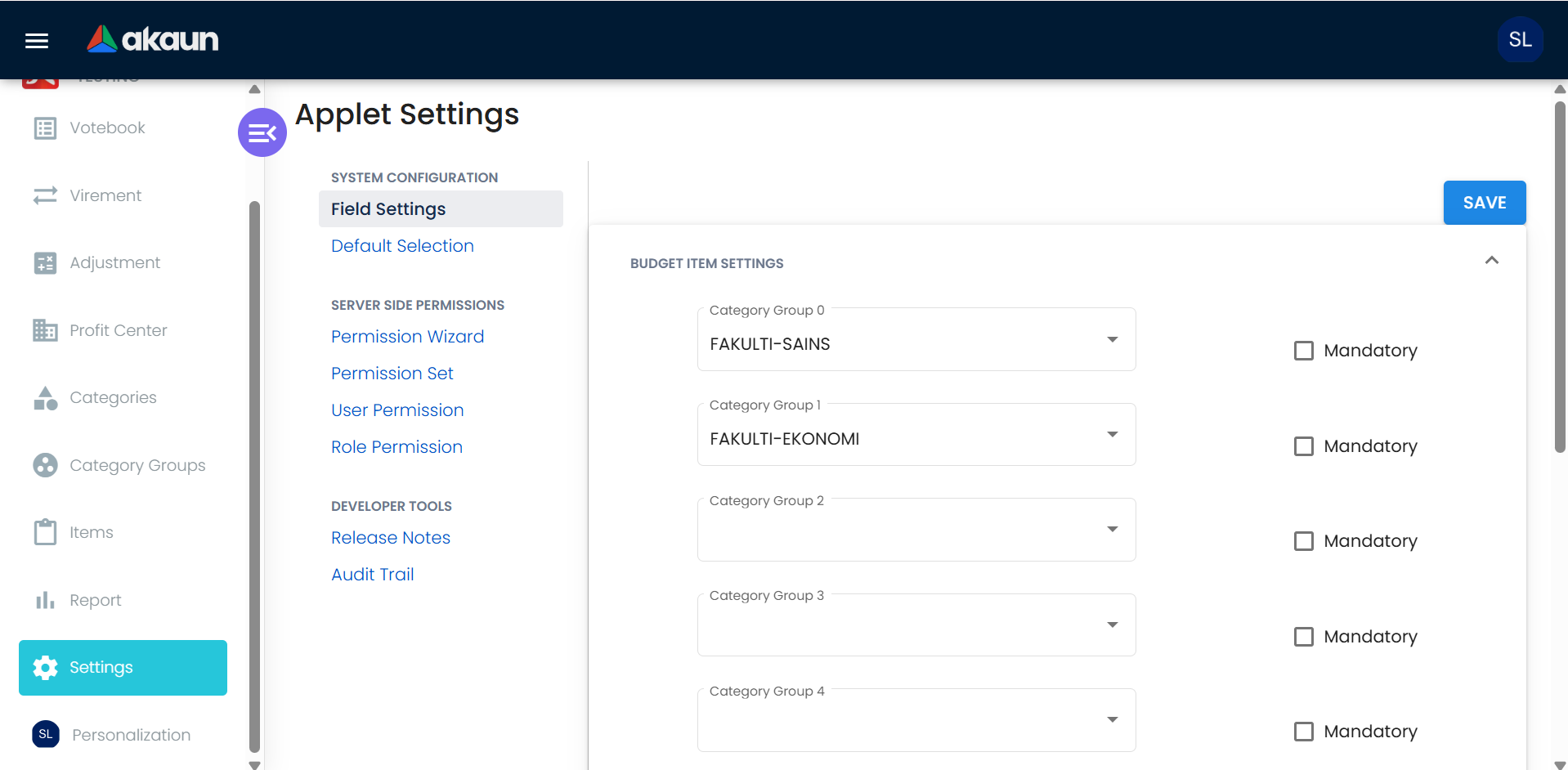
- Navigate to Settings → Field Settings → Budget Item Settings
- Enable up to 10 Category Groups (each group represents one classification dimension)
- Mark groups as Mandatory or Optional based on reporting requirements
- Set up validation rules (e.g., Grant-Funded items must specify grant number)
Assigning Categories to Budget Items:
- Open Budget Item from listing
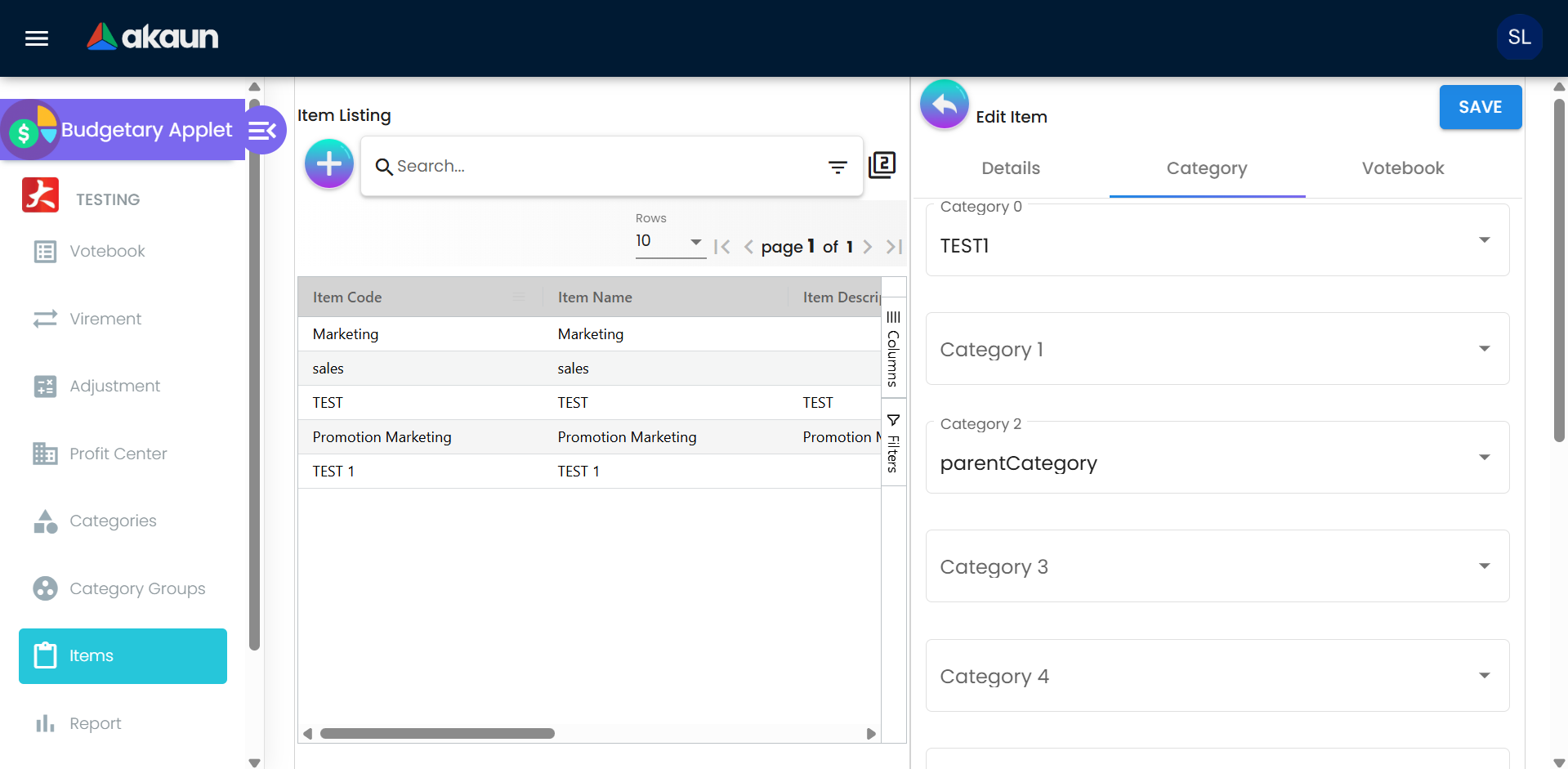
- Navigate to Category Tab
- For each enabled category level (0-9):
- Dropdown menu shows available categories
- Categories filtered by their Category Group
- Select the most appropriate classification
- Click Save to finalize assignments
Result: Every future transaction using this budget item automatically inherits ALL category classifications, ensuring consistent, accurate reporting without manual categorization for each expense.
2. Category Group & Category Management
The Two-Level Classification System
The Budget Applet uses a two-tier approach to organize expense classifications:
Tier 1: Category Groups (The Container)
- High-level organizational umbrellas
- Examples: “Academic Faculties”, “Support Departments”, “Expense Types”
- Purpose: Keep category lists manageable and logically organized
Tier 2: Categories (The Specific Classification)
- Specific classifications within each group
- Examples: “Faculty of Science”, “Laboratory Equipment”, “Capital Expenditure”
- Purpose: The actual tags applied to budget items for reporting
Why This Structure?
Without Category Groups, you’d have one massive category list containing everything from “Faculty of Science” to “Office Supplies” to “Capital Expenditure”—hundreds of items with no logical organization. Category Groups provide structure.
| Element | Function | Example |
|---|---|---|
| Category Group | Organizes categories into logical collections | FACULTIES, DEPARTMENTS, EXPENSE-TYPES |
| Category | Specific classification tag | Science, Engineering, HR, IT, Equipment, Services |
Real-World Example
Category Group: ACADEMIC-FACULTIES
- Faculty of Arts & Humanities
- Faculty of Science & Technology
- Faculty of Business & Economics
- Faculty of Engineering
- Faculty of Medicine
Category Group: EXPENSE-TYPES
- Personnel Costs
- Operating Expenses
- Capital Equipment
- Professional Services
- Facilities & Maintenance
Category Group: FUNDING-SOURCES
- Unrestricted Operating Budget
- Government Grants
- Research Grants
- Endowment Funds
- Donor-Restricted Funds
Creating Category Groups
Build the organizational structure for your categories:
Process:
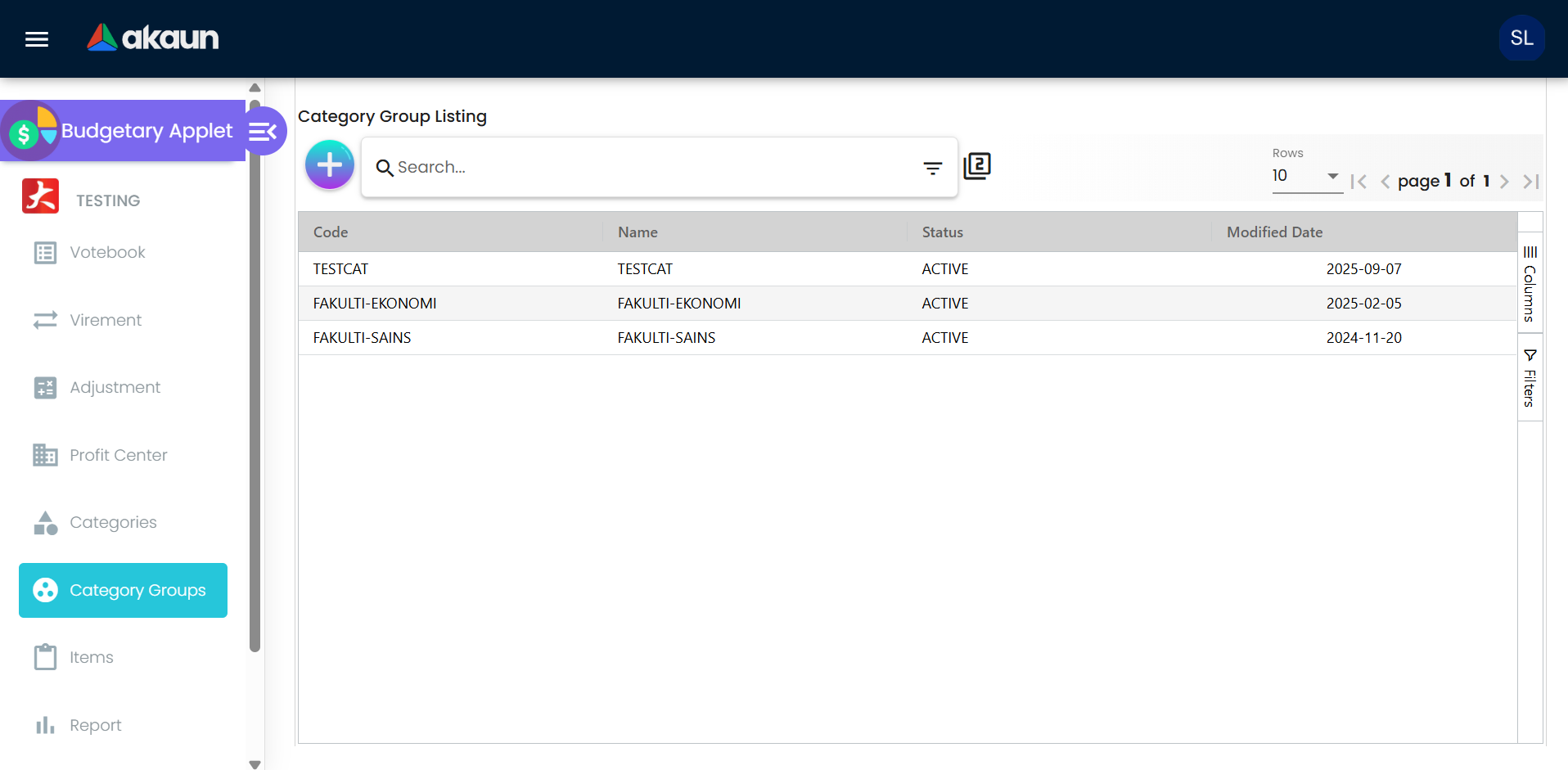
- Navigate to Budgetary Applet → Category Groups
- Click "+ Add" to create new group
- Enter the group information:
- Category Group Code - Unique identifier (e.g., FAC-ACADEMIC, DEPT-ADMIN)
- Category Group Name - Descriptive name (e.g., “Academic Faculties”, “Administrative Departments”)
- Status - Active or Inactive (only active groups appear in dropdowns)
- Click Create to save
Strategic Category Group Design:
Consider these common Category Group structures:
| Category Group Type | Purpose | When to Use |
|---|---|---|
| Organizational | WHO spent the money | Always - fundamental for accountability |
| Functional | WHY the money was spent | When functional analysis matters (teaching vs research vs admin) |
| Financial | HOW to account for it | When financial statement classification matters |
| Source | WHERE money came from | When fund accounting or grant tracking required |
| Geographic | WHERE the spending occurred | Multi-location organizations |
| Temporal | WHAT period or project | Project-based or initiative-based organizations |
Start Simple Framework: Most organizations need just 3-4 Category Groups initially:
- Organizational Units (departments/divisions) - for accountability
- Expense Types (personnel/operating/capital) - for financial reporting
- Funding Sources (unrestricted/grants/donations) - for fund compliance
- Optional: Strategic Initiatives, Projects, or Geographic Locations
Add more Category Groups only when you have a clear reporting or compliance need.
Creating Categories
Populate each Category Group with specific classifications:
Process:
- Navigate to Budgetary Applet → Categories
- Click "+ Add" to create new category
- Complete the category details:
- Category Group - Select parent group from dropdown
- Category Code - Unique identifier within the group
- Category Name - Descriptive name for reporting
- Description - Optional guidance on usage
- Click Create to save
Example Category Structure:
Category Group: ACADEMIC-FACULTIES
├── FAC-ART → Faculty of Arts
├── FAC-SCI → Faculty of Science
├── FAC-BUS → Faculty of Business
└── FAC-ENG → Faculty of Engineering

Category Group: EXPENSE-TYPES
├── EXP-PER → Personnel Costs
├── EXP-OPS → Operating Expenses
├── EXP-CAP → Capital Equipment
└── EXP-SVC → Professional Services

Category Group: FUNDING-SOURCES
├── FUND-OP → Unrestricted Operating
├── FUND-GRANT → Research Grants
├── FUND-DONOR → Donor Restricted
└── FUND-ENDOW → Endowment Funds
Practical Example Table:
| Category Group | Category Code | Category Name | When to Use |
|---|---|---|---|
| FACULTIES | FAC-SCI | Faculty of Science | Any spending by Science faculty |
| FACULTIES | FAC-ENG | Faculty of Engineering | Any spending by Engineering faculty |
| EXPENSE-TYPES | EXP-LAB | Laboratory Supplies | Consumables for labs |
| EXPENSE-TYPES | EXP-EQUIP | Equipment Purchases | Capitalized equipment |
| FUNDING | FUND-NSF | NSF Research Grants | Anything funded by NSF grants |
| FUNDING | FUND-OP | Operating Budget | Unrestricted operating funds |
Linking Categories to Budget Items
Once your category framework exists, apply it to budget items:
Process:
- Open any Budget Item from the Items listing
- Navigate to the Category Tab
- You’ll see dropdowns for each category level (Category 0 through Category 9)
- For each applicable level:
- Dropdown shows categories from the associated Category Group
- Select the most appropriate category
- Leave blank if not applicable (unless marked mandatory)
- Click Save to establish the links
The Power of Pre-Classification:
Every transaction that uses this budget item will automatically inherit these category assignments. This means:
- No manual categorization needed at transaction time
- Consistency guaranteed across all transactions
- Reporting accuracy dramatically improved
- Data entry efficiency for end users
Example in Practice:
Budget Item: Laboratory Equipment Purchases
Categories assigned:
├── Category 0 (Organizational): Faculty of Science
├── Category 1 (Expense Type): Capital Equipment
├── Category 2 (Functional): Research & Development
└── Category 3 (Funding): Grant-Funded

When someone creates a purchase order for RM 25,000 of lab equipment:
→ System automatically applies all four category tags
→ No need to ask user to select categories manually
→ Report by any dimension automatically includes this transaction3. Profit Center Management
Understanding Profit Centers
Profit Centers are the organizational answer to “WHO is responsible for this spending?” They represent the departments, faculties, divisions, branches, or business units that manage budgets and bear accountability for staying within allocated limits.
The Accountability Principle:
Without Profit Centers, budget is just numbers in a system. With Profit Centers:
- The Marketing Department owns its budget—success and overruns
- The Faculty of Science is accountable for equipment purchases
- The Regional Office has responsibility for local operations
This transforms budget management from top-down control to distributed ownership.
Real-World Profit Center Structures
Design your Profit Center structure based on how budget authority is distributed in your organization:
University Structure
Academic Units:
- Faculty of Arts & Humanities
- Faculty of Science & Technology
- Faculty of Business & Economics
- Faculty of Engineering
- Faculty of Medicine & Health Sciences
Support Units:
- University Library
- Student Services Department
- IT Services
- Facilities & Maintenance
- Human Resources
- Finance & Administration
Research Centers:
- Center for Advanced Materials Research
- Institute of Sustainability Studies
- Innovation & Entrepreneurship Hub
Corporate Structure
Revenue Centers:
- Sales & Marketing Division
- Product Development
- Customer Success
- Business Development
Cost Centers:
- Operations & Manufacturing
- Supply Chain & Logistics
- Quality Assurance
- Research & Development
Support Centers:
- IT & Technology Services
- Human Resources
- Finance & Accounting
- Legal & Compliance
- Facilities Management
Government Structure
Service Departments:
- Public Works Department
- Health Services Division
- Education & Training Bureau
- Social Services Department
- Parks & Recreation
Administrative Units:
- City Manager’s Office
- Finance Department
- Human Resources
- IT & Communications
- Legal Services
Public Safety:
- Police Department
- Fire & Rescue Services
- Emergency Management
Healthcare Structure
Clinical Departments:
- Emergency Medicine
- Surgery
- Internal Medicine
- Pediatrics
- Obstetrics & Gynecology
- Radiology & Imaging
Support Services:
- Nursing Administration
- Laboratory Services
- Pharmacy
- Facilities & Engineering
- IT & Clinical Systems
Administrative:
- Finance & Revenue Cycle
- Human Resources
- Quality & Compliance
- Marketing & Community Relations
Creating a Profit Center
Establish each budget-responsible organizational unit as a Profit Center:
Step-by-Step Process:
- Navigate to Budgetary Applet → Profit Center
- Click "+" Add button to create new center
- Complete the Profit Center details:
| Field | Purpose | Example |
|---|---|---|
| Profit Center Code* | Unique system identifier | FAC-SCI, DEPT-MKT, DIV-OPS |
| Profit Center Name* | Full organizational unit name | Faculty of Science, Marketing Department |
| Description | Scope and responsibility summary | “Manages all science programs, research labs, and faculty” |
| Ref 1 Code/Name/Description | Additional reference (location, building, campus) | “North Campus, Building A, Lab Complex” |
| Ref 2 Code/Name/Description | Secondary reference (cost center, manager) | “Cost Center 1000, Manager: Dr. Jane Smith” |
| Status | Active or Inactive | Active (only active centers can receive budgets) |
- Click Save to create the Profit Center
Real Example:
Profit Center Code: FAC-SCI
Profit Center Name: Faculty of Science
Description: Manages all undergraduate and graduate science programs,
            including biology, chemistry, physics, and mathematics.
            Responsible for teaching, research, and lab operations.
Ref 1: North Campus, Building A (Science Complex)
Ref 2: Cost Center 1500, Dean: Dr. Sarah Johnson
Status: Active
Comprehensive Example Structure
ABC University Profit Centers:
| Code | Name | Type | Campus | Budget Size | Status |
|---|---|---|---|---|---|
| FAC-ART | Faculty of Arts | Academic | Main | RM 2.5M | Active |
| FAC-SCI | Faculty of Science | Academic | North | RM 5.2M | Active |
| FAC-BUS | Faculty of Business | Academic | City Center | RM 3.8M | Active |
| FAC-ENG | Faculty of Engineering | Academic | North | RM 6.1M | Active |
| DEPT-LIB | University Library | Support | Main | RM 1.2M | Active |
| DEPT-IT | IT Services | Support | All | RM 2.9M | Active |
| DEPT-FAC | Facilities Management | Support | All | RM 4.5M | Active |
| DEPT-HR | Human Resources | Admin | Main | RM 800K | Active |
| CTR-RES | Research Center | Research | North | RM 1.5M | Active |
Benefits of Well-Designed Profit Centers
Accountability & Ownership:
- Department heads own their budget performance
- Clear responsibility when overspending occurs
- Recognition when departments stay within budget
- Prevents “not my responsibility” mentality
Reporting & Analysis:
- Compare performance across peer units (Faculty A vs Faculty B)
- Identify high-performing and struggling departments
- Benchmark spending patterns
- Inform next year’s budget allocation
Control & Governance:
- Every expense traceable to specific organizational unit
- Prevent unauthorized cross-department charging
- Enable department-level spending limits
- Support organizational restructuring
Strategic Planning:
- Understand true cost of each organizational unit
- Support make-vs-buy decisions
- Identify opportunities for consolidation or outsourcing
- Allocate resources based on strategic priorities
Organizational Design Principle: Structure Profit Centers to match decision-making authority and budget control. If your Marketing Manager has authority over digital and traditional marketing budgets combined, create ONE profit center. If Digital and Traditional Marketing report to different managers with separate budgets, create TWO profit centers.
Rule of Thumb: One Profit Center = One budget owner with decision-making authority.
4. Votebook Management
What Is a Votebook?
A Votebook is the central budget document for a Profit Center’s fiscal year. Think of it as the annual “spending authority document” that details:
- How much total budget the department has for the year
- How that budget is divided among different Budget Items
- How funds are distributed across fiscal periods (months or quarters)
- Current utilization and remaining balance for each allocation
Helpful Analogies:
- Credit Card Statement: Shows approved credit limits, spending categories, and remaining credit
- Checkbook Register: Tracks deposits (allocations), checks written (utilization), and balance
- Spending Playbook: The authorized plan for how department can spend its annual budget
The Critical Connection: Votebooks connect three essential elements:
- WHO (Profit Centers - department/faculty)
- WHAT (Budget Items - spending categories)
- WHEN (Fiscal Periods - monthly/quarterly distribution)
This three-way connection enables precise budget control at the granular level while supporting consolidated reporting.
The Complete Votebook Lifecycle
Understanding the full lifecycle helps you manage budgets more effectively:
  graph TD
    A[Create Votebook] --> B[Link to Profit Center]
    B --> C[Attach Authorized Budget Items]
    C --> D[Generate Fiscal Year Periods]
    D --> E[Allocate Initial Budget Amounts]
    E --> F[Budget Active - Ready for Use]
    F --> G[Monitor Real-Time Utilization]
    G --> H{Mid-Year Adjustment Needed?}
    H -->|Yes - Reallocate| I[Process Virement]
    H -->|Yes - Change Total| J[Process Adjustment]
    H -->|No - On Track| K[Continue Monitoring]
    I --> G
    J --> G
    K --> L[Period-End Review]
    L --> M[Generate Variance Reports]
    M --> N[Fiscal Year-End Closeout]
    N --> O[Archive & Rollover Planning]
Creating a Votebook
Set up the annual budget container for your department or organizational unit:
Step-by-Step Process:
Step 1: Create Votebook Document
- Navigate to Budgetary Applet → Votebook
- Click "+ Add" to create new votebook
- Enter votebook identification:
- Votebook Code - Unique identifier (e.g., VB-2025-SCIENCE, BUDGET-MKT-2025)
- Votebook Name - Descriptive name (e.g., “Budget 2025 - Faculty of Science”)
- Linked Profit Center - Select the responsible organizational unit
- Description / Notes - Context and scope (e.g., “Operating budget excluding capital projects and grant-funded research”)
- Click Save to create the votebook
Votebook Naming Best Practices:
| Format | Example | Pros | Cons | Best For |
|---|---|---|---|---|
| YEAR-DEPT | 2025-SCIENCE | Simple, chronological | Ambiguous if multiple budgets per dept | Small orgs, one budget per dept |
| DEPT-YEAR-TYPE | SCIENCE-2025-OPS | Clear separation of budget types | Longer codes | Large orgs with operating/capital split |
| VB-YEAR-CODE | VB-2025-FAC-SCI | Formal, systematic | Requires lookup to decode | Formal environments, many votebooks |
| FISCAL-DEPT | FY25-MARKETING | Fiscal year aware | FY25 vs 2025 confusion possible | Organizations with non-calendar fiscal years |
Linking Budget Items to Votebook
After creating the votebook, define WHAT the department is authorized to spend budget on:
Process:
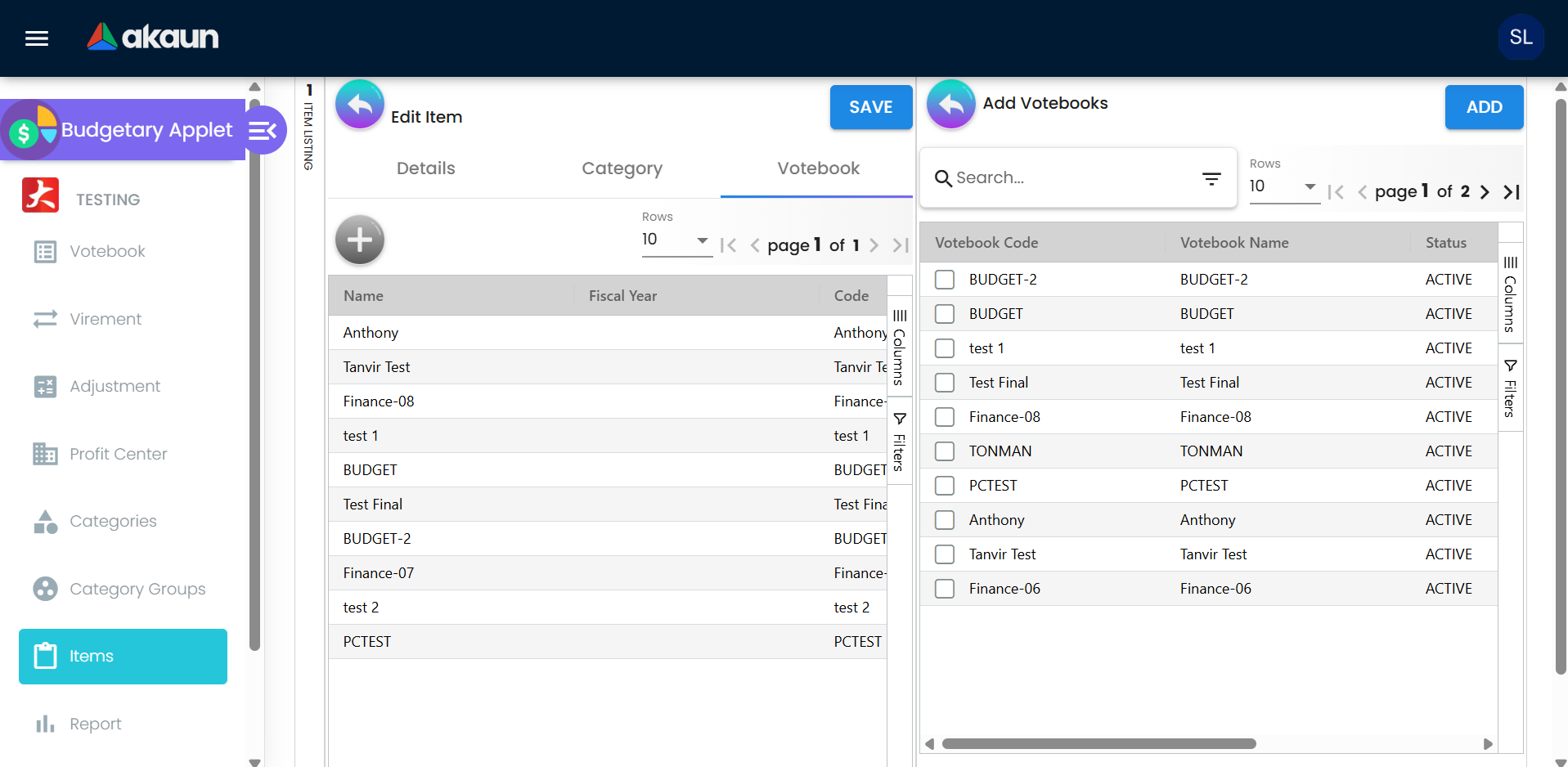
- Open the votebook from the listing
- Navigate to the Items Tab
- Click "+ Add Item" to link budget items
- Select Budget Items from the available list (multi-select if supported)
- Each linked item automatically inherits its pre-configured category classifications
- Click Save to confirm the links
What This Accomplishes:
Before Linking:
- Votebook exists but has no spending authority defined
- No budget items → no way to allocate or spend budget
After Linking:
- Department authorized to spend on ONLY the linked items
- Attempting to charge unlisted items → validation error
- Creates first layer of spending control
Example:
Votebook: Budget 2025 - Faculty of Science
Linked Budget Items:
├── Faculty Salaries & Benefits
├── Laboratory Equipment
├── Laboratory Supplies & Consumables
├── Research Software & Subscriptions
├── Student Research Assistants
├── Professional Development & Training
├── Office Supplies & Administrative
└── Equipment Maintenance & Repairs

NOT Linked (therefore NOT authorized):
├── Marketing & Advertising
├── Facility Renovations
├── Vehicle Purchases
└── Legal Services
Control Implication: Science faculty can create transactions using any of the 8 linked items. Attempting to charge “Marketing & Advertising” budget will fail validation—they don’t have authorization for that spending category.
Generating Fiscal Year Periods
Once Budget Items are linked, create the time-based structure for budget distribution:
Process:
- Open the votebook and navigate to Fiscal Year Tab
- Click Generate Fiscal Year button
- The system automatically creates:
- Budget Registers for each fiscal period (typically 12 months: January - December)
- Links each register to its respective Budget Item
- Structure ready for budget allocation
What Gets Created:
For a votebook with 8 Budget Items and standard 12-month fiscal year:
- 96 Budget Registers (8 items × 12 months)
- Each register represents one item-period combination
- All registers ready to receive budget allocation
- Complete foundation for period-by-period tracking
Visual Example:
Budget Item: Laboratory Equipment
Fiscal Year: 2025
Periods Generated:
├── January 2025 - Laboratory Equipment → Budget Register #001
├── February 2025 - Laboratory Equipment → Budget Register #002
├── March 2025 - Laboratory Equipment → Budget Register #003
├── ... (April through November)
└── December 2025 - Laboratory Equipment → Budget Register #012

Repeat for all 8 Budget Items = 96 registers totalAllocating Initial Budget Amounts
Now comes the critical step—putting actual budget numbers into your framework:
Process:
- Open the Budget Register section under the fiscal year tab
- For each Budget Item, locate its register(s)
- Enter the Initial Amount once (typically the annual total allocation)
- System performs automatic distribution:
- Divides the amount equally across all fiscal periods
- Creates consistent monthly or quarterly allocations
- Updates all related registers simultaneously
Smart Distribution Example:
Budget Item: Marketing Expenses
Annual Allocation: RM 120,000
Fiscal Structure: 12 months (January - December)

System Automatically Calculates:
├── January 2025: RM 10,000
├── February 2025: RM 10,000
├── March 2025: RM 10,000
├── April 2025: RM 10,000
├── May 2025: RM 10,000
├── June 2025: RM 10,000
├── July 2025: RM 10,000
├── August 2025: RM 10,000
├── September 2025: RM 10,000
├── October 2025: RM 10,000
├── November 2025: RM 10,000
└── December 2025: RM 10,000

Total Allocated: RM 120,000 ✓
Manual Adjustment for Seasonal Variation:
Equal distribution is a starting point. You can manually adjust individual periods for known seasonal patterns:
Budget Item: Utilities
Annual Allocation: RM 120,000
Pattern: Higher usage in summer (cooling) and winter (heating)

Manual Allocation:
├── January (Winter): RM 12,000 ↑
├── February (Winter): RM 12,000 ↑
├── March (Spring): RM 9,000 →
├── April (Spring): RM 8,000 ↓
├── May (Spring): RM 8,000 ↓
├── June (Summer): RM 13,000 ↑
├── July (Summer): RM 14,000 ↑
├── August (Summer): RM 13,000 ↑
├── September (Fall): RM 9,000 →
├── October (Fall): RM 8,000 ↓
├── November (Fall): RM 8,000 ↓
└── December (Winter): RM 12,000 ↑

Total Still: RM 120,000 ✓
Allocation Strategy Considerations:
Even Distribution
Allocate same amount to each period.
When to Use:
- Stable, predictable expenses (salaries, rent)
- No historical data on spending patterns
- First-year budget (establish baseline)
Advantages:
- Simple and fast to set up
- Easy to explain and understand
- Aligns with accrual accounting
Example Items:
- Staff salaries
- Software subscriptions
- Insurance premiums
- Lease payments
Seasonal Pattern
Allocate more to high-usage periods, less to low-usage.
When to Use:
- Clear historical seasonal patterns
- Weather-dependent costs (utilities)
- Academic calendar variations
- Retail with holiday seasons
Advantages:
- Aligns budget with actual needs
- Avoids artificial variances
- Better cash flow planning
Example Items:
- Utilities (heating/cooling)
- Student services (academic year)
- Retail marketing (holiday ramp-up)
- Agricultural supplies (planting/harvest)
Project-Based
Allocate budget to periods when projects execute.
When to Use:
- Capital projects with defined timelines
- Research projects with start/end dates
- Construction or renovation phases
- Planned major initiatives
Advantages:
- Matches budget to project schedule
- Supports milestone tracking
- Enables project profitability analysis
Example Items:
- Construction projects
- Software implementation
- Research grants (project duration)
- Marketing campaigns
Cash Flow Aligned
Allocate budget based on revenue timing.
When to Use:
- Tight cash flow situations
- Revenue seasonality exists
- Working capital constraints
- Matching principle important
Advantages:
- Prevents cash crunches
- Aligns spending with revenue
- Better working capital management
Example Items:
- Discretionary spending
- Expansion initiatives
- Marketing (ROI-driven)
- Capital purchases
Allocation Best Practice: Start with equal distribution across all periods, then adjust based on:
- Historical actuals - How did you spend last year?
- Known events - Conferences, projects, seasonal patterns
- Payment schedules - Annual subscriptions, quarterly payments
- Strategic priorities - Front-load critical initiatives
- Cash flow - Align spending with revenue timing
Document your allocation assumptions for next year’s budget planning.
Votebook Management Best Practices
For Initial Setup (Beginning of Fiscal Year):
- Create all votebooks during budget planning cycle (Nov-Dec for Jan start)
- Link all anticipated Budget Items upfront—adding mid-year is disruptive
- Involve department heads in allocation decisions for buy-in
- Document assumptions and strategic priorities driving allocations
- Get formal approval before activating votebooks
For Ongoing Management (During Fiscal Year):
- Review utilization reports monthly—don’t wait for problems
- Identify high-burn items early (>30% consumed in first quarter)
- Adjust period allocations quarterly if patterns deviate from plan
- Maintain clear documentation for all virements and adjustments
- Communicate budget status proactively to stakeholders
For Year-End (Fiscal Year Closeout):
- Generate comprehensive utilization reports for all votebooks
- Document variances with clear explanations for each
- Use actual spending patterns to inform next year’s allocations
- Archive votebook data for historical reference and trending
- Conduct lessons-learned session with budget managers
5. Budget Virement (Transfer) & Budget Adjustment
For detailed information on:
- Budget Virement (transferring funds between registers within same votebook)
- Budget Adjustment (increasing or decreasing total budget allocations)
- Differences between Virement and Adjustment
- Step-by-step processes for each
- Real-world examples and use cases
Please see the corresponding sections in the Budgetary Management Module documentation.
These features are comprehensively documented in the module-level documentation with extensive examples, workflows, approval matrices, and best practices.
6. Budget Reports
For detailed information on:
- Budget Report (Summary View) for executive dashboards
- Budget Register Transaction Line Report for detailed audit trails
- Report column explanations and interpretations
- Available actions (charts, filters, exports)
- Variance analysis frameworks
- Best practices for regular monitoring
Please see the Budget Reports section in the Budgetary Management Module documentation.
The module documentation provides comprehensive coverage of reporting capabilities, including interpretation guidance, monitoring schedules, and effective budget narratives.
7. Budget Utilization and Validation
For detailed information on:
- Real-time budget validation at transaction creation
- Integration with purchase orders, invoices, and other documents
- Validation process step-by-step
- Budget exceeded warnings and resolution options
- Utilization process after document finalization
- Benefits of integrated budget control
Please see the Budget Utilization and Validation section in the Budgetary Management Module documentation.
This critical feature is thoroughly documented with examples of validation workflows, warning messages, and the benefits for different user roles.
Configuration & Setup
Initial Configuration Steps
Setting up the Budget Applet requires careful planning and systematic execution:
Field Settings Configuration
Configure how the Budget Applet operates at the system level.
Navigate to: Settings → Field Settings → Budget Item Settings
Configure:
- Category Groups: Enable up to 10 category levels
- Mandatory Fields: Mark which category groups are required
- Validation Rules: Set budget tolerance thresholds
- Default Values: Pre-populate common selections
- Approval Workflows: Define approval routing rules
Time Required: 1-2 hours
Profit Centers Creation
Establish your organizational accountability structure.
Tasks:
- Map organizational chart to profit centers
- Create profit center for each budget-responsible unit
- Assign reference information (campus, cost center, manager)
- Document reporting relationships
- Set active status appropriately
Best Practice: Involve department heads in profit center design to ensure structure matches actual authority and responsibility.
Time Required: 2-4 hours
Category Framework Design
Design how you’ll classify and analyze budget data.
Tasks:
- Create Category Groups (3-5 initially recommended)
- Define Categories under each group
- Link categories to groups
- Set mandatory vs optional designation
- Test category structure with sample items
Avoid: Over-categorization—start simple, expand later based on actual reporting needs.
Time Required: 4-8 hours (includes stakeholder consultation)
Budget Items Creation
Build your standard budget item catalog.
Tasks:
- Develop budget item catalog (20-50 items typical)
- Choose naming convention and apply consistently
- Create budget items in system
- Assign multi-level categories to each item
- Document usage guidelines in descriptions
- Review with department heads for completeness
Time Required: 4-8 hours
Votebooks & Budget Allocation
Create annual budgets for each profit center.
Tasks:
- Create votebook for each profit center
- Link authorized budget items to each votebook
- Generate fiscal year periods
- Allocate initial budget amounts
- Adjust for seasonal patterns where appropriate
- Get formal approval before activating
Time Required: 1-2 days per 10 profit centers
Configuration Checklist
Use this checklist to ensure complete setup:
System Configuration:
- Field settings configured for budget items
- Category groups enabled and named
- Mandatory fields marked appropriately
- Validation rules and thresholds set
- Approval workflows configured
- Fiscal calendar defined
Master Data:
- All profit centers created
- Category groups created
- Categories created under each group
- Budget items catalog complete
- Categories linked to budget items
- Item status set (active/inactive)
Budget Documents:
- Votebook created for each profit center
- Budget items linked to votebooks
- Fiscal year periods generated
- Initial budget amounts allocated
- Seasonal adjustments made where needed
- Approvals obtained
User Access:
- User roles defined (admin, manager, user, auditor)
- Permissions configured per role
- Users assigned to appropriate roles
- Department heads granted access to their profit centers
- Finance team granted full access
Testing:
- Test virement between registers
- Test budget adjustment in and out
- Test validation on transaction documents
- Test budget exceeded warning
- Test reporting (summary and detailed)
- Conduct user acceptance testing
Documentation & Training:
- Budget procedures documented
- Naming conventions documented
- Category framework documented
- Approval matrix documented
- User training conducted
- Quick reference guides distributed
Best Practices
Budget Planning Approaches
For comprehensive guidance on budget planning methodologies including:
- Bottom-Up vs Top-Down vs Hybrid approaches
- Zero-Based vs Incremental budgeting
- When to use each approach
- Advantages and challenges
- Implementation recommendations
See the Best Practices section in the Budgetary Management Module documentation.
Budget Control & Governance
For detailed approval hierarchies, monitoring schedules, and control mechanisms:
- Sample approval matrices by transaction type and amount
- Daily, weekly, monthly, quarterly monitoring schedules
- Key metrics to track (burn rate, runway, variance, utilization)
- Customization considerations for different organization sizes
See the Budget Control and Governance section in the module documentation.
Performance Optimization
For strategies to maintain system performance as data grows:
- Data archiving rules and retention policies
- Reporting efficiency techniques
- Database optimization
- Archive processes
See the Performance Optimization section in the module documentation.
Integration
Module Integration
The Budget Applet integrates seamlessly with other BigLedger modules:
Financial Accounting:
- Budget vs actual variance reporting
- Chart of accounts alignment
- Financial statement integration
- Journal entry budget validation
Purchasing:
- Purchase requisition budget validation
- Purchase order budget checking
- Vendor invoice budget control
- Procurement spend analysis
Sales:
- Revenue budget tracking
- Commission budget validation
- Sales expense control
- Channel budget management
Projects:
- Project budget management
- Resource allocation budgets
- Project profitability vs budget
- Multi-project consolidation
HR/Payroll:
- Personnel cost budgeting
- Staffing budget by department
- Training and development budgets
- Benefits and compensation planning
For detailed integration information, see the Integration section in the module documentation.
External Systems
Import/export capabilities:
- Excel/CSV budget templates
- Financial planning tool integration
- Consolidation system feeds
- Data warehouse synchronization
Troubleshooting
Common Issues
Quick reference for typical problems and solutions:
| Issue | Likely Cause | Solution |
|---|---|---|
| Cannot finalize virement | Insufficient source register balance | Check register balance; reduce amount or adjust budget first |
| Budget validation fails | Wrong votebook/item/period selected | Verify all budget fields filled correctly; ensure register exists |
| Report shows wrong utilization | Transactions not finalized; timing issue | Finalize all pending documents; refresh report; check date filters |
| Cannot delete budget item | Item linked to votebook or has history | Remove from votebooks first; archive instead of delete |
| Category assignment missing | Category group not configured | Configure category groups in Field Settings; mark as mandatory |
| Virement stuck in draft | Missing required fields | Review header and lines for completion; check validation messages |
| Adjustment not reflected | Document not finalized | Finalize the adjustment document to apply changes |
Error Messages
For comprehensive error message reference with explanations and action steps, see the Troubleshooting section in the module documentation.
Security & Access Control
User Roles
Budget Administrator:
- Full access to all budget functions
- Configure settings and categories
- Create and manage votebooks
- Approve adjustments and virements
- Access to all reports
Budget Manager:
- Create budget items and categories
- Manage assigned profit centers only
- Initiate virements and adjustments
- View reports for assigned areas
- Cannot modify system settings
Budget User:
- View budget allocations
- Enter transactions with budget validation
- View utilization reports
- Cannot modify budget structures
- Cannot approve virements/adjustments
Auditor (Read-Only):
- View all budget data
- Generate and export reports
- Access transaction detail
- No modification permissions
- Full audit trail access
Audit Trail
The Budget Applet maintains comprehensive audit trails:
- User activity logs (who, what, when)
- Document creation and modification history
- Complete approval workflows with timestamps
- Budget register transaction history
- Category and item change tracking
- Period lock/unlock activities
For regulatory compliance features including public sector support, see the Regulatory Compliance section in the module documentation.
Related Documentation
Module Documentation
- Budgetary Management Module - Complete module overview with comprehensive feature details, workflows, and examples
- Financial Accounting Module - Integration with general ledger and financial reporting
Guides
- Budget Planning Guide - Best practices for annual budget planning
- Budget Reporting Guide - How to interpret and use budget reports effectively
- Year-End Budget Process - Procedures for fiscal year closeout and rollover
Resources
- Budget Template Library - Downloadable Excel templates for budget planning and import
- Video Tutorials - Step-by-step video demonstrations of key workflows
Support
- Community Forum - Connect with other budget managers, share tips, ask questions
- Expert Support - Direct support from BigLedger budget specialists
Summary
The Budget Applet transforms budget management from a restrictive control mechanism into an enabling tool for informed decision-making:
Core Capabilities:
- ✅ Structured Planning - Multi-level categorization, profit center accountability, flexible allocation
- ✅ Real-Time Control - Automated validation prevents overspending before it happens
- ✅ Flexible Management - Virement and adjustment capabilities respond to changing priorities
- ✅ Complete Visibility - Real-time utilization tracking and comprehensive reporting
- ✅ Seamless Integration - Works with all transaction modules across BigLedger
- ✅ Full Traceability - Complete audit trail supports compliance and investigation
Business Impact:
- Prevent budget overruns through proactive control
- Empower departments with real-time budget visibility
- Reduce month-end close time with automated reconciliation
- Support strategic decision-making with accurate budget data
- Maintain compliance with complete audit trails
- Improve budget accuracy through historical analysis