Claim Cycle Applet
Purpose and Overview
The Claim Cycle Applet is designed for Finance and HR teams who need to process employee claims in batches rather than individually. While the Claim Applet handles individual expense submissions and approvals, the Claim Cycle Applet consolidates approved claims into cycles for efficient batch processing, payment generation, and financial reconciliation.
Claim Applet vs Claim Cycle Applet
| Aspect | Claim Applet | Claim Cycle Applet |
|---|---|---|
| Focus | Individual claim submission | Batch processing of claims |
| Primary User | Employees & Managers | Finance & HR Teams |
| Workflow | Submit → Approve → Pay | Collect → Review → Process → Report |
| Output | Individual reimbursements | Bank files, Payment Vouchers, Reports |
Who Benefits from This Applet?
Finance Teams
- Batch Processing: Process hundreds of claims in one cycle instead of individually
- Report Generation: Generate Bank Reports, PV Details, Cross-Billing automatically
- Reconciliation: Match claims to payments with full audit trail
- Payment Integration: Export directly to payroll systems
HR Managers
- Period Management: Control claim submission and approval periods
- Compliance: Ensure claims follow cut-off dates and policies
- Visibility: Track all employee claims by cycle
Approvers & Reviewers
- Checking Reports: Inbox, Approved, and On-Hold queues for systematic review
- Sampling: Audit-based sampling for high-volume processing
- History Tracking: Full approval and reviewer history
Executive Leadership
- Audit Controls: Sampling-based audit for risk management
- Analytics: Pivot reports for expense analysis
- Financial Oversight: Cross-billing and professional subscription tracking
What Problems Does This Solve?
Without Claim Cycles:
- Finance manually collects approved claims
- Payment files created manually (error-prone)
- No batch reconciliation
- Difficult to manage cut-off periods
- Limited audit sampling capabilities
With Claim Cycle Applet:
- ✓ Automated Collection - Pull approved claims into cycles automatically
- ✓ Batch Processing - Process entire periods in one go
- ✓ Payment Reports - Generate Bank Reports, PV Details instantly
- ✓ Audit Sampling - Random or targeted claim sampling
- ✓ Complete Traceability - Full history of every action
Key Features Overview
Key Concepts
Understanding Claim Cycle Lifecycle
A claim cycle moves through distinct phases:
Draft → Open → In Review → Finalized → Closed
  │       │        │           │          │
  │       │        │           │          └── Archived, no changes
  │       │        │           └── Reports generated, payments processed
  │       │        └── Checking Reports active (reviewers working)
  │       └── Collecting claims, supervisors approving
  └── Initial creation, setting up dates
Cycle Structure
| Component | Description | Example |
|---|---|---|
| Claim Cycle | Batch of claims for a period | “December 2024 Payroll Cycle” |
| Claim Line | Individual claim in the cycle | Sarah’s medical claim RM 150 |
| Sample | Subset for detailed audit | Random 10% of claims > RM 500 |
| Report | Output for finance processing | Bank Report for payment |
Key Dates in a Cycle
| Date Field | Purpose |
|---|---|
| Supervisor Approval Start | When managers can start approving claims |
| Supervisor Approval End | Deadline for manager approvals |
| Finance Cut-off Date | When Finance begins processing |
| Extension End Date | Final deadline for late submissions |
Quick Start Guide
For Finance Teams: Process Your First Cycle
Goal: Create a cycle and process claims to payment in 6 steps.
Step 1: Navigate to Claim Cycles
- Go to Claim Cycles Listing from the sidebar
- Click "+" to create a new cycle
Step 2: Configure the Cycle
- Select Company and Branch
- Enter Cycle Name (e.g., “Dec 2024 Claims”)
- Set Supervisor Approval Dates (start and end)
- Set Finance Cut-off Date
- Click Create
Step 3: Review Claim Lines
- Open the cycle → Claim Lines tab
- See all claims pulled into this cycle
- Review summary totals
Step 4: Use Checking Reports
- Go to Checking Reports tab
- Inbox: Claims pending review
- Review and move to Approved or On Hold
Step 5: Run Sampling (Optional)
- Go to Sampling tab
- Create a sample (e.g., 10% of claims > RM 500)
- Review sampled claims in detail
- Generate Sampling Analysis Report
Step 6: Generate Reports
- Bank Report: For payment file
- PV Details Report: For accounting
- Pivot Report: For analysis
Done! Claims are now ready for payroll processing.
For Reviewers: Review Claims in a Cycle
Goal: Review and approve/hold claims in 3 steps.
- Open Cycle → Go to Checking Reports tab
- Inbox Queue: Click on claims waiting for review
- Check receipt images
- Verify amounts and descriptions
- Look for duplicate flags
- Decide:
- Approve → Moves to Approved list
- On Hold → Flags for follow-up
Core Features in Detail
Cycle Creation & Management
Claim Cycles Listing
The main view showing all claim cycles for your organization.
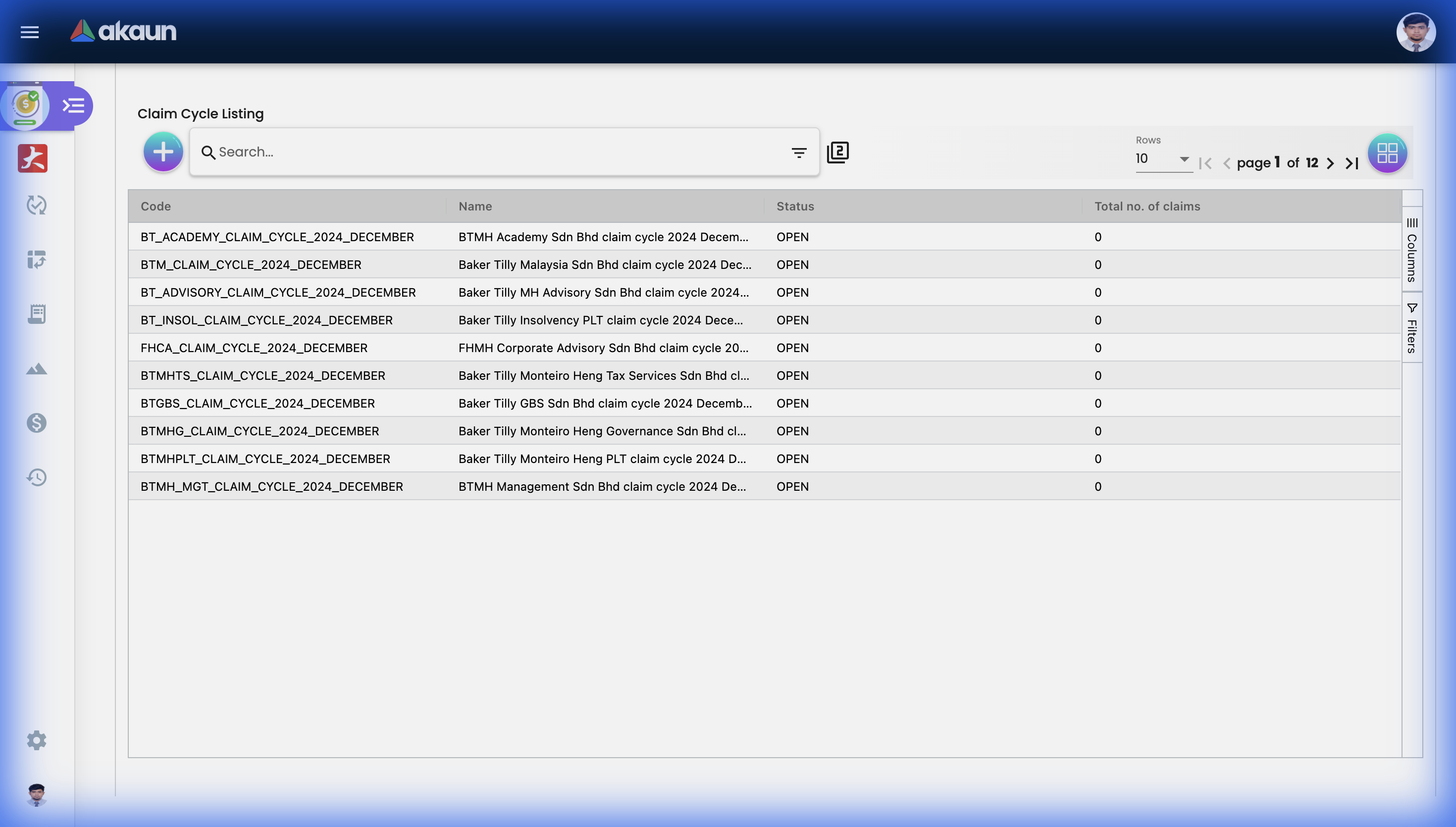 Claim Cycles Listing showing cycle Code, Name, Status, and Total Claims for each batch.
What You See:
- Cycle code and name
- Company/Branch
- Status (Draft, Open, In Review, Finalized, Closed)
- Date ranges
- Grand totals
Actions:
- Create (+): New cycle
- Edit: Modify cycle details
- Open: Access cycle tabs
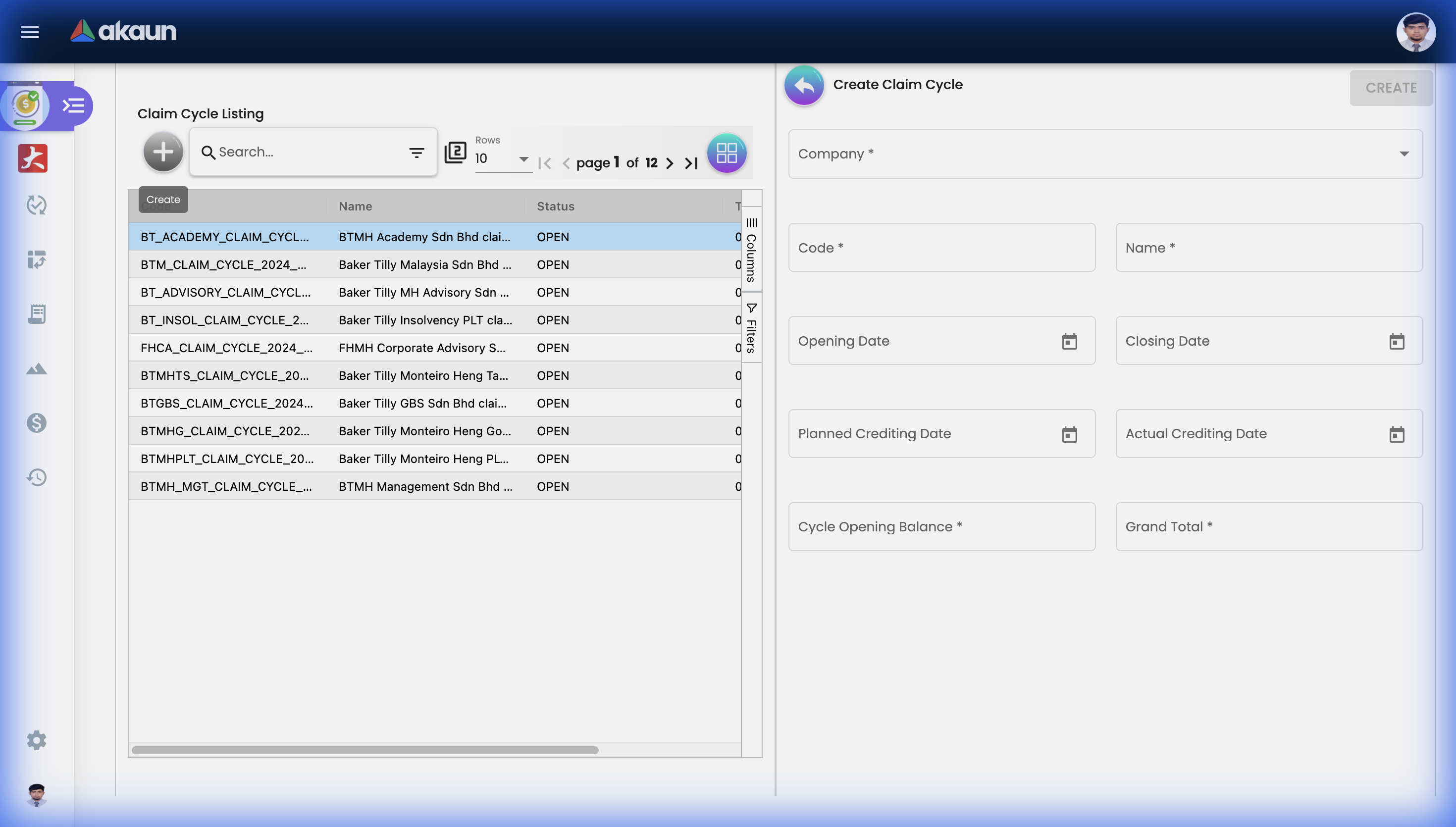 Create new claim cycle form with Company, Status, and date configuration.
Main Details Tab
When you open a cycle, you’ll see the Main Details form:
| Field | Description |
|---|---|
| Company | Legal entity for this cycle |
| Status | Current lifecycle stage |
| Code | Auto-generated identifier |
| Name | Descriptive cycle name |
| Supervisor Approval Start Date | When managers can approve |
| Supervisor Approval End Date | Manager approval deadline |
| Finance Cut-off Date | When Finance processing begins |
| Extension End Date | Final deadline for exceptions |
| Created/Modified By | Audit tracking |
Updating a Cycle:
- Modify allowed fields
- Click Update button
- Changes saved immediately
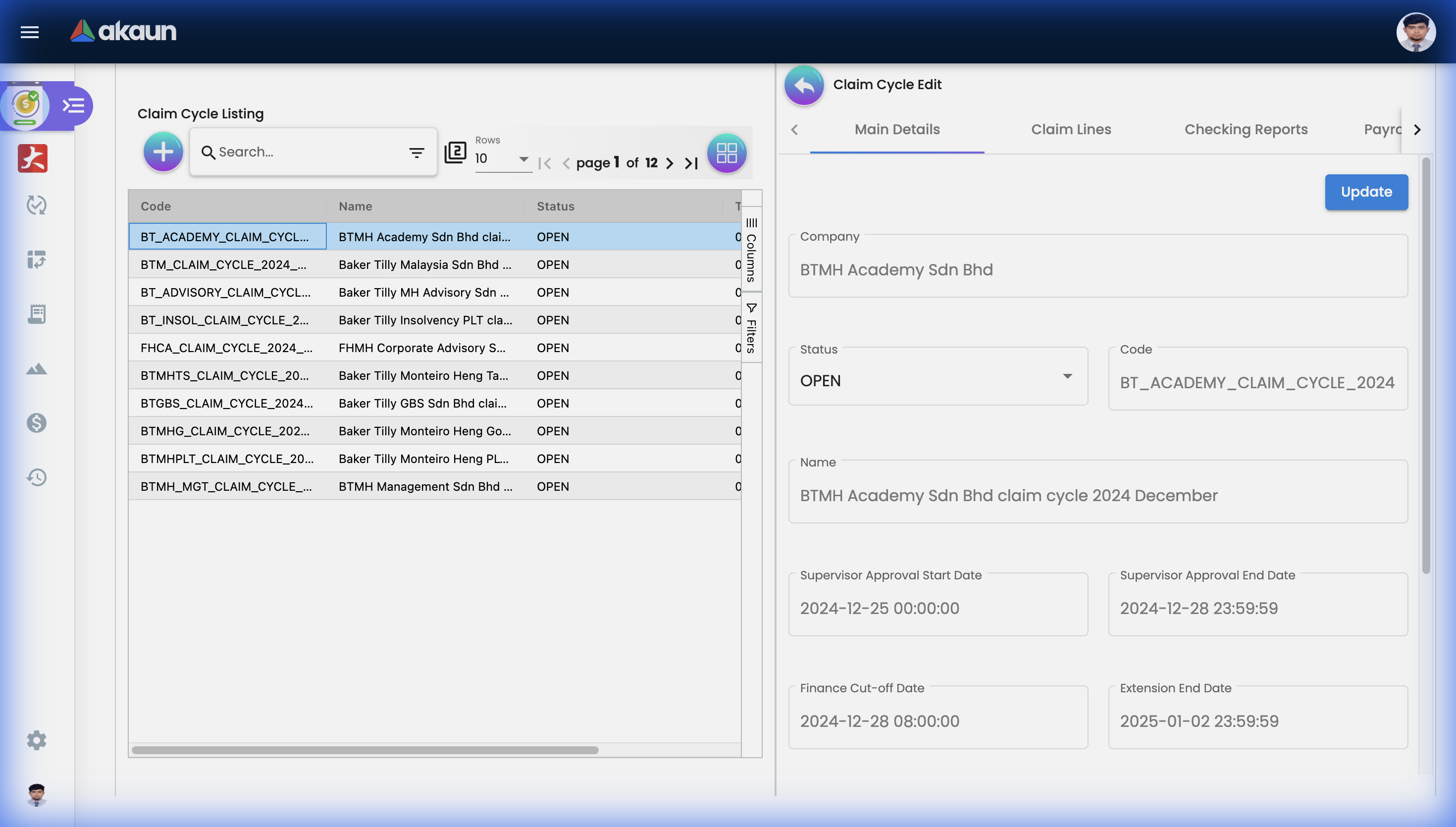 Main Details tab showing cycle configuration, dates, and status.
Claim Lines Tab
View all individual claims within this cycle.
Features:
Summary UI
- Total claim count
- Total amount
- Breakdown by category/status
Claim Line Listing
- Employee name
- Claim item
- Amount
- Status
- Receipt indicators
Actions per Claim Line:
- View Details: Full claim information
- View Receipt: Receipt image dialog
- Upload File: Add supporting documents
- Duplicate Detection: System flags potential duplicates
Viewing Receipt Images
- Click on a claim line
- Click View Receipt
- Receipt image opens in dialog
- Zoom/pan for verification
File Upload
- Select a claim line
- Click Upload
- Select file (PDF, JPG, PNG)
- File attached to claim record
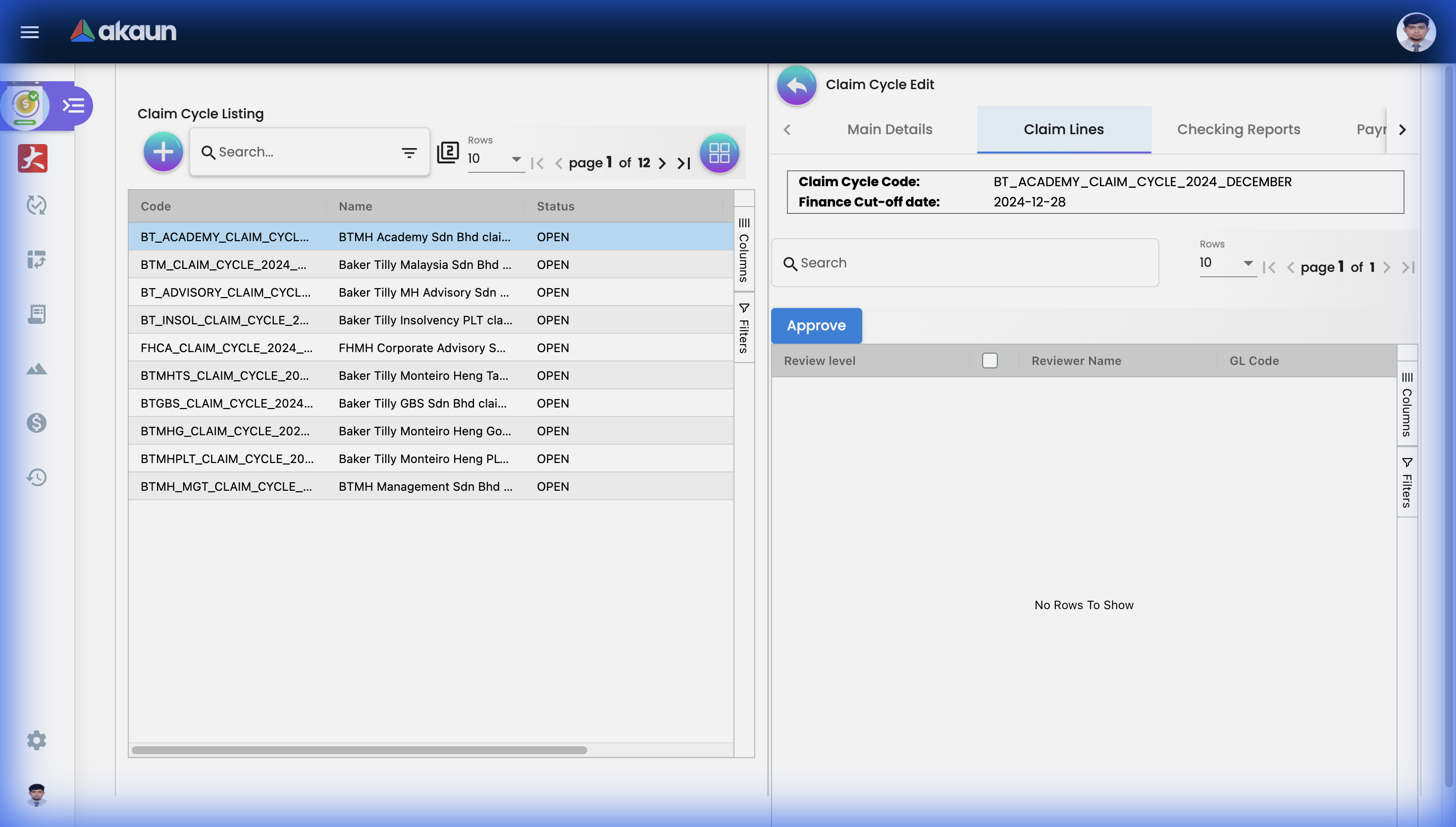 Claim Lines tab showing employee claims with amounts and status indicators.
Checking Reports Tab
The heart of the review workflow with three sub-queues.
Inbox
Claims waiting for reviewer action.
Workflow:
- Claim appears in Inbox
- Reviewer examines details
- Moves to Approved or On Hold
Approved
Claims that passed review.
What’s Here:
- All accepted claims
- Ready for payment processing
- Included in reports
On Hold
Claims flagged for follow-up.
Common Reasons:
- Missing documentation
- Amount discrepancy
- Needs clarification
- Pending additional approval
Resolution:
- Issue resolved
- Move back to Inbox for re-review
- Approve or reject
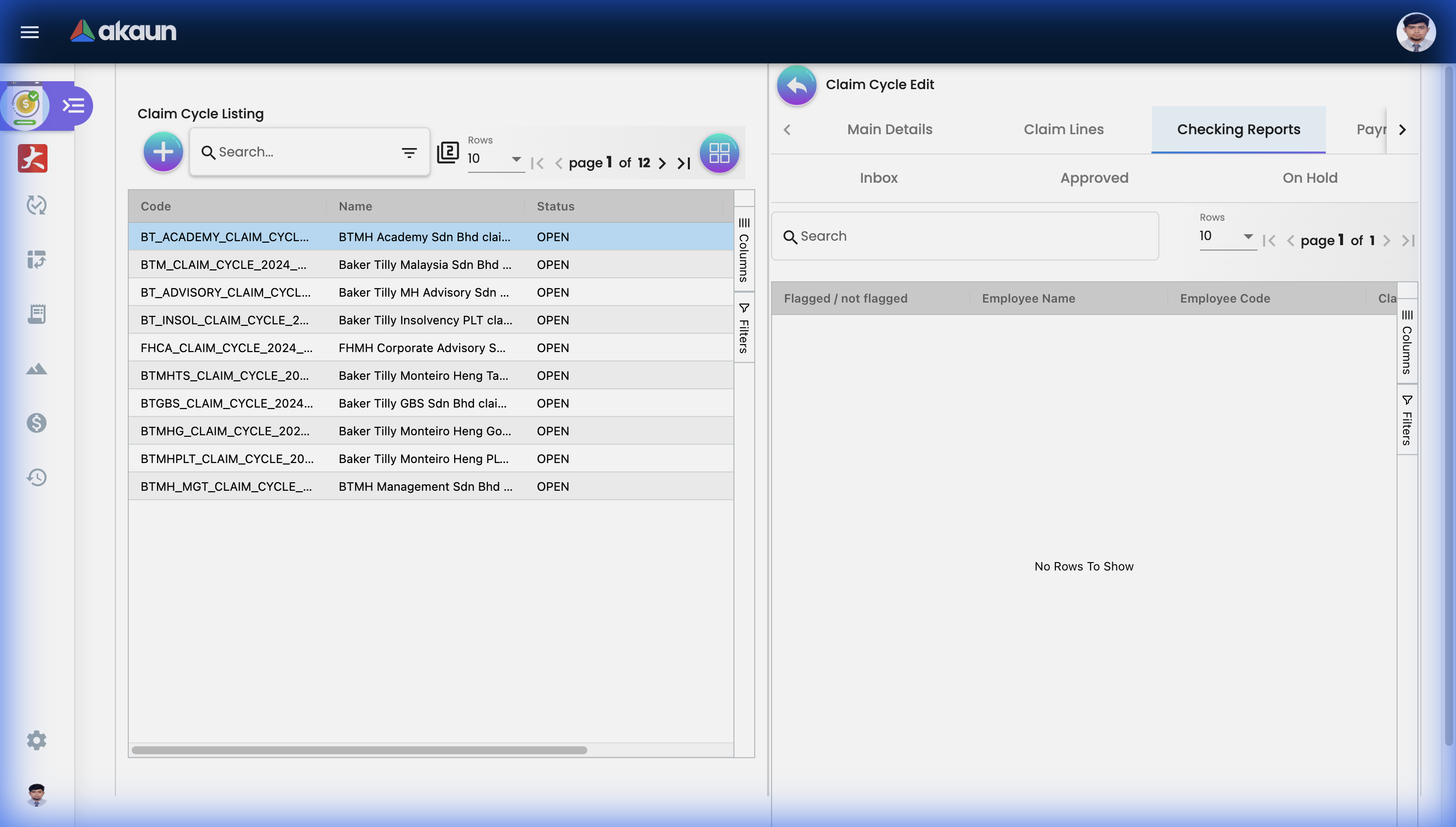 Checking Reports tab with Inbox, Approved, and On Hold queues for claim review.
Payroll Payment Tab
Integration with salary payment processing.
hideSalaryPaymentTab).Purpose:
- Link claims to salary payments
- Generate payment listings
- Track payment status
Use Case: When claims are paid through payroll rather than separate reimbursement, this tab manages the integration.
Sampling & Audit
Risk-based claim auditing through sampling.
Sampling Tab
Create Samples:
- Click Create Sample
- Define criteria:
- Random percentage (e.g., 10%)
- Amount threshold (e.g., > RM 500)
- Specific categories
- System selects claims matching criteria
Sample Management:
- View sample listing
- Link claim lines to samples
- Edit sample parameters
- View sample history
Claim Line Links
Each sample contains linked claim lines:
- Direct link to claim details
- View receipts from sample view
- Approve/flag through sample
Sample History
Full audit trail of:
- Sample creation
- Claims added/removed
- Review actions taken
- Status changes
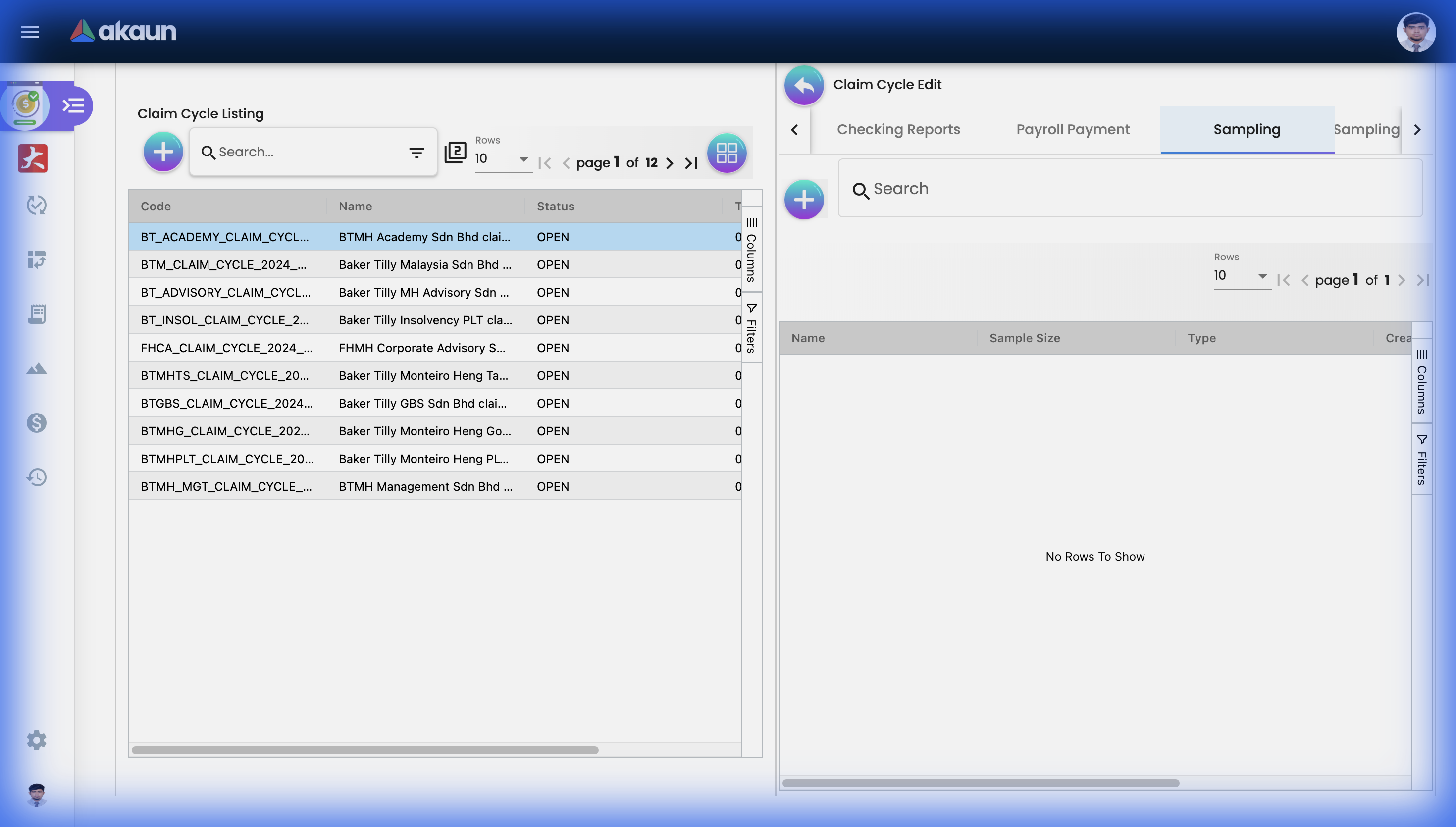 Sampling tab for creating audit samples and linking claim lines.
Sampling Analysis Report Tab
Insights from your sampling data.
Report Contents:
- Sample size and coverage
- Pass/fail rates
- Issues identified
- Trend analysis
Use For:
- Audit documentation
- Risk assessment
- Process improvement
- Compliance reporting
Reports
Multiple report formats for different needs.
Bank Report
Purpose: Generate payment file for bank transfer.
Contains:
- Employee bank details
- Payment amounts
- Reference numbers
- File format for bank upload
How to Generate:
- Go to Bank Report tab
- Click Generate
- Download file
- Upload to banking system
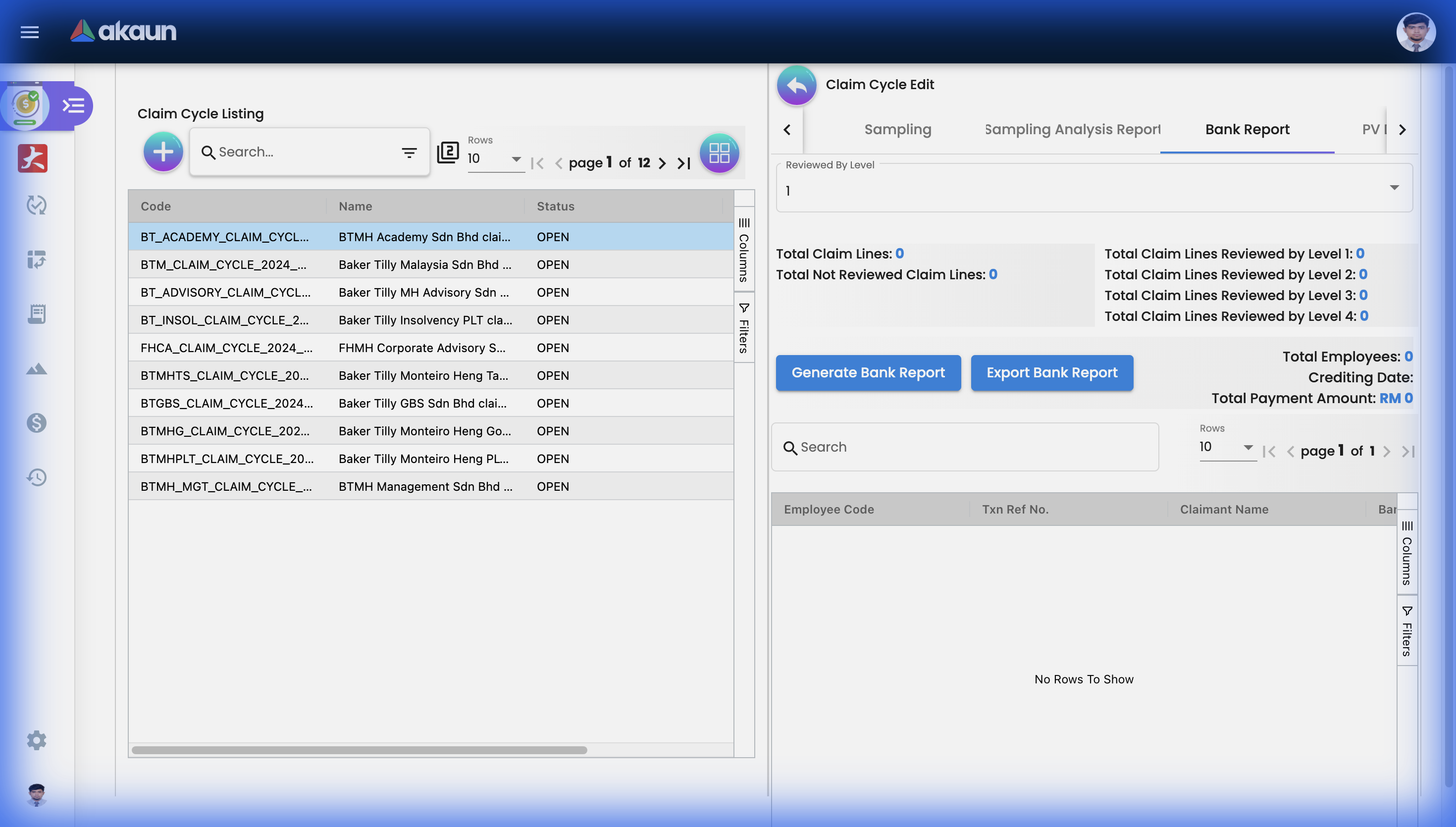 Bank Report tab for generating payment files with employee payments.
PV Details Report
Purpose: Payment Voucher details for accounting.
Contains:
- Transaction reference
- Claim details
- GL coding
- Tax information
Use For:
- Accounting entries
- Payment authorization
- Audit documentation
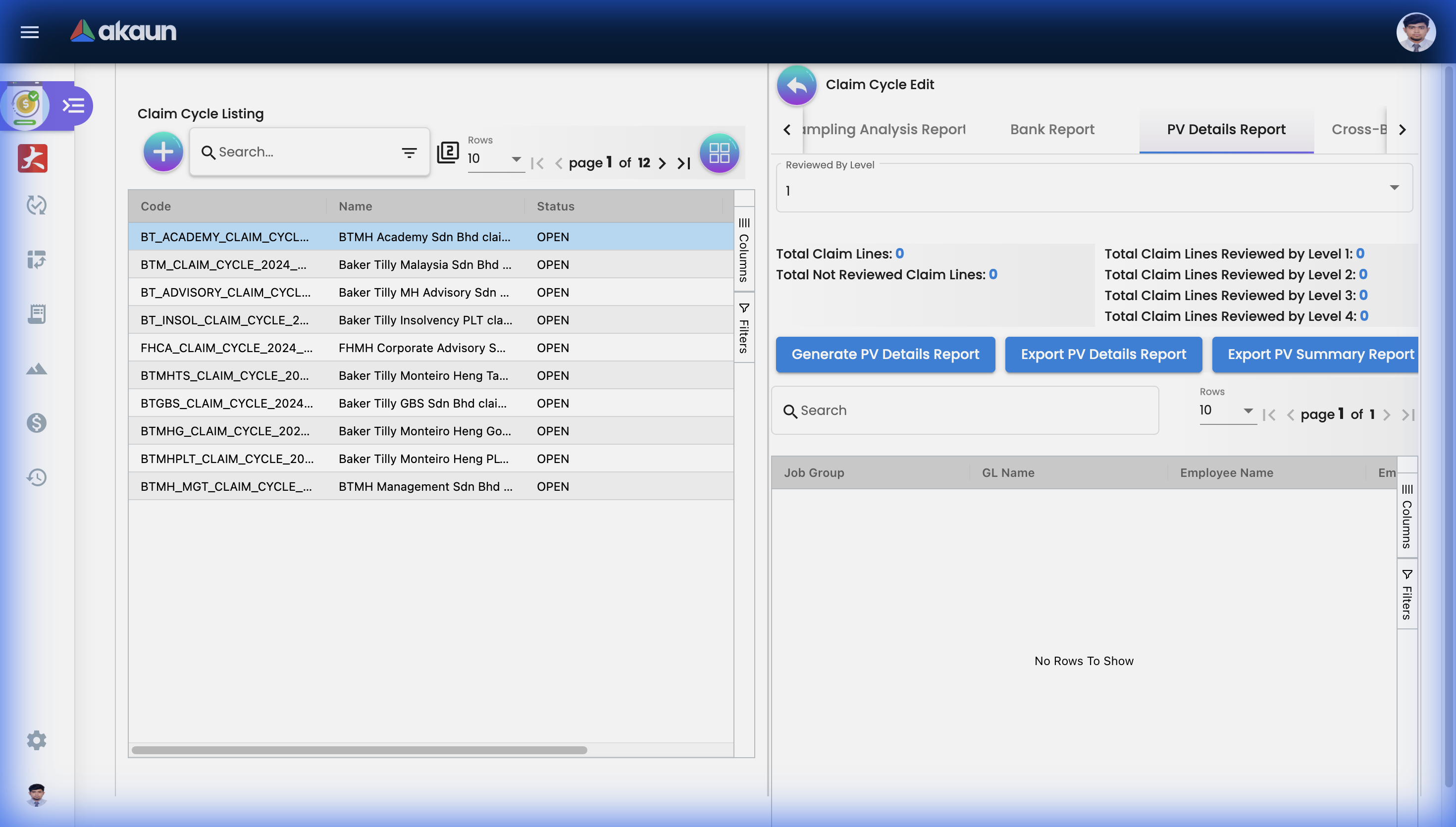 PV Details Report with transaction references, amounts, and GL coding.
Cross-Billing Report
Purpose: Inter-company billing for shared costs.
Contains:
- Billing company
- Receiving company
- Expense allocation
- Amount breakdown
Use Case: When employees from one legal entity claim expenses that should be billed to another entity.
Pivot Report
Purpose: Flexible analysis with customizable dimensions.
Features:
- Drag-and-drop dimensions
- Row and column grouping
- Aggregation options (Sum, Count, Average)
- Export to Excel
Common Analysis:
- Claims by department
- Claims by category over time
- Top claimants
- Cost center breakdown
Professional Subscription Report
Purpose: Track professional body memberships and subscriptions.
Contains:
- Membership type
- Professional body
- Renewal dates
- Amounts
Use For:
- Tax documentation
- Professional development tracking
- Budget planning
History & Audit Trail
Claim Cycles History Listing
Complete history of all cycles.
What’s Tracked:
- All lifecycle changes
- Who made changes
- When changes occurred
- Previous values
Filters:
- Date range
- Status
- Created by
- Company/Branch
Approval History
Within each cycle:
- Who approved what
- Timestamps
- Approval comments
- Rejection reasons
Reviewer History
Track reviewer actions:
- Claims reviewed
- Decisions made
- Time spent
- Reviewer assignments
Settings & Configuration
Default Selection
Pre-configure default values for new cycles.
- Default company
- Default branch
- Standard date offsets
- Auto-naming patterns
Application Settings
Control applet behavior.
| Setting | Purpose |
|---|---|
| Hide Salary Payment Tab | Show/hide payroll integration |
| Default Cycle Duration | Standard cycle length |
| Auto-close Settings | Automatic cycle closure rules |
Reviewer Settings
Configure reviewer assignments and workflows.
- Assign reviewers to cycles
- Set review quotas
- Define escalation rules
- Manage reviewer permissions
Field Settings
Customize visible fields and requirements.
- Show/hide specific fields
- Set required fields
- Configure field labels
- Default values
Webhook Configuration
Integrate with external systems.
- Trigger webhooks on cycle events
- Send data to external systems
- Receive status updates
- Configure endpoints
Feature Visibility
Control which features are available.
- Enable/disable tabs
- Show/hide reports
- Control access to sampling
- Module-level visibility
Permission Management
Permission Wizard
Guided permission setup for common roles.
Permission Sets
Pre-defined permission bundles.
| Set | Access Level |
|---|---|
| Viewer | Read-only access |
| Reviewer | Can approve/hold claims |
| Manager | Full cycle management |
| Admin | All settings access |
User/Team/Role Permissions
Granular access control:
- Per-user permissions
- Team-based assignments
- Role inheritance
Audit Trail (Applet Log)
System-level logging of all actions.
- User actions
- System events
- Configuration changes
- Security events
Personalization
Personal Default Settings
Save your preferences:
- Preferred company/branch
- Default filters
- Saved views
- Column configurations
Sidebar Customization
Arrange sidebar menu items:
- Show/hide menu items
- Reorder sections
- Pin favorites
- Quick access shortcuts
Common Scenarios
Scenario 1: Month-End Claim Processing
1. January 1st: Create "January 2024 Claims" cycle
   - Supervisor Approval: Jan 1-15
   - Finance Cut-off: Jan 16

2. Jan 1-15: Managers approve individual claims
   - Claims automatically flow into cycle

3. Jan 16: Finance team opens cycle
   - Review Checking Reports (Inbox)
   - Move valid claims to Approved
   - Flag issues to On Hold

4. Jan 17: Run sampling
   - 10% random sample of claims > RM 500
   - Detailed verification

5. Jan 18: Generate reports
   - Bank Report → Upload to bank
   - PV Details → Send to Accounting

6. Jan 20: Close cycle
   - All claims paid ✓
Scenario 2: Audit Sampling
Auditor requests: "Show me how you verify claims"

1. Open recent cycle
2. Go to Sampling tab
3. Show sample creation criteria:
   - 10% of all claims
   - 100% of claims > RM 1,000
4. Show Sampling Analysis Report:
   - 95% pass rate
   - 5 issues identified and resolved
5. Export for audit documentation
Scenario 3: Cross-Company Claims
Employee from Company A claims meal with Client served by Company B

1. Claim submitted under Company A
2. Cycle processing identifies cross-billing
3. Cross-Billing Report generated:
   - Company A: RM 200 claimed
   - Company B: RM 200 to be billed
4. Inter-company billing processed
Tips & Best Practices
For Finance Teams
✓ Establish Clear Cut-offs: Communicate deadlines to all managers
✓ Regular Sampling: Implement consistent sampling to deter fraud
✓ Use Pivot Reports: Analyze spending patterns monthly
✓ Close Cycles Promptly: Don’t let cycles remain open indefinitely
For Reviewers
✓ Check Inbox Daily: Don’t let claims pile up
✓ Document On Hold Reasons: Clear notes help resolution
✓ Use Summary UI: Quick totals before detailed review
✓ Verify Receipts: Always check receipt images match claims
For Administrators
✓ Configure Permissions Carefully: Use permission sets for consistency
✓ Set Up Webhooks: Integrate with accounting systems
✓ Review Audit Logs: Monitor for unusual activity
✓ Train Users: Ensure all stakeholders understand the workflow
Frequently Asked Questions
Q: What’s the difference between rejecting a claim in Claim Applet vs putting On Hold here?
A: Rejection in Claim Applet sends back to employee. On Hold in Claim Cycle is an internal finance review flag—the claim is already approved by manager.
Q: Can I remove a claim from a cycle?
A: Claims are linked to cycles based on approval dates. Consult your administrator for cycle adjustments.
Q: How are duplicate claims detected?
A: System compares receipt details, amounts, and dates. Flagged duplicates appear in Claim Line View.
Q: Who can generate reports?
A: Users with Reviewer or higher permissions. Specific report access can be controlled via Feature Visibility.
Q: Can cycles span multiple months?
A: Yes, cycle dates are configurable. However, most organizations align with payroll periods.