Claim Cycle Applet
Purpose and Overview
The Claim Cycle Applet is an advanced batch-processing engine designed specifically for Finance Teams, Payroll Officers, and Auditors. While the standard Claim Applet handles individual employees submitting their RM 50 taxi receipts, the Claim Cycle Applet is where Finance bundles 500 of those approved receipts together, audits them for fraud, and generates the final bank payment file.
Claim Applet vs Claim Cycle Applet
| Feature | Claim Applet | Claim Cycle Applet |
|---|---|---|
| Primary Users | All Employees, Direct Managers | Finance Teams, Auditors |
| Action | Submit 1 claim → Manager Approves | Pull 500 approved claims → Finance Audits |
| Output | Individual “Approved” status | Bank Files, PVs, Cross-Billing Reports |
| Granularity | Single receipt | Monthly Batch |
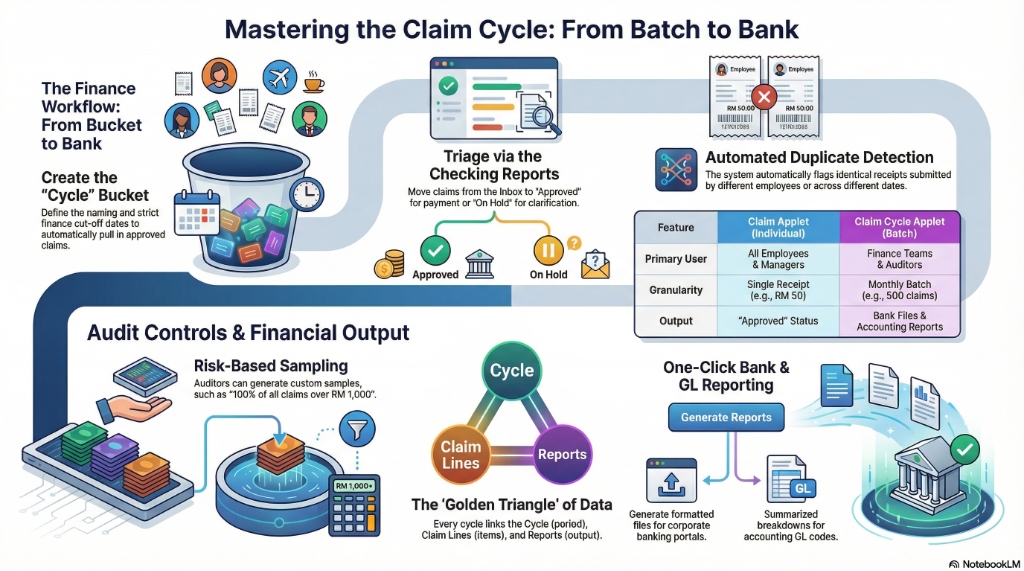
The “Golden Triangle” of Claim Cycles
To master this applet, understand how these three objects interact:
- The Cycle: The “Bucket.” It defines the time period (e.g., Nov 1 - Nov 30) and the cut-off dates.
- The Claim Lines: The “Items in the Bucket.” These are the individual employee claims that got pulled into this cycle.
- The Reports: The “Output.” The data generated from the bucket so the company can actually pay the staff (Bank Files, Payment Vouchers).
Role-Based Quick Start Guides
For Finance Managers: Run the Monthly Claim Batch
Your goal is to collect all approved claims for the month and generate a bank payment file.
Step 1: Create the “Bucket” (The Cycle)
- Go to Claim Cycles from the sidebar.
- Click "+" to create a new cycle.
- Name it (e.g., Nov 2024 Employee Claims).
- Set the Finance Cut-off Date (If set to Nov 25th, only claims approved by managers before this date will be pulled in).
- Click Create.
Step 2: Collect the Claims
- Once created, the system systematically pulls all eligible, manager-approved claims into this cycle.
- Go to the Claim Lines tab to verify the total amount (e.g., 420 claims totaling RM 45,000).
Step 3: Finance Verification
- Go to the Checking Reports tab.
- Open the Inbox. Here you’ll see every claim.
- Review the receipts and amounts.
- Click Approved for clean claims. Click On Hold if a receipt looks suspicious (this stops it from being paid).
Step 4: Pay the Employees
- Go to the Bank Report tab.
- Click Generate.
- Download the payment file and upload it to your corporate banking portal.
- Go to the PV Details Report to generate the data needed for your accounting system.
For Auditors: Perform a Fraud Check (Sampling)
Your goal is to ensure employees aren’t submitting fake receipts or inflating costs.
Step 1: Create an Audit Sample
- Open up a pending Claim Cycle.
- Go to the Sampling tab.
- Click Create Sample.
- Define your rule: “Give me a random 10% of all claims” OR “Give me 100% of all claims over RM 1,000.”
Step 2: Deep Dive Verification
- The system generates a focused list of claims based on your rule.
- Click into each sampled claim.
- Verify the receipt image against the claimed amount.
- Check for duplicate receipt uploads across different dates.
Step 3: The Audit Report
- Once finished, go to the Sampling Analysis Report tab.
- Export the findings. This proves to external auditors that you have internal controls enforcing expense policies.
Deep-Dive: The Cycle Details
When you open a Claim Cycle, you manage the batch through a series of specialized tabs.
1. Main Details Tab
This defines the rules of the batch.
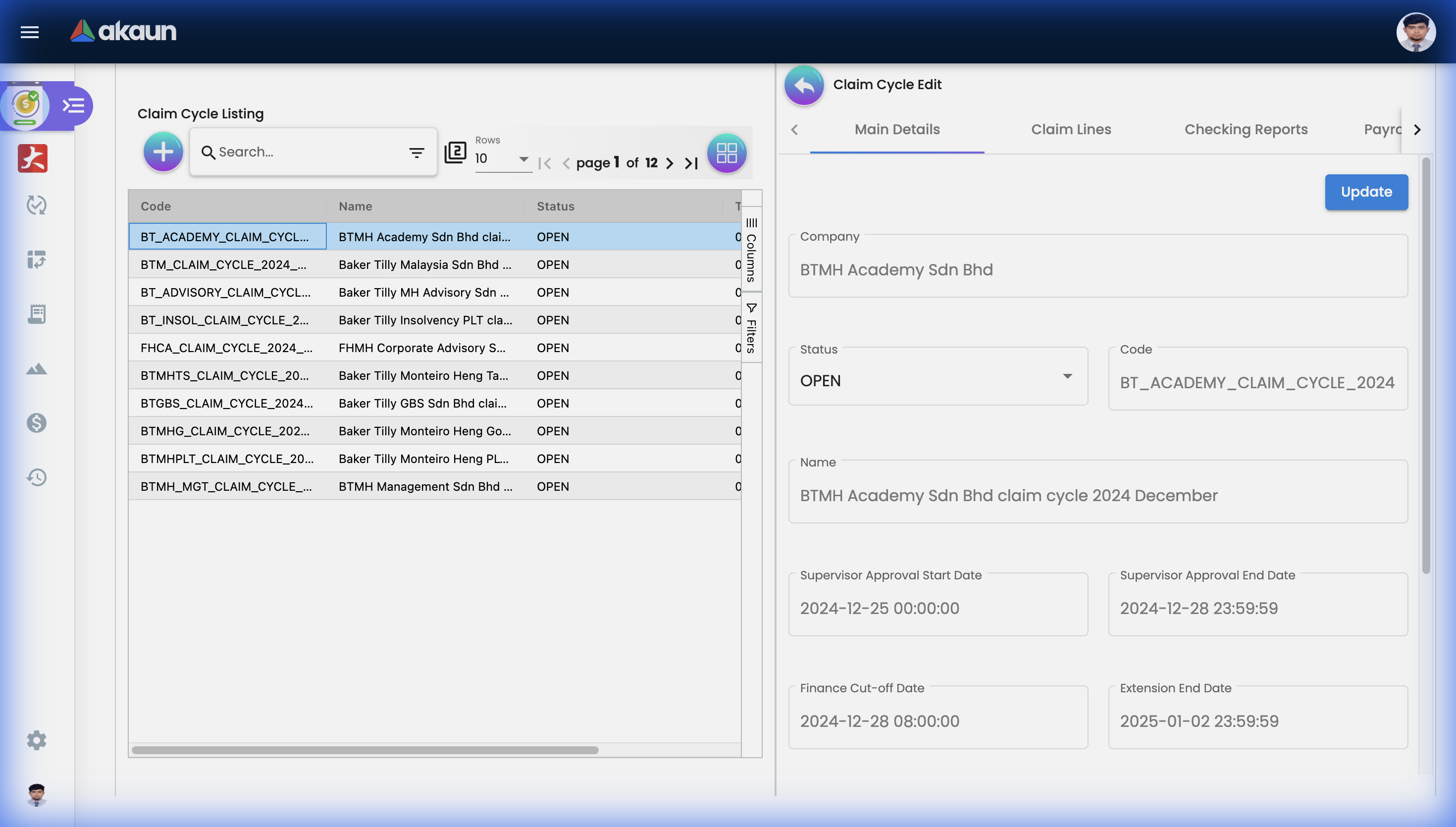
| Field | Purpose |
|---|---|
| Status | Draft (Setting up) → Open (Collecting) → In Review (Finance auditing) → Closed (Paid). |
| Supervisor Approval Dates | The specific window when managers must approve claims for them to make it into this pay cycle. |
| Finance Cut-off Date | The absolute deadline. Anything approved after this date rolls over to next month’s cycle. |
2. Checking Reports Tab (The Finance Inbox)
This is where Finance staff spend 90% of their time. It acts as an email inbox for processing claims.
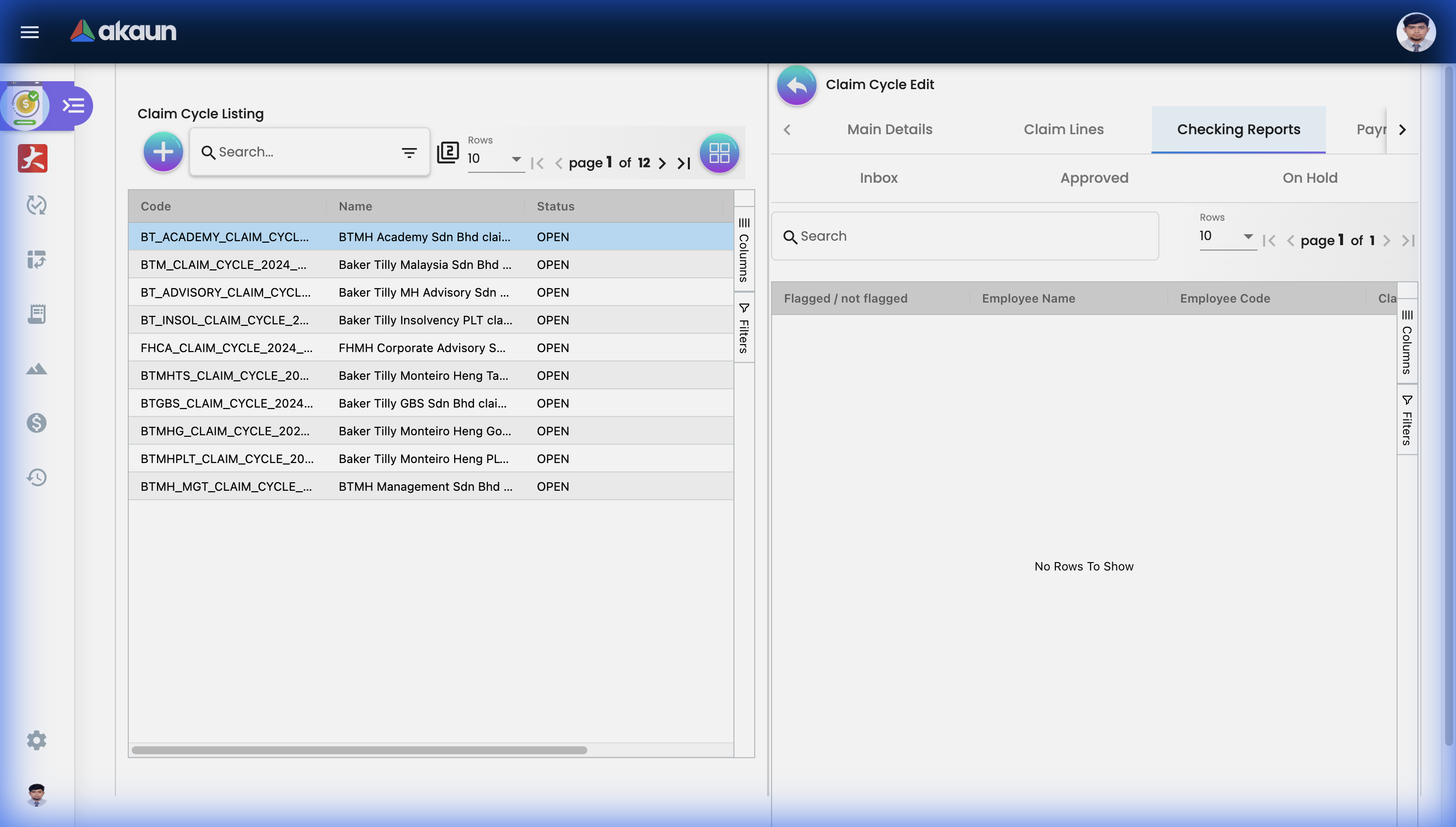
- Inbox Queue: Claims that have been approved by the employee’s direct manager, but haven’t been verified by Finance yet.
- Approved Queue: Claims Finance has verified are legitimate and compliant with company policy.
- On Hold Queue: Claims with issues.
- Example: An employee claimed RM 200 for a hotel, but attached a restaurant receipt instead. Finance puts this “On Hold.” It will not be generated in the Bank Report until the employee fixes it.
3. Claim Lines Tab
A raw data view of every single line item inside the cycle.
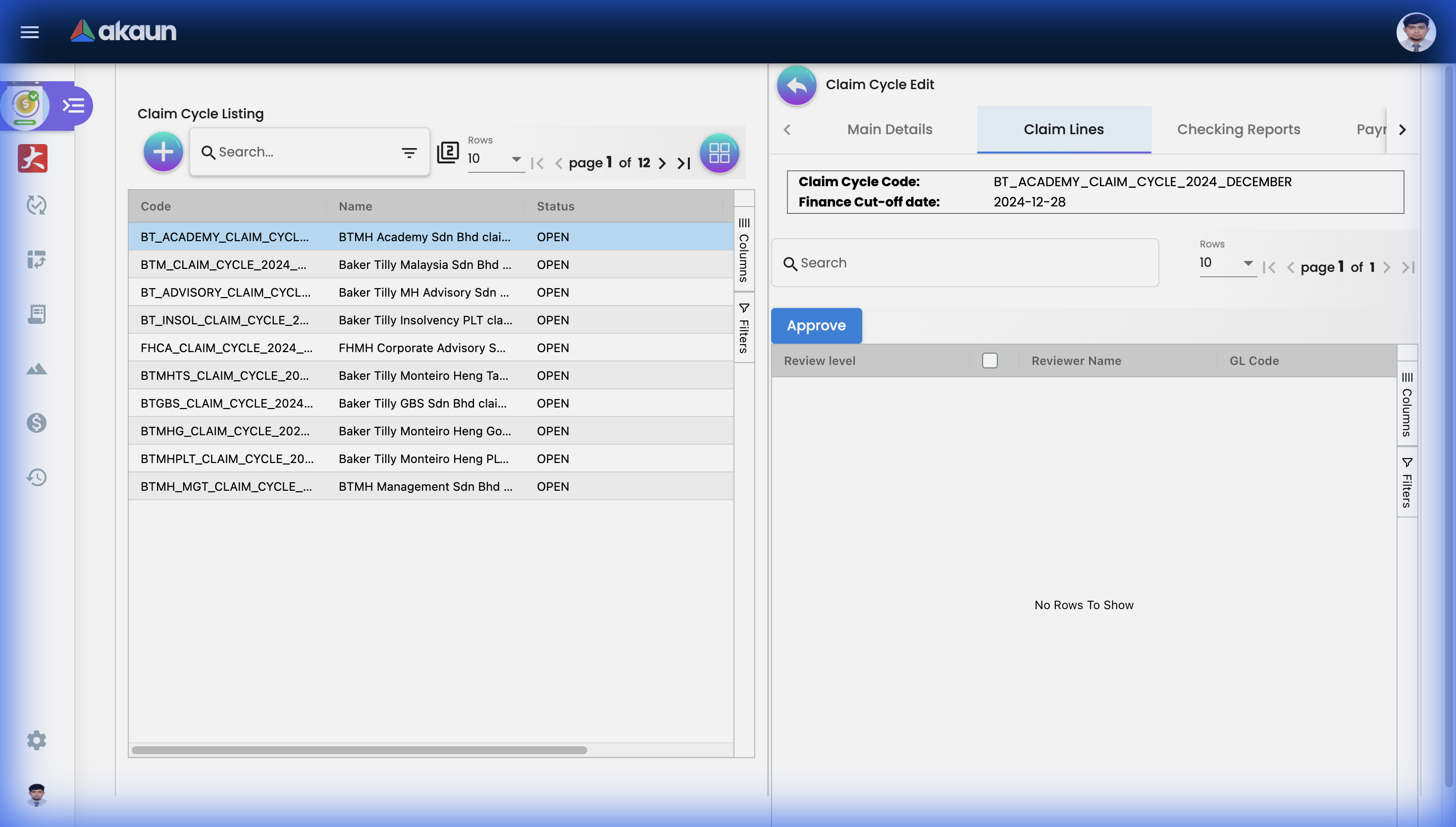
- Duplicate Detection System: The system automatically flags potential duplicates (e.g., if two employees claim the same Grab receipt, or one employee submits the same toll receipt twice). These show up warned in this listing.
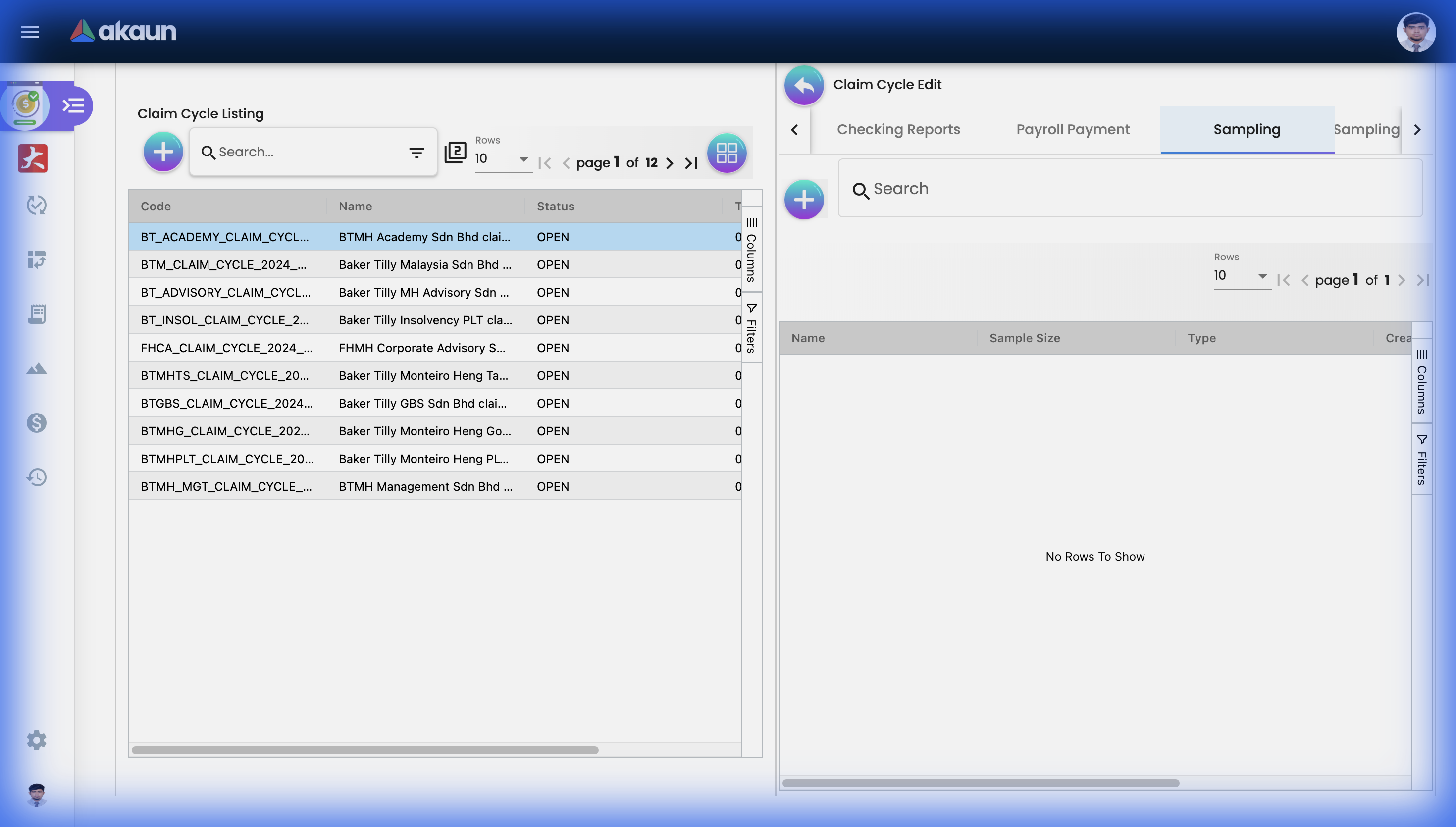
4. Sampling Tab
The dedicated audit environment.
Report Generation
Once Finance has moved all valid claims to the “Approved” queue and placed problematic ones “On Hold,” it’s time to generate the outputs.
Bank Report
What it is: A formatted file containing employee bank account numbers and their total approved payout. Why you need it: Instead of manually typing 500 bank transfers, you upload this single file to your corporate bank (e.g., Maybank2e, CIMB BizChannel) for mass payout.
PV (Payment Voucher) Details Report
What it is: The accounting breakdown of the cycle. Why you need it: Your accountants need to know which General Ledger (GL) codes to charge. This report summarizes the cycle by GL Code (e.g., RM 5,000 to Travel Expense GL, RM 2,000 to Medical GL).
Cross-Billing Report
What it is: An inter-company billing breakdown. Why you need it: If your organization has multiple legal entities (Company A and Company B). If an employee from Company A buys a server for Company B, they claim it under Company A. This report automatically calculates how much Company B owes Company A to balance the books.
Applet Configuration (For Admins)
To tailor the Claim Cycle Applet for your company, navigate to Settings in the sidebar.
Application Settings
Control the global behavior of the processing engine.
hideSalaryPaymentTab: Turn this on if you pay claims via direct bank transfer. Turn it off if you integrate claims directly into their monthly salary slip.- Auto-close Settings: Set rules to automatically change cycle status to “Closed” once the Bank Report is generated, preventing accidental double-payments.
Feature Visibility
Control which tabs your staff can see to prevent unauthorized actions.
- Hide the Sampling Tab from junior Finance staff, keeping it visible only to internal auditors.
- Hide the PV Details Report from HR staff who only need to track the Bank Report.
Permission Mapping
Enforce strict segregation of duties (SoD).
- Setup: User A (Finance Clerk) can only move claims from Inbox → Approved.
- Setup: User B (Finance Manager) is the only one who can click “Generate Bank Report.”
Common Real-World Scenarios
Scenario 1: The “Missed Deadline” Employee
The Situation: It’s November 26th. The Finance Cut-off date was November 25th. An employee calls complaining their RM 800 travel claim wasn’t paid. The Workflow:
- Finance opens the Nov 2024 Cycle.
- Because the manager approved the claim on Nov 26th, the algorithm correctly excluded it from the November batch.
- Finance creates the Dec 2024 Cycle.
- The system automatically sweeps up the “missed” November claim and places it in the December cycle Inbox. The employee will be paid in the next physical payment run.
Scenario 2: The Cross-Billing Expense
The Situation: You run a Group with 3 subsidiaries. A developer under Subsidiary A buys a software license for Subsidiary C. The Workflow:
- Developer submits the claim to their manager in Company A. Manager approves.
- Finance in Company A runs the Monthly cycle.
- Finance generates the Cross-Billing Report.
- The report explicitly shows an accounts receivable entry: Subsidiary C owes Subsidiary A RM 500 for Software Licenses. Finance uses this to generate an inter-company invoice.
Scenario 3: Investigating High-Risk Departments
The Situation: Management suspects the Sales team is inflating entertainment claims. The Workflow:
- Auditor opens the latest Claim Cycle.
- Goes to the Sampling tab.
- Creates a specific rule: “Pull 100% of claims from Department = Sales where Amount > RM 200”.
- Auditor reviews all 45 receipts generated by the rule, finds 3 receipts that are non-compliant, puts them “On Hold”, and generates the Sampling Analysis Report for the Sales Director.
FAQs
Q: If I put a claim “On Hold”, is it deleted? A: No. It remains in the system. It simply won’t be included in the Bank Report for that specific payout. Once the issue is resolved, it can be moved to Approved.
Q: What is the difference between Rejecting a claim in the standard Claim Applet, and putting it On Hold in the Claim Cycle? A:
- Employee’s Manager Rejects (Claim Applet): The claim is dead. The employee must fix and resubmit a brand new claim from scratch.
- Finance puts On Hold (Claim Cycle): The claim is valid, but Finance needs a clarification (like a clearer picture of the receipt). The employee provides the picture, and Finance pushes it through without forcing the employee to restart the entire manager-approval process.
Q: Can a single claim belong to two different cycles? A: Absolutely not. The architecture uses a strict locking mechanism. Once a claim is pulled into a Cycle, it is permanently locked to that cycle to prevent double-payment fraud.