Events Management Applet
Purpose and Overview
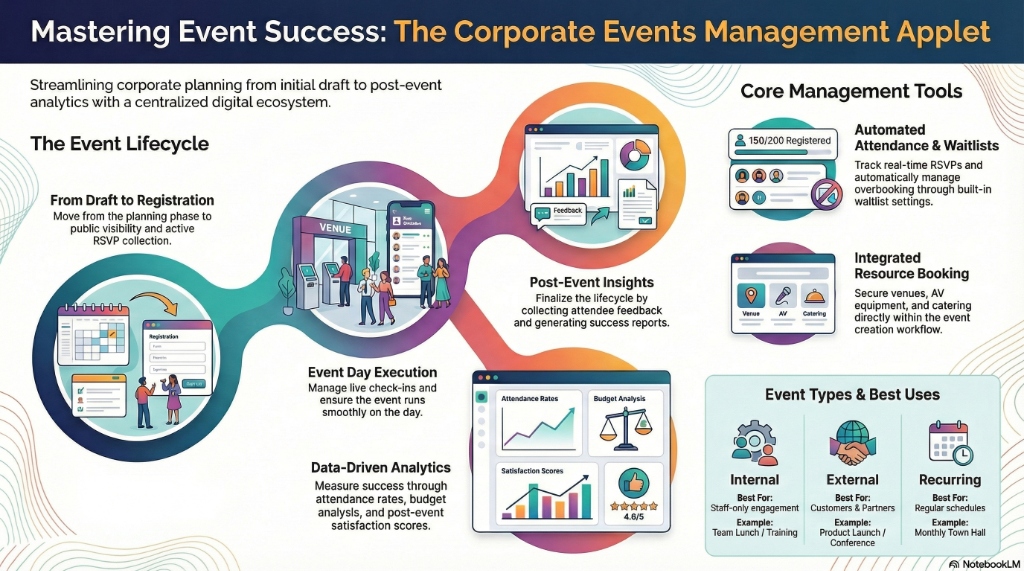
The Events Management Applet is a centralized hub for organizing, scheduling, and financially tracking company activities. Instead of managing the “Company Annual Dinner” in a spreadsheet and tracking the catering costs in a separate finance folder, this applet combines visual scheduling with hard financial expense tracking.
Who Benefits from This Applet?
| Role | How they use it |
|---|---|
| Event Coordinators | Scheduling activities, booking venues, and logging catering/rental expenses. |
| Department Managers | Creating specific “Calendars” for their teams and controlling who can see them. |
| Finance Teams | Pulling unified Expense Reports to see exactly how much a specific event cost the company. |
| All Employees | Viewing the global Event Calendar to see upcoming company-wide activities. |
What Problems Does This Solve?
Without Events Management:
- Event schedules are lost in email threads or isolated Outlook calendars.
- Calculating the true cost of an event requires digging through months of individual employee claims.
- Private department events (like a confidential management offsite) are accidentally visible to the whole company.
With Events Management Applet:
- ✓ Unified Schedule - Full visual calendar of all activities.
- ✓ Dedicated Expense Tracking - Every invoice, receipt, and claim is tied directly to the “Event Record.”
- ✓ Granular Privacy - Calendar-level permissions ensure only the Marketing team sees the Marketing calendar.
The “Golden Triangle” of Event Management
To master this applet, understand how these three objects interact:
- The Calendar (The Group): A container with privacy settings (e.g., Executive Offsites).
- The Event (The Activity): The scheduled item with a date, location, and description (e.g., 2024 Strategy Retreat).
- The Expenses (The Money): The actual costs logged against that specific event (e.g., Hotel Booking: RM 15,000).
Role-Based Quick Start Guides
For Department Managers: Setup a Team Calendar
Your goal is to create a private calendar for your department to track internal training sessions.
Step 1: Create the Container
- Go to Calendar Listing from the sidebar.
- Click "+" to create a new calendar.
- Name it (e.g., IT Department Training).
- Pick a color code (e.g., Blue) so these events stand out visually.
- Click Create.
Step 2: Restrict Access
- Go to Settings > Events Calendar Permission.
- Select your new IT Department Training calendar.
- Assign the “IT Team” group with
Adminrights. - Leave other departments blank. Now, only IT staff can see or add events to this calendar.
For Event Coordinators: Plan an Event & Track Costs
Your goal is to schedule the Annual Dinner and track its budget.
Step 1: Create the Event
- Go to Event Listing.
- Click "+".
- Fill in the details:
- Event Name: Annual Gala Dinner 2024
- Calendar: Company-Wide Events
- Date/Time: Dec 15, 2024 (6:00 PM - 11:00 PM)
- Status: Published
- Click Create. The event now appears on the global visual calendar.
Step 2: Log the Expenses
- Stay on the Event record and switch to the Event Expenses tab.
- Click "+" to add a cost.
- Enter the Hotel Ballroom deposit (RM 10,000) and attach the invoice.
- Enter the Catering cost (RM 5,000) and attach the receipt.
- The system automatically calculates the Total Event Cost (RM 15,000).
For Finance: Audit Event Spending
Your goal is to see how much the company spent on Marketing events this quarter.
- Go to the Event Expense Report from the sidebar.
- Set the date filter to This Quarter.
- Filter by the Marketing Events calendar.
- The system outputs a consolidated list of every expense logged against every marketing event, ready for Excel export and GL reconciliation.
Deep-Dive: The UI Workspaces
1. The Event Calendar (Visual View)
This is the default landing page. It provides a visual timeline (Monthly, Weekly, Daily views) of all events across all calendars you have permission to see.
- Interactive Drag-and-Drop: Need to postpone an event by a day? Just click and drag the colored block to the next day. The database dates update automatically.
- Quick Create: Click any empty box on the calendar to instantly pop open the “New Event” creation form for that date.
2. Event Listing & Edit Tabs
This is the raw data grid of all events. Double-clicking an event opens its detailed configuration tabs.
| Tab | Purpose |
|---|---|
| Main Details | Core info (Name, Dates, Location, Attached Calendar, Status). |
| Event Expenses | The financial ledger for this specific event. Add line items for vendors, internal costs, and external purchases. |
| Audit Trail | Shows who created the event, who changed the dates, and who added the expenses. |
3. Calendar Listing
This is where administrators manage the “Folders.”
- Color Coding Engine: Assigning a specific hex color to a Calendar ensures that all events within it share that color on the visual map, allowing executives to quickly differentiate between “Sales Events” (Green) and “HR Events” (Purple).
4. Event Expense Report
A powerful, filterable data grid designed specifically for the Finance department. Instead of opening events one-by-one to see expenses, this report pulls all expenses across all events into a single pivot-ready view.
Applet Configuration
To tailor the Events Management Applet for your company, navigate to Settings in the sidebar.
Dual-Layered Permissions (CRITICAL)
This applet uses a unique, dual-layered security model.
Layer 1: Server Side Permissions (The Applet Level)
- Found under standard Settings > Permissions.
- Purpose: Controls who can open the Applet itself.
- Example: Giving standard employees
Viewaccess to the applet, while giving HRAdminaccess.
Layer 2: Events Calendar Permission (The Data Level)
- Found under its own specific menu: Settings > Events Calendar Permission.
- Purpose: Controls who can see specific Folders within the applet.
- Example: Even if the CEO has
Adminaccess to the applet (Layer 1), if the HR team restricts the “Confidential Interviews” calendar (Layer 2) exclusively to themselves, the CEO will not see those events on the visual calendar.
Field Settings & Default Selection
- Field Settings: Make fields like “Location” mandatory to force staff to properly document where events are taking place.
- Default Selection: If an Event Coordinator strictly works for Marketing, they can set their default Calendar to “Marketing Events.” Every time they click “New Event,” it automatically pre-selects the correct folder, saving clicks and preventing miscategorization.
Common Real-World Scenarios
Scenario 1: The Cross-Department Mega Event (Annual Dinner)
The Situation: HR is organizing the 500-person Annual Dinner. Five different committees are handling different expenses (Prizes, Venue, Food, Entertainment). The Workflow:
- HR creates the Event: Annual Dinner 2024.
- The HR Admin grants the 5 committee heads
Editaccess to the Company Events calendar. - Over the next 3 months, the Food Committee logs catering deposits in the Event Expenses tab. The Entertainment Committee logs DJ invoices in the same tab.
- On the night of the event, the CEO asks, “What’s our total bill so far?”
- HR simply opens the Event record and looks at the automatically tallied bottom line in the Expenses tab. No hunting for receipts required.
Scenario 2: Protecting Confidential Board Meetings
The Situation: The Company Secretary needs to schedule Board of Directors meetings, but the dates and locations must remain strictly hidden from standard employees. The Workflow:
- Secretary goes to Calendar Listing and creates
Board of Directors Schedule. - Secretary goes to Events Calendar Permission and assigns ONLY themselves and the CEO to this calendar.
- Secretary creates the monthly board meeting events.
- Result: When standard employees open the Visual Calendar, they see a completely blank schedule for those dates. When the CEO logs in, they see the restricted events highlighted in red.
Scenario 3: Investigating Over-Budget Marketing
The Situation: Finance notices the Marketing department is burning cash rapidly through “campaign events.” The Workflow:
- Finance opens the Event Expense Report.
- Filters by Calendar = Marketing Campaigns.
- Sorts the
Amountcolumn from highest to lowest. - Identifies that one specific event (Mall Roadshow - Peninsular) had RM 20,000 in undocumented “Miscellaneous” expenses.
- Finance exports the report to PDF and emails the Marketing Director for an immediate explanation.
FAQs
Q: Can I invite external guests (like clients) to an event through this applet? A: This applet is an internal operational tracking tool, not an email client. It does not send out iCal invites to external email addresses. It is meant for internal business tracking and expense management.
Q: An event got cancelled. Do I delete it? A: Best Practice: Do not delete it. Open the event and change its Status from Published to Cancelled. This preserves the historical record and any cancellation fee expenses you might have already logged against it.
Q: Can I set up a recurring event (e.g., Every Monday at 9AM)? A: Currently, events are managed as distinct, individual records to ensure precise expense tracking per occurrence. You will need to clone or create separate records for recurring meetings.
Q: Why don’t my newly created events show up on the Visual Calendar? A: Check two things:
- Ensure the Event’s Status is set to Published (Draft events are hidden).
- Check the filter settings on the left side of the visual calendar view to ensure the checkbox for your specific Calendar group is “ticked” to visible.