Unified Contact Center
Answer customers from every messaging channel, from WhatsApp and e-mail to voice and marketplace chat, in one inbox where each arrival becomes a task that rules route to a team or an agent. It posts no journal and moves no stock: carts and e-invoices are handed to other applets, and a contact edited here is edited everywhere.
Your job, and the screen for it
| The job | Screen or tab | Read |
|---|---|---|
| Answer the customers waiting for you | Inbox (My Tasks, My Team Tasks, Active Tasks) | Inbox |
| Decide which team or agent gets a channel’s messages — a bot hand-over waits for a fifteen-minute routing poll | Configurations › Teams, Automation Rule, Rule | How a task is routed; Team, Project, QR Code, Rule |
| Send one message to many contacts | Broadcast | Broadcast |
| Review a sample of each agent’s conversations | Quality | Quality |
| See who is online and what is waiting, right now | Live Dashboard (Online Agent, All Agents, Active Tasks) | Live Dashboard |
| Take a chat through to a sales order | Inbox conversation, customer panel: Contact Merging first, then Shopping cart; the order’s knock-off tab in Sales Order | Fifteen minutes: a message to a sales order |
Overview
The Unified Contact Center (UCC) applet is BigLedger’s contact-centre desk. Messages arriving on twelve kinds of channel — WhatsApp, Telegram, SMS, Facebook Messenger, e-mail, voice, web chat, Instagram, LINE, Lazada and Shopee — land in one Inbox. Each arrival becomes a Task, which a rule engine routes to a team or an individual agent, and which an agent works on beside the customer’s CRM record, shopping cart, transaction history and e-invoice details.
It is opened by agents, team leaders and supervisors. It is configured by whoever owns the contact-centre set-up: the Virtual Contacts and their per-channel Endpoints (the sending and receiving identities), the Agents, Teams and Skills, and the Queues, Rules and Actions that decide who gets what.
Two things distinguish it from every other applet documented here. Its conversation data does not live in the tenant’s PostgreSQL database — conversations, messages, sessions, e-mail threads, Facebook posts and voice calls are stored in a per-tenant MongoDB database, while tasks, queues, agents, teams, rules and contacts are in PostgreSQL. And it posts no journal and moves no stock: it creates work items and messages, and hands commerce off to other applets.
Where it fits
| Direction | What | Why |
|---|---|---|
| Configuration | Messaging channel register | Every endpoint, contact and broadcast picks its channel from this list. It is not maintained inside UCC |
| Configuration | Issue category groups (category lists of the WF_CATEGORY kind) | The only real applet setting here selects up to eleven of these groups for the Issue Tracker panel |
| Upstream | Customer Maintenance and Entity | Contact Merging links a conversation’s contact to a CRM contact, a business entity, a membership card or a platform login |
| Adjacent | Doc Item Maintenance | The Product panel in a conversation browses items to share with the customer |
| Downstream | Shopping Cart | The Shopping cart panel creates a cart for the customer from inside the conversation |
| Downstream | MyInvois Admin | The E-Invoice panel requests an e-invoice for the customer and lists what has been issued |
| Downstream | Membership Admin | Membership is one of the four things a contact can be merged with |
| Adjacent | Employee | An agent record is a contact-centre role attached to a platform login subject, not an employee record |
UnifiedContactCenter, the row whose documentation_url points here and which mounts at
applets/tnt/ailedger/ucc. A second, newer implementation is an internal tool and is out of scope
for the wiki.Screens and menus
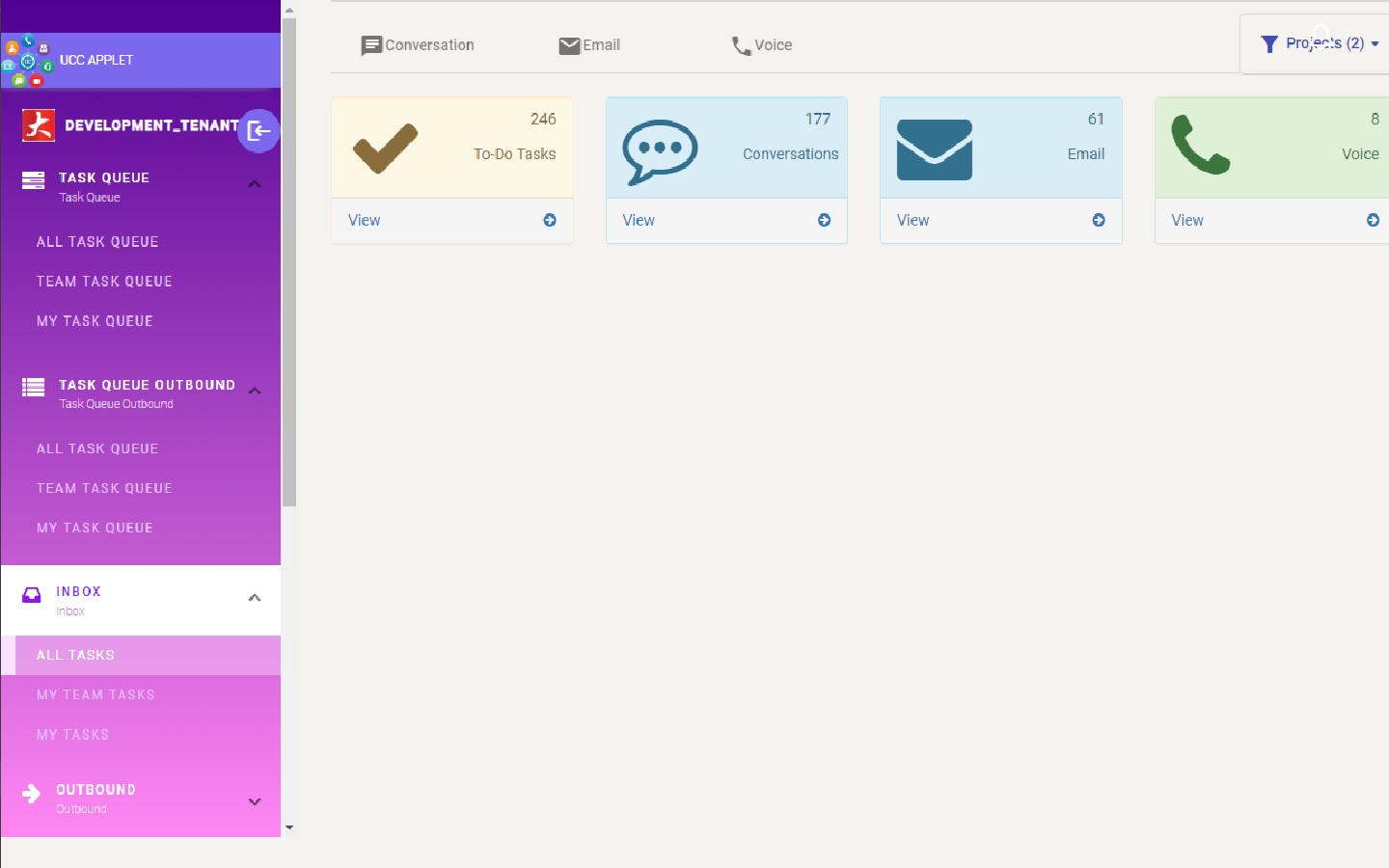
The applet mounts at applets/tnt/ailedger/ucc and opens on the Inbox. The sidebar carries an
agent availability toggle at the top — it sends AVAILABLE or OFFLINE over the applet
WebSocket, and it is what the Live Dashboard’s All Agents grid reports.
| Menu | Route | Gated by |
|---|---|---|
| Task Queue → All Task Queue | task-queue/all-tasks | ALL_TASK_QUEUE_VIEW |
| Task Queue → Team Task Queue, My Task Queue | task-queue/team, task-queue/my-tasks | not gated |
| Task Queue Outbound → All / Team / My | outbound-task-queue/… | All only: ALL_TASK_QUEUE_VIEW |
| Inbox → All Tasks | inbox/tasks | INBOX_ALL_TASK_VIEW |
| Inbox → My Team Tasks, My Tasks, Active Tasks | inbox/my-tasks, inbox/active-tasks | not gated |
| Outbound → All Tasks | outbound/tasks | section: OUTBOUND_MENU_VIEW; item: OUTBOUND_ALL_TASK_VIEW |
| Outbound → My Team Tasks, My Tasks | outbound/my-tasks | section: OUTBOUND_MENU_VIEW |
| Quality | quality | not gated |
| Social Media | social-media | not gated |
| Dashboard | dashboard | DASHBOARD_MENU_VIEW |
| Reports → Task, Agent, Conversation, User | reports/task, /agent, /conversation, /user | section: REPORT_MENU_VIEW |
| My-Profile | profiles/my-profile | not gated |
| Contacts | phonebook/contacts | CONTACT_VIEW |
| Broadcast | broadcast/broadcasts | BROADCAST_MENU_VIEW |
| Live Dashboard → Online Agent, All Agents, Active Tasks | live-dashboard/… | BROADCAST_MENU_VIEW — see the note below |
| Task Router → Router Queue, Tasks | task-router/router-queue, task-router/task | BROADCAST_MENU_VIEW — see the note below |
| Configurations | configurations/… | see Feature visibility and permissions |
| Settings | settings | not gated |
| Personalization | personalization | not gated |
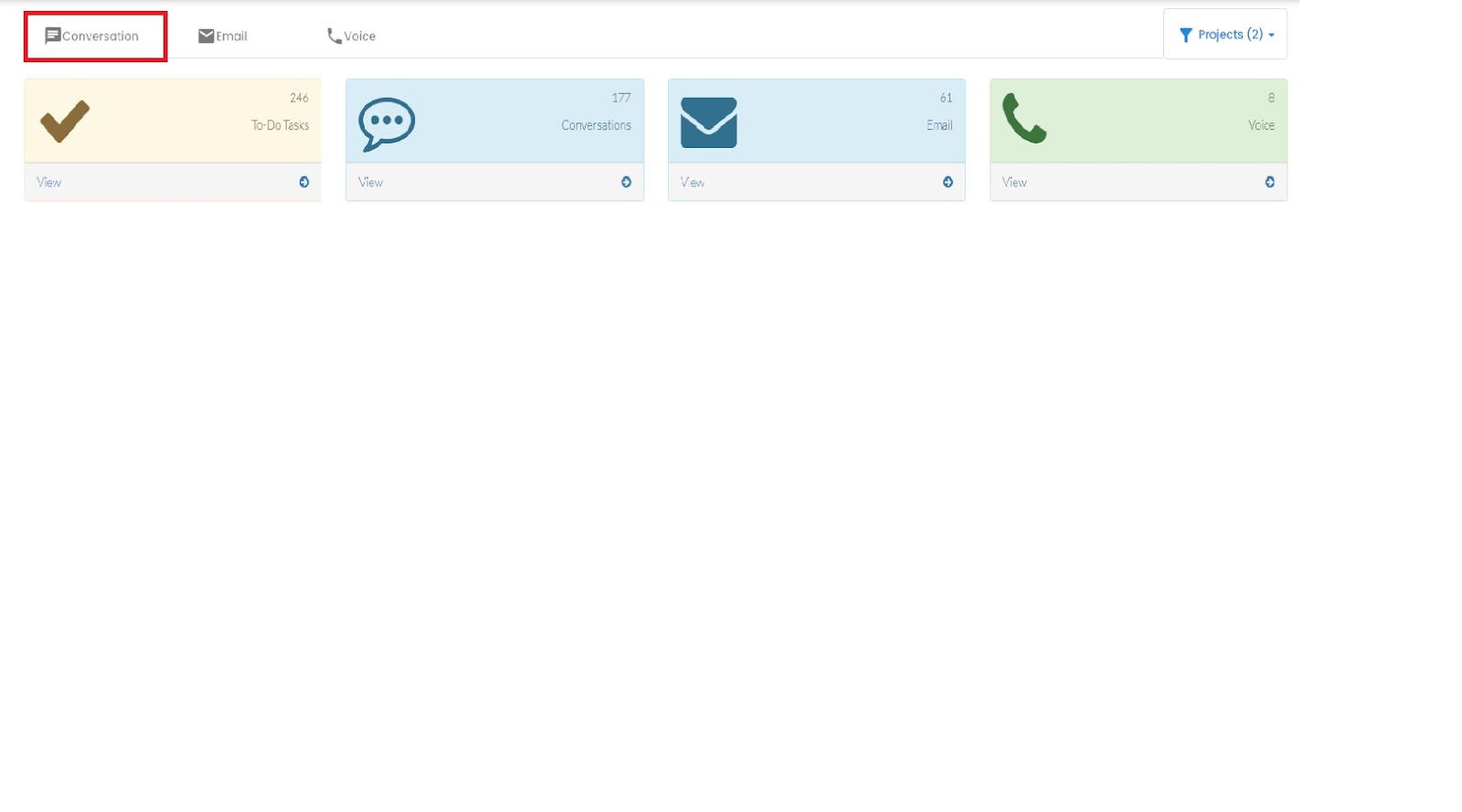
Each Inbox and Outbound view has three channel tabs — Conversation, Email, Voice — over a summary strip of open counts.
On the Inbox views the strip counts tasks still waiting on a queue, at the moment the view opens: All Tasks counts every one, My Tasks the ones queued to you, and My Team Tasks the ones queued to any team you belong to. Membership is the Agent tab of Configurations → Teams, the same team record the team guide describes, so adding someone to a contact-centre team also gives them whatever that team has been granted. A queued task belongs to one person or one team, never both, so taking a task from your team moves it from My Team Tasks to My Tasks. Routing and desk actions push fresh counts to the desks they affect; reloading the view recounts.
Inbox
Selecting a conversation opens the message thread and, behind an arrow at the top right, the customer panel. Its tabs, in order: Information, Tag, Predefine Messages, Issue Tracker, Shopping cart, Transaction History, E-Invoice (with Request E-Invoice and E-Invoice History sub-tabs), Media Library, Product, Contact Merging, Marketing and AgentHandover. Media Library and Product are hidden on voice conversations. A Membership tab exists in the template but is commented out.
The Information tab itself has sub-tabs: Personal Info (or Group Info on a group conversation), Assigned Agents and Assigned Team, Task Assignment (or Outbound Task Assignment), Preferred Agents, Conversation History, Campaign History and Conversation Instance History.
Contact Merging is manual, not automatic. It is a four-tab panel — Contact Hdr, Entity, Membership, Login Subject — in which an agent searches for and links the record they want. Nothing in the applet infers that two channel identities are the same person on its own. That makes a wrong link matter more than it looks. A document copies the customer, never the contact, and the agent then builds the cart, and requests the e-invoice, for whichever customer the link points at. If the side-panel shows another customer’s history, remove the wrong link and add the right one before building a cart or requesting an e-invoice.
Social Media
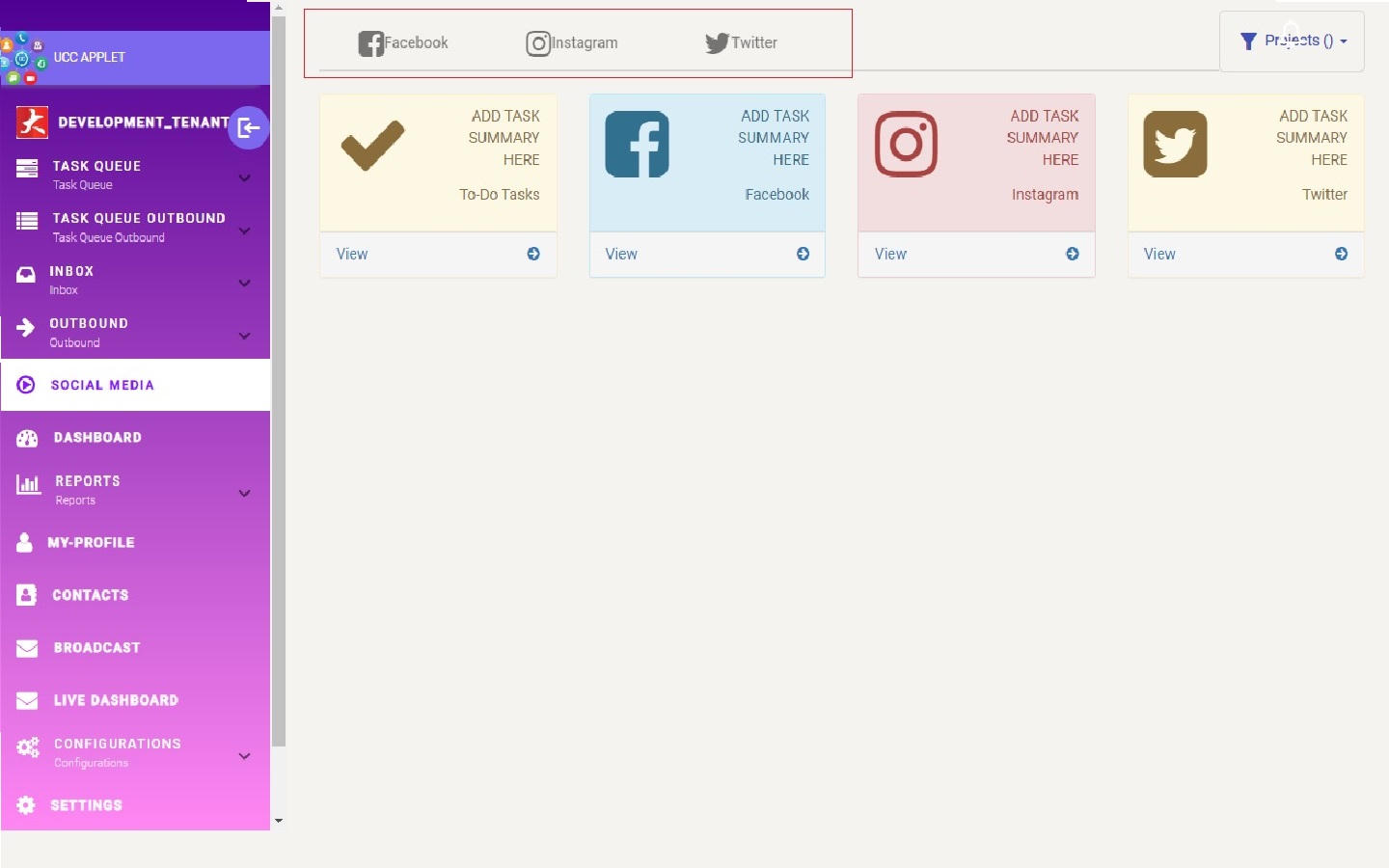
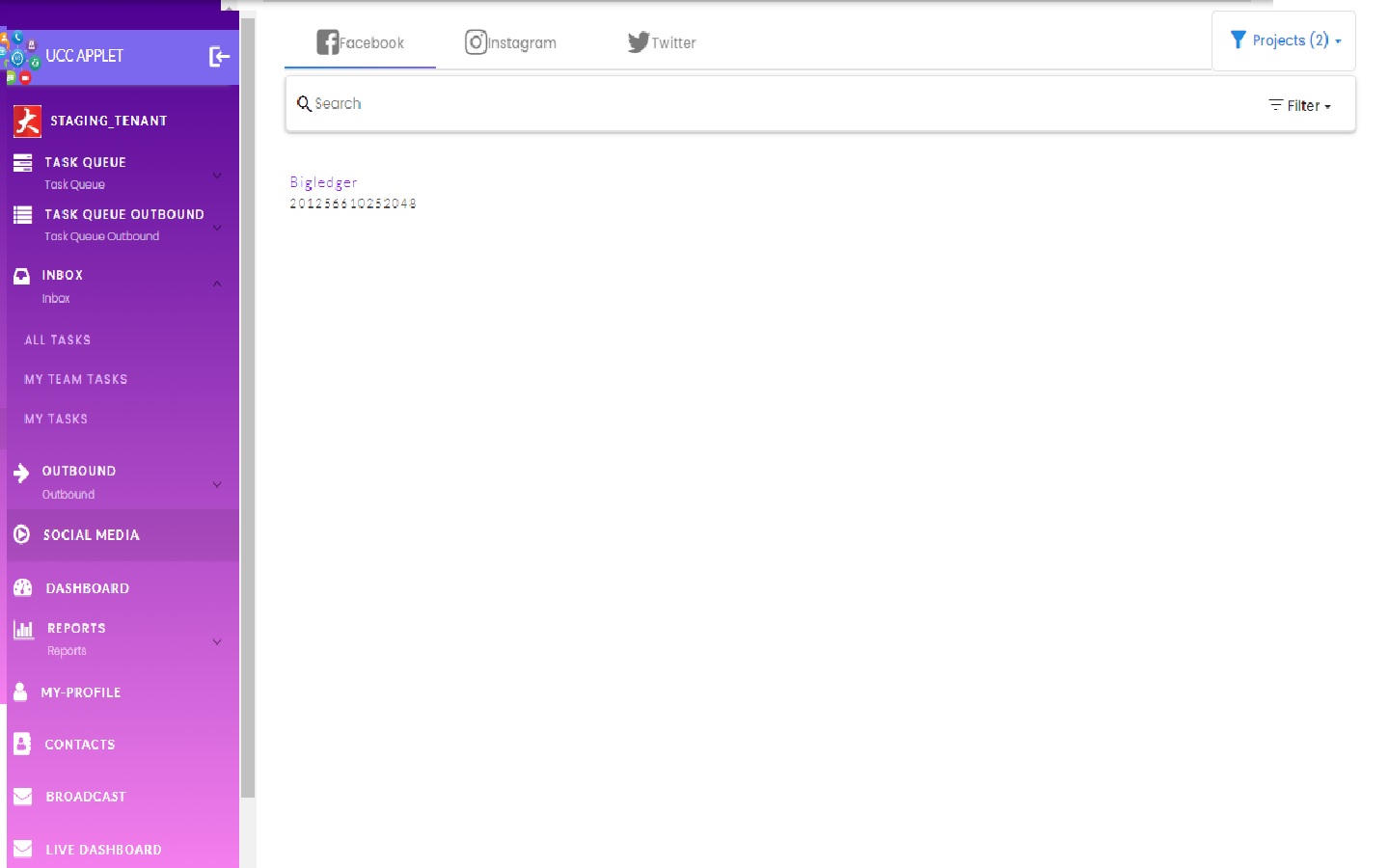
Three platform tabs are rendered — Facebook, Instagram and Twitter — but only two routes exist
(facebook, instagram), and the Instagram and Twitter tabs link to ../emails and ../voice,
which are not routes of this module.
Dashboard
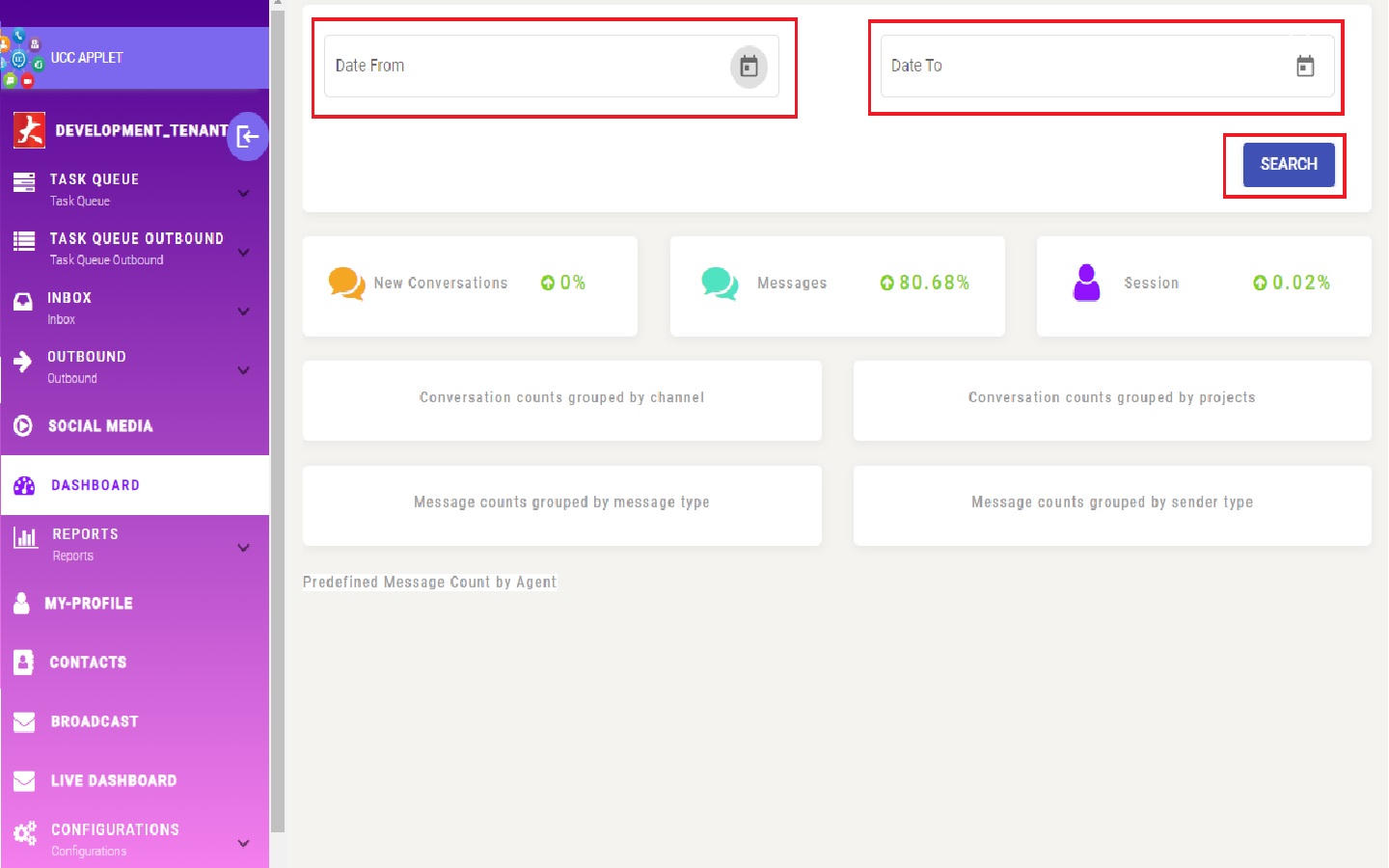
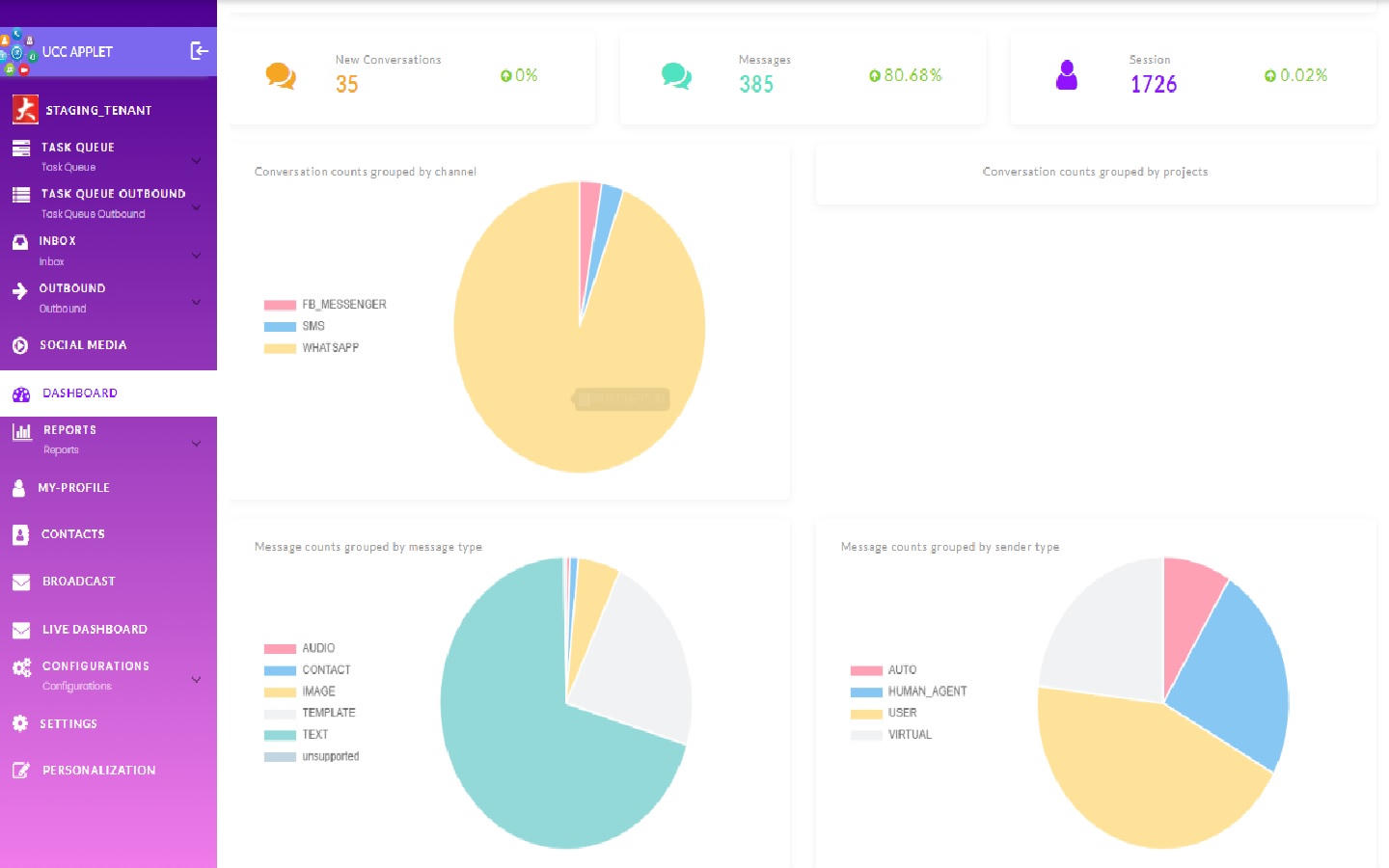
Date-ranged. It reports New Conversations, Messages and Session counts, counted from your conversation
store when you press Search: conversations by the date they opened, messages by their time, sessions by
their start. The percentage printed under each of the three is fixed text in the screen and never
changes with the dates you choose, so compare two date ranges yourself. Then come conversation counts
grouped by channel and by project, message counts grouped by message type
(AUDIO, CONTACT, IMAGE, TEMPLATE, TEXT, unsupported) and by sender type (AUTO,
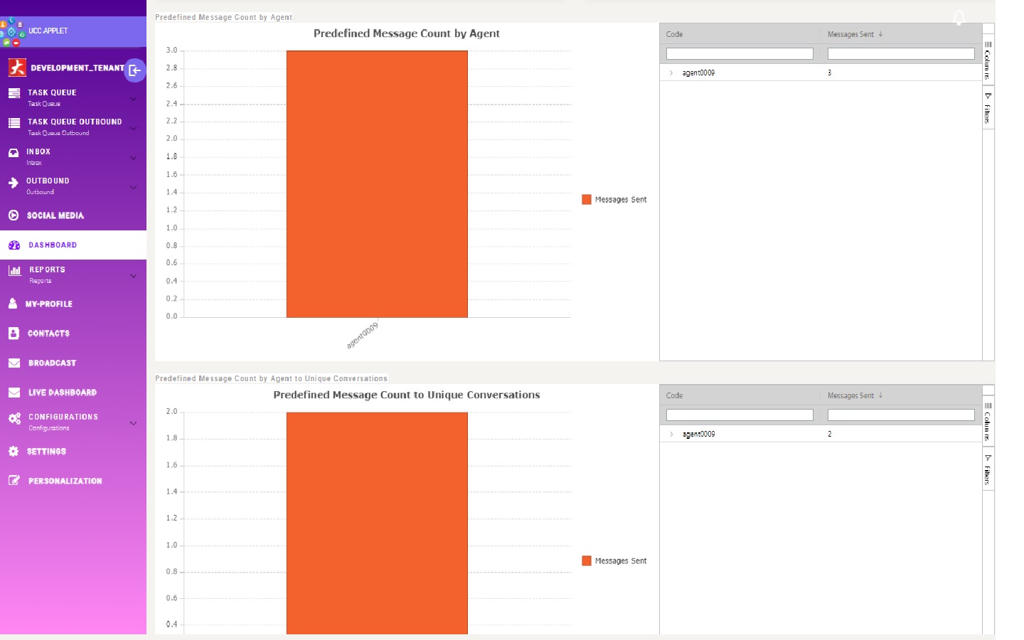
HUMAN_AGENT, USER, VIRTUAL), and predefined-message counts per agent.
Reports
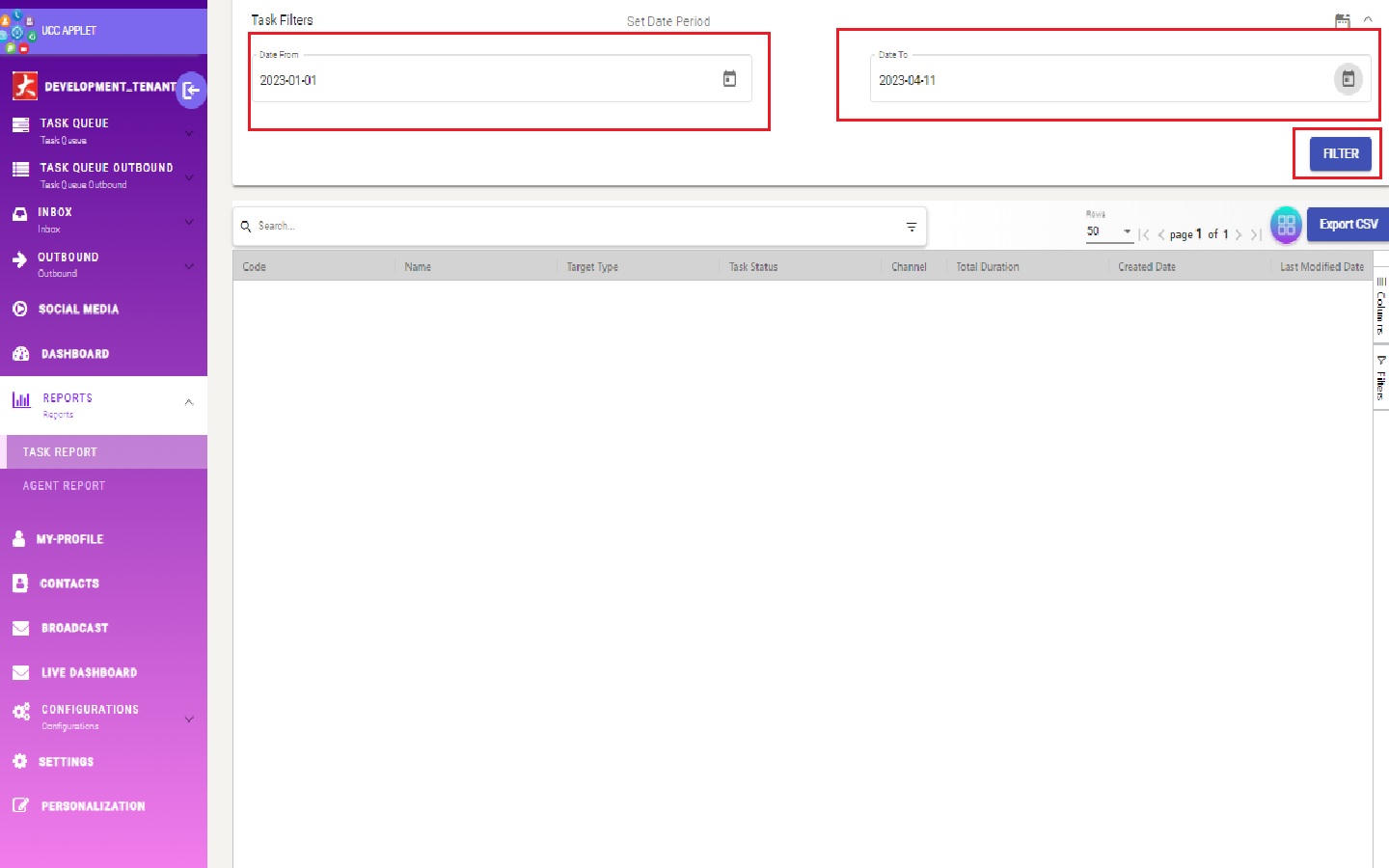
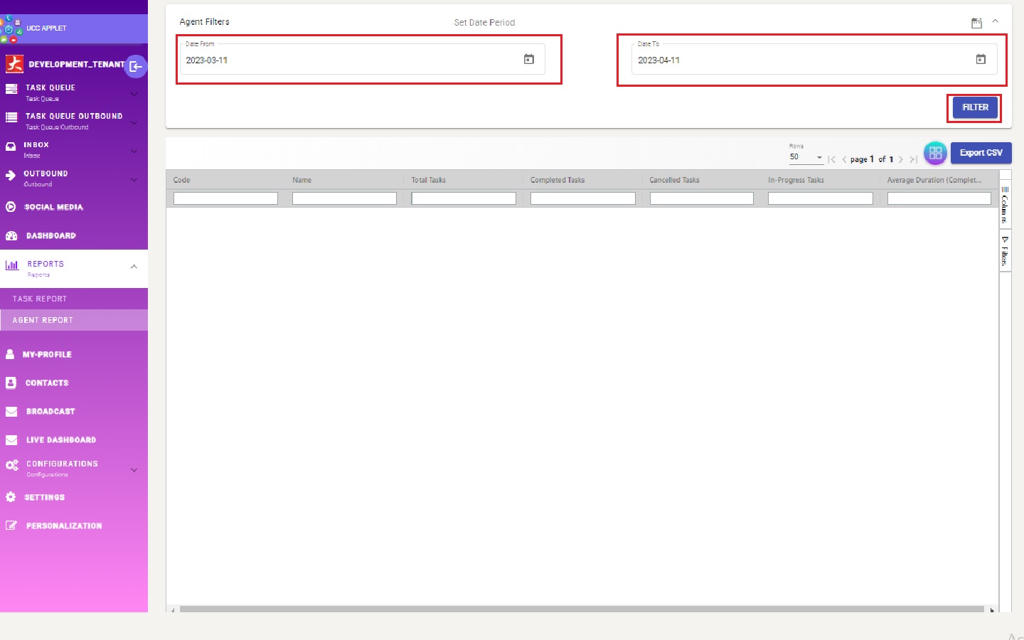
Four reports, each filtered by a date range that starts at the last month, at 50 rows a page. Task and Agent export to CSV; Conversation and User have no export button, and both load only when you press Filter, ignoring the project filter.
Every figure is recomputed when you open or filter a report, and none is kept as a snapshot. A task created in March and handed to another agent in April moves between agents in the March Agent report too. The CSV you export on the first working day of April is therefore the only record of March as it stood: export it, and file it with your management accounts.
- Task — one row per task, with its status, channel, queue, project and an Assignee; expand a row
for its events in date order. Two columns are worked out in your browser, not stored:
- Total Duration runs from the task’s creation to the moment you open the report, marked
(on-going) for an open task. For a completed or cancelled task it looks for a status-change event
that neither the desk nor the server writes (they record
TASK_COMPLETEDandTASK_CANCELLED), so it runs to now as well, without the mark. A chat closed in ten minutes on Monday reads 3 days on Thursday. - Assignee names whichever assignment event the server lists first, and that list has no fixed order, so after a transfer it can name the earlier agent or team. The current holder is the one on the queue listing.
- Total Duration runs from the task’s creation to the moment you open the report, marked
(on-going) for an open task. For a completed or cancelled task it looks for a status-change event
that neither the desk nor the server writes (they record
- Agent — one row for every user who has the applet, so supervisors with zeros are normal. A task counts for the agent named in its latest agent assignment, and only if it was created inside the date range and is not back with a team when you filter: hand a task back to a team and it leaves every agent’s total. In-Progress Tasks counts tasks assigned to the agent or in progress. Average Duration (Completion) runs from that latest assignment to the completion, over completed tasks only.
- Conversation — one row per staff user, not per conversation: the user’s sign-in e-mail and name with a count of their conversations and messages. Expand a row to see each conversation’s title, channel, created and updated dates and status. Use it to see who is carrying the load.
- User — one row per customer: name, customer ID, the channel and the customer’s ID on that channel. Rows do not expand and carry no counts, so it tells you who has written in and on which channel, not what they raised.
Live Dashboard
Nothing here is stored with your tenant’s records. It reads the register of open desk connections: an agent is on Online Agent while a contact-centre tab of theirs is connected, the status shown is what their availability toggle last sent, and All Agents shows anyone without a connection with the last time they were recorded online. Close the tab and the agent drops off; beyond each agent’s last time online it keeps no history, so use the Agent report for that. The Remaining Duration and Handling Duration columns stay empty, because they read a field the rows never carry.
Task Router
Two screens, and they are not what their names suggest.
| Screen | Lists | Columns |
|---|---|---|
| Router Queue | The routing queues, not the tasks in them | Queue Code, Queue Name, Queue Description, Created Date, Updated Date |
| Tasks | Every task at any status | Name, Code, Target Type, Status, Queue Name, Created Date, Updated Date |
Broadcast
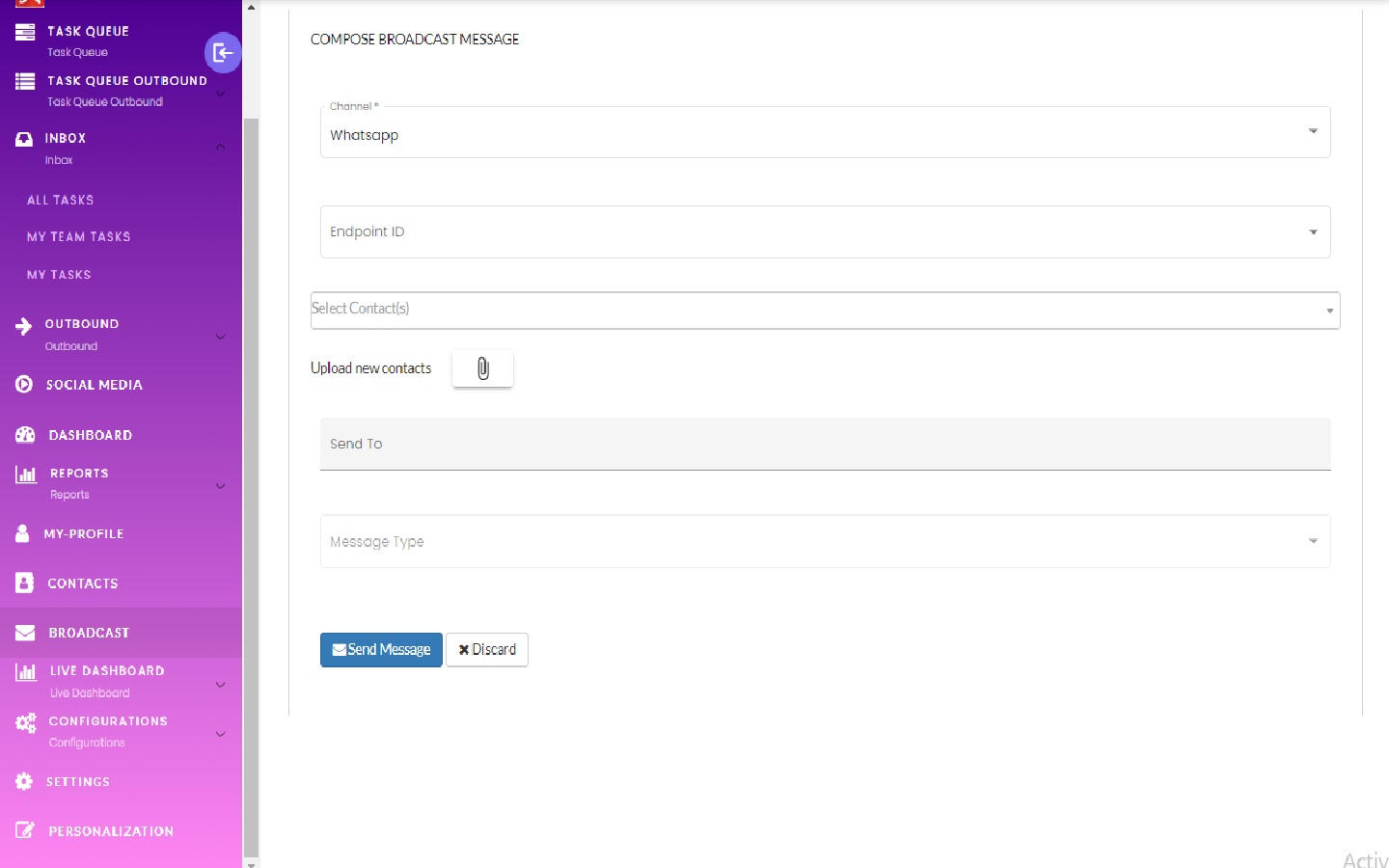
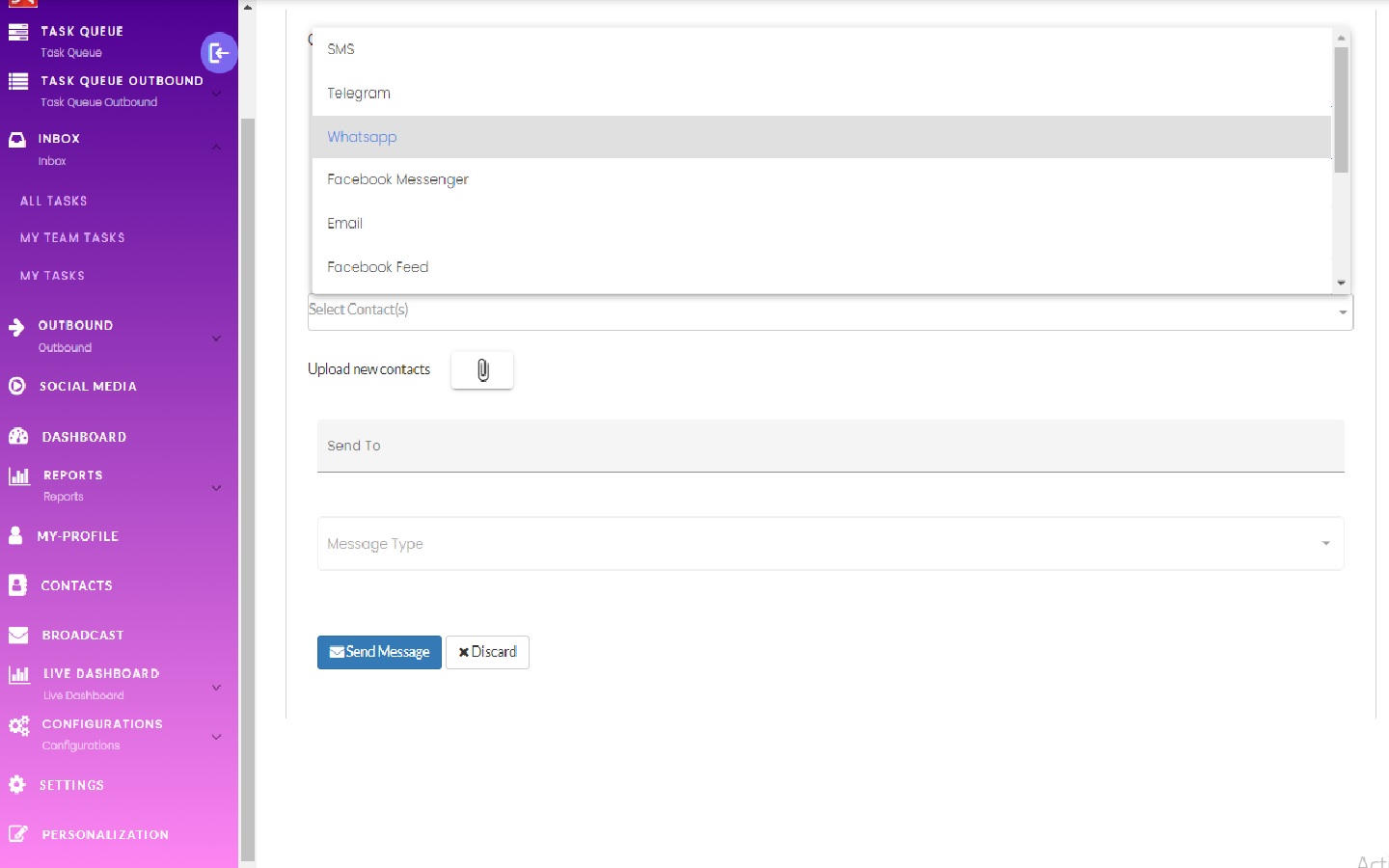
A one-off send: pick a channel, pick the endpoint to send from, pick recipients (from the contact
list or by uploading a .txt or .csv file), pick a message type, send.
Quality: reviewing a sample of each agent’s conversations
Quality control here is a questionnaire that a reviewer fills in against a finished conversation. It is not a score. Nothing adds the answers up, weights them or reports them per agent, so the judgement stays with the reviewer.
- The questionnaire is set up under Configurations → Quality Control. A Quality Control Set has a name, a description and one project. Each question has a type and a Required tick. Single choice, Multi choice and Dropdown questions take two or more options, and an option is a label with no points. The other types are Text, Paragraph, Integer and Rating.
- A review round is Quality → Monthly QA. It has a name, a code, a description and an optional period. On its Generate tab you choose a project, a channel and a number under Conversation Per Agent, save them on the round with ADD CONDITIONS, add agents from those linked to that project, and press GENERATE. For each agent, Generate draws that many of the completed tasks the agent worked on, at random, one per conversation, from tasks last updated inside the period. Leave the period empty and it draws from every completed task the agent ever worked on. Take GadgetSphere Online’s chat desk: six agents at five conversations each gives the round 30 lines.
- What Generate does not narrow. The project decides which agents you can add, and the project saved by ADD CONDITIONS decides which questionnaires a reviewer is offered. Neither limits the sample, so an agent who also works another project is sampled from both. Only Conversation can be chosen as the channel (Email and Voice are greyed out), and only inbound tasks are drawn. Pressing Generate again adds a second sample to the lines already there, and it can draw the same conversation twice.
- Answering. The Lines tab lists each sampled task. Open one and its conversation appears beside the project’s questionnaires. The answers are saved against the task, not the round, so a conversation drawn into two rounds shows the same answers in both.
- Rating answers are not kept. A Rating question shows a number box, but its answer is never saved. An Integer question gives the same box and does save.
- No finish line. Nothing marks a line as reviewed, and the round has no report. The question list inside each line shows which questions are answered, and that is the only record of progress.
Configuration
Before you can use it
| Prerequisite | Where it is set | Why it matters here |
|---|---|---|
| The channel you want must exist in the messaging channel register | Platform data, set up by BigLedger | Endpoints, contacts and broadcasts all pick from this list; UCC has no screen that adds to it |
| At least one Project | This applet → Configurations → Projects | A Virtual Contact cannot be saved without one |
| A Virtual Contact with one Endpoint per channel | This applet → Configurations → Virtual Contacts | The endpoint holds the number, page, bot or mailbox and its provider credentials. Without one, nothing can be received or sent on that channel |
| Agents | This applet → Configurations → Agents | An agent record attaches a platform login subject to the contact centre. A user without one has nothing to be assigned |
| Teams | This applet → Configurations → Teams | Stored as platform groups and shared with the rest of the product |
| Skills, Queues, Rules and Actions | This applet → Configurations | Only needed for automatic routing. The fallback assigns to any agent linked to the task’s skill with the fewest tasks — with nobody linked to the skill, nothing is assigned and the task stays as created. See Contact-centre automation for the one procedure that makes routing happen |
| Issue category groups | Workflow / issue label lists, namespace WF_CATEGORY | The eleven Application Settings slots select from these; without them the Issue Tracker panel has no categories |
A notification subscription with topic code UCC_MESSAGE_RECEIVED | Platform notification subscriptions | Browser push registration silently does nothing if the subscription is absent |
Applet settings
The applet has its own three settings screens — Application Settings, Field Settings and Default Selection — and the usual Client Side Permissions, Server Side Permissions, Integration → Triggers and Developer Tools around them.
Only one setting in this applet passes all four proofs — declared, rendered, persisted and consumed.
| Setting | What it controls | Default | Effect when changed |
|---|---|---|---|
| Issue Category → Category Group 0…10, each with a Mandatory checkbox | Which issue category groups an agent can pick from in the Issue Tracker panel, and which of them must be filled in | Eleven empty slots; the form patches in blank rows when the tenant has never saved | The Issue Tracker’s category drop-downs are rebuilt from the chosen groups, and each slot marked Mandatory becomes a required field on the issue form |
Anyone who can reach Settings can change it; the menu itself is not permission-gated, although the Configurations menu is.
Field Settings does nothing. The component is 22 lines with no form group, no save handler and no binding of any kind; the eight toggles its template renders — Unit Discount, SST/VAT/GST, WHT, Blanket Order, Segment, G/L Dimension, Profit Center, Project — are boilerplate copied from a document applet and have no meaning in a contact centre. The SAVE button has no click handler.
Default Selection and Personalization → Default Selection cannot work. Both components declare
an appletContainer that is never assigned, because both are routed directly rather than embedded
with an input binding. Changing Default Branch or Default Location dereferences that undefined
object, and their SAVE buttons emit an @Output that nothing is listening to.
Two routes exist with no menu entry — settings/webhook (shown by the shared shell as
Integration → Triggers) and settings/feature-visibility, which is also the default redirect, so
opening Settings lands on Feature Visibility. The shared shell’s Applet Access link points at
client-side-permission-listing, which this applet does not route. The Personalization menu lists a
Field Settings entry that likewise has no matching route.
Settings in other applets that control this applet
| Setting | Where it is set | Effect here |
|---|---|---|
| Channel records | Platform messaging channel register | Determines the channel list everywhere in the applet: endpoint creation, contact creation and the broadcast drop-down |
| Issue category groups | Issue label lists, namespace WF_CATEGORY | The pool the eleven Application Settings slots choose from |
Notification subscription UCC_MESSAGE_RECEIVED | Platform notification subscriptions | Whether browser push registration happens at all. Registration is per browser: when the applet opens, a browser that already holds a notification token is registered once for the subscription. A browser with no token, or a tenant without the subscription, is skipped without any message, so an agent who never gets alerts should first check that notifications are allowed in that browser. |
Feature visibility and permissions
UCC is unusual: its client-side permission codes are defined — 67 of them — so the codes the screens check can actually be granted through Settings → Client Side Permissions. Many applets check codes that were never defined.
A permission is true only when the signed-in subject has been granted that exact code — the selector tests membership of the granted list, and the granted list is fetched by subject and applet from the definition table. A code with no definition row can therefore never be true for anyone, including the tenant owner.
Four seeded codes are never checked anywhere in the applet: ACTION_VIEW, AGENT_DELETE,
AGENT_UPDATE and PREDEFINED_MESSAGE_ENDPOINT_VIEW.
Thirteen codes are checked in code but have no definition row. Four of those checks are commented out; the rest are live and permanently false:
| Code | Where | Consequence |
|---|---|---|
LIVE_DASHBOARD_VIEW | Side menu | Computed and then never used in the template — the Live Dashboard section is gated by BROADCAST_MENU_VIEW instead |
PROJECT_DRIVE_CREATE, PROJECT_DRIVE_DELETE, PROJECT_DRIVE_VIEW | Project edit | The drive-link block they guard is commented out |
SKILL_VIEW, SKILL_UPDATE, SKILL_DELETE | Skill configuration | The menu gate is hard-wired to true, so Skill is visible to everyone who can see Configurations |
TASK_ROUTER_VIEW, TASK_ROUTER_QUEUE_UPDATE, TASK_ROUTER_QUEUE_DELETE, TASK_ROUTER_QUEUE_RULE_VIEW, TASK_ROUTER_QUEUE_SKILL_VIEW, TASK_ROUTEER_QUEUE_CREATE | Task Router | All commented out; the Task Router section is gated by BROADCAST_MENU_VIEW, and the last is also misspelt |
Three menu items are gated by a permission that does not describe them. Grant these if the item is missing:
| Menu item | Permission actually required |
|---|---|
| Live Dashboard | BROADCAST_MENU_VIEW |
| Task Router | BROADCAST_MENU_VIEW |
| Configurations → Teams | SQUAD_VIEW |
| Configurations → Quality Control | SQUAD_VIEW |
| Configurations → Outbound Tasks | TASK_VIEW |
The Configurations section itself appears if the user holds any one of SETTINGS_MENU_VIEW,
PROJECT_VIEW, VIRTUAL_CONTACT_VIEW, SQUAD_VIEW, AGENT_VIEW, PREDEFINED_MESSAGE_VIEW,
QR_CODE_VIEW, TASK_VIEW, AUTOMATION_RULE_VIEW or RULE_VIEW.
true on success and true
again in its error handler. Access to the applet is controlled by the platform’s applet
assignment, not by anything in this applet, and the permission codes above hide menu items and
buttons rather than protect endpoints.Fields
Contact (Contacts → Create)
Contacts are written to the shared CRM contact list with a source of AI_LEDGER — they are CRM
contacts, not a private UCC address book.
| Field | Meaning | Required | Notes |
|---|---|---|---|
| First Name, Last Name, Contact Name | Who the contact is | At least one of the three | Max 255 characters each |
| Channel | The channel this identity belongs to | Yes | One channel per contact. Someone you reach on both WhatsApp and Telegram is two contacts, one per channel. The list is the platform’s channel register. |
| Phone | The number in international form | Only for WhatsApp, SMS and Voice | Stored in E.164 form; also copied into ID No for those three channels |
| ID No (Telegram ID / Facebook PSID) | The platform’s own identifier | No | Read-only. It is filled automatically from Phone on WhatsApp, SMS and Voice, and cannot be typed for any other channel |
The form also takes a Reference (the Telegram or Facebook username), an E-mail (checked as an address when filled) and a free-text Description.
Virtual Contact and Endpoint
A Virtual Contact is the identity your organisation presents; an Endpoint is one channel of it.
| Virtual Contact field | Required | Notes |
|---|---|---|
| Name | Yes | Max 255 characters |
| Code | Yes | |
| Project | Yes | Links the virtual contact to a project |
| Description | No |
| Endpoint field | Required | Notes |
|---|---|---|
| Channel | Yes | Drives every other field on the form |
| Endpoint ID | Yes | 5–255 characters. The form hints what to enter per channel: a Telegram bot token, a +60… number for WhatsApp, SMS and Voice, a Facebook page id, an e-mail address, a website URL, a Lazada seller id |
| Endpoint Name | Yes | A label — a bot username, a page name, a shop name |
| Provider | Yes, except on Web, Lazada, Shopee and Instagram Feed | See the matrix below |
| Capabilities | No | Text, Voice, Media |
| Access / Account ID | Depends on provider | Required for WhatsApp; labelled WhatsApp Business Phone number ID when the provider is WhatsApp Business. Disabled for Facebook, LINE and Instagram Chat |
| Auth Token | Depends on provider | Required for WhatsApp and LINE, and for any provider other than the token-less ones listed below |
| API Key, API Token | Yes for Lazada, Shopee and Instagram Feed | |
| Append Agent Name, First Name, Last Name, Application ID, Enable Recording | No | Recording applies to voice |
| Channel | Providers offered |
|---|---|
TWILIO, VONAGE, WHATSAPP_BUSINESS | |
| SMS, Voice | TWILIO |
| Telegram | TELEGRAM_BOT_API |
| Facebook Messenger, Facebook Feed | FACEBOOK_API |
SEND_GRID, AMAZON_SES | |
| Lazada | LAZADA_API |
| Shopee | SHOPEE_API |
| Instagram Feed | INSTAGRAM_API |
| Instagram Chat | INSTAGRAM_CHAT_API |
| LINE | LINE_API |
| Web | none — the provider field is disabled |
TELEGRAM_BOT_API, SEND_GRID, AMAZON_SES, LAZADA_API, SHOPEE_API, INSTAGRAM_API and
INSTAGRAM_CHAT_API need no Access ID or Auth Token; the two credential fields are disabled for
them.
Editing an endpoint opens a Template Messages panel where a predefined message can be attached to one of four greeting events: New Session, New Conversation, Idle Time and Agents Busy.
Team, Project, QR Code, Rule
| Screen | Fields |
|---|---|
| Team | Name (required, max 255), Code (required), Description, Website; plus an address block — Address 1 and 2, City, State, Country, Postal Code. Saved as a platform group |
| Project | Name (required, max 255), Code (required), Description, and Customer Details, a multi-choice of Issue History, Sales History and Membership History. The choice is saved on the project, but nothing in this applet or the core backend reads it; whether a separate service does is not established, so do not count on it changing what an agent sees |
| QR Code | Name (required, max 255), Code (required), Virtual Contact (required), Team, Description, virtual username and auth token, URL |
| Automation Rule | A single drop-down. Only two values can be created: TASK_TEAM_ASSIGNMENT_AUTOMATION_RULE_SET and OUTBOUND_TASK_ASSIGNMENT_AUTOMATION_RULE_SET. Name, code and description are all copied from the chosen constant. The skill-based engine that routes a bot hand-over reads only the seeded SKILL_BASED_TASK_ASSIGNMENT_AUTOMATION_RULE set, so put rules for bot endpoints there. TASK_TEAM_ASSIGNMENT_AUTOMATION_RULE_SET is read by a second engine, which routes a task from an endpoint with no bot linked at the moment it is created; with no such set, that task waits unassigned |
| Rule | Rule Type (STANDARD or CUSTOM, default STANDARD), parent Automation Rule, Rule Name, Rule Code, Priority (1–10) and Description — all required |
Rule conditions compare a value with one of six operators — EQ, NOT_EQ, LT, LTE, GT,
GTE — against a value typed as NUMERIC, STRING, BOOLEAN or DATE.
Template message placeholders: who fills each blank, and when
A template message marks its blanks {{1}}, {{2}} and so on. A placeholder, added on the template’s
Placeholders tab, says what fills one blank. The tab appears on Predefined Message and Channel Approved
Template Message templates, not on First Auto Response or With Buttons ones. Each placeholder belongs to
one language version of one part of the message (the Select Component choice), and its Positioning
Number is the blank it fills.
| Placeholder | What goes in the blank when an agent sends the template from a conversation |
|---|---|
| Manual | The agent types it: a box opens before the message goes, filled in advance with the Default Value, and the agent cannot send while a blank is empty |
| Autofill, Agent Name | The sending agent’s own sign-in name |
| Autofill, Customer Name | The name on the conversation’s contact, or the conversation’s title when the contact has none |
| Autofill, QR Code URL | The link of the agent’s first QR code |
| Autofill, Name Card URL | A link to a contact card built from the agent’s first QR code. An agent with no QR code sends the words [NO NAMECARD FOUND] |
Sent to a segment, most blanks stop being personal. A marketing campaign sends the template to a whole customer segment with no agent involved, and there only Customer Name is filled per recipient, from the first name the segment holds. Every other placeholder, Manual ones included, goes out as its Default Value, the same text to everybody. A recipient with no first name gets the Default Value too. So a GadgetSphere Online promotion reading “Hi {{1}}, your agent {{2}} has a trade-in offer” reaches 5,000 customers with their own names and the same default agent name.
Two senders do not fill placeholders at all. The Broadcast screen sends a template’s text without reading its placeholders, and so does a bot’s Send Message element.
The position is kept in two places. The create screen stores the Positioning Number where the template menu in a conversation reads it; the edit screen stores it where the name-card and contact-card buttons read it. So a position changed on the edit screen does not move the blank when the template is sent from the menu, and a placeholder that was created and never edited stops those two buttons sending; its edit screen also opens without its values.
An empty Autofill shifts the rest. On the name-card and contact-card buttons, when an Autofill value
comes back empty, the next value moves up into its blank, every later value lands one blank early, and the
last {{n}} goes out as typed.
Lifecycle and effects
Where the records live
Conversations, messages, e-mails and calls are kept in your tenant’s own conversation store, and tasks, queues, agents, rules and endpoints beside the rest of your tenant’s records. Contacts are shared with CRM and teams with the rest of the platform — a contact edited here is edited everywhere.
Live updates arrive over a connection that reconnects two seconds after any break, refreshes every
eight minutes and ends after 24 hours — a desk left open overnight needs a reload. Browser push
notifications use the topic code UCC_MESSAGE_RECEIVED; the applet registers a device only if a
subscription for that topic already exists in the tenant.
Task statuses
| Status | Set by |
|---|---|
CREATED | Task creation |
TEAM_ASSIGNED | A team assignment action, or an agent releasing a task back to the team |
AGENT_ASSIGNED | An agent assignment action, or Assign to me |
IN-PROGRESS | The agent starting work (front end only) |
COMPLETED, CANCELLED | Completing or cancelling |
UNASSIGNED | Unassigning (front end only) |
The routing engine recognises five of these — CREATED, TEAM_ASSIGNED, AGENT_ASSIGNED,
COMPLETED, CANCELLED. IN-PROGRESS and UNASSIGNED exist only on the desk, so a task set to
either of them from the desk is in a status the routing engine does not recognise.
Bulk actions on a queue listing offer ASSIGN_WORKER (then Agent or Team, then the recipient),
ASSIGN_TO_ME, COMPLETE, CANCEL and UNASSIGN. Every change writes a task event; the event
types are TASK_CREATED, RULE_MATCHED, TEAM_ASSIGNED, AGENT_ASSIGNED, TASK_STATUS_CHANGED,
TASK_IN_PROGRESS, TASK_COMPLETED, TASK_CANCELLED and PRIORITY_CHANGED. A task’s target type
is CONVERSATION, EMAIL or VOICE.
How a task is routed
A task created by a bot hand-over is put on a processing queue, and the routing engine picks it up on a fifteen-minute
poll — TASK_HANDLING_QUEUE_POLLING_PROCESSOR, scheduled */15 * * * * for a new tenant; check or
change it in the Scheduler. That poll is the delay between a
message arriving and an agent seeing it assigned. A task from an endpoint with no bot linked takes neither the queue
nor the poll: it is routed the moment it is created, by the team-assignment rule set (see Automation
Rule above), and the steps below do not apply to it.
- Rules linked to the task’s queue on the queue’s Rule tab and belonging to its automation-rule set are fetched, ordered by priority — a rule that exists but is not linked to the queue is never evaluated.
- The first rule whose conditions match the task is selected; a
RULE_MATCHEDevent is written. - The rule’s action runs.
- If no rule matched, the automation rule’s default rule runs instead.
- If that also fails or does not exist, the fallback is assign to any agent linked to the task’s
skill with the fewest tasks, recorded as
RULE_MATCH_BUT_NO_APPLICABLE_AGENT_AND_DEFAULT_ACTION_PERFORMED. With no agent linked to the skill the fallback assigns nobody and the task stays as created.
Twelve action types are declared. The inbound engine’s STANDARD switch implements nine of them:
| Action | Inbound |
|---|---|
ASSIGN_TO_AVAILABLE_AGENT_WITH_LEAST_TASKS | implemented |
ASSIGN_TO_ANY_AGENT_WITH_LEAST_TASKS | implemented, and the final fallback |
ASSIGN_TO_ANY_AGENT_AT_RANDOM | implemented |
ASSIGN_TO_AVAILABLE_TEAM_AGENT_WITH_LEAST_TASKS | implemented |
ASSIGN_TO_TEAM_AND_KEEP_IN_QUEUE | implemented |
KEEP_IN_THE_QUEUE | implemented |
PROCESS_OCR_EMAIL_EINVOICE_ATTACHMENT, PROCESS_OCR_PAYMENT_STATEMENT_ATTACHMENT, PROCESS_WEB_EMAIL | implemented |
ASSIGN_TO_TEAM, ASSIGN_TO_AVAILABLE_AGENT, CREATE_ISSUE | not in the STANDARD switch — the action is logged as unmatched and a STANDARD rule carrying one is treated as failed |
A CUSTOM rule does not go through that switch at all. The routing engine
branches on the rule’s type: a STANDARD rule is executed from its action code, and a CUSTOM rule is
executed from the target recorded on its rule action — a team assigns the task to that
team, a user assigns it to that one person, and anything else is refused. So assign this
channel to that team is built as a CUSTOM rule with an ASSIGN_TO_TEAM action and a team picked —
the action code is never read — and it is the shape
Contact-centre automation walks through.
A task from an endpoint with no bot
On an endpoint with no bot linked, the first message of a new session creates the task itself, with
the conversation as its target and three facts: the channel, the sender, and the number that received
the message. As the task is saved, BigLedger looks that number up as a Virtual Contact on the channel
and adds the virtual contact and its project to the facts. Routing runs in the same request. The
engine reads every parent rule in the TASK_TEAM_ASSIGNMENT_AUTOMATION_RULE_SET set, highest priority
first — no queue link is needed, unlike the skill-based engine — and stops at the first rule that
assigns the task:
PREFERRED_AGENT_AUTO_ASSIGNMENT(STANDARD) reads the preferences recorded on the conversation, newest first: a preferred agent if there is one, otherwise a preferred team. A preference is recorded when a customer messages you by scanning a QR code made under Configurations → QR Code, which names a team, an agent or both. It is written alongside the task, not before it, so the task for the message that came from the scan may already have been routed without it; later sessions of the same conversation find it.RANDOM_ASSIGNMENT(STANDARD) is not random. It picks the agent with the fewest assignments in the last 24 hours, or, when nobody was assigned in that time, the fewest overall. It counts only applet members who already hold an assignment on a task whose project they are an agent of, so an agent who has never been assigned a task is never picked, and on a new desk the rule assigns nobody.- A CUSTOM rule matches when every one of its conditions holds (a rule with no condition never
matches) and assigns the task to the team on its rule action, provided that action is coded
ASSIGN_TO_TEAM. This engine assigns a CUSTOM rule’s task to a team, never to one person.
A STANDARD rule that finds nobody still writes a RULE_MATCHED event naming it, and the engine moves
on to the next rule. When no rule assigns the task, or the set does not exist, the task stays CREATED
on an unassigned row in All Task Queue, and whoever watches that queue picks it up.
To send every message on one number to one team without a bot, create the
TASK_TEAM_ASSIGNMENT_AUTOMATION_RULE_SET automation rule, then a CUSTOM rule under it with one
condition — Virtual Contact, Equal, the number’s virtual contact — and a rule action coded
ASSIGN_TO_TEAM with the team picked. The Rule Action drop-down lists the action records your tenant
holds, and ASSIGN_TO_TEAM is not one of the four every tenant is seeded with; if it is missing, the
action has to be created first, and the Action screen that creates it is not on the Configurations
menu. Test from a phone that is not an agent’s: the new task should show RULE_MATCHED naming your
rule, then TEAM_ASSIGNED, as soon as it appears.
Outbound tasks use a different engine that supports only ASSIGN_TO_TEAM; a rule carrying any
other action is skipped and the task is simply put on a queue.
A laptop warranty question, from first message to close
GadgetSphere Online answers after-sales questions on a WhatsApp number with no bot linked. A CUSTOM rule
under the team-assignment rule set sends that number’s virtual contact to the team GSO-AFTERSALES,
eight agents; repair bookings belong to the team GS-REPAIR.
- A customer who bought an ultraportable laptop in March writes that it will not charge. The first
message of the session creates a task, target type Conversation, with a
TASK_CREATEDevent, and it is routed at once:RULE_MATCHEDnaming the rule, thenTEAM_ASSIGNEDnamingGSO-AFTERSALES. The My Team Tasks count of all eight agents is one higher; nobody’s My Tasks moves. - An agent opens it from My Team Tasks and presses Assign to Me. The status becomes
AGENT_ASSIGNED, an event names the agent, and the queue row is now theirs: their My Tasks rises and the team’s count falls. In the conversation, Information → Task Assignment names the agent. - The unit needs a repair booking. From their own My Tasks the agent can complete, cancel or
unassign, and Unassign hands the task back to the team it last came from. To send it elsewhere, the
team leader opens the conversation from Inbox → All Tasks and uses Modify Assignment to send it
to
GS-REPAIR. A secondTEAM_ASSIGNEDevent; the task leaves the first agent’s queue and reaches everyGS-REPAIRmember’s My Team Tasks. While it waits there, the Agent report counts it for nobody. - A repair agent takes it, books the laptop in and completes it. The task is saved as
COMPLETEDwith aTASK_COMPLETEDevent; then its queue row is removed and the conversation’s session is closed. The counts fall, the task leaves every queue listing and Task Assignment reads No Task Found!. The customer’s next message opens a new session, so a new task, routed by the same rule. - In the reports, the Task report shows it Completed, and the Agent report credits the repair agent alone, with the time measured from when they took it. The first agent’s work shows only in the task’s events, so if you review or reward agents on tasks handled, count transfers from the expanded Task report rows rather than from the Agent totals.
Thirty-second check: one task, four places
Take a task that was created and completed today, and look in four places.
- Reports → Task, filtered to today: the status is Completed, and the expanded row lists the creation, any rule match, each assignment and the completion, in that order.
- Task Queue → All Task Queue: the task is not there.
- The conversation → Information → Task Assignment: No Task Found!.
- Reports → Agent: the agent named in the last agent assignment of step 1 has it among Completed Tasks.
Pass when all four agree. For an open task the test is shorter: the agent or team on the queue row, in Task Assignment and in the last assignment event must be the same. If step 1 says Completed and step 2 still lists the task, the completion was saved and the queue removal, a separate step, was not: the task keeps counting in the strips until that row goes, so note its code and raise it with whoever administers your contact centre.
Fifteen minutes: a message to a sales order
Saving succeeds whether the set-up works or not, so test with a real message and a real record.
- A message becomes a task with a person. From your own phone, message the WhatsApp endpoint. The conversation appears in the Inbox at once; after the next routing poll a task shows in an agent’s My Tasks. If a bot is linked, it answers first, and the task appears only after its hand-over.
- The contact reaches the right customer. In the conversation, link the contact in Contact Merging and open Transaction History: the documents listed are that customer’s.
- A cart reaches a sales order. Build a one-line cart from the conversation, set it to FINAL, and open Sales Order’s shopping-cart knock-off tab: the line is offered. If it is not, the company’s knock-off row is missing (Shopping Cart).
Background jobs
Many background jobs serve the applet. The ones whose behaviour a reader will notice:
| Job | What it does |
|---|---|
Task handling (TASK_HANDLING_QUEUE_SCHEDULER_PROCESSOR, TASK_HANDLING_QUEUE_POLLING_PROCESSOR in the Scheduler) | Put new tasks on the processing queue and read them back for assignment |
| Skill-based assignment | The routing engine described above |
| Team assignment | Assigns a task to a team and puts it on the team’s queue |
| Outbound task creation and assignment | The outbound equivalents |
| Task expiry | Intended to close and remove old tasks — see below |
| Campaign send, campaign conversation history | Broadcast and campaign delivery |
| E-mail send | Outbound e-mail |
| Shopee and Lazada authentication, Shopee conversation sync | Marketplace channel upkeep |
| OCR e-invoice attachment | Reads an e-invoice out of an e-mail attachment |
| QC line generation | Draws the Monthly QA sample when GENERATE is pressed — see Quality |
| Applet notification | Push notifications |
What the applet does not do
It posts no journal, moves no stock and creates no financial document. Commerce started from a conversation is handed to the Shopping Cart and e-invoice applets, which own the documents and the posting.
Three jobs stay with people:
- Watching for customers left waiting. Nothing measures time to first reply or warns when a task has waited too long. The team leader does it at the start of each shift and after lunch: read down All Task Queue’s Last Message Customer and Last Message Agent columns for rows where the agent column reads not replied, or is older than the customer’s, by more than your promise (say 30 minutes on WhatsApp). An automatic greeting counts as a reply in that column, so a desk with greetings switched on needs a look inside the conversation. The shift is under control when no such row is left.
- Keeping a period’s figures. Every report recounts, so the supervisor exports the Agent and Task reports on the first working day after each period closes and files them; the file, not the screen, is the record.
- Crediting shared work. The Agent report gives a task to its last agent only. Whoever reviews agent performance counts transfers from the events in the Task report before drawing conclusions.
Related applets
- Customer Maintenance and Entity — the CRM contact and business entity a conversation contact is merged with.
- Doc Item Maintenance — the items the Product panel browses and shares.
- Shopping Cart — the cart an agent builds from inside a conversation, and the payment link the customer receives.
- MyInvois Admin — the e-invoice the E-Invoice panel requests, and the validation status it reports back.
- Membership Admin — one of the four records Contact Merging can attach.
- Employee — separate from an agent record; an agent is a contact-centre role on a login subject.
Troubleshooting
| Symptom | Cause | Fix |
|---|---|---|
| A menu item is missing for a user who has “everything else” | The three gates that do not match their labels: Live Dashboard and Task Router need BROADCAST_MENU_VIEW; Teams and Quality Control need SQUAD_VIEW; Outbound Tasks needs TASK_VIEW | Grant the code in the table above, not the one the menu name suggests |
| Live Dashboard never appears even for an administrator | LIVE_DASHBOARD_VIEW is computed but not used, and has no definition row | Grant BROADCAST_MENU_VIEW |
| The broadcast form is blank below the channel drop-down | Only WhatsApp, Telegram, SMS, Facebook Messenger and e-mail have a compose panel | Broadcast on one of those five; send on marketplace and Instagram channels from the conversation |
| Nothing saves on Settings → Field Settings | The component has no form binding and no save handler | Nothing to fix in configuration — the screen is inert |
| Default Branch or Default Location throws, or SAVE appears to do nothing, on Default Selection | appletContainer is never assigned, and SAVE emits an output with no listener | Do not rely on these two screens |
| A manually created Telegram or Facebook contact never matches an inbound message | ID No is read-only and is filled only for WhatsApp, SMS and Voice, so a Telegram ID or Facebook PSID cannot be entered by hand in this applet | Let the contact be created by the first inbound message, then edit it |
| A routing rule “matches” but the task lands on the wrong agent | The rule is STANDARD and its action is ASSIGN_TO_TEAM, ASSIGN_TO_AVAILABLE_AGENT or CREATE_ISSUE — none is in the STANDARD switch, so the rule is treated as failed and the fallback assigns to whichever agent linked to the task’s skill has the fewest tasks (nobody, if no agent is linked) | Either use one of the nine actions the STANDARD switch implements, or re-create the rule as CUSTOM with a team or a person as its target, which is how ASSIGN_TO_TEAM is meant to be used |
| An outbound rule’s action is ignored | The outbound engine supports only ASSIGN_TO_TEAM | Use ASSIGN_TO_TEAM for outbound rules |
| Old tasks never disappear from the queues | The expiry deletion processor’s body is commented out | Complete or cancel tasks explicitly |
| The Task report shows a chat closed in minutes as lasting days | Total Duration runs to the moment you open the report for completed tasks too, because the event it looks for is never written | Read handling time from the Agent report’s average, or from the event dates in the expanded row |
| An agent’s total in the Agent report drops after a transfer | Tasks count for their latest agent only, and a task back with a team counts for nobody | Export it as soon as the period closes, before later transfers move it |
| The Dashboard’s percentages never change | They are fixed text in the screen | Compare two date ranges yourself |
| An agent who is working shows as offline on Live Dashboard | Only an open, connected contact-centre tab counts; the connection ends after 24 hours | Have the agent reload the applet |
| Browser notifications never arrive | Registration is skipped when no subscription row with topic code UCC_MESSAGE_RECEIVED exists | Create the subscription in the tenant |
| Reply-to a Telegram message does not resolve | An older build did not keep the Telegram message reference a reply needs | Fixed; on an older build, replies fall back to a plain message |
| Broadcast and WhatsApp send or receive misbehaves | Known open work on WhatsApp sending and receiving and on broadcast messages | Check the endpoint’s provider credentials first |
| The Broadcast panel stays on screen after switching menus | Known open defect | Reload the applet |
| The Instagram or Twitter tab under Social Media goes nowhere | Those tabs link to routes that do not exist in the Social Media module | Only Facebook is usable |
Related documentation
- CRM and Digital module
- Contact-centre automation — why nothing is routed on a fresh tenant and the rule-to-queue, agent-to-skill procedure that changes it
- Complete Applet Catalog
Recorded walkthroughs
An introduction to the applet:
Two recorded webinars covering the same ground in more depth: