Delivery Installation Driver Applet
Purpose and Overview
The Delivery Installation Driver Applet is the mobile-first companion to your core logistics platform. Designed specifically for the realities of field operations, it empowers drivers and technicians to view their assigned daily routes, capture digital Proof of Delivery (e-PoD), and update dispatchers with real-time statuses without relying on paper manifests.
Key Features Overview
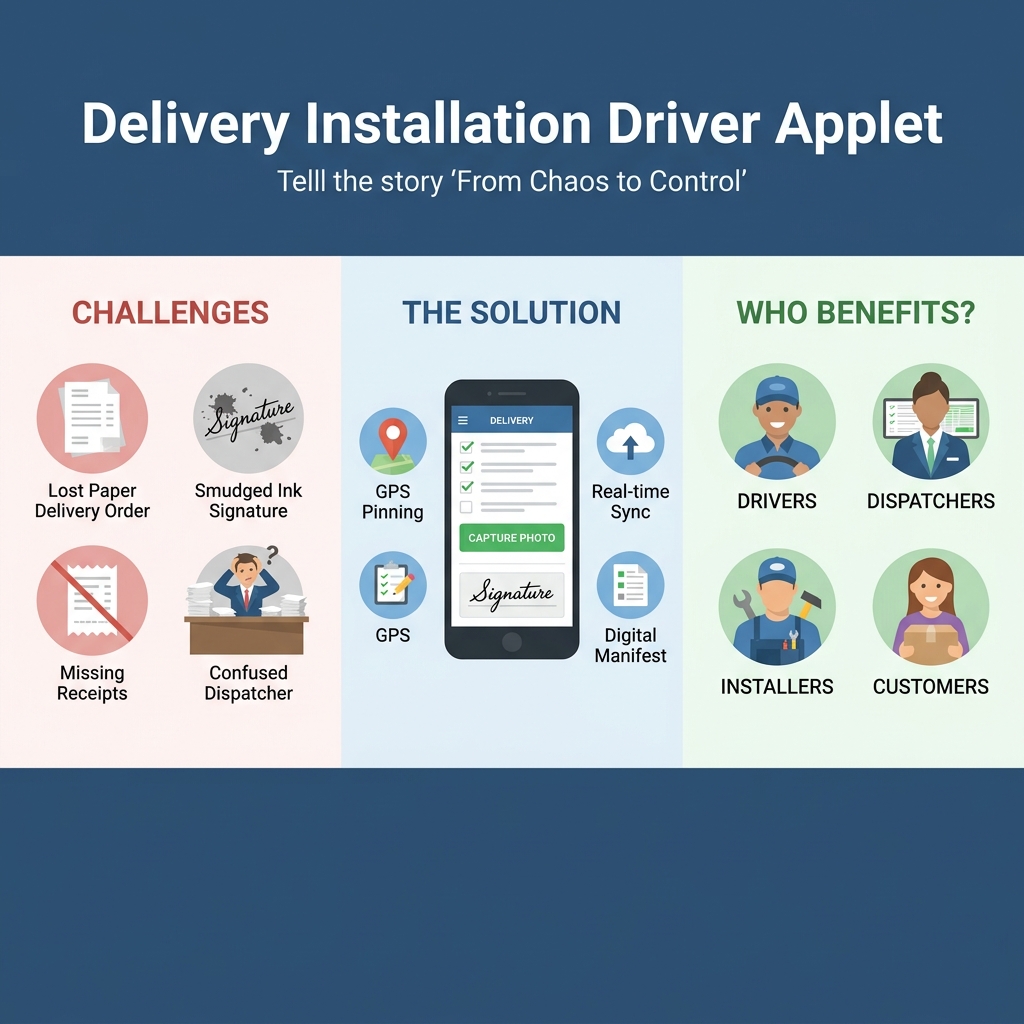
Who Benefits from This Applet?
Drivers & Delivery Staff:
- See clear, step-by-step daily itineraries on smartphones
- Use direct integrations with navigation apps (Google Maps, Waze)
- Easily report delivery failures or successes with a few taps
Field Installers & Technicians:
- Access clear installation notes or job instructions at the customer site
- Capture before-and-after photos for complex installations
- Collect digital customer signatures immediately upon job completion
Dispatchers & HQ Operations:
- See vehicle progress along routes in real-time
- Receive immediate updates on delivery rejections or rescheduling needs
- Eliminate the end-of-day data entry from messy paper manifests
Customer Service & Support:
- Provide customers with live updates on delivery ETA
- Instantly verify e-PoD if a customer claims they didn’t receive an item
- Access captured photos to proactively handle damage claims
What Problems Does This Solve?
The “Where is the Driver?” Problem:
Historically, once a truck leaves the warehouse, operations go blind. Dispatchers wait hours for updates, and customer service cannot provide accurate ETAs. Common issues include:
- Lost paper Delivery Orders and smudged ink signatures
- “He said, she said” disputes over damaged goods or failed delivery attempts
- Drivers typing vague SMS updates that are hard to track systematically
- Massive administrative backlog when drivers return at 6 PM with stacks of paper
The Driver Applet Solution:
- Digital Manifests - Real-time synchronization of Trips and Jobs to the driver’s phone
- Electronic Proof of Delivery (e-PoD) - Mandatory photo capture and digital signatures
- Standardized Status Updates - One-tap updates for “Arrived”, “Installing”, and “Completed”
- Structured Return Reasons - Hardcoded dropdowns for failed deliveries (e.g., “Address Not Found”)
Applet Components & Navigation

Key Concepts
The Driver’s Interactive Workflow
Every delivery trip has a standard lifecycle when executed through the app.
| Milestone | Action Taken in App | Result in HQ |
|---|---|---|
| Start of Day | Driver taps Start Trip | Dispatch sees the truck is active |
| En Route | Driver selects next job and taps Navigate | System prepares for the upcoming stop |
| At Location | Driver updates status to Arrived | Customer service sees driver is on site |
| Completion | Driver captures e-Signature and taps Complete Job | Invoice updates, e-PoD is saved! |
Dynamic Route Planning
Unlike static paper manifests, the Driver Applet allows for real-time adjustments in the field. Drivers can open their Trip Details and use the Reorder Jobs feature (keyboard_arrow_up / keyboard_arrow_down) to adjust their stop sequence based on traffic, road closures, or urgent customer requests.
Quick Start Guide
Get moving quickly on your route with these essential steps.
For Drivers: Executing Your First Trip
Goal: Start your trip, complete a delivery, and capture Proof of Delivery.
- Start Your Day:
- Open the Applet and navigate to My Trips.
- Locate today’s assigned Trip and click Start Trip.
- Navigate to Customer:
- Tap on your first Job/Stop.
- Review Recipient Contact details and special delivery instructions directly on the job card.
- Click the Directions icon to open your preferred mapping app.
- Manage the Route:
- If a customer asks for a later slot, use the Reorder icons (reorder) in Trip Details to move them down the list and optimize your driving path.
- Execute the Delivery:
- Upon arrival, update the job status to Arrived.
- Offload the items and complete any required installation.
- Capture e-PoD:
- Before leaving, tab to the Attachments/Signatures section.
- Enter the Recipient’s Name and IC Number.
- Ask the customer to sign directly on your device screen.
- Take at least one Mandatory Photo of the delivered goods in their physical location.
- Complete:
- Change the job status to Complete. If the button is disabled, ensure you have attached at least one photo. The system instantly syncs the documents to the cloud!
For Installers: Managing Complex Multi-Step Jobs
Goal: Use Custom Statuses to report progress on lengthy installations.
- Review Instructions: Open the assigned installation job and read the attached Service Notes.
- Pre-Site Check: Update the status to ‘Site Inspection’.
- Progress Updates: As hours pass, update the Custom Status to reflect major milestones (“Wiring Completed”, “Testing Phase”, etc.) so the office knows you are not stuck.
- Before & After Validation: Take a “Before” photo of the site, perform the work, and take an “After” photo. Attach both to the Job Record.
- Customer Sign-Off: Capture the signature verifying that the equipment was tested and demonstrated.
For Dispatchers: Monitoring Real-Time Progress
Goal: Track the fleet and proactively manage exceptions.
- Open the Dashboard: Use the main Delivery Applet to view the Trip Listing for the day.
- Monitor Status Columns: Watch the process statuses change from ‘Draft’ to ‘En Route’ to ‘Completed’ live as drivers tap their screens.
- Handle Exceptions: Filter your view to show any jobs flagged with “Returned”. Immediately click into the job to read the Return Reason selected by the driver.
Proof of Delivery (e-PoD) Details
The applet enforces a strict verification workflow to protect both the driver and the company:
- Item Verification Checklist: Items are listed with their “Qty to Deliver”. Drivers must confirm the “Quantity Delivered” for each line. If a quantity matches, they can simply check the “Delivered” box.
- Identity Capture: Fields for Recipient Name and IC Number ensure you know exactly who accepted the goods.
- Mandatory Photo Proof: The “Complete Job” button remains disabled until at least one photo is captured using the device’s camera.
- Digital Signatures: Time and GPS-stamped signatures verify the exact delivery location.
COD Management
For drivers tasked with collecting payments, the applet includes a dedicated Cash Amount field. This ensures that every ringgit collected in the field is digitally logged against the specific delivery before the job is marked as complete. This field is essential for:
- Reconciling daily collections at the end of a shift.
- Providing proof of payment to the customer.
- Updating financial records in HQ immediately upon delivery.
Returns & Failures
Standardize how failed deliveries are handled.
When a delivery cannot be completed, the driver changes the Job Status to Returned. To proceed, they must select a Return Reason.
Common Pre-Configured Reasons:
- Customer Not Available
- Address Incorrect / Unreachable
- Goods Damaged in Transit
- Customer Refused Delivery (Change of Mind)
- Space Insufficient for Installation
By forcing a structured dropdown choice rather than an open text box, your backend reporting becomes clean and actionable.
Configuration & Settings
Fine-tune the mobile field experience.
Application Visibility Settings
Keep the interface clean for your drivers. Use the primary module’s settings to hide complex back-office menus (like Accounting, Hub configurations, or Advanced Analytics) ensuring field staff only see their assigned Trips.
Return Reason Definitions
Customize the drop-down list of Return Reasons. Align these entirely with your business logic.
- Go to: Settings > Return Reason Settings (Configured by Admins in the back-office).
Custom Delivery Statuses
If your workflow requires more than “Pending” and “Complete”, create intermediate steps.
- Go to: Settings > Custom Status Settings. Add milestones like “Site Unsafe” or “Awaiting Customer Prep” so drivers can accurately reflect field realities.
Personalization
Make the applet work seamlessly for each driver’s workflow.
Vehicle Default Assignment
If a driver operates the exact same 3-Ton Truck every single day, they can set it as their Default Vehicle in their personalization settings. Any ad-hoc trips they create on the fly will auto-populate with this vehicle, saving precious data entry time.
FAQ
Q: Do drivers need a specific, rugged corporate tablet to use the applet? A: No. The applet is built using responsive web technologies and functions perfectly on standard employee smartphones (iOS and Android).
Q: What if the driver loses internet connection deep inside a remote warehouse? A: While live syncing requires an active data connection, drivers can set the Trip Status Date manually. If they complete the delivery at 2:00 PM without signal, they record the time. When they regain signal at 3:00 PM, the system respects the 2:00 PM timestamp.
Q: Can I perform a partial delivery if the customer rejects one item? A: Yes. The item checklist allows you to adjust the “Quantity Delivered” for each specific line. You can then use the “Failure Details” icon (assignment_late) to record why that specific item was rejected.
Q: Will the e-Signature automatically generate an invoice? A: This depends on your workflow configurations, but typically, an approved “Complete” status triggered by the e-PoD signature can be set to automatically transition the linked Sales Order into a finalized Sales Invoice ready for billing.
Q: A customer claims our driver never showed up. How do we prove they did? A: Go to the Job record. You will see the e-PoD time-stamp, the GPS location pin of where the “Arrived” status was clicked, and any photos the driver took of the locked gate/premises (if standard protocol is followed).
Q: I accidentally clicked “Complete Job” while I was still unloading. Can I undo it? A: Once a job is completed, it is typically synced and locked for data integrity. However, you can immediately use the Remarks field (if still accessible) to add a note, or contact your Dispatcher who can manually adjust the Trip status or Job flags from the back-office administration applet.