Delivery And Installation Driver
The driver-facing half of the delivery module: a driver whose login is linked to a driver record opens it on a phone, sees only the trips a dispatcher assigned to them, and works through the stops — start the job, confirm delivery with a proof of delivery, or cancel it. Nothing here posts a journal or moves stock; every action writes a job event, so the office sees progress without a phone call. The Partially or Fully Delivered status on the source document was set when the job went on a trip and measures what is planned onto jobs, not what has arrived — read the job’s own Complete status and proof of delivery for that. A cancel puts each line’s quantity back into the pick-pack queue for re-planning.
Overview
The Delivery And Installation Driver applet is the driver-facing half of BigLedger’s delivery module. A dispatcher plans Trips and Jobs in the Delivery Installation applet; a driver whose login is linked to a driver record opens this applet on a phone or tablet, sees only the trips assigned to them, and works through the stops: Start Job, then Confirm Delivery with a proof of delivery (recipient name and IC number, signature, photos, quantity delivered per item, failure reason for short or refused items, cash collected), or Cancel Job. Every action checks the driver’s identity instead of the usual permission sets, writes a job event, and rolls the delivery status up to the source Sales Order, Sales Invoice, Delivery Order or Shipment so the office sees progress without a phone call.
The applet posts nothing to the General Ledger and moves no stock. A native Android driver app implements the same trip calendar, job screen, complete and cancel flow; this page documents the web applet.
Where it fits
| Direction | Applet / object | Relationship |
|---|---|---|
| Upstream | Delivery Installation applet | Creates the driver record, the trips (with the driver assigned), the jobs on each trip and the return-reason list this applet offers as Failure Reason. Nothing can be created here. |
| Upstream (indirect) | Sales Order (Internal), Sales Invoice (Internal), Delivery Order (Internal), Shipments | The documents whose lines became the job lines the driver ticks off. Their item names and Qty to Deliver are what the checklist shows. |
| Identity | The driver’s BigLedger login | A driver is recognised when a driver record is linked to the login and that driver is assigned to at least one trip. |
| Downstream | Job events, proof of receipt, source-document delivery status | Start / Complete / Cancel write a job event, update the job, its document and shipment links, and re-derive the delivery status on the source document and shipment. That status (Partially / Fully Delivered) measures how much of the document is on jobs, and it was already written when the job went on a trip — so a driver’s Complete does not change it. Whether the goods arrived is the job’s own Complete status, its events and its proof of delivery. Proof-of-delivery fields land on the job and on each job line; photos and the signature are stored as job attachments. |
| Alternative | Driver Delivery Order Applet | The lightweight alternative when a single driver field on the Delivery Order is enough; it has no trips, jobs or proof of delivery. |
Screens and menus
The applet has one menu item. There is no Trip Listing or Job Listing screen, so the calendar is the only way in.
| Screen (column) | How you reach it | What it shows |
|---|---|---|
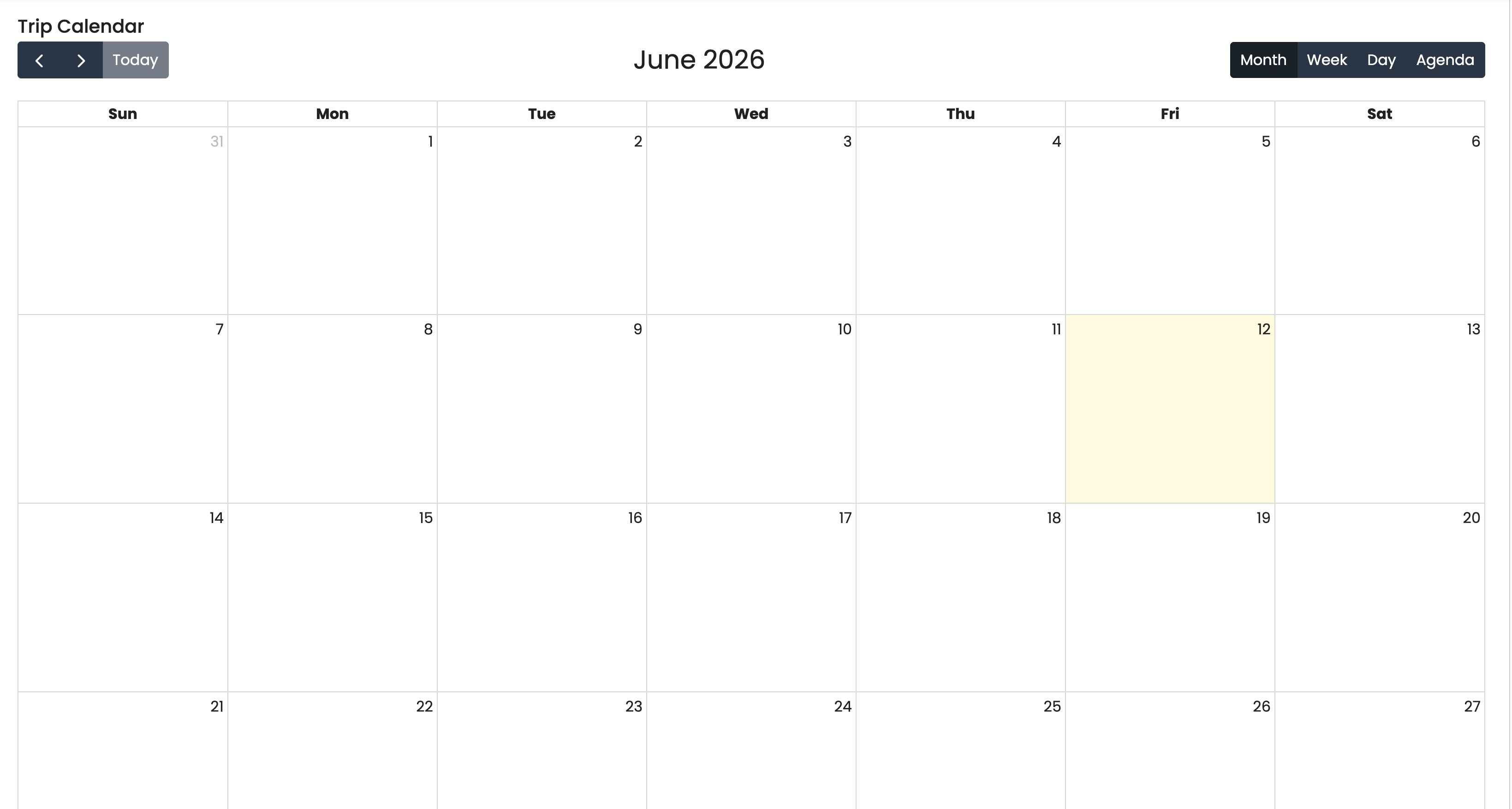
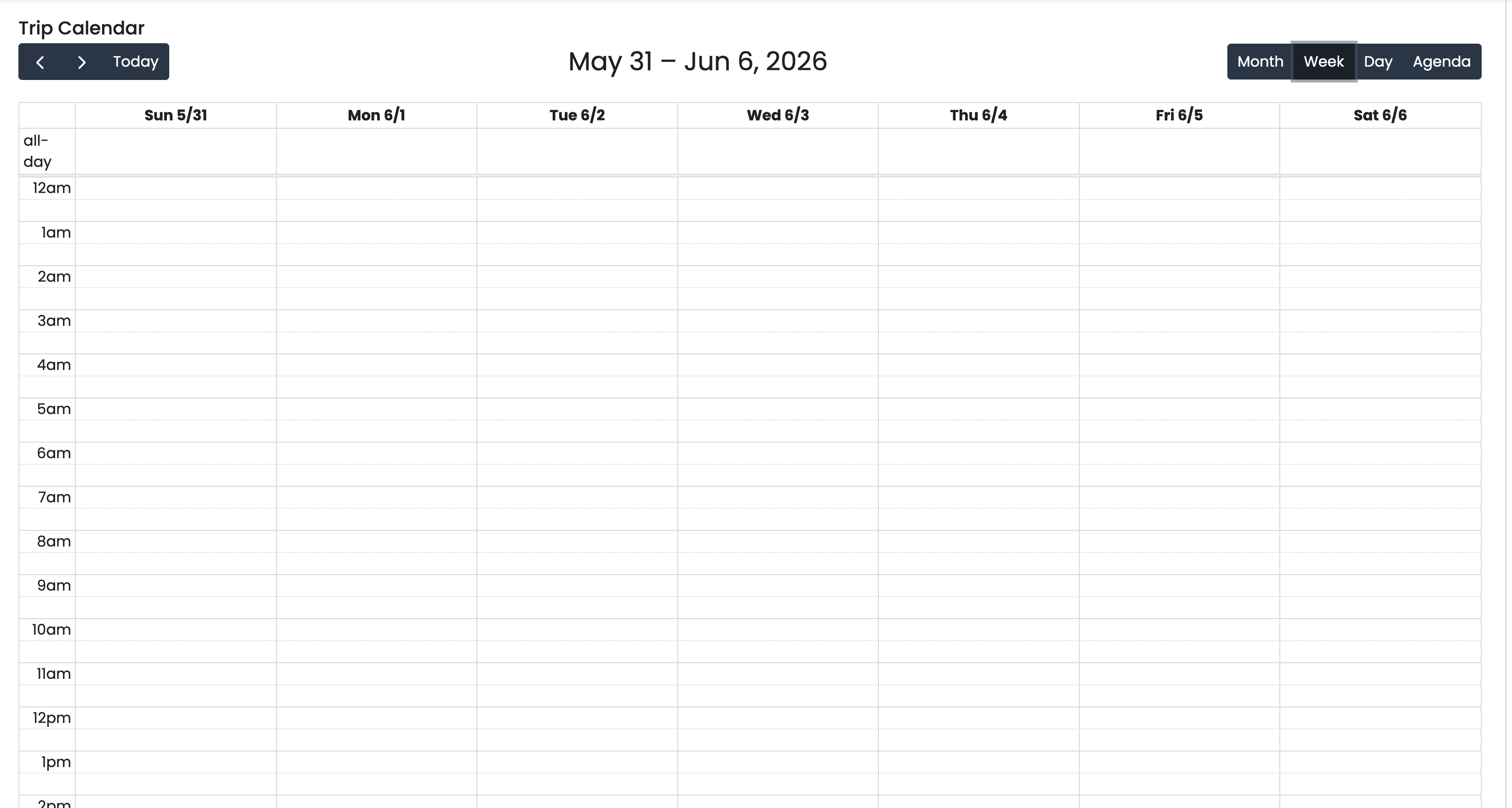
| Trip Calendar | Left menu › Trip Calendar (also the default route) | A month / week / day / agenda calendar (the initial view is Agenda) of the trips assigned to the logged-in driver. Clicking a trip opens Trip Details. |
| Trip Details | Click a trip on the calendar | Trip name, start and end date, duration (end − start as Nhr Mmin), delivery region, then one job card per job, in trip order. The reorder icon switches every card into edit mode with move up / move down arrows; save sends the new sequence, cancel restores the previous order. Only jobs whose status is Delivery Arranged, Ready To Ship, Out For Delivery, Complete or Cancelled are loaded. |
| Job card | Inside Trip Details | Job ID, recipient address (lines 1–5, city, postcode, state, country), planned start time, colour-coded status, recipient name and phone. |
| Job Details | Tap a job card | Status, Job ID, Location (the address as a Google Maps link), Start Time, Client Name, Contact Detail (a tap-to-call link), Duration, Remarks, and the item list as item name (qty to deliver). The action bar shows Cancel Job, Confirm Delivery and Start Job depending on the status (see Lifecycle). |
| Job Confirm Delivery | Confirm Delivery on Job Details | The proof-of-delivery form: per-item checklist with quantity delivered and a Failure Reason dialog, Recipient Information (Name, IC Number, signature pad), Item Images (camera capture), Remarks, Cash Amount, and the Complete Job button. |
Settings and Personalization menus: Settings › Field Settings and Default Selection; Personalization › Field Settings and Default Selection. Settings also carries the shared Webhook, Client-Side Permission, Permission Set, User / Team / Role Permission screens, and opening Settings lands on the Client-Side Permission listing. Personalization › Field Settings has no screen behind it and opens the applet’s 404 page. None of these screens changes how the driver screens behave (see Configuration).
Configuration
Before you can use it
- A driver record linked to the login, created in the Delivery Installation applet › Driver Listing. The Delivery Installation applet sets the link through Verify Email (matches an existing e-mail login) or Send Invite. Every driver action starts by checking that a driver record linked to the caller’s login exists and is assigned to at least one trip; otherwise the applet shows Error: Failed to retrive trips.
- Trips with the driver assigned and jobs added, planned in the Delivery Installation applet. The calendar only shows trips the caller’s driver record is assigned to. A job can only be acted on if it is on a trip (otherwise it is refused) and the driver is assigned to that trip.
- Return reasons, maintained in the Delivery Installation applet › Settings › Return Reasons Settings. They are offered as Failure Reason on each item — with the caveat under Settings in other applets below.
- Applet access for the driver’s login. The driver only needs this applet assigned to their login; the driver actions do not check the
API_TNT_DM_DEL_*permission families that the back-office applet uses — they test the driver identity only.
Applet settings
No setting is read anywhere in the driver screens, and none of the settings screens saves anything. Specifically:
| Screen | State |
|---|---|
| Settings › Field Settings | Eight toggles (Unit Discount, SST/VAT/GST, WHT, Blanket Order, Segment, G/L Dimension, Profit Center, Project) bound to nothing and a SAVE button that does nothing. Nothing is saved or read. |
| Settings › Default Selection | Offers Default Branch / Default Location, but picking a branch throws an error and SAVE saves nothing. No screen reads either value. |
| Personalization › Default Selection | Same screen; stored values are never loaded back. |
Settings in other applets that control this applet
| Setting / master data | Where it is set | Effect here |
|---|---|---|
| Driver record → login link | Delivery Installation applet › Driver Listing › Verify Email / Send Invite | Decides whether the login is recognised as a driver at all. |
| Trip → driver assignment | Delivery Installation applet › Trips › Driver Name | Which trips appear on the calendar and which jobs can be started, completed, cancelled or reordered. Reassigning a trip removes the old driver’s access immediately (the check re-runs on every action). |
| Jobs on the trip and their order | Delivery Installation applet › Trip › Jobs tab (Add to Trip, drag order) | The job cards and their initial order; the driver’s reorder writes the same order, so both sides see the latest one. |
| Return reasons | Delivery Installation applet › Settings › Return Reasons Settings | The Failure Reason dropdown. The driver applet looks the list up under the wrong applet identity — not the one the Delivery Installation applet saves it under — so in practice the dropdown is empty (see Troubleshooting). |
JS_HIDE_JOB_STATUS, HIDE_BATCH_PRINT and the other Delivery Installation settings | Delivery Installation applet › Application Settings | No effect here; the driver applet reads no settings. |
| Custom statuses | Delivery Installation applet › Custom Status Settings | Not available to drivers: the driver applet has no custom-status screen or call. |
Feature visibility / permissions
- Client-side permissions: none are defined for this applet. The Client-Side Permission screen under Settings therefore has nothing to grant.
- Server-side: the driver actions gate on identity, in three checks — is the caller a driver with any trip; is the caller a driver on this job’s trip (start, complete, cancel, photo upload and job fetch); and may this driver update this job (the proof-of-receipt saves). Failing the first shows not authorised; failing the others refuses the status change, or the proof-of-receipt save, as not authorised, or silently drops the job from a cancel request.
- The Permission Set / User / Team / Role screens under Settings are the shared components and manage the
API_TNT_DM_DEL_*permissions of the back-office applet; they are not consulted by anything the driver does.
Fields
The only form is Job Confirm Delivery. Everything else is read-only.
Items — one row per job line
| Field | Meaning | Required | Notes / validation |
|---|---|---|---|
| Delivered (checkbox) | Visual tick for the driver | No | Not saved; only Quantity Delivered and the failure details are. |
| Item name (qty to deliver) | The item and the quantity to deliver from the job line | — | Read-only label. |
Quantity Delivered (#) | Quantity delivered, on the job line | Yes (numeric) | Defaults to the quantity to deliver; must be between 0 and the quantity to deliver. A value outside the range makes the form invalid and disables Complete Job. The check is on the screen only. |
| Failure Reason (dialog, the late-assignment icon) | Reason and remarks on the job line | No | Failure Reason is a dropdown of the return-reason names; Remarks free text. Leave empty for a fully delivered line. |
Recipient Information, images and collection
| Field | Meaning | Required | Notes / validation |
|---|---|---|---|
| Name | Recipient name on the job and on every line | Yes | Pre-filled with the job’s recipient name. |
| IC Number | Recipient ID on the job and every line | Yes | A numeric input, so letters and hyphens cannot be typed; stored as text. |
| Recipient’s Signature (Open Signature) | Stored as a job attachment (photo) | Yes | Signature-pad dialog; Save keeps the drawing as a PNG, Clear wipes it, Cancel keeps the previous one. |
| Item Images (camera icon) | Stored as job attachments (photos) | Yes — at least one | Opens the device camera: one capture per tap, each shown as a thumbnail with a delete button. Complete Job stays disabled until at least one image is captured. |
| Cash Amount | Cash collected, on the job | Yes | Required by the form even when nothing is collected — enter 0. Not written to the job lines. |
Nothing captures GPS coordinates, a device timestamp, or the recipient’s phone.
Lifecycle and effects
Not a document applet: nothing here posts a journal or moves stock. The effects are delivery statuses, job events, proof-of-receipt columns, attachments and — through cancel — pick-pack-queue balances.
Statuses as the driver sees them. The applet knows eight job statuses, but the product only ever writes DELIVERY_ARRANGED, READY_TO_SHIP, OUT_FOR_DELIVERY, COMPLETE, CANCELLED / Cancelled, DELIVERY_REARRANGED and JOB_RE_ARRANGED; re-arranged jobs are filtered out of the trip. Which buttons appear:
| Job status | Start Job | Confirm Delivery | Cancel Job |
|---|---|---|---|
| Delivery Arranged | yes | — | — |
| Ready To Ship | yes | — | yes |
| Out For Delivery | — | yes | yes |
| Complete, Cancelled | — | — | — |
Nothing behind the screen enforces this order: start and complete accept any job the driver is entitled to, except that complete rejects a job whose status is exactly CANCELLED. The only guards are the button visibility above.
| Action | What happens |
|---|---|
| Start Job | Checks the driver is on the job’s trip, then sets the job to Out For Delivery on the job, its document links, document-line links and shipment links; writes a delivery status changed job event whose description is stamped with the server time in dd MMM, HH:mm (the driver’s action sends no event time); then rolls the status up to the source document and shipment. |
| Reorder Jobs → save | Writes the new order for the moved jobs only. No status change, no event. Jobs that had no order number are numbered by their position on first load and included in the next save. |
| Complete Job | Six steps. Steps 1–4 run in parallel: (1) recipient name, IC, remarks and cash amount are saved on the job; (2) the photos are uploaded as one attachment; (3) the signature as another; (4) name, IC, failure reason, remarks and quantity delivered are saved on each line. Step 5 — marking the job Complete, as for Start Job — runs only when all four succeed, and then re-derives the source document’s and shipment’s delivery status — which Add to Trip already set, so completing the job leaves it as it was. Step 6 reloads the trip. There is no transaction across the six steps: if a photo or signature upload fails, the job and line details have already been saved and the job stays Out For Delivery. |
| Cancel Job | For each job the driver is entitled to: status Cancelled on the job and its document links, each line’s quantity to deliver is added back to the pick-pack queue balance so the dispatcher can re-plan the document, a cancellation event is written and the status rolled up. No reason is captured — a driver who needs to record why uses the per-item Failure Reason at completion instead. |
| Ready To Ship | Exists for drivers in the product, but the applet has no button for it. |
Two details matter for support. First, the completion guard looks for CANCELLED while Cancel Job (here and in the back-office listings) stores Cancelled, so a job the driver cancelled is refused by the applet’s own button logic but not by the product; only trip-level cancellation writes the upper-case value. Second, drivers cannot start or complete a trip; trip status is the dispatcher’s.
Related applets
- Delivery Installation applet — plans everything this applet executes: driver records and their login link, trips, jobs, job order, return reasons. Driver actions show up there as job events and as the recipient / return data on the job lines.
- Driver Delivery Order Applet — the other driver-facing applet, built on a driver field on the Delivery Order rather than on trips and jobs; it has no proof of delivery.
- Sales Order (Internal), Sales Invoice (Internal), Delivery Order (Internal) — the documents whose delivery status reads
PARTIALLY DELIVERED/FULLY DELIVEREDfrom the moment their jobs go on a trip (it measures what is planned onto jobs, not what has arrived), and whose pick-pack balance is restored when the driver cancels one.
Troubleshooting
| Symptom | Cause | Fix |
|---|---|---|
| The applet opens but the calendar is empty and a toast says Error: Failed to retrive trips. | The login is not recognised as a driver: no driver record is linked to this login, or the driver record is not assigned to any trip. | In the Delivery Installation applet open the driver record, use Verify Email (or Send Invite and let the driver register), then assign the driver to a trip. |
| The calendar stays empty although the driver is on trips (the Agenda view says No events to display). | A defect in the web calendar: it misreads the list of trips it receives, which ends in the same Failed to retrive trips toast. | Report to product; until the effect is fixed the web calendar cannot list trips. The Android driver app uses its own calendar code. |
| A trip shows fewer jobs than the dispatcher added. | Only jobs in Delivery Arranged, Ready To Ship, Out For Delivery, Complete or Cancelled are loaded; re-arranged jobs (DELIVERY_REARRANGED, JOB_RE_ARRANGED) are filtered out. | Have the dispatcher set the job back to Ready To Ship / Delivery Arranged. |
| Complete Job is greyed out. | The form is invalid or has no photo: Name, IC Number, Signature and Cash Amount are required, every Quantity Delivered must be between 0 and the quantity to deliver, and at least one image must be captured. | Fill the missing field (enter 0 in Cash Amount when nothing was collected), take a photo, check quantities. |
| Error: Failed to complete job. | The dispatcher cancelled the whole trip (status CANCELLED) or deleted the job while the driver had it open. | Refresh the trip; the job’s quantity has gone back to the pick-pack queue and a new job must be planned. |
| A status change or proof-of-receipt save refused as not authorised, or a Cancel Job that “succeeds” but changes nothing. | The trip was reassigned to another driver, or the driver–trip link was deleted, between opening the job and tapping the button (the driver check re-runs on every action; cancel silently drops unauthorised jobs). | Check the trip’s driver in the Delivery Installation applet. |
| The Failure Reason dropdown is empty even though return reasons are configured. | The driver applet looks the return reasons up under the wrong applet identity, so it finds none. | Report to product. Meanwhile record the reason in the line’s Remarks. |
| Proof-of-delivery data is saved but the job is still Out For Delivery. | One of the saves before the final Complete step failed (typically the photo or signature upload); the header and line proof fields were already written. | Open Confirm Delivery again, re-capture the photo and signature, and complete; the earlier values are overwritten. |
| Job events show a time the driver did not enter, and no year. | Driver actions send no event time, so the server stamps dd MMM, HH:mm at the moment of the call; the applet offers no date field. | Expected. Use the event’s created-date column for the full timestamp. |
| Personalization › Field Settings shows the 404 page; Default Selection throws when a branch is picked. | Menu item with no screen behind it; Default Selection cannot save. | Neither screen configures anything (see Configuration); ignore. |
| IC numbers with letters cannot be entered. | The IC Number input accepts digits only. | Enter the digits only; the value is stored as text. |
Related documentation
- Delivery Installation applet — the dispatcher’s reference, including trip and job statuses, return-reason and custom-status settings.
- Inventory module — outbound movements and delivery orders.
- No user guide covers the driver workflow yet; the sales-side guides Installation Scheduling Workflow and Partial Delivery Workflow describe the documents that become jobs.