Driver Delivery Order Applet
Purpose and Overview
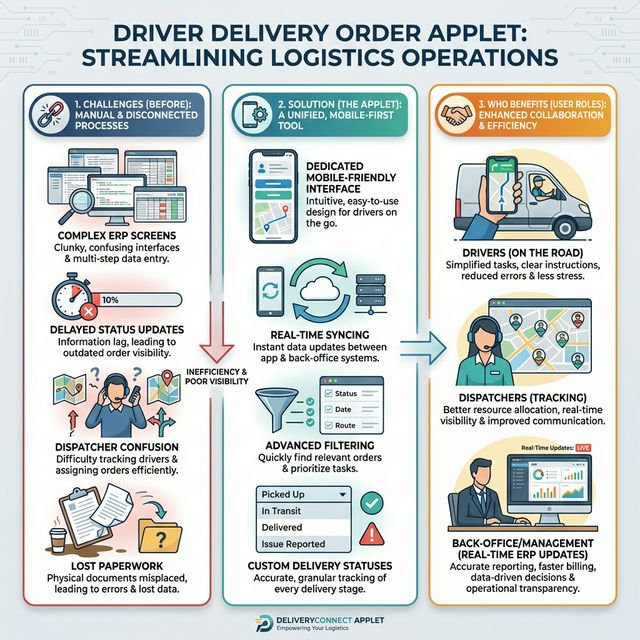
The Driver Delivery Order Applet is a specialized micro-application (built mostly on top of existing Sales Invoice / Outbound Delivery Order components) designed to streamline the delivery workflow. It abstracts away the complexity of a full ERP system by providing a dedicated, simplified interface to view, manage, and update the status of delivery orders.
Key Features Overview
Who Benefits from This Applet?
Drivers & Delivery Personnel:
- Focused mobile-friendly interface showing only essential delivery information
- Quick status updates while out in the field delivering goods
- Reduced visual noise without the clutter of a full sales accounting screen
- Easy access to delivery details and route planning
Dispatchers & Logistics Staff:
- Real-time tracking and management of outbound delivery orders
- Ability to quickly assign and reorganize delivery schedules
- Clear overview of pending, in-transit, and completed deliveries
- Streamlined communication with drivers
Management & Back-Office (Finance & Operations):
- Real-time status updates that reflect instantly in the central ERP system
- Improved tracking accuracy and reliability
- Automated notifications and webhook triggers upon delivery completion
- Better customer service through up-to-date delivery information
What Problems Does This Solve?
The Complex ERP Problem:
Traditional ERP systems are often too complex for field staff. Common issues include:
- Drivers navigating through overwhelming sales and finance screens
- Delayed status updates resulting in poor customer visibility
- Difficulties updating orders on mobile devices
- Miscommunication between dispatchers and drivers
- Security risks from granting overly broad ERP access to field workers
The Driver Delivery Order Applet Solution:
- Dedicated interface - A focused applet built specifically for the delivery workflow
- Real-time syncing - Updates by drivers instantly reflect in the central ERP system
- Advanced filtering - Quickly find orders by branch, status, or date
- Granular permissions - Restrict who can see or edit specific delivery documents
- Customizable statuses - Tailor delivery statuses to your exact logistics terminology
Key Features Overview
Quick Start Guide
Get up and running quickly with these essential workflows.
For Drivers: Managing Your Deliveries
Goal: View your assigned deliveries and update their status in the field.
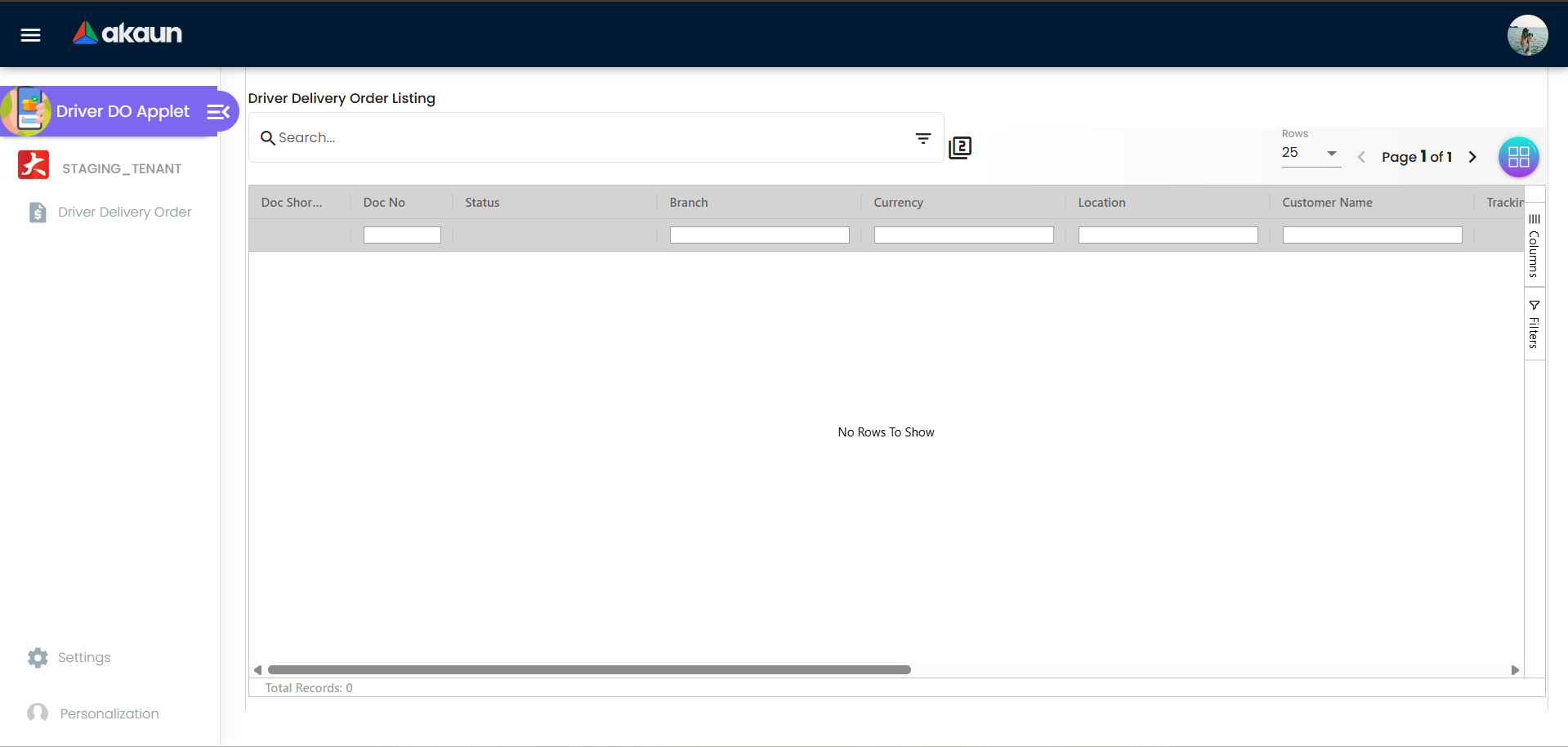
- Navigate: Go to Driver Delivery Order Listing from your applet menu
- Find Your Orders:
- Check the default view which shows your assigned “Pending” or “In Transit” orders
- Use the search bar to find a specific Delivery Order number
- Review Details:
Click on an order to open the Edit screen (or click Add to create a new ad-hoc delivery)
View the Main Details tab for customer address and instructions
View the Lines tab to verify what goods you are delivering
- Update Status:
- Once delivered (or if there is an issue), click the Status dropdown
- Select the appropriate custom status (e.g., Delivered, Failed, Rescheduled)
- Save: Click Save to confirm. The back-office is instantly updated!
Pro Tip: Use the personalized sidebar settings to keep your most frequent actions just a tap away.
For Dispatchers: Tracking and Managing
Goal: Monitor outbound delivery orders and assist drivers.
- Check the Listing: Open the Driver Delivery Order Listing
- Filter by Status:
- Use Advanced Search to filter by
DEFAULT_POSTING_STATUS - Quickly find all “Pending” orders that need dispatching
- Use Advanced Search to filter by
- Filter by Branch: If managing multiple locations, filter by branch to see local deliveries
- Monitor Updates: As drivers update their orders in the field, refresh the grid to see real-time status changes
- Handle Exceptions: If a driver reports an issue (e.g., status changed to Failed), click into the order to review notes and reschedule.
For Admins: Initial System Setup
Goal: Configure the applet for your logistics team.
Step 3: Organize Server Side Permissions (Settings >User / Role Permissions)
The Applet provides comprehensive permission modules. Define Team/User/Role permissions to ensure drivers only see their own branch’s delivery documents and managers get broader tracking views.
Step 4: Custom Statuses (Settings > Custom Status)
- Set up statuses that match your workflow (e.g., “Ready for Pickup”, “In Transit”, “Delivered”, “Customer Not Home”).
Step 5: Test the Flow
- Create a test Outbound Delivery Order in the main ERP.
- Log in as a Driver, find the order in the Applet, and update its status.
- Verify the main ERP reflects the new status.
Advanced Search & Filtering
Goal: Quickly find specific deliveries or filter the list for operational insights.
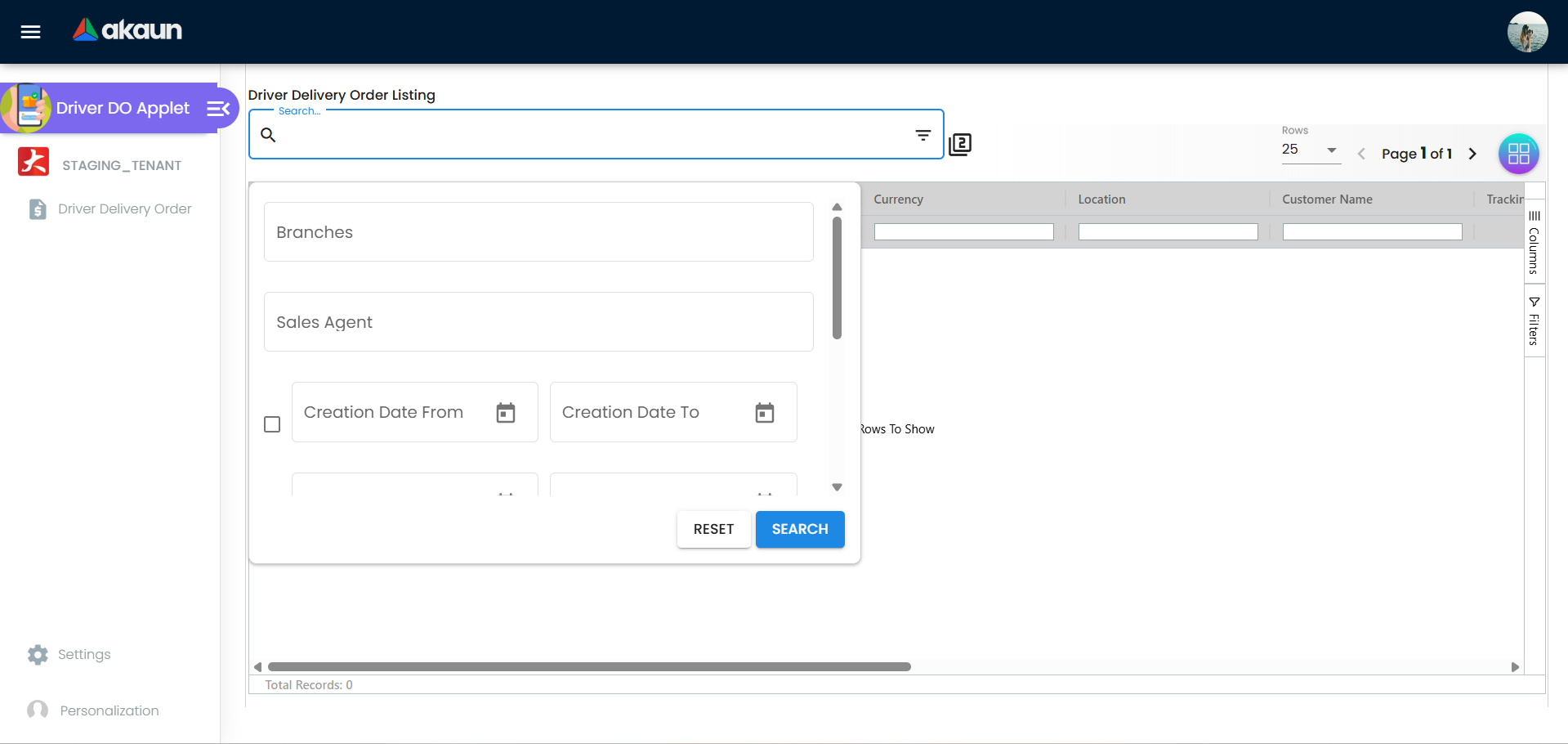
- Open the Filter Panel: On the Driver Delivery Order Listing, open the Advanced Search filter.
- Filter by Branch: Need to see deliveries for a specific logistics hub? Select the branch from the dropdown.
- Filter by Status: Use the Posting Status filter to narrow down results to only “In Transit” or “Delivered” orders for performance tracking.
- Keyword Search: Quickly pull up a specific document to handle driver or customer inquiries.
Configuration & Settings
The Driver Delivery Order Applet provides powerful control via the Settings menu. The settings are grouped logically to help you customize the environment for your staff.
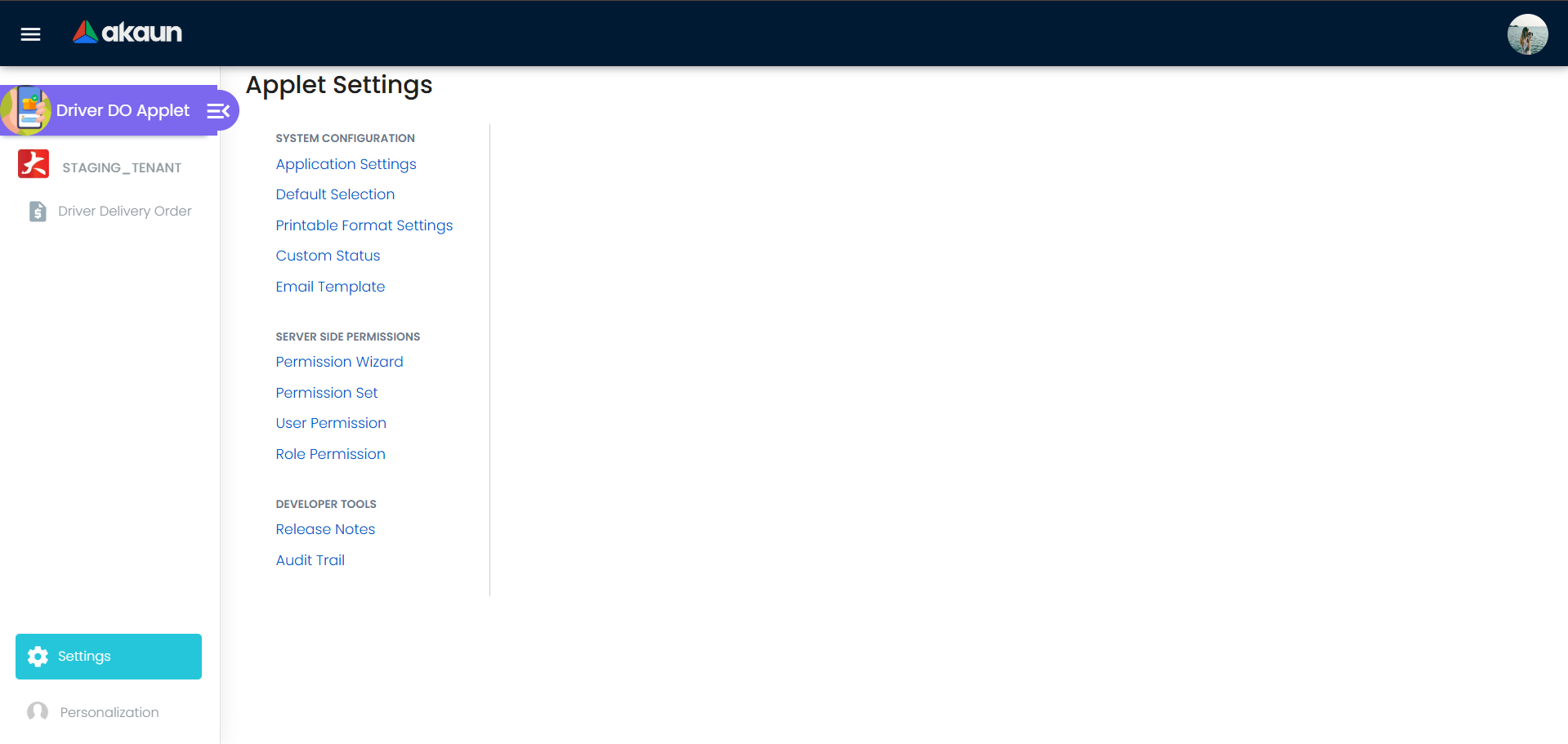
System Configuration
These settings alter how the underlying delivery documents behave.
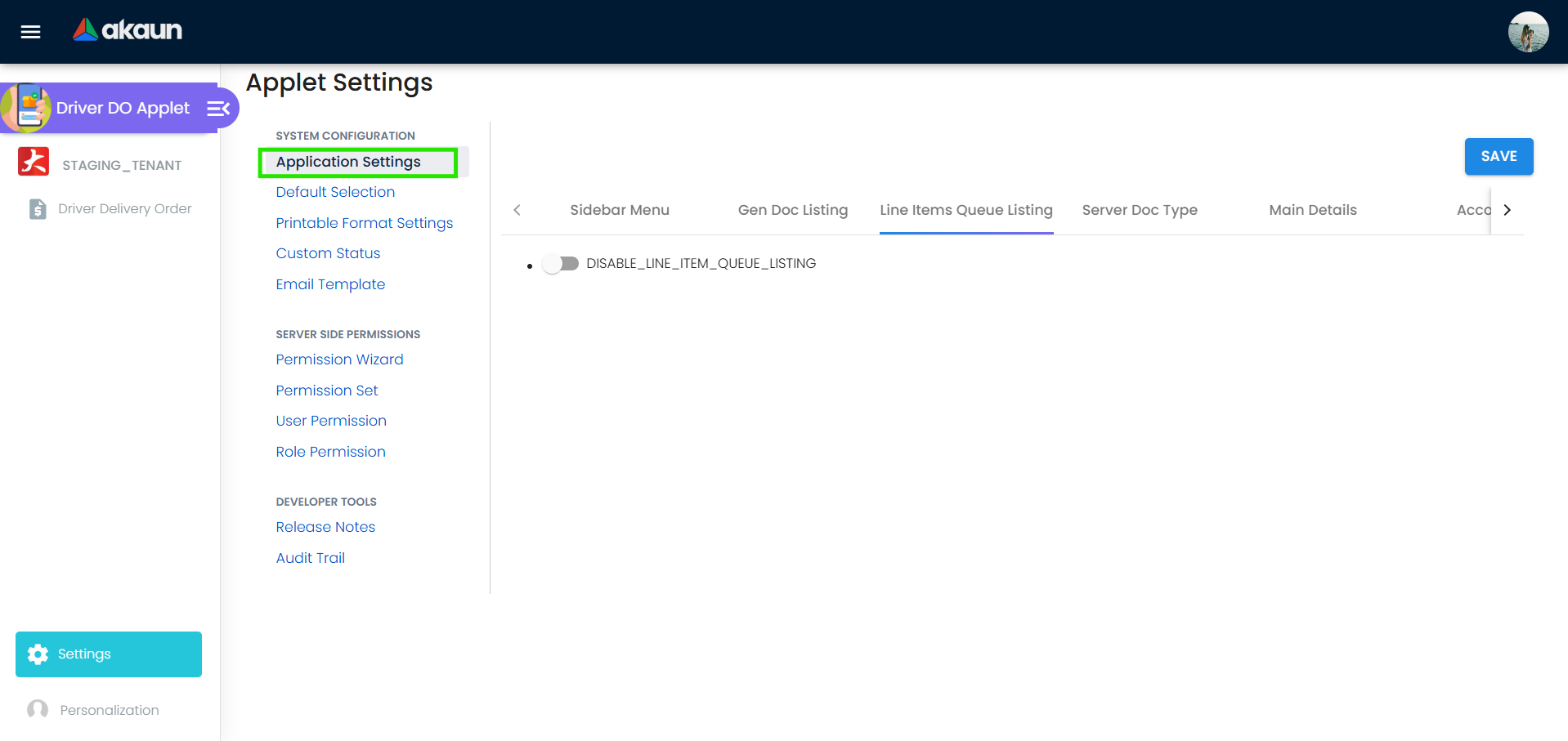
- Application Settings: General toggles that dictate global Applet behavior.
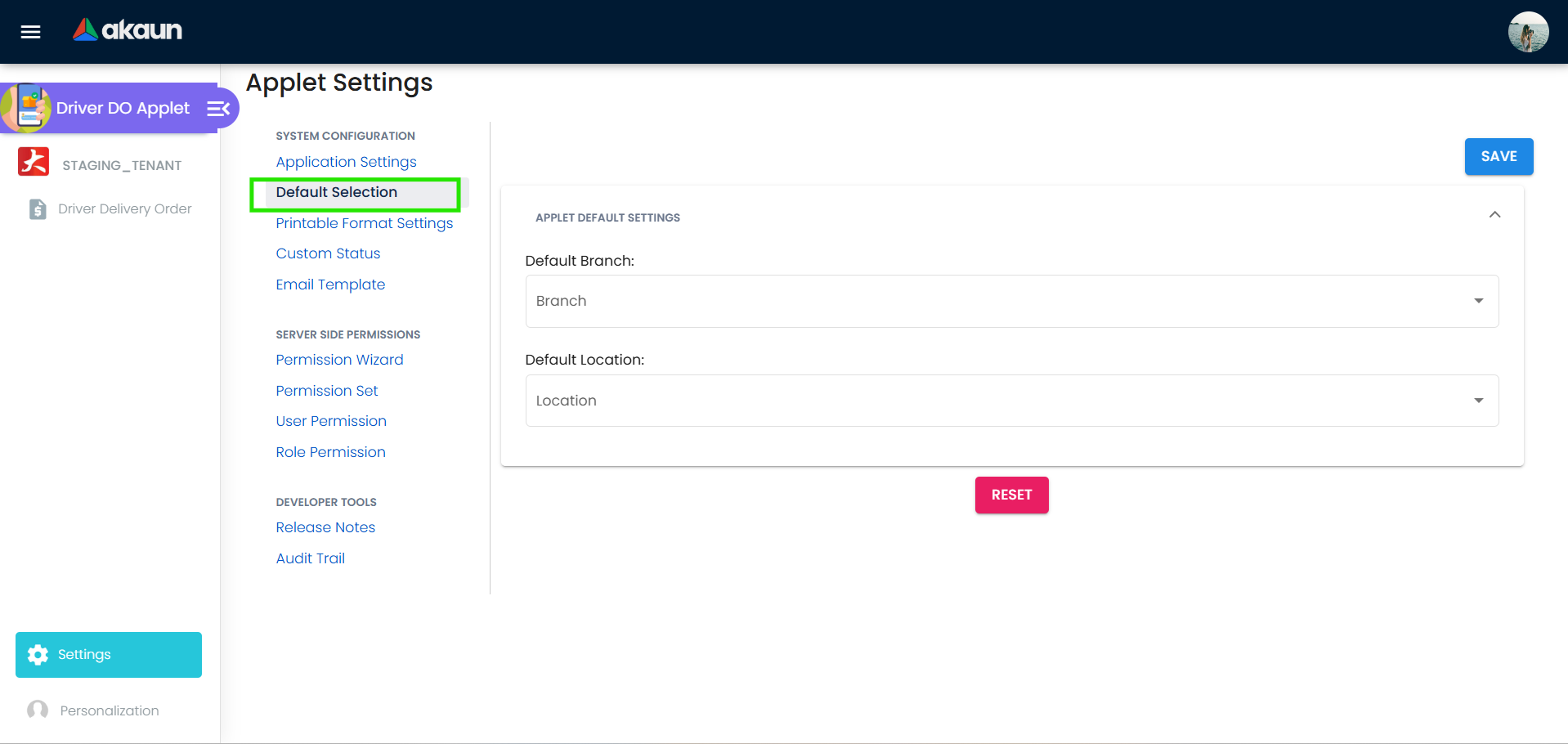
- Default Selection: Set auto-populated values for forms so drivers don’t have to select the same repetitive data everywhere.
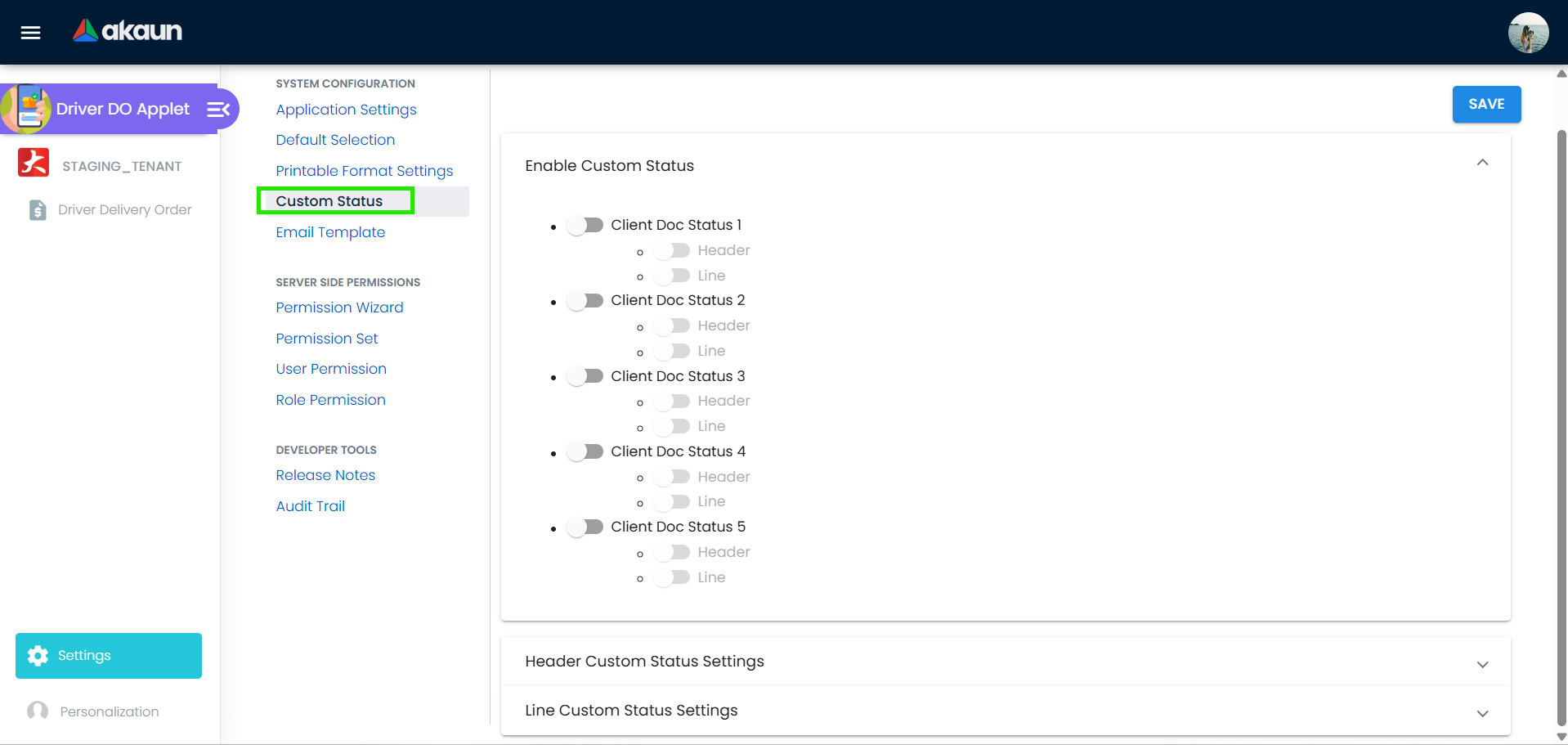
- Custom Status: Perhaps the most important feature! Map out your logistics journey by creating custom statuses (e.g.
Packing,Loading,In Transit,Delivered,Failed Delivery).
Server Side Permissions
Protect your data by securing exactly who can view, edit, or delete delivery documents.
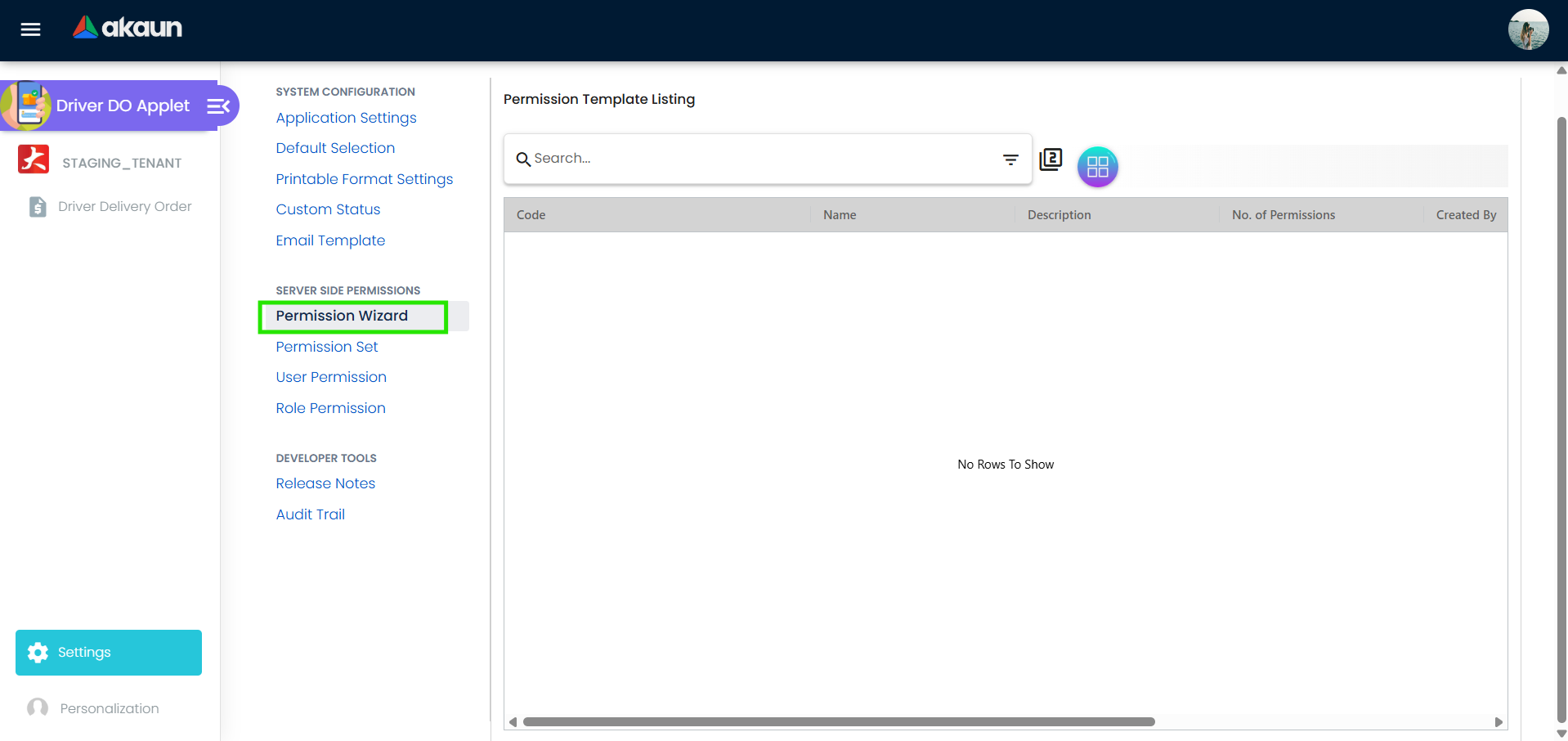
- Permission Wizard: A guided tool to quickly assign baseline permissions.
Permission Set: Group together permissions into reusable templates.
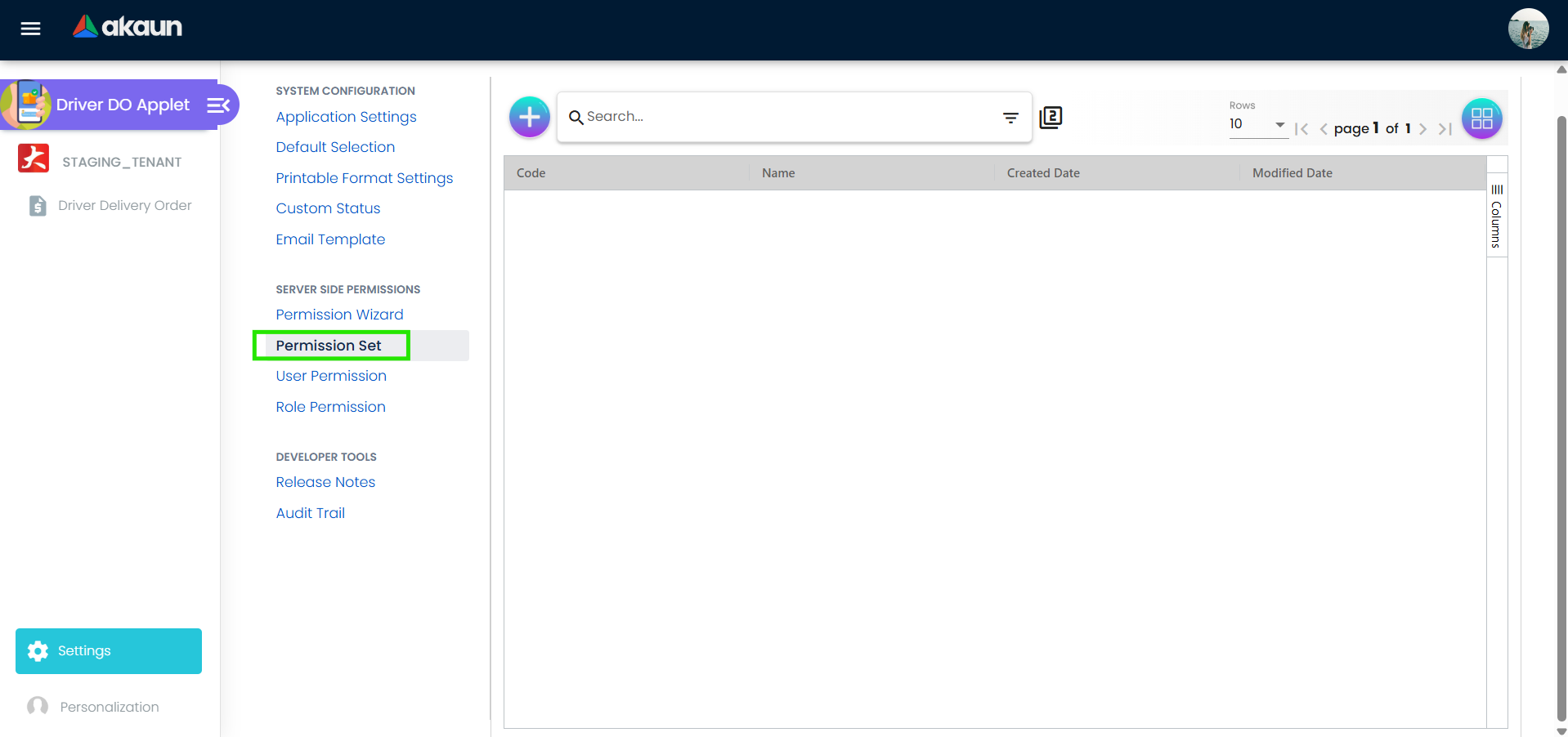
Applet setting: setting user can set the permission set which will be used in User/Role Permission setting. User / Role Permission: Get granular. Restrict visibility down to individual users or overarching roles, ensuring a driver only sees records strictly assigned to them or their branch location.
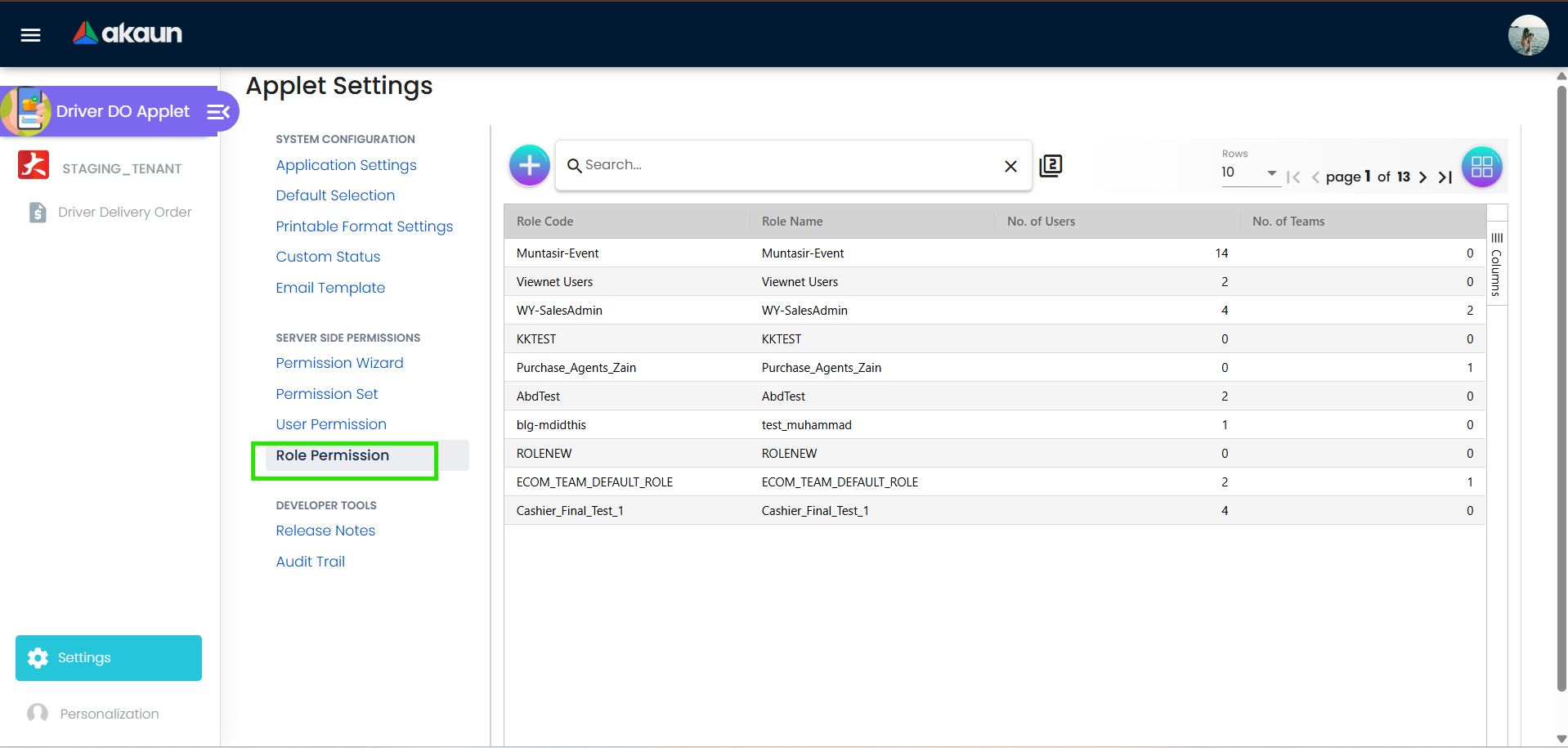
Developer Tools
Tools dedicated to helping admins maintain the applet.
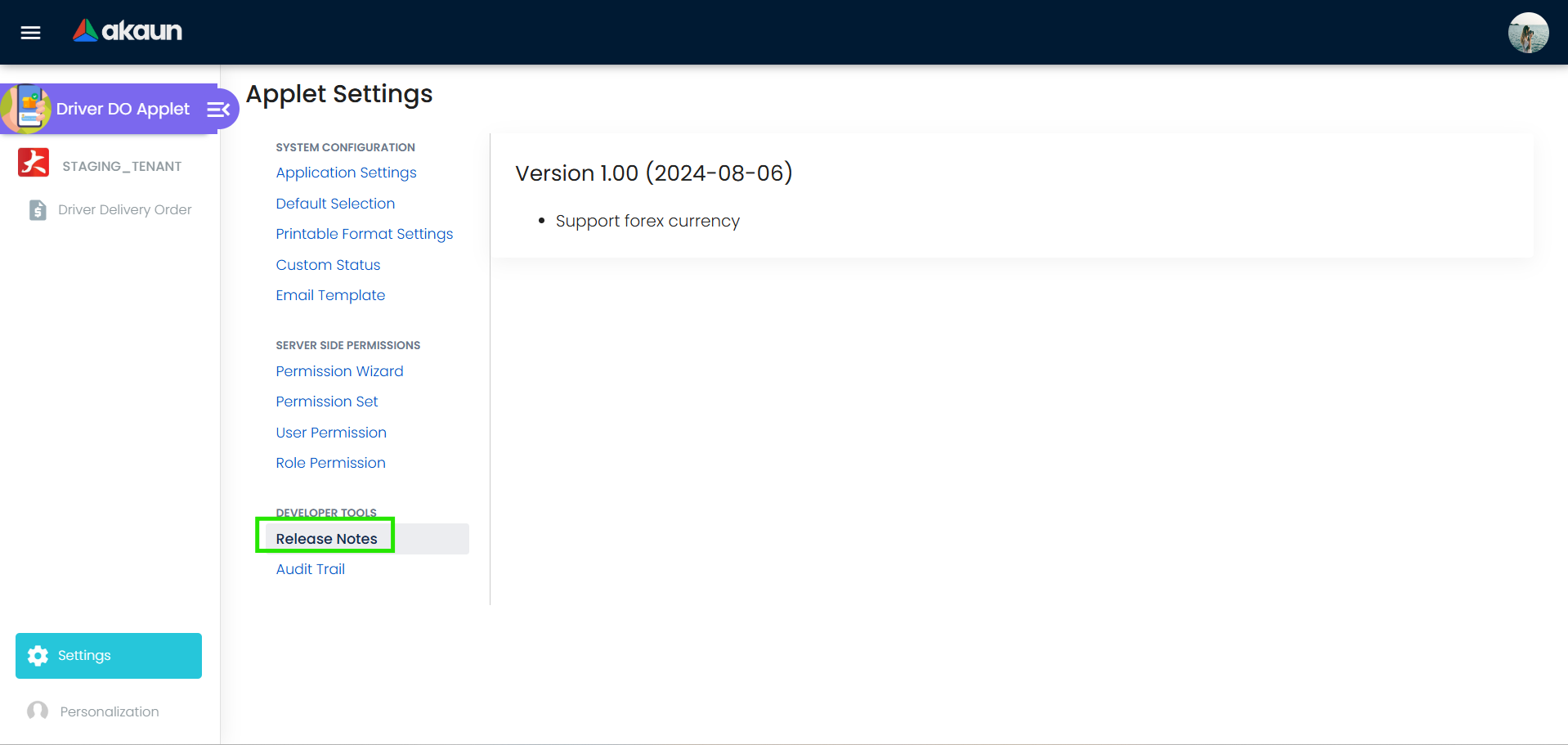
- Release Notes: Quickly see the latest features, bugs addressed, and improvements published across new applet versions.
- Audit Trail: Look up a historical log of actions. Easily find out who changed a document’s status, when it happened, and what its prior status was.
Frequently Asked Questions (FAQ)
Q: Do drivers need access to the full accounting system to use this applet?
A: No. The core benefit of this applet is that it abstracts away the complex ERP. Drivers only need access to this specific applet, protecting sensitive financial data and simplifying their workflow.
Q: Can I see delivery updates in real-time?
A: Yes. Because the applet is built on top of the existing Outbound Delivery Order components, any status change made by a driver immediately updates the central database without syncing delays.
Q: How do we prevent drivers from seeing unnecessary information on the delivery orders?
A: Admins utilize the Server Side Permissions settings to curate a restricted experience for users, preventing data leaks or irrelevant noise.
Q: What should a driver do if a customer rejects the delivery?
A: The driver should open the respective Delivery Order, change the Custom Status to a specific exception status like “Failed” or “Rejected”, and add a note in the description field detailing the reason. The Dispatcher can then review and reschedule the delivery.
Q: Can I filter the delivery list to show only orders for my specific branch?
A: Yes. The Advanced Search allows you to filter the listing by Branch. To make this permanent, configure Personal Default Settings so that the applet automatically filters for your branch every time you log in.
Q: What happens if a driver accidentally updates the wrong delivery order? A: Since updates are tracked in the central ERP system, an authorized admin or dispatcher can review the applet log and revert the status. It’s recommended to train drivers to carefully verify the Delivery Order number and customer name before dropping off items.