My E-Invoice Admin Applet
Watch these as presentations — 42 on this page, slides with narration.
This is where you watch your LHDN MyInvois e-invoices after they leave the sales and purchase applets: fix what stalls, consolidate, cancel what was validated in error, and reconcile e-invoices from your suppliers. Know this first: finalising a document never submits its e-invoice — it only queues it, and everything after that happens here.
Overview
The My E-Invoice Admin Applet is the back-office console for Malaysia’s LHDN MyInvois e-invoicing. Sales and purchase documents are created and finalised in their own applets; the moment one is set to FINAL, BigLedger routes it into the e-invoice pipeline, and this applet is where you watch that pipeline, fix what stalls, consolidate what should be consolidated, cancel what LHDN has validated in error, and reconcile incoming e-invoices from your suppliers. It is opened by the accounts team and by whoever owns month-end e-invoice compliance. Nothing here creates an accounting document or posts a journal.
Where it fits
| Upstream | This applet | Downstream |
|---|---|---|
| Sales documents finalised in Sales Invoice, POS, Sales Credit Note, Sales Debit Note, Sales Refund Note, Sales Return | Posting queue → pools → submission → LHDN validation → e-mail of the validated PDF | LHDN MyInvois (validated e-invoice, LHDN document UUID, QR link) |
| Self-billed purchase documents (a Purchase Invoice with Self-Billed switched on, purchase credit/debit/refund note, purchase return) — see Purchase Invoice | Same pipeline, with the company as buyer and the supplier as issuer | LHDN MyInvois |
| Company e-invoice identity and settings in the Organisation Applet | Read on every submission (TIN, BRN, SST, MSIC, address, phone, issuer type, forex logic) | — |
| Customer and supplier e-invoice details in the Customer and Supplier applets | Read when the e-invoice record is built; corrected in place from the pools | — |
| Supplier e-invoices received on MyInvois, pulled into External Reception → Queue | Staged only. Nothing moves them on to Reconciliation (Purchase), and as installed the pull asks the sandbox, not production (see §7) | — |
| Validated e-invoices | — | My E-Invoice Portal Applet lets a buyer request or reject them. Peppol delivery does not start here: the Peppol Waiting Queue is filled at FINAL, before LHDN has been told anything, and a second time when a submission succeeds — never on the strength of a Valid result. Skip E-Invoice set before you finalise does stop the route at FINAL. Finalising copies a skip set on the branch or the customer onto the document, and the Peppol route reads the document’s flag. Skipping a document later, from a pool, does not take back the Peppol row already written. The Peppol sweep does not look at the flag again, so that row is built and sent like any other. So decide on the skip before you finalise. If a sale skipped from a pool must not reach the buyer over Peppol, nothing in My Peppol Admin withdraws it (its Withdraw does nothing). Tell your BigLedger contact before the sweep next runs. See the two routes |
Screens and menus
The left menu, in the order the applet shows it. The default landing screen is Posting Queue.
| Menu | Sub-menu | What it lists | Actions on the screen |
|---|---|---|---|
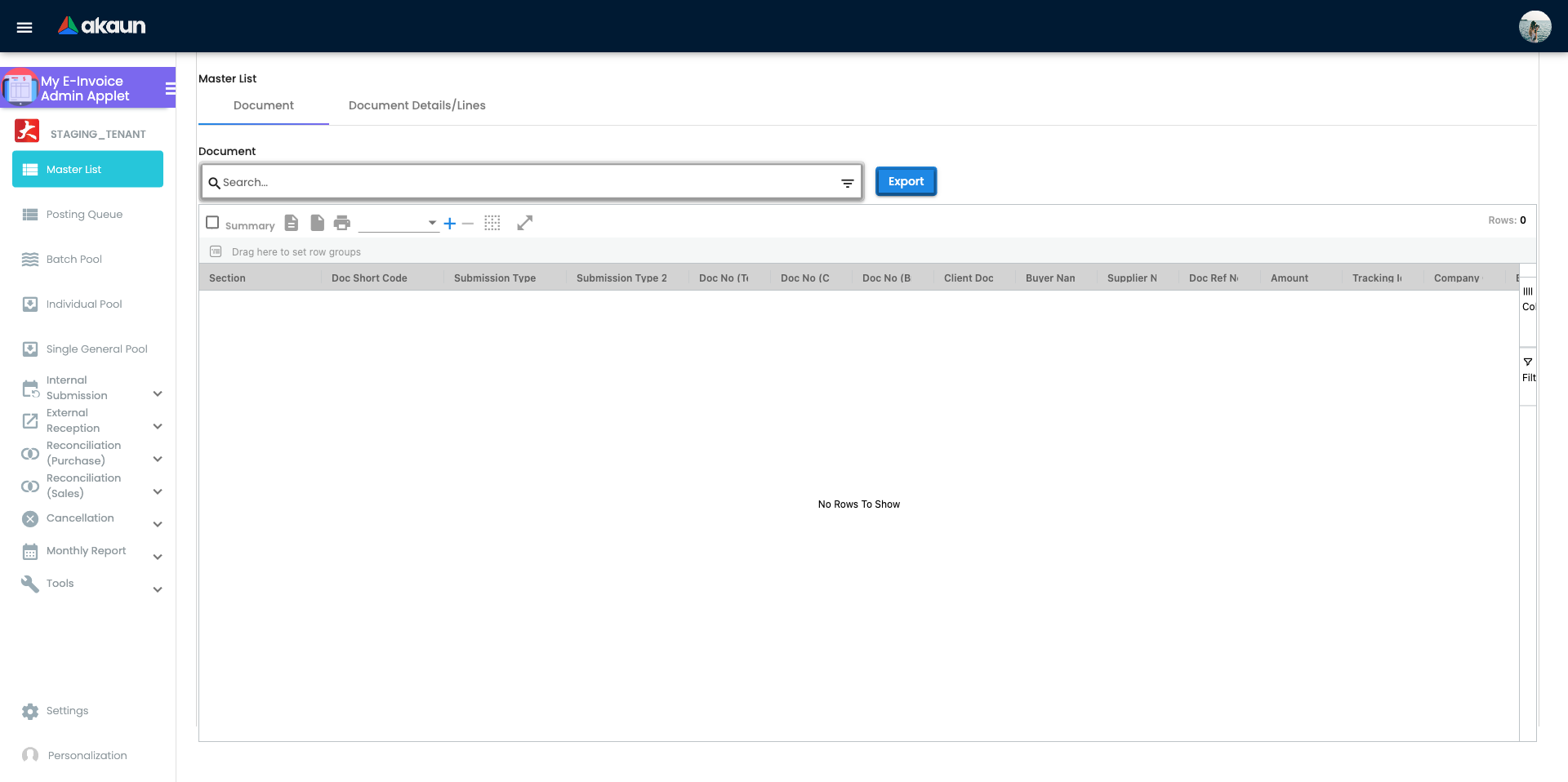
| Master List | — | Every e-invoice record across all sections; tabs Document and Document Details/Lines | Search, Export |
| Posting Queue | — | Documents waiting to be turned into e-invoice records, with queue status, validation message and process status | Submit (process the selected rows now) |
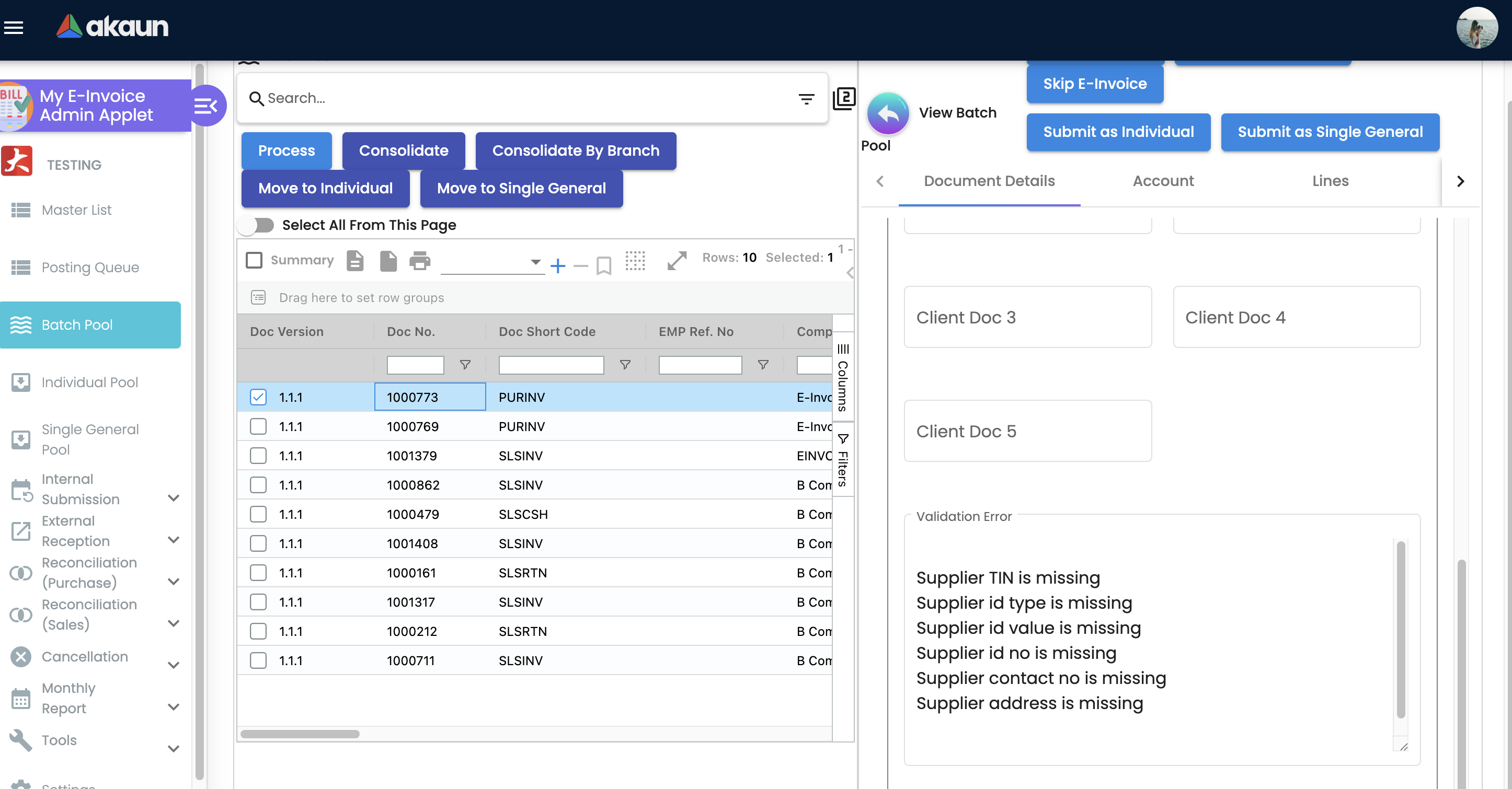
| Batch Pool | — | Documents held for consolidated submission | Process, Consolidate, Consolidate By Branch, Move to Individual, Move to Single General; per row: Skip E-Invoice, Submit as Individual, Submit as Single General, Save and Resubmit |
| Individual Pool | — | Documents that must go out as individual e-invoices but fail the mandatory-field check | Move To Batch Pool, Move to Single General; per row: Save and Resubmit, Skip E-Invoice, Get TIN / Verify TIN |
| Single General Pool | — | Documents whose submission type is Single General and that fail the mandatory-field check | Save and Resubmit, move to Individual / Batch, Skip E-Invoice |
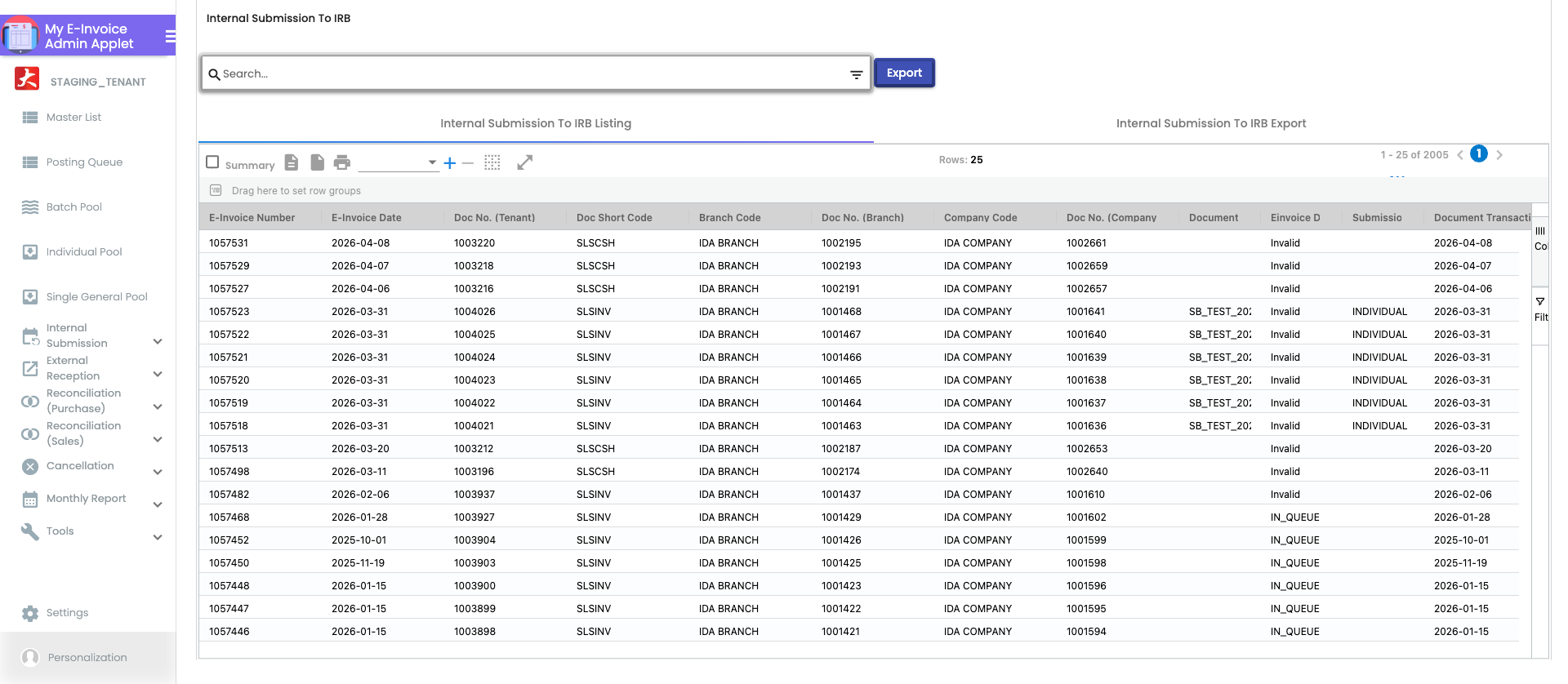
| Internal Submission | To IRB E-Invoice | Every e-invoice record; tabs Listing and Export | Save and Resubmit, Resubmit as New E-invoice, Request for Rejection, Printable (LHDN Format), Refresh (asks LHDN for this record’s current status; §5) |
| Individual Submission | The individual submission queue | Submit | |
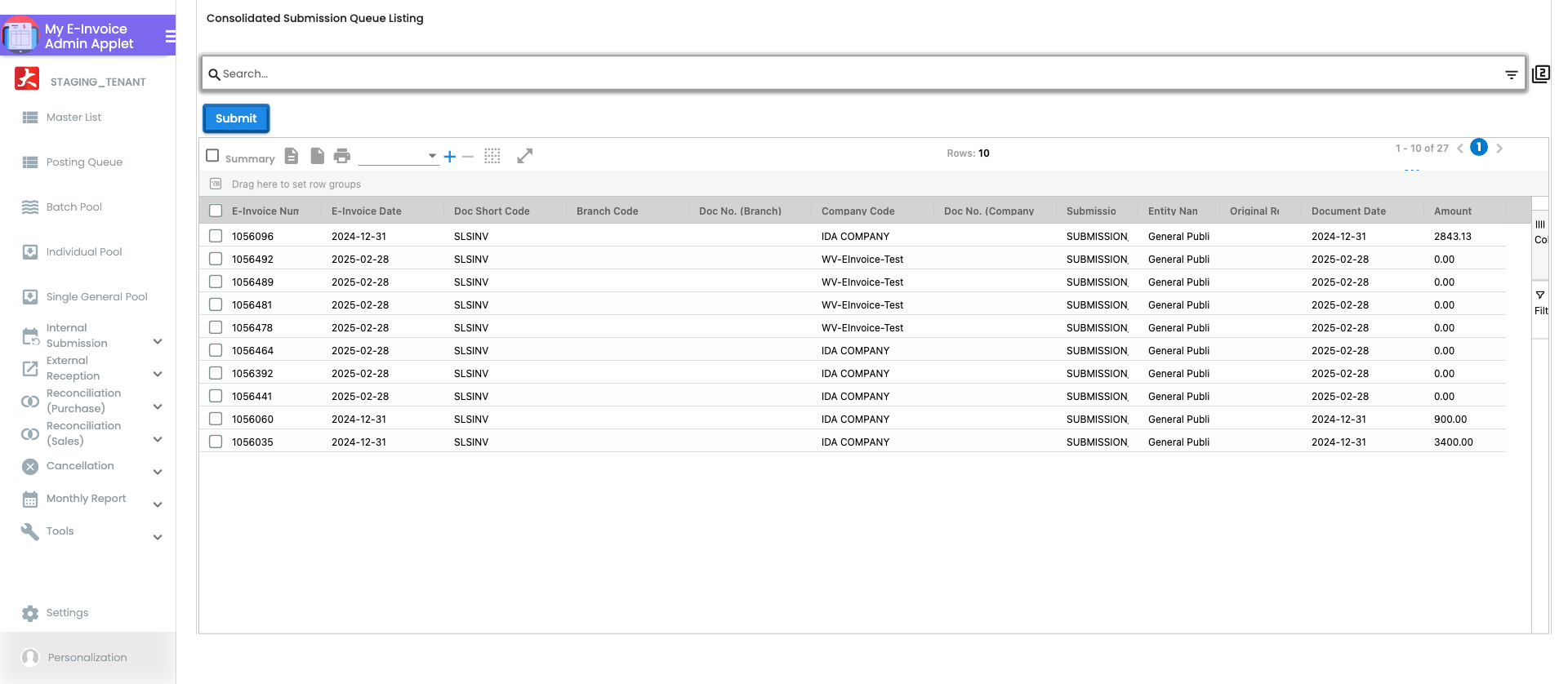
| Consolidated Submission | Consolidated payloads waiting to be sent | Submit | |
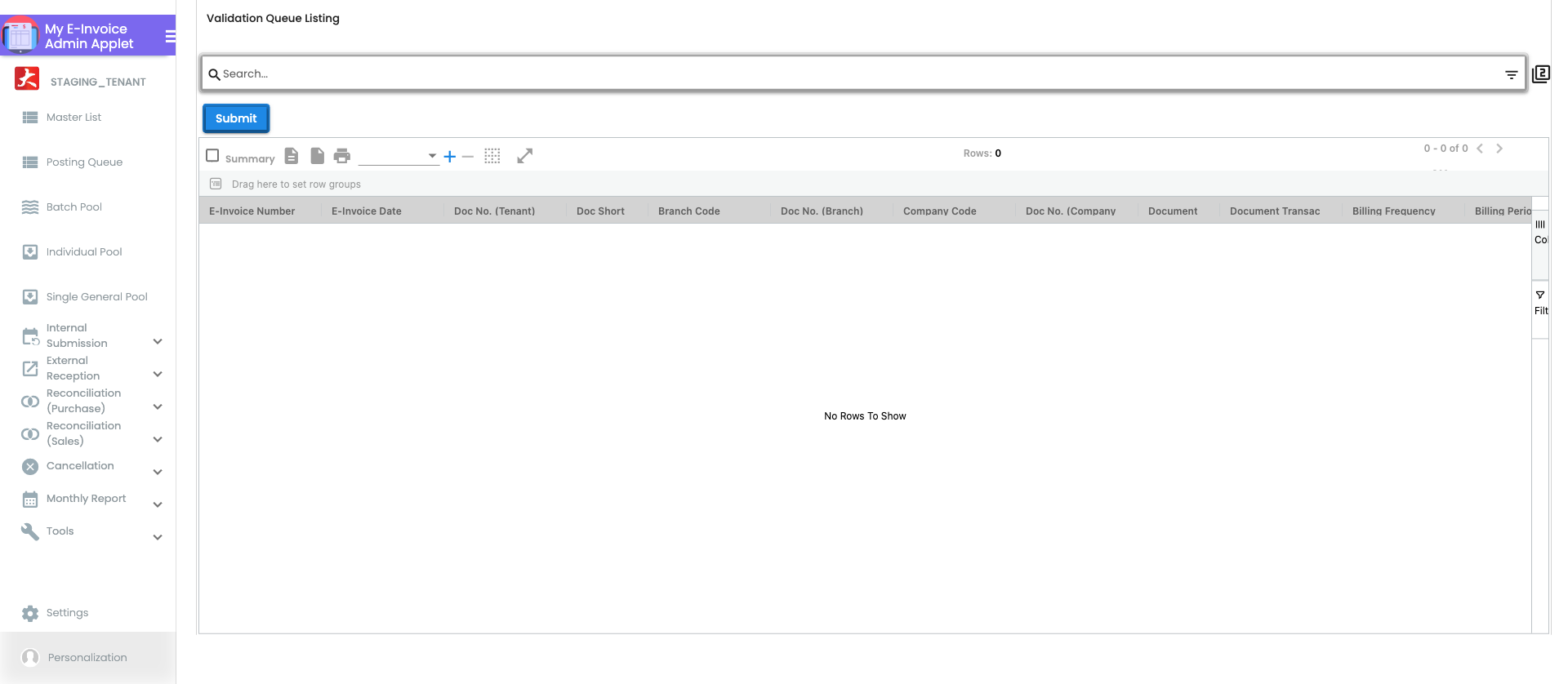
| Validation Queue | Submissions LHDN has accepted but not yet validated | Submit (bulk, added 2026-07). Capped at 20 rows per Submit: each selected row is a separate status call to LHDN inside the one request, so the grid trims any selection above 20 (select-all included) and shows “You can only select up to 20 records per submission.” Submit, let the grid refresh, repeat. | |
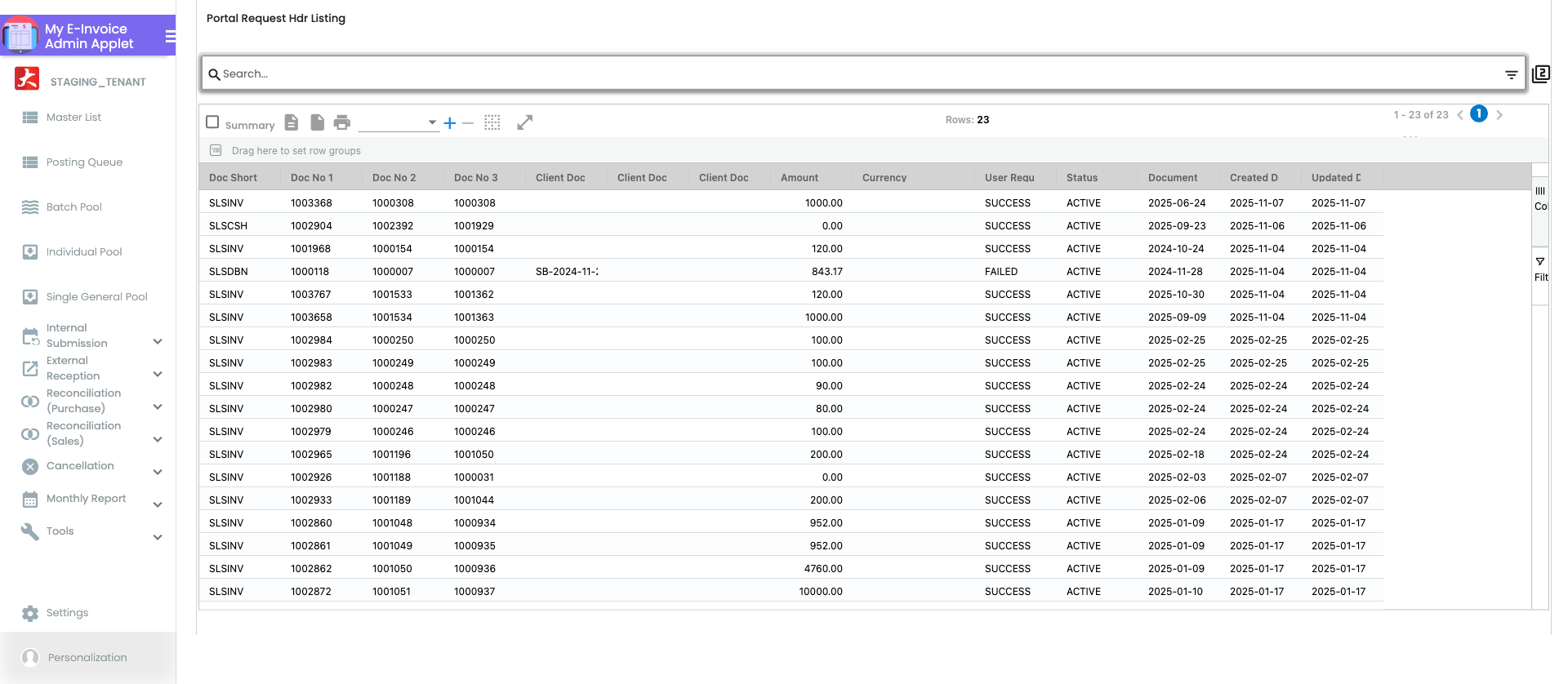
| Portal Request | Every buyer e-invoice request — from the customer portal, its Customer Invitations screen or a storefront widget — one record per request, SUCCESS or FAILED. The requests are processed as they arrive, with no approval step; this is the log, not an inbox | No toolbar; an opened row offers Export, and Request for Rejection once its e-invoice is eligible | |
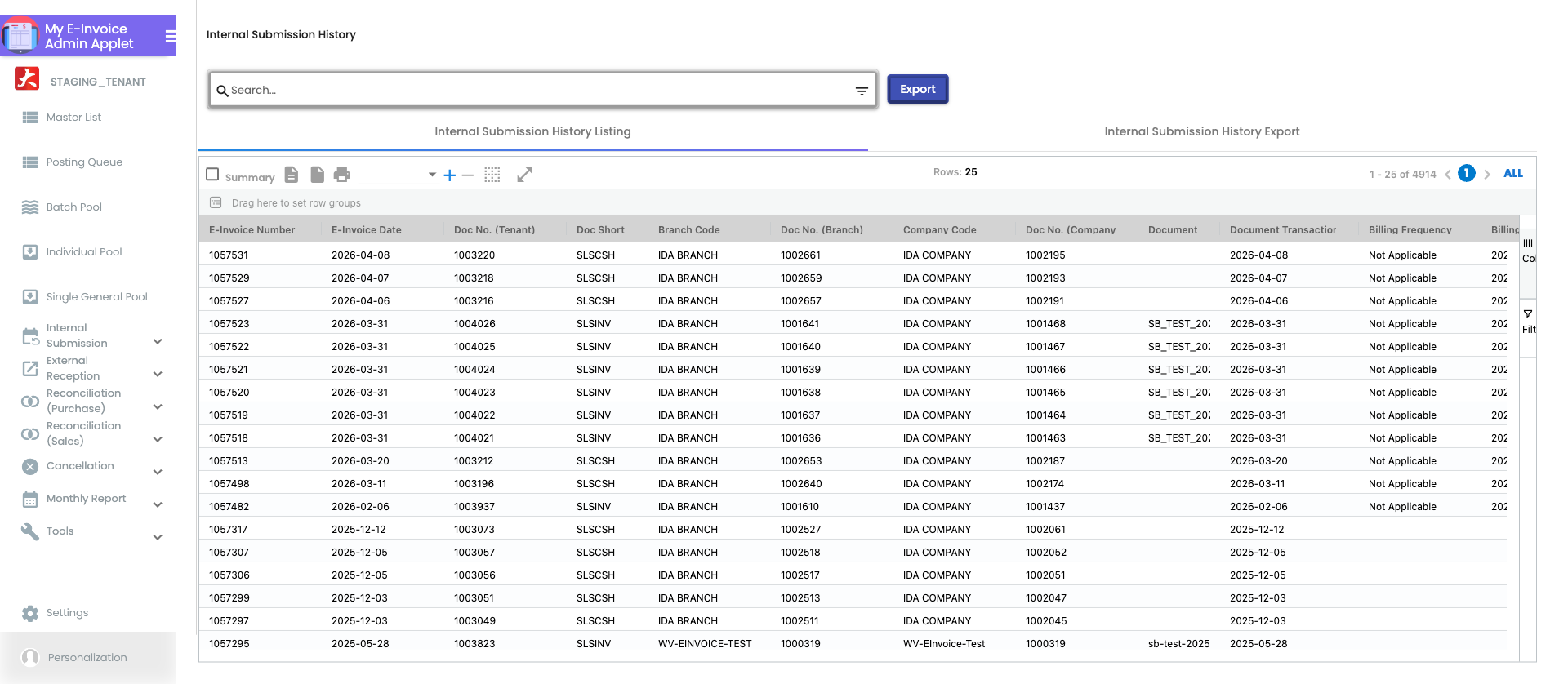
| Submission History | One row per submission LHDN accepted, each carrying that attempt’s own LHDN document UUID. The validation poll updates only the rows that carry the record’s current UUID, so after a resubmission the older row keeps its last verdict — or stays blank if its poll was abandoned — while the portal shows both attempts; read the live status on To IRB E-Invoice. Tabs Listing and Export | Export | |
| Email Dashboard | Tabs Email Printable Queue and Email Printable Queue History — the e-mails of validated PDFs to buyers, with retry count and error | — | |
| External Reception | Queue | Incoming e-invoices fetched from LHDN awaiting processing | Export |
| From IRB E-Invoice | Incoming e-invoices already processed | Export | |
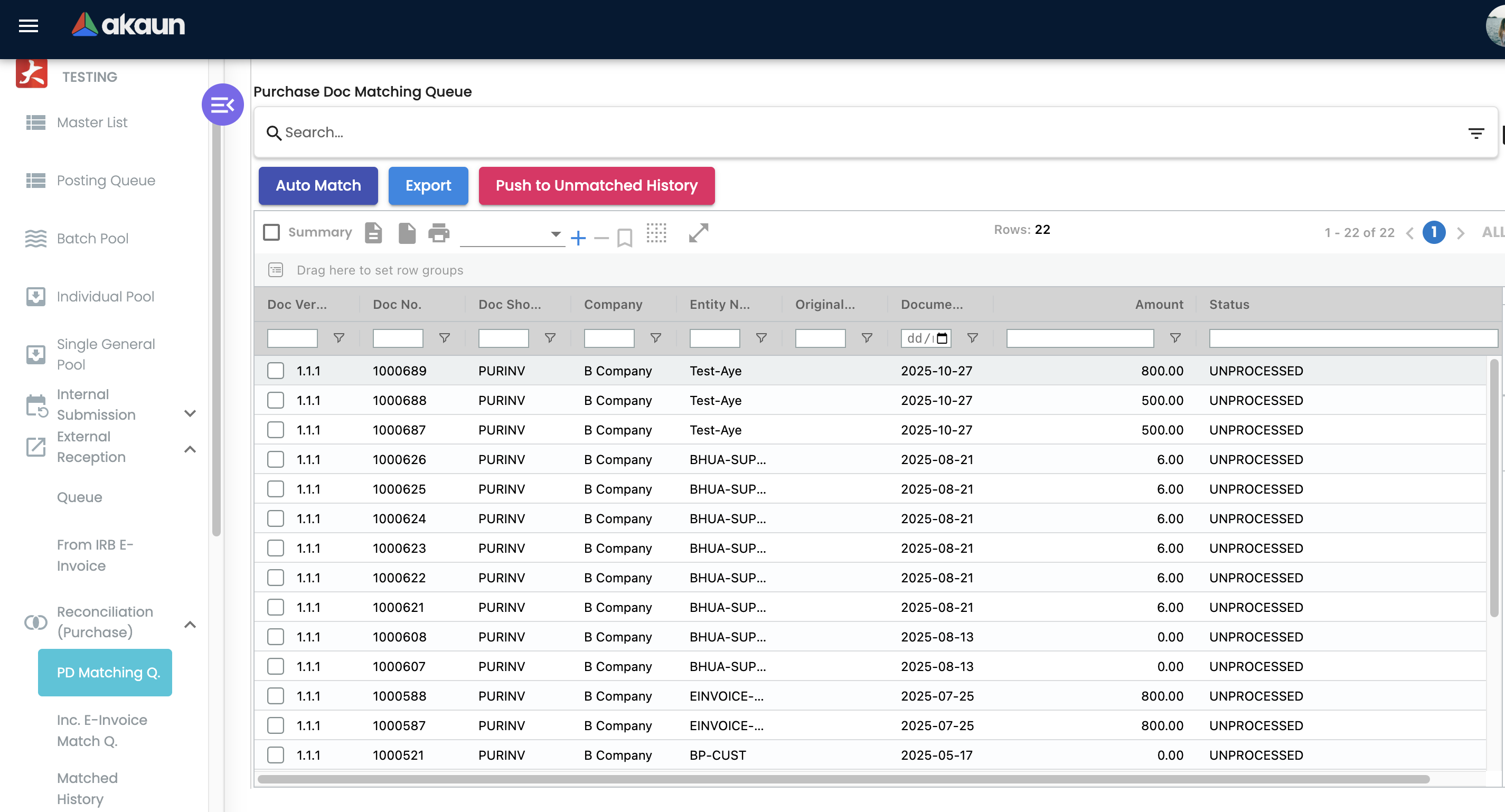
| Reconciliation (Purchase) | PD Matching Q. · Inc. E-Invoice Match Q. · Matched History · Inc. Unmtch. E-Inv. Hist. · Unmatched PD Hist. | Your purchase documents vs supplier e-invoices received from LHDN | Auto Match, Push to Unmatched History, Pushback. Export renders but does nothing — see the note below |
| Reconciliation (Sales) | SD Matching Q. · Inc. Ecom Matcd. Q. · Matched History · Inc. Ecom Unmatcd. Hist. · SD Unmatcd. Hist. | Your sales documents vs e-invoices received from e-commerce platforms | Auto Match, Push to Unmatched History, Pushback. Export renders but does nothing; and Auto Match on SD Matching Q. runs the purchase-side matcher — see the note below |
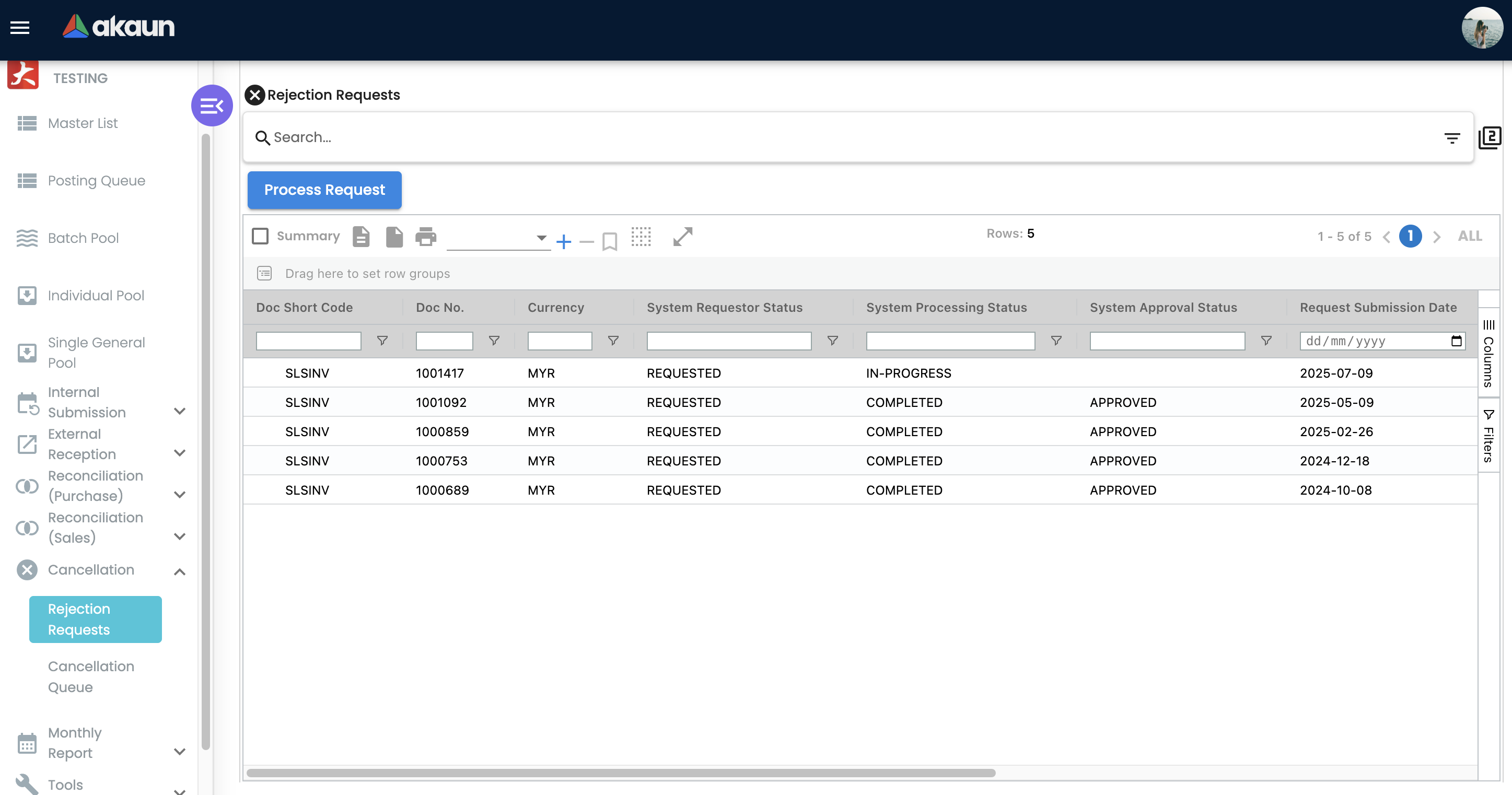
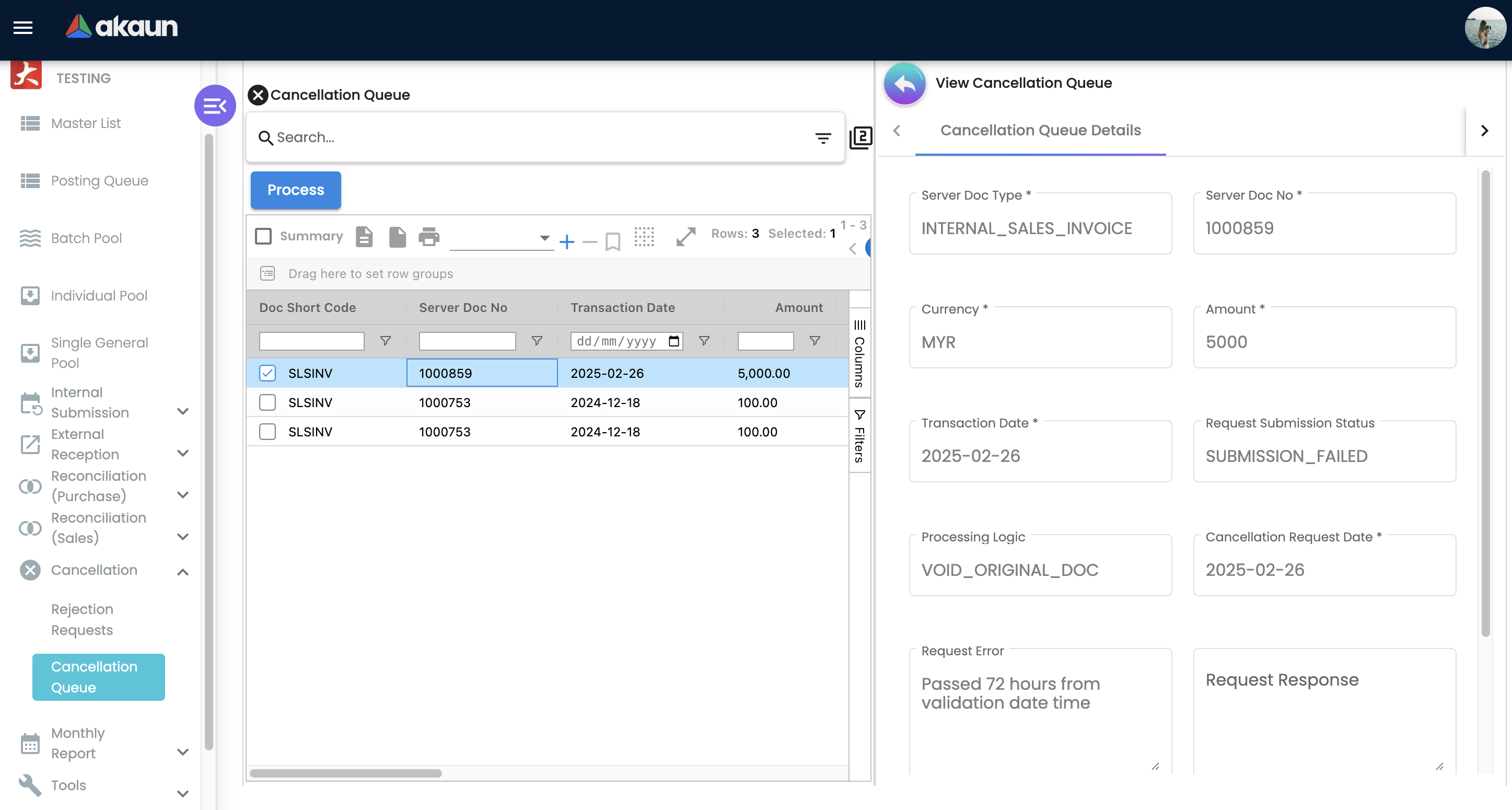
| Cancellation | Rejection Requests | Internal cancellation requests with requestor / processing / approval status | Process Request; per row: Update |
| Cancellation Queue | Approved requests queued for the LHDN cancellation call, with request error | Process | |
| Monthly Report | Discrepancies Report | Per-company, per-period comparison of finalised documents against e-invoice records; four tabs — Main, ERP Transaction Summary, IRB Audit Summary, Document vs E-Invoice Discrepancy. See below | Create, view details, drill into the documents behind a line |
| History | Past reports | — | |
| Tools | Bulk Tin Validation | CSV uploads that name customers to have their TIN checked with LHDN — the file carries NAME, EMAIL, PHONE, CUSTOMER_CODE and no tax numbers. See below | Upload File, Submit |
| Settings | Field Settings · Default Selection · Webhook · Feature Visibility · Permission Wizard · Permission Set · User Permission · Role Permission | See Configuration | — |
| Personalization | Default Selection · Sidebar | Per-user defaults | — |
Configuration
Before you can use it
Almost everything that decides whether a document reaches LHDN is configured outside this applet.
| Prerequisite | Where | Why it matters |
|---|---|---|
| Company E-Invoice Status set to ENABLED | Organisation Applet → company → E-Invoice tab | A finalised document whose company is not ENABLED is dropped at the gate — silently, with no queue row and no error. Enable e-invoice before finalising documents. |
| Company identity: TIN, ID type and value, registration number, SST number, MSIC code, business-activity description, address (line 1, city, state), phone (8–20 characters), e-mail | Organisation Applet → company | These become the supplier fields of every sales e-invoice (or the buyer fields of a self-billed purchase e-invoice) and are all on the header mandatory list; MSIC defaults to 00000 and business activity to NOT APPLICABLE when blank. |
| BigLedger registered as your intermediary on the MyInvois portal, then the intermediary authorisation configured for the company | MyInvois portal (you), first; the configuration is then recorded when the company is saved with E-Invoice Status ENABLED, an LHDN Environment and a tax number, once for each environment where LHDN answers | With issuer type Intermediary (the default) every LHDN call uses an access token generated on behalf of your TIN, which BigLedger refreshes in the background. If the intermediary authorisation lapses at LHDN, LHDN refuses that refresh and BigLedger keeps using the last token it holds. Once that token runs out, LHDN refuses every submission for the company: the records stay at IN_QUEUE and each submission queue row’s Request Error holds LHDN’s own reply, not a BigLedger message. If the company has no intermediary configuration at all for the environment it is pointed at, the message is BigLedger’s own — No intermediary config found for company with guid … in <env>environment — which means nothing was recorded for that side. The save shows Intermediary System Configured Successfully whether or not LHDN answered, so a company saved before the authorisation was in place is ENABLED with no configuration, and nothing warns you: the first sign is a submission failing with that message. Authorise first, then save; if you saved too early, ask BigLedger to configure the company again for that environment. |
| Company LHDN Environment set to PRODUCTION | Organisation Applet → company → E-Invoice tab | This is the field that chooses between the sandbox and production intermediary configurations, and between LHDN’s sandbox and production endpoints. A blank is treated as SANDBOX, so a company enabled before the environment is chosen submits to the sandbox and its documents come back Valid having been filed with nobody. Nothing on the sales document or the status column says which environment it went to. The one tell is the record’s Validation URL, the link the QR code opens: it starts with preprod.myinvois.hasil.gov.my for the sandbox and myinvois.hasil.gov.my for production. |
| Company e-invoice settings | Organisation Applet → company → E-Invoice tab; some are maintained by BigLedger support | See the table below. |
| The background e-invoice runs scheduled for your tenant | BigLedger support | A tenant with a run missing sees documents stop at the corresponding queue. |
Customer / supplier e-invoice fields: TIN, ID type (NRIC, BRN, PASSPORT, ARMY), ID value, an address marked as the default e-invoice address, phone, e-mail | Customer / Supplier applets | Missing or malformed values are the single largest cause of documents landing in a pool. The address used is the first marked as the default e-invoice address, in the order shipping → billing → main. |
| Item classification codes, e-invoice UOM, tax type codes | Doc Item Maintenance, Tax Configuration | Line defaults are applied when blank (classification 022 Others, UOM H87 piece). A wrong non-blank classification or unit is sent unchanged. The tax type code is not: it is recomputed from the line’s tax amount — 06 Not Applicable when the amount is zero or blank, 01 Sales Tax when it is non-zero and the code is blank or 06 — so only a non-zero-tax line carrying 02–05 keeps what was set. |
| Per-document Submission Type (Individual, Consolidated, Single General or blank) and Skip E-Invoice | Set on the document in the sales / purchase / POS applet (or inherited from the customer / branch defaults) | Decides which pool the document falls into; a skipped document never enters the pipeline. |
Company e-invoice settings (on the company’s E-Invoice tab; read on every submission):
| Setting | Values | Default when absent | Effect |
|---|---|---|---|
| Issuer type | Intermediary, ERP | Intermediary | Intermediary uses the per-company access token generated on behalf of your TIN. That token is requested with the company’s own Taxpayer ERP API Credentials when the Organisation applet’s tab for the company’s LHDN environment has both the Client ID and Client Secret 2 filled in, and with BigLedger’s otherwise. Client Secret 1 is never sent, so a company that filled in only the Client ID and Client Secret 1 is still on BigLedger’s credentials, with no error to say so; check the Client ID and Client Secret 2 on that tab if it matters which set is in use. ERP uses BigLedger’s own credentials and ignores that block. |
| Forex posting logic | Post forex document, Post local-currency document | Post forex document | For a foreign-currency sale BigLedger keeps two documents (the base MYR one and the foreign-currency one). The first option submits the foreign-currency document (amounts in the foreign currency); the second submits the MYR document. A screen control for this choice is tracked as an open issue; today it is set by support. |
| Running-number pattern | A pattern built from the document’s own numbers and references (server document numbers 1–3, the reference, client document numbers 1–5) and BigLedger’s built-in short code for the document type (SLSINV for a sales invoice) | empty | Appended to the sequential e-invoice running number, truncated to 50 characters. The cut is silent: a pattern that strings together several document numbers and a reference can pass 50, and then the number MyInvois holds — the one your customer quotes back to you — is only the first 50 characters, while the document keeps its full number. Work out the longest number your pattern can produce before you save it. |
| Line description pattern | A pattern built from item code, item name and item remarks, joined by ; | code; name; remarks | Builds the line description sent to LHDN, truncated to 300 characters, URLs and special characters stripped. |
Client Doc 1 filled in for you: the company’s reference format and its document-type codes
A company can have BigLedger compose a reference for each of its documents and write it into Client Doc 1. That is the field the generic document page describes as the other system’s number. No screen shows or sets this. The company’s format and its list of document-type codes are both set up by BigLedger through the API. It matters here because the running-number pattern above can include Client Doc 1. When it does, this reference becomes part of the number LHDN receives.
What happens behind the scene. Suppose a document reaches the entry gate (step 1) with Client Doc 1 empty, and its company has a format. BigLedger builds the reference from up to four pieces. They always come in this order and are always joined with hyphens:
- the branch’s Description, as typed on the branch in the Organisation applet, not its code;
- the company’s own code for this kind of document, from a list kept per company, for example a cash bill is CS, a sales invoice is INV;
- the year and month of the transaction date, as four digits (
2609for September 2026); - the document’s Doc No (Branch).
The format decides which pieces are used. It cannot change their order or the hyphen. Take a GadgetSphere
cash bill at a branch whose Description is KV01, dated 14 September 2026, with branch number 000812. It
becomes KV01-CS-2609-000812. The reference is saved onto the document itself, so it shows in any listing with
the Client Doc 1 column switched on, and it stays there.
What to watch for:
- A missing code leaves a gap, not an error. Suppose the company’s list has no code for the document type,
because sales credit notes were never added. That piece is left out, and the reference reads
KV01-2609-000812. Nothing warns you. - A branch whose Description was never filled in stops the whole reference, when the format uses the branch. Nothing is written to Client Doc 1, and nothing says why. A code in the list that holds no value can do the same.
- The Description goes in exactly as typed. A branch described as Klang Valley 01 gives
Klang Valley 01-CS-…, spaces included. A Description with a hyphen in it makes the reference impossible to split back into its pieces. - Only an empty Client Doc 1 is filled. A document that arrives with Client Doc 1 already set keeps what it had, and the format never overwrites it. An import, a marketplace connector or an integration may have set it. So one company can send LHDN two shapes of number: marketplace orders carry the marketplace’s number, and counter sales carry the composed reference.
- The reference is written whether or not the document is then e-invoiced. It is composed before the gate checks E-Invoice Status, the document type and Skip E-Invoice. A document the gate then drops still gets it.
- Two codes for one document type give an unpredictable result. If the list holds two codes for the same type in one company, the one the database returns first is used. Nothing stops the second being added.
- Changing a code or the format does not touch past documents. The reference is written once, so a change applies only to documents that reach the gate afterwards.
What it will not do. The list has a place for the company’s own submission-type code as well, and nothing reads it. It does not change how a document is submitted: the submission type on the document does (see Which level each e-invoice fact lives on). And if all you want is a document-type code in the number LHDN receives, the running-number pattern has BigLedger’s own short code built in, with no list to keep.
Your job. The person who owns the company’s e-invoice set-up decides whether the company wants this reference at all, and keeps the code list complete. When the company starts issuing a new kind of document, such as credit notes or refund notes, ask BigLedger to add its code before the first one is finalised. Check the result after each month’s documents are in. Filter a listing to the month and look down the Client Doc 1 column. A reference with fewer than four pieces means a missing code. An empty one means a branch with no Description, or a document that already carried a Client Doc 1 of its own.
Which level each e-invoice fact lives on — tenant, company, branch
A group runs three companies and twenty-odd branches inside one tenant, and the question that reaches support is “do I set this up three times, and do the branches need anything?” The answer is a level per fact.
| Level | What lives there | How you know it is read there |
|---|---|---|
| Tenant — one of each, shared by every company | The customer, supplier and item lists, and with them every customer’s TIN, identity, e-invoice address, Skip e-Invoice flag, self-billed flag, running-number override, default Peppol ID and peppol notification flag. The item classification list, the e-invoice UOM list and the tax-code list. The schedule of background runs, including both consolidation runs. This applet’s settings, pools and listings. | Master data is one list for the whole tenant by design (Organisation applet); the classification, UOM and tax-code lists carry no company. The Batch Pool and To IRB listings can be filtered by company and branch. |
| Company — once per legal entity | Everything on the E-Invoice tab: the identity that becomes the supplier block, the LHDN environment, the intermediary configuration (one per environment), E-Invoice Status, the issuer type and forex logic, the three Disable switches, Send Email To Buyer and its subscription, the printable formats. The Discrepancies Report. | The supplier block of a consolidated e-invoice is built from the document’s company, and the by-document consolidation run groups by company before it groups by anything else — one schedule, one consolidated e-invoice per company per document type per run. The report refuses without a company. A company may also have some of the FINAL fan-out excluded or restricted for it, which is how two companies inside one tenant come to behave differently at FINAL. |
| Branch — a place on the document | Skip E-Invoice, and nothing else that acts. The branch code is copied onto every individual e-invoice header and onto a by-branch consolidated one, and is absent from a by-document consolidated one. | Skip E-Invoice is honoured if it is set on the document, the branch or the customer; the point of sale copies the branch flag onto the bill as well. The branch’s tax registration number, timezone and default printable play no part in the e-invoice or its PDF. |
Three consequences for a group:
- Registration is per company, the environment is per company, and nothing ties them together. Two companies in the same tenant can sit in different LHDN environments at the same moment — one filing for real, one filing with nobody — and no screen puts the two side by side. The MyInvois setup guide is run once per company, and the thirty-second check at the end of it is run once per company too.
- A customer’s e-invoice flags are the group’s, not one company’s. Skip e-Invoice on a customer record switches that customer off in every company that trades with them. A running-number override on a customer applies whichever company issues the document, and it wins over the company’s own pattern. The supplier’s self-billed flag is what every company’s purchase screens pick up. Set them with the whole group in mind.
- A branch needs nothing configured for e-invoice. The one branch control is Skip E-Invoice, for a location whose sales are reported by somebody else. Everything a branch wants to see on an e-invoice — its logo, its address — comes through a company printable format, not through the branch record.
Where the submission type comes from, since it decides the pool. It is a value on the document, not a default on a document type or a company. The sales invoice applet seeds a new invoice with Individual; the point of sale seeds a new cash bill with nothing, and only a cashier’s choice on the E-Invoice panel sets it. No screen, setting or rule supplies a per-document-type default. A blank receipt is routed through the posting queue and the mandatory-field check before it reaches the Batch Pool — which is why most Batch Pool rows are born UNPROCESSED / FAILED with a reason on them, and why a walk-in who did give their details gets an individual e-invoice without anyone choosing it. An explicit Consolidated skips the check and goes straight to the pool.
Applet settings
Settings live under Settings → Field Settings in this applet, not in the shared settings screen. Every key is tenant-wide and can be changed by anyone who can open Settings (there is no role check). Every toggle starts blank, which the applet treats as off.
| Setting | Panel | What it controls | Default | Effect when changed |
|---|---|---|---|---|
HIDE_INDIVIDUAL_POOL_MENU | Side Menu Settings | Removes Individual Pool from the left menu | off | The screen still exists; only the menu entry disappears. |
HIDE_SINGLE_GENERAL_POOL_MENU | Side Menu Settings | Removes Single General Pool from the menu | off | As above. |
HIDE_EXTERNAL_RECEPTION_MENU | Side Menu Settings | Removes the whole External Reception group | off | Menu only, like the two above: the screens stay where they are, and whatever the background pull fetches from MyInvois keeps being staged whether anyone can see the group or not. Hiding it loses little today, because nothing moves those rows on to purchase matching (see §7). |
HIDE_PORTAL_REQUEST_HDR_MENU | Side Menu Settings | Removes Internal Submission → Portal Request | off | Hides the only place a failed buyer request shows up — it does not stop the requests. Buyers’ requests from the portal and storefront are still processed the moment they arrive; a request that fails leaves the receipt in neither the consolidated nor an individual e-invoice, and this listing is where you would see it FAILED. Hide it only if someone checks those requests another way. |
SHOW_RESUBMIT_AS_NEW_E_INVOICE_BUTTON | Internal Submission → To IRB E-Invoice | Shows the Resubmit as New E-invoice button on the To IRB edit screen | off | Without it, an Invalid consolidated or single-general e-invoice can only be fixed with Save and Resubmit. |
HIDE_SAVE_AND_RESUBMIT_BUTTON | Internal Submission → To IRB E-Invoice | Hides Save and Resubmit on the To IRB edit screen | off | Use when corrections should be made in the pools only. |
Four more toggles on the To IRB E-Invoice panel only show or hide a print button there — SHOW_CUSTOM_PRINTABLE_BUTTON, SHOW_PRINTABLE_PREVIEW, SHOW_PRINTABLE_LHDN_PREVIEW and HIDE_LHDN_FORMAT_PRINTABLE_BUTTON. They decide which print buttons appear, not what the buttons print.
Rendered and saved but not used anywhere in the applet: Hide submission status (Master List Settings panel). Switching it has no effect.
Unbound toggles on the same screen (Unit Discount, SST/VAT/GST, WHT, Blanket Order, Segment, G/L Dimension, Profit Center, Project) are never saved — they are leftovers from the document-applet settings screen.
Three keys from the shared Default Selection / personal settings are read here without a control of their own, and only affect the Discrepancies Report’s document listing: DEFAULT_TRANSACTION_DATE (1_week or 1_day pre-filters the date range), FUZZY_SEARCH_COLUMNS, SORT_ORDER (defaults to last-updated).
Default Selection (under Settings) renders Default Branch and Default Location, but its SAVE button saves nothing. Treat it as not functional.
Webhook, Feature Visibility and the four permission listings are the shared screens every applet has.
Document behaviour settings
Not applicable — this applet has no document status flow or posting of its own. The behaviour of the pipeline is fixed, and driven by the company settings above and by the per-document Submission Type and Skip E-Invoice set in the originating applets.
Feature visibility / permissions
The applet seeds no client-side permission definitions and checks none on its screens. Every call the screens make is guarded server-side by permission families for the e-invoice objects — intermediary configuration, e-mail printable queue, incoming documents, reconciliation histories and so on — which you assign through Settings → Permission Set / Role Permission.
Fields
This applet edits e-invoice records, not accounting documents. The tables below cover the three forms a user actually types into.
To IRB E-Invoice / pool edit — Account tab (buyer for sales, supplier for purchase)
| Field | Meaning | Required for submission | Notes / validation |
|---|---|---|---|
| Name | Buyer or supplier name as sent to LHDN | Yes | Special characters have caused LHDN rejections; sanitisation is tracked as an open issue. |
| ID Type | NRIC, BRN, PASSPORT, ARMY | Yes | Foreign individuals must be PASSPORT, not NRIC (LHDN CF324). |
| ID No | The identifier matching the ID type | Yes | NRIC must be 12 digits without hyphens; a BRN in the NRIC field is rejected. |
| Tax ID (TIN) | LHDN TIN | Yes | Get TIN and Verify TIN are two different things. Get TIN searches LHDN by identity type and identity value and fills the field for you. Verify TIN checks a TIN you already hold against the identity pair and can never hand you one. Neither carries the RM 10,000 condition the automatic search in §2 has. The general TINs are EI00000000010 (local buyer / general public — only valid with a real NRIC on an individual e-invoice), EI00000000020 (foreign buyer), EI00000000030 (foreign supplier), EI00000000040 (government). |
| Sales Service Tax ID | SST number | No | Copied from the customer’s (or, on a purchase, the supplier’s) SST number when the e-invoice is built. On the way, anything other than letters, digits, hyphens and semicolons is stripped — so two registration numbers separated by a semicolon survive, but spaces and slashes do not — and the result is cut to 35 characters. Blank goes as NA. A consolidated sales e-invoice carries the fixed general-public buyer, and with it NA here, whoever bought. |
| Email, Contact No | Buyer/supplier contact | Contact no: yes | Phone is accepted only when 8–20 characters. |
| Address line 1, City, State (+ lines 2–3, postcode, country) | E-invoice address | Line 1, city, state: yes | State is matched to the LHDN state code by exact, cleaned, contains and alias matching; when nothing matches the state code is left empty and must be keyed by hand. Code 17 (Not Applicable) is no longer accepted by LHDN. |
Rejection Request (Cancellation → Rejection Requests → row → Update)
| Field | Meaning | Required | Notes |
|---|---|---|---|
| Reason | Free text sent to LHDN as the cancellation reason | Yes | — |
| System Approval Status | APPROVED, REJECTED, ON-HOLD | Yes, to proceed | Only APPROVED requests are picked up. |
| Processing Logic | REGEN_NEW_EINVOICE, VOID_ORIGINAL_DOC, CANCEL_EINVOICE, NEW_REVERSAL_DOC | Yes, to proceed | What happens to the source document after LHDN cancels — see Lifecycle. |
| System Processing Status | IN-PROGRESS, COMPLETED | — | Set by the system; mark COMPLETED by hand only after a manual cancellation. |
Bulk TIN Validation (Tools → Bulk Tin Validation → Create)
| Field | Meaning | Required | Notes |
|---|---|---|---|
| Delimiter | CSV delimiter (comma or pipe) | Yes | Default is the second option in the list. There is no template to download — the create screen offers only the delimiter, a drop zone and Submit. Type the four column names yourself. |
| File | One .csv file | Yes | The columns are NAME, EMAIL, PHONE, CUSTOMER_CODE — the file carries no tax numbers. It names the customers to check, not the values to write. |
Bulk TIN Validation: what the upload actually starts
It is a verification-and-request campaign, not a correction upload, and the correction — when it comes — is made by the customer, not by you.
- Each row is matched to customer, supplier and employee records on name, customer code, phone and e-mail. The four are matched with any, not all, and no kind of record is excluded. So one row acts on every record that shares any one of the four values — a shared shop telephone number, a repeated walk-in name, a supplier who is also a customer — and it will act on a supplier or an employee record as readily as on a customer. A row matches at most 100 records; a 101st is silently ignored.
- For a matched record that already holds an identity type, an identity value and a TIN, BigLedger asks LHDN whether the three agree. If they do, nothing happens at all — no row, no e-mail, no record on the screen that it passed. If they do not, or if any of the three is blank, a request is queued for that record.
- A scheduled run then works through the queue (20 at a time), re-checks, drops the request if the TIN has since become valid, and otherwise e-mails the customer’s own address on the master record a “Please Update Your Tin Information” message with a link to a self-service form. A customer with no e-mail on the record is never contacted. Reminders go out at most every 2 days, and the request is dropped after 10 reminders or 30 days whether or not anyone answered.
- When the customer fills in that form, BigLedger checks the TIN, identity type and identity value with LHDN and refuses an invalid set — but only when all three are filled in. Submit the form with any one of the three empty and the LHDN check is skipped entirely and the write goes ahead, so a customer can blank their own identity fields on your master record. On success it writes five fields: the e-invoice ID value, ID type and TIN on the record’s E-Invoice tab, and the ID number and ID type on its Main tab.
There is no back-office approve step, and no screen reports what the run found. Identity type and identity number are corrected by this route too, so they are not a separate File Import job.
The screen has two result boxes and neither is ever filled. The File Import listing shows Process Status and Error Message columns, and File Details repeats both as read-only fields; the TIN upload never writes either, so both stay blank whatever happened. The Line tab is the same story. The only evidence any of it ran is the Queue tab under a line — one row per record that failed or was incomplete, with Email Reminder Sent counting up. A line with no queue row means the record passed or the row matched nobody, and nothing on the screen separates those two.
“Invalid” also means “LHDN could not be reached”. Any answer from LHDN other than success is recorded as invalid. A run made while the intermediary access token has lapsed therefore marks every record invalid and queues the lot for a chasing e-mail. Check the token before uploading, not after.
The half that chases your customers has to be scheduled, and nothing schedules it for you. The upload half always runs — the file is read and the requests are queued the moment you submit. The e-mail half is a scheduled run, and it runs only if your tenant has it on its schedule. Without that, an upload creates requests that nothing sweeps, and not one e-mail is sent. Confirm before you plan a campaign around this — do not assume. The Scheduler applet is where you can look and, if E_INVOICE_TIN_UPDATE_REQUEST_EMAIL_PROCESSOR is in its Select Processor picker, where you can add it yourself.
Lifecycle and effects
1. Entry gate (at FINAL)
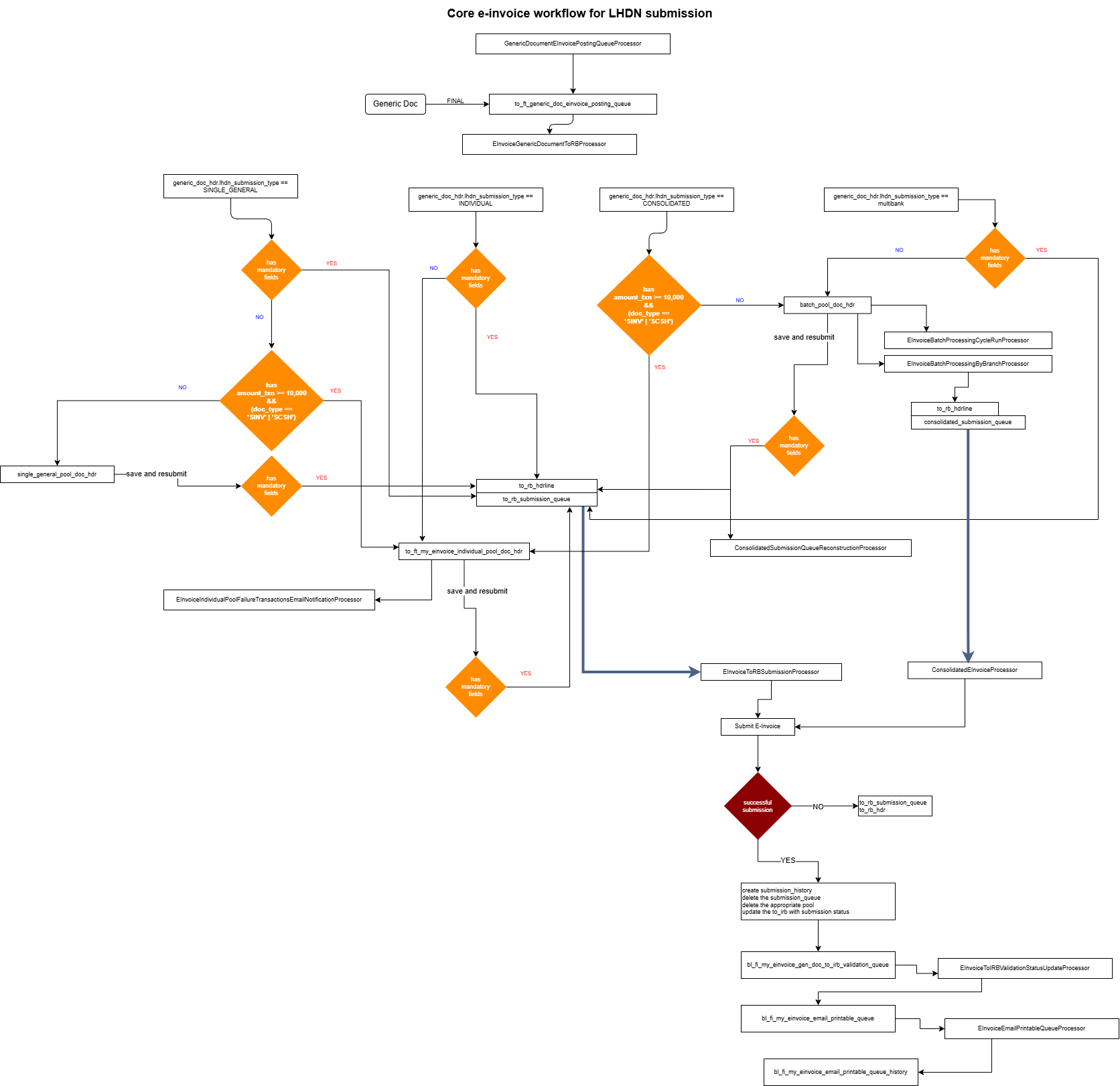
The moment a document becomes FINAL, BigLedger decides whether it belongs in the e-invoice pipeline. It proceeds only if all of these hold: the company’s E-Invoice Status is ENABLED; the document type is an e-invoice type — Sales Invoice, Cash Bill, Sales Credit Note, Sales Debit Note, Sales Refund Note, Sales Return, or a purchase document with Self-Billed switched on; Skip E-Invoice is off; and the same document number is not already waiting in the Posting Queue. If any check fails, nothing is written — no queue row, no pool row, no error (the “ghost document” failure in Troubleshooting).
When the gate looks, and how often. Not when you press Finalise. Finalising starts a chain of background jobs, and one of them runs this gate a moment later — once. It reads the company’s E-Invoice Status, the document type and the skip flag as they are at that moment and does not come back: switch a company to ENABLED on the 10th and the documents of the 1st to the 9th stay outside the pipeline, where the Discrepancies Report lists them as missing (§8). A push by support re-runs the same test on documents you name. One purchase type is not on the gate’s list. A Purchase Invoice No Stock In, the bill you key after a GRN has already taken the stock in, is a document type of its own, and the list of e-invoice purchase types leaves it out. So it never enters this pipeline as a self-billed e-invoice, and it never reaches the supplier-matching list in §7 either. Whether that is deliberate is a question we have put to BigLedger. Until it is answered, if GadgetSphere Distribution self-bills a supplier whose stock arrives on a GRN first, confirm with your BigLedger contact how that invoice is meant to reach LHDN before you rely on it.
Routing by Submission Type:
| Submission type | Document type | Amount | Goes to |
|---|---|---|---|
| Consolidated | Sales Invoice or Cash Bill | ≥ RM 10,000 | Individual Pool, reason “Amount transaction is greater or equal to RM10000” |
| Consolidated | any other, or < RM 10,000 | — | Batch Pool |
| Individual, Single General or blank | any | — | Posting Queue |
The RM 10,000 threshold is fixed (inclusive) and the enforced types are only Sales Invoice and Cash Bill.
For foreign-currency documents the document used from here on is the foreign-currency one or the base MYR one according to the company’s forex posting logic (see Configuration).
2. Posting queue → e-invoice record or a pool
A scheduled run takes each Posting Queue row and builds the e-invoice record (header and lines) from the document, the company and the customer or supplier. The buyer of a sales document is taken from the e-invoice buyer details saved on the document if there are any, otherwise from the customer record; the supplier of a self-billed purchase document likewise from the document’s e-invoice supplier details, otherwise from the supplier record. When the amount is RM 10,000 or more, the ID type is BRN and the TIN is blank, BigLedger searches LHDN for the TIN and writes it back to the customer, the document and the e-invoice record.
The record is a copy, and from here on it has a life of its own. What To IRB E-Invoice shows on its Account tab — buyer, supplier, addresses, identity — is what this run copied when it built the record, plus whatever someone has typed there since, not the customer as it reads today. That is deliberate: the buyer on an e-invoice does not have to be the account you billed, so the record keeps its own. It has a practical consequence the screens do not mention. When LHDN rejects a buyer, correcting the customer record fixes the next sale; it does not touch this e-invoice, because Save and Resubmit sends the record’s own buyer block. Fix both: the Account tab for this one, the customer for the ones to come.
It then runs the mandatory-field check:
- Header: supplier and buyer name, TIN, ID type, ID value; supplier MSIC code and business-activity description; both addresses with line 1, city and state; both contact numbers 8–20 characters; e-invoice version, type and code; e-invoice date-time; document currency; sub-total, total excluding and including tax.
- Every line: classification, item name, unit price, tax type code, tax amount.
Outcome:
| Check passed? | Submission type | Result |
|---|---|---|
| Yes | any | E-invoice record created at NOT_SUBMITTED, and a row placed in the Individual Submission queue |
| No | Individual | Individual Pool |
| No | Single General | Single General Pool (Individual Pool when the amount is RM 10,000 or more) |
| No | blank | Batch Pool (< RM 10,000) or Individual Pool (≥ RM 10,000) |
A Single General sales document is no longer held for its buyer. Since 8 October 2026 the check skips the buyer fields — name, TIN, identity, address and contact number — on a sales document whose submission type is Single General. The supplier, document and line checks still apply, so a sales row that lands in the Single General Pool now names a supplier, document or line field, never a buyer one. Purchase documents and the other submission types are checked as before.
A document with more lines than the pagination threshold is split before it is queued. Since 28 September 2026 the same run splits a record whose line count exceeds the threshold — 200 lines unless the application setting EINVOICE_PAGINATION_LINE_THRESHOLD says otherwise — into numbered parts (_P1, _P2, …) that share one grouped guid, each with its own header totals; every part is submitted and validated on its own, the document carries the first part’s record, and a later resubmission re-sends only the parts that failed. A credit or debit note raised against a split invoice resolves its reference per part.
These are the 23 scenarios of the routing model; the guide E-Invoice Pools & Submission Routing walks through them.
3. Pools — what the buttons do
| Action | Effect |
|---|---|
| Save and Resubmit (any pool) | Writes your corrections onto the document’s own e-invoice details (the buyer or supplier block on the document), not onto the customer or supplier record, then re-runs the mandatory check and, if it passes, creates the e-invoice record and queues it for individual submission. On the Batch Pool the row is marked Process Status PROCESSED with Queue Status SUCCESS or FAILED and the reason in Validation Error. |
| Process (Batch Pool) | Same check for the selected rows, without edits. |
| Consolidate / Consolidate By Branch (Batch Pool) | Groups the selected UNPROCESSED rows into consolidated e-invoices (one per company, document type and month of the receipts, or per branch, consecutive document range and general TIN) and places them in the Consolidated Submission queue; rows become PROCESSED / SUCCESS and each document is linked to the consolidated e-invoice it went into. Buyer = General Public EI00000000010, classification 004, billing frequency Monthly. By-branch consolidation is capped at 200 lines per e-invoice. |
| Move to Individual / Single General / Batch Pool | Re-homes the row. Refused: moving a Sales Invoice or Cash Bill of RM 10,000 or more from the Individual Pool to the Batch Pool fails with Cannot move transaction with amount more than or equal to 10000. |
| Submit as Individual / Submit as Single General (Batch Pool) | Move and immediately attempt submission. |
| Skip E-Invoice | Removes the pool row and marks the document Skip E-Invoice. That removes it from the Discrepancies Report’s ERP Transaction Summary but not from its Document vs E-Invoice Discrepancy tab, where a skipped document is still listed as missing. |
A Batch Pool row carries three status columns, and only one of them decides whether it is consolidated. Process Status is UNPROCESSED or PROCESSED; Queue Status is QUEUED, SUCCESS or FAILED; Status is ACTIVE or DELETED. A row is created at UNPROCESSED always, and at FAILED with the missing-field list in Validation Error whenever it reached the pool because the individual mandatory-field check failed — which is the ordinary route for a consolidated-submission receipt. The automatic consolidation run does not read Queue Status at all, so an UNPROCESSED / FAILED row is swept exactly like an UNPROCESSED / QUEUED one. UNPROCESSED / FAILED is therefore the ordinary resting state of a consolidated-submission receipt — a description of the receipt, not a fault on it.
What the automatic run selects, and the window that was added on 2026-09-18. The scheduled by-document consolidation run takes rows whose Process Status is UNPROCESSED, of a sales document type, 100 at a time — and only from the previous calendar month by transaction date. So a row dated in the current month waits for next month’s runs, which is right, and a row older than last month is never selected by the automatic run at all. A schedule row can name a different month, and a month that is not before the current one is refused with “Invalid month. For consolidated e-invoice use batch pool documents from previous month(s)” — unless support has set that on your tenant’s schedule, the window is last month and nothing else. Within the selection, documents are grouped by their own transaction month and each group’s consolidated e-invoice is dated the last day of that month. Before 2026-09-18 the run took every unprocessed row whatever its date and dated everything older than the current month to the last day of the previous month; pages and notes describing that behaviour are superseded.
Since 2 October 2026 the run also sweeps up the month’s individual e-invoices that LHDN did not take, and since 13 October that includes rejected ones. Before it consolidates, the automatic by-document run — and the by-branch run — takes every e-invoice record of the month it is working on that is under RM 10,000, of a sales document type and not consolidated, and is either Invalid or IN_QUEUE after LHDN refused the submission (it carries LHDN’s answer and no LHDN document ID). It writes a Batch Pool row for each one’s document as CONSOLIDATED / UNPROCESSED, marks the document consolidated and soft-deletes the record together with its lines, its submission-queue row and its link. A record that is IN_QUEUE because it has not been sent yet, or because the send failed before LHDN answered (a lapsed token, a time-out), is left for the individual submission run. Before 13 October the rule ran the other way for those two: a record with no LHDN document ID was swept whatever had happened to it, and an Invalid record was never swept. Pages and notes describing that are superseded. The manual Consolidate and Consolidate By Branch buttons do not run the sweep at all; they consolidate only the rows you select. The row therefore disappears from To IRB E-Invoice and the receipt is reported inside the consolidated e-invoice instead. Only a month that has fully ended is swept — the current month is refused — and a document that is still sitting in a pool, which never got a record, is not touched. A record that reached LHDN between the selection and the clean-up is left alone and its new pool row is rolled back. The same sweep also exists on its own, as a scheduler job BigLedger can set up for a tenant (registered, in no default clock, taking an optional month) and as a back-office API call; the codes are in this page’s sources.
The sweep does not ask anyone’s preference. It stamps Consolidated onto the document whatever submission type it carried, an Individual chosen for a business buyer included, and it does not read the company’s Disable Consolidated Submission switch (no server code reads that switch at all; its one effect is to trim the drop-down on the document’s E-Invoice tab). For a walk-in who gave no details that is the right call: reported inside a consolidated e-invoice beats not reported. For a business customer who asked for an e-invoice of their own it is the wrong one, because after the sweep their purchase sits inside a General Public e-invoice that does not name them. That makes the rejected list a job with a deadline. Whoever owns e-invoicing for the company works To IRB E-Invoice filtered to Invalid before the consolidation run fires for that period, fixes and resubmits every row whose buyer needs their own e-invoice, and lets the rest go into the consolidated one on purpose. Which day the run fires on your tenant is on the Scheduler applet.
The manual Consolidate button has no date window, which is what makes it, and not the automatic run, the way to clear an old month: it re-reads the selected rows, keeps the UNPROCESSED ones and consolidates whatever is left, refusing with “Cannot consolidate PROCESSED batch pools” only when none of the selection is unprocessed. A mixed selection is therefore safe — already-processed rows are dropped, not consolidated twice.
Process and Save and Resubmit set PROCESSED whether they succeed or fail, and that is what strands a row. Both write the Queue Status (SUCCESS or FAILED) and then set Process Status to PROCESSED unconditionally, and Process applies no status filter to the selection. A red row that the run was going to consolidate anyway is taken out of the run by pressing Process on it and having the individual check fail again — and the grid does not stop you selecting an already-processed row. Tell the two red states apart before you act on either: a PROCESSED / FAILED row is stranded and needs the round trip below, while an UNPROCESSED / FAILED row is only waiting for the next run and needs nothing done to it.
Nothing you can reach resets a row. No screen action, no consolidation path and no submission path sets an existing Batch Pool row back to UNPROCESSED. The one exception is a buyer’s e-invoice request — from a storefront widget (cp-commerce storefront e-invoice), the customer portal or its Customer Invitations screen, which all run the same processor; that briefly resets the row, re-homes the receipt to Individual and re-processes it, so it comes to rest at PROCESSED again — with an individual e-invoice behind it if the build succeeds, and with none if it fails, the receipt then being in neither the consolidated nor an individual e-invoice. It takes the receipt out of the monthly batch rather than back into it; a failed request is logged FAILED on Internal Submission → Portal Request. The way back from PROCESSED / FAILED is therefore the round trip: Move to Individual retires the Batch Pool row and creates an Individual Pool row, and Move To Batch Pool on the Individual Pool then builds a new Batch Pool row at UNPROCESSED / FAILED and sets the document’s submission type back to Consolidated.
Documents in the Individual or Single General pool stay there until someone acts — there is no ageing alert (open issue). The platform does contain runs that could move them automatically — from the Individual Pool to consolidated or single-general submission, from an Invalid e-invoice to the same two, and one that re-homes failed Individual Pool rows by buyer type (a business buyer to the Batch Pool as Consolidated, an individual to the Single General Pool). None of them is on any schedule unless somebody put it there, and the last of them cannot be scheduled at all — it runs only when support triggers it, per branch. So the capability exists, but until you have seen the schedule rows on your tenant, assume a pool row moves only when a person moves it, and ask support to check for your own tenant.
Two automatic runs exist, they build different documents, and nothing on a company record decides which one you get.
| Consolidation by document | Consolidation by branch | |
|---|---|---|
| Rows per run | 100, only of a sales document type, and only from last calendar month | every UNPROCESSED row whose transaction date falls in the month, handled in blocks of 200 |
| Groups by | company and document type only. Branch is not a grouping key, and the e-invoice it builds carries no branch | branch, document type, month and buyer TIN, then each consecutive run of document numbers; the e-invoice carries the branch |
| A line is | one receipt, described by its document number — there is no line cap on this path; the 100-row limit is what bounds it | one consecutive document-number range, 1001-1005 rather than five lines, capped at 200 lines |
Two consequences a multi-branch group should know. On the by-document run a branch is invisible on the finished e-invoice — every branch’s receipts of one company and document type are mixed into the same e-invoice, and the only way back to “which e-invoice reported this branch’s sale” is the per-document link the consolidation writes (visible from the Discrepancies Report drill-down). On the by-branch run a gap in a branch’s document numbers starts a new line: every receipt the branch pulled out of the batch — a sale of RM 10,000 or more, a customer who asked for their own e-invoice — splits one range into two.
Consolidating by branch runs either way — on a schedule of its own, or on demand from the Consolidate By Branch button on the pool. Which run your tenant has is a scheduler question for support, not a setting you can read off the company record — see the note on Batch Line Logic on the Organisation applet page.
4. Submission, validation and e-mail (scheduled runs)
| Run | Queue it drains | Effect |
|---|---|---|
| Individual submission | Individual Submission | Sends the payload to LHDN; on success writes a Submission History row, removes the queue row, clears the pool row and updates the e-invoice record; on failure the record stays IN_QUEUE with the error on the queue row. The issue date-time sent to LHDN is always now, not the document date (LHDN rejects back-dated issue times). |
| Consolidated submission | Consolidated Submission | Sends consolidated e-invoices dated before the first day of the current month (Malaysian time), one at a time, up to 49 a run by default. A consolidated e-invoice is dated the last day of the month its receipts belong to, so last month’s go out from the 1st onwards, and one dated this month waits on the queue until next month. Manual alternative: Consolidated Submission → Submit. |
| Validation polling | Validation Queue | Polls LHDN and writes the e-invoice status — Submitted, Valid, Invalid or Cancelled — plus the LHDN document UUID and the validation date-time, onto the record and onto the Submission History rows that carry the record’s current UUID; a history row from an earlier UUID is never revisited. |
| Validated-PDF e-mail | Email Printable Queue | E-mails the validated PDF to the buyer: ten rows per run, oldest first, only rows with fewer than six failed attempts. Shown in Email Dashboard. The company’s Send Email To Buyer switch (company E-Invoice tab) decides whether a row is sent, not whether it is queued: on a tenant that has ever had this run scheduled, every non-consolidated Valid e-invoice is queued first and a switched-off company’s row is skipped without being written to. So with the switch off the row exists, reads IN_QUEUE with retry 0, and stays — §4b says what that does to the rest of the queue. On a tenant that has never had this run scheduled, the e-mail is sent inline the moment the poller sees Valid, and no queue row is written at all. |
| Individual Pool failure notification | Individual Pool | E-mails a CSV of failed individual-pool transactions per company to the configured addresses. |
| Intermediary token refresh | company intermediary configuration | Refreshes the on-behalf-of access token in the background; without it every run that talks to LHDN fails — submission, consolidated submission, validation polling and the TIN search. Consolidation itself and the Discrepancies Report do local work and keep running. |
Status vocabulary on the e-invoice record: NOT_SUBMITTED → IN_QUEUE (queued or failed before reaching LHDN) → Submitted (accepted by LHDN, awaiting validation) → Valid or Invalid → Cancelled; consolidated e-invoices start at IN_CONSOLIDATED_QUEUE.
4b. The PDF your customer receives, and the e-mail that carries it
The question worth answering about this family is not “how do I send it” but “my customer got an e-invoice PDF that does not look like my invoice — where did it come from and what can I change?”
Which template renders it
The e-invoice PDF and the ordinary invoice printable are two different documents from two different resolutions. Pressing Print on a sales invoice uses the print dialog’s format (pre-selected from the branch default) — see Printable Formats. The e-invoice PDF ignores all of that: it takes the company’s e-invoice format for that document type, highest priority first — except that a row with no priority outranks every numbered one, so give every row a priority (uploaded on the Organisation applet’s company record → E-Invoice tab → Printable sub-tab, one layout per document type), and when the company has none it uses a built-in layout shipped with the platform — one for sales documents, one for purchase-side ones. The e-mail attachment, the Printable button on the To IRB record, and the zip from Export → PDF all choose the layout the same way, so the PDF you download is the PDF the customer received.
What the built-in template shows, and what it cannot
The built-in layout is handed only the e-invoice’s own data. The company-and-branch set — logo, company name, branch address, branch logo, website — is supplied only when a company format is used. Three consequences you can see on the page: no logo, no branch address block, and a supplier block that is the e-invoice record’s own snapshot — what was submitted to LHDN, not the live company record. Correct the company’s address today and every already-validated PDF keeps the old one, because the PDF is rendered from the e-invoice record, not from the company.
What a company format can use
A company format receives both sets. The company logo is the company’s logo attachment, the branch logo is the branch’s, the branch address and phone come from the branch record, and the company’s registered address from the company record. On a consolidated e-invoice the company logo is deliberately blank and there is no branch. The e-invoice data carries the buyer block, the supplier block, the LHDN unique reference, the validation time, the QR, the totals, the tax type and rate, and the original-document reference on a credit or debit note. The sub-tab’s Document Type list offers ten document types; the self-billed purchase invoice is not one of them, so that document always renders on the built-in layout.
The QR
The QR is the LHDN validation link — LHDN’s own page for that document — built the moment the poller sees Valid and stored on the e-invoice record. On a record that is not yet Valid the image is empty. Scanning it opens LHDN’s page for that document, not anything of yours, and it is the same QR on the printed copy, the e-mailed copy and the exported zip.
When the e-mail goes, and to whom
Not at Finalise, not at submission: when the validation poller reads Valid from LHDN. What happens next depends on a fact about your tenant, not your company: whether the validated-PDF e-mail run has ever been on the tenant’s schedule (a schedule row that was later deleted still counts). If it has, the poller queues a row and drafts the e-mail for every e-invoice that is not consolidated, and the run sends later. If it never has, the poller sends inline, itself, before it answers — consolidated e-invoices included. The recipient is the buyer e-mail on the e-invoice record — the buyer block as it was submitted — for every sales-side document, and the supplier’s e-mail for a purchase-side one; a subscription option can replace it with the customer branch’s e-mail. A blank buyer e-mail sends nothing.
What has to exist before anything is sent
Three things, and only the first is on a screen. (1) The company’s Send Email To Buyer switch. (2) An e-mail subscription for the company, set up by BigLedger, which is where the e-mail’s subject, body, sender and attachment file-name pattern live (default file name E-INVOICE-<supplier name>-<document type>-<e-invoice date-time>-<document number>.pdf). (3) A sender address in that subscription. No screen creates any of these. They are set up by BigLedger for each company, and a company without them is not refused: the send returns quietly having done nothing — no queue update, no history row, no draft — so the row sits IN_QUEUE at retry 0 and the dashboard’s error column stays empty. The e-mail goes out through BigLedger’s mail service, from the subscription’s sender, unless the company has a mail server of its own set up for it (below).
Sending through your own mail server
BigLedger can send a company’s validated e-invoice PDFs through the company’s own mail server (SMTP) instead of its own mail service. There is no screen for it: BigLedger records the server, port, user name and password against the company, and from then on every one of that company’s e-invoice e-mails takes that route. Six things about how it behaves are worth knowing before you ask for it:
- It carries one kind of e-mail. The validated e-invoice PDF — to the buyer on a sales-side document, to the supplier on a purchase-side one — whether the scheduled run sends it, the poller sends it inline or somebody presses Resend Email. No other e-mail BigLedger sends to a customer or supplier reads this set-up.
- The From address is still the subscription’s sender. The set-up has a sender field of its own, and the e-invoice e-mail never uses it. Your mail server has to accept the subscription’s sender as an address that user may send from; if it refuses, the attempt is recorded as failed with the server’s reason (on the dashboard, while the e-invoice still has a queue row).
- The connection always logs in and then switches to encryption (STARTTLS) on the recorded port. The set-up’s TLS and SSL fields are not read, so a server that only accepts a connection encrypted from the first byte (often called SSL) cannot be used.
- Only the first address is used. If the buyer e-mail on the record holds several addresses separated by commas or semicolons, your server sends to the first and nobody else.
- The password is a copy. BigLedger keeps the mailbox password with the set-up. Change it at your mail
provider and every send fails with
AuthenticationFailedExceptionuntil BigLedger has the new one. - Switching it off means deleting it. A set-up marked inactive is still used — only a deleted one is not. If a company has more than one, the one used is picked by its internal identifier, not by which is newest.
How you know which route a message took. On the Email Dashboard, Email Status reads SMTP-SUCCESS
or SMTP-FAILED for a message that went through your server, and SES-SUCCESS or SES-FAILED for one
that went through BigLedger’s service. On a failure through your server, Email Error Code names the
kind of failure — AuthenticationFailedException when the log-in was refused, SendFailedException when
an address was. Resend Email is no help here: BigLedger answers Sent Success for each address even
when your server refused it.
Who keeps it working. The mailbox belongs to your company, so its changes are yours to pass on:
whoever looks after the company mailbox tells BigLedger about every password change and every change of
server. Where your e-mails go through the queue, the check that it still works is the Email Printable
Queue History — the day after any change, yesterday’s messages should read SMTP-SUCCESS. (On a tenant
that sends inline there is no queue row and so no history; the To IRB record’s Email tab shows only the
sends that succeeded.) A row reading SMTP-FAILED with
AuthenticationFailedException is the password; SES-SUCCESS where you expected your own server means
the set-up is not there.
How the queue moves, and how it stops
The run takes rows that are IN_QUEUE with retry 5 or less, oldest first, ten at a time. A successful send writes a history row and removes the queue row; a failed send writes both and adds one to the retry, so after six failures the row drops out of the selection with its error on it. The two skip paths — the switch off, and the missing subscription or sender — write nothing, so a skipped row keeps retry 0 and is selected again on every run. Once ten skipped rows are older than everything else they are the ten, and no row behind them is reached, for any company on the tenant — including companies whose switch is on. This is a genuine head-of-line block and it is visible from the Email Printable Queue: if the ten oldest rows are more than a day old and still IN_QUEUE at retry 0, nothing behind them is going anywhere.
The three screens
Email Dashboard has two tabs: Email Printable Queue — the live queue with Process Status, Email Status, Retry, Email Error Code and Message, Receiver Email, Buyer Name and the document reference — and Email Printable Queue History, the sent and failed attempts. On the To IRB record itself, the Email tab lists the e-mail threads for that e-invoice: each holds the recipient, subject, body and the stored PDF attachment as it was sent, so you can download exactly what the customer received. A DRAFT row with no send time is one that was queued and has not been sent — or, with the customer-branch address option, one whose e-mail went out in a separate thread (below). The Resend Email tab (shown only on a Valid e-invoice) sends to the record’s buyer e-mail, or to Additional Recipient Email addresses you add; BigLedger answers per address with Sent Success or Sent Failed, and the screen discards that answer and toasts Email Sent on any reply. Read the thread, not the toast.
What the Email tab keeps, and what it does not
The wording is the same on every e-invoice from the company. The subject and body are fixed text from the company’s e-mail set-up, sent exactly as stored: nothing in them is filled in per document — no invoice number, no customer name, no amount. The only per-document part of the e-mail is the PDF’s file name, which is built from the e-invoice’s own details (supplier name, document type, date-time and document number by default). So when GadgetSphere’s customer asks “which invoice is this e-mail about?”, the answer is in the attachment’s name, not the message. If you want the document number in the subject line, that is not something the set-up can do today.
What each message on the Email tab means:
| You see | It means |
|---|---|
| A message with no Sent Time and no PDF | A draft, written when the e-invoice was queued for e-mailing, before anything was sent. It is written for a company whose Send Email To Buyer switch is off too, so a draft is not a promise that an e-mail will follow |
| A message with a Sent Time and a PDF preview | A send that succeeded. The PDF is stored at that moment, so it is exactly what the customer received |
| Nothing at all | No e-mail has gone. On a tenant that sends inline there is no draft, and a buyer e-mail left blank leaves nothing on any tenant |
A failed attempt adds nothing to the Email tab. While the e-invoice still has a row in the Email Printable Queue, the failure is written to the dashboard’s queue and history. Once that row has gone — after the first successful send — or on a tenant that sends inline, a failed send is recorded nowhere you can see, which is one more reason to read the thread rather than the Email Sent toast.
A resend to the same address adds a message to the same thread, so its Email Count goes up; a resend to an Additional Recipient Email opens a new thread, because a thread belongs to one subject and one set of addresses. With the option that sends to the customer branch’s e-mail, the draft is written to the buyer’s address and, when the branch’s address is different, the e-mail that goes out is filed under the branch address — so that e-invoice shows a draft that will never be sent beside the thread that was.
Three boxes on the message are always empty or awkward. Text Body, Cc and Bcc are never filled — BigLedger sends an HTML body only and copies nobody. HTML Body shows the message’s markup as one line of text, not as the customer saw it; read the PDF preview and Sent To to confirm what went where.
What you cannot change from a screen
The e-mail’s subject, body, sender address and attachment file name; the mail server it goes through; the choice between the queue and the inline path; and the layout of the built-in template. Each of those is a request to your BigLedger contact. What you can change: the company format (Printable sub-tab), the company logo and address (company record — future e-invoices only), the buyer’s e-mail on a record before it is Valid, and the switch.
5. Fixing an Invalid e-invoice from To IRB E-Invoice
| Button | Rule |
|---|---|
| Save and Resubmit | Refused with E-Invoice #… is already validated with 'Valid' status. Please cancel it first before creating a new invoice. when the record is Valid, and … is already submitted and pending LHDN validation. Please wait for the validation response. when it is Submitted. Otherwise copies the corrections back to the document and re-queues — and what it sends is this record’s buyer and supplier, the ones on its Account tab. It does not read the customer record again, so a rejected buyer is corrected here, before you press it. |
| Resubmit as New E-invoice | Refused with Document already exists with 'Valid' einvoice status … for a Valid record and Document already exists in the pool. when the source is still sitting in a pool. For a Consolidated record it builds a new consolidated payload; for Single General it resubmits as a consolidated e-invoice containing only that document; for Individual it creates a fresh e-invoice record. |
| Request for Rejection | Creates a Rejection Request (System Requestor Status REQUESTED, System Processing Status IN-PROGRESS). Enabled only for Valid records. |
| Refresh | Asks LHDN once for the current status of this record, by the LHDN document ID it holds, and writes the answer — status, validation time and QR code — onto the record and its Submission History. Enabled only on a record that has an LHDN document ID. It is the way back for a record the scheduled status check has stopped asking about (below). It sends no e-mail: if a Refresh turns the record Valid, open the Resend Email tab to send the buyer the validated PDF. |
| (no button — the consolidation run) | Once the consolidation run executes for a month that has ended, an individual record of that month under RM 10,000 (sales document types) that LHDN did not take is moved into the Batch Pool and consolidated, and its row leaves this listing — see §3. Since 13 October 2026 that means an Invalid record, or an IN_QUEUE one that LHDN refused when it was sent; one not yet sent waits for the submission run. A rejected sale you leave alone is therefore reported under the General Public buyer, not the buyer on the record — fix it first if that buyer needs their own. |
A record that has read Submitted for days has usually been dropped by the status check. The scheduled check asks LHDN about each submission until it gets a final answer, but it deletes its own queue row once LHDN has held the document as Submitted for three days, or after ten polls that got no answer — and nothing asks again. The record keeps reading Submitted, and Save and Resubmit refuses a Submitted record. Press Refresh on it: that one call reads LHDN’s current verdict, and if the verdict is Valid, follow it with Resend Email, because only the scheduled check sends or queues the validated-PDF e-mail; Refresh never does.
6. Cancellation (Rejection Requests → Cancellation Queue)
A rejection request never advances on its own. No scheduled run and no LHDN callback moves it: a request created and left alone stays at REQUESTED / IN-PROGRESS until the 72-hour window expires and the option is gone. Every step below is a human pressing a button:
- Create the request (from To IRB E-Invoice, or a buyer creates it in the Portal applet).
- Approve: open the request, set System Approval Status =
APPROVEDand choose a Processing Logic. Approving withVOID_ORIGINAL_DOCorREGEN_NEW_EINVOICEstamps the approval date-time on the e-invoice record; un-approving clears it. - Process Request: builds a Cancellation Queue row and calls LHDN there and then — the answer is back before the screen is. Only requests with System Processing Status
IN-PROGRESS, System Approval StatusAPPROVEDand a processing logic are picked up, which is also why a request that has already failed is never picked up twice (below).
Before the LHDN call BigLedger checks the e-invoice: its status must be Valid (“Not Validated” otherwise), it must carry an LHDN document UUID (“e-invoice is not generated yet”), and fewer than 72 hours must have passed since its validation date-time (“Passed 72 hours from validation date time”). The clock runs from the validation date-time stored on the record, not from what the user sees on the LHDN portal, and it is counted in whole hours: 71 h 59 min passes, 72 h 0 min fails. Anything but success from LHDN puts LHDN’s own response, verbatim, into Request Error.
Three of the four logics cancel at LHDN and then act; the fourth never calls LHDN:
| Processing logic | What it does | Works for a consolidated e-invoice? |
|---|---|---|
VOID_ORIGINAL_DOC | Before LHDN is called, checks that the source document can be voided: it must be FINAL and nothing may have been raised from it. This is the one path that voids a sales invoice on an e-invoice-enabled company. After a successful cancel it voids the document and runs the ordinary VOID fan-out (the subscribers of What a void undoes, less any your tenant does not subscribe to); if the void fails after the cancel, the e-invoice is Cancelled and the document stays FINAL with nothing on any screen | No — a consolidated e-invoice has no single source document, so it fails with Can not void the generic document before LHDN is called. This is the only logic that produces that message |
REGEN_NEW_EINVOICE | Cancels, then creates a new e-invoice record from the same document. The new record starts NOT_SUBMITTED and is not queued by the request: on tenants that schedule the submission-queue run it is picked up from there, otherwise Save and Resubmit does it. Only succeeds when the buyer qualifies for an individual e-invoice; otherwise the outcome is CANCELLATION_SUCCESS_REGEN_NEW_EINVOICE_FAILED with the old one already Cancelled | Destructive. No refusal: the LHDN cancellation happens first and only afterwards does the regeneration fail for want of a source document, so the consolidated e-invoice is Cancelled at LHDN and nothing replaces it. There is no undo, and the screen offers the choice as readily as any other |
CANCEL_EINVOICE | Cancels at LHDN only: no void, the document stays FINAL. The resubmit is Save and Resubmit on the now-Cancelled record, which refuses only Valid and Submitted: it copies buyer and supplier identity, references, submission type and billing period from the record back onto the document and re-queues the same record. No line field on that screen is editable, so this route corrects who and what it references, never an amount | Yes — the only correct choice for consolidated e-invoices. Save and Resubmit then fails with Generic Document Not Found (no single document behind it); the receipts go back through the Batch Pool instead |
NEW_REVERSAL_DOC | Never calls LHDN. Clones the source document into its reversal type — sales invoice and cash bill → sales return, debit note → credit note, credit note → debit note, refund note → receipt voucher — creates it, finalises it through the normal Finalise chain, and creates an e-invoice record for the clone. The original e-invoice stays Valid. Once 72 hours have passed since validation, the Rejection Request screen offers only this logic | No, and silently: the clone fails for want of a source document and the failure is only logged — no Request Error, no e-mail, nothing on the screen |
What each outcome writes, and who is told. On success BigLedger re-polls LHDN for the document and writes Cancelled plus the cancellation date-time onto the e-invoice record and its Submission History rows; the Cancellation Queue row is removed; the request goes System Processing Status COMPLETED, LHDN cancellation status Cancelled. On any failure the queue row stays at SUBMISSION_FAILED carrying what was sent, what came back and the Request Error, and the request goes COMPLETED / FAILED — so a queue row you can still see is a failure, and Process Request will not take that request again. The retry is Process on the Cancellation Queue row, which re-runs the row and re-reads the request’s current processing logic — change the logic on the request first. Every outcome also sends an e-mail — addressed to the buyer’s e-mail on the e-invoice record, not to the operator, “Dear User”; with no buyer e-mail the send fails quietly, after the statuses have been written. For a consolidated e-invoice that is not an edge case but the rule: consolidation writes the literal NA as the buyer e-mail on every consolidated e-invoice, so the address never parses, every cancellation e-mail on that record fails, and the failure is swallowed. Nobody is told anything, by any route. Past 72 hours there is no cancellation: the remedy is a reversing document — the NEW_REVERSAL_DOC logic above, or a credit note e-invoice raised by hand referencing the LHDN UUID of the wrong e-invoice — with accountant sign-off. Support also has a direct cancellation path without the approval workflow; it runs the same checks before calling LHDN, so the 72-hour rule holds there too.
One consequence of the 72-hour rule is worth stating on its own: the window runs from LHDN validation, not from the moment the request is raised. A request that sits waiting for approval is spending the window, and a request raised near the end of it can expire before anyone approves it.
After a consolidated cancellation: where the receipts are, and what puts them back
A consolidated e-invoice has no single source document of its own; the hundreds of receipts inside it are attached to it only by a link per receipt. That single fact explains all four rows of the table above: three of the logics, and Save and Resubmit, all reach for a source document that is not there.
Cancelling the e-invoice changes the e-invoice. It does not touch any of the three things that record the receipts as reported:
| What was written when the month was submitted | What cancellation does to it |
|---|---|
| The e-invoice number, LHDN document UUID and e-invoice date-time stamped onto every member receipt at submission | Nothing. Every receipt still displays the e-invoice number of an e-invoice LHDN no longer holds |
| The link joining each member receipt to the consolidated e-invoice | Nothing. It stays in place — which is why the Discrepancies Report still counts the receipt as reported (§8) |
The member’s Batch Pool row — set PROCESSED / SUCCESS at consolidation, then retired when the submission succeeded | Nothing. The automatic run selects UNPROCESSED rows only, and a retired row is invisible to it. Nothing sets an existing Batch Pool row back to UNPROCESSED |
So the receipts do not return to the Batch Pool by themselves, and no scheduled run will collect them. Two support actions put them back, and their names are close enough to be dangerous:
| Support action | Takes | What it does |
|---|---|---|
| Push invalid e-invoices to the Batch Pool | e-invoice records | Builds one Batch Pool row per record from that record’s source document, back-dated to the last day of last month, submission type Consolidated, buyer the General Public TIN. It is the “this individual e-invoice failed, roll it into next month’s consolidated one” tool. On a consolidated e-invoice it writes nothing — there is no single source document to build from — and it still reports success |
| Push documents to the Batch Pool | documents | The one that works here. It creates a fresh Batch Pool row for each named document, skips any document that already holds a live pool row and reports the skipped list, so a double push is visible rather than silently producing two rows for one receipt. The next by-document run then consolidates exactly the documents named |
Neither action has a button in any applet, which is why re-reporting a cancelled consolidated month is a support action rather than something you do yourself. Ask for the documents to be named — a re-run of consolidation for the period is the wrong request, because it would sweep in everything else in the range as well.
The one screen route that would rebuild it, and why you will not see it. Resubmit as New E-invoice can, for a consolidated e-invoice, do the whole job: it mints a new e-invoice, re-links every member receipt to it, rebuilds the pool links and queues it for submission, then stamps the old one Resubmitted as CONSOLIDATED with einvoice no: …. It is refused only when the old record reads Valid — a Cancelled one is eligible. The Resubmit as New E-invoice button, however, appears only when the record’s status is exactly Invalid or Submitted and the setting SHOW_RESUBMIT_AS_NEW_E_INVOICE_BUTTON is on, so a Cancelled consolidated e-invoice can never reach it from this screen. The capability exists and has no button in front of it.
Work the member list, not the header. Cancelling a consolidated e-invoice leaves its receipts with no e-invoice record of any status: they were reported once, un-reported by the cancellation, and they stay that way until the recovery above puts them back onto a later consolidated e-invoice. Nothing on this screen tells you which receipts are in that state, so after any consolidated cancellation go through the member documents yourself and confirm each one has landed on a later consolidated e-invoice.
7. Incoming e-invoices and reconciliation
At FINAL, every non-self-billed purchase document whose supplier has a TIN is placed in the PD Matching Queue, and every sales document that already has Skip E-Invoice on when it is finalised is placed in the SD Matching Queue (see note 4 for when that job runs). The incoming side of the pairing is fed from PEPPOL and, on paper, from the OCR e-mail intake — each row’s Match Source column says which — and never from LHDN. In practice only PEPPOL reaches it; see note 3 below. External Reception → Queue stages the documents MyInvois lists as received by your company, and a second run, every five minutes, copies each into From IRB E-Invoice. Nothing moves either into the matching queue. Both screens are empty in practice. The staging run is a default clock firing every minute, and installed as it is, with no settings, it asks MyInvois’s sandbox for each company’s test documents, not production. So your real supplier e-invoices do not appear there until BigLedger sets that run to production. Auto Match pairs a row only when the supplier identity number, reference number, amount and document date all agree exactly; there is no tolerance and no partial match. A pair can also be made by hand from the PD Matching Queue’s Match Incoming Doc tab. Matched pairs go to Matched History. Pushback to Queues puts a pair back on the two queues, but not as it was: it rebuilds both rows from what Matched History holds, which is the supplier document’s reference, date and amount, so your purchase row comes back carrying the supplier’s values, and after a pair made by hand with Match it comes back tied to no purchase document at all and shows as a blank line. Check a pair before you press Match. Push to Unmatched History parks a row and Pushback to PD Matching Queue restores it. Nothing here changes the purchase or sales document — no posting, no status change, no tax. See Incoming Supplier E-Invoices for the operator’s version.
Where the purchase list and its figures come from. A row on PD Matching Q. is written by one of the background jobs Finalise starts, a moment after the document becomes FINAL, and the four conditions — company ENABLED, a purchase type, not self-billed, a supplier with a TIN — are tested once, then. Add a missing TIN to a supplier in June and the earlier purchases do not appear later. The reference, date and amount on the row are a copy taken at that moment, and Auto Match compares the copy, not the document as it reads now. A Purchase Invoice No Stock In never gets a row at all (see §1). Auto Match looks at ten incoming documents each time, the same first ten in the queue’s own internal order, so ten supplier documents that will never match keep every one behind them from being tried; park those with Push to Unmatched History and press Auto Match again. The guide walks through both: which purchases get a row and what Pushback gives back.
Four things about these ten screens that the screens themselves will not tell you:
- Export does nothing on any reconciliation listing. The button is wired to nothing on all ten screens, while the Pushback and Auto Match buttons beside it work, and Export works elsewhere in the same applet (the Master List). To get a listing out, use the grid’s own tool panel. The superseded MY E-Invoice For Customer And Supplier applet, built from the same screens, has the same defect.
- Auto Match on SD Matching Q. runs the purchase-side matcher. The sales-side button makes the very same call the purchase-side one makes. Only Inc. Ecom Matcd. Q. uses the e-commerce matcher. So a pass started from the sales side can pair and clear purchase-side queue rows. If you are reconciling suppliers, do not press Auto Match on the sales screens.
- PEPPOL is the only live feed into the purchase-side incoming queue. The OCR e-mail intake is wired to feed it too, but every OCR document is skipped before it gets there, so it never does. Expect a Match Source of PEPPOL or an empty queue.
- The sales side of the reconciliation is half a bridge, and the half that is missing is the incoming one. Its own register fills itself, where the job runs: a sales document on an e-invoice-enabled company that already has Skip E-Invoice on when it is finalised is queued by a job that runs off finalisation. That job is a subscriber your tenant has to have, and a company can be set to exclude it. A document skipped later, from a pool row, is never queued. Nothing removes a row except a successful e-commerce match, which deletes both rows, or a push to history — so the SD Matching Q. is a register of sales you deliberately did not report, and it keeps growing. Nothing in the product fetches the other side. Incoming e-commerce e-invoice rows are created only when an external system posts them in, or by a Pushback from one of the two history tabs. No scheduled run, no marketplace connector and no LHDN call creates one. The pairing, when a row does exist, matches on reference number, transaction date, amount and buyer identification number — each applied only when the incoming row carries that value. Two consequences follow. The sales-side row never carries a buyer identification number, so an incoming e-invoice that does carry one can never pair with anything. And an incoming row is not required to carry any of the four, so a row posted in with all four blank pairs with an arbitrary skipped sale. Note also that the sales-side match key is the document’s Reference field, not its document number. Put the three together: the sales side fills itself and keeps growing, the incoming side is filled by nobody in the product, and the run that would pair them does nothing until it is scheduled for your tenant. What you are looking at is a register of skipped sales that nothing ever clears. Reconcile marketplace sales against the platform’s own statement outside BigLedger, and do not expect these screens to do it.
8. Monthly Report → Discrepancies Report
The applet’s only self-service reconciliation tool, and the one screen that answers “does every document I finalised last month have an e-invoice record?” — which, as the fourth caution below explains, is a narrower question than “did it reach LHDN”. Create takes a company and a date range and stores a report whose lines are grouped totals — amount and document count per section — presented as four tabs:
| Tab | What it totals | Read it for |
|---|---|---|
| Main | The report header: company, start date, end date, process status | Which period and company you are looking at |
| ERP Transaction Summary | Your own documents: total sales built as invoice + cash bill + debit note, less credit note, return and refund note; the same shape for purchases; plus a Skip Einvoice Documents line | What your books say you sold and bought |
| IRB Audit Summary | Your e-invoice records, per document type: an Internal Submission figure with a Cancelled figure beside it. The From E-commerce (self-billed) and From Supplier (Matched) rows are always zero — nothing populates them (below) | Which e-invoice records exist for the period, and how much of that was later cancelled |
| Document vs E-Invoice Discrepancy | Two directions: Exists in ERP, Missing in Einvoice, and — shown only by its code, existToIRBNotGenDoc — exists in e-invoice, missing in ERP; each broken out per document type, with a consolidated-only count alongside | The actual gap, and whether consolidation explains it |
Each discrepancy line drills into the documents behind it — the document listing, the e-invoice listing, and, for a consolidated e-invoice, the list of source documents inside it. The list is the one frozen on the line when the report was created; the documents’ own fields are loaded live when you open the drill-down.
Where each number comes from, and when. Nothing on the four tabs is recomputed after you press Create — and the two sides of the report are selected by different rules, which is why they can disagree for reasons that are not discrepancies.
- The report is a stored snapshot, built inside the Create call. Create writes the report as
PROCESSINGand builds it before the call returns, so the listing row you come back to is alreadyPROCESSED(orFAILED) with its lines written. Nothing ever refreshes a report: to see the month after you have fixed something, create it again. A row that stays atPROCESSINGis dead — nothing will ever finish it; delete it and create again. AFAILEDrow keeps its reason, when one is kept at all, internally, where no screen shows it. - One company, always. The company is mandatory on every create path — a report with no company, or a company that does not exist, is refused before anything is built. A group runs one report per company per period, and there is no group-wide view that adds them up.
- Whole days, by your browser’s clock. The Create screen defaults to the current month, so a report for last month is a range you choose. It sends the start day at 00:00:00 and the end day at 23:59:59.999 in the time zone of the machine you are sitting at, and every query below compares against those two instants.
- The ERP side counts a document when it is
FINAL, not deleted, its document date falls inside the range, it is not marked Skip E-Invoice, and its currency is the company’s currency. Amounts are the document’s transaction amount. A skipped document is counted once more, separately, on the Skip Einvoice Documents line with the same filters. A foreign-currency document is never counted on this side at all. - The e-invoice side counts an e-invoice record when its company is the report’s company, its e-invoice date falls inside the range, and it is not deleted — no currency filter, and no status filter in the selection. The status sort happens afterwards, per record, by the document type on the record:
Cancelledgoes to the Cancelled figure;Invalidis dropped; everything else —Valid,Submitted,IN_QUEUE,IN_CONSOLIDATED_QUEUE, blank — goes to Internal Submission. So Internal Submission is “an e-invoice record exists and has not been cancelled or rejected”, not “LHDN has validated it”. The amount is the record’s transaction amount; the count is one per record, except that a consolidated e-invoice counts the number of member documents linked to it. - Which month an e-invoice falls in. An individual e-invoice carries its document’s date, so it lands in the same month on both sides. A consolidated e-invoice from the common by-document run is dated the last day of the receipts’ month at 00:00 Malaysia time — so August’s receipts, consolidated on 5 September, sit in August on both sides too. The by-branch run dates its e-invoices by the clock instead — the previous month’s last day, or the current month’s, according to which set it is consolidating — and a single-general e-invoice built from a failed submission is dated the last day of the month it was built in. If a company’s IRB total is short by exactly one consolidated e-invoice, look for it in the next month’s report before you look anywhere else.
- The gap. Exists in ERP, Missing in Einvoice takes the ERP side’s documents (with the skip filter left off) and keeps those with neither an e-invoice record pointing at them nor a consolidation link naming them. The other direction keeps e-invoice records that carry no document and no live link. The consolidated-only count is the number of consolidated e-invoices dated in the range, whatever their status.
The whole-report XLS that support can produce is a different thing again: it recomputes the four tabs from the live data at download time, so it can disagree with the stored screen. No control in the applet produces it; the per-line XLS downloads on the drill-down use the stored lists.
The monthly e-mail does not come. The platform contains a routine that would walk every e-invoice-enabled company, generate last month’s report for each and e-mail it — but it cannot be put on a timetable, and the address it would write to is not configured for you either. There is no route by which the monthly e-mail arrives on its own. Treat the report as a screen you visit, not a letter you wait for.
What it cannot see — four things, and the third and fourth are the ones that pass silently.
First, it compares your documents against BigLedger’s e-invoice records. It does not pull back what LHDN holds, so an invoice keyed straight into the MyInvois portal, or sent by another system, never appears here. A LHDN dashboard count higher than this report’s is the signature of that case.
Second, a skipped document is still listed as missing — the Skip E-Invoice filter is on the ERP Transaction Summary and not on the discrepancy tab (see the Skip E-Invoice row above). Read the Skip Einvoice Documents line first and subtract it from the missing count — not from the ERP Transaction Summary, which has already left the skipped documents out.
Third, and the one to know before you cancel anything: the Exists in ERP, Missing in Einvoice list never looks at the e-invoice’s status. A document is kept on the list only when it has neither an e-invoice record of its own nor a consolidation link. A receipt that was reported inside a consolidated e-invoice keeps its link when that e-invoice is cancelled — nothing removes it — so the receipt is matched, and it is matched to something LHDN no longer holds. A month whose consolidated e-invoice has been cancelled therefore reads clean on this tab while every receipt inside it is unreported. The Cancelled column on the IRB Audit Summary is the only place on the screen that hints at it, and it shows an amount, not a list.
Fourth, a rejected e-invoice appears nowhere on the report. An Invalid record is dropped from the IRB Audit Summary — it is neither Internal Submission nor Cancelled — and because the record exists and points at its document, the document is not listed as missing either. A company’s month can hold a dozen rejected e-invoices and both discrepancy directions still read zero. How you know: per document type, take the ERP Transaction Summary count, less the IRB Audit Summary’s Internal Submission and Cancelled counts, less the Exists in ERP, Missing in Einvoice count after taking your skipped documents out of it. Subtract the skipped documents once, from the missing count only: the ERP Transaction Summary already leaves them out, and the missing list already includes them, so subtracting the Skip Einvoice Documents count from the ERP figure as well would count them twice. The Skip Einvoice Documents line is one total across all types; its drill-down lists the documents, so count them by type there. The result should be zero. Anything left over is a rejected e-invoice; a result below zero is usually a document voided after its e-invoice went out (the ERP side counts FINAL documents only, while its e-invoice record is still counted). The work list for the first is Internal Submission → To IRB E-Invoice filtered to Invalid (§5); the report will not give it to you.
9. What this applet writes
E-invoice records and their lines, the three pools, the submission / consolidated / validation / cancellation / e-mail queues, the consolidation links, rejection requests and TIN update requests. On the source document itself only the Skip E-Invoice flag, the e-invoice reference fields (e-invoice record, e-invoice number, e-invoice status) and — through VOID_ORIGINAL_DOC — the VOID status. It writes no journal itself, but two cancellation logics reach the ledger through the document: VOID_ORIGINAL_DOC voids the source document, which reverses its postings as any void does, and NEW_REVERSAL_DOC raises and finalises a reversing document, which posts as any finalised document does.
How you know the pipeline is moving
Nothing in this applet raises an alarm, so a person has to look. Give the job to one named owner per company, and keep the person who approves a cancellation request apart from the person who raises it. Once a week, open these screens in this order. Each takes about a minute and has one sign that means fine:
- Posting Queue — no row more than a day old. An old row means the run that builds e-invoice records is not on your tenant’s schedule (§2).
- Individual Pool and Single General Pool — no row older than a week. These move only when a person moves them (§3).
- Batch Pool — no row reading
PROCESSED / FAILED. Those are stranded;UNPROCESSED / FAILEDrows are only waiting (§3). - To IRB E-Invoice, filtered to
Invalid— empty, or every row has someone on it, with business buyers first. - To IRB E-Invoice, filtered to
Submitted— nothing older than three days. Press Refresh on any you find (§5). - Rejection Requests — nothing at
REQUESTEDolder than a day, because the 72-hour window is already running (§6). - Email Dashboard → Email Printable Queue — the oldest
IN_QUEUErows are less than a day old or show a climbing retry; old rows at retry 0 are being skipped (§4b).
All seven clean is the healthy state. The Discrepancies Report (§8) is the check on the period as a whole.
Related applets
- My E-Invoice Portal Applet — the buyer-facing side: a customer searches for their receipt, requests an individual e-invoice (processed at once, and logged on Portal Request here) or raises a rejection request that appears in Cancellation → Rejection Requests.
- My Peppol Admin Applet — fills its own Waiting Queue at FINAL, independently of this applet, and again when a submission to LHDN succeeds; it never waits for a Valid result.
- Organisation Applet — company e-invoice status, TIN/BRN/SST/MSIC, address and the e-invoice settings.
- Customer Applet, Supplier Applet — the buyer/supplier fields that decide whether a document passes the mandatory check.
- Sales Invoice (Internal), POS General, Sales Credit Note, Sales Debit Note, Sales Refund Note, Sales Return — where the submission type, skip flag and e-invoice tab live; credit/debit/refund notes and returns carry the original e-invoice reference.
- Purchase Invoice (Internal) — self-billed purchase e-invoices enter the same pipeline when Self-Billed is on.
- Doc Item Maintenance, Tax Configuration — item classification codes and tax types on the lines.
Troubleshooting
| Symptom | Cause | Fix |
|---|---|---|
| Client Doc 1 carries a composed reference on most documents but is shorter on some and empty on others | The company has a reference format. A shorter one is a document type with no code in the company’s list; an empty one is a branch whose Description was never filled in, or a document that already carried a Client Doc 1. | Ask BigLedger to add the missing code, or fill in the branch Description. Past documents are not rewritten. See Client Doc 1 filled in for you. |
| A Bulk TIN Validation upload finishes and Process Status and Error Message stay empty | Neither is ever written by the TIN upload. | Not a fault and not something support can switch on. Open the file, then the Line tab, then a line’s Queue tab: a queue row means that record failed or was incomplete. No queue row means it passed or matched nobody — re-list your customers by blank tax number to tell the two apart. |
| You upload a Bulk TIN file and no customer ever receives an e-mail | The chasing half is a scheduled run that nothing in the product schedules. The upload itself always runs, so requests are queued and then nothing sweeps them. | Add the schedule row in the Scheduler applet if E_INVOICE_TIN_UPDATE_REQUEST_EMAIL_PROCESSOR is in its Select Processor picker — and fill in tenantCode, domainUrl, companyName and logoUrl on the row’s Json tab, because the run needs all four and abandons the whole sweep if any is absent. Press Run once to find out before you trust the clock. If the picker does not offer it, that part is ours (what to send). Until then, treat the Queue tab as a worklist to telephone. |
| One uploaded row queues far more customers than you named — or queues a supplier | The four columns are matched with any, not all, and no kind of record is excluded. A shared shop telephone number, a repeated walk-in name or a blank column value matches every record that holds it, up to 100 per row. | Upload CUSTOMER_CODE alone, or CUSTOMER_CODE plus a value you know is unique. Leave NAME, PHONE and EMAIL out of the file rather than filling them “for completeness”. |
| Every record in a Bulk TIN run comes back invalid | Any answer from LHDN other than success — including an expired intermediary access token and an outage — is recorded as invalid. | Confirm a single TIN with Verify TIN on a pool row first. If that also fails, it is the token, not your data; re-run the upload after the token has recovered. |
| A customer’s identity number or identity type is blank on a record you know was complete | The e-mailed self-service form skips the LHDN check when any of tax number, identity type or identity value is left empty, and then writes all five fields anyway — so a customer who filled in only one box cleared the other two. | Re-key the record. If you run campaigns, re-check the E-Invoice tab of every record that answered before the next month-end. |
| A finalised document is in no pool, no queue, and never reached LHDN (“ghost” document) | The entry gate found the company not ENABLED at the time of finalisation, the document type not e-invoiceable, Skip E-Invoice set, or the same document number already waiting in the Posting Queue; it then dropped the document silently. | Nothing sweeps for these unless it has been scheduled for your tenant. The platform contains a ghost-document detection run that would find FINAL e-invoice-eligible documents with no pipeline record and e-mail a digest — but nothing in the product schedules it, so unless somebody has added it to your tenant no sweep runs and no digest arrives. Do not wait for one. No screen lists these documents, and none pushes one into the Posting Queue. Two things to ask support for, and they are different requests: the schedule row, so you are told next time; and a push of the documents you already know about into the Posting Queue. Send the document numbers, the company, and when they were finalised — the gate that dropped them is decided at finalisation, so the date is what identifies the batch (what to send). Enable e-invoice on the company before finalising. |
| Sales Invoice or Cash Bill of RM 10,000 or more sits in the Individual Pool for weeks | Documents at or above the threshold are diverted there and wait for buyer details; there is no ageing alert. Moving them back to the Batch Pool is refused (Cannot move transaction with amount more than or equal to 10000.). | Complete TIN, ID type/value, address and phone on the Account tab, then Save and Resubmit. Review the Individual Pool weekly. |
Batch Pool row shows PROCESSED / FAILED with “Supplier TIN is missing”, “Buyer address is missing”, “contact no is missing” | Save and Resubmit or Process was run before the master data was complete; the mandatory check failed again, and those two actions set Process Status to PROCESSED whether they succeed or fail. | It is the PROCESSED, not the FAILED, that takes the row out of the automatic run. There is no reset: fix the fields listed in Validation Error and Save and Resubmit again (which can now succeed and produce an individual e-invoice), or Move to Individual and then Move To Batch Pool from the Individual Pool, which replaces it with a fresh UNPROCESSED row. |
The Batch Pool is full of red FAILED rows and nothing seems to be happening | Nothing is wrong. A receipt routed to the Batch Pool because it could not have been an individual e-invoice is created UNPROCESSED / FAILED, with the missing individual-submission fields listed in Validation Error. The consolidation run reads Process Status only. | Check Process Status, not the red. UNPROCESSED will be consolidated; a consolidated e-invoice needs almost none of the fields the listed reason is complaining about. Do not press Process on these rows to “clear” them — that is what strands them. |
| Batch Pool rows older than last month never disappear | Since 2026-09-18 the automatic by-document run selects one month only — the previous calendar month. Older rows are not late, they are outside its window. | Select them and press Consolidate, which has no date window; the e-invoice is dated the last day of the receipt’s own month, and the consolidated submission run sends anything dated before the current month. It will reach LHDN after that month’s 7th-of-the-following-month deadline, so do it knowing the submission is late. |
| A Batch Pool row of a purchase (self-billed) document type is not consolidated by the monthly run | The scheduled by-document run takes the six sales document types only, so it leaves a purchase row where it is. The other two routes do take one. Consolidate takes any selected UNPROCESSED row, and a by-branch run takes a purchase row whose supplier TIN is one of LHDN’s general TINs. Either builds a consolidated self-billed e-invoice with your company as the buyer and a general supplier in place of the real one. | Move it to the Individual Pool and complete it, or skip it. Leave purchase rows out of any Consolidate selection unless a consolidated self-billed e-invoice under a general supplier is what you mean to send, which is rarely what a self-billing for one named supplier needs. |
LHDN status Invalid, error CF324 (identification number is not a valid NRIC) | Foreign customer keyed as NRIC instead of PASSPORT; NRIC stored with hyphens; a BRN in the NRIC field. | Correct ID type / value on the record’s Account tab, then Save and Resubmit: that is what LHDN receives. Correct the customer as well, or the next sale is rejected the same way. |
An IN_QUEUE or Invalid row vanished from To IRB E-Invoice after month-end | The consolidation run swept it into the Batch Pool: under RM 10,000, sales document type, period ended, and either rejected by LHDN or refused when it was sent (Invalid rows since 13 October 2026) | Nothing is lost: the document’s new Batch Pool row links to the consolidated e-invoice it was reported in, under the General Public buyer. Fix and resubmit, before the run, any row whose buyer needs an e-invoice of their own (§3) |
An Invalid row from a closed month is still on To IRB E-Invoice | The sweep leaves it when it is RM 10,000 or more or not a sales document, and has not reached it yet when the consolidation run has not fired for that period. Its sale is unreported until it is fixed | Read LHDN’s reasons on the record, fix the cause and Save and Resubmit |
Invalid, error CF358 (invalid buyer TIN) or “Only General TIN (010) …” (ERR245) | General Public TIN EI00000000010 used on an individual e-invoice with an ID type other than NRIC, or with an invalid NRIC; or a real TIN combined with classification 004 (reserved for consolidated). | Supply the buyer’s real TIN, or use EI00000000010 only with a valid NRIC; change line classification away from 004; Save and Resubmit. Alternatively move the document to the Batch Pool for consolidation (only below RM 10,000). |
Invalid, error DC511 “Foreign target currency should always be MYR” | Foreign-currency document whose base currency is not MYR. | Set the document’s base currency to MYR and resubmit. Check the company’s forex posting logic if the wrong document (forex vs local) is being submitted. |
Credit / debit / refund note or sales return Invalid with DR303 / DR308 (“status of referenced document”, “buyer … not the same as referenced document”) | The note references the LHDN UUID of an earlier, Invalid submission of the original invoice, or a buyer that differs from the original. | Point the note’s original e-invoice reference at the currently Valid invoice (or clear the reference if no valid original exists) and Save and Resubmit. |
| Save and Resubmit refused: “already validated with ‘Valid’ status” / “already submitted and pending LHDN validation” | The e-invoice’s status forbids it. | A Valid e-invoice must be cancelled first (within 72 hours) or corrected with a credit note. A Submitted one waits for the validation poller — but if it has read Submitted for three days or more, the poller has stopped asking and the wait never ends: press Refresh on the record, and Resend Email if it comes back Valid (§5). |
Rejection Request looks stuck at REQUESTED / IN-PROGRESS | Nothing advances a request automatically; it has no approval status or processing logic yet. | Open the request, set Approval Status = APPROVED, pick a processing logic, then Process Request. |
Request reads COMPLETED / FAILED and Process Request does nothing | A failed request is already COMPLETED; Process Request selects IN-PROGRESS requests only. | Correct the processing logic on the request, then Process the row on Cancellation → Cancellation Queue, which re-reads the request’s logic. |
| No confirmation e-mail arrived, or the customer forwarded one | Every notification is addressed to the buyer’s e-mail on the e-invoice, not to the operator. | Read the Cancellation Queue: a row that has disappeared succeeded; a row that remains carries the reason. |
Processing Logic offers only NEW_REVERSAL_DOC | More than 72 hours have passed since validation; the screen removes the three cancelling logics. | That is the past-window route: it raises and finalises a reversing document and leaves the e-invoice Valid. Or raise a credit note by hand. |
Chose NEW_REVERSAL_DOC; the e-invoice still reads Valid | By design — that logic never calls LHDN. | Inside 72 hours, change the logic and re-process the queue row; a finalised sales return / credit note already exists, so void it first if you do not want both. |
Chose CANCEL_EINVOICE; cannot change the amount on the To IRB screen | The resubmit copies identity and references only; every line field is read-only. | For a wrong amount use VOID_ORIGINAL_DOC and raise a fresh document, or a credit note for the difference. |
| Cancellation Queue → Request Error “Can not void the generic document” | VOID_ORIGINAL_DOC chosen for a document that cannot be voided: a consolidated e-invoice, which has no single source document, or a document something has already been raised from. Nothing was sent to LHDN. REGEN_NEW_EINVOICE never produces this message: it cancels at LHDN first (see Lifecycle). | Use CANCEL_EINVOICE for consolidated e-invoices, then ask support to push the remaining documents back to the Batch Pool and consolidate them explicitly. |
A consolidated e-invoice reads Cancelled and no new one appeared, after choosing REGEN_NEW_EINVOICE | The cancellation at LHDN ran first; the regeneration then failed, because a consolidated e-invoice has no single source document to rebuild from. The outcome is CANCELLATION_SUCCESS_REGEN_NEW_EINVOICE_FAILED. | It cannot be undone. Raise a support request the same day: the receipts inside it are now unreported and must be consolidated again. |
| Request Error “Passed 72 hours from validation date time” | LHDN allows supplier cancellation only within 72 hours of validation; BigLedger applies the same check from the stored validation date-time. | Issue a credit note e-invoice referencing the wrong e-invoice’s LHDN UUID (buyer General Public for a consolidated one). |
| The same document number appears twice in the submission listing | Not necessarily a duplicate. Sales invoices and self-billed purchase invoices draw their numbers from two independent sequences that both start at the same value, and the listing does not show the document’s direction. | Check the Document Type column on both rows before concluding anything. A sales row and a purchase row sharing a number are two different documents; do not cancel. Only act if both rows are the same direction and the same source document. |
| The same sale appears in two Valid e-invoices (individual + consolidated, or two consolidated) | A push to the Batch Pool was run twice, or the document was submitted individually while a copy still sat UNPROCESSED in the Batch Pool; neither path de-duplicated by document (fixed on 2026-08-20 for new pushes). | Within 72 hours: cancel the e-invoice containing the duplicate and re-consolidate the rest; after that, credit note. Always check the Batch Pool count before consolidating and never repeat a push on a timeout. |
| Consolidate By Branch swept in the first days of the next month | Timezone handling in by-branch consolidation (fixed 2026-08-20). | Run consolidation after the month has closed in Malaysian time; if it happened, support reverts the pool rows and removes the created e-invoices and queue rows. |
Every submission for one company fails at once, the records stay IN_QUEUE, and each submission queue row’s Request Error carries LHDN’s refusal rather than a data error | The intermediary authorisation for your TIN expired or was removed on the MyInvois portal, so LHDN refused the background token refresh and the last token BigLedger held has now run out. The same happens when the token refresh clock is switched off. A company with no configuration at all fails with BigLedger’s own No intermediary config found … instead (see Configuration). | Re-authorise BigLedger as intermediary on MyInvois. The next background refresh, every 20 minutes by default, takes a new token for the configuration already recorded; if the authorisation is current, check the refresh clock in the Scheduler applet. Then select the waiting rows and press Submit. |
Rows stay IN_QUEUE in Individual Submission for more than a day | Nothing retries a failed row, and the retry count is decorative. The submission run takes queued rows one at a time; a row that errors is stamped FAILED / SUBMISSION_FAILED with the reason in Request Error. The queue’s Remaining Retries column is set to 5 when the row is created (and reset to 5 on resubmission) and is never counted down and never acted on — a failed row showing “5 retries remaining” is not going to be retried. The only run that revisits failed rows takes the newest first, ten at a time, so an old failed row can be starved indefinitely. | Select the rows and press Submit. If it recurs, ask support to check the submission run and the row’s Request Error; do not wait on the retry count. The only real retry counters in this applet are Status Update Retry on the Validation Queue (counts up, and the row is dropped at 10 attempts or 3 days) and Retry on the Email Dashboard. Neither says anything about whether a submission will be retried. |
State code empty on the address / CV317 on a consolidated submission | State text could not be matched to an LHDN state (exact, cleaned, contains and alias matching all failed), or the legacy code 17 was sent. | Key the state in the LHDN spelling (e.g. Wilayah Persekutuan Kuala Lumpur, Pulau Pinang); code 17 is no longer accepted. |
| Consolidation fails for a document | The document number the run keys on is blank on the Batch Pool row. | Support back-fills it from the document before re-running. |
| Validated PDF e-mail not received | Four different things, told apart in this order. The e-invoice is not yet Valid — nothing is sent before the poller sees Valid. The buyer’s e-mail on the e-invoice is blank — the recipient is the buyer block as submitted, never the customer record, and nothing back-fills it, so a buyer block submitted without an address stays without one. The company’s Send Email To Buyer switch is off — the row is still on the dashboard, IN_QUEUE, retry 0, never touched. Or the company has no e-mail identity — the subscription and sender that BigLedger sets up, which no screen creates — and the picture is the same: row untouched, no error. Only a row with an error code and a climbing retry is a delivery problem. | Read the row’s retry and error first. Retry 0 and no error after more than one run means the run is skipping it, not failing it: check the switch, then ask your BigLedger contact whether the company’s printable e-mail subscription exists (§4b). Fix the buyer’s e-mail on the record, then use Resend Email on the To IRB record — and read the e-mail thread under it rather than the toast, which says Email Sent whichever way the send went. Ten untouched rows older than everything else freeze the queue for every company on the tenant. And which clock: a tenant can be running with the e-mail run scheduled every ten minutes, or with no schedule at all. On a tenant with no schedule the poller sends the e-mail itself, inline, the moment it sees Valid — there is no queue to drain and nothing ever appears on the dashboard, so an empty dashboard on such a tenant is not a fault. Ask support which of the two your tenant is before you wait for a row. |
| Monthly totals in BigLedger do not tally with LHDN | Documents stuck in a pool, PROCESSED / FAILED batch-pool rows, sales voided after their e-invoice went out (the report counts final documents only, so the sale leaves one side while its e-invoice stays; a cash bill can be voided at the till whatever its e-invoice reads — what a void undoes), ghost documents, or duplicates. | Run the Discrepancies Report for the month and clear the Unmatched lists; the internal tallying checks follow the same order. |
Related documentation
- E-Invoice Pools & Submission Routing — the 23 routing scenarios and what to do in each pool
- E-Invoice Validation Rules & Troubleshooting — mandatory fields, general TINs, currency and reference errors
- MyInvois Setup Guide — company registration, intermediary authorisation and first submission
- The Month-End E-Invoice Cycle — the 1st-to-7th routine: pools, exports, the Invalid list and the monthly tally
- Cancelling and Correcting a Validated E-Invoice — the 72-hour window, the rejection-request workflow and the credit-note path
- E-Invoice module — module overview and related applets