My E-Invoice for Customer & Supplier Applet
My E-Invoice for Customer & Supplier Applet user guide still under progress
Work in Progress: This documentation is currently under development. Visual assets (screenshots) will be added soon.
🚀 TL;DR: Which Applet Should I Use?
| If you want to… | Use this Applet | Role |
|---|---|---|
| Actually Process Invoices (Submit to Govt, Match Receipts, Fix Rejections) | This Applet (Customer & Supplier) | The Workhorse (Doing) |
| Monitor the Whole Company (Audit all branches, fix master data, check server logs) | My E-Invoice Admin Applet | The Control Tower (Watching) |
How This Applet Differs from the My E-Invoice Admin Applet
These two applets are often confused because they both deal with e-invoices. The key is understanding who uses them and what they actually do.
1. This Applet (The Shopkeeper - Operational)
- The Analogy: You are the Shopkeeper running your specific store. You handle your own customers, ring up their sales, handle returns, and make sure every receipt is stamped and legal — all for your branch.
- The Reality: This is where the actual daily compliance work happens. Your five core tasks in this applet are:
- Submit invoices to LHDN — the main daily task. Take invoices created in the Sales Applet and get them officially validated by the government.
- Match incoming supplier invoices against your internal purchase records to confirm what you received is what was billed.
- Fix rejections when LHDN sends a document back with an error — correct the data and resubmit.
- Cancel validated invoices when a transaction needs to be voided (within LHDN’s cancellation window).
- Reconcile your internal records against what LHDN has on file to ensure your books and the government’s records match.
- Accounting Importance: To keep your customers happy and your branch compliant. In Malaysia’s tax system (LHDN), a customer can only claim a tax refund if the invoice is officially validated. If you skip submission, your customer holds a document that is illegal for tax claims — they cannot recover the tax they paid.
2. The Admin Applet (The Head Auditor - Governance)
- The Analogy: This is the Head Auditor at the HQ office. They don’t sell items to customers or process individual invoices. Instead, they look at the performance of ALL stores at once and can spot if one branch is having systemic problems.
- The Reality: This is for Oversight and Mass Maintenance. It has a Master List to see every transaction across the whole company, and tools like Bulk TIN Validation to fix thousands of customer records at once rather than one by one.
- Accounting Importance: This ensures Corporate-Wide Safety. It prevents systemic risk — if a major LHDN rule changes, the Admin fixes it once for everyone, so individual shopkeepers don’t have to worry about the technical details.
| Feature | My E-Invoice (Customer & Supplier) | My E-Invoice Admin Applet |
|---|---|---|
| Your Role | “Doing the Work” | “Watching the System” |
| Visibility | Your Branch Data Only | All Branches (Master List) |
| Daily Tasks | Submit, Match, Fix, Cancel, Reconcile | Audit, Bulk Clean, Monitor, Configure |
| Analogy | The Shopkeeper (Branch Store) | The Head Auditor (HQ Office) |
The 3-Step Lifecycle (Where Each Applet Fits)
Step 1 — CREATE   →  Sales / Purchase Applet
                      (Write the invoice)

Step 2 — ACTION   →  This Applet (Customer & Supplier)   ← You are here
                      (Submit, Match, Fix Rejections, Cancel, Reconcile)

Step 3 — MONITOR  →  My E-Invoice Admin Applet
                      (Check if all branches completed Step 2 correctly)
New employee rule of thumb: If your job is to process invoices for your team or branch, you will spend 100% of your time in this applet. You only need the Admin Applet if you move into a management or company-wide auditing role.
Core Concept: This applet (Customer & Supplier) acts as the final “Compliance Gateway” where internal financial documents are prepared, validated against tax rules, and formally submitted for government approval.
Purpose and Overview
The My E-Invoice for Customer & Supplier Applet is the operational nerve center for an organization’s daily electronic invoicing tasks. It provides a unified interface to manage e-invoice lifecycles for both Sales (Customer) and Purchase (Supplier) transactions at the branch or departmental level.
Key Features Overview
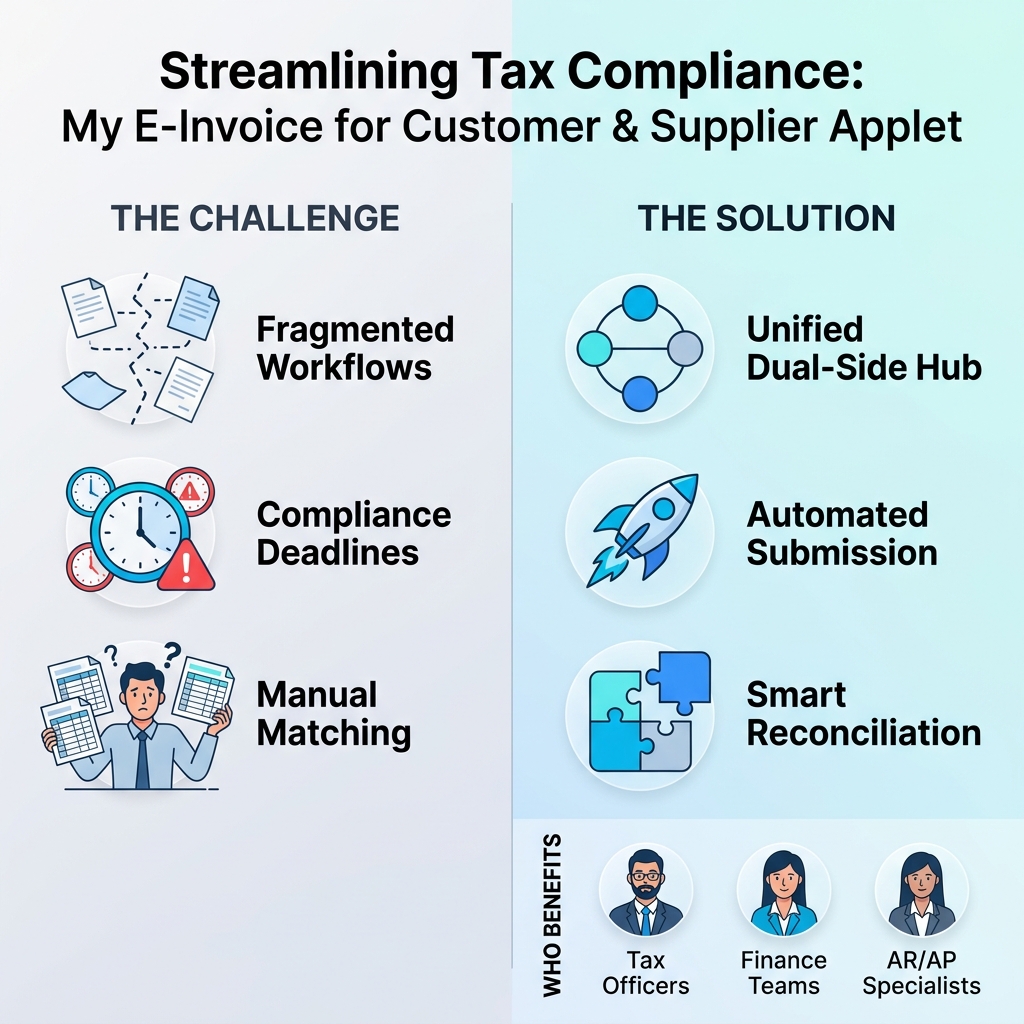
Who Benefits from This Applet?
Tax Compliance Officers:
- Centralized visibility into the compliance status of all company transactions
- Simplified management of batch and individual submission pools
- Efficient handling of document cancellations and rejections within legal timelines
- Direct access to monthly compliance reports for tax filing
Accounts Receivable & Payable Teams:
- Accelerated validation and submission of sales invoices to ensure faster customer payment
- Seamless reconciliation of supplier invoices against internal purchase records
- Real-time tracking of e-invoice statuses to resolve disputes quickly
- Automated notification of unsuccessful submissions for immediate correction
Finance Managers & Controllers:
- Reduced risk of non-compliance penalties through automated validation checks
- Comprehensive audit trails for every e-invoice event and interaction
- Improved accuracy in intercompany and external financial reconciliation
- Data-driven insights into e-invoice processing volumes and success rates
What Problems Does This Solve?
The E-Invoice Fragmentation Problem:
Implementing e-invoicing often introduces complex administrative overhead, especially when managing both sales and purchases:
- Fragmented workflows where sales and purchase e-invoices are handled in different systems
- Difficulty in monitoring the real-time status of thousands of high-volume submissions
- Manual reconciliation between internal accounting entries and external tax authority validations
- High risk of missing short submission or cancellation windows required by law
- Lack of centralized reporting for month-end tax audits
The Unified E-Invoice Solution:
- Dual-Side Hub - Manage both outgoing (Sales) and incoming (Purchase) e-invoices in a single dashboard
- Tiered Submission Management - Organize high-volume documents into batches or focus on individual urgent pool submissions
- Automated Posting Queue - Seamlessly pull data from core sales and purchase modules for compliance processing
- Intelligent Status Tracking - Real-time monitoring of document states from “Pending” to “Valid”, “Cancelled”, or “Rejected”
- Strategic Reconciliation Engine - Built-in tools for matching internal records with tax authority data on both the sales and purchase sides
Key Features Overview
Key Concepts
Understanding the E-Invoice Lifecycle
The applet manages the strategic movement of financial documents through several critical stages:
| Stage | Action | Impact |
|---|---|---|
| Posting Queue | Document created in Sales/Purchase modules. | Applet pulls data and checks for missing e-invoice info. |
| Submission Pool | Document selected for validation. | Document is queued for individual or batch submission to LHDN. |
| Validation | Interaction with Tax Authority. | Status updated to Valid or Rejected (with reason codes). |
| Reconciliation | Post-validation check. | Internal records are formally mapped to the validated e-invoice ID. |
Unified Compliance Architecture
The system bridges internal systems with external regulatory bodies:
Internal ERP Modules (Sales/Purchase)
│
├── My E-Invoice Applet (Queue & Pool) ──→ The compliance gateway
│   │
│   └── Tax Authority API (LHDN/MyInvois) ──→ External validation
│       │
│       └── Reconciliation Dashboard ──→ Final financial confirmation
Detailed Menu & Tab Explanation
Below is the complete functional menu of the applet. For each tab, we explain the data flow and the accounting necessity:
1. Submission Management
This group handles the staging of internal documents before they are “Certified” by the government.
- Posting Queue:
- The Listing: Shows all new, unprocessed financial documents that need e-invoice validation.
- Data Source: Pulled automatically from the Internal Sales Invoice and Internal Purchase GRN modules.
- Accounting Importance: Acts as the “Final Audit” gate. It ensures that no transaction is submitted with missing tax data (TIN, Address, or Category), preventing government rejections and potential fines.
- Individual Pool:
- The Listing: A temporary workspace for specific, urgent documents you want to process right now.
- Data Source: Manually selected documents from the Posting Queue.
- Accounting Importance: Crucial for high-priority sales where the customer is waiting for the official invoice to finalize payment immediately.
- Batch Pool:
- The Listing: A staging area for high-volume, non-urgent transactions (e.g., hundreds of daily POS receipts).
- Data Source: Documents moved from the Posting Queue.
- Accounting Importance: Simplifies the workload for clerks by allowing “Bulk Submission,” saving hours of manual data entry.
2. Internal Submission (Outgoing)
This group manages the actual “Handshake” with the government Tax Authority (IRB/LHDN).
- To IRB E-Invoice:
- The Listing: The active status of documents being sent to the LHDN server.
- Data Source: Documents triggered from the Individual or Batch Pools.
- Accounting Importance: This is the moment a “Draft” becomes a Legal Document. Without a “Valid” status here, your sale is not legally recognized for tax purposes.
- Individual & Consolidated Submission:
- The Listing: Breakdown of 1-to-1 submissions (B2B) vs. Grouped submissions (B2C).
- Data Source: The submission engine within this applet.
- Accounting Importance: Ensures the correct tax treatment for different types of customers (Corporate vs. Individual).
- Submission History:
- The Listing: A permanent archive of all government responses.
- Data Source: The encrypted responses (UUID/QR Code) returned from the LHDN API.
- Accounting Importance: Your Source-of-Truth audit trail. If a tax auditor asks for proof of a sale 2 years later, this is where you find the government-certified record.
3. External Reception (Incoming)
This area tracks the e-invoices issued TO you by your suppliers.
- Queue & From IRB E-Invoice:
- The Listing: A list of all legal invoices your suppliers have registered against your company’s Tax ID (TIN).
- Data Source: Pulled in real-time from the LHDN Government Portal.
- Accounting Importance: This is how you verify your Input Tax Credits. You can only legally claim back the tax you paid if the supplier’s invoice appears in this list.
4. Reconciliation Hub
The “Matching Room” where your internal books are synced with the government records.
- Purchase Side Reconciliation (PD Matching Queue):
- The Listing: Shows your internal GRNs side-by-side with the Supplier’s official E-Invoices.
- Data Source: Combines data from Internal Purchase GRNs and the External Reception (from LHDN).
- Accounting Importance: Prevents Ghost Purchases. It ensures your Accounts Payable only pays for goods that have a valid government-certified invoice.
- Sales Side Reconciliation:
- The Listing: Cross-checks your Sales Ledger with the LHDN Validated list.
- Data Source: Combines data from Internal Sales Invoices and Submission History.
- Accounting Importance: Ensures Revenue Integrity. It guarantees that every dollar of revenue in your books has been correctly reported to the tax man.
5. Cancellation & Rejections
Manages the “Fixing” of errors.
- Rejection Requests:
- The Listing: Shows documents that were rejected by either the Tax Authority or the Customer.
- Data Source: Rejection signals received from the LHDN Portal or the Customer Portal.
- Accounting Importance: Flags Compliance Failures. Every item here represents an “Invalid” transaction that could lead to a tax audit if not fixed within 72 hours.
- Cancellation Queue:
- The Listing: Validated documents you are trying to “Undo.”
- Data Source: Valid documents currently in the Submission History.
- Accounting Importance: Maintains Audit Transparency. Since you cannot “delete” a tax document, this creates the official “Reversal” record required by law.
6. Monthly Report
- Queue Report:
- The Listing: A high-level summary of the month’s compliance performance.
- Data Source: Aggregated data from History and Reconciliation tabs.
- Accounting Importance: Management’s “Peace-of-Mind” Report. It proves that the branch is 100% compliant and ready for the monthly tax filing.
How the Applets Work Together (The 3-Step Lifecycle)
To understand exactly what you need to do, follow this Request ➡ Action ➡ Monitor chain:
1. THE REQUEST (Sales & Purchase Applets)
What happens: You create a normal Invoice or a GRN in the standard sales/purchase applets.
- Role: These applets “Request” that a transaction be made official.
- Analogy: Writing a letter.
2. THE ACTION (This Applet: Customer & Supplier)
What happens: This is where you DO the compliance work. You open the Posting Queue, review the data, and click “Submit” to LHDN. You also perform the “Matching” of supplier receipts here.
- Role: This applet is the Workhorse. It takes the request from Step 1 and performs the actual legal action.
- Exact Task: Submitting to Government, matching Supplier invoices, and handling Rejections.
- Analogy: Taking the letter to the Post Office to be registered and stamped.
3. THE MONITOR (The Admin Applet)
What happens: The HQ manager opens the Admin Applet. They don’t submit individual invoices. Instead, they look at the Master List to see if any branch has a pile of “Rejected” invoices that haven’t been fixed.
- Role: This applet is the Auditor. it monitors the success or failure of all actions taken in Step 2 across the entire company.
- Analogy: The Postal Inspector checking the logs to make sure all letters are being delivered on time.
Key Takeaway for New Employees
- If you are the one creating the sales? Use the Sales Applet.
- If you are the one making it legal (Submitting/Matching)? Use This Applet.
- If you are the one checking if the whole company is safe? Use the Admin Applet.
1. Internal Sales Invoice Applet (The Check-in Counter)
- The Analogy: This is like the Sales Counter where you first greet the customer and write down their order.
- The Reality: You create a Sales Invoice for a client. When you click “Save,” the ERP automatically pushes the document data into the My E-Invoice Posting Queue.
- Accounting Importance: This ensures that every revenue-generating transaction is captured immediately for tax submission. Without this link, you might miss declaring revenue, leading to tax penalties.
2. Internal Purchase GRN Applet (The Receiving Bay)
- The Analogy: This is like the Receiving Dock where you check the goods coming in from suppliers.
- The Reality: You record what you bought from a vendor. This applet then helps you “Match” that record against the official e-invoice issued by the supplier on the government portal.
- Accounting Importance: This is critical for Input Tax Credits. You can only legally claim the tax you paid to suppliers if you have a “Matched” e-invoice to prove it.
3. Credit / Debit Note Applets (The Adjustment Desk)
- The Analogy: This is like the Returns & Exchanges Desk.
- The Reality: If a customer returns a product or there was a pricing error, you create a Credit or Debit Note. This must also be validated by the government.
- Accounting Importance: This ensures the “Audit Trail” remains perfect. You cannot simply “change” a validated invoice; you must issue an official adjustment to prove why the total tax amount changed.
4. LHDN MyInvois Portal (The Government Archive)
- The Analogy: The Central Passport Office or Central Registrar.
- The Reality: This is the external government platform. The My E-Invoice applet talks to their API to get a digital “stamp of approval.”
- Accounting Importance: This is the Source of Truth. Every transaction must be recorded here to be considered legally valid for statutory audits.
The New Employee’s Workflow: “The Trip to the Notary”
Here is exactly what happens in your daily work:
- Create (In Sales/Purchase Applet): A sales invoice is created. It is currently “Internal Only.”
- Staging (In this Applet’s Posting Queue): The document appears in your queue. Think of this as the “Waiting Room” at the Notary’s office.
- Review (Accounting Task): You check the data.
- Why? Because once it is submitted to the government, it becomes a Legal Record. You want to catch typos (like a wrong TIN) before they become official.
- Submission (API Call): You “hand over” the document to the government via this applet.
- Certification (The UUID): The government stamps it with a UUID and QR Code.
- Hand-back (Reconciliation): This applet automatically “runs back” to the Sales/Purchase department and attaches that stamp.
- Accounting Significance: The Loop is Closed. The internal book and the external government record are now perfectly synchronized.
Daily Operational Procedures
Follow these steps to complete your primary e-invoicing tasks.
1. How to Submit a Sales E-Invoice (For AR Staff)
To make your internal sales legal and “Tax Valid,” you must submit them to the government:
- Open the Posting Queue: In the sidebar, go to
Submission Management > Posting Queue. - Locate the Entry: Find the transaction by searching for the “Doc No” or “Customer Name.”
- Check for Errors:
- If it has a Validation Error (indicated in red), click “View” to see what is missing (e.g., the customer’s TIN or Address). Fix this in the Customer Applet and refresh.
- Process to Submission: Select the transaction and move it to the Individual Pool (for immediate submission) or Batch Pool (to wait for later).
- Click Submit: In the Pool, select the documents and click “Submit to LHDN.”
- Finalize: Once successful, the status changes to “Valid.” You can now print the invoice with its official UUID and QR Code.
2. How to Match a Supplier Invoice (For AP Staff)
To legally claim back the tax you paid to suppliers (Input Tax Credit), you must match their invoices:
- Check Received Invoices: Go to
External Reception > From IRB E-Invoice. These are invoices your suppliers sent to the government archive for you. - Perform Matching: Navigate to
Reconciliation (Purchase) > PD Matching Queue. - Match Records: Select your internal GRN (what you actually received) and find the corresponding E-Invoice from the supplier.
- Confirm: Once matched, the record moves to “Matched History.” You have now safely secured your tax claim for this purchase.
3. How to Handle a Rejection (Fixing Errors)
If the government “Returns” your document with an error:
- Locate the Rejection: Go to
Cancellation > Rejection Requests. - Read the Reason: Look at the “Validation Error” column. It might say “Invalid Postcode” or “TIN Not Found.”
- Correct & Try Again: You cannot fix the data inside this applet. Go to the source (e.g., the Customer profile or the Sales Invoice), fix the typo, and the document will automatically reappear in your Posting Queue for a second attempt.
Configuration & Settings
Fine-tune the compliance environment through the Settings hub:
- Submission Logic: Configure batch sizes and retry intervals for high-volume periods.
- Branch Mapping: Link different physical branches to their specific tax authority credentials.
- Notification Alerts: Set up email or system alerts for document rejections or failed submissions.
- Personalization: Customize the pooling and reconciliation views to highlight high-value documents.
FAQ
Q: Can I cancel an e-invoice after it has been marked as “Valid”? A: Yes, but it must be done within the statutory cancellation window (e.g., 72 hours). Use the Cancellation tab to initiate this request.
Q: What happens if a submission is rejected by the tax authority? A: The document will appear in the Rejection queue with a specific error code. Correct the missing information in the master data (e.g., Customer Address) and resubmit from the pool.
Q: Does this applet handle both B2B and B2C transactions? A: Yes. The system can be configured to manage individual B2B submissions as well as consolidated B2C reporting requirements.
Q: Can I see the e-invoice QR code from this applet? A: Once a document is successfully validated, the system retrieves the official QR code and UUID, which can then be viewed or printed via the integration with your standard invoice templates.