My Peppol Admin Applet
Watch these as presentations — 4 on this page, slides with narration.
Send finalised sales documents as Peppol invoices through BigLedger’s access point, and see what it has received for your Peppol IDs. This runs beside the LHDN e-invoice pipeline, not after it: a document reaches the Waiting Queue at FINAL, before LHDN has replied, and on that route no mandatory-field check is applied.
Your job, and the screen for it
| The job | Screen or tab | Read |
|---|---|---|
| Choose when a partner receives the invoice — at FINAL for the whole company, or after LHDN accepts it, per customer; use one switch, not both | Organisation applet, company › Peppol Config (Peppol Status); the peppol checkbox in Notification Config, on the company or on the customer | Deciding when the partner receives the invoice |
| Register the company’s Peppol ID — this applet’s Registration screen saves nothing | Organisation applet, company › Peppol Config | Before you can use it |
| See what is waiting to be built and sent — the sweep that sends it needs a schedule | Waiting Queue | The two routes into the Waiting Queue |
| Confirm a document reached the buyer’s access point — nothing notifies you | Internal Submission › History; Queue (Submit resends one) | How you know a document reached the buyer’s access point |
| See what suppliers sent to your Peppol IDs | External Reception › From Peppol AP (Docs History is always empty) | Screens and menus |
Overview
The My Peppol Admin Applet is a tenant’s own view of Peppol document exchange. Where the My E-Invoice Admin Applet submits documents to LHDN, this applet turns the same finalised sales (and self-billed purchase) documents into Peppol invoices and hands them to BigLedger’s access point, and shows what the access point has received for your Peppol IDs. Finance staff open it to watch the two queues, resubmit failed transmissions, register the company’s Peppol participant IDs and choose the printable formats used when a sent or received Peppol document is exported. It creates no accounting entries.
At GadgetSphere only the wholesale arm, GadgetSphere Distribution (GSD), sends anything over Peppol: two of its corporate clients want invoices delivered straight into their own accounting systems, and the retail companies sell to shoppers who have no participant ID. What this applet leaves to GSD’s accounts team is a short daily check: did yesterday’s invoices to those two clients reach their access points, and what have suppliers sent over Peppol. The sections below explain the screens that check reads, and where each figure on them comes from.
The two routes into the Waiting Queue
There are two ways a document reaches the Waiting Queue, and a third that the screens are named after but that produces nothing today.
| Route | What triggers it | What it checks | Submission status on the row |
|---|---|---|---|
| At FINAL, directly | The document reaching FINAL | The document is FINAL, the company’s Peppol Status is ENABLED, and the document type is one Peppol applies to. That is the whole gate — no mandatory-field check, no participant ID | NO_EINVOICE_SUBMISSION |
| After a successful LHDN submission | LHDN accepting the submission (before it returns Valid or Invalid) | The peppol checkbox in Notification Config, on the company or on the document’s customer | COMPLETED |
| From the Posting Queue | A posting-queue row being swept or Submit | The full e-invoice mandatory-field check and a single company and customer participant ID of the older, pre-2024 kind | NOT_COMPLETED |
The third route is inert, and it is the one this page’s screens are named after. It depends on a single participant-ID field per company and per customer that was replaced in June 2024 by the multi-ID Peppol Config tab, and no screen has filled it since, so a posting-queue row could not pass that gate onward. The Posting Queue screen is empty for a different reason: the job that would write a row at FINAL checks no participant ID, yet the posting-queue table held no rows on any tenant when it was last measured. So a document that has not appeared there is not stuck: it does not go that way.
What that changes for you. The two consequences most worth carrying:
- The mandatory-field check is not applied on the live route. A document whose buyer has no tax number
sits in an e-invoice pool and lands in the Peppol Waiting Queue at the same moment, because the
step that writes the waiting-queue row never asks. The next stage does not stop it for the tax number
either: when the Peppol document is built, the missing tax number is replaced by the placeholder
EI00000000030, and the document stops only if the company or the customer has no default Peppol ID. - Peppol Status and the peppol notification checkbox are two different switches for two different routes, and nothing keeps them in step. A company with Peppol enabled and the checkbox clear gets FINAL-time rows and no post-submission rows.
- Both switches on means the same document twice. Each route writes its own row, each row is built into its own Peppol document, and both are built from the same source document — the Peppol invoice carries the document number, not the LHDN reference, so the two are the same invoice to the receiver. Nothing de-duplicates by source document, so a document that carries two waiting-queue rows is built twice and delivered twice. Treat “both on” as “delivered twice”, and choose one.
The journey after the Waiting Queue, stop by stop
The question every reader of this page is asking is “I finalised it — did it go?”, and the honest answer is a table of stops.
| Stop | What moves it | What has to be true before it moves | What you see |
|---|---|---|---|
| 1. A Waiting Queue row | A follow-on job of the finalise, switched on through the e-invoice trigger template — the same switch as LHDN e-invoicing | The e-invoice trigger template has to be ACTIVE on your tenant; the row is then written wherever the company’s Peppol Status is ENABLED, and it is written for every sales type, including the ones that have no Peppol shape | The document in the Waiting Queue within seconds of FINAL, with a blank Status — see Troubleshooting |
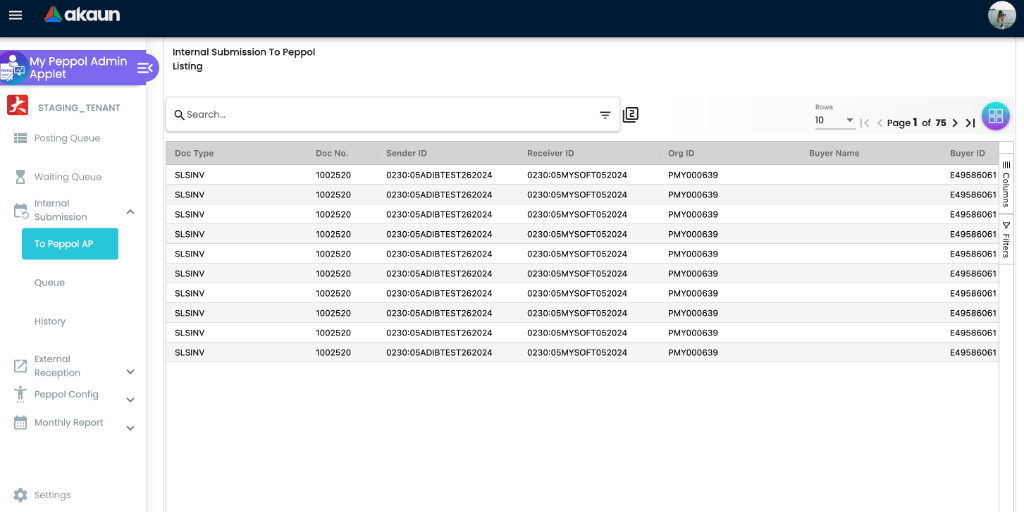
| 2. A To Peppol AP document | EINVOICE_WAITING_QUEUE_TO_XAP_DOC_PROCESSOR — the sweep — a scheduled job that takes ten COMPLETED and ten NO_EINVOICE_SUBMISSION rows per run, in no particular order | Nothing schedules this job for you. It runs only where somebody has scheduled it in the Scheduler applet, and a once-a-day expression (0 0 1/1 * *) at ten rows per status is twenty documents a day. With no schedule, nothing ever leaves the Waiting Queue — no error, no e-mail | The row disappears from the Waiting Queue the moment the document is built, before any check, and reappears under Internal Submission → To Peppol AP with the sender and receiver id and a Validation Error text |
| 3. Validation | The same sweep run: a blank sender or receiver is stamped Missing Peppol Sender or Receiver ID and the document stops; otherwise the document is wrapped in its Peppol envelope and checked against the PINT-MY Schematron | A missing sender or receiver id is the usual stopping point, and it is the first thing to check: neither id is filled in for you, and both are taken from the ID marked default | Validation Error reads [THIS_DOCUMENTS_IS_VALID] on a pass, or the list of rule messages on a failure |
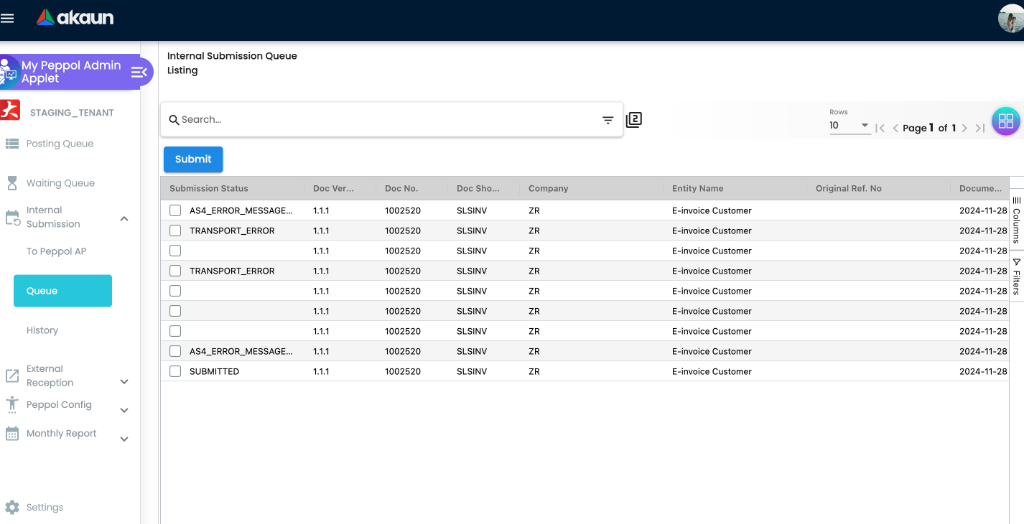
| 4. A Queue row, and the send | The sweep puts the document in the submission queue, sets the To Peppol AP document to SUBMITTED, and starts the send immediately; the send looks the receiver up on the Peppol network and delivers over AS4, waiting for the receiving access point’s signed receipt | Needs no schedule — it runs straight after the sweep, or on Submit from the Queue screen | SUBMITTED on To Peppol AP means handed to the sender, not delivered. A Queue row with a blank status is in flight; a row with TRANSPORT_ERROR, AS4_ERROR_MESSAGE_RECEIVED or one of the other send results failed and stays until you Submit or Delete it — nothing retries it |
| 5. History | On a receipt from the receiving access point, the Queue row is deleted and a History row is written with status SUCCESS | The receiving access point has to return a signed receipt. Nothing else writes a History row | A row in Internal Submission → History is the only “it arrived” BigLedger can show, and it is the receiving access point’s receipt — what happens between their access point and their accounting system is not visible here |
Three consequences worth carrying from that table.
- Vanishing from the Waiting Queue is not delivery. The row is deleted when the Peppol document is created, one line before the sender/receiver check. Look for the document under To Peppol AP, read its Validation Error, then look for it in Queue or History.
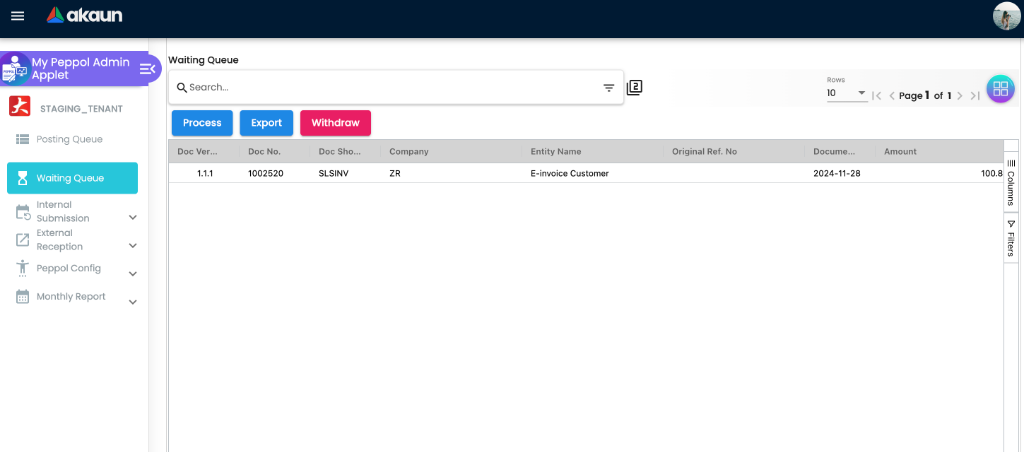
- The Process button runs a sweep, not your row. Whatever you select, Process runs the sweep — ten rows per status. No row can be selected anyway. So on a queue of thousands, pressing Process moves twenty arbitrary documents and very possibly not the one you are looking at. Export and Withdraw on the Waiting Queue listing do nothing; the detail page’s Export saves the form. A row cannot be withdrawn from any screen.
- A document that stops at To Peppol AP — a missing ID or a validation error — has no screen route back. The waiting-queue row is already gone, and the To Peppol AP page has no Submit or Cancel button; its Export tab only prints a PDF. (A failed send is different: Queue → Submit resends it.) So correcting a default flag or a customer field after the first attempt fixes the next document, not this one.
- A document type with no Peppol shape is not skipped — it is lost. A sales debit note, a sales refund note, or a self-billed purchase credit or refund note passes the FINAL gate (every sales type does), is picked up by the sweep, has its waiting-queue row deleted, gets a To Peppol AP row with no XML, and the validation step then throws, ending that day’s run for whatever rows were behind it. The waiting queue does hold sales debit notes, so this is not a theoretical risk. Send those documents the way you always did.
Two substitutions the builder makes silently. A company or customer with no TIN is written into the
UBL with the placeholder EI00000000030; a document with no reference
gets an order reference of NA. Neither stops the document here, and both are exactly what a
receiving system’s business rules reject.
What one FINAL sets off here, and what it sets off for LHDN
Finalising a sales invoice at a Peppol-enabled company starts two journeys that share nothing but the source document.
- For LHDN, a scheduled run builds an e-invoice record from the document, checks the mandatory fields and either queues it for submission or parks it in a pool with the reason (My E-Invoice Admin, Lifecycle). That record is a snapshot of the buyer and the lines at the time it was built, and its buyer comes from the e-invoice details saved on the document when there are any.
- For Peppol, the finalise writes one Waiting Queue row that holds a pointer to the document, its type and a submission status, and nothing else. No buyer, line or amount is captured at FINAL. The Peppol document is built later, by the sweep, from the document as it stands then and from the company and customer records as they stand then. The buyer’s name, tax number and registration number come from the customer record; the e-invoice details saved on the document are not read. The billing address is the one on the document.
Three things follow that the screens do not show.
- A correction made before the sweep reaches the partner; one made after it does not. Fix a customer’s tax number on Monday, and a document finalised the Friday before that is still waiting is built with Monday’s number. At twenty documents a day, still waiting can mean weeks.
- Fixing the e-invoice in a pool does not fix the Peppol copy. Save and Resubmit in an e-invoice pool writes the correction onto the document’s own e-invoice details, which the Peppol builder does not read. If the tax number was missing on the customer record, the LHDN e-invoice goes out corrected and the Peppol invoice goes out with the placeholder. Correct the customer record too, before the sweep.
- The two outcomes are independent. A Peppol delivery can reach History while the LHDN e-invoice is Invalid or still in a pool, and an LHDN-Valid document can sit in the Waiting Queue for days. Neither status is evidence about the other.
Why it is built apart. The code labels the FINAL route as the path for sending without LHDN, and the split follows the two networks: MyInvois clears a document with the tax authority, Peppol delivers it into the trading partner’s system. Keeping them apart lets a partner who wants the invoice in their system on the day it is issued have it without waiting for clearance, and lets the two fail separately, so a slow LHDN day does not hold up delivery.
Where each figure on these screens comes from
Most columns on this applet’s listings are not stored on the row you are looking at, and that decides whether a figure can change after the event.
- Waiting Queue, Queue and History. Doc No., Company, Entity Name, Document Date and Amount are read from the source document each time the screen opens; the row itself holds a pointer, the document type and a status. A document whose details change after FINAL shows its current values here, not the ones that were sent. Doc Version reads 1.1.1 on every row: it is a fixed label the screen writes, not a version of anything. Status is blank on the Waiting Queue (see Troubleshooting) and on History, where it reads a field the History row does not have; on History, the row being there is the information.
- To Peppol AP is a stored record, written once by the sweep and not refreshed. Doc No., amount and currency are the document’s at that moment. Buyer Name, Buyer ID and Buyer Tax ID are the customer record’s at that moment on the FINAL route, or copied from the LHDN e-invoice record on the post-submission route. Sender ID and Receiver ID are whichever IDs were flagged default then, and Validation Error is that run’s result. Org ID is one fixed value on every row, whoever the sender: BigLedger’s own access-point identifier, not yours. The Peppol document’s creation time is the moment the Waiting Queue row was written, not the moment it was built.
- Queue → Submission Status is the send’s result, written onto the row when a send fails; a blank one is a send still in flight.
- From Peppol AP is the supplier’s document as it arrived, parsed from their file and stored at the time of arrival. Its names, tax numbers and amounts are the supplier’s, not your supplier record’s, and Process ID is their invoice number.
- Monthly Report shows ten sample rows built into the screen, whatever your tenant holds; see Lifecycle item 6.
Where it fits
| Upstream | This applet | Downstream |
|---|---|---|
Sales documents finalised in Sales Invoice, POS and the other sales / self-billed purchase applets, for a company with peppol_status = ENABLED | Waiting Queue → Internal Submission (To Peppol AP documents, the submission queue, history) | BigLedger’s Peppol access point → the buyer’s access point |
| Company Peppol participant IDs registered through Peppol Config (Organisation Applet holds the same records); customer / supplier Peppol IDs in the Customer and Supplier applets | Read when a document is routed and when the receiver is resolved | — |
| A schedule for the sweep in the Scheduler applet | Moves Waiting Queue rows on; without it they stay | — |
| Documents received by the access point for your Peppol IDs | External Reception → Docs Queue / Docs History / From Peppol AP | Purchase-side processing |
| My E-Invoice Admin Applet | Only the dormant Posting Queue route reuses the e-invoice mandatory-field check; the live route applies none, and fails one stop later on the sender and receiver ids | — |
Screens and menus
| Menu | Sub-menu | Route | What it lists | Actions |
|---|---|---|---|---|
| Posting Queue | — | posting-queue | Always empty; the route that fills it is dormant (see The two routes); tabs Document Details, Account (Entity Details, Bill To, Ship To), Lines | Submit, Export, Withdraw — none of them has anything to act on |
| Waiting Queue | — | waiting-queue | Every eligible document finalised at a Peppol-enabled company, unchecked, plus a second row per document once LHDN accepts the submission — before Valid or Invalid comes back — when the peppol notification flag is on. The Status column is always blank and no row can be ticked | Process runs one sweep — ten rows of each status, whatever you selected. Export and Withdraw do nothing |
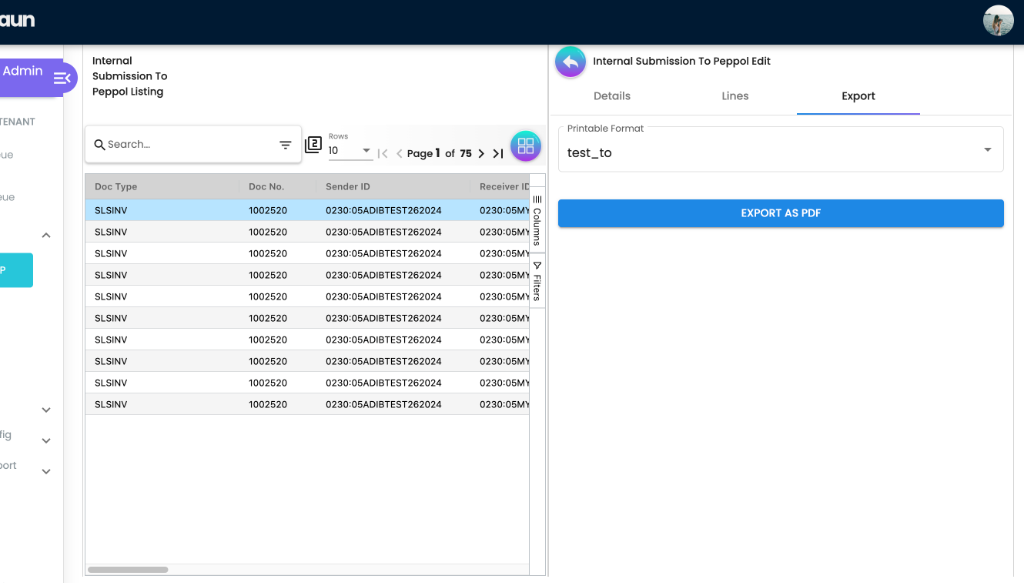
| Internal Submission | To Peppol AP | internal-submission-to-peppol-ap | Every Peppol document built from your documents, with sender ID, receiver ID, org ID, buyer; tabs Details, Lines, Export | Export as PDF (with a To Peppol printable format) |
| Queue | to-peppol-submission-queue | Submission queue rows with their submission_status (SUBMITTED, AS4_ERROR_MESSAGE_RECEIVED, TRANSPORT_ERROR, …) | Submit (resend one), Delete | |
| History | to-peppol-submission-history | Successfully transmitted documents | — | |
| External Reception | Docs Queue | external-reception-queue | A received document while it is being processed — normally empty; a row that stays is one whose processing stopped (see Lifecycle item 5) | — |
| Docs History | external-reception-history | Always empty: nothing in receiving writes to it. Look on From Peppol AP instead | — | |
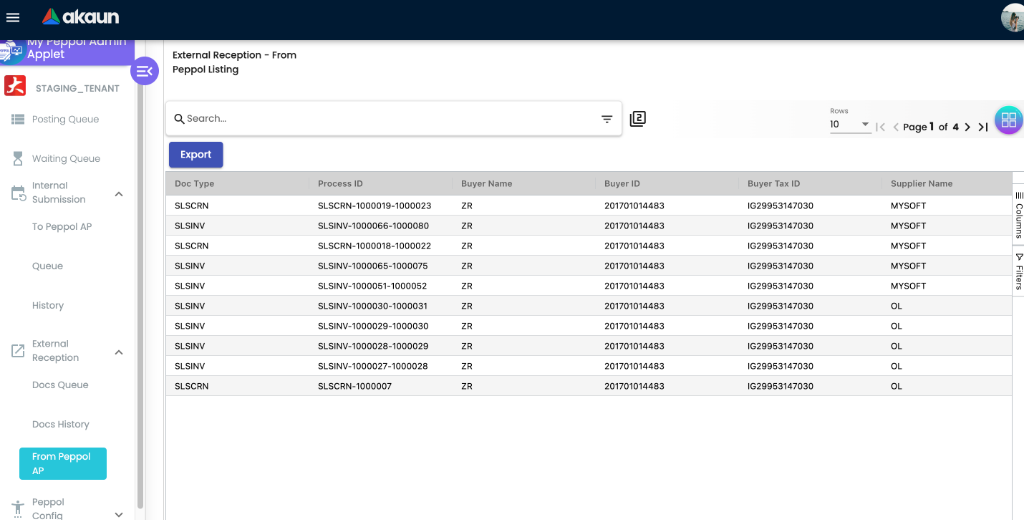
| From Peppol AP | external-reception-from-peppol-ap | Everything the access point delivered for your IDs (process ID, buyer, supplier, amounts); tabs Details, Lines, Export | Export as PDF (with a From Peppol printable format) | |
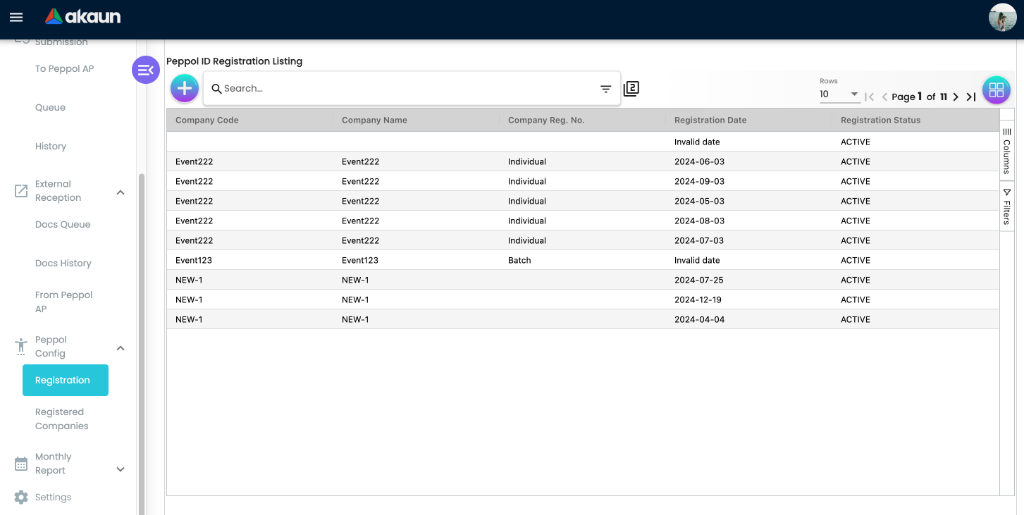
| Peppol Config | Registration | peppol-config-peppol-id-registration | Not your registrations. The listing is fed from the e-invoice batch-pool event table, so what it shows is not a Peppol registration at all (see Fields) | Create and Edit open a form whose SAVE sends nothing. Register in the Organisation applet instead |
| Registered Companies | peppol-config-peppol-registered-companies | The same e-invoice batch-pool event listing under another name | Its Create SAVE sends an e-invoice batch-pool event request built from none of the form’s values — not a registration — do not use it | |
| Monthly Report | Queue, History | queue-report, history-report | Not your data. Both screens show the same ten sample rows, written into the screen (see Lifecycle item 6) | Generate Report and Export PDF are not connected |
| Settings | Field Settings · Default Selection · To Peppol AP Printable Format Settings · From Peppol AP Printable Format Settings · Webhook · Feature Visibility · Permission Wizard / Set / User / Team / Role | settings/… | See Configuration | — |
The Peppol Testbed route (peppol-testbed-receiving-test-history) exists in the routing table but its menu entries are commented out; it is reachable only by URL.
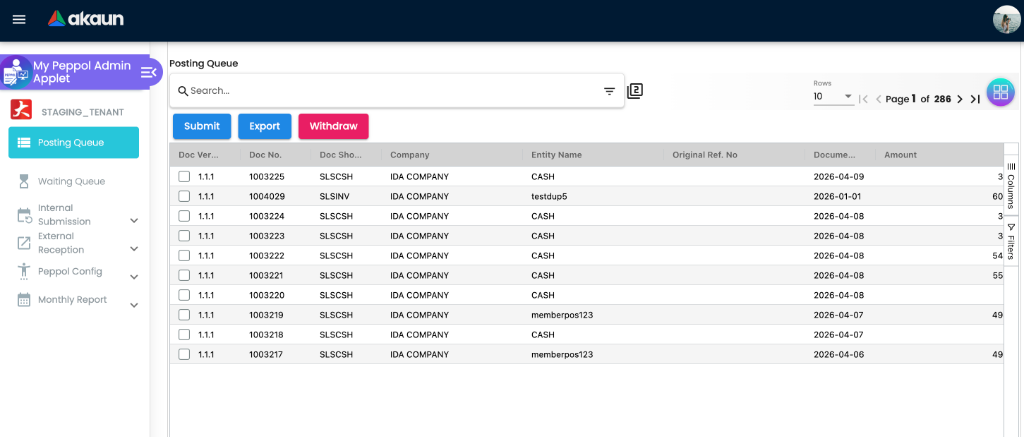
Screenshot withdrawn; a recapture from a demo tenant is on the list.
Configuration
Before you can use it
| Prerequisite | Where | Why |
|---|---|---|
| Company Peppol status ENABLED | Organisation Applet → company → Peppol Config | Only a FINAL document of a Peppol-applicable type at a company with Peppol Status ENABLED enters the Waiting Queue. |
Company Peppol participant ID (0230:…) registered, and one of them flagged default | Organisation Applet → company → Peppol Config (this applet’s Registration screen saves nothing) | The sender ID on the Peppol document is the company’s default Peppol ID. Registering an ID without flagging one default leaves the sender blank. |
| Customer / supplier Peppol participant ID, with one marked default | Customer / Supplier applets → Peppol Config tab | The receiver ID is the document’s customer’s default Peppol ID; without it the document fails with Missing Peppol Sender or Receiver ID. |
| The peppol checkbox in Notification Config, on the company or on the customer | Organisation Applet → company → Peppol Config → Notification Config; Customer applet → the customer | Only this produces the COMPLETED waiting-queue row written after a successful LHDN submission. It is not the same switch as Peppol Status. |
| Everything the LHDN mandatory-field check needs (TIN, ID type/value, address with line 1 / city / state, phone 8–20 characters, MSIC, classification codes) | Organisation / Customer / Supplier / item masters — see the admin applet page | Checked only on the dormant Posting Queue route. On the live FINAL route nothing checks these before the row is written — the document reaches the Waiting Queue regardless and fails later, when the Peppol document is built. |
A schedule for the sweep, EINVOICE_WAITING_QUEUE_TO_XAP_DOC_PROCESSOR | Scheduler applet, or BigLedger support | This is the one Peppol job that needs a schedule on the sending side: it turns Waiting Queue rows into Peppol documents and starts the send itself (the send needs no schedule). Ask for the schedule explicitly, and ask how often it fires. A new tenant is not given one, so unless somebody schedules it, turning Peppol on fills the Waiting Queue and nothing empties it. Ask for the expression too, not just the schedule: 0 0 1/1 * * is once a day, which at ten rows per status is twenty documents a day. |
| Printable formats for exports | Settings → To / From Peppol AP Printable Format Settings | See below. |
Deciding when the partner receives the invoice
The two switches in that table are two designs, and the choice is made per company. Which one BigLedger recommends is still open; until it is settled, choose on what each costs.
- Peppol Status ENABLED — at FINAL, company-wide. Every eligible document of the company enters the Waiting Queue, for every customer, whether or not that customer has a Peppol ID, and each one is built and stopped at Missing Peppol Sender or Receiver ID when the customer has none. A company that invoices fifty customers, two of them on Peppol, reads past a row for every invoice to the other forty-eight. In exchange the invoice leaves at the next sweep, does not wait for LHDN, and is not held up by a field check.
- The peppol checkbox on the customer — after LHDN accepts the submission, per customer. Only that customer’s documents produce a row, and only once LHDN has accepted the submission, so only documents that passed the mandatory-field check. Peppol Status is not read on this route: a company can leave it off and tick the checkbox on its Peppol customers alone. The costs are the wait for the LHDN submission run, and that an e-invoice LHDN later marks Invalid has already been delivered.
- Ticking the checkbox on the company instead makes the second design company-wide again.
The checkbox sits under the company’s and the customer’s Notification Config because it is a choice of how the buyer is told about an e-invoice, which is a per-customer question. Use either switch, not both.
Who does what on the Peppol side
The applet builds and sends. Five jobs stay with people, and none of them is prompted by a screen.
- Registering the company — once, by whoever holds the company’s registration documents. It is done in the Organisation applet (see Fields). They know it worked when the ID is on the company’s Peppol Ids list with exactly one flagged default, and BigLedger confirms the access point holds a receiver mapping for it.
- Recording each partner’s ID — by whoever opens the customer account, at onboarding. Ask the client for the ID in writing, and for the document types they receive. Treat a change to a customer’s Peppol ID the way you would a change to a supplier’s bank account, and have a second person look at it: the send goes to whichever access point is registered for that ID, so a wrong ID delivers your invoice to another business, and History records the receipt all the same.
- Watching the queues — the receivables clerk, daily. The routine is How you know a document reached the buyer’s access point.
- Keeping the sweep scheduled — whoever administers the tenant, once, and again when volume grows. A once-a-day schedule moves twenty documents a day: enough for two clients, not for two hundred.
- Delivering what Peppol does not carry — the same clerk. A sales debit note or refund note goes the way it always did (Troubleshooting), and the buyer is told to expect it outside Peppol.
On the receiving side, the payables clerk reads From Peppol AP daily, pairs Peppol documents with purchases by hand (Incoming supplier e-invoices, Step 3), and handles a supplier’s credit note entirely by hand (Lifecycle item 5).
Applet settings
The applet-local Field Settings screen renders eight toggles (Unit Discount, SST/VAT/GST, WHT, Blanket Order, Segment, G/L Dimension, Profit Center, Project) with no form control — no exposed control found. Default Selection is not connected, so its SAVE saves nothing.
Two keys are consumed:
| Setting | Where it is set | What it controls | Default | Effect when changed |
|---|---|---|---|---|
TO_PRINTABLE | Settings → To Peppol AP Printable Format Settings → select a format as default | Pre-selects the Printable Format dropdown on To Peppol AP → Export and on the received-document export | none — the dropdown starts empty | Exports default to nothing until one is chosen |
FROM_PRINTABLE | Settings → From Peppol AP Printable Format Settings → select as default | Marks the default row in the From Peppol format listing | none | The received-document export screen uses the To Peppol AP default, not this one. |
Printable formats themselves are records with a Format Code, Format Name and an uploaded template file.
Document behaviour settings
Not applicable — the applet has no documents of its own; behaviour is fixed in the backend processors described under Lifecycle.
Feature visibility / permissions
The applet has no client-side permissions and no HIDE_* / SHOW_* keys. Server-side, each Peppol screen’s data is guarded by its own permission; assign them through Settings → Permission Set / Role Permission.
Fields
Peppol Config → Registration and Registered Companies — why there is nothing to fill in here
Both screens carry a registration form: a Special Identifier drop-down (Malaysian registration categories — SSM number, Sabah, Sarawak, foreign business, testing — not the Peppol scheme such as 0230), a Business Identifier, and one or more business cards, each with Company (picking one copies the company’s name and registration number into the read-only Company Name and Company Reg. No.), Geographical Information, Additional Identifier Code / Value pairs (GLN, DUNS, IBAN and other international schemes), Websites, contacts (Type, Name, Phone Number, Email) and Additional Information. Only the country, pre-filled as Malaysia, is required.
What the screen will not tell you is that none of it goes anywhere. On Registration, SAVE on Create and on Edit only writes the form to the browser console — the call that would send it is commented out, awaiting a backend duplicate check — so no registration is created, no participant reaches the SMP and nothing is uploaded; the attachment tab on Edit reads the service-issue attachment store, not a KYC file. On Registered Companies, SAVE posts to the e-invoice batch-pool event table with none of the form’s values, and both listings read that same table, which is why their Company Code, Company Name and Registration Status columns can show rows that are not registrations.
Register a Peppol participant in the Organisation Applet → company → Peppol Config, and add its ID there too. Two sub-tabs, two jobs. On Peppol Registration, Final creates the participant with the Malaysian SMP, and the Sign With Pdf tab, shown once the registration is FINAL, uploads the KYC PDF, which the backend stores and signs into the SMP. On Peppol Ids, adding the participant ID is what makes the company routable: saving the ID writes the access point’s receiver mapping, and the registration writes none. Checking your work is a person’s job: confirm that the ID is listed on Peppol Ids with exactly one flagged default (that default is the sender on every document this applet builds), then ask BigLedger to confirm one row for it in Registered Companies.
Lifecycle and effects
The live route first; the dormant one is item 8.
At FINAL — a follow-on job of the finalise, switched on by the e-invoice trigger template, puts the document in the Waiting Queue with status
NO_EINVOICE_SUBMISSIONwhen it is FINAL, the company’s Peppol Status is ENABLED and the type is one Peppol applies to — every sales type not marked skip-e-invoice, and self-billed purchase types. No field check, no participant-id check. A company-level include/exclude list of posting jobs can keep this job out.Once LHDN accepts the submission (before it returns Valid or Invalid) — a second row,
COMPLETED, when the peppol notification flag is on for the company or the customer. It is a second Peppol document for the same invoice, not a status change on the first.The sweep, Waiting Queue → To Peppol AP —
EINVOICE_WAITING_QUEUE_TO_XAP_DOC_PROCESSOR(scheduled; also what Process runs) takes tenCOMPLETEDrows and tenNO_EINVOICE_SUBMISSIONrows in no particular order. For each it builds the To Peppol AP document — the invoice from the source document, the sender from the company’s default Peppol id and the receiver from the customer’s — removes the waiting-queue row, and then: a blank sender or receiver → Validation Error Missing Peppol Sender or Receiver ID, stop; otherwise the document is wrapped in its Peppol envelope and validated against the PINT-MY Schematron, and the messages are written to Validation Error —[THIS_DOCUMENTS_IS_VALID]on a pass. A document type with no Peppol shape (sales debit note, sales refund note, self-billed purchase credit or refund note) gets an empty document and the validation step fails, ending the run.Queue row and the send — a valid document is put in the submission queue, its To Peppol AP status is set to
SUBMITTED(before anything is sent), and the send starts at once. The send holds a six-hour lock, delivers over AS4 on the production Peppol network and waits for the receiving access point’s receipt. OnSUCCESSa History row is written with statusSUCCESSand the queue row is removed. On anything else the result is written onto the queue row —TRANSPORT_ERROR,TRANSPORT_ERROR_NO_RETRY,AS4_ERROR_MESSAGE_RECEIVED,NO_SIGNAL_MESSAGE_RECEIVED,INVALID_SIGNAL_MESSAGE_RECEIVED,INVALID_PARAMETERS; an unexpected failure in the send is reported asAS4_ERROR_MESSAGE_RECEIVED— and the row stays until Submit (one row at a time) sends it again or Delete removes it. Nothing retries a failed row on its own.Receiving — runs the moment a document arrives, with no schedule and no setting on your side. The access point hands the document to each company whose registered Peppol ID matches the receiver ID exactly; a document addressed to an ID no company holds is delivered to nobody. For each company, a row appears on Docs Queue while the document is read, the From Peppol AP record is written (Document No / Process ID is the supplier’s invoice number), a row is added to Reconciliation (Purchase) → Inc. E-Invoice Match Q. in the My E-Invoice Admin Applet, and the Docs Queue row is deleted. Nothing moves to Docs History — nothing in receiving writes there — so From Peppol AP is the record of what arrived, and a row that stays on Docs Queue is a document whose processing stopped part-way. Nothing creates a purchase document from what arrives.
A supplier’s credit note is the case the code shows stopping part-way. Its From Peppol AP record is written first, in its own step. The step that adds the matching-list row then fails on it — a credit note carries no due date, and that row’s date is taken from the due date — so the credit note never reaches Inc. E-Invoice Match Q., and by the code its Docs Queue row is never removed. We have not yet seen this happen on a live document; treat it as what to expect, not as settled.
Monthly statistics — as an accredited service provider BigLedger files two statistical reports to OpenPeppol every reporting period: a Transaction Statistics Report (TSR) and an End User Statistics Report (EUSR), giving total exchanges, the transport protocol (AS4 v2.0) and a breakdown by opposite service provider, document type and country. Those filings are not produced from this applet’s Monthly Report menu: both of its screens show the same ten sample rows, written into the screen, whatever your tenant holds, and their Generate Report and Export PDF buttons are not connected to anything. Read your own Peppol traffic from Internal Submission → History and External Reception → From Peppol AP. Note what the document-type breakdown of the filings shows: the traffic is the Malaysian PINT billing profile of UBL Invoice 2 — domestic Malaysian B2B, not only cross-border. Peppol here is a delivery channel to a trading partner, and a Malaysian one counts.
Registration — done in the Organisation applet (company → Peppol Config → Registration), not in this applet: it records the registration, creates the participant with the Malaysian SMP when it is set FINAL and uploads the KYC PDF; the registration’s status follows the usual values (
DRAFT,FINAL,VOID,FAILED, …). A registration does not by itself make the company routable for inbound documents: that is done by adding the participant ID on the same tab’s Peppol Ids list, which writes the access point’s receiver mapping. Existing participants can be looked up in the SMP by ID or by search word.The dormant route — the Posting Queue would run the e-invoice mandatory-field check and require the older single company and customer participant IDs before passing a document to the Waiting Queue. Those fields have had no screen since June 2024, so a posting-queue row could not move on to the Waiting Queue by this route; and the Posting Queue itself holds no rows (the job that writes its rows checks no participant ID, so the empty queue is not that gate’s doing) — see The two routes into the Waiting Queue.
This applet writes the Peppol queue and document tables only — its own Registration screens create no registration; it never changes the source document or posts journals.
How you know a document reached the buyer’s access point
Nothing notifies you of a delivery or of a failure, so the check is a person’s, and it takes a minute a day.
- On Internal Submission → History, look for yesterday’s documents to your Peppol customers, by Document Date. A row there is the receiving access point’s signed receipt, and it is the only proof of arrival BigLedger holds.
- For a document that is missing, look on Queue. A Submission Status there is a failed send, waiting for Submit.
- Not on Queue either: open To Peppol AP and read its Validation Error.
- Not on To Peppol AP: it is still in the Waiting Queue, waiting for the sweep.
If the partner says nothing arrived although History has it, check the Receiver ID on the To Peppol AP row
against the ID they gave you in writing, then ask them to search their system for the invoice. The
identifier their system receives starts with SLSINV- on an invoice, or SLSCRN- on a credit note, and
ends with your document number, so a search for the bare number can miss it.
For a supplier’s document the check runs the other way: it is on From Peppol AP and, unless it is a credit note, on Inc. E-Invoice Match Q. in the My E-Invoice Admin Applet. A row left on Docs Queue is a document whose processing stopped.
Related applets
- My E-Invoice Admin Applet — same source documents, same mandatory-field check, separate pipeline to LHDN.
- Organisation Applet — company Peppol Status, participant IDs and the Peppol Config tab where Peppol registration is actually done.
- Customer Applet, Supplier Applet — the counterparty’s Peppol participant IDs (one must be default).
- Sales Invoice (Internal), POS General — where the documents originate.
- Peppol AP Admin Applet — the access-point side of the same network. The receiver mappings it lists are written when a company Peppol ID is added in the Organisation applet (not by the registration), and the documents it routes arrive in this applet’s External Reception screens.
- Scheduler applet — where the sweep’s schedule lives.
What it touches elsewhere
In practice this applet is paired with the Scheduler applet for the sweep, the Organisation and Customer applets for the IDs and their default flags, and My E-Invoice Admin for the same documents on the LHDN side. Use My E-Invoice Admin when the question is whether a document is valid for tax, and this applet when the question is whether it travelled.
- Sales documents, journals, stock and the LHDN e-invoice are not touched. Nothing here changes them, and correcting one of the two e-invoice copies leaves the other as it was.
- Saving a company Peppol ID enables receiving. The registration puts the ID on the network; saving the ID writes the access point’s receiver mapping, and from then on a document addressed to that ID lands on From Peppol AP.
- Every document a supplier sends over Peppol adds a row to Inc. E-Invoice Match Q. in My E-Invoice Admin. The row carries the supplier’s invoice number, the supplier’s due date as its date, the total and the supplier’s ID, and never your purchase document. Auto Match needs the values it holds to agree exactly, so expect to pair by hand, and a pair made by hand keeps the supplier’s values but not the purchase you chose (what Matched History records).
- A supplier who sends the same invoice twice does not create a second pair once the first copy is matched: when Auto Match finds no purchase for the new copy but finds a Matched History row with the same four values, it removes the copy and marks that pair as received over Peppol. Until the first copy is matched, both copies sit on the list.
- Your side of the pair is decided once, at FINAL. A purchase joins the purchase-side list only if, at the moment it was finalised, the company had e-invoicing enabled, the purchase was not self-billed and the supplier record carried a tax number. A purchase finalised before all three were true does not join it later (where that row comes from), so a Peppol invoice from that supplier has nothing to pair with; check it by hand.
Troubleshooting
| Symptom | Cause | Fix |
|---|---|---|
| The Posting Queue is empty and nothing ever appears in it | Normal. That route is dormant — see The two routes into the Waiting Queue. | Look in the Waiting Queue instead: on the live route a finalised document lands there directly. |
Document is PROCESSED in the Posting Queue but never reaches the Waiting Queue | It failed the e-invoice mandatory-field check, or the company or the customer has no participant ID in the older single-ID field. | Complete the same fields the LHDN pipeline needs (the document will also be sitting in an e-invoice pool with the reason). The participant-ID half of this gate cannot be satisfied from any screen; do not spend time on it. |
| To Peppol AP row with validation error Missing Peppol Sender or Receiver ID | The company or the customer has Peppol IDs recorded but none flagged default — the sender and the receiver are both taken from the default ID. | Flag exactly one company Peppol ID and one customer Peppol ID as default. That does not rebuild this document: its waiting-queue row was removed when it was built, and no screen sends a To Peppol AP document again. What still reaches the partner: the second row the peppol notification flag writes once LHDN accepts the submission, a credit note and re-issue, or a support request to rebuild it. Fix the flags before the first document, not after. |
Queue row AS4_ERROR_MESSAGE_RECEIVED | The receiving access point rejected the AS4 message (typically the receiver is not registered for the document type, or the SBDH failed their validation). | Confirm the receiver’s participant ID and capabilities with an SMP lookup, correct the customer’s Peppol ID, resend. |
Queue row TRANSPORT_ERROR | Network or access-point outage during sending. | Resend from Internal Submission → Queue; if it recurs, contact support. |
| Documents sit in the Waiting Queue for days and nothing appears under To Peppol AP | The sweep (EINVOICE_WAITING_QUEUE_TO_XAP_DOC_PROCESSOR) is not scheduled on your tenant, or it is scheduled once a day and takes twenty rows, so a queue of thousands is drained at twenty a day in no particular order. | Check the Scheduler applet, or ask your BigLedger contact whether the job is scheduled and how often it fires. Process runs one such batch now — twenty arbitrary rows — and cannot be pointed at your document. |
| The Status column on the Waiting Queue is blank on every row, and no row can be ticked | A defect in the screen: the column is not connected to the row’s status. Nothing is wrong with the rows. | Read the submission status on the row’s detail page if you need it. |
| I pressed Process and my document is still in the Waiting Queue | Process ignores the selection and runs the sweep for ten rows of each status. On a large queue the odds that yours is among them are small. | Press it again, or wait for the scheduled run; there is no screen that processes one named row. |
| My document vanished from the Waiting Queue but is not in Queue or History | Normal on the way through: the waiting-queue row is deleted the moment the To Peppol AP document is created, before the sender/receiver check. | Open Internal Submission → To Peppol AP and read the row’s Validation Error. [THIS_DOCUMENTS_IS_VALID] means it went on; Missing Peppol Sender or Receiver ID means a default flag; anything else is a PINT-MY rule message. |
| To Peppol AP says SUBMITTED but the partner has nothing | SUBMITTED is written when the submission-queue row is created, before the AS4 send. The send may have failed. | Look for the row under Internal Submission → Queue — a status there is the send result. Only a row under History is a receipt from the partner’s access point. |
| The row is in History and the partner still says nothing arrived | History records the receiving access point’s signed receipt for the Receiver ID on the document. Whatever happens between their access point and their accounting system is on their side, and a receipt for a wrong ID is still a receipt. | Compare the Receiver ID on the To Peppol AP row with the ID the partner gave you in writing. If it matches, give them the document number and the date on the History row, tell them the identifier starts with SLSINV- (SLSCRN- for a credit note), and ask their provider. |
| To Peppol AP fills with Missing Peppol Sender or Receiver ID rows for customers who are not on Peppol | Peppol Status is company-wide: every eligible document is built, and a customer with no Peppol ID stops at this check. | Expected under that design. Read past them, or switch the company to the per-customer checkbox (Configuration → Deciding when the partner receives the invoice). |
| The partner received the same invoice twice | Peppol Status and the peppol notification flag are both on: two waiting-queue rows, two Peppol documents, two sends, same invoice. | Decide which moment you want the partner to receive it at and switch the other off; tell the partner the second copy is a duplicate. |
| A sales debit note, refund note, or self-billed credit or refund note disappeared from the Waiting Queue and shows under To Peppol AP with no XML and a strange Validation Error | Peppol has no shape for that type; the sweep still picks it up, removes the waiting-queue row, writes an empty document and fails the run at the validation step. | Deliver that document outside Peppol. Nothing on your side can be corrected to make it travel. |
| Export or Withdraw on the Waiting Queue does nothing | Neither button is connected to anything. | There is no screen route to withdraw a waiting-queue row; on screen, the row leaves only when the sweep builds it. |
| SMP lookups or registrations fail after a Peppol infrastructure change | The Malaysian SMP migrated to the new OpenPeppol SML / T-SML domains in 2026; access-point providers had to switch lookup domains. | Handled on the access-point side by BigLedger; retry after the migration window. |
| Peppol Config “Create” does nothing or the listing does not refresh after creating a subsidiary’s registration | Known front-end defect in the Customer applet’s Peppol Config tab (tracked internally). | Refresh the Organisation applet’s listing. This applet’s Registration screen is no workaround: its SAVE sends nothing. |
| Docs History is empty although documents have arrived | Normal: nothing in receiving writes to it. | Read From Peppol AP, which holds every document the access point delivered for your IDs. |
| A row stays on Docs Queue | The document’s processing stopped after it was queued. By the code, a supplier’s credit note does this: its From Peppol AP record exists, but it never reaches the incoming matching list (Lifecycle item 5). | Check From Peppol AP for the document before anything else. A credit note is handled by hand — it will not appear for pairing in the My E-Invoice Admin Applet. For any other document, send support the document number and the date it arrived. |
| Monthly Report lists companies you do not have (Company A, Company B …) | Both Monthly Report screens show sample rows written into the screen, and Generate Report does nothing. | Read your Peppol traffic from Internal Submission → History and External Reception → From Peppol AP, by date. |
| The receiving side rejects the invoice on business rules although the AS4 transport succeeded | The order reference on the Peppol invoice is taken from the document’s Reference field, and a blank one is sent as NA. A receiving system’s rules commonly look for the buyer’s purchase-order number there. | Put the buyer’s PO number in the document’s Reference before FINAL, or at the latest before the sweep builds it. A document already built goes back the same way as one stopped at Missing Peppol Sender or Receiver ID (above): the waiting-queue row is gone. |