CP Commerce Admin Applet
Purpose and Overview
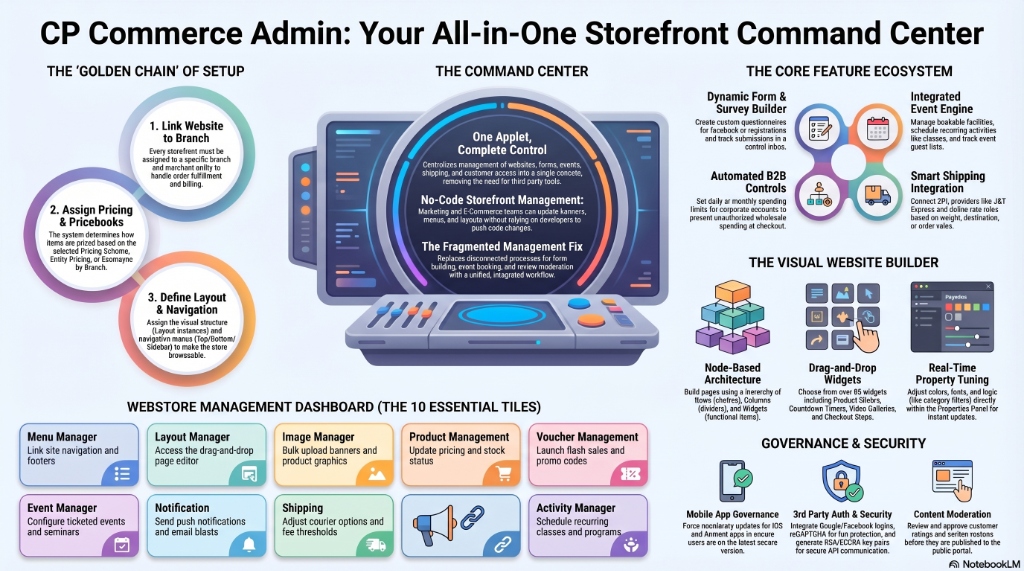
The CP Commerce Admin Applet is the central backend for your entire Customer Portal (CP) — the front-facing website and mobile app where your end-customers browse products, place orders, book events, and interact with your brand.
Instead of relying on developers to push website changes, this applet gives Marketing, E-Commerce, and Operations teams direct control over what customers see, how they interact, and what they can do — all from a single administrative console.
Key Features Overview
Who Benefits from This Applet?
E-Commerce & Marketing Teams:
- Build and manage website layouts, banners, and menus without developer support
- Create dynamic forms and surveys for customer feedback
- Set up events, activities, and bookable facilities
- Launch targeted newsletter campaigns and push notifications
B2B Account Managers:
- Enforce corporate spending limits on wholesale customer accounts
- Control which portal content is visible to specific customer groups
- Manage user registrations and block problematic accounts
Operations & IT Admins:
- Configure shipping providers and delivery fee logic
- Manage iOS and Android app version requirements
- Set up third-party integrations (Google Analytics, reCAPTCHA, social logins)
- Generate digital signature key pairs for API security
Customer Support:
- Moderate product reviews and ratings before they go public
- View and manage submitted customer forms
- Block abusive or defaulting users from the portal
What Problems Does This Solve?
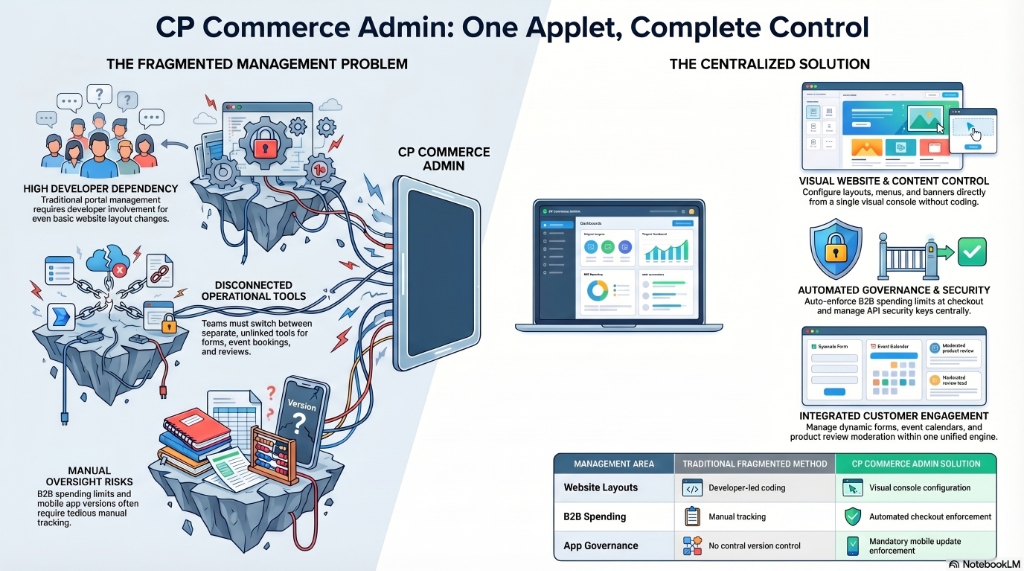
The Fragmented Portal Management Problem:
Managing an e-commerce customer portal traditionally requires:
- Developer involvement for every website layout change
- Separate tools for forms, surveys, and event bookings
- No centralized control over mobile app versioning
- Manual tracking of B2B spending limits
- Disconnected review moderation processes
The CP Commerce Admin Solution:
- Visual website management — Configure layouts, menus, and banners from one console
- Built-in form builder — Template and dynamic forms with submission tracking
- Integrated event engine — Calendar, facility, and activity booking all in one place
- Automated B2B controls — Spending limits auto-enforced at checkout
- Review moderation — Approve or reject customer reviews before they go live
- Mobile app governance — Force mandatory updates for outdated app versions
- One applet, complete control — No more switching between disconnected tools
Key Features Overview
Key Concepts
Understanding the CP Commerce Framework
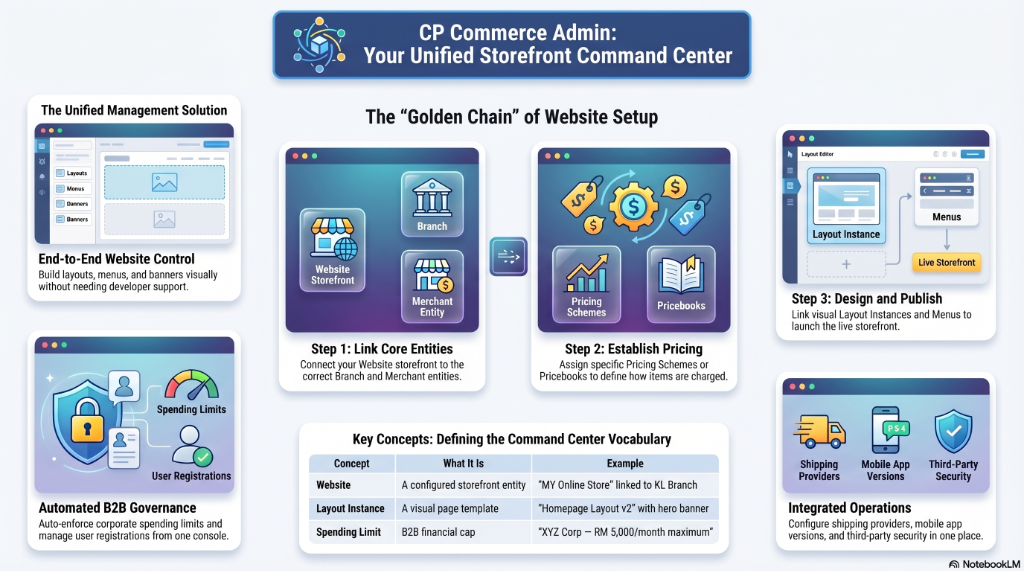
The CP Commerce Admin controls the admin-side configuration that drives what customers see on the Customer Portal (the front-end).
| Concept | What It Is | Example |
|---|---|---|
| Website | A configured storefront entity tied to a branch, merchant, and pricing model. | “MY Online Store” linked to KL Branch |
| Layout Instance | A visual page template built in the Website Builder. | “Homepage Layout v2” with hero banner and product grid |
| Dynamic Form | A custom questionnaire built inside the applet. Has Questions and collects Responses. | “Customer Satisfaction Survey Q1 2026” |
| Template Form | A reusable form template with image management capabilities. | “Event Registration Form” |
| Facility | A bookable physical space or asset. | “Meeting Room A — Capacity 20” |
| Activity | A specific program or class offered within a facility. | “Saturday Yoga — 10:00 AM” |
| Spending Limit | A financial cap assigned to a B2B customer account. | “XYZ Corp — RM 5,000/month maximum” |
The CP Commerce Hierarchy
CP Commerce Admin Applet
│
├── Website (Core entity)
│   ├── Details (branch, pricing, merchant, menus, shipping config)
│   ├── App Version (iOS / Android)
│   ├── Manage Image (website image library)
│   ├── Digital Signature (API key pairs)
│   ├── Post Registration Config
│   ├── 3rd Party Auth Config (Google, Facebook, Apple, etc.)
│   ├── Layout Instance (website page builder)
│   ├── Reviews (Review Settings + Review Votes)
│   ├── Menu List (navigation menu builder)
│   ├── Country Config (locale, language, settlement methods)
│   ├── Label List (content classification tags)
│   └── Content Category
│
├── Shipping Provider (3PL integration)
├── Rating (star ratings management)
├── Review (review moderation)
├── Users (portal user management)
├── Newsletter Topic (email campaign topics)
├── Notification (push notifications)
├── Template Form (reusable form templates)
├── Dynamic Form (survey/questionnaire builder)
├── Submitted Form (form response inbox)
├── Spending Limit (B2B budget controls)
├── Blocked Customers (blacklist management)
├── Facilities (bookable spaces)
├── Activity (programs/classes within facilities)
├── Activity Category (grouping for activities)
├── Calendar (admin calendar view)
├── Events (event management)
└── Schedule (scheduler view)
The “Golden Chain” of Website Setup
Before a customer can use your portal, three things must be linked correctly:
- Website → Branch → Merchant — The storefront must know which branch and merchant entity it belongs to.
- Website → Pricing → Pricebook — The system must know how to price items (Pricing Scheme, Entity Pricing, or Ecomsync by Branch).
- Website → Layout → Menu — The visual structure (which pages to show, which navigation menus to use) must be configured.
Quick Start Guide
Get up and running quickly with these essential workflows.
For E-Commerce Admins: Launch Your First Website
Goal: Create and publish a basic Customer Portal website.
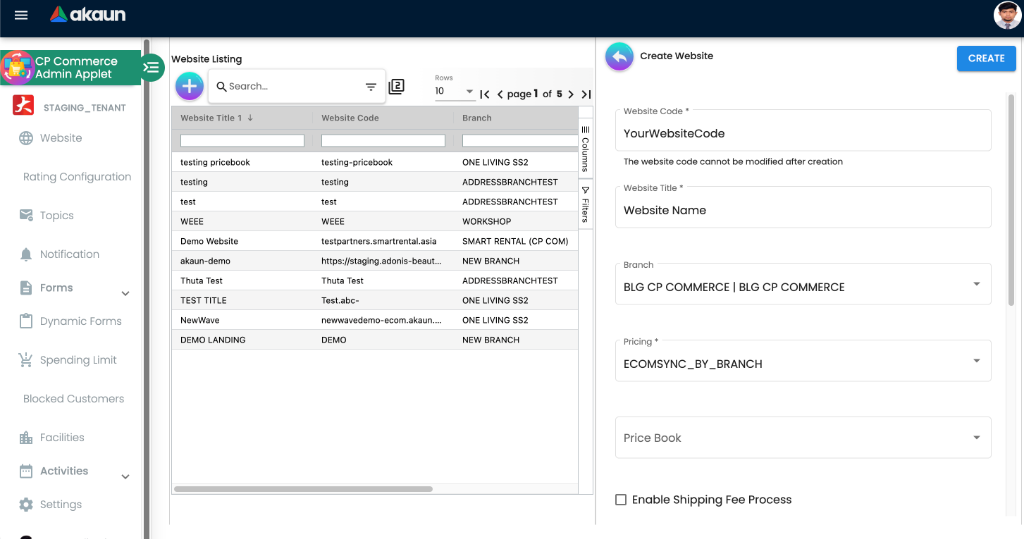
- Navigate to the Website section from the sidebar (default landing page)
- Create Website: Click "+" → Enter Website Title (e.g., “My Brand Store”) → Select Branch → Choose Pricing Model → Select Membership Class → Click Create
- Configure Details: In the edit view, assign:
- Top Menu, User Menu, Left-side Menu, Bottom Menu
- Default Layout Routing (the homepage layout)
- Default Authentication Portal
- Content Category
- Sales Order Printable Format
- Build Layout: Go to the Layout Instance tab → Click "+" to create your first page layout → Use the Website Builder button to visually design the page
- Set Up App Versions (if mobile): Go to App Version tab → Add iOS and Android version entries
- Publish: Set Status to Active → Click Save
What happens next? Your Customer Portal is now live and accessible to customers. They can browse, register, and place orders based on your layout and pricing configuration.
Pro Tip: Enable “App Version Update Check” checkbox and set the App Store URLs to auto-prompt users with outdated mobile apps to update.
For Marketing Teams: Create a Customer Survey
Goal: Build a dynamic form, publish it to the portal, and review submissions.
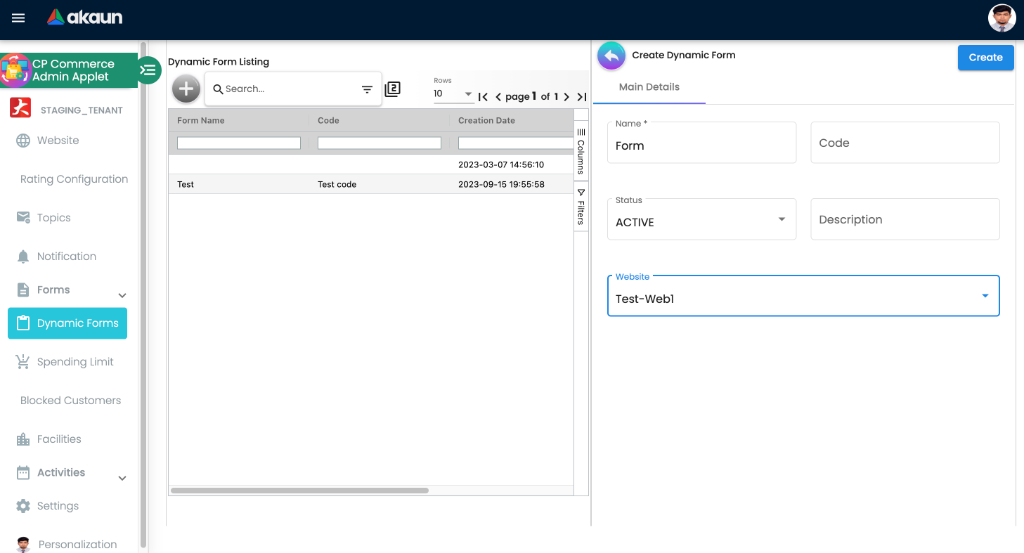
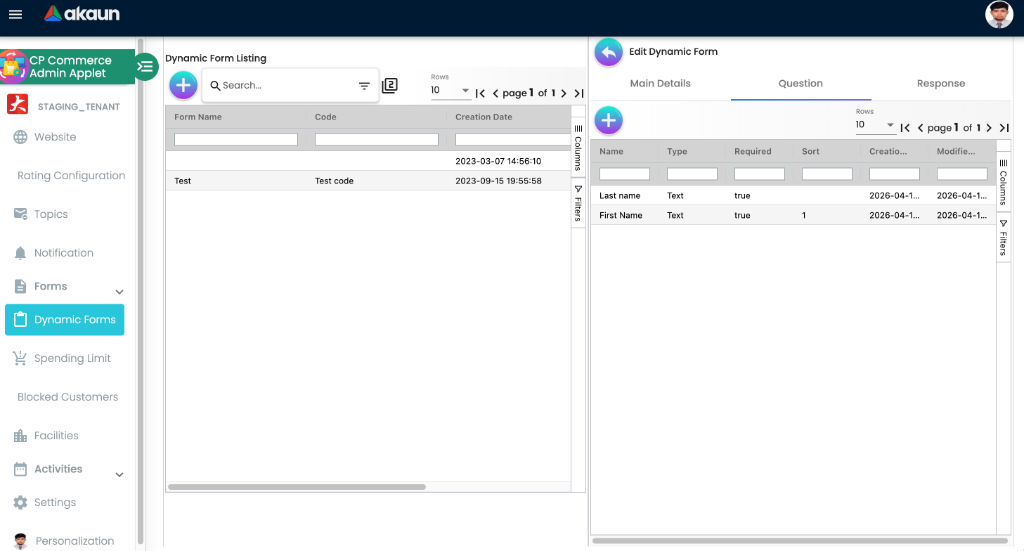
- Navigate to Dynamic Form from the sidebar
- Create: Click "+" → Enter form title (e.g., “Customer Satisfaction Q1”)
- Add Questions: Open the form → Go to the Question tab → Add questions (text, multiple choice, dropdown, file upload)
- Review Responses: When customers submit, their answers appear in the Response tab
- Or use Template Forms: Navigate to Template Form to create reusable form templates with managed images
What happens next? The form is available on the Customer Portal. As customers submit, you can view, filter, and export their responses from either the Response tab within the Dynamic Form or from the Submitted Form section in the sidebar.
For Operations: Set Up a Shipping Provider
Goal: Connect a delivery service so customers see shipping options at checkout.
- Navigate to Shipping Provider from the sidebar
- Create: Click "+" → Enter provider name (e.g., “J&T Express”)
- Configure Edit View:
- Main Details tab: Set provider type (Flat Rate or Table Rate)
- Table Rate tab (if applicable): Define rates by weight, destination, or order value
- API Details tab: Enter the provider’s API credentials for real-time rate calculation
- Link to Website: Go back to the Website Edit → Check “Enable Shipping Fee Process” → Select the Shipping Fee Option → Choose Shipping Price Book or set a delivery charges item code
What happens next? Customers see delivery options and rates at checkout. The system calculates costs based on your configured rules.
The Webstore Management Dashboard
Goal: Provide Store Managers a unified, simplified front-end console to configure their website without needing to navigate the complex backend ERP menus.
When an administrator clicks the Website Builder button from the backend (or navigates to https://[your-store-url]/page/website-builder/layout-menu/webstore), they are greeted by the Webstore Management Dashboard.
This dashboard acts as an aggregated shortcut center, presenting the most critical e-commerce configuration tools as large, easy-to-click tiles.
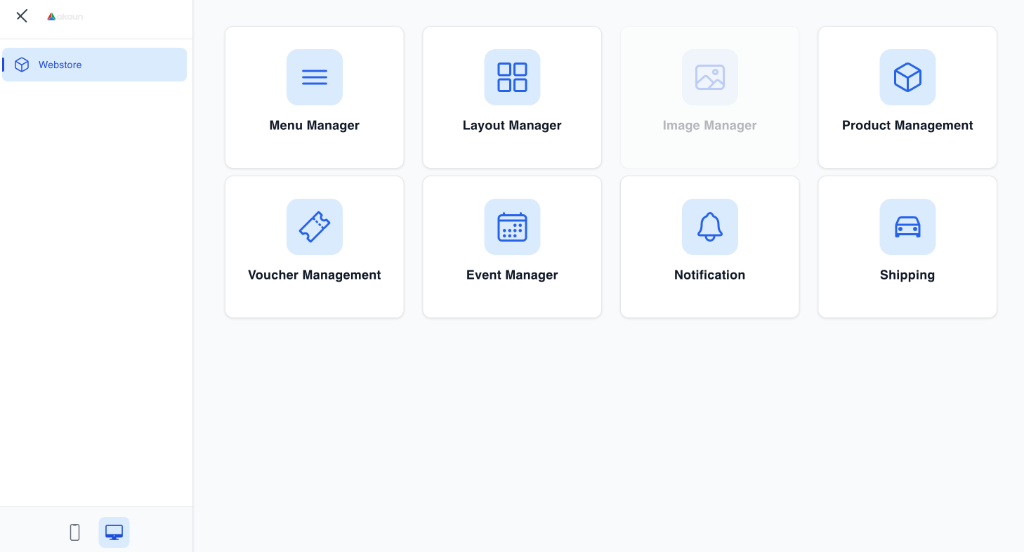
The 10 Dashboard Tiles
| Dashboard Tile | Purpose & Benefit | Corresponding Backend Module |
|---|---|---|
| Menu Manager | Allows store managers to visually build and link the site navigation (Top Menus, Footer Menus, Sidebars) directly within the frontend context. Benefit: Instant routing updates without backend catalog searches. | CP Commerce Admin -> Menu List |
| Layout Manager | The gateway to the visual drag-and-drop page editor. Benefit: Enables marketing teams to instantly redesign the homepage, landing pages, or product grids without writing code. | CP Commerce Admin -> Layout Instance |
| Image Manager | A centralized visual media library for the website. Benefit: Store managers can upload banners, logos, and product graphics in bulk, ensuring all media is organized before attaching them to layouts. | CP Commerce Admin -> Manage Image |
| Product Management | Instantly opens the active product catalog linked to this specific storefront. Benefit: Rapidly update pricing, names, or out-of-stock statuses without accessing the master ERP Inventory module. | Master Data -> Doc Item Maintenance |
| Voucher Management | Interface for configuring promotional codes, discounts, and expiration parameters. Benefit: Enables marketers to rapidly launch flash sales via promo codes. | CP Commerce Admin -> Voucher Management |
| Event Manager | Dashboard to configure bookable seminars, classes, or ticketed events. Benefit: Simplifies capacity and schedule management for experiential retail operations. | Event & Activity Management |
| Notification | Command center for constructing push-notifications, email blasts, and SMS campaigns to registered portal users. Benefit: Enhances customer engagement without third-party mailing tools. | CP Commerce Admin -> Notification |
| Shipping | Gateway to configure third-party logistics (3PL) flat rates and weight-based delivery fees. Benefit: Real-time adjustments to courier options and free-shipping thresholds. | CP Commerce Admin -> Shipping Provider |
| QR Code Manager | Generates dynamic QR codes linked directly to store landing pages, specific products, or checkout carts. Benefit: Bridges offline marketing (flyers/posters) to online conversions natively. | (Dependent on Applet Version) |
| Activity Manager | Configure recurring classes/activities happening within your physical corporate facilities. Benefit: Integrates physical store operations into the digital booking portal. | CP Commerce Admin -> Activity |
Dashboard Access Controls & Visibility
Not every store employee should have access to the entire Webstore Dashboard.
To enforce Role-Based Access Control (RBAC) or to simply declutter the interface for smaller stores, super-administrators can hide specific tiles from the frontend dashboard.
To hide a tile:
- Navigate to the Website Edit > Details tab in the backend CP Commerce Applet.
- Scroll down to the Hide Website Builder Elements section.
- Check the respective boxes (e.g.,
Hide Voucher ManagementorHide Image Manager). - Save the website configuration. The specified tiles will immediately vanish from the frontend Webstore Dashboard for all managers.
Website Management (website route)
Website Listing
The default landing page of the applet. Shows all configured website/storefront entities.
Listing View:
- Each row = one website entity
- Key columns: Website Code, Website Title, Status
- Click any row to open the edit view
Website Create
Creating a new website — Field-by-Field Guide:
| Field | Purpose | Required | Example |
|---|---|---|---|
| Website Title | Display name for this storefront | Yes | “MY Online Store” |
| Branch | The physical branch this website is linked to | Yes | “KL HQ” |
After clicking Create, you are taken to the full edit view with many more fields and tabs.
Website Edit — Tabs Overview
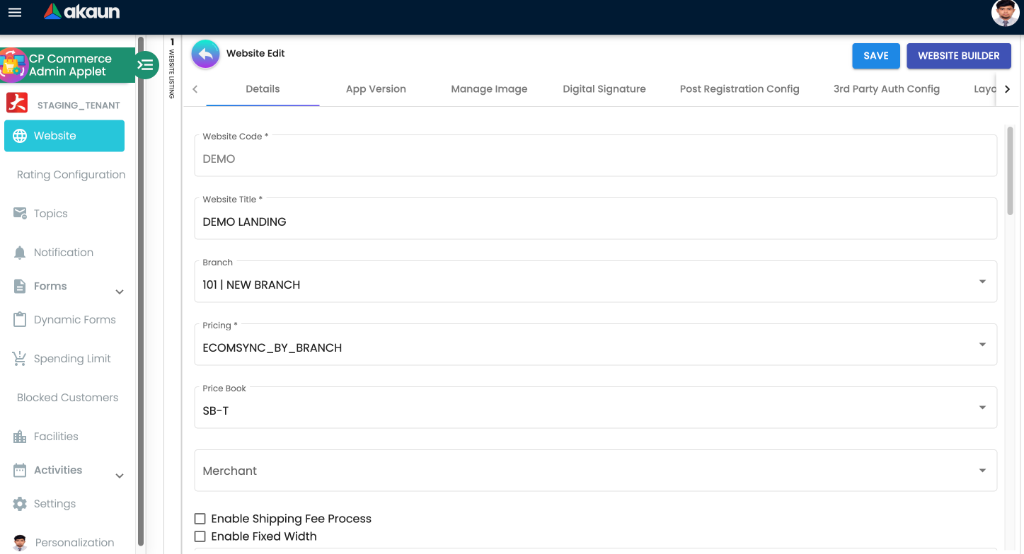
When you select a website to edit, you’ll see the full configuration panel with the following tabs:
| Tab | Purpose |
|---|---|
| Details | Core configuration: pricing, menus, shipping, merchant, app store URLs, reseller settings, and administrative controls |
| App Version | Manage iOS and Android app version requirements and mandatory update checks |
| Manage Image | Image library manager — upload, search, and manage visual assets for the website |
| Digital Signature | Generate and manage RSA key pairs used for secure API request signing |
| Post Registration Config | Configure workflows and settings triggered after a customer completes registration |
| 3rd Party Auth Config | Integration settings for external providers (Google Login/Analytics, Facebook, reCAPTCHA, Apple Login) |
| Layout Instance | Access the visual Website Builder to create and manage page layouts |
| Reviews | Moderate customer feedback and configure voting/rating settings |
| Menu List | Design and manage navigation structures (Top, User, Side, and Footer menus) |
| Label List | Create hierarchical tags and classification labels for content organization |
| Content Category | Define logical categories to group storefront content and products |
| Posts | Manage blog posts, news, announcements, and informational content |
| User Agreement | Manage legal documents like Privacy Policy and Terms & Conditions |
| Account | Detailed management of customer accounts and B2B spending entities |
| Commission Scheme | Configure sales commission logic, rules, and calculation methods |
| Language | Enable and manage multi-language support for the storefront |
| Branch | Link and configure multiple branches to the storefront for delivery and inventory |
| Region | Define regional zones for localized settings and shipping rules |
| Country | Configure country-specific localization, date formats, and locale defaults |
| Voucher Management | Create and manage discount codes, promo vouchers, and marketing campaigns |
| Settlement Method | Configure payment gateways and available settlement options for customers |
Details Tab (Deep Dive)
This is the most field-heavy tab. Here’s the full configuration:
| Field | Purpose | Required | Conditional |
|---|---|---|---|
| Website Code | Auto-generated unique ID | Read-only | — |
| Website Title | Display name of the storefront | Yes | — |
| Branch | Linked branch entity | Yes | — |
| Pricing | How prices are determined for this store | Yes | — |
| Pricing Scheme | Select the pricing scheme | Conditional | Shows when Pricing = “Pricing Scheme” or “Entity Pricing” |
| Pricing Scheme 2 | Optional secondary pricing scheme | Conditional | Shows when Pricing = “Pricing Scheme” or “Entity Pricing” |
| Price Book | Select price book directly | Conditional | Shows when Pricing = “Ecomsync by Branch” |
| Merchant | Which merchant entity this store represents | No | — |
| Enable Shipping Fee Process | Checkbox to activate shipping at checkout | No | — |
| Shipping Fee Options | Select how shipping fees are calculated | Conditional | Shows when “Enable Shipping Fee Process” is checked |
| Item Code for Delivery Charges | Doc item used for delivery charge line items | Conditional | Shows when shipping fee option = Delivery Charges |
| Default Shipping Price Book Code | Shipping pricebook for rate calculation | Conditional | Shows when shipping fee option = Shipping Price Book |
| Item Code for Shipping Fee | Doc item used for shipping fee line items | Conditional | Shows when shipping fee option = Shipping Price Book |
| Enable Fixed Width | Lock website to a fixed pixel width | No | — |
| Fixed Width | The pixel value for fixed width | Conditional | Shows when “Enable Fixed Width” is checked |
| Default Discount Price Book | Default pricebook for promotional discounts | No | — |
| Top Menu | Navigation menu shown at the top of the website | No | — |
| User Menu | Navigation menu for logged-in user options | No | — |
| Left-side Menu | Sidebar navigation menu | No | — |
| Bottom Menu | Footer navigation menu | No | — |
| Content Category | Label list used for categorizing content | No | — |
| Sales Order Printable Format | Printable format for customer order confirmations | No | — |
| Description | Admin description of this website | No | — |
| Meta Description | SEO meta description for the website | No | — |
| Membership Class | Default membership class for portal customers | Yes | — |
| Status | Active / Inactive | Yes | — |
| Default Topic | Default newsletter topic for this website | No | — |
| Default Layout Routing | The default homepage layout | No | — |
| Default Authentication Portal | The login/register page layout | No | — |
| Privacy Agreement | Link to agreement document for privacy policy | No | — |
| Terms & Conditions Agreement | Link to T&C agreement document | No | — |
| Enable Web-Chat | Activate live chat on the storefront | No | — |
| Selected Webchat Endpoint | The UCC endpoint for live chat | Conditional | Shows when “Enable Web-Chat” is checked |
| Restrict View/Access by Entity | Limit portal content visibility by corporate entity | No | — |
| Restrict Notification by Member | Only send notifications to active members | No | — |
| Enable Public Cart | Allow non-logged-in users to add items to cart | No | — |
| Enable Website Preloader | Show loading animation on page load | No | — |
| Enable Reseller Website | Activate reseller/affiliate mode | No | — |
| Reseller Banner fields | Free Delivery Text, Middle Text, Background Color, Color, Font | Conditional | Shows when “Enable Reseller Website” is checked |
| Enable App Version Update Check | Force mobile users to update outdated apps | No | — |
| Google Store URL / Apple Store URL | App store links for update prompts | Conditional | Shows when “Enable App Version Update Check” is checked |
| Hide Website Builder Elements | Checkboxes to hide: Banners, Menu Manager, Layout Manager, Image Manager, Product Management, Voucher Management, Event Manager, Notification, Shipping, QR Code Manager, Activity Manager | No | — |
| Created By / Created Date / Modified By / Modified Date | Audit fields | Read-only | — |
App Version Tab (Deep Dive)
Manages iOS and Android mobile app version tracking with two sub-tabs:
| Sub-Tab | What You Do |
|---|---|
| iOS | Create and manage iOS app version entries — set version number, mandatory update flag, release notes |
| Android | Create and manage Android app version entries — same fields as iOS |
Creating an App Version Entry:
| Field | Purpose | Required | Example |
|---|---|---|---|
| Version Number | Semantic version of the app | Yes | “3.5.2” |
| Is Mandatory Update | Force users on older versions to update | No | Checked |
| Release Notes | Description of what changed in this version | No | “Critical security patch” |
Manage Image Tab (Deep Dive)
The Manage Image tab serves as the central asset library for your storefront. Here, you upload and organize specifically formatted images that are later referenced in branding, layout banners, and product displays.
| Feature | Description |
|---|---|
| Image Asset | High-resolution visual file (JPG/PNG) used on the storefront. |
| Param_Code | A unique internal identifier used by the Website Builder to hook images into specific layout positions. |
| Image Type | Categorization labels (e.g., LOGO, BANNER, FAVICON) used to filter assets by location. |
| Search Function | Quick-filter across your entire library by Parameter Code or Image Type. |
Image Listing Grid:
| Column | Purpose |
|---|---|
| Param_Code | The code reference for layouts |
| Value | A thumbnail preview of the asset |
| Created Date | Timestamp of the original upload |
Digital Signature Tab
Generate and manage cryptographic key pairs (RSA/DSA) used to digitally sign API requests between the Customer Portal and external ERP systems. This ensures data integrity and authenticity.
| Field | Purpose | Required |
|---|---|---|
| Key Algorithm | Select the encryption standard (RSA or DSA) | Yes |
| Key Size | Select the strength of the key (ranges from 512 to 4096 bits) | Yes |
| Key Status | Set the key to ACTIVE to begin using it for request signing | Yes |
| Private Key | The generated secret key. Keep this confidential. | Read-only |
| Public Key | The generated public key shared with external systems for verification. | Read-only |
Post Registration Config Tab
Define automated actions that occur immediately after a new customer finishes the registration process.
| Field | Purpose | Required |
|---|---|---|
| Team | Select which internal Team the new customer should be automatically assigned to | Yes |
3rd Party Auth Config Tab
Centralize all external API integrations for authentication, security (reCAPTCHA), and analytics. Each provider has its own sub-tab:
| Provider | Purpose | Key Fields |
|---|---|---|
| Google reCAPTCHA | Protects forms (Login/Registration) from bot spam. | Site Key, Secret Key |
| Google Login | Enables “Sign in with Google” for social proof and ease of use. | Client ID, Secret |
| Facebook Login | Enables “Sign in with Facebook” portal access. | App ID, App Secret |
| Apple Login | Enables “Sign in with Apple” (required for most iOS apps). | Client ID, Team ID |
| Mini-Orange | Enterprise SSO integration via the Mini-Orange platform. | API Key, Customer Key |
| Google Analytics | Tracks portal traffic and customer conversion behavior. | Measurement ID (G-XXXX) |
| Zendesk | Embeds a live chat bubble on the storefront for support. | Widget Snippet / Key |
Layout Instance Tab
The Layout Instance tab is the control center for your site’s pages. A “Layout Instance” represents a specific page (e.g., Homepage, About Us, Landing Page).
| Field | Purpose | Required |
|---|---|---|
| Code | Unique identifier for this page layout (used in URLs) | Yes |
| Name | Friendly name for internal organization | Yes |
| Description | Admin notes about the page’s purpose | No |
How the Visual Website Builder Works
Accessible via the Website Builder button in the header, this drag-and-drop environment allows you to design your pages using a hierarchical node system:
- Rows: Horizontal containers that define the page flow.
- Columns: Vertical dividers inside rows to control content width.
- Widgets: Functional UI components (Product Sliders, Banners, Form Embeds).
Configuration Palette:
- Elements Palette (Left): Drag Rows, Columns, and Widgets onto the canvas.
- Interactive Canvas (Center): Rearrange elements visually.
- Properties Panel (Right): Configure the specific settings for the selected element.
Widget Reference Guide
Below is the complete catalog of all available widgets, organized by category. When configuring a node as a Widget, select the appropriate Widget ID from the dropdown and configure its parameters.
🏗️ Structure & Header Widgets
| Widget ID | Widget Name | What It Does | Key Configurable Parameters |
|---|---|---|---|
GENERIC_HEADER | Generic Header | Standard website header with logo, search, and cart icon. | Sticky mode, image width, search route, search button color/text, hide cart, menu background/color |
MOBILE_HEADER | Mobile Header | Header optimized for mobile app views. | Cart route, show logo, show menu, enable sidebar, show back button, search bar toggle |
FOOTER | Footer | Website footer with contact info and links. | Mobile mode, header size, mobile footer field, email, Facebook URL, Instagram URL, display logo |
BIO_FOOTER | Bio Footer | Footer with company bio, address, and social links. | Footer line 1/2/3, postal code, city, state, email, phone, social links (FB/IG/TikTok/YT) |
🛍️ Product Display Widgets
| Widget ID | Widget Name | What It Does | Key Configurable Parameters |
|---|---|---|---|
PRODUCT_SLIDER | Product Slider | Horizontal carousel of products, filterable by category. | Title, category group (label list), category (label hdr), add to cart toggle, favourite toggle |
PRODUCT_SLIDER_V2 | Product Slider V2 | Enhanced product slider with visibility and arrow controls. | All Product Slider params + visible items (desktop/mobile), hide arrows |
PRODUCT_LIST | Product List | Grid/list view of all products. | Product details layout URL |
PRODUCT_DETAILS | Product Details | Full product detail page with images, price, description. | Enable auth guarantee, show socials, show vouchers |
PRODUCT_CATEGORY | Product Category | Display product categories as browsable sections. | Category group filter, label list, product listing layout URL |
CATEGORY_FILTER_PRODUCT_LIST | Category Filter Product List | Product list with a category filter bar on top. | Background/text/active colors, infinite scrolling toggle, column count |
POWER_SEARCH_FILTER | Power Search Filter | Advanced search with sorting and filtering controls. | Sorting functions (Latest/Popular/Top Sales/Price), display attribute icons |
🧭 Navigation & Menu Widgets
| Widget ID | Widget Name | What It Does | Key Configurable Parameters |
|---|---|---|---|
VERTICAL_MENU | Vertical Menu | Sidebar-style vertical navigation menu. | Menu list selection |
HORIZONTAL_MENU | Horizontal Menu | Top-bar horizontal navigation menu. | Menu list selection |
TAB_MENU | Tab Menu | Tab-style navigation for sub-sections. | Menu list selection |
MOBILE_TAB_MENU | Mobile Tab Menu | Bottom tab bar for mobile app navigation. | Menu list selection |
🛒 E-Commerce Workflow Widgets
| Widget ID | Widget Name | What It Does | Key Configurable Parameters |
|---|---|---|---|
SHOPPING_CART | Shopping Cart | The customer’s shopping cart view. | Checkout route URL |
CHECKOUT_STEP_V2 | Checkout Step (V2) | Multi-step checkout flow widget. | Enable shipping, membership points, cash voucher, payment gateway, style configuration for each step |
ORDER_LISTING | Order Listing | List of customer’s past orders. | Order details layout, tracking website URL, show received button |
MY_INVOICE | My Invoice | List of customer’s invoices. | Invoice detail layout URL |
REQUEST_REFUND | Request Refund | Refund request form. | Reasons array, email recipient for notifications |
👤 User Account & Membership Widgets
| Widget ID | Widget Name | What It Does | Key Configurable Parameters |
|---|---|---|---|
LOGIN_WIDGET | Login Widget | Login and registration page. | Reset password route, sign-up route, privacy/T&C doc links, registration type |
MEMBERSHIP | Membership | Display membership tier cards. | Membership class array, icon color, background color |
MEMBER_POINTS_COUNTER | Membership Points Counter | Display member’s loyalty points balance. | Point color, line color |
📋 Form & Interaction Widgets
| Widget ID | Widget Name | What It Does | Key Configurable Parameters |
|---|---|---|---|
DYNAMIC_FORM_WIDGET | Dynamic Form Widget | Embed a dynamic form/survey on the page. | Dynamic form selection |
TEMPLATE_FORM_WIDGET | Template Form Widget | Embed a template form on the page. | Template form selection, custom field array |
BUTTON_SINGLE | Button Single | A standalone CTA button with full styling. | Text, font, destination URL, link type, styling (colors/borders/radius) |
Menu List Tab
Manage the navigation structures utilized by the Generic Header, Footer, and Vertical Menu widgets.
| Field | Purpose | Required |
|---|---|---|
| Menu Title | The name of the navigation menu (e.g., “Footer Links”) | Yes |
| Status | Toggle visibility on the storefront | Yes |
Posts Tab
Manage individual content entries like blog articles, news items, and announcements. This is where you create the “Static Pages” referenced by layout widgets.
| Field | Purpose | Required |
|---|---|---|
| Title | The display title of the post | Yes |
| URL Key | The search-engine-friendly URL slug (e.g., brand-story) | Yes |
| Status | Controls whether the post is visible | Yes |
| Publish/Expiry Date | Schedule content visibility for limited-time campaigns | No |
| Content Category | Group posts together for collective display in widgets | No |
| Layout Instance | Link this post to a specific layout design | Optional |
User Agreement Tab
Central repository for legal documents such as Privacy Policies and Terms of Use. These documents are referenced in registration and checkout widgets.
| Field | Purpose | Required |
|---|---|---|
| Title | The name of the agreement (e.g., “Privacy Policy 2024”) | Yes |
| Document Code | Unique identifier for linking in widgets | Yes |
| Expiry Date | Automatic version control for legal updates | No |
| Status | Set to ACTIVE to make the document available on the portal | Yes |
Reviews Tab
Configure how the product review and rating system functions on the storefront.
| Sub-Tab | Purpose |
|---|---|
| Review Settings | Define rules for review submission: min/max scores, auto-approval thresholds, and required fields. |
| Review Votes | Manage the configuration of “Helpful/Not Helpful” voting on customer reviews. |
Label List Tab
Create classification labels used to tag and filter content across the website. These are often used as “Category Groups” in widgets.
| Field | Purpose | Required |
|---|---|---|
| Label Name | Primary display name for the label | Yes |
| Label Code | Internal code used for layout configuration | Yes |
| Status | Toggle availability for widget filtering | Yes |
Content Category Tab
Define logical groupings for products and posts to enable organized browsing.
| Field | Purpose | Required |
|---|---|---|
| Category Name | The display name of the category | Yes |
| Category Code | Unique ID for URL routing and layout links | Yes |
| Category Type | Classification for internal sorting | No |
Account Tab
View and manage the administrative details of customer accounts associated with this website.
| Field | Purpose | Required |
|---|---|---|
| Name / Email | Primary contact identity for the account | Yes |
| Phone | Contact number for delivery and alerts | No |
| Type | Classification (Corporate, Retail, Supplier, etc.) | Yes |
| Codes | Linked identifiers from the ERP system (Customer Code, Merchant Code, etc.) | No |
Branch Tab
Manage the physical branch locations or pickup points linked to this specific digital storefront.
| Field | Purpose | Required |
|---|---|---|
| Branch Code | Unique identifier for the physical location | Yes |
| Branch Name | Friendly name displayed to customers in pickup options | Yes |
Region Tab
Define the geographical regions used for shipping calculation and content localization.
| Field | Purpose | Required |
|---|---|---|
| Region Name | The name of the territory (e.g., “South East Asia”) | Yes |
| Region Code | Unique ID for regional rule mapping | Yes |
| Status | Toggle availability for shipping rules | Yes |
Country Tab
Configure country-level localization, including languages and payment methods available to customers in specific nations.
| Sub-Tab | Purpose |
|---|---|
| Main | Set the primary country name and ISO code. |
| Language Selection | Assign which languages are enabled for this country’s portal view. |
| Settlement Methods | Configure which payment methods are available to customers in this country. |
Voucher Management Tab
Link and manage discount vouchers and promotional coupons that customers can use during checkout.
| Field | Purpose | Required |
|---|---|---|
| Voucher Code | The code customers enter at checkout (e.g., “SAVE10”) | Yes |
| Voucher Name | Internal description of the campaign | Yes |
| Voucher Type | Discount logic (Fixed Amount or Percentage) | Yes |
| Status | Toggle to activate/deactivate the coupon instantly | Yes |
Commission Scheme Tab
Define how sales commissions are calculated for agents or affiliates linked to this website.
| Field | Purpose | Required |
|---|---|---|
| Commission Code | Primary identifier for the commission ruleset | Yes |
| Commission Name | Descriptive name for the scheme | Yes |
Language Tab
Configure the multi-language support settings for the storefront Frontend.
| Field | Purpose | Required |
|---|---|---|
| Language Name | The display name (e.g., “Bahasa Malaysia”) | Yes |
| Language Code | Standard ISO locale code (e.g., ms-MY) | Yes |
| Status | Enable/Disable the language option on the site | Yes |
Settlement Method Tab
Link the payment settlement gateways (Stripe, Bank Transfer, Card, etc.) available for this website’s checkout process.
| Field | Purpose | Required |
|---|---|---|
| Settlement Code | Technical ID for the payment processor | Yes |
| Settlement Name | The name shown to customers (e.g., “Pay with Credit Card”) | Yes |
| Status | Toggle to enable/disable the payment method | Yes |
Shipping Providers (shipping-provider route)
What is the Shipping Provider section?
Configure third-party logistics (3PL) providers that appear as delivery options during customer checkout.
Shipping Provider Edit — Tabs:
| Tab | Purpose |
|---|---|
| Main Details | Provider name, code, type (Flat Rate, Table Rate, API-driven), base rate |
| Table Rate | Define rate rules based on weight tiers, geographic zones, or order value ranges |
| API Details | Enter API credentials (key, secret, endpoint) for real-time shipping rate queries |
Dynamic Forms (dynamic-form route)
What are Dynamic Forms?
A built-in survey and questionnaire builder. You design questions, and customers fill in responses directly on the Customer Portal.
Dynamic Form Edit — Tabs:
| Tab | Purpose |
|---|---|
| Main Details | Form title, description, and configuration |
| Question | Add and manage individual questions (text, multiple choice, dropdown, file upload) |
| Response | View all customer submissions for this form |
Template Forms (template-form route)
Reusable form templates with built-in image management. Useful for creating standardized registration or feedback forms.
Template Form Edit — Tabs:
| Tab | Purpose |
|---|---|
| Main Details | Template name, code, and description |
| Manage Images | Upload and manage images used within the form template |
Submitted Forms (submitted-form route)
The central inbox for all customer form submissions across both Dynamic Forms and Template Forms. Admins can view, filter, export, and take action on submitted responses.
Events & Facilities Booking Engine
Facilities (facilities route)
Define bookable physical spaces or assets.
Facilities Edit — Tabs:
| Tab | Purpose |
|---|---|
| Main Details | Facility name, capacity, operating hours, location |
| Activities | Link specific activities offered in this facility (e.g., “Yoga Class”) |
| Event | View events associated with this facility |
| Media Library | Upload images and media for this facility’s portal listing |
Activities (activity route)
Programs, classes, or services offered within a facility.
Activity Edit — Tabs:
| Tab | Purpose |
|---|---|
| Main Details | Activity name, description, pricing, duration |
| Manage Images | Upload promotional images for this activity |
| Events | View events that include this activity |
Activity Categories (activity-category route)
Group activities into logical categories (e.g., “Fitness”, “Workshops”, “Consultation”). Helps customers filter and browse available programs.
Events (events route)
Create specific occurrences (e.g., “Summer Mega Sale Launch — July 15”).
Event Edit — Tabs:
| Tab | Purpose |
|---|---|
| Details | Event name, date/time, capacity, location, description, and configuration fields |
| Calendars | Link this event to admin calendars |
| Guests | Manage guest list — view registered attendees |
| Attachments | Upload brochures, agendas, or promotional materials |
| Linked Events | Associate related events together |
| Posts | Create announcement posts tied to this event |
Calendars (calendars route)
Admin calendar view for managing scheduled events and bookings.
Calendar Edit — Tabs:
| Tab | Purpose |
|---|---|
| Main | Calendar name, description, and settings |
| Members | Assign team members who manage this calendar |
Schedule (schedule route)
Scheduler view for visualizing bookings across facilities and time slots.
Spending Limits (spending-limit route)
What are Spending Limits?
Automated financial controls for B2B customer accounts. Set maximum purchasing amounts per period (daily, monthly, yearly).
Real-World Scenario:
Company: XYZ Corp
Purchasing Manager: Ahmad
Spending Limit: RM 5,000 / month

Scenario: Ahmad's cart totals RM 6,200
Result: Checkout is BLOCKED — exceeds monthly limit
Action: Finance approves an exception, or Ahmad splits the order
Ratings & Reviews
Ratings (rating route)
Manage product/service star ratings submitted by customers.
Rating Edit — Tab:
| Tab | Purpose |
|---|---|
| Details | View rating details — product, customer, score, date |
Reviews (review route)
Moderate written product/service reviews before they appear publicly on the portal.
Review Edit — Tab:
| Tab | Purpose |
|---|---|
| Details | Review text, author, rating score, approval status |
Users (users route)
Portal user management — view all registered Customer Portal users.
Users Edit — Tab:
| Tab | Purpose |
|---|---|
| Details | User profile info, registration date, email, status |
Blocked Customers (blocked-customers route)
Blacklist management — block abusive, fraudulent, or defaulting users from accessing the Customer Portal entirely.
Newsletter Topics (newsletter-topic route)
Create topic-based mailing lists. Customers subscribe to topics they care about.
Newsletter Topic Edit — Tabs:
| Tab | Purpose |
|---|---|
| Details | Topic name, description, and configuration |
| Manage Image | Upload header/banner images for the newsletter |
| Subscribers | View and manage subscribed members |
| Member Label Link | Link membership labels to auto-subscribe relevant customer segments |
Notifications (notification route)
Send push notifications to Customer Portal mobile app users.
Notification Edit — Tabs:
| Tab | Purpose |
|---|---|
| Details | Notification title, body content, and targeting rules |
| Scheduled | Set date/time for scheduled delivery |
Each notification can have Posts (sub-items) with their own tabs:
| Tab | Purpose |
|---|---|
| Main | Post title, content, and details |
| Manage Image | Upload images for the notification post |
Configuration & Settings
Access via the Settings sidebar menu item.
Feature Visibility (Settings > Feature Visibility)
Toggle which features are visible/accessible in the applet. This is the default settings landing page.
Default Settings (Settings > Default Selection)
Set system-wide default values that auto-populate when creating new records.
Field Configuration (Settings > Field Settings)
Configure which fields are visible, required, or hidden across different forms in the applet.
Webhook (Settings > Webhook)
Configure outbound webhooks to notify external systems when events occur (e.g., new form submission, new review, new user registration).
Permission Management
| Setting | Purpose |
|---|---|
| Permission Set Listing | Define named permission sets (e.g., “Marketing Admin”, “Event Manager”) |
| User Permission Listing | Assign permission sets to individual users |
| Team Permission Listing | Assign permission sets to teams |
| Role Permission Listing | Assign permission sets to roles |
Personalization
Access via the Personalization sidebar menu item.
Personal Default Settings (Personalization > Personal Default Selection)
Set your own personal default values. These only affect your account and override system defaults where applicable.
Sidebar (Personalization > Sidebar)
Customize which sidebar menu items you see. Hide sections you don’t use to declutter your workspace.
FAQ
Q: I created a website but customers can’t see it. What’s wrong? A: Check three things: (1) Status must be set to Active. (2) A Default Layout Routing must be assigned so the homepage has content. (3) The Branch and Merchant must be correctly linked.
Q: Can I have multiple websites for different countries or brands? A: Yes. Each website entity can be linked to a different branch, pricing scheme, and country configuration. Use the Country Config tab within each website to manage locale-specific settings.
Q: The mobile app is showing “Update Required” but my users already have the latest version.
A: Go to Website Edit > App Version > iOS/Android. Ensure the Version Number exactly matches the semantic version submitted to the App Store / Play Store (e.g., “3.5.2” not “v3.5.2”). A mismatch triggers a false mandatory update prompt.
Q: How do Spending Limits affect regular B2C customers? A: They don’t. Spending Limits are designed for B2B Corporate customer groups only. B2C retail customers have no spending cap — their purchases are limited only by their payment method at checkout.
Q: I can’t see some sidebar menu items that other team members can see. A: Check two things: (1) Your Permission Set in Settings may not include access to those features. Ask your admin to verify. (2) Your Personalization > Sidebar settings may have those items hidden.
Q: How do I make a form available on the Customer Portal? A: Create the form in Dynamic Form or Template Form, add your questions, and the form automatically becomes accessible on the portal. The Submitted Form section in the sidebar collects all responses.
Q: What’s the difference between “Review” in the sidebar and “Reviews” tab inside website edit? A: The Review sidebar item is a global moderation queue for all product reviews across all websites. The Reviews tab inside Website Edit is for configuring review settings (rules, vote options) specific to that website.
Q: Customers report they can’t log in with Google on the portal.
A: Go to Website Edit > 3rd Party Auth Config > Google Login and verify the OAuth Client ID and Secret are correctly configured and not expired. Also check that the redirect URI matches your portal domain.