Cart Security
Cart Security makes BigLedger’s server re-check what your storefront sends when a shopper saves a cart, checks out and pays: each line’s amounts, the item price, discounts, vouchers and points, and the amount the payment gateway is asked to charge. This page is for the person who runs a CP Commerce (Cross Platform Commerce) storefront. Switch it on in Website Edit › Cart Security in CP Commerce Admin; it is off until you do.
Your job, and the screen for it
| The job you came to do | Screen or tab | Read |
|---|---|---|
| Turn the checks on with the recommended setup | CP Commerce Admin › Website › (your website) › Cart Security | Set it up |
| Switch them off at once | TURN OFF NOW on the same tab | Switch it off |
| Decide between blocking and recording | The three check lists on the tab | The settings |
| Tell a shopper what a message meant | What shoppers see | |
| Review the orders a check doubted | Your own order release, not a BigLedger screen | Flagged orders |
| Support a storefront that received an error code | Cart Integrity for developers |
Overview
A storefront works out prices, discounts and totals in the shopper’s browser and sends them to the server. With Cart Security on, the server checks those numbers against your own setup before it stores or charges them. GadgetSphere Online sells a flagship smartphone at RM 4,299: with the item price check on, a new cart line for it at another unit price is recognised, and a payment request must match the total of the saved cart, to within a sen or two of rounding.
Each of the three checks has its own choice: block the request, or allow and flag it. A flag today is a record, not an alert. The server writes the reason on the sales order’s stored record, and no screen in CP Commerce Admin or the storefront shows or lists it yet. Read Flagged orders before you rely on a flag.
Where it fits
| Step | What Cart Security does there |
|---|---|
| Shopper adds or changes items | The server checks each product line and signs it; a line whose amounts do not agree is refused |
| Shopper checks out | Every line is checked again; discounts, vouchers and points are compared with your setup |
| Payment | The amount requested must match what the saved cart owes, within a rounding tolerance, before the gateway is asked to charge |
| Sales order | Created as before, with the reasons recorded on it when a check set to Allow and flag doubted something |
The settings are stored on the Website record in CP Commerce Admin.
Screens and menus
Open CP Commerce Admin, open your website and choose the Cart Security tab.
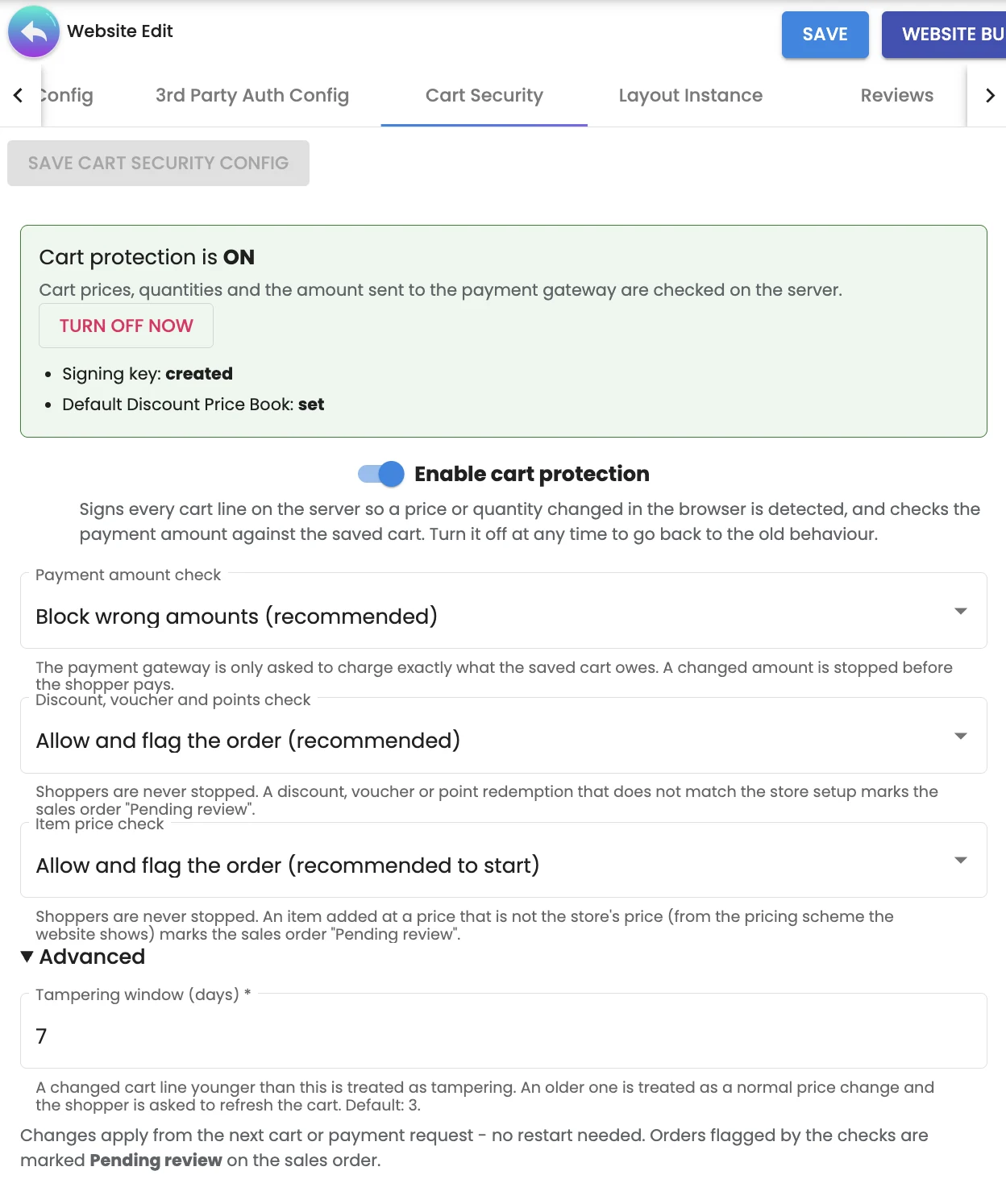
What the tab does not say about itself:
- The status panel shows the saved settings, not your unsaved changes. TURN OFF NOW appears in it only while the saved setting is on.
- SAVE CART SECURITY CONFIG stays grey until you change something.
- The three checks appear only while Enable cart protection is switched on.
- Signing key reads created once the server has handled a cart with the checks on. The server makes the key itself and the tab keeps it when you save; you never type or see it.
- The closing note says flagged orders are marked Pending review on the sales order. The mark is stored on the order; see Flagged orders for where you can and cannot read it.
Configuration
Before you can use it
- Access to Website Edit in CP Commerce Admin.
- A Default Discount Price Book on the Details tab, if you will use the discount check. Without one the server has no price book to justify a price-book discount with, so orders carrying one are flagged. The tab warns you while it is missing.
- One set of settings for all your websites. The server does not read these settings per website. On each cart or payment request it takes one active website that has saved Cart Security settings, always the same one, and applies its settings, its pricing scheme and its Default Discount Price Book to that request, whichever storefront the shopper is on. With one website you will never notice. With two or more active websites, read More than one website first.
Set it up the recommended way
Five minutes on the tab, then a period of checking orders by hand.
- Open Cart Security for your website.
- Turn on Enable cart protection. The three checks appear; on a website that has never been set up they already show the recommended choices.
- Payment amount check: Block wrong amounts (recommended).
- Discount, voucher and points check: Allow and flag the order (recommended).
- Item price check: Allow and flag the order (recommended to start).
- Click SAVE CART SECURITY CONFIG. The message Cart protection is ON. It applies from the next cart or payment request. confirms it. Nothing needs restarting.
- Place a test order on the storefront with a discount or a voucher, and pay it. It should go through as it did before. Reopen the tab: Signing key now reads created.
What success looks like: the status panel is green and reads Cart protection is ON, Signing key reads created after your test cart, and the test order arrived as a sales order.
A check set to Allow and flag does not stop the shopper, and it does not stop the order either. An item the server finds at a price that is not yours still becomes a sales order; the server records why it doubted it. Until a screen shows that record, the check that protects you is the one in Flagged orders: a person compares each web order with your prices before it is released.
Moving Item price check to Block wrong prices stops such an item at the cart. The tab advises running Allow and flag first, to confirm that honest orders are not being flagged. That confirmation needs someone who can read the server’s records, which the tab cannot show you.
Leave the discount check on Allow and flag the order. Block wrong discounts can stop a real shopper when a promotion is set up in a way the server’s check does not recognise.
Switch it off in an emergency
Click TURN OFF NOW in the status panel. It saves at once, discards any unsaved changes to the other choices, and shows Cart protection is OFF. Carts and payments work as before. The next cart or payment request runs without Cart Security’s checks. The storefront’s ordinary checkout validation, such as the points balance test, still applies. A payment that was requested while the checks were on, and comes back from the gateway after you switched them off, becomes an order without the cart being compared again.
Turn it back on with the switch and SAVE CART SECURITY CONFIG.
The settings
| Setting | Block | Allow and flag | Off |
|---|---|---|---|
| Payment amount check | A payment request that does not match what the saved cart owes, within a rounding tolerance, is refused before the shopper pays | The payment goes ahead; the difference is recorded on the order | The amount is not compared, and see the caution below the table |
| Discount, voucher and points check | A cart in which the server finds a discount larger than your setup gives, or a cash voucher or points credit that fails its checks, is refused | The shopper carries on; the reason is recorded on the order | Discounts, vouchers and points are not compared |
| Item price check | An ordinary or grouped item added at a unit price the server finds different from the price your website shows is refused, and the shopper is asked to refresh | The item is accepted; the reason is recorded on the order | A new item’s price is not compared |
Keep the payment amount check on if you rely on flags. For an order paid through the payment gateway, the reasons from the other two checks are gathered when the payment is requested. If Payment amount check is Off at that moment the step is skipped, and such an order carries no reasons at all.
What the discount check compares: price-book discounts against the website’s Default Discount Price Book, the voucher a line names, made-to-order option discounts, cash vouchers (the settlement vouchers you issue in Voucher Management) and points redemptions.
Two checks run whenever Enable cart protection is on, whatever the three lists say:
- The amounts of a product line must agree with each other, within a rounding tolerance. On an ordinary line, net is the standard amount less the discount, and the total is net plus tax. A line the server finds inconsistent is refused.
- The price of a line the server has already signed is locked. If you change an item’s price while it sits in a shopper’s cart, the shopper is told to remove the item and add it again. With the item price check on (flag or block), a change to your current price is accepted instead.
More than one website
The settings the server uses belong to one website for the whole tenant, so the tab you are looking at may not be the one in force.
- A tab can read Cart protection is ON while the checks are not running, because the website the server reads has saved settings that say off. TURN OFF NOW on a website the server does not read changes nothing.
- Item prices and discounts are compared with that one website’s pricing scheme and Default Discount Price Book. If your websites price differently, an honest cart on the second website looks wrong to the server. Keep the item price and discount checks on Allow and flag, not Block.
- The tab gives one clue, in one direction. With the checks on, save a cart on the storefront and reopen the tab. If it still reads Signing key: not created yet, the server is most likely reading another website’s settings. Created does not prove the opposite: a website the server read in the past keeps its key.
Keep the Cart Security tab of every active website on the same settings, so that switching the checks on or off means the same thing whichever website the server reads. That does not make the websites' prices agree: while they use different pricing schemes or discount price books, leave the item price and discount checks on Allow and flag.
Fields
The choices that behave in ways the tab does not say:
| Choice | What to know |
|---|---|
| Payment amount check, nothing saved yet | The server treats a missing or unrecognised value as Block wrong amounts |
| Discount and item price checks, nothing saved yet | The server treats a missing or unrecognised value as Off. The tab shows Allow and flag for a website never set up, and saving writes that |
| Tampering window (days) | The current server does not use it. Its hint describes an earlier behaviour; changing the number changes nothing |
| Signing key | Made by the server on the first cart request after you turn the checks on, and kept when you save the tab |
Lifecycle and effects
- A cart is saved. Each product line is checked and signed by the server. Cash voucher credits are compared with the shopper’s vouchers and the cart.
- A shopper checks out. A line unchanged since its last save is accepted. Any other line has its amounts checked and is signed again. Points and cash vouchers are compared with the member’s balance and vouchers, and the whole cart is reviewed once more for the reasons a flag records.
- Payment is requested. The amount must match the saved cart’s goods less its points and cash voucher credits, within a rounding tolerance. With Block wrong amounts an amount outside it is refused and nothing is charged.
- The gateway confirms payment. The server reads the cart again. If items were added after the amount was fixed, for example in another browser tab, Block wrong amounts records the payment and does not create the sales order. Allow and flag creates the order and records the reason.
- The sales order. Created as before. Reasons from a check set to Allow and flag are written on it by the server; a value the browser sends in that place is removed.
A payment with no order needs you. The blocked case above leaves a shopper who has paid and has no order. There is no sales order to show it; the server writes a log line and stops. Whoever reconciles the payment gateway’s settlement report against the day’s web orders finds it as a payment with no matching sales order, then refunds it or raises the order by hand. Do that match every day the checks are on; you know it is done when every settled payment has an order or a refund beside it.
What shoppers see
A refused shopper gets a message that says what happened and what to do. For every refusal below except the new-item price one, the storefront reloads the cart from the server; for that one it offers a Refresh button.
| When | The shopper sees |
|---|---|
| A cart line’s amounts do not agree | Your cart was out of date (the page may have been open for a long time). We have refreshed it - please check your cart and try again. |
| The price of an item already in the cart changed | Price has changed for the item (name). Please remove it from your cart and add it again. |
| A new item is not at your price (Block wrong prices) | The price of (name) has changed. Please refresh the page and add it again., with a Refresh button |
| A discount your setup does not give (Block wrong discounts) | A discount in your cart is no longer available. We have refreshed your cart - please check the prices, re-apply your voucher if you used one, and try again. |
| A cash voucher the server could not match (Block wrong discounts) | One of your cash vouchers cannot be used for this order. You have not been charged. We have refreshed your cart - please choose your vouchers again and try again. |
| Points the server could not match | Your points could not be applied - your point balance or the points rate may have changed. You have not been charged. We have refreshed your cart - please enter your points again and try again. |
| The payment amount differs from the saved cart (Block wrong amounts) | Your cart total changed before payment (for example in another tab). You have not been charged. Please go back to checkout, check your total and pay again. |
| The cart was already turned into an order (Block wrong amounts) | This order has already been placed or your cart has expired. You have not been charged for this attempt - please check My Orders before paying again. |
Flagged orders
When a check set to Allow and flag doubts an order, the server writes a review mark on the sales order’s stored record: the status PENDING_REVIEW, where it was raised (checkout or payment) and the reasons, for example price of (item) is 0.10 a unit, but the store’s price is 2.80.
As of 17 November 2026, no screen in CP Commerce Admin or the storefront shows or lists that mark, and no BigLedger screen clears it. It sits in the order’s stored data; Cart Integrity for developers gives its shape.
So the review is still a person’s job. Whoever releases web orders for picking checks each one before release:
- every line’s unit price against the price your website shows for that item;
- every discount against a promotion or price book that was running when the order was placed;
- every cash voucher and points redemption against the member’s vouchers and card.
Release the order when the three agree. Hold it and contact the shopper when they do not. You know the day is done when every web order was either released against those three checks or held.
Related applets
- CP Commerce Admin — the Website record that holds these settings, and the Details tab with the Default Discount Price Book.
- Voucher Management — where the vouchers the discount check compares against are issued.
Troubleshooting
| Symptom | Cause | Fix |
|---|---|---|
| You turned the checks on and expected an alert about a doubtful order | Allow and flag records the reason on the order; nothing displays it | Review web orders before release as in Flagged orders |
| The tab, reopened, reads ON but Signing key stays not created yet after carts were saved | Most likely you have more than one active website and the server reads another one’s settings | More than one website |
| A shopper is told to remove an item and add it again | You changed the item’s price while it was in their cart | Expected. With the item price check on, a change to your current price is accepted |
| A shopper paid and no sales order exists | Items were added to the cart after the payment amount was fixed, with Block wrong amounts | Refund the payment or raise the order by hand; match settlements to orders daily |
| Honest carts with a price-book discount are refused or doubted | No Default Discount Price Book, or not the book your promotions use | Set the right book on the Details tab |
| Changing Tampering window (days) changes nothing | The current server does not use it | Leave it as it is |
| You need the checks off at once | TURN OFF NOW |
Related documentation
- Cart Integrity for developers — the error codes, the order of the checks, the amount the payment check expects and the shape of the review mark.
- CP Commerce — the other storefront settings.
- Voucher Management — settlement vouchers and the other voucher types.