Pdg Applet
Holds head office’s recommended display quantity for each product category at each kind of outlet, and the outlet guides each outlet derives from it: an in-store display plan, not a web catalogue. It writes no stock movement and no journal. Saving a guide hands the work to a background job, and a guide whose outlet sizes and types match no active location fails and disappears from the listing; nothing enforces its effective and end dates either.
Overview
The PDG applet holds a retail group’s Product Distribution Guides (PDG) — head office’s recommended display quantity for each product category at each kind of outlet — and the Outlet Product Distribution Guides (OPDG) that each outlet derives from them. Head-office planners create a PDG by choosing which outlet sizes, outlet types and product-category groups it applies to; BigLedger then generates one guide cell per (outlet size × outlet type) × (category combination) and the planner types the recommended quantity into each cell. An outlet manager opens the OPDG side, picks their outlet and a PDG, gets a copy of the applicable cells, and adjusts the quantity per cell — optionally splitting it by brand (“brand corner”). The OPDG Report lists every outlet’s PDG quantity, OPDG quantity and brand split side by side.
This is a master-data / planning applet: it writes no generic document, no stock movement and no journal. Everything it stores lives in its own PDG and OPDG records. Registry code pdgApplet, applet type TNT-USER.
Where it fits
| Direction | What | Where it is maintained |
|---|---|---|
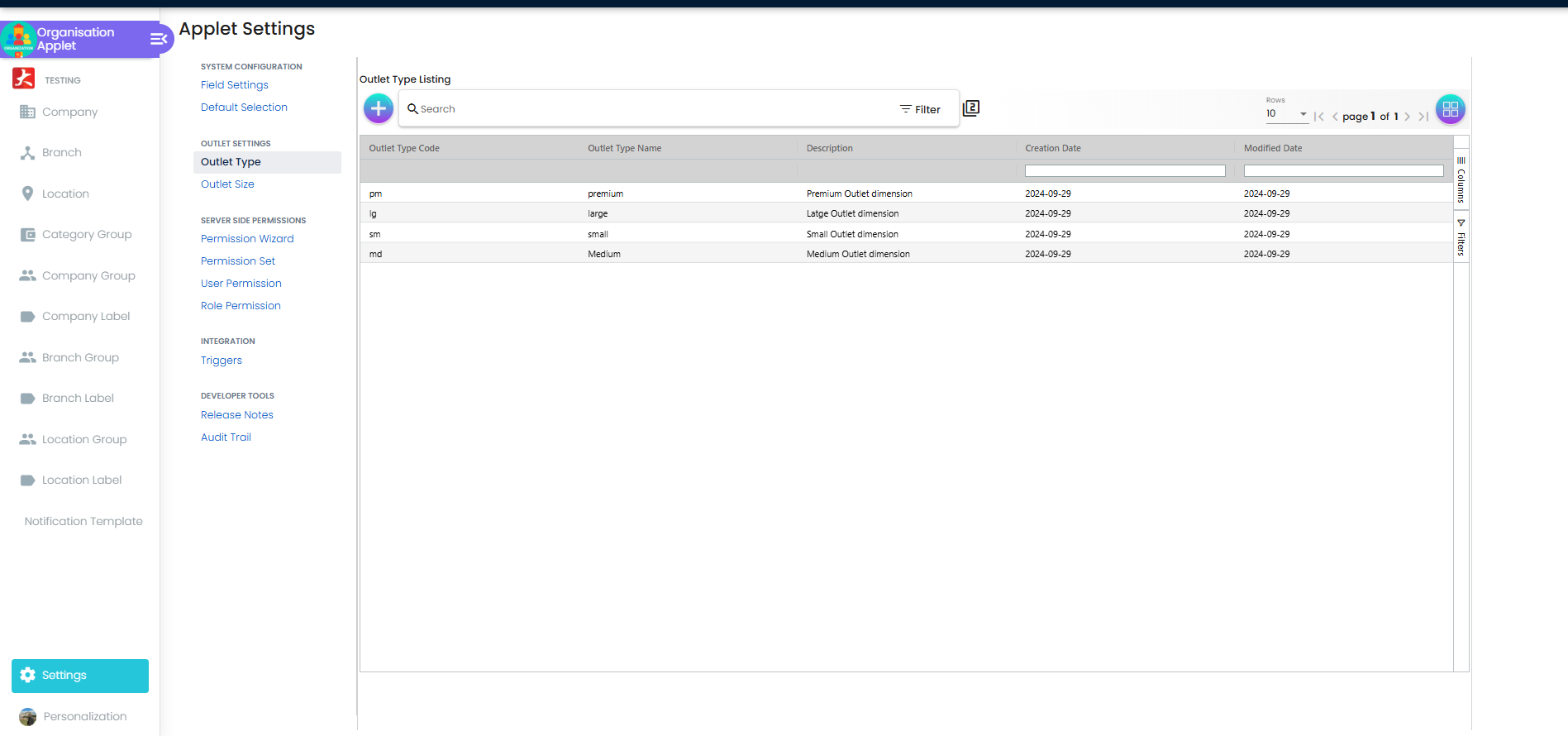
| Upstream | Outlet Type and Outlet Size master lists, and the Outlet Size / Outlet Type assignment on each Location | Organisation Applet — Settings › Outlet Settings, and Location › Edit › Details |
| Upstream | Category Groups, Categories and the Item Category level mapping (Category Group 1…10) that decides which category columns a PDG can use, plus the items that carry those categories | Doc Item Maintenance Applet |
| Upstream | Which outlets (locations) a user may see on the OPDG side | Permission Wizard in this applet’s Settings (TNT_API_DOC_PDG_READ_LOCATION_TGT_GUID, see Feature visibility / permissions) |
| Downstream | OPDG Report (read-only grid, CSV export) | This applet |
| Downstream | Auto-replenishment runs reference OPDG headers and outlet-type/size filters | Backend only — no applet in this wiki exposes them yet |
The CP Commerce Admin page lists PDG under “catalogue”; PDG does not feed the storefront — it is an in-store display-planning tool (see Related applets).
Screens and menus
Sidebar: PDG, OPDG, OPDG Report, File Import, Audit Trail, then Settings and Personalization. The applet opens on the PDG listing.
- PDG › PDG Listing — columns Doc No, Pdg Name, Pdg Code, Created Date, Modified Date, Status. The listing shows only
ACTIVEandPROCESSINGPDGs, so a PDG whose background job failed (statusDELETED) simply disappears. The + button opens Create PDG (Details tab only); clicking a row opens Edit PDG with three tabs:- Details — the PDG header (see Fields).
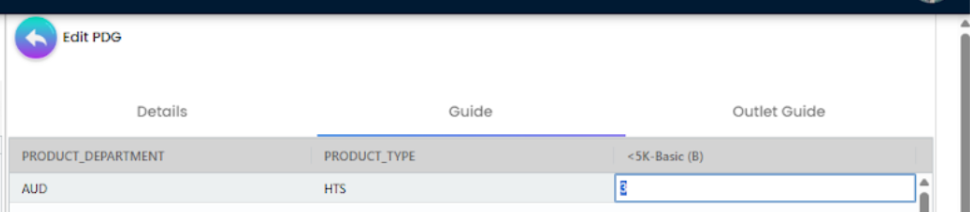
- Guide — a grid with one row per category combination and one column per outlet size – outlet type pair; the cells are the recommended quantities. Each cell saves on edit.
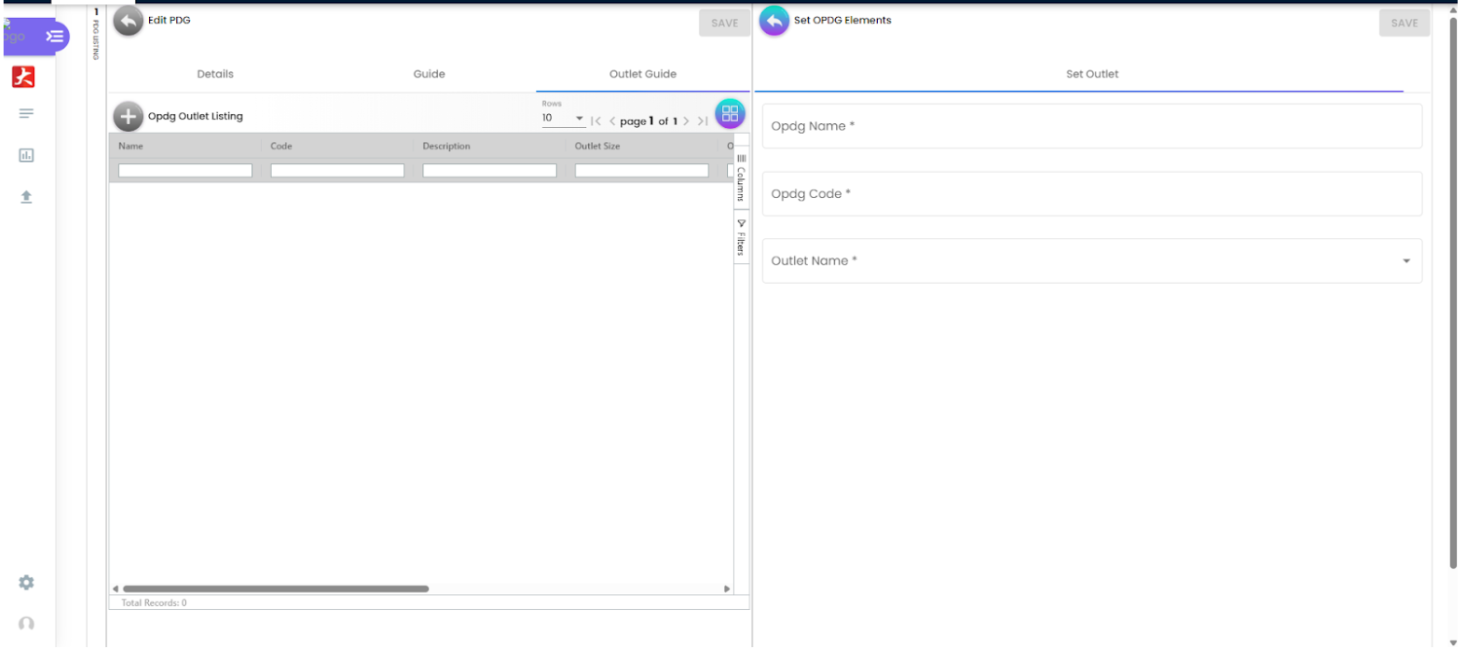
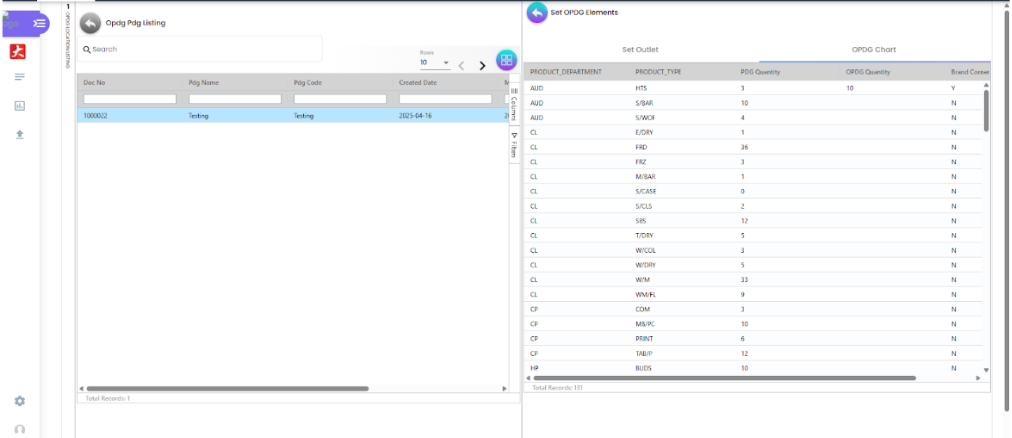
- Outlet Guide — Opdg Outlet Listing: the OPDGs already created for this PDG (Name, Code, Description, Outlet Size, Outlet Type). + opens Set OPDG Elements › Set Outlet; once saved a second tab OPDG Chart appears, and each row’s action opens Edit Opdg with Opdg Chart Details and Opdg By Brands.
- OPDG › Opdg Outlet Listing — one row per location that already has at least one ACTIVE OPDG element and that the user is permitted to see (Outlet Name, Outlet Code, Description, Outlet Size, Outlet Type, Created/Modified Date). + opens Opdg Add; clicking a row opens Opdg Pdg Listing (the PDGs applied at that outlet), then Set OPDG Elements › Set Outlet / OPDG Chart.
- OPDG Report › OPDG Report Listing — flat grid: Outlet Name, Outlet Code, Description, Outlet Size, Outlet Type, Product Department (category level 1), Product Type (category level 2), PDG QTY, OPDG QTY, Brand Corner, Brand, Brand QTY, Created Date, Modified Date. Column filters are text filters; CSV export is enabled.
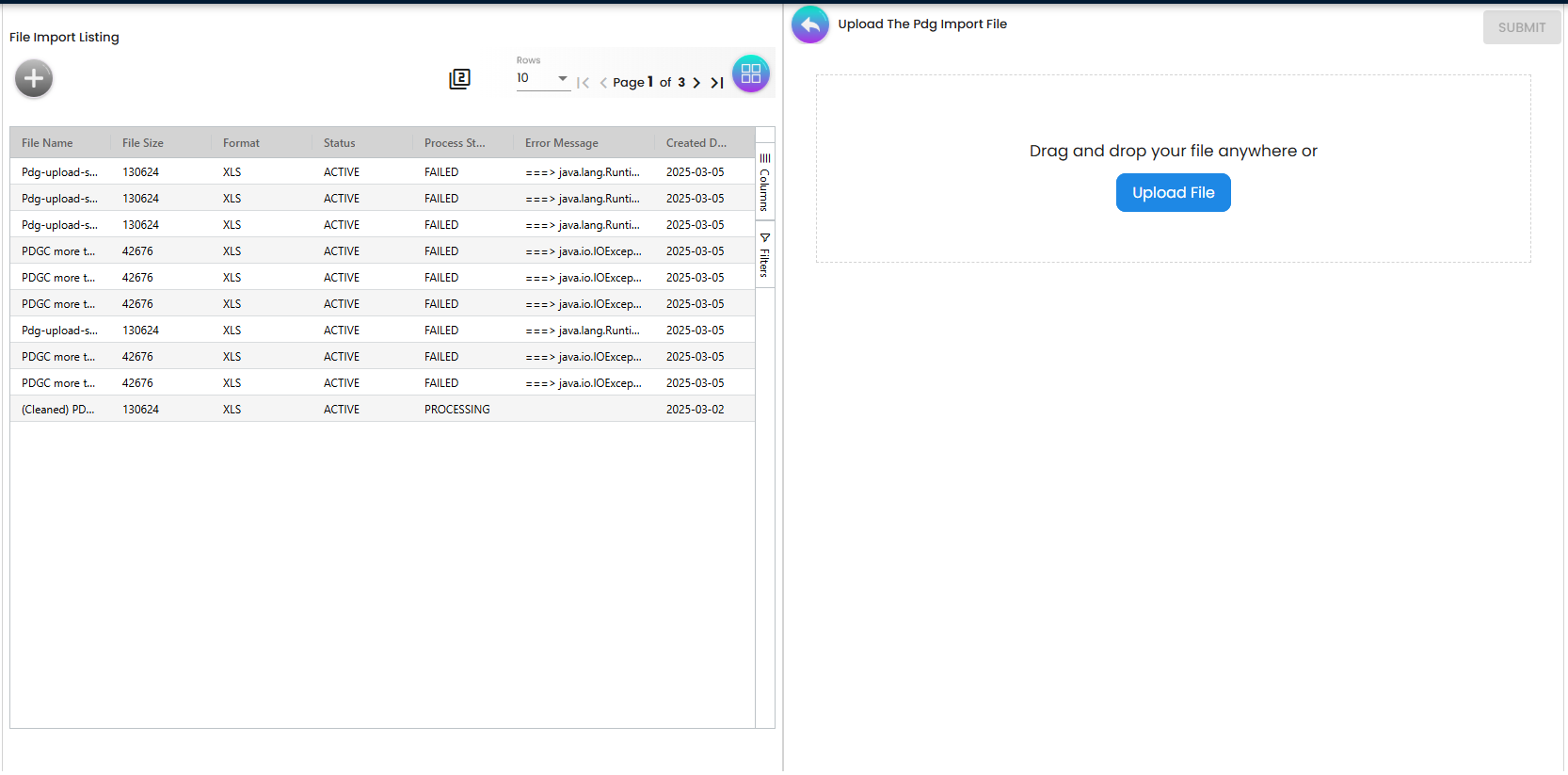
- File Import › File Import Listing — File Name, File Size, Format, Status, Process Status, Error Message, Created Date. + opens Upload The Pdg Import File (drag-and-drop,
.xls/.xlsxonly). Clicking a row opens File Details with Details and Checking (sub-tabs Error and All, one row per spreadsheet line with Validation Error, Category Group 1/2 and their validation errors, Outlet Size / Outlet Type and their validation errors). - Audit Trail — the shared applet audit-trail listing (Table Name, Status, Action Name, Action By, Date Created, Date Updated). Create, update and delete of PDG headers, OPDG headers, OPDG elements and brand rows write audit-trail rows.
- Settings — Application Settings, Default Selection, Printable Format Settings, Email Template, Webhook, Feature Visibility, Permission Wizard, Permission Set, User Permission, Role Permission. Personalization — Default Selection, Sidebar.
Configuration
Before you can use it
- Outlet Type and Outlet Size lists exist — Organisation Applet › Settings › Outlet Settings (code and name required).
- Every outlet location carries an Outlet Size and an Outlet Type — Organisation Applet › Location › Edit › Details. BigLedger builds a PDG’s outlet columns only from ACTIVE locations whose Outlet Size and Outlet Type match the PDG’s filters. A PDG whose filters match no such location fails its background job with “In bl_inv_mst_location outlet_type_guids and outlet_size_guids pair doesn’t exist” and ends up
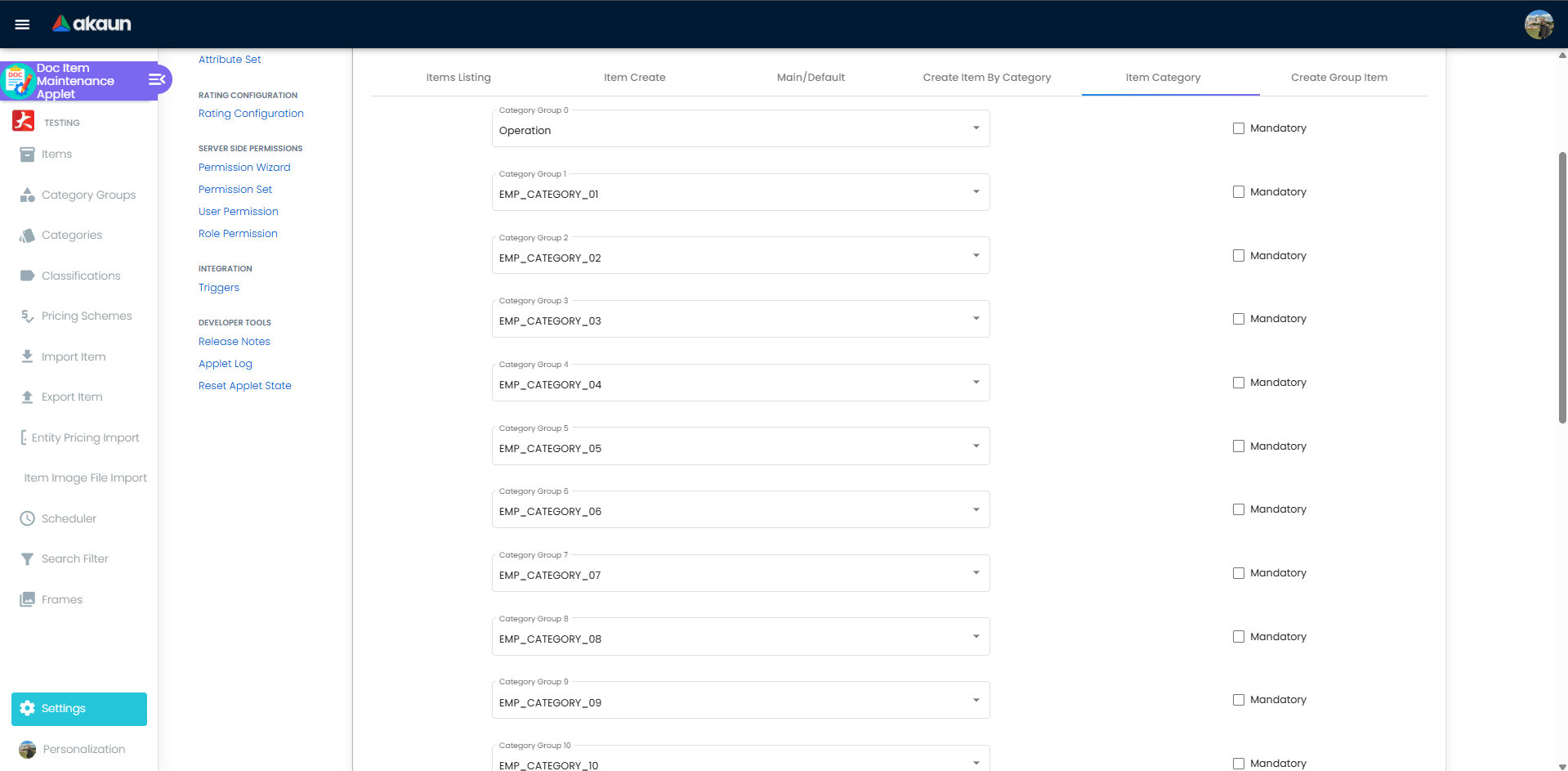
DELETED(invisible in the listing). Nothing on the PDG create screen warns about this. - Category groups mapped in Doc Item Maintenance › Settings › Item Category. The PDG Category Group Filter offers only category groups that appear in that mapping, and the PDG remembers both the group and the item column it maps to.
- Items that carry those categories. The category combinations of a PDG are generated from the items themselves — only combinations used by at least one ACTIVE item become rows in the Guide.
- Outlet users need a location-scoped permission — see Feature visibility / permissions. Without a target list they see every outlet (the applet filters only when the list is non-empty).
- Backend permissions for the
TNT_DM_INV_PDG_*,TNT_DM_INV_OPDG_*,TNT_DM_INV_OUTLET_*API families via Permission Wizard / Permission Set.
Applet settings
Settings › Application Settings opens the shared settings screen that every document applet carries; the applet’s own settings screen is not reachable and its four “Lines Settings” / four “Department Settings” toggles do nothing. Settings saved here are the applet’s tenant-wide master settings. Anyone who can open the applet’s Settings can change them.
The shared screen is not tailored to this applet, so it renders the whole generic sales-document settings catalogue (Main Details, Line Items, Listing, Miscellaneous … tabs). Only the keys below are actually declared, rendered, persisted and consumed by a PDG/OPDG screen:
| Setting (shared screen › tab › panel) | What it controls | Default | Effect when changed |
|---|---|---|---|
HIDE_OPDG_NAME, HIDE_OPDG_CODE (Miscellaneous › PDG Fields) | Whether Opdg Name / Opdg Code are required on Opdg Add (OPDG menu) and shown on Edit Opdg › details reached from PDG › Outlet Guide | off | On: the field is no longer required on Opdg Add, though it stays on screen with its asterisk, and it is hidden on Edit Opdg. The header is still saved with whatever the form holds. Picking the outlet fills both boxes with the location’s own name and code, so most outlets need neither setting: leave the values as they come |
SORT_ORDER (Listing tab) | Column used to order the Opdg Pdg Listing (PDG picker on the OPDG side) when no column sort is active | empty → falls back to the modified date | Changes the default order of that one listing. |
Read at runtime without a control for this applet code: ENABLE_FILTER_BY_TODAYS_TXN (the PDG listings honour it, but the shared screen does not offer it for this applet). All other keys the shared screen offers (HIDE_ARAP_*, HIDE_COSTING_DETAILS, tab-hide keys, etc.) belong to sales-invoice screens this applet does not have and have no effect on any PDG/OPDG screen.
Default Selection renders Default Branch and Default Location and saves DEFAULT_BRANCH, DEFAULT_LOCATION, DEFAULT_COMPANY (plus rounding/group-discount item keys with no control) into the same master settings. No PDG, OPDG, report or import screen reads them; the branch filter it applies to its own drop-down looks for a sales-invoice permission this applet never loads. Personalization › Default Selection is a stub: it neither loads nor saves.
Document behaviour settings
Not a document applet. No status-flow, posting, printable, approval or e-Invoice options exist.
Settings in other applets that control this applet
| Setting | Where it is set | Effect here |
|---|---|---|
| Outlet Type / Outlet Size on a Location | Organisation Applet › Location › Edit › Details | Decides which PDG outlet columns exist and which PDG an outlet can take; missing values keep the outlet out of every PDG (and out of the OPDG Report — see Troubleshooting). |
| Item Category level mapping (Category Group 1…10) | Doc Item Maintenance › Settings › Item Category | Populates the PDG Category Group Filter; the importer rejects a category group that is not in this mapping (“does not exist in Item Category of Doc Item Maintenance Settings”). |
| Category assignment on each item | Doc Item Maintenance › Item › Item Category | Only category combinations carried by at least one ACTIVE item become PDG rows; the importer rejects a row whose pair has no item (“No item exists for the Category combination …”). |
| Brand label | Doc Item Maintenance › Categories | The Opdg By Brands drop-down lists the brand labels already carried by an ACTIVE item that matches the row’s categories; a brand missing there cannot be picked. |
Feature visibility / permissions
- Backend (server-side) permission — the one that matters. On opening, the applet loads the user’s target list for
TNT_API_DOC_PDG_READ_LOCATION_TGT_GUID(“The assignee is allowed to access the target GUID of a location (OPDG) within the PDG Applet”) together withTNT_TENANT_ADMINandTNT_TENANT_OWNER. The OPDG outlet listing and the Opdg Add outlet drop-down keep only locations in that target list. If the target list is empty the filter is skipped and every outlet is visible — the permission narrows, it does not gate. Grant it per role or user through Settings › Permission Wizard with the outlet’s location as target. - Client-side permission definitions: none exist for this applet, and the applet checks none on any of its own screens.
HIDE_*settings therefore have noSHOW_*per-role override here. - Backend API permissions checked on every call:
API_TNT_DM_INV_PDG_UNIQUE_COMBINATION_CREATE/UPDATE(PDG create/update),API_TNT_DM_INV_PDG_HDR_DELETE,API_TNT_DM_INV_OPDG_HDR_INV_OPDG_HDR_CREATE/UPDATE/DELETE,API_TNT_DM_INV_OPDG_ELEMENT_CREATE/UPDATE/DELETE/READ(READ also guards the OPDG Report),API_TNT_DM_INV_OPDG_ELEMENT_BY_BRAND_*,API_TNT_DM_INV_PDG_GUIDE_ELEMENT_*,API_TNT_DM_INV_OUTLET_TYPE_HDR_*,API_TNT_DM_INV_OUTLET_SIZE_HDR_*. A missing one surfaces in the applet as “The user is not authorized to perform this action.” - Settings › Permission Wizard was blank for this applet in builds before 2026-05.
Fields
PDG › Details
| Field | Meaning | Required | Notes / validation |
|---|---|---|---|
| Doc No | Running number, generated by BigLedger | — | Read-only. |
| PDG Name | Name of the guide | Yes | With Doc No and PDG Code, it is all the outlet side sees when it picks a guide on Opdg Add. The OPDG Report does not name the guide at all, so a quantity there cannot be traced back to its PDG by name; make names that say which season or range the guide is for. |
| PDG Code | Code of the guide | Yes | Free text; not checked for uniqueness. |
| Outlet Size Filter, Outlet Type Filter | One or more outlet sizes and outlet types | Yes | The cross product of the two filters, intersected with real locations, gives the Guide columns: a size and type that no location carries produces no column. |
| Effective Date / End Date | The period the guide is meant to apply | No (the control is not required; the importer requires both) | Stored and searchable — they appear as date-range filters on the listing, and that is all. Nothing enforces them: no PDG, OPDG or auto-replenishment process reads either date (checked 2026-09-18, see sources:). An “expired” PDG behaves exactly like a current one. |
| Created date / Modified date | Read-only | Filled on create. | |
| Category Group Filter | Up to three category groups | Yes | Chips chosen from the Doc Item Maintenance Item Category mapping. Changing them on edit regenerates the combinations. |
PDG › Guide
One row per category combination, one column per location combination (labelled size–type). The cell is the recommended quantity, read as a whole number on cell change and saved immediately. The table also has room for an AI-suggested quantity and a previous quantity, but no screen writes them. The combination of row and column is unique per guide.
OPDG › Set Outlet / Opdg Add
| Field | Meaning | Required | Notes / validation |
|---|---|---|---|
| Outlet (Outlet Name) | The location | Yes | Drop-down limited to permitted locations (see permissions). Outlet Size / Outlet Type are shown read-only from the location. |
| Outlet Size / Outlet Type (Opdg Add only) | written to the location | Yes | If the chosen location has no size/type yet, Save writes them to the location (toast “The Outlet Size and Outlet Type in location has been updated”). If the location already has different values, a confirmation dialog warns "…this will delete all OPDGs linked to the location…"; on Yes the applet sets the location’s existing OPDG headers and elements to INACTIVE before writing the new size/type. |
OPDG Chart
One row per category combination of the guide; the category columns that name it are read-only.
| Column | Meaning | Editable | Client-side rules (toasts) |
|---|---|---|---|
| PDG Quantity | The guide’s recommended quantity for this row’s category combination | No | Read live from the guide each time the chart opens; the outlet’s element keeps no copy. A head-office change shows on every outlet’s chart at once, and an OPDG Quantity already above a lowered PDG Quantity stays until someone edits that cell (read, not run). Click-through to Edit Opdg (added 2026-07). |
| OPDG Quantity | the outlet’s own quantity | Yes | Integers only (“Only integer values are allowed”). On the OPDG-menu chart the value must be between 0 and the PDG Quantity and a PDG Quantity must exist (“OPDG Quantity must be between 0 and PDG Quantity (n). Reverted to previous value.”). |
| Brand Corner | Y / N | Yes | Only Y or N (“Brand Corner must be Y or N. Value cleared.”). Switching N→Y opens Opdg By Brands; switching Y→N deletes every ACTIVE brand row of that element (“All brand corner items have been deleted.”). On the OPDG-menu chart, moving to the next row with a Y whose OPDG Quantity is empty is blocked (“Please fill OPDG QUANTITY and Brand Corner in Row n…”). |
Each OPDG element remembers its PDG, its OPDG header, the two combinations and the location; every cell save is written immediately.
Opdg By Brands
| Field | Meaning | Required | Notes / validation |
|---|---|---|---|
| Brand | A label from Doc Item Maintenance | Yes | Drop-down of labels; a brand label that does not exist cannot be selected. |
| Quantity | Yes | On the PDG › Outlet Guide chart the total of the brand rows must equal the OPDG Quantity before Save (“OPDG Quantity does not tally with total Brand Corner quantity. Please fix highlighted rows before saving.”); on the OPDG-menu chart the total must not exceed the OPDG Quantity (“OPDG Quantity (n) cannot be less than the total Brand Corner quantity (m)…”). Both are client-side checks; the backend validates only that the brand label, when one is sent, and the element exist and the status is set. |
File Import
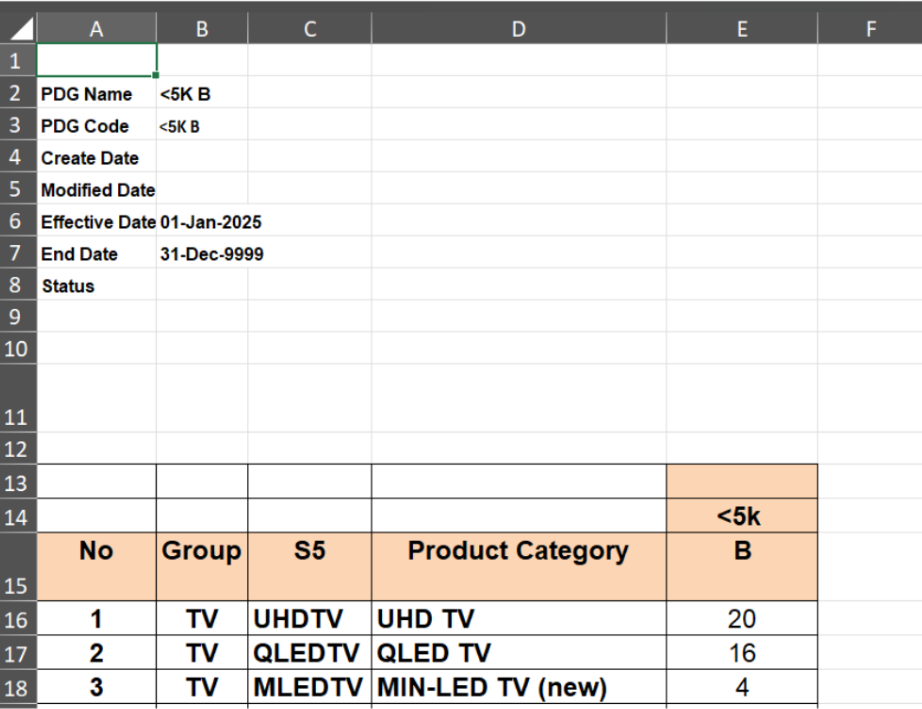
The upload form has no fields other than the file (.xls/.xlsx; the delimiter control belongs to the CSV template leftover and is not sent). The importer reads fixed cells:
| Cell | Content | Rule |
|---|---|---|
| B2 | PDG Name | required (“No PDG Name Provided…”) |
| B3 | PDG Code | required |
| B4 / B5 | Create / Modified date | optional, dd-MMM-yyyy |
| B6 / B7 | Effective / End date | required, dd-MMM-yyyy (e.g. 01-Jan-2025, 31-Dec-9999) |
| B15 / C15 | Category group 1 / category group 2 codes | required; must differ ("…B15 and C15 cannot be the same"); each must exist and be in the Item Category mapping |
| E14 | Outlet Size code | required; must exist |
| E15 | Outlet Type code | required; must exist; a location with that size and type must exist |
| B16… / C16… | category 1 / category 2 codes or names per row | must exist under their group; the pair must be carried by at least one ACTIVE item |
| E16… | quantity | required (numeric or text) |
One workbook = one PDG for one size–type pair. Rows that fail validation are listed under Checking › Error with the message text above; any error sets Process Status FAILED and deletes the half-created PDG header.
Lifecycle and effects
Not a generic document. There is no journal posting, no stock movement and no open queue for PDG or OPDG; saving checks only that the referenced records exist and that a status is set. Statuses are the generic values (ACTIVE, PROCESSING, INACTIVE, DELETED).
PDG create / update is asynchronous. Saving a PDG stores the header with status PROCESSING and hands the rest to a background job that runs at once. The job:
- writes the outlet-type and outlet-size filter links (update: diffs them);
- generates the category combinations from items (update: delete-and-regenerate);
- generates the location combinations = distinct (outlet size, outlet type) of ACTIVE locations matching both filters — fails if none;
- generates one guide element per location × category combination that does not exist yet — and, for every ACTIVE OPDG of this PDG, a matching OPDG element, so existing outlets pick up new rows;
- on success sets the header
ACTIVE; on any failure sets itDELETED. Quantities already typed into removed combinations are not carried over.
OPDG create is asynchronous too. Saving an OPDG stores the header as PROCESSING and a background job copies every ACTIVE guide element of the PDG into the outlet’s OPDG, then sets the header ACTIVE. Elements are created without quantities — the outlet starts from empty OPDG cells, not from the PDG numbers.
Edits — guide cells, OPDG cells and brand rows are saved immediately and each write an audit-trail row.
Delete PDG (listing action) is a permanent delete. Its guide elements and OPDG elements go with it, but an OPDG header still points at the PDG, so a PDG that already has an OPDG header cannot be deleted — the database rejects it and the applet shows its generic error toast. Delete the OPDG headers first (through the API; OPDG elements referencing the header are not removed with it).
What the applet reads elsewhere: locations (and writes their Outlet Size / Outlet Type from Opdg Add), the Outlet Type and Outlet Size lists, the Item Category level mapping, label lists and labels, and item headers. It writes nothing to inventory balances, documents or the general ledger.
Related applets
- Organisation Applet — owns the Outlet Type / Outlet Size lists and the per-location assignment that every PDG column and every OPDG depends on; Opdg Add writes back to the location.
- Doc Item Maintenance Applet — owns category groups, categories, the Item Category level mapping and the brand labels; PDG rows exist only for category pairs that real items carry.
- CP Commerce Admin Applet — links here as catalogue data; there is no data flow between the two applets (PDG is an in-store display plan, not a web catalogue).
Troubleshooting
| Symptom | Cause | Fix |
|---|---|---|
A new PDG never leaves PROCESSING, or vanishes from the listing after a while | The background job failed — most often no ACTIVE location has both the chosen Outlet Size and Outlet Type, so location combinations cannot be generated; the job then sets the header DELETED, which the listing hides. | Assign Outlet Size/Type on the outlets first (Organisation Applet › Location), or widen the filters; re-create the PDG. Ask support to check the job log if it recurs. |
| Guide tab shows fewer rows than expected, or a category is missing | Only category pairs carried by at least one ACTIVE item are generated. | Assign the categories on the items in Doc Item Maintenance, then save the PDG again (update regenerates the combinations). |
| An outlet is missing from the OPDG Report / OPDG outlet listing although its manager “set it up” | The location’s Outlet Size / Outlet Type is empty or points to a size/type that is not ACTIVE; the report needs both. Also: an outlet appears in Opdg Outlet Listing only after it has at least one ACTIVE OPDG element. | Fix the location’s Outlet Size/Type in the Organisation Applet (or via Opdg Add, which writes them) and re-create the OPDG. |
| Outlet user sees every outlet, or none | TNT_API_DOC_PDG_READ_LOCATION_TGT_GUID has no target list (→ no filtering) or a target list without their location. | Set the permission with the right location targets in Settings › Permission Wizard; the filter is client-side only. |
| Permission Wizard page is blank | Older builds lacked it. | Redeploy a build after 2026-05. |
| Opdg By Brands quantities “do not save” after switching Brand Corner to Y | In older builds the brand rows and the OPDG cell were saved out of order, or the chart was not reloaded. | Use a build after 2026-07-08; enter the OPDG Quantity first, then Y, then the brand rows whose total equals (PDG › Outlet Guide chart) or does not exceed (OPDG-menu chart) the OPDG Quantity. |
| Brand missing from the Opdg By Brands drop-down | The brand is not a label in Doc Item Maintenance. | Create the brand label, then pick it. |
| Import row fails with “Category Group … does not exist in Item Category of Doc Item Maintenance Settings” | B15/C15 name a category group that is not mapped to a Category Group 1…10 level. | Map it in Doc Item Maintenance › Settings › Item Category. |
| Import fails with “Outlet Type and Outlet Size does not exist for any location” | E14/E15 codes exist but no location carries that pair. | Assign the pair to at least one location. |
| Import fails with “No item exists for the Category combination …” | The row’s category pair is not carried by any ACTIVE item. | Fix the items or remove the row. |
Whole import fails with a java.lang.RuntimeException in Error Message | A required cell (B2, B3, B6, B7, B15, C15, E14, E15, or a row’s category/qty) is blank, or a date is not dd-MMM-yyyy. | Compare the workbook with the template layout above; cell positions are fixed. |
| Cannot delete a PDG (“error” toast) | The PDG has OPDG headers, and the delete is permanent, so the database refuses it. | Delete or inactivate the OPDG headers first. |
| PDG cell edits rejected with “The user is not authorized to perform this action.” | Missing API_TNT_DM_INV_PDG_GUIDE_ELEMENT_UPDATE (or the OPDG-element / brand equivalents). | Add the permission set to the role. |
Related documentation
- Inventory module
- Organisation Applet — Outlet Type / Outlet Size and Location Edit
- Doc Item Maintenance Applet — Category Groups, Item Category mapping