Seller Admin Applet
Purpose and Overview
The Seller Admin Applet is a specialized management system designed for marketplace owners and administrators (similar to Shopee or Lazada). It facilitates the management of sellers registered on the platform, allowing admins to oversee merchant accounts, allocate sales orders, and manage fulfillment workflows.
Key Features Overview
Who Benefits from This Applet?
Marketplace Administrators:
- Oversee and manage merchant account onboarding and configurations.
- Allocate product order lines to specific sellers via the SO Processing Queue.
- Monitor the fulfillment status of all orders across the entire marketplace.
Sellers & Merchants:
- Manage orders allocated to them by the marketplace admin.
- Handle picking, packing, and delivery of products.
- Maintain their seller profiles and product mappings.
Operations Teams:
- Efficiently process allocated orders via dedicated fulfillment queues.
- Optimize delivery with batch printing and item management.
What Problems Does This Solve?
The Fragmented Marketplace Problem: Managing multiple sellers and high volumes of orders can be chaotic without a central system. Common issues include:
- Difficulty in allocating orders to the right sellers.
- Inefficient fulfillment tracking across various merchant accounts.
- Lack of a unified view for marketplace-wide sales and delivery.
The Seller Admin Applet Solution:
- Unified Admin Interface - Manage marketplace merchants and order allocations in one place.
- Seller Account Allocation - A specialized tool (SO Processing Queue) to distribute order items to sellers.
- Automated Seller Orders - Automatically generate seller-specific orders once allocation is complete.
- Batch Fulfillment Tools - Mass print labels and process multiple orders across different sellers.
- Scalable Merchant Management - Easily onboard and manage a growing network of sellers.
Key Features Overview
Key Concepts
The Seller Admin Applet operates on a structured framework that connects marketplace orders to individual sellers:
| Component | Definition | Practical Example |
|---|---|---|
| Internal Sales Order (ISO) | The core product order received by the marketplace. Focuses on item details and delivery requirements. | An order for 50 units of “Wireless Mice” received via the platform. |
| Merchant Account | The seller entity registered on the marketplace responsible for fulfilling orders. | “TechDistro Inc.” registered as a seller for electronics. |
| SO Processing Queue | The stage where marketplace admins allocate order items to specific sellers (Seller Account Allocation). | Admin selecting which seller will fulfill a specific order line. |
| Seller Order | An order automatically generated for a specific seller after allocation is complete. | A fulfillment request sent to “TechDistro Inc.” for 10 Mice. |
The Order Lifecycle
Internal Sales Order Received
│
└── SO Processing Queue ──→ WHO fulfills which items?
    │
    └── Seller Account Allocation ──→ Assign items to Merchants
        │
        └── Seller Order Created ──→ AUTO-GENERATED for the seller
            │
            └── Seller Fulfillment ──→ Pick-Pack-Ship workflow
                │
                └── Delivery ──→ Order marked as fulfilled
Quick Start Guide
Get your seller operations running smoothly with these essential workflows.
For Marketplace Admins: Allocate Orders (Seller Account Allocation)
Goal: Distribute items from incoming Sales Orders to the appropriate sellers.
- Navigate: Go to SO Processing Queue (or Marketplace SO Line Queue).
- Review Lines: View all pending Sales Order lines that need allocation.
- Allocate: Select the product and quantity, then choose the Merchant (Seller Account) to fulfill it.
- Confirm: Click Allocate. The system will automatically create a Seller Order for that merchant.
- Monitor: Track the status of the allocation to ensure no orders are left unassigned.
For Sellers: Process the Seller Order
Goal: Efficiently pack and ship orders allocated to you.
- Check Queue: Go to Seller Order Listing to see orders assigned to your account.
- Select & Print: Select the orders and use Batch Printing to generate labels or invoices.
- Pack & Ship: Verify items and update the status to Process or Deliver.
- Verification: Check Delivery Items to ensure the fulfillment is recorded correctly.
For Admins: Initial System Setup
Goal: Configure the applet for first-time use in 6 steps.
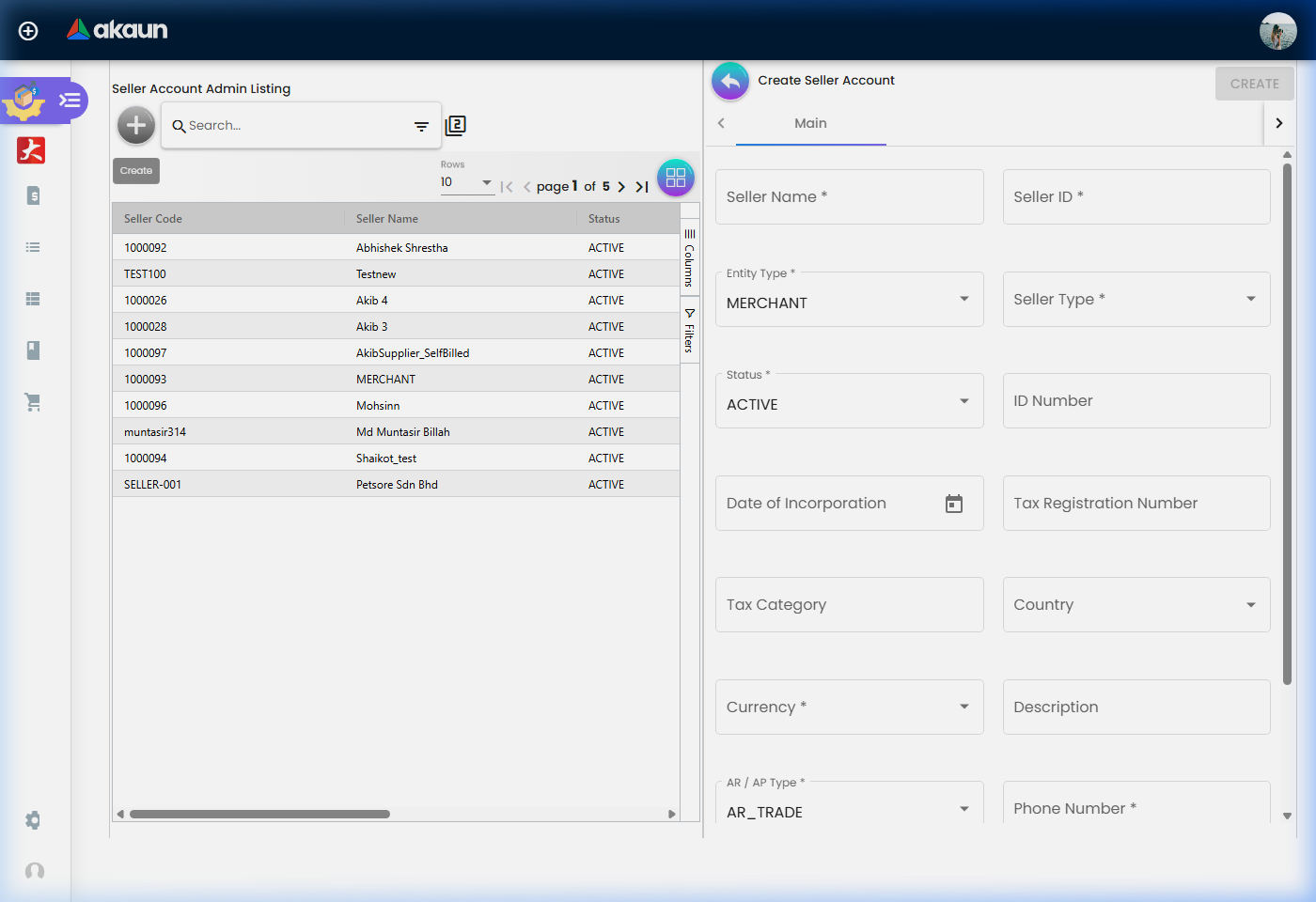
- Merchant Onboarding: Go to Merchant Account Admin → Create profiles for all registered sellers.
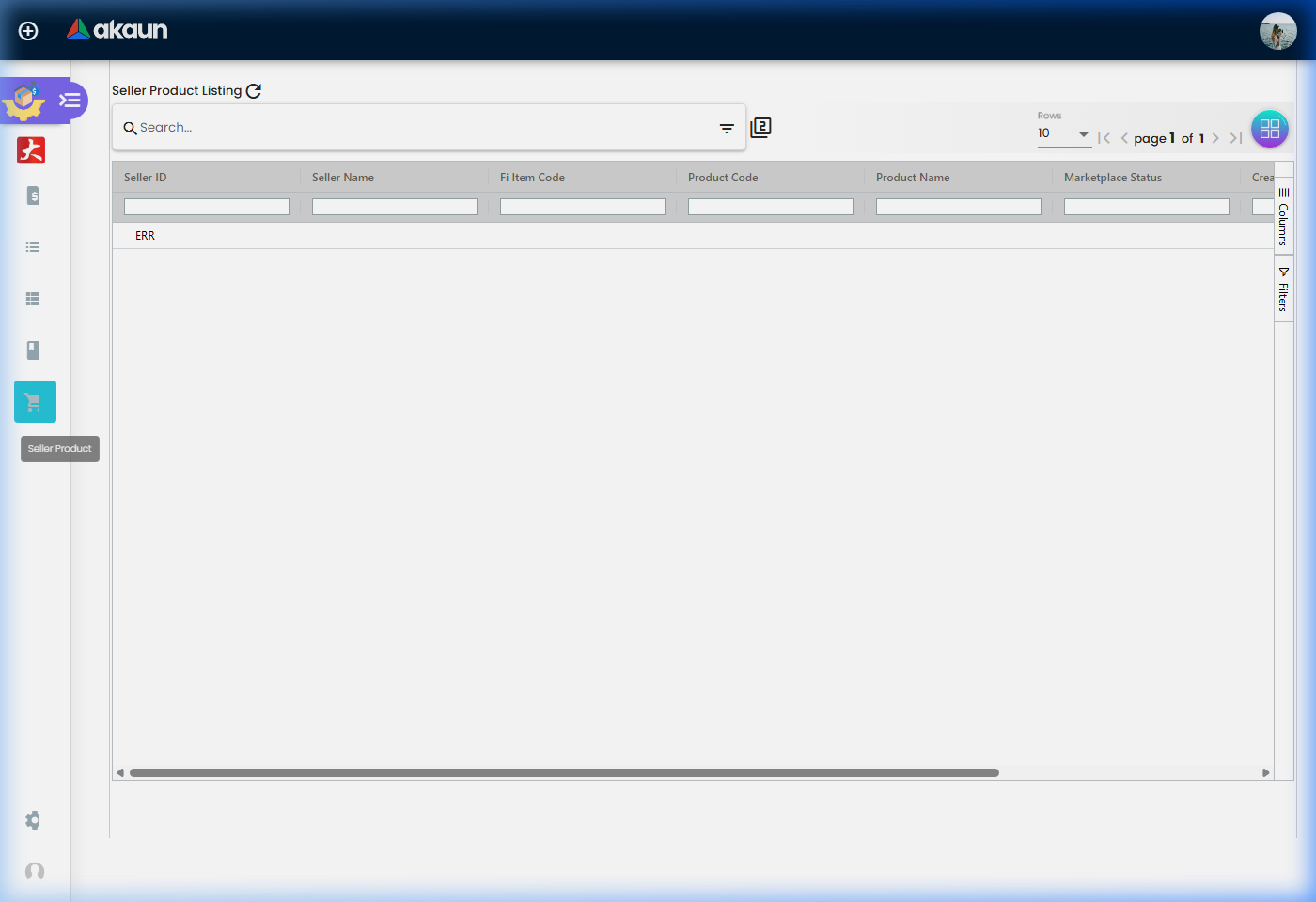
- Product Mapping: In Seller Product Management, link marketplace items to internal product masters.
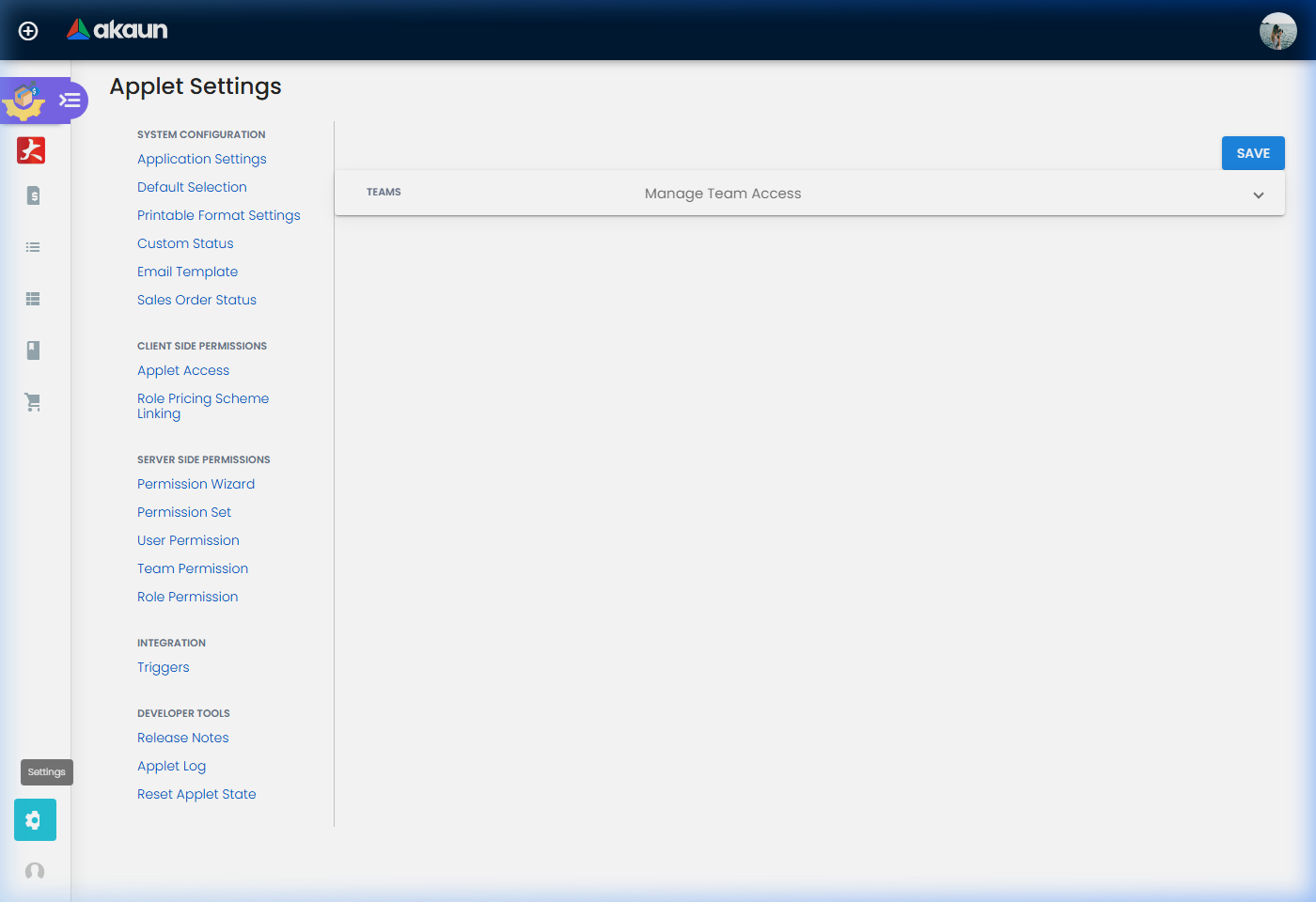
- Define Workflows: Go to Settings > Sales Order Status to customize fulfillment stages.
- Set Permissions: Define roles for Marketplace Admins (Allocation) vs. Sellers (Fulfillment) in Settings > Role Permission Listing.
- Print Setup: Customize document layouts in Printable Format Settings for Invoices and Packing Slips.
Internal Sales Orders
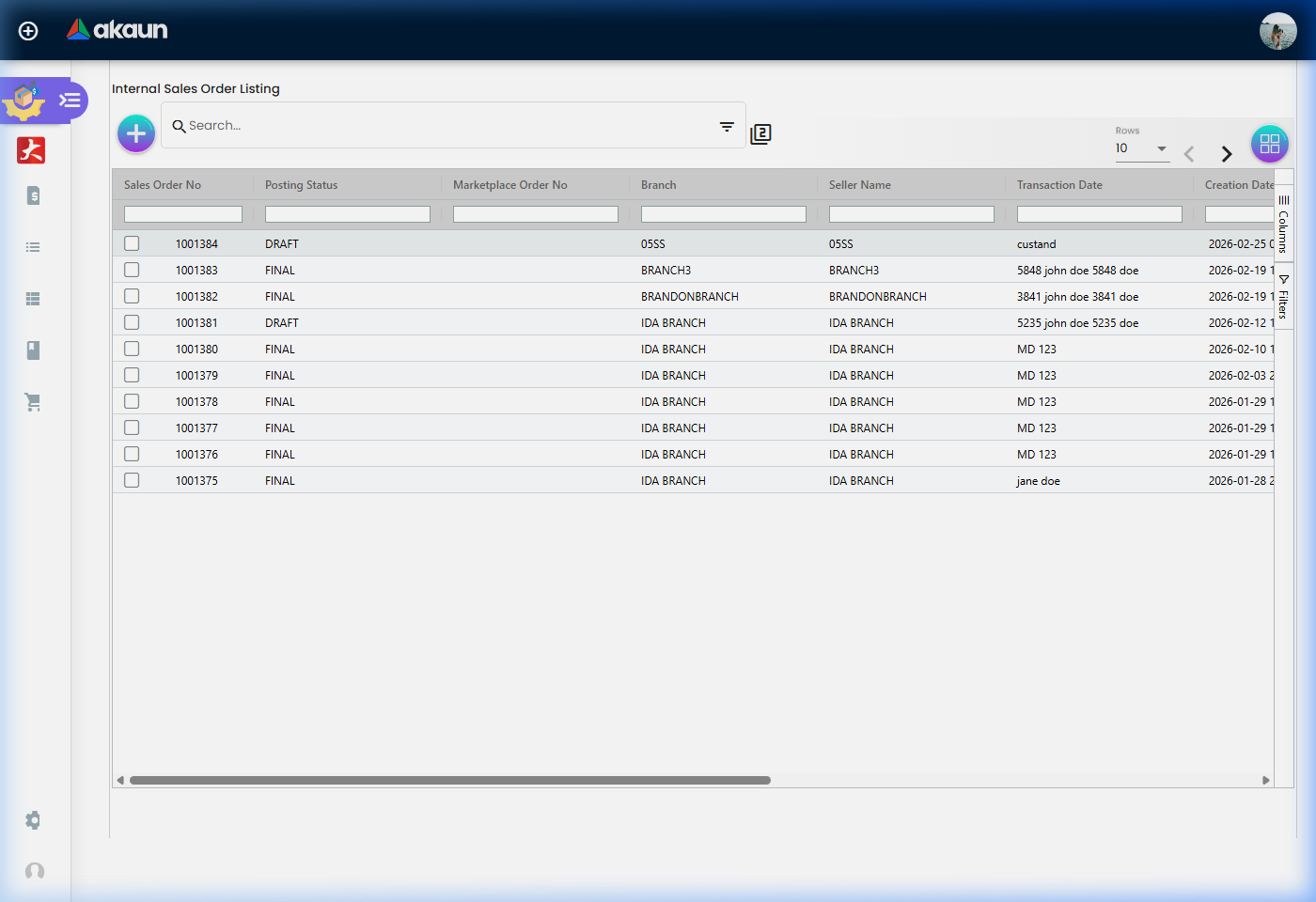
The Internal Sales Order (ISO) module serves as the repository for orders received from the Internal Sales Order Applet.
- Order Repository: View and manage all incoming Sales Orders in one place.
- Order Details: Click on any SO in the listing to redirect to the Edit Internal Sales Order page for detailed review.
- Product & Delivery Focus: Monitor product lines and delivery requirements for each order.
- Attachments: Securely store POs, receipts, and other documentation related to the marketplace transaction.
- Logistics Tracking: View Permit Numbers and Tracking IDs for specialized shipping.
Merchant Account Admin
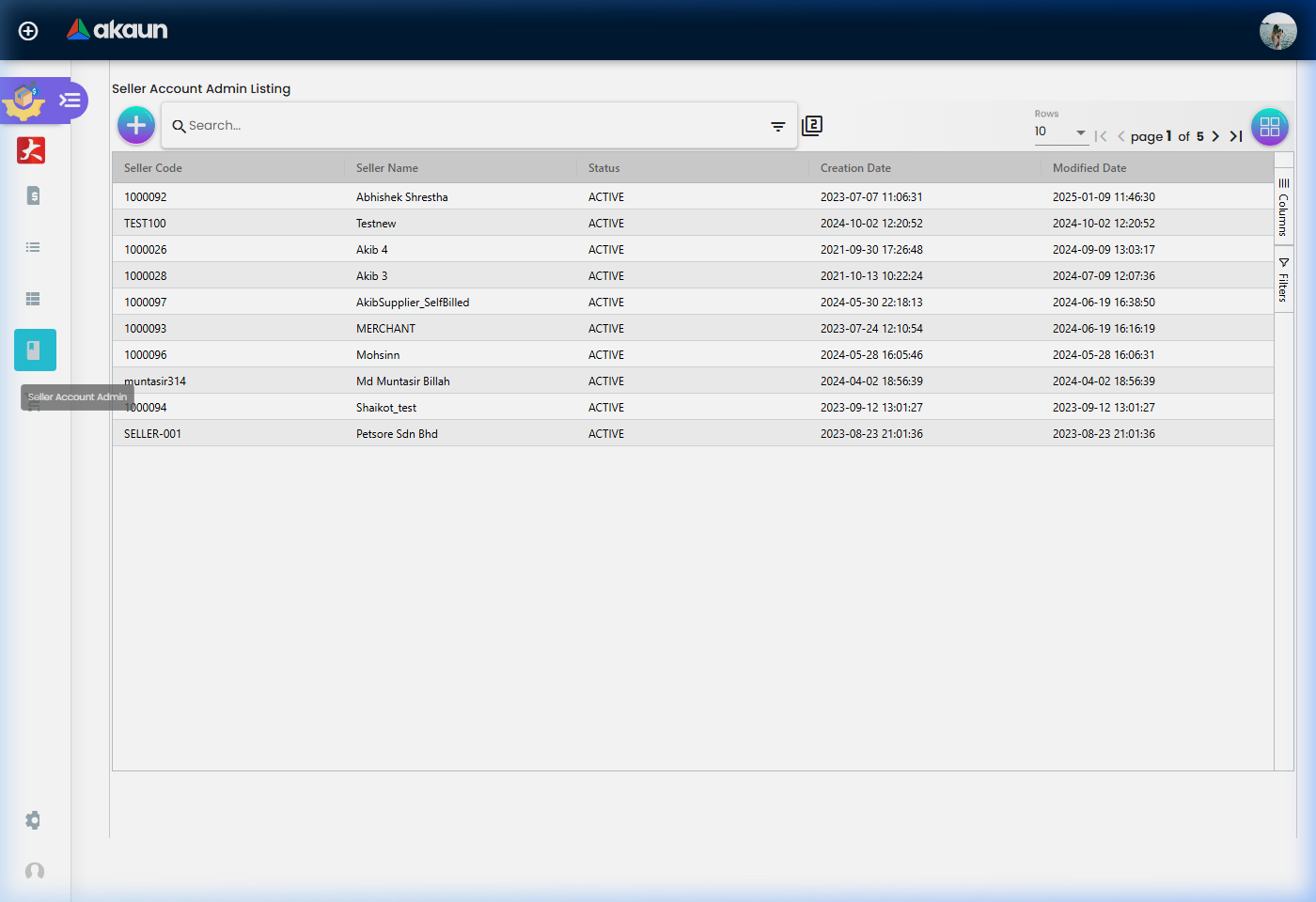
Manage the “Who” of your operations. The Merchant Account Admin section (also referred to as Customer/Merchant Container) allows you to:
- Profile Management: Maintain merchant contact info, business addresses, and branches.
- Financial Settings: Configure payment terms, credit limits, and branch-specific settings.
- Logistics Mapping: Link merchants to specific shipping locations and delivery regions.
SO Processing Queue (Seller Account Allocation)
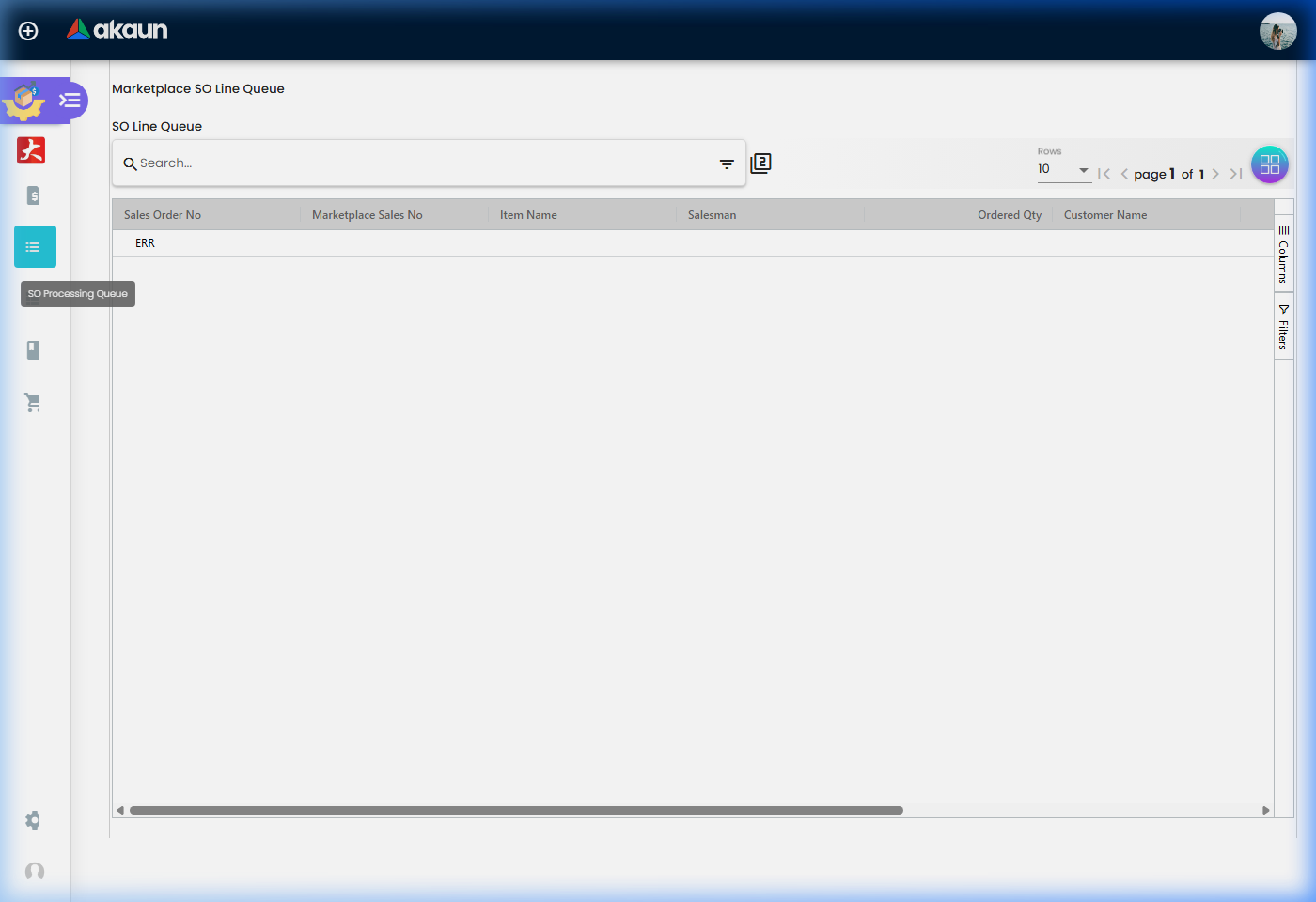
The SO Processing Queue (also known as Marketplace SO Line Queue) is where marketplace admins manage order distribution.
- Seller Account Allocation: The core process of choosing which products and quantities are allocated to which seller account.
- Item-Level Control: Admins can split a single Sales Order across multiple sellers if necessary.
- Auto-Creation: Once allocation is confirmed, the system automatically generates Seller Orders for the respective merchants.
Seller Order Listing
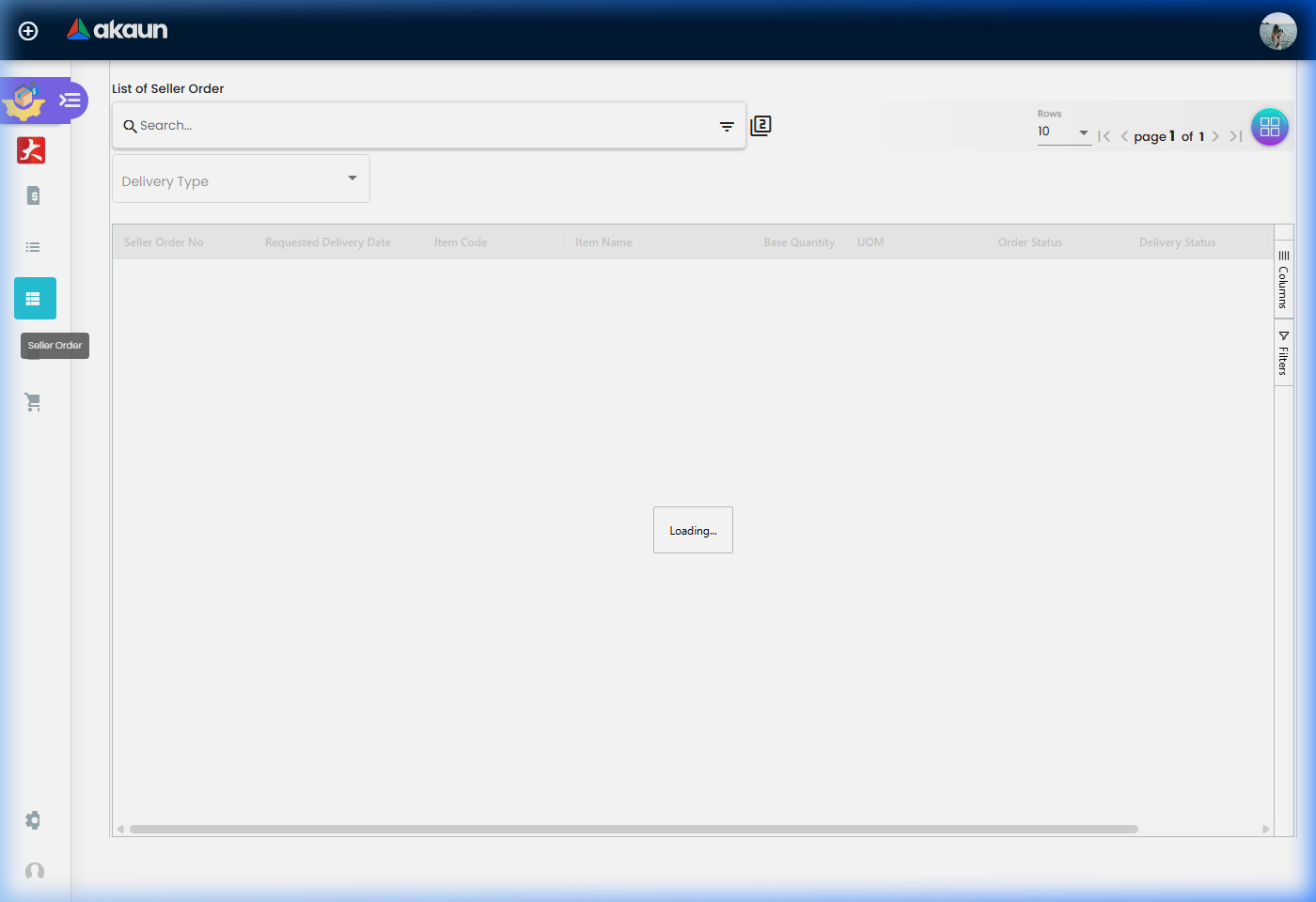
This section displays the orders assigned to sellers for fulfillment.
- Fulfillment Tracking: Monitor orders as they move through “Need to Pick”, “Need to Pack”, and “Ready to Ship” states.
- Batch Processing: Sellers can select multiple orders to mass-update statuses or print documents.
Seller Product Management
Configuration & Settings
Customise the applet to match your organizational needs.
Field Settings
Control what information is visible and required during order creation.
- Custom Fields: Add industry-specific data points to your Sales Orders.
- Visibility Rules: Hide complex fields from standard users to simplify UI.
Email Templates
Define the automated communications sent to merchants and customers.
- Order Confirmation: Sent when an ISO is created.
- Shipping Notification: Sent when an order is marked as delivered.
Printable Format Settings
Configure the layout of your physical documents.
- Invoices & Receipts: Customize logos, headers, and footers.
- Packing Slips: Optimize the layout for warehouse picking efficiency.
FAQ
Q: What is the SO Processing Queue?
A: It is a tool for marketplace admins to allocate Sales Order items to specific sellers. This process is called Seller Account Allocation.
Q: Does allocating an order create a new document?
A: Yes, once the marketplace admin allocates an item to a seller, the system automatically creates a Seller Order for that merchant.
Q: Can I split one Sales Order among multiple sellers?
A: Yes, the SO Processing Queue allows you to allocate different products or quantities from a single order to different seller accounts.
Q: What is the difference between an Internal Sales Order and a Seller Order?
A: An Internal Sales Order is the original order received by the marketplace. A Seller Order is the specific portion of that order allocated to an individual merchant for fulfillment.
Q: How do I edit an Internal Sales Order?
A: Navigate to the Internal Sales Order listing and click on the order. You will be redirected to the Edit Internal Sales Order page.
Q: Why is there no “Create” button in the Internal Sales Order section?
A: The Seller Admin Applet acts as a listing and allocation tool. New Sales Orders should be created in the Internal Sales Order Applet before appearing here for allocation.
Q: Can I customize the fields shown in the ISO creation form?
A: Yes, go to Settings > Field Settings to enable, disable, or make fields mandatory depending on your business requirements.
Q: How do I configure my printer for batch printing labels?
A: Printer name and format are managed in Settings > Printable Format Settings. Ensure your local print service is running and correctly linked to the applet’s output.
Q: Can I track who modified a merchant’s settings?
A: Yes, refer to the Audit Trail section under Settings to see a full history of changes, including the user, timestamp, and specific field modifications.