Shopping Cart Applet
Purpose and Overview
Who Benefits from This Applet?
Employees:
- Request items needed for work
- Track requisition status
- View order history
Department Heads:
- Approve team requisitions
- Monitor department spending
- Control budget allocation
Procurement Teams:
- Process approved requisitions
- Manage vendor orders
- Track fulfillment status
Finance Teams:
- Monitor internal spending
- Allocate costs to departments
- Track budget utilization
What Problems Does This Solve?
Traditional Requisition Challenges:
- Paper-based request forms
- Lost or delayed approvals
- No visibility into request status
- Difficult to track spending patterns
The Shopping Cart Solution:
- Digital requisitions - Submit requests from anywhere
- Automated approval routing - Right approvers, right order
- Real-time tracking - Know where your request stands
- Budget integration - Automatic spending controls
Key Features Overview
Key Concepts
Requisition Flow
Browse → Add to Cart → Checkout → Pending Approval → Approved → Fulfilled
   │          │           │             │               │           │
   │          │           │             │               │           └── Items delivered
   │          │           │             │               └── Ready for processing
   │          │           │             └── Awaiting manager
   │          │           └── Submitted for approval
   │          └── Collecting items
   └── Find needed items
Quick Start Guide
For Employees: Request Items
Goal: Submit a requisition for office supplies
- Browse: Navigate to Catalog and find items
- Add to Cart: Click “Add” for each needed item
- Review Cart: Check quantities and adjust if needed
- Checkout:
- Add Purpose/Reason
- Select Delivery Location
- Submit for approval
For Managers: Approve Requests
Goal: Review and approve team requisitions
- Check Notifications: View pending approvals badge
- Review Request: Click to see details and items
- Verify Budget: Ensure funds are available
- Approve/Reject: Take action with comments
Shopping Cart
Your virtual cart to collect items before submitting:
- Add/remove items
- Adjust quantities
- Save for later
- View estimated costs
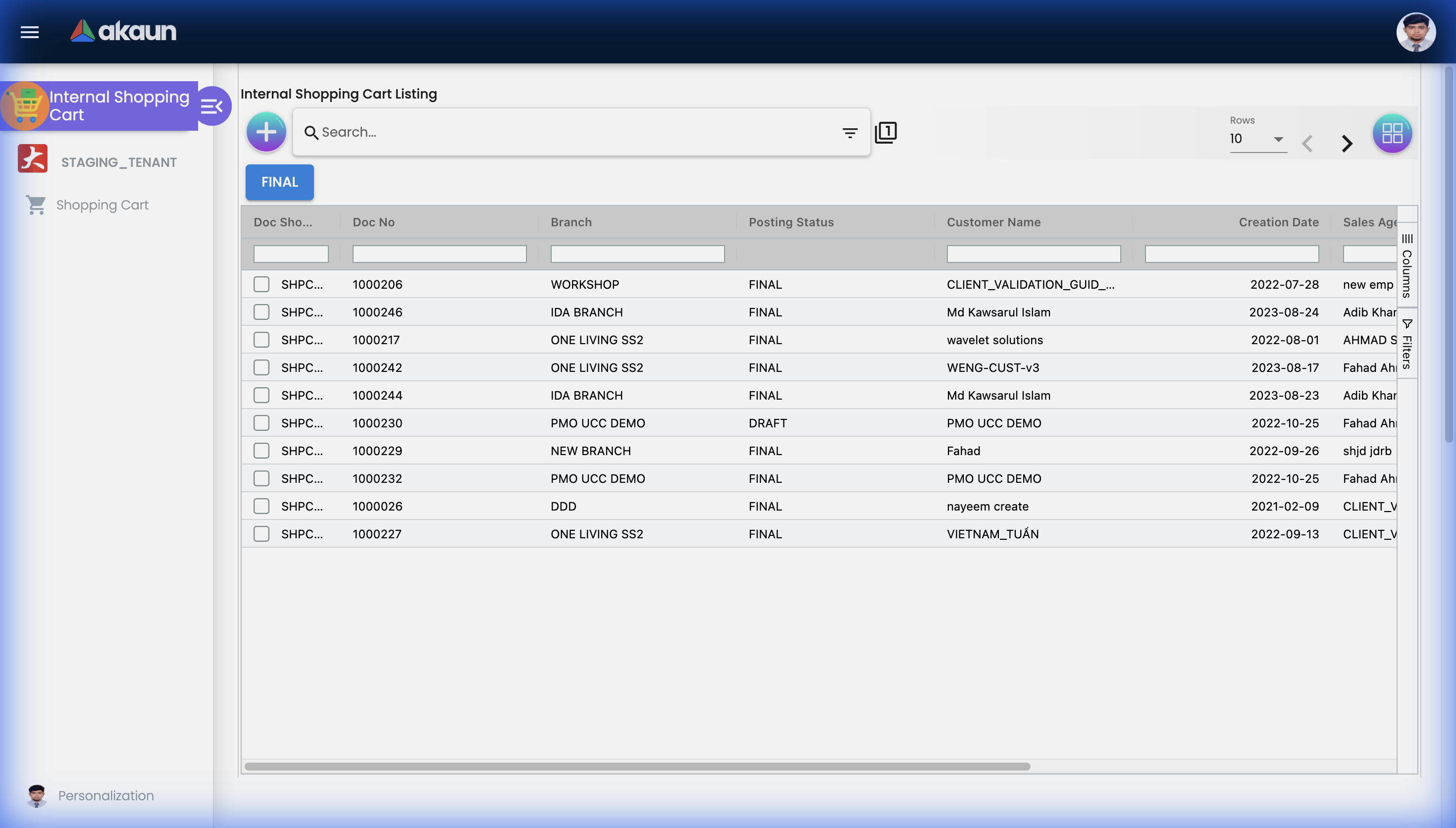
Shopping Cart Listing
View all shopping cart documents with document number, branch, posting status, and creation date.
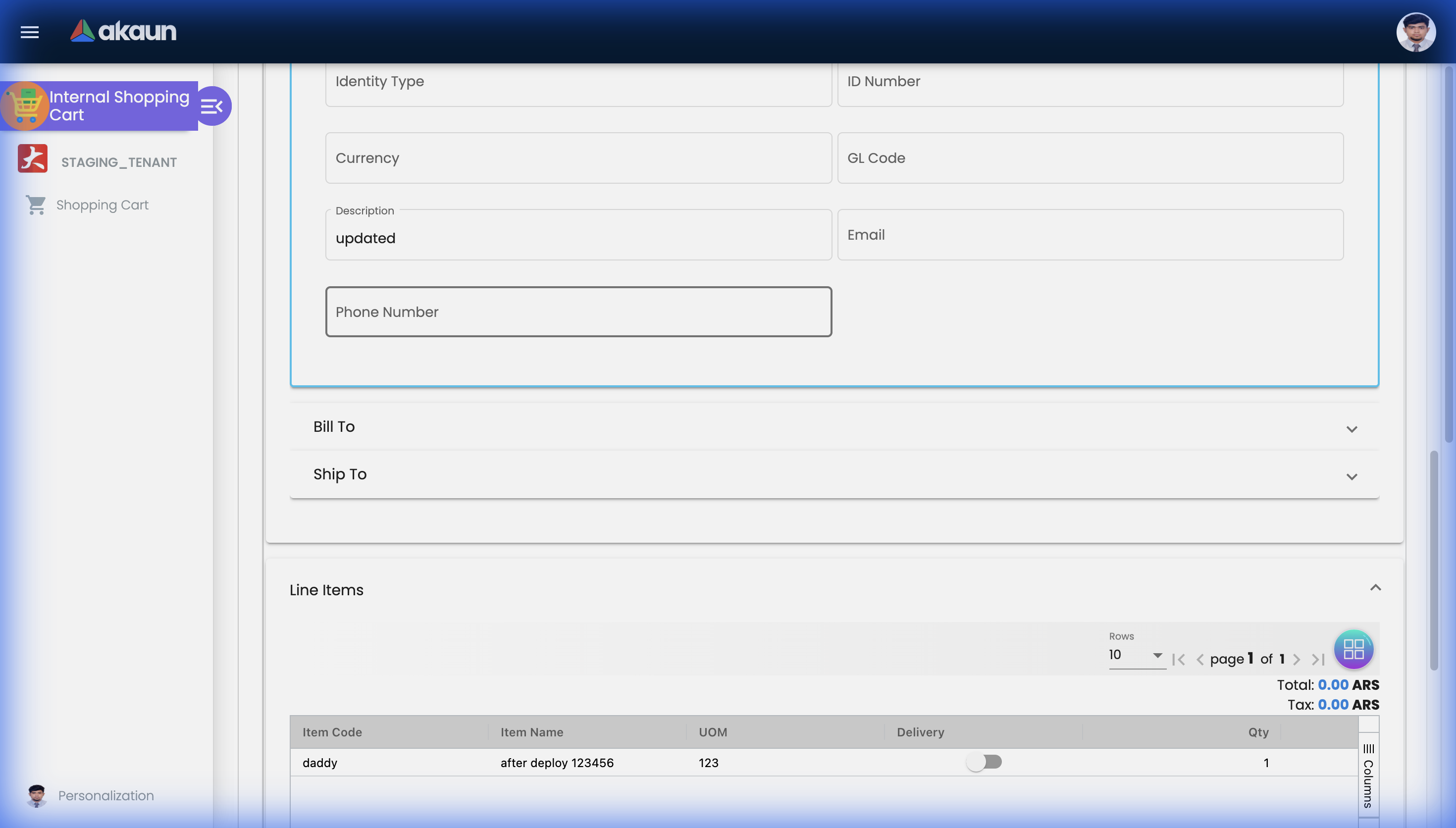
Edit/View Shopping Cart
Click on any cart to view or edit its details.
Main Details
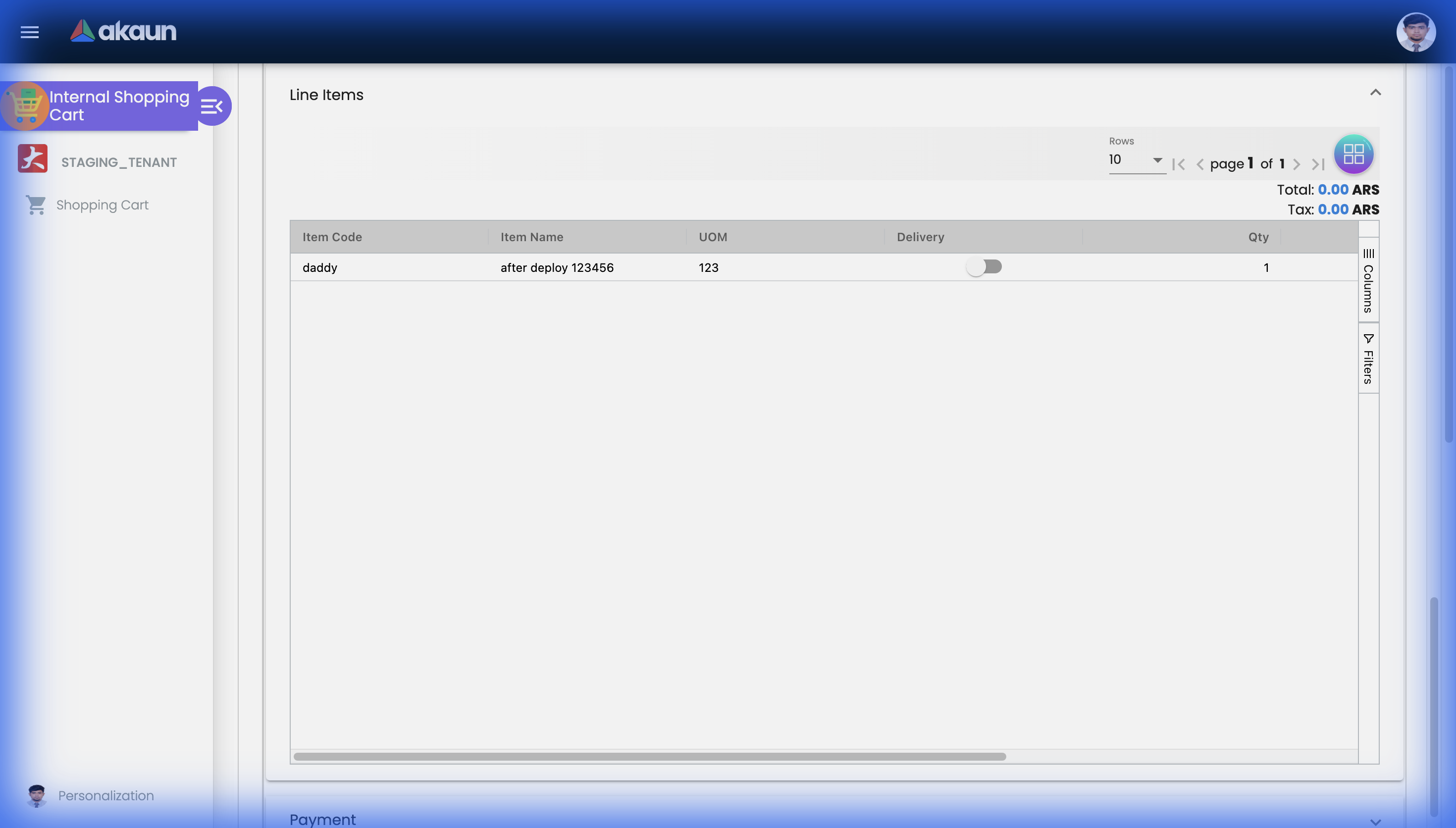
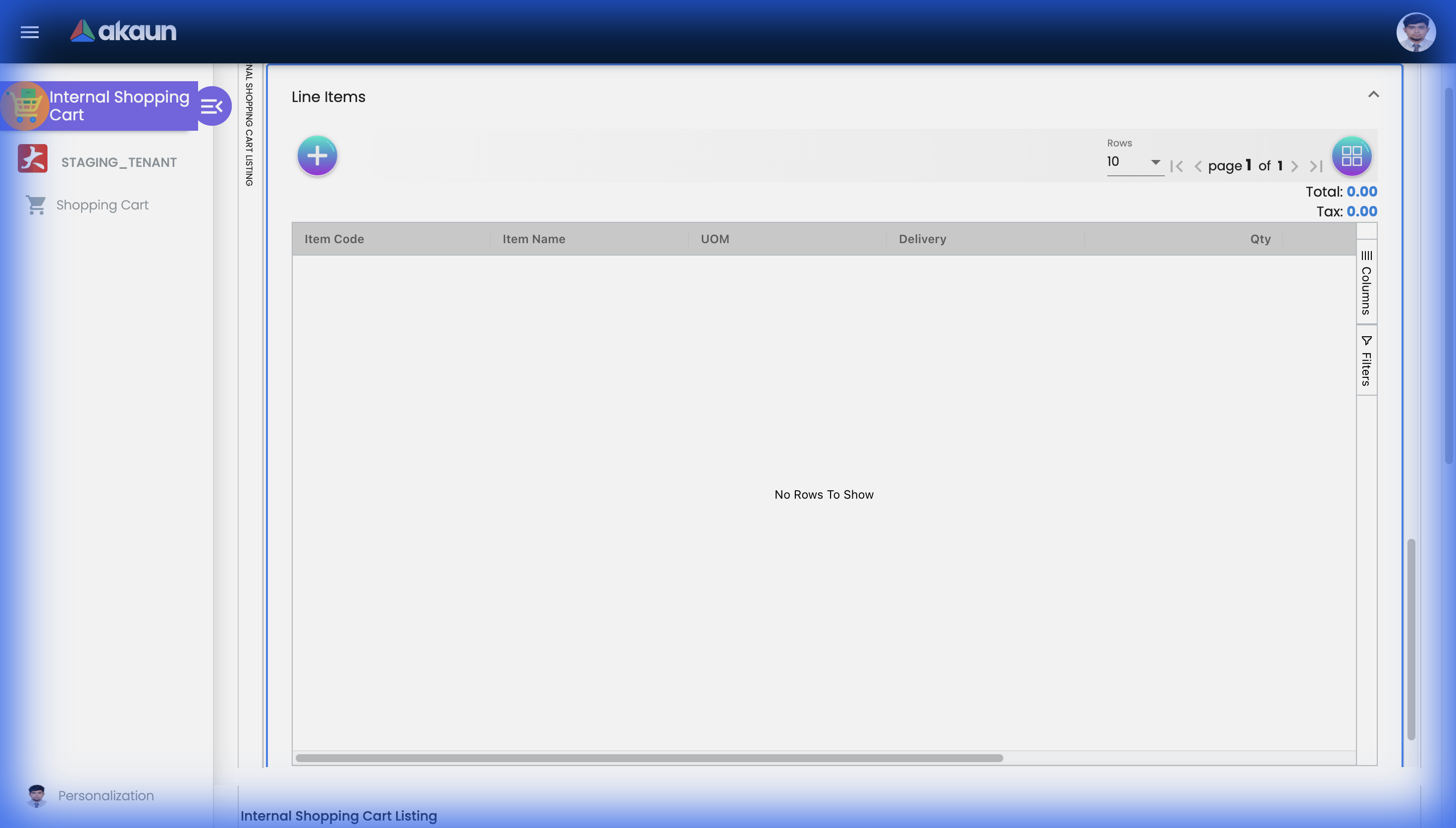
Line Items
View items added to the cart with quantities and pricing.
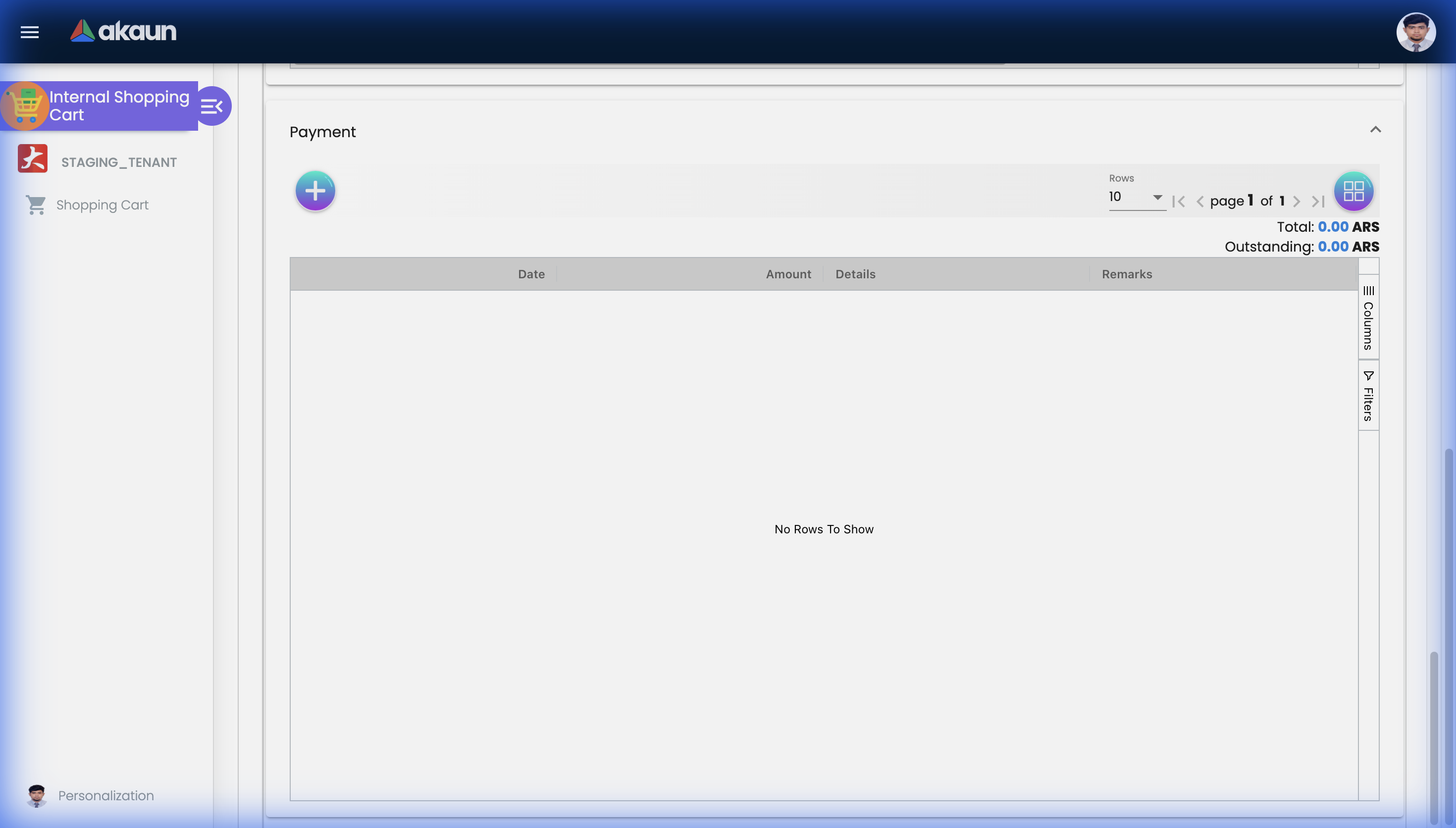
Payment
Review payment and pricing summary.
Create New Shopping Cart
Start a new cart with customer details, identity, and currency settings.
Requisitions
Track all your submitted requests:
- Draft - Started but not submitted
- Pending - Waiting for approval
- Approved - Ready for fulfillment
- Fulfilled - Items delivered
- Rejected - Not approved (with reason)
Approval Workflow
Configurable approval logic:
- Value-based thresholds
- Department routing
- Category-specific approvers
- Multi-level approvals
Catalog Browse
Browse available items:
- Search by name or code
- Filter by category
- View stock availability
- See pricing information
Order History
Access past orders:
- Reorder previous items
- View fulfillment details
- Track delivery status
- Download order receipts
Configuration & Settings
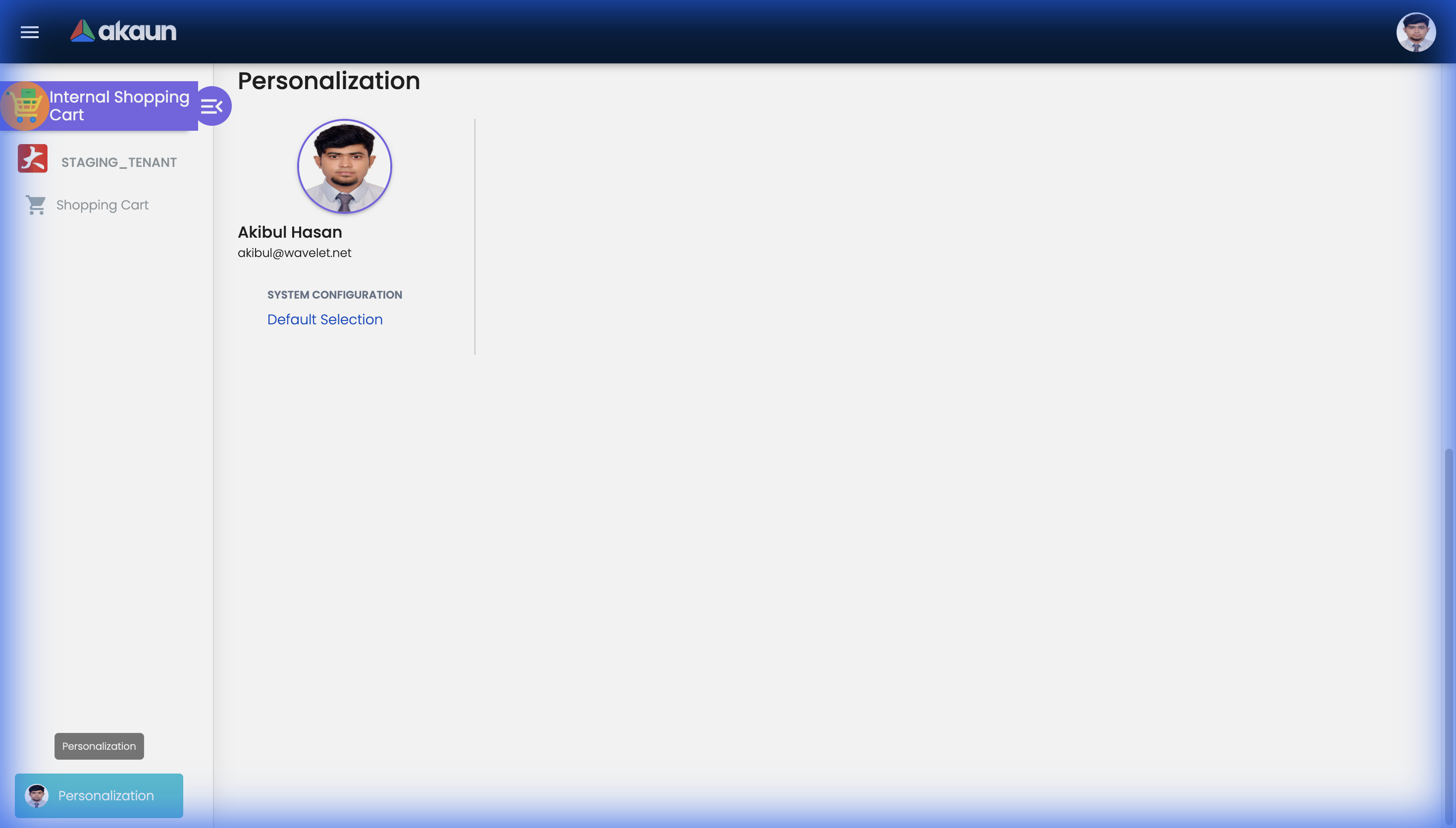
Personalization
Configure applet behavior and display preferences.
Catalog Settings
- Manage available items
- Set pricing and availability
- Define item categories
Approval Settings
- Configure approval chains
- Set value thresholds
- Define approver roles
Budget Settings
- Set department budgets
- Configure spending limits
- Enable budget warnings
FAQ
Q: Can I save a cart without submitting? A: Yes, use “Save for Later” to keep items in your cart for future checkout.
Q: How do I know when my request is approved? A: You’ll receive a notification and can track status in “My Requisitions.”
Q: Can I edit a submitted requisition? A: Only if it hasn’t been approved yet—contact your approver to return it.
Q: Who pays for my requisition? A: Costs are allocated to your department’s budget automatically.