Shopping Cart (Internal)
Work the pre-orders that customers, storefronts and staff have created: a cart names the customer, the branch and location, the items and any payments already taken. Finalising a cart writes no journal and moves no stock; what it does is make the lines available to the Sales Order applet’s knock-off tab, and only when the company’s knock-off configuration has a Shopping Cart to Sales Order row. A paid storefront cart becomes a sales order on its own, without passing through here.
Overview
The Shopping Cart (Internal) applet is the back-office window onto INTERNAL_SHOPPING_CART documents (short code SHPCRT). A cart is a pre-order: a customer, a branch and location, a list of items and, optionally, a list of payments the customer has already made. Carts reach this listing from three places — staff create them here, customer logins create them in the Shopping Cart Customer Access (Internal) applet, and CP Commerce storefronts create them at checkout or point-purchase. Staff open a cart to correct the customer, the recipient details, the items or the payments, then set it to FINAL so a Sales Order can be raised against it, or delete it. Two things cannot be corrected on a cart that already exists: a new Bill To or Ship To address and a new Member Card are accepted by their pickers and then saved as they were (see Fields).
A cart is not an accounting document. Its amount and quantity signums are both zero, so FINAL writes no journal and moves no stock. What FINAL does is make the cart lines available to the Sales Order (Internal) applet’s “Search Shopping Cart” / “Shopping Cart” knock-off tabs — provided the company’s Knock Off Configuration has a Shopping Cart → Sales Order row.
Where it fits
| Direction | Document / applet | How it connects |
|---|---|---|
| Upstream | Shopping Cart Customer Access (Internal) | Customer logins create and edit their own INTERNAL_SHOPPING_CART (one cart per customer, and the login must be linked to that customer). The same carts appear in this listing. |
| Upstream | CP Commerce Admin storefronts | Storefront checkout and point purchases create carts too; a paid storefront cart is turned into an INTERNAL_SALES_ORDER by the storefront itself, without visiting this applet. |
| Master data | Customer Maintenance, Doc Item Maintenance, Cashbook, Tax Configuration, Organisation | Customer (with addresses, credit terms and limits), items (txn_class = PNS), settlement methods (STL_MTHD items), SST / WHT codes, branch and location. |
| Downstream | Sales Order (Internal) (v2 applet) | After FINAL, cart lines enter the generic line open queue (INTERNAL_SHOPPING_CART → INTERNAL_SALES_ORDER) and are picked up by the Sales Order’s “Search Shopping Cart” tab and “Shopping Cart” knock-off panel. |
| Downstream (not wired) | Receipt Voucher (Internal) | The code contains a “convert to receipt voucher” effect (create an INTERNAL_RECEIPT_VOUCHER from the payment lines, then delete the cart) but no button calls it — see Lifecycle. |
Screens and menus
The sidebar has one menu item, Shopping Cart. Screens are the usual two-column stack: the listing on the left, the selected screen on the right.
- Internal Shopping Cart Listing — ag-grid, client-side pagination (first 50 carts by
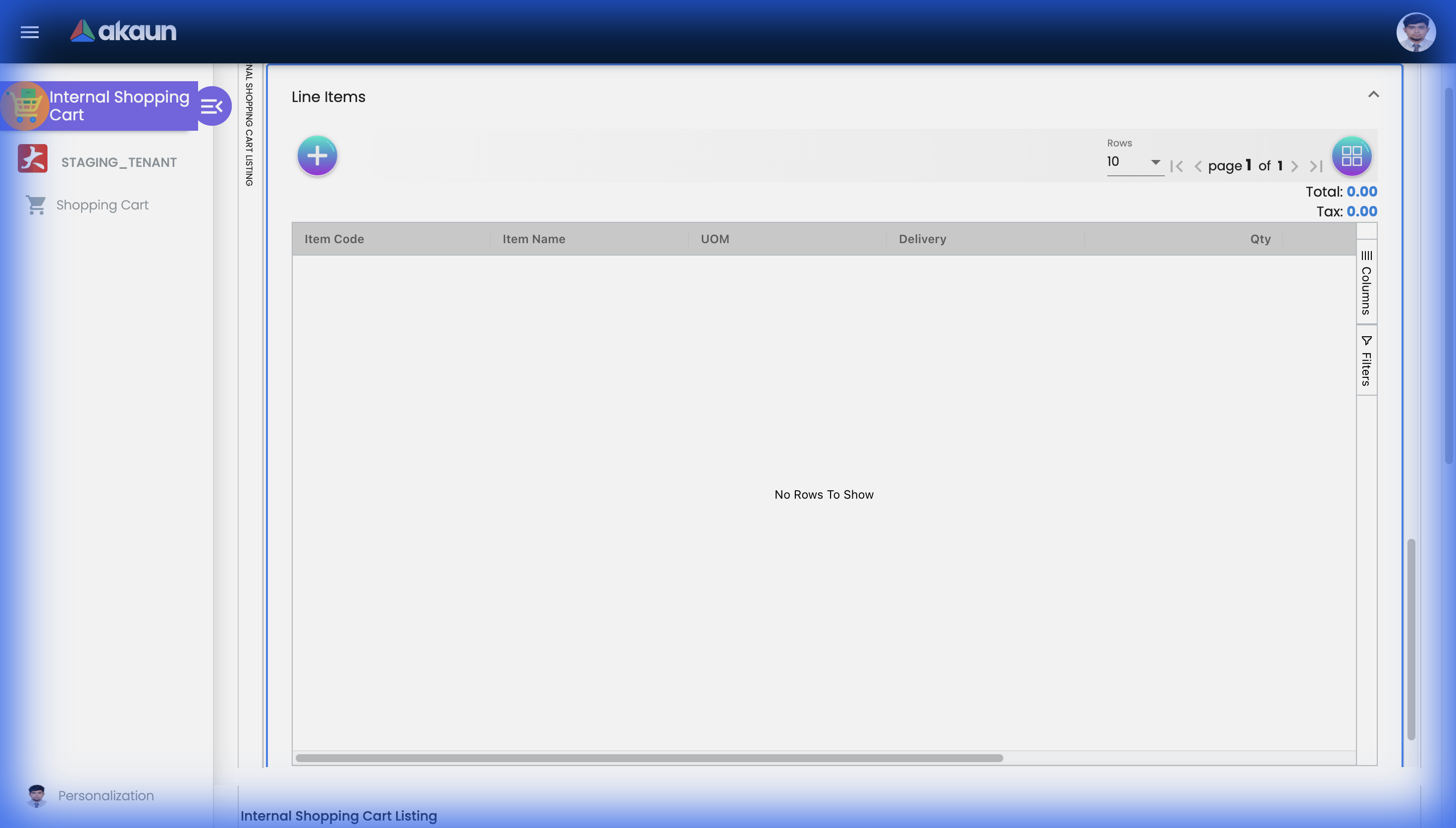
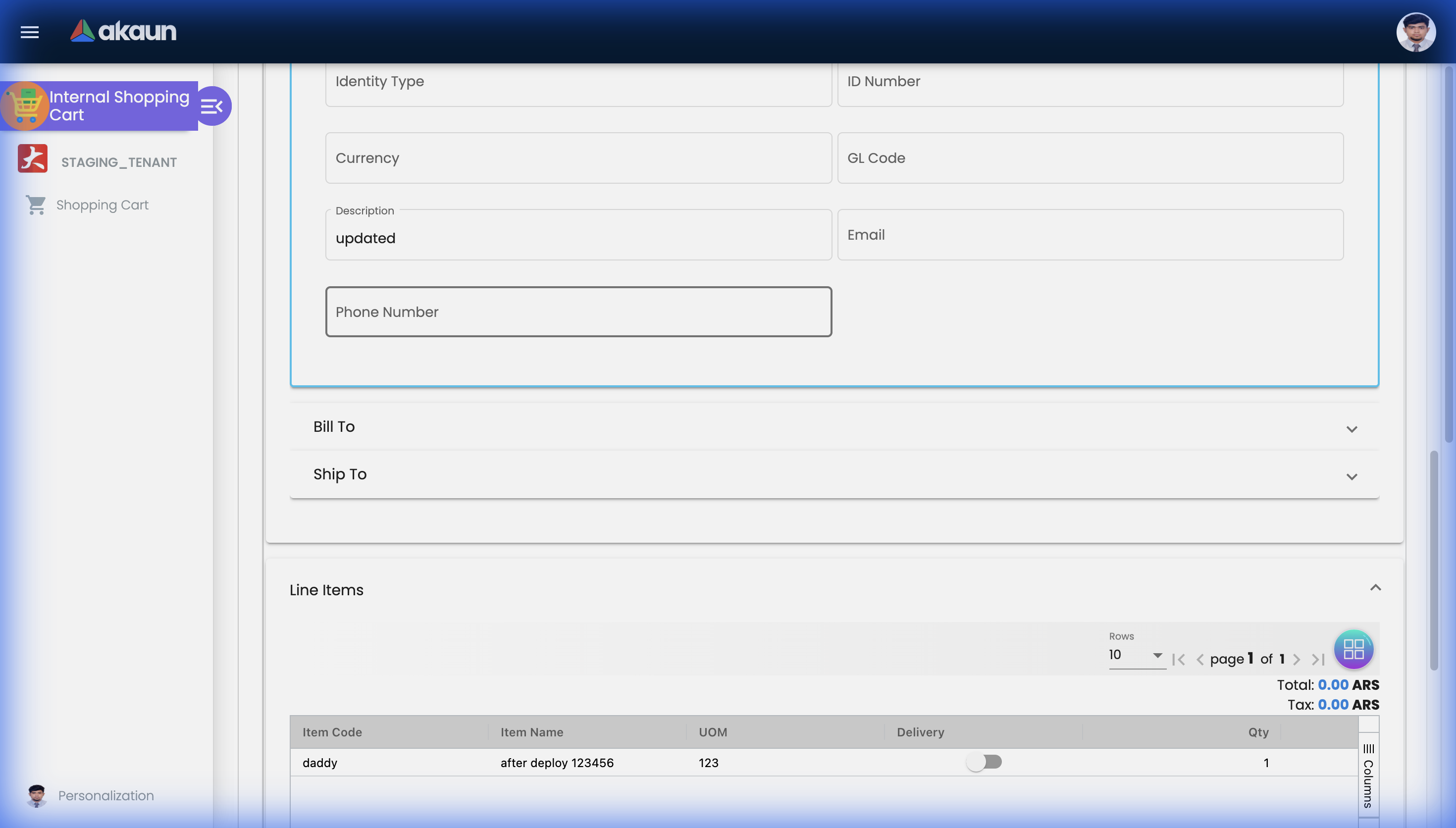
updated_datedescending). Columns: Doc Short Code (checkbox), Doc No (server_doc_1), Branch, Posting Status (blank shown asDRAFT), Customer Name, Creation Date, Sales Agent, Amount Txn, Updated Date, Doc Remarks. Branch, sales agent and customer names are resolved row by row with three extra calls per cart. The FINAL button above the grid finalises every ticked row that is not already FINAL. Advanced search: free-text keyword (matched against cart search word, branch name and customer name, union of results, 500 each) or the fields Customer Name, Creation Date from/to, Branch. - Internal Shopping Cart Create — buttons RESET and Create (disabled while Main Details is invalid or no customer is selected). Four tabs: Main Details, Account (Entity Details / Bill To / Ship To), Line Items, Payment. In vertical orientation the tabs become expansion panels.
- Internal Shopping Cart View — buttons RESET, Final, SAVE (disabled while Main Details is invalid), and a DELETE button at the bottom that needs a second click (
CLICK AGAIN TO CONFIRM, 3-second window). Same four tabs. Once the cart is FINAL, Branch, Location, Member Card and Currency are locked. - Pickers opened from the form: Select Member, Select Customer, Select Billing Address, Select Shipping Address, Add Payment, Select Line Item (item search with
txn_class = PNS, columns Item Code, Item Name, UOM, Unit Price, System Stock Balance), Add Line Item, Edit Line Item. - Customer create/edit — the Select Customer screen has a select/edit toggle; edit mode opens a full customer editor (Main, Category, Login, Payment Config, Tax, Address, Contact, Branch, Item Pricing, Credit Term, Credit Limit) that writes to the same entity tables as the Customer Maintenance applet.
- Settings (gear): System Configuration › Application Settings, Default Selection, Printables; Server Side Permissions › Permission Wizard, Permission Set, User Permission, Role Permission; Developer Tools › Release Notes, Audit Trail. The routes
feature-visibilityandwebhookalso exist (andsettingswith no sub-path redirects tofeature-visibility) but have no menu link; the shared Feature Visibility screen only logs the permission list and the shared Webhook screen is a sample-data stub. - Personalization: Default Selection only.
Configuration
Before you can use it
- Company, branch and location in the Organisation applet. Branch and Location are required on every cart; selecting a branch fills Company and Currency, and the branch’s
MAIN_LOCATIONextension fills Location. - Knock Off Configuration (Organisation › Company): a
LINEflowINTERNAL_SHOPPING_CART→INTERNAL_SALES_ORDER, enabled. Without it, FINAL opens nothing for the Sales Order, and the Sales Order applet hides its Shopping Cart knock-off panel. - Customers in Customer Maintenance with at least one address; the Bill To / Ship To pickers list only the selected customer’s addresses.
- Sales agents — employee entities; Sales Agent is required.
- Items with
txn_class = PNSin Doc Item Maintenance; pricing schemes if the Add Line Item dialog should offer them. - Settlement methods in the Cashbook applet:
STL_MTHDitems whoseSETTLEMENT_TYPEextension is one ofCASH,CASH_BACK,CREDIT_CARD,VOUCHER,BANK_TRANSFER,MEMBERSHIP_POINT_CURRENCY,CHEQUE. The Add Payment dialog switches its fields on this value. - Tax codes (SST and WHT) in Tax Configuration, unless the tax selectors are hidden.
- Server-side permissions
TNT_API_DOC_INTERNAL_SHOPPING_CARTS_CREATE_TGT_GUID,…_READ_TGT_GUID,…_UPDATE_TGT_GUID,…_DELETE_TGT_GUIDassigned through Settings › Permission Set / User Permission / Role Permission. FINAL uses the UPDATE permission; DELETE uses the DELETE permission.
Applet settings
Settings live in four places: the shared settings screen (Settings › Application Settings), this applet’s own Default Selection screen (saved with the same applet-wide settings), its own Printables screen, and Personalization › Default Selection (per login). There is no inline gear. Anyone with access to the applet’s Settings menu can change applet-wide settings; personal settings are per login and win over applet-wide values where both exist.
The table lists only the settings that are shown, saved and actually used by the cart screens.
| Setting | Where | What it controls | Default | Effect when changed |
|---|---|---|---|---|
HIDE_UNIT_PRICE_STD_PRICING_SCHEME | Application Settings › Line Items | Pricing-scheme / UOM selector in Add and Edit Line Item | Off (nothing is pre-hidden for this applet code) | Field disappears unless the login holds the matching SHOW_* client-side permission |
HIDE_UNIT_PRICE_STD_EXCL_TAX, HIDE_UNIT_PRICE_STD_INCL_TAX | same | Standard unit price excl./incl. tax (read-only) | Off | same |
HIDE_UNIT_DISCOUNT, HIDE_UNIT_DISCOUNT_UOM_EXCL_TAX, HIDE_DISCOUNT_AMOUNT_EXCL_TAX | same | The three discount inputs: per unit, per unit of the chosen UOM, and for the whole line | Off | Hiding all three does not stop a discount. A lower Unit Price Net, Unit Price Txn, Unit Price Txn by UOM, Amount Net or Txn Amount typed into the same dialog is worked back into a discount. To stop staff changing the price, hide all eight. None of the three discount inputs refuses a negative number, so a minus sign raises the price. |
HIDE_QTY_BASE, HIDE_QTY_UOM, HIDE_UOM_TO_BASE_RATIO | same | Quantity, quantity by UOM, UOM-to-base ratio | Off | same. Hiding both quantity inputs leaves the line at its default quantity |
HIDE_UNIT_PRICE_STD_UOM_EXCL_TAX, HIDE_UNIT_PRICE_STD_UOM_INCL_TAX, HIDE_UNIT_PRICE_NET_UOM_EXCL_TAX, HIDE_UNIT_PRICE_TXN_UOM_INCL_TAX, HIDE_UNIT_PRICE_NET_EXCL_TAX, HIDE_UNIT_PRICE_TXN | same | Six unit prices. Three are typed-in: Unit Price Net (excl. tax), Unit Price Txn by UOM (incl. tax) and Unit Price Txn (incl. tax). The other three only display a value | Off | Each typed-in price recalculates the discount, the amounts and tax on the line. Hiding one of the three display-only prices takes information away without taking any control away |
HIDE_AMOUNT_STD_EXCL_TAX, HIDE_AMOUNT_NET_EXCL_TAX, HIDE_AMOUNT_TXN | same | Line amounts. Amount STD (unit price × quantity) only displays a value. Amount Net and Txn Amount are typed-in | Off | A typed Txn Amount is worked back from the item’s standard price with its cents dropped, so the discount and Amount STD it produces are out by those cents. For a price that ends in cents, enter the discount or Amount Net instead, and check Discount Amount before you press Add |
HIDE_TAX_CONFIG_SELECTION, HIDE_WHT_CONFIG_SELECTION | same | SST selector + rate + amount; WHT selector + rate + amount | Off | same. With the tax selector hidden the line keeps the item’s default tax code |
SHOW_DOCUMENT_DELETE_BUTTON | Application Settings › Gen Doc Listing | The DELETE button at the bottom of the View screen | Off — no DELETE button | Read when the View screen opens; never shown on a FINAL cart |
VERTICAL_ORIENTATION | Application Settings › Gen Doc Listing | Tabs (off) or expansion panels (on) on Create, View and Edit Line Item | Off | Personal DEFAULT_ORIENTATION overrides it: HORIZONTAL forces tabs, VERTICAL forces panels |
EXPAND_MAIN_DETAILS, EXPAND_ACCOUNT, EXPAND_LINE_ITEMS | Application Settings › Gen Doc Listing | Which panel opens first in vertical orientation | Off (first panel) | The first key that is on wins; panels marked on stay expanded |
DEFAULT_LANGUAGE_CODE | Default Selection › Default Language | Applet UI language | en | Personal language (Personalization › Default Selection) takes precedence |
DEFAULT_TOGGLE_COLUMN (personal) | Personalization › Default Selection | Listing layout SINGLE / DOUBLE | Unset (double column on desktop) | Evaluated together with VERTICAL_ORIENTATION in the container |
DEFAULT_ORIENTATION (personal) | Personalization › Default Selection | HORIZONTAL / VERTICAL form layout | Unset (follows master VERTICAL_ORIENTATION) | See VERTICAL_ORIENTATION |
Keys the screens read without a control on the shared screen for this applet code: EXPAND_PAYMENTS (the Create/View panel list expects it; the shared screen renders EXPAND_SETTLEMENT instead, so the Payment panel can never be pre-expanded).
Keys rendered and saved but never read by the cart form:
DEFAULT_BRANCH,DEFAULT_LOCATION— Default Selection saves them into master settings (and the personal screen into personal settings), but neither the Create form nor the Add Line Item dialog reads them: a new cart always starts with an empty Branch and Location. The master screen also pre-fills its own controls from the personal settings, so what it shows after a reload may not be what it saved.- Everything else the shared Application Settings screen renders for this applet code (about 200 toggles, e.g.
DISALLOW_SELL_BELOW_MIN_PRICE,HIDE_PERMIT_NO,HIDE_TRACKING_ID,HIDE_SALES_AGENT,HIDE_SERVER_DOC_1..3,DEFAULT_POSTING_STATUS,ENABLE_AUTO_PRINT,CANNOT_EDIT_CURRENCY_RATE,FINAL_STATUS_GUID). None of them is consumed by this applet’s code. In particularLOCK_PURCHASER_TO_CURRENT_USER, theHIDE_DOC_NO_*keys and a “mandatory reason” setting, listed by an earlier version of this page, do not exist in the applet. - Printables (Settings › Printables): the screen uploads Jasper formats and stores the default under the extension
INTERNAL_SALES_QUOTATION_APPLET_EXT_CODE_PRINTABLE_FORMAT_GUID_INTERNAL_SALES_QUOTATION, and its listing is filtered totxn_type = INTERNAL_SALES_QUOTATION— constants copied from the Sales Quotation applet. The print effect (printJasperPdf$) is commented out and the Export tab is not rendered, so nothing in this applet prints.
Document behaviour settings
No exposed control found: the applet reads no FINAL_STATUS_GUID, workflow, void-reason, auto-print or e-Invoice key. FINAL, delete and the missing VOID / DISCARD are fixed in code — see Lifecycle.
Settings in other applets that control this applet
| Setting | Where it is set | Effect here |
|---|---|---|
Knock Off Configuration row INTERNAL_SHOPPING_CART → INTERNAL_SALES_ORDER, flow type LINE, enabled | Organisation › Company | Whether FINAL writes line open-queue rows and whether the Sales Order v2 applet shows its Shopping Cart knock-off panel |
HIDE_SEARCH_BY_SHOPPING_CART_TAB, HIDE_KO_SHOPPING_CART_TAB | Sales Order (Internal) v2 › Application Settings | Hide the tabs through which a FINAL cart is turned into a Sales Order |
Settlement method items (SETTLEMENT_TYPE) | Cashbook | Which payment types the Add Payment dialog offers and which fields it asks for |
Line integrity checking (line_integrity_config on the website, with enable — that spelling, not enabled — and day_limit, default 3) | Website record of the CP Commerce Admin applet (no admin screen; set by BigLedger in the website’s configuration) | When enabled for any website, storefront and customer-access cart lines are sealed when they are added, and the storefront checkout checks the seal. Edits made from this applet do not re-seal lines — see Troubleshooting |
Feature visibility / permissions
21 client-side permissions are defined for this applet: the 20 SHOW_* counterparts of the line-detail HIDE_* settings above, plus SHOW_COSTING_DETAILS. The Add and Edit Line Item dialogs show a field when it is not hidden or the user holds its SHOW_* permission — so a tenant-wide hide can be reopened for a role or user by granting the SHOW_X permission. SHOW_COSTING_DETAILS does nothing in this applet. No permission gates Create, FINAL or DELETE on the screen; those are enforced by the server-side TNT_API_DOC_INTERNAL_SHOPPING_CARTS_* permissions (Settings › Permission Set).
Fields
Main Details
The tab opens with Doc Short Code (always SHPCRT, read-only) and, on an existing cart only, the three document numbers Doc No (Tenant), Doc No (Company) and Doc No (Branch). The three number boxes accept typing, but nothing you type is kept: SAVE sends back the numbers the cart was loaded with. The other free-text boxes are Reference, Permit No, Tracking ID and Remarks. Remarks is what the listing’s Doc Remarks column shows.
On an existing cart, clearing Reference, Remarks or CRM Contact and pressing SAVE keeps the old text: the form passes on only a box that has something in it. To blank one of them, type a replacement, such as a single dash. Permit No, Tracking ID and Sales Lead are saved exactly as they stand, empty or not.
| Field | What it holds | Required | What to know |
|---|---|---|---|
| Branch | The selling branch; choosing it fills Company and Currency | Yes | Locked once FINAL. On SAVE the company is re-read from the branch record, so a branch that has moved company takes the cart with it |
| Location | Pre-filled from the branch’s main location | Yes | Locked once FINAL |
| Sales Agent | An employee, kept in the cart’s customer details | Yes | Listing shows the agent name |
| Currency | From the branch | Yes | Locked once FINAL |
| Credit Terms, Credit Limit | Copied from the customer | Marked required but disabled | Disabled controls do not block Save; display only |
| Transaction Date | The cart’s date | No | Date picker; on SAVE the server’s stored date is re-applied |
| Sales Lead | Corporate / Non-Corporate | No | Defaults to Corporate |
| CRM Contact | A plain text box, although the value is stored as a link to a CRM contact record | No | Typing a name here makes Create or SAVE fail with an error toast, because a name is not a record link. Leave it empty. A cart that already carries a contact shows the link’s code here, not a name |
| Member Card | Chosen through the Select Member screen; the box shows the membership’s internal code, not the card number | No | Locked once FINAL. On an existing cart, a member you pick is not saved, because nothing on the View screen records the pick. On a new cart, the next update to Main Details overwrites the pick with an empty value, so do not rely on this box. Record the member on the sales order |
Account
| Sub-tab | Field | Required | Notes |
|---|---|---|---|
| Entity Details | Entity ID (opens Select Customer) | Yes | The only required Account field; Create is disabled until it is set |
| Entity Details | Name, Type, ID Number, GL Code, Email, Phone, Status | — | Read-only, from the customer record |
| Bill To | Name, Email, Phone; Address (opens Select Billing Address); Address Line 1–5, City, State, Postcode, Country | No | Address fields read-only; picker limited to the customer’s addresses and disabled until a customer is chosen. On an existing cart, a new address picked here is not saved |
Ship To has the same shape for the recipient: Recipient Name, Phone No and Email are typed; the address is chosen from the customer’s shipping addresses. Choosing a customer copies the customer’s name, email and phone into both Bill To and Ship To and clears any address already chosen, so pick the customer first and the addresses after. Phone No is a number box on both sub-tabs, so a leading zero is dropped. On an existing cart, a Ship To address picked from the list is accepted and then saved as it was, the same as Bill To. The recipient’s name, email and phone are saved. To send an order to a different address, correct it on the sales order after knock-off.
Line Items and Add / Edit Line Item
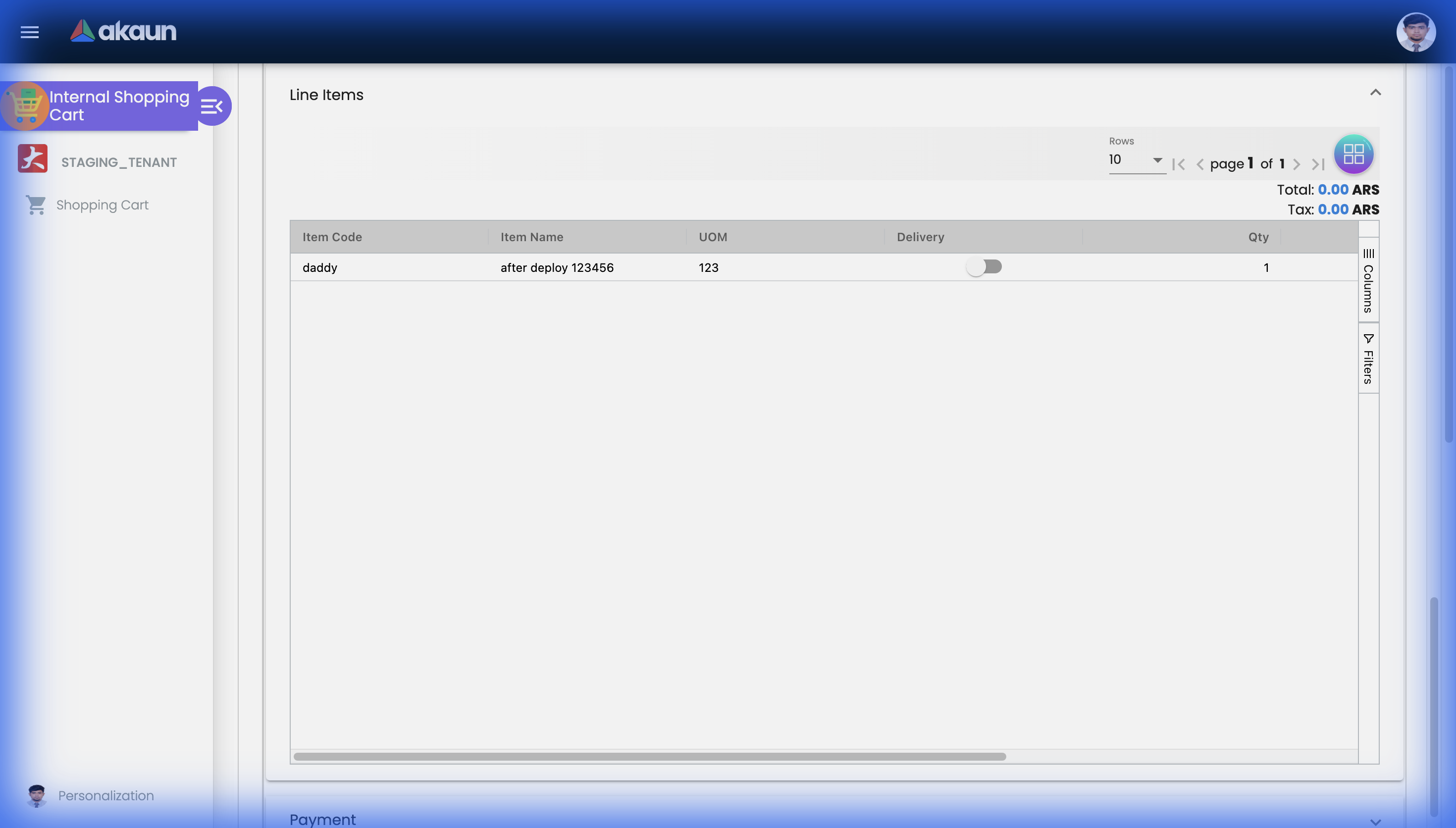
Grid columns: Item Code, Item Name, UOM, Delivery (a slider showing the line quantity), Qty, Unit Price, SST/VAT/GST, Txn Amount; Total and Tax above the grid. The + button opens the item search (products and services only). Unit Price in the grid is the price before discount and before tax (Amount Net plus Discount, divided by quantity), while Total is the sum of Txn Amount, after discount and with tax. On a discounted line, Unit Price × Qty plus tax will not equal the Txn Amount beside it, and that is expected. The line’s Remarks box is not a grid column: open the line to read it.
| Field | Meaning | Required | Notes |
|---|---|---|---|
| Item Code / Item Name | From the selected item | — | Code read-only, name editable, also after FINAL |
| Pricing Scheme / UOM | Pricing-scheme UOM selector | — | Hidden by HIDE_UNIT_PRICE_STD_PRICING_SCHEME |
| Unit Price STD (excl. / incl. tax), by UOM | Standard prices | — | Read-only; hidden by the matching HIDE_* |
| Unit Discount, Unit Discount by UOM, Discount Amount | Discounts | No | Hidden by the matching HIDE_*; a negative value is accepted and raises the price |
| Quantity, Quantity by UOM, UOM to Base Ratio | Quantities | — | Ratio read-only |
| Unit Price Net / Txn, Std / Net / Txn Amount | Computed amounts | — | Net and Txn prices and amounts can be typed and recalculate the line; Amount STD is read-only |
| Tax Code, Tax %, Tax Amount | SST selector and computed values | — | Hidden together by HIDE_TAX_CONFIG_SELECTION |
| WHT Code, WHT %, WHT Amount | Withholding tax | — | Hidden together by HIDE_WHT_CONFIG_SELECTION |
On a FINAL cart, Edit Line Item locks every field except Item Name and Remarks. Those two can still be changed and saved after the cart is final, so a correction to a description does not need a new cart.
Payment and Add Payment
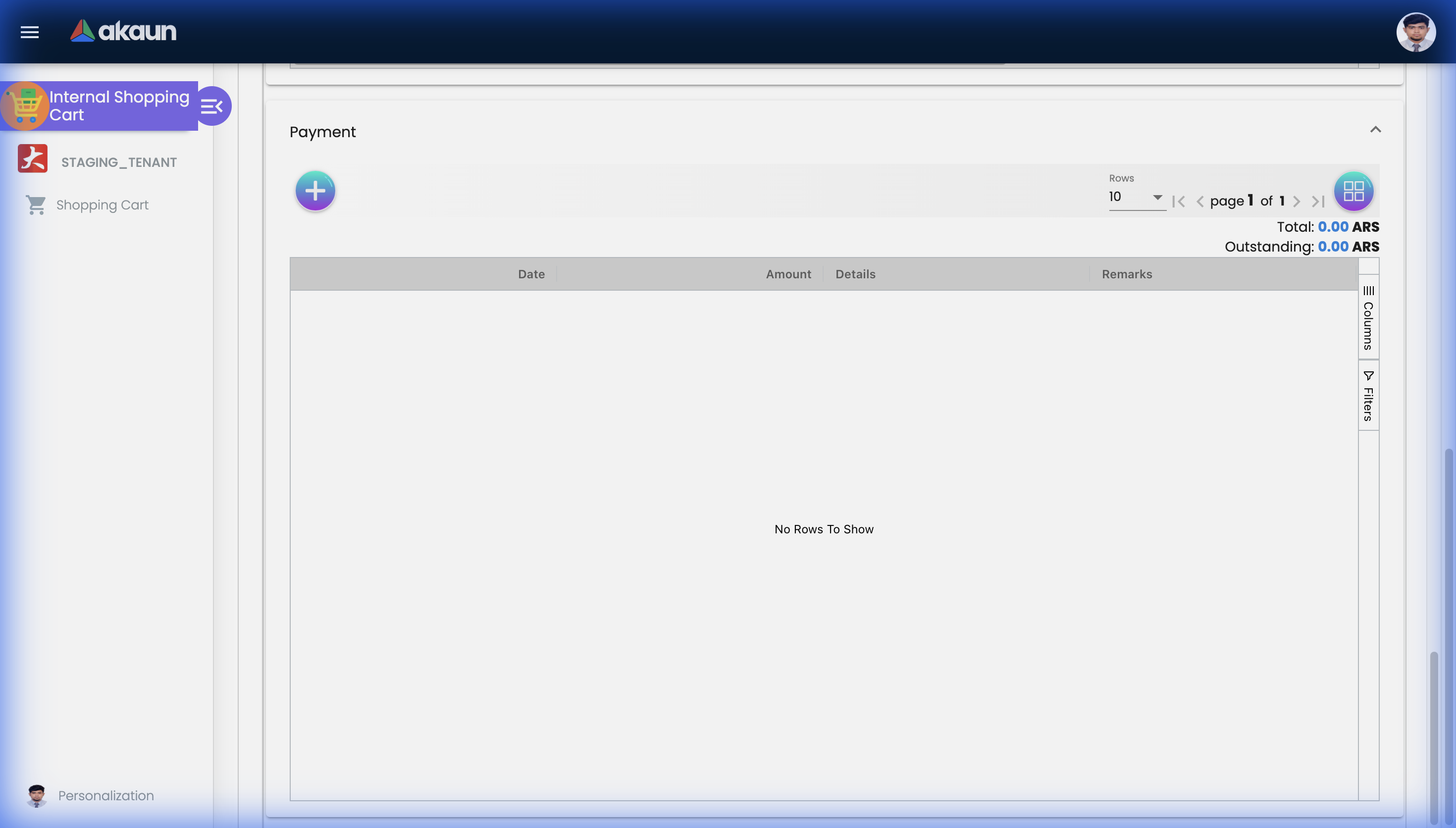
Grid columns: Date, Amount (net), Details (the settlement method), Remarks. Total = sum of payment lines; Outstanding = line-item total − payments. Payments are saved as settlement lines on the cart itself, recorded as receipt lines (payment lines for CASH_BACK).
| Settlement type | Required fields | Extra fields |
|---|---|---|
CASH | Date, Amount (≥ 0.01) | — |
CASH_BACK | Date, Cash Back, Amount | Cash Back for Settlement (read-only) |
CREDIT_CARD | Date, Amount, Card No, Name on Card, Card Issuer (VISA / MASTERCARD), Year, Month, CVV | Card Type (Gold / Silver / Rebate Point) |
VOUCHER | Amount, Voucher No | — |
BANK_TRANSFER | Date, Amount, Transaction No | — |
MEMBERSHIP_POINT_CURRENCY | Date, Amount | Points selection, point currency value |
CHEQUE | Date, Amount | Cheque No |
Lifecycle and effects
Which rules apply. This applet saves carts as ordinary documents. The one-cart-per-customer rule and the linked-login check apply only to the Customer Access applet and the storefront — staff can raise more than one cart for a customer here.
Statuses. Empty posting status (shown as DRAFT) → FINAL. FINAL is one-way; pressing Final on a FINAL cart shows the toast This document has been posted without contacting the server. There is no VOID or DISCARD button. DELETE is offered only on non-FINAL carts and only when SHOW_DOCUMENT_DELETE_BUTTON is on; the server checks TNT_API_DOC_INTERNAL_SHOPPING_CARTS_DELETE_TGT_GUID and removes the cart with its lines and links — it is not a DISCARD and the listing no longer shows the cart.
What posting does.
- Document type:
INTERNAL_SHOPPING_CART, short codeSHPCRT. - No money and no stock. A cart carries no amounts that post and moves no stock; a cart sent through the API as anything else is rejected.
- Journal: none. If journal posting is switched on for every FINAL, its job ends with
NO_JOURNAL_CREATEDfor a cart. - Stock: none, and no cost update.
- What VOID reverses: nothing; there is no VOID.
What FINAL does do. The shared FINAL checks apply: serial / bin / batch quantity checks on lines that carry them, and a refusal when the transaction date falls in a company period locked with LOCK_ALL or LOCK_TXN. On success the main posting job runs, and — with an enabled INTERNAL_SHOPPING_CART → INTERNAL_SALES_ORDER line flow — opens the cart’s lines for the Sales Order v2 applet to knock off. Webhook …_CREATED / …_MINIMALLY_CREATED events and message-template events are raised as for every document.
Convert and Print. Neither can be done from this applet: the Convert and Export tabs and printing are not available on the View screen. Storefront carts are converted to Sales Orders by the storefront checkout, not by this applet.
One phone, two shops, one Saturday
GadgetSphere Online sells a flagship smartphone at RM 4,299 on its own website and in its Shopee shop. On Saturday morning a shopper buys one on the website and pays by card. Ten minutes later a Shopee buyer orders the same model.
By Monday both are sales orders, and neither is in the Sales Report. The website order was converted from the cart when the card payment came back, with the payment on it as a settlement line. The Shopee order arrived numbered and FINAL on the Shopee branch. A paid Shopee order arrives ready to ship, so on a branch set to count open orders the next stock push showed the Shopee shop one fewer. Nobody in the office keyed either one.
On Tuesday the Shopee buyer cancels. The order stays FINAL in BigLedger with its channel status changed, and a cancelled Shopee order goes on holding stock back from the Shopee figure. When the Shopee payout arrives, its job writes one receipt voucher for the net amount, matched to no invoice. The platform’s commission and fees are booked by a person (Reconciling Marketplace Payouts).
The design is deliberate. A marketplace order is a document nobody keyed, from a system that stays the system of record for payment, packing, shipping and cancellation. BigLedger’s part is the invoice, the stock, the receivable and the tax, so the gap between the seller centre and your Sales Report is somebody’s job to explain each month (why it is built this way).
Related applets
- Shopping Cart Customer Access (Internal) — the customer-facing twin: same document type, ecom endpoint with one cart per customer entity; staff review those carts here.
- CP Commerce Admin — storefront checkouts and point purchases create carts of this type; the website’s
line_integrity_configdecides whether lines carry an HMAC token. - Sales Order (Internal) — the only document that consumes a FINAL cart (Search Shopping Cart / Shopping Cart knock-off, v2 applet).
- Receipt Voucher (Internal) — the payment lines are shaped as receipt-voucher lines; the cart-to-RV conversion exists in code without a button.
- Customer Maintenance — customer, addresses, credit terms and limits; the embedded customer editor here writes the same records.
- Cashbook — settlement methods offered by Add Payment.
- Organisation — branch main location, and the Knock Off Configuration row that connects carts to sales orders.
- Tax Configuration and Doc Item Maintenance — tax codes and the
PNSitems offered by the item search.
Troubleshooting
| Symptom | Cause | Fix |
|---|---|---|
| The Sales Order applet’s “Search Shopping Cart” tab shows nothing, or the “Shopping Cart” knock-off panel is missing | The cart is not FINAL, or the company has no enabled INTERNAL_SHOPPING_CART → INTERNAL_SALES_ORDER LINE row in Knock Off Configuration (the panel is shown only when that row is enabled; open-queue rows are written only through it) | FINAL the cart; add / enable the row in Organisation › Company › Knock Off Configuration, then re-FINAL a fresh cart (existing FINAL carts get no queue rows retroactively) |
| No DELETE button on a cart | SHOW_DOCUMENT_DELETE_BUTTON is off, or the cart is FINAL | Turn the setting on in Application Settings; FINAL carts cannot be deleted from the UI |
| Final shows This document has been posted | The cart is already FINAL; the client refuses a second FINAL | Nothing to do; there is no un-FINAL |
| Final is refused for a locked period | The transaction date falls in a company fiscal period locked with LOCK_ALL / LOCK_TXN | Change the transaction date on the Main Details tab and SAVE, or unlock the period |
| A price, discount or tax field is missing from Add / Edit Line Item | The matching HIDE_* setting is on and the login lacks the SHOW_* client-side permission | Turn the setting off, or grant the SHOW_* permission to the role |
| Default Branch / Location saved in Default Selection never appear on a new cart | The cart form does not use them; the Default Selection screen also displays personal values rather than applet-wide values | Select Branch and Location on every cart; treat the Default Selection screen as inert |
| Storefront checkout fails after a staff edit because a line’s integrity seal does not match | Line integrity is enabled for the website, and an edit made from this applet does not re-seal the line, so checkout sees a seal that no longer matches the price | Have the customer re-add the line from the storefront (new lines are sealed), or ask BigLedger to switch line integrity off for that website |
| Storefront checkout fails because a line’s integrity seal is missing | Line integrity was enabled after the cart’s lines were created | Same as above |
| A customer’s cart created from the storefront or Customer Access applet is refused because the customer already has a cart | The storefront and Customer Access allow one cart per customer, and the rule counts every cart of that customer that has not been deleted — whatever its posting status, and including carts staff raised here. A finalised or discarded cart still blocks a new one | Delete the existing cart, then retry — only DELETE frees the place. Do not FINAL a cart to make room: it goes on blocking, and this screen offers no DELETE on a FINAL cart (see Statuses under Lifecycle and effects). For the customer’s side, and a finalised cart, see the Customer Access troubleshooting |
| A new Bill To or Ship To address, or a new Member Card, is gone after SAVE on an existing cart | On the View screen those three pickers accept a choice that nothing records, so SAVE sends the cart’s original values | Correct the address or member on the sales order after knock-off; on a new cart, pick the customer first and the addresses after |
| Create or SAVE fails with an error after something was typed into CRM Contact | The box is plain text, but the value must be a link to a CRM contact record, so a typed name is refused | Empty the box and save again. On an existing cart, emptying it does not clear a value that was saved earlier |
| A document number typed into Doc No (Tenant / Company / Branch) did not change | Those boxes are editable, but SAVE sends back the numbers the cart was loaded with | Nothing to fix. The cart’s numbers are not edited from this screen |
| After typing a Txn Amount, the discount is out by a few cents, or is negative | A typed Txn Amount is worked back from the standard price with its cents dropped | Enter the discount or Amount Net instead, and check Discount Amount before Add |
| Nothing prints; no Convert action | Export, Convert and printing are not available in this applet, and the Printables screen does nothing | Print from the Sales Order once the cart is knocked off; treat Printables as inert |
| Keyword search returns unrelated carts | The keyword is matched separately against carts, branch names and customer names and the results are unioned | Use the Customer Name / Branch fields of the advanced search instead |
| Listing is slow with many carts | Each of the first 50 rows triggers three extra reads (branch, agent, customer) | Known cost of the client-side listing; narrow with the advanced search |
Related documentation
- E-Commerce module — where the cart sits between storefront and sales order.
- Shopping Cart Customer Access (Internal) — the customer-side applet.
- Sales Order (Internal) — knocking a FINAL cart off into an order.