Engagement Applet
Purpose and Overview
The Engagement Applet is designed for professional services firms (audit, accounting, consulting, legal) to manage client engagements and projects. It provides a structured way to track client relationships, assign team members, manage fiscal year cycles, and generate documentation.
What is an Engagement?
In professional services, an “engagement” refers to a formal agreement to provide services to a client. This applet helps manage:
- Audit Engagements - Annual audits with fiscal year end tracking
- Consulting Projects - Advisory and consulting services
- Tax Engagements - Tax preparation and compliance work
- Recurring Services - Perpetual/ongoing client relationships
Who Benefits from This Applet?
Partners & Directors
- Client Oversight: View all client engagements at a glance
- Quality Control: Assign EQCR (Engagement Quality Control Reviewer)
- Risk Management: Track engagement status and key dates
Engagement Managers
- Project Management: Manage engagement details and timelines
- Team Assignment: Assign employees to specific roles
- Document Generation: Create engagement-related documents
Finance Teams
- Billing Alignment: Link engagements to billing branches
- Revenue Tracking: Monitor engagement status for revenue recognition
- Entity Management: Access client entity details
HR & Resource Management
- Staff Allocation: Assign employees to engagements
- Workload Planning: View employee engagement assignments
- Skill Matching: Find suitable team members
What Problems Does This Solve?
Without the Engagement Applet:
- Client projects tracked in spreadsheets
- No central view of who’s working on what
- Manual tracking of fiscal year deadlines
- Disconnected client and employee information
With the Engagement Applet:
- ✓ Centralized Management - All engagements in one place
- ✓ Team Visibility - See who’s assigned to which project
- ✓ Fiscal Year Tracking - Manage audit year-ends automatically
- ✓ Entity Integration - Link directly to client master data
- ✓ Role-Based Access - Partners, Managers, Directors properly assigned
Key Features Overview
Key Concepts
FYE Type: Perpetual vs Yearly
The Fiscal Year End (FYE) Type determines how an engagement tracks time:
| FYE Type | Description | Use Case |
|---|---|---|
| Perpetual | Ongoing engagement without yearly cycles | Consulting retainers, ongoing advisory |
| Yearly | Engagement tied to specific fiscal year periods | Annual audits, tax engagements |
Choosing FYE Type:
- Perpetual: For clients with continuous services (e.g., bookkeeping, advisory)
- Yearly: For clients with distinct annual cycles (e.g., statutory audits)
Engagement Roles
Standard roles in professional services engagements:
| Role | Abbreviation | Responsibility |
|---|---|---|
| Engagement Partner | EP | Overall responsibility, signs off |
| Engagement Manager | EM | Day-to-day management |
| Engagement Director | ED | Senior oversight |
| Managing Partner | MP | Firm-level oversight |
| Key Audit Partner | KAP | Public interest entity audits |
| EQCR | EQCR | Quality control review |
Engagement Hierarchy
Client (Entity)
│
└── Engagement
    │
    ├── Main Details ──→ Code, Name, Job Group, Status
    │
    ├── Fiscal Year End(s) ──→ (Yearly type only)
    │   │
    │   ├── Engagement Roles ──→ Who's responsible
    │   │
    │   └── Employees ──→ Team assignments
    │
    └── Gen Docs ──→ Generated documents
Quick Start Guide
Create Your First Engagement
Goal: Set up a new client engagement in 5 steps.
Step 1: Navigate to Engagements
- Go to Engagement Listing from the sidebar
- Click "+" (Add New)
Step 2: Select Client
- Click Customer Name field
- Search for and select your client
- Client details auto-populate
Step 3: Configure Engagement
- Engagement Code: Auto-generated (or enter if required)
- Job Group/Branch: Select the responsible branch
- Engagement Name: Auto-generated from Client + Code + Branch
- FYE Type: Choose Perpetual or Yearly
- Description: Add engagement scope notes
Step 4: Assign Roles (Perpetual) If FYE Type is Perpetual:
- Scroll to Engagement Roles section
- Add Engagement Partner, Manager, Director as needed
Step 5: Save
- Click SAVE button
- Engagement created!
For Yearly Engagements: After creating, go to Fiscal Year End tab to add year-end periods.
Set Up Fiscal Year End (Yearly Engagements)
Goal: Add fiscal year periods for an annual audit.
- Open Engagement → Go to Fiscal Year End tab
- Create FYE:
- Click "+" (Add New)
- Set Date Start (e.g., Jan 1, 2024)
- Set Date End (e.g., Dec 31, 2024)
- Set Status (Draft, Active, Complete)
- Assign Team:
- Go to Engagement Role sub-tab
- Add Partner, Manager for this FYE
- Go to Employee sub-tab
- Assign audit team members
- Save
Core Features in Detail
Engagement Listing
Your central hub for all client engagements.
What You See:
- Engagement code and name
- Client/Customer name
- Job Group/Branch
- FYE Type
- Status
Actions:
- Create (+): New engagement
- Edit: Modify engagement details
- Search: Find engagements by various criteria
Tips:
- Use filters to find engagements by client, status, or branch
- Toggle between grid and list views
- Pagination for large datasets
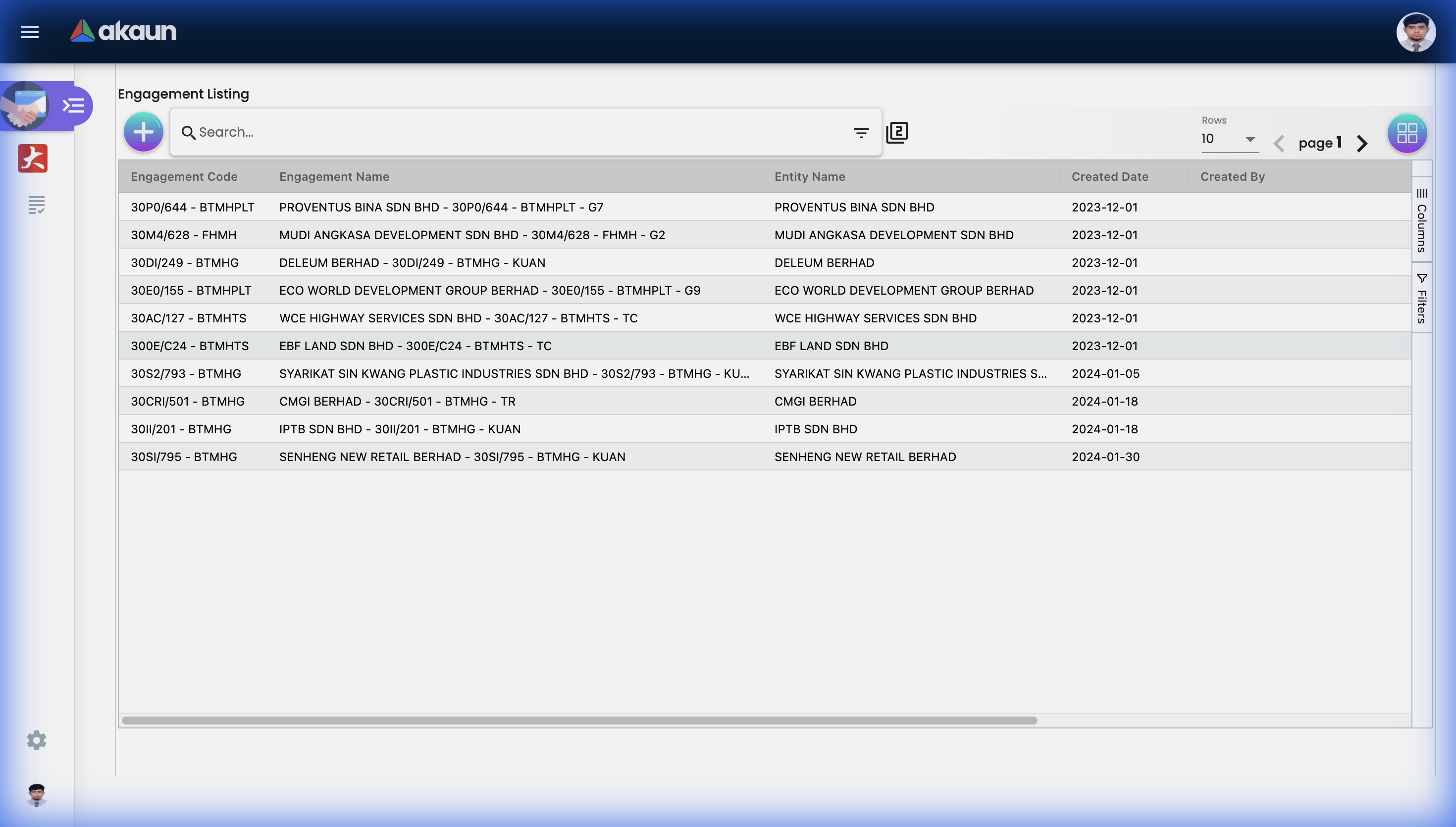 The Engagement Listing shows all client engagements with Code, Name, Entity, and Created Date columns.
Engagement Edit - Main Tab
Configure the core details of your engagement.
Fields Explained
| Field | Description | Notes |
|---|---|---|
| Customer Name | The client/entity | Click to select from entity master |
| Engagement Code | Unique identifier | Auto-generated or manual |
| Job Group | Responsible branch/office | For multi-office firms |
| Engagement Name | Full engagement name | Usually auto-generated |
| Alternate Code | Secondary reference | Optional |
| FYE Type | Perpetual or Yearly | Determines available tabs |
| Status | Current state | Draft, Active, Complete, etc. |
| Description | Scope and notes | Free text |
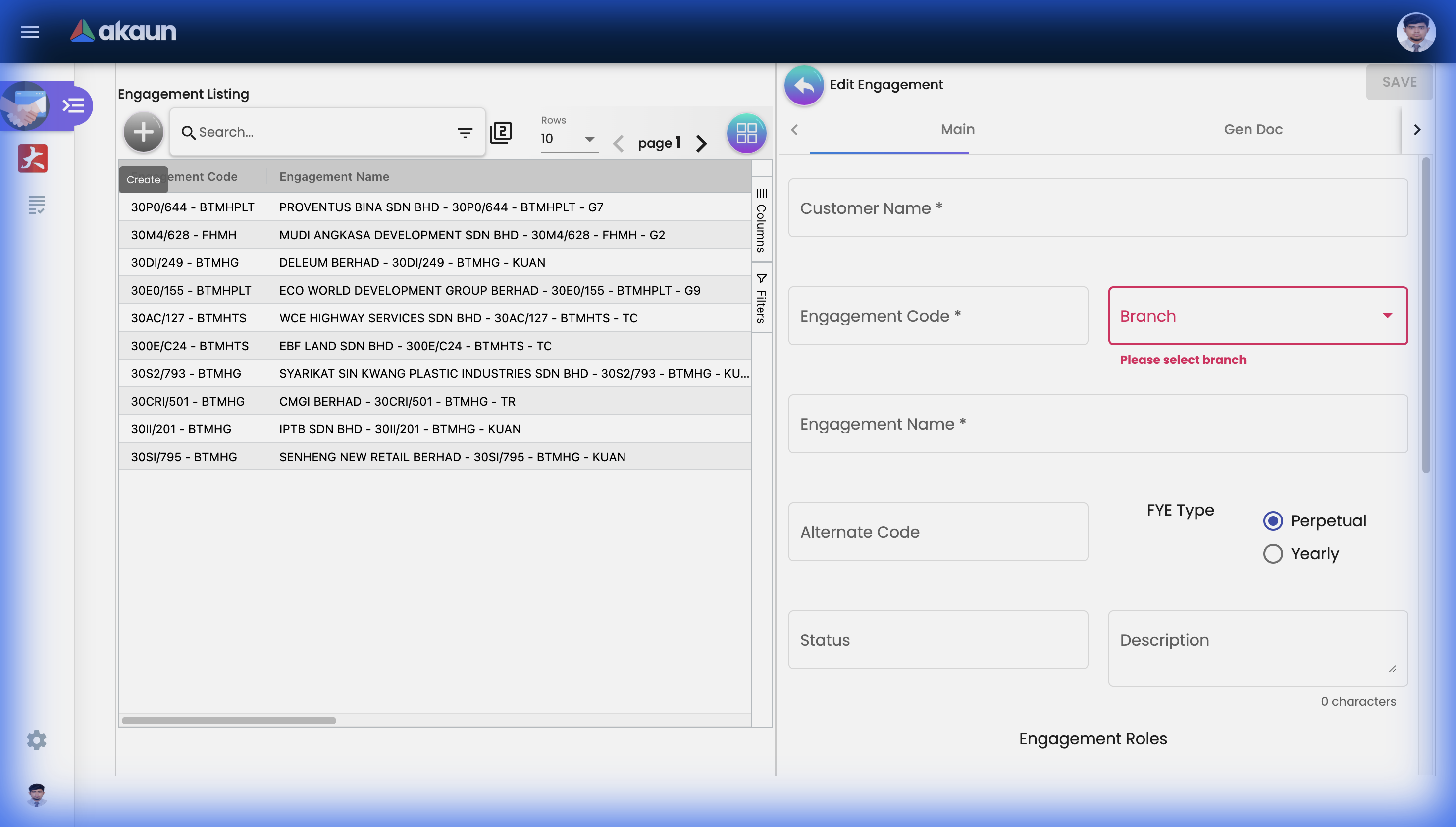 The Create/Edit Engagement form with Customer, Code, Branch, FYE Type, and role assignment fields.
Engagement Roles (Perpetual Type)
For perpetual engagements, assign roles directly on the Main tab:
- Engagement Partner
- Engagement Manager
- Engagement Director
- Managing Partner
- EQCR
- Key Audit Partner
Entity Details
Click “Entity Details” button to:
- View client master data
- Access contact information
- See related accounts
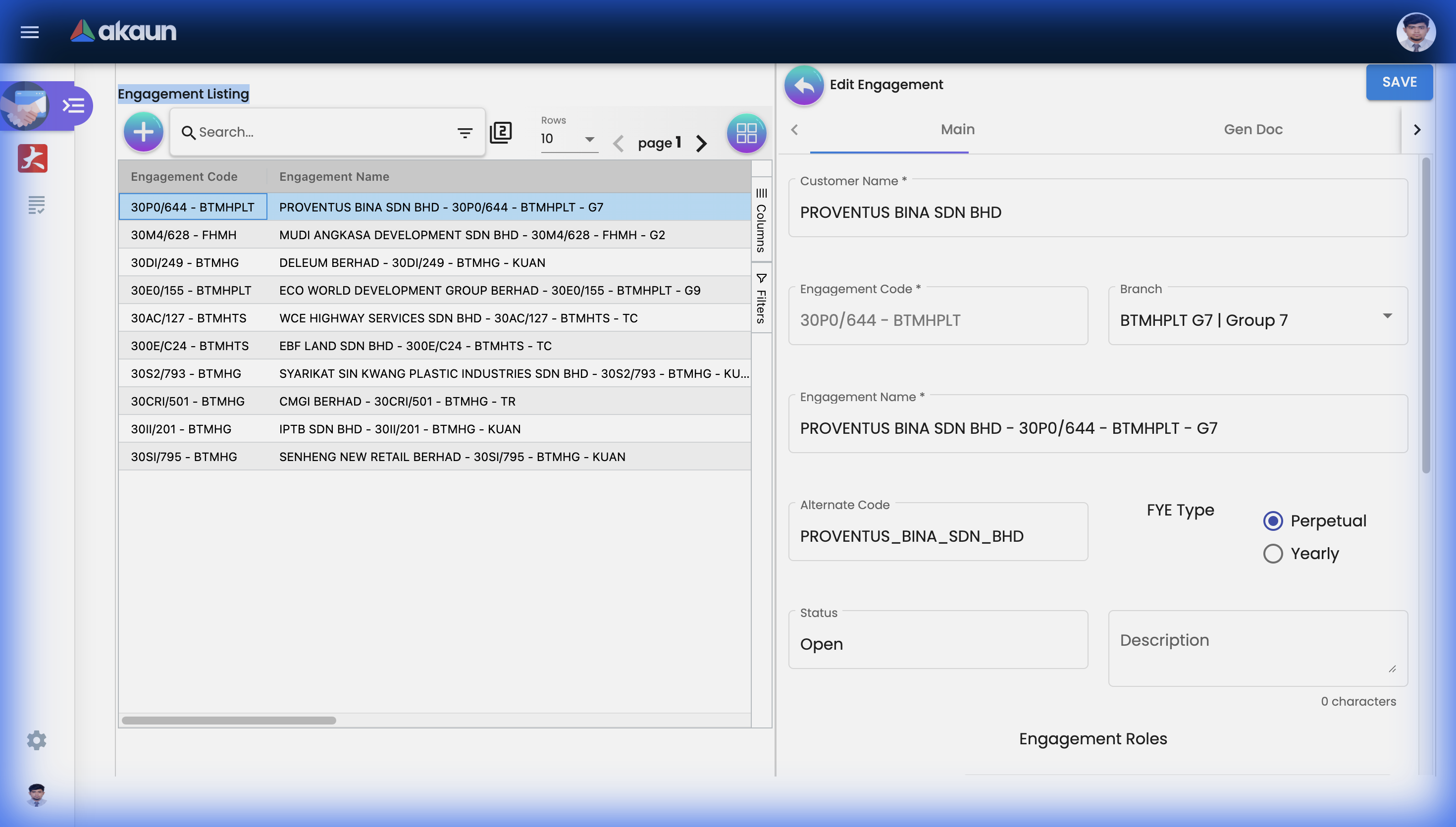 Editing an engagement shows customer details, engagement code, and role assignments.
Fiscal Year End Tab
Manage annual periods for yearly engagements.
FYE Listing
See all fiscal year periods for this engagement:
- Date range (e.g., Jan 1 - Dec 31, 2024)
- Status
- Year indicator
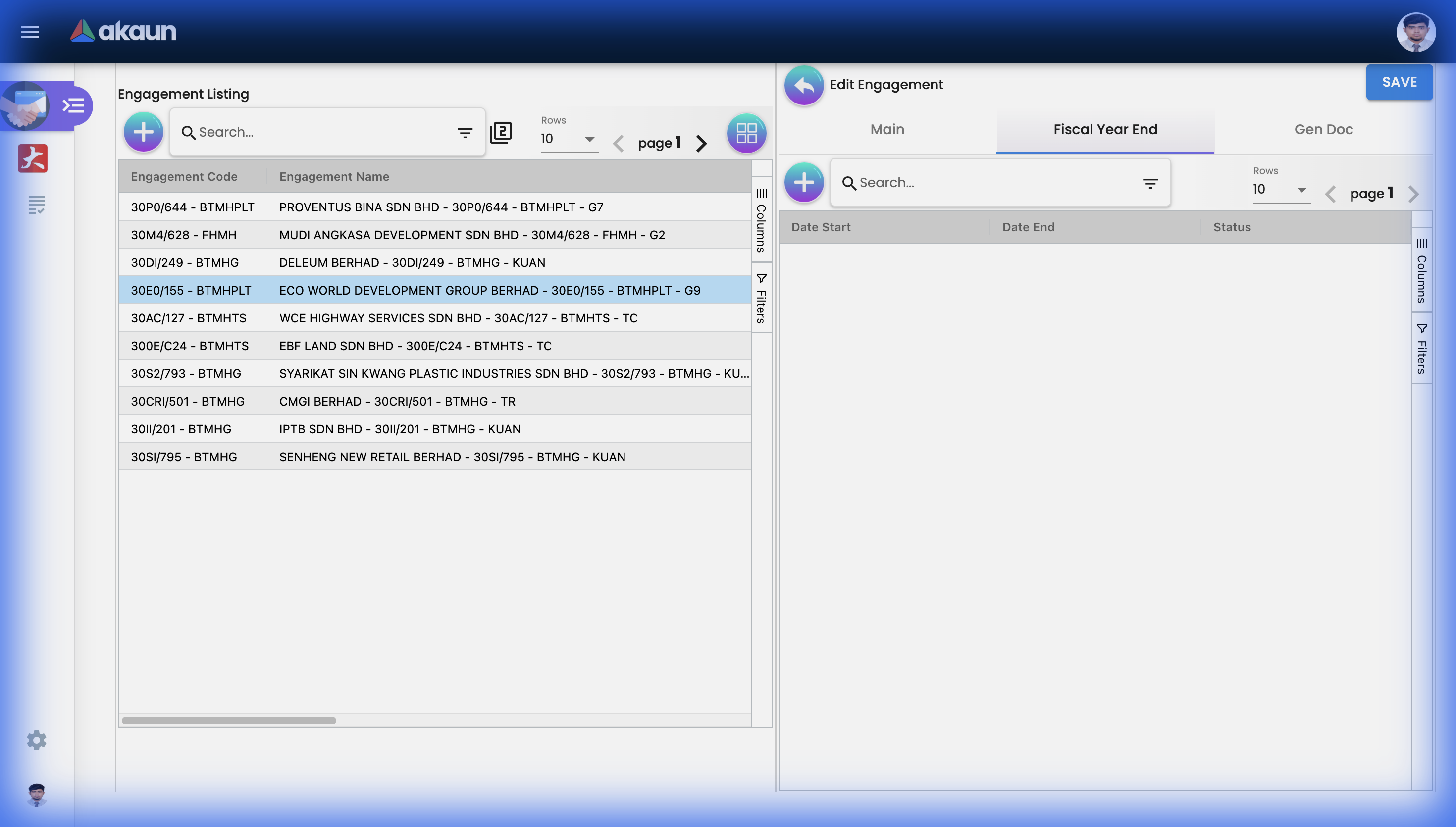 The Fiscal Year End tab showing Date Start, Date End, and Status columns.
Creating a Fiscal Year End
- Click "+" (Add)
- Enter Date Start and Date End
- Select Status
- Save
FYE Edit Sub-tabs
When you edit a Fiscal Year End, you get additional tabs:
Main Tab:
- Date Start/End
- Status
- Audit fields (Created By, Modified By, dates)
- Delete option
Engagement Role Tab:
- Assign partners/managers for this specific FYE
- Different teams can be assigned per year
Employee Tab:
- Assign audit/engagement team members
- Specific to this fiscal year period
Employee Management
Assign team members to engagements.
Employee Assignment Workflow
- Navigate to Employee tab (within FYE Edit)
- Click Add Employee
- Search for staff by:
- Name
- Role
- Availability
- Skills
- Select and confirm assignment
Employee Search Filters
The applet provides advanced search with multiple filter types:
- Text search (name)
- Select filters (role, department)
- Date filters (availability)
- Number filters (charge rates)
Engagement Roles
Define who’s responsible for the engagement.
Role Assignment
For Perpetual engagements:
- Roles assigned on Main Details tab
- One set of roles for entire engagement
For Yearly engagements:
- Roles assigned per Fiscal Year End
- Different team each year if needed
Standard Roles
| Role | Responsibility |
|---|---|
| Engagement Partner (EP) | Signs off, ultimate responsibility |
| Engagement Manager (EM) | Day-to-day project management |
| Engagement Director (ED) | Senior oversight |
| Managing Partner (MP) | Firm leadership oversight |
| EQCR | Independent quality review |
| Key Audit Partner (KAP) | For public interest entities |
Gen Doc Tab
Generate and manage engagement documents.
The Gen Doc (Generated Documents) tab provides:
- List of generated documents
- Document type
- Generation date
- Status
Common Documents:
- Engagement letters
- Planning memos
- Completion checklists
- Reports
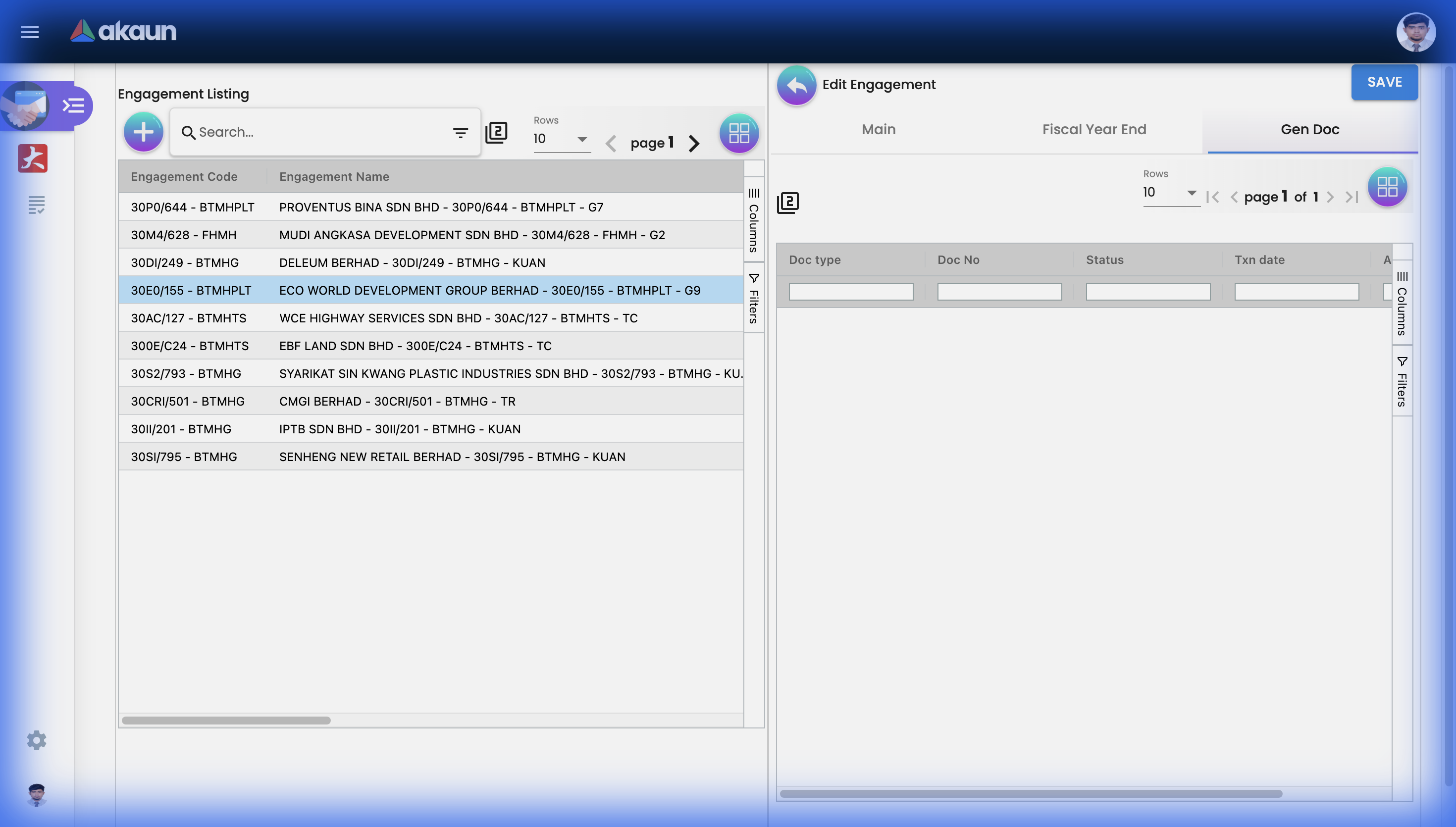 The Gen Doc tab showing generated documents with Doc Type, Doc No, Status, and Transaction Date.
Entity Details
Access client master data from the engagement.
Click “Entity Details” button to view:
- Client legal name
- Registration numbers
- Contact information
- Addresses
- Related entities
This provides quick access to the linked Account/Entity record without leaving the engagement.
Settings & Configuration
Engagement Category
Organize engagements by type.
Settings > Engagement Category
Create categories like:
- Statutory Audit
- Tax Compliance
- Advisory
- Consulting
- Special Projects
Fields:
- Category name
- Category code
- Description
Use Case: Filter engagements by category for reporting and workload analysis.
Default Settings
Pre-configure defaults for new engagements.
Settings > Default Selection
| Setting | Purpose |
|---|---|
| Default Company | Pre-select company for new records |
| Default Branch | Pre-select job group |
| Default Location | Pre-select location |
Field Configuration
Customize field visibility and behavior.
Settings > Field Settings
The Engagement Applet supports extensive field configuration:
Hideable Fields:
- Customer Name
- Engagement Code
- Job Group
- Engagement Name
- Alternate Code
- FYE Type
- Status
- Description
- Engagement Manager/Director/Partner
- Managing Partner
- EQCR
- Key Audit Partner
- Entity Details Button
Other Settings:
- Enable/disable custom statuses (HDR 1-5, LINE 1-5)
- Relabel Company to Entity
- Relabel Branch to Job Group
- Disable engagement creation
- Disable engagement editing
Feature Visibility
Control which features are available.
Settings > Feature Visibility
Toggle visibility of:
- Gen Doc Listing
- Create Button
- Edit capabilities
- Specific tabs
Webhook Configuration
Integrate with external systems.
Settings > Webhook
Configure webhooks to:
- Notify external systems on engagement creation
- Sync with project management tools
- Trigger billing workflows
Permission Management
Control who can do what.
Settings > Permission Wizard / Permission Set / User Permissions
| Permission Level | Description |
|---|---|
| Viewer | Read-only access |
| Editor | Create and modify engagements |
| Manager | Full engagement management |
| Admin | Settings and permissions access |
Personalization
Personal Default Settings
Save your preferences:
- Preferred company
- Default branch
- Saved filters
Sidebar Customization
Arrange menu items:
- Show/hide options
- Reorder sections
- Pin favorites
Common Scenarios
Scenario 1: Annual Audit Setup
Client: ABC Manufacturing Sdn Bhd
Engagement Type: Statutory Audit
FYE: December 31

Setup Steps:
1. Create Engagement
   - Customer: ABC Manufacturing
   - FYE Type: Yearly
   - Job Group: Audit Division

2. Add Fiscal Year End
   - Date: Jan 1 - Dec 31, 2024
   - Status: Active

3. Assign Team
   - Partner: John Tan
   - Manager: Sarah Lee
   - Senior: Ahmad (via Employee tab)
   - Staff: 3 audit associates

Result: Complete engagement ready for fieldwork
Scenario 2: Consulting Retainer
Client: XYZ Holdings Berhad
Engagement Type: Advisory Retainer
FYE Type: Perpetual (ongoing)

Setup Steps:
1. Create Engagement
   - Customer: XYZ Holdings
   - FYE Type: Perpetual
   - Job Group: Consulting

2. Assign Roles (on Main tab)
   - Partner: Lee Wei Ming
   - Manager: Karen Wong

3. No FYE needed - perpetual engagement

Result: Ongoing consulting engagement tracked
Scenario 3: Multi-Year Audit Client
Client: Listed Company Berhad
Annual Audits for 3 years

Setup:
1. One Engagement record (Yearly type)
2. Three Fiscal Year Ends:
   - FYE 2022: Jan-Dec 2022 (Complete)
   - FYE 2023: Jan-Dec 2023 (Complete)
   - FYE 2024: Jan-Dec 2024 (Active)

Each FYE has own team assignments
Historical data preserved
Tips & Best Practices
For Partners
✓ Review Assignments: Regularly check engagement roles
✓ Monitor Status: Ensure engagements move through lifecycle
✓ Use Categories: Organize for better portfolio view
✓ Delegate Properly: Assign appropriate managers and directors
For Managers
✓ Complete Details: Fill in all relevant fields
✓ Timely FYE Setup: Create fiscal year ends early
✓ Team Communication: Ensure staff know their assignments
✓ Document Generation: Use Gen Doc for standard documents
For Administrators
✓ Configure Categories: Set up meaningful categories
✓ Customize Fields: Hide unused fields to simplify UI
✓ Set Permissions: Control access appropriately
✓ Train Users: Ensure staff understand FYE Type implications
Frequently Asked Questions
Q: When should I use Perpetual vs Yearly FYE Type?
A: Use Yearly for engagements with distinct annual cycles (audits, tax). Use Perpetual for ongoing services without year-end cycles (advisory, consulting retainers).
Q: Can I change FYE Type after creation?
A: Consult your administrator. Changing FYE Type may affect data structure.
Q: How do I assign different teams for different years?
A: For Yearly engagements, each Fiscal Year End has its own Engagement Role and Employee tabs. Assign team per FYE.
Q: What’s the difference between Engagement Role and Employee?
A: Engagement Role is for key personnel (Partner, Manager). Employee is for all team members (seniors, staff).
Q: Can I have multiple engagements for the same client?
A: Yes. Common for clients with audit + tax + advisory services. Each engagement is separate.
Q: How do I find all engagements for a specific partner?
A: Use the search/filter functionality on Engagement Listing to filter by assigned roles.