Tenant Admin Applet
Watch these as presentations — 2 on this page, slides with narration.
The console where your tenant’s OWNER- and ADMIN-ranked users decide who is a user, which roles and permission sets exist, and which catalogues and applets the tenant has. The menus, buttons and data each person gets in every other applet are decided by what is configured here.
Overview
The Tenant Admin Applet is the console a tenant’s own OWNER- or ADMIN-ranked users open to run their tenant: which catalogues and applets exist, who is a user, who is an admin, which roles and permission sets exist, and which roles hold which server-side and client-side permissions. It sits between the platform-level Developer Sysadmin Applet (which manages all tenants) and the functional applets, whose menus, buttons and data scope are decided by what is configured here. It is a master-data applet: it writes users, links, roles and permission records, and no document or journal comes out of it.
Where it fits
| Direction | What | Why |
|---|---|---|
| Upstream | Developer Sysadmin Applet | Creates the tenant, its first OWNER, the applet store and the applet registry that the Catalogue and Applets menus read. |
| Upstream | Organisation Applet | Companies, branches and locations are the targets a permission set or the Permission Wizard scopes a role to. |
| Downstream | Every functional applet | A user sees an applet only after it is installed for them (Catalogue / Tenant Users / Platform Users); the applet’s server-side calls are authorised from the roles, permission sets and targets maintained here; its SHOW_* client-side permissions are attached to roles here. |
| Sideways | Employee Maintenance, Merchant Admin | The Tenant Users › Employee Link tab links a login to an employee record; the entity applets’ Login tabs create tenant users and send invitations from their side. |
Screens and menus
The sidebar (in this order; each item can be hidden tenant-wide, see Configuration): Catalogue, Subscription, Tenant Users, Platform Users, Applets, Tenant Admins, Tenant Roles, Role File Import, Permission Sets, Data Sync, Audit Trail, then Settings and Personalization. The applet opens on Catalogue.
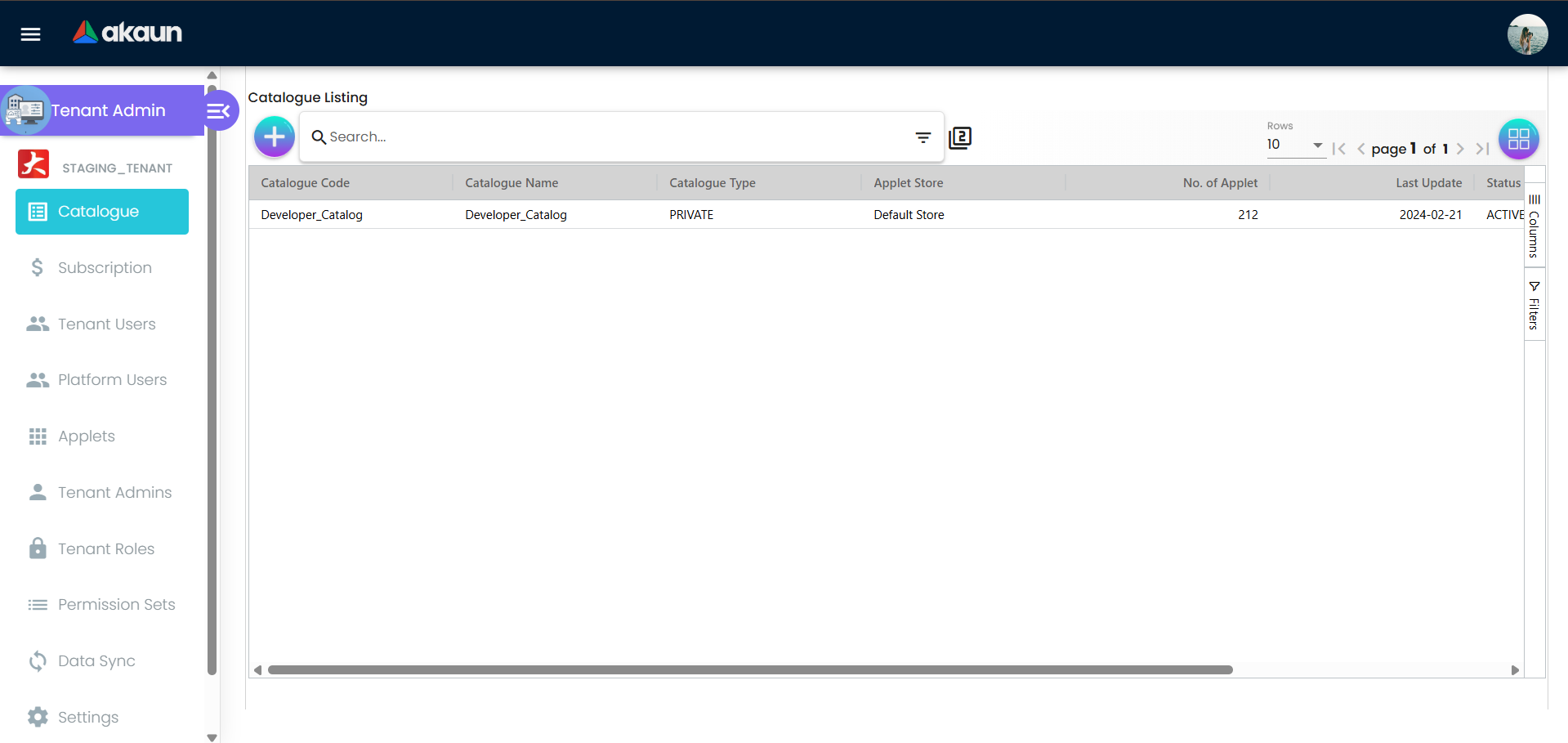
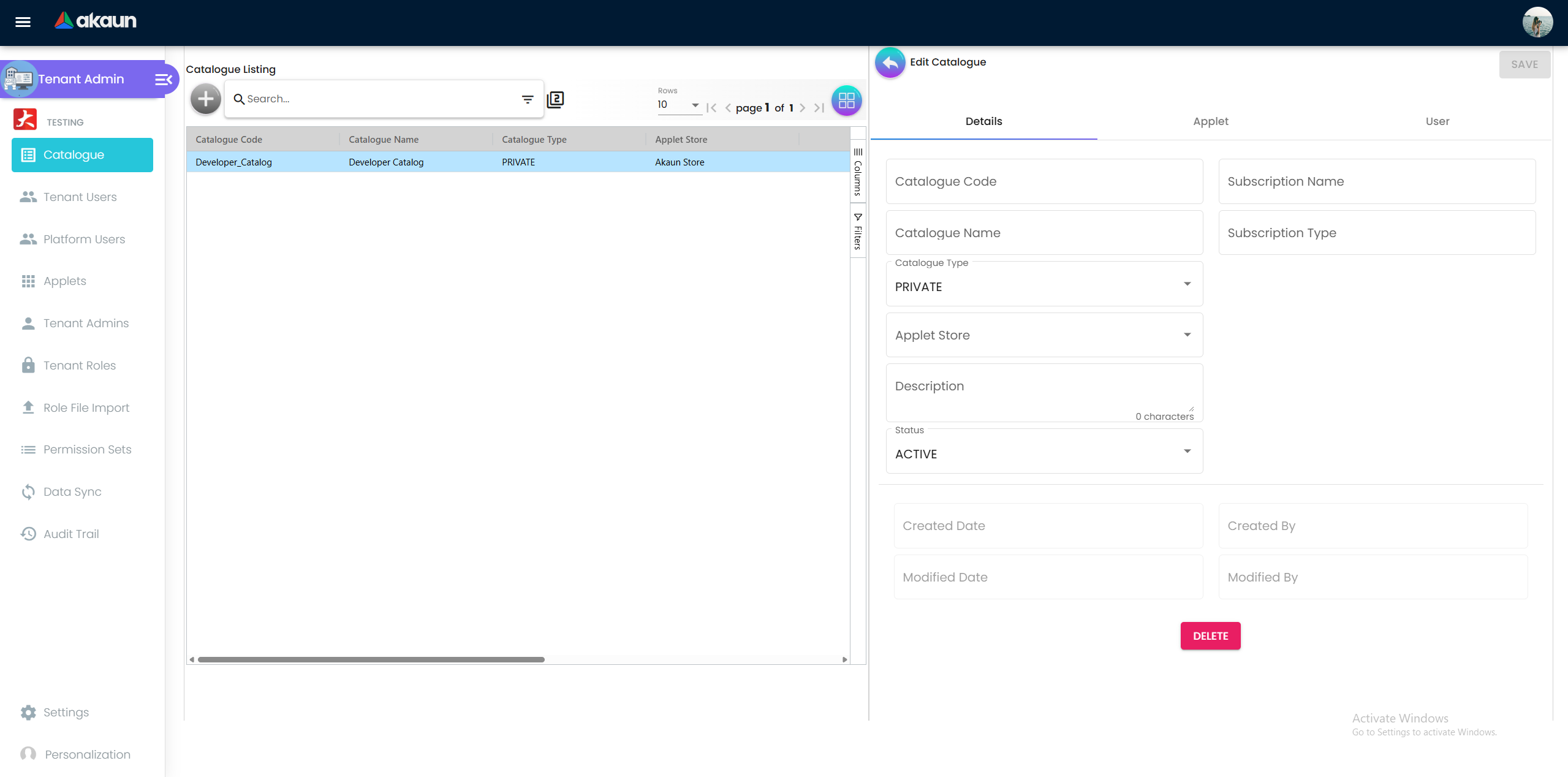
Catalogue
Listing columns: Catalogue Code, Catalogue Name, Catalogue Type, Applet Store, No. of Applet, Last Update, Status. Create and Edit share the Details form; Edit adds an Applet tab and a User tab.
- Applet tab — lists the applets in the catalogue; Add picks an ACTIVE applet from the registry and stores the link with a rank (OWNER / ADMIN / MEMBER, default MEMBER) and an edition/pricing choice. Opening an applet shows Details, Permissions Template (sub-tabs Approved and Requests — the applet’s permission templates and pending template requests, with request lines editable by the platform team) and Installed By User (install the applet for selected catalogue users).
- User tab — lists the catalogue’s users; Add verifies an e-mail or mobile number, then either links the existing login (rank OWNER / ADMIN / MEMBER / GUEST) or sends an invitation.
Subscription
Listing: Subscription Code, Name, Type, Credit Limit, Country, Created Date. Edit tabs: Details, Akaun HQ Entity (a customer-entity form: code, name, type, ID, tax registration number, GL code, e-mail, phone), Hostname (grid with Hostname, Description, Created By, Status, Alias Type — the grid is not wired to load anything, so it renders empty).
This menu is read-and-delete, and the screen gives no sign of it. Every control on Details is constructed disabled when the form is opened in edit mode, so nothing can be typed; and the two actions that would send a change — the subscription save and the one that attaches a subscription to a catalogue — are wired up on the server side but triggered from nowhere in the applet. Create is in the same state and there is no create screen. What does work is Delete, at the foot of the Details form. So: a tenant admin can look a subscription up and can remove it, and everything else about subscriptions is done by the platform team.
Tenant Users
Listing: User Name, No. of Catalogue, No. of Applets, Email Address, Last Update, Status. Edit tabs: Details, Roles (add / remove role links), Employee Link (link or unlink an employee record), Installed Applet (multi-select uninstall), Catalogue (add the user to catalogues; the link is written with rank MEMBER).
Platform Users
Same listing as Tenant Users but read from the platform user directory. Edit tabs: Details (read-only), Installed Applet (uninstall), Available Applet (install; the rank written on the user-applet link is copied from the applet-to-catalogue link), Catalogue.
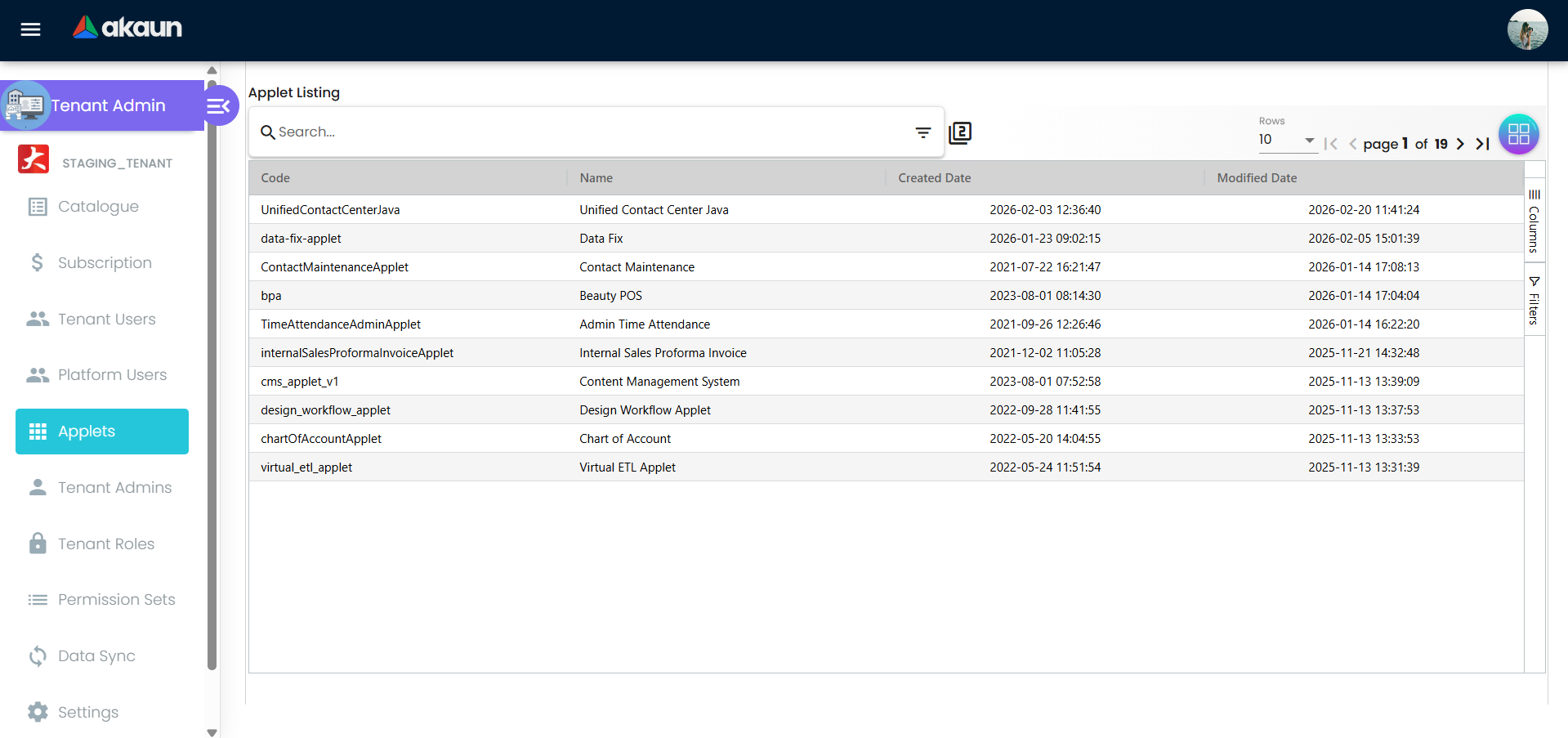
Applets
Listing of the applets available to this tenant (Code, Name, Created Date, Modified Date). View tabs: Details (read-only: name, code, vendor, store, audit fields), Permission Sets (each set opens with Details and a Roles tab showing which tenant roles hold it), Clientside Permissions (each client-side permission definition opens with Details and a Roles tab). Nothing is editable from this menu.
Tenant Admins
Listing: Email, Full Name, Phone Number, Rank, Created Date, Updated Date. Add takes an e-mail address or a mobile number in one text box, checks it with a Verify User button, and then writes a tenant link with rank OWNER or ADMIN. Edit changes the rank. (A second, richer version of this form — a searchable drop-down of tenant logins with Start Date and End Date — exists in the applet but is not shown anywhere; the screen you get is the text box.)
Tenant Roles
Listing: Role Code, Role Name, No. of Users, No. of Teams. Edit tabs: Details, User (assign users), Applet (pick an applet, then Details / Permission Sets / Client-Side Permissions for that applet and role), Permission Set (attach existing permission sets), Copy Permission Set (copy another role’s sets, optionally regenerating them through the Permission Wizard).
The Applet › Permission Sets tab has three sub-tabs — Branch, Company, Location — one grid per permission template of the applet, with the targets of that table as rows and a checkbox per row. Saving posts the template-to-target selection for the role (see Lifecycle).
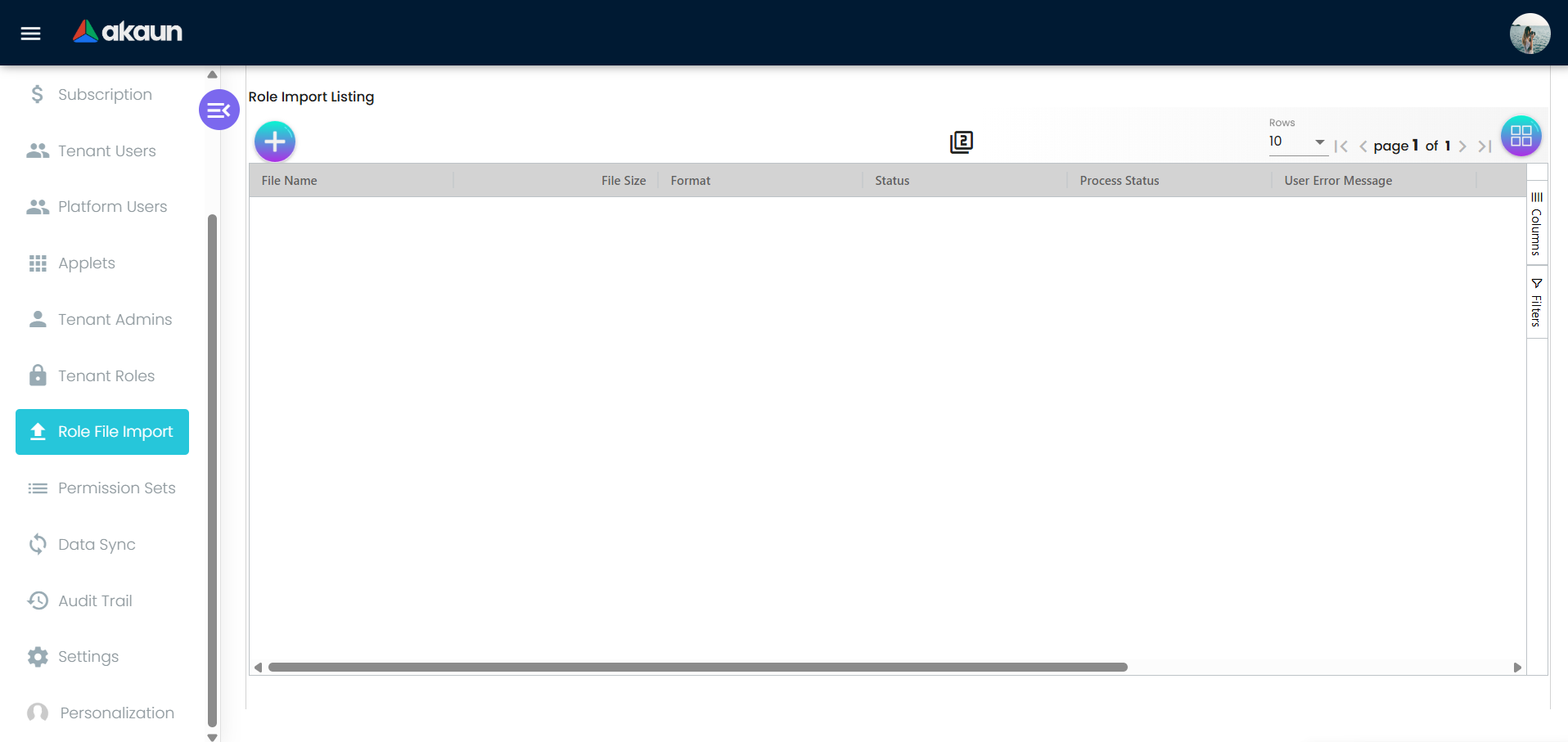
Role File Import
Listing: File Name, File Size, Format, Status, Process Status, User Error Message, Created / Updated Date, Created by. Create accepts one .csv file and offers the template download (MasterData_Upload_app_mst_role.csv). Edit tabs: Main (file type, name, size, import format, process status, status, error message) and Checking (one row per CSV line: No., Role Name, Role Code, Short Error Message).
Permission Sets
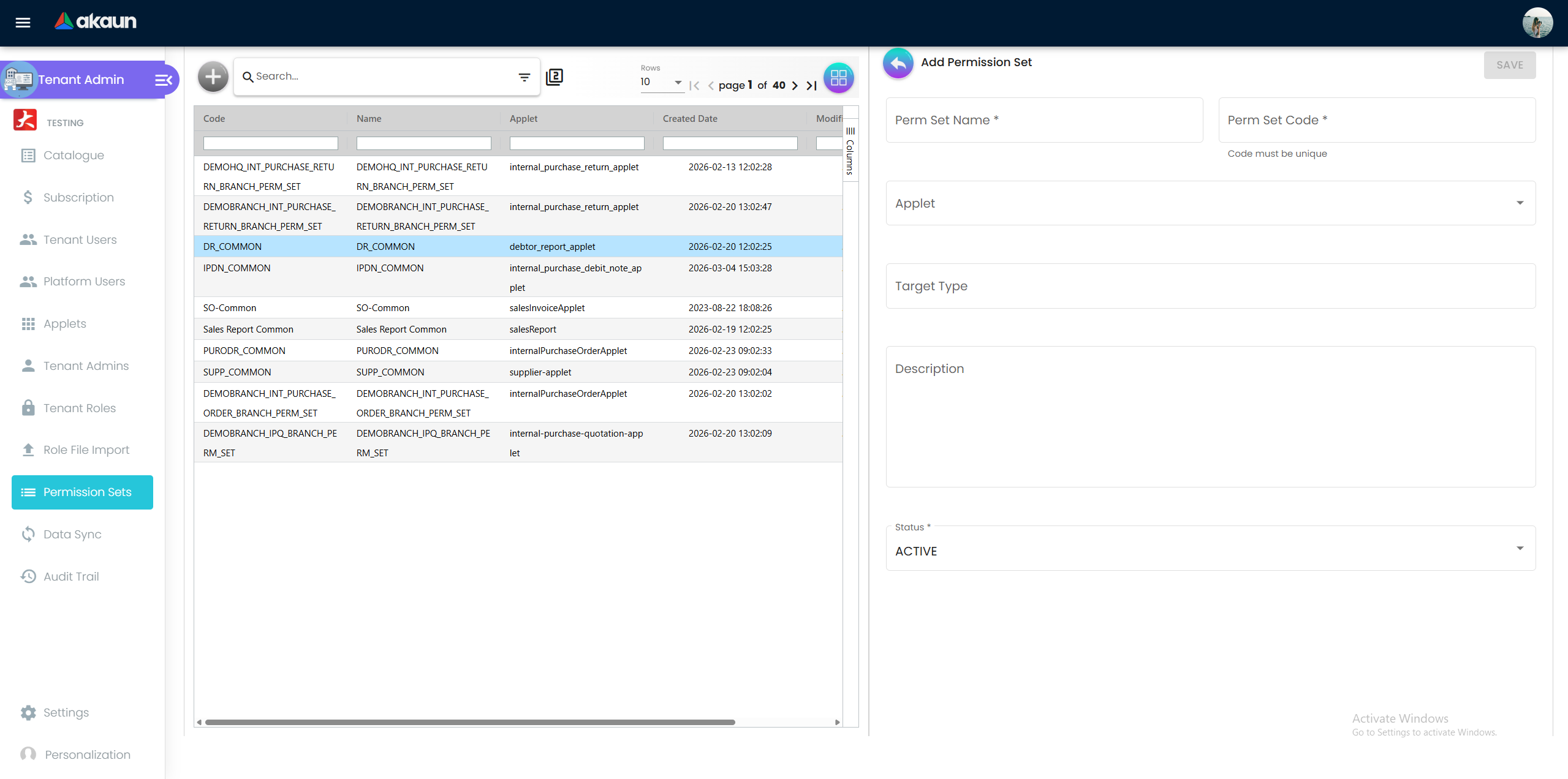
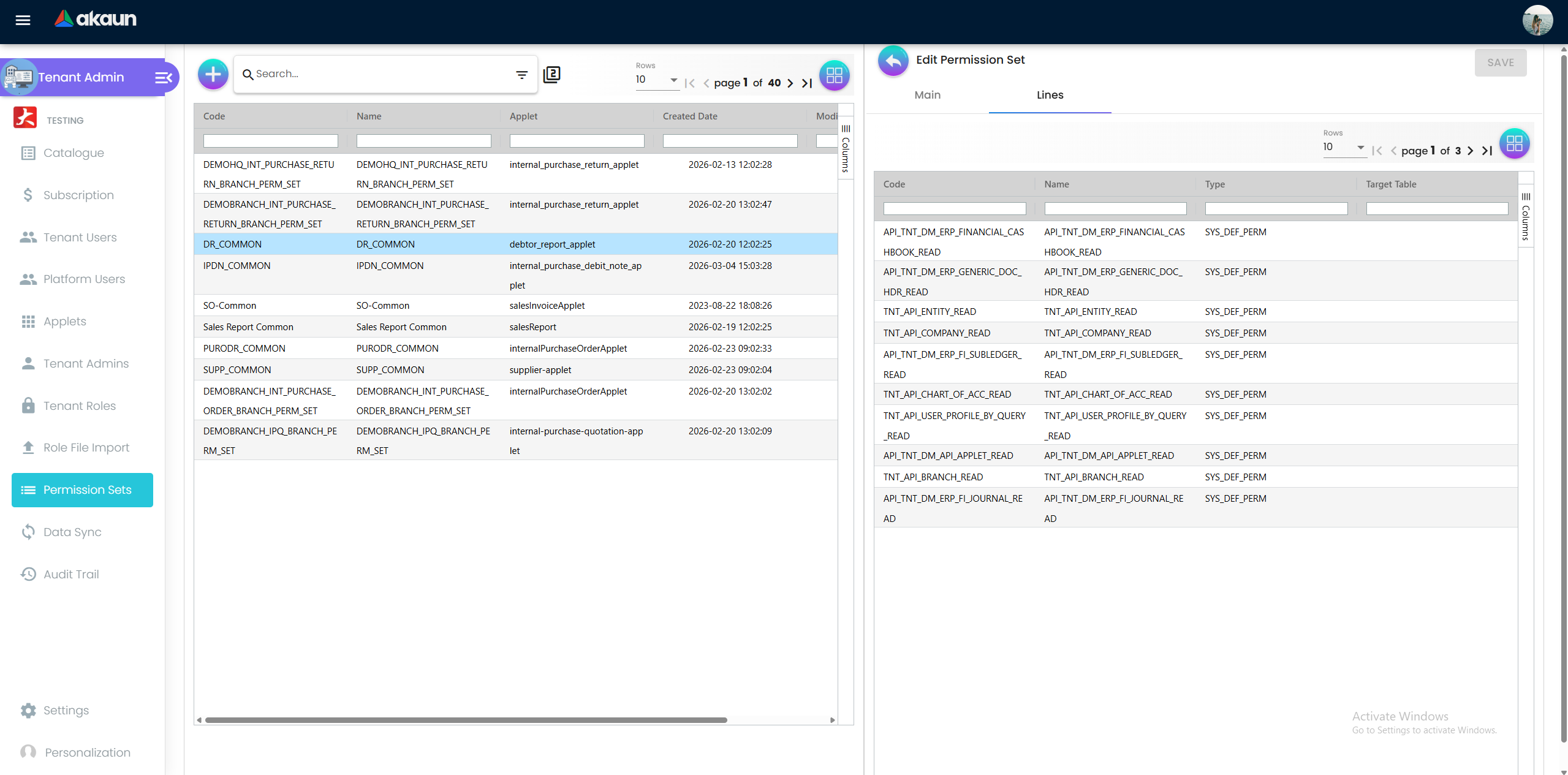
Listing: Code, Name, Applet, Created Date, Modified Date. Add: Perm Set Name, Perm Set Code (must be unique), Applet, Permission Template, See Permission Definition (read-only grid of the template’s lines: Code, Name, Type, Target Type, Default Target Table), Target Type, Target Table, Select Target, Description, Status. Edit tabs: Main and Lines.
Data Sync
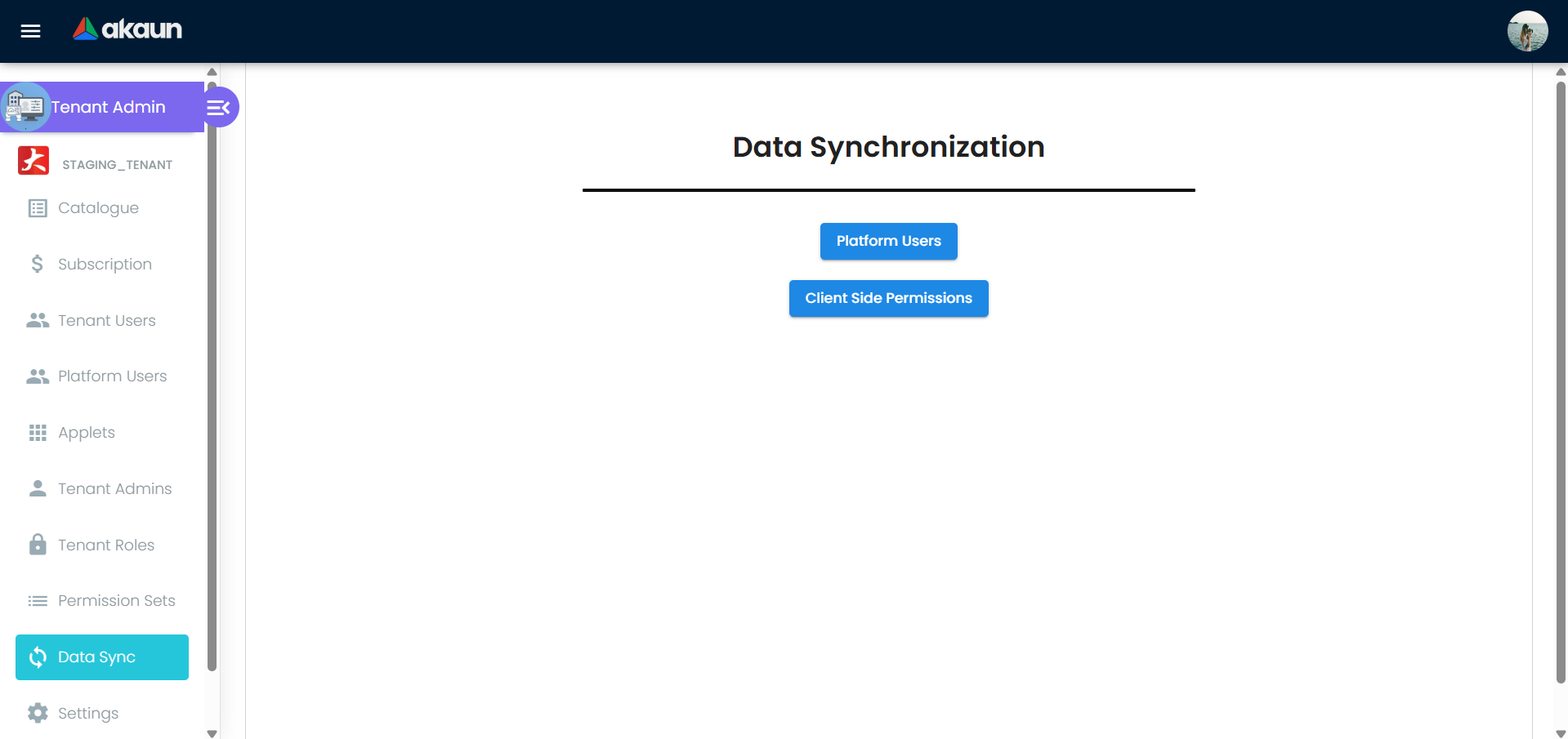
A page with two buttons, Platform Users and Client Side Permissions. Both do nothing today: neither button is connected to the server.
Audit Trail
Listing of the tenant’s applet audit-trail records: Applet Code, Table Name, Status, Action Name, Action By, Date Created, Date Updated (hidden by default: Event Code, Object Type, Transaction Type, User ID, Device ID, User Agent, Transaction Date). Newest first by Date Updated, ten rows a page by default. The listing reads the same endpoint as the Audit Trail item in each applet’s sidebar, so it needs the same audit trail permission (OWNER, ADMIN or CREATE; READ is not accepted).
Action Name is the operation: CREATED, UPDATED, DELETED or DISCARD. Action By is the actor’s profile name, and shows N/A where none can be found.
Advanced search (the filter icon in the search box): Applet Code, Table Name, Action By, and Date Created and Date Updated as from/to pairs, each with a Select Period granularity beside it. SEARCH applies, RESET clears. Applet Code and Table Name are exact matches, so Table Name takes the full table name (bl_fi_generic_doc_hdr), not a fragment. Action By finds any stored name containing what you type, in any capitals. The two date pairs are inclusive ranges. Action Name is not one of the search filters, so narrow by applet, table and date range and then read that column.
Selecting a row opens Audit Trail Details beside the listing: a Basic Information panel with Applet Code, Action Name, Table Name, Status, Date Created, Date Updated and Action By, and a Details block. Details lists the fields that changed, old value beside new, then Action By and Record Details, the record after the change. For a trading document it reads the header only: line changes show only through the totals they moved. Builds of this applet before mid-2026 instead printed the whole record as text under --- OLD DATA --- and --- NEW DATA --- headings.
Which part of the payload is filled follows the action. CREATED carries new data alone, UPDATED carries old and new so the two can be compared, and DELETED carries the removed record. A fourth block records the caller and session behind the change.
The screen is read-only: audit records are viewed here, not edited. The same records are also reachable from the Audit Trail item in each document applet’s own sidebar, which shows only that applet’s changes, newest first, searchable by document number, with just the changed fields listed old beside new. That is usually the faster route when you know the document; this screen is the one for questions that cross applets. See the Audit Trail API for the endpoint this screen calls, the full field list and what the audit record does not guarantee, and the Audit Trail guide for a worked investigation using this screen.
Settings and Personalization
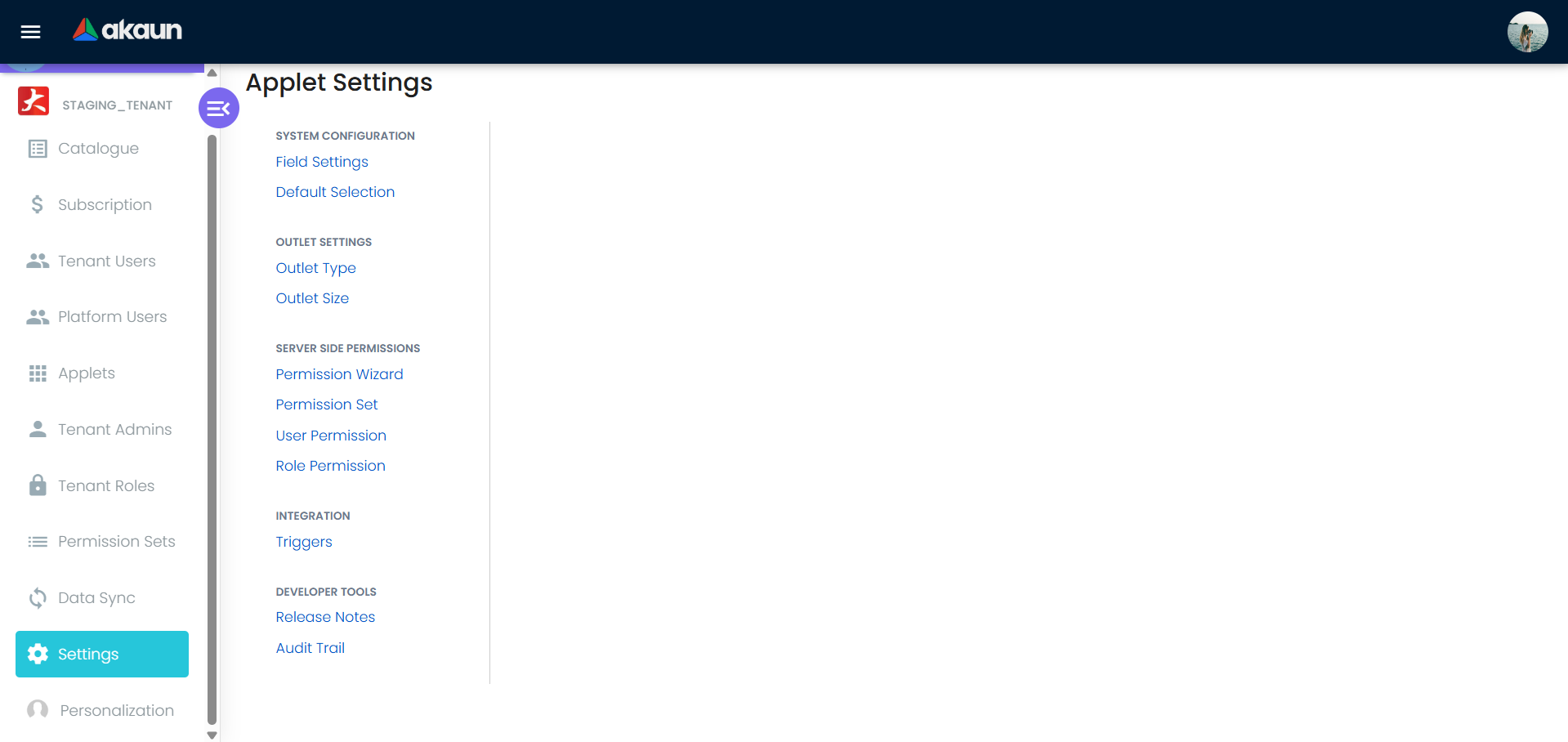
Settings groups: System Configuration (Field Settings, Default Selection, Custom Field Management), Outlet Settings (Outlet Type, Outlet Size), Server Side Permissions (Permission Wizard, Permission Set, User Permission, Role Permission), Integration (Triggers), Developer Tools (Release Notes, Audit Trail). Personalization: Field Settings, Default Selection. See Configuration for which of these are live.
Configuration
Before you can use it
- You must hold rank OWNER or ADMIN on the tenant. Every tenant-administration call this applet makes checks that rank and returns not authorised otherwise; a platform system administrator also passes on the install / uninstall / admin-link calls. This rank is granted by the Developer Sysadmin Applet or by an existing tenant admin under Tenant Admins.
- Role assignment additionally needs a tenant-database permission. Adding a user to a role (Tenant Users › Roles, Tenant Roles › User, and Settings › Role Permission) and creating / editing / deleting a role from Settings › Role Permission are checked against
TNT_TENANT_OWNER/TNT_TENANT_ADMINorTNT_LOG_TEAM_ROLE_ASSIGNMENT_OWNER/ADMIN/TNT_API_TEAM_ROLE_ASSIGNMENT_CREATE(roles:TNT_LOG_ROLE_*/TNT_API_ROLE_*) as permissions in the tenant, not the tenant rank. An admin who only has the rank is refused there. - Companies, branches and locations must exist in the Organisation Applet before a permission set can be targeted or the Permission Wizard can generate anything.
- Applets and their permission templates come from the platform registry; a tenant admin can only use templates, not create them.
- Employee records for the Employee Link tab come from Employee Maintenance.
Applet settings
Settings › Field Settings is the only screen that both saves and is read. Any OWNER/ADMIN of the tenant can change them; a fresh tenant has nothing stored, so every menu shows and the Sync button is hidden until the first Save.
Field Settings offers one toggle per sidebar item — Catalogue, Subscription, Tenant Users, Platform Users, Applets, Tenant Admins, Tenant Roles, Role File Import, Permission Sets, Data Sync, Audit Trail — each stored as HIDE_<ITEM>_MENU, all off until somebody saves. The one thing the screen does not tell you is how far they reach: unlike the document applets, these hides are absolute and tenant-wide. There is no SHOW_* client-side permission to reopen an item for a particular role — this applet defines none. Hiding Tenant Roles hides it from the tenant owner as much as from everybody else, and the only way back is to switch the toggle off.
The twelfth toggle is not a hide. SHOW_SYNC_BUTTON reveals the Sync button and the selection checkbox column in Settings › Custom Field Management, and it is off unless it has been explicitly switched on. It is hidden by default for a reason worth knowing before you turn it on: Sync changes the structure of your tenant’s database — it creates the custom-field tables and columns (see Lifecycle).
Rendered but not working (Settings › Default Selection). Default Branch and Default Location are shown with a SAVE button, but the screen is not connected to the record it writes into: choosing a branch fails in the browser, and SAVE does nothing. Nothing is persisted or read.
Personalization › Default Selection saves DEFAULT_BRANCH, DEFAULT_LOCATION, DEFAULT_COMPANY and DEFAULT_ROW_COUNT (5–100) to the user’s personal settings. Only the row count is read back here: every listing in this applet opens with that many rows per page. The branch, location and company are read by no screen in this applet.
Read without a control. The Employee Link tab’s employee grid hides the Employee Code column when HIDE_EMPLOYEE_CODE is true in the master settings; the key is not in the model and has no toggle, so the column always shows.
Dead links in the settings menu (present in the shared menu, with no screen behind them in this applet, so they land on the applet’s 404 page): Outlet Type, Outlet Size, Release Notes, and Personalization › Field Settings. Developer Tools › Audit Trail was on this list until October 2026, when a log screen was added behind it; if yours still opens a 404, your applet build predates it, and the sidebar Audit Trail is there either way. Client Side Permissions under Settings is not offered.
Settings in other applets that control this applet
None. The registry (applets, permission templates, client-side permission definitions) is maintained by the platform sysadmin tools, not by an applet setting.
Feature visibility / permissions
- Client-side permissions: this applet defines none and checks none. Nothing in this applet can be hidden per role; only tenant-wide via the
HIDE_*_MENUsettings above. - Server-side authorisation is by tenant rank for the applet’s own calls and by tenant permission for role assignment and the Settings › Server Side Permissions screens — see Before you can use it.
- Permission Wizard (Settings) requires rank ADMIN or OWNER on the applet’s own user link, which is a third, different check.
TNT_TENANT_ADMIN/TNT_TENANT_OWNERare super-user permissions across the platform; a user or role holding either passes every permission check and sees every branch and location target.
Fields
Every form here is an ordinary master-data form and the screen labels every box on it. Catalogue Details takes a code, a name, a type, an applet store, a description, a status, two subscription boxes and four audit fields; Catalogue › User › Add takes an e-mail or mobile number and a rank; Catalogue › Applet › Add takes an applet, a rank and an edition; Subscription › Details takes code, name, type, currency, credit limit, country, description and status; Tenant Users › Details shows the login GUID, given and family name, e-mail and audit fields; Tenant Admins › Add takes an e-mail or mobile number, a rank, a status and a description; Tenant Roles › Details takes a name, a code and a status; Permission Sets › Add takes a name, a code, an applet, a template, a target and a status. None of that needs writing down.
What follows is what the screen cannot tell you: which boxes are wired to anything, where a value actually lands, and which of several identical-looking uniqueness rules applies to the box in front of you.
Catalogue › Details
Catalogue Type is stored twice and only one copy is maintained. The drop-down writes the catalogue’s access type, and creating the catalogue also writes a hidden second copy of the same PUBLIC or PRIVATE word. Nothing in this applet ever updates that second copy, so a catalogue switched from PRIVATE to PUBLIC on this form leaves one copy saying PUBLIC and the other still saying PRIVATE. Today nothing acts on the difference. It is worth knowing anyway, because the moment anything starts reading it the two copies will already disagree on every catalogue whose type was ever changed.
Subscription Name and Subscription Type keep nothing you type. The two boxes on the right of the form are not mapped into anything the applet saves or loads. A catalogue’s real link to a subscription is a separate reference. This applet carries the code that would write it, but no screen here starts it, so that link cannot be made from this applet; BigLedger sets it from its platform administration applet.
Catalogue Code is optional; Catalogue Name is the required one. The code carries the pattern
^[a-zA-Z0-9-_]+$ and no required validator, so a catalogue saves happily with no code and appears
in the listing with a blank first column. The type drop-down writes the access type; a separate
catalogue-type field on the same record is never touched here, which is why the Admin applet’s
catalogue form shows two type fields and this one shows one.
Created By and Modified By survive the person being deleted. They are resolved to e-mail
addresses, not stored as such. The lookup asks for the login first among current logins and then,
if it finds nothing, among deleted ones, appending (deleted) — so a record created by someone who has since left shows
name@example.com (deleted) rather than an empty box.
Catalogue › User › Add
Verify User checks the e-mail or mobile number and the reply
drives the rest of the form: an existing login can be linked at rank OWNER, ADMIN,
MEMBER or GUEST; a login already in the catalogue is reported as already there; and
a login that is not found reveals Send Invitation. A fourth answer, not verified, means the login
exists but has never been activated — “Please ask the user to activate their account first” — and
nothing on this screen can move it along. Invitations are e-mail only: a mobile number that comes
back not found hides the Send Invitation button, which is the commonest dead end here.
Send Invitation brings the person into the tenant when they complete registration, not when you press
the button; until then they appear nowhere under Tenant Users. An invitation lands them at rank GUEST,
and not in the catalogue you sent it from, so they sign in to an applet list with nothing useful on it.
Once they have registered, come back to this catalogue’s User tab, press Verify User again (it now
reports a registered user) and add them at the rank the job needs. No screen lists the invitations you
have sent or withdraws one: keep your own list, and ask BigLedger support to withdraw one that is not
taken up.
Catalogue › Applet › Add to catalogue
Only ACTIVE registry applets are offered. The rank chosen here is written on the applet-to-catalogue link and is then copied onto every user-applet link installed from this catalogue — it is a template for future installs rather than a property of the catalogue, so changing it later does not restage the links already made. Installing the applet again for those users is what re-stamps the rank.
Tenant Users › Details
Only Given Name and Family Name can be typed; the GUID, e-mail and audit fields are constructed disabled. Save updates the platform-level record first and then copies name, first name, last name, phone, e-mail, date of birth, gender and the profile properties onto the tenant’s own copy of the login, creating that copy if it is missing. The same save also accepts a user editing their own record, which is why a non-admin can change their own name without holding the tenant rank. Platform Users › Details is the same form with nothing editable.
Tenant Admins › Add / Edit
One text box takes an e-mail address or a mobile number — anything matching neither pattern is refused with “Please enter a valid email or phone number.” — and Verify User decides what the rest of the form does. An existing login pre-sets the rank to ADMIN and fills Full Name. A login already in the tenant splits: with rank ADMIN or OWNER it reports “This user is already added as an admin/owner in this tenant” and locks the rank; with any other rank it quietly turns the form into an edit of the existing link, says “This user is not an admin/owner this tenant”, and Save changes their rank rather than creating anything. A login that is not found shows Send Invitation — but only when what you typed was an e-mail address, so a mobile number that is not found leaves no way forward. On this screen the button sends nothing: the screen’s code has no handler behind it. Send the invitation from Catalogue › User › Add instead, which does.
Description is not saved on Add. Create sends four things — the login GUID, the tenant GUID, the rank and the status — and Description is not among them; when Add turns into an edit of an existing link it sends the rank alone. Add has no validity dates either: the Start Date and End Date pickers are not shown. Open the admin from the listing instead: that Edit screen saves the rank, Start Date, End Date and Description. Neither screen has a Status field, so Status cannot be changed after the fact.
OWNER, ADMIN, MEMBER or
GUEST — a historical misspelling, a lower-case value written through the API — silently fails every
comparison, so the user is missing from listings and admin checks while the check still reports them
as already added.Names and codes: four uniqueness rules that look like one
Roles and permission sets each have a Name and a Code, both screens say the code must be unique, and the rule behind each of the four combinations is different. None of it is visible from either screen, and the difference only shows up after somebody deletes something.
| On create | On update | |
|---|---|---|
| Role name | Must be unique among roles that are not deleted — “The role named X already exists” | Not checked at all. A role can be renamed onto a name another role already holds |
| Role code | Must be unique among all roles, deleted ones included — the query carries no status filter | Checked, but against non-deleted roles only |
| Permission set name | Not checked | Not checked |
| Permission set code | Must be unique among non-deleted sets | Not checked |
The second row is the one that catches people. Delete a role coded SUPERVISOR, try to create it
again, and you are told “The role code SUPERVISOR already exists” while the Tenant Roles listing,
which hides deleted rows, shows nothing of the sort. Use a different code, or ask the platform team
to hard-delete the row. The first and third rows combine into the other trap: because an update never
re-checks the name, two roles can end up sharing one — after which nobody can create a third role
with that name, and the error names a duplicate the creator cannot see.
Permission Sets › Add
“Code must be unique” under the Code box is a static hint, not a validation — the form submits and
the server refuses a code already in use. Choosing a Permission Template
fills Target Type and Target Table from the template, and Save stays disabled until a target is
chosen whenever the target type is UNIQUE, which is the normal case. The target you choose is
written on the set and copied onto every line of the set, whatever each
template line’s own default target table says — so a set is scoped to exactly one company, branch or
location, and a template that mixes dimensions cannot be expressed here.
Role File Import › CSV
The template is MasterData_Upload_app_mst_role.csv and it has two columns. A blank cell in either
is fatal to the whole file, not to the row:
| Column | If it is blank | Otherwise |
|---|---|---|
ROLE_NAME | the row is stamped “Role Name is Invalid” on the Checking tab | becomes the role’s name, overwriting the existing name when the code already exists |
ROLE_CODE | the row is stamped “Role Code is Invalid” | matched against roles that are not deleted: a hit updates that role, a miss creates one |
Four things about this import are invisible from the screen and account for most of its surprises.
It is all or nothing. The processor counts the rows carrying either error and, if the count is
anything other than zero, marks the file FAILED and creates nothing at all. One blank cell in a
two-hundred-row file means two hundred roles were not created. A file with only a header row counts
as -1 and also fails.
Process Status DONE is written before the roles are created. The status is set first and the
creation attempted afterwards, and every creation failure is logged on the server and nowhere else —
so DONE, no new roles, no error message is a normal outcome. The two causes are the uniqueness
rules above: a ROLE_NAME that already belongs to another role, and a ROLE_CODE that belongs to a
deleted one.
Re-importing reactivates. When the code matches, the import writes the role back with
status = ACTIVE whatever it was before, so a role you deliberately set INACTIVE comes back on the
next run of the same file. It leaves the role’s users and permission grants alone — those live in
separate tables the import never sends.
The No. column is the line in the file. Rows are numbered from the physical line and the header is line 1, so the first data row is 2. It is not an off-by-one.
Upload is comma-delimited, and the work happens in two queued jobs — one to read the file into the checking rows, one to validate and create — so the listing sits at PROCESSING until both have run.
Audit Trail › search
Applet Code, Table Name, Action By, Date Created from/to, Date Updated from/to. Applet Code and Table Name are exact matches, Action By is a contains match in any capitals, and the two date pairs are inclusive ranges.
Lifecycle and effects
This is an administration applet: no server document type, no signums, no journal, no stock, no open queue. What each menu writes:
| Menu | Writes |
|---|---|
| Catalogue | The catalogue, its applet links and its user links (platform level) |
| Catalogue › Installed By User, Platform Users › Available Applet | The user’s applet installations; also makes sure the login exists in the tenant |
| Installed Applet › Uninstall | Soft-deletes the applet installations. Since a backend change of 2026-10-05, each install and uninstall made here is also recorded in the platform’s own audit trail, which is kept in BigLedger’s database rather than your tenant’s, so it does not appear on the Audit Trail screen below |
| Tenant Admins | The user’s rank on the tenant (platform level) — the record every other authorisation here depends on |
| Tenant Roles | The tenant’s roles (rank-checked) |
| Roles › User / Tenant Users › Roles | User-to-role links (permission-checked) |
| Permission Sets | The permission set and its lines; on update the applet re-points every grant of the set to the new target; on delete it removes those grants first |
| Roles › Permission Set tab | A grant of the set to the role |
| Roles › Applet › Permission Sets (Branch / Company / Location) | For every (template, checked target) pair: creates the permission set if it does not exist, then creates or deletes the role’s grants so they match the selection |
| Roles › Applet › Client-Side Permissions | Deletes the role’s links to that applet’s client-side permissions that were unticked, creates the ticked ones |
| Settings › Permission Wizard | One permission set per selected target of one dimension — see What the Permission Wizard generates below — named <permSetPrefix>_<TARGETCODE>_<TEMPLATECODE>_PERM_SET; with auto create also one role per set plus its grants |
| Role File Import | An import record (process status PROCESSING → FAILED on any error) and one checking row per CSV line; then roles created or updated by code |
| Settings › Custom Field Management | Custom field definitions; Sync creates the custom-field tables and columns in the tenant’s database for each selected field |
| Data Sync | Nothing (buttons are stubs) |
| Audit Trail | Read-only. Rows are written by document posting and the platform’s data-generation tools — not by applet install / uninstall (see Installed Applet › Uninstall above), and not by role, permission-set or user-link changes. Those are recorded, but in a different place this screen does not show: see the note below |
Permission and role changes are recorded — just not on this screen. The Audit Trail tab reads the applet audit trail, which is why a role grant never appears on it. A second, separate user audit trail records exactly the events this one misses: permissions added, deleted and updated, and links added and deleted, each against the login that made the change, and each marked as a direct permission grant, a user-to-role link or a team-to-role link. It is readable through the API.
So “who gave her that role in March” does have an answer — ask for it through the API, or ask your BigLedger contact to read it for you. What we have not established is whether any screen surfaces it; no applet in the catalogue is known to, so treat the API as the route until somebody shows you a screen.
How a permission decision is made once this is configured. The platform gathers every grant held by the user directly, by the user’s groups, by the user’s roles and by the groups’ roles, and reduces them to one (permission code, target type, target) per grant; a blank target means all. Deletes in this applet are soft, and the grants query excludes deleted rows — with one exception: a soft-deleted TNT_TENANT_ADMIN / TNT_TENANT_OWNER grant on a role is still honoured. The result is cached per user; the functional applets’ branch / location drop-downs short-circuit to “all targets” when TNT_TENANT_ADMIN or TNT_TENANT_OWNER is present.
What the Permission Wizard generates
The wizard reads as though it crosses three dimensions. It does not, and it has not for some time: it generates sets for one target table and silently ignores the other two. Which one it is is decided by the first line of the permission template you picked — that line’s default target table — and the selection grid is built from the same value, so the screen offers you exactly one list of targets and there is nothing to cross. Pick eleven branches and you get eleven permission sets, one per branch.
Four consequences follow, none of them on the screen.
A second run creates nothing and still says it worked. Before generating, the wizard asks whether a set already exists for that target, target table, template and applet, and skips it if one does. When every target is skipped the run reports success with nothing created, and the screen shows “Permissions generated successfully!”. Running the wizard twice is safe, and telling the two runs apart afterwards means looking at the Permission Sets listing.
The set’s name is derived and strips punctuation. The code is
<permSetPrefix>_<TARGETCODE>_<TEMPLATECODE>_PERM_SET, upper-cased, spaces turned into underscores,
and the target’s own code reduced to letters and digits — GS-KV-01 becomes GSKV01. Two targets
whose codes differ only in punctuation therefore produce two sets with the same code and name,
because the existence check is on the target, not on the code. Give branches and locations codes that
differ by more than a dash before running this.
A template whose lines name different target tables fails the whole run. Each line is generated
against its own default target table, so a line expecting a company while the run is scoped to
branches throws
PARAMETER_NOT_PROVIDED_BUT_CALLED_RELATED_METHOD_FAILED_TO_HANDLE_PERMISSION_LINE_CREATION and the
screen shows “Failed to generate permissions!” with nothing created. A template line with no
default target table at all fails the same way.
With auto create ticked, roles are created one per set, coded <rolePrefix>_<permSetCode>_ROLE
— and when the role prefix and the permission-set prefix are the same string the role prefix is
dropped, so the role is simply <permSetCode>_ROLE. Twenty-two branches mean twenty-two roles, each
holding one branch. That is the shape the wizard is for; it is not the shape a small tenant wants,
and there is no undo.
Revoking targets from a role: untick-all does nothing
The Branch, Company and Location grids under Tenant Roles › Applet › Permission Sets are a diff, not a picture. On Save the applet sends, per template, the list of targets currently ticked; the backend compares that list with the links the role already has and deletes the ones you dropped. It works exactly as it looks — with one exception.
The guard itself is defensible: a grid that failed to load its rows would otherwise wipe every grant on the first Save. What is not defensible is the success message, and there is no other route to a full revoke on this screen.
Two more things these grids do quietly. They create permission sets. Ticking a branch for a
template looks for an existing set on that (template, target) pair and creates one named
<TARGETCODE>_<TEMPLATECODE>_PERM_SET if there is none — which is where the sets nobody remembers
creating in the Permission Sets listing come from, and why two roles scoped to the same branch share
one set rather than getting one each. And a set the server fails to create is skipped in silence: the
creation failure is logged on the server, the loop moves on, the save returns success, and the tick
you made is simply gone when you come back. The commonest cause is a template line whose permission
code has not been seeded in your tenant, which surfaces instead as
“Missing Permission Definition: <code>”.
What the target actually does once you have set it
Setting a company, branch or location on a permission set is the part of this applet people trust most, and it is the part whose reach is least obvious from the screen. The target is stored on the grant; what happens next is decided by the kind of operation, and the three possibilities behave very differently.
One record, fetched or changed by its own identifier — and today this one does not work. Updating, deleting or fetching a single record is designed to read the record’s own company / branch / location and ask whether you hold the code for those targets. The check that actually runs today is an older one that asks only “does this user hold the code at all” — the target is not tested. The newer check is switched on per tenant by the platform team and is not on by default.
A listing. Scoping a listing by target is opt-in, per listing: each one decides whether to apply the permitted targets to its rows. The one that carries most of the business — documents — does, so documents are genuinely scoped by company, branch and location: a document is visible if the user is permitted at its company, at its branch or at its delivery branch. Most other listings apply no target condition, and there a grant of the code at any target shows every row.
Master data. Customers, suppliers, items and price rows are in that second group: the read permission is checked as a yes/no, so a customer list returns the whole tenant whatever branch the grant names. A branch target on a customer-read permission does not hide other branches' customers. Where a listing is narrowed by branch, it is because the screen chose to send a branch filter — a convenience, not a control.
And the drop-downs are a fourth thing again. The company, branch and location selectors ask,
per permission code, “do you hold it and with which targets”, offer only those targets, and
short-circuit to all when the user holds TNT_TENANT_ADMIN or TNT_TENANT_OWNER. That is why a login permitted
at branch level and not at company level opens a document with an empty company drop-down — the
commonest access symptom of this scoping — and it is also why the same user can still reach
company data through any screen or API call that does not consult the target.
Two things follow for anyone planning an access model here. Scope your permissions by all means — the mechanism is in real use, most heavily at location and branch level, and roles rather than individual logins are where grants land. But plan the confidentiality boundary at the document level, where it is enforced, and treat master data as visible to everyone who may read that master type at all. If a genuine restriction is needed on master data, it has to be a separate applet installation or a separate tenant, not a target.
Related applets
- Developer Sysadmin Applet — the platform-level counterpart; creates tenants, registers applets and permission templates, and can do everything this applet does as a platform system administrator.
- Organisation Applet — companies, branches and locations are the only three target tables a permission set, the role Permission Sets tab and the Permission Wizard can scope to.
- Employee Maintenance — the Employee Link tab writes the employee-to-login link; the employee’s own Login tab can invite a user into the tenant.
- Media Library Applet — its Manage Users tab offers the tenant’s confirmed logins, as listed here, as candidates for a drive.
- Merchant Admin — merchant Login tabs create tenant users (Verify Email) and send invitations that then appear under Tenant Users here.
Troubleshooting
| Symptom | Cause | Fix |
|---|---|---|
| Assigning a user to a role fails with 403 (Tenant Users › Roles, Tenant Roles › User, or Settings › Role Permission). | The caller has the OWNER/ADMIN rank but no matching permission in the tenant: the action requires TNT_TENANT_OWNER / TNT_TENANT_ADMIN or a TNT_LOG_TEAM_ROLE_ASSIGNMENT_* / TNT_API_TEAM_ROLE_ASSIGNMENT_CREATE grant. | Grant the admin user (Settings › User Permission) or a role they hold one of those permissions; a platform sysadmin can do it from the sysadmin applet. |
| A role scoped to one branch sees all branches and locations in an applet’s filter drop-downs. | The role once held TNT_TENANT_ADMIN/OWNER; the grant was soft-deleted, but a soft-deleted super-user grant is still honoured. | Ask the platform team to hard-delete the deleted grant for that role and re-sync the user’s cache. Never attach TNT_TENANT_ADMIN/OWNER to a role you intend to scope later. |
| A sidebar menu is missing for everyone. | Its HIDE_*_MENU toggle is on in Settings › Field Settings. | Switch it off and Save; there is no per-role SHOW_* override for this applet. |
| No Sync button (or checkbox column) in Custom Field Management. | SHOW_SYNC_BUTTON is off (hidden by default). | Enable it in Field Settings and Save. |
| Settings › Default Selection: SAVE does nothing, or the page errors when a branch is chosen. | Dead screen: not connected to anything. | Use Personalization › Default Selection for personal defaults; nothing in this applet needs a tenant default branch. |
| Data Sync buttons do nothing. | Both handlers are stubs. | Client-side permission definitions and user copies are synced by platform tools; raise it with the platform team if you need the feature. |
| Outlet Type / Outlet Size / Release Notes / Personalization › Field Settings open a 404 (and Developer Tools › Audit Trail on a build older than October 2026). | Menu entries come from the shared settings menu; this applet has no screens behind them. | Use the sidebar Audit Trail menu for the audit trail; the other items have no equivalent here. |
| Role File Import shows Process Status FAILED; Checking tab says “Role Code is Invalid” / “Role Name is Invalid”. | A CSV row has an empty ROLE_CODE / ROLE_NAME column, or the file is not comma-delimited with those two headers. One bad row fails the whole file and nothing is created. | Download the template from the Create screen, fill both columns on every row, re-upload. Existing codes are updated, not duplicated. |
| Role File Import shows Process Status DONE and no new roles appear; the Checking tab shows no errors. | The status is written before the roles are created and every creation failure is logged on the server only. The two usual causes are a ROLE_NAME that another role already holds, and a ROLE_CODE belonging to a role that was deleted — the code check does not exclude deleted rows. | Search Tenant Roles for the name; for the code, either choose a different one or ask the platform team to hard-delete the old row. Then re-upload. |
| A role you set INACTIVE is ACTIVE again. | The same import file was run again; a matching ROLE_CODE is written back with status = ACTIVE. | Remove the row from the CSV, or delete the role rather than deactivating it. |
| Creating a role fails with “The role code X already exists” and nothing with that code is in the listing. | Role-code uniqueness on create is checked against all roles including deleted ones; the listing hides deleted rows. | Use a different code, or ask the platform team to hard-delete the row. |
| You untick every branch (or company, or location) for a template, save, get “Permissions updated successfully!”, and the role still has them. | A template with nothing ticked is dropped from the request, so the server never sees it and revokes nothing. | Leave one target ticked and save — that makes the diff run and deletes the rest — then remove the role from the user or delete the permission set. Check the role’s Permission Set tab, not the grid. |
| A branch you ticked is not ticked when you come back, and the save reported success. | The permission set for that (template, target) pair could not be created; the failure is logged and the loop moves on. Usually a template line whose permission code has not been seeded in your tenant. | Look for “Missing Permission Definition: <code>”; the permission definition has to be seeded in the tenant database by the platform team. |
| Permission Wizard: you selected companies and branches and only got one kind of set. | The wizard generates for one target table only, taken from the first line of the chosen permission template; the other selections are discarded. | Run it once per template. A template whose lines name different target tables fails outright with PARAMETER_NOT_PROVIDED_BUT_CALLED_RELATED_METHOD_FAILED_TO_HANDLE_PERMISSION_LINE_CREATION. |
| Permission Wizard says “Permissions generated successfully!” and the Permission Sets listing is unchanged. | Every target already had a set for that template and applet, so all of them were skipped. | Nothing is wrong. Confirm from the listing rather than the toast. |
| You typed a Subscription Name or Subscription Type on a catalogue and it is blank when you return. | Those two boxes on Catalogue › Details are not mapped into anything the applet saves. | Nothing to fix here; the catalogue-to-subscription link is not settable from this applet. |
| Tenant Admins › Add says the user was not found. | The e-mail has no platform login yet; a mobile number cannot be invited from this screen. | Invite them from Catalogue › User › Add › Send Invitation (e-mail only; the same button on Tenant Admins › Add sends nothing). Once they have registered, add them here, and to the catalogue at the rank they need. |
| Installing an applet for a user fails with “Unable to add user and sysadminLoginSubject to tenant … Failed to obtain JDBC Connection”. | The tenant’s own database was unreachable while the install tried to copy the login into it. | Infrastructure: check the tenant database and its connection record; retry when it is reachable — the request body is fine. |
| A user with a tenant link is missing from listings or admin checks. | Rank comparisons are exact strings (ADMIN, OWNER, MEMBER); a historical row can carry a misspelled rank value, and one that does drops out silently. | Ask the platform team to correct the rank value; do not re-add the user (the check reports “already added”). |
| Audit Trail never shows role or permission changes. | By design: only documents and the platform’s data-generation tools write the audit trail this screen reads; applet installs and uninstalls go to the platform’s own audit trail, and role, permission-set and user-link changes go to a separate user audit trail this screen does not read. | For the current state, use the role’s User / Permission Set tabs and the permission-set Roles tab. For the history — who granted what, when — read the user audit trail through the API or ask your BigLedger contact to read it for you; see the note under Lifecycle and effects; we have not found a screen that shows it. |
| Audit Trail advanced search on Action By returned nothing. | Fixed (search now matches the actor’s profile name server-side). | Update to the current build. |
| Custom field created against the wrong tenant. | Fixed (the tenant is now taken from the session). | Update to the current build. |