Debtor and Creditor Report
Review what customers owe you and what you owe suppliers in one place, for a team that looks after both sides. It reads finalised documents and writes nothing, not even a contra, and its totals are document balances, so they can differ from the Balance Sheet, which also carries manual journals.
Overview
The Debtor and Creditor Report applet is one workspace for reviewing both sides of the sub-ledger: money customers owe you (accounts receivable, “debtors”) and money you owe suppliers (accounts payable, “creditors”). Its left menu carries fifteen reports — a debtor and a creditor version of the outstanding-document, aging, statement-of-account, historical-aging and historical-balance reports, plus the AR and AP transaction reports, the salesman collection report and the two payment/settlement reports. It reads the same FINAL documents that the sales, purchase, receipt and payment applets create and writes nothing.
In the product the applet is titled Debtor & Creditor Report and its route root is applet/tnt/wavelet/erp/debtor-and-creditor-report-applet. It is a separate product from the single-sided Debtor Report Applet and Creditor Report Applet, which share its report engine but carry their own settings screens (this applet has almost none — see Configuration). Choose this applet when one team reviews both sides; choose the single-sided applets when you need aging periods, excluded document types, contra creation or the salesman-code and popup settings.
Where it fits
| Position | Applet / document | Why |
|---|---|---|
| Upstream (customer documents) | Sales Invoice (Internal) and the other sales documents, Receipt Voucher (Internal) | Every FINAL customer document with an AR/AP balance (arap_bal) is a row in the Debtor … reports; receipts and their settlement lines feed the Settlement tabs, the AR Transaction Report and Collection Invoice with Aging. |
| Upstream (supplier documents) | Purchase Invoice No Stock In and the other purchase documents, Payment Voucher (Internal) | Every FINAL supplier document with a balance is a row in the Creditor … reports; payments feed the AP Transaction Report and the two payment/settlement reports. |
| Upstream (master data) | Entity, Organisation | Which side an entity appears on is decided by its AR/AP type (AR_* or AP_*, on the entity or on its company link); companies and branches are the filters and the permission targets. |
| Sibling reports | Debtor Report Applet, Creditor Report Applet | The single-sided applets: same endpoints, more settings, contra creation. |
| Downstream (reconciliation) | Financial Report, Ledger And Journal | The balances here are the sub-ledger behind the trade-debtor and trade-creditor lines of the Balance Sheet. |
Screens and menus
Every menu item opens a listing with an advanced-search bar (keyword plus filters), a Current DateTime or As of Date label, an AG Grid with export, and — where the repo has one — a drill-down that opens in the right-hand column. The default landing page is Debtor Outstanding Document Report.
| Menu item | Route | What it shows / drill-down |
|---|---|---|
| Debtor Outstanding Document Report (default) | outstanding-document-report | One row per open customer document as of today, with an Aging Summary strip above the grid. Click a row for View Outstanding Document (tabs Details, Account, Line Items, Delivery Details, Settlement, Department, Contra, Doc Link; header PRINT). The Contra tab lists existing contras only — there is no add button in this applet. |
| Creditor Outstanding Document Report | creditor-outstanding-document-report | Same listing and Aging Summary for supplier documents. The container registers only the listing column: clicking a row loads the document and greys the row, but no View Outstanding Document opens. |
| Debtor Aging Report | outstanding-aging-report | Open customer documents grouped by customer with month bucket columns. Click a row for Aging Report Transactions (Main, Outstanding Docs → document details with Main Details, Line Items, Cashbook, Contra, Doc Link, Journal Txn). |
| Creditor Aging Report | creditor-outstanding-aging-report | Listing only; no drill-down. |
| Debtor Statement of Account | outstanding-entity-report | One row per customer and currency: PNS Amount, Settlement Amount, Docs Open, Contra, Balance. Click a row for Entity Report Transactions — tabs Entity Details, Transaction Docs, Statement Of Account (sub-tabs Transaction and Aging, each with SEARCH, Export to PDF and Preview). |
| Creditor Statement of Account | creditor-outstanding-entity-report | Same three-tab view for suppliers. |
| Debtor Historical Transaction Aging Analysis Report | txn-history-report | Line-level aging as at the end of the chosen month, from the historical-ageing snapshot. Listing only. |
| Creditor Historical Transaction Aging Analysis Report | creditor-txn-history-report | Same for suppliers. Listing only. |
| Debtor Historical Report | historical-debtor | One balance per customer as at month end, six calendar-month columns plus 6 Month+. Click a row for Entity Details / Transaction Docs. |
| Creditor Historical Report | historical-creditor | Same for suppliers, with the same two-tab view. |
| AR Transaction Report | ar-transaction | All AR movements in a date range grouped by customer, with Debit, Credit, Contra and running Balance. |
| AP Transaction Report | ap-transaction | Same for suppliers. |
| Collection Invoice with Aging | collection-invoice-aging | Each settlement of a sales invoice or cash bill by a receipt voucher, at the date of the settlement, grouped by salesman and customer, with Payment Days (settlement date minus invoice date) and buckets by those days. Settlements by credit note are not included. |
| Payment Details with Purchase Invoice | pv-with-purchase-invoice | Each payment document and the purchase invoices it settled. |
| Purchase Invoice with Settlement Details | purchase-invoice-with-settlement | Each purchase invoice and its settlement lines. |
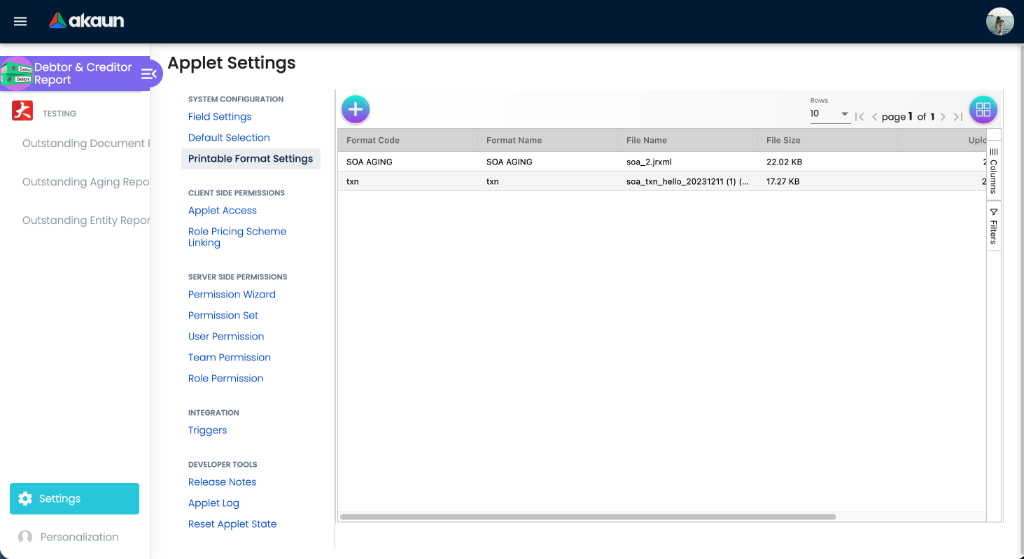
The Settings menu (group System Configuration) has Field Settings, Default Selection and Printable Format Settings; the settings route also reaches the shared Webhook, Client Side Permission, Permission Set, User/Team/Role Permission and Release Notes screens. There is no Aging Period Settings item in this applet. Personalization has one item, Default Selection.
The keyword box requires at least three characters; the two payment/settlement reports do not support keyword search at all (advanced search only).
Configuration
Before you can use it
- Documents must be FINAL. Every report reads only FINAL, active documents. Draft or voided documents never appear.
- Entities need an AR or AP type. The Debtor … screens return entities whose default AR/AP type (or company link) is an
AR_*type; the Creditor … screens use theAP_*types. Set it in the Entity Applet or on the company link. - Companies and branches come from the Organisation Applet. AR Transaction Report and AP Transaction Report require Company; Purchase Invoice with Settlement Details requires Branch (“Please select branch.”).
- Server-side read permissions for each report (see Feature visibility / permissions), granted with company targets for users who are not tenant admin or owner.
- A
.jrxmlprintable format of typeSTATEMENT_OF_ACCOUNT_TRANSACTIONand/orSTATEMENT_OF_ACCOUNT_AGING, flagged Default, before anyone uses Export to PDF / Preview on a statement.
Applet settings
Where settings live: this applet has no settings form of its own. Of the three screens under Settings, only Printable Format Settings saves anything; it writes two settings, merged with what is already stored. Every listing still reads the same keys the single-sided applets use (see the runtime-only list below), so a tenant that needs day-range buckets here has to have those keys written by another means. Excluded document types are the exception: no key changes them in this applet (see below).
Who can change them: anyone who can open the applet’s Settings menu. The applet has no client-side permissions, so nothing in the menu is gated.
Settings → Field Settings — renders two panels, Lines Settings (Unit Discount, SST/VAT/GST, WHT, Blanket Order) and Department Settings (Segment, G/L Dimension, Profit Center, Project), but none of the eight toggles is saved and the SAVE button does nothing. The screen is a placeholder.
Settings → Default Selection — renders Default Branch and Default Location dropdowns, but choosing a branch raises an error in the browser console and SAVE saves nothing. Nothing is persisted; DEFAULT_BRANCH / DEFAULT_LOCATION cannot be set from this applet.
Settings → Printable Format Settings (this applet’s own; .jrxml only — ADD / SAVE stay disabled until a .jrxml file is attached)
| Setting | Key | What it controls | Default | Effect when changed |
|---|---|---|---|---|
Type STATEMENT_OF_ACCOUNT_TRANSACTION + Default ticked | PRINTABLE_STATEMENT_OF_ACCOUNT_TRANSACTION (format GUID) | The template used by Export to PDF / Preview on the Statement Of Account → Transaction tab of both statement views (POST …/statement-of-accounts/transactions/print-jasper-pdf). | Empty → the buttons show “The default print preferences have not been configured”. | Deleting the default format clears the key. |
Type STATEMENT_OF_ACCOUNT_AGING + Default ticked | PRINTABLE_STATEMENT_OF_ACCOUNT_AGING | Same for the Aging tab (…/statement-of-accounts/aging/print-jasper-pdf). | Empty → same message. | Same. |
The listing shows Format Code, Format Name, File Name, File Size, Uploaded Date, Uploaded By; edit offers download and delete.
Personalization → Default Selection — renders User Default Settings (Default Branch, Default Location) but, exactly like the applet-wide screen, never loads values and its SAVE has no listener. Nothing is persisted.
Keys read at runtime that have no control in this applet (settings are stored per applet, so values saved in the Debtor or Creditor Report Applet do not carry over; these can only be set by editing this applet’s APPLET_SETTINGS JSON):
| Key | Read by | Effect |
|---|---|---|
AGING_PERIOD_TYPE, AGING_PERIOD_HDR_GUID | both aging listings, both historical aging listings, both outstanding-document listings, Collection Invoice with Aging | Day-range bucket columns need both: the period GUID names an aging period definition, and its ranges become the columns. The aging, historical-aging and collection listings take day or month mode from AGING_PERIOD_TYPE; the two outstanding-document listings ignore that key and take the mode from the period definition itself, so with the type set to DAY and no period they stay on months. Otherwise calendar-month columns (six, or the period’s month count). With nothing set the applet shows six month columns plus 6M+. |
ENABLE_BRANCH_FILTER_PERMISSION | ten listings: both outstanding-document, both aging, both statement, both historical-aging, AR Transaction, Collection Invoice with Aging | On seven of them (the debtor outstanding-document, aging and statement listings, both historical-aging listings, AR Transaction and Collection) it switches the Branch filter from the company-permission-filtered dropdown to the standard branch dropdown. The creditor outstanding-document and creditor statement listings already use the standard dropdown, so nothing changes there. On the Creditor Aging Report, which has no Branch filter, it adds one, but the report never sends what you pick in it: the rows are the same whichever branches you choose. Filter that report by company instead. |
USE_SALESMAN_CODE_INSTEAD_OF_NAME | ten listings: both outstanding-document, both aging, both statement, both historical-aging, AR Transaction, Collection Invoice with Aging | Shows the salesman code instead of the name. |
ENABLE_PORTRAIT_HISTORICAL_TRANSACTION_AGING_ANALYSIS_REPORT | the Debtor and Creditor Historical Transaction Aging Analysis Reports | Changes nothing. Both screens read it into a page-orientation value that no print or export control is given, so the output is the same whichever way it is set. Do not set it expecting a portrait report. |
ENABLE_DEFAULT_DATE_FROM | the Statement Of Account tabs | When true, the Transaction statement ignores Month From and starts from 2000-01-01, so it lists every document from the customer’s or supplier’s first. When the key is absent or false, Month From is honoured. The Aging tab reads the key too but always starts from 2000-01-01 either way. |
CREDITOR_EXCLUDE_SERVER_DOC_TYPES | loaded by the Creditor Historical Report only | Changes nothing. That screen loads the key and then sends the fixed creditor list described below instead, as every other creditor screen does, so a value written here has no effect on any report. To exclude other document types from the supplier reports, use the Creditor Report Applet, where the key is used. |
Excluded document types are fixed in this applet. Every listing sends a fixed list as exclude_server_doc_types: the Debtor … screens exclude 22 purchase-side types (purchase invoices, GRNs, debit/credit notes, payment vouchers, consignment documents, goods delivery/dispatch notes, INTERNAL_PURCHASE_GRN_STOCK_IN), the Creditor … screens exclude 25 sales-side types (sales invoices, cash bills, receipt vouchers, credit/debit notes, returns, jobsheets, packing orders, customer consignments, plus INTERNAL_PURCHASE_GRN_STOCK_IN, added July 2026 after a customer saw GRN stock-ins double-counted). A GRN stock-in with an open supplier balance therefore never appears in this applet’s creditor reports, and there is no setting to change that.
Document behaviour settings
Not applicable — this is a report applet with no write action.
Feature visibility / permissions
No client-side permission definitions exist for debtor-and-creditor-report-applet in the registry (checked 2026-09-05). Access is enforced by the backend per endpoint. At start-up the applet asks the permission-inquiry service for: API_TNT_DM_ERP_ENTITY_AR_AP_REPORT_CREDITOR_OUTSTANDING_DOCUMENT_READ, …_CREDITOR_OUTSTANDING_ENTITY_READ, …_CREDITOR_OUTSTANDING_AGING_READ, …_DEBTOR_OUTSTANDING_DOCUMENT_READ, …_DEBTOR_OUTSTANDING_ENTITY_READ, …_DEBTOR_OUTSTANDING_AGING_READ, API_TNT_DM_ERP_CREDITOR_TRANSATION_HISTORY_REPORT_READ, API_TNT_DM_ERP_DEBTOR_TRANSATION_HISTORY_REPORT_READ, API_TNT_DM_ERP_PURCHASE_INVOICE_SETTLEMENT_DETAIL_REPORT_READ, API_TNT_DM_ERP_PAYMENT_DETAIL_PURCHASE_INVOICE_REPORT_READ, API_TNT_DM_ERP_ARAP_TRANSACTION_READ, TNT_DEBTOR_REPORT_BRANCH_TGT_READ, TNT_TENANT_ADMIN, TNT_TENANT_OWNER.
| Report | Backend permission checked (READ, or the matching ADMIN/OWNER) | Company scope used by the listing’s dropdowns |
|---|---|---|
| Debtor / Creditor Outstanding Document Report | API_TNT_DM_ERP_ENTITY_AR_AP_REPORT_OUTSTANDING_DOCUMENT_READ | targets of …_DEBTOR_OUTSTANDING_DOCUMENT_READ — on both sides |
| Debtor / Creditor Aging Report | API_TNT_DM_ERP_ENTITY_AR_AP_REPORT_OUTSTANDING_AGING_READ | targets of …_DEBTOR_OUTSTANDING_ENTITY_READ — both sides |
| Debtor / Creditor Statement of Account (listing) | API_TNT_DM_ERP_ENTITY_AR_AP_REPORT_DEBTOR_OUTSTANDING_ENTITY_READ | targets of the same — both sides |
| Statement tabs, Export / Preview | API_TNT_DM_ERP_STATEMENT_OF_ACCOUNT_READ | — |
| Debtor Historical Transaction Aging Analysis | API_TNT_DM_ERP_DEBTOR_TRANSATION_HISTORY_REPORT_READ | targets of the same |
| Creditor Historical Transaction Aging Analysis | API_TNT_DM_ERP_CREDITOR_TRANSATION_HISTORY_REPORT_READ | targets of …_DEBTOR_TRANSATION_HISTORY_REPORT_READ |
| Debtor / Creditor Historical Report | API_TNT_DM_ERP_ENTITY_AR_AP_HISTORICAL_DEBTOR_READ | targets of …_DEBTOR_OUTSTANDING_ENTITY_READ |
| AR / AP Transaction Report | API_TNT_DM_ERP_ARAP_TRANSACTION_READ | AR: targets of …_DEBTOR_OUTSTANDING_DOCUMENT_READ; AP: targets of …_ARAP_TRANSACTION_READ |
| Collection Invoice with Aging | API_TNT_DM_ERP_ARAP_TRANSACTION_READ | targets of …_DEBTOR_OUTSTANDING_DOCUMENT_READ |
| Payment Details with Purchase Invoice | API_TNT_DM_ERP_PAYMENT_DETAIL_PURCHASE_INVOICE_REPORT_READ | targets of the same |
| Purchase Invoice with Settlement Details | API_TNT_DM_ERP_PURCHASE_INVOICE_SETTLEMENT_DETAIL_REPORT_READ | targets of the same |
Because the creditor screens were copied from the debtor ones, a role built only from CREDITOR_* permissions gets an empty company dropdown on the creditor listings; the practical minimum for an AP-only user is the debtor outstanding-document and outstanding-entity READ permissions with company targets as well. Branch dropdowns are scoped by the targets of TNT_DEBTOR_REPORT_BRANCH_TGT_READ on both sides. Tenant admins and owners see all companies.
Fields
There is no create/edit form; the fields are the advanced-search filters of each report and the two statement tabs.
Report filters (✓ = present, R = required before search)
| Filter | Debtor Outstanding Doc | Creditor Outstanding Doc | Debtor Aging | Creditor Aging | Debtor SOA | Creditor SOA | Debtor Hist. Aging | Creditor Hist. Aging | Debtor Hist. | Creditor Hist. | AR Txn | AP Txn | Collection | Payment Details | PI w/ Settlement |
|---|---|---|---|---|---|---|---|---|---|---|---|---|---|---|---|
| Entity (multi) | ✓ | ✓ | ✓ | ✓ | ✓ | ✓ | ✓ | ✓ | ✓ | ✓ | ✓ | ✓ | ✓ | ✓ | ✓ |
| Customer Category / Supplier Category | ✓ | ✓ | ✓ | ✓ | ✓ | ✓ | ✓ | ✓ | ✓ | ✓ | ✓ | ✓ | – | – | – |
| Company | ✓ | ✓ | ✓ | ✓ | ✓ | ✓ | ✓ | ✓ | ✓ | ✓ | R | R | – | ✓ | – |
| Branch | ✓ | ✓ | ✓ | – | ✓ | ✓ | ✓ | ✓ | – | – | ✓ | ✓ | ✓ | ✓ | R |
| Shipping Entity | ✓ | – | ✓ | – | ✓ | – | ✓ | – | ✓ | – | ✓ | – | ✓ | – | – |
| Employee / Salesman | ✓ | – | ✓ | – | ✓ | – | – | – | – | – | – | – | ✓ | – | – |
| Currency | ✓ | ✓ | – | – | ✓ | – | ✓ | ✓ | – | – | – | – | – | – | – |
| As Of Date (month picker) | – | – | – | – | – | – | R | R | R | R | – | – | – | – | – |
| Transaction Date (from/to) | – | – | ✓ | – | ✓ | – | – | – | – | – | ✓ | ✓ | ✓ | ✓ | ✓ |
| Sort By | – | – | – | – | – | – | – | – | – | – | ✓ | ✓ | – | – | – |
| Cashbook | – | – | – | – | – | – | – | – | – | – | – | – | – | ✓ | – |
| Show purchase invoice without settlement details | – | – | – | – | – | – | – | – | – | – | – | – | – | – | ✓ |
There is no ARAP Type filter on any listing; the side is fixed by the menu item. Keyword search needs at least three characters; with no currency filter, foreign-currency amounts are shown in base currency (divided by the document rate), and a non-MYR currency filter shows document-currency amounts.
Statement Of Account tabs (inside Entity Report Transactions, both sides)
| Tab | Field | Required | Notes |
|---|---|---|---|
| Transaction | Month From, Month To | Yes | Opening balance before Month From, one line per document, closing balance; Export to PDF / Preview need the default STATEMENT_OF_ACCOUNT_TRANSACTION format. Month From is ignored when ENABLE_DEFAULT_DATE_FROM is set. |
| Aging | Month To | Yes | Month From is not used (date_from fixed at 2000-01-01); Export to PDF / Preview need the default STATEMENT_OF_ACCOUNT_AGING format. |
Lifecycle and effects
What the reports read. Only FINAL, active documents of the side’s account types, less a fixed list of excluded document types. The balances are the document’s own Docs Open, Contra and Balance figures (Balance = Docs Open + Contra), and the customer or supplier a row names is the document’s — every report here reads the document, not the journal. The one report that reads the journal line’s entity instead, and so keeps naming the old record after a posted document’s customer or supplier was changed without the journal following, is the Subledger Report tab of Entity Report Transactions in the Debtor Report and Creditor Report applets; this applet’s version of that tab is switched off. “As of today” reports read the documents as they stand now; the four historical reports read the historical-ageing snapshot as at the end of the chosen month. That snapshot is not kept up to date as documents are finalised: a monthly job writes it, at 01:00 on the 1st, from the balances at that moment. That job runs on a clock that is set up per tenant, and it may be off on yours. If it is off, the historical reports stop at the last month it wrote, and every later month comes back empty rather than wrong. Check it in the Scheduler applet: look for the monthly historical-aging clock with Status ACTIVE, and if it is missing or inactive ask your BigLedger contact. Do not run it by hand to fill a missed month: it stores last month-end from today’s balances and never replaces a month already stored. A back-dated contra corrects a month already written, and so — only where your tenant subscribes to the back-dated aging step — does finalising a document dated in such a month. See The aging shows an invoice already paid. Collection Invoice with Aging is built differently from every other report here. It reads the settlements themselves rather than the documents’ balances: each time a receipt voucher settled a sales invoice or cash bill, at the date of that settlement. So it is the one report that measures how long customers take to pay, not how old their unpaid balance is. Use it to compare salesmen’s collection speed, or to set a customer’s credit terms from how they actually pay. A balance settled by a sales credit note does not appear in it here; the same report in the Debtor Report Applet includes credit notes, so use that one when you need both.
What it writes. Nothing. The Contra tabs list existing contras, and there is no add button on any of them. No document status changes, no journal, no stock movement. To create a contra use the Debtor Report Applet or Creditor Report Applet.
Related applets
- Debtor Report Applet — the receivable side on its own, with Field Settings, aging periods, personal defaults and contra creation.
- Creditor Report Applet — the payable side on its own, same additions.
- Receipt Voucher (Internal) and Payment Voucher (Internal) — create the settlements shown in the Settlement tabs, the transaction reports and the payment/settlement reports.
- Sales Invoice (Internal), Purchase Invoice No Stock In — the main documents carrying customer and supplier balances.
- Entity Applet — AR/AP type decides the side; Organisation Applet — companies and branches.
- Financial Report, Ledger And Journal — the GL side to reconcile against.
Troubleshooting
| Symptom | Cause | Fix |
|---|---|---|
| Field Settings toggles (Unit Discount, SST/VAT/GST, Segment, …) never stay on after SAVE. | The screen is a placeholder: no control is bound and SAVE has no handler. | Nothing to configure here; the toggles have no effect on any report. |
| Default Branch does not stick; the browser console shows an error when a branch is picked. | Default Selection (applet-wide and personal) never loads or saves the applet container. | Not available in this applet. Use the Debtor or Creditor Report Applet if a default branch is needed. |
| Aging columns are always calendar months; no way to set 30/60/90-day buckets. | No Aging Period Settings menu, and AGING_PERIOD_TYPE / AGING_PERIOD_HDR_GUID have no control here. | Use the single-sided applets, or have the two keys written into this applet’s APPLET_SETTINGS JSON. |
| The Statement / Statement(aging) buttons described in older documentation are missing from Entity Report Transactions. | Removed; the header now has only the back button. The print code behind them (onPrintStatement*) is unreachable. | Open the Statement Of Account tab and use Export to PDF / Preview on the Transaction or Aging sub-tab. |
| “The default print preferences have not been configured” on Export to PDF / Preview. | No .jrxml format of the matching type is flagged Default. | Settings → Printable Format Settings: add or edit the format with the right Type and tick Default. |
| “No data to print. Please run the search first.” | Export/Preview clicked before SEARCH on the statement tab. | Set the months, click SEARCH, then export. |
| “Please select branch.” | Branch left empty on Purchase Invoice with Settlement Details. | Choose a branch; the search is not sent otherwise. |
| Clicking a row on Creditor Outstanding Document Report (or Creditor Aging Report) only highlights it. | Those containers register the listing column only; the debtor side has the view columns. | Use Creditor Statement of Account → Transaction Docs for supplier document detail, or the Creditor Report Applet. |
| A GRN stock-in with an open supplier balance never shows on the creditor reports. | INTERNAL_PURCHASE_GRN_STOCK_IN is in the hard-coded exclusion list on both sides (added after a double-counting report, July 2026). | By design here. The Creditor Report Applet makes the exclusion configurable. |
| Company dropdown is empty for an AP-only user on the creditor listings. | The creditor listings scope companies by the targets of the debtor outstanding-document / outstanding-entity READ permissions. | Grant those two debtor READ permissions with company targets as well, or make the user tenant admin. |
| Debtor Historical Report or Creditor Historical Report returns not authorised although the aging permissions are granted. | The endpoint checks API_TNT_DM_ERP_ENTITY_AR_AP_HISTORICAL_DEBTOR_READ, which the applet’s start-up inquiry does not even ask for. | Add that permission to the role (for both sides). |
| The historical reports (both Historical Transaction Aging Analysis reports, both Historical Reports) are empty for recent months, or stop at one month. | The monthly historical-aging clock is missing or inactive on your tenant, so no month-end has been stored since. | Check the clock in the Scheduler applet and ask your BigLedger contact to switch it on and rebuild the missing months. Do not use Run Now to fill the gap: a run stores last month-end from today’s balances. Until then, use the as of today reports. |
| A Branch filter appeared on Creditor Aging Report but changing it changes nothing. | ENABLE_BRANCH_FILTER_PERMISSION is on. On this one report it adds a Branch filter whose value is never sent. | Filter by Company, or use the Creditor Outstanding Document Report, whose Branch filter works. |
A document type written into CREDITOR_EXCLUDE_SERVER_DOC_TYPES still shows in the creditor reports. | No report in this applet uses the key; every creditor screen sends the fixed list. | Use the Creditor Report Applet, which honours the key. |
| Totals do not agree with the Balance Sheet. | The reports show document balances of FINAL documents after the hard-coded exclusions and forex conversion at the document rate; the Balance Sheet shows GL journal balances including manual journals. | Compare the AR / AP Transaction Report for the period with the GL account in Ledger And Journal. |
| Applet failed to load after the December 2025 repository split / March 2026 Angular 14 migration. | Build and dependency issues tracked as repo issues #1 and #2. | Resolved in the current build; clear the browser cache if an old bundle is still served. |
Related documentation
- Reports & Analytics — where this applet sits among the finance reports.
- Financial Accounting module, Digital CRM module and Purchasing module.
- Debtor Report Applet and Creditor Report Applet — the single-sided reference pages.