Debtor Report Applet
Watch this as a presentation — 1 on this page, slides with narration.
Answer every question about money your customers owe: what is open, how old it is, what their statement says, and where things stood at a past month end. Only finalised documents are read, so a draft or voided invoice never appears, and the only thing this applet writes is a contra between two open customer documents.
Overview
The Debtor Report Applet gives your finance and credit-control team one place to see everything about money your customers owe you. You can list unpaid customer documents, review aging, pull a statement of account for any customer, trace the position at the end of a past month, review AR movements between two dates, and see how long each salesman’s customers took to pay the invoices they settled — without moving between the sales and receipt applets. It reads the same documents those applets create; the only thing it writes is a contra between two open customer documents.
In the product the applet is titled Debtor Report and its route root is applet/tnt/wavelet/erp/debtor-report-applet. It is the accounts-receivable counterpart of the Creditor Report Applet; the Debtor and Creditor Report applet carries both sides in one menu but without most of the settings described here.
Where it fits
| Position | Applet / document | Why |
|---|---|---|
| Upstream (documents it reads) | Sales Invoice (Internal), Sales Credit Note, Sales Debit Note, Sales Return, cash bills | Every FINAL customer document with an AR/AP balance (arap_bal) is a row in the outstanding, aging, statement and historical reports. Draft or voided documents never appear. |
| Upstream (settlement) | Receipt Voucher (Internal) | Receipts and their settlement lines feed the Settlement tab and the AR Transaction Report; Collection Invoice with Aging is built from the knock-off (contra) records that pair an invoice with the receipt or credit note that settled it. |
| Upstream (master data) | Entity, Organisation | Customers are entities whose AR/AP type is AR_TRADE, AR_OTHER or AR_MERCHANT (on the entity or on its company link); several reports also ask for AR_EMPLOYEE, a type BigLedger does not define and no employee record is created with; companies and branches are the filters and permission targets. Credit term and credit limit shown on the listings come from the entity. |
| Sibling reports | Creditor Report Applet, Debtor and Creditor Report, Sales Report | Same report engine on the payable side; sales analysis by document, item and salesman. |
| Downstream (reconciliation, commission) | Financial Report, Ledger And Journal, Commission Scheme | The customer balances here are the sub-ledger behind the trade-debtor lines of the Balance Sheet; collection-based commission schemes read the same settlements. |
Screens and menus
The left menu has seven reports. Each opens a listing with an advanced-search bar (keyword plus filters), an AG Grid with export, and a drill-down that opens in the right-hand column.
| Menu item | Route | What it shows |
|---|---|---|
| Outstanding Document Report (default landing page) | outstanding-document-report | One row per open customer document as of today with an Aging Summary strip above the grid (one tile per bucket plus a total). Columns include Company, Entity Code/Name, Credit Limit, Credit Term, Doc Short Code, Document, Reference, Remarks, Txn Date, Due Date, Aging, Currency, ARAP Doc Open, ARAP Contra, ARAP Balance, Branch Name; rows past their due date are shown in red. Click a row for View Outstanding Document. |
| Aging Report | outstanding-aging-report | Open documents grouped by customer with bucket columns and an Aging Summary strip; footer totals per group. Click a row for Aging Report Transactions (Main, Outstanding Docs); document numbers open the shared document popup. |
| Statement of Account | outstanding-entity-report | One row per customer and currency: PNS Amount, Settlement Amount, Docs Open, Contra, Balance, Reference, Employee. Click a row for Entity Report Transactions with tabs Entity Details, Subledger Report, Transaction Docs, Statement Of Account (sub-tabs Transaction and Aging, each with SEARCH, Preview and Download). Document numbers on both sub-tabs are links that open the document popup. |
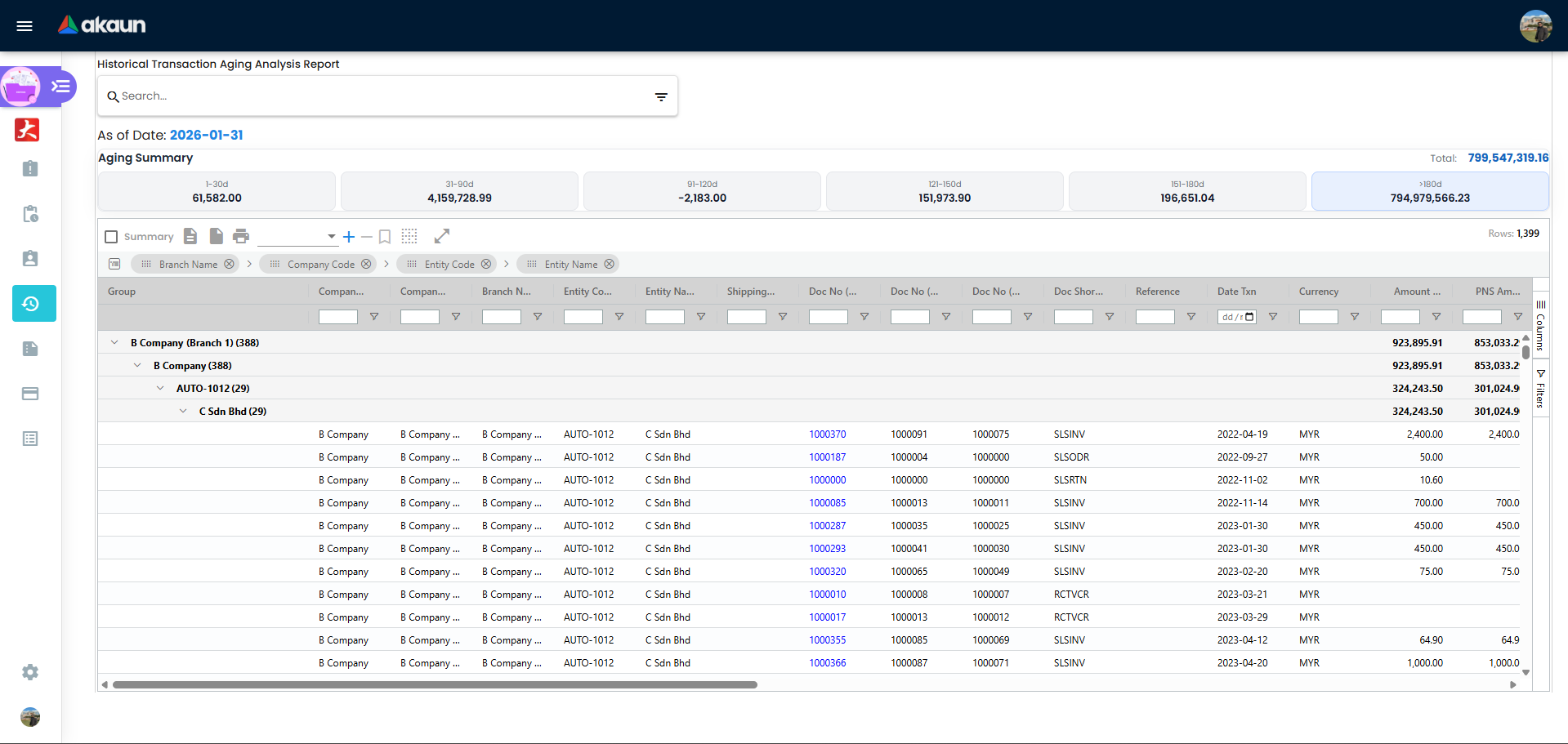
| Historical Transaction Aging Analysis Report | txn-history-report | Line-level aging as at the end of the chosen month, read from the historical-ageing snapshot; grouped by branch, company and customer; columns add Sales Agent, Credit Term, Credit Limit, Created By and Client Doc 1–5. Click a row for View Document. |
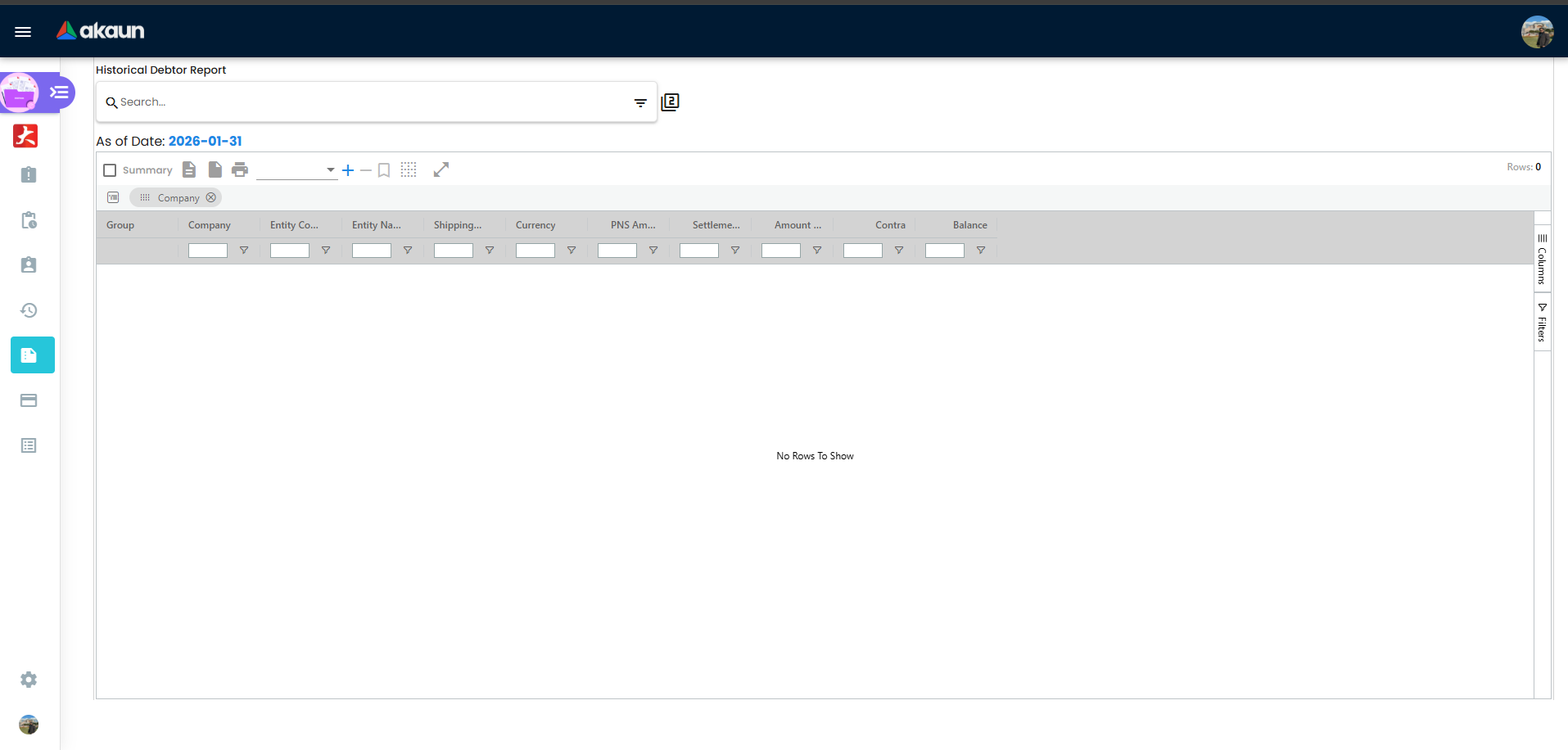
| Historical Debtor Report | historical-debtor | One balance per customer as at the end of the chosen month (PNS Amount, Settlement, Amount, Contra, Balance). Click a row for Entity Details / Transaction Docs. |
| AR Transaction Report | ar-transaction | All AR movements in a date range, grouped by customer, with Debit, Credit, Contra, running Balance and Sales Man. Click a row to open the document. |
| Collection Invoice with Aging | collection-invoice-aging | Sales invoices and cash bills that have been settled, each with the receipts and credit notes that settled it, grouped by salesman and customer: Terms, Doc Type, Doc No, Date, Invoice Amt, Cost, GP, Invoice Bal, Payment Days, aging buckets, Total. Receipts and credit notes are shown as negative amounts in red. It measures how long customers took to pay, not what is still to collect: an invoice with no receipt or credit note knocked off against it never appears — use the Outstanding Document or Aging Report for that. |
View Outstanding Document (from Outstanding Document Report) has eight tabs in the order set under Settings → Default Selection → Details Tab Ordering: Details, Account (entity, bill-to, ship-to), Line Items (drill to View Item), Settlement (drill to View Settlement), Contra, Delivery Details, Department, Doc Link (Copied From / Copied To). The header PRINT button prints the document with the printable format registered for that document type. The Contra tab lists existing contras and offers a + button that opens Contra Select Document — see Lifecycle and effects.
The Settings menu (group System Configuration) has Field Settings, Default Selection, Printable Format Settings and Aging Period Settings; the settings route also reaches the shared Webhook, Client Side Permission, Permission Wizard, Permission Set, User/Team/Role Permission and Release Notes screens. Personalization has one item, Default Selection.
The keyword box requires at least three characters. On the Statement of Account listing the keyword is URL-encoded, so customer names with special characters search correctly (fixed April 2026).
Configuration
Before you can use it
- Customer documents must be FINAL. Every report reads only FINAL, active documents. Finalise invoices, credit/debit notes and returns in their own applets first.
- Customers need an AR type. Rows are restricted to entities whose default AR/AP type, or whose company link, is
AR_TRADE,AR_OTHERorAR_MERCHANT(theAR_EMPLOYEEsome reports add is not a type BigLedger defines); the outstanding-documents query additionally requiresentity.is_customer = TRUE. Set the type in the Entity Applet or on the company link. - Companies and branches come from the Organisation Applet. AR Transaction Report requires Company (the search form marks it required).
- Server-side read permissions for each report (see Feature visibility / permissions). For users who are not tenant admin or owner, the company dropdowns and the implicit company scope are limited to the companies targeted by the report’s READ permission; branch dropdowns are limited to the targets of
TNT_DEBTOR_REPORT_BRANCH_TGT_READ. - A
.jrxmlprintable format of typeSTATEMENT_OF_ACCOUNT_TRANSACTION,STATEMENT_OF_ACCOUNT_AGINGand/orSTATEMENT_OF_ACCOUNT_AGING_CONTRA_DETAIL, flagged Default, before anyone uses Preview / Download on a statement. - An aging period (optional) if you want day-range buckets instead of calendar months.
Applet settings
Where settings live: this applet has its own Field Settings screen (nine settings), its own Default Selection screen, the shared Aging Period screen, a Printable Format Settings screen that also writes three settings, and — unlike the Creditor Report Applet — a working Personalization → Default Selection screen. Saving applet-wide settings merges what you save with what is already stored, so a setting another screen saved is not lost.
Who can change them: anyone who can open the applet’s Settings menu. The applet has no client-side permissions, so the menu is not gated.
Settings → Field Settings (SAVE sends the whole form)
| Setting | Key | What it controls | Default | Effect when changed |
|---|---|---|---|---|
Aging Period → Type (MONTH (DEFAULT) / DAY) | AGING_PERIOD_TYPE | How bucket columns are built on Outstanding Document Report, Aging Report, Historical Transaction Aging Analysis Report and Collection Invoice with Aging. MONTH: one column per calendar month counting back from the report date (six, or the selected MONTH period’s count) plus NM+. DAY: one column per range of the selected DAY aging period (0-30 Days, 31-60 Days, …) plus >N Days. | Control starts empty; anything other than DAY gives month buckets. | Takes effect on the next search. Ticking a period under Aging Period Settings overwrites this key with that period’s type. DAY with no DAY period ticked produces no bucket columns — except on Collection Invoice with Aging, which then builds month columns whatever the type says. |
Document Types to Exclude → Document Type (multi-select of ten purchase-side types: INTERNAL_PURCHASE_INVOICE, _RETURN, _GOODS_RECEIVED_NOTE, _GOODS_ISSUED_NOTE, _CONSIGNMENT, _CONSIGNMENT_GRN, _CONSIGNMENT_GIN, _CONSIGNMENT_INVOICE, _CONSIGNMENT_RETURN, _GRN_STOCK_IN) | DEBTOR_EXCLUDE_SERVER_DOC_TYPES | Sent as exclude_server_doc_types on six of the seven reports, the statement tabs and the transaction-docs drill-down; the backend adds server_doc_type NOT IN (…). Collection Invoice with Aging and the contra picker do not send it (the collection report lists only sales invoices and cash bills anyway). The list is purchase documents because an entity that is both customer and supplier otherwise shows its purchase documents (negative balances) among its receivables. | None (null, sent as an empty list). | Rows of those document types disappear from those six reports and from statements immediately. |
| Statement of Account Tab → Enable Default “Date From” | ENABLE_DEFAULT_DATE_FROM | On the Statement Of Account → Transaction tab: when on, Month From is ignored and the statement runs from 2000-01-01 (no opening balance); when off, the statement opens with the balance brought forward before Month From. | Off (an unsaved key is falsy). | Immediate on the next SEARCH. |
| Statement of Account Tab → Show Contra Detail Report Layout | SHOW_CONTRA_DETAILREPORT_LAYOUT | On the Aging sub-tab, adds a Report Layout radio (Summary / Contra Detail) beside Preview/Download. Contra Detail is honoured by Preview only: Preview prints the contra-detail layout (your STATEMENT_OF_ACCOUNT_AGING_CONTRA_DETAIL template, or BigLedger’s built-in contra-detail layout if you have none), while Download always produces the summary statement — filled into the contra-detail template if one is set, or failing silently if none is. | Off. | Immediate. Added July 2026 for statements that had to show each contra line. To send a contra-detail statement, Preview it and save or print from the preview. |
| Salesman → Use Salesman Code Instead of Name | USE_SALESMAN_CODE_INSTEAD_OF_NAME | Shows sales_entity_hdr_code instead of the name in the Salesman / Sales Man columns of every listing. | Off. | Immediate. |
| Permission → Enable Branch Filter Permission | ENABLE_BRANCH_FILTER_PERMISSION | Switches the Branch filter on every listing from the company-permission-filtered dropdown (select-multi-branch-comp-perm, branches of the companies the report permission targets) to the standard branch dropdown (select-multi-branch, scoped by TNT_DEBTOR_REPORT_BRANCH_TGT_READ targets). | Off. | Immediate. Turn it on when branch targets are maintained on the branch permission rather than on company targets. |
| Misc → Enable Portrait - Historical Transaction Aging Analysis Report | ENABLE_PORTRAIT_HISTORICAL_TRANSACTION_AGING_ANALYSIS_REPORT | Page orientation of that report’s print/export. | Off → landscape. | On → portrait. |
| Misc → HIDE_DOC_POPUP_COST_AMOUNT | HIDE_DOC_POPUP_COST_AMOUNT | Hides the Cost Amount column in the shared document popup opened from document-number links (Aging Report, Statement of Account tabs). A personal setting wins over the applet-wide one. | Off → column shown. | Immediate. A SHOW_DOC_POPUP_COST_AMOUNT client-side permission would re-show the column per role, but it is not defined, so it cannot be granted. |
| Misc → HIDE_DOC_POPUP_GP | HIDE_DOC_POPUP_GP | Same for the GP (gross profit) column of the popup. | Off → column shown. | Immediate. Both popup keys were added June 2026 so that collection staff do not see cost and margin. |
No longer on the screen: Include Documents Without Journal. It is neither shown nor saved here — unlike the Creditor Report, where it still saves as empty — and it does nothing on either side; the report it belonged to became the historical aging analysis, which has no such option.
Settings → Default Selection (SAVE sends the form plus the tab order)
| Setting | Key | What it controls | Default | Effect when changed |
|---|---|---|---|---|
| Default Branch | DEFAULT_BRANCH | Stored, but the Branch filters do not read the applet-wide value — they pre-select only from each user’s personal Default Branch (below). | Empty. | None on the reports. Picking a branch also copies the branch’s MAIN_LOCATION into Default Location. To pre-select a branch, set it per user under Personalization → Default Selection. |
| Default Location | DEFAULT_LOCATION | Stored for the shared location dropdown. | Empty. | No effect in this applet — none of the seven reports has a location filter. |
| Details Tab Ordering (drag-and-drop list) | DEBTOR_REPORT_DETAILS_TAB_ORDER | Order of the eight tabs on View Outstanding Document. | Details, Account, Line Items, Settlement, Contra, Delivery Details, Department, Doc Link. | Saved order applies to every user; tabs added in later versions are appended at the end. |
Settings → Aging Period Settings (the shared aging-period screen)
| Action | Keys written | What it controls | Default | Effect when changed |
|---|---|---|---|---|
Create / edit a period: Name, Type DAY or MONTH; MONTH asks Specify Number of Month; DAY has a line table of Start / End day ranges (overlapping ranges are refused with “The new period range overlaps with an existing range”). | none | Defines the buckets. A period is one record for the whole tenant, not this applet’s own: the same list appears in the Creditor Report and in any other report that offers this screen, so changing a period’s ranges here changes every report that has it ticked as its default. Make a new period rather than editing one another team relies on. A MONTH period saved with Specify Number of Month left empty is accepted, and ages in six months. | No periods. | Nothing until a period is selected. |
| Tick the Default Selection checkbox on a row in the listing | AGING_PERIOD_HDR_GUID, AGING_PERIOD_TYPE (set to the row’s type) | Which period the four aging listings load their ranges / month count from. Unticking writes both keys as null. | None. | Immediate. Because it also rewrites AGING_PERIOD_TYPE, choose the period first and the type second if they must differ. |
Settings → Printable Format Settings (applet-local; .jrxml only — ADD / SAVE stay disabled until a .jrxml file is attached)
| Setting | Key | What it controls | Default | Effect when changed |
|---|---|---|---|---|
Type STATEMENT_OF_ACCOUNT_TRANSACTION + Default ticked | PRINTABLE_STATEMENT_OF_ACCOUNT_TRANSACTION (format GUID) | Template for Preview / Download on the Statement Of Account → Transaction tab (POST …/statement-of-accounts/transactions/print-jasper-pdf). | Empty → “The default print preferences have not been configured”. | Deleting the default format clears the key. |
Type STATEMENT_OF_ACCOUNT_AGING + Default ticked | PRINTABLE_STATEMENT_OF_ACCOUNT_AGING | Template for the Aging sub-tab in Summary layout (…/statement-of-accounts/aging/print-jasper-pdf). | Empty → same message. | Same. |
Type STATEMENT_OF_ACCOUNT_AGING_CONTRA_DETAIL + Default ticked | PRINTABLE_STATEMENT_OF_ACCOUNT_AGING_CONTRA_DETAIL | Template for the Aging sub-tab in Contra Detail layout (only reachable when SHOW_CONTRA_DETAILREPORT_LAYOUT is on). | Empty → same message. | Same. |
The listing shows Format Code, Format Name, File Name, File Size, Uploaded Date, Uploaded By; edit offers download and delete. The statement PDF’s page-number parameter was fixed in March 2026 (repo issue #9); the export file name now carries the customer and period (April 2026).
Personalization → Default Selection (per user)
| Setting | Key | What it controls | Default | Effect when changed |
|---|---|---|---|---|
| Default Company (single) | DEFAULT_COMPANY (personal) | Stored, and used only to filter the Default Branch dropdown on this screen. No listing reads it. | Empty. | None on the reports. |
| Default Branch (single, filtered by the company above) | DEFAULT_BRANCH (personal) | Pre-selects the branch in the shared multi-branch dropdowns for this user — the only Default Branch the Branch filters read. | Empty. | Applies the next time this user opens a report. |
Default Tab Orientation (HORIZONTAL / VERTICAL) | Default tab orientation (personal) | Stored, and changes nothing in this applet. | Empty. | None. |
RESET writes all three personal keys as null.
Keys read at runtime that have no control in this applet:
SHOW_DOCUMENTS_WITH_ZERO_ARAP_BAL— read into Contra Select Document and then used by nothing: the picker always lists only documents with an opposite-sign balance, set or not.DEFAULT_TOGGLE_COLUMN(personal, written automatically) — remembers the single/double column layout per user.
Document behaviour settings
Not applicable — this is a report applet; the only write action (contra) has no settings.
Feature visibility / permissions
No client-side permission definitions exist for debtor_report_applet in the registry (checked 2026-09-05), so nothing in the menu or on the screens is hidden per role; the SHOW_DOC_POPUP_* codes the shared popup checks are likewise not seeded. Access is enforced by the backend per endpoint, and the applet asks the permission-inquiry service for these definitions at start-up: API_TNT_DM_ERP_ENTITY_AR_AP_REPORT_DEBTOR_OUTSTANDING_DOCUMENT_READ, …_DEBTOR_OUTSTANDING_ENTITY_READ, …_DEBTOR_OUTSTANDING_AGING_READ, API_TNT_DM_ERP_DEBTOR_TRANSATION_HISTORY_REPORT_READ, TNT_DEBTOR_REPORT_BRANCH_TGT_READ, TNT_TENANT_ADMIN, TNT_TENANT_OWNER.
| Report | Backend permission checked (READ, or the matching ADMIN/OWNER) | Company scope in the UI |
|---|---|---|
| Outstanding Document Report | API_TNT_DM_ERP_ENTITY_AR_AP_REPORT_OUTSTANDING_DOCUMENT_READ | targets of …_DEBTOR_OUTSTANDING_DOCUMENT_READ |
| Aging Report | API_TNT_DM_ERP_ENTITY_AR_AP_REPORT_OUTSTANDING_AGING_READ | targets of …_DEBTOR_OUTSTANDING_ENTITY_READ |
| Statement of Account (listing) | API_TNT_DM_ERP_ENTITY_AR_AP_REPORT_DEBTOR_OUTSTANDING_ENTITY_READ | targets of the same |
| Statement tabs, Preview / Download (all three layouts) | API_TNT_DM_ERP_STATEMENT_OF_ACCOUNT_READ | — |
| Historical Transaction Aging Analysis Report | API_TNT_DM_ERP_DEBTOR_TRANSATION_HISTORY_REPORT_READ | targets of the same |
| Historical Debtor Report | API_TNT_DM_ERP_ENTITY_AR_AP_HISTORICAL_DEBTOR_READ — not in the start-up inquiry | targets of …_DEBTOR_OUTSTANDING_ENTITY_READ |
| AR Transaction Report | API_TNT_DM_ERP_ARAP_TRANSACTION_READ — not in the start-up inquiry | targets of …_DEBTOR_OUTSTANDING_DOCUMENT_READ |
| Collection Invoice with Aging | API_TNT_DM_ERP_ARAP_TRANSACTION_READ | targets of …_DEBTOR_OUTSTANDING_DOCUMENT_READ |
| Contra (create) | API_TNT_DM_ERP_FI_GENERIC_DOC_ARAP_CONTRA_UPDATE | — |
“Company scope”: a user with TNT_TENANT_ADMIN or TNT_TENANT_OWNER sees all companies; anyone else gets the company dropdown, and when no company is chosen, the companies the permission in the last column targets.
Fields
There is no create/edit form; the fields are the advanced-search filters of each report, the statement tabs and the contra picker.
Report filters (✓ = present, R = required before search)
| Filter | Outstanding Document | Aging | Statement of Account | Historical Txn Aging | Historical Debtor | AR Transaction | Collection Invoice w/ Aging | Notes |
|---|---|---|---|---|---|---|---|---|
| Entity (customer, multi) | ✓ | ✓ | ✓ | ✓ | ✓ | ✓ | ✓ | Customer entities only. |
| Customer Category (multi) | ✓ | ✓ | ✓ | ✓ | ✓ | ✓ | – | |
| Company (multi) | ✓ | ✓ | ✓ | ✓ | ✓ | R (single) | – | |
| Branch (multi, filtered by company) | ✓ | ✓ | ✓ | ✓ | – | ✓ | ✓ | Dropdown variant depends on ENABLE_BRANCH_FILTER_PERMISSION. |
| Shipping Entity (multi) | ✓ | ✓ | ✓ | ✓ | ✓ | ✓ | ✓ | |
| Shipping Address | ✓ | – | – | – | – | – | – | Added September 2026. |
| Employee / Salesman (multi) | ✓ | ✓ | ✓ | – | – | – | ✓ | |
| ARAP Type (multi) | ✓ | – | – | – | – | – | – | Default AR_TRADE, AR_OTHER, AR_MERCHANT; the fourth option, AP_EMPLOYEE, is not a typo: it is the employee type every employee record is created with, and choosing it is the only way this report reaches an employee — and then only one also flagged a customer. |
| Currency (single) | ✓ | – | ✓ | ✓ | – | – | – | MYR is treated as “no filter”; any other currency shows document-currency amounts instead of base-currency amounts. |
| As Of Date (month picker) | – | – | – | R | R | – | – | Month end is the cut-off (date_txn < first day of next month; date_to is 23:59:59 local time since June 2026 so the header shows the right month). The statement tabs cut their months at Malaysia time, whatever the company’s time zone. The Aging Report and the Subledger Report tab of Entity Report Transactions do not: they render each document’s date in the server’s own clock (UTC), so a document dated before 08:00 Malaysia — typically one keyed at midnight by an import or the API — prints the previous day there and the right day on the statement. |
| Transaction Date (from/to) | – | ✓ | ✓ | – | – | ✓ | ✓ | Defaults to today–today on the collection report; empty ends fall back to 2022-01-01 / 2099-12-31 on AR Transaction. |
| Outstanding Only (checkbox) | – | ✓ (on) | – | – | – | – | – | On the Historical Debtor Report the control is commented out; the query still honours outstanding_filter = OUTSTANDING if set. |
| Sort By | – | – | – | – | – | ✓ (DATE_TXN) | – | |
| Keyword (search box) | ✓ | ✓ | ✓ | ✓ | ✓ | ✓ | ✓ | Minimum three characters. |
The Aging Report and the Statement of Account listing cover trade, other and merchant receivables (AR_TRADE, AR_OTHER, AR_MERCHANT). The historical, AR transaction and transaction-history reports also ask for AR_EMPLOYEE, but BigLedger defines no such type — an employee is created AP_EMPLOYEE — so in practice they cover the same three. An employee advance is not a receivable here at all: a document to an employee posts to the employee payable account (EMPLOYEE_OTHER_PAYABLE), so the advance is a debit on that account and has no row on these reports.
Statement Of Account tabs (inside Entity Report Transactions)
| Tab | Field | Required | Notes |
|---|---|---|---|
| Transaction | Month From, Month To | Yes | Opening balance before Month From (unless ENABLE_DEFAULT_DATE_FROM), one line per document, closing balance; Preview / Download need the default STATEMENT_OF_ACCOUNT_TRANSACTION format. The last months used are remembered for your user, on any browser. |
| Aging | Month To; Report Layout (Summary / Contra Detail) when SHOW_CONTRA_DETAILREPORT_LAYOUT is on | Yes | Month From is not used (date_from fixed at 2000-01-01). Both buttons need the default STATEMENT_OF_ACCOUNT_AGING format whichever layout you pick; a contra-detail format is optional, because Preview falls back to BigLedger’s built-in contra-detail layout. |
Contra Select Document (opened from the Contra tab of View Outstanding Document)
| Field | Meaning | Required | Notes / validation |
|---|---|---|---|
| Doc No, Reference, External Doc No (text); Document Type (select); Created Date, Transaction Date (ranges with tick boxes) | Filters for the candidate documents of the same customer and company. | No | Candidates are FINAL documents whose balance has the opposite sign to the open document. Document Type also offers purchase invoices and purchase credit / refund notes: when a customer is also your supplier, you can offset what they owe you against what you owe them, with no money moving. |
| Row selection + Amount Contra (editable per row) | Amount to offset against the open document. | Yes | Selecting a row proposes the smaller of the row’s balance and the remaining open amount; ADD is disabled while nothing is selected, while the total contra is 0, or while the total exceeds the open amount. |
Lifecycle and effects
What the reports read. Only FINAL, active documents of customer-side (AR) accounts (the Outstanding Document Report additionally requires the account to be flagged as a customer), less the excluded document types. The balances are the document’s own Docs Open, Contra and Balance figures (Balance = Docs Open + Contra); when no currency filter is set, foreign-currency documents are converted to base currency by dividing by the document’s exchange rate. “As of today” reports (Outstanding Document, Aging, Statement of Account, AR Transaction, Collection Invoice with Aging) read the documents as they stand now. The two historical reports read the historical-ageing snapshot as at the end of the chosen month. That snapshot is not kept up to date as documents are finalised: a monthly clock in the Scheduler writes it, at 01:00 on the 1st, from the balances at that moment, so a document finalised this month has no row until next month’s run. That clock is set per tenant, and yours may not have it — open the Scheduler and look for the monthly historical-aging clock (MONTHLY_GENERIC_DOC_HISTORICAL_AGING_PROCESSOR); if it is missing or not Active, no new month-end is photographed and the two historical reports come back empty for those months. Ask support to install it. Two things correct an existing month afterwards — a back-dated contra, and, only where your tenant subscribes to the back-dated aging step, finalising a document dated in a month already photographed. See The aging shows an invoice already paid. Nothing in this applet changes a document status, and the only journal it can cause is the exchange-difference journal of a cross-currency contra (below).
Contra — the one write path. View Outstanding Document → Contra → + → Contra Select Document → ADD creates a contra between the open document and each selected document.
| Item | Value |
|---|---|
| What it is | Not a document — one contra record per pair, mirrored on both documents, status ACTIVE. |
| Amount | The Amount Contra you enter, signed to match the selected document’s balance and rounded to two decimals; a zero amount is silently dropped. A contra dated before the later of its two documents is moved to that document’s date. |
| Journal | none, except that a forex journal is created for cross-currency pairs: one per contra and foreign-currency document, on the company’s primary ledger, booking the realised exchange gain or loss against the customer’s receivable account. Its accounts come from the company’s default GL codes — FOREX_GAIN / FOREX_LOSS, and DEBTOR, DEBTOR_NON_TRADE or MERCHANT_RECEIVABLE by the customer’s AR type. |
| Stock | none. |
| What it updates | On both documents, immediately in the same request — not through a queue: Contra becomes the sum of their active contras, and Balance = Docs Open + Contra. The contra rows are saved before this update, so if the update — or the forex journal after it — fails, the screen reports the failure and the contra exists anyway. Reopen the Contra tab before retrying. Back-dated contras trigger a historical-ageing recalculation. A background job for recalculating contra balances exists, but nothing gives it work — see the knock-off page. |
| Server-side checks | Only that the two documents exist and the amount is present. There is no server-side check that the contra does not exceed the open balance — that guard is the ADD button on the screen only. |
| Permission | API_TNT_DM_ERP_FI_GENERIC_DOC_ARAP_CONTRA_UPDATE (403 → “Documents contra unsuccessfully”). |
| VOID / delete | Not available in this applet; the Contra tab lists rows with their status but has no delete action. |
Related applets
- Creditor Report Applet — the payable twin (same screens,
AP_*types, payment/settlement reports instead of the collection report). - Debtor and Creditor Report — a separate applet that carries both sides in one menu; same endpoints, almost no settings, no contra creation.
- Receipt Voucher (Internal) — creates the settlements shown in the Settlement tab, the AR Transaction Report and Collection Invoice with Aging; contras created here change the balances its settlement picker offers.
- Sales Invoice (Internal), Sales Credit Note, Sales Debit Note, Sales Return — the documents that carry customer balances.
- Entity Applet — customer master, AR/AP type, credit term and credit limit; Organisation Applet — companies and branches.
- Financial Report, Ledger And Journal — the GL side to reconcile against.
- Sales Report — sales analysis by document, item and salesman; Commission Scheme — collection-based commission reads the same settlements.
Troubleshooting
| Symptom | Cause | Fix |
|---|---|---|
| “Search keyword must more than 2 characters.” | Keyword shorter than three characters. | Type at least three characters or use the filters. |
| Aging Report / Outstanding Document Report shows no bucket columns. | AGING_PERIOD_TYPE is DAY but no DAY aging period is ticked as default (or the period has no lines). | Create a DAY period with ranges under Aging Period Settings and tick it, or set the type back to MONTH. |
| Aging Period Type keeps changing back after saving Field Settings. | Ticking a period in Aging Period Settings rewrites AGING_PERIOD_TYPE with the period’s type. | Select the period first, then set the type in Field Settings. |
| “The default print preferences have not been configured” on Preview / Download. | No .jrxml format of the matching type is flagged Default. On the Aging sub-tab that is always the STATEMENT_OF_ACCOUNT_AGING type, whichever layout is chosen — a contra-detail format alone does not satisfy it. | Settings → Printable Format Settings: add or edit the format with the right Type and tick Default. |
| “No data to print. Please run the search first.” | Preview / Download clicked before SEARCH on the statement tab. | Set the months, click SEARCH, then export. |
| Statement PDF shows null as the page number (reported early 2026). | Template parameter bug. | Fixed March 2026 (repo issue #9); re-upload the template if it was customised from the old sample. |
| A customer’s statement is missing an invoice, or the header shows the wrong month. | The Month From / Month To window did not include the document, or (before June 2026) the month end was computed in UTC and shifted by eight hours. | Widen the months; confirm the document is FINAL. The month-end handling was corrected in June 2026. |
| A document keyed on the 2nd shows the 1st on the Aging Report or on the Subledger Report tab, and the 2nd on the statement. | Those two grids render the stored date in the server’s clock (UTC), not Malaysia time, so a document dated before 08:00 Malaysia — one keyed at midnight by an import or the API — moves back a day there. The statement converts to Malaysia time. | The document itself is dated correctly; read the date off the statement or the document. Nothing to fix on the record. |
| Historical Transaction Aging Analysis shows nothing for a month that had open documents (reported May 2026). | Snapshot rows not loaded for that filter combination. | Fixed May 2026; if a month is still empty, confirm the documents were FINAL at that month end. |
| Historical Debtor Report ignores the ARAP-type scope, or foreign-currency rows show the wrong amount (reported June–July 2026). | Filter and forex handling in the listings. | Both fixed (June and July 2026); apply the Currency filter to see document-currency amounts. |
| A shadow (copied) document shows the wrong amount on the Outstanding Document Report (reported July 2026). | Amount taken from the wrong header field for copied documents. | Fixed July 2026. |
| Collection Invoice with Aging does not show credit notes, or shows receipts as positive. | Older build. | Since July 2026 INTERNAL_SALES_CREDIT_NOTE is included and receipts and credit notes are shown negative in red. |
| An unpaid invoice is missing from Collection Invoice with Aging, or a row’s date is not the invoice date. | The report lists only invoices that something has been knocked off against, and its date filter is on the receipt or credit note’s date. | For what is still to collect use the Outstanding Document or Aging Report. Set the dates to the period the money came in. |
| Company dropdown is empty for a user on a report. | The user is not tenant admin/owner and the report’s READ permission was granted without company targets. | Grant the READ permission for that report with the companies as targets (Permission Set / User Permission). |
| Historical Debtor Report or AR Transaction Report returns not authorised although the four debtor permissions are granted. | Those endpoints check API_TNT_DM_ERP_ENTITY_AR_AP_HISTORICAL_DEBTOR_READ and API_TNT_DM_ERP_ARAP_TRANSACTION_READ, which the applet’s start-up inquiry does not ask for. | Add both to the AR role. |
| Cost and GP columns still appear in the document popup for collection staff. | HIDE_DOC_POPUP_COST_AMOUNT / HIDE_DOC_POPUP_GP not saved, or the user’s personal settings override them. | Switch both toggles on under Field Settings → Misc and SAVE; there is no seeded SHOW_DOC_POPUP_* permission to re-enable them per role. |
| Personal Default Tab Orientation does nothing. | The orientation is saved by the Personalization screen and read by nothing — it appears nowhere else in this applet and nowhere in the backend. | Cosmetic; ignore. |
| Debtor total does not agree with the Balance Sheet trade-debtor line (recurring customer question). | The reports show document balances of FINAL customer documents after excluded types, contras and forex conversion at the document rate; the Balance Sheet shows GL journal balances, which include manual journals and documents posted to other debtor accounts. | Compare AR Transaction Report for the period with the GL account in Ledger And Journal; check Document Types to Exclude and any non-FINAL documents. |
| “Documents contra unsuccessfully” | Either the server refused the contra — most often a missing API_TNT_DM_ERP_FI_GENERIC_DOC_ARAP_CONTRA_UPDATE permission, and then nothing was saved — or the contra was saved and a later step failed: the balance update, or, for documents at different exchange rates, the exchange-difference journal because the company’s primary ledger or its FOREX_GAIN / FOREX_LOSS / debtor default GL code is missing. | Reopen the Contra tab before retrying. No new rows: grant the permission and retry. New rows present: do not retry (you would contra twice); map the default GL codes. The client-side ADD guard already prevents contras larger than the open amount. |
| Applet did not load on production (December 2025). | Deployment of the split repository (repo issues #1, #6). | Resolved; clear the browser cache if an old bundle is still served. |
Related documentation
- Chasing Overdue Accounts — the weekly collections routine built on the Aging and Outstanding Document reports, and the Payment Days check.
- Can This Customer Take More Goods? — adding up a customer’s exposure across every company before a credit decision.
- Reports & Analytics — where this applet sits among the finance reports.
- Financial Accounting module and Digital CRM module.
- Creditor Report Applet and Debtor and Creditor Report — the sibling reference pages.