Deposit Applet
Records money market deposit placements — company cash placed with a financial institution for a fixed term at an agreed rate — from the request for quotes to the live placement and its computed interest schedule. Its own records never reach the ledger: the ledger effect comes from the payment voucher that pays the bank and the receipt voucher that receives the money back, which are linked on the Payment/Receipt tab and never created by it. Rollover is manual only, and a rollover always carries the full maturity amount forward as the new principal.
Overview
The Deposit Applet records money market (MM) deposit placements — company cash placed with a financial institution for a fixed term at an agreed interest rate. It is a treasury register, not a posting document: it keeps the terms, the invited counterparties and their quotations, a computed interest schedule, and links to the cash documents that actually moved the money.
The applet has three menus — a requisition (the request for quotes), a register (the live placement), and a category (a grouping label).
Where it fits
| Direction | What | Why |
|---|---|---|
| Before | Organization → Company | The Company drop-down lists companies; the GL Code list is filtered by that company’s chart of accounts. |
| Before | Chart of Account | Supplies the GL Code on the requisition and the register, and the optional interest / interest-expense GL codes. |
| Before | Customer Maintenance | The invitee’s Entity Name on the Edit Invitee screen is picked from the entity list; the applet embeds the customer create/edit screens for this purpose. |
| Before | Forex | Populates the Currency drop-down (MYR is pushed to the top of the list). |
| Alongside | Internal Payment Voucher / Internal Receipt Voucher | The only documents the Payment/Receipt tab will link — the picker lists those two document types and no others. |
| After | Ledger And Journal, Cashbook | Where the cash movement is actually visible; the deposit register itself contributes nothing to either. |
Screens and menus
The applet has exactly three menus. The title shown in the layout header is Money Market Deposit Applet.
| Menu | Opens on |
|---|---|
| MM Deposit Requisition | Deposit Requisition Listing |
| MM Deposit Register | Deposit Register Listing |
| MM Deposit Category | Deposit Category Listing |
The applet opens on MM Deposit Requisition. There is no settings menu — see Configuration.
MM Deposit Requisition
The listing shows active requisitions, most recently updated first. Columns: Doc No., Deposit Name, Deposit Code, Company, Amount Initial Deposit, Amount Upon Maturity, Interest Type, Currency, Interest Rate (%), Interest Rate Effective (%), Est. Interest Amount, Est. Start Date, Est. End Date, Posting Status, Status.
Pressing + creates a row on the server immediately, with status TEMP, before you type
anything, and the screen jumps straight to Edit MM Deposit Requisition.
The edit screen has two tabs:
- Details — the form documented under Fields.
- Invitee — hidden while the row is still
TEMP; appears after the first SAVE. A grid of the invited institutions, with + and row-click both opening the same Edit Invitee panel.
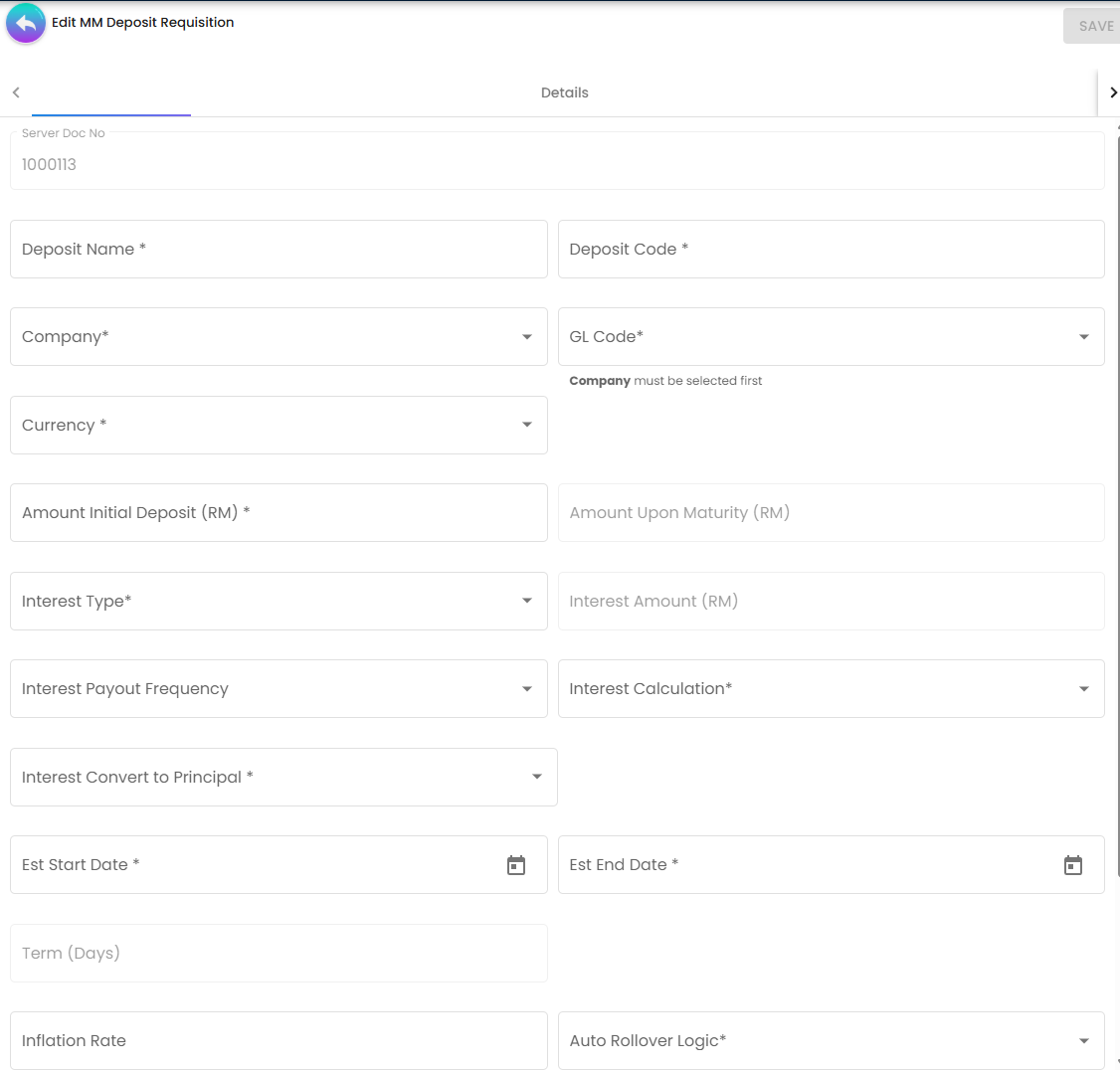
Action buttons on the requisition: FINAL (shown only while the row is ACTIVE and not yet
FINAL) and SAVE. A DELETE button exists in the code but never appears on a requisition.
MM Deposit Register
The listing shows registers, most recently updated first. Columns: Deposit Name, Company, Posting Status, Deposit Date, Maturity Date, Principal Amount, Interest Rate (%), Interest Rate Effective (%), Interest Earned, Interest Amount, Amount Upon Maturity, Rollover. There is no document-number column because the register has no running number (see Lifecycle).
+ creates a TEMP register row on the server the same way the requisition does, then opens Edit
MM Deposit Register with five tabs. The last four are hidden while the row is still TEMP:
| Tab | What it holds |
|---|---|
| Details | The placement terms — see Fields. The only tab there is until the first SAVE, and the only one that feeds the draft: the register’s form changes are captured only while this tab is the selected tab. |
| Transactions | The interest-schedule lines for this deposit. + opens an Edit Transaction panel (Transaction Type, Transaction Date, Total Amount, Principal Amount, Interest Amount, GL Code, Description) so a line can be added or corrected by hand. This tab also carries the Manual Rollover button. |
| Payment/Receipt | Links existing Internal Payment Vouchers / Internal Receipt Vouchers to this deposit. The picker lists documents of those two types only; ticking rows and pressing Add creates the links. It does not create a voucher. |
| Attachment | File uploads against the register — the bank’s confirmation letter, the signed placement agreement. |
| Rollover | A read-only grid of the deposits in the same rollover chain, with the transaction lines of each. |
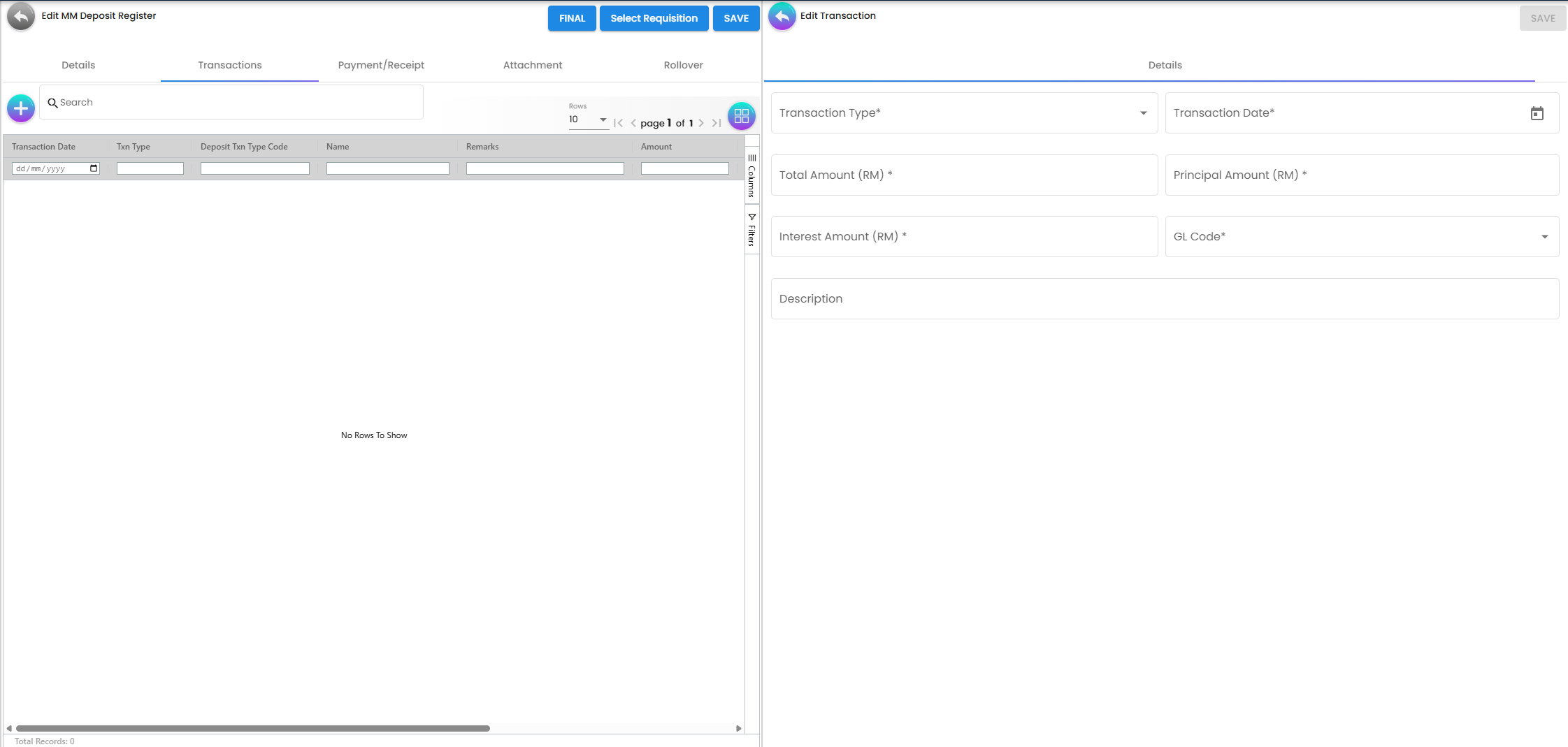
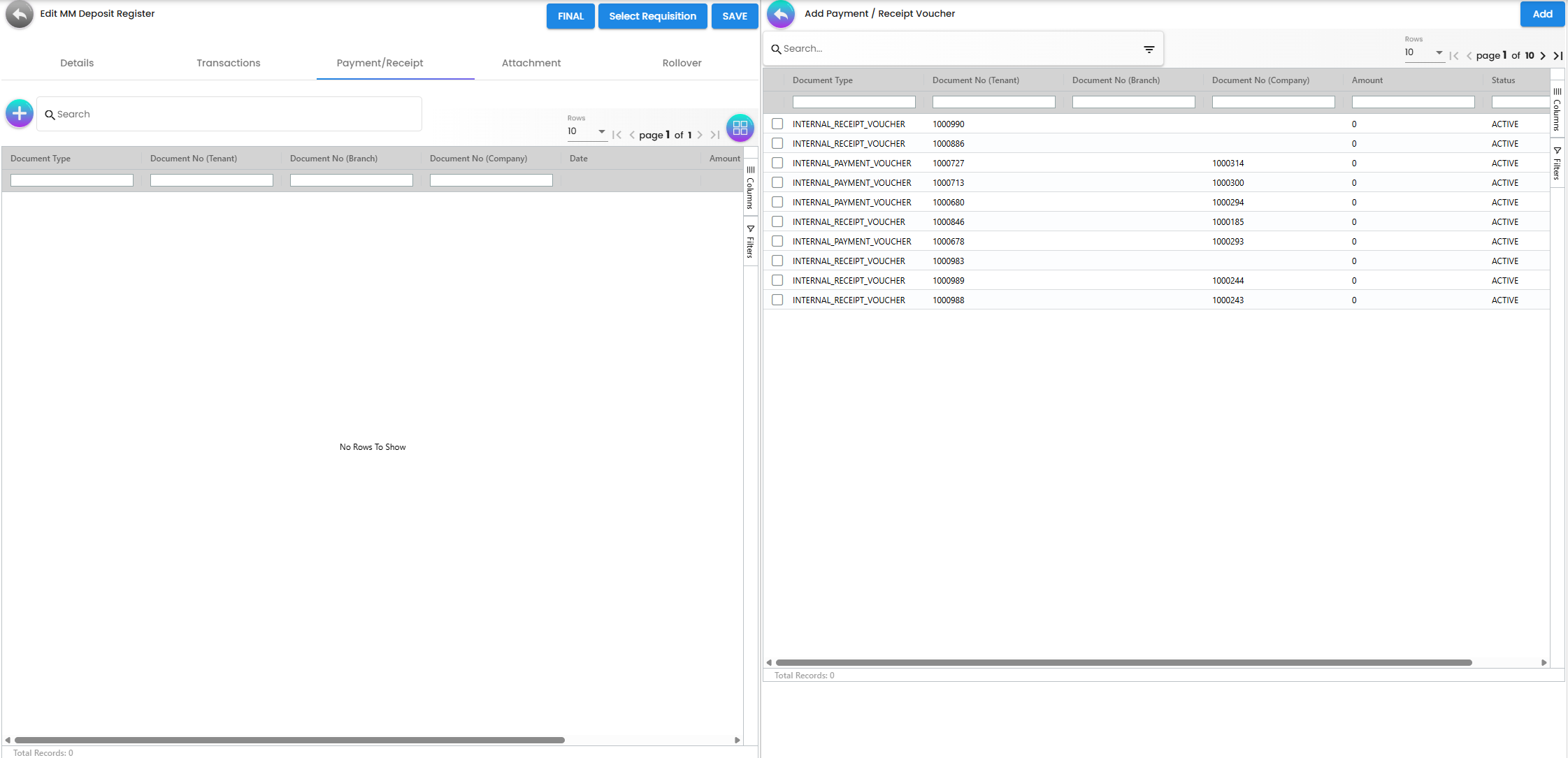
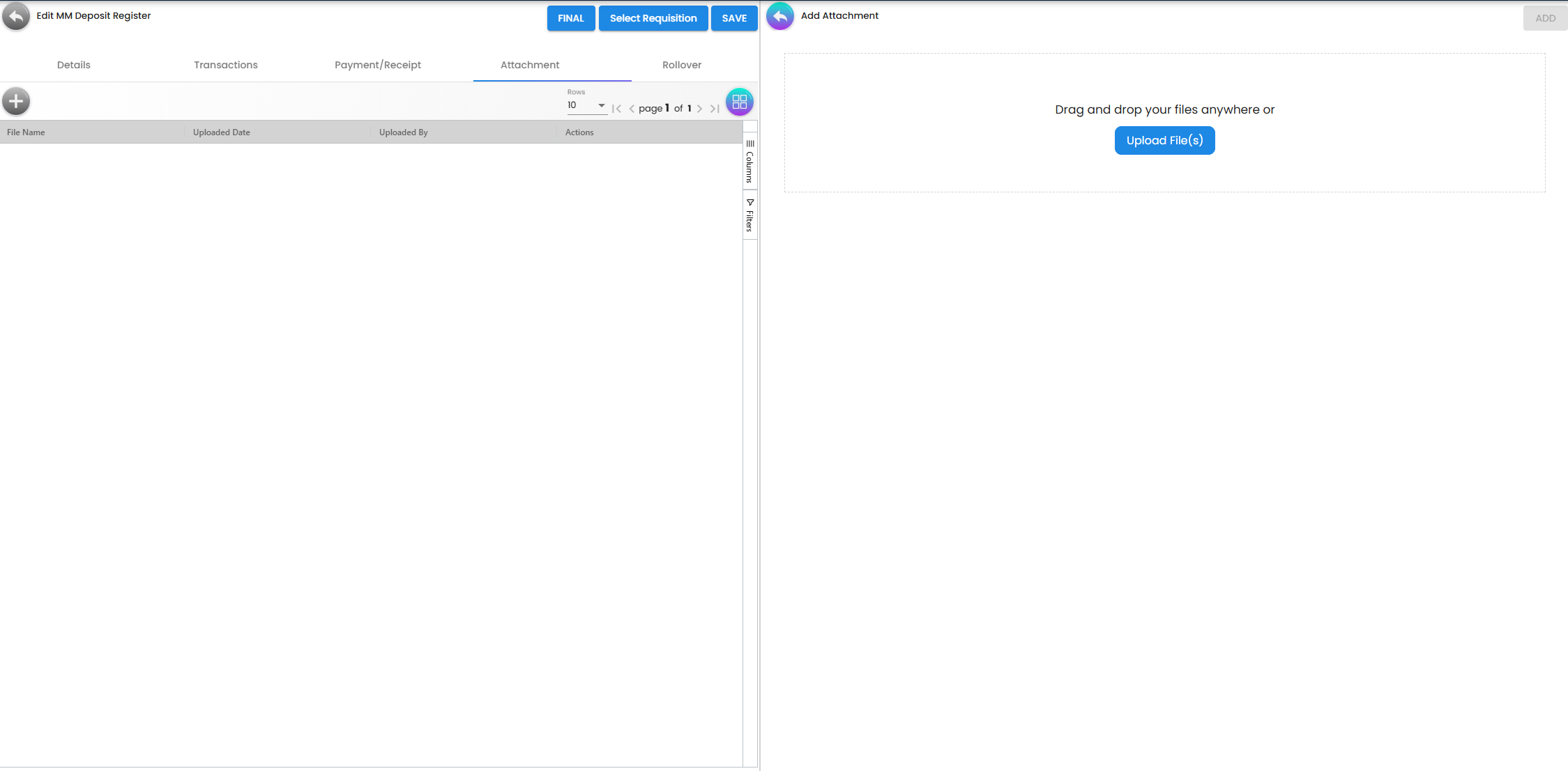
Action buttons on the register: FINAL, Select Requisition, SAVE (all three hidden once
posting status is FINAL; Select Requisition is also hidden when the register is INACTIVE).
The DELETE button never appears on a register either.
MM Deposit Category
A single-tab master-data screen. The listing shows Category Code, Category Name, Posting Status,
Created Date, Updated Date, Status. The edit screen has SAVE, FINAL (while the row is ACTIVE
and not yet FINAL) and a working DELETE (two clicks to confirm; shown whenever status is
ACTIVE, regardless of posting status).
Configuration
Before you can use it
| Prerequisite | Where it is set | Why it matters |
|---|---|---|
| At least one company | Organization | Company is a required field on both the requisition and the register, and it is what filters the GL Code list. |
| A chart of accounts with the placement GL code | Chart of Account | GL Code is required on both forms. The list is limited to the selected company’s chart and capped at 200 rows. |
| Currencies | Forex | Currency is required. The drop-down is the full currency list with MYR sorted first. |
A running number for DEPOSIT_REQUISITION_NO | Document numbering | The requisition’s document number is generated from this code. Without it the requisition saves with no document number. The register has no equivalent. |
| At least one deposit category | MM Deposit Category, in this applet | Deposit Category is required on the register form — the register cannot be saved until one exists. |
| Entities for the invitees | Customer Maintenance | Edit Invitee picks Entity Name from the entity listing. |
| Outbound e-mail | Platform | Finalising a requisition sends the invitation e-mails through the platform’s outbound mail. |
Applet settings
This applet has no settings screen. The settings gear and the Personalization link are hidden in the sidebar for every user, owners and admins included, and no settings screen is reachable by any route.
Consequently there is no Application Settings screen, no Default Selection, no printable format configuration and no configurable e-mail template in this applet. The invitation e-mail body is fixed and is not editable from the product.
Settings read at runtime without a control
Three applet-settings keys are honoured by this applet’s screens. Because there is no settings screen, they cannot be set from inside the applet — ask support to set them for your tenant. All three are off by default.
| Key | Effect when true / set |
|---|---|
SORT_ORDER | Despite the name it holds a column name, not a direction: all three listings sort by that column instead of by last-updated date. A column-header sort applied in the grid overrides it for as long as the screen stays open. |
DISABLE_GEN_DOC_LISTING | Skips the initial requisition search, so MM Deposit Requisition opens with an empty grid until you search. |
ENABLE_FILTER_BY_TODAYS_TXN | Intended to narrow the requisition listing to today’s transactions, but the date range it computes is never applied to any search — the setting currently has no observable effect. |
Feature visibility and permissions
There is no client-side feature gating in this applet and no menu hiding. Everything is enforced server side, through the permission codes below, which you assign in the Permission Set screen.
| Area | Permission codes |
|---|---|
| Deposit requisition header | API_TNT_DEPOSIT_REQUISITION_HDR_ OWNER / ADMIN / CREATE / READ / UPDATE / DELETE |
| Requisition invitee (entity link) | API_TNT_DEPOSIT_REQUISITION_HDR_ENTITY_LINK_ OWNER / ADMIN / CREATE / READ / UPDATE / DELETE |
| Requisition invitee attachment | API_TNT_DEPOSIT_REQUISITION_HDR_ENTITY_ATTACHMENT_ OWNER / ADMIN / CREATE / READ / UPDATE / DELETE |
| Register header, transaction lines, attachments, payment/receipt links, category | TNT_API_DEPOSIT_ OWNER / ADMIN / CREATE / READ |
TNT_API_DEPOSIT_CREATE; the ordinary create, update and delete actions all require only
TNT_API_DEPOSIT_READ. TNT_API_DEPOSIT_UPDATE and TNT_API_DEPOSIT_DELETE exist as permissions but
nothing in the deposit register checks them. Grant TNT_API_DEPOSIT_READ only to people who may also
change deposits. The same pattern applies to transaction lines, attachments, payment/receipt links and
categories.Starting a new requisition with + checks API_TNT_BUDGET_VOTEBOOK_CREATE rather than a deposit
permission, so a user needs that permission as well before they can begin a requisition.
Fields
Two screens capture placement terms and one captures a grouping label. Each is named in a sentence below; the table under it holds only the fields that behave in a way the screen does not show. Every rule listed is enforced by the form in the browser — the backend validates none of them (see What the backend actually validates).
Requisition — Details tab
The form takes the identification (Server Doc No, Deposit Name, Deposit Code, Company, GL Code, Currency, Requisition Status), the money (Amount Initial Deposit, Amount Upon Maturity, Interest Amount, Inflation Rate), the interest terms (Interest Type, Interest Payout Frequency, Interest Calculation, Interest Rate, the four Interest Rate Reference fields, Interest Rate Effective, Interest Convert to Principal), the dates (Est Start Date, Est End Date, Term (Days)), Auto Rollover Logic, and four read-only audit fields. Amount Upon Maturity, Interest Amount, Interest Rate Effective and Term (Days) are read-only. Inflation Rate and Interest Rate Reference Source are the only typed fields that are never required; the rate fields become required or stop being required as Interest Calculation changes.
| Field | What it does that the screen does not say |
|---|---|
| Interest Type | ONCE forces Interest Payout Frequency to Full Term, disables it and clears Auto Rollover Logic — so choosing “interest paid once” quietly rules the deposit out of rollover. MULTI removes Full Term from the frequency list and resets the frequency to Monthly. |
| Interest Calculation | FLOATING disables Interest Rate, sets it to 0, hides it, and makes Reference Type, Value and Delta required. Back to FIXED clears the reference value and delta and sets Interest Rate Effective to 0. The rate the interest is then computed from is Interest Rate Effective, not Interest Rate. |
| Interest Rate Reference Type | Four fixed options, and the first reads SBR - Singapore Swap Offer Rate — an abbreviation that in Malaysia means Standardised Base Rate, attached to a Singapore benchmark usually abbreviated SOR. Read the label, not the acronym, and agree the benchmark with the bank. The choice never enters the arithmetic — only Reference Value + Reference Delta do — but it is printed in the invitation e-mail as Reference Rate Type, so the institution you invite reads what you picked. |
| Interest Rate Effective (%) | Reference Value + Reference Delta, rounded to 2 decimals, recomputed in the browser whenever either changes. Shown only for FLOATING. |
| Interest Convert to Principal | YES compounds interest into the principal at every payout and changes what the maturity line pays back. It is reset to NO whenever the stored value is not valid for the chosen Interest Type. |
| Deposit Code | Required, free text, and checked for uniqueness by nothing — two requisitions may carry the same code. Server Doc No, assigned on create from DEPOSIT_REQUISITION_NO, is the only identifier that is unique. |
| Requisition Status | Hidden while the row is still TEMP; it appears after the first SAVE, at the same moment as the Invitee tab. |
| Amount Upon Maturity · Interest Amount | Never typed — see Where these numbers come from, including the conditions under which they silently stay blank. |
Requisition — Invitee tab
One row per invited institution. The panel repeats the requisition’s terms so the recipient’s quotation can be compared against them, but only three controls accept input:
The grid above the panel is the one you compare quotes in, and its ten columns are all deposit terms — Deposit Name, Deposit Code, Currency, Interest Type, Interest Rate (%), Interest Rate Effective (%), Amount Initial Deposit, Amount Upon Maturity, Est. Start Date, Est. End Date, plus Actions. There is no Entity Name, Email Address or Winner column, so until quotations come back every row looks identical and the institution behind each one is visible only by opening it.
| Field | Required | Notes |
|---|---|---|
| Entity Name | Yes | Opens the entity selector; the create/edit customer screens are embedded so a new entity can be added without leaving the applet. |
| Email Address | Yes, and must be a valid e-mail address | The address the invitation is sent to. A blank address is skipped silently at send time and logged as “Email address is empty or null”. |
| Winner | No | A Yes/No radio you set after comparing quotes. It marks nothing: the value is stored and shown back on this panel, and nothing else reads it — no listing column, no e-mail, no effect on Select Requisition. |
Everything else on the panel — amounts, currency, interest type, rates, dates, Term (Days), Interest Convert to Principal, Auto Rollover Logic, status, inflation rate — is read-only, so an invitee row cannot drift from its requisition through this screen.
Register — Details tab
The register repeats the requisition’s interest terms and dates and adds Financial Institution, Deposit Category, Deposit Status, Principal Amount, Interest Earned, Rollover options, GL Code for Interest, GL Code for Interest Expense, Collaterals, Approval Workflow, Description and Supervisor Remarks. Deposit Name, Deposit Category, Company, GL Code, Principal Amount, Currency, both dates, Deposit Status, Interest Convert to Principal and Auto Rollover Logic are required; the free-text fields and Inflation Rate are not. The interest fields behave exactly as on the requisition — the same rules apply. What differs here:
| Field | What it does that the screen does not say |
|---|---|
| Interest Earned | Renders only when Interest Type is MULTI, is read-only, and is always empty: the form clears it before every calculation and the calculation reply carries no value to put back. The Interest Earned column in the register listing is blank for the same reason. Interest actually accrued is on the Transactions tab, not here. |
| Financial Institution | Plain text, not a link to an entity record — nothing checks it against your entity list. |
| Deposit Category | Required, and stored as a reference only: the category’s name is never copied onto the register — which is why the register listing has no Category column at all. A report or an integration reading the register gets no category name. |
| Auto Rollover Logic | Decides at FINAL, and only at FINAL, whether this deposit can ever be rolled over. FINAL creates the identifier that ties a rollover chain together only when Auto Rollover Logic is YES; the form is locked once posting status is FINAL; and both the Rollover tab and the Manual Rollover button need that identifier. Finalise with NO and the decision cannot be undone from the screen. |
| Rollover options | Manual Rollover or Automatic Rollover — note the stray leading space in the second value. Only Manual Rollover does anything; see Rollover. |
| GL Code for Interest · GL Code for Interest Expense | Stored on the register, shown back when you reopen it, copied onto the child by a rollover and filterable through the API. Nothing else reads them: every transaction line FINAL writes carries the register’s main GL Code, and this applet posts no journal at all. |
| Approval Workflow | A free-text box, not a link to Workflow Design and not an approval engine. SAVE and FINAL are gated on form validity and on whether a calculation is in flight, and this control carries no validator — so whatever you type in it changes nothing about who may finalise. |
| Amount Upon Maturity · Interest Amount | Calculated, and SAVE and FINAL are both disabled while the calculation is in flight. See Where these numbers come from. |
Register — Transaction line (Edit Transaction panel)
+ on the Transactions tab opens a seven-field panel — Transaction Type, Transaction Date, Total Amount, Principal Amount, Interest Amount and GL Code, all required, plus an optional Description. Clicking a row opens the same panel on an existing line. Three things about it are invisible from the screen, and each one costs somebody an afternoon.
The tab shows at most 25 lines, ever. The tab loads the first 25 lines, oldest first, and never
loads any more: the paginator above the grid pages the 25 rows already in the browser, and the search
box filters those same 25. A MULTI deposit paying daily over a 90-day term generates about 95 lines,
so its Interest Capitalized rows, the Principal Return and both SUMMARY totals are simply not reachable
from this tab. Ask for the whole schedule through the API, or through support, when you need it.
Editing a generated line blanks five of the grid’s ten columns. The panel saves twelve fields and leaves Name, Remarks, Amount, Currency and Deposit Txn Type Code blank — and the save replaces the whole line rather than merging into what was stored, so those five columns are wiped. Correct one interest figure and the line loses its Name (Interest Earned), its Remarks, its Amount, its Currency and its Deposit Txn Type Code, and its Created date is reset to now. Amount (Total), Amount (Principal) and Amount (Interest) survive, so the row still looks plausible in the grid.
The Transaction Type list cannot express what FINAL wrote. The drop-down offers Debit, Credit,
Adjustment, Principal and Interest. FINAL writes Debit, Credit or SUMMARY — so opening
either summary line shows an empty, required Transaction Type and SAVE stays disabled until you pick
one of the five, which changes what the line claims to be. A line you add by hand gets no Deposit Txn
Type Code at all, so it is not a PLACEMENT / INTEREST / INFLATION / COMPOUND / MATURITY /
SUMMARY row and anything grouping by that code will not count it.
And the two SUMMARY lines are written once, at FINAL, and never recomputed. Correct an interest line by hand and Total Interest Earned still reports the old figure.
Category — Details tab
Category Name and Status are required; Category Code and Description are not. Despite the listing having a Category Code column, the form puts no validator and no uniqueness check on it, so blank and duplicate codes both save. The category is referenced from a register by its identifier alone, and the only backend check anywhere is that the category still exists — the category name never reaches the register. Created and modified stamps are read-only.
Where these numbers come from
Amount Upon Maturity and Interest Amount are never typed. Both forms send the current form values — not what was last saved — to BigLedger for calculation; the reply carries the maturity amount and the total interest and nothing else, and the form rounds both to two decimals.
The call is made only when principal, Interest Type, Interest Calculation and Term (Days) are all
present, plus Interest Rate for FIXED or Interest Rate Effective for FLOATING. Miss one and no
call goes out. On the register the two fields are cleared to null before every call, so a call that
fails leaves them blank with nothing on screen to say why — the failure is written to the browser
console and nowhere else.
Behind the calculation, BigLedger uses simple daily accrual on a 365-day year:
interest = principal × rate × days ÷ (100 × 365) rounded HALF_UP to 2 decimalswith days = Term (Days) for ONCE, and one figure per payout period for MULTI — each period
measured exclusively, the last period plus one day so that the term is counted inclusively exactly
once. The rate it reads is Interest Rate Effective when Interest Calculation is FLOATING and Interest
Rate otherwise, and a null rate yields zero rather than an error: a FLOATING register written
through the API without an effective rate finalises cleanly and posts an interest schedule of zeros.
Term (Days) is the one number the two sides of the product disagree about. The form computes it
inclusively (end − start + 1); a rollover recomputes the child’s term exclusively (end − start) —
so a rolled-over deposit’s term is one day shorter than its parent’s. See Rollover.
Lifecycle and effects
Posting proof
| Aspect | Value |
|---|---|
| Server document type | None. Neither the requisition nor the register is a generic document. |
| Amount signum | Not applicable — no amount rule exists for either. |
| Quantity signum | Not applicable — the applet moves no stock. |
| Dr/Cr equation | None. The journal posting engine never touches either record. |
| GL precedence | Not applicable. The GL Code fields are stored on the header and copied onto each generated transaction line; no posting path reads them afterwards — the applet posts no journal. The applet itself reads the stored code back to re-select the GL Code when you reopen a register or a transaction. |
| Stock processor | None. |
| What VOID reverses | There is no VOID. The register cannot be deleted from the UI (the button never appears) and posting status never leaves FINAL. |
The ledger effect of a placement therefore comes entirely from the Internal Payment Voucher that pays the bank and the Internal Receipt Voucher that receives principal and interest back. Linking those to the register on the Payment/Receipt tab is a cross-reference only — the link carries no amount and drives no posting.
Requisition statuses
TEMP → ACTIVE (first SAVE) → posting status FINAL.
- A TEMP row exists on the server from the moment you press +. Abandoning the screen leaves it behind; a scheduled clean-up job (“Delete Temp rows after certain time”) sweeps them after a configurable number of hours.
- SAVE is disabled while the form is invalid or the row is already
FINAL. - FINAL is the same disabled condition plus the update permission, and the button is only rendered
while the row is
ACTIVEand not alreadyFINAL. - FINAL sends the invitation e-mails. On the transition to
FINALonly, BigLedger sends one HTML e-mail per invitee row with a non-blank e-mail, subject “Money Market Deposit Placement Invitation — <deposit name>”, containing the deposit terms, the floating-reference block when a reference type is set, a link to the quotation form, and the requisition creator’s e-mail address as the contact. The stated submission deadline is always seven days from the moment the e-mail is built and is not stored or enforced anywhere.
The invitee quotation form
The link in the e-mail opens a public quotation page that reads the invitee row and renders a quotation form. Opening the page and submitting the form require no login, no token, no expiry, no permission check. Anyone holding the link can read and overwrite that invitee row. Treat the link as the credential and send it only to the intended institution.
Submitting overwrites the invitee’s own copy of the terms (amount, maturity amount, currency, dates, interest type, payout frequency, calculation logic, rate, the floating-reference fields, effective rate and estimated interest). The requisition header is untouched.
Register statuses
TEMP → ACTIVE → posting status FINAL.
- Select Requisition copies values from a requisition into the register form. It does not
create a link: the register never records which requisition it came from, so a saved register does
not point back at the requisition. The requisition is not knocked off, closed or changed.
The picker lists requisitions whose status is
ACTIVEonly — a requisition that is stillDRAFTcan be selected. What is copied: name, principal, maturity amount, interest type, payout frequency, calculation logic, the four reference fields, effective rate, Interest Convert to Principal, dates, term, inflation rate, Auto Rollover Logic, and — after the company and GL-code lists reload — Company and GL Code. What is not copied: Interest Rate, Currency, Deposit Category, Financial Institution. - FINAL does two things on the transition to
FINAL:- If this is the first deposit in its chain and Auto Rollover Logic is
YES, it stamps a fresh chain identifier — the identifier that ties a rollover chain together. - It writes the interest schedule described below.
- If this is the first deposit in its chain and Auto Rollover Logic is
- The register has no running number. FINAL sets only the record’s identifier, dates, status and revision — the document number is left blank.
What FINAL generates on the register
FINAL reads the saved register and writes its transaction lines. The rate used is Interest Rate
Effective when the calculation logic is FLOATING, otherwise Interest Rate. Both interest and
inflation use simple daily accrual:
amount = principal × rate × days ÷ (100 × 365) rounded HALF_UP to 2 decimals| Order | Line | Deposit Txn Type Code | When |
|---|---|---|---|
| 1 | Deposit Placement (Debit) | PLACEMENT | Always, dated the deposit start date |
| 2 | Interest Earned (Credit) | INTEREST | ONCE: one line at maturity. MULTI: one line per payout date |
| 3 | Inflation Adjustment (Debit) | INFLATION | Only when the computed inflation impact is greater than zero |
| 4 | Interest Capitalized (Credit) | COMPOUND | MULTI only, and only when Interest Convert to Principal is YES |
| 5 | Principal Return (Credit) | MATURITY | Always, dated the maturity date |
| 6 | Total Interest Earned, Total Inflation Impact | SUMMARY | Always, dated maturity + 1 second |
For MULTI, payout dates are generated by stepping the frequency from the start date while the cursor
is before the end date, then appending the maturity date. Each period is measured exclusively
(end − start), and the final period gets +1 day so the whole term is counted inclusively once.
The maturity value is principal + interest − inflation when Interest Convert to Principal is YES,
and principal − inflation when it is NO — that is, with NO the interest is not added to the
principal return line, because it has already been paid out on the interest lines.
FINAL does not check whether transactions already exist. Re-issuing the same FINAL transition against an already-final register through the API would append a second schedule.
Rollover
There is exactly one rollover path and it is manual. The Manual Rollover button on the Transactions tab renders and is clickable only when all of these hold:
- posting status is
FINAL, and - Rollover options =
Manual Rollover, and - Auto Rollover Logic =
YES, and - the deposit has not already been rolled over.
Setting Auto Rollover Logic to YES and Rollover options to Automatic Rollover therefore gives you
no rollover at all — the button is hidden and nothing runs on a schedule.
DEPOSIT_ROLLOVER_PROCESSOR. It is not a
rollover job despite its name: its own description reads “Create Monthly Opening and Closing Rows”,
and each run writes exactly two month-closing / month-opening lines that belong to no deposit. No
scheduled job rolls a deposit over.Manual Rollover does the work:
- Refuses with “Deposit already Rolled Over” if the parent has already been rolled over, and with “Deposit not found for GUID” if the register is missing.
- Creates a new register copying company, category, GL codes, currency, interest terms, rollover settings and the chain identifier from the parent, and recording the parent — its document type, number, deposit date and maturity date — as where the child came from. The child’s document number is blank, Supervisor Remarks is cleared, and the Description is set to “Rollover of deposit <name> WITH DEPOSIT START DATE … AND END DATE …”.
- Sets the child’s principal to the parent’s Amount Upon Maturity — always. Rollover options is copied but plays no part in the amount, so there is no “principal only” behaviour: a rollover always carries principal plus interest less inflation forward.
- Sets the child’s start date to the parent’s maturity date and its end date to that plus the parent’s
term, computed here as the exclusive day count (
end − start), one day shorter than the inclusive Term (Days) the form shows. - Recomputes the child’s maturity amount and estimated interest with the same calculation the form uses.
- Creates the child already
FINAL, marks the parent as rolled over with a pointer to the child, and writes the child’s interest schedule.
What the backend actually validates
The server checks only structural things on the requisition and the register: the record identifier is present and new (or present and existing, on update), the category resolves to an existing category, the audit stamps — who created or updated it, and when — are present, and status and revision are present. No business field is validated server side — not the amounts, not the dates, not the rate, not the company, not the GL code. There is no check that the GL code or the company on the register exist. Every rule you see enforced in the register and requisition forms is enforced by the form in the browser and disappears if the row is written through the API.
Related applets
- Chart of Account — supplies GL Code, GL Code for Interest and GL Code for Interest Expense. The list is scoped to the selected company’s chart.
- Organization — the Company drop-down and, through it, the chart of accounts used for the GL Code list.
- Customer Maintenance — the entity behind each invitee; this applet embeds its create/edit screens for the Entity Name picker.
- Forex — the Currency drop-down.
- Ledger And Journal — where the placement is visible in the accounts, via the payment and receipt vouchers rather than this applet.
- Cashbook — the bank side of the same money.
- Internal Payment Voucher and Internal Receipt Voucher — the only documents the Payment/Receipt tab links, and the only ones that post a journal for the placement.
Troubleshooting
| Symptom | Cause | Fix |
|---|---|---|
| No settings gear and no Personalization link in the sidebar | The applet hides both for every user, and no settings screen exists. Adding one is a known, open enhancement request. | Nothing to change in the tenant — this is the applet’s current state. |
| GL Code drop-down is empty | It is disabled until a Company is chosen; the field’s own hint says “Company must be selected first”. It then loads at most 200 GL codes from that company’s chart of accounts. | Choose the Company first. If the account you want is beyond the first 200 rows of the chart, it will not appear — narrow the chart or raise the issue. |
| Interest Rate is blank on a register built with Select Requisition, and the form will not validate | Interest Rate is the one term Select Requisition does not copy. Every other term is copied; the rate is not. | Re-enter the Interest Rate on the register before saving. Also re-check Currency, Deposit Category and Financial Institution, which are likewise not copied. |
| A register does not show which requisition it came from | Select Requisition never records the link. | Record the requisition’s document number in the register’s Description or Supervisor Remarks. |
| Amount Upon Maturity and Interest Amount stay blank | They are filled by a calculation call to BigLedger, which only runs when principal, interest type, calculation logic and Term (Days) are all set — plus Interest Rate for FIXED or Interest Rate Effective for FLOATING. If the call fails, the fields are left blank and the only trace is a warning in the browser console. | Fill both dates (Term is derived from them) and the rate. If they are still blank, the calculation call failed — check the browser console. |
| Manual Rollover button is not there | It renders only when posting status is FINAL and Rollover options is Manual Rollover and Auto Rollover Logic is YES and the deposit is not already rolled over. | Set Auto Rollover Logic to YES and Rollover options to Manual Rollover before finalising. FINAL creates the chain identifier the button needs only when Auto Rollover Logic is YES, and the form is locked from FINAL onwards — so a deposit finalised with NO can never be rolled over from the screen. Automatic Rollover disables the button and starts nothing. |
| A rollover carried the full maturity amount when only the principal was wanted | A rollover always sets the child’s principal to the parent’s Amount Upon Maturity; Rollover options does not change this. | Create the next register manually with the principal you want, instead of using rollover. |
| The rolled-over deposit’s term is one day shorter than the parent’s | The form computes Term (Days) inclusively (end − start + 1); rollover computes it exclusively (end − start). | Correct the child’s Est End Date before it matters, or accept the one-day difference. |
| No DELETE button on a requisition or a register | Both buttons are dead in the current build: neither ever appears. Only the category has a working DELETE. | Set the record’s status to INACTIVE instead. Deletion is possible through the API for someone with the right permission. |
| Invitees did not receive the invitation | E-mails are sent only when the requisition goes to FINAL, one per invitee row with a non-blank Email Address. A blank address is skipped and logged. | Check every invitee has an Email Address before pressing FINAL. Re-saving a requisition that is already FINAL sends nothing. |
| The deadline in the invitation e-mail is wrong | The e-mail always states now + 7 days. It is generated at send time, not stored, and nothing enforces it. | State the real deadline in the deposit name or agree it out of band. |
| An invitee’s quotation changed after the deadline | The quotation form is public — no login, no token, no expiry. The link is the only credential. | Do not forward the link. Compare the invitee row’s Modified date against when you expected the quote. |
| An invitee’s quoted Currency is blank after someone opened the invitee in the back office | Saving the Edit Invitee panel writes only the fields it carries and leaves the rest blank, and the save replaces the whole row rather than merging into what was stored. Currency is the one of them the invitee actually filled in — the public quotation form writes it, the panel shows it, and the panel does not write it back. Remarks and the row’s process/workflow values go the same way. The amounts, the rates and both dates survive, so the quotation still looks complete. | Read the quoted currency off the invitation e-mail or agree it out of band, and re-enter it through the API. Avoid opening a submitted quotation in Edit Invitee at all — viewing is safe, saving is not. |
| MM Deposit Requisition opens with an empty grid | DISABLE_GEN_DOC_LISTING is set in the tenant’s applet settings, which skips the initial search. | Use the search box, or ask support to clear the setting — there is no screen for it in this applet. |
| Interest lines look a day short or a day long against the bank’s advice | Interest is simple daily accrual on a 365-day year (principal × rate × days ÷ 36500), the whole term counted inclusively, MULTI periods counted exclusively with +1 on the last. Banks using a different day count will differ. | Correct the affected line on the Transactions tab — but read the next two rows first, because editing a generated line costs it five columns and does not move the SUMMARY totals. |
| The Transactions tab does not show the Principal Return, the Interest Capitalized rows or the two totals | The tab loads the first 25 lines, oldest first, and never loads more; the paginator and the search box work on those 25 only. Any schedule longer than 25 lines is cut off, and MULTI with a daily or weekly payout passes 25 quickly. | Ask for the whole schedule through the API, or through support, when you need it. Nothing in the screen will show you the rest. |
| A transaction line lost its Name, Remarks, Amount, Currency and Deposit Txn Type Code, and its Created date became today | Somebody opened it in the Edit Transaction panel and saved. The panel saves twelve fields and leaves those five blank, and the save replaces the whole line rather than merging into what was stored. | Restore the five values through the API, or delete the line and add a replacement. Prefer adding a correcting line to editing a generated one. |
| The Transaction Type box is empty and SAVE is disabled on a line you have just opened | The drop-down offers Debit, Credit, Adjustment, Principal and Interest; the two totals FINAL writes carry the type SUMMARY, which is not in the list. | Close the panel without saving. Anything you pick relabels the line and blanks the five columns above. |
| Interest Earned is blank on every register and in the register listing | The field renders only for MULTI, is read-only, and is cleared before each calculation; the calculation reply has no value to put back. | Nothing to fix — read the interest actually accrued from the Transactions tab, not from this field. |
| A report or integration gets null for the register’s Category | Deposit Category is stored as a reference only; the category’s name is never copied onto the register, which is why the register listing has no Category column. | Look the category up by its reference in MM Deposit Category, or through the API. |
| A deposit category seeded by migration or by the API lost values after being saved from the screen | Saving the MM Deposit Category edit screen writes only the fields the screen carries and blanks the rest, by the same whole-row replace. Nothing in this applet ever fills those other values, so on a category created through this screen there is normally nothing to lose — but a category seeded by migration or by the API can lose it. | Restore the values through the API. Category Code, Name, Description, Status and the created date are unaffected. |
| Stray month-closing / month-opening transaction lines with no deposit | The scheduled job DEPOSIT_ROLLOVER_PROCESSOR writes two such lines per run that belong to no register. | They do not belong to any register and are invisible on the Transactions tab. Ignore them; they are a known defect. |
Related documentation
- Financial Accounting module
- Ledger And Journal — where the cash movement appears
- Chart of Account Applet — GL code setup