Fixed Asset Applet
Purpose and Overview
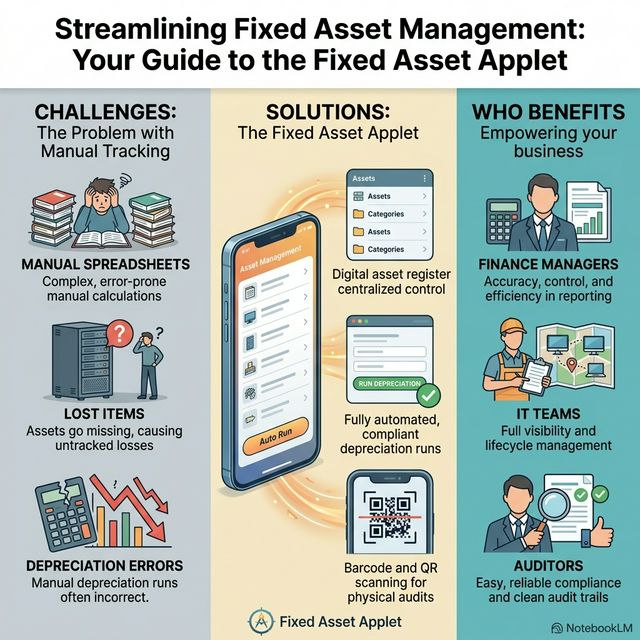
The Fixed Asset Applet is a powerful tool designed to manage the complete lifecycle of an organisation’s fixed assets. It moves beyond simple record-keeping by integrating asset tracking, depreciation automation, financial journal posting, and comprehensive reporting into a single platform.
Key Features Overview
Who Benefits from This Applet?
Finance Managers & Accountants:
- Automated monthly depreciation calculations
- Real-time asset valuation for balance sheets
- Precise Gain/Loss tracking on asset disposal
- Automated journal posting to the General Ledger
Asset Custodians & Facility Managers:
- Clear visibility into asset locations and assignments
- Easy updates when assets move between branches or locations
- Serial number tracking with barcode scanning support
- Attachment and related document management
Internal & External Auditors:
- Comprehensive audit trail for every asset transaction
- Full transaction history per asset (Acquisition, Adjustment, Disposal)
- Detailed depreciation schedules and configuration records
- Export-ready reports filtered by company, branch, category, or status
IT & Operations Teams:
- Track technical equipment (laptops, servers) with serial numbers
- Manage warranty expiry dates per asset
- Barcode scanning for quick serial number capture
- Bulk import of existing asset registries via Excel
What Problems Does This Solve?
The Manual Tracking Problem:
Traditional asset management relies on spreadsheets and paper forms. Common issues include:
- Assets purchased but never properly registered
- No centralised view of what’s in DRAFT vs REGISTERED status
- Manual tracking of serial numbers, locations, and custodians
- Difficult to trace asset movements between branches
The Fixed Asset Applet Solution:
- Digital registration - Create asset records with auto-generated codes or manual entry
- Structured statuses - Assets move from DRAFT → REGISTERED → DISPOSED through proper workflows
- Barcode scanning - Scan serial numbers directly using your device camera
- Multi-branch tracking - Assign assets to specific companies, branches, and locations
- Attachment support - Upload photos, invoices, and related documents per asset
- Bulk import - Migrate existing registries via Excel file upload
The Depreciation Calculation Problem:
Calculating depreciation for hundreds or thousands of assets manually is error-prone and time-consuming.
- Different assets use different depreciation methods
- Pro-rata calculations for mid-period acquisitions
- Manual journal entries for depreciation expense
- No easy way to generate depreciation schedules
The Fixed Asset Applet Solution:
- Depreciation Run engine - Process depreciation for all eligible assets in one batch
- Multiple methods - Straight Line, Declining Balance, Double Declining Balance, or No Depreciation
- Configurable per asset - Each asset can have its own depreciation rate, useful life, and residual value
- GL integration - Depreciation expense and accumulated depreciation GL codes are set per asset
Key Features Overview
Key Concepts
Understanding the Asset Framework
Every asset record must address three fundamental aspects. The Fixed Asset Applet provides structured handling:
| Aspect | Component | Practical Example |
|---|---|---|
| What is the asset? | Asset Details & Category | Laptop, Vehicle, Office Furniture |
| Where is it? | Company, Branch, Location | HQ Branch, Room 301 |
| How does it depreciate? | Depreciation Configuration | Straight Line, 20% per year, 5 years useful life |
Asset Lifecycle
Think of the asset lifecycle as a structured flow:
Organization
│
├── Asset Categories (e.g. IT Equipment, Vehicles, Furniture)
│   └── Status: ACTIVE / INACTIVE
│
└── Fixed Assets
    ├── Details (Name, Code, Serial No, Type, Category)
    ├── Location (Company, Branch, Location)
    ├── Custodian (Employee / PIC)
    ├── Transactions (Acquisition → Adjustment → Disposal)
    ├── Depreciation (Method, Rate, Useful Life, GL Codes)
    ├── Attachments (Photos, Invoices, Documents)
    └── Related Documents & Other Journals
The Asset Status Journey
Assets move through distinct statuses as they progress through their lifecycle:
| Status | What It Means | What You Should Do |
|---|---|---|
| DRAFT | Newly created, not yet commissioned | Complete details and change to REGISTERED |
| REGISTERED | Active asset in use | Configure depreciation, add acquisition transaction |
| DISPOSED | Removed from books | Triggered when a Disposal transaction is created |
Asset Types
The system classifies assets into three types:
| Asset Type | Description | Example |
|---|---|---|
| Property, Plant, and Equipment | Tangible long-term assets | Buildings, machinery, vehicles |
| Long-term Investment | Financial instruments held long-term | Bonds, shares in subsidiaries |
| Intangible Asset | Non-physical assets with value | Software licenses, patents, trademarks |
Quick Start Guide
Get up and running quickly with these essential workflows.
For Admins: Initial System Setup
Goal: Configure the framework before adding assets in 4 steps.
Step 1: Create Asset Categories (Asset Category)
- Click "+" to create categories like “IT Equipment” or “Office Furniture”
- Enter Code (e.g.,
IT-EQUIP), Name, and set Status to ACTIVE
Step 2: Configure Default Settings (Settings > Default Selection)
- Set your Default Branch and Default Location
- Arrange the Details Tab Order by dragging tabs (Details, Transactions, Depreciation, Attachment, Related Doc, Other Journal)
Step 3: Set Up Permissions (Settings > Permission Set)
- Define permission sets for different user roles
- Assign user, team, and role-based permissions
Step 4: Configure Feature Visibility (Settings > Feature Visibility)
- Show or hide specific features based on your organisation’s needs
For Operations: Registering a New Asset
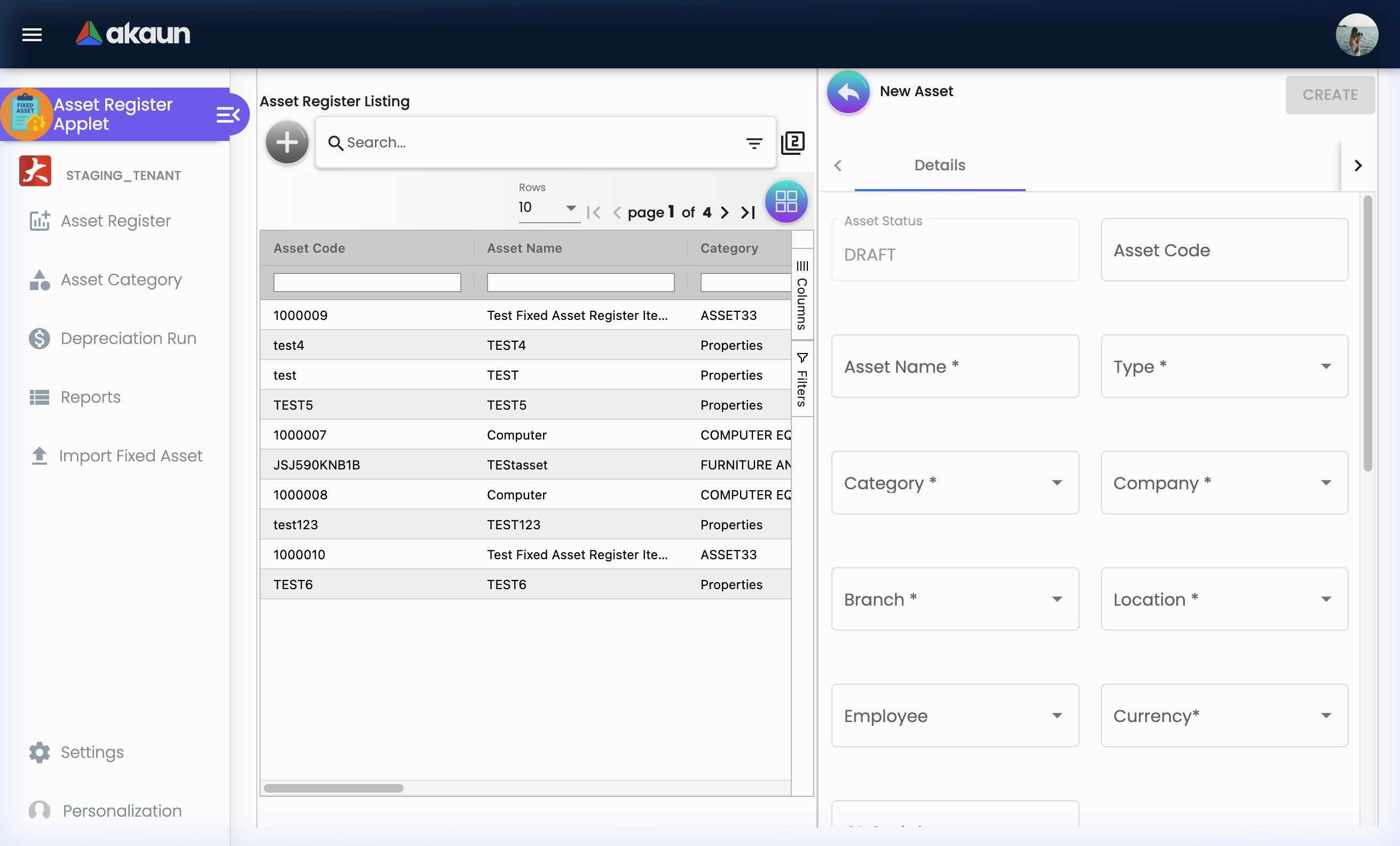
Goal: Add a single asset to the registry.
- Navigate: Go to Asset Register → Click "+"
- Details: Fill in the required fields:
- Asset Name: e.g., “Dell Latitude 7440”
- Asset Type: Select from Property/Plant/Equipment, Long-term Investment, or Intangible Asset
- Category: Select the appropriate category (e.g., “IT Equipment”)
- Company, Branch, Location: Assign where the asset belongs
- Currency: Select the document currency
- Optional Fields: Add Serial Number (use the barcode scanner button to scan), Warranty Expiry, Employee/PIC, GL Code, Description
- Save: Click CREATE → A unique Asset Code is auto-generated (or enter one manually)
What happens next? The asset is created in DRAFT status. Open it to add transactions, configure depreciation, and upload attachments.
For Finance: Recording an Acquisition
Goal: Record the purchase transaction for a newly registered asset.
- Open the asset from the Asset Register listing
- Go to the Transactions tab
- Click "+" to add a new transaction
- Select Type: Choose Acquisition
- Enter Details:
- Purchase Date: When the asset was bought
- Purchase Price: The acquisition cost
- GL Code: The offsetting GL account (e.g., Accounts Payable)
- Description: e.g., “Purchase from Dell Malaysia”
- Save: The system creates a balanced journal entry (Debit: Asset GL, Credit: Selected GL)
For Finance: Running Monthly Depreciation
Goal: Process depreciation for all eligible assets for a given period.
- Navigate: Go to Depreciation Run → Click "+"
- Select:
- Company: Required — which company to process
- Branch: Optional — filter to a specific branch
- Month/Year: The period to calculate depreciation for
- Save: Click CREATE → System calculates and posts depreciation journals for all REGISTERED assets with active depreciation configurations
New to the system? Start with the basics:
- Operations should create assets in Asset Register and add basic details
- Finance should record Acquisition transactions and configure Depreciation
- Admins should review Configuration & Settings below for detailed setup
Sidebar Menu Reference
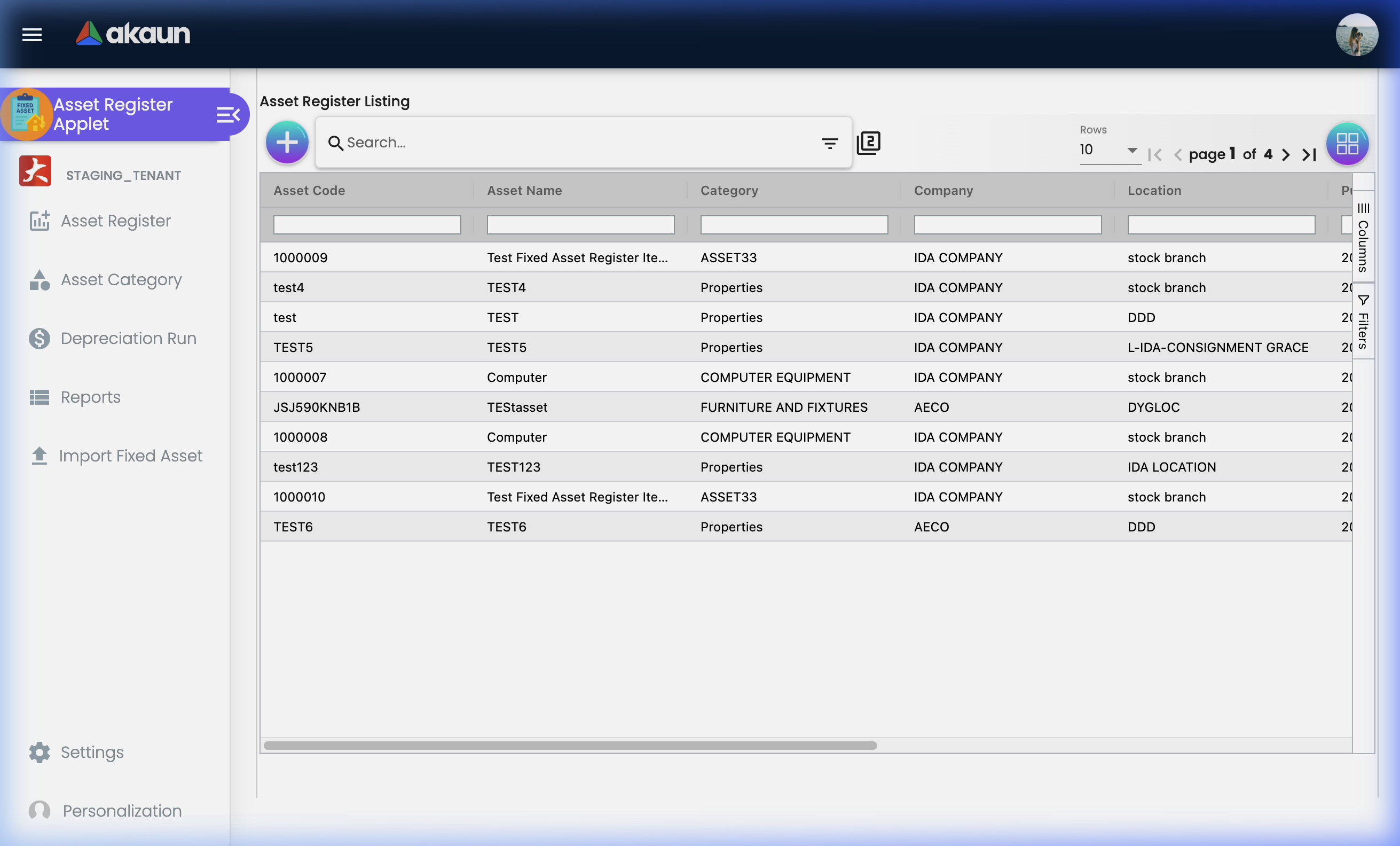
Asset Register
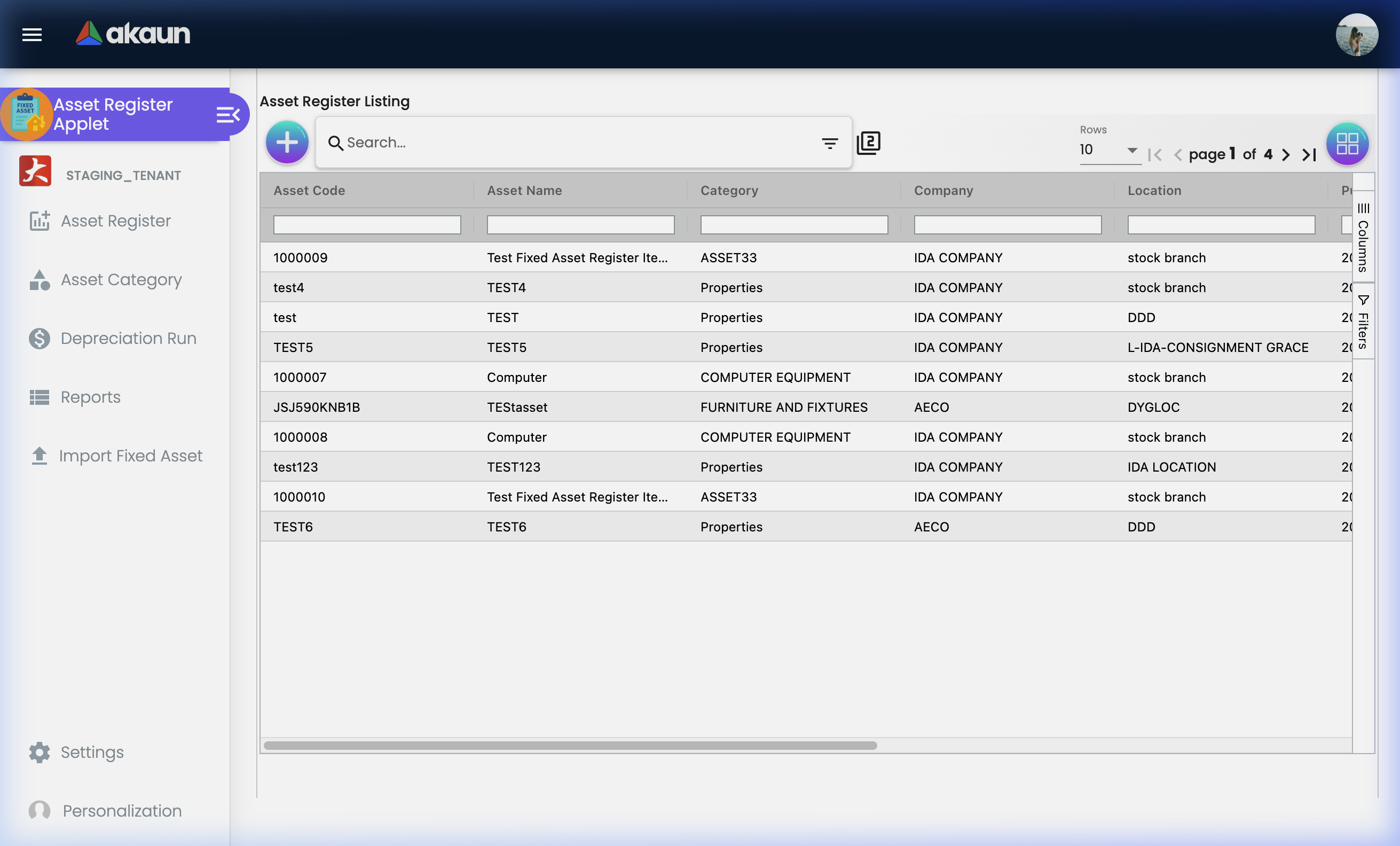
This is the main workspace for managing your fixed asset inventory.
Listing View - What You Can See:
| Column | Description | Example |
|---|---|---|
| Asset Code | Unique identifier | FA-001, IT-2024-055 |
| Asset Name | Descriptive name | Dell Latitude 7440 |
| Category | Asset classification | IT Equipment |
| Company | Owning company | BigLedger Sdn Bhd |
| Location | Physical location code | KL-HQ |
| Purchase Date | When acquired | 2024-03-15 |
| Purchase Price | Acquisition cost | 4,500.00 |
| Depreciation Method | How value reduces | STRAIGHT_LINE |
| Asset Status | Current lifecycle status | DRAFT, REGISTERED, DISPOSED |
What You Can Do:
- Create: Click "+" to register a new asset
- Search: Quick search by Code, Name, Serial Number, Status, or Category Code
- Advanced Search: Filter by Company, Branch, Location, Purchase Date Range, or Asset Code Range
- Edit: Click any row to open the asset detail view
- Toggle Columns: Show/hide columns for your preferred view
- Pagination: Server-side pagination for large datasets
Edit Asset View - Tabs:
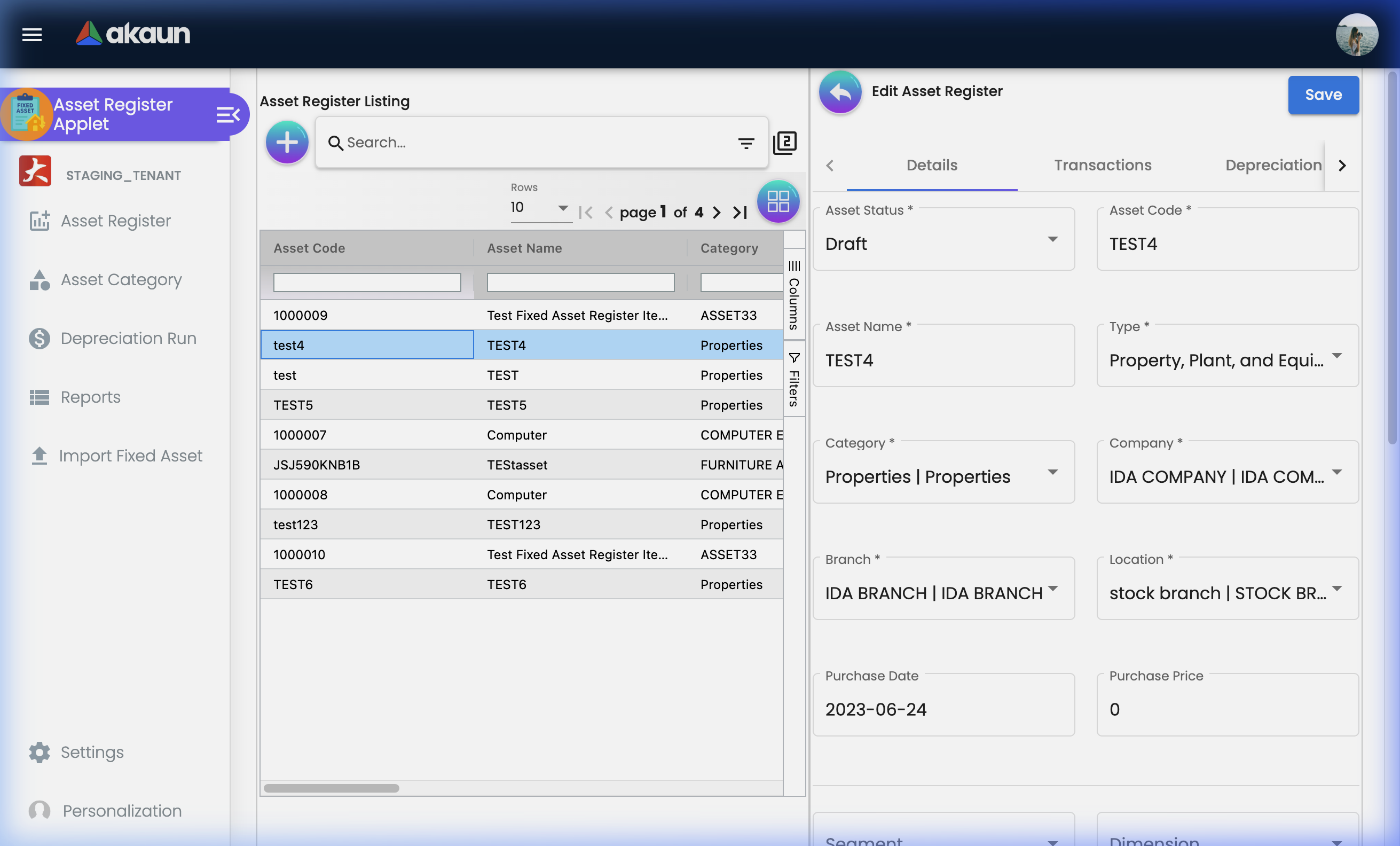
When you click on an asset, you see a tabbed detail view with up to 6 tabs:
| Tab | Purpose | What You Can Do |
|---|---|---|
| Details | Core asset information | Edit name, type, category, location, serial number, employee/PIC, GL code |
| Transactions | Financial journal entries | View/add Acquisition, Adjustment, Asset Held for Sale, Disposal transactions |
| Depreciation | Value reduction rules | Configure depreciation method, rate, useful life; view depreciation schedule |
| Attachment | File management | Upload/manage photos, invoices, warranty documents |
| Related Doc | Linked documents | Associate purchase orders, contracts, or other system documents |
| Other Journal | Additional entries | Record manual journal adjustments for the asset |
The tab order can be customized by admins via Settings > Default Selection.
Transactions
Asset transactions create journal entries that affect the General Ledger. Each transaction type serves a specific purpose in the asset lifecycle.
Transaction Types:
| Type | When to Use | Journal Effect |
|---|---|---|
| Acquisition | Recording the initial purchase | Debit: Asset GL / Credit: Payable GL |
| Adjustment | Correcting or revaluing the asset | Debit/Credit based on adjustment direction |
| Asset Held for Sale | Reclassifying for sale | Reclassification journal with gain/loss |
| Disposal | Removing the asset from books | Reversal of cost, recording sale proceeds and gain/loss |
Transaction Details:
| Field | Purpose | Required |
|---|---|---|
| Type | Transaction category | Yes |
| Date | Transaction date | Yes |
| GL Code | Offsetting GL account | Conditional |
| GL Code (Gain/Loss) | For disposal/held-for-sale gain or loss | Conditional |
| Purchase Price / Disposal Price / Asset Value | Monetary amount | Yes |
| Description | Notes about the transaction | No |
Transaction Listing Columns:
| Column | Description |
|---|---|
| Journal No | System-generated posting reference (grouped by journal) |
| Date | Transaction date |
| Type | ACQUISITION, ADJUSTMENT, ASSET_HELD_FOR_SALE, DISPOSAL |
| GL Code | General Ledger account name |
| Description | Transaction notes |
| Debit | Debit amount |
| Credit | Credit amount |
Depreciation Configuration
Each REGISTERED asset can have its own depreciation settings, configured in the Depreciation tab under Configuration.
Configuration Fields:
| Field | Purpose | Required | Example |
|---|---|---|---|
| Depreciation Start Date | When depreciation begins | Yes | 2024-04-01 |
| Depreciation Method | How value reduces | Yes | Straight Line |
| Averaging Method | Calculation averaging | Yes | Full Month |
| Depreciation Rate | Annual % rate | No | 20 |
| Useful Life | Expected years of use | No | 5 |
| Residual Value | Value at end of life | No | 100 |
| Depreciation Expense GL | Expense account | Yes | Depreciation Expense |
| Accumulated Depreciation GL | Contra-asset account | Yes | Accumulated Depreciation |
Depreciation Methods Available:
| Method | Description | Best For |
|---|---|---|
| No Depreciation | Asset maintains original value | Land, art, assets held for sale |
| Straight Line | Equal amounts each period | Most common, general equipment |
| Declining Balance | Higher depreciation early, reducing over time | Technology, vehicles |
| Double Declining Balance | Accelerated declining balance | Rapidly depreciating assets |
The Schedule sub-tab shows the calculated depreciation schedule for the asset.
Asset Category
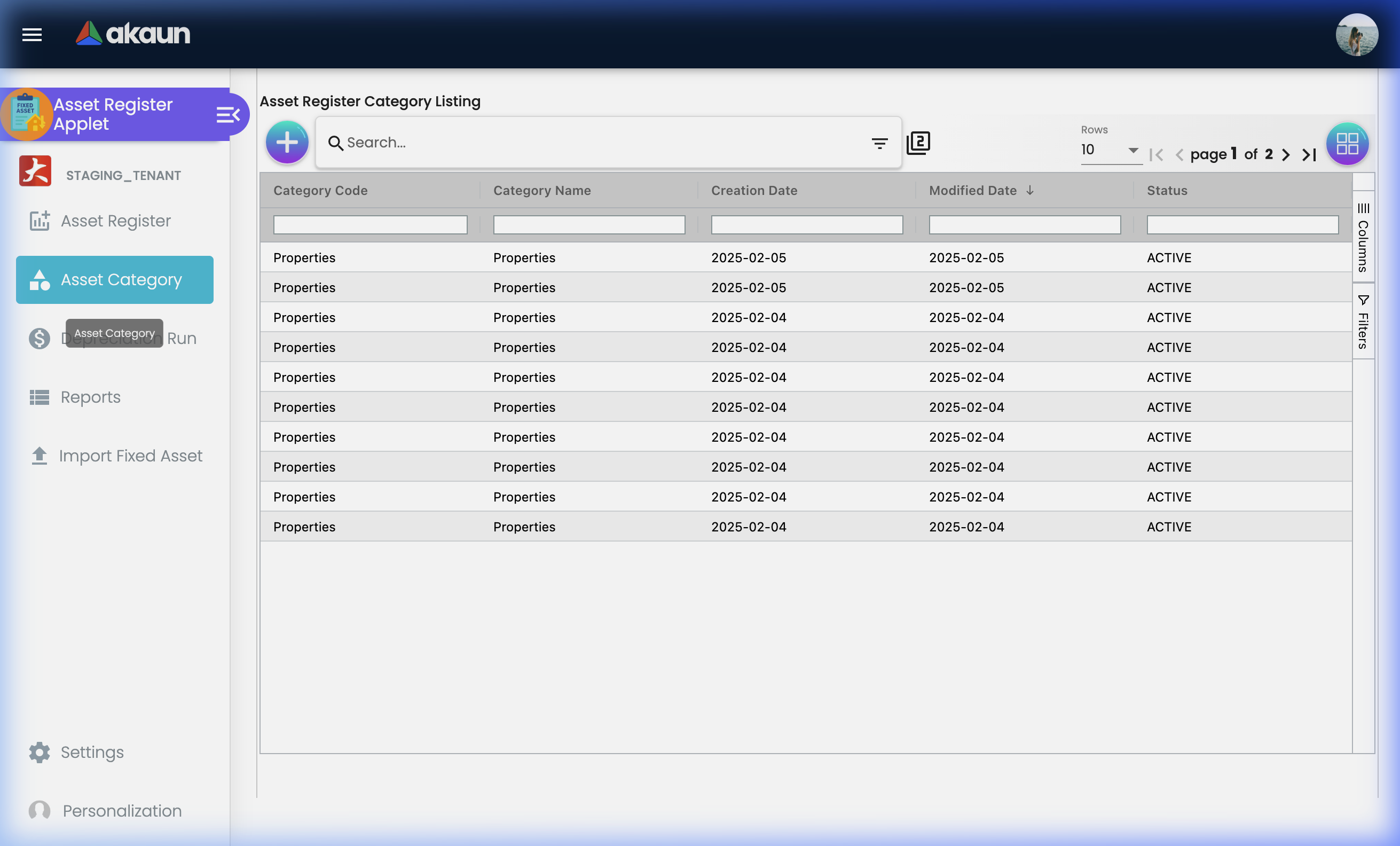
Asset categories group similar assets and help with reporting and organisation.
What You Can Do:
- Create: Click "+" to add a new category
- Edit: Click a category row to modify
- Listing: View all categories with search and filter
Category Fields:
| Field | Purpose | Required | Example |
|---|---|---|---|
| Code | Unique identifier (auto-uppercased) | Yes | IT-EQUIP |
| Name | Descriptive name | Yes | IT Equipment |
| Status | Active or Inactive | Yes | ACTIVE |
| Description | Additional details | No | Computers, laptops, monitors |
Depreciation Run
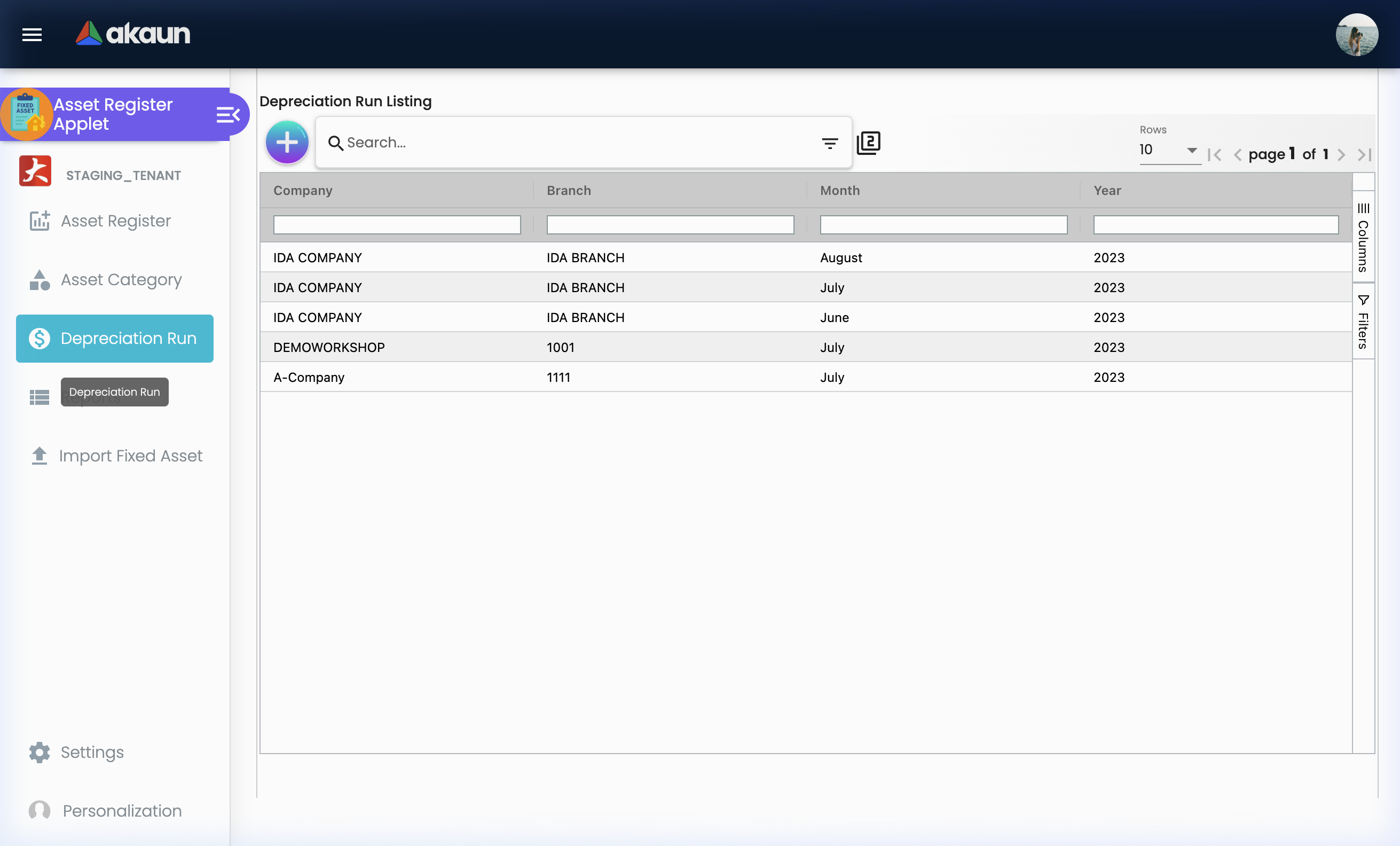
The Depreciation Run is the batch processing engine that calculates and posts depreciation for all eligible assets within a given period.
Creating a Depreciation Run:
| Field | Purpose | Required | Example |
|---|---|---|---|
| Company | Which company to process | Yes | BigLedger Sdn Bhd |
| Branch | Filter to a specific branch | No | KL Office |
| Month/Year | Period to process | Yes | March 2024 |
How It Works:
- Select the company and period
- The system finds all REGISTERED assets with active depreciation configurations
- Calculates the depreciation amount for the period based on each asset’s method, rate, and useful life
- Creates journal entries: Debit Depreciation Expense / Credit Accumulated Depreciation
- Posts to the General Ledger
The Depreciation Run listing shows all previous runs with their details, and you can view/edit individual runs.
File Import
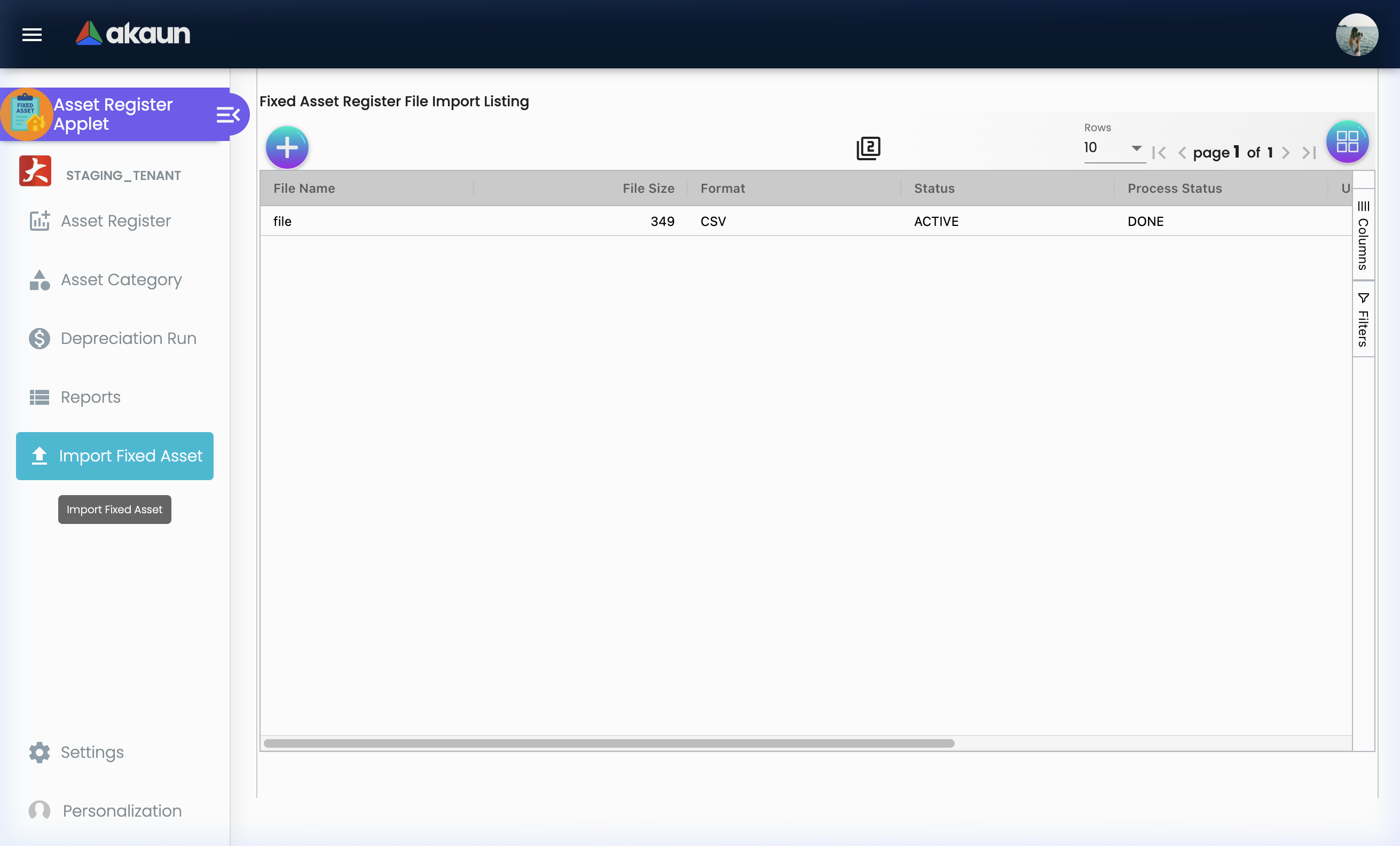
Bulk upload existing asset registries from Excel spreadsheets.
How to Use:
- Navigate to File Import
- Create a new import → Download the Excel template
- Fill in asset data (codes, names, categories, purchase costs, etc.)
- Upload the completed file
- Review for validation errors
- Confirm to import all valid records
This is especially useful during initial system setup when migrating from spreadsheets or legacy systems.
Reports
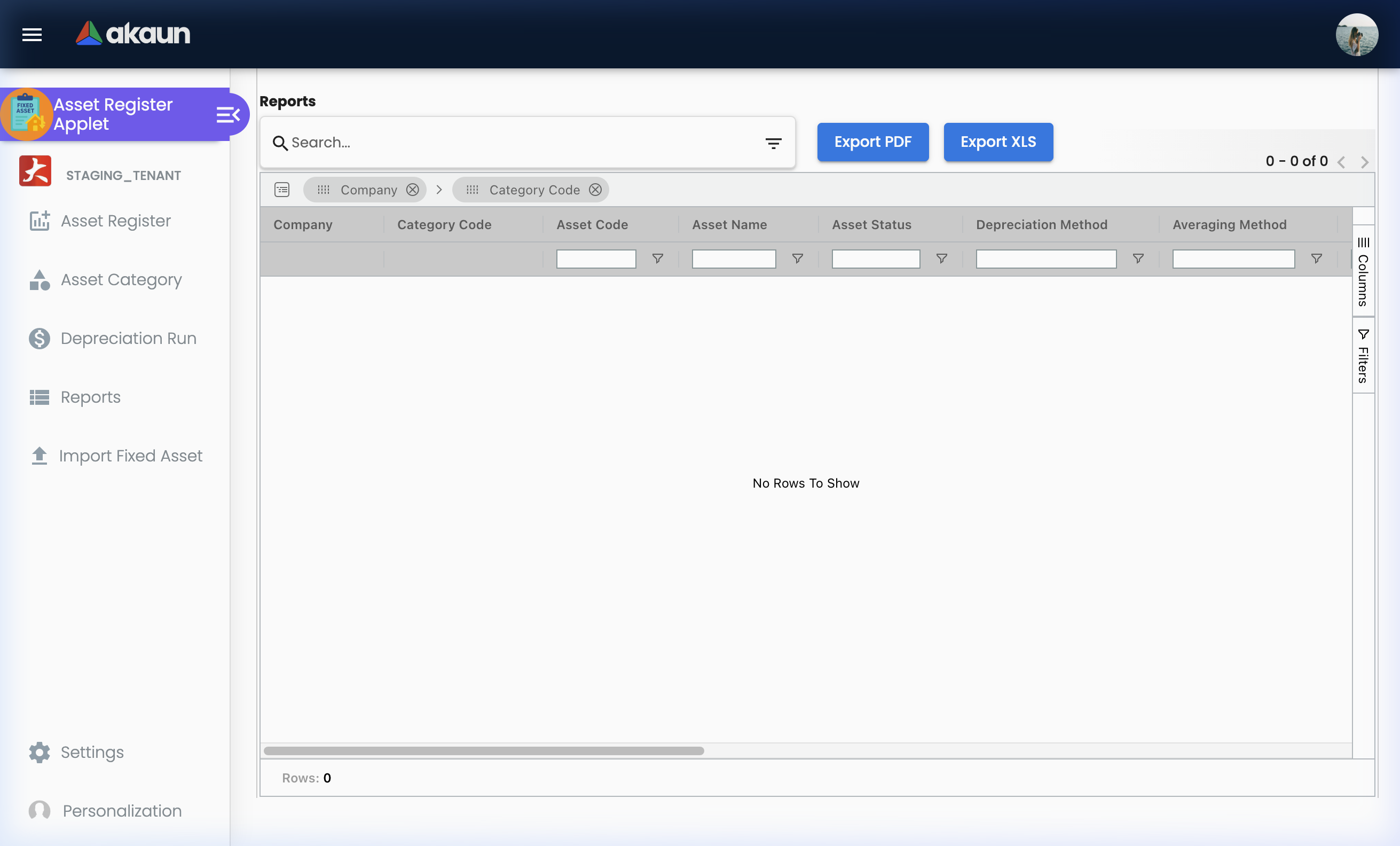
Generate filtered asset reports for financial statements, audits, and management review.
Available Report Filters:
| Filter | Description |
|---|---|
| Company | Filter by one or multiple companies |
| Branch | Filter by one or multiple branches |
| Purchase Date Range | From/To date for acquisition |
| Disposal Date Range | From/To date for disposal |
| Depreciation Period | Month/Year range for depreciation data |
| Category | Filter by asset category |
| Depreciation Method | Filter by method (Straight Line, etc.) |
| Averaging Method | Filter by averaging method |
| Asset Status | Filter by DRAFT, REGISTERED, or DISPOSED |
Configuration & Settings
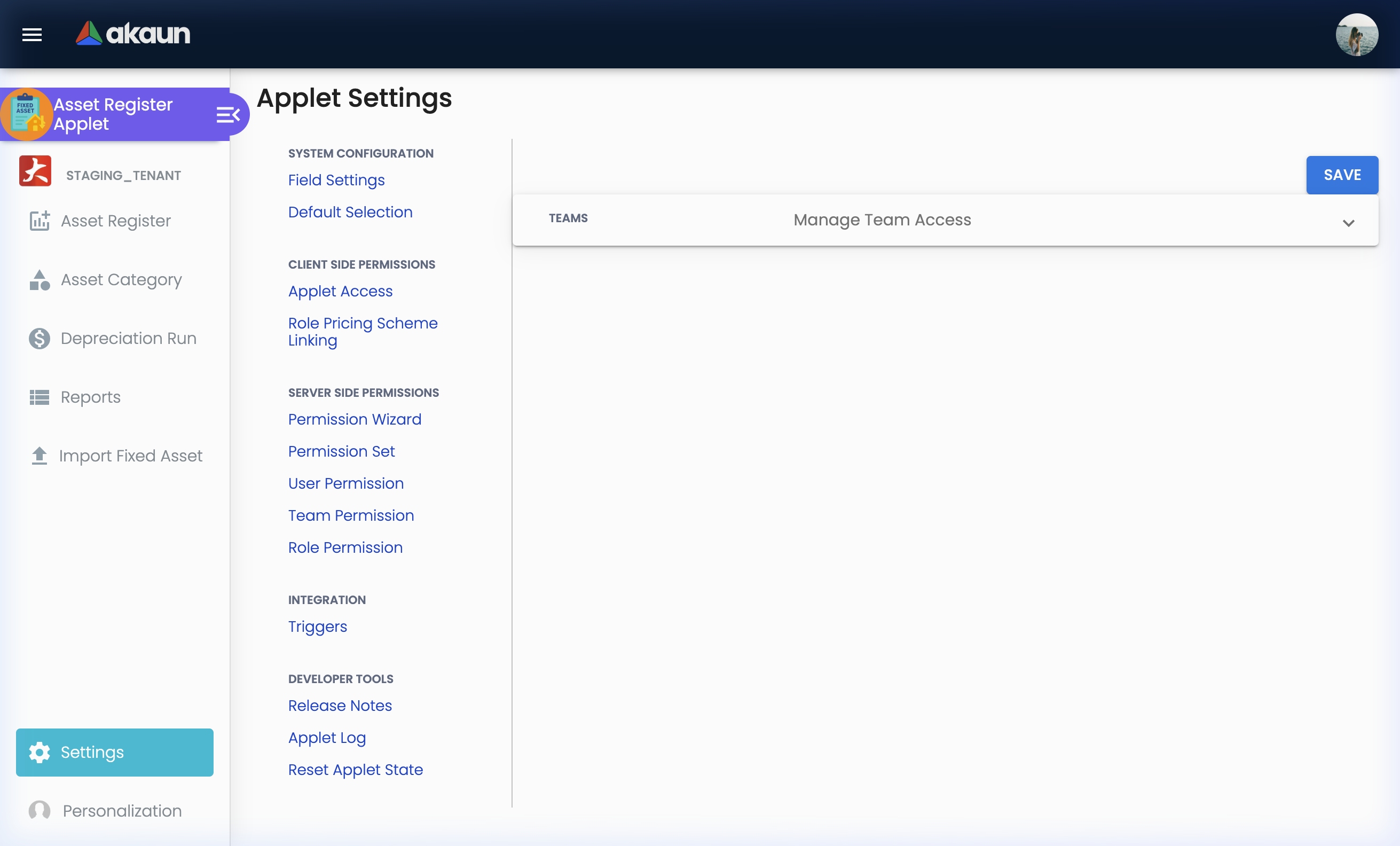
Feature Visibility (Settings → Feature Visibility)
Control which features and sidebar menu items are visible to users. This is the default landing page for Settings.
Default Selection (Settings → Default Selection)
Pre-set common values to speed up data entry and customise the interface:
- Default Branch: Auto-selected when creating new assets
- Default Location: Auto-selected when creating new assets
- Details Tab Order: Drag-and-drop to reorder the tabs in the asset edit view (Details, Transactions, Depreciation, Attachment, Related Doc, Other Journal)
Field Settings (Settings → Field Settings)
Customise the asset registration form:
- Enable or disable specific fields
- Set mandatory fields for data entry
Webhook (Settings → Webhook)
Configure automated notifications to external systems based on asset events (e.g., notify an ERP system when an asset is disposed).
Permissions
Fine-grained access control with four levels:
| Permission Type | Purpose |
|---|---|
| Permission Set | Define named sets of permissions |
| User Permission | Assign permissions to individual users |
| Team Permission | Assign permissions to entire teams |
| Role Permission | Assign permissions by organisational role |
Personalization
Personal Default Selection
Set your own default Branch and Location that pre-fill when you create new assets. These are personal preferences that don’t affect other users.
Sidebar Customization
Rearrange or hide sidebar menu items to match your daily workflow.
Barcode Scanning
The Fixed Asset Applet includes built-in barcode scanning for capturing serial numbers.
How to Use:
- When creating or editing an asset, find the Serial Number field
- Select a Barcode Reader Format from the dropdown
- Click Scan to activate your device’s camera
- Point the camera at the barcode — the system auto-detects and fills in the serial number
- Click Stop to turn off the camera
This feature uses the device camera directly in the browser — no additional app installation required.
FAQ
Q: What’s the difference between DRAFT and REGISTERED status? A: A DRAFT asset only requires basic details (Name, Type, Category, Company, Branch, Location, Currency). A REGISTERED asset additionally requires a valid Depreciation Configuration and at least one Acquisition transaction before it can be saved. Change the status in the Details tab when ready.
Q: What happens when I create a Disposal transaction? A: The system automatically changes the asset status to DISPOSED. It creates a journal that reverses the asset cost, records the disposal proceeds, and calculates any gain or loss. The gain/loss is posted to the GL code you specify.
Q: Can I track assets that don’t depreciate (like Land)? A: Yes. Set the Depreciation Method to “No Depreciation” in the asset’s Depreciation Configuration tab. The asset will remain in the register at its original cost.
Q: How does the system handle the Asset Code? A: You can enter a manual Asset Code, or leave it blank and the system will auto-generate one on save. The system validates for duplicate codes — if a duplicate is detected, you’ll receive an error and need to use a different code.
Q: Can I change the tab order in the asset edit view?
A: Yes. Go to Settings > Default Selection and drag-and-drop the tabs (Details, Transactions, Depreciation, Attachment, Related Doc, Other Journal) into your preferred order. This applies to all users.
Q: What barcode formats does the scanner support? A: The scanner supports multiple formats. Select the appropriate reader format from the dropdown before scanning. The camera-based scanner works directly in the browser without requiring additional software.
Q: How do I bulk import existing assets? A: Navigate to File Import, download the Excel template, fill in your asset data, upload the file, review any validation errors, and confirm the import. This is ideal for initial migration from spreadsheets.
Q: Can I filter reports by depreciation period? A: Yes. The Reports module allows filtering by Depreciation Date Month/Year range, in addition to Company, Branch, Purchase Date Range, Disposal Date Range, Category, Depreciation Method, and Asset Status.