Payment Voucher (Internal)
Record money you pay out: a supplier’s invoices, an expense paid directly, or a refund to a customer. Each payment line becomes its own cashbook transaction, which is what you later match against the bank statement, and a voucher that has already posted is corrected on the adjustment screens instead of being voided.
Overview
The Payment Voucher (Internal) applet records money going out: paying a supplier’s invoices, paying an expense directly (rent, road tax, a utility bill), or refunding a customer. An accounts-payable clerk creates the voucher for the payee, adds the expense lines being paid (if any), adds one or more payment lines (cheque, bank transfer, cash, card), contra-links the purchase invoices being settled, and finalises. FINAL posts one cashbook transaction per payment line — the lines Bank Reconciliation later matches — and the creditor journal. Settlement Adjustment and Expenses Adjustment screens let authorised users correct a finalised voucher without voiding it.
It is also the voucher finance uses to pay staff: a claim the claim cycle hands to finance, an advance, a commission payout. The claims applets post nothing themselves; the cycle’s PV Details Report lists each claim line with its GL code and tax, and you key this voucher from it (paying a staff claim). (Internal) in the name marks the back-office applet your finance staff use, as opposed to one a customer or a portal reaches.
Where it fits
| Direction | Document / applet | Relationship |
|---|---|---|
| Upstream | Purchase Invoice (Internal), Purchase Debit Note (Internal) | Open supplier documents the payment is contra’d against |
| Upstream | Purchase Credit Note (Internal) | Reduces what you owe before paying |
| Upstream | Claim Cycle | The PV Details Report is the working paper for paying staff claims on this voucher; nothing is copied across automatically |
| Master data | Supplier Applet | Payee entity and its AP type |
| Master data | Cashbook Applet | Each settlement method is an item linked to a cashbook; the cashbook’s GL code is the credit side |
| Downstream | Bank Reconciliation | Matches the cashbook lines FINAL creates |
| Downstream | Ledger And Journal | Shows the journal |
| Downstream | Creditor Report, Statement of Account | Ageing and statements reflect contra’d payments |
| Mirror | Receipt Voucher (Internal) | The same document for money coming in |
| Sibling | Reimbursement Payment Voucher (Internal) | A separate applet for paying a person back for money they spent on the company’s behalf (a staff claim, a petty-cash top-up, an expense put on a personal card). A claim whose receipt carries tax is paid on this voucher instead, where the tax gets its own line (which one to choose) |
Modules: Financial Accounting and Purchasing.
Screens and menus
| Menu item | What it is | Hidden by |
|---|---|---|
| Internal Payment Voucher | Listing and create/edit form | — |
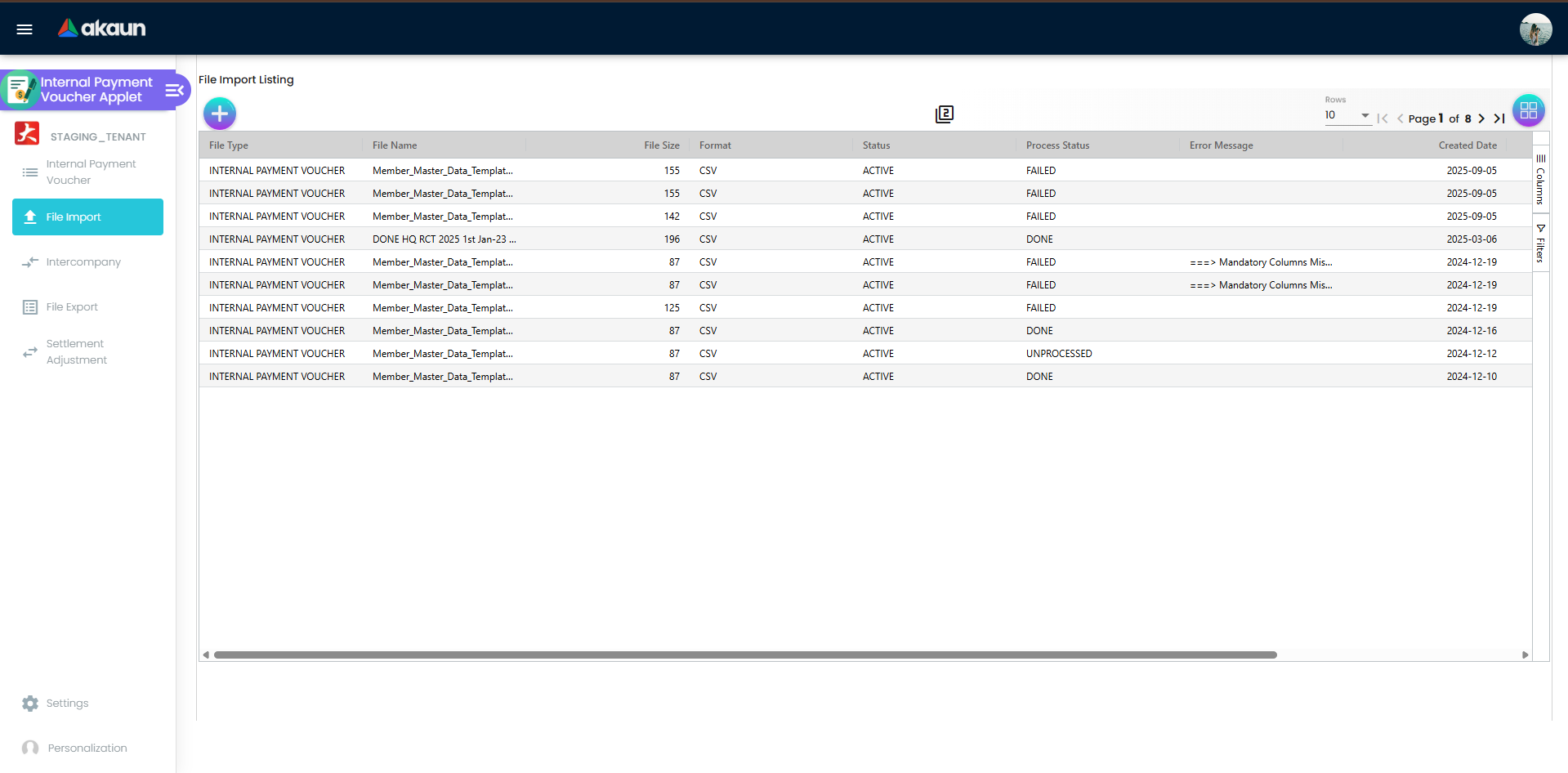
| File Import | Bulk upload with a Checking tab | HIDE_FILE_IMPORT_MENU |
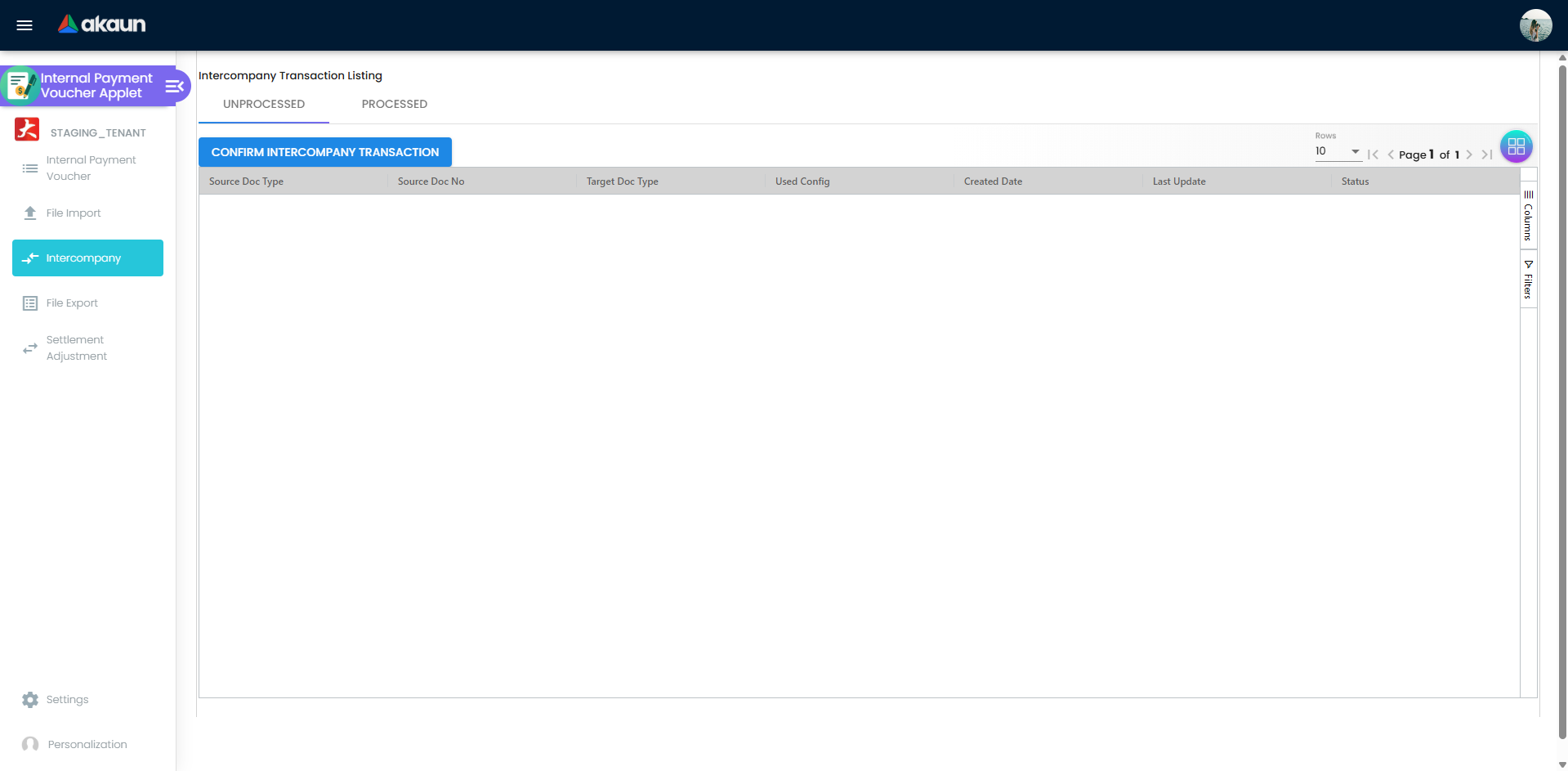
| Intercompany | Unprocessed / Processed queues of vouchers between companies of the tenant | HIDE_INTERCOMPANY_MENU |
| File Export | Generate a CSV of vouchers for a date range (bank payment files) | HIDE_FILE_EXPORT_MENU |
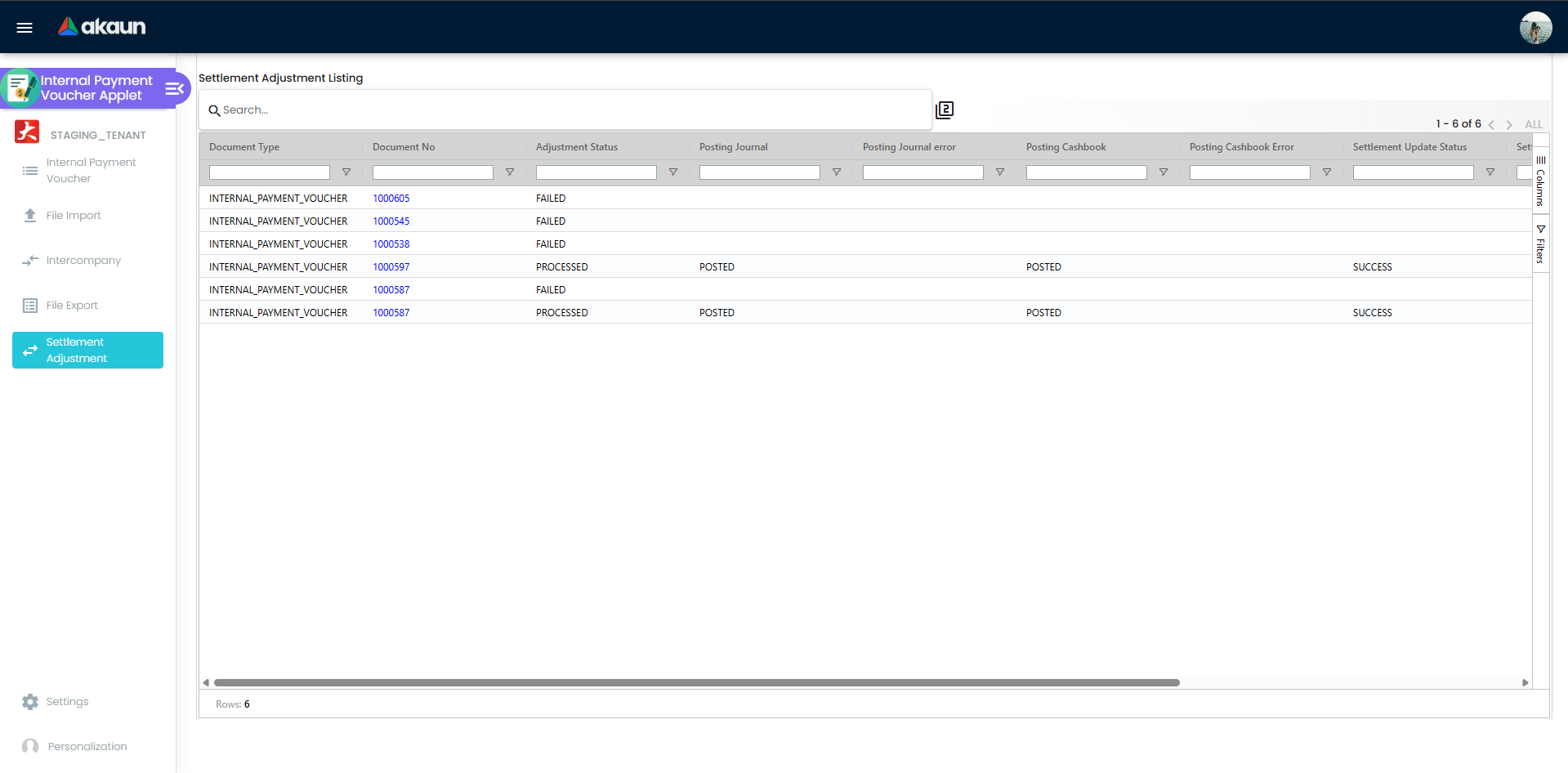
| Settlement Adjustment | Correct payment lines of finalised vouchers | Shown only when ENABLE_EDIT_SETTLEMENT_FINAL is on and the user has SHOW_EDIT_SETTLEMENT_FINAL |
| Expenses Adjustment | Correct expense lines of finalised vouchers | When ALLOW_EXPENSES_EDITING_AFTER_FINAL is on, only users with ALLOW_EDIT_EXPENSES_AFTER_FINAL see it |
| Audit Trail | Change history | HIDE_AUDIT_TRAIL_MENU |
The applet also looks for a per-user exception to each of the first three switches, but no such permission is registered for this applet, so none can be granted from the permission screens: once File Import, Intercompany or File Export is hidden, it is hidden for every user (checked 7 October 2026).
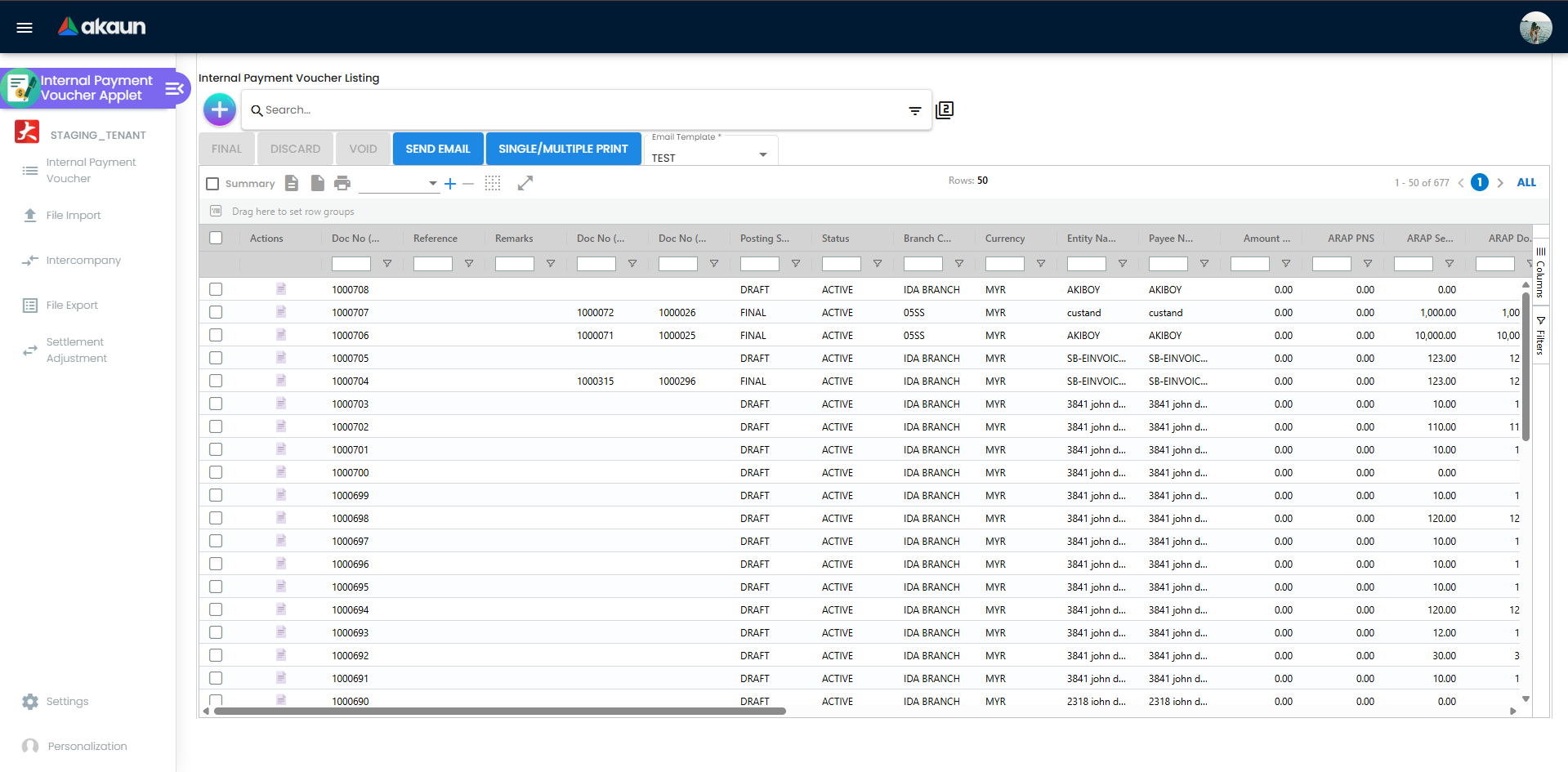
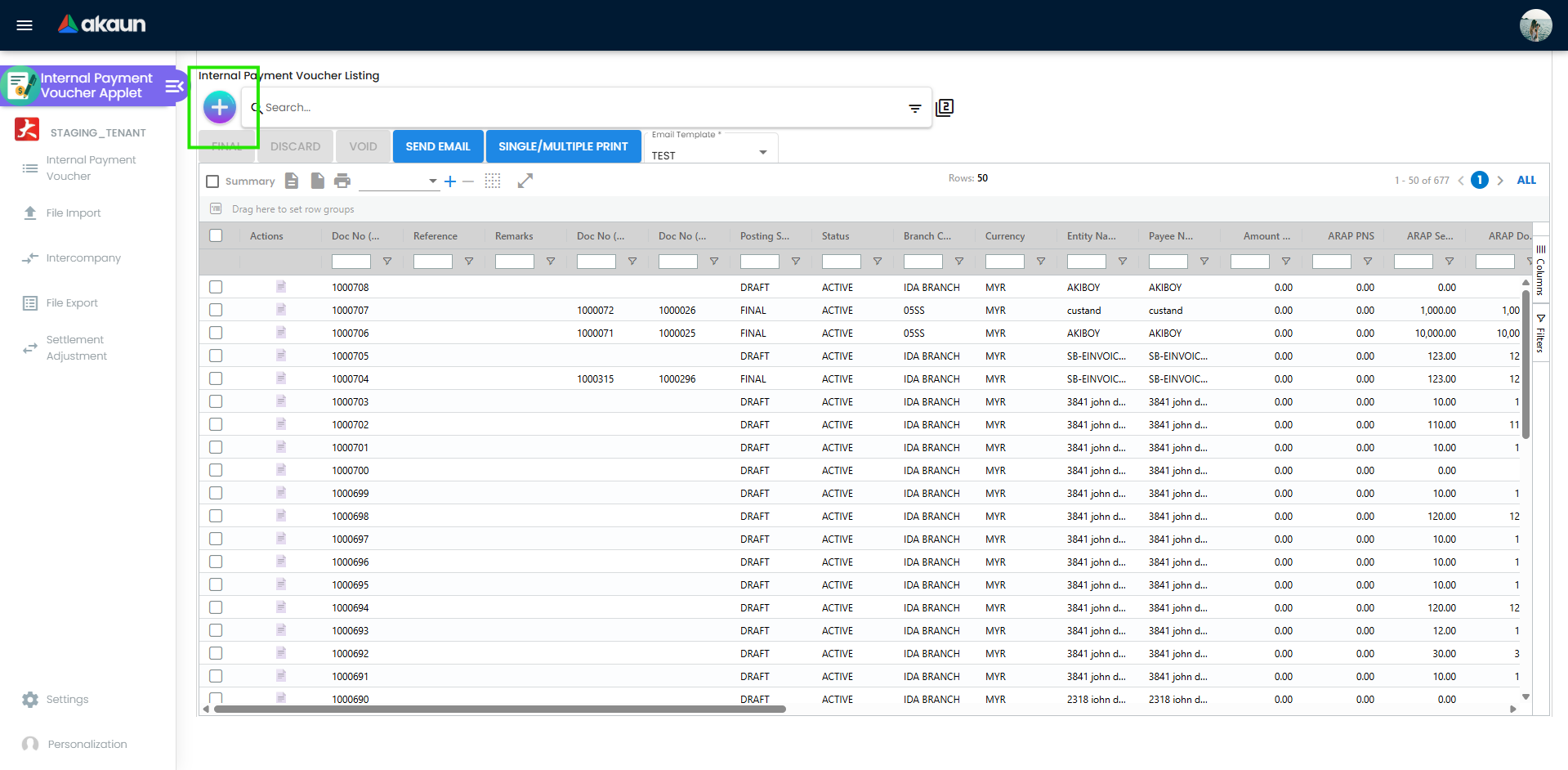
Edit form tabs
Default order (changeable under Settings > Default Selection > Details Tab Ordering):
| Tab | Purpose | Hidden by |
|---|---|---|
| Main Details | Company, branch, location, date, currency, references. Once the voucher is FINAL, company, branch, location, currency, rate and the document and client numbers lock (unless the edit-after-FINAL setting and permission are both in place); Reference and Remarks stay editable | — |
| Account | Payee (Entity Details, Payee, Intercompany). The entity’s AR/AP type is read from the entity record when the voucher posts — the company-specific setting first — so it decides which control account the payment settles, and a change to it affects every voucher posted afterwards | — |
| Expenses | Lines paid directly, with item/GL, tax and department | HIDE_EXPENSES_TAB |
| ARAP | Product & Services, Settlement, Contra, Outstanding (read-only) | HIDE_MAIN_ARAP_TAB |
| Payment | The money paid out: settlement method, amount, date, reference | HIDE_MAIN_PAYMENT_TAB |
| Payment Adjustment | Post-FINAL corrections to payment lines | HIDE_MAIN_PAYMENT_TAB |
| Department Hdr | Dimension, Profit Centre, Project, Segment | HIDE_DEPARTMENT_HDR_TAB |
| Trace Document | The postings FINAL actually produced, as five grids — Journal Txn, Cashbook Txn, Tax Txn, Points Txn, Inv Txn. This applet has no Posting tab; this is the tab that answers the same question, and it answers it better, because it shows the rows rather than a status word. An empty grid is the symptom of a failed job; it does not say why | HIDE_TRACE_DOCUMENT_TAB |
| Contra | Apply the payment to open supplier documents | HIDE_MAIN_CONTRA_TAB |
| Doc Link | Links to other documents | HIDE_DOC_LINK_TAB |
| Attachments | Supporting files | HIDE_ATTACHMENT_TAB |
| Export | Print with a printable format | HIDE_EXPORT_TAB |
| Sales Commission | Link the payment to a sales-commission run | HIDE_SALES_COMMISSION_TAB |
| Expenses Adjustment | Post-FINAL corrections to expense lines | HIDE_EXPENSES_TAB |
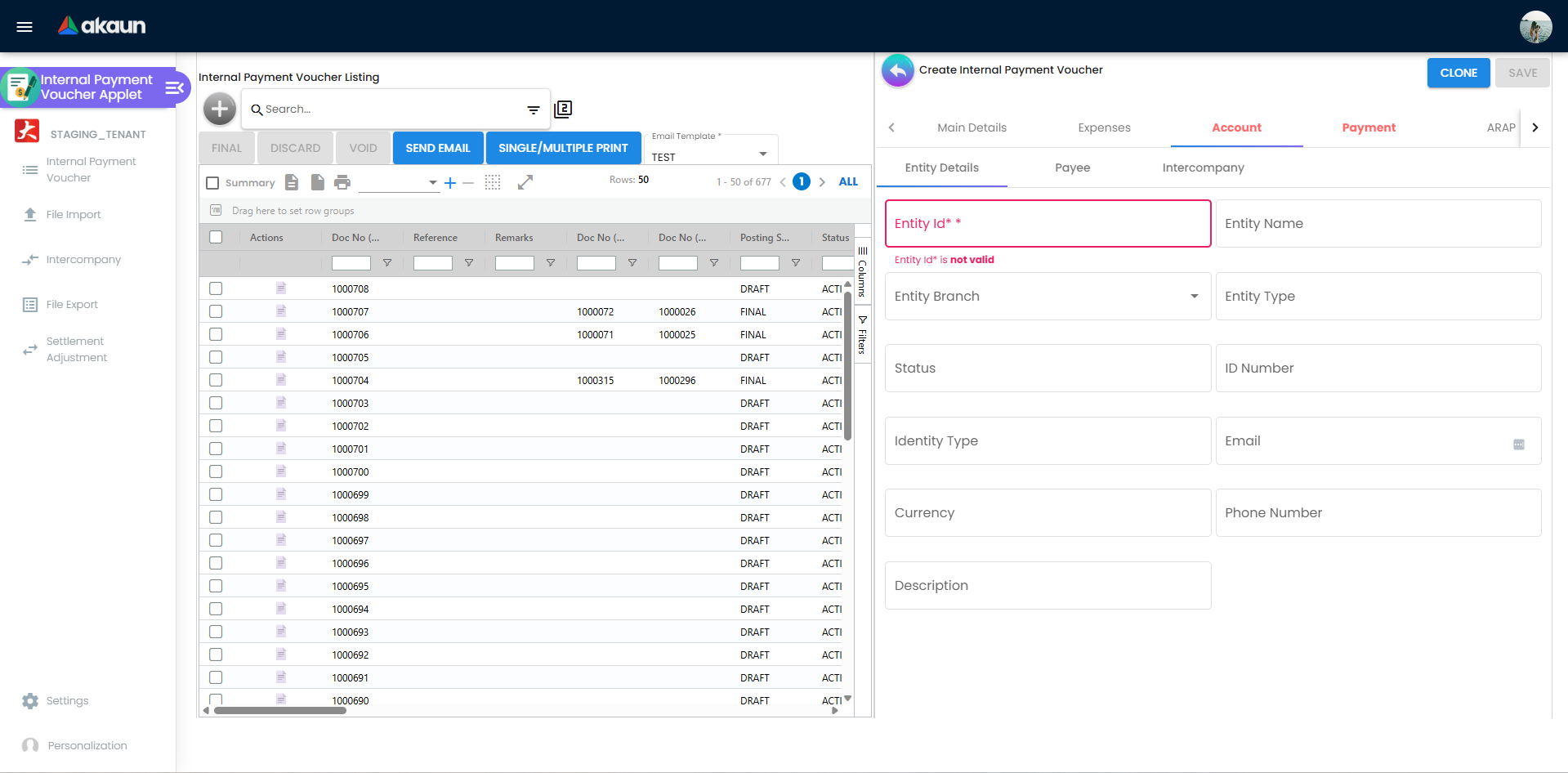
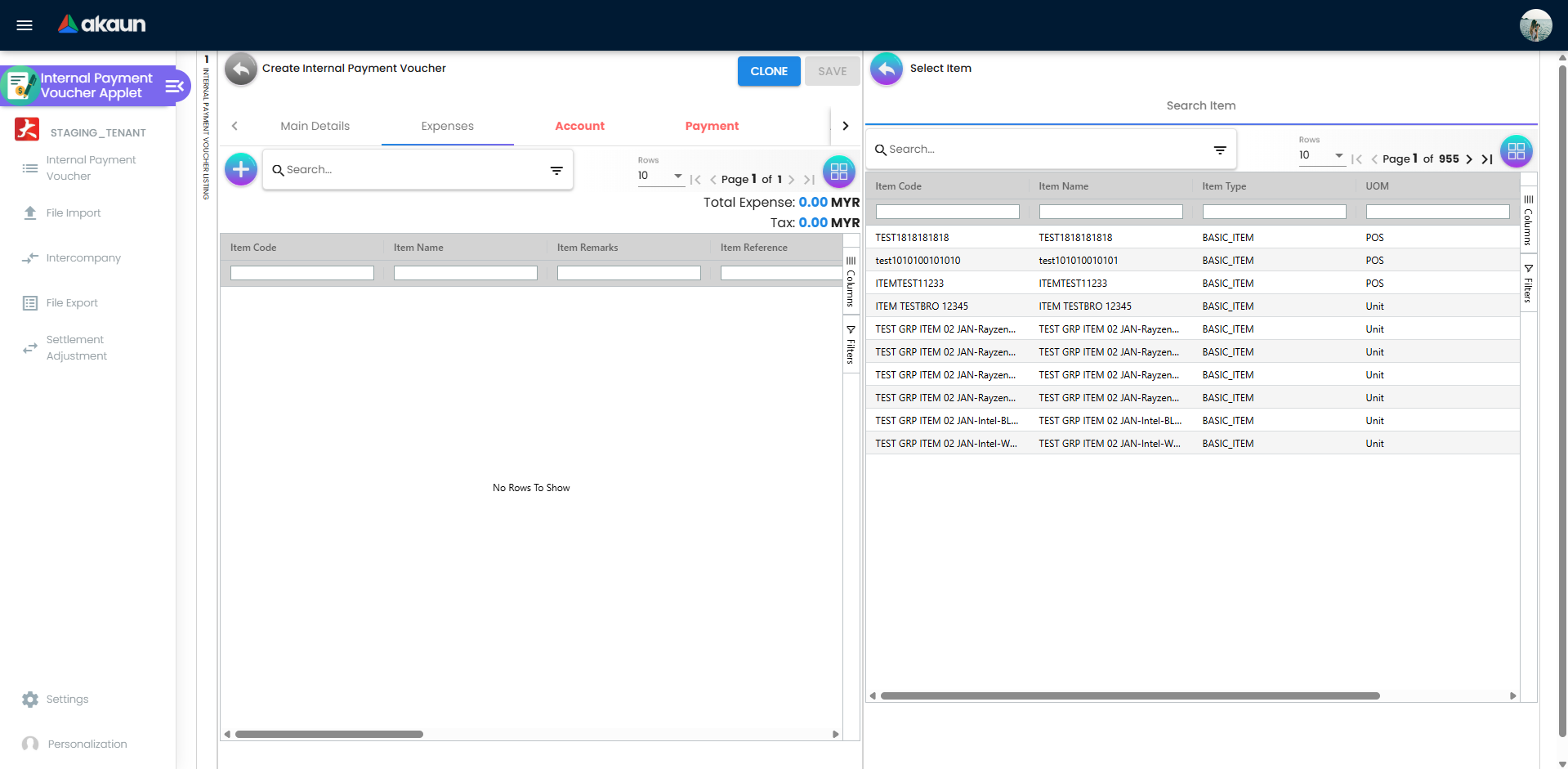
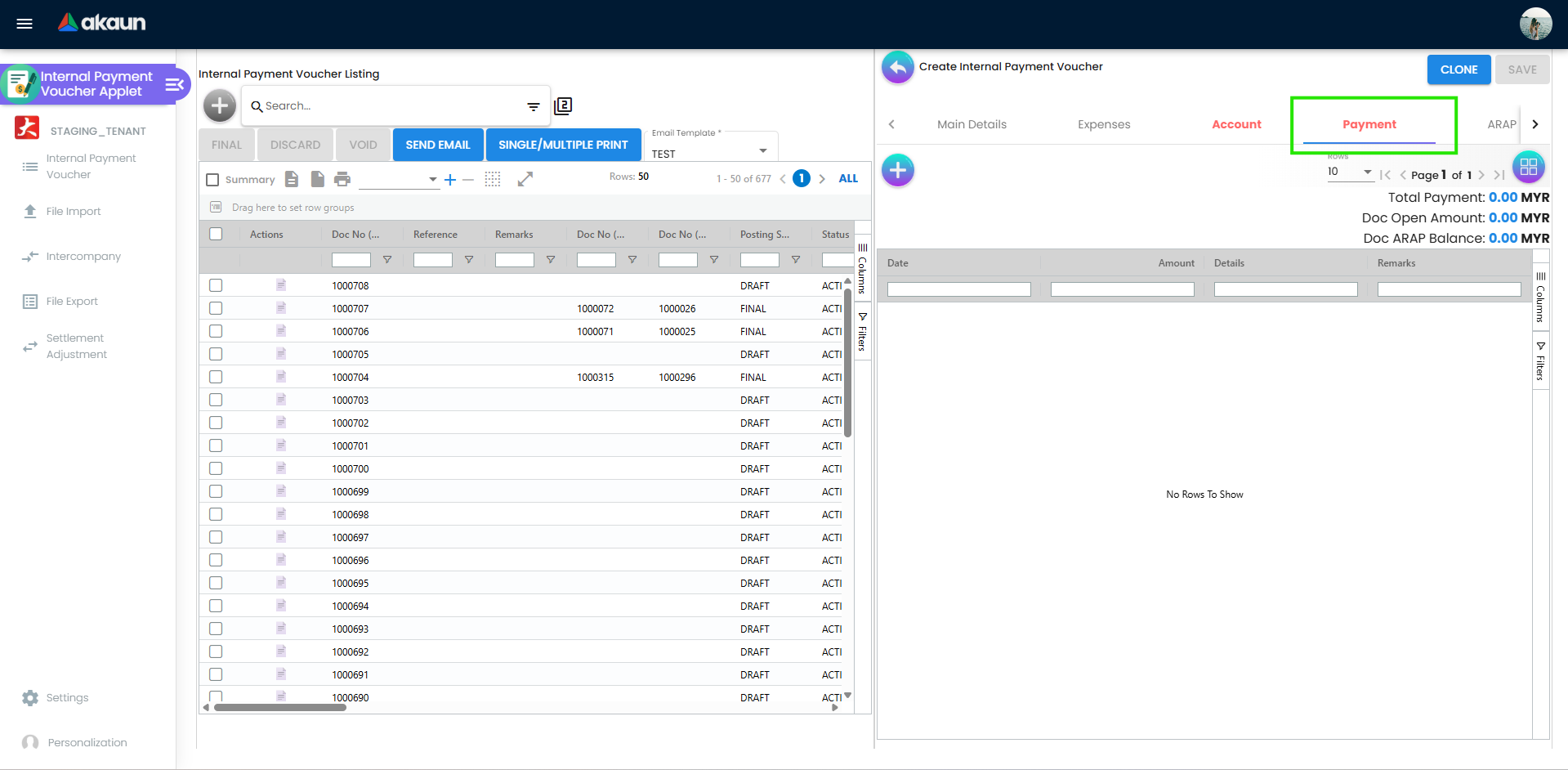
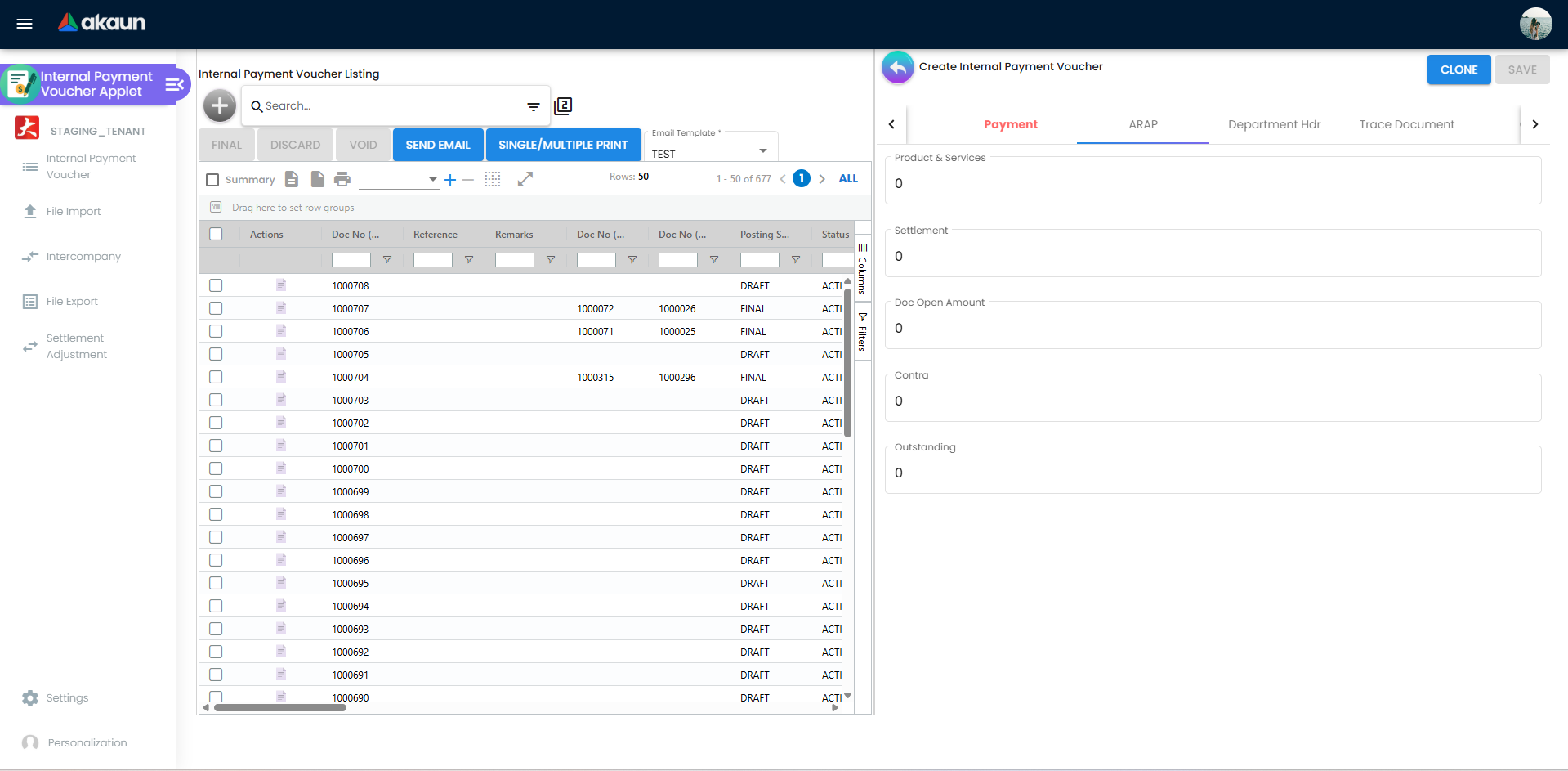
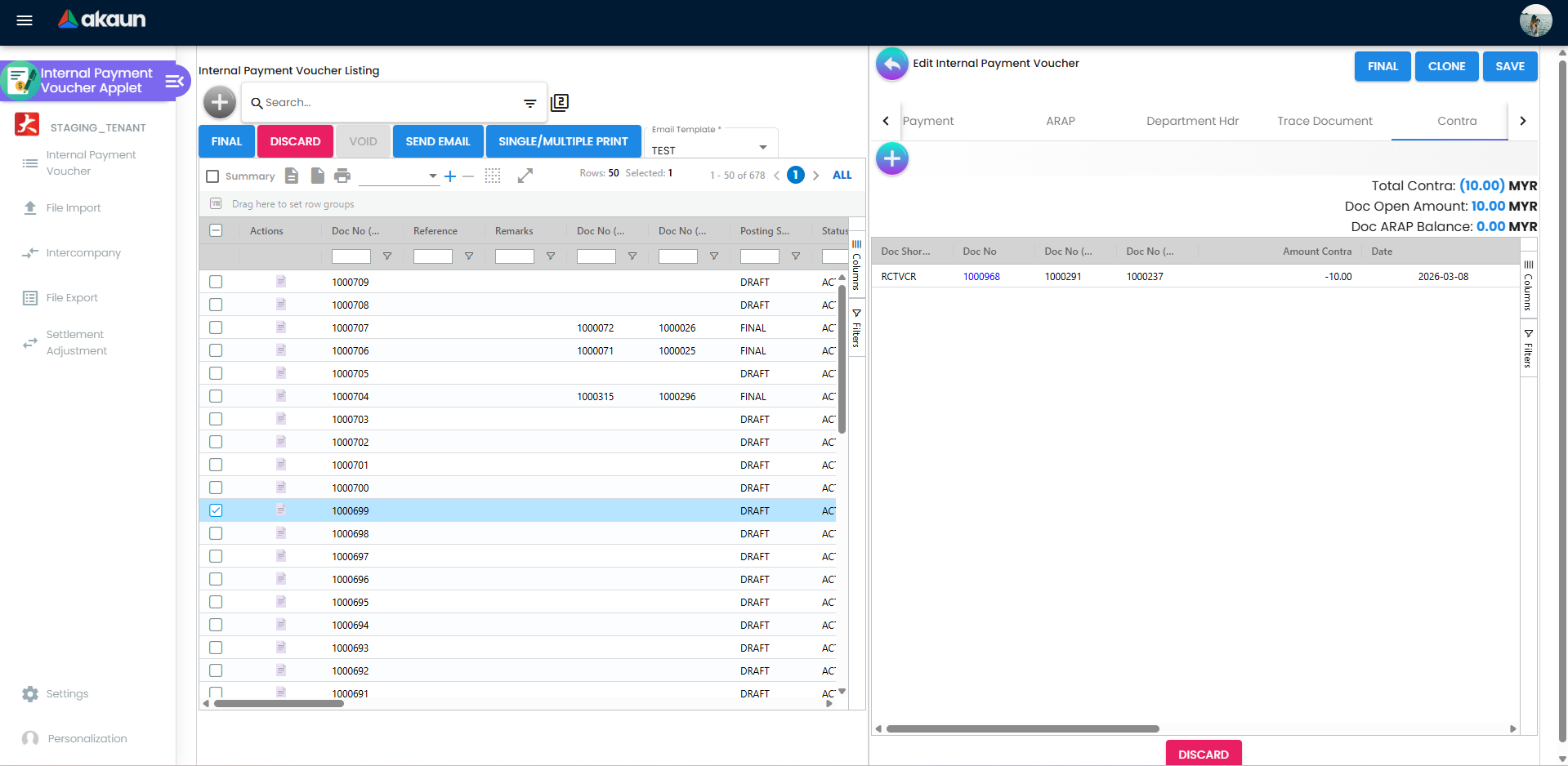
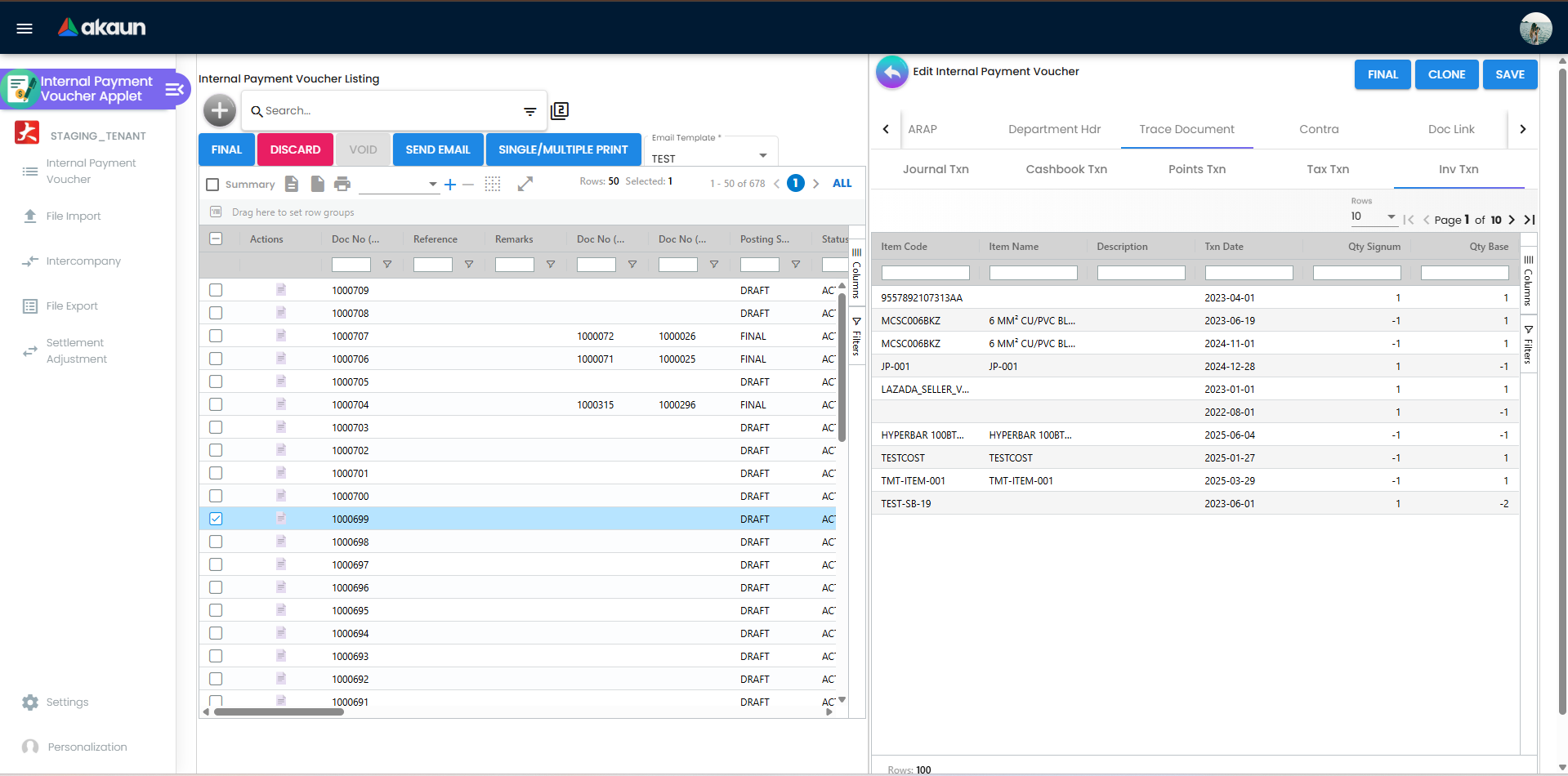
Top action buttons
| Button | Enabled when |
|---|---|
| Create / SAVE | Pressing + creates the voucher at once, as an empty temporary record, and opens it; the first SAVE turns it into a draft. A + you never save leaves that empty record behind. SAVE needs Company, Branch, Location and Currency filled and a rate that is not zero (The currency rate cannot be ZERO.) |
| FINAL | Status ACTIVE, posting status DRAFT, at least one payment line; HIDE_GENDOC_FINAL_BUTTON off or user has SHOW_GENDOC_FINAL_BUTTON. The payment-line rule is the screen’s: the button does not appear without one, and the listing’s bulk FINAL leaves such vouchers out. A voucher finalised through the API is not held to it |
| DISCARD | ACTIVE + DRAFT; HIDE_GENDOC_DISCARD_BUTTON off or SHOW_GENDOC_DISCARD_BUTTON |
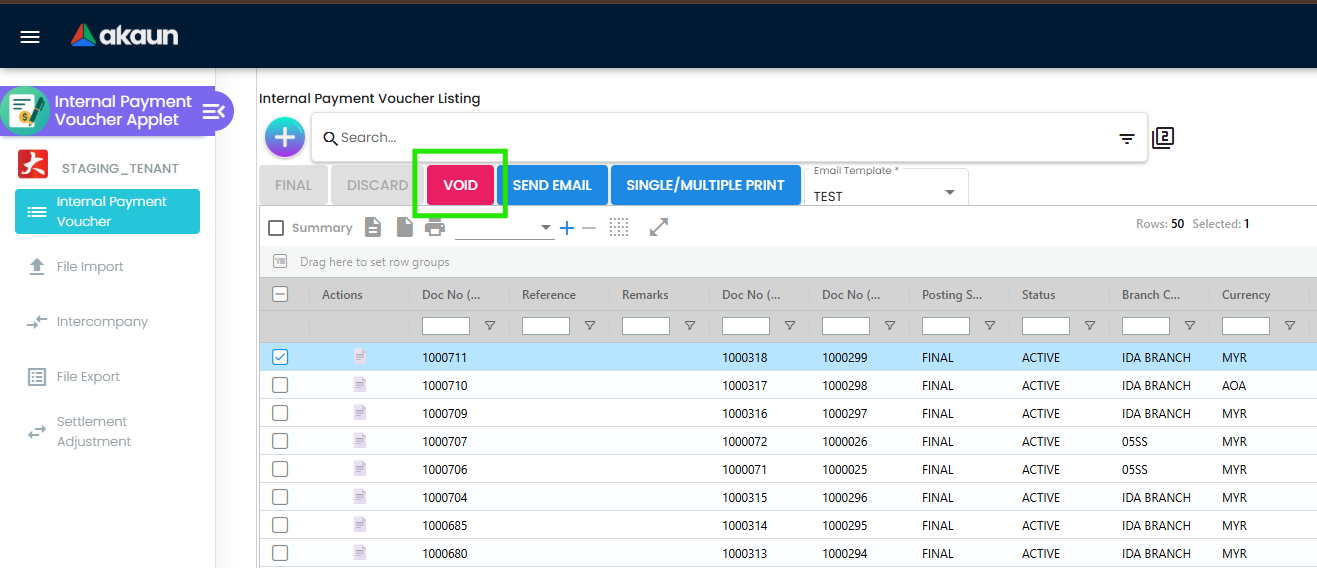
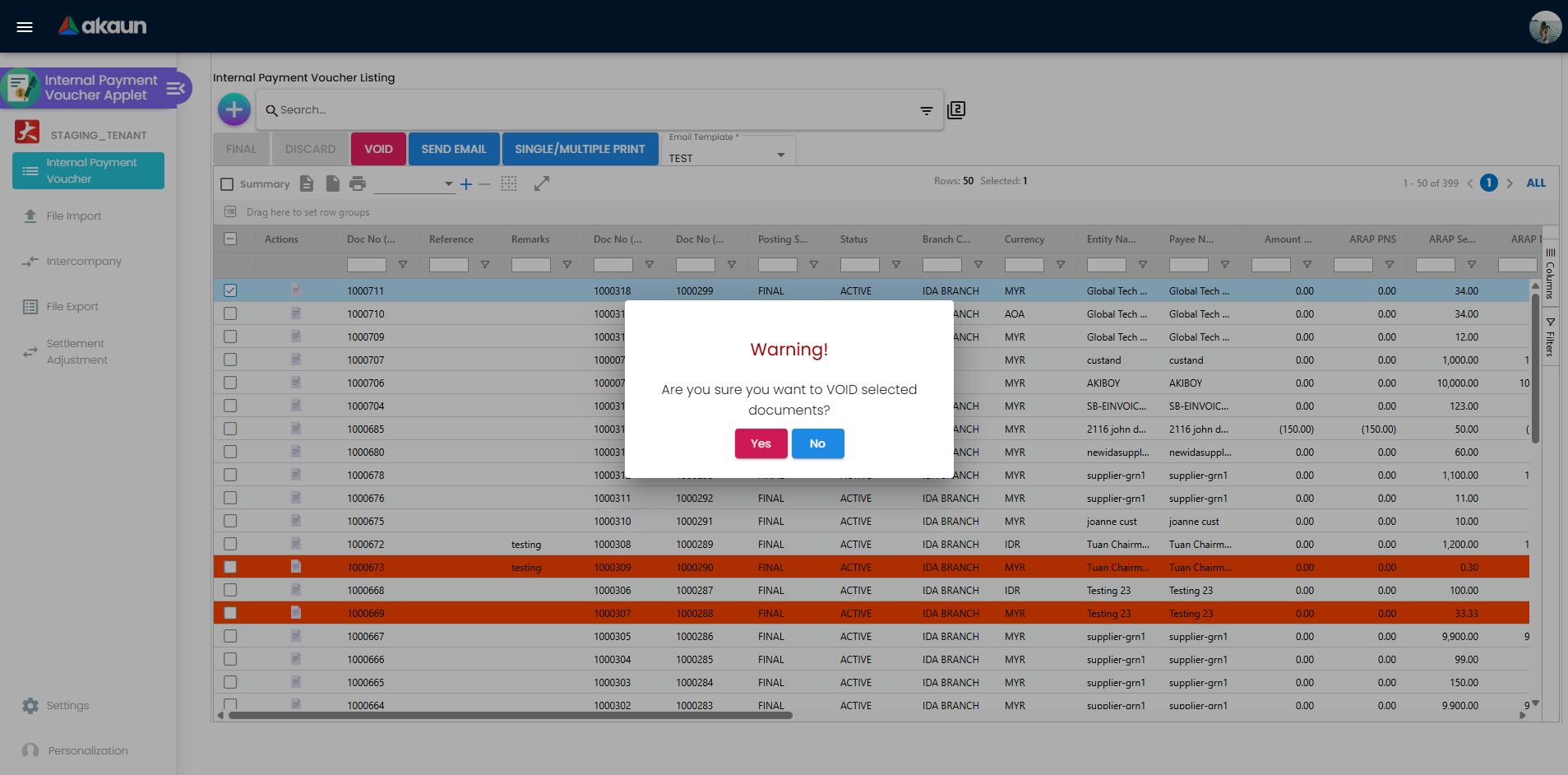
| VOID | Posting FINAL; HIDE_GENDOC_VOID_BUTTON off or SHOW_GENDOC_VOID_BUTTON |
| CLONE | Any, unless HIDE_CLONE_BUTTON |
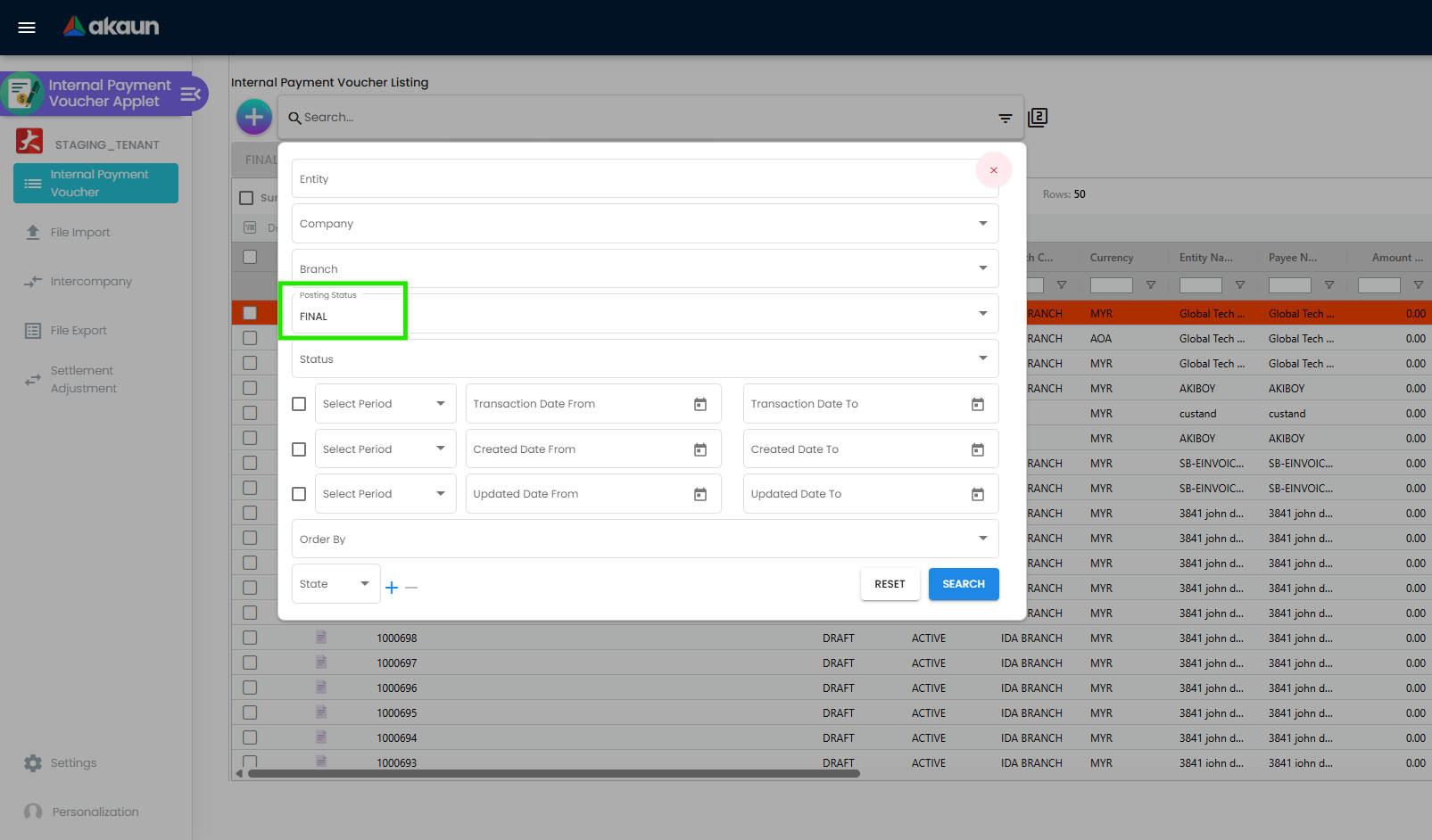
| SEND EMAIL | Listing action; sends the printable using the Email Template; hidden by HIDE_SEND_EMAIL_BUTTON. It is not an approval step. |
Intercompany
A voucher whose Account tab carries intercompany data is picked up after FINAL by a background job that reads the branch’s intercompany setting. In automatic mode the job creates the mirror receipt voucher in the other company straight away. In manual mode the voucher lands in the Intercompany queue as Unprocessed, and Process creates the mirror (the backend maps the payment line’s settlement method across); processed entries move to the Processed tab. Either way the mirror is a draft, unless the setting has Auto Final Target Doc switched on.
File Import and File Export
File Import: upload the CSV/Excel, review the Checking tab, fix rows or re-upload. File Export: choose a transaction date range, click Generate CSV, download from the generated row.
Configuration
Before you can use it
| Prerequisite | Where | Why |
|---|---|---|
| Company, branch, location | Organisation Applet | Company, Branch, Location and Currency are the required header fields |
| Payee entity with an AP type | Supplier Applet | The payee’s journal line uses CREDITOR for AP_TRADE, CREDITOR_NON_TRADE for AP_OTHER, EMPLOYEE_OTHER_PAYABLE for AP_EMPLOYEE and MERCHANT_PAYABLE for AP_MERCHANT; the type set for this company on the entity is read before the entity’s general one. A payee set up as a customer posts to DEBTOR, DEBTOR_NON_TRADE or MERCHANT_RECEIVABLE and appears on debtor statements — a common cause of “payment voucher missing from creditor SOA”. A payee with no type gets no payee line at all, so the journal fails with TOTAL_DEBITS_AND_TOTAL_CREDITS_NOT_BALANCES |
| Cashbook per bank / till, with a GL code | Cashbook Applet | Not checked at FINAL. The cashbook and journal postings run after the status change and fail with MISSING_CASHBOOK: STL_MTHD [code] if the settlement method has no cashbook, or MISSING_GL_CODE: STL_MTHD [code] if the cashbook has no GL code — the voucher stays FINAL with no cashbook line and no journal. Since October 2026, where the cashbook watchdog clock is scheduled on your tenant, it retries such a voucher about every 15 minutes; it retries, it does not attach the cashbook. Once the mapping is fixed, in Financial Report › Error Checking › Trace Document press Resolve on both Missing Journal and Missing Cashbook. Each repairs only its own half. For many vouchers, Ledger And Journal’s Missing Journal and the Data Fix applet’s Cashbook › Missing Cashbook tab do the same by date range (set both dates; they open on today) |
| Settlement methods assigned to the branch | Settings > Branch Settings > Default Settlement Method | The Payment tab’s settlement dropdown lists only methods assigned to the voucher’s branch — an empty dropdown means none are assigned |
| Company default GL codes | Chart of Account Applet | The payee’s account for its type (CREDITOR or a variant), PURCHASE for expense lines with no GL code of their own, INPUT_TAX, SETTLEMENT_CHARGES if any payment method carries charges, and FOREX_GAIN / FOREX_LOSS for foreign-currency contras. Only a missing payee default stops the journal; a missing PURCHASE, INPUT_TAX or SETTLEMENT_CHARGES default drops that line and moves its amount onto the payee’s account without an error (how to spot it). PURCHASE_DISCOUNT is not used by this voucher |
| Expense items or GL codes | Item maintenance / Chart of Account | Expense lines are items; the Search GL Code tab lets you pick a GL account directly |
| Document numbering | Organisation Applet | Doc No (Tenant / Company / Branch) |
| Printable format and email template | Settings > Printable Format Settings, Email Template | Needed for PRINT, auto-print and SEND EMAIL (No Default Printable Selected otherwise) |
| Permissions | Settings > Permission Set / User / Team / Role Permission | Server-side TNT_API_DOC_INTERNAL_PAYMENT_VOUCHER_READ/CREATE/UPDATE/DELETE_TGT_GUID, branch-targeted |
Applet settings
Settings (gear icon) → Application Settings (the shared Field Configuration screen), Default
Selection, Branch Settings, Printable Format Settings, Email Template, Custom Resource
Bundle Configuration, Custom Field Placement, Webhook, Feature Visibility, the permission screens,
Release Notes and Applet Log. 178 keys reach this applet and 111 of them begin HIDE_ — one switch
per field, column, tab or button, and you see what one did the moment you save. The seven below change
what the applet will let you do, or who is allowed to see what, or what date the cashbook ends up with.
How settings are stored and who they apply to.
| Setting | What changes | Default when never saved | Advisory or hard |
|---|---|---|---|
Let each payment line carry its own dateENABLE_EDIT_PAYMENT_DATE | Unlocks the Date field on a payment line — and that is all it does. Whatever you type there, every save sets each payment line’s date back to the voucher’s date, and the cashbook entry, which is what bank reconciliation matches on, always carries the voucher’s date. With the setting off, the screen rewrites the line dates itself whenever the header date changes. So a payment cleared on the 5th is recorded on the 1st if that is the voucher date, with the setting on or off: date the voucher on the day the money leaves, and use one voucher per payment date. The only route that keeps a different line date is a Settlement Adjustment, and even then the cashbook entry keeps the voucher’s date. Note the name: the settlement-date key used by the Receipt Voucher applet is a different identifier and is inert here — see below | Off — the date field is locked to the header’s | Advisory — the field is editable in the dialog; the server replaces the value on save |
Allow a payment line to be corrected after the voucher is finalENABLE_EDIT_SETTLEMENT_FINAL | Puts Settlement Adjustment in the sidebar and on the voucher, so the payment lines can be re-split after the voucher is FINAL and the cashbook has already posted — method, amounts, dates, references, as long as the payment total stays the same (what it rebuilds). It needs the SHOW_EDIT_SETTLEMENT_FINAL permission as well — the menu appears only when the setting is on and the user holds the code, and the in-document button repeats the same pair | Off — no screen in this applet lets anybody adjust a finalised voucher’s settlement | Advisory — a menu entry and a button |
Allow expense lines to be corrected after the voucher is finalALLOW_EXPENSES_EDITING_AFTER_FINAL | The same idea for Expenses Adjustment — and its two halves disagree, so read this before switching it. The in-document button needs the setting on plus ALLOW_EDIT_EXPENSES_AFTER_FINAL. The sidebar entry is hidden when the user lacks that permission and the setting is on — which means leaving the setting off shows the menu entry to everybody, and turning it on takes it away from everyone but the permission holders. The switch that reads as allow is the one that restricts the menu | Off — the Expenses Adjustment menu entry is visible to every user, and the in-document button to none | Advisory — a menu entry and a button, wired to opposite senses of the same key |
Show each user only the vouchers they createdVIEW_OWN_CREATED_TXN_ONLY | Filters the listing so a user sees only the vouchers they created — unless they hold VIEW_PAYMENT_VOUCHER_ALL_USER_CREATE. It is the closest thing this applet has to segregating payment work between clerks, and it is a filter the browser asks for, not a rule the server keeps | Off — every user sees every voucher | Advisory — a filter condition on a query the same user could send without it |
Let the payee be a different supplier from the one you are settlingALLOW_DIFFERENT_PAYEE_THAN_SELECTED_ENTITY | Replaces the billing-address panel on the Account tab with a supplier picker, so the party you are paying can be a different supplier from the one whose payable you are settling. Useful when a principal collects on a distributor’s behalf, and worth a control: the money leaves against one name while the payable clears under another — the cashbook entry shows the name you picked, and the payable cleared is the voucher’s entity’s | Off — the payee is the entity on the voucher and the billing-address panel is shown instead | Advisory — which panel the screen renders |
Let staff type over the standard unit priceENABLE_EDITING_UNIT_PRICE_STD | Makes Unit Price (Std) editable on an expense line, which is the basis of Std Amount and of the discount the line reports | Read-only | Advisory — the control is disabled in the browser |
Lock the exchange rate on the headerCANNOT_EDIT_CURRENCY_RATE | Disables Currency Rate on the header, so the rate that arrives with the currency is the rate the payment posts at — and therefore the foreign-exchange gain or loss recognised against the invoice being settled. No per-user exception is registered for this applet | Editable | Advisory — the field is disabled in the browser |
Two things to know before you change anything on this screen. First, the name in italics under each setting is the applet’s internal key. It is there so you can match what you are looking at to what support asks you about; it is not a stable name and it can be renamed, replaced or dropped when the applet is updated, so do not build a script or an integration around one. Second, a setting can be switched back but it cannot be returned to never saved: the first time anybody saves this screen, every toggle on it is written into your tenant’s settings at whatever it was showing, and the applet stops falling back to its own built-in default. The Default when never saved column above is what you give up at that moment — worth reading before the first save rather than after. Checked against the product on 17 September 2026.
On the screen and doing nothing
These keys appear on the settings screen but nothing in this applet, the shared settings screen or the backend reads them:
- Three keys mean edit expenses after final and only one of them is real. The setting is
ALLOW_EXPENSES_EDITING_AFTER_FINALand the permission isALLOW_EDIT_EXPENSES_AFTER_FINAL;ENABLE_EDIT_EXPENSES_FINALis read by nothing. If a configuration note or an API payload names it, it does nothing. - Enable edit settlement date — not shown for this applet (the shared screen’s gate hides it for
this applet code) and read by nothing in this applet or in the backend; the applet uses
ENABLE_EDIT_PAYMENT_DATEinstead, which is the one that moves a payment date here. - The four Department enable keys (dimension, profit centre, project, segment) — declared in the
model, with a form control on the shared screen but no toggle rendered anywhere, and read by nothing
here or in the backend. The panel’s
MANDATORY_*partners are the controls you can see, and they work, so a dimension can be made compulsory on a line and shows unless hidden; its enable key cannot be turned on. - Filter by today’s transactions — declared in the model with no control on any screen, read by nothing. Default pricing scheme — offered on Default Settings, saved, read by nothing.
Document behaviour settings
| Behaviour | Controlled by |
|---|---|
| Which settlement methods per branch | Branch Settings > Default Settlement Method |
| Payment date follows the voucher date | Always, once saved; ENABLE_EDIT_PAYMENT_DATE only unlocks the field until the next save (see above) |
| Post-FINAL correction of payment lines | ENABLE_EDIT_SETTLEMENT_FINAL + SHOW_EDIT_SETTLEMENT_FINAL (Payment Adjustment tab / Settlement Adjustment menu). Anything on the payment lines can change — method, split, amount, date, remarks, card number, reference — as long as the new payment total equals the old one |
| Post-FINAL correction of expense lines | ALLOW_EXPENSES_EDITING_AFTER_FINAL + ALLOW_EDIT_EXPENSES_AFTER_FINAL |
| Own-transactions-only listing | VIEW_OWN_CREATED_TXN_ONLY + VIEW_PAYMENT_VOUCHER_ALL_USER_CREATE |
| Email on demand | Email Template; HIDE_SEND_EMAIL_BUTTON |
| Intercompany mirroring | Intercompany data on the Account tab, and the branch’s intercompany setting (automatic or manual, Auto Final Target Doc); HIDE_INTERCOMPANY_MENU |
Approval workflow: not configurable in this applet.
Who can change what
Server-side. TNT_API_DOC_INTERNAL_PAYMENT_VOUCHER_{CREATE,READ,UPDATE,DELETE}_TGT_GUID. These are
the only permissions that can return a 403.
Client-side permissions registered for this applet: 40. Most are the SHOW_*
partner of a HIDE_* setting — the action buttons, the menus, and twenty-odd expense-line columns. The
four that matter, and all four are half of a pair:
| Permission | Its partner setting | Together they decide |
|---|---|---|
SHOW_EDIT_SETTLEMENT_FINAL | ENABLE_EDIT_SETTLEMENT_FINAL | Whether a payment line can be corrected after FINAL — after the cashbook has posted |
ALLOW_EDIT_EXPENSES_AFTER_FINAL | ALLOW_EXPENSES_EDITING_AFTER_FINAL | The same for expense lines, with the menu wired to the opposite sense of the setting (see above) |
VIEW_PAYMENT_VOUCHER_ALL_USER_CREATE | VIEW_OWN_CREATED_TXN_ONLY | Whether a clerk sees only their own vouchers or everybody’s. VIEW_CASHBILL_ALL_USER_CREATE is a legacy twin of the same code and is also in the registry |
SHOW_DELETE_CONTRA | HIDE_DELETE_CONTRA | Whether an allocation already applied to a supplier invoice can be removed, restoring that invoice’s outstanding balance |
INTERNAL_PAYMENT_VOUCHER_DISPLAY_PRICING,
SHOW_COSTING_DETAILS and the twenty-odd SHOW_UNIT_PRICE_* / SHOW_AMOUNT_* codes decide which columns
one user’s expense grid renders. The voucher and its lines are fetched by the same API call for everyone,
so the amounts are already in that browser whether the column is drawn or not. If a figure must not reach
a person, withhold the API permission, not the column.Fields
Main Details
| Field | Meaning | Required | Notes |
|---|---|---|---|
| Company, Branch, Location | Paying entity and branch | Yes | Branch list limited by branch-targeted read permission |
| Transaction Date | Voucher date | Yes (defaults to today) | Every save gives the payment lines this date, and it is the date on every cashbook entry — so it is the date the bank reconciliation matches on; after FINAL the date is locked |
| Doc No (Tenant / Company / Branch), Client Doc fields | Numbers and client references | Generated / No | The tenant number is drawn at first save, the company and branch numbers only at FINAL — a draft with blank company and branch numbers is normal. The Client Doc fields can be typed until FINAL, then lock with the rest of the header |
| Reference | Supplier’s statement or bill reference | No | Copied onto the voucher’s journal as its reference when it posts, which is how you find the voucher from Ledger and Journal’s search. Reference Date is not on this tab — it belongs to each expense line, beside the line’s own Reference |
| Currency, Base Currency, Rate | Transaction currency | Yes | Zero rate rejected |
| Remarks, Description | Free text | No | Description becomes the journal’s description. Remarks become the journal’s remarks and the description of its payee, tax and charge lines |
This screen has no Tracking ID, Permit No or Validity Date field, whatever the settings say; a voucher keeps any such value it was given another way, and saving an existing voucher here does not clear it.
Account
Entity Details (payee code, name, type, identity, currency, status), Payee (bank details / cheque name; may differ from the entity with ALLOW_DIFFERENT_PAYEE_THAN_SELECTED_ENTITY), Intercompany (target company).
Expense line
Item or GL code (via Search Item / Search GL Code), description, quantity, UOM, unit price, discount, tax code, WHT code, amounts, department codes, costing details, issue link, attachments.
Payment line
Settlement Type and Method (from the branch’s assigned methods), Amount, Date, Remarks, Reference; per method: Cheque No and Cheque Date, Transaction No (bank transfer), Card Type, Voucher No, Points, Cash-back.
Contra
Search the payee’s open documents, tick one or more, enter the contra amount per document. Zero-value documents (for example free-of-charge items) cannot be contra’d — the contra engine silently drops any contra whose amount is zero.
Lifecycle and effects
| Posting status | Meaning |
|---|---|
DRAFT | Saved; nothing posted |
FINAL | Cashbook and journal posted; header and lines locked (adjustment screens for corrections) |
VOID | Reversed — the reversing journal carries the original transaction date; only its posting date is the void date (What a void undoes) |
| Discarded | Draft deleted; no posting |
What FINAL does:
- Changes the posting status to FINAL and queues the postings that follow. Only the FINAL-time validations can stop this step — a locked fiscal period, a second FINAL, or a foreign-currency voucher with no exchange rate; nothing about cashbooks or GL codes is checked here. A foreign-currency voucher is first copied into a base-currency copy, and it is that copy which is finalised and posted; on a tenant set up to skip those copies, the voucher is finalised with no ledger posting at all.
- The cashbook posting (FINAL documents only) creates one cashbook transaction line per payment line in that method’s cashbook — these are what Bank Reconciliation matches. A settlement method without a cashbook fails this job with
MISSING_CASHBOOK: STL_MTHD [code]; the voucher stays FINAL with no cashbook line. Once a cashbook is named on the method, the line is posted by the watchdog clock where your tenant schedules it (since October 2026), otherwise by Resolve on Trace Document. Payment lines that add up to zero write no cashbook line at all, and the voucher is still marked as posted to the cashbook. A voucher that is not FINAL, or whose method points at a different cashbook, will not appear there. - The journal posting posts the journal; a cashbook without a GL code fails it with
MISSING_GL_CODE: STL_MTHD [code]. Two places show you that it failed, and neither is a Posting tab — this applet has none, on either the create form or the edit form. The voucher’s own Trace Document tab shows an empty Journal Txn grid, which is the symptom; Financial Report › Error Checking › Trace Document gives the reason and a Resolve button. What the journal contains is set out below.
What the FINAL journal posts
The journal is built on the company’s primary ledger from the company default GL codes, line by line:
| Journal line | Dr | Cr | GL code from |
|---|---|---|---|
| Each expense line | Amount before tax | The line’s own GL code (Search GL Code) → the item’s purchase GL code for this company → company default PURCHASE | |
| Tax on an expense line | Tax amount | Company default INPUT_TAX | |
| Each payment line | Amount paid, less the method’s charges | The GL code linked to the settlement method for this company, else the GL code of the method’s cashbook | |
| Charges on the payment method (card, gateway) | Charge | Company default SETTLEMENT_CHARGES | |
| Payee — the balancing line | Whatever balances the lines above | Company default for the payee’s type: CREDITOR, CREDITOR_NON_TRADE, EMPLOYEE_OTHER_PAYABLE or MERCHANT_PAYABLE (a customer-typed payee: a debtor account) |
How the sides come out in practice. A voucher that only pays supplier invoices posts Dr supplier, Cr bank. A voucher whose expense lines add up to its payment has no payee line at all: Dr expense, Dr input tax, Cr bank. A charge on the payment method is posted as a credit on this voucher, on the same side as the payment line: the bank is credited with the payment less the charge, the settlement-charges account with the charge, and the payee’s account is debited with the full payment. If your payment methods carry charges, read the journal of the first voucher that uses one before you rely on it.
A line that finds no account is left out, and the payee’s account absorbs it. An expense line with no GL code
anywhere in the chain above, a tax amount when there is no INPUT_TAX default, or a charge when there is no
SETTLEMENT_CHARGES default is dropped from the journal without an error. The payee line is worked out last, as
whatever balances the rest, so it grows or shrinks by exactly the dropped amount. Pay RM 1,060 for a RM 1,000
repair plus RM 60 tax with no INPUT_TAX default, and the journal posts Dr repairs RM 1,000, Dr supplier RM 60,
Cr bank RM 1,060 — a RM 60 debit on the supplier that nobody keyed. How to spot it: open the voucher’s
Trace Document › Journal Txn grid (or the journal in Ledger And Journal). Every expense line, every tax amount
and every charge should have a line of its own; a payee line on a voucher whose expenses equal its payments, or a
payee amount that differs from the invoices you settled, is a dropped line showing. Only the payee’s own default
stops the job: if it is missing, the journal fails with MISSING_DEFAULT_GL_CODE and the code it wanted.
The journal’s description is the voucher’s Description, its remarks are the voucher’s Remarks, and its
reference is the voucher’s Reference. The exchange difference on a foreign-currency payment is not part of
this journal: it is a separate journal (FOREX_GAIN / FOREX_LOSS) written for each contra when the contra is
saved.
What FINAL does, continued:
- The contra is not one of those jobs. Once the finalise call (or any edit-save) returns, the applet sends a second request carrying the new Contra-tab rows; the backend writes each mirrored pair and re-sums both documents’ contra and outstanding balances inside that request. If the second request fails — missing
API_TNT_DM_ERP_FI_GENERIC_DOC_ARAP_CONTRA_UPDATE, expired session, tab closed — the toast reads Documents contra unsuccessfully, nothing retries, and the voucher is FINAL with its cashbook line and journal and no contra. A contra keyed on a draft voucher is live as soon as the draft is saved. The listing’s bulk FINAL fires the same request, and it sends whatever unsent Contra-tab rows the screen still holds — including rows keyed on the last voucher you opened and left without saving, until you press + or open another voucher, which replaces them. How to spot it: after a bulk FINAL from the listing, open the voucher you last had open and check its Contra tab for knock-offs you did not mean to keep. - If the voucher carries intercompany data, the background job creates the mirror or queues it for Process (Intercompany). FINAL queues no webhook and no e-mail for a payment voucher; SEND EMAIL is on demand.
Saving a change to the amount of a finalised payment line whose cashbook line is already reconciled is refused: Please unreconcile this transaction from bank recon first before changing the amount: Cashbook [name] - Bank Recon [name] (month).
SAVE on a draft writes nothing to a cashbook or the ledger. On a FINAL voucher, where Reference and Remarks stay editable, every save re-synchronises the voucher’s cashbook lines with its payment lines, and it re-reads the cashbook named on each settlement method as it is now. So if somebody has pointed the method at a different cashbook since FINAL, the next save of an old voucher moves its line there — reconciled or not, because the refusal above protects only the amount of a reconciled line. When a bank account is replaced, give the new cashbook a new settlement method rather than re-pointing the old one (why).
A Settlement Adjustment is not refused, and it unreconciles. It rewrites the payment lines directly, replaces the voucher’s journal with one rebuilt from the corrected voucher — when the voucher’s journal flag reads posted; with any other flag it posts a new journal beside whatever is already there, so a voucher that once failed to post after writing its journal ends up with two — and removes and re-creates every cashbook line of the voucher. Removing a matched cashbook line hands its amount back to the bank statement line and deletes the match, so a month you had reconciled shows the voucher’s bank lines unmatched again and nothing on the screen says why. Check whether the voucher’s cashbook lines are reconciled before adjusting it, and re-match them after.
VOID reverses the journal (the reversal carries the original transaction date), soft-deletes the cashbook lines — handing any matched amount back to the bank statement line — and deletes every contra the voucher takes part in, re-summing each invoice’s balance, so the supplier invoices become outstanding again. It is available on any FINAL voucher (no e-Invoice lock on payment vouchers). See What a void undoes.
Where each figure comes from
Five figures follow from one FINAL voucher, and only one of them is worked out when you look at it.
- The cashbook line — on the voucher’s Trace Document › Cashbook Txn grid, in Query Cashbook Transaction, and the line Bank Reconciliation matches. Written once by the cashbook job after FINAL, from the voucher as it is then: one line per payment line, in the cashbook named on that line’s settlement method, at the payment less the method’s charges, as money out, dated the voucher’s date, carrying the payment line’s Reference and Remarks, and naming the payee from the Account tab’s billing name before the entity’s own name. A later save re-synchronises it (above).
- The journal — written by its own job, which reads the company default GL codes and the payee’s AR/AP type as
they stand when it runs. The type comes from the payee’s link to the voucher’s company first and from the entity’s
own type otherwise, so one person can be a trade creditor to
GSand an employee payable toGSO; changing the type changes the next voucher that posts, and a re-post. What the journal contains. - The outstanding balance of the voucher and of each invoice it paid — stored on each document and rewritten inside the knock-off request itself: the document’s opening figure plus every knock-off against it. This is the balance the creditor reports and the statement read, and it moves the moment the Contra tab saves. The voucher also carries a second, older figure — its own amount less its own payment lines — which a knock-off never changes (Troubleshooting).
- A past month on the historical aging — not worked out from the documents but read from month-end rows a scheduled job stores at 01:00 on the 1st, one for every FINAL document still carrying a balance, payables included. A knock-off keyed or deleted on this voucher’s Contra tab works both documents’ stored months out again, counting the knock-off only in months ending on or after its contra date. Changing a knock-off’s date in place does not. So: pay a March invoice from your accessory wholesaler with a voucher dated 31 March, key the voucher on 3 April with the settings as they come, and the knock-off is dated 3 April — March’s stored month still shows the invoice open, with the voucher beside it as a payment not yet applied. The supplier’s total for March is right; only the listing surprises you. The full mechanism.
- A bank reconciliation session’s cashbook opening and closing — stored when the session is created. Since October 2026 a background job refreshes them every 30 minutes where that job is scheduled on your tenant, and every cashbook line this voucher writes, re-synchronises, re-creates (Settlement Adjustment) or removes (VOID) on a cashbook with an active session queues that refresh. Where the job is not scheduled, the figures stay as they were at Create.
Correcting expense lines after FINAL: what an adjustment re-posts
A finalised voucher that paid the right payee the right amount, but booked it to the wrong expense, does not
need a void. Expenses Adjustment rewrites the voucher’s expense lines and posts its journal again.
Suppose GadgetSphere paid a contractor RM 1,200 from GS-KV-01 and booked it all to EXPENSE-MARKETING,
when RM 400 of it was shop-fit work that belongs in EXPENSE-RENTAL. On the voucher’s Expenses
Adjustment tab you remove the line, add two GL-code lines of RM 800 and RM 400, and press ADJUST
EXPENSES.
What happens behind the screen:
- The request is kept, then a job runs at once. The adjustment stores the expense lines as they were and as you want them. A job then changes the lines on the voucher, reverses the voucher’s journal in full and posts a new one from the corrected voucher. Whether it reverses first is decided by the voucher’s journal flag, not by whether a journal exists: a voucher flagged posted is reversed and re-posted; a voucher with any other flag simply gets a new journal, with no reversal and no look for one already there. A voucher whose posting once failed after the journal was written — a journal exists while the flag reads failed or nothing — therefore ends the adjustment with two live journals and nothing reverses the first. Open Trace Document on the voucher and read the journal flag before adjusting one that ever failed to post. The Expenses Adjustment menu lists every adjustment with its status (Processed or Failed), whether the lines were updated, and the error when they were not. An adjustment identical to the voucher fails with No changes have been made to the expenses.
- The correction lands in the voucher’s own month. The reversal and the new journal both carry the voucher’s transaction date; only their posting date is today. Correcting a March voucher in May changes March’s expense accounts, after March may have been reported.
- The payments are not touched. Payment lines, their cashbook entries and any bank reconciliation stay as they were. Only expense lines booked to a GL code change; item lines are left alone.
- The payee’s account takes any difference. The payee line of the journal is whatever makes the journal balance. If the new lines add up to what the old ones did, the payee line is unchanged. Type RM 380 instead of RM 400 and the new journal carries RM 1,180 of expenses against RM 1,200 paid, so RM 20 is debited to the contractor’s account — a balance nobody meant to create, and nothing on the screen points it out.
- A new line carries no tax and no department tag. Lines added here have no tax amount, so replacing an expense line that carried SST input tax drops the tax from the journal, and the tax lands on the payee’s account the same way. A blank tag on the line takes the voucher header’s when the journal posts (how tags fall back).
- An amount changed in place is not carried. Deleting a line and adding one reach the voucher. Saving a new amount on an existing line does not reach the adjustment: the edit builds the changed line without the identity that would match it to the voucher’s line.
What it will not do: keep count of its own journals. After one adjustment the voucher has three — the original, its reversal and the new one. A second adjustment, or a VOID after an adjustment, reverses whichever of the three the database returns first, not necessarily the latest, so it can undo the original a second time and leave the voucher’s journals adding up to something other than its lines. Nothing reports it.
Noticing is a person’s job. An adjustment is a correction to a posted month made from outside the month, so the check belongs to whoever closes the books. The Expenses Adjustment menu is the list of every one of them, with who made it and when. For a voucher adjusted more than once, or voided after an adjustment, the voucher’s Trace Document › Journal Txn grid shows every journal line with its journal number: the lines should net to the voucher’s current expense lines against its payments, and a payee line that should not be there is the RM 20 above.
Paying a staff claim on this voucher
A claim posts nothing and creates no voucher. A claim line approved for Finance Payment lands in its company’s claim cycle for the month; finance reviews it there, and the cycle’s PV Details Report lists each line with its claim item’s GL code and tax. That report is the working paper for this voucher. Lines set to Salary Payment go to payroll instead and never reach this applet.
Say the GS-KV-01 supervisor’s RM 280 March mileage had been set to Finance Payment rather than paid with salary.
You raise one voucher on her own employee record: one expense line on the GL code the report shows for mileage,
RM 280, and one payment line of RM 280 on the bank method behind CASH-PRI-KV01. Expenses equal the payment, so the
journal is Dr mileage RM 280, Cr bank RM 280, with no payee line — her AR/AP type does not matter. FINAL writes one
RM 280 cashbook line dated on the voucher, which is what the transfer on the bank statement is matched against.
Three ways it goes wrong:
- The payment and the lines differ. Pay RM 280 against both her lines (RM 280 and RM 64) and RM 64 is credited to her account. An employee created in Employee Maintenance has the employee payable type, and that account is the company’s Employee Payable default: if the company has never mapped it, the voucher is FINAL, the cashbook line posts, and there is no journal. An employee record left at the trade-debtor type takes the balance to trade debtors instead, and she appears on the debtor statement.
- The receipt carried tax. Put it on the expense line here; it posts to the input-tax default on its own line. That is why a taxed claim is paid on this voucher and not on the Reimbursement Payment Voucher, whose journal fails on a taxed line.
- The voucher’s date decides the month. The journal takes the voucher’s date, so a March claim paid on a voucher dated 5 April is an April expense.
Nothing marks the claim paid when this voucher goes FINAL; a claim line has no paid status. The tie between the two is the PV Details Report you worked from, so keep it with the voucher as an attachment.
The salary batch: two shapes, and what each costs
Payroll’s net pay can reach the bank two ways, and only one of them uses this voucher. Both are correct accounting. Which one you use is your accountant’s decision; BigLedger has not named a house answer.
- The payroll journal credits the bank directly. One document a month. A journal writes no cashbook line, so the salary debit on the bank statement never has a line to match, and whoever reconciles explains the same unmatched line every month.
- The journal credits a net-pay payable, and one voucher here pays it on pay day, with one expense line coded to the payable account and a payment line on the paying bank’s method. Expenses equal the payment, so there is no payee line; the voucher writes the cashbook line Bank Reconciliation matches and returns the payable to nil. The cost is a second document each month. The benefit: a payable that is not nil after pay day tells you the transfer was never recorded.
Both shapes from the payroll side.
A payment’s three people: who approves, who pays, who ties out
The applet records a payment; it does not decide one, and it does not move money. Three jobs stay with people.
- Approving. There is no approval step here, and SEND EMAIL is not one. The person who approves a supplier payment checks it against the invoice and the delivery before anybody presses FINAL; a staff claim arrives already approved through the claim’s own chain and the cycle’s review. The control this applet gives you is who may press FINAL: hide the button and grant its permission to the approver, so the clerk who keys a voucher is not the person who finalises it. The button is a screen control — a voucher finalised through the API is not held to it.
- Paying. The money leaves through your bank’s portal or a cheque, outside BigLedger; File Export produces a CSV for the bank. Date the voucher on the day the money leaves, because every figure above takes the voucher’s date.
- Tying out. The person who matches the bank pairs each voucher’s cashbook line with the bank’s own line; whoever looks after payables compares each supplier’s own account of what you owe with the Creditor Report after the month’s payments.
Paying with a difference. A voucher whose expense lines and knock-offs do not add up to its payment posts the difference to the payee’s account — a supplier paid RM 18.00 short because of a disputed line, a claim paid RM 64 less than its lines. Two ways to handle it, and the choice is your group’s policy, not the software’s: finalise and leave the difference visible on the invoice or the payee’s account until a credit note, a second payment or a write-off clears it (an open item somebody has to own), or hold the voucher until the person who approves payments rules on it (the cash has usually already left, so the cashbook is behind the bank until FINAL).
How you know a payment run is done
Run these for each day’s vouchers, before the day’s bank lines are matched:
- Every voucher of the run is FINAL, and its Trace Document shows a Cashbook Txn line for each payment line — the amount less any method charges, on the voucher’s date — and a Journal Txn grid with no payee line you did not mean.
- In Query Cashbook Transaction for the paying cashbook, the day’s lines add up to what left the bank that day.
- Each supplier invoice you paid shows its outstanding reduced by exactly the knock-off, on the Creditor Report’s outstanding listing; for staff, the Finance Payment total on the cycle’s PV Details Report equals the vouchers you raised, and Employee Payable is nil unless you meant to leave a balance.
Until every difference is named to a voucher, the run is not done, however small the difference.
Related applets
- Purchase Invoice (Internal), Purchase Debit Note (Internal), Purchase Credit Note (Internal) — the documents a payment is applied to.
- Receipt Voucher (Internal) — the inbound twin; identical settlement, contra and adjustment mechanics.
- Reimbursement Payment Voucher (Internal) — the same form for paying a person back rather than a supplier. Unlike this applet it raises no creditor control line and no tax line.
- Cashbook Applet — settlement methods and their GL codes.
- Bank Reconciliation — matches the cashbook lines this voucher writes. A match guards only the line’s amount: a later save, a Settlement Adjustment or a VOID can still move or remove a matched line (see Lifecycle and effects).
- Claim Cycle — its PV Details Report is what a staff-claim voucher is keyed from.
- Supplier Applet — the payee’s AP type decides the creditor account.
- Chart of Account Applet, Organisation Applet — default GL codes, branches, numbering.
- Ledger And Journal, Creditor Report, Statement of Account — where the posting is reviewed.
Troubleshooting
| Symptom | Cause | Fix |
|---|---|---|
| Settlement dropdown on the Payment tab is empty | No settlement methods assigned to the voucher’s branch | Branch Settings > Default Settlement Method |
Voucher is FINAL but has no cashbook line / no journal; the voucher’s Trace Document tab shows the Cashbook Txn or Journal Txn grid empty, and Financial Report › Error Checking › Trace Document reports MISSING_CASHBOOK / MISSING_GL_CODE: STL_MTHD [code] | Settlement method not linked to a cashbook, or cashbook has no GL code — the cashbook / journal posting failed after FINAL | Fix in the Cashbook applet, then in Financial Report › Error Checking › Trace Document press Resolve on both Missing Journal and Missing Cashbook. Each repairs only its own half. For many vouchers, Ledger And Journal’s Missing Journal and the Data Fix applet’s Cashbook › Missing Cashbook tab do the same by date range (set both dates; they open on today) |
| Voucher not found in Bank Reconciliation | Not FINAL, or the method’s cashbook is not the one being reconciled | Finalise; check the method’s cashbook |
| Payment voucher shows on the debtor statement, not the creditor one | Payee entity is typed as a customer (AR) | Set the entity’s type to supplier / AP_TRADE; re-post |
| Voucher still shows an open balance after a full knock-off, while the Creditor Report shows it settled | It is the voucher’s own open-balance figure, not the knock-off balance. For every document type that figure is its own amount less its own payment lines, so a voucher with no expense lines and a RM 500 payment carries −500 there however it was knocked off | Read the balance on the Creditor Report or the statement; the open-balance figure is not a knock-off figure and refreshing does not change it |
| A staff-claim voucher is FINAL with its cashbook line and no journal; Trace Document reports the missing Employee Payable default | The expense lines and the payment differ, so a balance fell on an employee-payable payee, and the company has no Employee Payable default | Map the default in the Chart of Account applet, then Resolve Missing Journal; or make the lines equal the payment |
| The historical aging still lists a supplier invoice this voucher paid | That month is stored; the knock-off is dated after its month-end, or its date was changed in place, which reworks no month | Read the live outstanding listing; to move the knock-off into the month, delete it on the Contra tab and key it again with the right date (why) |
| After a bulk FINAL, a voucher you had only opened carries knock-offs | Unsent Contra-tab rows from the last voucher you opened went with the bulk FINAL | Delete them on that voucher’s Contra tab. Before a bulk FINAL, open any voucher from the listing first: opening one replaces the unsent rows with that voucher’s saved knock-offs |
| Contra disappears after save / not recognised until re-saved | Contra lines saved while the draft was being converted; reported 2026-07/08 and under investigation | Re-open, re-add the contra, FINAL; verify on ARAP |
| Cannot contra a free-of-charge (0.00) document | Contra requires a positive amount | Nothing to settle; leave it |
| The bank reconciliation shows the payment on the voucher date, not the day it cleared | The cashbook entry always carries the voucher’s date, and every save resets the payment lines to it — ENABLE_EDIT_PAYMENT_DATE does not change that | Date the voucher on the day the money leaves; split payments made on different days into separate vouchers |
| A saved voucher shows a payment line dated differently from the voucher | A Settlement Adjustment stored that date; the cashbook entry still carries the voucher’s date | Match on the voucher date in Bank Reconciliation |
| A new contra is dated today, not the voucher date | A new contra takes today’s date unless CONTRA_DATE_SAME_AS_DOC_DATE_TXN is on (then it takes the voucher’s date); the backend also moves a contra dated before either document to the later document’s date | Turn on CONTRA_DATE_SAME_AS_DOC_DATE_TXN; EDIT_CONTRA_TXN_DATE only unlocks the date of a contra that already exists |
| Void journal missing from Ledger and Journal / on a different date | The reversal is a separate journal carrying the original transaction date (its posting date is the void date), so look in the original month; if it is absent the void did not complete | Check Trace Document; if there is no reversal, report the document |
| Voucher is FINAL, cashbook line and journal posted, but the supplier invoice is still outstanding; a red Documents contra unsuccessfully toast may have flashed | The second request that writes the contra failed after FINAL (permission, session, network, tab closed) — nothing retries it | Open the voucher’s Contra tab; if it is empty, apply the contra there or from the Creditor Report’s Contra tab (why) |
| Settlement Adjustment menu missing | ENABLE_EDIT_SETTLEMENT_FINAL off or user lacks SHOW_EDIT_SETTLEMENT_FINAL | Enable both |
| A reconciled month suddenly has unmatched voucher lines | A Settlement Adjustment on a voucher in that month re-created its cashbook lines and dropped their matches | Check the Settlement Adjustment menu for that voucher; re-match its lines in Bank Reconciliation |
| Supplier balance off by a tax amount or a card fee | No INPUT_TAX or SETTLEMENT_CHARGES company default: the line was dropped and the payee line absorbed it | Set the default, then compare the voucher with its Trace Document › Journal Txn grid |
FINAL, no journal; Error Checking reports TOTAL_DEBITS_AND_TOTAL_CREDITS_NOT_BALANCES | The payee entity has no AR/AP type, so no payee line was built | Set the payee’s type, then re-run the journal from Financial Report › Error Checking › Trace Document |
| Adjusted transaction number not on the printout | Adjustment saved to the settlement line but printable reads the original reference (fixed 2026-08) | Update the applet; re-print |
| Listing does not show colleagues’ vouchers | VIEW_OWN_CREATED_TXN_ONLY on | Grant VIEW_PAYMENT_VOUCHER_ALL_USER_CREATE |
| Transaction date greyed out on a finalised voucher | Locked after FINAL by design | Void and re-create, or use the adjustment screens |
| Printable error / No Default Printable Selected | No printable format or no branch default | Printable Format Settings, then Branch Settings > Printable Format |
Related documentation
- Standard procurement workflow — where the payment closes the loop
- Bank reconciliation guide
- The aging still shows an invoice already paid — stored months and the knock-off date
- HR and payroll related applets — staff vouchers, the employee’s AR/AP type, the salary batch
- Financial Accounting module and Purchasing module