Purchase Invoice (Internal)
Record the bills your suppliers send you. In the standard purchase flow it is this document, not the GRN, that books the stock in and posts the supplier liability, the purchase and the input tax — and it is the only document that writes an item’s last purchase cost.
Overview
The Purchase Invoice (Internal) applet records the bills your suppliers send you. An accounts-payable clerk opens it to key in a supplier invoice — from scratch or by knocking off (pulling in) a finalised Purchase Order or Purchase GRN — and finalises it. FINAL posts the supplier liability, the purchase and the input tax to the General Ledger and books the invoiced quantities into stock. The invoice is then settled from its own Payment tab, by contra against a supplier deposit or credit document, or later through a Payment Voucher.
In the standard BigLedger purchase flow the invoice is the document that moves stock — and it is the only document type in the platform that writes the item’s last purchase cost. The Purchase GRN (Internal) posts nothing at all: both its signums are zero, so it creates no stock movement, no accrual and no journal, which is why the standard flow has no goods-received/invoice-received clearing account to reconcile (the full comparison). If your business needs stock booked at receipt and invoiced later, use the alternative pair Purchase GRN Stock In (Internal) and Purchase Invoice No Stock In (Internal) instead.
Where it fits
| Direction | Document / applet | Relationship |
|---|---|---|
| Upstream | Purchase Order (Internal) | Knock-off source on the KO For tab: copies supplier, lines and prices into the invoice |
| Upstream | Purchase GRN (Internal) | Knock-off source on the KO For tab; the backend has a dedicated GRN-to-invoice converter |
| Upstream (indirect) | Purchase Requisition (Internal), Supplier Delivery Order | Precede the PO / GRN. The invoice has no knock-off tab for them in the current build — the eight KNOCK_OFF_BY_* / KNOCK_OFF_FOR_* switches on the unlinked Knock Off Settings screen are read only by that screen, to re-display what you saved, and by nothing else here or in the backend |
| Master data | Supplier Applet | Supplier entity, AR/AP type (decides the creditor account), self-billed e-Invoice flag |
| Downstream | Payment Voucher (Internal) | Settles outstanding invoices in bulk |
| Downstream | Purchase Return (Internal) | Returns goods against the invoice; while the return (or any other document raised from the invoice) is active, VOID is refused |
| Downstream | Purchase Credit Note (Internal) / Purchase Debit Note (Internal) | Adjust a finalised invoice without voiding it |
| Downstream | My E-invoice Portal | Receives self-billed invoices for MyInvois submission |
| Downstream | Ledger And Journal | Shows the journal FINAL creates |
| Sibling | Purchase Invoice Supplier Access (Internal) | The supplier-facing view of the same documents |
Modules: Financial Accounting and Purchasing.
Screens and menus
The applet’s left-hand menu has six workspaces:
| Menu item | Route | What it is |
|---|---|---|
| Internal Purchase Invoice | internal-purchase-invoice | Listing plus the create/edit form |
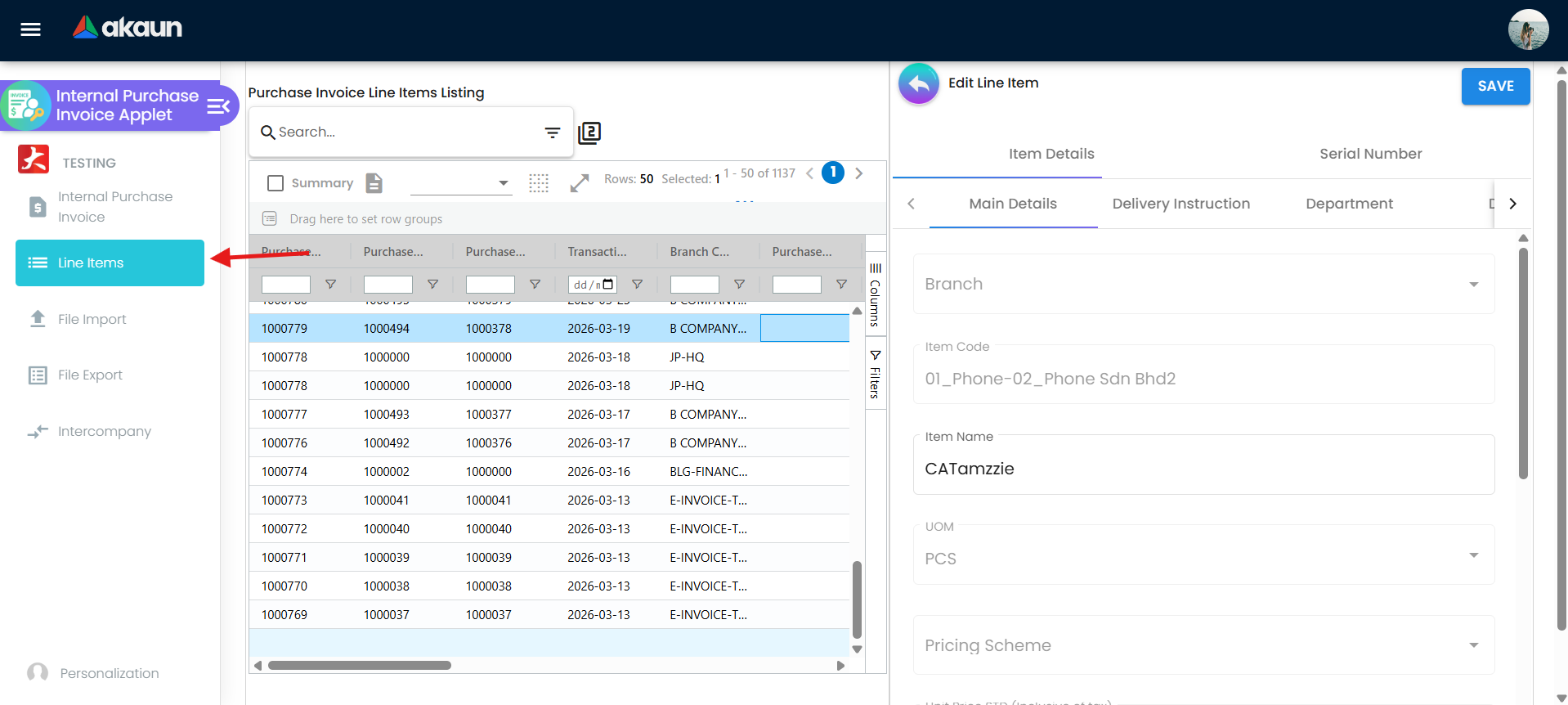
| Line Items | line-items | One grid of every invoice line across all invoices, for bulk price/qty/tax review |
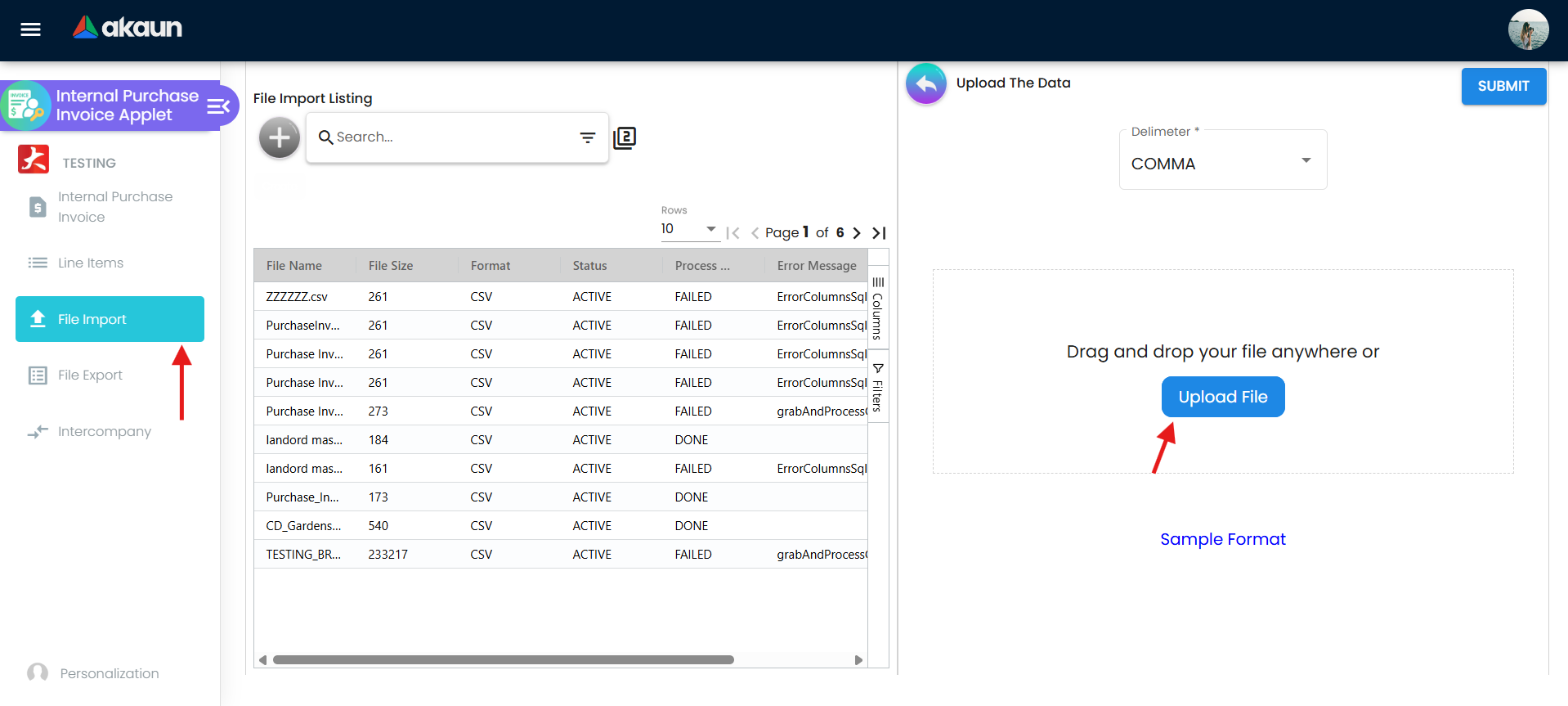
| File Import | file-import | Upload CSV/Excel of invoices, run helper checking, fix failed rows in the browser |
| File Export | file-export | Export invoice listings and bulk-print |
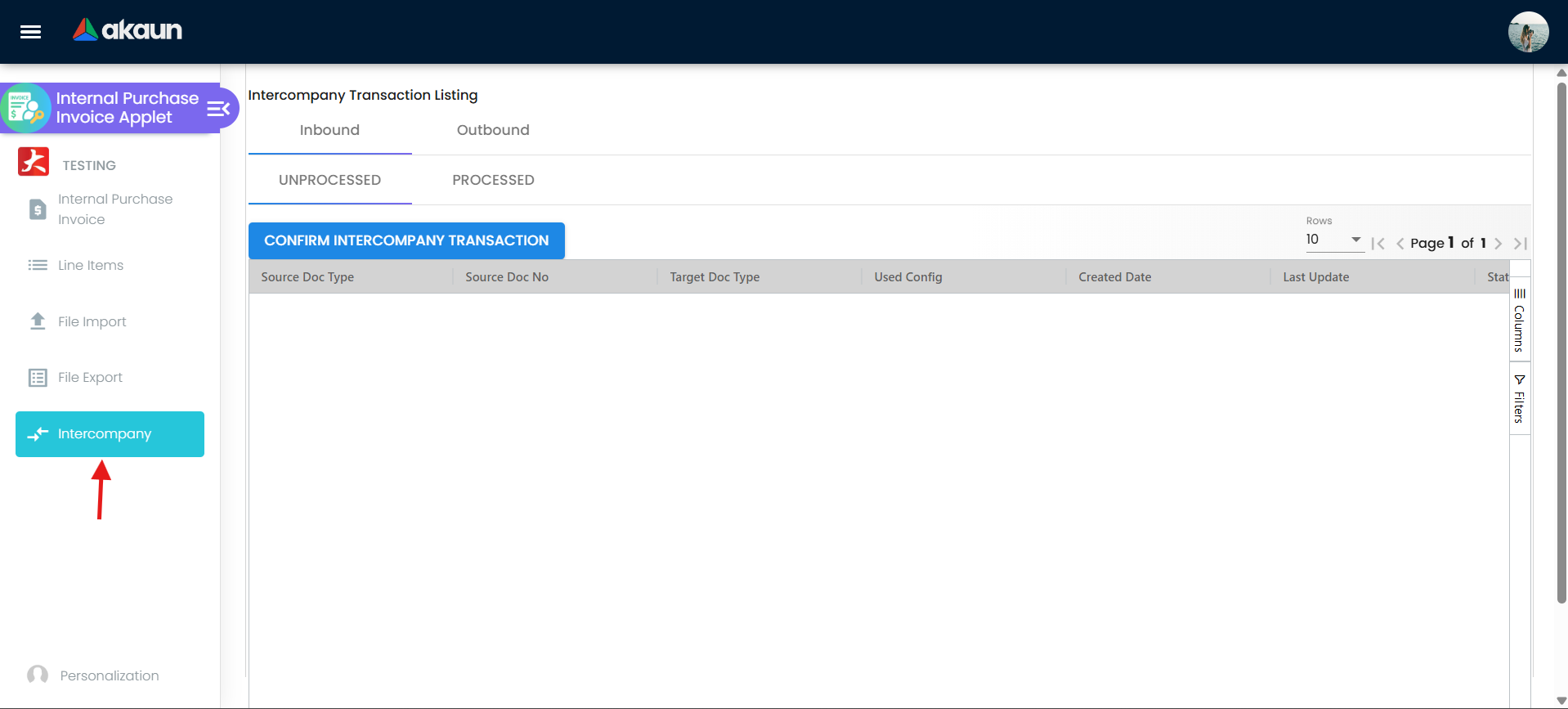
| Intercompany | intercompany | Inbound / Outbound queues, each split into Unprocessed and Processed |
| Audit Trail | audit-trail | Change history of documents |
File Import and File Export are removed from the menu when HIDE_FILE_IMPORT_MENU / HIDE_FILE_EXPORT_MENU are on, unless the user holds the SHOW_FILE_IMPORT_MENU / SHOW_FILE_EXPORT_MENU client-side permission.
No other entry is filtered: Intercompany is in the menu for every user. The SHOW_INTERCOMPANY_PI_SCREEN
client-side permission does not gate it — it is read only by the older create column, which + no longer opens — so
granting or withholding it changes nothing you can see here.
The edit form tabs
Sixteen tabs, in a default order you can change under Settings > Default Selection > Details Tab
Ordering, each with its own HIDE_..._TAB switch. Reading left to right they are Search Document,
Main Details, E-Invoice, Account, Line Items, KO For, Delivery Details, ARAP,
Payment, Department Hdr, Posting, TraceDocument, Contra, Doc Link, Attachment
and Export — and most of them hold exactly what their name says. Four are worth knowing something
about before you open them.
| Tab | What the name does not tell you |
|---|---|
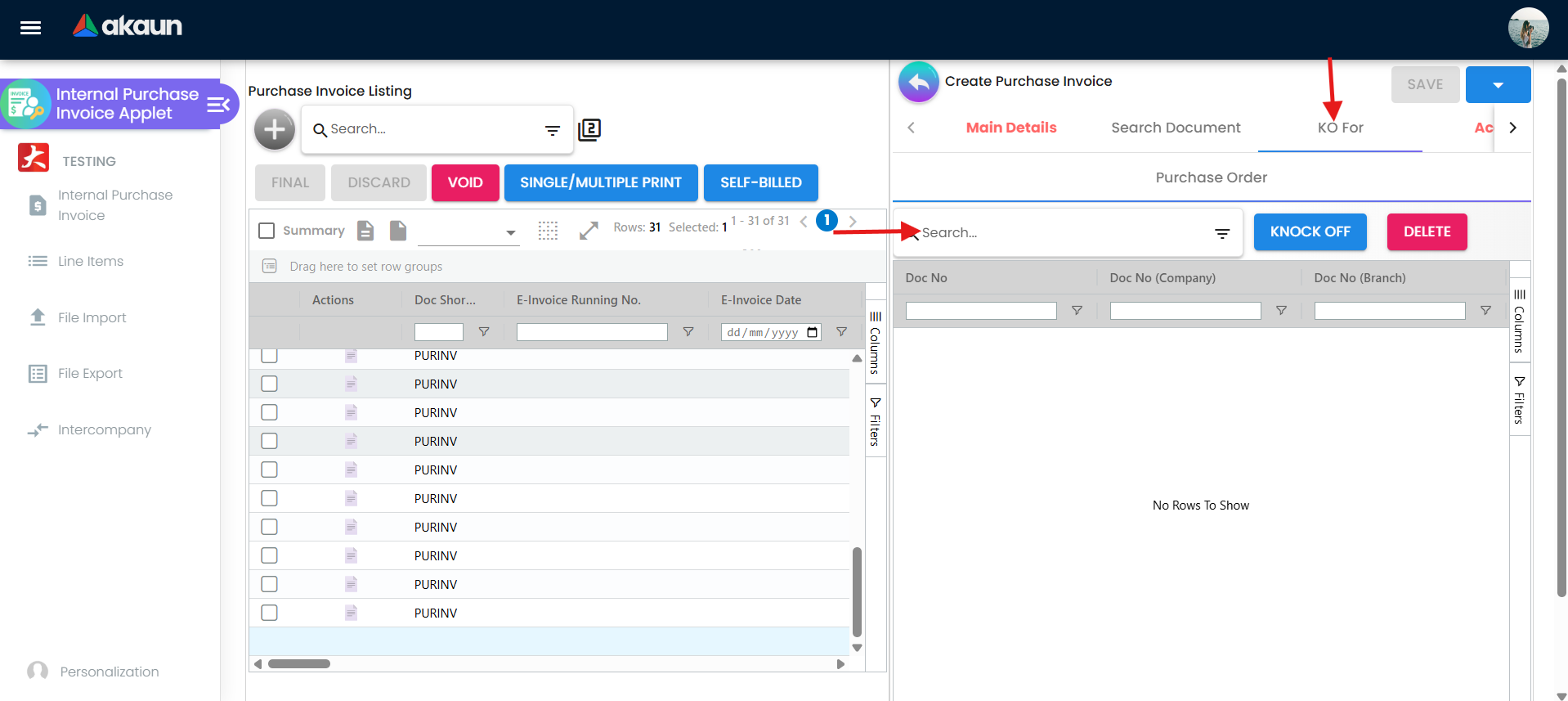
| Search Document and KO For | Both pull a source document in, and only on a draft. KO For is the one that writes a knock-off link and consumes the source’s open quantity; Search Document (sub-tabs Search Purchase Order, Search Purchase GRN, Search Purchase Invoice) is a lookup. If the source you want is not listed on KO For, the usual reason is not that it is draft — see What has to be true before a source appears |
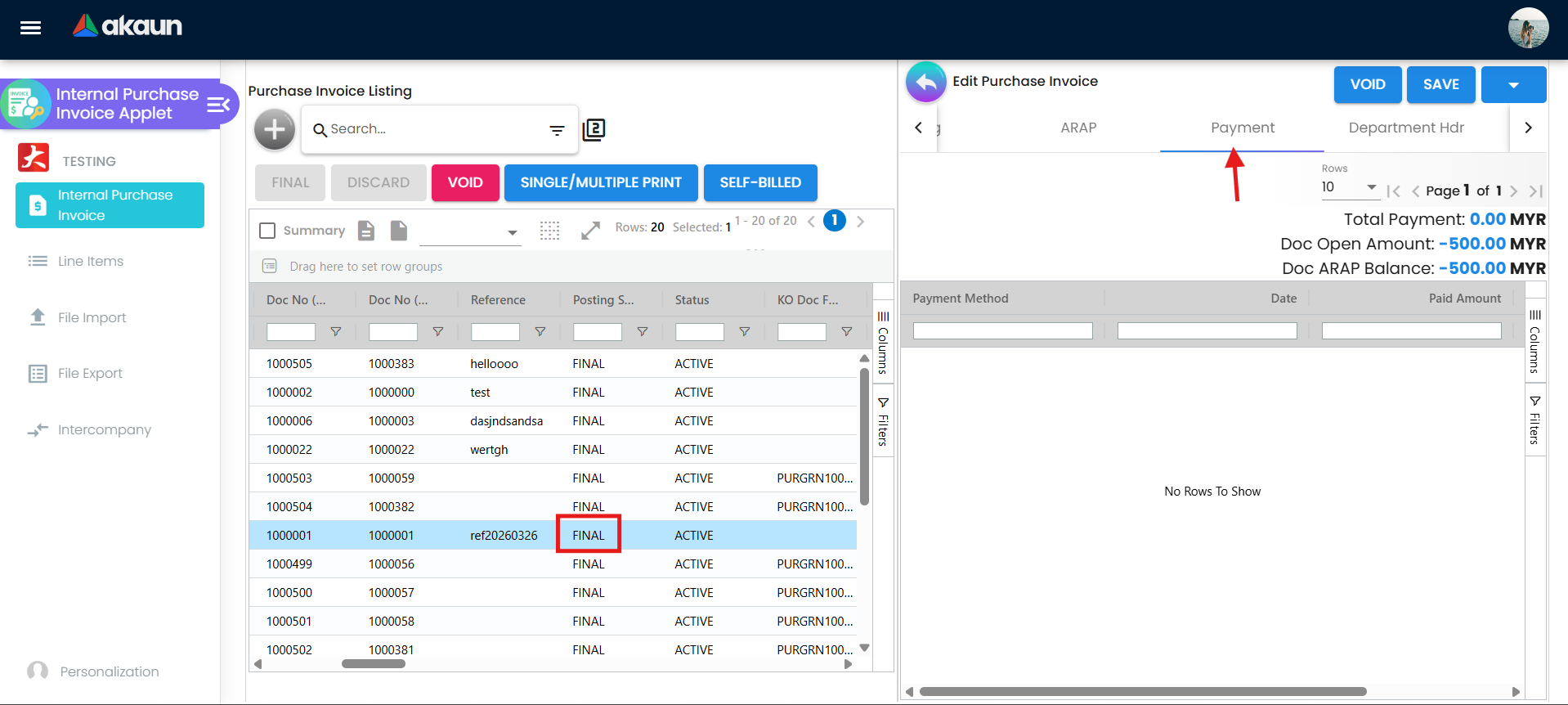
| ARAP | Read-only, and it is the one place the invoice shows its own settlement history: Product & Services, Settlement, Contra and Outstanding. Its numbers come from the AR/AP sub-ledger the posting job wrote, not from the Payment tab you keyed — so a payment that is on the Payment tab and not here means the cashbook job has not run or has failed |
| Posting | Five statuses — Journal, Inventory, Membership Points, Cashbook, Tax — one per processor that had something to do with this document. A blank status is not an error: most of the 32 processors subscribed to FINAL look at the document, decide it is none of their business and stop. See What FINAL actually sets off |
| TraceDocument | The journal and inventory rows FINAL created. An empty Journal Txn grid on a FINAL invoice is how you see that the journal job failed; this tab shows no job and no reason. The repair is in Financial Report › Error Checking › Trace Document: Missing Journal → Resolve builds the journal once you have fixed the cause, because a second FINAL is refused |
Each line on Line Items opens its own sub-tabs — Item Details, Pricing Details, Costing Details
(the landed cost and the last price you paid this supplier; needs SHOW_COSTING_DETAILS), Issue Link
(ties the line to an issue-tracker ticket) and, with SHOW_BUDGET, Budget Sub Line.
Top action buttons
| Button | Shown / enabled when (client-side) | What it does |
|---|---|---|
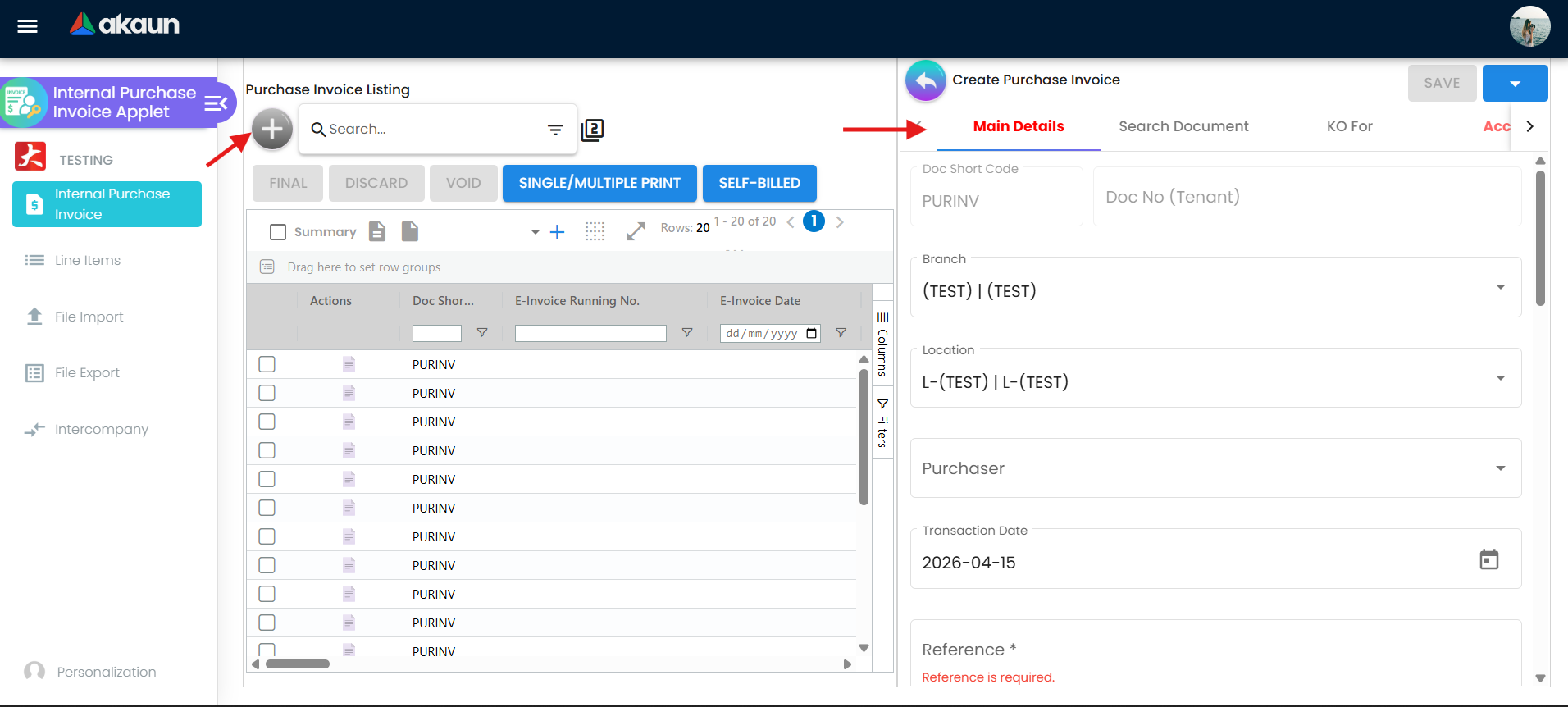
| + (on the listing) | Always | There is no Create button. + saves an empty placeholder draft at once (document status TEMP) and opens the edit form on it. The draft turns itself into an ordinary one (ACTIVE, posting status DRAFT) about half a second after Branch, Location, a supplier and at least one line are all present, and that is when the tenant running number is assigned. Nothing is posted. A + you abandon leaves a placeholder behind |
| SAVE | Draft, once it is no longer a placeholder; HIDE_GENDOC_SAVE_BUTTON off | Saves edits. Nothing is posted. SAVE (and FINAL) stay greyed out while the draft is still TEMP — fill in the supplier and a line first |
| FINAL | Draft with a valid header, a supplier, at least one line, no duplicate serial numbers, document not locked; HIDE_GENDOC_FINAL_BUTTON off or the user holds SHOW_GENDOC_FINAL_BUTTON / SHOW_FINAL_BUTTON | Sends posting_status: FINAL with the Default Selection date logic; the backend validates and queues journal, inventory, tax and e-Invoice processing; locks the document. |
| DISCARD | Draft (ACTIVE + DRAFT); HIDE_GENDOC_DISCARD_BUTTON off or SHOW_GENDOC_DISCARD_BUTTON | Marks the draft DISCARDED. |
| VOID | FINAL, company e-Invoice status not ENABLED, document not locked; HIDE_GENDOC_VOID_BUTTON off or SHOW_GENDOC_VOID_BUTTON | Sends the void; the backend queues the reversal (see Lifecycle). Refused while any document raised from this invoice is active — see VOID. |
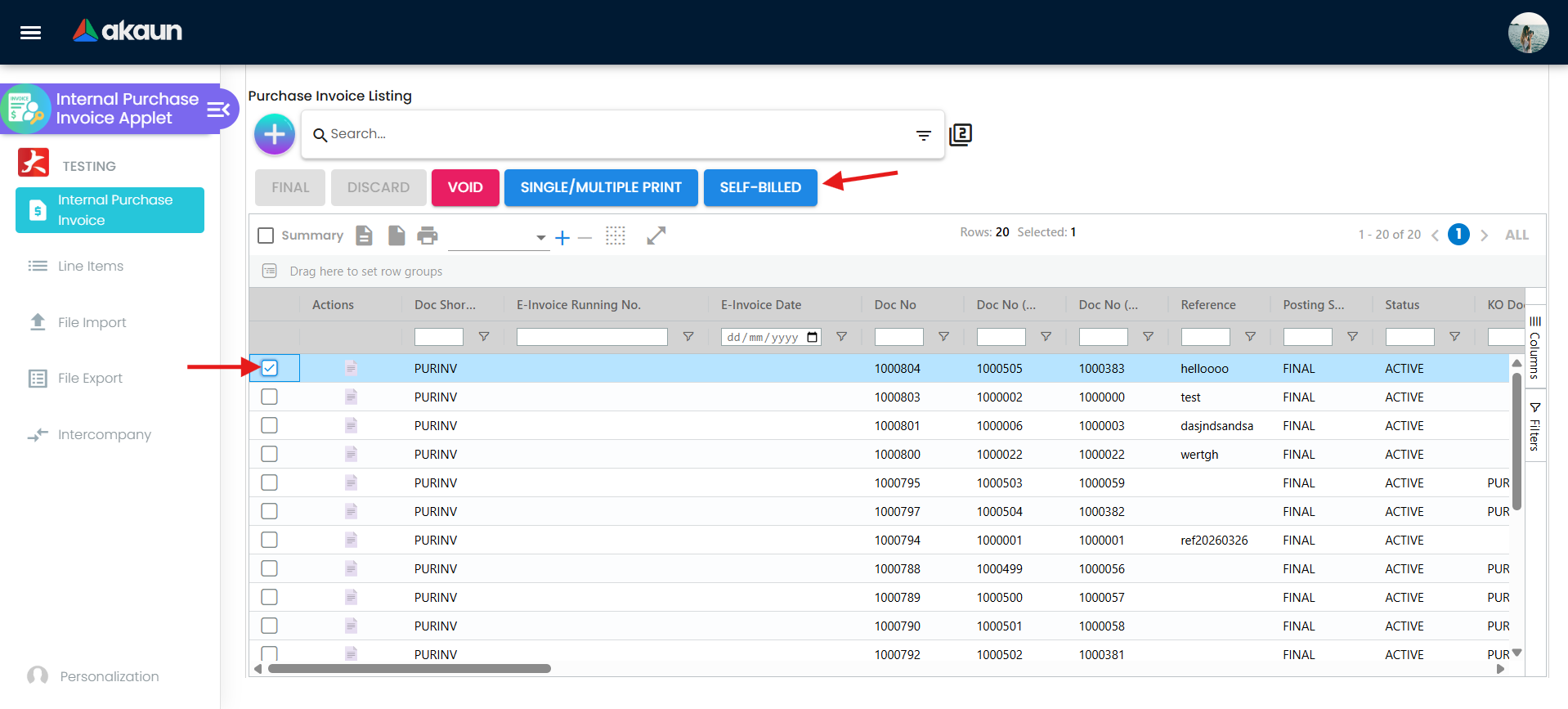
| SELF-BILLED | Draft | Sets einvoice_self_billed on the header. Suppliers with E-Invoice Self-Bill in their profile get it automatically. |
| BASE | Any | Toggles display between transaction currency and base currency. |
| SINGLE / MULTI PRINT | Any; needs a printable format | Prints one document, or several in one job, with the default printable (PRINTABLE). |
| CLONE | HIDE_CLONE_BUTTON off | Copies the document into a new draft. |
Configuration
Before you can use it
| Prerequisite | Where | Why the invoice needs it |
|---|---|---|
| Company, branch, location | Organisation Applet | Branch and Location are the only two unconditionally required header fields. Give the branch a MAIN_LOCATION extension so Default Selection can auto-fill the location. |
| Supplier entity with an AR/AP type | Supplier Applet | The entity’s type decides the payable account: AP_TRADE posts to the company default CREDITOR, AP_OTHER to CREDITOR_NON_TRADE, AP_EMPLOYEE to EMPLOYEE_OTHER_PAYABLE. Set E-Invoice Self-Bill on the supplier if every invoice should be self-billed. |
| Company default GL codes | Chart of Account Applet (company GL-code links) | The journal posted after FINAL needs the creditor code for the supplier’s type plus PURCHASE and INPUT_TAX, and ROUNDING once the invoice carries a rounding line. FOREX_GAIN / FOREX_LOSS are used by the separate exchange-difference journal a contra writes. A Purchase Discount default is never posted to by this document — a line discount is already inside the line’s net amount and a group discount posts to Purchase — and Purchase Return belongs to the return. A missing purchase or rounding mapping does not fail anything: the line is left out of the journal and the creditor line absorbs the difference (see Posting proof block). A missing creditor mapping does not stop FINAL: FINAL changes the status and enqueues the posting job, and the job then fails with MISSING_DEFAULT_GL_CODE: CREDITOR — the invoice stays FINAL with no journal until the mapping exists and the journal is built from Financial Report › Error Checking › Trace Document (Missing Journal → Resolve). |
| Item GL overrides (optional) | Item maintenance — item-company GL-code link with transaction code PURCHASE | A line’s purchase account is resolved in this order: GL code on the line → GL code on the document header → the item’s company link for PURCHASE → company default PURCHASE. |
| Tax codes | Tax Configuration Applet | Line tax posts to the company default INPUT_TAX. The WHT code picker on a line is hidden by default (HIDE_WHT_CONFIG_SELECTION). |
| Cashbook and settlement methods | Cashbook Applet, then Settings > Branch Settings > Default Settlement Method | The Payment tab only offers settlement methods assigned to the branch; a settlement item with no cashbook fails posting with MISSING_CASHBOOK: STL_MTHD [code]. |
| Document numbering | Organisation Applet (running numbers) | Doc No (Tenant) is assigned when the TEMP placeholder turns into an ACTIVE draft — by itself, once Branch, Location, a supplier and a line are present; Doc No (Company / Branch) are assigned during FINAL. |
| Printable format | Settings > Printable Format Settings | Print, bulk print and auto-preview need at least one format marked as default; the Export tab reports No Default Printable Selected otherwise. |
| Permissions | Settings > Permission Set / User Permission / Team Permission / Role Permission | Server-side: TNT_API_DOC_INTERNAL_PURCHASE_INVOICE_READ_TGT_GUID, ..._CREATE_TGT_GUID, ..._UPDATE_TGT_GUID, ..._DELETE_TGT_GUID (targeted by branch), TNT_API_DOC_INTERNAL_PURCHASE_INVOICE_DELIVERY_BRANCH_READ, or TNT_TENANT_ADMIN / TNT_TENANT_OWNER. |
| e-Invoice (Malaysia) | My E-Invoice Admin | The company’s e-Invoice status must be ENABLED for submission; once it is, this screen hides VOID on finalised invoices — the screen is where that rule lives. |
| Fiscal periods | Financial Report (fiscal year / period locks) | FINAL is rejected when the transaction date falls in a locked period. |
Applet settings
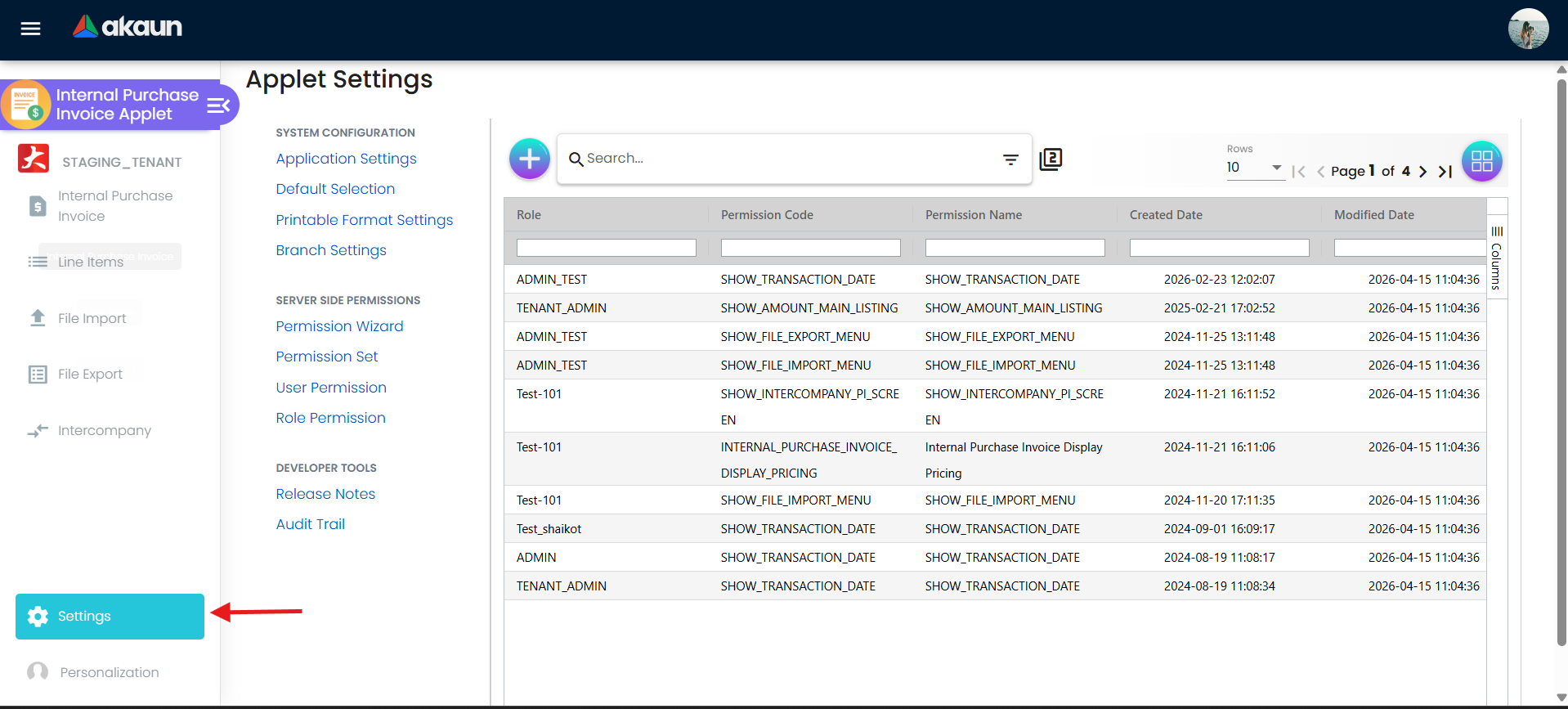
Settings › Application Settings. The screen is the shared field-configuration screen filtered to this
applet, and 162 of its 264 keys are a HIDE_ or an EXPAND_ that hides a field, a tab, a button or a price column, or opens a panel — flip one and
you can see what it did within two seconds. The seven below are the ones that change what the applet will
let you do, and not one of them is obvious from the screen.
How settings are stored and who they apply to.
| Setting | What changes | Default when never saved | Advisory or hard |
|---|---|---|---|
ENABLE_EDITING_UNIT_PRICE_STD — the screen prints the identifier as the label | The Unit Price box on a line becomes typeable. With it off, the line takes its price from the pricing scheme and nobody can key what the supplier actually charged; the AP clerk reports it as “the price field is read-only and I can’t type in it”. Nothing switches it on for you — check yours before you assume the price box will accept typing | Read-only. The settings screen’s own control shows on before the first save, so screen and behaviour disagree until somebody presses SAVE | Advisory — the input is read-only in the browser. The API accepts any price |
DATE_TXN_LOGIC — Transaction Date Logic, on Default Selection, not Application Settings | Which date the server stamps as the document’s transaction date at finalise. Pick Finalized / Created / Updated and the date you keyed on the draft is overwritten when you press FINAL — and the journal, the fiscal period it lands in and the tax period all follow the new date, not the one on the screen you were looking at | The date you keyed (USE_DATE_TXN) | Hard, and server-side — the server overwrites the transaction date at finalise; this applet never asks it to keep the keyed date |
ENABLE_MULTIPLE_KO | The KO For grid becomes multi-select. Until it is on, one purchase invoice can pull in exactly one GRN or one purchase order — so a month of deliveries settled by a single supplier invoice has to be keyed as one invoice per delivery, and the GR/IR (Goods Received / Invoice Received) clearing never nets to zero in one document | Single selection, on both the GRN and the purchase-order knock-off | Advisory — it is the grid’s selection mode |
ENABLE_DUPLICATE_REFERENCE_CHECK | As you type in Reference (the supplier’s own invoice number), the applet waits half a second and searches every purchase invoice in the tenant for the same reference, then turns the box red and names the other document. It does not filter by supplier, company or posting status — an invoice in VOID or DISCARDED matches too, and so does the invoice you are editing if you retype its own reference — so two suppliers who both number an invoice 1234 flag each other, and nothing stops you saving or finalising the duplicate. If you switched this on to stop paying a bill twice, it does not do that | No check at all | Advisory — a red field and a message. Neither Save nor FINAL looks at it |
DISABLE_EDITING_AMOUNT_TXN | Locks the line Amount so it is always quantity × price and cannot be typed over. The reason you have probably never seen this toggle: it is on the settings screen only for a user who holds the client-side permission SHOW_DISABLE_EDITING_AMOUNT_TXN_SETTING. An administrator without that grant looks at the same screen and the control is not there | Amount editable | Advisory — the control is disabled in the browser |
CANNOT_EDIT_CURRENCY_RATE | The exchange-rate boxes are read-only on drafts as well as on finalised documents, so the rate BigLedger fetched is the rate that posts — and that decides the ringgit value of the creditor, the purchase and the input tax. There is no per-user exception to grant: a permission called EDIT_CURRENCY_RATE exists and does nothing (see Who can change what) | Editable on drafts — the rate is disabled only when the document is final or the key is set | Advisory — the two rate controls are disabled in the browser |
ALLOW_DIFFERENT_PAYEE_THAN_SELECTED_ENTITY | The Bill To section on the Account tab stops mirroring the supplier on the document and becomes a supplier picker of its own, so the bill-to name, e-mail and phone can be a different party from the one you bought from — a factored invoice, or a principal billing on a distributor’s behalf. It changes the Bill To section and nothing else, so the payable still posts against the supplier chosen on Entity Details | Bill To mirrors the selected supplier | Advisory — a second picker appears |
Four more are worth a sentence rather than a row. External Invoice No (one of the hidden-by-default
external references) carries a duplicate warning of its own that needs no setting: leave the box and the
applet looks for another purchase invoice with the same number and prints invoice already exist in and
that document’s number under it — a warning only, like the reference check. SHOW_ITEM_STOCK_BALANCE, on
a purchase invoice, does more than show a column: the line-item search then lists only items with stock
above zero at the invoice’s location, so the item you are buying because you have run out of it
disappears from the search — switch it off on this applet if a clerk reports “the item isn’t in the
list”. ALLOW_EDITING_DOC_REF_DATE makes Doc Reference Date
typeable — until it is on the date is display-only, which is what “the date is greyed out and the invoice
isn’t even finalised” usually turns out to mean. And the eleven MANDATORY_* keys add a required-field
validator to the browser form and nothing else: they change who gets
stopped at the screen, never what the API will accept, so they are a data-entry discipline rather than a
control.
On the screen and doing nothing
- The SST and WHT enable flags — declared in the model with no control on any screen, and do nothing here. They are the keys a reader hunts for when the
question is “how do I switch on withholding tax for supplier invoices?”, and switching them on changes
nothing. They are not dead everywhere — a few sales-side applets that carry their own local settings
screen do read them — which is how they came to be in a purchase-invoice model at all. What actually
controls the withholding-tax picker on a line here is
HIDE_WHT_CONFIG_SELECTION, which starts hidden. - The whole Knock Off Settings screen. The route renders eight knock-off switches (by and for Purchase GRN, Purchase Order, Purchase Requisition and Supplier Delivery Order); the two Copy From Configuration toggles that belong beside them are commented out of the template. It has no menu entry, and none of the eight switches does anything. KO For offers Purchase GRN and Purchase Order whatever they say. If you were told to “turn on knock-off by requisition”, there is no such switch.
And the reverse case, which is the same trap from the other side. The listing reads
HIDE_LISTING_BRANCH, HIDE_EINVOICE_NUMBER and HIDE_EINVOICE_DATE from the stored settings, and
none of them is declared in the model or offered on any screen of this applet — they take effect only if
something else wrote them. Two more listing keys, HIDE_TRANSACTION_DATE and
HIDE_AMOUNT_TXN_MAIN_LISTING, are not in the model either, yet do have a toggle on Application Settings
(the screen is shared, and offers them to this applet). The same listing also opts in four analysis
columns — dimension, segment, profit centre, project — with SHOW_GL_DIMENSION, SHOW_SEGMENT,
SHOW_PROFIT_CENTER and SHOW_PROJECT. The settings model is not the list of this applet’s settings, in
either direction.
The other settings screens
Settings is eight screens and Application Settings is only the first of them; what each one is for is set out once in the concepts layer, linked above. Four of them matter here:
- Default Selection holds the branch and location a new invoice opens with, the unit-price decimal precision (2–4), the transaction-date logic in the table above, and the order of the edit-form tabs. RESET restores the tab order and clears the other values on the screen — including the transaction-date logic, which goes back to the date you keyed. If your company relies on Finalized dating, set it again after a RESET.
- Personalization › Default Selection is the same idea for you alone — your branch, your location, your
horizontal-or-vertical layout. It also offers an item-type filter for the line-item search
(
DEFAULT_ITEM_SEARCH_ITEM_TYPE) that saves and that no component reads. - Branch Settings is per branch, stored on the branch record rather than in the applet’s settings, and
one of its six tabs is load-bearing: Default Settlement Method decides which settlement methods the
Payment tab offers, and a settlement item whose method has no cashbook fails posting with
MISSING_CASHBOOK: STL_MTHD [code]. The others are branch rounding, an item-category filter for the line search, the branch’s menu list, its pricing schemes and its printable format. - Printable Format Settings stores the default format’s guid in
PRINTABLE. Without one the print buttons are disabled and the Export tab reports No Default Printable Selected.
Settings in other applets that control this applet
| Setting / behaviour | Where it is set | Effect here |
|---|---|---|
| Fiscal year and period locks | Financial Report | FINAL is rejected when the transaction date falls in a locked period — and note the interaction with DATE_TXN_LOGIC above, which can move that date after you have chosen it |
| Which processors run at FINAL | Company record — posting_final_json include/exclude list | Filters the subscribers of BLG_ERP_GENERIC_DOCUMENT_PRIMARY_PROCESSOR, so a document can finalise and post nothing |
| Stock and serial validation at FINAL | Not an applet setting at all | The backend runs validateGenericDocumentOnFinal with validate_stock_balance defaulting to true and validate_serial_signum_zero to false, and this applet sends neither flag — so stock is validated whatever your settings screen says |
| Self-billed e-Invoice | Supplier profile E-Invoice Self-Bill in Supplier, or the SELF-BILLED button on the draft | Stored on the header as einvoice_self_billed |
| The company’s e-Invoice status | My E-Invoice Admin | Once ENABLED, this screen hides VOID on finalised invoices regardless of any setting or permission here |
| Approval before FINAL | Workflow Design | No control in this applet gates FINAL on a workflow status |
| Webhooks on document events | Settings › Webhook in this applet | Fired on document events; not a field setting |
Who can change what
Client-side permissions this applet defines: 66 active codes. Almost all of them do one thing — put back, for one
user, a field or column that a HIDE_… setting took away from everybody. The ones worth knowing are the
four that do something else:
SHOW_DISABLE_EDITING_AMOUNT_TXN_SETTINGdoes not affect a document at all. It decides whether the Lock Amount toggle appears on the settings screen — a permission that gates a setting. If you have been told the line amount can be locked and cannot find the switch, this is why.ALLOW_LINE_ITEM_EDITis the exception to theDISALLOW_LINE_ITEM_EDITsetting: switch the setting on and saved lines go read-only for everyone, then grant this code to the few people who may still correct a line. It is the cleanest setting-and-permission pair on this applet: the setting sets the house rule, the permission names the exceptions. The setting starts off, so saved lines stay editable until somebody turns it on.SHOW_COSTING_DETAILSandSHOW_LAST_PURCHASE_PRICEput back the costing sub-tab and the last price you paid this supplier. Both hide a control, not the data — the figures are already in the browser. Do not use either as a control over who can see margin.SHOW_TRANSACTION_DATEenables the Transaction Date field after finalising — that is the back-dating grant, and it is a permission rather than a setting precisely because you do not want it for everyone.
Dead permission codes: 23 of the 66. Granting any of these does nothing at all: EDIT_CURRENCY_RATE, DISABLE_EMPLOYEE_LOGIN_AUTO_DETECTION,
SHOW_CREDIT_LIMIT, SHOW_CREDIT_TERMS, SHOW_CURRENCY, SHOW_BASE_CURRENCY, SHOW_REFERENCE,
SHOW_REASON, SHOW_EXTERNAL_REMARKS, SHOW_SOURCE_DOC_NO, SHOW_LOCATION, SHOW_DELIVERY_BRANCH,
SHOW_CREATED_BY_DETAILS, SHOW_VALIDITY_DATE, SHOW_SAVE_BUTTON, SHOW_PRINT_BUTTON,
SHOW_CLOSE_BUTTON, SHOW_SEND_EMAIL_BUTTON, HIDE_DRAFT_BUTTON, HIDE_CUSTOM_DOC_NO,
HIDE_FOREX_DATA_SOURCE, HIDE_EMAIL_PAYMENT_URL_BUTTON, IPI_HIDE_TRACKING_ID_AND_PERMIT_NO.
Three of those deserve naming twice, because they are the ones an administrator reaches for and then trusts:
EDIT_CURRENCY_RATElooks like the exception toCANNOT_EDIT_CURRENCY_RATEand is not. Lock the rate and it is locked for the treasury team too.SHOW_SAVE_BUTTON,SHOW_PRINT_BUTTON,SHOW_CLOSE_BUTTON,SHOW_SEND_EMAIL_BUTTONare not how the action buttons are governed. The live pairs areHIDE_GENDOC_…_BUTTONsettings againstSHOW_GENDOC_…permissions, and the registry defines the FINAL, DISCARD and VOID members of that family for this applet — but notSHOW_GENDOC_SAVE_BUTTON. The applet loads that code with the others, but the Save button never consults it: it looks at the hide setting alone. SoHIDE_GENDOC_SAVE_BUTTONtakes the Save button away from everybody and there is no code in this applet’s permission listing that gives it back to anybody. Hide Save deliberately, or not at all.SHOW_CREDIT_LIMITandSHOW_CREDIT_TERMSdo not reveal the supplier’s limit and terms;HIDE_CREDIT_LIMIT/HIDE_CREDIT_TERMShide those fields from everybody with no way back for anyone.
Server-side permissions are the ones that can fail with a 403 and are listed under Before you can use it: read, create, update and delete are targeted by branch, so a user can be confined to the invoices of particular branches — the only control on this page that a browser cannot talk its way around.
Fields
Main Details
| Field | Meaning | Required | Notes |
|---|---|---|---|
| Branch | Buying branch | Yes (Validators.required) | Drives numbering, permissions and Branch Settings |
| Location | Stock location that receives the goods | Yes (Validators.required) | Defaults from the branch MAIN_LOCATION |
| Doc No (Tenant / Company / Branch) | System running numbers | Generated | The tenant number appears at Create; the company and branch numbers only at FINAL. A draft with no company document number is not broken — it is a draft |
| Transaction Date | Invoice date | Yes (defaults to today) | Editable after FINAL only with the SHOW_TRANSACTION_DATE permission — that is the back-dating grant. It may also be overwritten at FINAL by DATE_TXN_LOGIC, and a knock-off resets it to today (see below) |
| Reference | Supplier’s invoice number | Only with MANDATORY_REFERENCE | The number your supplier printed, and the one your AP reports and the e-Invoice match key on. ENABLE_DUPLICATE_REFERENCE_CHECK warns about it and stops nothing |
| Purchaser | Buying employee | Asterisked, no validator — so it is not required | Stored in pic_entity_01, and it is also the switch that decides whether Credit Terms, Credit Limit and Permit No are stored at all (see the callout below) |
| Base Currency / Currency / Rate | Transaction currency and exchange rate | Yes | Picking a supplier whose currency differs from the document’s replaces the document currency and resets the rate to zero, which is where The currency rate cannot be ZERO. on SAVE comes from; FINAL is refused on the server with Exchange rate is required for a foreign currency document. |
| Credit Terms, Credit Limit | Payment terms for this invoice | No | Not copied from the supplier and not read-only — two dropdowns fed by the supplier’s own purchase credit-terms and credit-limit lists, editable on a draft and auto-selected when the supplier has exactly one of each (disabled only once the document is FINAL, VOID, DISCARDED or locked) |
| Remarks, External Remarks | Internal and printed notes | No | Remarks becomes the description of the journal’s creditor line — and of its tax lines and the journal’s own remarks — so it is the text your accountant reads in the ledger months later. External Remarks prints on the document |
| Delivery Branch / Location | Where goods are delivered | No | Listing them needs TNT_API_DOC_INTERNAL_PURCHASE_INVOICE_DELIVERY_BRANCH_READ — a separate server-side permission from the invoice’s own read |
The rest of the header is references and dimensions, and each is hideable on its own: Custom Document
Number (needs SHOW_CUSTOM_DOC_NO), Doc Short Code, Client Doc Short Code and Client Doc 1–5
No, Source Doc No (Tenant) and Source Doc Short Code (written by a knock-off, never by you),
Doc Reference Date (typeable only with ALLOW_EDITING_DOC_REF_DATE — the usual meaning of “the date
is greyed out and the invoice isn’t even finalised”), the five External Quotation / Order / Delivery
Order / Invoice / Others references and their dates, which are hidden by default and stay editable
after FINAL when they are shown, and Tracking ID and
Permit No.
There is no Due Date on a purchase invoice, and leaving Purchaser blank quietly drops the credit terms.
Two separate things, one cause — a half-removed field.
Due Date. There is no Due Date on this form, and nothing on this applet stores one — the applet works a due date out from the credit terms and then discards it. So the due date stays empty on every purchase invoice you raise here; the sales invoice fills it normally. The consequence you can see: Overdue Documents lists only documents whose due date has passed, and an empty date never has, so a purchase invoice never appears as overdue there. Age your payables on the transaction date and the supplier’s terms instead, or from the Payment Voucher’s outstanding list.
Credit Terms, Credit Limit, Permit No. The block that writes them onto the document is gated on the Purchaser field having a value. Purchaser is asterisked but not actually required, so a clerk who skips it saves an invoice whose stored credit terms are empty, and the printed document — which prints the stored credit terms — prints nothing there. Nothing warns, and blank stored credit terms on an old invoice usually mean Purchaser was blank when it was keyed rather than that the supplier had no terms. Tracking ID is safe — it is saved whatever Purchaser says.
Account
Entity Details (supplier code, name, type, identity type and number, currency, status, description, email, phone), Bill To and Ship To addresses and contacts, and Intercompany (the sister company’s Intercompany Branch and this branch’s purchase-invoice intercompany rules, for a purchase invoice that should raise a sales invoice in that company). In select mode a toggle creates a supplier without leaving the invoice.
Line Items
Item Details holds the item code and name, the quantity in base and in the chosen unit of measure with the ratio between them, serial numbers, bin, batch number, batch issue and expiry dates, item remarks and an item reference. Pricing Details holds the standard unit price (from the pricing scheme, inclusive or exclusive of tax, per unit of measure), unit discount and the multi-level discount block, net and transaction unit prices, the tax code and the withholding-tax code, and the five amount columns — standard, discount, net, tax and transaction. Each line also carries its own optional GL code, branch, the four department dimensions and a delivery instruction. Header adjustment, group discount and rounding lines are written by the applet, not keyed.
Three of those carry consequences the screen does not show:
| Field | What it decides |
|---|---|
| Amount (transaction) | This, not the net amount, is what the moving average absorbs — see Where the cost on stock comes from. A line with a quantity and a zero amount posts quantity without value and drags the average down |
| Unit price (net) | The first choice for the item’s last purchase cost, and the reason the last purchase cost and the moving average can disagree after the same invoice |
| Serial numbers | The only thing FINAL genuinely refuses on: a serial already in the company, a serial repeated on the document, or a count that does not match the quantity. The error lists the offending snIds |
Payment
Settlement method (from Branch Settings), amount, payment date, reference fields (quotation, order, delivery order, invoice, invoice date, others — hidden by default) and, for card methods, card number, name, issuer, expiry, approval code, batch, card type, CVV as configured.
The payment date you key does not survive the save. ENABLE_EDIT_PAYMENT_DATE /
ENABLE_EDIT_SETTLEMENT_DATE make the box typeable, but every save sets each payment line’s date back to
the invoice’s transaction date, and the cashbook line always carries the invoice’s date. A supplier paid
on the 5th against an invoice dated the 28th of last month shows in the cashbook — and in bank
reconciliation — on the 28th. To spot it: the payment date reverts when you reopen the invoice. When
the money moves on a different day from the invoice, settle it with a Payment
Voucher dated that day instead.
Lifecycle and effects
A purchase invoice has a document status (TEMP while the create form is open, then ACTIVE) and a posting status:
| Posting status | Meaning | Allowed next step |
|---|---|---|
DRAFT | Saved, editable, nothing posted | FINAL, DISCARD, edit |
FINAL | Posted and locked | VOID (subject to the conditions below), Payment, Contra, Purchase Return, Credit/Debit Note |
VOID | Reversed | none |
DISCARDED | Abandoned draft | none |
FINAL in the applet is enabled when the header form is valid, a supplier is selected, there is at least one line, no serial number is duplicated within the document, the document is ACTIVE and not locked, and the button is not hidden for this user. These are client-side gates. FINAL in the backend rejects a second FINAL with Generic Document has already been posted to FINAL (HTTP 403), a foreign-currency invoice with no exchange rate (Generic Document exchange rate is required before posting to FINAL), a transaction date in a locked period, serial numbers that already exist in the company or that are duplicated or do not match the line quantity, bin and batch quantities that do not match, and — because this applet never switches it off — a line that would take stock below what the location holds. A missing default GL code is not checked here. The journal and cashbook processors run as queued jobs after the status change, so MISSING_DEFAULT_GL_CODE: <code>, MISSING_CASHBOOK and MISSING_GL_CODE fail the job, not FINAL (see Troubleshooting). A foreign-currency invoice is finalised as a base-currency shadow document that carries the posting.
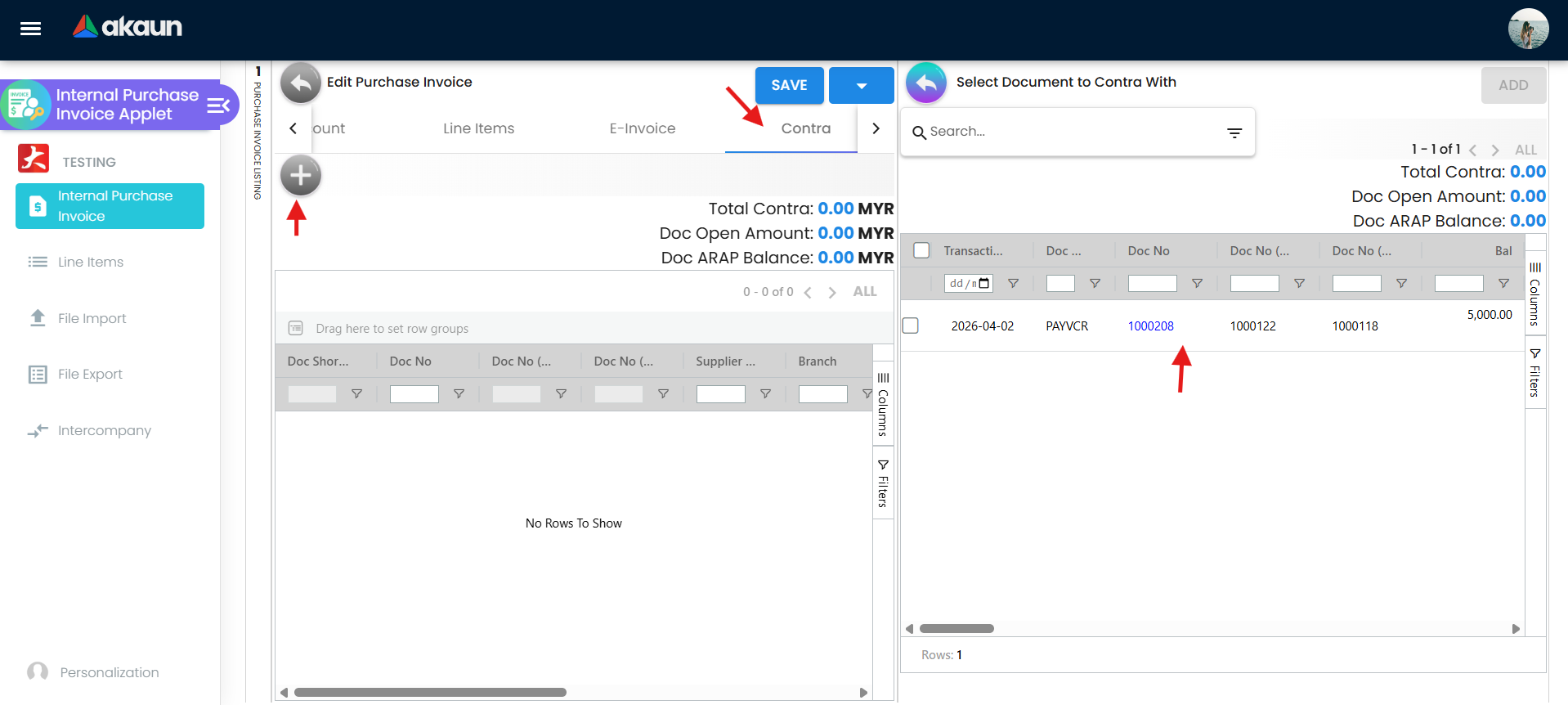
Contra rows are a second request. A row you add on the Contra tab of a draft is not written when you add it: the applet sends any unsent contra rows after the next successful SAVE, and again after FINAL. If that second request fails you see Documents contra unsuccessfully while the invoice itself has saved — or finalised — without the offset. Check the Contra tab (or the ARAP tab’s Contra column) after a FINAL that carried a contra.
Posting proof block
| Item | Value (from the backend) |
|---|---|
| Server document type | INTERNAL_PURCHASE_INVOICE |
| Direction | A payable, and stock in — the standard Purchase GRN moves neither |
| The journal | Every goods line is Dr Purchase at its net amount (line discounts already taken off; a group-discount line posts to Purchase too, reducing it), a rounding line posts to Rounding, each tax line Dr Input Tax, anything on the Payment tab Cr the settlement method’s account, and the supplier line Cr Creditor for whatever balances the rest. No line posts to a purchase-discount account. A contra’s exchange difference is a separate journal, written when the contra is. It uses the ordinary purchase journal mapping — see Which chart of accounts this document type gets. |
| Which GL code an item line uses | GL code on the line → GL code on the document header → the item’s company GL link for PURCHASE (ROUNDING for a rounding line) → company default PURCHASE (ROUNDING). Tax lines use the company default INPUT_TAX. The supplier line uses the company default for the supplier’s AR/AP type and fails with MISSING_DEFAULT_GL_CODE when it is not linked. A goods or rounding line whose account cannot be found by any of those four steps is left out of the journal without an error, and the supplier line, which is the balance, shrinks to match — see the caution below. |
| Stock | The stock job, a follow-on of the main posting job, writes a stock-in line for each goods line and creates the serial numbers. It does not take every line — see Why “stock in” is not enough. This applies to keyed invoices and to knock-offs alike. |
| What VOID reverses | VOID starts the void jobs your tenant has switched on: the journal (a new journal with every line’s debit and credit swapped), the stock (negated stock lines), the knock-offs (removed, reopening the source document), contras, tax, cashbook and membership points. The document is also removed from the e-Invoice queue and from historical aging. A shadow (base-currency) document is voided with its original. |
A line with no purchase account is dropped, and the journal still balances.
The journal job does not fail when a goods line’s account cannot be found — no GL code on the line or the header, no item link, no company Purchase default. It leaves that line out, and because the creditor line is computed as whatever balances the rest, the payable shrinks by the same amount. An RM 1,000 + RM 60 tax invoice on an unmapped item posts Dr Input Tax RM 60 / Cr Creditor RM 60 and shows the journal as posted: the purchase and RM 1,000 of the payable are simply missing.
To spot it: compare the journal’s creditor credit (Trace Document → Journal Txn) with the invoice total. They should be equal less anything on the Payment tab. Set the company’s Purchase default (and the item’s link if it should go elsewhere) before the first invoice; for one already posted, correct the mapping, then press Repost beside Posting Journal in Error Checking › Trace Document: it deletes the short journal and builds it again from the invoice. A failed Repost says nothing and leaves the invoice with no journal, so check Journal Txn afterwards; if it is empty, Resolve on Missing Journal posts it or shows why it cannot. A correcting journal is the other way.
The Posting tab shows five statuses (Journal, Inventory, Membership Points, Cashbook, Tax); TraceDocument shows the journal and inventory rows.
VOID and what blocks it
VOID on this screen is offered only on a FINAL document that is not locked, when HIDE_GENDOC_VOID_BUTTON is off or the user has SHOW_GENDOC_VOID_BUTTON, and when the company’s e-Invoice status is not ENABLED. Pressed, it first checks the invoice for an active Purchase Return and stops with The invoice has already been linked with a purchase return. Past that, the server refuses the void while any document raised from this invoice is still active — a debit or credit note, a conversion, a return — and the screen reports every such refusal as The purchase invoice has already been returned., whatever the linked document actually is. Look at the Doc Link tab for the document to void first. The server refuses a self-billed invoice’s void outright (Unable to void because the company has the E-Invoice enabled); for an ordinary purchase invoice under e-Invoice, hiding VOID is the screen’s rule. To correct a finalised invoice under e-Invoice, raise a Purchase Debit Note when it was billed too high (it lowers what you owe) or a Purchase Credit Note when it was billed too low (it raises it), or, for a self-billed invoice, cancel it through the e-Invoice portal within the LHDN window. A self-billed Purchase Debit Note reaches MyInvois as a Self-billed Credit Note, and a Purchase Credit Note as a Self-billed Debit Note: the e-Invoice names follow the invoice, the BigLedger names follow your ledger.
Knock-off writes a document link (txn_type knock-off) between the source and the invoice, and a source that is fully drawn down no longer appears in KO For. A Purchase Return raised against the invoice writes a RETURN link instead. The KO For button and the backend converter PurchaseGRNToPurchaseInvoiceConverter are two different things and only one of them is a button: see Knocking off a purchase order or a goods receipt and A goods receipt can create this invoice by itself.
What FINAL actually sets off
FINAL is not a save. It is a separate step that changes the posting status and then hands the document to the main posting job, which starts every follow-on job your tenant has switched on. That is the reason a document can be FINAL with no journal: the status change succeeded and a job failed afterwards.
Every finalised document of every type goes to every follow-on job, and each one decides for itself whether it has anything to do. That is the single most useful thing to know about the Posting tab: a blank status usually means a job ran, looked at a purchase invoice, and correctly did nothing.
The ones that act on a purchase invoice:
| Job | What it does here |
|---|---|
| Journal posting | Writes the journal — Dr Purchase, Dr Input Tax, Cr Creditor. Fails with MISSING_DEFAULT_GL_CODE and leaves the invoice FINAL and unposted when the creditor is unmapped; a line with no purchase account is dropped instead (see the caution under Posting proof block) |
| Stock | Writes the stock-in lines, the serial numbers, the moving average and the last purchase cost |
| Cashbook | Posts anything keyed on the Payment tab into the cashbook |
| Knock-off | Consumes the source document’s open quantity when this invoice knocked one off |
| Document conversion | Creates the next document in a configured flow — the one that can turn a goods receipt into this invoice |
| E-Invoice matching | Queues the invoice to be matched against an incoming supplier e-Invoice — but only if the supplier record carries a tax identification number, silently not otherwise (why) |
| E-Invoice posting | Queues a self-billed invoice for MyInvois |
| Back-dated aging | Rebuilds aging when the transaction date is in the past |
| Budget register | Consumes budget, when the lines carry budget codes |
| Intercompany | Raises the mirror document in the sister company when the Account tab names one |
The rest — coupons, membership points, commerce orders, sales commission, min/max alerts, Peppol, finance charges — subscribe just as hard and find nothing to do.
The company can narrow the list with an include/exclude list of jobs, set by BigLedger, which is how a document can finalise and post nothing at all by configuration rather than by failure.
Unusually for this family, this document type has a file-import job of its own; the purchase credit note and the sales debit note do not, and their File Import menus use the general import instead.
Which chart of accounts this document type gets
A purchase invoice posts through the ordinary purchase journal mapping — creditor, purchase, purchase discount, purchase return, input tax, forex gain and loss — the same one the purchase credit note, debit note and return use. Not every entry in it is used here: nothing on a purchase invoice posts to the discount entry (a line discount is already inside the line’s net amount), and the return entry is the return’s. So the purchase documents can never drift apart: there is no way to give the credit note a different creditor account by configuration at this level. (GRN Stock In and consignment purchases have their own mapping, with not invoiced accounts.)
The one thing that is not frozen is who you owe. The creditor account comes from the supplier’s AR/AP
type, and that type is read live at posting time — not from the snapshot on the document. Change a supplier from
AP_TRADE to AP_OTHER and the next journal built for an older invoice — a re-run after a failure, or a
Repost — uses the new account. That is the deliberate exception to the snapshot rule below. A void is not
a new build: its reversal copies the journal as it was posted, so it reverses the old account.
Where the cost on stock comes from
The question this page exists to answer. There are two cost numbers and one invoice writes both of them differently, which is why they disagree.
The moving average. A purchase invoice is one of nine document types allowed to change the value of stock rather than just relieve it proportionally. For those, the running amount grows by the line’s amount and the unit price is then that amount divided by the new balance quantity. Note which amount: the line’s transaction amount, not its net amount and not its net unit price. When the new balance is zero, or the amount comes out at zero, the previous unit price is carried forward unchanged — a deliberate stickiness, so that selling out does not erase what the item cost you.
The last purchase cost. Written only by this document type, and by no other. The figure is the line’s net unit price if it has one, otherwise net amount ÷ quantity, otherwise transaction amount ÷ quantity, and it is written as both the company-wide and the per-location last purchase cost.
A zero-value line moves the average and leaves the last purchase cost alone.
The last purchase cost is not written at all when the unit price is zero, when the quantity is zero, or when the line is a VOID reversal. The moving average has no such guard: a line with a quantity and no amount adds quantity to the denominator and nothing to the numerator, so the average falls towards zero while Last Purchase Price on the Costing Details sub-tab still shows what you paid last time.
That is the mechanism behind “average cost is drifting down and I can’t see why”. The two numbers disagreeing is the symptom to look for, and the invoice line with a quantity and a blank amount is the cause. A finalised line’s quantity and amount cannot be edited, so the fix is to void and re-key where that is allowed. Where void is not open to you, repair the two halves separately: a Reset MA puts the company average right (location averages stay where they are), and a Purchase Credit Note adds the amount you still owe the supplier. Both post a journal of their own, so agree with whoever keeps the books which account the reset posts against, and the value is counted once.
A Purchase Debit Note is not the repair. Its lines move no stock, so it never reaches the moving average, and it lowers what you owe, when the missing value is money you owe more of.
If you use the Stock In pair instead, you get no last purchase cost at all. A GRN Stock In maintains the moving average — but the last purchase cost is written only by this document, and in that flow the invoice is a Purchase Invoice No Stock In. Two costing columns in the same report, one of them permanently stale, is the price of that configuration and it is worth knowing before you choose it.
Why “stock in” is not enough
The direction of this document is fixed, not suggested. The money direction is checked on create and update — anything else is rejected as an invalid amount sign, so an integration has to send it — and every line is forced to stock in, on create and on update. There is no setting and no integration payload that can leave a purchase-invoice line moving stock any other way: if you find one, it predates this rule rather than being a second behaviour you can choose.
But the stock job asks for two more things before it writes anything:
- the line must be a goods line — so header adjustment, group discount, rounding and settlement lines never reach stock, whatever their quantity; and
- the item behind the line must be an inventory item. A
SERVICEorGL_CODEitem is not, and a line on one creates no inventory transaction at all — not a zero one.
So “this document type moves stock” is a statement about the document type, not a promise about your line. An invoice made entirely of service lines posts the payable and the input tax and touches no stock balance, correctly and silently. The Posting tab’s Inventory status is how you tell.
What the invoice keeps of the supplier, and what it looks up later
When you pick a supplier, the applet copies thirteen fields onto the document rather than pointing at the supplier record: the supplier code, the name with the chosen contact’s name appended, the status, e-mail, phone, the entity GL code, the identity number and identity type, the entity type, the description, the currency, the e-Invoice tax identification number and the SST number. It also copies the name, e-mail and phone into the Bill To and Ship To blocks, and takes the supplier’s self-billed e-Invoice flag onto the header.
This is the platform-wide entity snapshot, and it is deliberate: a document is evidence of what was agreed, so a supplier who moves premises or changes bank next month does not retroactively change last month’s invoice. Correcting the copy on one invoice corrects that invoice and nothing else — pushing the change back to the supplier record is a separate act in the Supplier applet.
Three things follow that the screen will not tell you:
- Credit Terms and Credit Limit are not in that copy. The two lines that would have put them there are commented out; they arrive through the separate, Purchaser-gated block described in the Fields callout above. If the printed document shows no terms, that is where it went.
- The AR/AP type is not in the copy either, and that is the point. It is read live at posting (see above), so it is the one supplier field whose later value can still change what an older invoice posts to.
- The e-Invoice supplier block is a snapshot of a snapshot. A self-billed submission takes
einvoice_supplier_entity_hdr_jsonfirst and falls back to the document’s own entity snapshot field by field. The party you self-bill on behalf of is not required to be the account you posted the payable to, and correcting it is done in the e-Invoice block, not by changing the supplier on the invoice.
Knocking off a purchase order or a goods receipt
What has to be true before a source appears. Not “it is FINAL” — that is necessary and nowhere near sufficient. The invoice’s KO For grids are fed from the source document’s open-queue rows, and those rows exist only when the company has an enabled Knock Off Configuration for that pair. Nothing creates those configurations for you, and Purchase Order → Purchase Invoice and Purchase GRN → Purchase Invoice are configured separately — so an empty KO For grid is far more often a missing configuration than a missing source document, and the screen gives you no way to tell the two apart. Check the configuration first.
The mechanics of the outstanding quantity are the same as on the order, and are set out once on the Purchase Order page rather than restated here. Three of its consequences land on this screen:
- The source’s outstanding quantity drops when you tick it in KO For, on this draft — worked out from earlier invoice links only, so an invoice still in draft is already holding it. Each later Save or finalise from the edit screen then recomputes it from the ordered quantity plus the signed sum of every link on the line, of any document type. Undoing a knock-off — voiding the invoice — puts it back.
- A line that reaches zero has its queue row deleted, so a fully invoiced order is recorded by an absence. KO For showing nothing means either “no configuration” or “all done”, and this screen cannot tell you which.
- A company that configured both PO → GRN and PO → Purchase Invoice gets two different answers: KO For counts invoices only and still offers the full order, while the save-time recompute counts receipts and invoices together and can delete a row the other flow still needed. Configure only the flow you use.
What the button does. KO For is a whole-document knock-off, not a line picker: you tick a source
document and the applet posts its header guid — a list of them, when ENABLE_MULTIPLE_KO is on — to the
backend knock-off endpoint with this document type’s signums.
Two details you will otherwise discover the hard way:
- The transaction date is set to today by the knock-off, overwriting
the date you keyed on the draft. Combine that with
DATE_TXN_LOGICand the date on the journal can differ twice from the date you typed. - The lines appear about two seconds after you click, on a fixed timer in the applet, not when the response arrives. A screen that looks like it did nothing usually has not finished.
- The first source’s header replaces the draft’s. The knock-off copies the first ticked document’s company, branch, location, supplier with its billing and delivery details, references 1 to 5 and reference number, currency, remarks, profit centre, segment, project and dimension over whatever you had keyed on the draft, and copies every source’s attachments onto the invoice. Pick the source first and key your own references afterwards, or re-check them before you finalise.
- Several sources must share the supplier and the branch. With
ENABLE_MULTIPLE_KOon, ticking two orders or receipts from different suppliers or different branches is refused with The selected documents contain different entities or branches — one invoice per supplier per branch.
When the invoice and the receipt disagree. Nothing blocks it. There is no over-invoicing guard on this screen: the arithmetic simply drives the outstanding quantity to zero or below and the queue row disappears. On price there is no comparison at all — the knock-off copies the source’s prices in and you retype them, and the difference shows up as the moving average moving, not as a warning. If you need a three-way match, it is a report you run, not a control this applet enforces.
There is no GR/IR accrual in the standard pair
The question every accountant asks about a purchase flow, and the answer is unexpected.
The standard Purchase GRN (Internal) has amount signum 0 and quantity signum 0. The journal builder skips every line whose amount signum is zero and the stock processor skips every line whose quantity signum is zero. So the standard goods receipt posts nothing — no stock, no accrual, no journal. It is a record that the goods arrived. There is nothing for the invoice to clear, which is why you will find no goods-received/invoice-received clearing account in the standard flow and should not go looking for one.
Goods received / invoice received exists in BigLedger, in the other pair:
| Document | Amount / quantity signum | What it posts |
|---|---|---|
| Purchase GRN (Internal) | 0 / 0 | Nothing |
| Purchase Invoice (Internal) — this applet | −1 / +1 | Dr Purchase, Dr Input Tax, Cr Creditor, and the stock in |
| Purchase GRN Stock In (Internal) | −1 / +1 | Dr INVENTORY_NOT_INVOICED, Cr CREDITOR_NOT_INVOICED, and the stock in — the accrual, registered explicitly in JournalPostingTypeHandler |
| Purchase Invoice No Stock In (Internal) | −1 / 0 | The payable, plus a clearing pair that reverses the accrual, only when the invoice is linked to a source document and the total is non-zero |
| Purchase Order (Internal) | 0 / 0 | Nothing |
Read that table before choosing a flow, because the choice is not reversible per document. If you need the liability recognised at receipt — because the gap between delivery and the supplier’s invoice spans month-end, and you do not want a month’s purchases missing from the accounts — you need the Stock In pair, and you accept the stale last purchase cost noted above. If receipt and invoice arrive together, the standard pair is simpler and posts once.
A goods receipt can create this invoice by itself
Separately from the KO For button, a company can configure a document flow that turns a finalised goods receipt straight into a purchase invoice: after every FINAL, the conversion job looks for an active, enabled AUTO document-flow configuration from that source type, and creates the invoice.
The generated invoice is created already FINAL, without the checks the FINAL button runs.
The configuration’s second posting status decides DRAFT or FINAL, and it falls back to FINAL when it is not set. On that path the invoice is not finalised the way a keyed one is — it is saved with its posting status already FINAL, then numbered and handed to the main posting job, so the payable, the input tax, the stock-in and the moving average all land with no human looking at the invoice. None of the checks FINAL normally makes are run against the new invoice: no fiscal-period lock check of its own, no serial, bin, batch or stock-balance check, no exchange-rate check. It takes the goods receipt’s transaction date — your Transaction Date Logic setting does not apply — and it records no finalised date. Only an explicit DRAFT in the configuration produces something for someone to review.
How to recognise one: an invoice that appears in the listing already FINAL, that nobody keyed or finalised, with the goods receipt on its Doc Link tab and the receipt’s date as its own. Its date was checked against the period lock only when the receipt was finalised; if you lock periods between receiving and invoicing, set the flow to DRAFT. If you rely on serial or stock checks at invoicing, the same applies.
AUTO on a Purchase GRN → Purchase Invoice flow is a normal way to set up high-volume receiving, and it
means the receiving clerk finalising a GRN is — in effect — approving the bill. Make sure your receiving
staff know that is what their FINAL does. This is today’s behaviour.
When the configuration asks for a stock check and the check fails, the document is not converted and not dropped — it is parked for an automatic-conversion retry job to try again.
A sister company’s sale can create this invoice
In a group, a purchase invoice can arrive without anyone keying it: when a sister company finalises a sales invoice that names an intercompany rule, the pairing builds this invoice in your company. You meet it as a document whose description begins Auto Created From and the seller’s invoice number, and it lists under Intercompany › Inbound › Processed beside the sale it came from. The setup that makes it happen is on the Organisation applet.
What it copies. The seller’s goods and service lines, line for line — item, quantity, unit prices, discounts, tax code and tax amount — and the totals, currency, reference and remarks. The supplier is the selling company’s own record, and the branch is the one whose Default Entity Branch is the Intercompany Branch the seller chose. A payment taken on the sale is not carried. Nothing here prices it again: the cost of the goods to you is exactly what the seller typed, so an RM 20,000 sale keyed as RM 2,000 arrives as an RM 2,000 purchase. Check the figures before you finalise.
Its date is when the pairing ran, not the sale’s date. An AUTO rule dates it the moment the sale is
finalised; a MANUAL rule dates it the moment somebody confirms the row. A sale dated 31 March and
finalised on 2 April arrives dated 2 April — in the next month, on the other side of your month-end. Correct
the Transaction Date on the draft before you finalise, bearing in mind that this applet’s transaction-date
setting can overwrite it at Final (see Applet settings).
It arrives as a draft unless the rule has Auto Final Target Doc ticked. Until someone finalises it, your company has neither the payable nor the stock, while the seller already shows the receivable — the first thing to look for when the two companies’ balances disagree at month-end. With the box ticked it is marked final at once and handed straight to the posting, without the checks the Final button runs; a missing account then fails the posting and leaves it final with no journal.
Once created it stands on its own. Voiding the sale leaves this invoice where it is, and voiding this one leaves the sale. If the seller takes the sale back to Draft and finalises it again — possible through the API — a second purchase invoice arrives, because nothing looks for the first. If you find two Auto Created From invoices for the same sale number, only one of them belongs in your books.
What this applet will not do
- It will not give you a due date. There is no Due Date field, the column is never written, and Overdue Documents cannot see purchase invoices. See the callout under Fields.
- It will not stop you paying the same bill twice.
ENABLE_DUPLICATE_REFERENCE_CHECKturns the Reference box red across the whole tenant, ignores supplier and company, and blocks neither Save nor FINAL. - It will not enforce a three-way match. No quantity and no price comparison against the order or the receipt happens at knock-off or at FINAL.
- It will not gate FINAL on an approval. Nothing in this applet or in the backend consults a workflow
status before finalising; taking the FINAL button away with
HIDE_GENDOC_FINAL_BUTTONand withholding the update permission is the only mechanism that works. - It will not let you undo a FINAL once e-Invoice is enabled. This screen hides VOID from then on (and the server itself refuses to void a self-billed invoice); the correction is a Purchase Debit Note for an invoice billed too high (a Purchase Credit Note raises what you owe, so it fits only one billed too low), or, for a self-billed invoice, a cancellation through the portal inside the LHDN window.
- It will not switch on withholding tax from the settings screen. the SST and WHT enable flags do
nothing. The withholding-tax picker on a line is governed by
HIDE_WHT_CONFIG_SELECTION, which starts hidden.
Related applets
- Purchase Order (Internal) and Purchase GRN (Internal) — the documents this applet knocks off; the standard GRN does not move stock, the invoice does.
- Purchase Requisition (Internal) and Supplier Delivery Order — earlier steps of the same chain; not knock-off sources in this applet’s current build.
- Purchase Invoice No Stock In (Internal) — the same document with quantity signum 0, for tenants that book stock on GRN Stock In.
- Purchase Invoice Supplier Access (Internal) — supplier-facing view of these invoices.
- Payment Voucher (Internal) — settles several invoices at once; the invoice’s own Payment tab settles one.
- Purchase Return (Internal), Purchase Credit Note (Internal), Purchase Debit Note (Internal) — post-FINAL corrections.
- Supplier Applet — the entity, its AR/AP type and the self-billed flag.
- Chart of Account Applet, Tax Configuration Applet, Cashbook Applet, Organisation Applet — the master data FINAL and Payment depend on.
- Ledger And Journal — where the posted journal is reviewed.
- My E-invoice Portal — submission and tracking of self-billed invoices.
Troubleshooting
| Symptom | Cause | Fix |
|---|---|---|
Invoice is FINAL and Trace Document → Journal Txn is empty. The reason BigLedger support reads is MISSING_DEFAULT_GL_CODE: CREDITOR (or CREDITOR_NON_TRADE, EMPLOYEE_OTHER_PAYABLE); no screen shows it until the posting is re-run: Resolve in Trace Document shows the full reason, and CREATE on Ledger And Journal’s Missing Journal shows only its code | The company has no default GL code linked for the supplier’s AR/AP type; FINAL succeeded and the journal job failed afterwards | Add the mapping under the company’s default GL codes in the Chart of Account applet, then Financial Report › Error Checking › Trace Document → Missing Journal → Resolve (a second FINAL is refused). Resolve, pressed while the cause is still there, posts nothing and shows the reason in the check’s message, so it doubles as the diagnosis |
Invoice is FINAL and Trace Document → Journal Txn is empty; the reason BigLedger support reads is MISSING_CASHBOOK: STL_MTHD [code] or MISSING_GL_CODE: STL_MTHD [code] | A settlement method on the Payment tab has no cashbook, or its cashbook has no GL code | Link the settlement item to a cashbook with a GL code in the Cashbook applet, then Missing Journal → Resolve in Financial Report’s Trace Document. Where your company also writes cashbook lines for this document’s payment lines, that line is missing too, and Trace Document does not restore it for this document type: ask BigLedger support. |
| FINAL fails because the date is in a locked fiscal period | The transaction date falls in a closed fiscal period | Change the date, or reopen the period, then FINAL |
| Generic Document has already been posted to FINAL | A second FINAL request reached the backend (double click, or a stale tab) | Refresh; the document is already FINAL |
| Journal shows a different supplier from the invoice | The journal’s creditor line is taken from the supplier at FINAL time; the supplier on the document was changed afterwards by a data fix or ETL | Do not edit the journal. Press Repost beside Posting Journal in Error Checking › Trace Document: it rebuilds the journal from the invoice as it stands now. A failed Repost says nothing and leaves no journal, so check Journal Txn afterwards |
Line posted to the generic PURCHASE account instead of the item’s expense account | No GL code on the line or header, and the item has no company GL-code link with transaction code PURCHASE | Set the item’s purchase GL link, or switch HIDE_LINE_ITEMS_GL_CODE off and choose the code per line; documents already finalised keep their journal |
| Average cost drops towards zero after invoices, while Last Purchase Price still looks right | A line with a quantity and a zero or blank transaction amount. The moving average absorbs it; the last purchase cost writer skips a zero unit price, so the two numbers diverge — the mechanism | Enter the value before FINAL; a finalised line’s quantity and amount cannot be edited, so void the invoice where permitted and re-key it. Otherwise correct the company average with a Reset MA and put the amount still owed on a Purchase Credit Note. A Purchase Debit Note moves no stock and lowers what you owe, so it repairs neither |
| FINAL rejected for serial numbers | A serial on the invoice already exists in the company, is duplicated within the document, or the serial count differs from the quantity | Remove or correct the serial; the error lists the offending snIds |
| VOID button missing on a finalised invoice | Company e-Invoice status is ENABLED, the document is locked, or HIDE_GENDOC_VOID_BUTTON is on without SHOW_GENDOC_VOID_BUTTON | Raise a Purchase Debit Note if the invoice was too high (a Purchase Credit Note if too low), or cancel a self-billed invoice via the e-Invoice portal; otherwise grant the permission |
| The invoice has already been linked with a purchase return on VOID | An active Purchase Return references this invoice (checked by this screen before it sends the void) | Void the return first, or correct the balance with a Purchase Debit Note (lowers what you owe); a Purchase Credit Note raises it |
| The purchase invoice has already been returned. on VOID, with no return in sight | The server found an active document raised from this invoice — a debit or credit note, a conversion, a return — and the screen words every such refusal as a return | Open the Doc Link tab, void (or discard) the document listed there first, then void the invoice |
| Journal posted, but the creditor credit is smaller than the invoice total and there is no Purchase debit | A goods line’s purchase account could not be resolved — no line or header GL code, no item link, no company Purchase default — so the line was left out and the creditor balanced the rest | Set the company Purchase default (or the item’s link). Then open the invoice in Error Checking › Trace Document and press Repost beside Posting Journal: it deletes the short journal and builds it again from the invoice. Repost successful means it worked. A failed Repost shows nothing, and it has already deleted the old journal, so open the Journal Txn grid afterwards: if it is empty, press Resolve on the Missing Journal check, which posts the journal or shows why it cannot. Or post a correcting journal. See the caution |
| A FINAL purchase invoice nobody keyed, dated with a goods receipt’s date | An enabled automatic Purchase GRN → Purchase Invoice document flow with no posting status set creates the invoice already FINAL | Set the flow’s second posting status to DRAFT if invoices should be reviewed; see A goods receipt can create this invoice by itself |
| Payment date on the Payment tab reverts after saving; the cashbook shows the invoice date | Every save sets payment-line dates to the invoice’s transaction date | Pay with a Payment Voucher dated the day the money left |
| Item missing from the line-item search | SHOW_ITEM_STOCK_BALANCE is on, so the search lists only items with stock above zero at the invoice’s location | Switch it off in Application Settings for this applet |
| The currency rate cannot be ZERO. | No rate was fetched for the chosen currency | Enter the rate manually (unless CANNOT_EDIT_CURRENCY_RATE is on) or configure the currency’s rates |
| No Default Printable Selected when printing | No printable format, or none marked as Default Selection | Create one under Printable Format Settings and mark it as default; set the branch default in Branch Settings |
| Source document not found on KO For | Most often no enabled Knock Off Configuration for that document pair, which creates no open-queue rows and makes every source invisible. Otherwise the source is still draft, is for another branch or currency than the invoice (the grid shows only the invoice’s own), or it is fully drawn down — and a fully drawn line has its queue row deleted, so “done” and “never configured” look identical | Check the company’s Knock Off Configuration for the pair first — PO → Purchase Invoice and GRN → Purchase Invoice are separate entries and each has to be enabled; then finalise the source; then check the invoice’s branch and currency against the source’s; then check the remaining quantity on the source document |
| File Import / File Export menu missing | HIDE_FILE_IMPORT_MENU / HIDE_FILE_EXPORT_MENU on | Grant SHOW_FILE_IMPORT_MENU / SHOW_FILE_EXPORT_MENU to the user or switch the setting off |
| Contra document listed twice | Contra listing pagination returned the same link on two pages (reported and closed in 2026) | Refresh the listing; verify on TraceDocument that the contra was posted once |
| Listing shows posting status DRAFT for invoices believed final | Documents were created by an ETL/migration in DRAFT and never finalised. A migration writes the document without pressing FINAL, so nothing posted and nothing warned — a residue of old drafts after a data load is expected, not a fault | Open each and FINAL it, or ask support to bulk-finalise |
| Duplicate invoice after migration | A migrated GRN was invoiced twice | Void the duplicate if possible; otherwise correct stock with a stock adjustment |
| Line-item price columns missing for everyone | The hidden-by-default line columns (HIDE_UNIT_PRICE_STD_EXCL_TAX, HIDE_AMOUNT_NET_EXCL_TAX, HIDE_TAX_CONFIG_SELECTION, …) were persisted by the first save of Application Settings | Switch the columns off under Application Settings > Line Items, or grant the matching SHOW_… permission per role |
| User cannot open the applet at all | No TNT_API_DOC_INTERNAL_PURCHASE_INVOICE_READ_TGT_GUID for the branch | Grant read (and create/update) for the required branches under Permission Set |
Related documentation
- Standard procurement workflow — PR → PO → GRN → Purchase Invoice → Payment
- Direct invoice workflow — invoicing without a GRN
- Invoice-first workflow
- Malaysia e-Invoice guide — self-billed submissions
- Financial Accounting module and Purchasing module