Ledger And Journal
The journals your finalised invoices, receipts, payments and stock adjustments post land here automatically, beside the manual journals your accountants key for accruals, adjustments and opening balances. Each company needs a primary ledger before any journal can be created, and Error Checking is where to look for unbalanced journals and documents that never produced one.
Overview
The Ledger And Journal applet is where the General Ledger lives. Every document that reaches FINAL elsewhere — sales invoices, purchase invoices, receipts, payments, stock adjustments — writes a journal here automatically (AUTO), and accountants key their own adjustments, accruals and opening balances as manual journals (MANUAL). The applet also maintains the ledgers (primary and secondary books per company), the sub-ledgers (the account-level detail under each GL code), a bulk journal importer, and an Error Checking workspace that finds unbalanced journals, documents with no journal, and missing forex or card-charge entries.
A short introduction:
Where it fits
| Direction | Applet | Relationship |
|---|---|---|
| Upstream (master data) | Chart of Account Applet | GL sections, categories and codes that every journal line must use; company default GL codes that automatic posting relies on |
| Upstream (master data) | Organisation Applet | Companies and branches; each company needs a primary ledger before any journal can be created |
| Upstream (master data) | Cashbook Applet | Cashbooks that journal lines can be tagged with |
| Upstream (documents) | Sales Invoice (Internal), Purchase Invoice (Internal), Receipt Voucher (Internal), Payment Voucher (Internal), POS, returns, credit/debit notes, stock adjustments | FINAL on these documents creates an AUTO journal here |
| Upstream (direct writers) | Fixed Asset, Cashbook (Cash Transfer), Financial Report (month-end) | Not generic documents — the Fixed Asset Transactions tab and depreciation run, a FINAL Cash Transfer and Month End Processing write journals here directly. A fixed asset has no FINAL. On the Fixed Asset screens you are served (checked 2026-10-07), RUN on a depreciation run does nothing, so no depreciation journal is written from the screen; a newer build, not yet served, starts the run, but its journals come out with no lines (see its page). Either way, post depreciation as a manual journal here |
| Downstream | Financial Report | Reads the posted balances (after month-end processing) for Trial Balance, P&L and Balance Sheet |
| Downstream | Bank Reconciliation | Uses the cashbook lines that accompany settlement journals |
Module: Financial Accounting.
Screens and menus
| Menu item | Route | What it is |
|---|---|---|
| Journal Transaction | journal | Listing of every journal (auto and manual); create, view, edit, clone, and remove manual journals with the listing’s VOID button (a soft delete) |
| Sub Ledger | subledger | Account-level detail under each GL code, with its journal lines |
| Ledger | ledger | The books of accounts per company (Primary, Secondary, Consolidated) |
| Import Journal | file-import | Bulk upload of manual journals from the CSV template |
| Error Checking | error-checking | Diagnostic tabs: Journal Not Balance, Missing Journal, Missing Journal Forex Gain Loss, Update Journal Remarks, Missing Credit Card Charge |
Journal Transaction
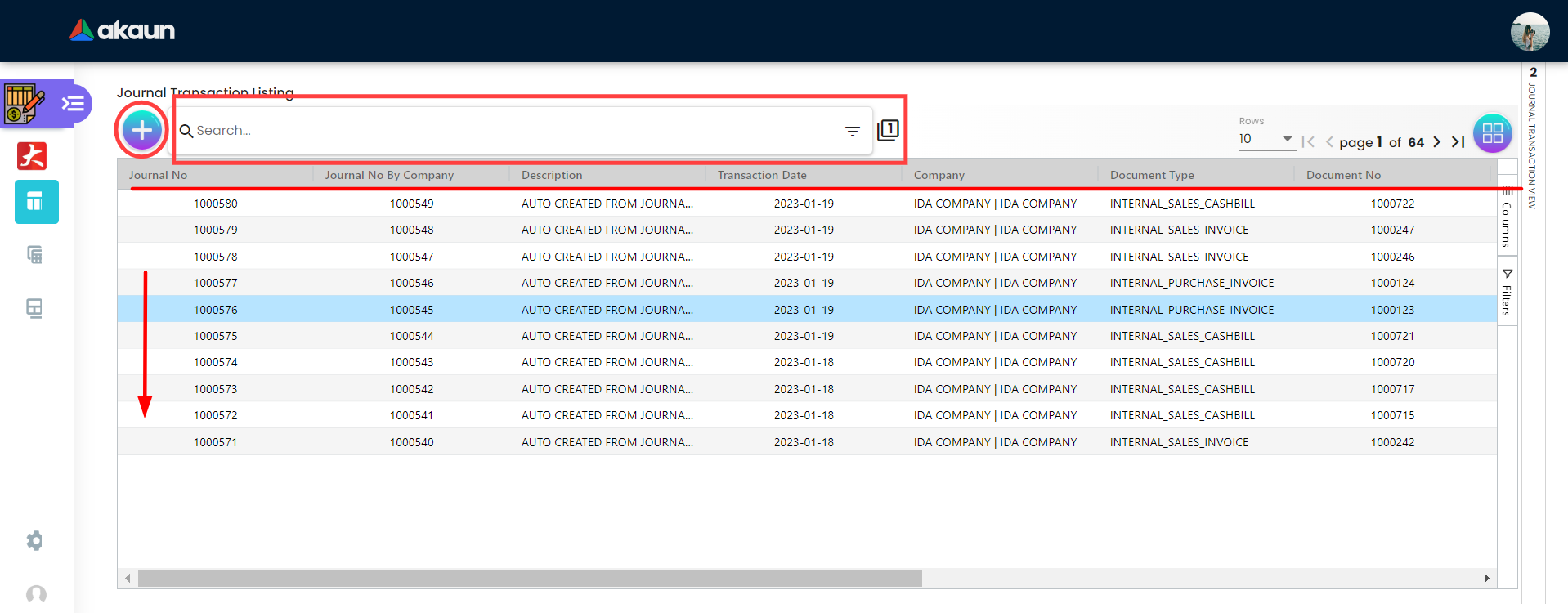
Listing columns: Journal No (tenant running number), Journal No By Company (company running number), Running No. (built by the screen as company code − year and month − the tenant Journal No, for example GS-2603-104512; it is not the company running number), Document Type and Document No (the source document — INTERNAL_SALES_INVOICE, INTERNAL_PAYMENT_VOUCHER …), Branch, Entity, Status, Posting.
AUTO journals are written by other applets when a document reaches FINAL; the journal screen keeps them read-only unless ALLOW_USER_TO_EDIT_AUTO_POSTED_JOURNAL is on. The setting is read by the screen, not by the server — the screen is where BigLedger enforces it, so a journal written through the API is not held to it (Who May Change the Books, Step 1). MANUAL journals are keyed or imported here and can be edited while balanced. Saving an edited AUTO journal turns it into a manual one: UPDATE clears its automatic marker, so the listing then shows it as MANUAL, gives it a tick box, and its VOID button can remove it.POSTED (and its record status ACTIVE), draws both running numbers, and the balances move at once. The lines go to the ledger exactly as you keyed them — no company default GL code is read and no background posting job runs, unlike a document’s FINAL.Create Journal Transaction opens a two-part form:
Two captures that sat here were withdrawn: both carried a tenant’s own registered company legal name — one on every row of the journal listing, one in the Company field of the create form. Recaptures from a synthetic demo tenant will replace them.
- Main — Company, Ledger, Currency, Transaction Date, Reference Number, Description, Server Doc Type / Server Doc No (filled automatically for
AUTOjournals; on a manual journal, clicking Server Doc No opens a document picker that links your journal to that document — see the caution under Error Checking). - Lines — one row per account affected: Branch, GL Code, Cashbook (optional), Entity (optional), Amount Debit or Amount Credit, Description, and on the Categories sub-tab Segment, Dimension, Project and Profit Center.
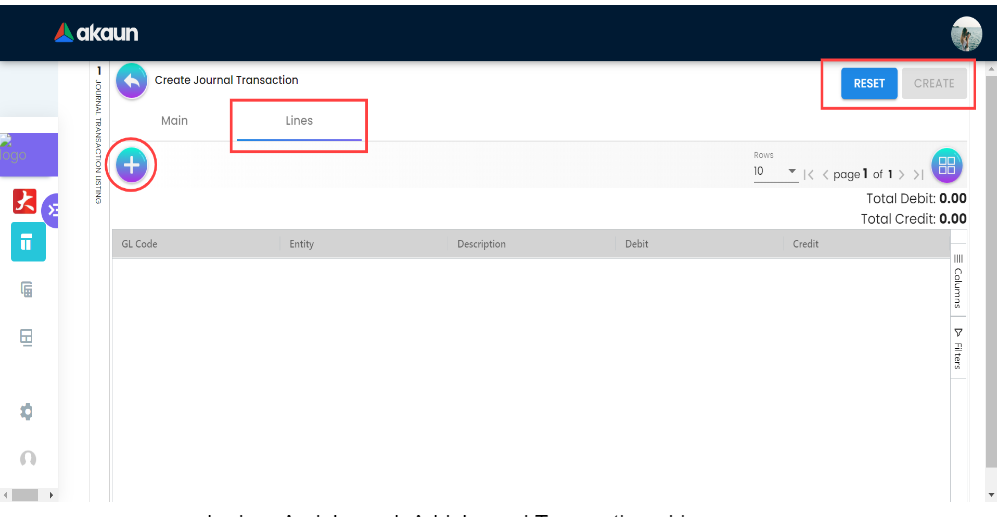
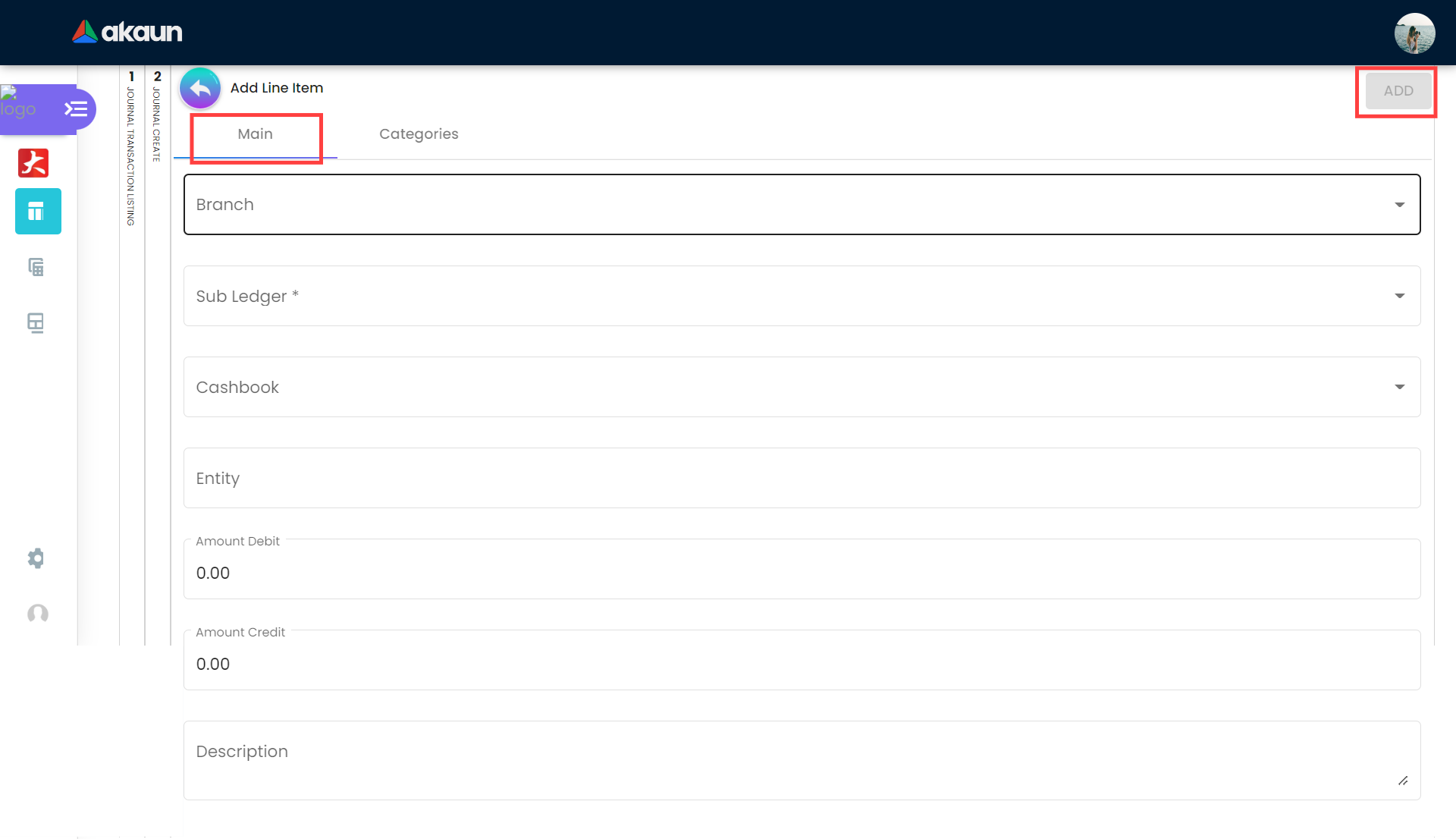
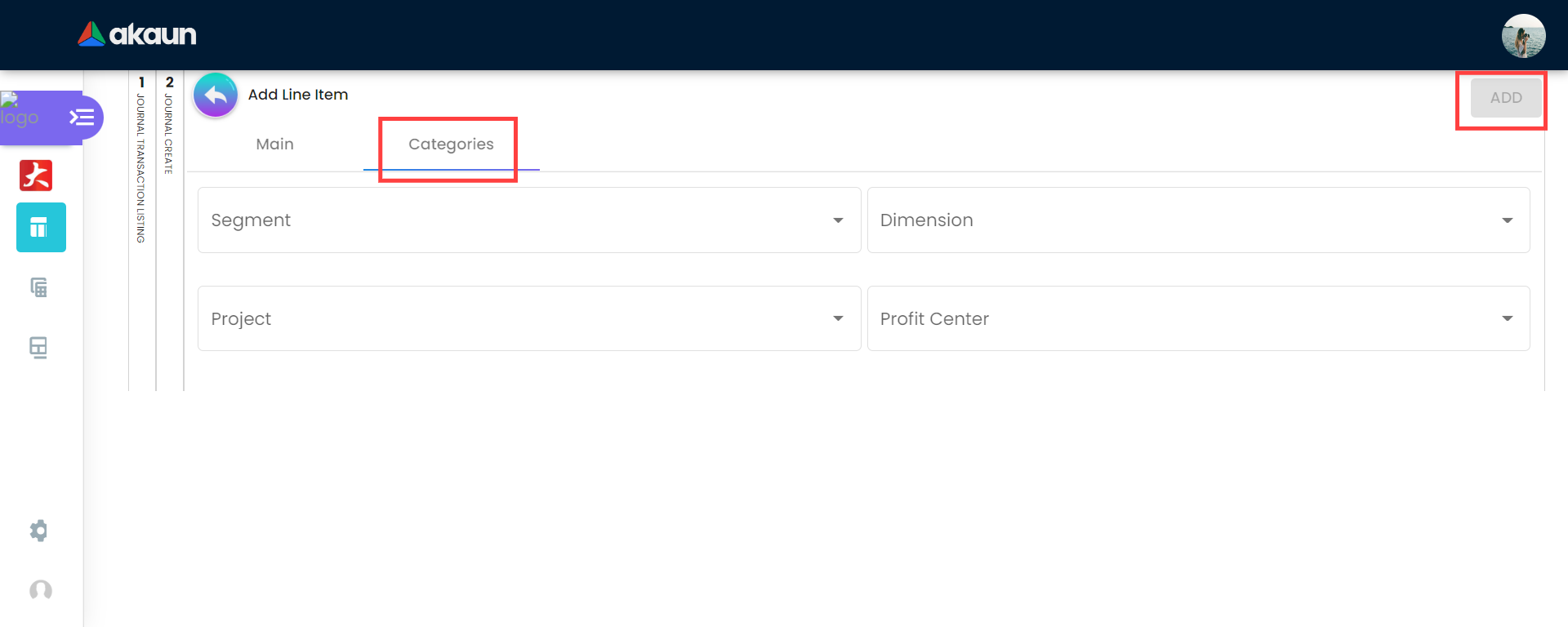
The Create button stays disabled until Company, Currency, Ledger and Transaction Date are filled, at least one line exists, total debits equal total credits, and the total is not zero — hovering the button lists which condition is unmet.
View Journal Transaction shows Main, Line Items and Export tabs. Actions: CLONE (creates and saves a copy at once; there is no draft, so the copy is in the ledger before you open it. Change its date and amounts straight away. It is the usual way to reverse or repeat an entry; swap the debit and credit amounts to reverse) UPDATE (saves your edits to a manual journal in place; greyed out until debits equal credits) and, on the listing, a VOID button for the ticked manual journals — despite the label, a soft delete rather than a reversal (see Lifecycle and effects).
Sub Ledger
Screenshot withdrawn; a recapture from a demo tenant is on the list.
A sub-ledger is the account-level record under a GL code: one per customer, supplier, cashbook, fixed asset, expense account and so on. The listing shows Name, GL Code, GL Section, GL Category and Account No; the view has two tabs: Main (only Description and Remarks are editable — Company, Ledger, Name and GL Code are fixed once created) and Journal Lines (every posted line hitting this sub-ledger, with the balance brought-down and carried-down rows; lines from voided documents are always left out). Ticking several sub-ledgers on the listing opens a multi-view with Details, Details 2 — which replaces the brought-down and carried-down rows with one Opening Balance As At row — and Count.
Two captures that sat here were withdrawn: one carried a tenant’s registered company legal name in the Company field, the other a tenant identifier beside a year of that tenant’s month-end balances. Recaptures from a synthetic demo tenant will replace them.
Sub-ledgers are created automatically: automatic posting and manual journal creation both create a sub-ledger for a GL code (or for a cashbook) if none exists yet in that company and ledger. If a sub-ledger is mapped to the wrong GL code and already has transactions, create a new one under the right code and transfer the balance by journal.
Ledger
Two captures that sat here were withdrawn: one repeated a tenant’s registered company legal name on every row, the other carried a tenant identifier in the sidebar beside a ledger named after the same tenant. Recaptures from a synthetic demo tenant will replace them.
A ledger is a book of accounts for a company: PRM (Primary — statutory reporting in base currency), SEC (Secondary — an alternative view such as another currency or standard) or CONSOLIDATED. Fields: Ledger Code, Ledger Name, Currency, Ledger Type. The primary ledger is protected; only secondary ledgers can be deleted. A company must have a primary ledger before any journal — automatic or manual — can be created; the backend refuses otherwise. You do not create it here: the Ledger screen has no create button, and BigLedger creates the primary ledger (code and name PRIMARY) at the moment the company itself is created in the Organisation applet.
Import Journal
Download the sample MasterData_Upload_Ledger_&_Journal.csv, fill one row per journal line and upload it; the listing shows each file’s Process Status (VALIDATING_DATA, DONE, FAILED). Columns: COMPANY_CODE, HDR_BRANCH_CODE, LEDGER_CODE, REFERENCE_NUMBER, CURRENCY_CODE, HDR_DESCRIPTION, DATE_TXN, LINE_BRANCH_CODE, LINE_GL_CODE, LINE_CASHBOOK_CODE, LINE_ENTITY_CODE, LINE_AMOUNT_DEBIT, LINE_AMOUNT_CREDIT, LINE_DESCRIPTION. Rows that share the same reference number, company and transaction date form one journal — the other header columns (branch, ledger, currency, description) are taken from the first row of the group, so two rows with the same reference and date but different header branches still become one journal. Each journal must balance. A single row with a bad code fails the whole file before any journal is written; once the rows pass, a journal group the server refuses is skipped while the others post, and the file ends FAILED — so a FAILED file may have posted most of its journals. Check the listing before re-uploading, or you will post the good ones twice. Imported journals post at once, like keyed ones, and the listing shows them as MANUAL — but the listing’s Type search finds them under neither MANUAL nor AUTO, so leave Type empty (or tick both) when you look for them.
Error Checking
| Tab | What it finds | Filters |
|---|---|---|
| Journal Not Balance | Journals whose stored debit total differs from their stored credit total. It compares the two header totals, not the sum of the lines, so a journal whose lines stopped balancing after a line delete is not listed | Date From / Date To |
| Missing Journal | FINAL documents of a chosen Server Doc Type, with a non-zero amount, that have never been marked as posted to the journal. A document whose journal you removed with VOID here still counts as posted, so it never appears — and a foreign-currency document is refused by Create. Create rebuilds the journal from the document as it stands today (see the caution below) | Date From / Date To, Server Doc Type |
| Missing Journal Forex Gain Loss | Contra (knock-off) records of payment and receipt vouchers only, in a foreign currency, with no exchange gain/loss journal — other document types are not checked | Date range |
| Update Journal Remarks | Journals whose line descriptions differ from the source document’s Remarks. UPDATE writes that one Remarks text into every line’s description, replacing per-line text; the reference is not used | Date range, doc type |
| Missing Credit Card Charge | Card settlements whose bank-charge journal is absent | Date range |
A month-end journal on Journal Not Balance is a real imbalance
It is not the close at work. Month End Processing writes, in one request, the cost-of-goods-sold journal where the company has its defaults, then AUTO CREATED FROM RETAINED EARNINGS PROCESSING, which moves the month’s profit or loss to retained earnings, and only then the pair described AUTO CREATED FROM MONTH END PROCESSING. So each half of the pair balances on its own:
- The closing journal, on the last day of the month, carries every account’s balance down. It mirrors the ledger, so it nets to zero when every journal in the month does and every GL code belongs to a report section.
- The opening journal, on the 1st of the next month, carries only the balance-sheet accounts forward. It nets to zero because the month’s result already sits on retained earnings.
Since July 2026 every journal must balance when saved, month-end journals included, so a close that would write an unbalanced one is refused while the screen still reports success. A month-end journal listed here comes from an older close, or is rounding.
The check, and it takes a minute. Note the journal’s date and the size of the difference:
- Under one ringgit — rounding between a journal’s stored totals and its lines, or the fraction of a sen the balance check allows. Harmless, and nothing on the screen will let you correct it.
- One ringgit or more — a close from before the check. An opening journal out by about that
month’s profit or loss means no retained-earnings journal was written: the company had no
PROFIT_LOSSorRETAINED_EARNINGdefault GL code. A closing journal out by another amount means a journal in the month did not balance, or a GL code had no report section. Raise it with support before you post anything: a manual correction to a month-end journal is carried down again next close, and re-processing that month refuses any half that still does not balance.
Configuration
Before you can use it
| Prerequisite | Where | Why |
|---|---|---|
Company with a primary (PRM) ledger | Created automatically with the company in Organisation Applet — this applet’s Ledger screen cannot create one | Journal creation looks up the company’s PRM ledger and fails when there is none |
| GL codes, sections and categories | Chart of Account Applet | Every line needs a GL code; the section/category decide where the balance appears on reports |
| Company default GL codes | Chart of Account applet (company GL-code links: DEBTOR, CREDITOR, SALES, PURCHASE, INPUT_TAX, OUTPUT_TAX, …) | Automatic posting from documents needs them; missing ones surface as MISSING_DEFAULT_GL_CODE on the source document, and the document then shows up in Missing Journal |
| Cashbooks | Cashbook Applet | A journal line can carry a cashbook as a tag. The tag is stored on the journal line and nowhere else: a manual journal creates no cashbook transaction line, and Bank Reconciliation reads cashbook transaction lines. Bank charges and interest you want to reconcile go in as a voucher or a cash transfer |
| Branches | Organisation Applet | Header and line branch. The header’s branch list is limited to the chosen company; the line’s branch list shows every branch of the company without checking the user’s branch permissions |
| Permissions | Settings > Permission Set / User / Team / Role Permission | Journal read, create, update and delete permissions are granted here |
Applet settings
Settings (gear icon) → System Configuration: Application Settings, Default Selection, Printable Format Settings, plus Webhook, Feature Visibility, the permission screens, Release Notes and Applet Log. Personalization holds a per-user Default Selection and Sidebar.
Application Settings
| Setting | What it controls | Default |
|---|---|---|
ALLOW_USER_TO_EDIT_AUTO_POSTED_JOURNAL | Lets users edit lines of AUTO journals (those written by other applets). Off: the screen keeps auto journals read-only (the server does not read this setting); edit them by correcting the source document | Off |
DISPLAY_JOURNAL_TRANSACTION_RUNNING_NUMBER (label DISPLAY RUNNING NUMBER) | Governs the listing’s Running No. column — in reverse: on hides it, off shows it. It does not touch Journal No By Company, which always shows | Off (column shown) |
Default Selection
The applet-wide screen offers company, ledger and currency only — there is no default branch here, and nothing on a new journal’s header is ever pre-filled with a branch. A journal line’s branch picker does fill itself from a personal default branch when the line has none, but this applet’s own Personalisation → Default Selection screen, which shows a Default Branch picker, neither loads nor stores what you pick. In practice every line starts without a branch, and the header’s branch is not copied down to the lines — pick it on each line.
| Setting | What it controls |
|---|---|
Default Company (DEFAULT_COMPANY) | Company pre-selected on a new journal |
Default Ledger (DEFAULT_LEDGER) | Ledger pre-selected on a new journal |
Default Currency (DEFAULT_CURRENCY) | Currency pre-selected on a new journal |
Printable Format Settings
Create a format (Format Code, Format Name) for the journal voucher printout used by the Export tab and batch print. PRINTABLE stores the default.
Document behaviour settings
Not configurable in this applet beyond the two Application Settings above: there is no approval workflow and no posting-status flow on manual journals. The period lock is not set here either — it is the fiscal period status in Chart of Account: creating a manual journal dated into a LOCK_GL or LOCK_ALL period is refused, while AUTO journals still post. The check covers create only. Clone creates its copy in the locked month; an edit can move an existing journal’s date into one; and VOID on the listing, deleting a line in View, Import Journal and Missing Journal’s Create all change a locked month without being stopped. Locking a period here therefore protects it from new keyed journals, not from these — if a closed month’s balances moved, look for one of them first.
Feature visibility / permissions
| Permission | Effect |
|---|---|
ALLOW_USER_TO_EDIT_AUTO_POSTED_JOURNAL | Registered for this applet, but nothing on the screen reads it — granting it changes nothing. Only the applet setting of the same name lets users edit AUTO journals |
DISPLAY_JOURNAL_TRANSACTION_RUNNING_NUMBER | Read by the listing — a holder sees the Running No. column whatever the setting says — but it is not registered for this applet, so the permission screens do not offer it |
Server-side access is through the journal API permissions targeted by company and branch, managed in the permission screens under Settings.
Fields
Journal — Main
| Field | Meaning | Required | Notes |
|---|---|---|---|
| Company | Owning company | Yes | Decides the ledger list and running numbers |
| Ledger | Book the journal posts to | Yes | Defaults to the company’s primary ledger |
| Currency | Journal currency | Yes | |
| Transaction Date | Posting date | Yes | Starts at today. It decides the fiscal period, and the lock on that period is checked only when the journal is created — see Document behaviour settings for how an edit or a Clone lands in a locked month |
| Reference Number | Free text reference | No | Nothing checks it for duplicates. It is one of the columns the listing’s search box looks in (with the source document number, Journal No, description and who created or last changed the journal), so a consistent pattern — a voucher number, a period tag — is how you find a manual journal again. Searches need three characters or more |
| Description | Journal narrative | No | Also shown as the sub-ledger line description |
| Server Doc Type / Server Doc No | Source document | No | Filled by the system on AUTO journals. On a manual journal, clicking Server Doc No opens a document picker and links your journal to the document you choose — useful for tying an accrual to its invoice, but that document’s Missing Journal Create would then delete your journal |
| Journal No / Journal No By Company | Running numbers | Generated | Both are drawn when the journal is created, and the journal is posted in the same moment — there is no draft. Journal No is one sequence for the whole tenant, shared with journals other parts of the system create the same way (cash transfers, depreciation runs, imports, the journal posting job), so your manual journals are not consecutive in it. Journal No By Company runs separately for each company — the number to quote when an auditor asks about one entity. It is always a listing column; the Display Running Number setting governs a different column, Running No. |
Journal — Line
| Field | Meaning | Required | Notes |
|---|---|---|---|
| Branch | Branch the line belongs to | No — but every per-branch report drops a branchless line | Nothing enforces it: the line form requires only the GL code (ADD is disabled only while the form is invalid), and the backend checks the sub-ledger and GL code, never the branch |
| GL Code | Account debited or credited | Yes | A search over the company’s chart; a code that does not exist cannot be typed in, so a typo never creates a new account. A sub-ledger is created under it if none exists |
| Cashbook | Cashbook the line represents | No | A label on the journal line. It does not put the line into Bank Reconciliation, which reads cashbook transaction lines that vouchers, POS settlements and cash transfers create |
| Entity | Customer, supplier or employee | No | The per-customer / per-supplier sub-ledger report finds journal lines by this field. A line to the debtor or creditor account with no entity moves the account’s balance but appears on nobody’s sub-ledger, and nothing on the form or the server asks for one |
| Amount Debit / Amount Credit | One of the two | Yes | Both default to 0; fill exactly one |
Each line’s Description and its four reporting categories (Segment, Dimension, Project and Profit Center, on the Categories sub-tab) are optional and stored exactly as entered; the Add Line form copies none of them from the header, so a header description does not become the line’s.
Ledger
Ledger Code, Ledger Name, Currency, Ledger Type (PRM / SEC / CONSOLIDATED); type and code are fixed after creation for the primary ledger.
Sub Ledger
Name, GL Code, Company, Ledger (fixed); Description, Remarks (editable).
Lifecycle and effects
Journals are not documents with a DRAFT/FINAL flow. What happens is:
| Event | Effect |
|---|---|
| Create (manual) | Validated — balanced (Journal not balanced: debit X != credit Y), every line with a GL code; the non-zero rule is the screen’s (the Create button) — then written in one step with record status ACTIVE and posting status POSTED, running numbers assigned, sub-ledgers created as needed. No company default GL code is read and no posting job runs: the lines are the posting. The balances are live immediately. |
| Update (manual, or auto with the setting on) | Same validation; soft-deleted lines are ignored in the balance check. An AUTO journal saved this way becomes manual (its automatic marker is cleared) |
| Delete a line in View (press twice) | The line is soft-deleted on the server at once — before UPDATE, with no balance check and the stored totals unchanged |
| VOID on the listing (press twice — the second press reads CLICK AGAIN TO CONFIRM) | Despite the label, not a document void: it soft-deletes the journal header and its lines (status DELETED). No reversing journal is created — to reverse an entry that must stay on record, clone it and swap the amounts. |
| Clone | Copies header and lines into a new, already-posted journal with new numbers. The copy does not keep the Reference Number, the automatic marker or the link to a source document — a clone of an AUTO journal is a manual journal |
| Document FINAL elsewhere | BigLedger builds the lines from the document type’s posting rules (for example a purchase invoice: Dr PURCHASE / INPUT_TAX, Cr CREDITOR) and creates an AUTO journal; VOID of the document creates the reversing journal |
| Re-post (Missing Journal tab) | Permanently deletes every journal still linked to the document, then rebuilds one from the document as it stands and the company default GL codes, and marks the document as posted. The delete stands even if the rebuild is refused — see the caution under Error Checking |
Balances shown in the Ledger, Sub Ledger and Financial Report applets are derived from ACTIVE journal lines; month-end processing adds a closing-day (CD) and an opening-day (BD) journal per ledger — and, on every Create and PROCESS, a COGS journal when the company has COGS and STOCK_BALANCE defaults and a RETAINED_EARNINGS journal when it has PROFIT_LOSS and RETAINED_EARNING — and writes the monthly per-account summaries the Financial Report reads.
Related applets
- Chart of Account Applet — defines the GL codes and the default GL mappings automatic posting depends on.
- Financial Report — reports on the balances this applet holds, by Set of Books and ledger.
- Organisation Applet — companies, branches and the primary ledger.
- Cashbook Applet and Bank Reconciliation — cashbooks, and the reconciliation of the cashbook transaction lines that vouchers and cash transfers create (a manual journal creates none).
- Purchase Invoice (Internal), Sales Invoice (Internal), Receipt Voucher (Internal), Payment Voucher (Internal) — the main sources of
AUTOjournals. - Fixed Asset — writes acquisition, adjustment and disposal journals directly from its Transactions tab; its depreciation run writes nothing from the screens you are served (RUN does nothing, checked 2026-10-07), and in a newer build, not yet served, it writes
AUTOjournal headers that carry no lines, so depreciation is posted as a manual journal here.
Troubleshooting
| Symptom | Cause | Fix |
|---|---|---|
A line is missing from a per-branch ledger or financial report although the journal is ACTIVE | The line was saved with no Branch — the form does not require one and the backend never checks the branch | Edit the journal and set the branch on the line; treat Branch as mandatory in your own procedure |
| Create button stays disabled although the form looks complete | Debits and credits differ (rounding), total is zero, a line has no GL code, or a header field is empty | Hover the button — the tooltip lists the unmet condition |
| Create refused for want of a primary ledger | The company has no PRM ledger — it is normally created with the company, so this points at a company created some other way | This applet cannot create one; ask support to add the company’s primary ledger |
| Journal creation fails: Journal not balanced: debit X != credit Y | Server-side balance check | Correct the line amounts |
| Clone or update fails on an old journal | A line has a null debit or credit amount (legacy data) | Set the null side to 0 on that line, then retry |
| Cannot change the entity on a journal | Auto journals are read-only unless ALLOW_USER_TO_EDIT_AUTO_POSTED_JOURNAL; correct the source document instead | Enable the setting for the accountant, or fix the document and re-post |
| Header branch dropdown missing branches | The header list shows only the chosen company’s branches | Pick the company first; a line’s own branch list shows every branch of the company |
| A FINAL document has no journal | The posting job that runs after FINAL failed (typically a missing default GL code); FINAL itself does not check GL codes | Fix the mapping, then re-post from Error Checking > Missing Journal |
| Same document appears twice in the journal, or a foreign-currency document is posted twice | Both the foreign-currency document and its base-currency shadow were posted (defect under investigation) | Report the pair; delete the duplicate AUTO journal only on instruction |
| Sub Ledger listing empty for a GL code that has transactions | The GL code’s sub-ledger belongs to a different ledger/company, or the listing filter excludes it | Search by GL code with the advanced search; check the ledger selected |
| “bd” / “cd” rows in a sub-ledger | Balance brought down / carried down for the period | Informational. For a single Opening Balance As At row instead, tick the sub-ledgers on the listing and use the multi-view’s Details 2 |
| A journal’s lines no longer balance, yet Journal Not Balance is empty | A line was deleted in View and UPDATE was never pressed; the tab compares the stored totals, which a line delete leaves untouched | Open the journal, add the missing line and press UPDATE |
| Turning Display Running Number on made the Running No. column disappear | The setting works in reverse | Turn it off to show the column |
| A document whose journal was removed with VOID here is not on Missing Journal | The document is still marked as posted, so the tab never lists it and its Create would refuse it | Key a manual journal for the entries, or ask support; do not VOID an automatic journal you expect to rebuild |
| Missing Journal Create leaves a row blank | The rebuilt journal was refused; the old one, if any, is already deleted | Check the document’s Trace Document tab, fix the default GL code and press Create again |
| Imported journals not reflected in monthly closing | Import processed after month-end ran, or rows failed validation (FAILED) | Check the import status; re-run month-end for the period, then confirm each ledger has its closing and opening journals for it, because a close that fails still reports success (Financial Report, the failed-close warning under Creating (or re-processing) a Month End Processing record) |
| Update Journal Remarks shows nothing for a document | The document’s journal does not exist | Re-create it from Missing Journal first |
| Void of a payment voucher not visible here | The reversal is a separate journal carrying the original transaction date — only its posting date is the void moment — so look in the original month, not this one. If it is absent there, the void did not complete | Filter the listing on the original document’s month; check the document’s Trace Document tab; report if there is no reversal. And re-run month-end for that month, because voiding in March moves January (What a void undoes) |