Tax Configuration Applet
Purpose and Overview
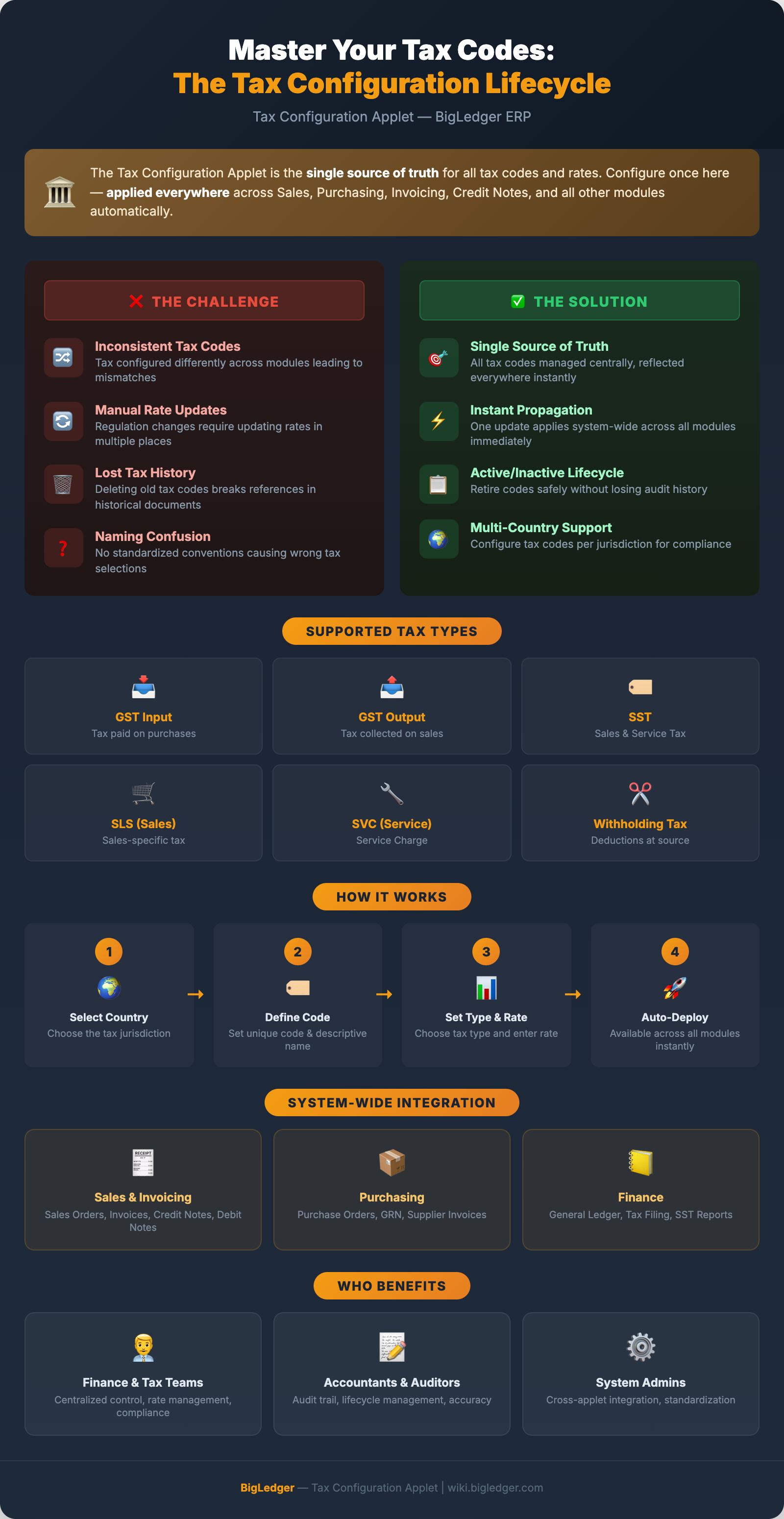
The Tax Configuration Applet is the centralized master configuration tool for managing all tax codes and their corresponding rates across the entire system. It allows users to define tax parameters that are automatically applied across all other applets wherever tax selection is required.
This applet serves as the single source of truth for taxation — any tax code created, updated, activated, or deactivated here will immediately reflect in Tax Selection dropdowns and Tax Tabs across all relevant modules.
Key Features Overview
Who Benefits from This Applet?
Finance & Tax Teams:
- Centralized Control: Manage all tax codes from a single applet instead of configuring taxes per module
- Rate Management: Update tax rates in one place and have changes reflected across the entire system
- Compliance: Maintain accurate tax configurations aligned with regulatory requirements (GST, SST, Withholding Tax)
Accountants & Auditors:
- Audit Trail: Track all tax code changes with full history
- Lifecycle Management: Deactivate obsolete tax codes without losing historical data
- Accuracy: Ensure consistent tax application across all financial documents
System Administrators:
- Cross-Applet Integration: Tax codes automatically appear in all relevant modules
- Multi-Country Support: Configure tax codes for different countries and jurisdictions
- Standardization: Enforce consistent tax naming conventions across departments
What Problems Does This Solve?
The Decentralized Tax Configuration Problem:
Without a centralized tax configuration tool, organizations face:
- Tax codes configured differently across modules leading to inconsistencies
- Difficulty tracking which tax rates are active and which are obsolete
- Manual rate updates required in multiple places when regulations change
- No standardized naming conventions causing confusion during tax selection
The Tax Configuration Applet Solution:
- Single Source of Truth — All tax codes managed in one place, reflected everywhere
- Multi-Type Support — GST, SST, Sales Tax, Service Charge, and Withholding Tax all in one applet
- Active/Inactive Lifecycle — Safely retire tax codes without deleting historical data
- Auto-Integration — New tax codes instantly available across all system modules
- Country-Based Configuration — Tax codes linked to specific countries for multi-jurisdiction compliance
Key Features Inventory
Key Concepts
Understanding Tax Types
The applet supports multiple tax categories, each serving a specific purpose:
| Tax Type | Purpose | Direction |
|---|---|---|
| GST Input | Goods and Services Tax paid on purchases | Inbound (Purchase) |
| GST Output | Goods and Services Tax collected on sales | Outbound (Sales) |
| SST | Sales and Service Tax | Both |
| SLS (Sales) | Sales-specific tax | Outbound (Sales) |
| SVC (Service Charge) | Service Charge applied to transactions | Outbound (Sales) |
| Withholding Tax Input | Tax deductions at source on payments received | Inbound (Purchase) |
| Withholding Tax Output | Tax deductions at source on payments made | Outbound (Sales) |
Tax Code Structure
Each tax code consists of:
| Component | Description | Example |
|---|---|---|
| Country | The jurisdiction the tax applies to | Malaysia, Singapore |
| Tax Code | Unique identifier for the tax | SR-6, SR-8, ZRL |
| Name | Full descriptive name | Service Tax 6%, Sales Tax 8% |
| Tax Type | Category of tax (GST, SST, etc.) | SST, GST Output |
| Rate | The percentage rate applied | 6%, 8%, 10% |
| Status | Active or Inactive | Active |
Cross-Applet Integration
This applet functions as the master tax configuration module. Once a tax code is created and saved:
- It automatically appears in the Tax Selection dropdowns across the system
- It becomes available in the Tax Tab of all relevant applets
- Any updates to the tax code or rate are immediately reflected system-wide
Quick Start Guide
Step 1: Open the Tax Configuration Applet
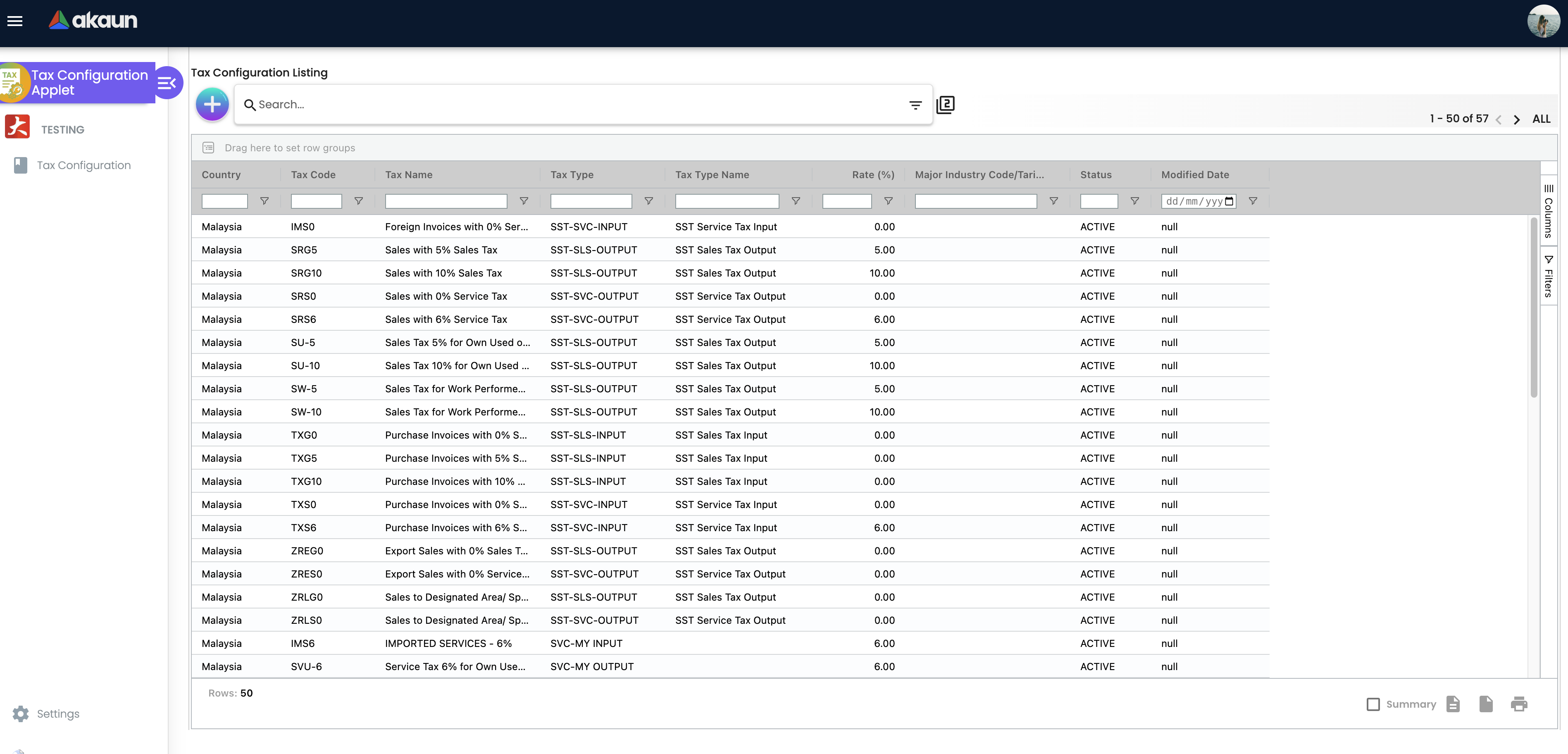
Navigate to the Tax Configuration Applet from the Finance module. The listing screen displays all existing tax codes.
Step 2: Create a New Tax Code
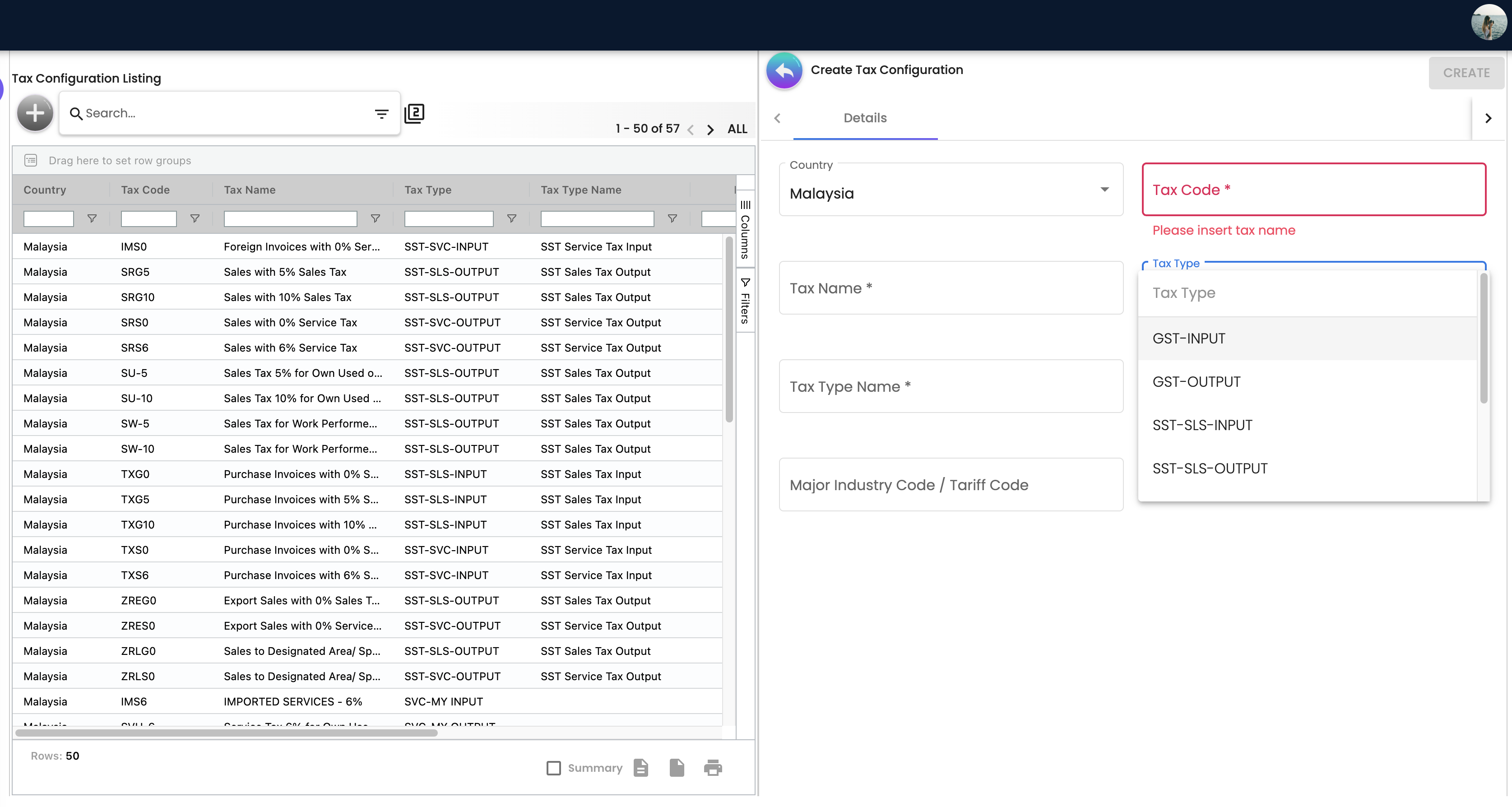
- Click the Create (+) button
- Select the relevant Country from the selection menu
- Enter a unique Tax Code identifier
- Enter a descriptive Name (use full descriptive names for clarity)
Step 3: Configure Tax Type and Rate
- Select the appropriate Tax Type (GST Input/Output, SST, SLS, SVC, Withholding Tax)
- The rate field will auto-populate or become available based on the selected type
- Manually input the specific Tax Rate percentage
- Verify the rate before saving
Step 4: Save
Click Create to finalize the new tax entry. The tax code will immediately be available across all system modules.
Feature Deep Dive
Tax Code Creation
When creating a new tax code, the following fields must be configured:
| Field | Required | Description |
|---|---|---|
| Country | Yes | The jurisdiction/country the tax applies to |
| Tax Code | Yes | Unique identifier (e.g. SR-6, ZRL) |
| Name | Yes | Full descriptive name (e.g. Service Tax 6%) |
| Tax Type | Yes | Category: GST, SST, SLS, SVC, or Withholding Tax |
| Rate | Yes | Tax percentage rate |
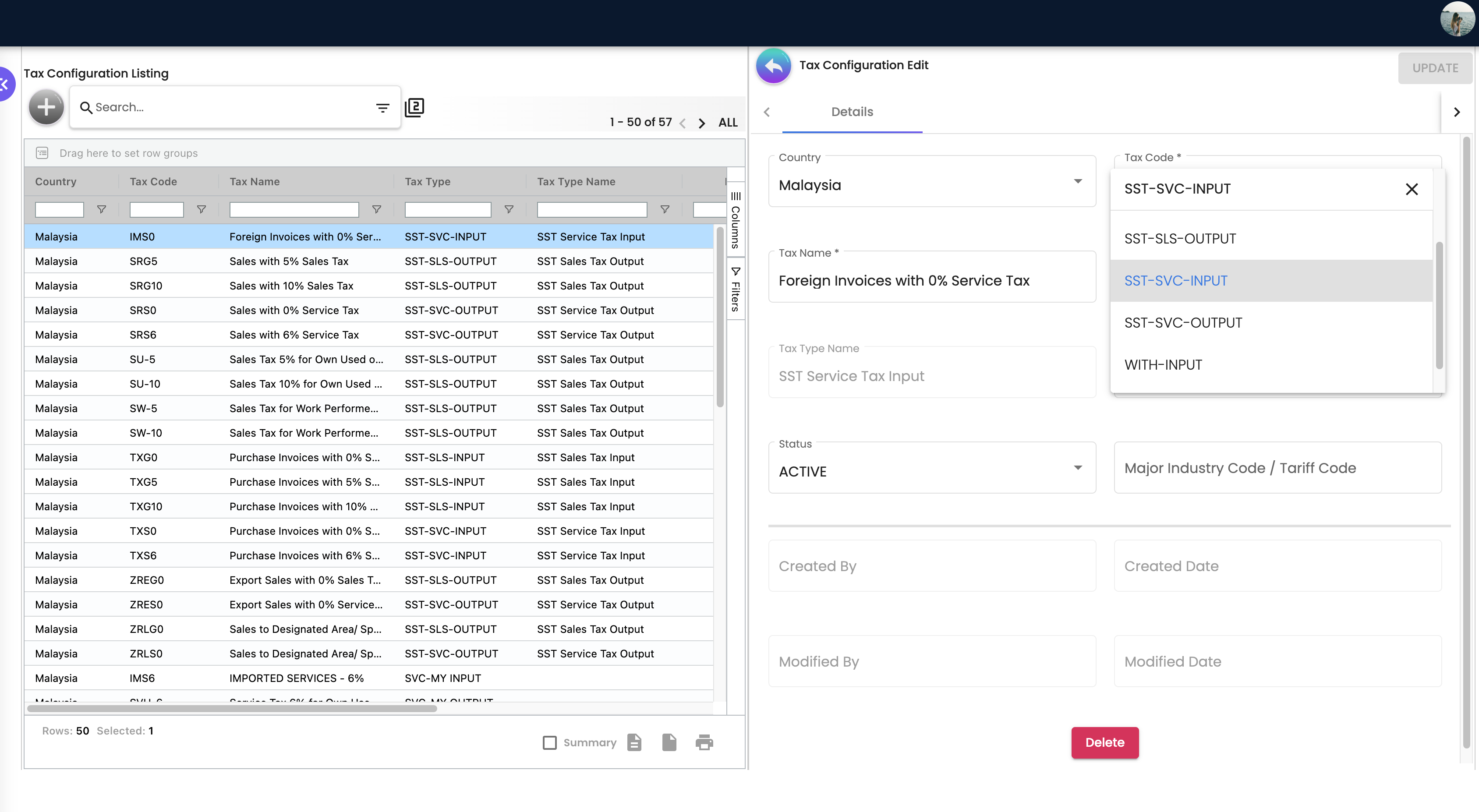
Editing and Updating Tax Codes
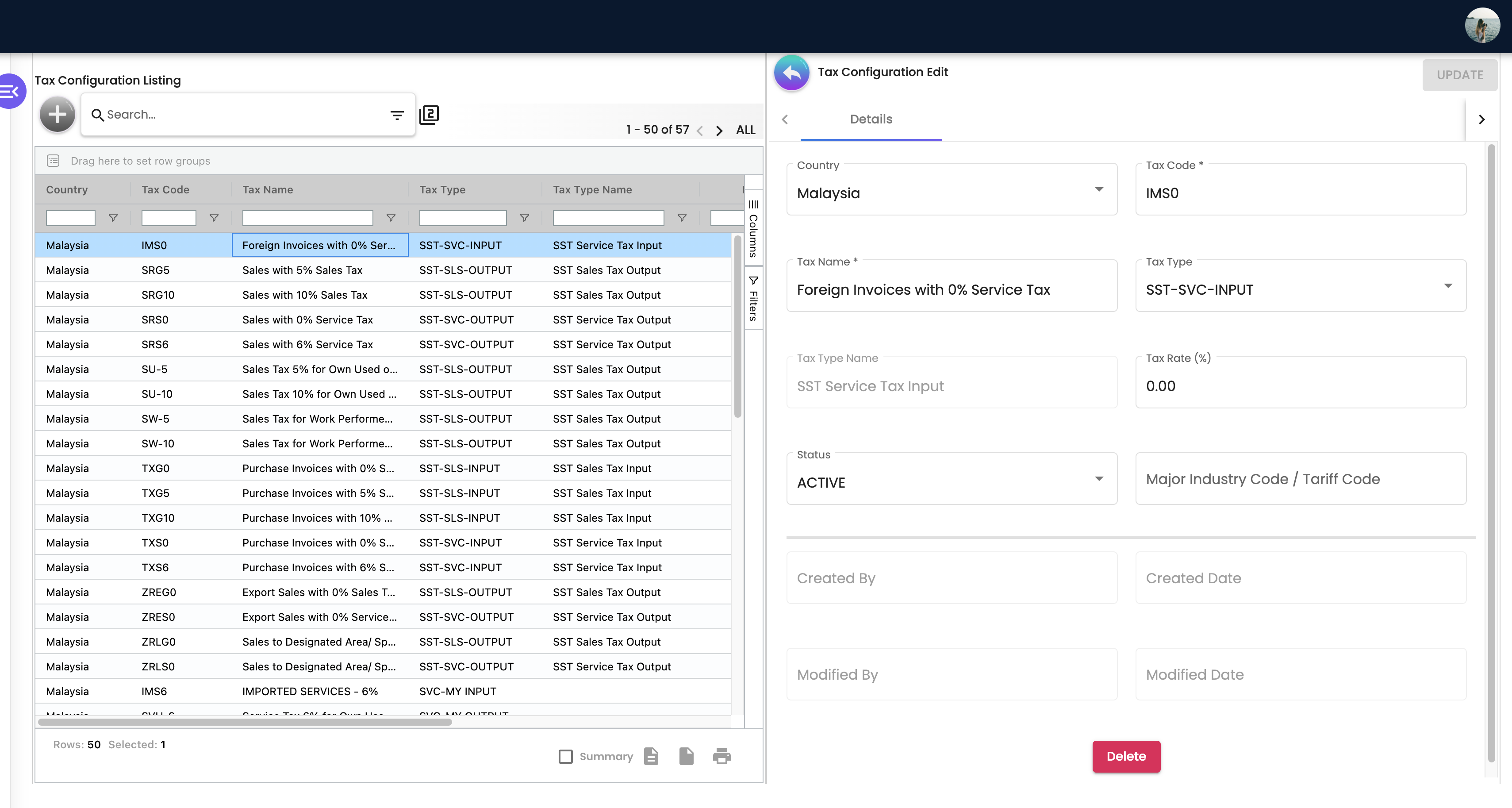
To modify an existing tax entry:
- Click into the specific tax code from the listing screen
- Update the required fields — Tax Type, Tax Rate, Name, or other details
- Click Save to apply changes
Changes are immediately reflected across all modules that reference this tax code.
Rate Configuration
After selecting a Tax Type:
- Certain fields may auto-populate or dynamically appear based on the selected type
- You must manually enter the correct numerical rate
- Always verify the rate before saving
Lifecycle Management
Tax codes follow an Active/Inactive lifecycle rather than deletion:
| Status | Behavior |
|---|---|
| Active | Available for selection in all modules, applied to new transactions |
| Inactive | Hidden from selection dropdowns, preserves historical data |
Why use Inactive instead of deleting?
- Preserves historical transaction data — Past documents retain their tax references
- Prevents selection in new transactions — Users cannot accidentally apply obsolete rates
- Maintains audit integrity — Complete history of all tax codes is preserved for compliance
To deactivate a tax code:
- Open the tax code record
- Change the status from Active to Inactive
- Save the changes
Configuration & Settings
Application Settings (Settings > Application Settings)
| Setting | Description |
|---|---|
| Field Visibility | Configure which fields are visible and mandatory during tax code creation and editing |
| Default Country | Set a default country pre-filled when creating new tax codes |
| Tax Code Format | Define naming conventions or format rules for tax code identifiers |
Personalization (Personalization > Default Selection)
| Setting | Description |
|---|---|
| Default View | Configure the default listing view and sort order |
| Default Country | Set your personal default country selection |
FAQ
Q: Can I delete a tax code that is no longer needed? A: No. Instead of deleting, change the tax code status to Inactive. This preserves historical transaction data while preventing the code from being selected in new transactions. Deleting tax codes could break references in existing documents.
Q: If I update a tax rate, does it affect existing transactions? A: No. Existing transactions retain the rate that was applied at the time of creation. The updated rate will only apply to new transactions going forward.
Q: Can I have multiple tax codes for the same tax type? A: Yes. You can create multiple tax codes under the same type with different rates. For example, you might have “Service Tax 6%” and “Service Tax 8%” both under the SST type for different effective periods.
Q: How do I know which tax type to select? A: Select Input types (GST Input, Withholding Tax Input) for purchase/inbound transactions and Output types (GST Output, Withholding Tax Output) for sales/outbound transactions. Use SST, SLS, or SVC based on your country’s tax regulations.
Q: Will a new tax code automatically appear in all modules? A: Yes. Once created and saved with Active status, the tax code immediately appears in Tax Selection dropdowns and Tax Tabs across all relevant applets system-wide.
Applet Reference
Menu Items
| Action | Description |
|---|---|
| Create (+) | Create a new tax code entry |
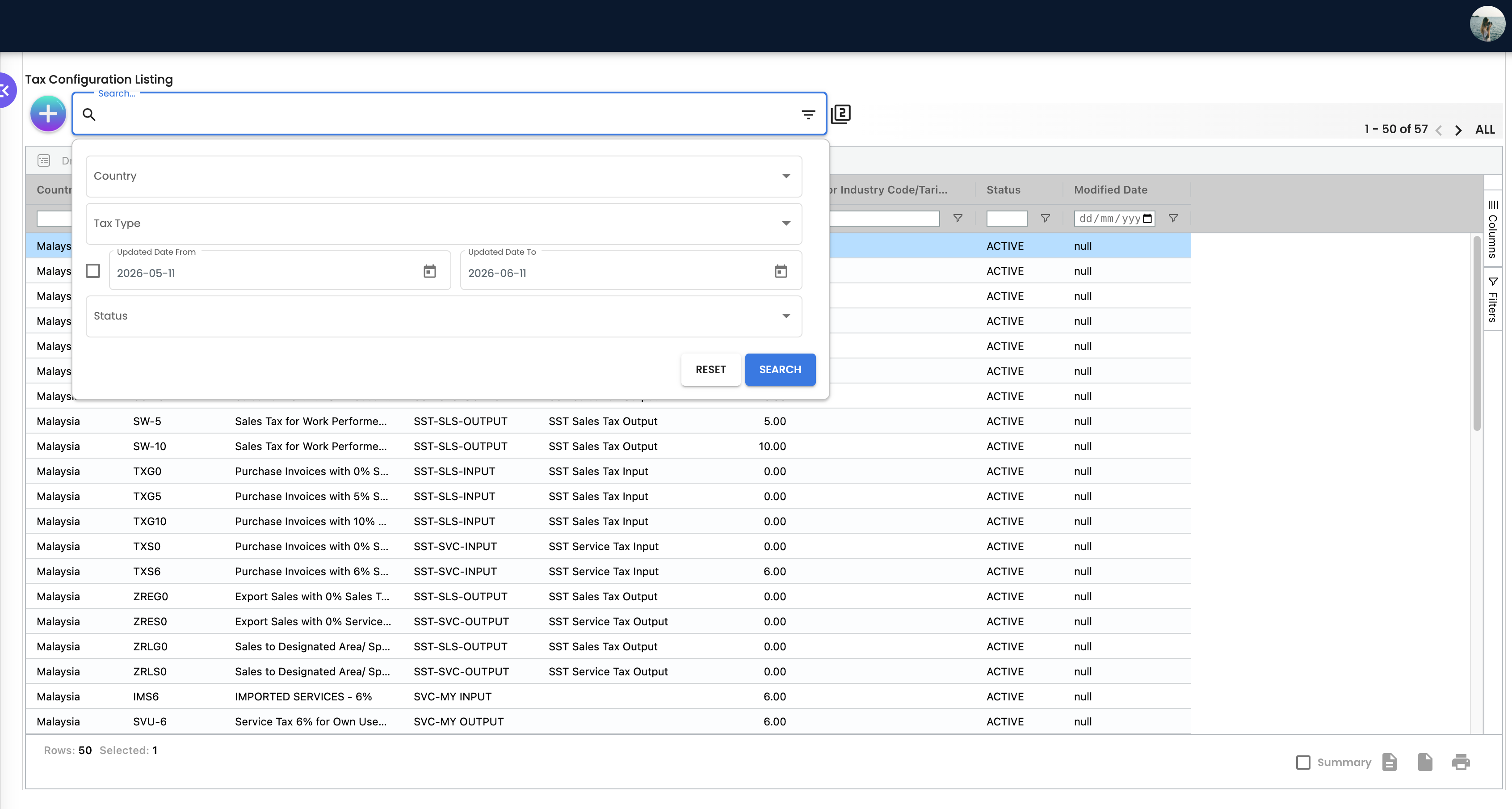
| Search | Search for existing tax codes |
| Filter | Filter by tax type, status, or country |
Settings
| Setting | Location | Description |
|---|---|---|
| Application Settings | Settings > Application Settings | Configure field visibility and mandatory fields on creation/edit forms |
| Default Country | Settings > Application Settings | Set the default country selection |
Personalization
| Setting | Location | Description |
|---|---|---|
| Default View | Personalization > Default Selection | Configure listing view and sort preferences |
| Default Country | Personalization > Default Selection | Personal default country selection |
Summary
The Tax Configuration Applet is the master configuration module for all tax-related settings across the system. Key takeaways:
- Single Source of Truth — All tax codes managed centrally and reflected everywhere
- Multi-Type Support — GST (Input/Output), SST, Sales Tax, Service Charge, and Withholding Tax
- Active/Inactive Lifecycle — Never delete tax codes; deactivate them to preserve history
- Instant Integration — New and updated tax codes immediately available across all modules
- Rate Accuracy — Always verify tax rates before saving, as they impact calculations system-wide