Transaction Reconciliation Applet
Purpose and Overview
The Transaction Reconciliation Applet is a core financial control tool designed to verify that electronic payments in your system perfectly match the external statements from your payment gateways (e.g., iPay88, GoPay). It acts as a specialized auditor, ensuring that every cent recorded by your POS or sales team has actually been received by the merchant provider.
TL;DR: The Core Concept
Think of this applet as a digital “Spot the Difference” game between two lists:
- List A (Your System): What your POS or Sales applet says should have been paid.
- List B (The Bank/Gateway): What the payment gateway actually deposited into your account.
When they match, you are safe. When they don’t, you have a Dispute that needs investigation before you lose revenue.
When is this Applet used?
This applet is essential for businesses processing high volumes of non-cash transactions:
- Daily Payment Verification: Reconciling yesterday’s credit card or e-wallet sales against the gateway’s settlement report to ensure zero “leakage.”
- Gateway Settlement Audits: Verifying that the net funds settled into your bank account match the gross sales minus the gateway’s transaction fees.
- Dispute Investigation: Pinpointing transactions where a customer was charged but no sale was recorded in your POS, or vice versa.
- Hardware/Network Failure Recovery: Detecting missing transactions caused by internet outages during the payment authorization process.
Why is this Important in Accounting?
Reconciliation is the bedrock of financial integrity. This applet supports several critical accounting objectives:
- Valuation & Allocation (Existence): It proves that the “Accounts Receivable - Gateway” on your balance sheet is backed by real, verified transactions. It satisfies the audit assertion of Existence.
- Revenue Assurance: By detecting “System Txn Log Disputes,” it prevents revenue loss from sales that were recorded internally but never actually processed or paid by the gateway.
- Cash Control & Security: It serves as a deterrent against internal fraud, ensuring that staff cannot manipulate sales records without being caught during the reconciliation process.
- Fee Transparency: It allows the Finance team to verify that the gateway is charging the correct commission rates as per your service agreement.
What is the Transaction Reconciliation Applet? (Explained Simply)
Imagine your shop processes 500 Credit Card sales in a single day.
- Your POS system shows the total as RM 25,000.
- The bank sends you a statement saying they only processed RM 24,800.
Where is the missing RM 200? The Transaction Reconciliation Applet allows you to upload that bank statement and automatically pinpoint the specific transactions that are missing or mismatched. It eliminates the need for manual spreadsheet comparisons, saving hours of accounting work.
Relationship to Other Applets
This applet sits between your sales operations and your final bookkeeping:
- POS / Sales Applets: These systems generate the “System Transaction Logs” that serve as the internal truth.
- Bank Reconciliation Applet: While this applet focuses on gateways (iPay88, etc.), the Bank Recon applet focuses on final current account settlement.
- General Ledger Applet: Once reconciliation is completed and verified, it ensures the balances in your GL for “Gateway Receivables” are accurate and audit-ready.
Key Features Overview
Who Benefits from This Applet?
Finance & Accounts Teams:
- Automate the reconciliation of high-volume payment gateway statements
- Maintain a clear status of payment channel health (Processing, Reviewed, Approved)
- Rapidly identify and resolve cash-in-hand discrepancies
Internal Auditors:
- Access a complete digital history of every reconciliation ever performed
- Verify that “Disputes” are being followed up on and resolved
- Ensure that the “System Log” for a period perfectly matches the bank’s reality
Operational Managers & HODs:
- Approve completed reconciliation statements through specialized workflows
- Verify the accuracy of branch-level cash management
- Resolve disputes arising from failed gateway transactions or hardware errors
What Problems Does This Solve?
The “High-Volume Nightmare” Problem: Manually checking 10,000 transaction IDs against a PDF statement is impossible to do accurately. This applet takes a 10,000-line CSV and reconciles it in seconds.
The “Missing Settlement” Revenue Leak: Payment gateways occasionally fail to settle a transaction, or a staff member might accidentally record a “Credit Card” sale that was actually “Cash.” This applet flags these errors immediately so they can be fixed before the books are closed.
Unresolved Disputes: Mismatches are often forgotten if they aren’t tracked. By categorizing mismatches as “System Txn Log Disputes” or “PC Txn Disputes,” the applet ensures they stay visible until they are resolved.
Key Features Overview
Key Concepts
Reconciliation Workflow
Reconciliation in this applet follows a structured three-step process:
- Preparation: Uploading the external statement and defining the opening/closing context.
- Matching: Running the Auto-Matching engine and manually pairing any leftovers.
- Approval: Moving the document from “Processing” to “Reviewed and Approved” after verifying disputes.
Document Lifecycle
Reconciliation statements move through the following statuses to ensure accountability:
| Status | What It Means |
|---|---|
| Processing | The initial data entry and matching phase. |
| Ready for review | Matching is complete; the Finance Officer is ready for an HOD to check the work. |
| Pending amendment | An approver found an error and sent it back for correction. |
| Approved by HOD | Head of Department has verified the reconciliation. |
| Reviewed and Approved | Finalized and locked status. |
Navigation Menu
The applet sidebar contains one main working area plus two utility items at the bottom:
Payment Channel
The primary working area. Lists all reconciliation statements and is the entry point for creating new ones. This is where the full create/edit lifecycle happens — from initial setup and statement upload through to status management and dispute resolution.
Settings
Accessed at the bottom of the sidebar. Contains display preferences for the current user’s grid view.
Help
Accessed at the bottom of the sidebar. Links to applet help documentation.
Quick Start Guide
For Accountants: Performing Auto-Matching
Goal: Quickly reconcile a Month-End iPay88 statement.
- Navigate: Go to Payment Channel > Add (+).
- Define Context:
- Select your Company and Branch.
- Click the search icon next to Payment Channel System Log to link to your internal records.
- Enter the Opening/Closing Dates and Balances from your iPay88 portal.
- Upload: Click the Upload Statement tab.
- Choose your Import Format (e.g.,
IPay88). - Drag your CSV file into the File Uploader.
- Choose your Import Format (e.g.,
- Match: Click the Auto Matching button at the top right.
- Review: Check the results. Matched records are hidden from the pending lists; mismatches move to the Report tab.
For Managers: Authorizing a Reconciliation
Goal: Verify a Finance Officer’s work and approve the statement.
- Open Statement: Look for documents in the listing with the status Ready for review.
- Verify Totals: Confirm the recorded Closing Balance in the applet matches the physical bank statement.
- Review Disputes: Go to the Report tab and look at the “System Txn Log Dispute” list. Ask: “Why did we record these 5 sales if the bank says they never received money?”
- Confirm: If everything is reconciled or explained, change the status to Approved by HOD.
For Admins: Applet Configuration
Goal: Set up the legal entities and permissions.
- Create Company: Go to Company > Create Company. Fill in the mandatory Company Code, Registration No, and Currency.
- Configure Formats: Ensure your payment gateway’s CSV format matches the selection in the “Upload Statement” tab.
- Permissions: Use the platform-level permission settings to grant users access to “Auto Matching” or “Reconcile” buttons.
Payment Channel
The Payment Channel menu is the main workspace of the applet. Every reconciliation statement — from initial creation through final approval — lives here.
Listing
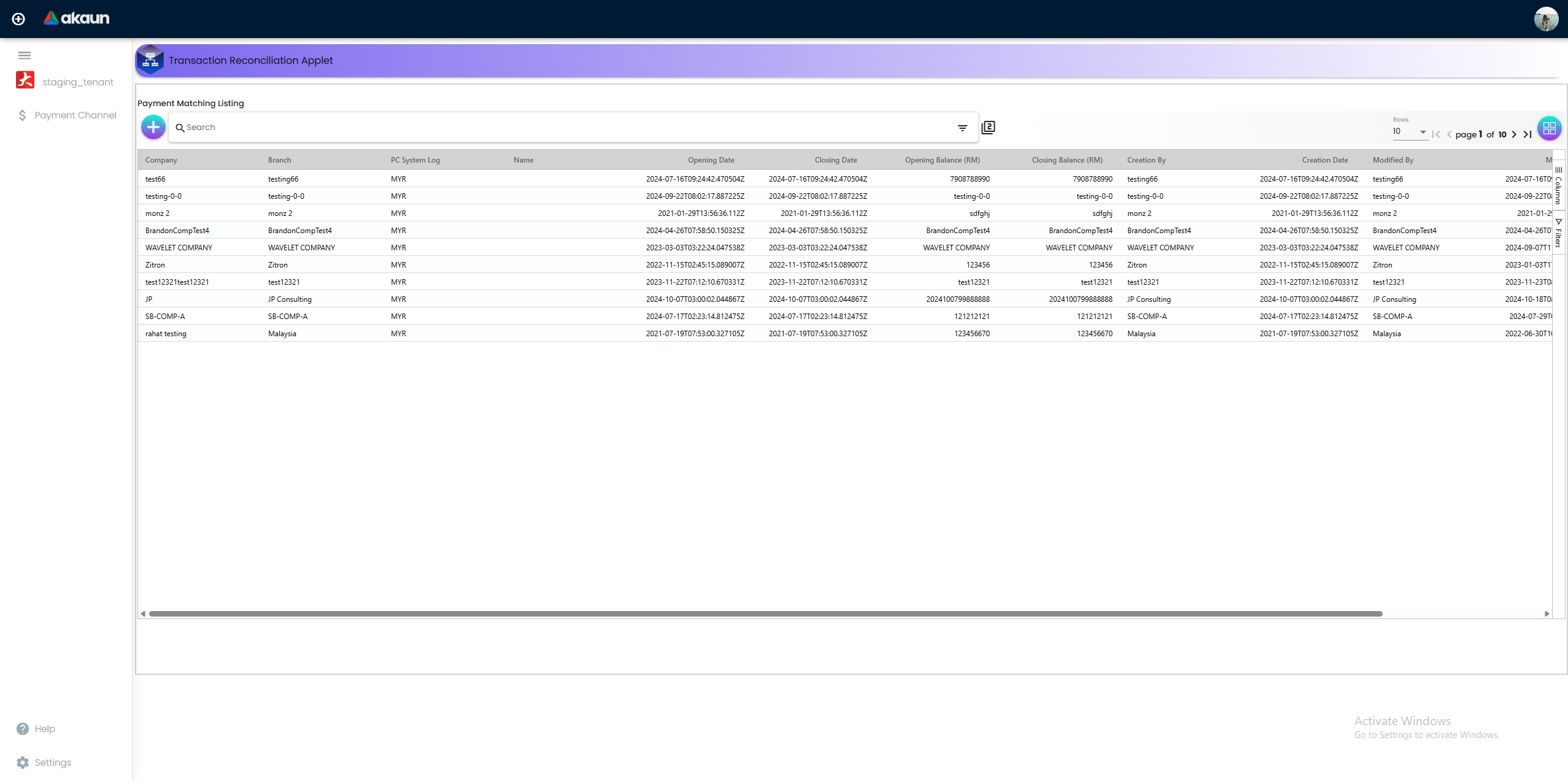
Displays all reconciliation statements across all companies and branches. Each row represents one payment gateway reconciliation period.
Listing columns:
| Column | Description |
|---|---|
| Company | The legal entity this reconciliation belongs to. |
| Branch | The branch or cost center scoped to this statement. |
| PC System Log | The internal payment channel data stream being reconciled. |
| Name | The descriptive name given to this reconciliation statement. |
| Opening Date | The start date of the reconciliation period. |
| Closing Date | The end date of the reconciliation period. |
| Opening Balance (RM) | The gateway opening balance for the period. |
| Closing Balance (RM) | The gateway closing balance for the period. |
| Creation By | The user who created the statement. |
| Creation Date | When the statement was first created. |
| Modified By | The last user who edited the statement. |
| Modified Date | When the statement was last modified. |
| Status | Current workflow status (Processing, Ready for review, etc.). |
Toolbar actions:
| Action | Description |
|---|---|
| Add (+) | Creates a new reconciliation statement. |
| Advanced Search | Filters the listing by keyword or field criteria. |
| Column Toggle | Shows or hides specific listing columns. |
| Pagination | Controls how many rows are shown per page. |
Create
Creates a new reconciliation statement. The create form has two tabs.
Action buttons:
| Button | Function |
|---|---|
| Auto Matching | Visible only after a statement has been uploaded. Runs the automatic matching engine against the uploaded gateway file and internal system log. |
| Save | Saves the statement and all data on the current form. |
| RESET | Clears the uploaded statement file, allowing a fresh upload without deleting the statement record. |
Details Tab
Defines the audit scope — which company, branch, payment channel, and time window this reconciliation covers.
Required fields: Company, Branch, Payment Channel System Log, Name, Opening Balance, Closing Balance
Optional fields: Opening Date, Closing Date
Fields that need context:
| Field | Notes |
|---|---|
| Payment Channel System Log | Click the search icon (🔍) to open a lookup dialog. This links the statement to the POS or Sales applet’s transaction records for comparison. |
| Closing Balance | The primary control total — the closing balance from your gateway portal for this period. The reconciliation is balanced when all matched transactions sum to this figure. |
| Status | Read-only on create. Automatically set to Processing when the statement is first saved. |
Upload Statement Tab
This is where the external gateway file is imported into the system. The file becomes the “External Truth” that the auto-matching engine compares against your internal records.
Required fields: Import Format
Fields that need context:
| Field | Notes |
|---|---|
| Payment Channel Statement Name | Auto-populated from the uploaded file name. Read-only. |
| Import Format | Each gateway (7E, IPay88, GoPay) produces a CSV with different column layouts. Selecting the wrong format breaks Auto Matching by misreading the Transaction ID and Amount columns. |
Edit
Opens an existing reconciliation statement for review, matching, and approval. The edit form has four tabs. The header shows the statement name and provides the same Auto Matching and Save action buttons.
Key difference from Create: On the edit form, Company, Branch, and Payment Channel System Log are read-only — they cannot be changed after the statement is created. The Status field is now an editable dropdown.
Action buttons:
| Button | Function |
|---|---|
| Auto Matching | Visible only when a statement file has been uploaded. Runs the matching engine. |
| Save | Saves all changes across the form. |
| DELETE | Permanently deletes the reconciliation statement and all associated uploaded files. Only available while in Processing status. Use with caution — this cannot be undone. |
Details Tab
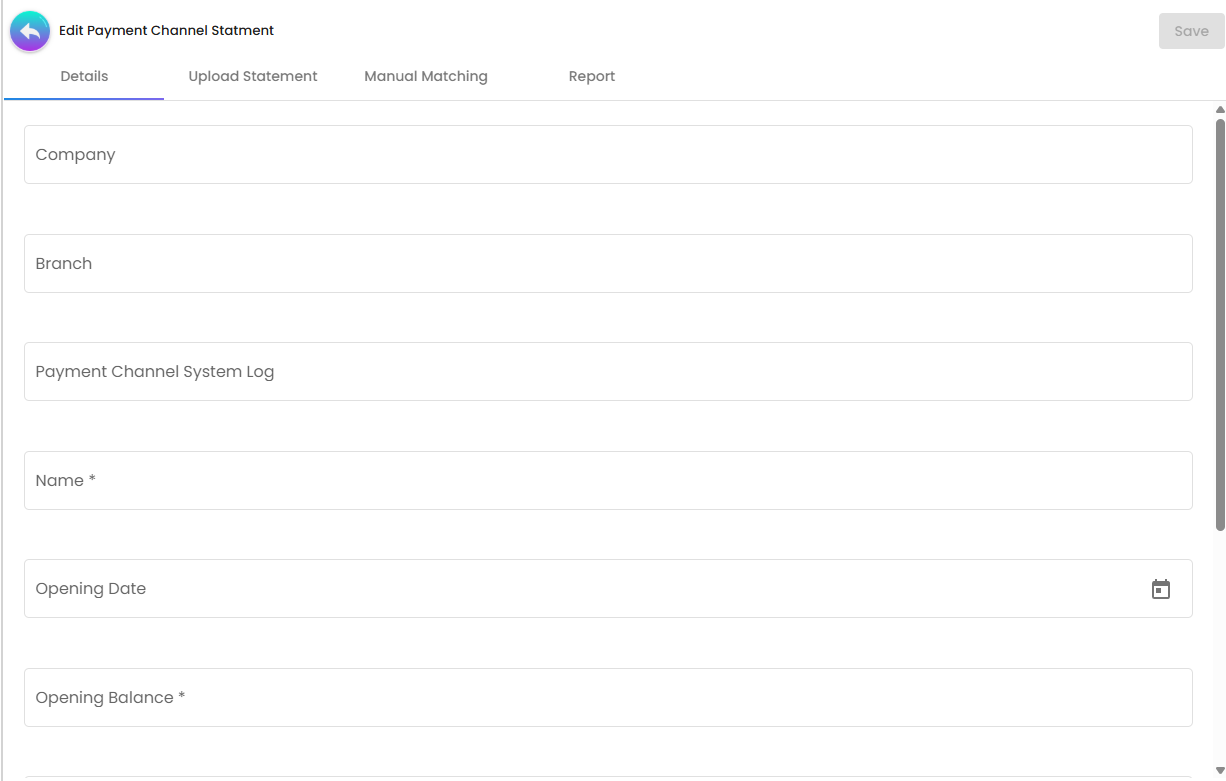
Same fields as the Create form, with the following differences:
| Field | Behaviour on Edit |
|---|---|
| Company | Read-only after creation. |
| Branch | Read-only after creation. |
| Payment Channel System Log | Read-only after creation. |
| Status | Editable dropdown. Options: Processing, Ready for review, Pending amendment, Approved by HOD, Reviewed and Approved. |
Upload Statement Tab
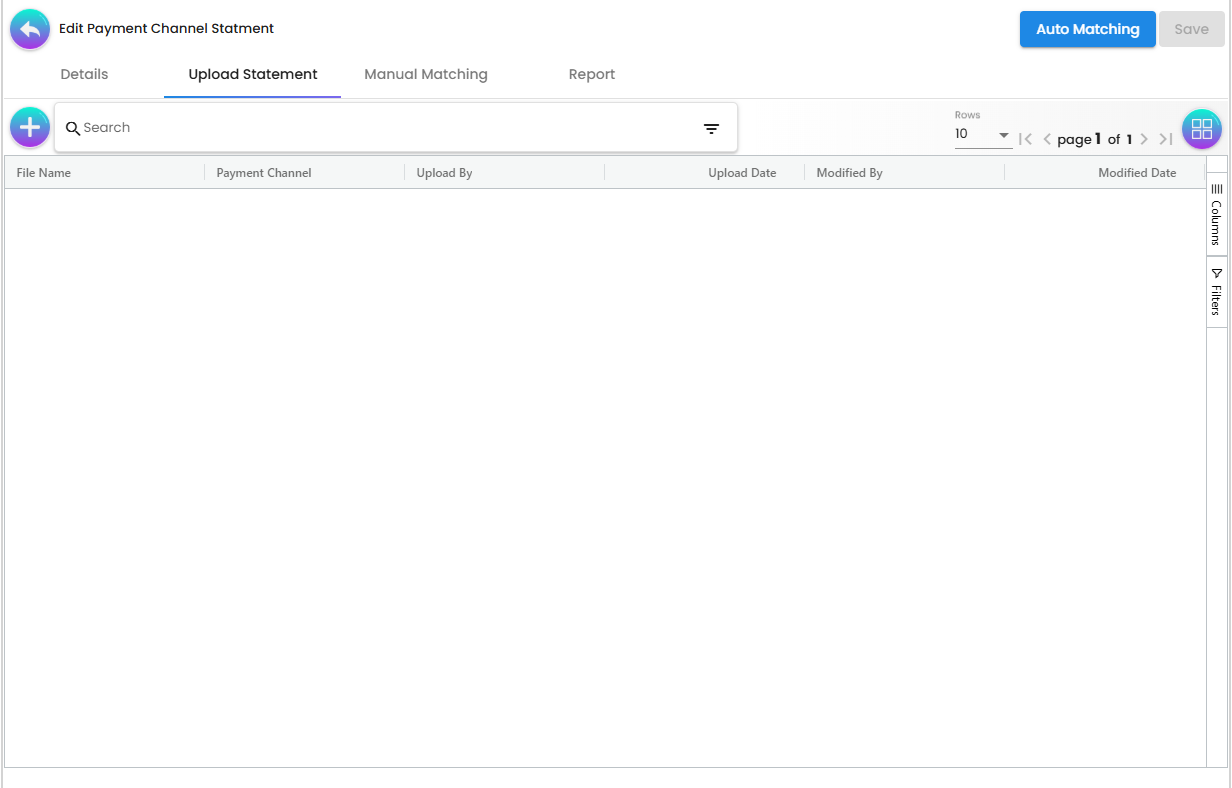
On edit, the Upload Statement tab becomes a listing of all previously uploaded statement files for this reconciliation record, plus the ability to add new uploads.
Listing columns:
| Column | Description |
|---|---|
| File Name | The name of the uploaded gateway CSV file. |
| Payment Channel | The gateway type (iPay88, GoPay, 7E) selected at upload time. |
| Upload By | The user who uploaded the file. |
| Upload Date | When the file was uploaded. |
| Modified By | The last user who modified this upload record. |
| Modified Date | When the upload record was last modified. |
Add new upload:
Required fields: Payment Channel
Fields that need context:
| Field | Notes |
|---|---|
| Payment Channel Statement Name | Auto-populated from the uploaded file name. Read-only. |
| Payment Channel | The import format for this file — 7E, iPay88, or GoPay. Must match the gateway that produced the file. |
Click Upload to submit the file. Once uploaded, it appears in the Upload Statement listing and is available for Auto Matching.
Manual Matching Tab
The workspace for manually pairing records that the Auto Matching engine could not resolve automatically. This tab contains two side-by-side sub-tabs — one for each “side” of the reconciliation.
When to use: Auto Matching resolves pairs where the Transaction ID and Amount are identical. Use Manual Matching when the substance of a transaction is the same but the form differs — for example, when a transaction ID is slightly truncated or formatted differently between your POS and the gateway.
Sub-tab: System Txn Log
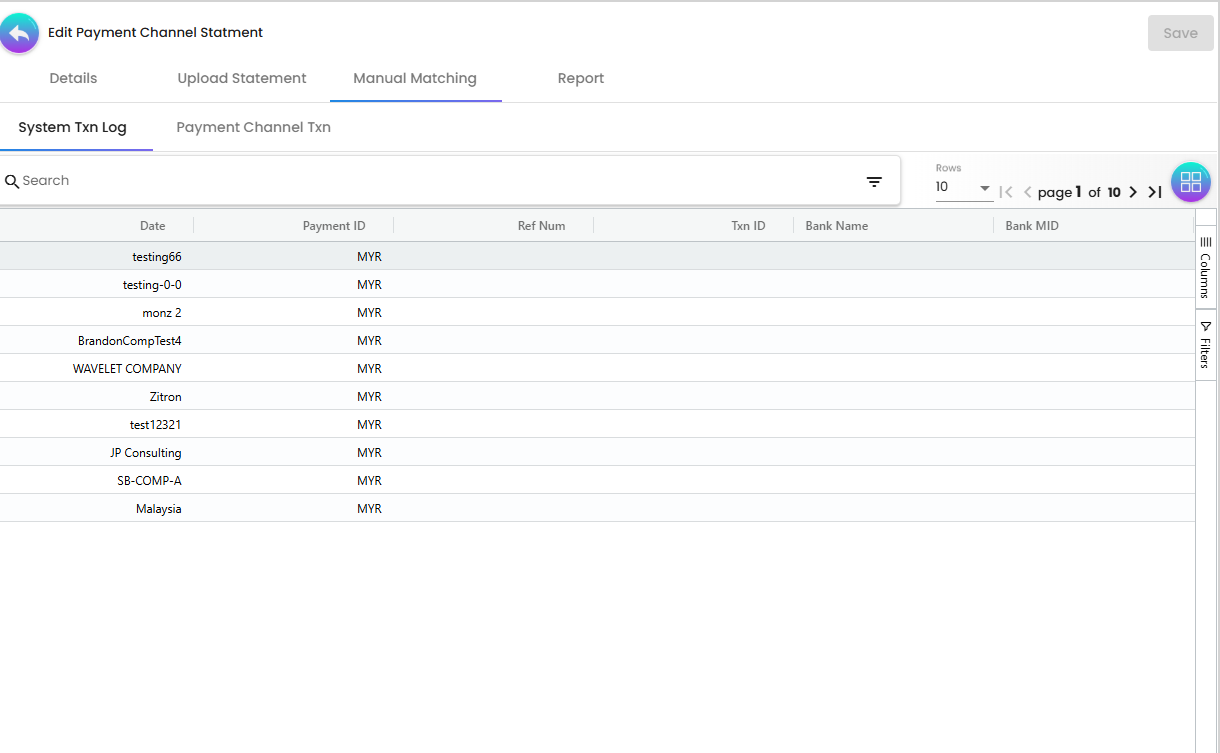
Displays internal system transactions that have not yet been matched to a gateway statement line. These are your POS or Sales records waiting to be paired.
Columns:
| Column | Description |
|---|---|
| Date | The date of the internal transaction. |
| Payment ID | The payment identifier recorded by the internal system. |
| Ref Num | Reference number for the transaction. |
| Txn ID | Transaction ID from the internal system. |
| Bank Name | The bank or payment network associated with the transaction. |
| Bank MID | The bank’s Merchant ID used for this transaction. |
| Merchant | The merchant name or identifier. |
| Currency | The transaction currency. |
| Amount | The transaction amount. |
| Status | Current matching status of this transaction. |
| Reconcile | Checkbox used to select this record for a manual match action. |
Sub-tab: Payment Channel Txn
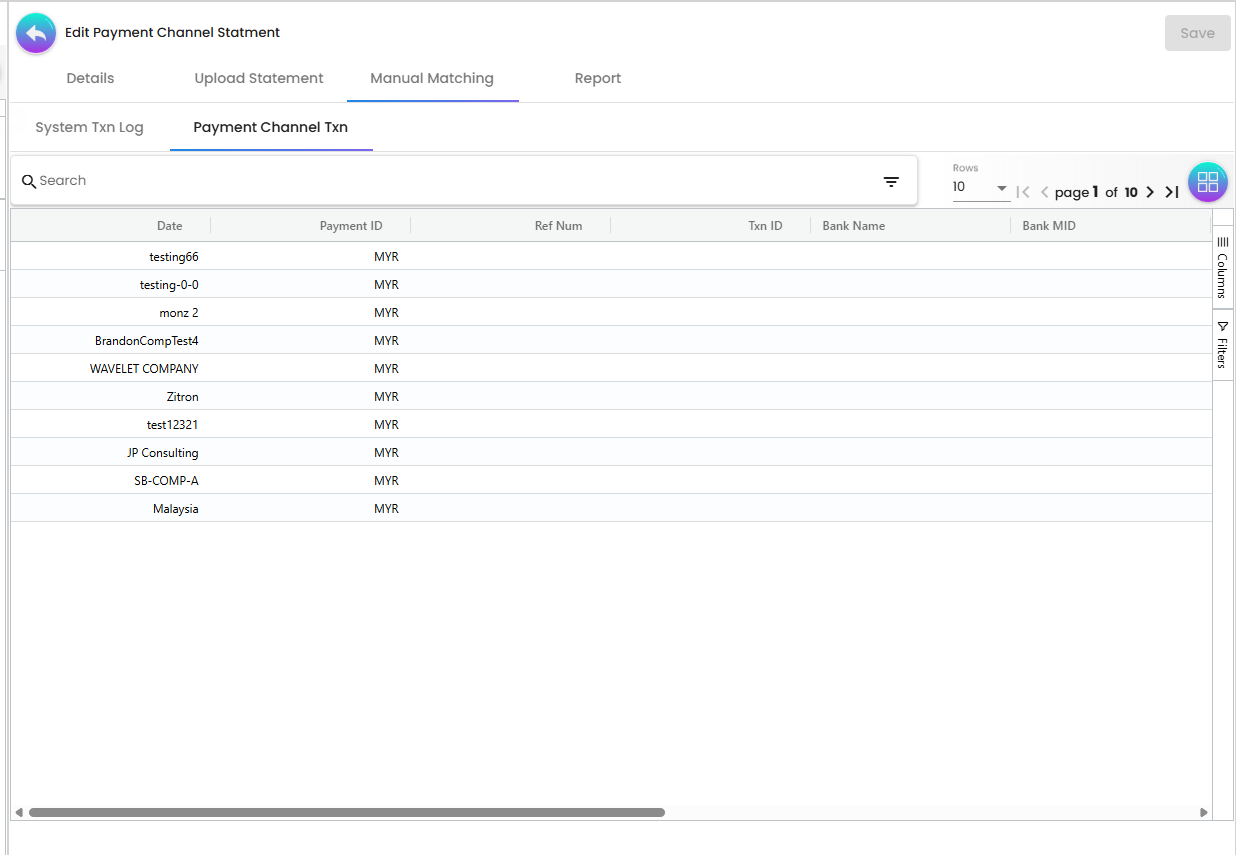
Displays gateway statement lines that have not yet been matched to an internal system record. These are the lines from the uploaded CSV waiting to be paired.
Columns: Same structure as the System Txn Log sub-tab (Date, Payment ID, Ref Num, Txn ID, Bank Name, Bank MID, Merchant, Currency, Amount, Status, Reconcile).
How to manually match: Select the checkbox on the System Txn Log record you want to pair, then select the checkbox on the corresponding Payment Channel Txn record, and confirm the match. The system records the manual pairing and removes both records from the pending lists.
Report Tab
The management exception report — every record appearing here represents a transaction that could not be matched on either side. This tab contains two sub-tabs with a Print button on each.
Sub-tab: System Txn Log Dispute
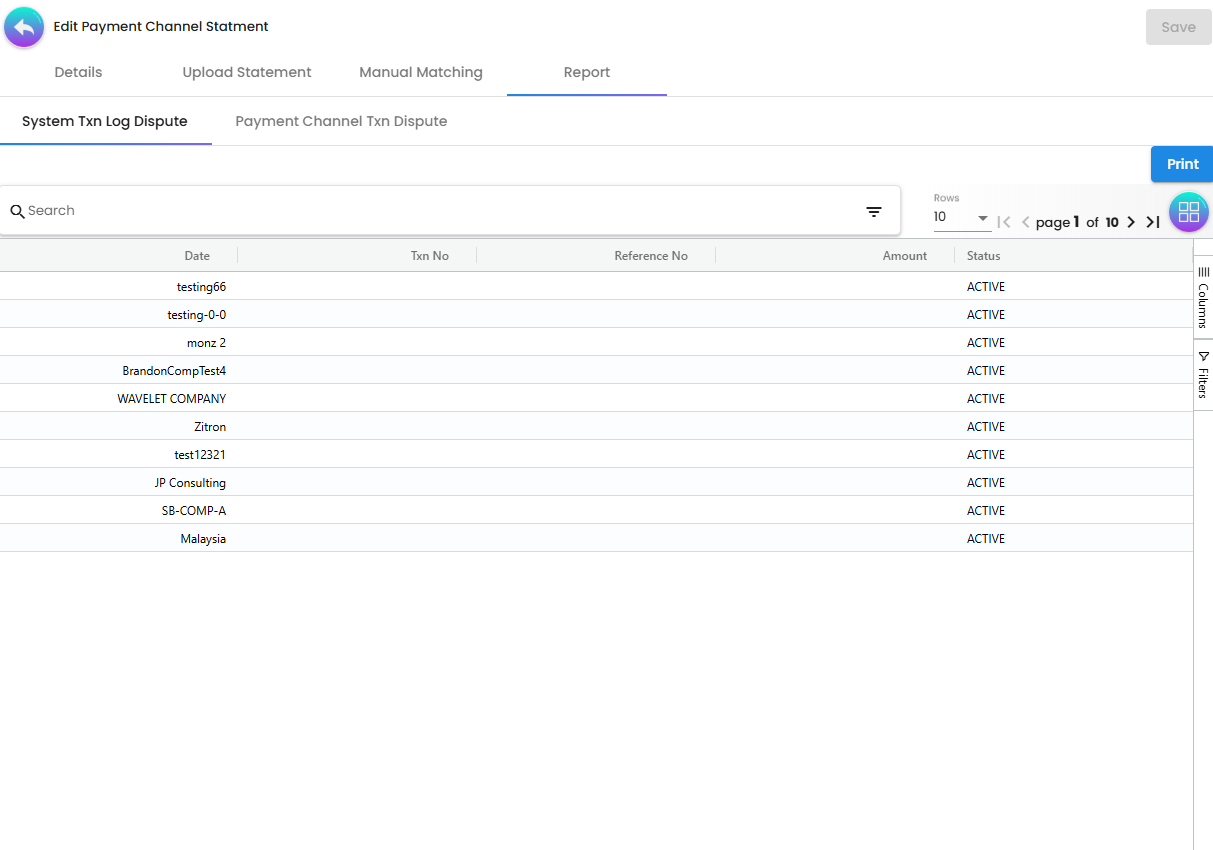
Lists internal system transactions that have no corresponding entry in the gateway statement. These are sales your system recorded, but the gateway has no record of receiving.
Risk: These represent potential revenue leaks — either the payment was processed but not settled by the gateway, or the sale was mis-categorized (e.g., recorded as Credit Card when the customer actually paid Cash).
Columns:
| Column | Description |
|---|---|
| Date | The date of the disputed internal transaction. |
| Txn No | The transaction number from the internal system. |
| Reference No | The reference number for the transaction. |
| Amount | The transaction amount in dispute. |
| Status | Current status of the dispute record. |
Sub-tab: Payment Channel Txn Dispute
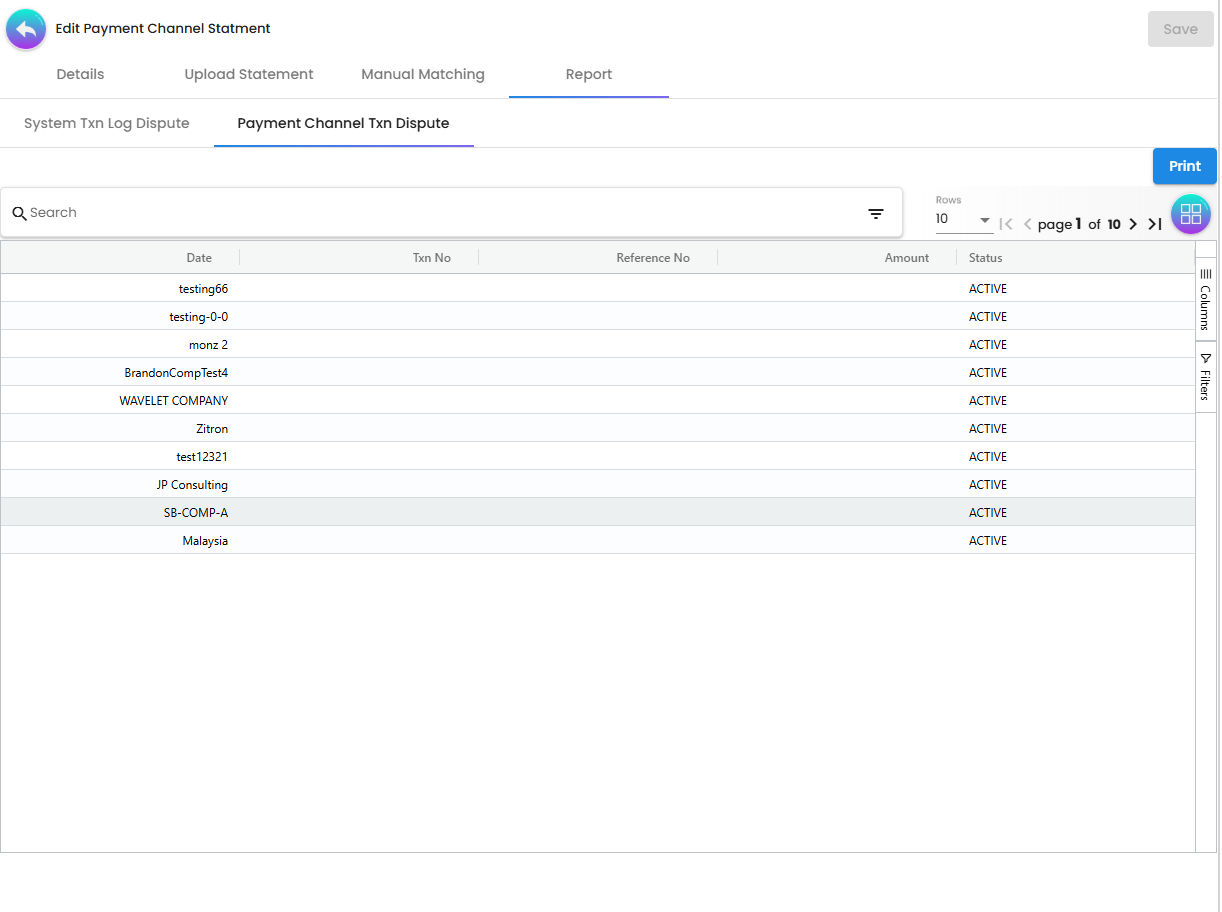
Lists gateway statement lines that have no corresponding sale in your internal system. These are entries where the gateway received money that was never recorded in your POS or Sales applet.
Risk: These represent accounting completeness failures — either a sale was processed but never entered into the system, or the gateway settled a transaction from a different period.
Columns: Same structure as System Txn Log Dispute (Date, Txn No, Reference No, Amount, Status).
Reconcile button: Once you have investigated a dispute and corrected the underlying cause (e.g., recorded the missing sale in the POS applet), click Reconcile to clear the dispute entry and mark it as resolved. The button appears on each dispute record row.
Print button: Each sub-tab has a Print button to generate a hard-copy dispute report for review, sign-off, or filing.
Company
The Company menu is used to configure the legal entities that can be selected when creating reconciliation statements. A Company record must exist before any reconciliation work can begin.
Listing
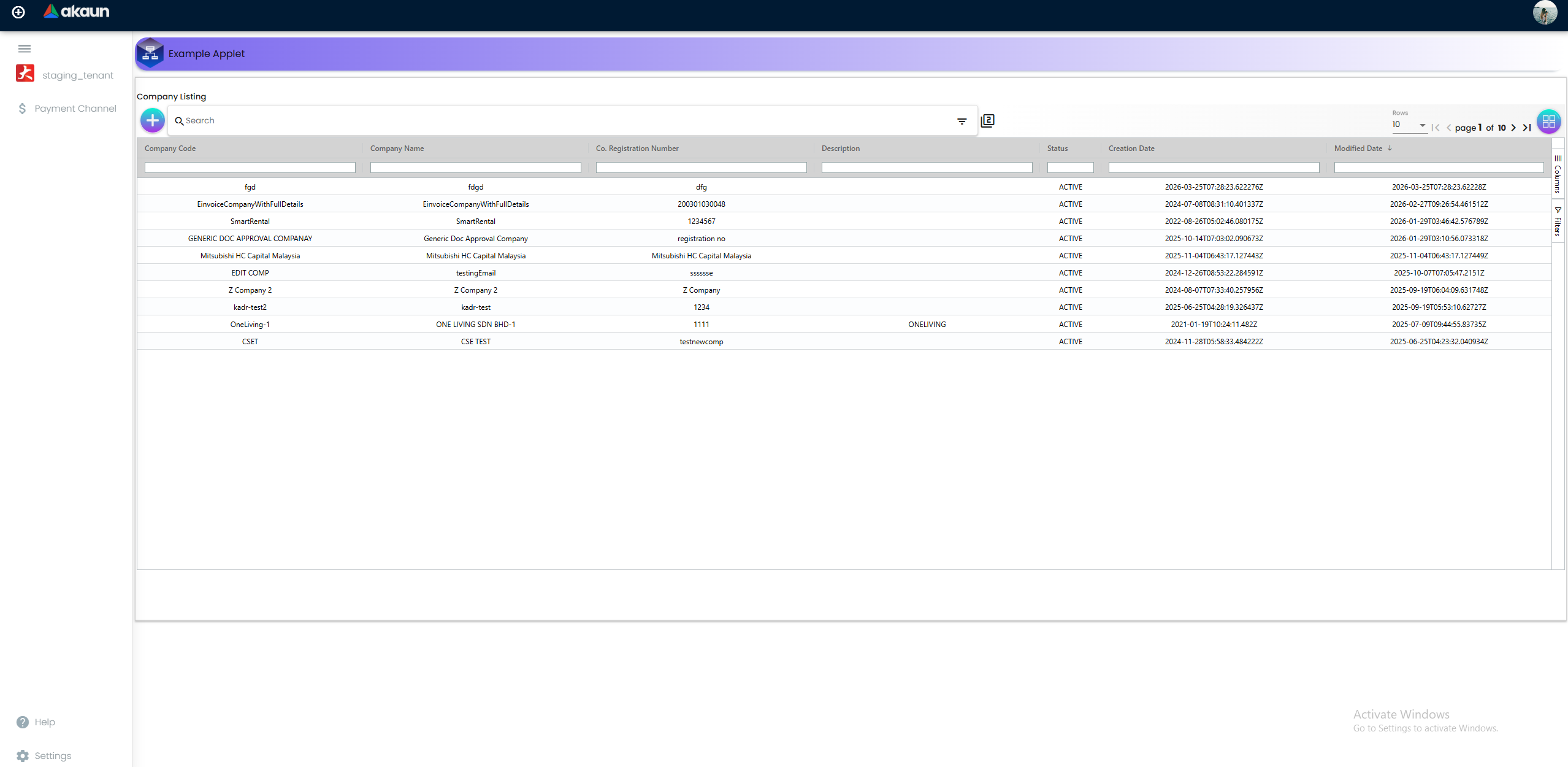
Displays all configured company profiles.
Listing columns:
| Column | Description |
|---|---|
| Company Code | The unique short code identifying this company. |
| Company Name | The full registered name of the company. |
| Co. Registration Number | The company’s official business registration number. |
| Description | An optional internal description. |
| Status | Whether the company is active or deactivated. |
| Creation Date | When this company profile was first created. |
| Modified Date | When this company profile was last updated. |
Create
Creates a new company profile. The create form has two tabs.
Details Tab
Fields:
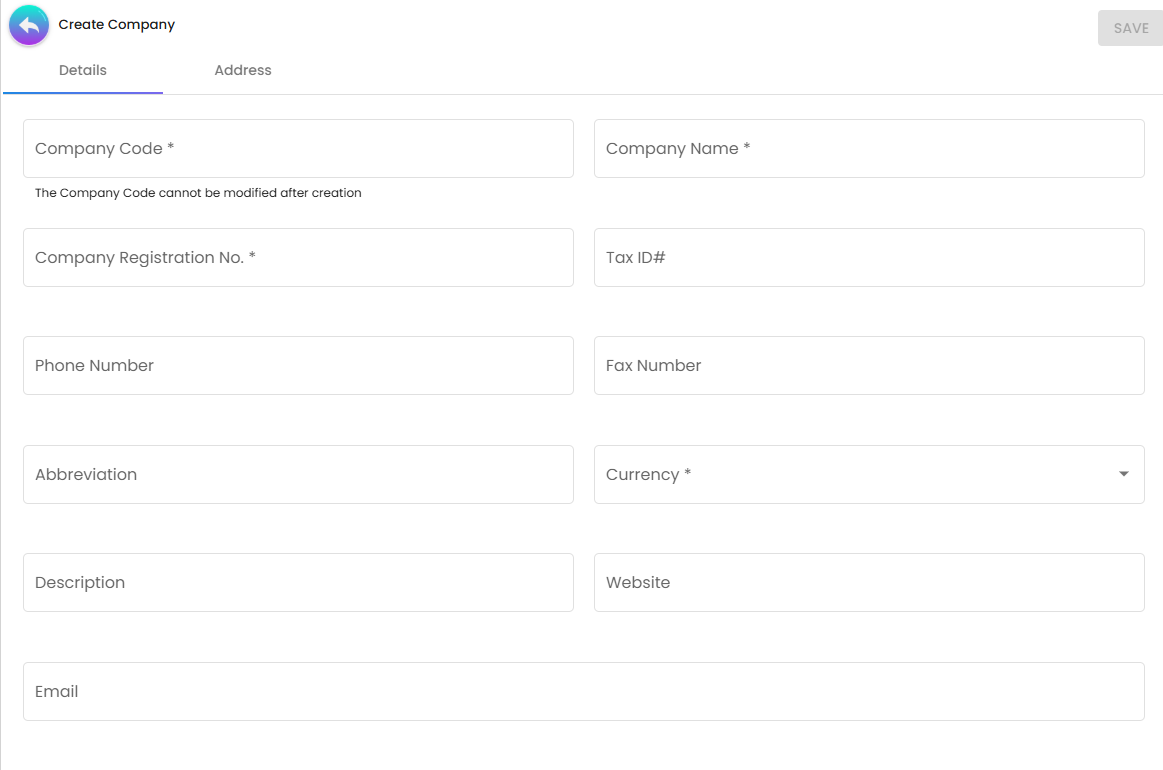
Required fields: Company Code, Company Name, Company Registration No., Currency
Optional fields: Tax ID#, Phone Number, Fax Number, Abbreviation, Description, Website, Email
Fields that need context:
| Field | Notes |
|---|---|
| Company Code | Cannot be changed after creation. Choose carefully. |
| Currency | Sets the default currency for reconciliation balances linked to this company. |
Address Tab
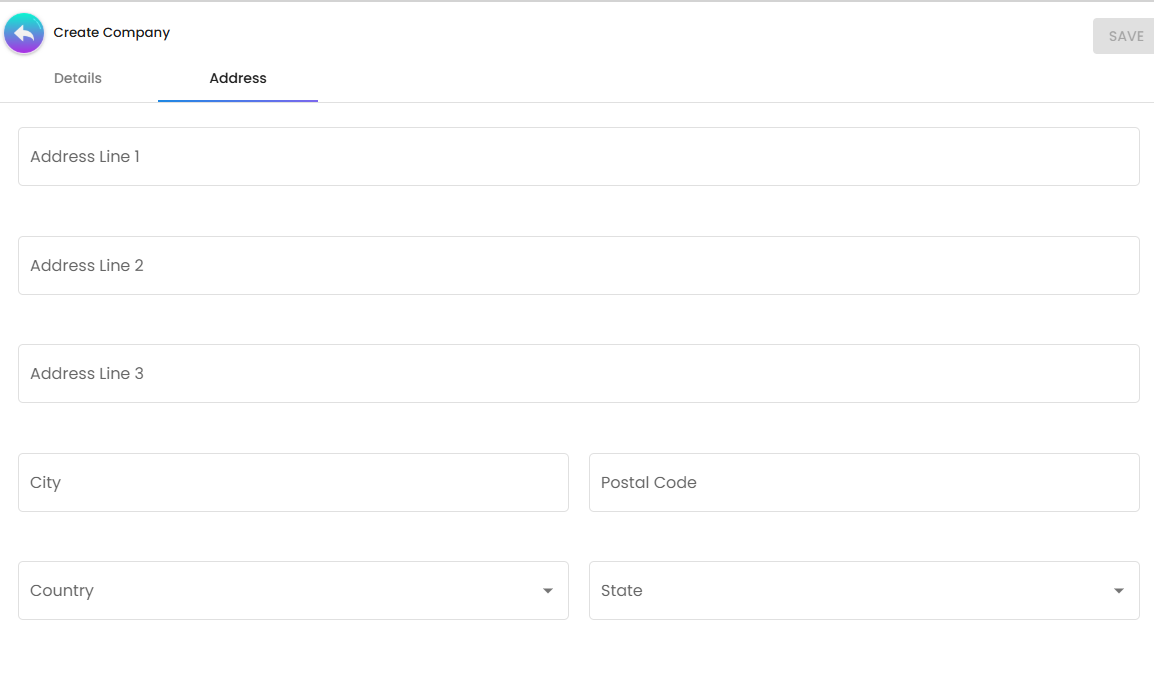
All address fields are optional.
Edit
Opens an existing company profile for editing. The edit form has the same two primary tabs as Create (Details and Address), with the following differences:
Action buttons:
| Button | Function |
|---|---|
| Save | Saves all changes. Every change is recorded with the user and timestamp in the read-only audit fields. |
| Delete | Permanently deletes the company profile. Use with caution — deletion cannot be undone and will affect any reconciliation statements linked to this company. |
Details Tab
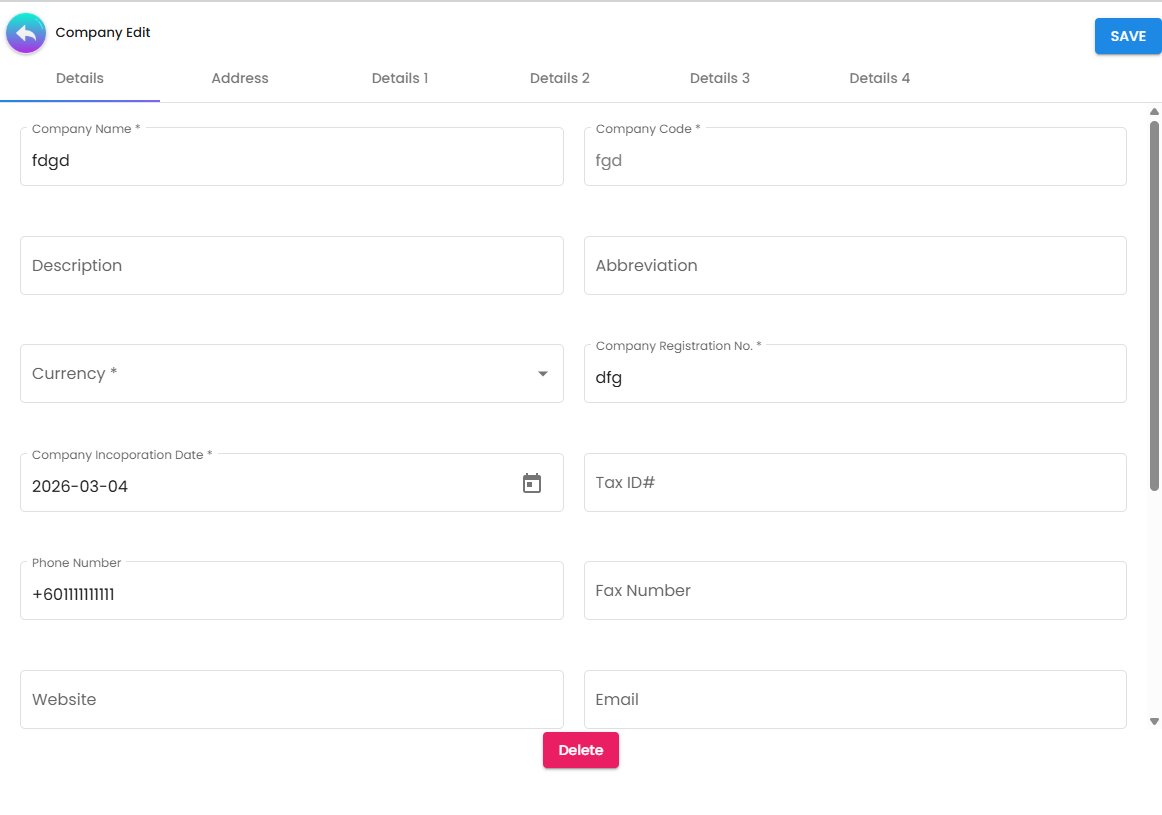
Same fields as the Create Details tab, with the following differences and additions:
| Field | Behaviour on Edit |
|---|---|
| Company Code | Read-only after creation. |
| Company Incorporation Date | Date picker. Required. Not present on the Create form. |
| Status | Active or Deactivated. Deactivating prevents this company from being selected on new reconciliation statements while preserving all existing records. |
| Created By / Creation Date / Modified By / Modified Date | Read-only audit fields. |
Address Tab
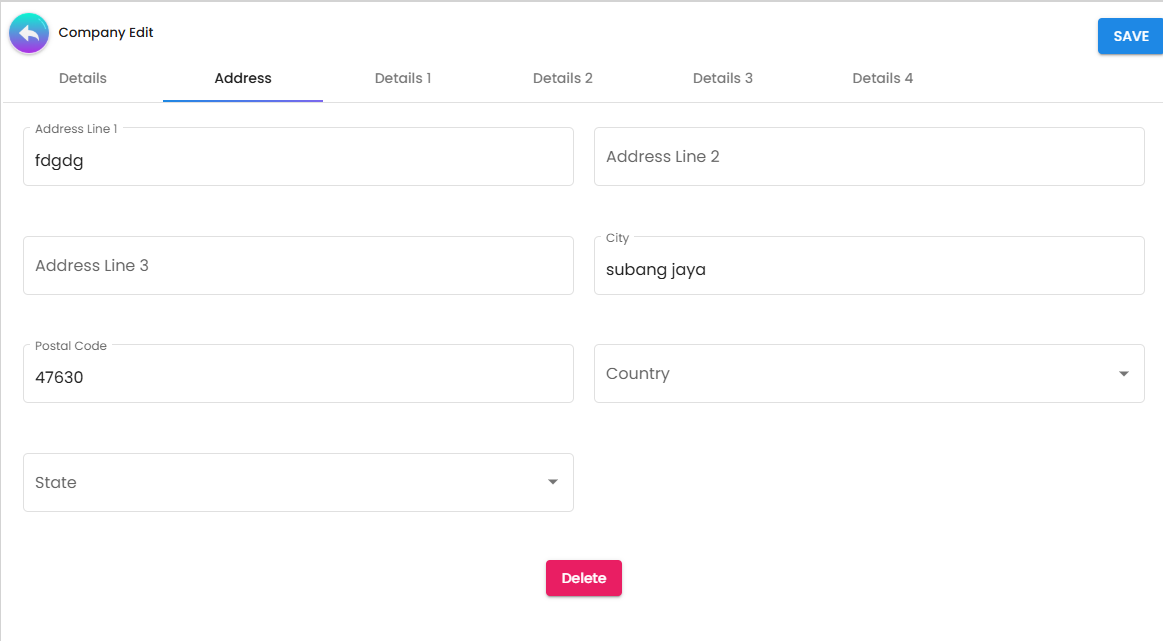
Same fields as the Create Address tab. All fields remain editable on edit.
Settings
Accessed via the Settings link at the bottom of the sidebar. Contains one display preference for the current user.
| Setting | Description |
|---|---|
| 3 UI Column View | Toggle that switches the applet between a single-column layout and a three-column layout. Useful on wide screens where seeing the listing, form, and sub-panels simultaneously speeds up workflow. This setting applies to the current user’s session only. |
FAQ
Q: What is “Auto Matching” and how does it work? A: Auto-Matching is an intelligent engine that looks at your uploaded statement and your internal logs. It automatically pairs them if the Transaction ID and Amount are identical. This usually resolves 90-95% of your records instantly.
Q: Why do some transactions show as “Disputes”? A: A dispute occurs when there is a one-sided entry. Either your system says you received money and the bank doesn’t show it (Missing Funds), or the bank shows money received that you haven’t recorded (Unrecorded Sale).
Q: Can I re-upload a statement if I found an error in the first file? A: Yes. While in “Processing” status, you can add a new upload via the Upload Statement tab’s Add (+) button. If you need to start completely fresh, use the RESET button on the Details tab to clear all uploaded data while keeping the statement record. Once the status moves to “Approved”, the data is locked for audit integrity.
Q: What do I do if I have a “Payment Channel Txn Dispute”? A: This usually means a customer paid you, but no one recorded the sale in your POS or Receipt applet. You should find the missing sale, record it, and then the transaction will be ready to match.
Q: Does this applet support multiple branches? A: Yes. You can scope your reconciliation to a specific Branch in the Details tab. Each branch can have its own separate reconciliation schedule and HOD approval.
Q: What is the difference between RESET on the Create form and RESET on the Upload Statement add form? A: The RESET button on the Create form’s Details tab clears the entire uploaded statement (useful if you uploaded the wrong file for the whole statement). The RESET button on the Upload Statement add form only clears the file selection for the individual upload being added — it does not affect the parent statement or any previously uploaded files.
Q: The Company Code field says it cannot be changed after creation. What if I made a mistake? A: Delete the company record and recreate it with the correct code. Make sure no reconciliation statements are linked to the incorrect company first — those would need to be reassigned or deleted as well.
Q: What does the Import Format selection affect? A: It tells the system how to map the columns in your gateway CSV. Each gateway (iPay88, GoPay, 7E) produces a file with different column headers and ordering. Selecting the wrong format causes the Transaction ID and Amount columns to be read incorrectly, breaking Auto Matching.
Related Applets
Bank Reconciliation Applet
Purpose: Reconciles high-volume cash and current account bank statements. Relation: While Transaction Recon focuses on e-wallets/gateways, Bank Recon covers your actual bank accounts.
General Ledger Applet
Purpose: The central bookkeeping record for your entire organization. Relation: Reconciled data provides “Verified” balances for your gateway receivables in the G/L.
Receipt Voucher (Internal) Applet
Purpose: Confirms receipt of funds for intercompany or customer transactions. Relation: Reconciled transactions are often the “Proof of Payment” required to finalize a Receipt Voucher.