Internal Consignment GIN Applet
Purpose and Overview
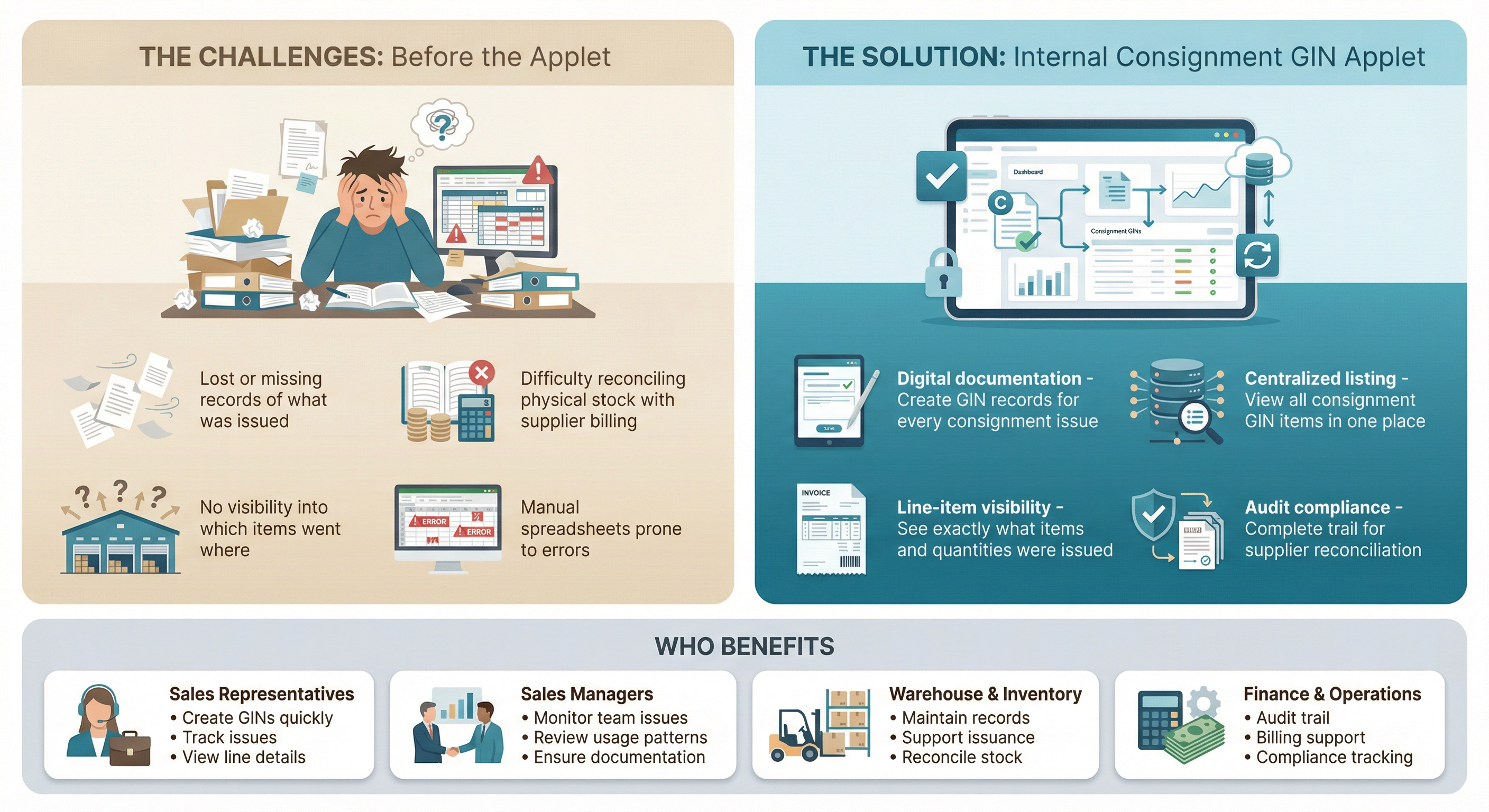
The Internal Consignment GIN Applet is designed to streamline the management of consignment stock issues within your organization. It enables the Sales team to create Goods Issue Notes (GIN) for consignment items, track all consignment issues in a centralized listing, and view detailed line-item information for each transaction.
Key Features Overview
Who Benefits from This Applet?
Sales Representatives:
- Create consignment GIN items quickly for customer demos or trial placements
- Track what has been issued to which customer or location
- View line-level details for accurate follow-up and reconciliation
Sales Managers:
- Monitor all consignment issues across the team
- Review consignment stock usage patterns
- Ensure proper documentation of items released from consignment
Warehouse & Inventory Teams:
- Maintain accurate consignment inventory records
- Support physical issuance with proper documentation
- Reconcile consignment stock levels against GIN records
Finance & Operations:
- Audit trail for consignment consumption
- Support monthly billing and supplier reconciliation
- Compliance with consignment agreement tracking
What Problems Does This Solve?
The Manual Consignment Tracking Problem:
Managing consignment stock without a dedicated system leads to:
- Lost or missing records of what was issued
- Difficulty reconciling physical stock with supplier billing
- No visibility into which items went where
- Manual spreadsheets prone to errors
The Internal Consignment GIN Applet Solution:
- Digital documentation - Create GIN records for every consignment issue
- Centralized listing - View all consignment GIN items in one place
- Line-item visibility - See exactly what items and quantities were issued
- Audit compliance - Complete trail for supplier reconciliation and internal audits
- Sales-focused workflow - Designed for Sales team efficiency
Key Features Overview
Key Concepts
Understanding Consignment GIN
A Goods Issue Note (GIN) for consignment stock documents the release of items from consignment inventory. Unlike owned stock, consignment items remain supplier property until consumed or sold.
| Concept | Definition | Example |
|---|---|---|
| Consignment Stock | Goods physically at your location but owned by the supplier | Display products from a distributor |
| Consignment GIN | Document recording the issuance of consignment items | Issuing demo units to a showroom |
| Line Item | Individual item and quantity on a GIN | 5 units of Product A, 3 units of Product B |
GIN Structure
Consignment GIN Header (Main Details)
│
├── Consignment GIN No (auto-generated)
├── Branch
├── Transaction Date
├── Currency
├── Purchaser
│
├── Account (Supplier/Entity)
│   ├── Bill To address
│   └── Ship To address
│
└── Lines (Line Items)
    ├── Item 1: Product, Quantity, Serial/Batch/Bin (if applicable)
    ├── Item 2: Product, Quantity, Pricing Details
    └── Item 3: Product, Quantity, Issue Link
Flow Through the Hierarchy:
- Main Details: Captures branch, transaction date, currency, and purchaser
- Account: Supplier (entity) and billing/shipping addresses
- Lines: Specific products, quantities, pricing, and optional serial/batch/bin tracking
- Optional Tabs: Payment, Department Hdr, Contra, Doc Link, Attachments, Export (configurable per tenant)
Consignment vs. Owned Stock
| Aspect | Consignment Stock | Owned Stock |
|---|---|---|
| Ownership | Supplier owns until used/sold | Your organization owns |
| Payment | Pay when consumed | Pay on receipt |
| GIN Impact | Reduces consignment balance | Reduces owned inventory |
| Billing | Supplier bills based on consumption | Already paid |
Quick Start Guide
Get up and running quickly with these essential workflows.
For Users: Create Your First Consignment GIN
Goal: Issue consignment stock and create a proper GIN record in 5 steps.
- Navigate: Go to Internal Consignment GIN from the sidebar (default landing)
- Create New: Click the "+" (Create) button on the listing
- Main Details Tab:
- Select Branch and Transaction Date
- Choose Currency
- Select Purchaser
- Account Tab: Select Supplier (entity), Bill To, and Ship To addresses
- Lines Tab: Click Add Line → Select Item, enter Quantity → Optionally add Serial Number, Batch Number, Bin Number, Pricing Details, or Issue Link
- Create: Click CREATE (or RESET to clear)
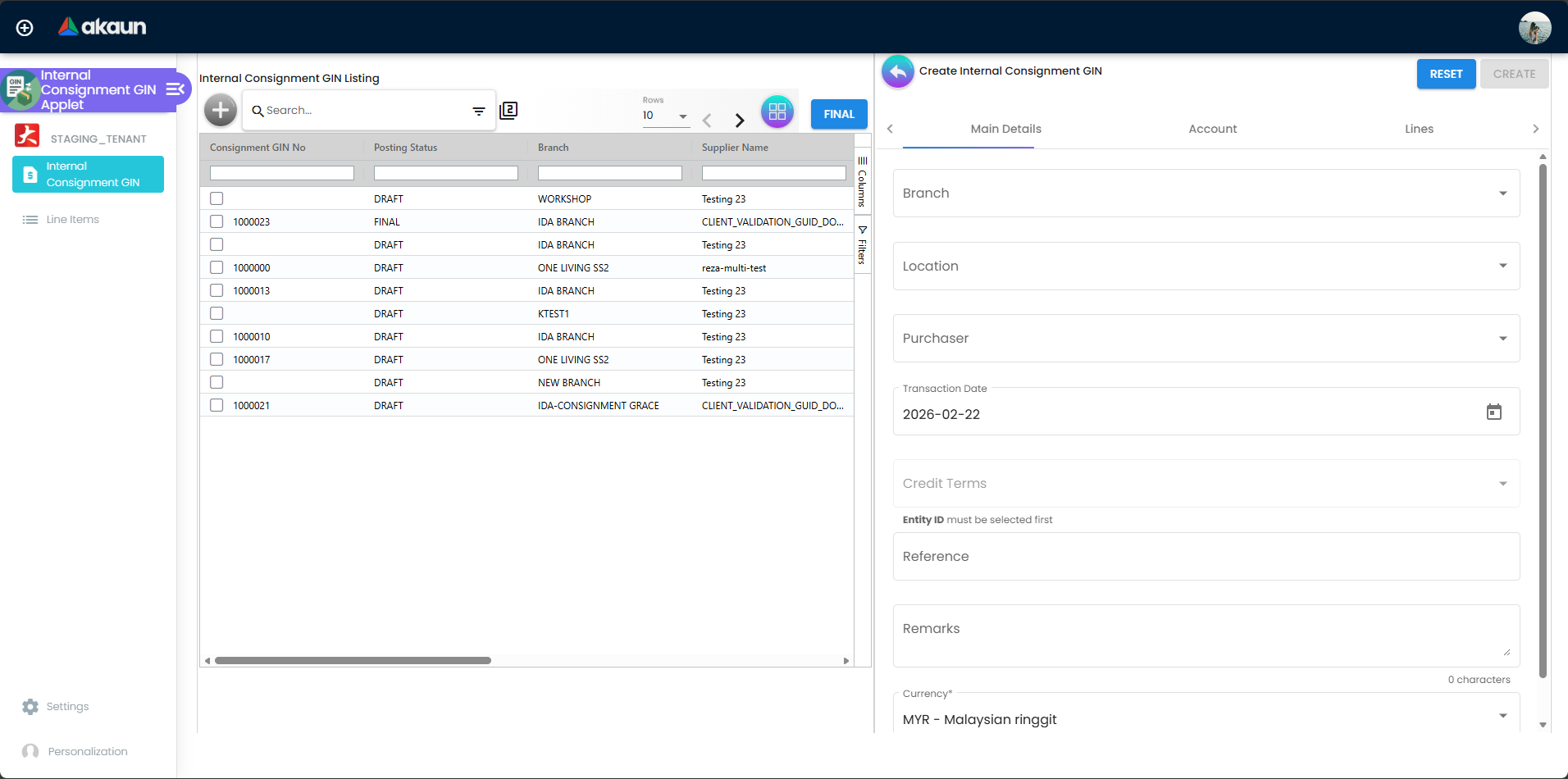
What happens next? The GIN is created and you are taken to the Edit view. Use FINAL to post the document when ready.
Pro Tip: Ensure items are configured as consignment items and linked to the correct supplier before creating GINs.
For Managers: Review Consignment GIN Listing
Goal: View and monitor all consignment GIN documents created by your team.
- Open Listing: Go to Internal Consignment GIN from the sidebar → the main listing opens by default
- Advanced Search: Use filters for Consignment GIN No, Branch Name, Supplier Name, Created Date, Transaction Date, or Created by
- Review Details: Click on any row to open the Edit view with full header, account, and line items
- Post Documents: Select records and click FINAL to post GINs
- Export (Edit tab): Use the Export tab when viewing a GIN to generate printable format PDFs
What you can do: Use the listing to track activity, identify high-usage suppliers, and prepare for supplier reconciliation.
For Warehouse Staff: Fulfill a Consignment GIN
Goal: Physically issue consignment stock and ensure documentation matches.
- Receive Notification: GIN created by Sales (or review pending list)
- Pick Items: Locate consignment stock and pick quantities per line items
- Verify: Cross-check quantities and serial numbers against GIN
- Issue: Release items to requester or shipment
- Confirm: Ensure GIN status reflects completion in system
Tip: Keep the GIN printout or screen open while picking—cross-check each line item before releasing stock.
For Admins: Initial System Setup
Goal: Get the consignment GIN system ready for the Sales team in 5 steps.
Step 1: Configure Consignment Items (Master Data > Items > [Item] > Consignment)
- Flag items as consignment and link to the correct supplier
- Set default consignment location for each item
Step 2: Set Up Warehouses (Master Data > Warehouses or Inventory > Locations)
- Define locations that hold consignment stock
- Ensure consignment items are allocated to the correct storage areas
Step 3: Assign Permissions (Settings > Permissions or Tenant Admin > Roles)
- Grant Sales reps: Create Consignment GIN, View Consignment GIN
- Grant Warehouse: View Consignment GIN
- Grant Finance: View Consignment GIN (for reconciliation)
Step 4: Verify Consignment Receipt (if applicable)
- Ensure consignment stock has been received via Consignment GRN before issuing
- Check consignment inventory balances
Step 5: Test
- Create a test consignment GIN as a Sales rep
- Verify it appears in the listing
- Confirm line items display correctly
Ongoing: Monitor consignment usage and reconcile with supplier billing cycles.
New to the system? Start with the basics:
- Sales reps should create a test consignment GIN for familiarization
- Sales managers should review the listing and filters
- Warehouse staff should practice fulfilling a GIN from the pending list
- Admins should complete the Initial System Setup above, then review Configuration & Settings for detailed options
Creating a Consignment GIN
This section covers the detailed process for creating consignment Goods Issue Notes.
Prerequisites
Before creating a consignment GIN, ensure:
- Consignment items are configured in the system
- Items are linked to consignment suppliers
- Consignment stock is available at the issuing location
- Your user has permission to create consignment GINs
Step-by-Step: Create Consignment GIN
Step 1: Main Details Tab
| Field | Purpose | Example |
|---|---|---|
| Branch | Issuing branch | Main Branch |
| Transaction Date | Business date of issue | Today’s date |
| Currency | Document currency | MYR |
| Purchaser | Person responsible | John Smith |
Step 2: Account Tab
| Field | Purpose | Example |
|---|---|---|
| Supplier | Entity who owns consignment stock | Supplier ABC |
| Bill To | Billing address | Select or enter |
| Ship To | Shipping/delivery address | Select or enter |
Step 3: Lines Tab
For each item being issued:
| Field | Purpose | Example |
|---|---|---|
| Item | Consignment product | Product XYZ |
| Quantity | Units issued (Base/UOM) | 10 |
| Serial Number | For serialized items (if enabled) | SN-12345 |
| Batch Number | For batch-tracked items (if enabled) | BATCH-001 |
| Pricing Details | Unit price, discount, amounts | As configured |
Step 4: Optional Tabs
- Payment: Record payment against the GIN (if tab visible)
- Department Hdr: Add department-level details (if tab visible)
Step 5: Create and Finalize
- CREATE: Saves the GIN in Draft status and opens the Edit view
- FINAL (from listing or Edit view): Posts the document and updates consignment inventory
Edit Form Tabs
When editing a consignment GIN, additional tabs appear (if enabled in Application Settings):
| Tab | Purpose |
|---|---|
| Contra | Link contra documents (e.g., related GRN, invoice) |
| Doc Link | Link to related documents |
| Attachments | Attach files (receipts, supporting documents) |
| Export | Generate PDF via printable format |
Use SAVE to persist changes, RESET to discard, or DELETE (with confirmation) to remove a draft GIN.
Consignment GIN Listing
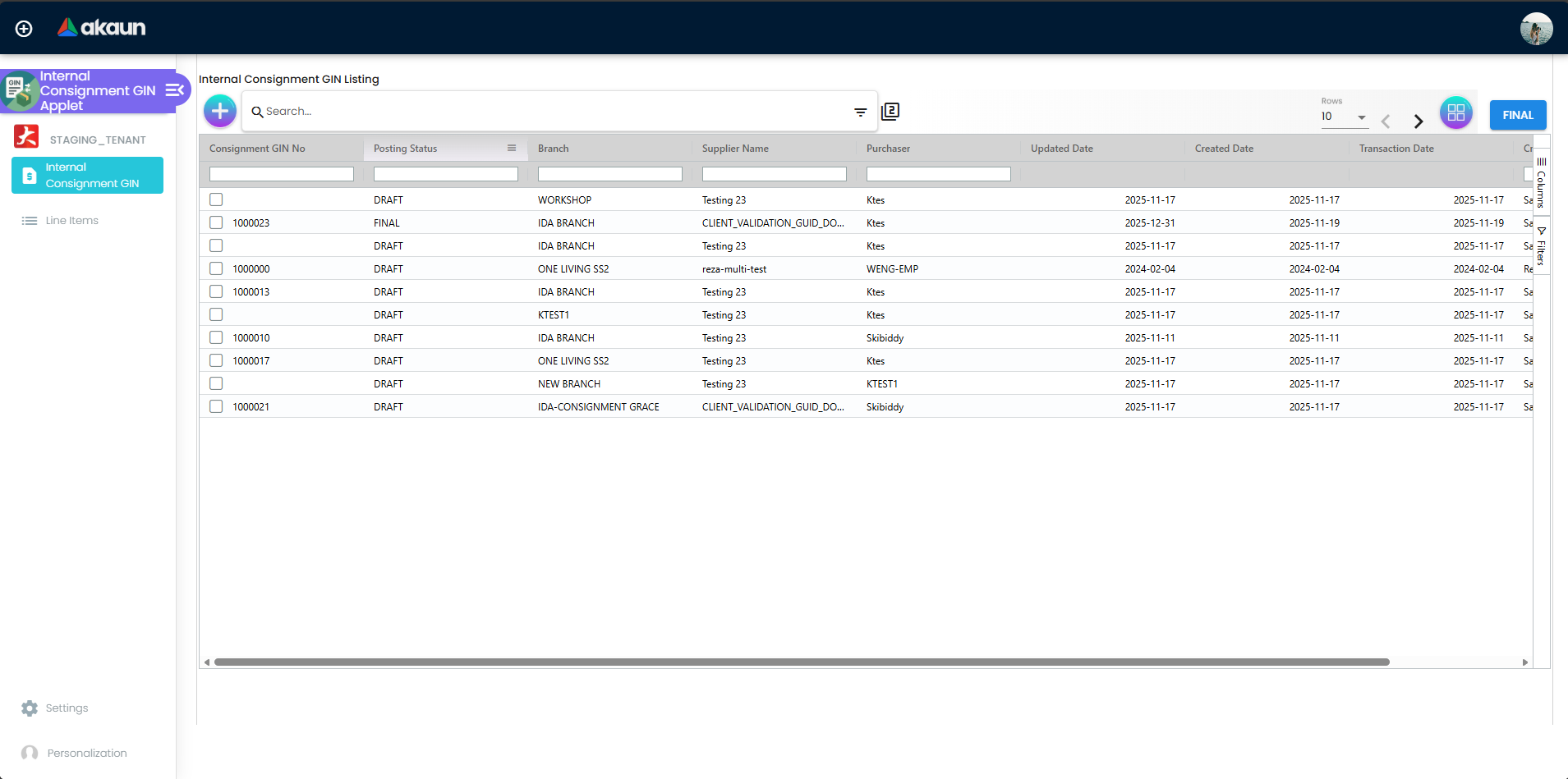
The listing provides a comprehensive view of all consignment GIN items created.
What You Can Do
- View all consignment GINs in a table format
- Filter by date range, status, location, or creator
- Search by GIN number, reference, or customer
- Sort by date, GIN number, or other columns
- Open any GIN to view full details
Listing Columns
| Column | Description |
|---|---|
| Consignment GIN No | Unique document identifier |
| Posting Status | DRAFT or posted status |
| Branch | Issuing branch |
| Supplier Name | Supplier (entity) for consignment stock |
| Purchaser | Person responsible for the GIN |
| Updated Date | Last modification date |
| Created Date | When the GIN was created |
| Transaction Date | Business transaction date |
| Created by | User who created the GIN |
Advanced Search Fields
| Field | Description |
|---|---|
| Consignment GIN No | Search by document number |
| Branch Name | Filter by branch |
| Supplier Name | Filter by supplier |
| Created Date | Date range (from/to) |
| Transaction Date | Date range (from/to) |
| Created by | Filter by creator |
Line Item Listing
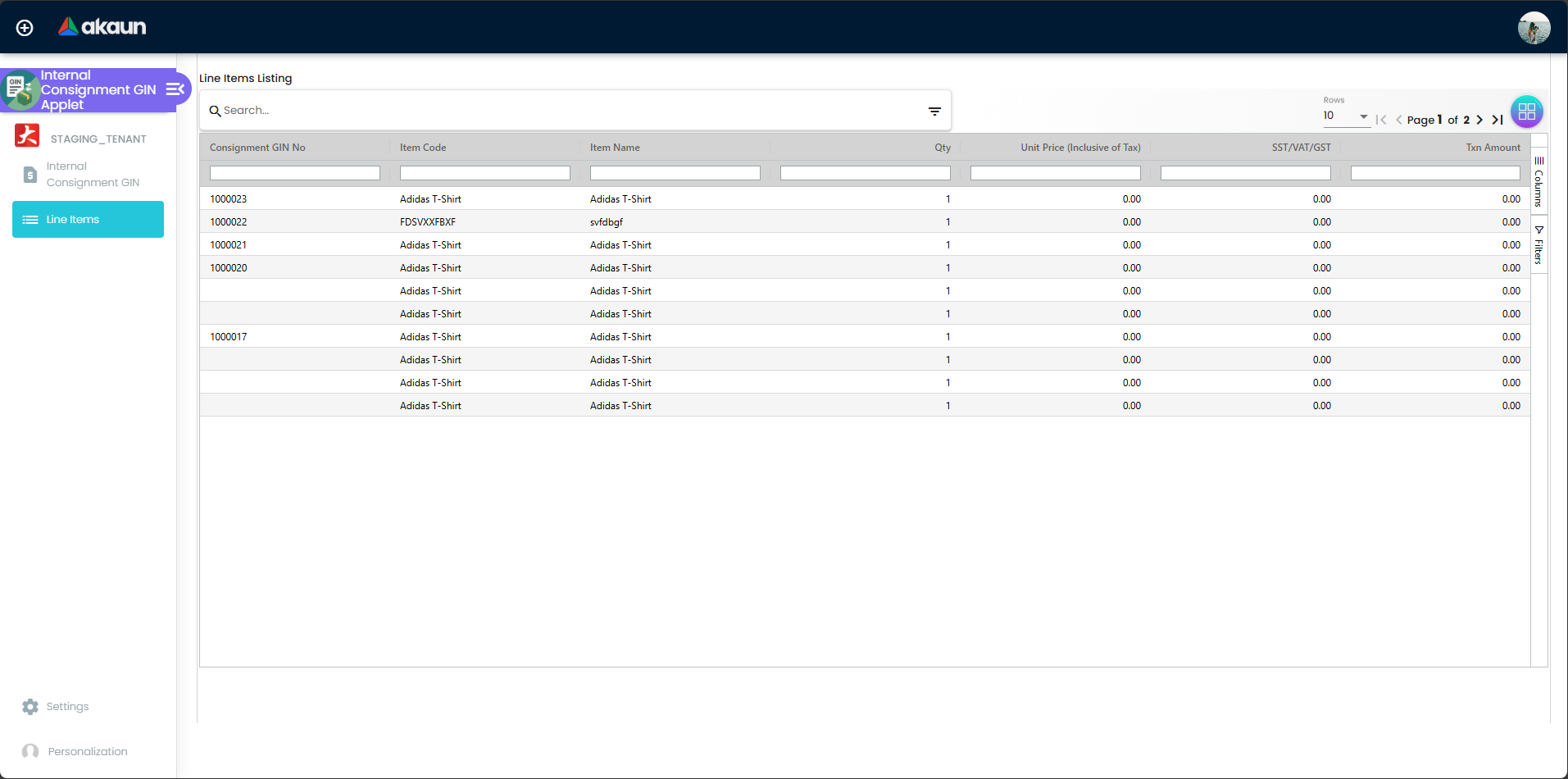
The Line Items navigation provides a dedicated view to search and manage consignment GIN line items across all documents. Access it via Line Items in the applet sidebar.
Line Item Search Fields
| Field | Description |
|---|---|
| Consignment GIN No | Filter by parent GIN document |
| Item Code | Search by product code |
| Item Name | Search by product name |
| Txn Amt | Filter by transaction amount range |
Line Item Details (per line)
| Field | Description |
|---|---|
| Item Code | Product identifier |
| Item Name | Product description |
| Quantity | Units issued (Base and UOM) |
| Unit of Measure | UOM (e.g., EA, Box) |
| Serial Number | For serialized items (if enabled) |
| Batch Number | For batch-tracked items (if enabled) |
| Bin Number | Storage location (if enabled) |
| Pricing Details | Unit price, discount, amounts |
| Issue Link | Link to source documents |
Viewing Line Items
Option 1: From a GIN record
- Open the Internal Consignment GIN listing and click on a GIN row
- In the Edit view, go to the Lines tab
- Add, edit, or view line items for that GIN
Option 2: Dedicated Line Items view
- Click Line Items in the sidebar
- Use Advanced Search to filter by GIN No, Item Code, Item Name, or Txn Amt
- Click a row to open the parent GIN in edit mode
Configuration & Settings
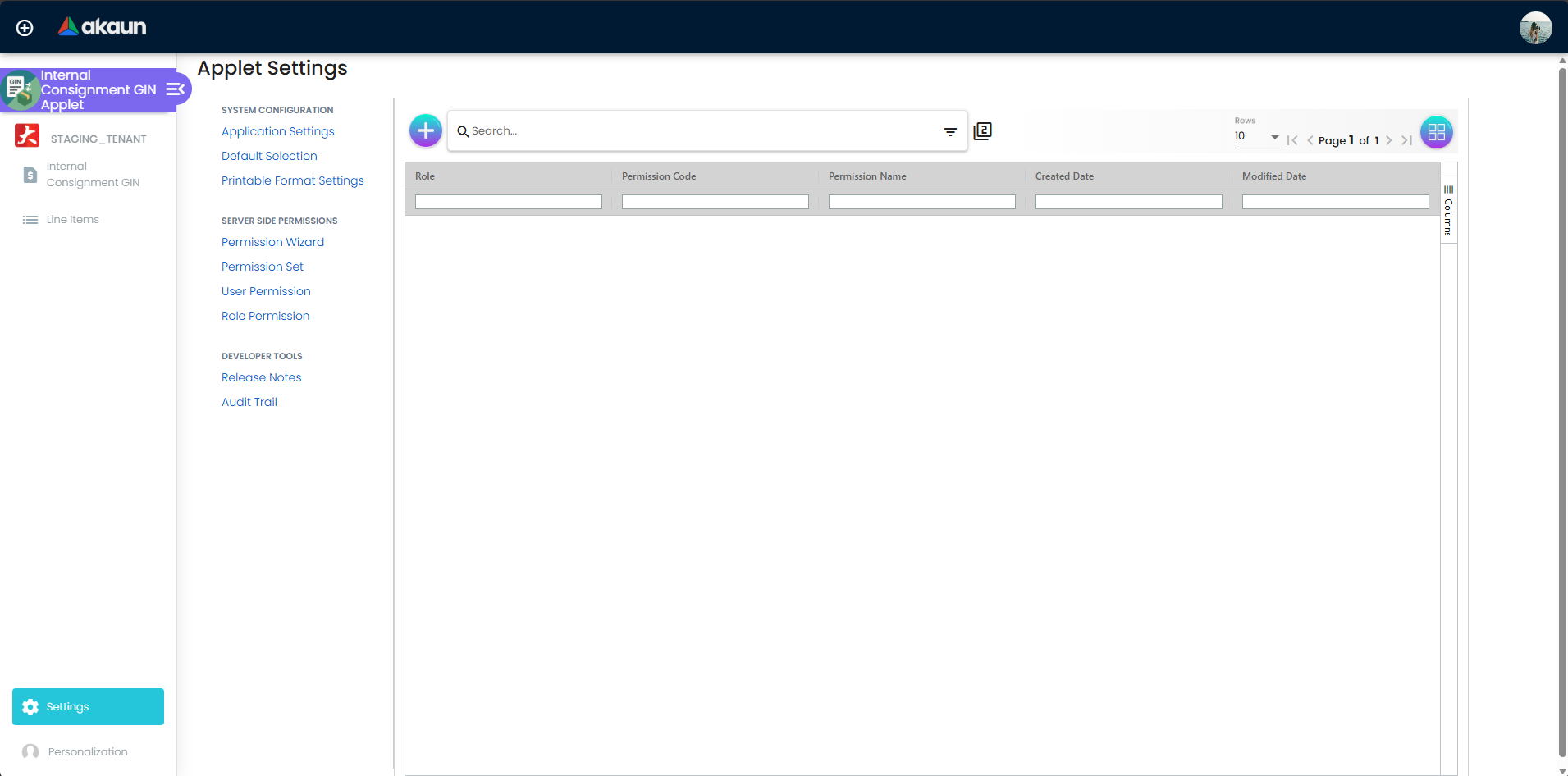
Administrators configure the Internal Consignment GIN Applet via Settings in the applet sidebar. The following settings are available:
Settings Menu Structure
| Setting | Purpose |
|---|---|
| Application Settings (Field Settings) | Configure which fields and tabs are visible |
| Default Selection | Set default values for new documents |
| Printable Format Settings | Configure export/print templates |
| Webhook | Configure webhooks for integrations |
| Feature Visibility | Control feature visibility |
| Permissions | User, Team, and Role permission listings |
| —————– | —————————————— |
Configurable Tabs (Application Settings)
The following tabs can be shown or hidden per tenant via Settings > Application Settings:
| Tab | Description | Default |
|---|---|---|
| Payment | Record and manage payments | Visible |
| Department Hdr | Department-level details | Visible |
| Contra | Link contra documents | Visible |
| Doc Link | Link related documents | Visible |
| Attachments | Attach files | Visible |
| Export | Export to printable format (PDF) | Visible |
Consignment Item Setup
Navigation: Master Data > Items > [Item] > Consignment
Before creating consignment GINs, ensure items are properly configured:
| Setting | Purpose | Example |
|---|---|---|
| Consignment Item | Flag item as consignment | Checked |
| Consignment Supplier | Link to supplier who owns stock | Supplier ABC |
| Consignment Location | Default storage location | Consignment Area |
Warehouse/Location Setup
Navigation: Master Data > Warehouses or Inventory > Locations
- Define locations that hold consignment stock
- Ensure consignment items are allocated to correct locations
- Set up consignment-specific storage areas if needed
User Permissions
Navigation: Settings > [Permission Set / User / Team / Role Permission Listing]
| Permission | Description | Typical Role |
|---|---|---|
| Create Consignment GIN | Create new GIN records | Purchaser, Sales Rep |
| View Consignment GIN | Access listing and details | Purchaser, Warehouse |
| Edit Consignment GIN | Modify draft GINs | Purchaser, Manager |
| Delete Consignment GIN | Delete draft GINs | Manager (if applicable) |
Integration with Consignment Purchasing
The Internal Consignment GIN Applet integrates with:
- Consignment Receipt/GRN - Stock received into consignment
- Consignment Inventory - Current balances
- Consignment Reconciliation - Monthly billing and supplier settlement
Ensure the Consignment Purchasing process is properly configured for end-to-end tracking.
FAQ
Q: Where do I find the Internal Consignment GIN applet? A: Go to Internal Consignment GIN in the sidebar (typically under Inventory or Purchasing, depending on your tenant setup). If you don’t see it, your role may not have access—contact your administrator.
Q: What is the difference between a consignment GIN and a regular GIN? A: A consignment GIN issues items from consignment inventory (supplier-owned stock at your location). A regular GIN issues your owned inventory. Consignment GINs reduce consignment balances and feed into supplier billing when you’re charged for consumed items.
Q: Can I edit a consignment GIN after submitting it? A: It depends on your system configuration. Draft GINs can usually be edited. Once submitted or completed, changes may be restricted—check with your administrator. If you need to correct a completed GIN, you may need to create a reverse/adjustment entry.
Q: Can I create a consignment GIN if I don’t have consignment stock? A: No. The system validates stock availability at the issuing location. If you get an error, check the consignment inventory balance for that item and location. Stock must be received via a Consignment GRN first.
Q: How do I find a specific consignment GIN I created? A: Open the Internal Consignment GIN Listing and use Advanced Search: filter by Consignment GIN No, Branch Name, Supplier Name, Created Date, Transaction Date, or Created by.
Q: How does a consignment GIN affect supplier billing? A: Each consignment GIN reduces your consignment inventory. When the supplier sends a consumption invoice (typically monthly), it’s based on these GIN transactions. Finance uses the GIN records to reconcile and verify the invoice.