Internal Inbound Delivery Order Applet
Purpose and Overview
The Internal Inbound Delivery Order (DO) Applet is designed to manage the receiving process for goods transferred internally between branches or intercompany entities. It ensures accurate inventory updates and provides robust tracking for serialized items, bridging the gap between outbound shipping and inbound receiving.
Key Features Overview
Who Benefits from This Applet?
Warehouse & Receiving Teams:
- Digital records of incoming internal stock
- Real-time validation of received items against shipping documents
- Streamlined serial number scanning and verification
- Reduced manual data entry errors
Inventory Managers:
- Accurate visibility into “In-Transit” vs “Received” stock
- Improved intercompany reconciliation
- Better control over high-value serialized inventory
- Audit trails for all internal stock movements
Finance & Accounting:
- Automated linking between intercompany sales and purchases
- Accurate valuation of received inventory
- Reduced discrepancies in intercompany billing
- Simplified month-end stock count processes
What Problems Does This Solve?
The Manual Receiving Problem:
Traditional internal stock transfers often suffer from a lack of visibility and manual errors. Common issues include:
- Discrepancies between what was sent and what was received
- Difficulty tracking specific serial numbers during transfers
- Delays in updating inventory levels after stock arrives
- Broken links between intercompany outbound and inbound documents
- Lack of a centralized audit trail for internal movements
The Internal Inbound DO Solution:
- Document Linking - Automatically load items from Intercompany Sales Invoices or Purchase Orders.
- Serial Number Validation - Enforce serial number entry for high-value items before finalizing receipts.
- Real-time Updates - Instant inventory reflect upon “FINAL” posting of the Inbound DO.
- Flexible Searching - Quickly find documents by branch, supplier, or tracking ID.
- Customizable Workflow - Support for custom clearance statuses and field-level permissions.
Key Features Overview

Key Concepts
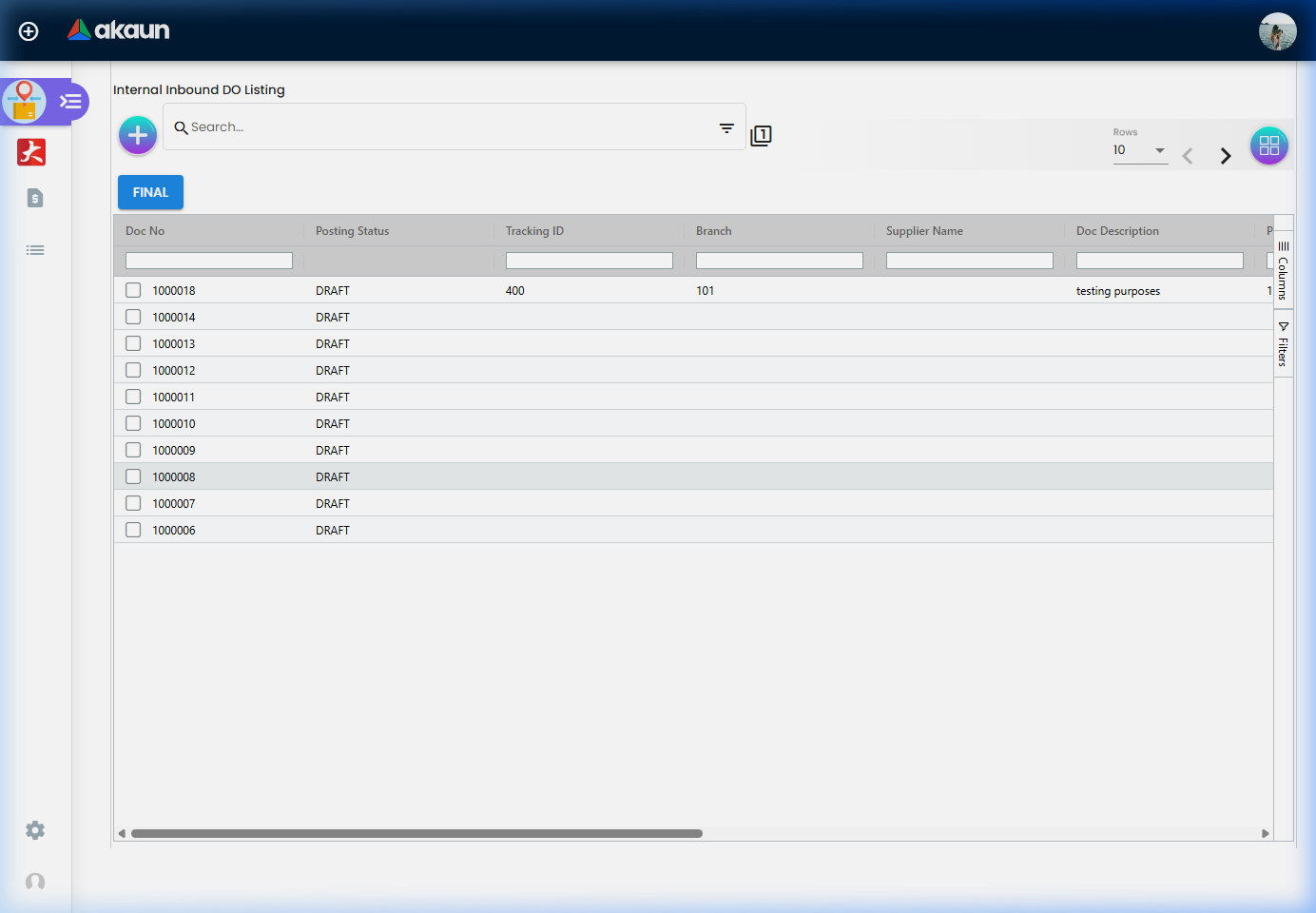
Internal Logistics Framework
The applet operates at the intersection of shipping and receiving. Understanding the document flow is critical for efficient operations:
| Component | Role | Practical Example |
|---|---|---|
| Source Document | The origin of the transfer | Intercompany Sales Invoice (SI), Purchase Order (PO) |
| Inbound DO | The receiving record | A document listing items actually received at the warehouse |
| Posting to FINAL | The inventory trigger | Moving a document from DRAFT to FINAL updates the stock levels |
Serial Number Lifecycle
For serialized items, the applet enforces a strict validation rule:
- Selection: Item is added to the Inbound DO.
- Identification: System identifies the item as
SERIAL_NUMBERtype. - Verification: User must scan or enter the exact serial numbers received.
- Finalization: The document cannot be posted to FINAL unless all serialized lines have their corresponding serial numbers recorded.
Inbound DO Flow Structure
Think of the internal inbound process as a transition between entities:
Source Entity (Sender)
│
├── Intercompany Sales Invoice ──→ The Outbound Trigger
│
└── Internal Inbound DO Applet (Receiver) ──→ THE HUB
    │
    ├── Document Search ──→ Load from Source
    │
    ├── Line Item Verification ──→ Match Physical Stock
    │   │
    │   └── Serial Number Entry ──→ Mandatory for ID Items
    │
    └── FINAL Posting ──→ Financial & Inventory Update
This structure ensures:
- No Lost Inventory: Every item sent must be accounted for on the receiving end.
- Accurate Serial History: High-value items are tracked by their unique IDs across the entire intercompany journey.
- Clear Accountability: Separate steps for loading, verifying, and finalizing the receipt.
Quick Start Guide
Get your receiving process running efficiently with these essential workflows.
For Warehouse Staff: Receive Your First Shipment
Goal: Record a new shipment and verify contents in 5 steps.
- Search: Go to Internal Inbound DO → Click Create → Use the Search tab to find the Intercompany SI or PO.
- Load Header: Select the correct document to populate the header (Branch, Supplier, etc.).
- Verify Lines:
- Navigate to the Lines tab.
- For each item, verify the Received Quantity.
- If the item is serialized, click Edit Line to enter/scan serial numbers.
- Check Accuracy: Ensure the total Quantities match the physical shipment.
- Submit/Final: Click Create (Draft) or Final (if authorized) to record the receipt.
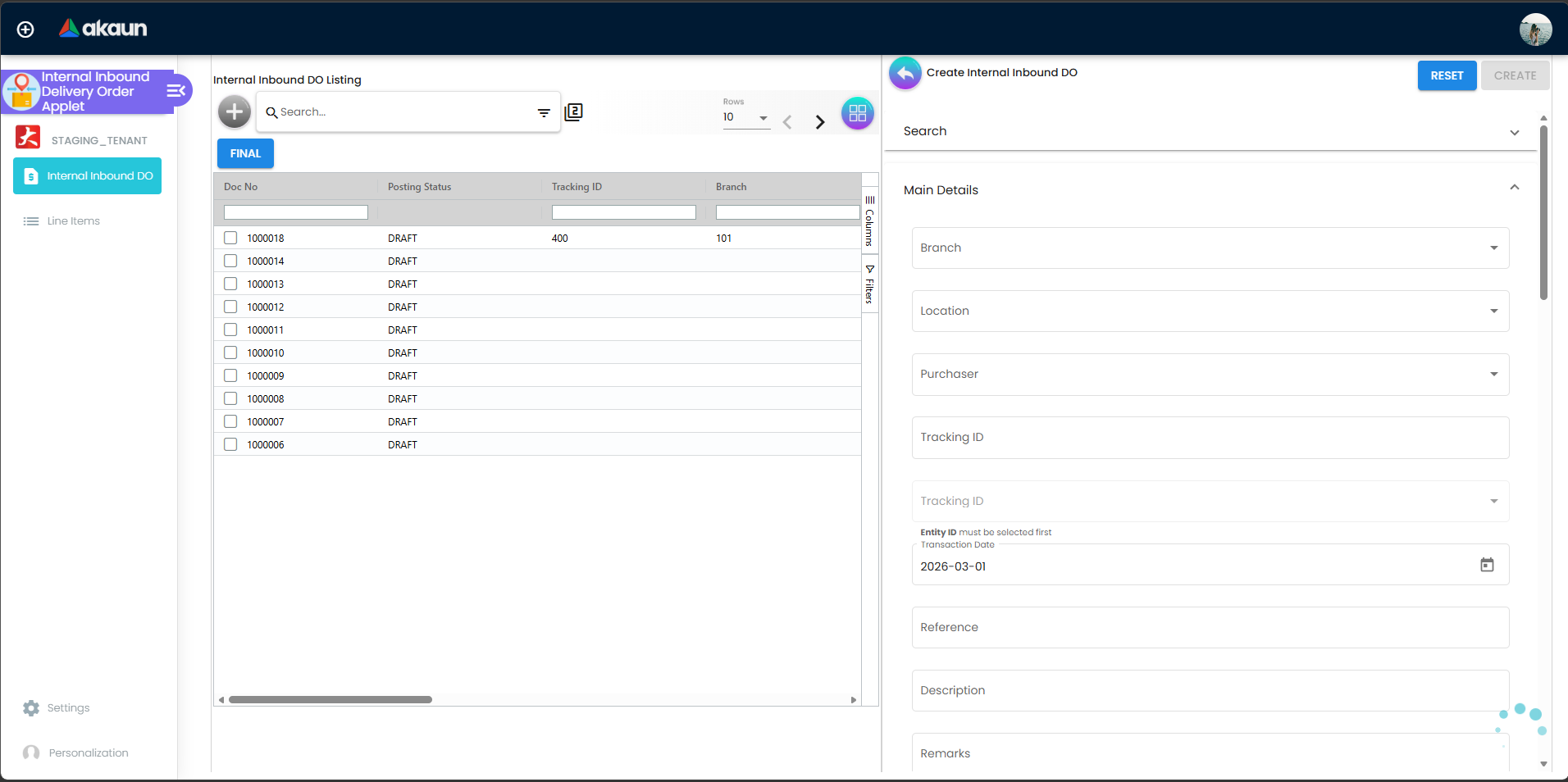
Pro Tip: Use a handheld scanner in the “Serial Numbers” field to drastically speed up processing for large shipments.
For Inventory Managers: Review and Reconcile
Goal: Audit pending receipts and finalize stock updates.
- Monitor Queue: Check the Internal Inbound DO Listing for documents in
DRAFTstatus. - Review Discrepancies:
- Open a document to see the Main Details.
- Check if any items are missing serial numbers (marked as invalid/missing).
- Authorize: Once verified, select the documents from the listing and click the Final button to officially update the warehouse stock.
For Admins: Initial System Setup
Goal: Configure the applet for branch operations in 4 steps.
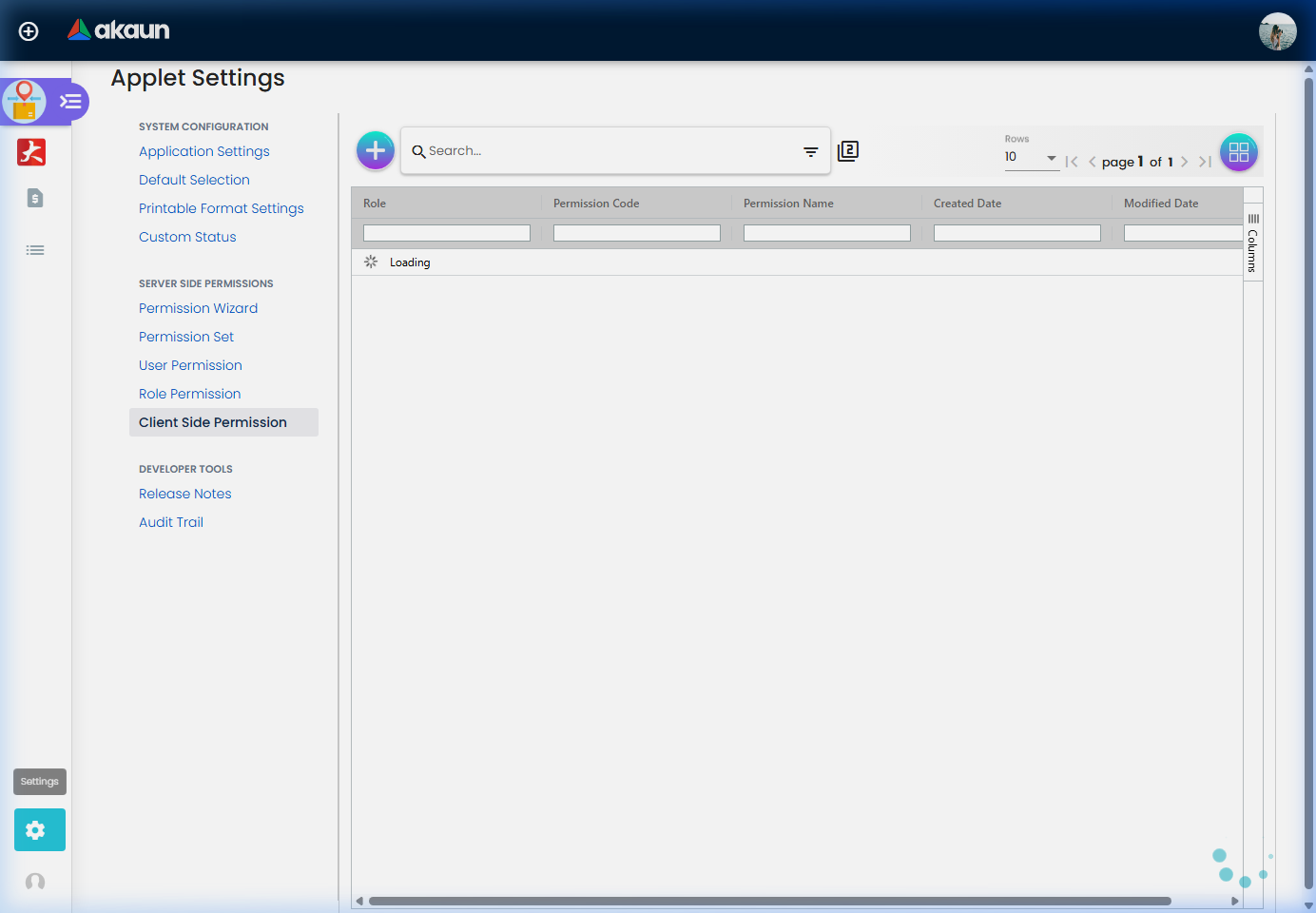
- Set Up Permissions (
Settings > Client Side Permission):- Define who can create Drafts vs who can post to FINAL.
- Configure Fields (
Settings > Field Settings):- Make
Tracking IDorDoc Referencemandatory if required by policy.
- Make
- Define Custom Statuses (
Settings > Custom Status):- Add labels for internal logistics steps (e.g., “Quality Inspected”).
- Default Selections (
Settings > Default Selection):- Set the default Branch and Location to save time during entry.
Line Items Listing - Detailed Audit Trail
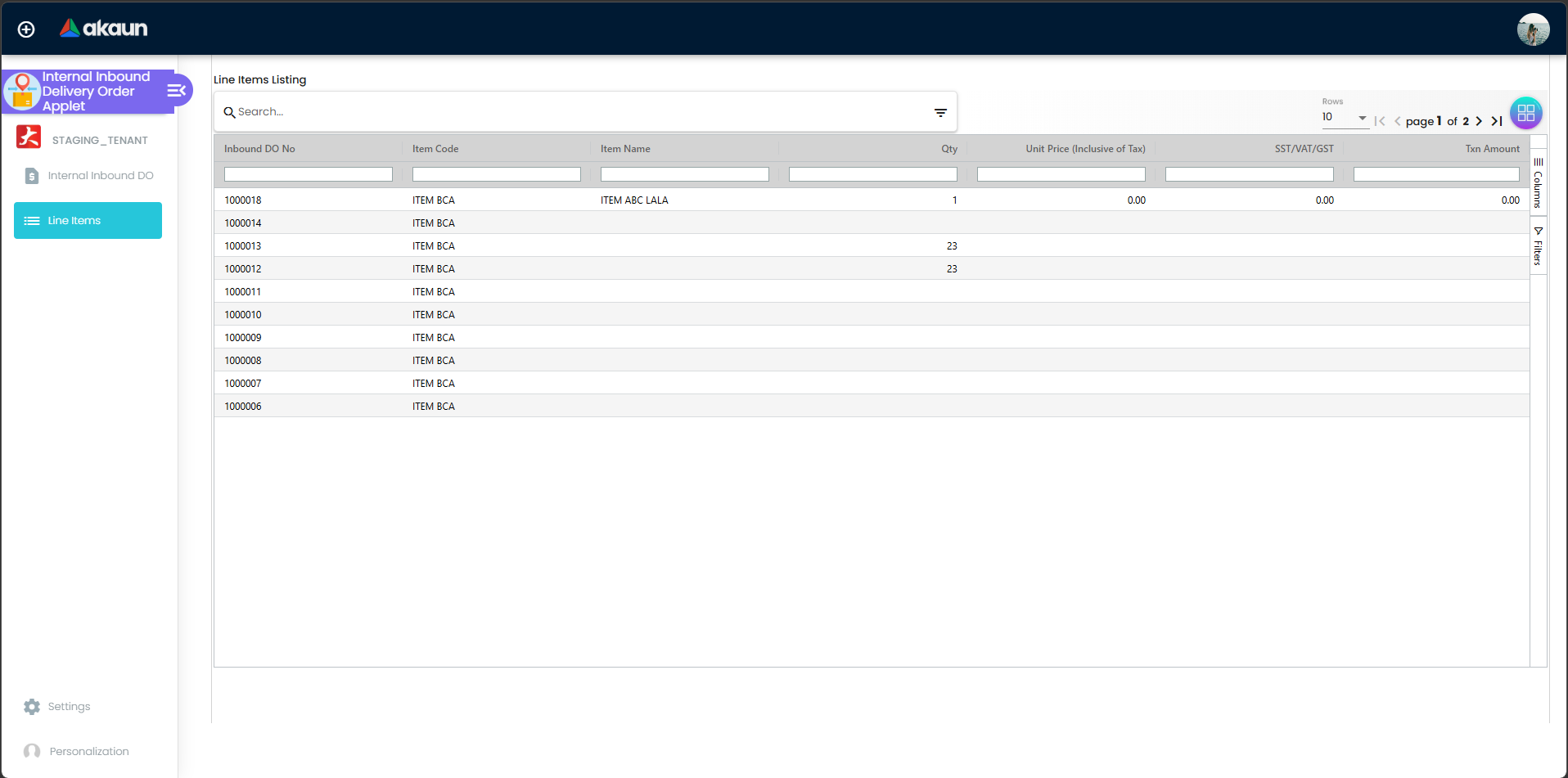
Track every individual item received across your entire organization.
While the main listing shows full documents, the Line Items Listing provides an itemized view of every single unit processed.
Why Use Line Items Listing?
For Warehouse Teams:
- Quickly verify if a specific Item Code was received this week.
- Search for serial numbers that might have been entered incorrectly.
For Inventory Control:
- Run reports on total quantities of a product group received.
- Export itemized lists to Excel for external auditing or physical stock matching.
Key Search Capabilities
- By Item Code: Find every time a specific product was transferred internally.
- By Serial Number: Trace a specific high-value unit to its receiving document.
- By Date Range: Audit all stock movements for a specific period.
- By Branch: Focus only on receiving activities for a single warehouse.
Serialized Item Management
Maintain 100% accuracy for your high-value inventory.
Mandatory Validation
The system is hard-coded to protect your data integrity:
- Items marked as
SERIAL_NUMBERin the master data require one serial number per unit of quantity. - If you receive 5 iPhones, you MUST enter 5 unique serial numbers.
- The Final button will be disabled or throw an error if serial numbers are missing for these items.
Handling Serial Numbers
- Manual Entry: Type serial numbers directly into the detail view.
- Barcode Scanning: Focus on the input field and scan the manufacturer’s barcode.
- Bulk Import: (If enabled) Upload a CSV list of serial numbers for high-volume receipts.
Configuration & Settings
Admins can tailor the applet to specific business needs via the Settings menu.
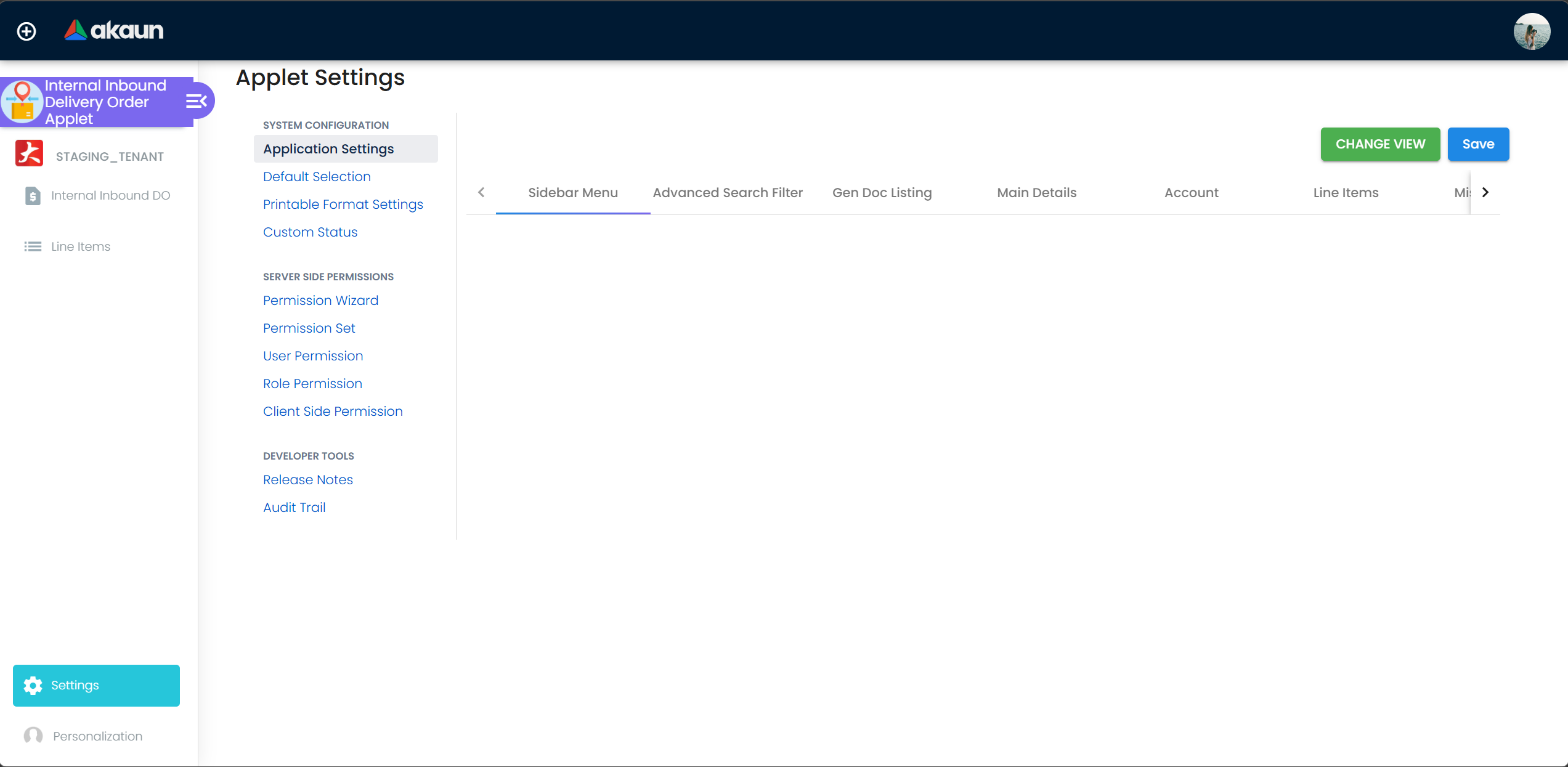
Custom Clearance Statuses
Allows you to track additional logistics milestones (e.g., “Customs Cleared”, “In Quality Check”, “Quarantined”).
- Enable up to 5 custom header statuses.
- Define custom labels for each (e.g.,
Custom Status 1→Port Arrival Date).
Field Configuration
- Control which fields are mandatory vs optional.
- Hide unnecessary fields to simplify the interface for warehouse staff.
- Set default branches or purchasers to reduce daily typing.
FAQ
Q: Why can’t I click the “Final” button? A: Most commonly, this is because a serialized item in the list is missing its serial numbers. Check all line items for an “Invalid Serial” warning.
Q: Can I receive more than what was on the Sales Invoice? A: This depends on your system settings. Usually, the applet validates against the source document to prevent over-receiving. If you physically received more, contact the sending branch to adjust the source document.
Q: How do I find a document from last month?
A: Use the Advanced Search in the listing view. You can filter by Created Date From/To or search specifically by the Supplier Name or Doc Reference.
Q: What happens if I make a mistake after posting to FINAL? A: Once a document is “FINAL”, inventory is updated. To correct it, you will typically need to perform a “Stock Adjustment” or create a “Returns” document, as FINAL documents are locked for audit integrity.
Q: Can I handle a partial shipment? A: Yes. You can adjust the “Received Qty” on the line items to match what was physically delivered. The source document will remain partially “un-inbounded” until the remaining items are processed in a separate Inbound DO.
Q: How do I export my receiving history? A: Navigate to the Line Items Listing, apply your filters (e.g., last 30 days), and use the Export to CSV/Excel button on the grid to download the full itemized report.
Technical Audit Trail
The applet maintains a complete record:
- Created By: The user who first drafted the receipt.
- Updated By: The last person to modify the document.
- Date TXN: The actual date the goods were acknowledged.
- System Doc: A unique server-generated ID for cross-referencing.