Internal Sales Return Applet
Purpose and Overview
The Internal Sales Return Applet handles customer return processing, integrating inventory adjustments, financial settlements, and document workflows.
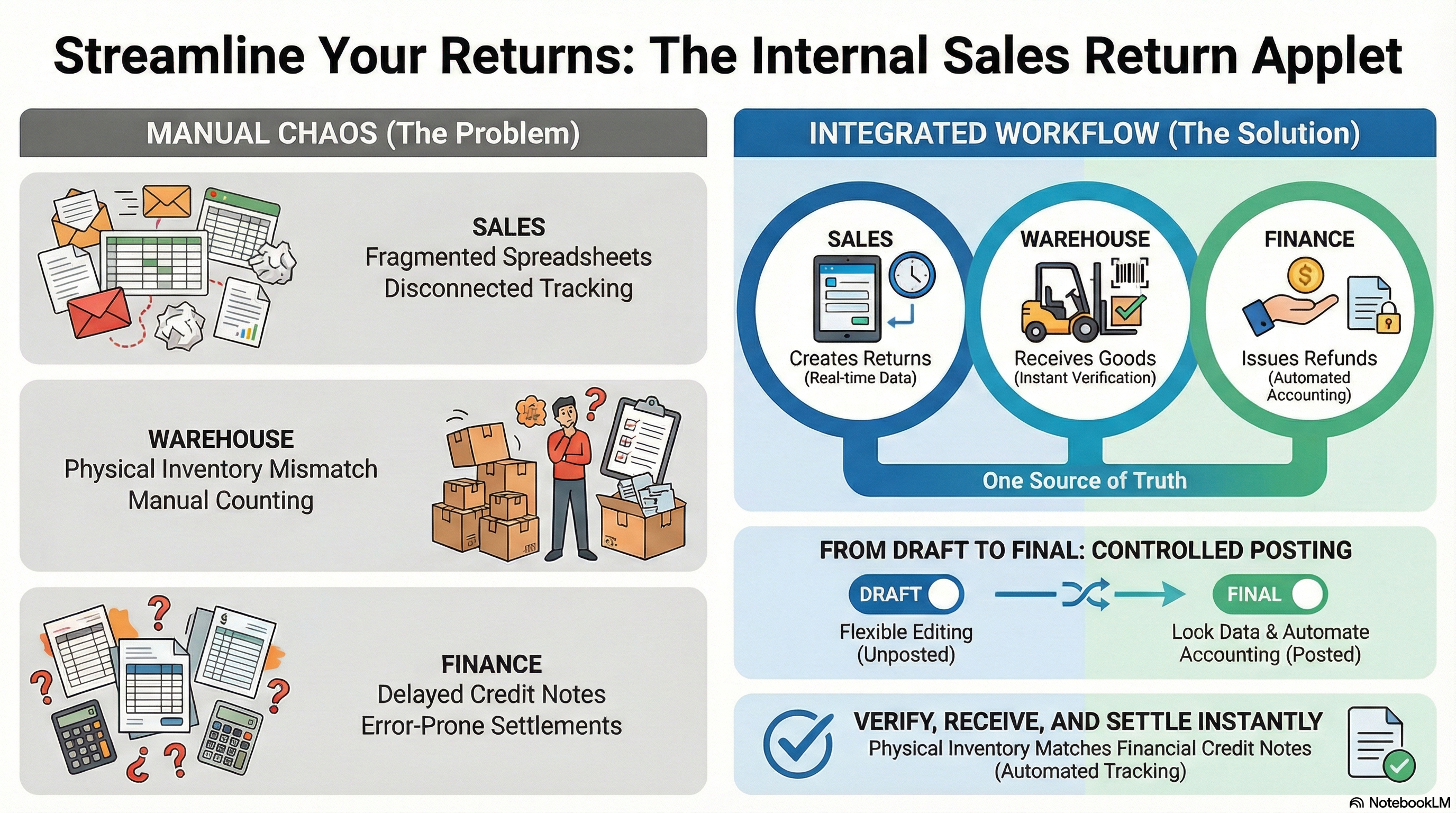
Who uses this:
- Sales Teams - Create return documents, select customers, track status
- Warehouse Staff - Receive returned goods, verify items physically
- Finance Teams - Process refunds, generate credit notes, handle settlements
Document Status Reference
| Posting Status | Meaning | What You Can Do |
|---|---|---|
| DRAFT | Being created/edited | SAVE, FINAL, Edit all fields |
| FINAL | Locked and posted | VOID, View, Process receipts/settlements |
| VOID | Cancelled | View only |
| DISCARDED | Discarded draft | View only |
Quick Start Guide
Get up and running quickly with these essential workflows.
For Sales Teams: Create Your First Return
Goal: Create a sales return document with precise navigation through tabs.
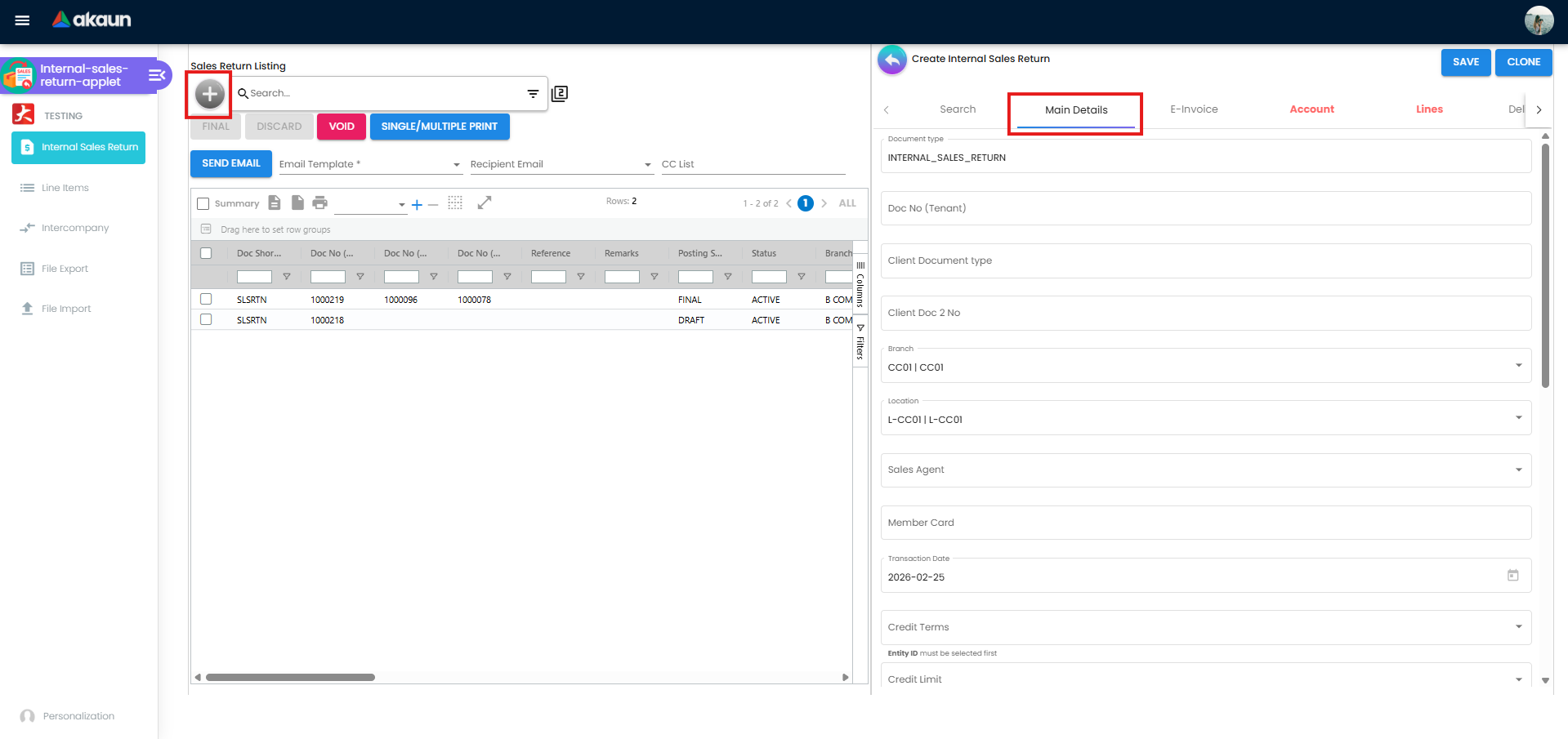
Open Create Screen: Go to Internal Sales Return > Click “+” button in toolbar - a new screen opens showing “Create Internal Sales Return” with multiple tabs.
Main Details Tab (opens by default):
- Branch: Select branch from dropdown (e.g., “Head Office”)
- Location: Select location from dropdown (appears after branch selection)
- Transaction Date: Click calendar icon, select return date
- Reason: Click dropdown, search or select reason (e.g., “Defective”, “Wrong Product”)
- Remarks: Enter additional notes about the return (optional but recommended)
- Reference: Enter reference number if available (optional)
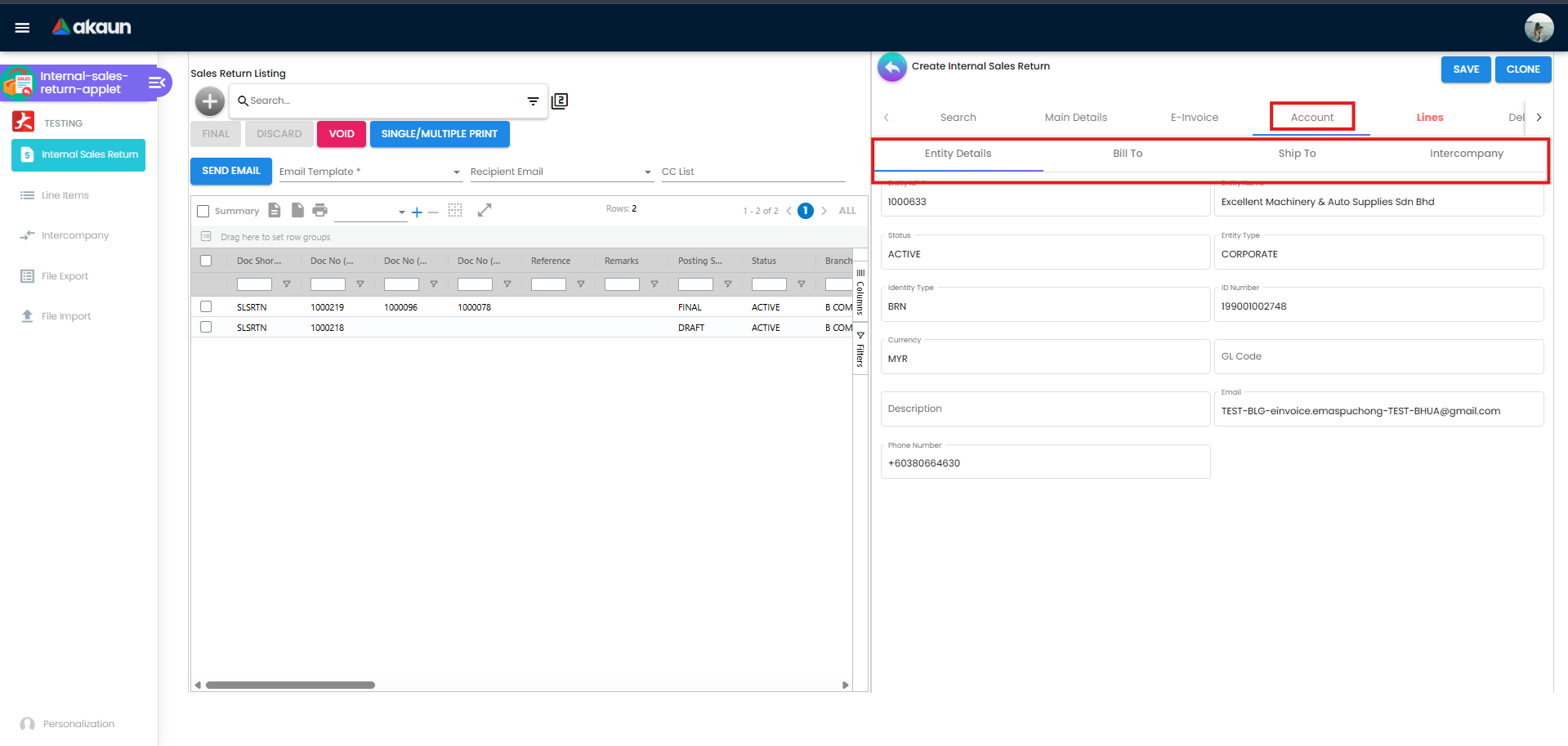
Account Tab (click tab at top):
- Click Entity Details sub-tab (if not already selected)
- Click the Entity ID or Entity Name field (clickable field with cursor icon)
- Customer selection dialog opens - search and select customer
- Form auto-fills with: Entity Type, Status, Currency, Email, Phone Number, etc.
- Review Bill To and Ship To sub-tabs (addresses auto-populated from customer record)
Lines Tab (click tab at top):
- Click button to add line items (look for “+” or “Add” button in Lines listing)
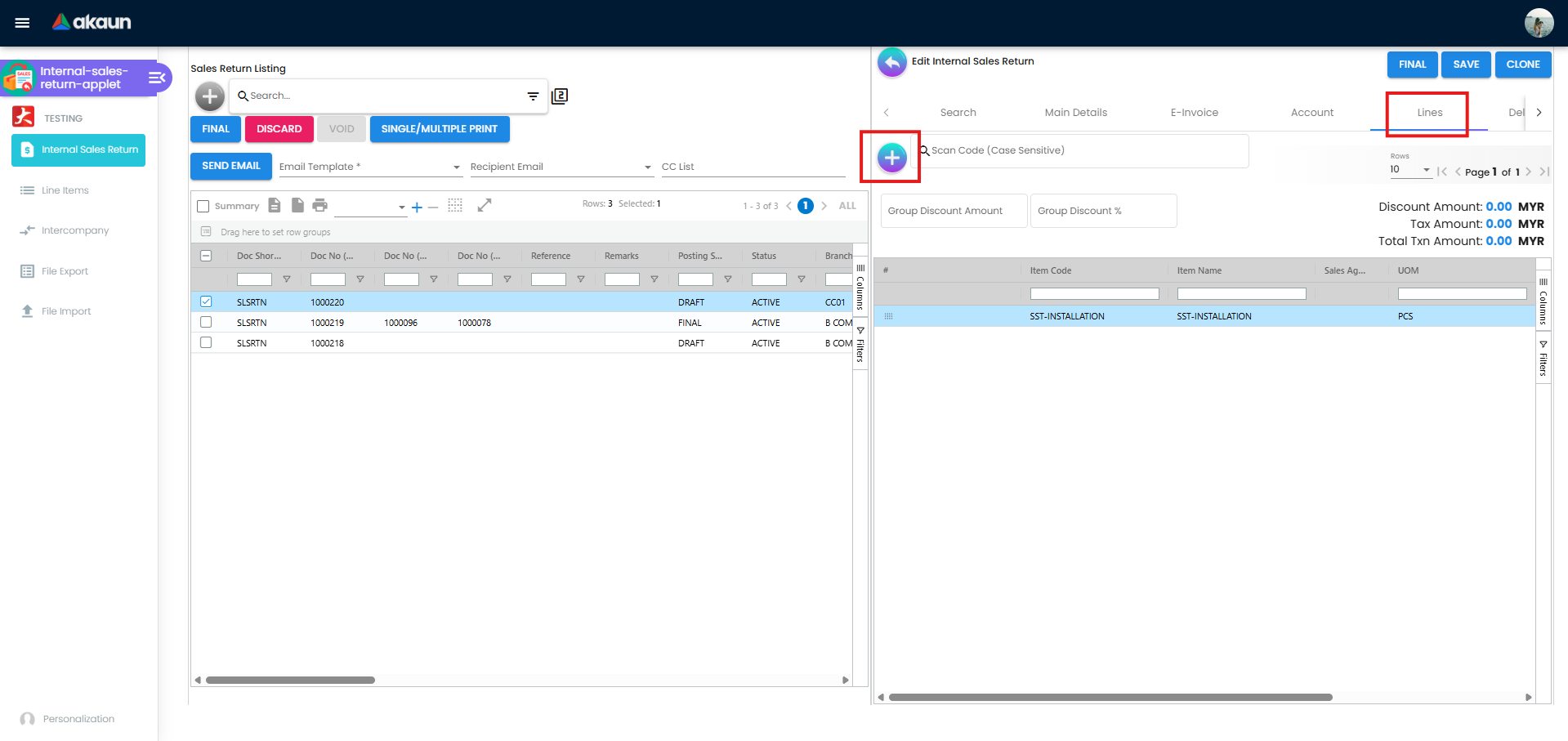
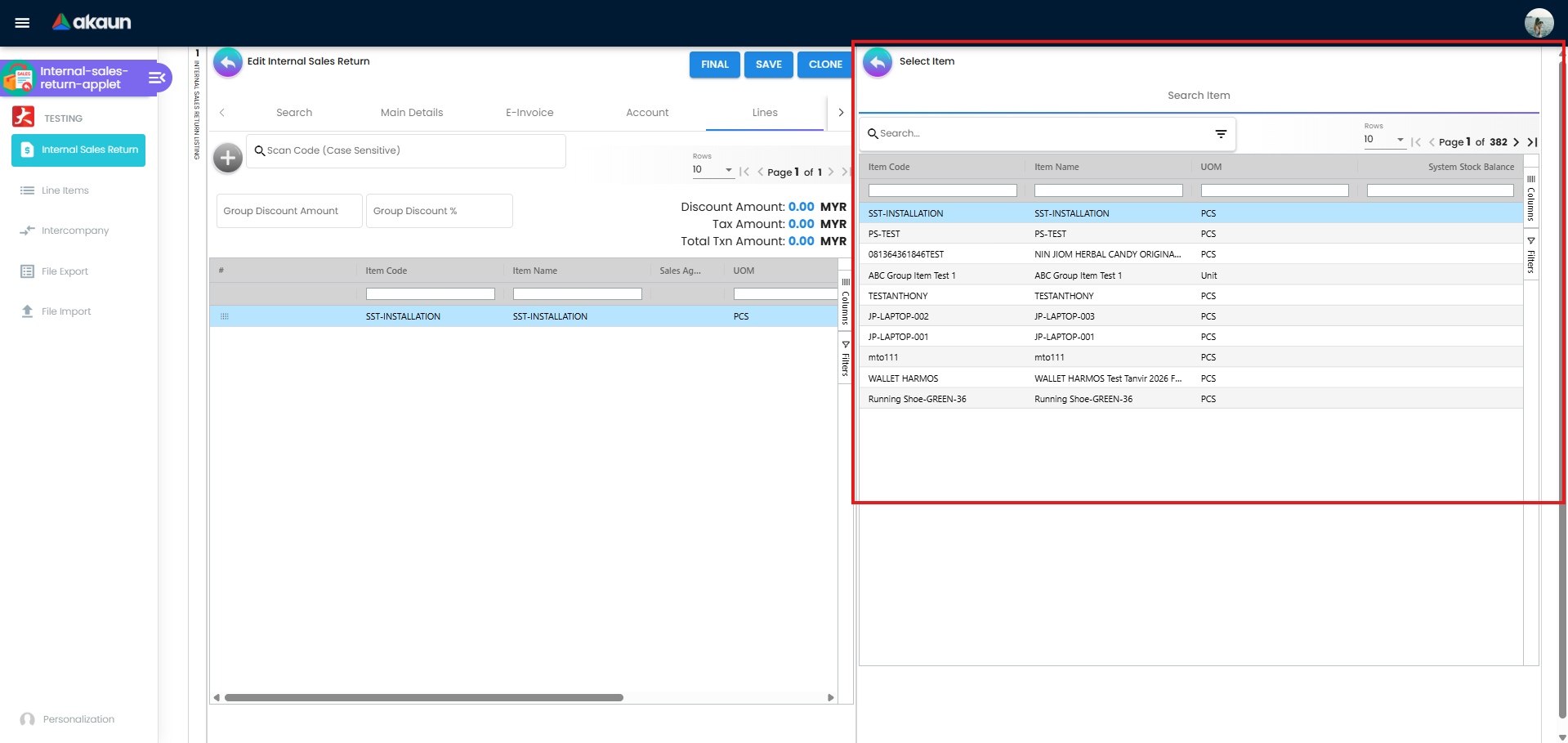
- Select Item dialog opens - showing list of available items
- Search or scroll to find the item being returned
- Click on item to select it
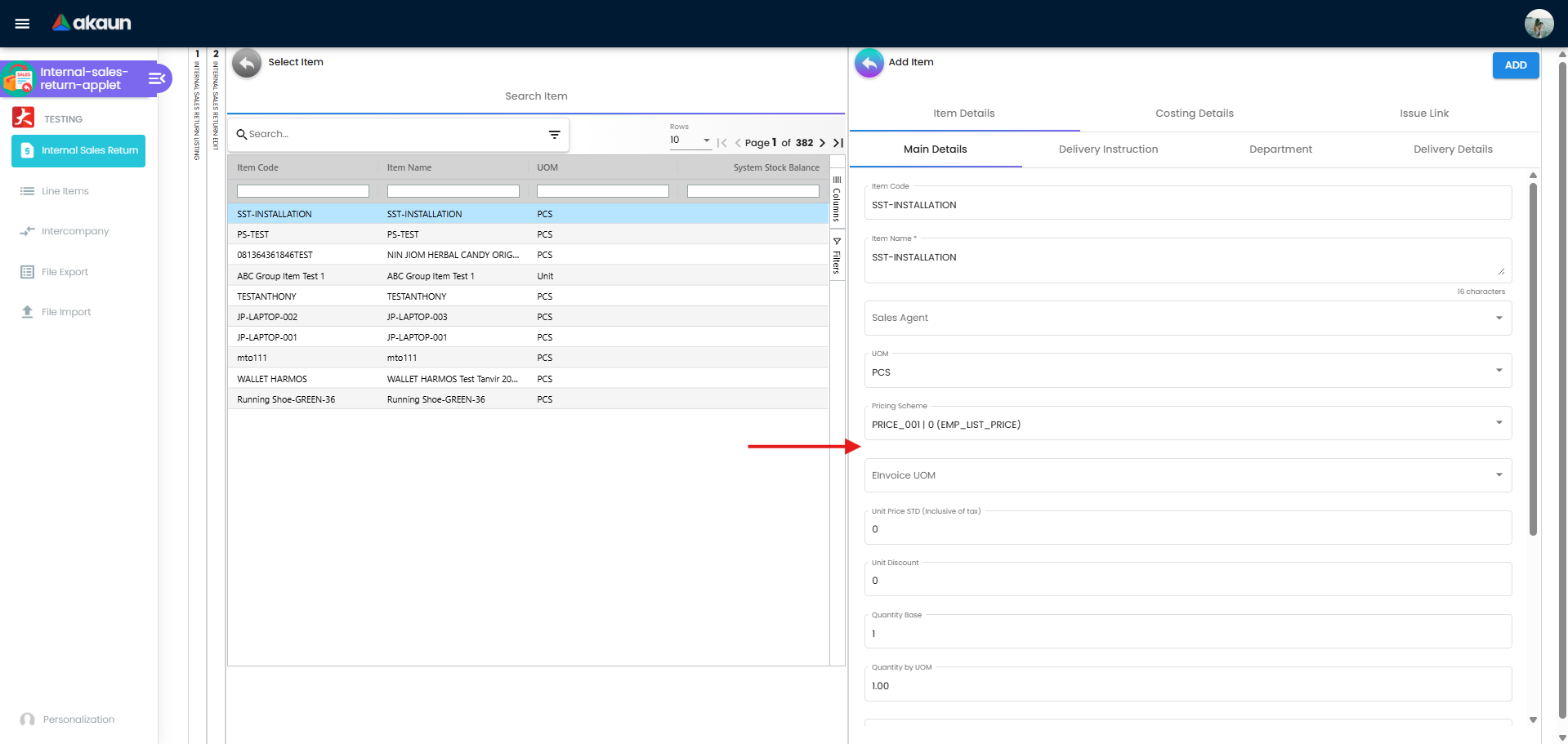
- Add Item screen opens with its own tabs:
- Item Details tab → Main Details sub-tab:
- Item Code/Name: Auto-filled from selection
- Sales Agent: Select if required
- UOM: Select unit of measure
- Pricing Scheme: Select pricing method
- Unit Price STD (Exclusive of tax): Verify or adjust price
- Quantity Base: Enter quantity being returned
- Quantity by UOM: Enter quantity in selected unit
- Tariff Code: Select tariff classification if required
- Add Serial Numbers (tab) if product is serialized
- Review Costing Details (tab) - confirms calculations
- Item Details tab → Main Details sub-tab:
- Click ADD button (top right) to add line item
- Repeat for multiple items
Review Totals: Check calculated totals at bottom of screen
Save or Finalize:
- SAVE: Click SAVE button (top right) - saves as DRAFT status (editable, not yet posted)
- FINAL: Click FINAL button - finalizes document as FINAL status (locked, posted to system)
- OR click CREATE button if creating new document
What’s next? Once FINAL → Warehouse receives goods → Finance processes refund → Customer gets credit/refund
Pro Tip: Keep as DRAFT while gathering information. Only click FINAL when ready to post (cannot easily undo).
For Warehouse Staff: Process Returned Goods
Goal: Coordinate physical receipt of returned items based on finalized return documents.
Access Finalized Returns:
- Go to Internal Sales Return applet
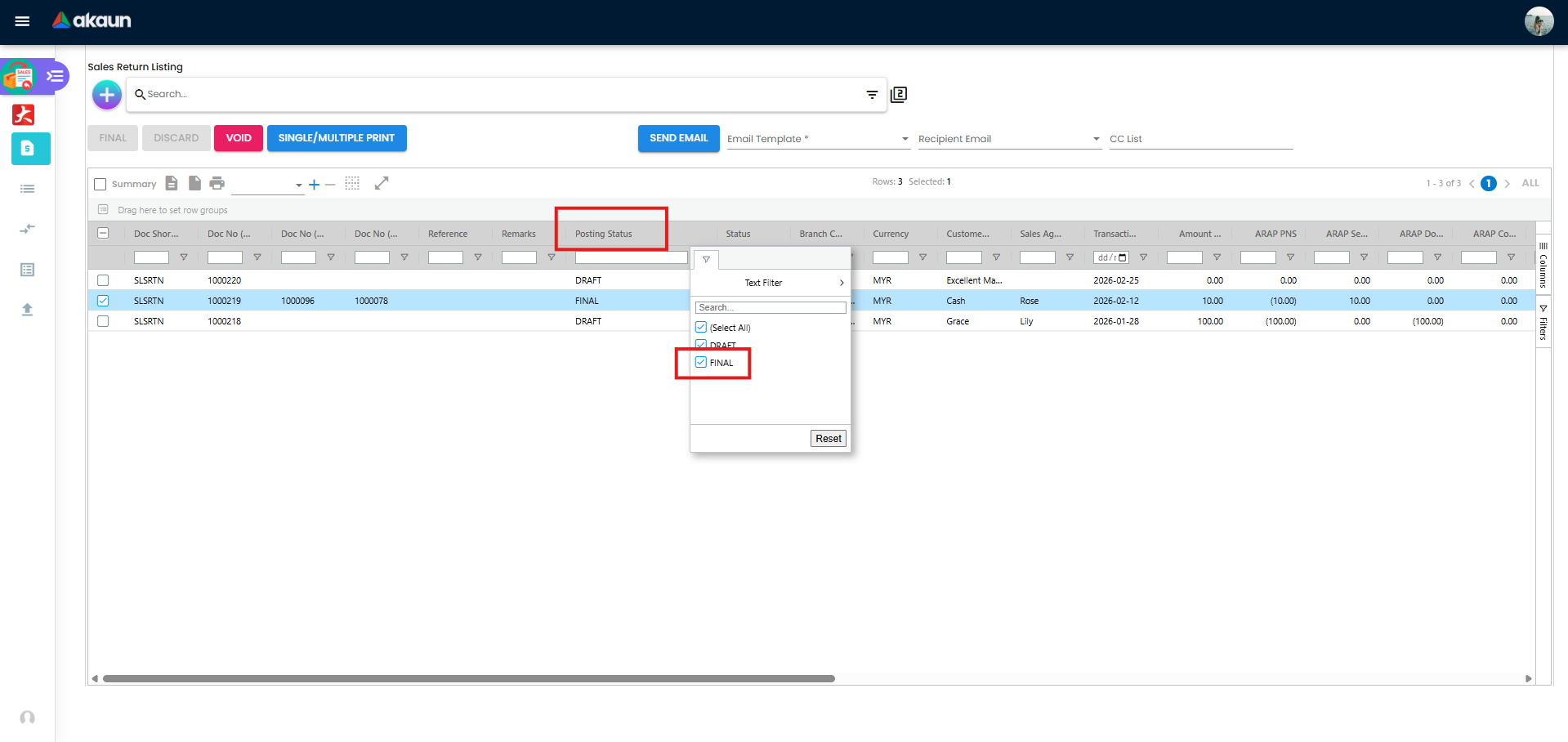
- Use Advanced Search or filter
- Filter by Posting Status: FINAL (finalized returns)
- Click on a return document to view details
Review Return Details:
- Main Details tab: Check branch, location, transaction date, return reason
- Account tab: Verify customer information
- Lines tab: Review items to be returned (Item Code, quantities, prices)
- Print return document if needed (look for Print button or use browser print)
Physical Receipt Process:
- Verify physical items match the return document:
- Check item codes and descriptions
- Count quantities
- Inspect condition (saleable, damaged, defective)
- Verify serial/batch numbers if applicable
- Place items in appropriate storage location based on your warehouse procedures
- For damaged/defective items, follow your organization’s quarantine procedures
Document Discrepancies:
- If actual received items differ from document, coordinate with sales/management
- They may need to edit the return document (if still in DRAFT) or create adjustments
- Add notes in Main Details tab > Remarks field if you have edit access
Common Scenarios:
- Defective items: Store in designated defective/quarantine area per warehouse policy
- Restockable items: Return to regular inventory locations
- Quantity discrepancies: Report to sales team for document adjustment
- Wrong items received: Coordinate with sales/customer service for resolution
For Finance Teams: Process Refund
Goal: Complete financial settlement and issue refund.
Access Returns Ready for Settlement:
- Go to Internal Sales Return applet
- Use Advanced Search or filter
- Filter by Posting Status: FINAL (finalized returns)
- Coordinate with warehouse to confirm goods physically received
- Click on a return document to open it
Review Financial Details:
- Main Details tab: Check return date, customer, reference, total amount
- Account tab: Verify customer details and addresses
- Lines tab: Review returned items, quantities, prices, discounts, taxes
- Check calculated totals displayed on screen
Process Settlement (if Payment tab available):
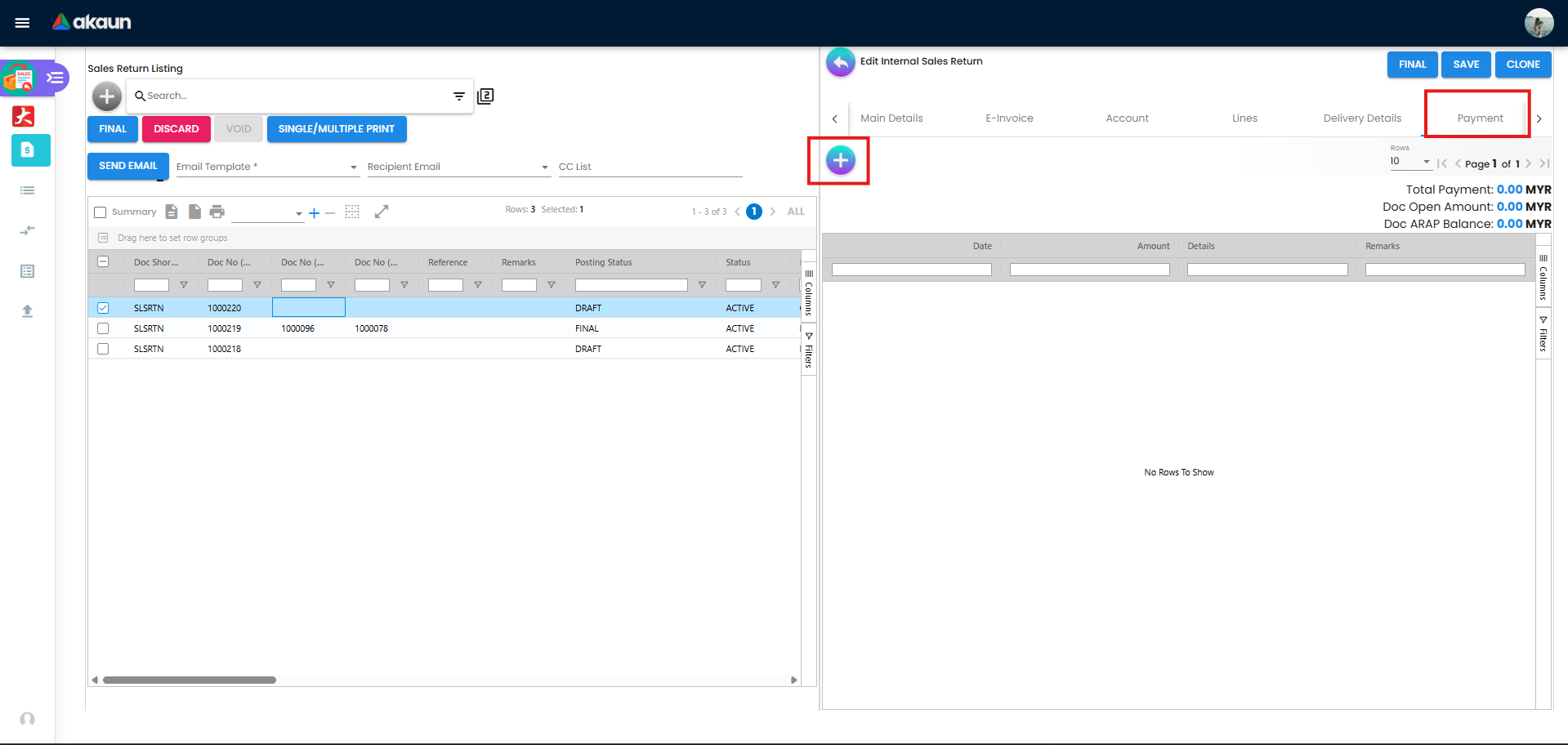
- Click Payment tab to access settlement options
- Look for button to add settlement or refund entry
- Settlement methods may include:
- Credit Note: Issues credit to customer account (no cash movement)
- Direct Refund: Process payment back to customer
- Contra/Offset: Offset against customer’s open invoices
- Enter settlement details and save
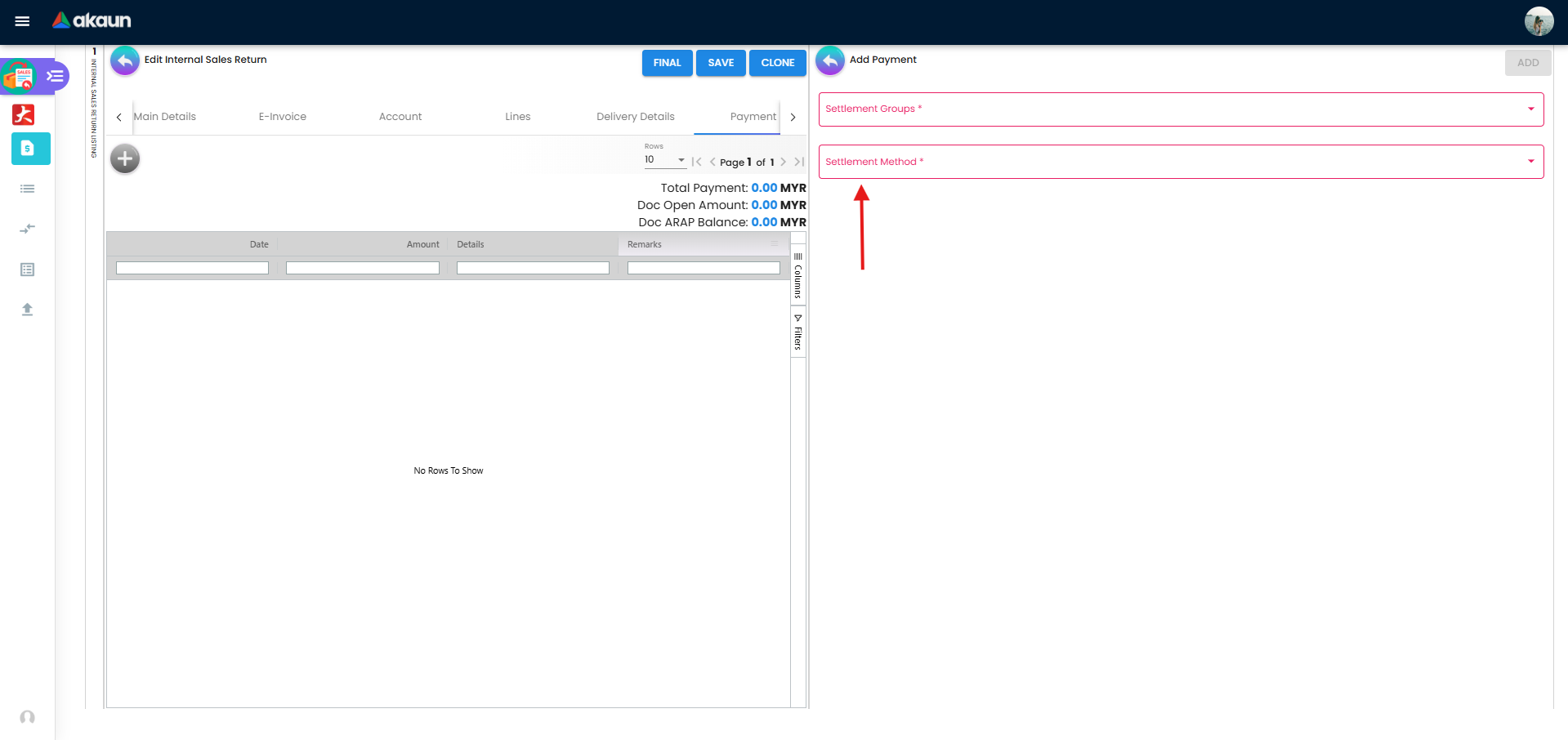
Complete and Verify:
- Verify accounting entries if integrated with general ledger
- Generate and send credit note or refund confirmation to customer
- Coordinate with customer service to inform customer of refund status
Common Daily Tasks
Task: Create a return
→ Internal Sales Return → Click + → Fill Main Details/Account/Lines tabs → SAVE or FINAL
Task: Find a return → Use Search or filter by status/customer/date → Click to open
Task: Process returned goods → Filter Posting Status: FINAL → Open document → Review Lines tab → Physically receive goods
Task: Process refund → Open FINAL return → Click Payment tab → Add settlement → Generate credit note
Task: Export returns report → Set date filter → Select filters → Click Export → Choose format
Best Practices
Sales Teams:
- Get proof of purchase before creating return
- Document return reasons clearly
- Take photos for defective items
- Complete all required fields
Warehouse Staff:
- Verify physical items match document quantities
- Inspect condition before storing
- Follow quarantine procedures for defective items
- Report discrepancies immediately
Finance Teams:
- Verify goods received before processing refund
- Generate credit notes promptly
- Keep audit trail of all transactions
Frequently Asked Questions
Q: What happens if I accidentally click FINAL? A: Once marked FINAL, the document is locked and posted to the system. You’ll need to VOID it and create a new return if changes are needed. Always keep documents as DRAFT until you’re certain all information is correct.
Q: Can I edit a FINAL document? A: No. FINAL documents are locked. If you need to make changes, you must VOID the document and create a new one with the correct information.
Q: What’s the difference between SAVE and FINAL? A: SAVE keeps the document as DRAFT (editable, not posted to system). FINAL locks the document and posts it to the system (affects inventory, accounting). Use SAVE while gathering information, then FINAL when ready to commit.
Q: Do I need to add settlements before clicking FINAL? A: Yes, if you want to add payment settlements. The Payment tab’s “Create” button is only available on DRAFT documents. Once FINAL, the Payment tab becomes read-only.
Q: What if the physical items received don’t match the document? A: Report discrepancies immediately to the sales team. If the document is still DRAFT, they can edit it. If already FINAL, they may need to create adjustment documents or void and recreate the return.
Q: How do I void a return? A: Open the FINAL document and look for the VOID button (typically in the top action bar). Only FINAL documents can be voided. DRAFT documents should be discarded or deleted instead.
Q: Can warehouse staff edit return documents? A: This depends on your system permissions. Typically, warehouse staff have view-only access to FINAL returns. They should coordinate with sales teams for any document changes needed.
Q: What if I can’t see the Payment tab? A: The Payment tab may not be visible depending on your permissions or system configuration. If settlements are handled in a separate accounting system, coordinate with your finance team using your organization’s standard refund procedures.
Q: What posting status should I filter for to find active returns? A: Use DRAFT for returns being created/edited, FINAL for approved returns ready for warehouse/finance processing. Avoid VOID (cancelled) and DISCARDED (abandoned drafts).
Q: How do I know which return reason to select? A: Choose the reason that best describes why the customer is returning the item (e.g., “Defective”, “Wrong Product”, “Changed Mind”). Your organization may have specific reason codes configured - check with your supervisor if unsure.