Driver Delivery Order Applet
A driver’s window onto the delivery orders assigned to them: it lists the internal delivery orders whose delivery driver is the person logged in and lets that person record the vehicle number, the delivery date and a morning, afternoon or evening slot, with the lines read-only to check what is on the van. It creates nothing, finalises nothing and posts nothing — the documents are outbound delivery orders raised elsewhere, and the driver is set on them by the Supplier Delivery Order applet’s driver picker, which offers only drivers already linked to the supplier record, or carried over from a converted source document. An empty listing almost always means the driver was never set on the document, or the login’s read permission does not cover that branch.
Overview
The Driver Delivery Order applet is a driver’s window onto the delivery orders assigned to them. It lists the Delivery Order (Internal) documents whose delivery driver is the person logged in, and lets that person record the vehicle number, the delivery date and a morning / afternoon / evening time slot, then save. The line items are shown read-only so the driver can check what is on the van.
It does not create delivery orders, does not finalise, void or discard them, and does not post anything. The documents are outbound delivery orders — the same document type whether it was raised in Delivery Order (Internal) or in Supplier Delivery Order — and a document appears here only once its delivery driver is set (see Before you can use it); this applet is meant to edit three header fields on them, though SAVE sends back more than those three (see Lifecycle). It is used by drivers and, for oversight, by the dispatcher who assigns the driver.
Where it fits
| Direction | Applet / document | Why |
|---|---|---|
| Upstream | Delivery Order (Internal) | Raises outbound delivery orders, but has no driver control of its own: one of its documents appears here only if the driver arrived with it from a converted source document |
| Upstream | Organisation | Branches on the documents; the branch targets of the driver’s read permission decide which branches are visible |
| Upstream | Customer Maintenance | The customer (Account) shown on each delivery order |
| Upstream | Supplier Delivery Order | Writes the same outbound delivery order type and carries the Delivery Driver picker, which stores the chosen driver’s login on the document — exactly the field this listing filters on. A supplier-raised delivery order that names a driver does appear here for that driver. The picker offers only drivers already linked to that supplier record, and the build tenants run has no Driver Listing to make that link |
| Sideways | Delivery & Installation, Delivery Installation Driver | The trip / job based alternative for larger fleets; independent of this applet’s driver field |
| Downstream | Stock Availability | Open delivery-order lines are counted as committed quantity; this applet does not change quantities |
Module: Inventory (fulfilment).
Screens and menus
The applet has a single menu item, Driver Delivery Order, which opens the listing. Everything else is under the gear (Settings) and Personalisation menus.
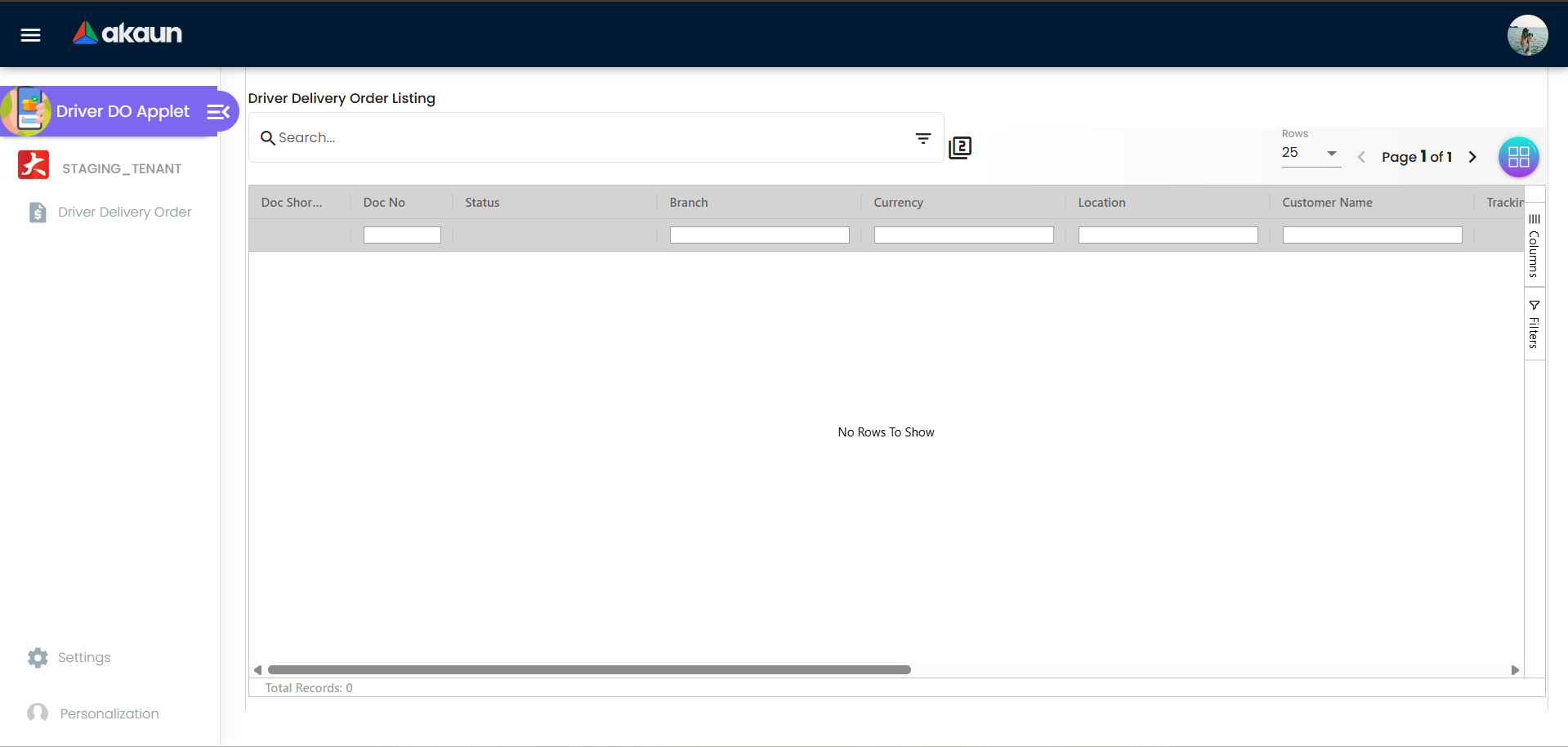
Driver Delivery Order listing
Columns: Doc Short Code (OBDODR), Doc No, Status, Branch, Currency, Location, Customer Name, Tracking Id, Created Date, Modified Date, Transaction Date, Created by, Modified by.
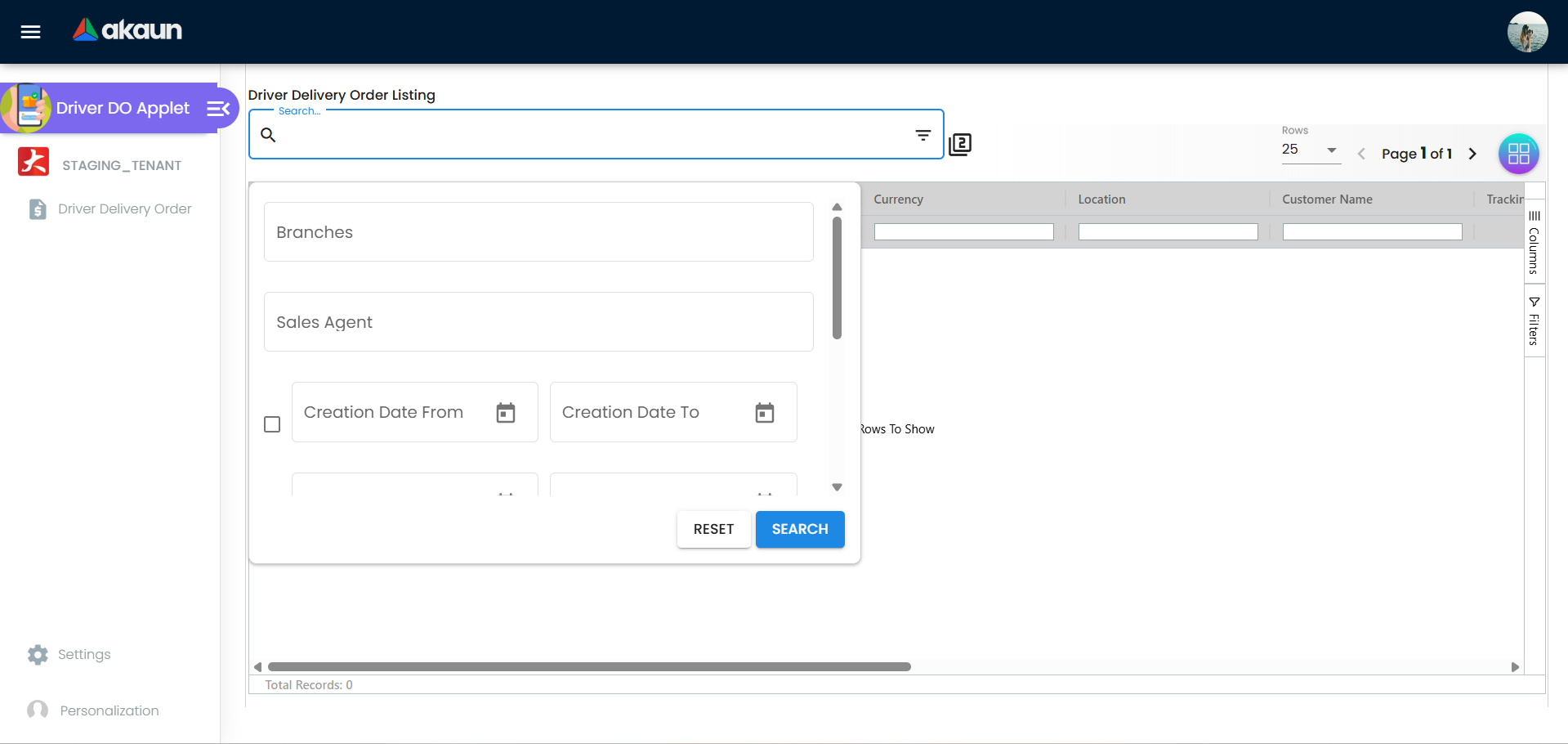
The listing is always filtered to documents whose delivery driver is the person logged in — the filter is applied on every search and cannot be switched off. On top of that the Advanced Search offers: Branch (limited to the branches targeted by the driver’s read permission), Sales Agent, Creation Date range, Transaction Date range, Est Delivery Date range, Status (ACTIVE / INACTIVE), Order By, plus a keyword search.
There is no + (create) control on the listing — drivers cannot create delivery orders here.
Edit Driver Delivery Order
Click a row to open the document. Two tabs:
- Main Details — Document No and Account (read-only), Vehicle No, Delivery Date, Delivery time slot, and a Created By / Created Date / Modified By / Modified Date block.
- Lines — read-only grid of the delivery order lines with a quick filter and the discount / tax / rounding / transaction-amount totals.
Buttons: SAVE (top right) and DELETE (bottom, only when enabled — see permissions). There are no FINAL, DISCARD, VOID or CLOSE buttons.
Settings (gear) menu
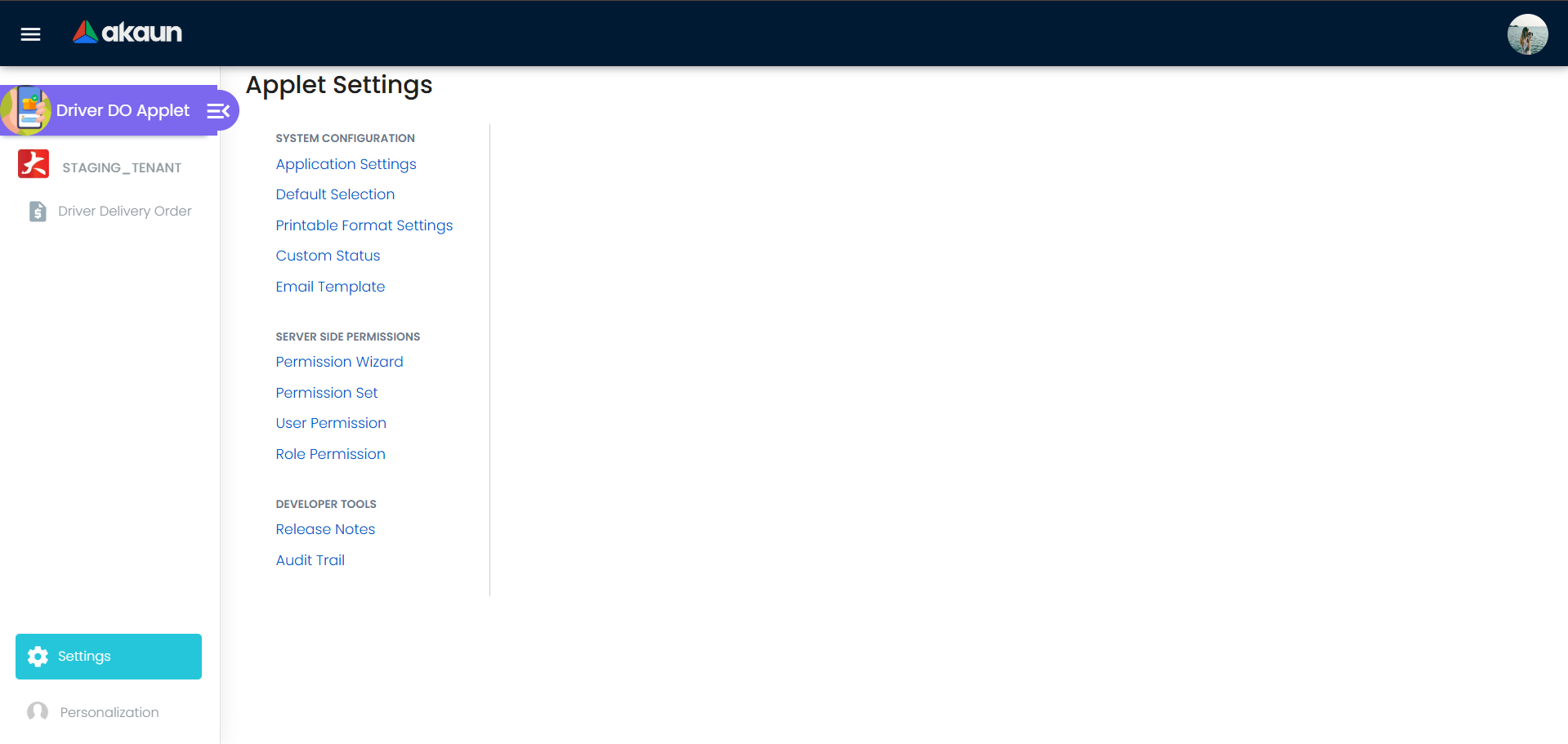
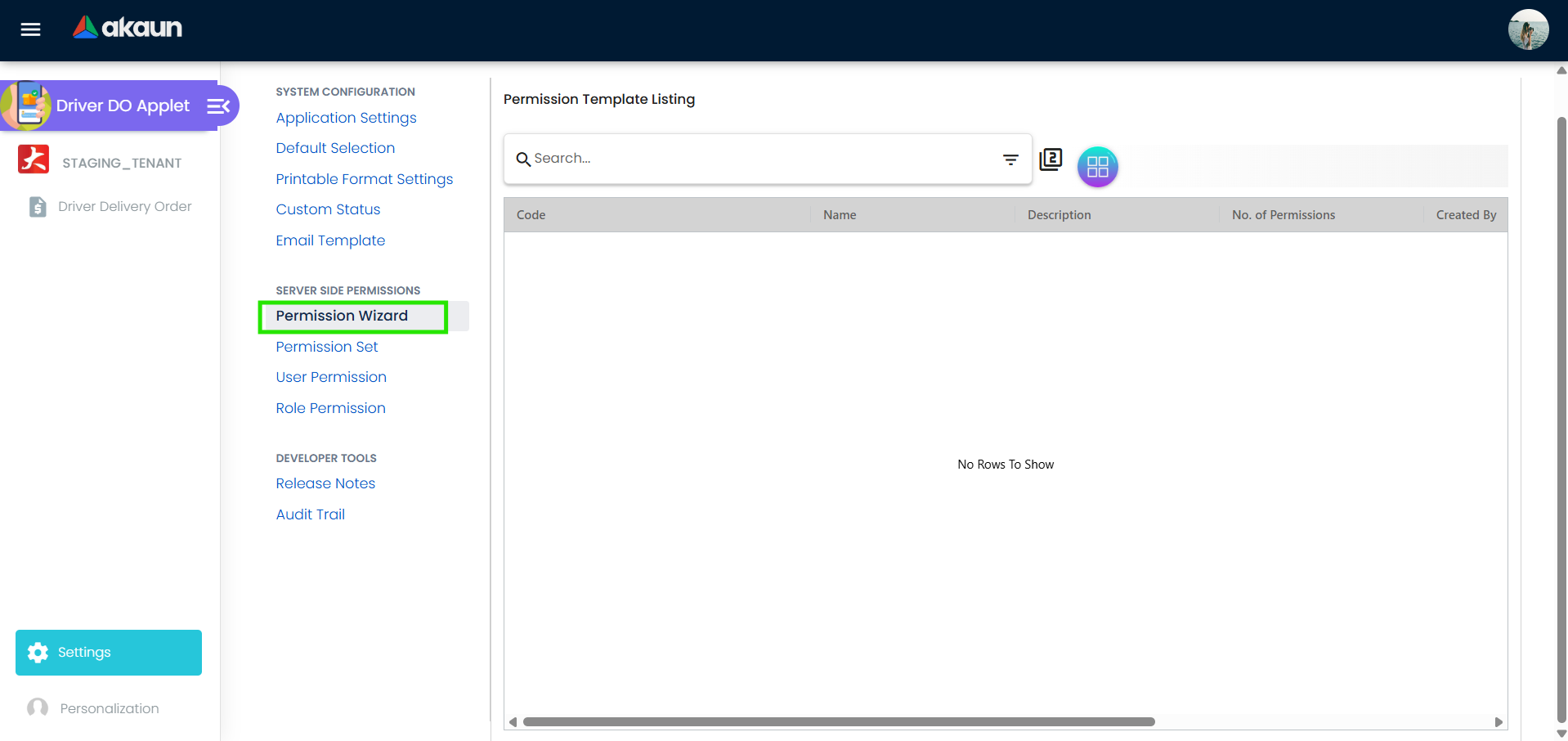
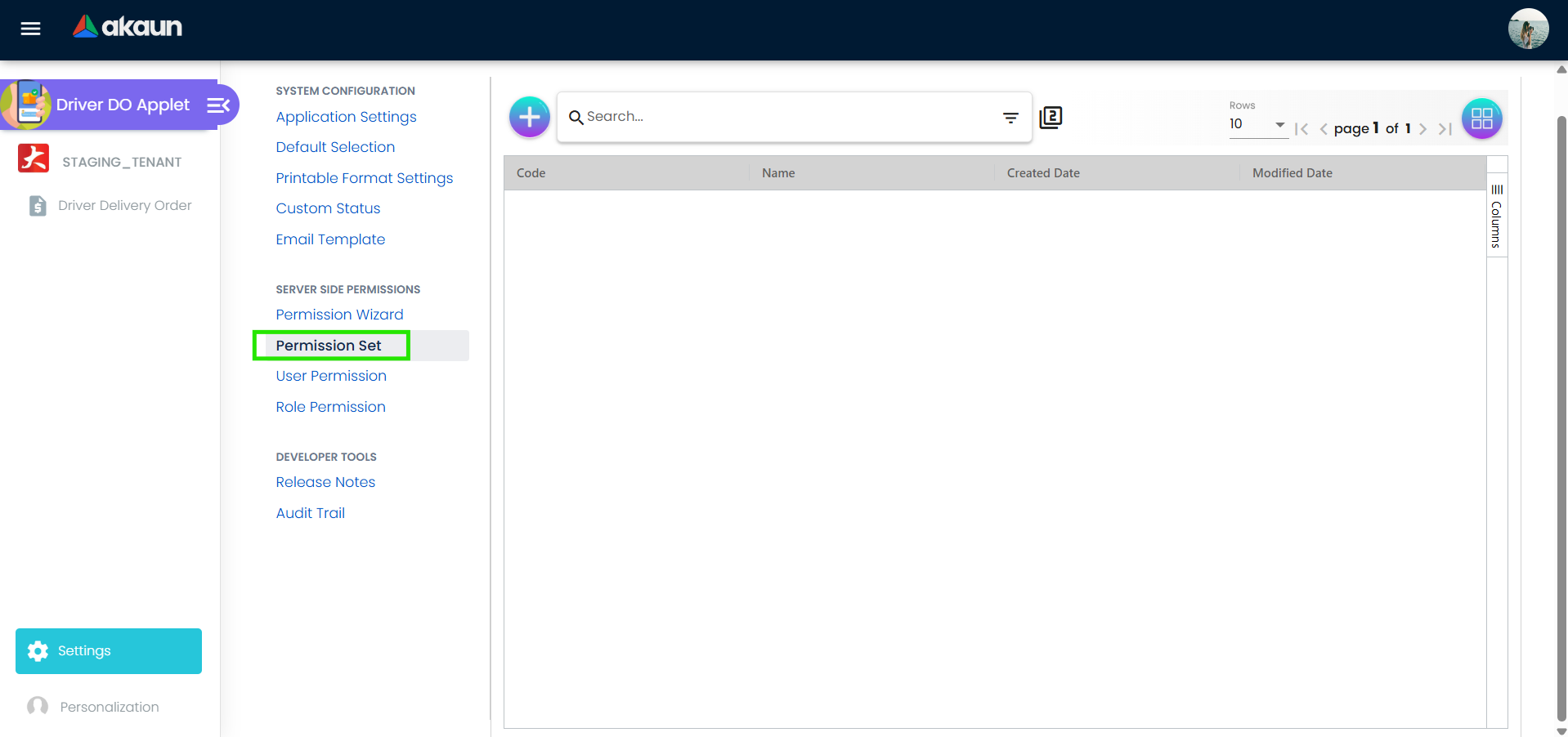
Under the applet’s own System Configuration group: Application Settings (the shared field-configuration screen), Default Selection, Printable Format Settings, Custom Status, Email Template. The shared settings shell adds Client Side Permissions (Applet Access), Server Side Permissions (Permission Wizard, Permission Set, User Permission, Role Permission), Integration (Triggers) and Developer Tools (Release Notes).
Personalisation: Default Selection (per-user default branch, location and toggle column) and Sidebar.
Configuration
Before you can use it
- A delivery driver on the document. The listing shows a delivery order only when its delivery driver is the login of the person logged in. Only two things set that field: the Delivery Driver picker (an entity driver link to a login) in the Supplier Delivery Order applet’s Main Details, and conversion from a source document that already carried a driver, which copies it across. The picker lists only drivers already linked to the document’s supplier, and the deployed Supplier Delivery Order build has no Driver Listing to make that link: ask BigLedger support who can link a supplier’s driver for your tenant. Delivery Order (Internal) has no driver control. See Troubleshooting if the listing is empty.
- Server-side read permission on internal outbound delivery orders.
TNT_API_DOC_INTERNAL_OUTBOUND_DELIVERY_ORDER_READ_TGT_GUIDassigned to the driver (via Permission Wizard / Permission Set / User or Role Permission) with the branches they deliver for as targets. The branch targets feed both the listing filter and the Advanced Search branch list. - Update permission to save.
TNT_API_DOC_INTERNAL_OUTBOUND_DELIVERY_ORDER_UPDATE_TGT_GUID, orTNT_TENANT_ADMIN/TNT_TENANT_OWNER; without it the SAVE button is disabled. - Branches and locations in Organisation — every document must carry a company, branch and location or the edit form is invalid and SAVE stays disabled.
Applet settings
Settings live in four places: the shared field-configuration screen (menu label Application Settings), the applet-local Default Selection and Custom Status screens, and the per-user Personalisation › Default Selection. All can be changed by anyone who can open the Settings menu — normally the tenant admin.
Only the keys below have an effect in this applet. The shared screen renders about 60 toggles (line-price hides, tab hides, item-name limit, and so on); the rest are saved but change nothing here — the Lines grid has fixed columns.
| Setting (screen) | What it controls | Default | Effect when changed |
|---|---|---|---|
DEFAULT_POSTING_STATUS — Default Posting Status (Application Settings › Gen Doc Listing Settings) | Posting-status filter of the listing’s first load (and the refresh after a save): ALL, DRAFT, FINAL, VOID, DISCARDED | unset → no filter (all statuses) | Set to FINAL to open on finalised delivery orders only. It is a starting view, not a restriction: the first Advanced Search or reset drops it, because the search form has no posting-status field, and the listing then shows every status |
SORT_ORDER — Sorting Order (same section) | Column the listing is sorted by (descending): created date, updated date, transaction date or reference date | unset → updated date | Takes effect on the next search; an Order By chosen in Advanced Search overrides it for the session |
HIDE_GENDOC_SAVE_BUTTON — HIDE_SAVE_BUTTON (same section) | Hides the SAVE button on the edit screen | off | Turns the applet read-only for everyone (the driver can still open documents) |
HIDE_CREATED_BY_DETAILS (Application Settings › Doc Settings) | Hides the Created By / Created Date / Modified By / Modified Date block on Main Details | off | Cosmetic |
HIDE_DELIVERY_LOCATION (Application Settings › Doc Settings) | Intended to hide delivery branch / location; in this applet those controls are not rendered, but the flag also gates the patching of Account and Delivery time slot into the form | off | When on, Account and Delivery time slot show blank on every document, so a driver cannot see the slot already recorded. Saving with the slot blank keeps the stored slot — nothing is erased — but leave it off so the driver can read it |
HIDE_TOTAL_DISCOUNT_AMOUNT (Application Settings › Lines Settings) | Hides the Discount Amount total above the Lines grid | off | Cosmetic |
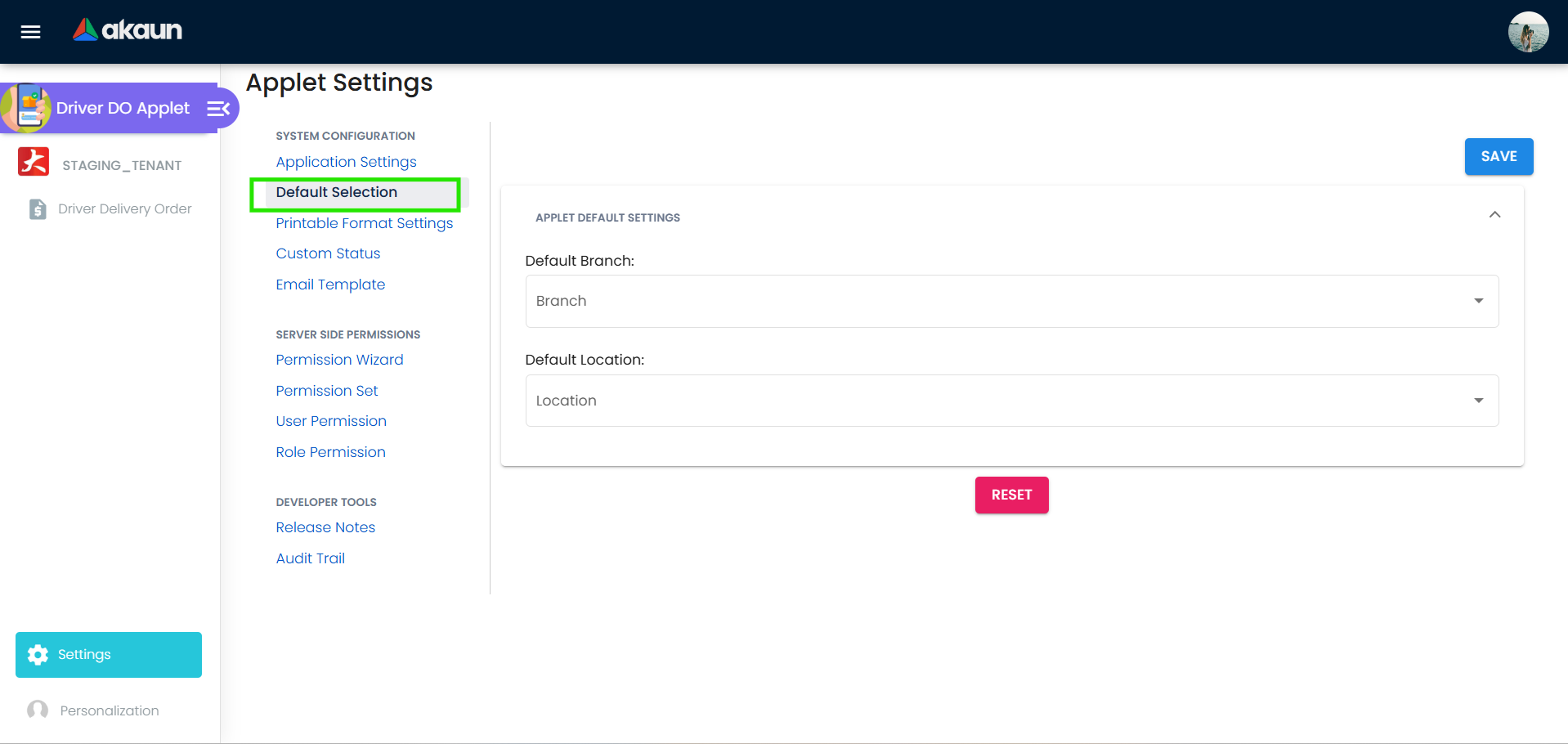
DEFAULT_BRANCH, DEFAULT_LOCATION, DEFAULT_COMPANY (Default Selection) | Fallback company / branch / location for the edit form when a document has none; choosing a branch fills its main location and company | null (RESET writes null) | Rarely visible — every delivery order already carries its own branch and location |
DEFAULT_BRANCH, DEFAULT_LOCATION, DEFAULT_TOGGLE_COLUMN (Personalisation › Default Selection) | Per-user override of the defaults above; toggle column SINGLE / DOUBLE | null | Branch list is limited to the user’s read-permission branch targets. DEFAULT_TOGGLE_COLUMN = SINGLE opens the listing collapsed to a single column — useful on a driver’s phone |
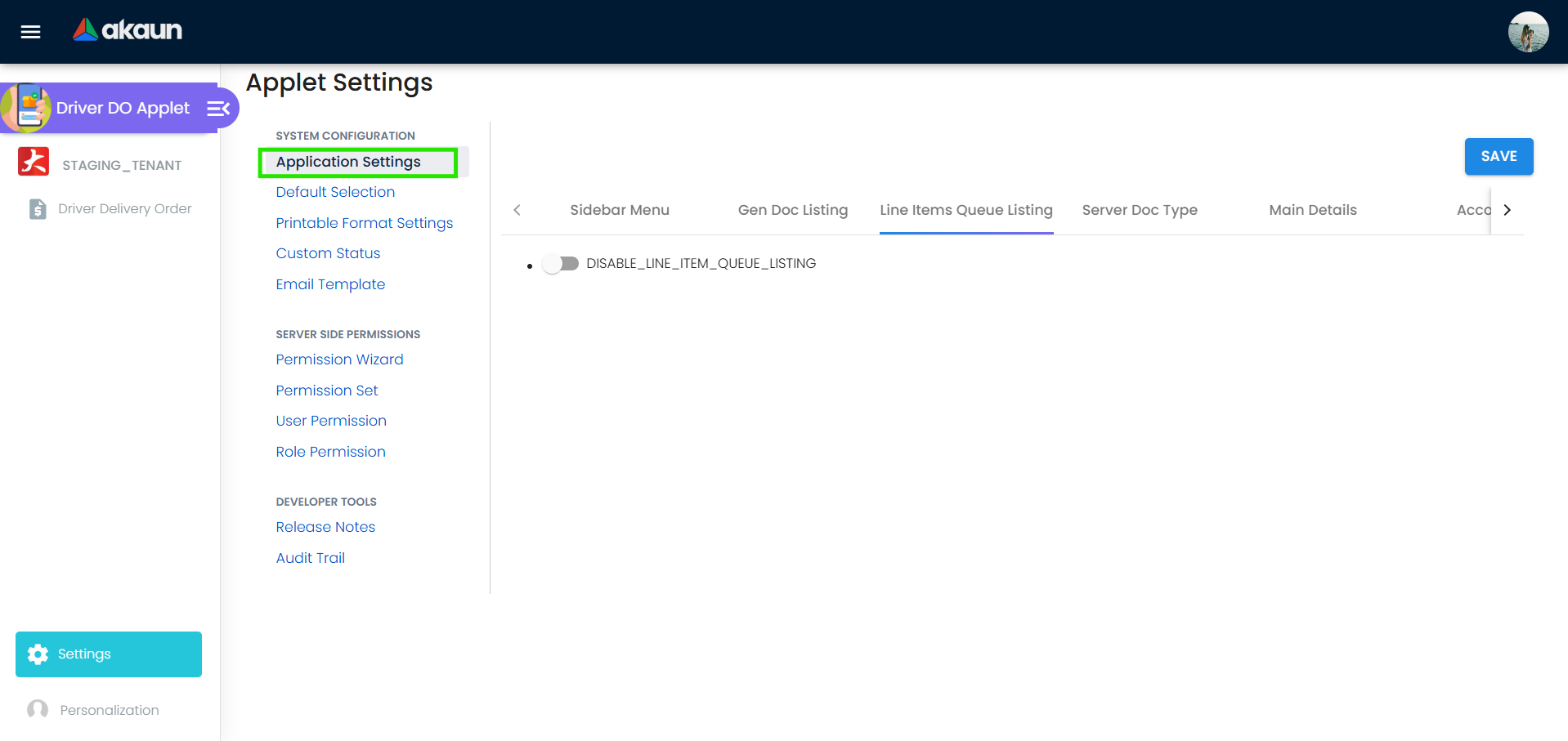
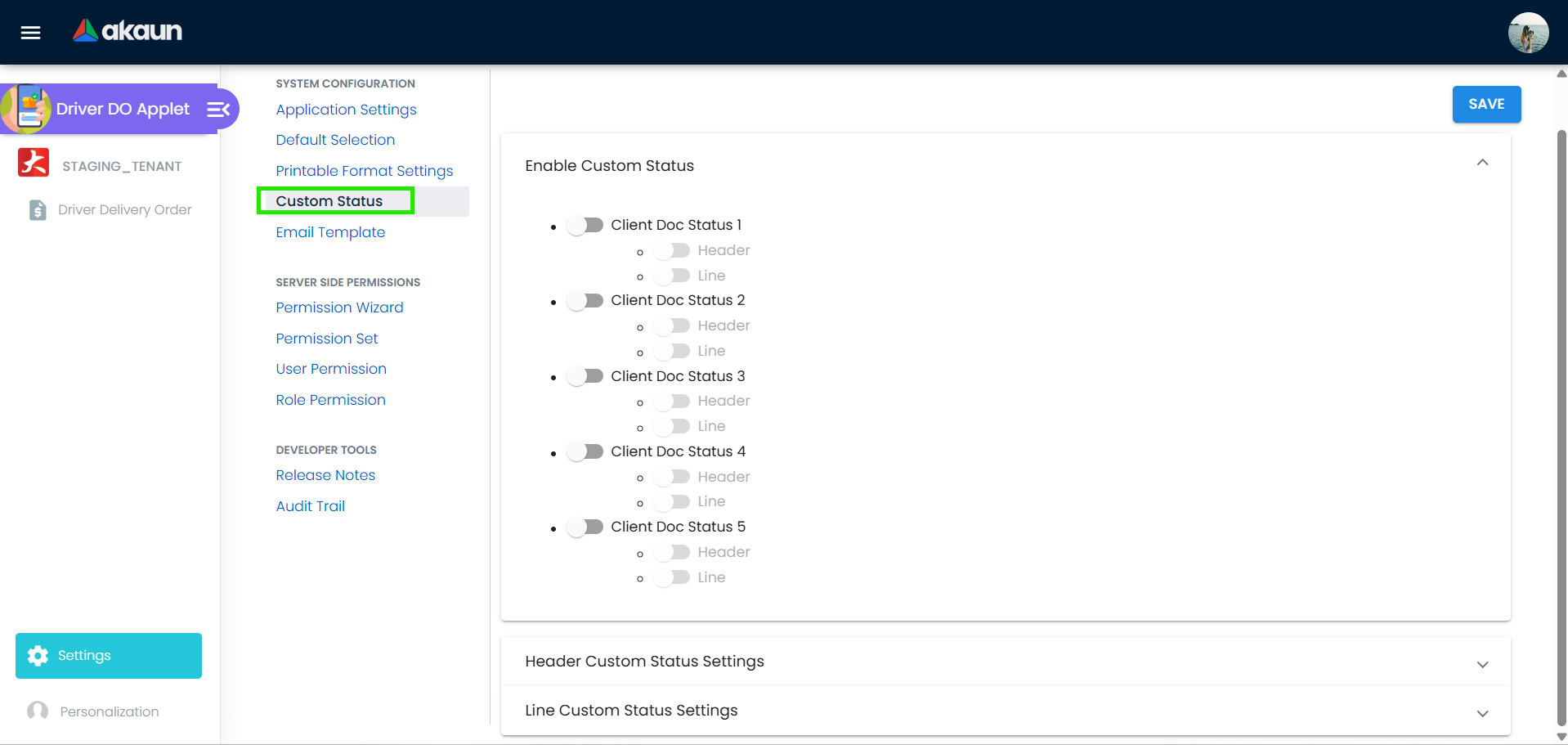
Rendered but not consumed (no effect in this applet). HIDE_GENDOC_FINAL_BUTTON, HIDE_GENDOC_DISCARD_BUTTON, HIDE_GENDOC_VOID_BUTTON, HIDE_CLOSE_BUTTON — the buttons they would hide do not exist in this applet. ENABLE_SERIAL_NUMBER_VALIDATION_FINAL has no control on this applet’s screen, and there is no FINAL here to validate. PRINTABLE has no screen here (Printable Format Settings is a dead entry). DISABLE_GEN_DOC_LISTING is not inert: on, it skips the listing’s first search, so the listing opens empty until the driver runs a search. The Custom Status screen (ENABLE_CUSTOM_STATUS_1..5, ENABLE_CUSTOM_STATUS_HDR_n, ENABLE_CUSTOM_STATUS_LINE_n, LIST_CUSTOM_STATUS_HDR_n / LINE_n, NAME_CUSTOM_STATUS_*) saves its lists, but the edit form has no status control, so they are never applied.
Document behaviour settings
No exposed control found: the applet has no FINAL, VOID, DISCARD or CLOSE control, no printable selection and no e-Invoice or workflow toggle. Posting status is set in the upstream Delivery Order (Internal) applet.
Feature visibility / permissions
Server-side (what actually gates the applet). Four permissions on the internal outbound delivery order gate it:
| Permission | Effect in this applet |
|---|---|
TNT_API_DOC_INTERNAL_OUTBOUND_DELIVERY_ORDER_READ_TGT_GUID | Required to list; its branch targets become the listing’s branch filter and the Advanced Search / Personalisation branch lists |
TNT_API_DOC_INTERNAL_OUTBOUND_DELIVERY_ORDER_UPDATE_TGT_GUID | Enables SAVE; TNT_TENANT_ADMIN and TNT_TENANT_OWNER also pass |
TNT_API_DOC_INTERNAL_OUTBOUND_DELIVERY_ORDER_CREATE_TGT_GUID | Unused — there is no create control |
TNT_API_DOC_INTERNAL_OUTBOUND_DELIVERY_ORDER_DELETE_TGT_GUID | Checked when DELETE is used |
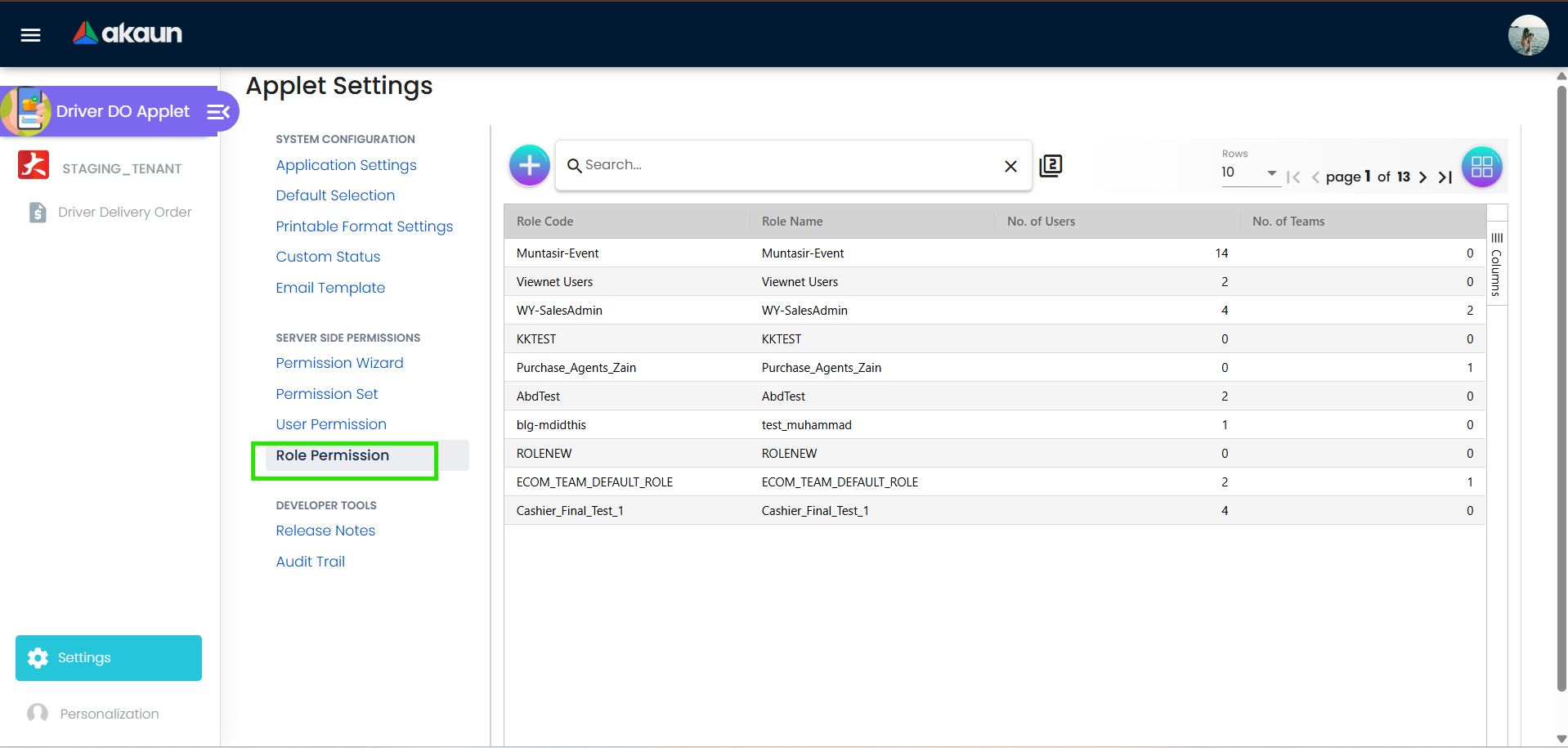
Client-side permission codes. The applet would honour SHOW_GENDOC_FINAL_BUTTON, SHOW_GENDOC_DISCARD_BUTTON, SHOW_GENDOC_VOID_BUTTON and SHOW_TRANSACTION_DATE, but none is defined for it, and the buttons the first three would reveal do not exist anyway. Applet Access (client-side permission listing) therefore has nothing applet-specific to assign.
DELETE button. Shown only when the applet setting SHOW_DOCUMENT_DELETE_BUTTON is on. It is a two-click confirm (“CLICK AGAIN TO CONFIRM”, 3-second window) and deletes the delivery order.
Fields
Main Details
| Field | Meaning | Required | Notes / validation |
|---|---|---|---|
| Account | Customer name on the document | — | Read-only; blank when HIDE_DELIVERY_LOCATION is on |
| Vehicle No | Vehicle registration number on the delivery order’s header, where the office sees it | No | Free text (max 100 chars). You can change it but not clear it: SAVE with the box empty keeps the number already there |
| Delivery Date | Expected delivery date on the document header | No | Date picker (touch UI); “Estimated date is not valid” if unparseable. Like Vehicle No, it can be changed but not cleared |
| Delivery time slot | Saved into the header’s delivery-remarks field as a lower-case word (morning, afternoon or evening), replacing whatever was there | No | A remark the office typed into that field as free text shows here as blank, and picking a slot overwrites it. Once set, it can be changed but not cleared |
| Created By / Created Date / Modified By / Modified Date | Audit columns | — | Read-only; hidden by HIDE_CREATED_BY_DETAILS |
Hidden controls: company, branch and location are in the form as required fields and are filled from the document (falling back to the Default Selection values). If a document reaches the driver without one of them the form is invalid and SAVE is disabled. When the document is FINAL, VOID, DISCARDED or not ACTIVE, branch, company, location, sales agent, transaction date, credit terms, due date, member card, currency and delivery branch / location are disabled — Vehicle No, Delivery Date and time slot stay editable. A disabled box is not “left alone” on SAVE: see Lifecycle for what that does to the currency.
Lines
Read-only grid: Item Code, Item Name, UOM, Qty, Unit Price (Inclusive of Tax), SST/VAT/GST, Txn Amount. Only ACTIVE lines are shown. The grid has a highlight for serial numbers marked INVALID, but the serial check that would mark them is never carried out in this applet, so in practice no row is highlighted — check serials in the upstream applet. Totals above the grid: Discount Amount (hidden by HIDE_TOTAL_DISCOUNT_AMOUNT), Tax Amount, Rounding (only when the document has a rounding item) and Txn Amount, each with the foreign-currency equivalent when the document currency differs from the base currency.
Lifecycle and effects
This applet reads and updates; it never finalises or posts. The only writes are:
- SAVE → sends the whole document back, and the header it sends is rebuilt from the edit form, not just the three fields a driver touched; the document number is shown read-only and never changes here. Two header values change as a result. The base currency is sent as
MYRon every save, because its box is always locked. And on aFINAL,VOIDorDISCARDEDdocument the document currency box is locked too, and a locked box is sent empty — so a driver’s SAVE on a finalised delivery order can leave it with no document currency. Have drivers record vehicle, date and slot while the delivery order is still a draft; if a finalised one has been saved here, open it in Delivery Order (Internal) and check its currency (read, not run). There is also a guard meant to refuse a foreign-currency document with a zero or negative exchange rate (“The currency rate cannot be ZERO or negative.”), but it reads the currency from the wrong place and never fires. - DELETE → deletes the document (see permissions); needs
..._DELETE_TGT_GUID.
Posting proof block (for the document type this applet edits; posting happens in the upstream applet, never here):
- Server document type:
INTERNAL_OUTBOUND_DELIVERY_ORDER, short codeOBDODR. - Amount signum: 0; quantity signum: 0. Every line carries zero signums.
- Dr/Cr equation: none — FINAL posts no journal for this document type.
- GL precedence: not applicable (no journal).
- Stock processor: none — a zero quantity signum moves no stock. Open delivery-order lines are, however, counted as committed quantity in Stock Availability.
- FINAL-time validations: blacklisted-customer check for outbound delivery orders; serial-number count must equal the line quantity; serial and stock-balance checks can also be switched on for zero-signum documents. These fire when the office finalises the delivery order, not from this applet.
- What VOID reverses: nothing financial — no journal and no stock movement exist to reverse. VOID is not available here.
Editing a finalised document. The form leaves Vehicle No, Delivery Date and time slot editable on FINAL documents and SAVE still submits. No rule was found that blocks header edits on a FINAL outbound delivery order; treat this as observed behaviour, not as a guarantee.
Related applets
- Delivery Order (Internal) — creates and finalises the documents; where the office sets up the delivery order, and the full applet page for this document type.
- Supplier Delivery Order — has the Delivery Driver picker (entity driver link → login) that sets the delivery driver; its page says what the deployed build can and cannot do about linking a supplier’s driver.
- Delivery & Installation and Delivery Installation Driver — trip and job based delivery execution for larger operations; not connected to this applet’s driver field.
- Stock Availability — shows open delivery-order quantity as committed stock.
- Organisation — branches used as permission targets.
- Customer Maintenance — the customer on the document.
Troubleshooting
| Symptom | Cause | Fix |
|---|---|---|
| The listing is empty although delivery orders exist | The driver is not set on the document (or set to a different login), or the driver lacks ..._READ_TGT_GUID, or the documents’ branches are outside the permission’s branch targets | Name the driver on the delivery order (the Supplier Delivery Order picker offers only drivers linked to that supplier), or on the source document before it is converted; grant the read permission with the right branch targets |
| Only some posting statuses show when the listing opens, then all of them after a search | DEFAULT_POSTING_STATUS filters the first load only; any Advanced Search or reset drops it | Expected. Set it to ALL or clear it if drivers should always see every status |
| The listing opens empty until a search is run | DISABLE_GEN_DOC_LISTING is on | Run a search, or switch it off |
| Account and Delivery time slot are blank on every document | HIDE_DELIVERY_LOCATION is on — it also skips patching those two fields | Turn it off in Application Settings › Doc Settings |
| SAVE is greyed out | No ..._UPDATE_TGT_GUID (and not tenant admin / owner), or the document is missing company / branch / location | Grant the update permission; fix the document upstream |
| A finalised delivery order has no document currency after a driver saved it | SAVE sends a locked (disabled) currency box as empty on a FINAL / VOID / DISCARDED document | Re-check the currency in Delivery Order (Internal); have drivers save before the document is finalised |
| “One of the serial numbers is already locked” on save | A serial on the lines is draft-locked by another document | Resolve the serial conflict in the sales / delivery order applet |
| Printable Format Settings or Email Template opens a 404 page | Menu entries that lead nowhere | Not configurable here; use the upstream applet’s printable / email settings |
| Custom statuses were set up but drivers cannot choose one | The Custom Status screen saves lists that nothing in this applet reads | Track delivery outcomes in the upstream applet or the Delivery & Installation applet |
| Listing behaves differently after an upgrade | The listing’s search was rebuilt in 2026-08 and the applet framework upgraded in 2026-04 | No action; report regressions with the document number |