Consignment GRN Applet (Internal)
Overview
The Consignment GRN Applet (Internal) raises a goods received note for consignment stock — stock a supplier (the consignor) places at one of your locations while still owning it. Finalising a consignment GRN puts the quantity into the location named on the document and, where your company posts journals for it, records the value as consignment stock against a consignment liability — not as a purchase and not as an amount owed to a creditor. Ownership only changes later, when the stock is sold and billed through the consignment billing documents.
Server document type INTERNAL_PURCHASE_CONSIGNMENT_GRN, short code CSGGRN; quantity signum +1, amount signum −1. It is the inbound half of the pair whose outbound half is the Consignment GIN (quantity −1 / amount +1). Unlike the GIN, a consignment GRN can be knocked off from a Consignment Purchase Order and can be voided.
The applet is a single-document applet: one listing with bulk FINAL / VOID / print, a create/edit form, a cross-document line-item listing, and the standard settings pages plus a custom-status designer.
Where it fits
| Direction | Applet / document | Why |
|---|---|---|
| Upstream | Consignment Purchase Order | Optional. The KO For tab and the line-level KO For Purchase Order tab pull open consignment-PO lines into the GRN and link the two documents |
| Upstream | Internal Purchase Requisition, Internal Purchase Invoice | Line-level knock-off tabs that appear only when the company’s document-flow configuration enables a LINE flow from that type into CSGGRN |
| Upstream | Doc Item Maintenance | Only items with the Consignment Item flag appear in the GRN’s item search |
| Upstream | Supplier, Employee Maintenance | The consignor is a supplier entity; the Purchaser is an employee entity |
| Upstream | Organisation | Company, branch, location and delivery branch/location on the header; document-flow configuration for the knock-off tabs; the company’s posting configuration decides whether FINAL creates a journal |
| Downstream | Consignment GIN, Consignment Return | Take the received consignment stock back out |
| Downstream | Consignment Billing, Consignor Purchase Billing | Turn sold consignment stock into a purchase from the consignor; a GRN that has been knocked off by a later document can no longer be voided |
| Downstream | Stock Balance, Stock Report | Show the quantity arriving at the location and its effect on moving-average cost |
| Downstream | Creditor Report | Lists the GRN among supplier-side documents (ARAP columns on the listing) |
Modules: Purchasing, Inventory.
Screens and menus
| Menu | Purpose |
|---|---|
Consignment GRN (route internal-purchase-grn) | Listing with create, edit, bulk FINAL, bulk VOID and SINGLE/MULTIPLE PRINT |
| Line Items | One row per active line across all consignment GRNs (Doc Short Code, Purchase GRN No, Item Code, Item Name, Qty, Unit Price incl. tax, SST/VAT/GST, Txn Amount); opening a row opens the line editor |
Gear (Settings) menu, group System Configuration: Application Settings, Default Selection, Printable Format Settings, Custom Status. The shared settings shell adds the platform pages (Webhook, Feature Visibility, Client-Side Permission, Role Pricing Scheme Link, Permission Wizard / Set / User / Team / Role, Release Notes, Audit Trail). Personalisation: Default Selection and Sidebar.
Listing
Columns: Doc Short Code, Doc No (Tenant), Doc No (Company), Doc No (Branch), Posting Status, Status, Tracking ID, Branch Code, Currency, Supplier Name, Description, Doc Description, Purchaser, Doc Reference, Amount Txn, ARAP PNS, ARAP Settlement, ARAP Doc Open, ARAP Contra, ARAP Bal, Updated Date, Created Date, Transaction Date, Created by, Client Doc Type, Client Doc 1–5, and one column per enabled custom header status. By default the listing shows the last month of transactions for the branches you have permission targets on, sorted by updated_date descending (or by the SORT_ORDER column). FINAL posts every selected row that is DRAFT and ACTIVE; VOID voids every selected row that is FINAL and ACTIVE; the print button is disabled until a default printable format is chosen.
Create / edit form
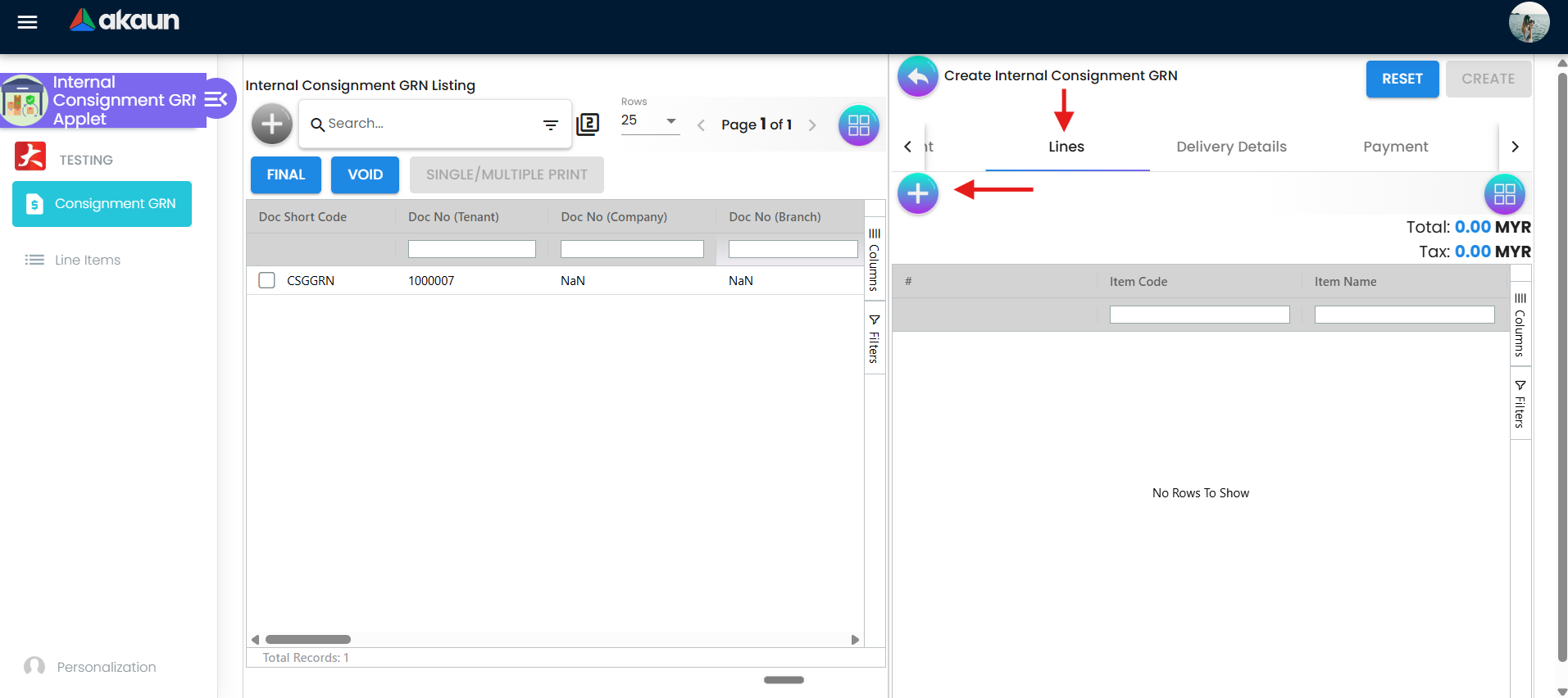
Tabs on create: Main Details, Account, Lines, Delivery Details, Payment, KO For, Department Hdr (the last four each hideable by the matching HIDE_*_TAB setting), plus a Search tab (“Search By Intercompany Sales Invoices”) for users holding the SHOW_INTERCOMPANY_PGRN_SCREEN client-side permission. Edit shows Main Details, Account, Lines, Delivery Details, Payment, Department Hdr, Trace Document, Contra, Doc Link, Attachments, Export and Status — in the order set under Settings > Default Selection — with RESET, FINAL (only while the document is ACTIVE and DRAFT), SAVE (needs the update permission) and, for non-final documents when SHOW_DOCUMENT_DELETE_BUTTON is on, DELETE (two clicks). The edit form has no VOID button (it is commented out in the template); VOID is done from the listing.
Lines
Add a line with Search Item (consignment items only; the picker also offers a Search Serial Number box) or with KO For Purchase Order / Purchase Requisition / Purchase Invoice, each of which is present only when the company’s document-flow configuration enables a LINE flow from that document type into INTERNAL_PURCHASE_CONSIGNMENT_GRN (line-item-create.component.ts L106–L122). The header-level KO For tab lists consignment purchase orders with open lines for CSGGRN (line_open_queue_server_doc_type_1 = INTERNAL_PURCHASE_CONSIGNMENT_ORDER, _2 = INTERNAL_PURCHASE_CONSIGNMENT_GRN) and refuses a second document from a different entity or branch unless ENABLE_MULTIPLE_KO is on.
A line’s tabs: Item Details (Main Details, Delivery Instruction, Department, Doc Link, Delivery Details), Serial Number (for serial-number items, or any item flagged optional_sn), Batch Number, Bin Number, Costing Details, Pricing Details, Issue Link.
Configuration
Before you can use it
| Prerequisite | Where | Why |
|---|---|---|
| Items flagged Consignment Item | Doc Item Maintenance | The item search sends consignment_flg = true and status = ACTIVE; an unflagged item cannot be added (line-search-item-listing.component.ts L87–L88) |
| The consignor as a supplier entity | Supplier | The Account tab’s Entity Id is required; the supplier’s AR/AP type is not used by the consignment journal (see Lifecycle and posting) |
| Employee entities | Employee Maintenance | The Purchaser picker lists employees |
| Company, branch, location (and delivery branch/location) | Organisation | All three are required on the header; a branch’s MAIN_LOCATION extension pre-fills Default Location in Default Selection |
Document numbering for CSGGRN | Organisation > document numbering | The running number shown as Doc No (Tenant) |
Document-flow configuration (bl_fi_comp_gendoc_flow_config, flow type LINE, target CSGGRN) | Organisation | Switches on the KO For Purchase Order / Requisition / Invoice tabs |
| Tax codes (optional) | Tax Configuration | The line’s SST/GST/VAT and WHT selectors |
Default GL codes CONSIGNMENT_STOCK, CONSIGNMENT_LIABILITY (and INPUT_TAX, PURCHASE_DISCOUNT if used) — only if the company posts journals for this document | Chart of Accounts | A missing CONSIGNMENT_LIABILITY mapping makes FINAL fail with MISSING_DEFAULT_GL_CODE; a missing CONSIGNMENT_STOCK mapping makes the journal unbalanced |
| A default printable format | Settings > Printable Format Settings | Enables the listing’s print button, the Export tab’s default and the auto-print pop-up |
SHOW_TRANSACTION_DATE client-side permission for users who back-date | Settings > Client-Side Permission | The Transaction Date input is disabled unless the user holds it |
| API permissions | Settings > Permission Set / User / Team / Role | TNT_API_DOC_INTERNAL_PURCHASE_CONSIGNMENT_GRN_CREATE / READ / UPDATE / DELETE |
Applet settings
Settings live in four places. Application Settings routes to the shared field-configuration screen from blg-shared-utilities (app.routing.ts L21, L47; the applet’s own settings-container/field-configuration folder is an unrouted stub). The shared screen keys its tab sections by the applet code the platform shell stores at launch (applet-loader.component.ts L195), and its tab map has an entry for internalconsignmentGRNApplet that switches on the Payment, KO For, Department Hdr, Contra, Doc Link, Attachments, Export, Status, Delivery Details and Trace Document sections (shared ts L2425), so every tab-hide toggle below is actually on screen. It saves the whole form into the applet’s APPLET_SETTINGS extension (onSave(), shared ts L2686). Default Selection (applet-local, default-settings.component.ts L91–L96) saves DEFAULT_BRANCH, DEFAULT_LOCATION, DEFAULT_COMPANY and the drag-and-drop tab order CONSIGNMENT_GRN_DETAILS_TAB_ORDER into the same extension; Personalisation > Default Selection saves the same three defaults per user, and a personal default wins over the tenant default (consignment-grn-create.component.ts L75). Custom Status (applet-local) saves ENABLE_CUSTOM_STATUS_1..5, ENABLE_CUSTOM_STATUS_HDR_n, ENABLE_CUSTOM_STATUS_LINE_n, NAME_CUSTOM_STATUS_HDR_n and LIST_CUSTOM_STATUS_HDR_n. Printable Format Settings saves PRINTABLE.
All are tenant-wide except the personal defaults; only a user who can open the applet’s Settings can change them. Every toggle defaults to off (the shared screen patches undefined as falsy; the line-price keys go through shouldHideSetting(), whose hide-by-default list does not include this applet code, shared ts L2333–L2358), so a fresh tenant sees every tab and field until the first Save of Application Settings. Each key below is declared in applet-settings.model.ts, rendered, persisted and read by the applet.
| Setting | What it controls | Effect when changed |
|---|---|---|
HIDE_GENDOC_FINAL_BUTTON | FINAL on the listing and on the edit form | Removes the only posting paths |
HIDE_GENDOC_VOID_BUTTON | VOID on the listing | Hidden unless the user holds SHOW_VOID_BUTTON (listing html L85) |
DISABLE_GEN_DOC_LISTING | Whether the listing loads on open (consignment-grn-container.component.ts L148) | Listing stays empty until a search is run |
ENABLE_FILTER_BY_TODAYS_TXN | Default date filter: today only instead of the last month (container L107–L112) | — |
SORT_ORDER | Column the listing is ordered by (default updated_date, always descending) | — |
ENABLE_SERIAL_NUMBER_VALIDATION_FINAL | Before FINAL, every serial-number line is validated against the inventory serial service and the request carries validate_serial_signum_zero = true (effects L1270–L1330; listing L777–L786) | Off: the backend’s own serial checks still run on FINAL |
HIDE_SERVER_DOC_1, HIDE_SERVER_DOC_2, HIDE_SERVER_DOC_3 | Doc No (Tenant / Company / Branch) on the listing and header | Reopened per user by SHOW_DOC_NO_TENANT / COMPANY / BRANCH |
HIDE_CLIENT_DOC_TYPE, HIDE_CLIENT_DOC_1 … HIDE_CLIENT_DOC_5 | Client Doc Type and Client Doc 1–5 on the listing and header (edit mode) | Reopened by SHOW_CLIENT_DOC_TYPE, SHOW_CLIENT_DOC_n |
HIDE_DESCRIPTION, HIDE_ARAP_PNS, HIDE_ARAP_SETTLEMENT, HIDE_ARAP_DOC_OPEN, HIDE_ARAP_CONTRA, HIDE_ARAP_BAL | Listing columns | Reopened by the matching SHOW_* permission |
ENABLE_AUTO_POPUP | After FINAL from the edit form, opens the PDF of the default printable in a new window (edit ts L314–L326) | Needs PRINTABLE; otherwise toast No Default Printable Selected |
PRINTABLE | Default printable format for the listing print button, the Export tab and the auto pop-up | Set under Printable Format Settings (effects L179) |
HIDE_TRACKING_ID, HIDE_PERMIT_NO, HIDE_LOCATION, HIDE_DELIVERY_BRANCH, HIDE_DELIVERY_LOCATION, HIDE_BASE_CURRENCY, HIDE_CURRENCY | Header fields on Main Details | HIDE_LOCATION hides a required field — the form can then never become valid; HIDE_DELIVERY_LOCATION also stops the delivery location being copied from the header (main-details.component.ts L205, L379–L400) |
CANNOT_EDIT_CURRENCY_RATE | Currency Rate box read-only (main-details.component.ts L288) | — |
HIDE_DELIVERY_DETAILS_TAB, HIDE_MAIN_PAYMENT_TAB, HIDE_KO_FOR_TAB, HIDE_DEPARTMENT_HDR_TAB | Tabs on create and edit | Tab disappears |
HIDE_TRACE_DOCUMENT_TAB, HIDE_MAIN_CONTRA_TAB, HIDE_DOC_LINK_TAB, HIDE_ATTACHMENT_TAB, HIDE_EXPORT_TAB, HIDE_STATUS_TAB | Tabs on edit (consignment-grn-edit.component.ts L91–L102) | HIDE_EXPORT_TAB leaves only the listing print button |
ENABLE_MULTIPLE_KO | Allow knocking off lines from more than one source document | Off: a second document from another entity or branch is refused |
DISABLE_ADD_WHEN_KO | Once the document holds knocked-off lines, the Lines tab’s add button is disabled (line-item-listing.component.ts L142, L156) | — |
HIDE_SERIAL_NUMBER, HIDE_BATCH_NUMBER, HIDE_BIN_NUMBER | The tracking sub-tab of a line | Hiding the tab does not remove the backend’s serial / batch / bin checks on FINAL |
HIDE_COSTING_DETAILS, HIDE_PRICING_DETAILS, HIDE_ISSUE_LINK | Line tabs | HIDE_COSTING_DETAILS is overridden per user by SHOW_COSTING_DETAILS |
HIDE_DELIVERY_INSTRUCTION, HIDE_DEPARTMENT, HIDE_DOC_LINK, HIDE_DELIVERY_DETAILS | Sub-tabs under a line’s Item Details | — |
HIDE_UNIT_PRICE_STD_PRICING_SCHEME, HIDE_UNIT_PRICE_STD_EXCL_TAX, HIDE_UNIT_PRICE_STD_INCL_TAX, HIDE_UNIT_DISCOUNT, HIDE_QTY_BASE, HIDE_QTY_UOM, HIDE_UOM_TO_BASE_RATIO, HIDE_UNIT_PRICE_STD_UOM_EXCL_TAX, HIDE_UNIT_PRICE_STD_UOM_INCL_TAX, HIDE_UNIT_DISCOUNT_UOM_EXCL_TAX, HIDE_UNIT_PRICE_NET_UOM_EXCL_TAX, HIDE_UNIT_PRICE_TXN_UOM_INCL_TAX, HIDE_UNIT_PRICE_NET_EXCL_TAX, HIDE_AMOUNT_STD_EXCL_TAX, HIDE_DISCOUNT_AMOUNT_EXCL_TAX, HIDE_AMOUNT_NET_EXCL_TAX, HIDE_UNIT_PRICE_TXN, HIDE_AMOUNT_TXN, HIDE_LAST_PURCHASE_PRICE | One price, quantity or amount field each on the line’s Main Details (create form and the Line Items editor) | Each is reopened per user by the matching SHOW_* client-side permission |
HIDE_TAX_CONFIG_SELECTION, HIDE_WHT_CONFIG_SELECTION | The tax-code selector with its rate and amount; the WHT selector with its rate and amount | Reopened by SHOW_TAX_CONFIG_SELECTION / SHOW_WHT_CONFIG_SELECTION |
DEFAULT_BRANCH, DEFAULT_LOCATION, DEFAULT_COMPANY | Pre-selected Branch, Location and Company on a new document | Personal default overrides tenant default; RESET on the screen clears all three |
CONSIGNMENT_GRN_DETAILS_TAB_ORDER | Order of the edit form’s tabs (drag list under Default Selection) | Tabs added by a later release are appended after the saved order (default-settings.component.ts L61–L76) |
ENABLE_CUSTOM_STATUS_n, ENABLE_CUSTOM_STATUS_HDR_n, NAME_CUSTOM_STATUS_HDR_n, LIST_CUSTOM_STATUS_HDR_n (n = 1–5) | Up to five named header statuses with their value lists, shown as drop-downs on the edit form’s Status tab and as listing columns | ENABLE_CUSTOM_STATUS_LINE_n is saved but nothing in this applet reads it |
Keys read by the applet without a control for this applet on any settings screen: ENABLE_DRAFT_LOCK_SERIAL_NUMBER_CHECKING (its shared toggle is fenced to the sales applets, shared html L2990; when set by another route it makes the serial pre-check also refuse serial numbers locked by another draft, effects L1298). Keys read without a model declaration: SHOW_DOCUMENT_DELETE_BUTTON (rendered ungated at shared html L1592, read straight from the APPLET_SETTINGS extension in consignment-grn-edit.component.ts L152–L161).
Declared but not usable: HIDE_MAIN_ARAP_TAB, ENABLE_CUSTOM_STATUS_LINE_n, NAME/LIST_CUSTOM_STATUS_LINE_n and the INCLUDE_* / ENABLE_* segment, dimension, profit-centre, project, SST and WHT keys are in the model but no component reads them; SHOW_VOID_BUTTON is in the model but is a client-side permission code, not a setting (repo commit 67e355a).
Document behaviour settings
| Setting | Effect |
|---|---|
HIDE_GENDOC_FINAL_BUTTON, HIDE_GENDOC_VOID_BUTTON + SHOW_VOID_BUTTON permission | Whether FINAL and VOID are offered at all |
ENABLE_SERIAL_NUMBER_VALIDATION_FINAL, ENABLE_DRAFT_LOCK_SERIAL_NUMBER_CHECKING | Client-side serial pre-check before FINAL; the FINAL request then also asks the backend to validate serial numbers on zero-signum lines |
SHOW_DOCUMENT_DELETE_BUTTON | DELETE on the edit form for documents that are not FINAL |
ENABLE_AUTO_POPUP, PRINTABLE, HIDE_EXPORT_TAB | Printing: auto pop-up after FINAL, default format, whether the Export tab exists |
| Custom Status keys | Free-form header statuses alongside the fixed posting status |
There is no auto-final, no approval workflow, no FINAL_STATUS_GUID, no stock-validation toggle and no e-Invoice submission for this document (repo commit 67e355a, routes and settings components checked).
Settings in other applets that control this applet
| Setting | Where it is set | Effect here |
|---|---|---|
Consignment Item flag (consignment_flg) | Doc Item Maintenance, item header | Only flagged, ACTIVE items are listed by Search Item |
Document-flow configuration (bl_fi_comp_gendoc_flow_config: source type, flow type LINE, target INTERNAL_PURCHASE_CONSIGNMENT_GRN, is_enabled) | Organisation | Shows the KO For Purchase Order / Purchase Requisition / Purchase Invoice tabs |
Branch MAIN_LOCATION extension | Organisation, branch | Pre-fills Default Location when a Default Branch is picked (default-settings.component.ts L85–L88) |
Company posting_final_json include / exclude list and job-template subscriptions | Organisation / platform | Decide which processors (stock, journal, webhook…) run on FINAL and which VOID processors run on VOID (GenericDocumentPrimaryProcessor L71–L112; VoidGenericDocumentPrimaryProcessor L70–L91) |
Fiscal period status LOCK_TXN / LOCK_ALL | Organisation > fiscal years | FINAL is rejected with FISCAL_PERIOD_LOCKED when the transaction date falls in a locked period (GenericDocumentService L1681–L1695) |
Company default GL codes CONSIGNMENT_STOCK, CONSIGNMENT_LIABILITY, INPUT_TAX, PURCHASE_DISCOUNT | Chart of Accounts | The accounts the consignment journal posts to (see below) |
Feature visibility / permissions
bl_applet_client_side_perm_dfn holds two rows for internalconsignmentGRNApplet (checked 2026-09-05): SHOW_TRANSACTION_DATE — without it the Transaction Date input on Main Details is disabled (main-details.component.html L145, ts L132–L134), so back-dating a receipt is a per-role grant — and HIDE_RETIRE_APPLET (shell). The code additionally checks, but the registry does not seed, these codes: SHOW_VOID_BUTTON (shows VOID even when HIDE_GENDOC_VOID_BUTTON is on), SHOW_INTERCOMPANY_PGRN_SCREEN (the Search tab), SHOW_DOC_NO_TENANT / COMPANY / BRANCH, SHOW_CLIENT_DOC_TYPE, SHOW_CLIENT_DOC_1..5, SHOW_DESCRIPTION, SHOW_ARAP_PNS / SETTLEMENT / DOC_OPEN / CONTRA / BAL, SHOW_COSTING_DETAILS, SHOW_LAST_PURCHASE_PRICE, the twenty SHOW_* line-price codes matching the HIDE_* keys above, SHOW_TAX_CONFIG_SELECTION, SHOW_WHT_CONFIG_SELECTION, and HIDE_PRICE (hides prices in the Line Items editor). They take effect only once seeded for this applet.
Server-side, create / read / update / delete of the document are governed by TNT_API_DOC_INTERNAL_PURCHASE_CONSIGNMENT_GRN_CREATE_TGT_GUID, _UPDATE_TGT_GUID, _READ_TGT_GUID and _DELETE_TGT_GUID (TntErpPermissions L7326–L7332), assigned through the Permission Set / User / Team / Role pages; the listing is filtered to the branches in the user’s permission targets.
Fields
Main Details
| Field | Meaning | Required | Notes / validation |
|---|---|---|---|
| Company, Branch, Location | Receiving company, branch and location | Yes (all three) | Pre-filled from Default Selection; HIDE_LOCATION hides a required field |
| Delivery Branch, Delivery Location | Where the goods are delivered | No | Copied from Branch / Location unless HIDE_DELIVERY_LOCATION; the serial-number check uses the delivery location when set (GenericDocumentService L1873–L1875) |
| Purchaser | Employee responsible | No | Picker lists employee entities |
| Tracking ID, Permit No | Free text | No | HIDE_TRACKING_ID, HIDE_PERMIT_NO |
| Credit Terms, Credit Limit | From the supplier | No | Read from the entity; no hide setting exists for either |
| Transaction Date | Business date | Defaults to today | Input disabled unless the user holds SHOW_TRANSACTION_DATE; checked against the fiscal-period lock on FINAL |
| Due Date | Derived from Credit Terms | No | Date picker |
| Reference, Description, Remarks, External Remarks | Free text | No | Remarks become the journal description of the entity line, if one is posted |
| Base Currency, Currency, Currency Rate | Document currency and rate | Currency: yes | HIDE_BASE_CURRENCY, HIDE_CURRENCY, CANNOT_EDIT_CURRENCY_RATE; locked once FINAL |
| Document Type, Doc Short Code, Doc No (Tenant / Company / Branch), Client Document Type, Client Doc 1–5 No | Identifiers | — | Read-only; shown in edit mode only, subject to the HIDE_SERVER_DOC_* / HIDE_CLIENT_DOC_* settings |
Account
| Field | Meaning | Required | Notes / validation |
|---|---|---|---|
| Entity Id | The consignor (supplier entity) | Yes | Picker lists supplier entities and can create one; the rest of the tab (Status, Identity Type, Currency, Description, Entity Name, Entity Type, ID Number, Email, Phone Number) is read-only from the entity |
| Bill To, Ship To | Billing and shipping addresses of the supplier | No | Chosen from the entity’s address list |
Lines
| Field (Item Details > Main Details) | Meaning | Required | Notes / validation |
|---|---|---|---|
| Item Code, Item Name, UOM | From the item master | — | Read-only |
| Pricing Scheme | Scheme used for the standard prices | No | HIDE_UNIT_PRICE_STD_PRICING_SCHEME |
| Unit Price STD (excl. / incl. tax), by-UOM variants, Unit Price Net, Unit Price Txn | Prices | No | Each ≥ 0; editable (commit “Update input fields to allow editing of unit prices”) |
| Unit Discount, Unit Discount by UOM | Discount per unit | No | ≥ 0 |
| Quantity (base) | Quantity received | Yes | Minimum 1 (main-details.component.ts L233); must match the serial / batch / bin quantities entered |
| Quantity by UOM, UOM to Base Ratio | Quantity in the selected UOM | No | Ratio read-only |
| STD Amount, Discount Amount, Amount Net, Amount Net incl. tax, Txn Amount | Computed amounts | Net, net incl. tax and Txn Amount: yes | ≥ 0; the Txn Amount is what enters the company’s cost pool (see Lifecycle and posting) |
| SST/GST/VAT code, rate, Tax Amount; WHT code, rate, WHT Amount | Taxes on the line | No | HIDE_TAX_CONFIG_SELECTION, HIDE_WHT_CONFIG_SELECTION |
| Last Purchase Price | Reference price | — | Read-only; HIDE_LAST_PURCHASE_PRICE |
| Remarks | Line remarks | No | Becomes the journal line description, if posted |
Other line tabs: Serial Number (list, import, scan; shown for serial-number items and for items flagged optional_sn), Batch Number, Bin Number, Costing Details, Pricing Details, Issue Link; Item Details sub-tabs Delivery Instruction, Department, Doc Link, Delivery Details.
Delivery Details, Payment, Contra, Department Hdr
Delivery Details holds Tracking ID, Delivery Branch, Delivery Type and Delivery Location for the document. Payment records settlement lines (date and amount ≥ 0.01 required; card, voucher, transfer and cheque methods ask for their reference fields, add-payment.component.ts L91–L127). Contra (edit only) offsets the document against another open document of the same entity. Department Hdr tags the header with a department. Status (edit only) shows the custom statuses; Trace Document and Doc Link show the documents linked by knock-off.
Lifecycle and posting
Status (posting_status) | Meaning | Allowed next |
|---|---|---|
DRAFT | Saved; editable; deletable when SHOW_DOCUMENT_DELETE_BUTTON is on | FINAL |
FINAL | Posted; header and lines locked | VOID (listing only) |
VOID | Reversed; stock, journal, knock-off and contra effects undone by the VOID processors | — |
FINAL is sent from the edit form or from the listing’s bulk FINAL (rows that are DRAFT and ACTIVE) as a posting-status update { posting_status: 'FINAL' }, plus validate_serial_signum_zero: true when ENABLE_SERIAL_NUMBER_VALIDATION_FINAL is on (edit ts L296–L332; listing ts L767–L800; effects L1263–L1345). With that setting on, the applet first validates every serial-number line through the inventory serial service (txn type PURCHASE, optionally checking draft locks) and refuses to send FINAL with the toast Unable to post the document to FINAL: Serial numbers are invalid. — a client-side check, not a backend rejection. Because the request carries no validate_stock_balance flag the backend validates stock (GenericDocumentService L390–L392), but for a +1 document the check can never fail (it only errors when the remaining balance would go negative, L2205–L2216).
VOID is sent from the listing’s bulk VOID (rows that are FINAL and ACTIVE) as { posting_status: 'VOID' } to the void endpoint (listing ts L1229–L1258; effects L1620–L1655). The controller first rejects the request with GENERIC_DOCUMENT_HAS_TARGET_LINKS — shown as Cannot VOID the Document. The document(s) have been knocked off with another document(s). — when any ACTIVE document link has this GRN as its source (GenericDocumentController L2925–L2950); a GRN that has been billed or issued against therefore cannot be voided until that later document is voided first.
Posting proof (backend at commit 871dbf5c96):
| Item | Value | Source |
|---|---|---|
| Server document type | INTERNAL_PURCHASE_CONSIGNMENT_GRN (short code CSGGRN) | InternalPurchaseConsignmentGrnDataConsistencyObject L15; GenericDocServerDocTypeEnum L58 |
| Amount signum | −1 | DCO L17; ServerDocTypes L41 |
| Quantity signum | +1 (stock in) | DCO L16; ServerDocTypes L41 |
| Create / update validation | Server doc type must match (GENERIC_DOC_HDR_INVALID_SERVERDOCTYPE) and header amount signum must be −1 (GENERIC_DOC_INVALID_SIGNUM); line signums are filled in server-side | DCO L20–L43 |
| FINAL validation | Serial count must equal Quantity (GENERIC_DOC_LINE_QTY_BASE_AND_SERIAL_NUMBER_QTY_DOES_NOT_MATCH); for an inbound line every serial number must not already exist in the company (BL_INV_SERIAL_NUMBER_HDR_OBJECT_SERIAL_NUMBER_ALREADY_EXISTS_FOR_COMPANY); batch / bin quantities; fiscal-period lock (FISCAL_PERIOD_LOCKED, no exemption for this type) | GenericDocumentService L1658–L1662, L1681–L1695, L1811–L1890 |
| Stock processor | Quantity × +1 posted against the header location; the document type is in MA_WA_SERVER_DOC_TYPES, so the line’s Txn Amount is added to the company’s moving-average cost pool and counts in the weighted-average calculation. It does not update the item’s last purchase cost — only INTERNAL_PURCHASE_INVOICE does | StockBalanceHelper L40–L42, L166–L170, L217–L221, L286–L302 |
| Journal | Only if the company’s job-template subscriptions and posting_final_json run the journal processor for this document. The type is in the backend’s consignment list (isConsignmentStockIn) and uses the PURCHASE_CONSIGNMENT handler: entity line → CONSIGNMENT_LIABILITY, item lines → CONSIGNMENT_STOCK, discount → PURCHASE_DISCOUNT, tax → INPUT_TAX | JournalPostingService L64–L81; JournalPostingTypeHandler L95–L104; GenericDocumentPrimaryProcessor L71–L112 |
| Dr/Cr equation (when posted) | Line amount × amount signum (−1) → debit CONSIGNMENT_STOCK (tax lines → INPUT_TAX); the balancing entity line is a credit to CONSIGNMENT_LIABILITY. The supplier’s AR/AP type is ignored: resolveArap() returns the handler’s default for consignment stock-in, so nothing is posted to CREDITOR | JournalPostingService L95–L128, L326–L354, L1561–L1570 |
| GL precedence | For consignment stock-in the line’s own GL code is skipped (!isConsignmentStockIn, L139); then header GL → item-company link for txn code CONSIGNMENT_STOCK → company default CONSIGNMENT_STOCK. An unresolved item line is silently omitted (L236) and the journal then fails with TOTAL_DEBITS_AND_TOTAL_CREDITS_NOT_BALANCES (L575); an unmapped CONSIGNMENT_LIABILITY throws MISSING_DEFAULT_GL_CODE: CONSIGNMENT_LIABILITY (L338–L340) | JournalPostingService L139, L163–L191, L236, L338–L340, L575 |
| What VOID reverses | updatePostingStatusToNonFinal queues BLG_ERP_VOID_GENERIC_DOCUMENT_PRIMARY_PROCESSOR, which triggers the subscribed void processors: VOID_INVENTORY_TRANSACTION_LINE_PROCESSOR marks the stock lines VOID and recomputes the balances, VOID_JOURNAL_POSTING_PROCESSOR creates the reverse journal (GEN_DOC_HAS_NOT_BEEN_POSTED if no journal exists), VOID_KNOCK_OFF_PROCESSOR reopens the knocked-off consignment-PO lines, VOID_ARAP_CONTRA_PROCESSOR reverses contra | GenericDocumentService L663–L710, L3183–L3190; VoidInventoryTransactionLineProcessor L46–L60; VoidJournalPostingProcessor L58–L66; VoidKnockOffProcessor L78–L95; JournalPostingService L1339–L1390 |
Two consequences worth knowing. First, the cost pool moves by the document’s Txn Amount: a consignment GRN keyed at RM 0 (common when the consignor’s price is not yet agreed) pulls the item’s moving-average cost down for everything in stock, and a later GIN at the agreed price then pushes it back up. Second, the GRN and the Consignment Return post to the consignment accounts, but the Consignment GIN does not — it falls back to the ordinary purchase / creditor accounts.
Related applets
- Consignment GIN Applet (Internal) — the outbound half; issues the consignment stock this GRN received.
- Consignment Purchase Order — the source document for the KO For tab; its open lines are closed by the GRN and reopened on VOID.
- Consignment Return (Internal) — returns consignment stock to the consignor; posts to the same consignment accounts.
- Consignment Billing and Consignor Purchase Billing — turn sold consignment stock into a purchase; a GRN they have knocked off cannot be voided.
- Internal Purchase Requisition and Internal Purchase Invoice — optional line-level knock-off sources when the document flow is enabled.
- Doc Item Maintenance — the Consignment Item flag that gates the item search.
- Supplier and Employee Maintenance — the consignor and the purchaser.
- Organisation — branches, locations, document numbering, document flows, fiscal periods and the posting configuration.
- Tax Configuration and Chart of Accounts — line tax codes and the
CONSIGNMENT_STOCK/CONSIGNMENT_LIABILITYdefault GL codes. - Stock Balance and Stock Report — where the received quantity and its cost effect show up.
- Creditor Report — lists the GRN among supplier-side documents.
Troubleshooting
| Symptom | Cause | Fix |
|---|---|---|
| Cannot VOID the Document. The document(s) have been knocked off with another document(s). | GENERIC_DOCUMENT_HAS_TARGET_LINKS: a billing, GIN or other document has knocked off this GRN’s lines (GenericDocumentController L2939–L2950) | Void the later document first, then the GRN |
| FINAL fails with a serial-number message | BL_INV_SERIAL_NUMBER_HDR_OBJECT_SERIAL_NUMBER_ALREADY_EXISTS_FOR_COMPANY (the serial is already in stock somewhere in the company) or GENERIC_DOC_LINE_QTY_BASE_AND_SERIAL_NUMBER_QTY_DOES_NOT_MATCH (GenericDocumentService L1853–L1888) | Check the serial in Stock Balance; issue or correct it first; enter exactly as many serials as the quantity |
| Unable to post the document to FINAL: Serial numbers are invalid. | The client-side pre-check under ENABLE_SERIAL_NUMBER_VALIDATION_FINAL found an INVALID serial (effects L1325–L1332); nothing was sent to the backend | Open the line’s Serial Number tab and fix the flagged entries, or switch the setting off to rely on the backend check only |
| CREATE fails with One of the serial numbers is already locked | …DRAFT_LOCK_SERIAL_NUMBER…ALREADY_EXISTS: another draft holds the same serial for this item and document type (effects L541–L543) | Find the other draft (Line Items listing) and remove the serial there |
| FINAL fails with The selected date falls within a locked fiscal period | FISCAL_PERIOD_LOCKED; consignment GRNs are not exempt from LOCK_TXN / LOCK_ALL | Move the Transaction Date into an open period or reopen the period in Organisation |
FINAL fails with MISSING_DEFAULT_GL_CODE: CONSIGNMENT_LIABILITY | The company runs the journal processor for this document and has no default GL code for CONSIGNMENT_LIABILITY (JournalPostingService L338–L340) | Map it in Chart of Accounts, or exclude the journal processor for INTERNAL_PURCHASE_CONSIGNMENT_GRN in the company’s posting configuration |
FINAL fails with TOTAL_DEBITS_AND_TOTAL_CREDITS_NOT_BALANCES | No CONSIGNMENT_STOCK GL code could be resolved for an item line (header GL, item-company link, company default all empty), so the line was dropped from the journal (L236, L575). A GL code set on the line itself is ignored for consignment stock-in (L139) | Map CONSIGNMENT_STOCK as a company default GL code or on the item-company link |
| The journal posted to the creditor / purchase accounts instead of the consignment accounts | The document was keyed as a normal Purchase GRN, or the journal came from a Consignment GIN (which uses the purchase handler) | Void and re-key as a consignment GRN; for GINs see that applet’s page |
| The item you want is not in Search Item | The item search is filtered to consignment_flg = true and status = ACTIVE | Tick Consignment Item on the item in Doc Item Maintenance |
| No KO For Purchase Order / Requisition / Invoice tab on a line | The company has no enabled LINE document flow from that type into CSGGRN (line-item-create.component.ts L106–L122) | Enable the flow in Organisation, or use the header-level KO For tab for consignment POs |
| The selected document contains a different entity/branch compared to the previous document | ENABLE_MULTIPLE_KO is off and a second source document was picked (knock-off-purchase-order.component.ts L361) | Knock off one document at a time, or switch the setting on |
| Transaction Date is greyed out | The user lacks the SHOW_TRANSACTION_DATE client-side permission | Grant it under Settings > Client-Side Permission |
| SINGLE/MULTIPLE PRINT is disabled; No Default Printable Selected after FINAL | No default printable format (PRINTABLE) | Choose one under Settings > Printable Format Settings |
| Received stock recorded on the wrong document type (a consignment GRN keyed for stock you bought outright, or the reverse) | Both documents look alike; only the journal differs | Void the document (if not yet knocked off) and re-key it on the right applet; a support case of exactly this kind is on record |
| No DELETE button on a draft | SHOW_DOCUMENT_DELETE_BUTTON is off, or the document is already FINAL | Switch the setting on under Application Settings |
| No VOID button on the edit form | The edit form’s VOID button is commented out in the template | Use the listing: tick the row and click VOID |
Known housekeeping: the applet is on Angular 14 (migration issue closed by the toolchain commits); its FINAL error handler passes two arguments to String.includes() (effects L1406), so only FISCAL_PERIOD_LOCKED is matched by that clause (the serial codes are matched by the following clauses); and the auto pop-up after FINAL prints through INTERNAL_PURCHASE_ORDER_PRINT_SERVICE (edit ts L319), so the printable format must be one that service can render.
Related documentation
- Consignment Purchasing guide — the end-to-end process the GRN belongs to.
- Purchasing module and Inventory module.