Inbound Delivery Order (Internal)
The receiving record of what physically arrived, raised against a purchase order, purchase invoice or purchase requisition, or from an intercompany sales invoice, with serial, batch and bin detail. It is a paper trail, not a stock movement: Purchase GRN Stock In takes the goods into stock and the purchase invoice posts the payable, while this record leaves the stock balance and the ledger unchanged. There is no void, so correct a receipt before you set it to Final.
INTERNAL_INBOUND_DELIVERY_ORDER, registered in the backend and reachable through the generic-document API, and a maintained front end that nothing in the registry points at.Overview
Inbound Delivery Order (Internal) is the record of what physically arrived. You raise it against a purchase order, purchase invoice or purchase requisition, or from an intercompany sales invoice; you capture what came in, down to serial numbers, batch numbers and bin locations; and you finalise it. It is a receiving record and a paper trail — the stock and the ledger are moved by other documents.
Where it fits
| Upstream | This document | Downstream |
|---|---|---|
| Purchase Order (Internal), Purchase Invoice (Internal), Purchase Requisition (Internal) — knocked off from the create screen | The arrival is recorded with quantities, serial, batch and bin detail, and set to FINAL | Purchase GRN Stock In (Internal) is what actually takes the goods into stock |
| An intercompany sales invoice, found through the create screen’s Search tab | The same record, for goods coming from another company in the group | — |
| Supplier master data | Read on the Account tab, which embeds the supplier editor | Writes back to the supplier record |
| — | Nothing in inventory or the ledger | Stock Balance is unchanged by this document |
Screens and menus
| Menu | Route | What it shows |
|---|---|---|
| Internal Inbound DO | internal-inbound-delivery-order | The document listing and the create / edit screens behind it. The landing screen |
| Line Items | line-items | A flat listing of line items across documents, with its own edit screen |
| Settings | settings/… | The applet’s own four — Application Settings, Default Selection, Printable Format Settings, Custom Status — then two groups the shared settings frame adds to every applet that uses it: Server Side Permissions (Permission Wizard, Permission Set, User Permission, Role Permission) and Developer Tools (Release Notes, Audit Trail) |
| Personalization | personalization/… | Default Selection, Sidebar |
Listing columns: Doc No., Posting Status, Tracking ID, Branch, Supplier Name, Doc Description, Purchaser, Doc Reference, Updated Date, Created Date, and up to five custom status columns whose headings you name yourself (the first defaults to Custom Clearance Status; the rest show their raw column names, client_doc_status_02 … _05, until you name them). The listing’s one action is FINAL.
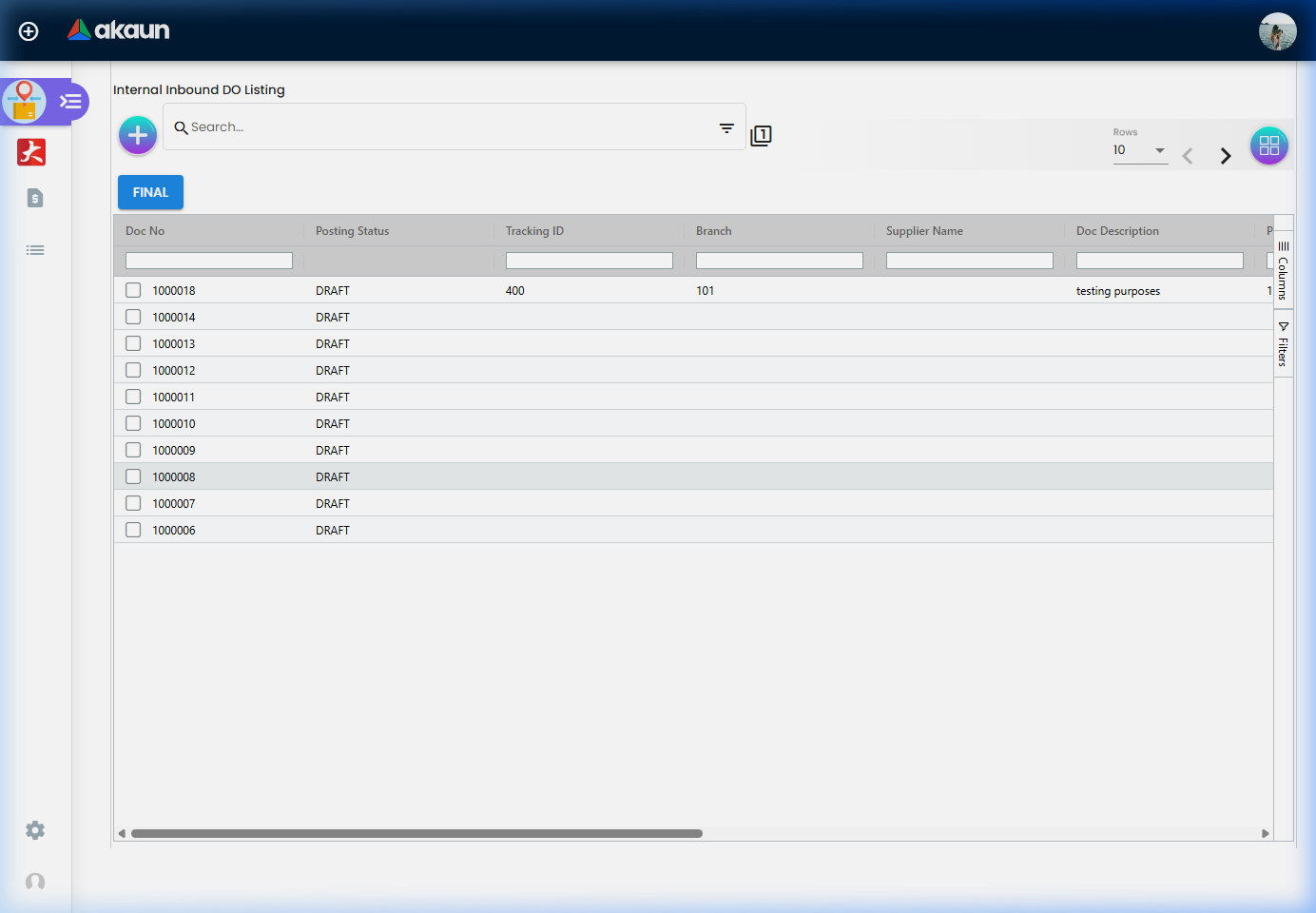
Create screen tabs, in the order they appear: Search · Main Details · Account · Lines · Payment · KO For · Department Hdr. Buttons are RESET and CREATE. (An Import tab exists in the source and is commented out of the current build, so you will not see it; the import component is still there and may return.)
- KO For knocks off a Purchase Order, a Purchase Invoice or a Purchase Requisition, each on its own sub-tab with its own KNOCK OFF button.
- Search finds an intercompany sales invoice and confirms it into the document.
- On a line you can capture serial numbers (typed, imported from a file, or scanned with a start/stop scanner control), batch numbers, bin numbers, pricing details and an issue link.
Edit screen tabs, in order: Main Details · Account · Lines · Payment · Department Hdr · Contra · Doc Link · Attachments · Export · Status. Buttons are RESET, FINAL and SAVE. The Account tab embeds the full supplier editor — addresses, branches, categories, contacts, logins, payment config, tax rows and item pricing — so a supplier record can be corrected without leaving the document.
The Settings menu and the routes behind it do not match exactly, in three ways worth knowing:
- Two menu entries go nowhere. Release Notes and Audit Trail (under Developer Tools) are drawn by the shared frame, but this applet routes neither, so both land on the not-found page.
- Five screens have no menu entry and are reachable only by URL:
webhook,feature-visibility,client-side-permission-listing,role-pricing-scheme-link-listingandteam-permission-listing. - Settings opens on one of those five. Clicking Settings without picking an entry takes you to
client-side-permission-listing— the client-side permission grid — which you will then not find in the menu to get back to.
Configuration
Before you can use it
| Prerequisite | Where | Why |
|---|---|---|
| Supplier records | Supplier | The Account tab needs one, and embeds the supplier editor for corrections |
| The upstream purchase documents you intend to knock off | Purchase Order, Purchase Invoice, Purchase Requisition | The KO For tab has no other source |
| Items configured for serial, batch or bin tracking, if you intend to capture them | Inventory Item Maintenance | The capture screens exist regardless; what they are worth depends on the item setup |
| A way to reach the applet | — | See the warning at the top of this page |
Applet settings
Settings are saved to the tenant’s master settings, so they are tenant-wide — except that a user’s own Personalization settings are merged over them, which is how the default orientation below is set per user. The settings menu offers four screens of the applet’s own: Application Settings (the shared field-configuration surface), Default Selection, Printable Format Settings and Custom Status.
These are the keys this applet actually reads:
| Setting | Where set | What it controls |
|---|---|---|
ENABLE_CUSTOM_STATUS_HDR_1 … _5 | Custom Status | Whether each of the five header-level custom status fields is offered at all |
NAME_CUSTOM_STATUS_HDR_1 … _5 | Custom Status | The label each one carries, on the form and as the listing column heading. Unnamed ones show their raw column name |
LIST_CUSTOM_STATUS_HDR_1 … _5 | Custom Status | The values offered in each drop-down, which appears on the edit screen only — a status cannot be set until the document has been saved once. The document keeps the value’s name as plain text, so renaming or deleting a value later leaves older documents holding the old wording. There is no blank choice: a status once picked can be changed but not cleared |
HIDE_DEPARTMENT_HDR_TAB | Application Settings | Hides nothing. The screens build a filtered panel list that leaves the Department Hdr section out when this is on, but never use it: the tab layout always shows the tab and the panel layout loops over every panel |
EXPAND_MAIN_DETAILS, EXPAND_ACCOUNT, EXPAND_LINE_ITEMS, EXPAND_DEPARTMENT_HDR, EXPAND_CONTRA, EXPAND_DOC_LINK, EXPAND_ATTACHMENTS, EXPAND_EXPORT | Application Settings | Matter only in the stacked-panel layout (see the orientation row): each named section opens already expanded. In the tab layout they change nothing |
PRINTABLE | Printable Format Settings | The printable format the Export tab starts on — the one marked as the default in the format list. With none set, Print does nothing until you pick a format there |
DEFAULT_ORIENTATION, VERTICAL_ORIENTATION | Personalization (the first, per user); Application Settings (the second, tenant-wide) | Screen layout, not the printable. They decide whether create and edit show their sections as tabs or as stacked panels, and whether the screen opens in one column or two on a desktop. A user’s own choice is merged over the tenant’s |
The applet’s source mentions 102 distinct setting-shaped keys, but only the ones above are consulted by its own code. The rest are inherited names from the shared field-configuration screen; setting them here has no effect.
Line-level custom statuses (CUSTOM_STATUS_LINE_1 … _5) can be switched on, named and given value lists on the Custom Status screen, just like the header ones, but no line screen in this applet shows or saves a line status, so setting them up here changes nothing.
Document behaviour settings
The posting status is the document’s own posting_status, moved to FINAL from the listing or from the edit screen. There is no VOID action on either screen.
Feature visibility / permissions
Server-side the document type is guarded by TNT_API_DOC_INTERNAL_INBOUND_DELIVERY_ORDER_CREATE_TGT_GUID, …_READ_…, …_UPDATE_… and …_DELETE_…. The Permission Wizard, Permission Set, User Permission and Role Permission screens are on the settings menu under Server Side Permissions. Feature Visibility, Client Side Permission, Team Permission and Role Pricing Scheme Link are routed but not on the menu, so each is reachable only by URL (see Screens and menus).
Fields
The create and edit screens share one Main Details component, so everything here is true on both. Four boxes are mandatory and the rest are not:
Branch, Location and Purchaser are required, and so is Company — which has no box. The form holds a company value and requires it, but never draws it: picking a Branch fills Company from that branch’s record, and a new receipt starts on the company, branch and location set in Settings → Default Selection. So the company a receipt belongs to is decided by the branch you pick, and the only way to change it is to pick a branch of another company. CREATE stays greyed out until those four are set, the document has at least one line, and the Account tab’s supplier form is valid. Nothing else on the header is checked — not the date, not the supplier reference, not the permit number — so an Inbound Delivery Order will save with almost nothing on it.
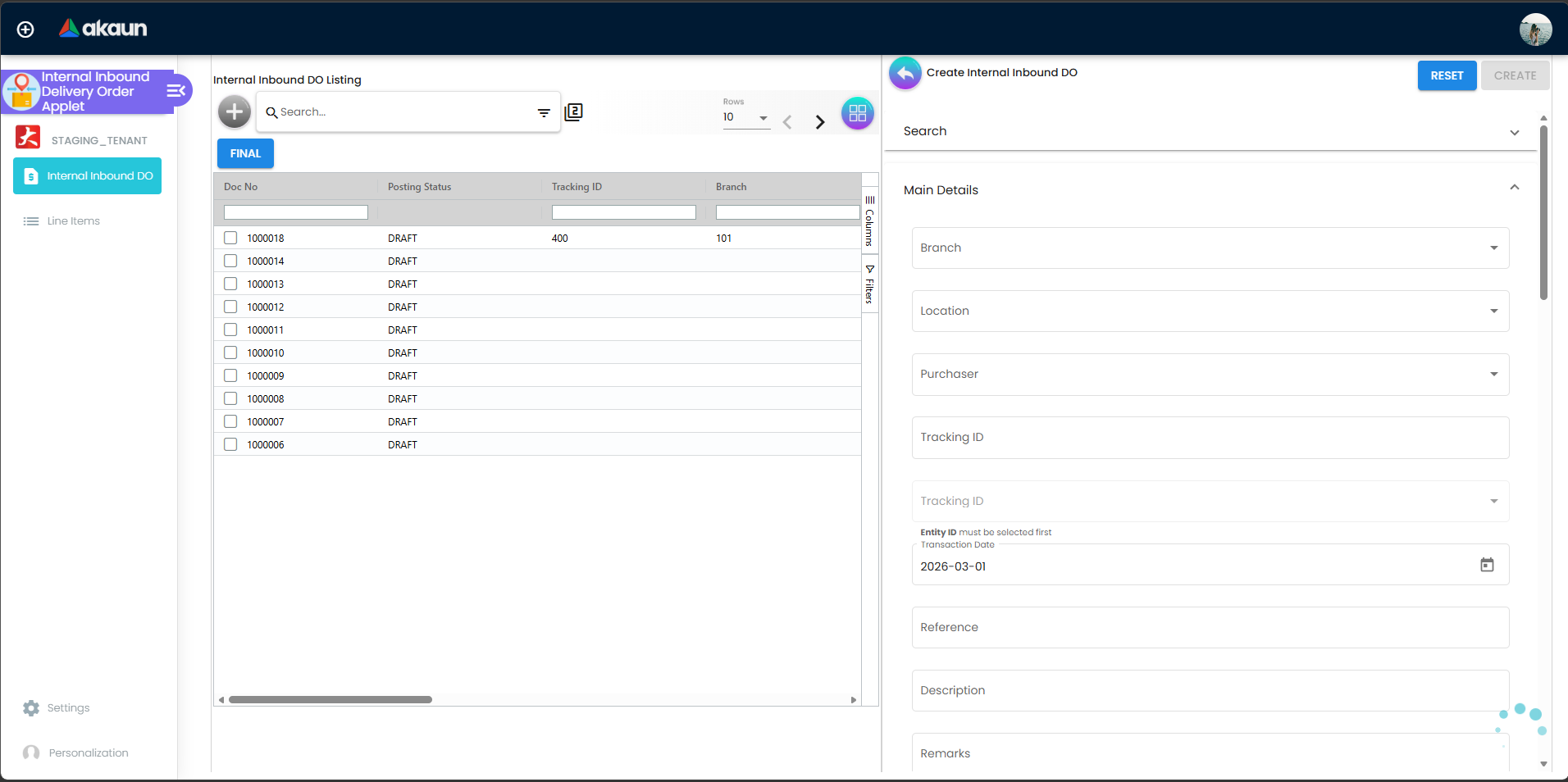
The fields that behave in a way the screen does not show:
| Field | What is actually going on |
|---|---|
| Credit Terms | Labelled “Tracking ID” on the screen. The drop-down directly under the real Tracking ID box, with the hint Entity ID must be selected first, is Credit Terms: the form gives it the Tracking ID label, placeholder and error text. It is disabled by default and enabled only when the supplier you chose has credit terms to offer. A greyed-out one means the supplier record has none, not that the field is broken — fix it on the Supplier record |
| Currency | Set from a branch, at two moments. When a new receipt opens it is filled from the currency of the branch in Settings → Default Selection, only while the box is still empty. Then, every time you pick a Branch, Currency is overwritten with that branch’s currency — including a currency you had typed yourself. So pick the branch first and set a foreign currency last. Opening a saved receipt leaves its stored currency alone until you pick a branch again |
| Purchaser | Stored as the document’s first person-in-charge (pic_entity_01), with a copy in the header’s entity JSON. It is the field the Purchase Report’s Salesman filter reads on purchase documents, so an empty Purchaser makes the receipt unfindable by buyer later |
| Permit No | Not a column of its own — it is kept inside the header’s entity JSON alongside the credit terms. Nothing validates it and no report filters on it; treat it as a note you can search for only by opening the document |
| Tracking ID | A real header column, shown on the listing. This is the one free-text field on the header that the listing will show you without opening each document — use it for the carrier or consignment reference |
| Custom Clearance Status and the four unnamed ones | The five header custom statuses. Each has to be switched on and named in Settings → Custom Status; an enabled-but-unnamed one shows its raw column name (client_doc_status_03) as the listing heading. See Applet settings |
On a line you capture the item, quantity, pricing detail and, where you want them, serial
numbers (typed, imported from a file, or scanned), batch numbers and bin numbers. None of the three
is ever mandatory — there is no validator and no setting that makes one so, whatever the item’s
tracking configuration says. Line-level custom statuses
(CUSTOM_STATUS_LINE_1 … _5) can be configured on the Custom Status screen, but no line here shows
or saves one.
Lifecycle and effects
Posting proof
| Server document type | INTERNAL_INBOUND_DELIVERY_ORDER |
| Quantity signum | 0 |
| Amount signum | 0 |
| Where the signums come from | Both are forced onto every line on save, whatever the screen or the API sends |
| Stock processor | None. Inventory transaction lines are written only for lines whose quantity signum is non-zero |
| Journal | None. The journal builder emits a line only for a line whose amount signum is non-zero |
| VOID | No VOID action exists on either screen |
So FINAL on an Inbound Delivery Order changes the document’s posting status and the linkage to whatever it knocked off. It changes nothing else.
Related applets
- Purchase GRN Stock In (Internal) — the purchase-side document that actually takes stock in
- Purchase Order (Internal), Purchase Invoice (Internal), Purchase Requisition (Internal) — the three documents the KO For tab knocks off
- Supplier — the entity on the Account tab, editable in place
- Stock Balance — unchanged by this document; check it against the GRN, not against this
- Warehouse Management — the wider receiving picture
Troubleshooting
| Symptom | Cause | Fix |
|---|---|---|
| Stock did not change after FINAL | Correct — both signums are 0 | Raise the Purchase GRN Stock In that takes the goods in |
| No journal appears against the document | Correct — the amount signum is 0, so no journal line is built | The purchase invoice posts the payable, not this |
A custom status column shows client_doc_status_03 | That status has been enabled but not named | Settings → Custom Status → set NAME_CUSTOM_STATUS_HDR_3 |
| A user saved a receipt with no serial numbers | Nothing in the applet requires them | There is no setting that makes serial entry mandatory here; enforce it as a procedure, or capture serials on the GRN |
| The document cannot be reversed | There is no VOID action | Correct the receipt before FINAL, or handle the correction on the downstream document |
| There is no Credit Terms box, and two boxes say “Tracking ID” | The second one is Credit Terms under the wrong label | Use the drop-down under the free-text Tracking ID; it opens once the supplier has credit terms |
| The receipt’s currency changed by itself | Picking a branch overwrites Currency with that branch’s currency | Pick the branch first, then set the currency |
| Release Notes or Audit Trail opens a not-found page | This applet routes neither menu entry | Nothing to fix on your side; neither screen exists here |