The Inv Item Maintenance Applet serves as the backbone of your inventory ecosystem. It provides a comprehensive suite of tools to manage the entire lifecycle of an inventory item—from initial creation and categorization to advanced serial number tracking and obsolete stock analysis.
Core Concept: The system centralizes what you sell (Items), how they are grouped (Categories), and where specific units are (Serial Numbers), while providing deep insights into how long they’ve been in stock (Aging).
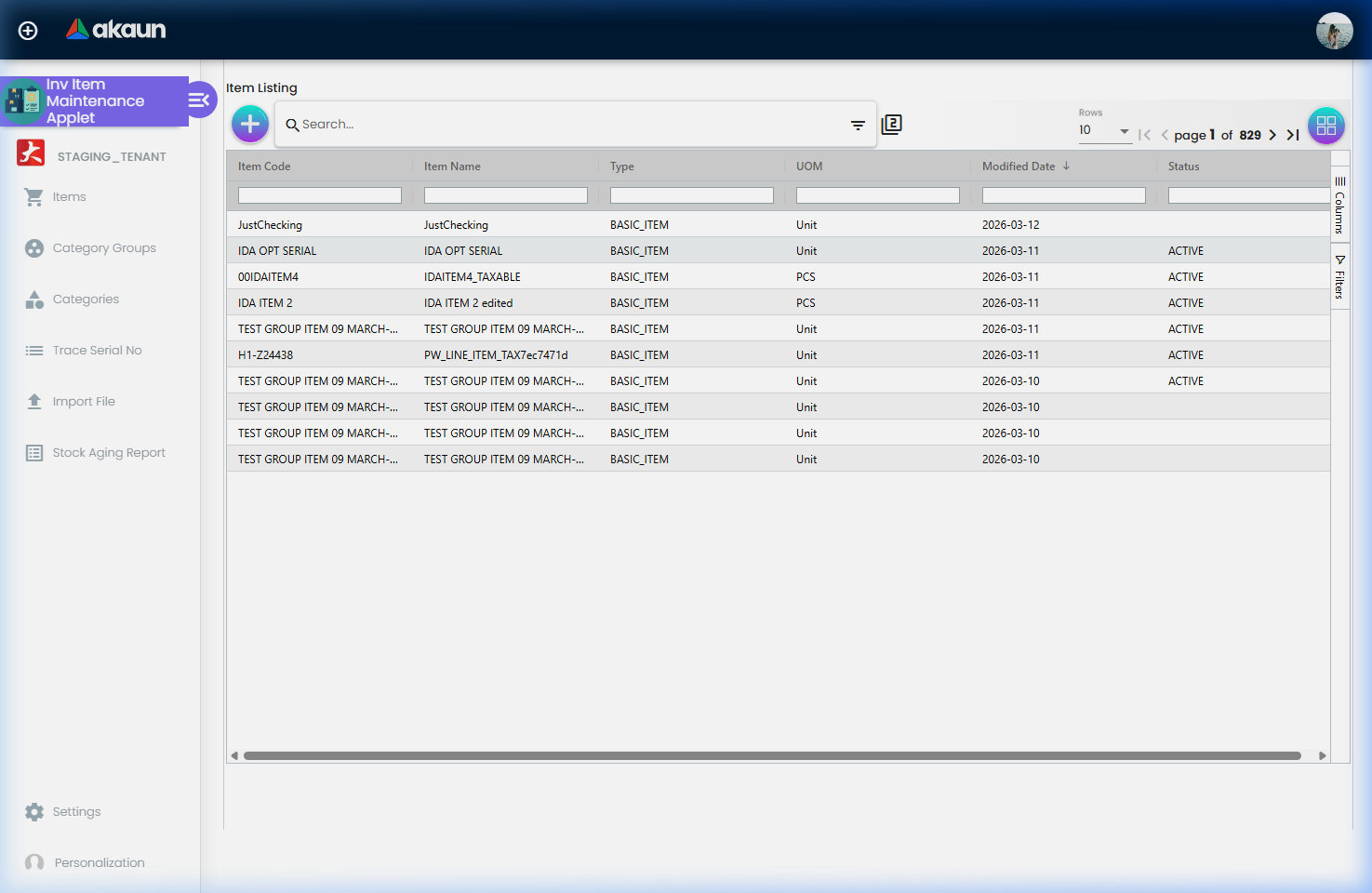
Item Listing: The central hub for viewing and managing your inventory registry.
Who Benefits from This Applet?
Inventory & Warehouse Managers:
Maintain accurate item registries
Track individual units with serial number tracing
Monitor stock health via aging reports to prevent obsolescence
Streamline bulk data entry via file imports
Sales & Customer Service Teams:
Quick visibility into item details and specifications
Respond faster to customer inquiries regarding item history (Serial No Trace)
Verify item availability across categories
Procurement & Finance Teams:
Ensure correct categorization for financial reporting
Track Multi-UOM (Unit of Measure) for accurate purchasing and costing
Analyze capital tied up in aging stock
What Problems Does This Solve?
The Inventory Chaos Problem:
Without a centralized maintenance system, businesses face:
Data Inconsistency: Duplicate items or conflicting specifications
Untraceable Units: Inability to track specific high-value items via serial numbers
Dead Stock: Hidden obsolete inventory that ties up capital and warehouse space
Cluttered Structures: Poor categorization making it difficult to find items or run reports
The Inv Item Maintenance Solution:
Standardized Registry - A single source of truth for all inventory items
Granular Categorization - Multi-level grouping (Groups and Categories) for precise organization
Serial Number Lifecycle - Full traceability from entry to exit
Automated Aging Analysis - At-a-glance visibility into stock duration buckets
Bulk Operations - High-speed data management with robust import tools
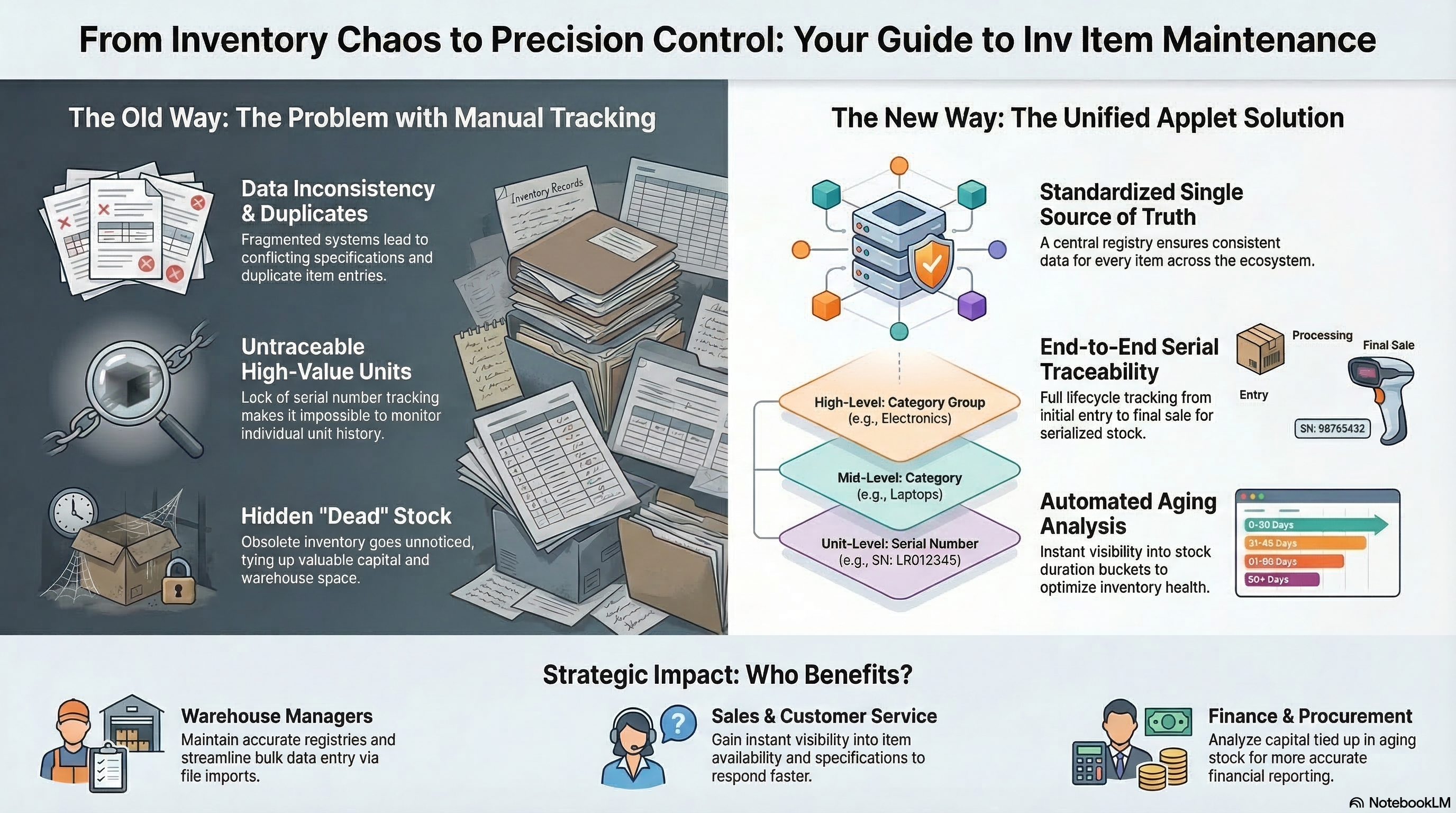
From Inventory Chaos to Precision Control: The Old Way (data inconsistency, untraceable units, dead stock) vs The New Way (standardized registry, granular categorization, automated aging analysis).
Key Concepts
Understanding the Inventory Framework
Effective inventory management requires a structured approach to data. The Inv Item Maintenance Applet uses a hierarchical framework:
Aspect
Component
Practical Example
Classification
Groups & Categories
Group: Electronics > Category: Laptops
Identity
Basic Item Info
Item Code: “LAP-X1”, Name: “ThinkPad X1”
Traceability
Serial Numbers
SN: “LR012345”
Utility
Multi-UOM
Box of 10 vs. Individual Unit
Real-World Example: You define a Category Group “IT Hardware”. Under it, you create a Category “Laptops”. Every time you receive a “ThinkPad X1”, you record its unique Serial Number for warranty and history tracking.
The “Golden Triangle” of Inventory
To effectively manage the system, it is crucial to understand how Item Groups, Categories, and Items work together.
Component
Analogy
Definition
Example
Category Group
The “Department”
A high-level bucket for broader classification.
Electronics, Furniture
Category
The “Aisle”
A specific segment within a group for finer organization.
Laptops, Office Chairs
Item
The “Product”
The actual stock unit being tracked and sold.
ThinkPad X1, ErgoMaster v2
How they link:
You create a Category Group (e.g., Electronics).
You create a Category linked to that Group (e.g., Laptops).
You create Items (e.g., ThinkPad X1) and link them to the Category.
This hierarchy ensures that when you run a report for “Electronics”, all “Laptops” and their specific “Items” are included.
Technical Specifications
The applet supports various item and stock handling types to cater to different business models.
Item Transaction Types
Type
Use Case
Basic Item
Standard inventory product.
Grouped Item
Component-based assembly.
Bundle
Pre-packaged collection of items.
Service
Non-inventory billable activity.
Warranty
Intangible coverage associated with products.
Batch & Expiry
Stock requiring date-based tracking.
Coupon
Redeemable value or discount items.
Stock Handling (Sub-Item Types)
Type
Description
Basic Quantity
standard numeric tracking (e.g., 50 units).
Serial Number
Tracking individual unique units (e.g., IMEI).
Batch Number
Group-based tracking for perishables/regulated goods.
Bin Number
Location-specific tracking within a warehouse.
Hierarchical Organization
    graph TD
    Org[Organization] --> CG[Category Groups]
    CG --> C[Categories]
    C --> I[Items]
    I --> SN[Serial Numbers]
    I --> UOM[Multi-UOM]

    style Org fill:#f9f,stroke:#333,stroke-width:2px
    style I fill:#bbf,stroke:#333,stroke-width:2px
System Workflow:
Category Groups: High-level classification (e.g., Raw Materials).
Categories: Specific classification (e.g., Steel, Plastics).
Items: The actual product (e.g., Steel Rod 10mm).
Details: Individual unit tracking (SN) and measurement variations (UOM).
Quick Start Guide
Get up and running quickly with these essential workflows.
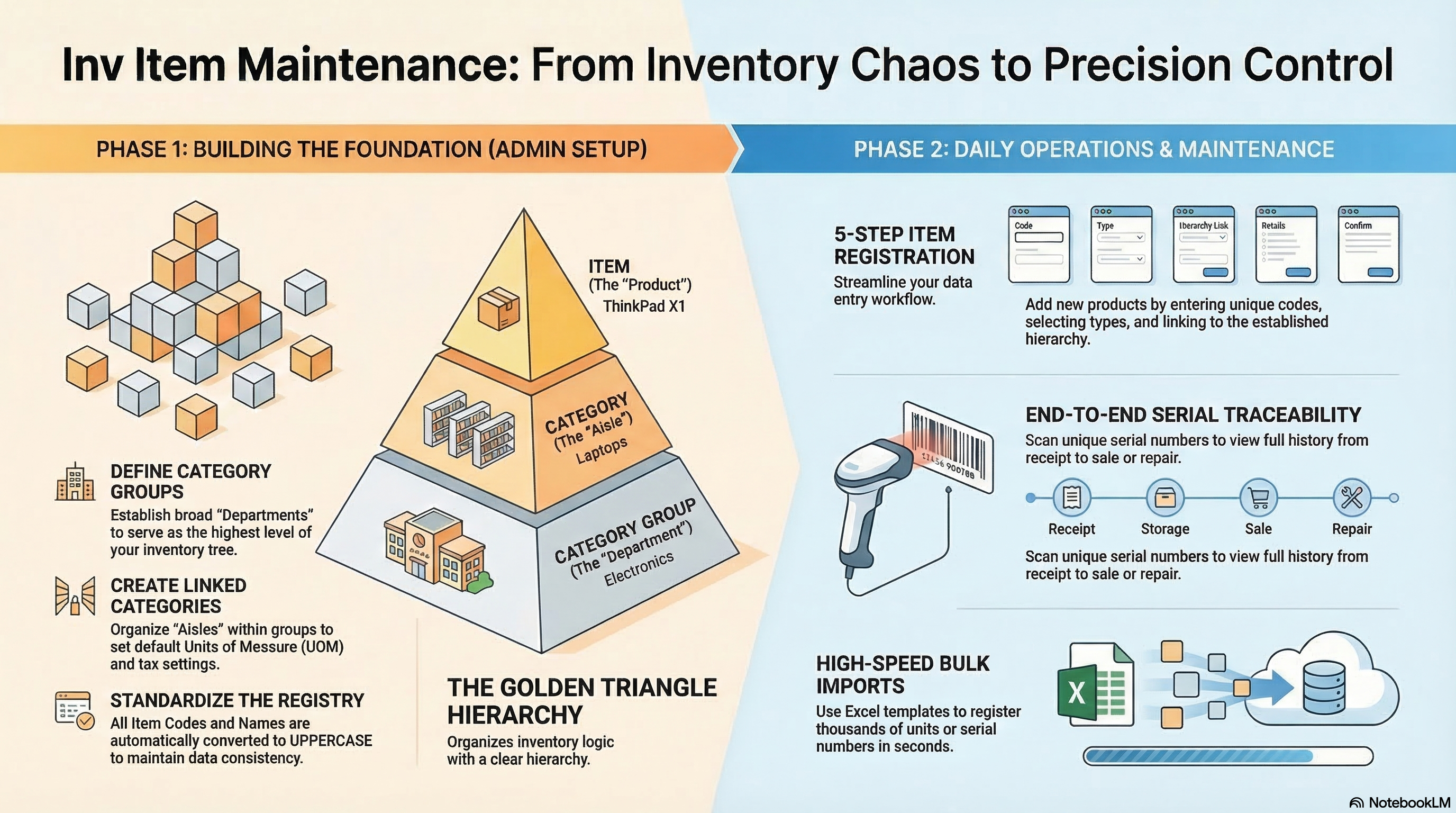
Inventory Control at a Glance: Visual workflows for Data Entry, Inventory Managers, and System Admins.
For Data Entry: Create Your First Item
Goal: Register a new product in the system in 5 simple steps.
Navigate: Go to Items from the sidebar.
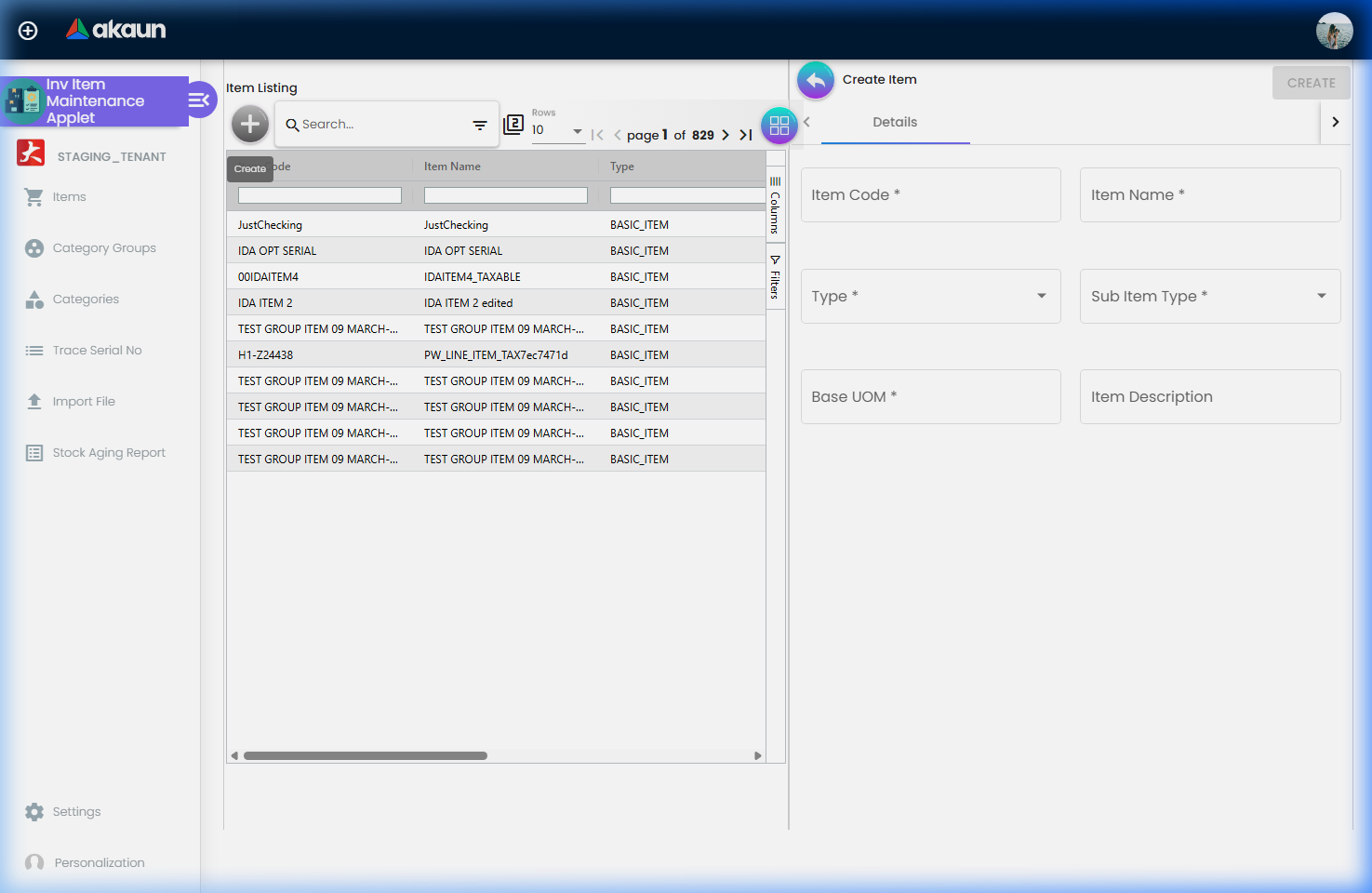
Launch: Click "+" (Add New). A panel appears on the right.Item Creation: Open the 'Add New' panel to register products with essential details and specifications.
Primary Info:
Enter Item Code (Unique identifier).
Enter Item Name (Public facing name).
Select Type (e.g., BASIC_ITEM).
Link Hierarchy:
Select the Category from the dropdown.
The Group will automatically link based on category settings.
Save: Click Create. The item is now live and ready for stock transactions.
For Admins: Initial System Setup
Goal: Prepare the categorization hierarchy for your team.
Step 1: Create Category Groups (Category Groups > "+")
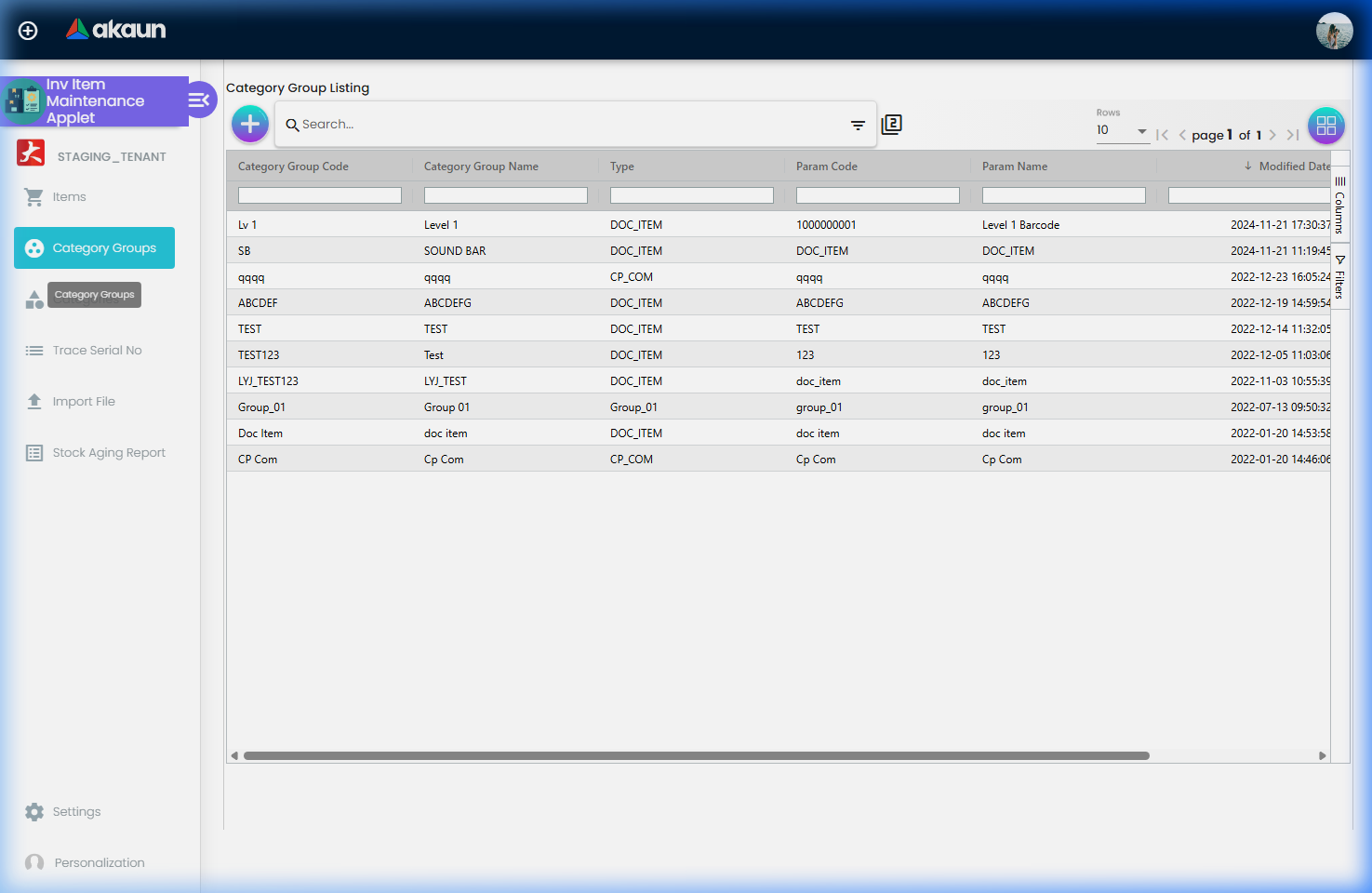
Define broad departments (e.g., “Hardware”, “Services”).Hierarchy Management: Define high-level groups to organize your inventory categories.Step 2: Create Categories (Categories > "+")
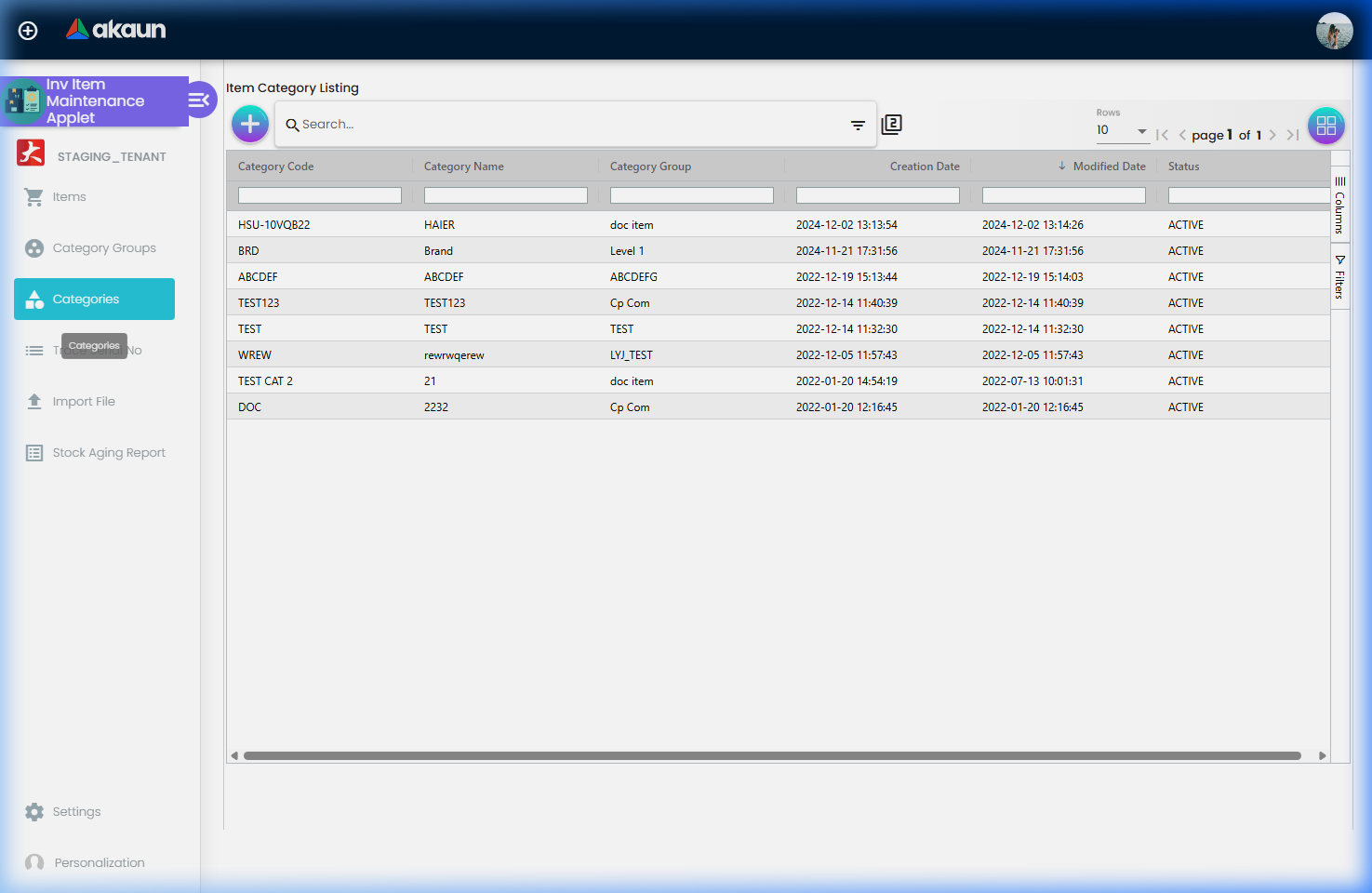
Link them to the Groups created in Step 1.Sub-Categorization: Further classify items within groups for precise reporting and searchability.Step 3: Test the Chain
Create an item and verify it correctly inherits the Group and Category relationship.
Feature Sections
Inventory Specialists: Maintenance & Traceability
This section is your guide to detailed item management and unit tracking.
Detailed Item Maintenance
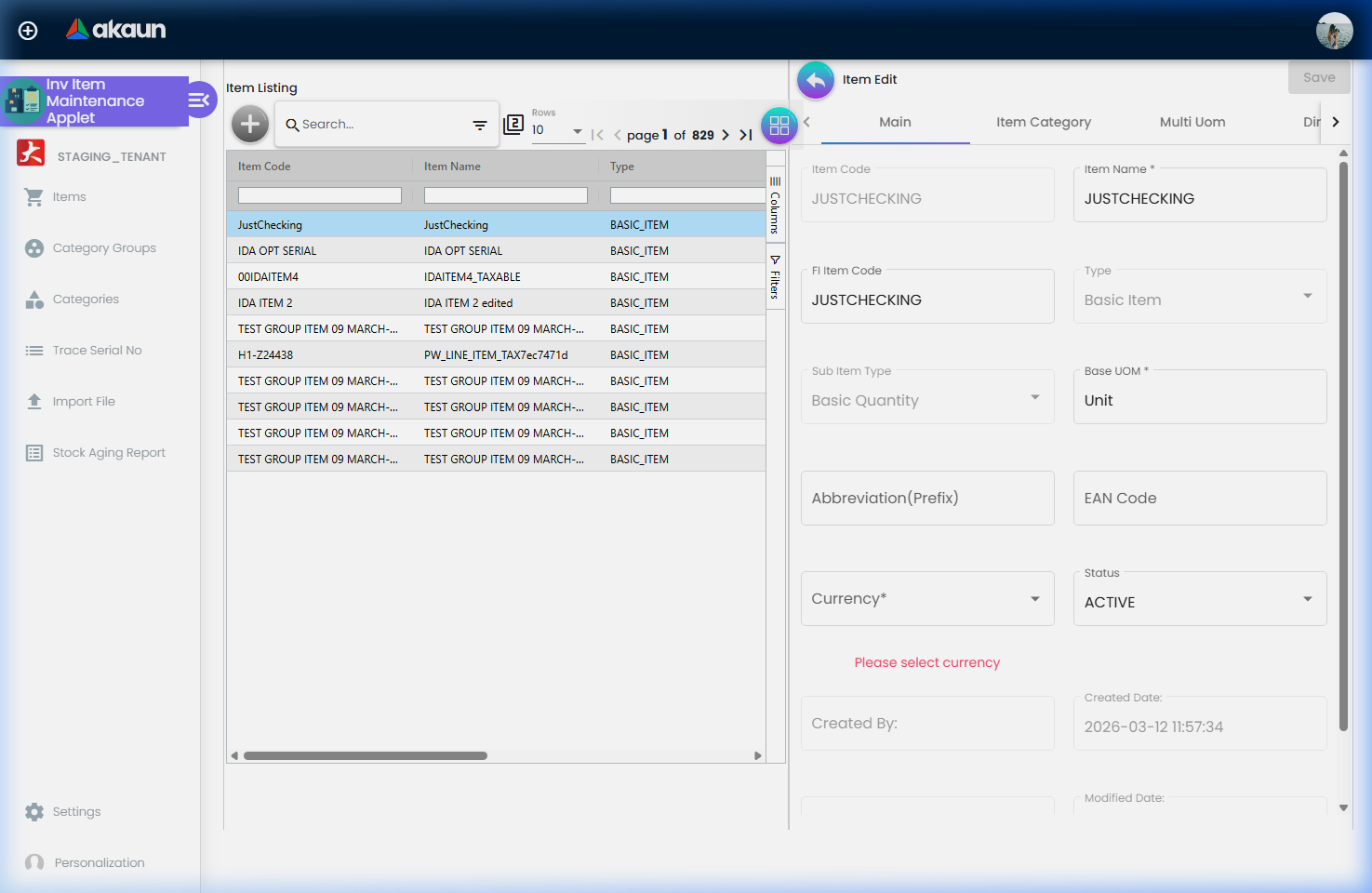
The Item Listing is your workspace. For any item, click to open the Edit view:
Tabs: Navigate between Main Details, Multi UOM, Images, and Location Balance.
Multi-UOM: Set up secondary units (e.g., 1 Box = 12 Units).
Images: Upload product photos for visual identification on POS or invoices.Item Details: Access and update granular information, including images, units of measure, and branch-specific settings.
Serial Number Traceability
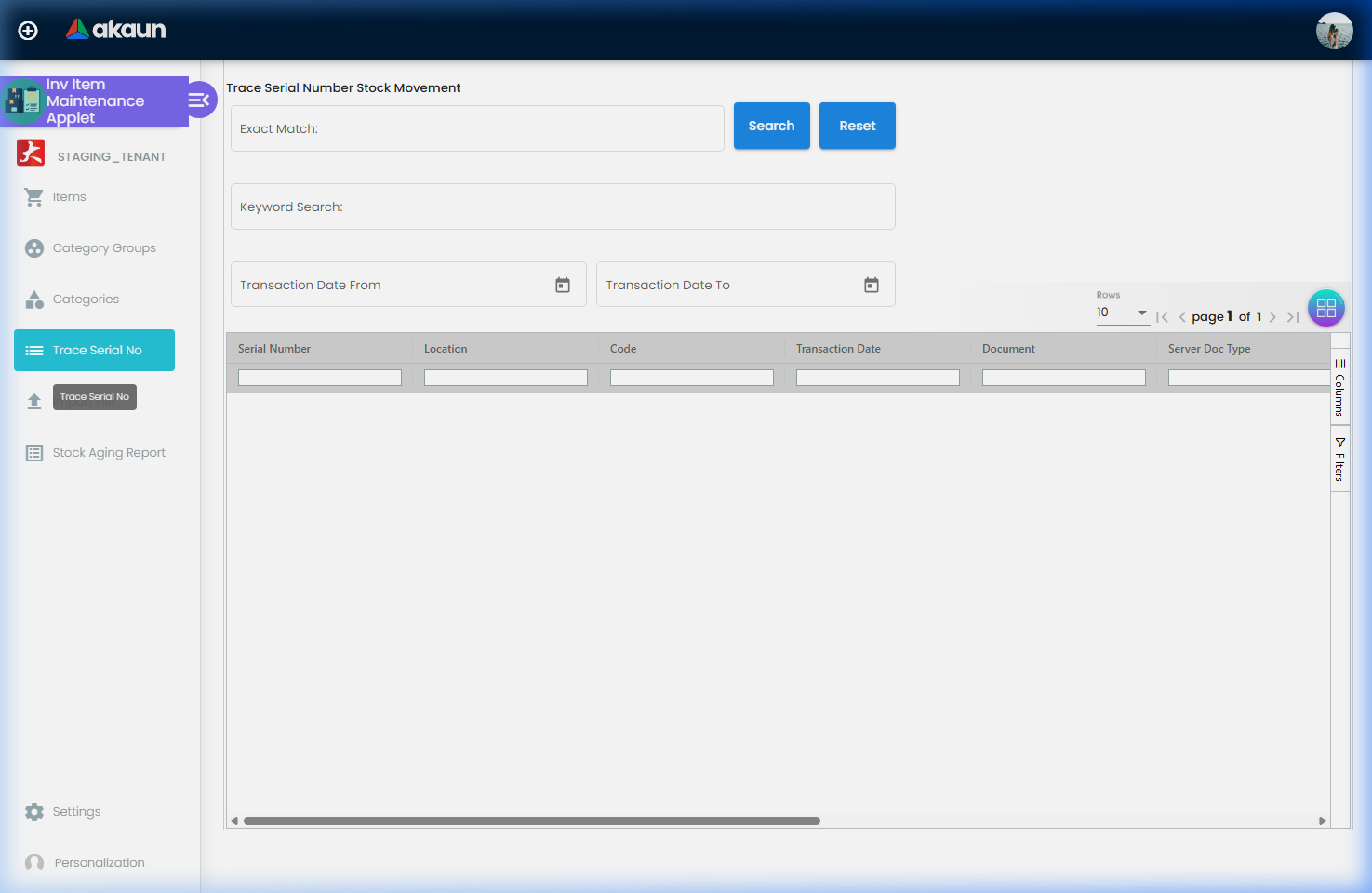
For high-value or regulated items, use Trace Serial No:
Scan or enter a Serial Number.
View the Transaction History: See exactly when it was received, transferred, or sold.
Check Current Status: Is it in stock? Sold? Under repair?Unit Traceability: Track the full movement history and current status of any serialized item.
Admin & Data Teams: Bulk Operations
Handle high-volume data without manual entry.
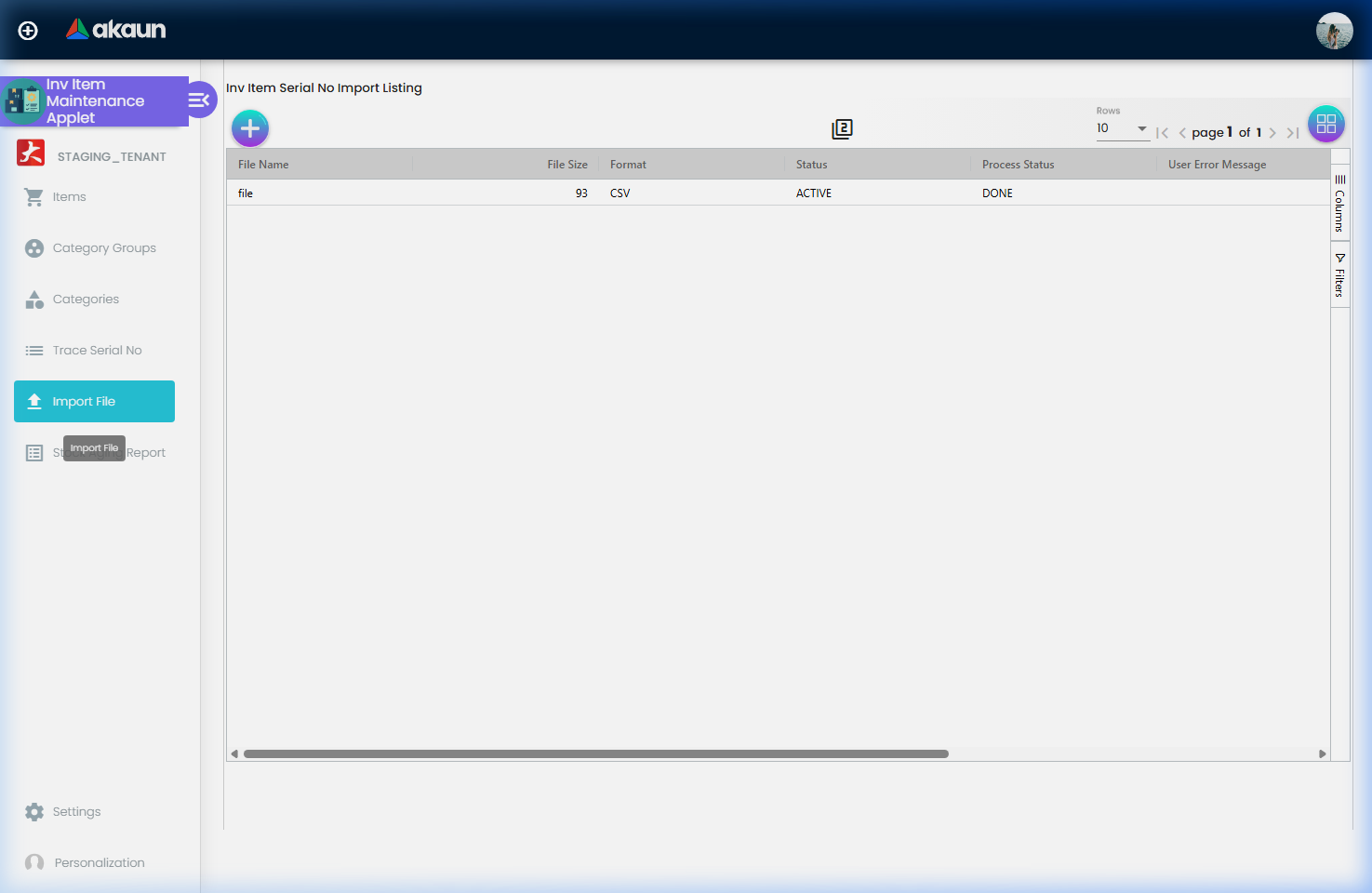
Bulk Serial Number Import
When receiving large shipments, use the Import File feature:
Download Template: Get the standard CSV/Excel format.
Fill Data: Map Serial Numbers to their respective Item Codes.
Upload: Process the file to bulk-register thousands of units in seconds.Bulk Import: Efficiently upload large batches of serial numbers via Excel templates.
Management: Analytics & Controls
Strategic oversight for inventory health.
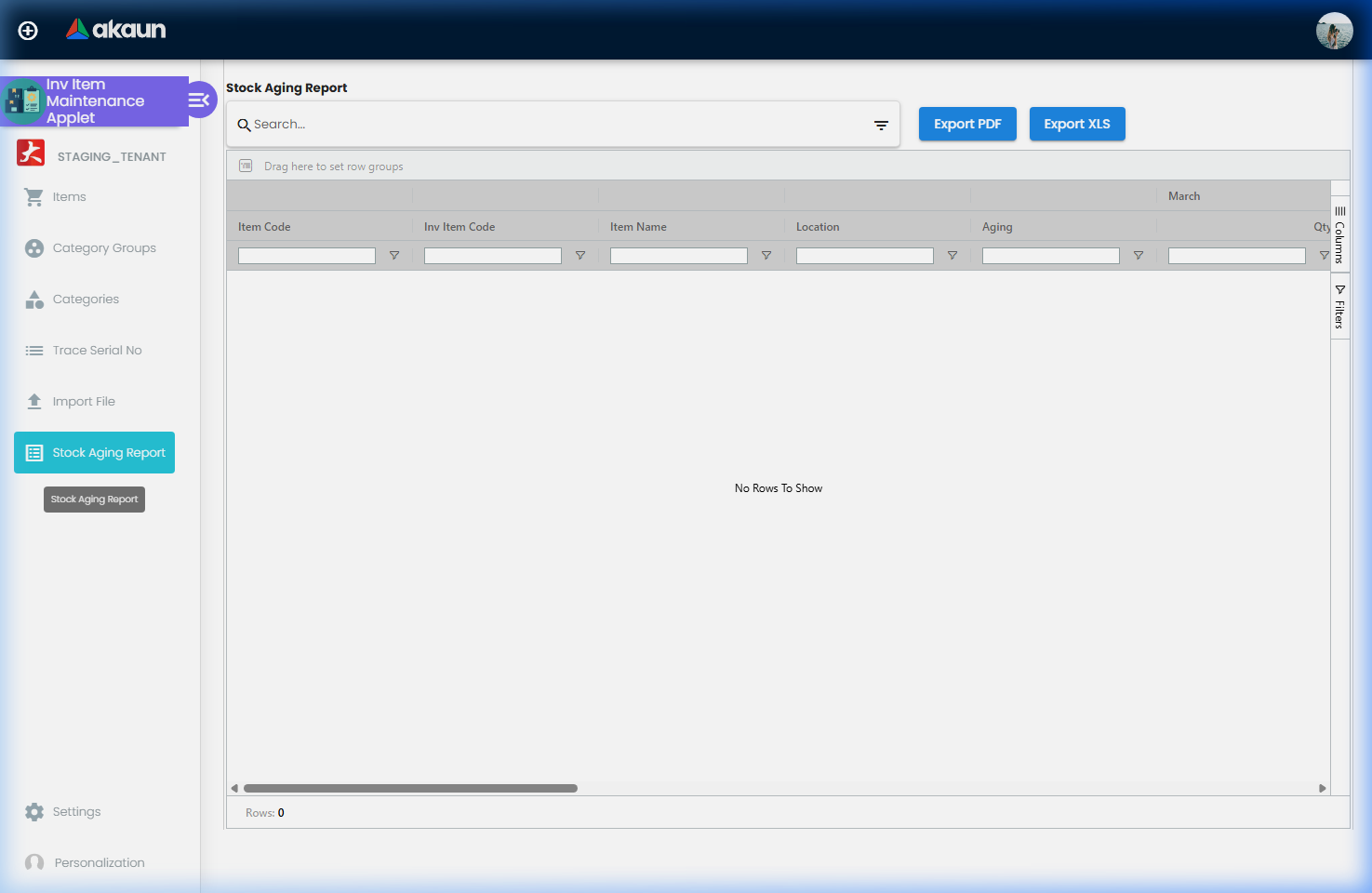
Stock Aging Reports
Monitor how long capital is tied up in stock.
Dynamic Filtering: Filter by Location, Category, or Date Range.
Export: Generate PDF/Excel reports for month-end meetings.Aging Analysis: Identify slow-moving items and aging buckets to optimize inventory health.
Configuration & Settings
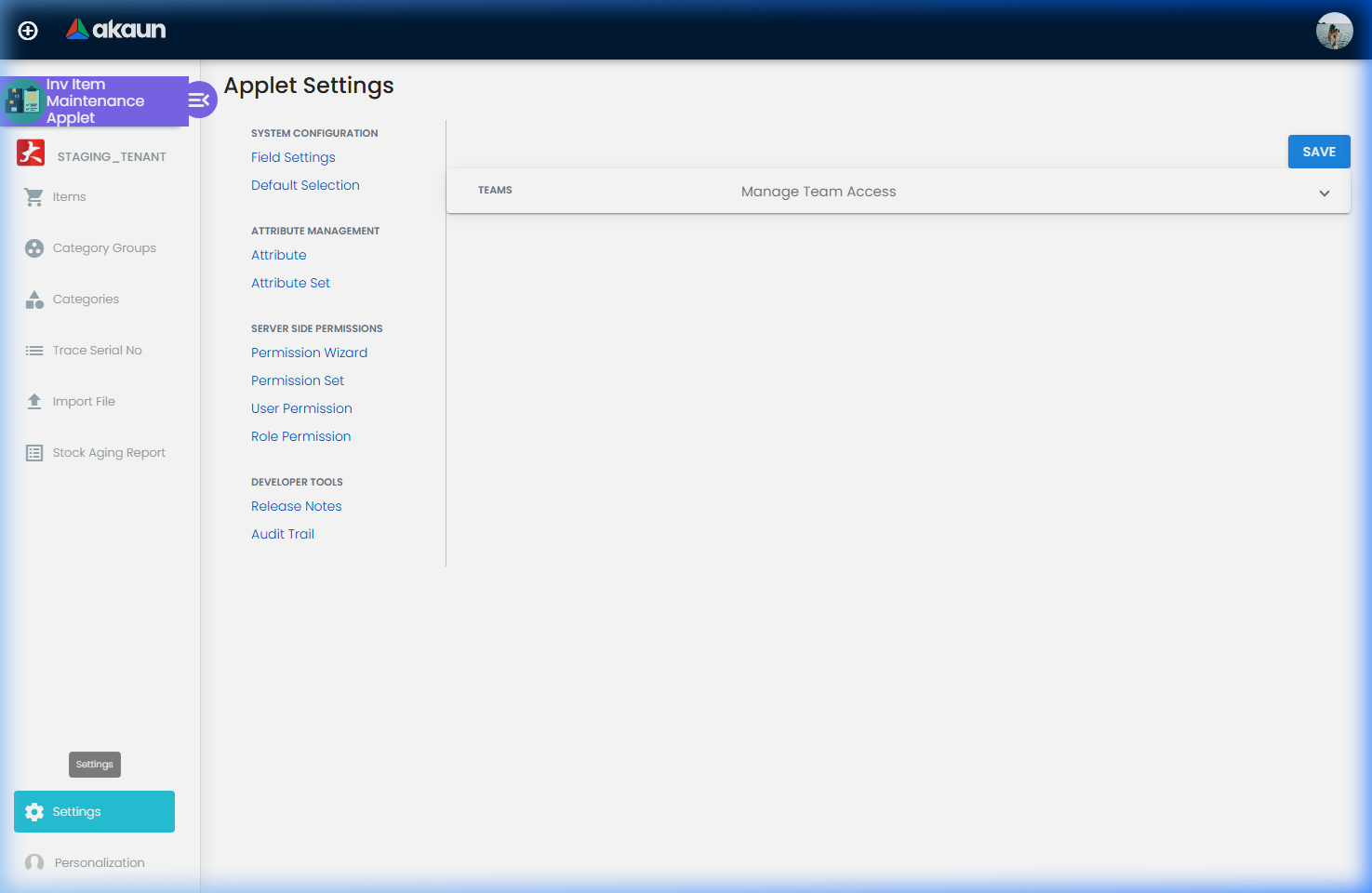
Tailor the applet behavior to your business.Admin Configuration: Tailor feature visibility and applet behavior to match your business requirements.
Default Selection: Set “Sticky” defaults for faster data entry.
Field Settings: Hide unused fields to simplify the interface for staff.
Permission Wizard: Role-based access control (e.g., “Warehouse Staff” can view but not delete).
Technical Constraints & Fields
Data Validation
Max Length: All primary text fields (Code, Name, Description) have a 255-character limit.
Case Sensitivity: Item Code and Item Name are automatically converted to UPPERCASE upon saving to ensure data consistency.
Mandatory Fields: Item Code, Name, Type, and Base UOM are required for all item types.
Available Pricing Fields
The system maintains a comprehensive set of pricing dimensions for each item:
List Price: Standard MSRP or retail price.
Wholesale Price: Price for bulk or B2B transactions.
Discounted Price: Promotional or special offer pricing.
Price Brackets: Includes Minimum and Maximum limits for both Selling and Purchase prices to prevent data entry errors.
FAQ
Q: Can I change an item’s Category after it’s been used in transactions?
A: Yes, but it is recommended to do this carefully as it may affect historical reporting and inventory valuation groupings.
Q: What is Multi-UOM and why use it?
A: It allows you to buy in one unit (e.g., Pallet) and sell in another (e.g., Each), while the system handles the conversion automatically. This is essential for accurate stock tracking and pricing.
Q: Why is my Serial Number not showing up in the Trace Serial No?
A: Ensure the item is set to “Serialized” type and that the Serial Number has been correctly imported or keyed in during a receiving transaction.
Q: My Stock Aging Report is empty. Why?
A: This usually happens if there are no items in the selected location or if your “Aging As Of” date is set before any stock was received.
Q: How do I bulk delete items?
A: For security, bulk deletion is restricted. You must deactivate items individually or contact your system administrator for backend cleanup if necessary.