Stock Adjustment Applet
Purpose and Overview
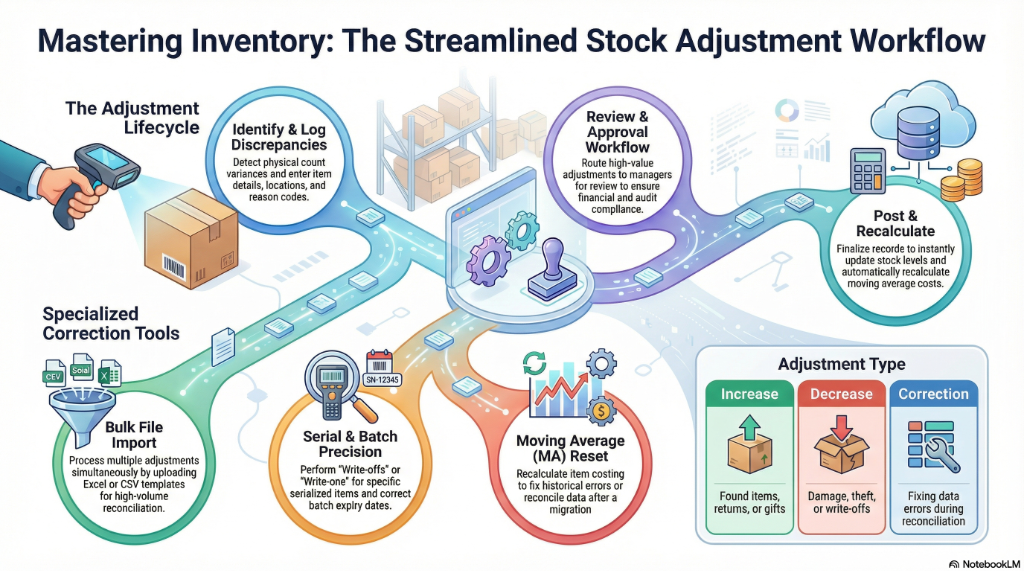
The Stock Adjustment Applet is your tool for correcting inventory discrepancies — whether from physical counts, damaged goods, write-offs, or data migration issues. It supports quantity adjustments, serial and batch number corrections, bulk imports, and moving average cost resets.
Who Benefits from This Applet?
Warehouse Managers:
- Correct stock discrepancies after physical counts
- Adjust inventory for damaged or lost items
- Process write-offs and write-ons
Inventory Controllers:
- Reconcile system vs physical stock
- Adjust serial and batch number records
- Reset moving average costs when needed
Finance Teams:
- Review and approve stock adjustments
- Track inventory value changes
- Audit adjustment history
Operations Teams:
- Process bulk adjustments via file import
- Fix serial number data issues
- Manage batch quantity corrections
What Problems Does This Solve?
Traditional Adjustment Challenges:
- Manual stock count reconciliation
- Difficulty adjusting serialized inventory
- No audit trail for inventory changes
- Complex moving average recalculations
The Stock Adjustment Solution:
- Easy quantity adjustments - Increase or decrease stock with reasons
- Serial/Batch adjustments - Correct tracked item records
- Bulk import - Process multiple adjustments from files
- Moving average reset - Recalculate item costs accurately
- Complete audit trail - Track all adjustment history
Key Features Overview
Key Concepts
Adjustment Types
| Type | Description | Use Case |
|---|---|---|
| Increase | Add stock to inventory | Found items, returns, gifts |
| Decrease | Remove stock from inventory | Damage, theft, write-off |
| Transfer | Move between locations | Reorganization |
| Correction | Fix data errors | Reconciliation |
Adjustment Workflow
Count Discrepancy → Create Adjustment → Approval (if required) → Posted
        │                  │                    │                   │
        │                  │                    │                   └── Stock updated
        │                  │                    └── Manager reviews
        │                  └── Enter quantities and reasons
        └── Physical count differs from system
Quick Start Guide
For Warehouse: Adjust Stock After Count
Goal: Correct stock quantity after physical inventory count
- Navigate: Go to Stock Adjustment from the sidebar
- Create New: Click "+" to create adjustment
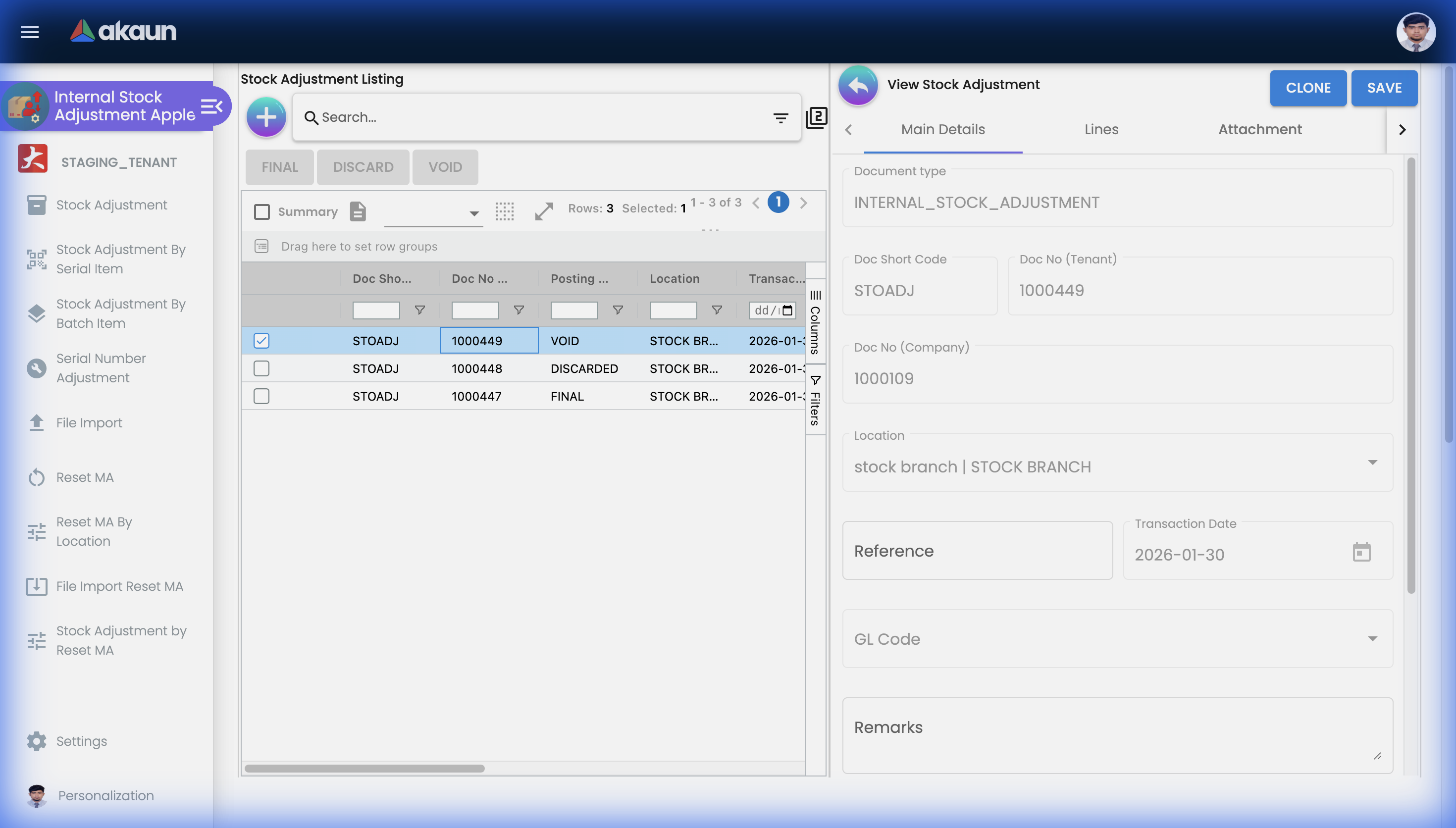
- Configure: Select item, enter adjustment details as shown below:
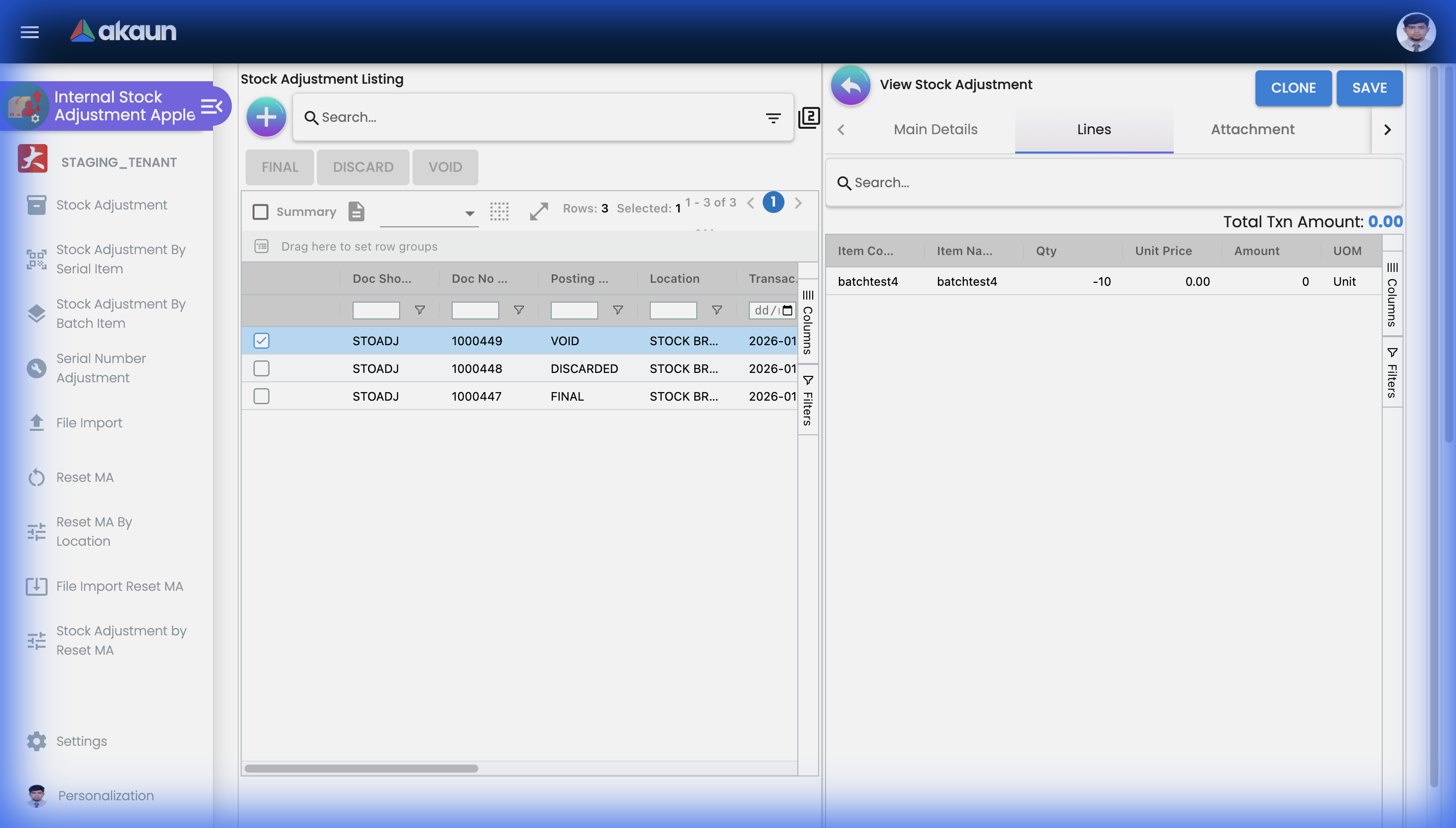
- Add Line Items: Click the Lines tab to add items:
- Submit: Post or send for approval
For Controllers: Bulk Adjust via File
Goal: Process multiple adjustments from a spreadsheet
- Navigate: Go to File Import
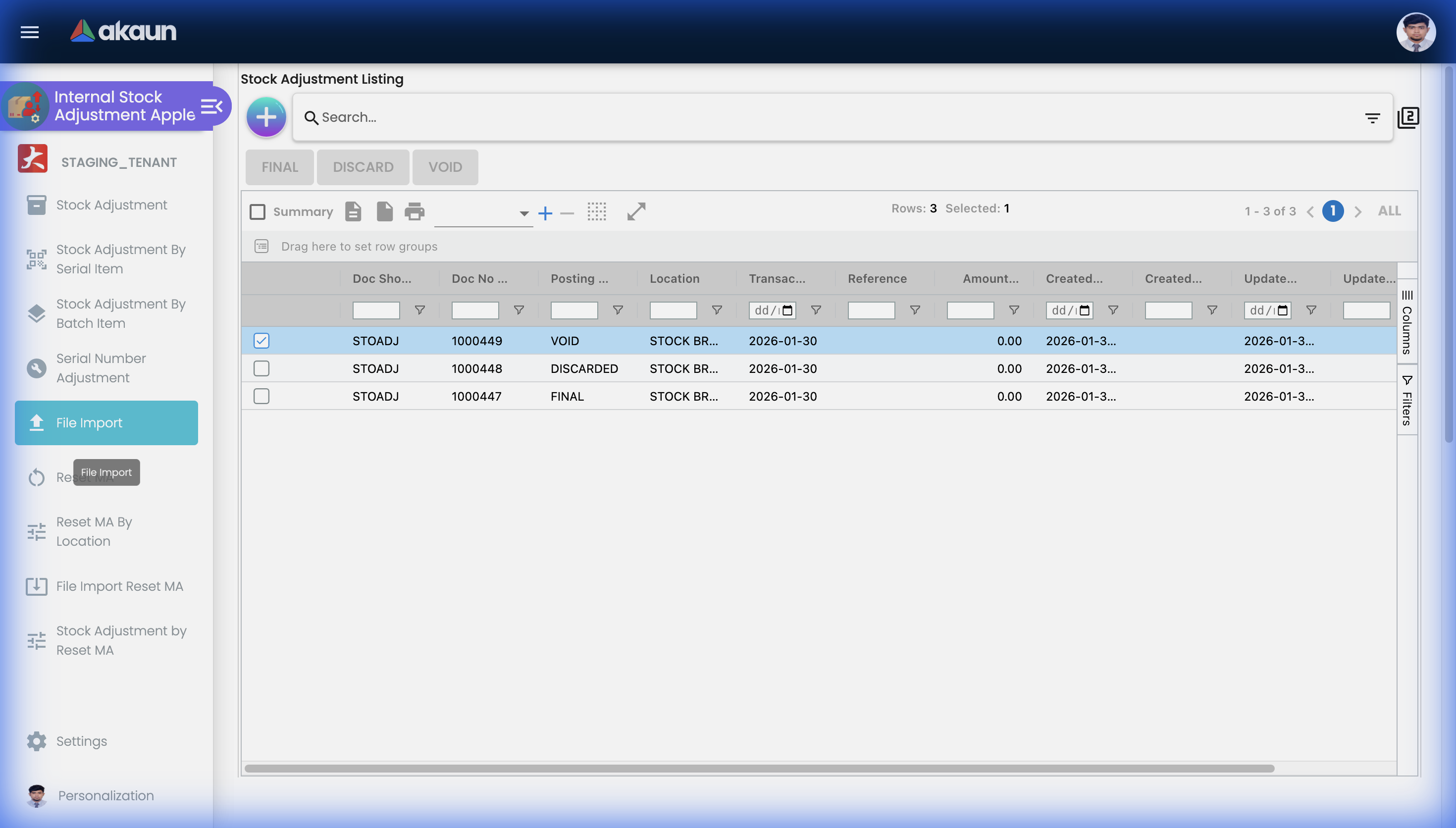
- Download Template: Get the adjustment template
- Prepare Data: Fill in items, quantities, and reasons
- Upload: Import the completed file
- Validate: Review detected adjustments
- Process: Confirm and post all adjustments
For Operations: Adjust Serial Numbers
Goal: Correct a serial number record
- Navigate: Go to Serial Number Adjustment
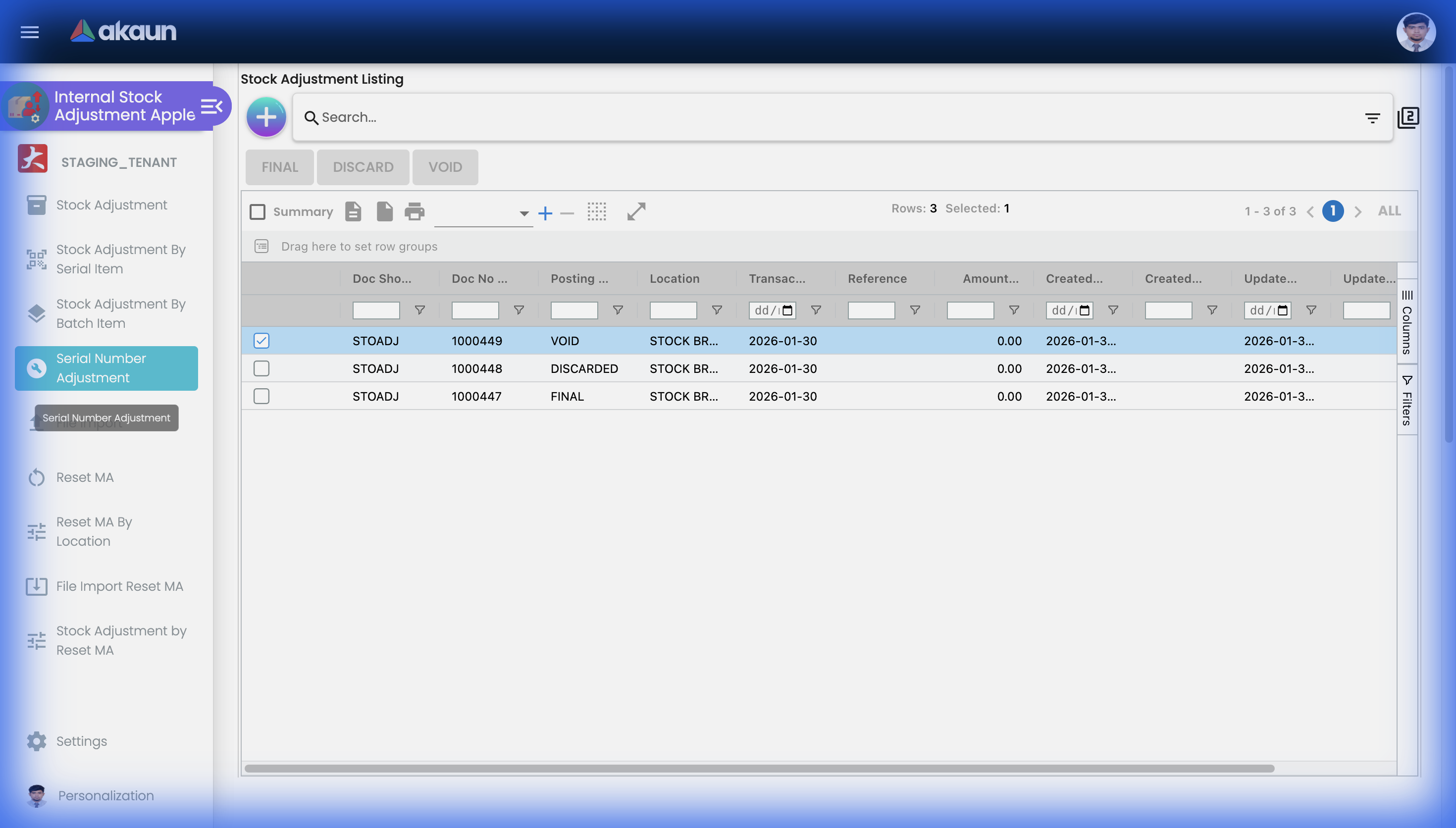
- Find Serial: Search for the serial number
- Select Action: Write-off, Transfer, or Correct
- Complete: Add reason and submit
Stock Adjustment
Creating Adjustments
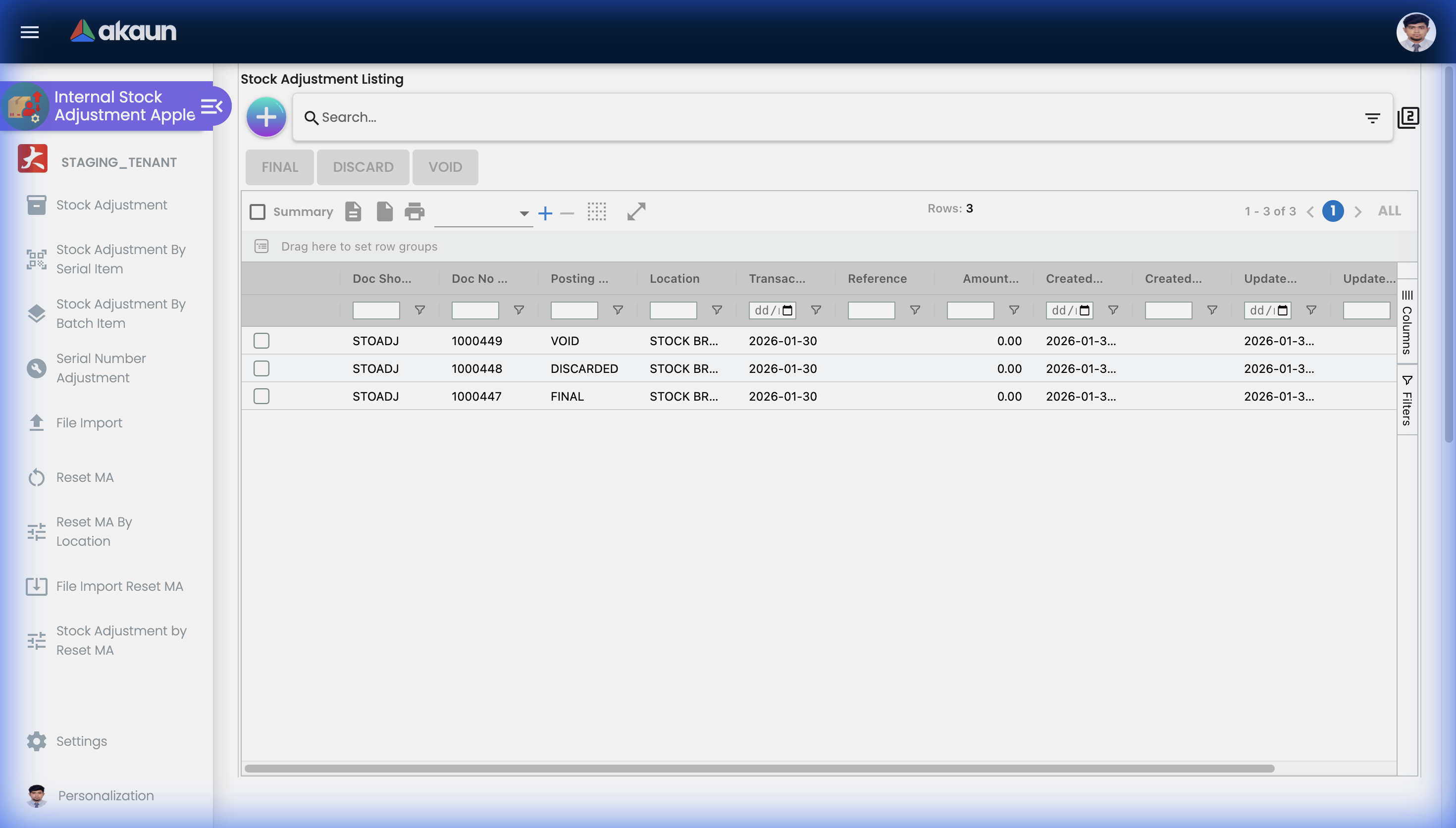
Main adjustment features:
- Single Item Adjustment - Adjust one item at a time
- Multi-Item Adjustment - Adjust multiple items in one document
- Reason Codes - Categorize why adjustment was made
- Approval Workflow - Route for approval if required
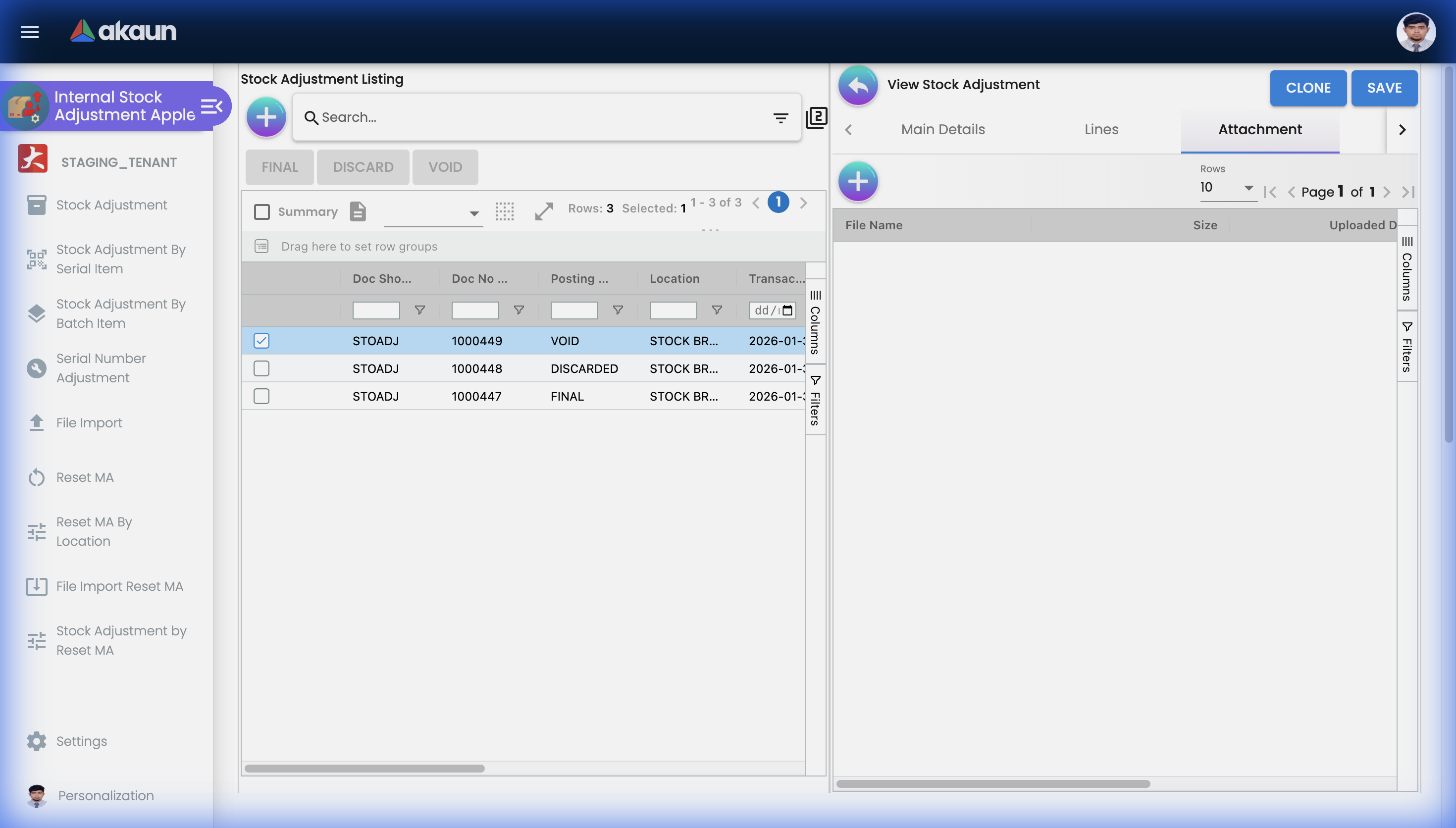
Stock Adjustment Edit Tabs
When editing a stock adjustment, click on a row to open the edit panel:
Main Details Tab
Lines Tab
Attachment Tab
Key Fields
| Field | Description | Example |
|---|---|---|
| Item | Product to adjust | SKU-001 |
| Location | Warehouse/store | Main Warehouse |
| Adjustment Type | Increase or Decrease | Decrease |
| Quantity | Amount to adjust | 5 |
| Reason Code | Why adjusting | Damaged |
| Remarks | Additional notes | Found during cycle count |
File Import
Bulk Adjustment Import
Process adjustments in bulk:
- Download Template - Get properly formatted file
- Enter Data - Fill in adjustment details
- Upload & Validate - System checks for errors
- Review - Confirm before posting
- Post All - Apply all adjustments
Supported Formats
- CSV files
- Excel files (.xlsx)
Serial Adjustment
Serialized Item Corrections
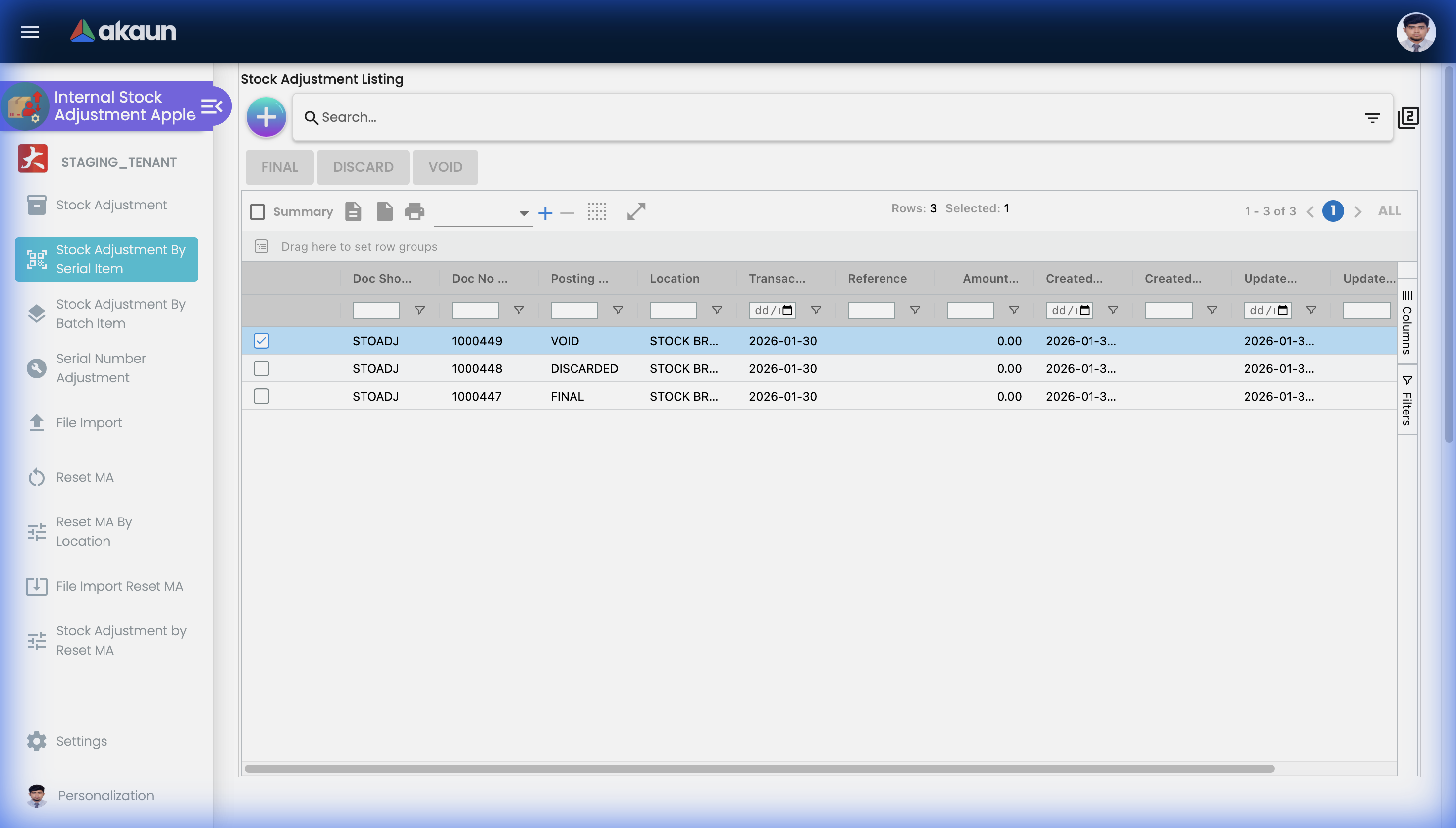
Adjust items tracked by serial number:
- Write-off Serial - Remove from inventory
- Write-on Serial - Add to inventory
- Transfer Serial - Move to different location
- Change Status - Update serial status
Batch Adjustment
Correcting Tracked Inventory
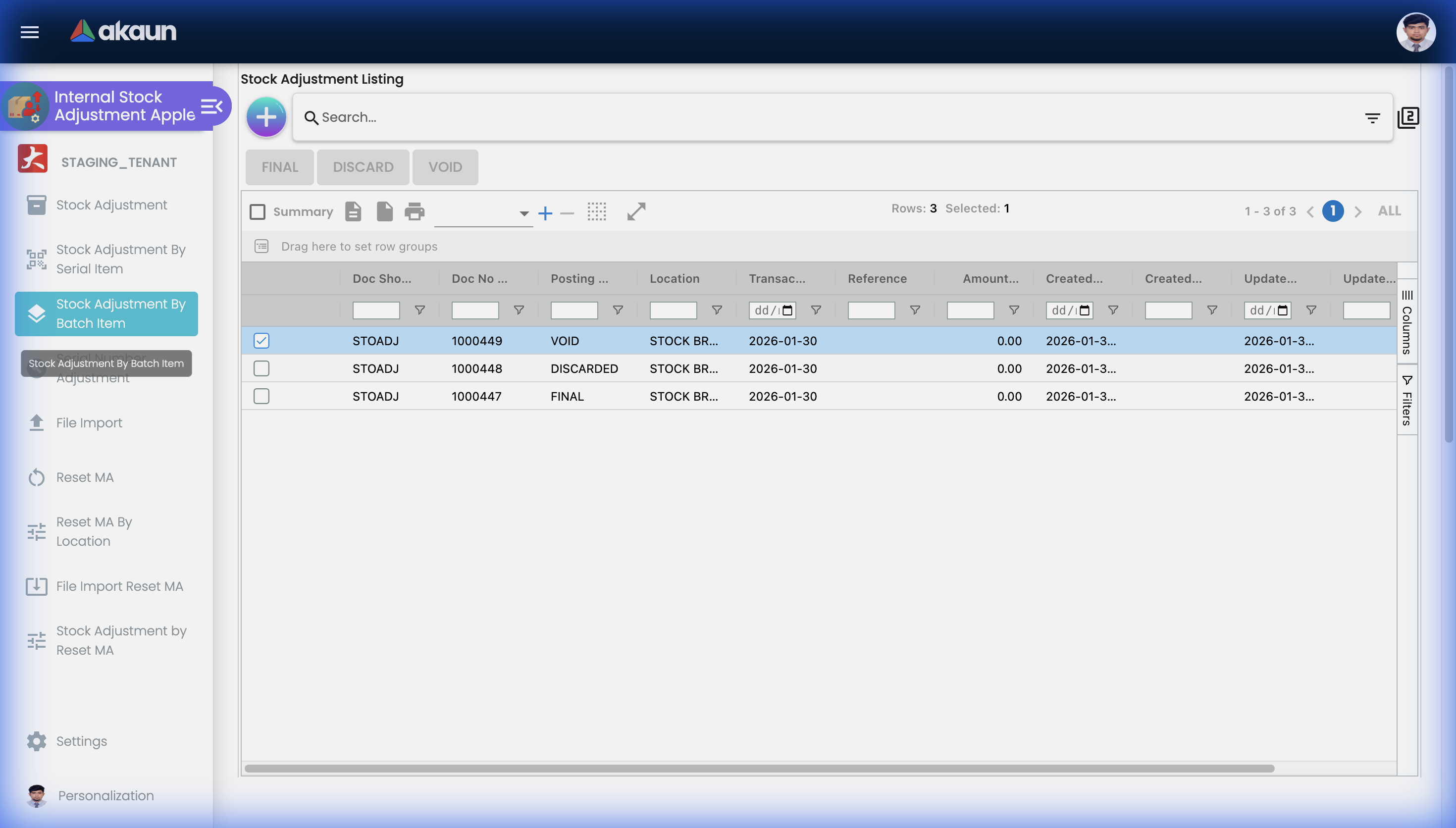
Items tracked by batch (like food, pharmaceuticals, or chemicals) require specialized adjustments to maintain traceability and expiry compliance. The Batch Adjustment tool allows you to manipulate specific batch pools without affecting the overall item ledger.
Key Workflows:
- Adjust Batch Quantity: Correct discrepancies found during cycle counts for a specific batch.
- Split Batch: Break a large received batch into smaller, manageable sub-batches for different storage locations or tracking purposes.
- Merge Batch: Combine identical items from the same production run into a single batch to simplify tracking.
- Update Expiry: Correct data entry errors on expiration dates to prevent early system write-offs.
Reset Moving Average (MA)
Recalculating Inventory Valuation
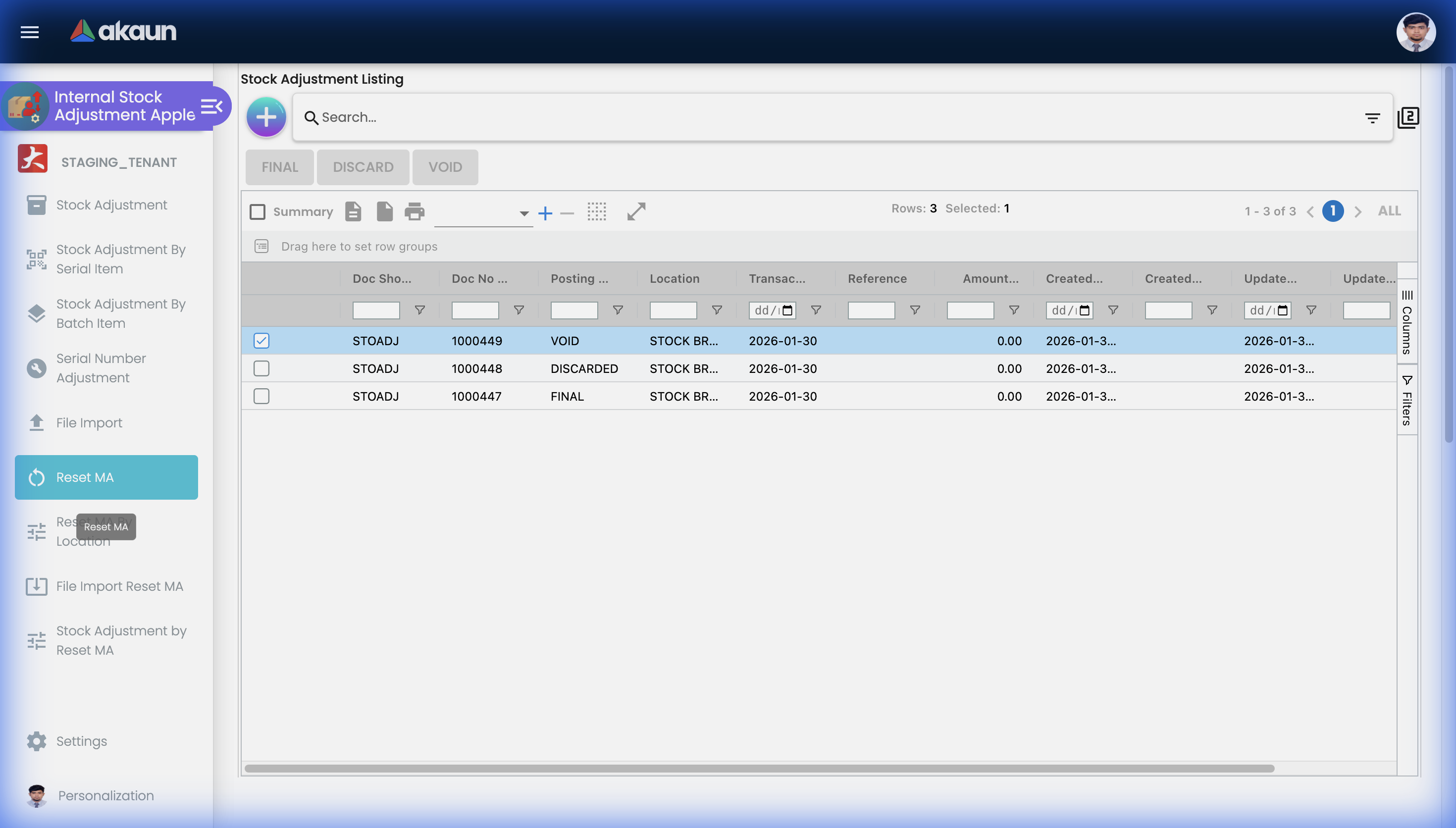
The Moving Average (MA) is the weighted average cost of your inventory. System adjustments, incorrect purchase receipts, or data migrations can sometimes skew this valuation. The Reset MA tools allow finance teams to manually correct the item cost to reflect reality.
The Reset MA Tools:
- Reset MA: Resets the cost across the entire inventory of an item globally.
- Reset MA By Location: Resets the cost for an item only within a specific warehouse or branch.
- File Import Reset MA: Bulk recalculate costs for hundreds of items at once (typically used during initial system go-live).
- Stock Adjustment Reset MA: Perform a quantity adjustment and force a new cost valuation in a single combined step.
Serial Data Fix
Correcting System Anomalies
While the regular Serial Adjustment tool is for physical inventory changes (like writing off a broken item), the Serial Data Fix tool is an administrative feature designed to correct database anomalies that block normal operations.
Common Scenarios:
- Orphaned Serials: A serial number exists in the system but isn’t linked to any physical location.
- Status Mismatches: A serial is marked as “Sold” but is physically sitting in the warehouse.
- Missing Associations: A serial number lost its link to its parent Product ID during a failed integration sync.
Common Scenarios
Scenario 1: End-of-Year Physical Inventory Validation
Situation: The warehouse conducts its annual physical count. The results show 450 discrepancies across 12,000 SKUs. Manually entering 450 adjustments is too slow.
The Workflow:
- The inventory controller downloads the template from File Import.
- They populate the spreadsheet with the 450 SKUs, entering the delta (e.g., -2 for missing, +1 for found) and using the Reason Code “EOY-COUNT-2024”.
- They upload the file. The system validates all 450 lines instantly.
- The controller clicks “Post All”, updating the physical ledger and generating the corresponding financial journal entries in seconds.
Scenario 2: Writing Off Damaged High-Value Goods
Situation: A forklift operator accidentally damages a pallet containing 5 serialized laptops.
The Workflow:
- The warehouse manager opens Stock Adjustment By Serial Item.
- They scan the 5 damaged laptops.
- They select the “Write-Off” action and choose the Reason Code “DAMAGED-IN-TRANSIT”.
- Because the total value exceeds RM 10,000, the system automatically routes the adjustment document to the Finance Director for approval before posting.
Configuration & Settings
The Stock Adjustment applet is highly configurable. Administrators can tailor the workspace to hide unnecessary complexity from warehouse staff while enabling deep financial tracking for controllers.
1. Application Settings (System-Wide)
Accessed via Settings > Application Settings, these toggles change how the applet looks and functions for all users.
A. Tailoring the Sidebar (Menu Visibility) To prevent mistakes, administrators can hide sidebar menus that their layout doesn’t use.
| Setting | What It Does |
|---|---|
Hide Serial Menu | Removes “Stock Adjustment By Serial Item”. Turn on if you don’t sell electronics/serialized goods. |
Hide Batch Menu | Removes “Batch Adjustment”. Turn on if you don’t track expiry dates. |
Hide Reset MA Menu | Removes moving average reset tools from non-finance staff. |
Hide File Import | Disables bulk uploads to prevent massive accidental adjustments. |
B. Tailoring the Form (Field Visibility) If you need to track adjustments to specific cost centers or projects, you can enable these fields on the adjustment form:
| Setting | What It Does |
|---|---|
Include Dimension/Project | Shows the Project/Dimension dropdowns. Useful for adjusting stock assigned to a specific construction site. |
Include Profit Center | Shows the Profit Center dropdown. Required if warehouse P&L is tracked separately. |
Hide Amount / Unit Price | Hides financial values on the transaction grid. Enable this to keep warehouse staff focused on quantities, not financial costs. |
C. Tailoring the Layout & Workflow
| Setting | What It Does |
|---|---|
Default Toggle Column | Changes the form layout. DOUBLE creates a compact two-column grid (best for large desktop monitors). |
Hide Save Button | Forces users to use “Finalize/Post” immediately, preventing documents from piling up in Draft status. |
2. Permissions Governance
Because stock adjustments instantly alter the balance sheet, controlling who can perform them is critical. Access is managed through a layered permission system in the Settings menu:
- Permission Wizard: A guided tool to set up basic access.
- Role Permission: Grant access by job title (e.g., “All Warehouse Managers can Create, but only Finance Controllers can Post”).
- User/Team Permission: Grant granular exceptions to specific individuals or squads.
3. Print Templates
Under Settings > Printable Format Settings, administrators can design custom PDF templates. For instance, you can create a “Write-Off Certificate” template that prints automatically when an adjustment is posted, complete with signature lines for the warehouse manager.
Personalization
Individual users can override certain system defaults to speed up their daily workflow via the Personalization sidebar menu.
Personal Default Settings
To save clicks on every single adjustment, users should set their defaults:
| Setting | Why use it? |
|---|---|
| Default Branch | If you only work at the “Penang Hub”, set this so you never have to select it from the dropdown again. |
| Default Location | If you only manage “Aisle B”, set this as your default location. |
| Default Toggle Column | Set your personal preference for reading forms in a SINGLE (narrow) or DOUBLE (wide) column layout based on your monitor size. |
FAQ
Q: Do I need approval for stock adjustments? A: This depends on your organization’s settings. High-value quantity adjustments or Moving Average resets typically require Finance manager approval via the workflow engine.
Q: How do I adjust multiple items at once? A: Use the File Import feature to upload multiple adjustments from an Excel (.xlsx) or CSV template.
Q: What happens to the cost when I adjust stock? A: The moving average cost is recalculated based on the adjustment quantity and current value. Use the Reset MA tools for precise, manual control over this valuation.
Q: Can I reverse an adjustment? A: You cannot delete a posted adjustment because it is a fixed financial ledger entry. To correct a mistake, you must post a counter-adjustment with the opposite quantity. The original adjustment remains for audit.
Q: Where can I see who made an adjustment? A: The Applet Log (found in Settings) provides a complete, immutable audit trail of every adjustment created, edited, approved, or deleted in the system.