Stock Adjustment (Internal)
Correct what the system thinks you have when a count, damage, theft or a migration leaves the stock ledger out of step with the shelf. Saving moves nothing: only finalising changes the balance at that location, the item’s moving-average cost and the stock value in the ledger, so an adjustment left in draft corrects nothing.
Overview
The Stock Adjustment (Internal) applet is where you correct what the system thinks you have. When a count, a damaged carton, a theft or a migration leaves the stock ledger out of step with the shelf, you raise an adjustment document — Adjust-In to add quantity, Adjust-Out to remove it — and finalise it. Finalising moves the stock balance at that location, moves the item’s moving-average cost, and posts a journal, so the stock value in the ledger moves with the quantity.
It is used by warehouse supervisors and stock controllers for quantity corrections, and by finance for the Reset Moving Average (MA) tools that correct an item’s unit cost without touching quantity. It comes after a stock take or an investigation in Stock Availability, and before the corrected balance shows in Stock Balance and the financial reports.
    flowchart LR
  D["Discrepancy found<br/>stock take, damage, theft, migration"] --> C["Create the document<br/>one line per item,<br/>Adjust-In or Adjust-Out"]
  C --> S["SAVE<br/>posting status DRAFT — nothing has moved"]
  S --> F["FINAL"]
  F --> B["Stock balance and moving average<br/>updated at that location"]
  F --> J["Journal: STOCK_ADJUSTMENT against STOCK_BALANCE<br/>(company default GL codes, or the header's GL code)"]
There is no approval step. A line is either Adjust-In or Adjust-Out — there is no third “correction” type — and FINAL posts immediately. Nor can the screen split drafting from posting between two groups: the setting that hides FINAL hides it from everyone, because the permission that would give it back to approvers cannot be granted for this applet (see Configuration). Who may post an adjustment is decided by who is given the applet.
Three things a reader tends to assume that are not so. The stock movement is not dated by the moment a line was keyed, although the applet stamps each line with it: the server overwrites every line’s date with the header’s on each save and at FINAL, so the stock movement and the journal share the document’s transaction date (see Lifecycle). That date defaults to the day of the first save. An Adjust-Out is never refused for taking stock below zero. And two of the nine menu entries — Serial Number Adjustment and Stock Adjustment By Batch Item — do not create a document, post a journal, or (for serials) move the stock balance at all.
Where it fits
| Direction | Applet / document | Why |
|---|---|---|
| Upstream | Stock Take, Stock Availability | Where the discrepancy is found |
| Upstream | Inventory Item Maintenance / Doc Item Maintenance | Items and their tracking type (basic, serial, batch, bin); the item-company GL link that can override the STOCK_ADJUSTMENT default |
| Upstream | Organisation | Company, branch and location on the document |
| Upstream | Chart of Account | The STOCK_ADJUSTMENT, STOCK_BALANCE and RESET_MA company default GL codes; fiscal period locks |
| Downstream | Stock Balance, Stock Availability | Show the corrected quantity and cost |
| Downstream | Ledger And Journal | The adjustment journal |
| Downstream | Financial Report | The period-end closing-stock journal reads the moving average this applet has just changed and, since 2026-09-24, folds the month’s adjustment and Reset MA journals into cost of goods sold |
Modules: Inventory, Financial Accounting.
Screens and menus
Nine entries on the left menu, and they are not all the same kind of thing. Three create something, six list something.
| Menu | What it actually does |
|---|---|
| Stock Adjustment | The multi-line adjust-in / adjust-out document. The only entry that posts a journal |
| Stock Adjustment By Batch Item | Writes inventory transaction lines directly (no document, no journal). As read at this commit the request cannot carry a quantity — see What it will not do |
| Serial Number Adjustment | Adds a serial to, or removes it from, the serial register at a location. Does not move the stock balance, does not post a journal, cannot be voided — see Lifecycle |
| File Import | Bulk documents from a .csv (pipe- or comma-delimited); .xlsx is not accepted |
| Reset MA | Reset an item’s moving-average cost company-wide, with a journal |
| Reset MA By Location | A listing of the per-location lines a Reset MA writes when it finalises. It creates nothing |
| File Import Reset MA | Bulk cost resets from a .csv |
| Stock Adjustment by Reset MA | A listing of Reset MA records that were created automatically from a document line (the rebate-adjustment path), with Doc Type and Doc No columns. It creates nothing |
| Audit Trail | Change history |
Gear (Settings) menu: Application Settings (the shared platform settings screen — see Configuration), Default Selection, Printable Format Settings. Personalisation: per-user Default Selection and layout.
Stock Adjustment document
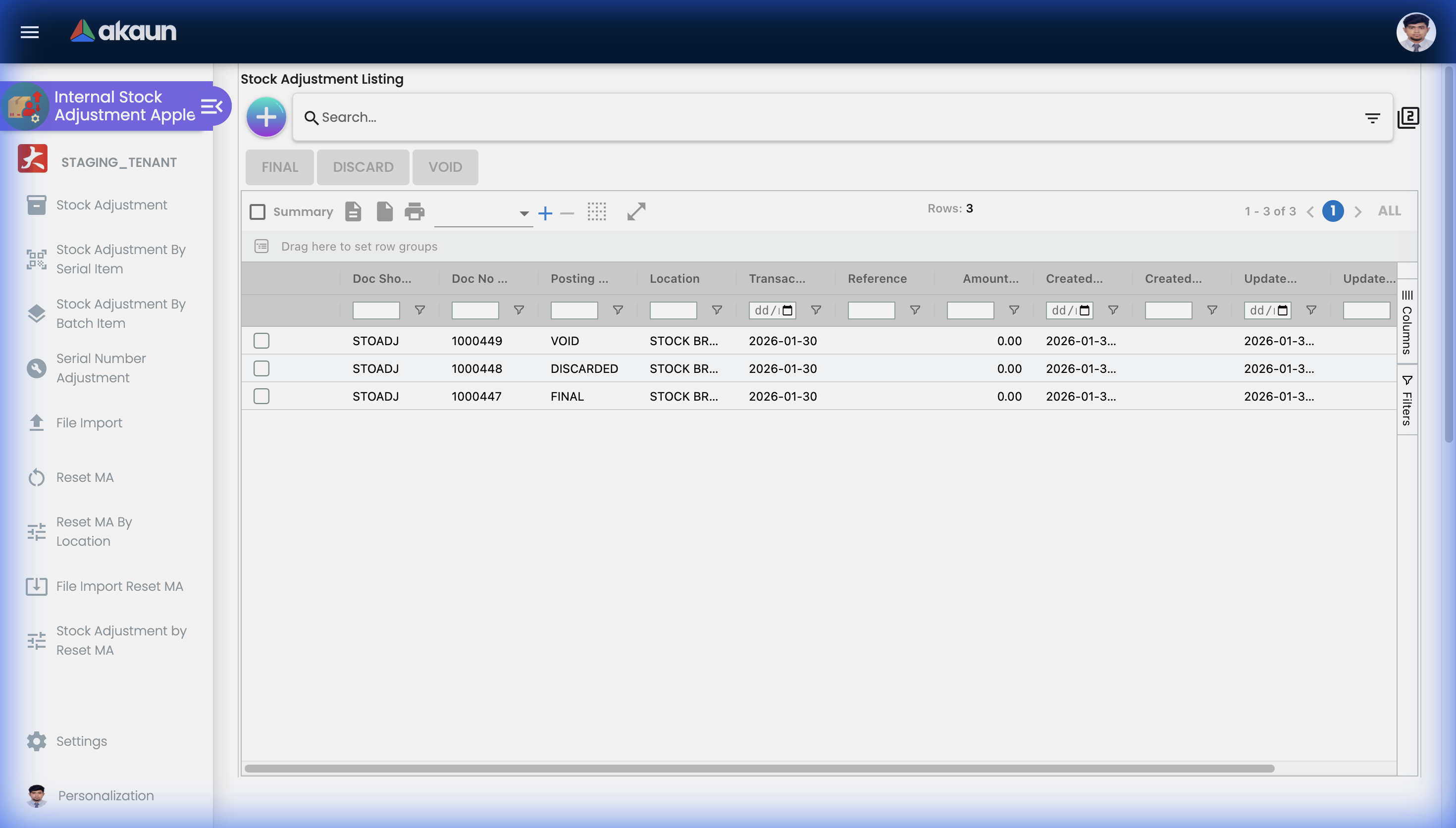
The listing opens filtered to the last month by transaction date. An adjustment dated earlier — a back-dated one, or one you are looking for after month-end — is not missing; widen the date filter. The DEFAULT_TRANSACTION_DATE setting narrows the default to a week or a day, it never widens it. The FINAL, DISCARD and VOID buttons on the listing act on the selected rows: FINAL and DISCARD need every selected row to be a DRAFT, VOID needs FINAL rows.
Pressing + creates a temporary document on the server straight away (status TEMP, no document number) and opens it. Abandoning it leaves that row behind; the listing’s default status filter hides it.
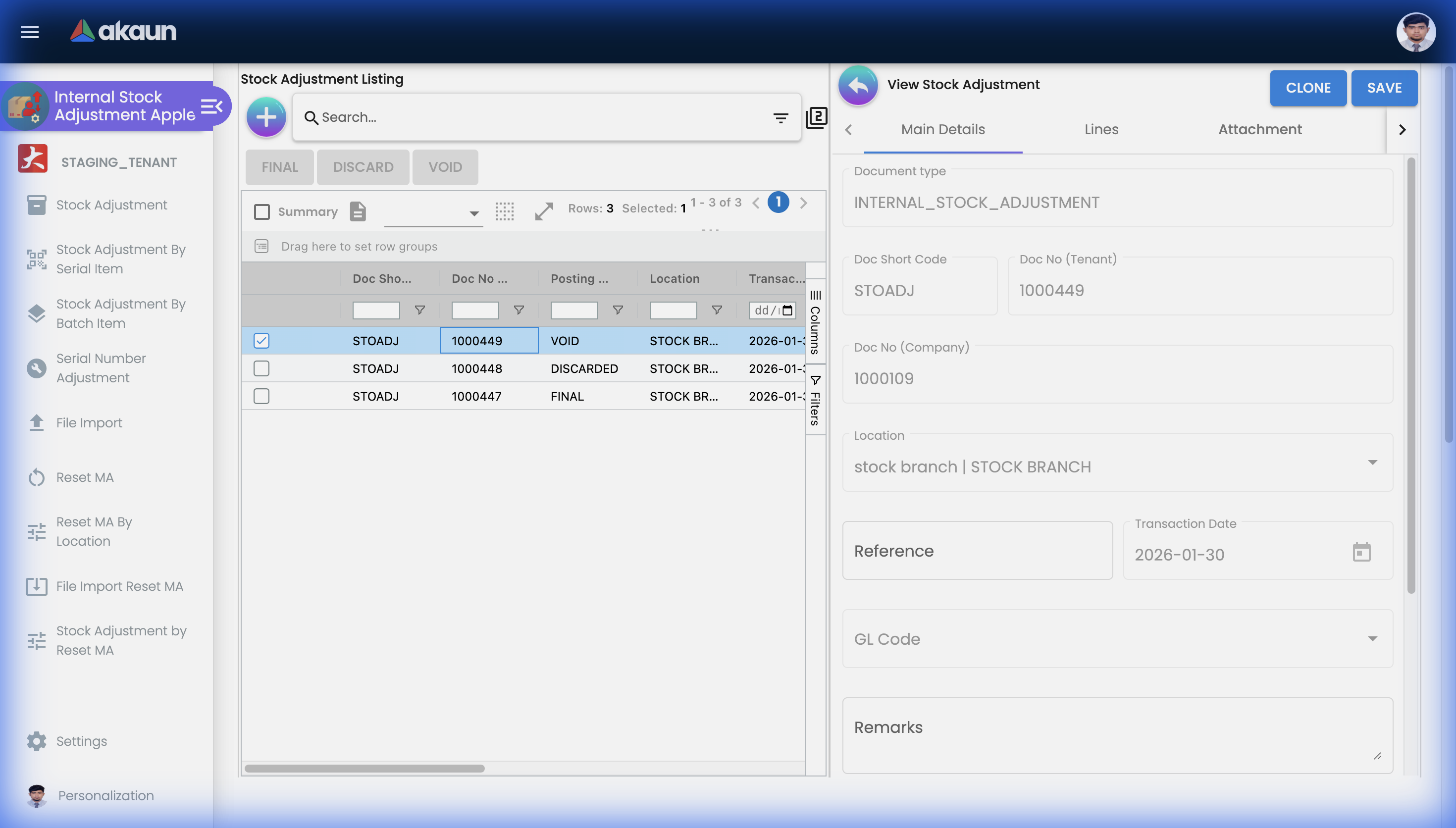
Main Details takes the location (which fixes the company), a reference, the transaction date, remarks, and — when SHOW_GL_CODE is on — a GL code for the whole document, pre-filled from the company’s STOCK_ADJUSTMENT default. That box decides the other half of the journal: the stock side always goes to the company’s stock balance code, and whatever code is in the box takes the opposite entry. The picker offers every GL code the company has, with no filter by type, so an operating-expense code picked by accident posts without complaint — the first sign is usually an unrelated expense line in Financial Report carrying a debit equal to a stock write-down. Leave the default unless you mean to post this write-off somewhere else, and when you do change it, read the code back before FINAL. The tenant and company document numbers are assigned by the server and appear after the first save. Three things about this tab are not visible on it:
| Field | What the screen does not tell you |
|---|---|
| Transaction Date | Disabled unless you hold the SHOW_TRANSACTION_DATE permission — and even then, the first save overwrites whatever you typed with the current time. To back-date a document: let it save once, then change the date and save again before FINAL. The date you set governs the journal, the stock movement and the fiscal-period lock alike (see Lifecycle) |
| Reference, Remarks, GL Code | Once saved, these can be changed but cannot be cleared — an empty box keeps the stored value. Overwrite with a dash if a value must go |
| Location | Required, and the only header field that reaches the journal’s stock side: the company it belongs to decides which default GL codes are used |
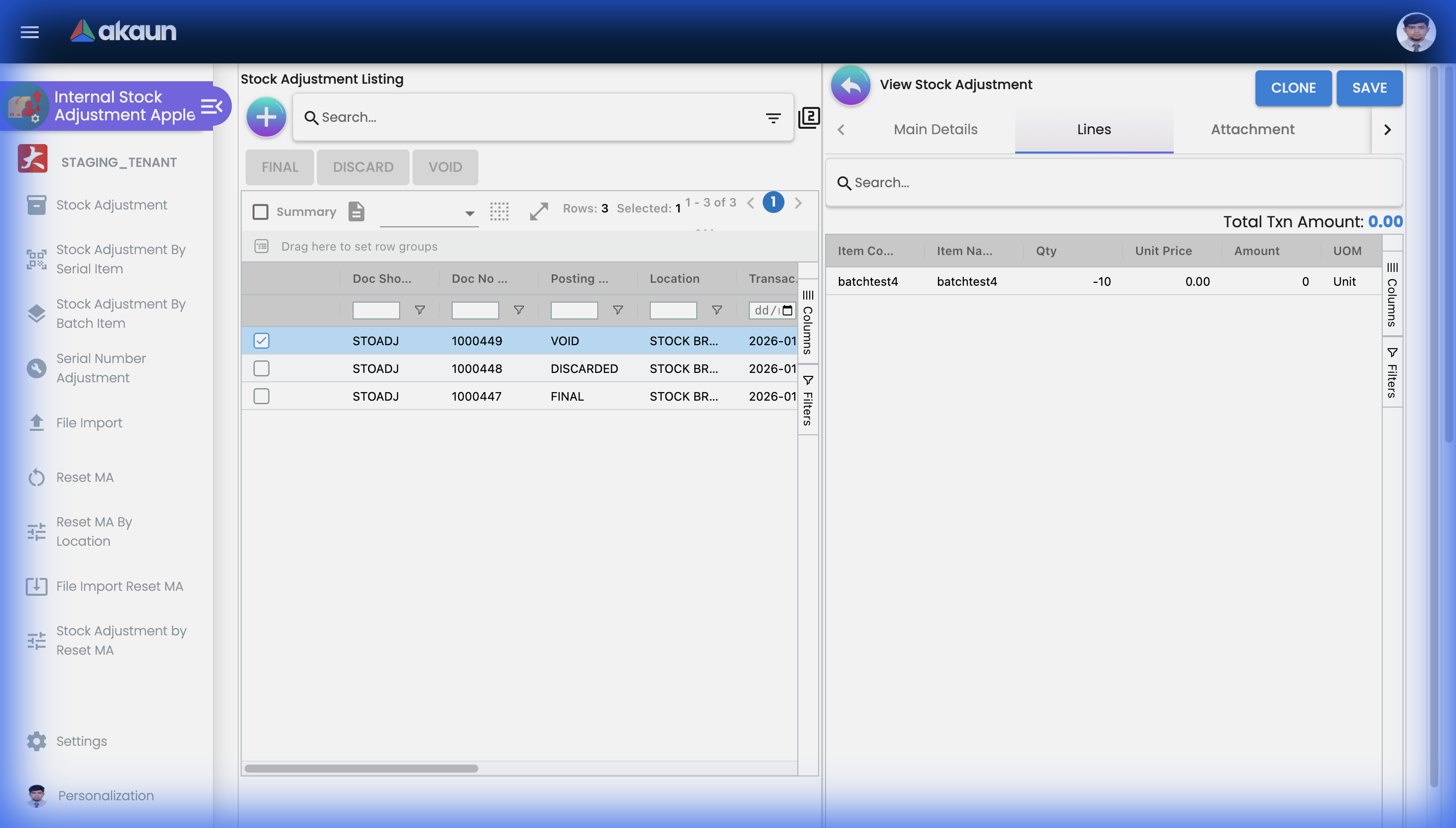
On the Line Items tab add one line per item: pick the item, choose Adjust-In or Adjust-Out, enter the quantity, and — if unit prices are visible to you — pick the Base On cost basis and confirm or override the unit price. The line shows the current stock balance at the location for reference. Lines are not kept in the order you entered them: nothing stores a position, and a reopened document lists them in whatever order the database returns, so after Save — or after Final — the Line Items tab can show them reshuffled. Nothing is lost; count the lines rather than their positions, and put a sequence in each line’s Remarks if the order matters to the person doing the count. There is no per-line GL code; the GL code, if any, is on the header. The fields that carry something are in Fields below.
For tracked items the line opens extra tabs — Serial Number (enter or scan; with Listing, Scan and Import sub-tabs), Batch Number (batch, quantity, container measure and quantity, issue and expiry date) and Bin Number (bin code, quantity). For a serial item the quantity is the count of serials you list, and the line cannot be finalised with none.
Other tabs: Attachment (count sheets, photos) and Export.
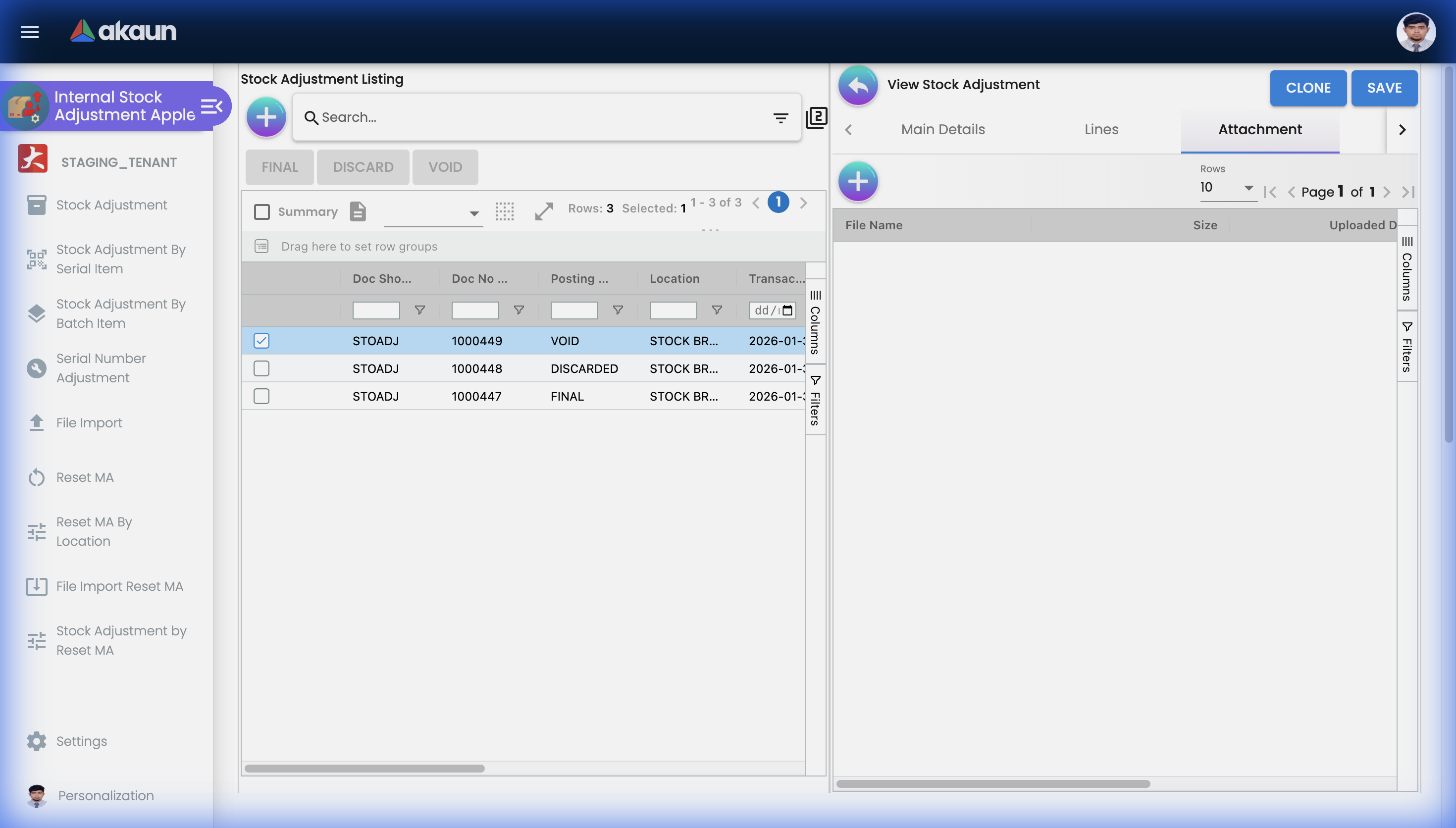
Buttons: SAVE keeps the document in DRAFT; FINAL posts it and appears only once the document has been saved at least once; CLONE copies any saved document — including a FINAL one — into a new draft dated today, with no document numbers and with the serial numbers cleared, and does it asynchronously (“Document Clone In-Progress”, then a snackbar when it is ready).
Stock Adjustment By Batch Item
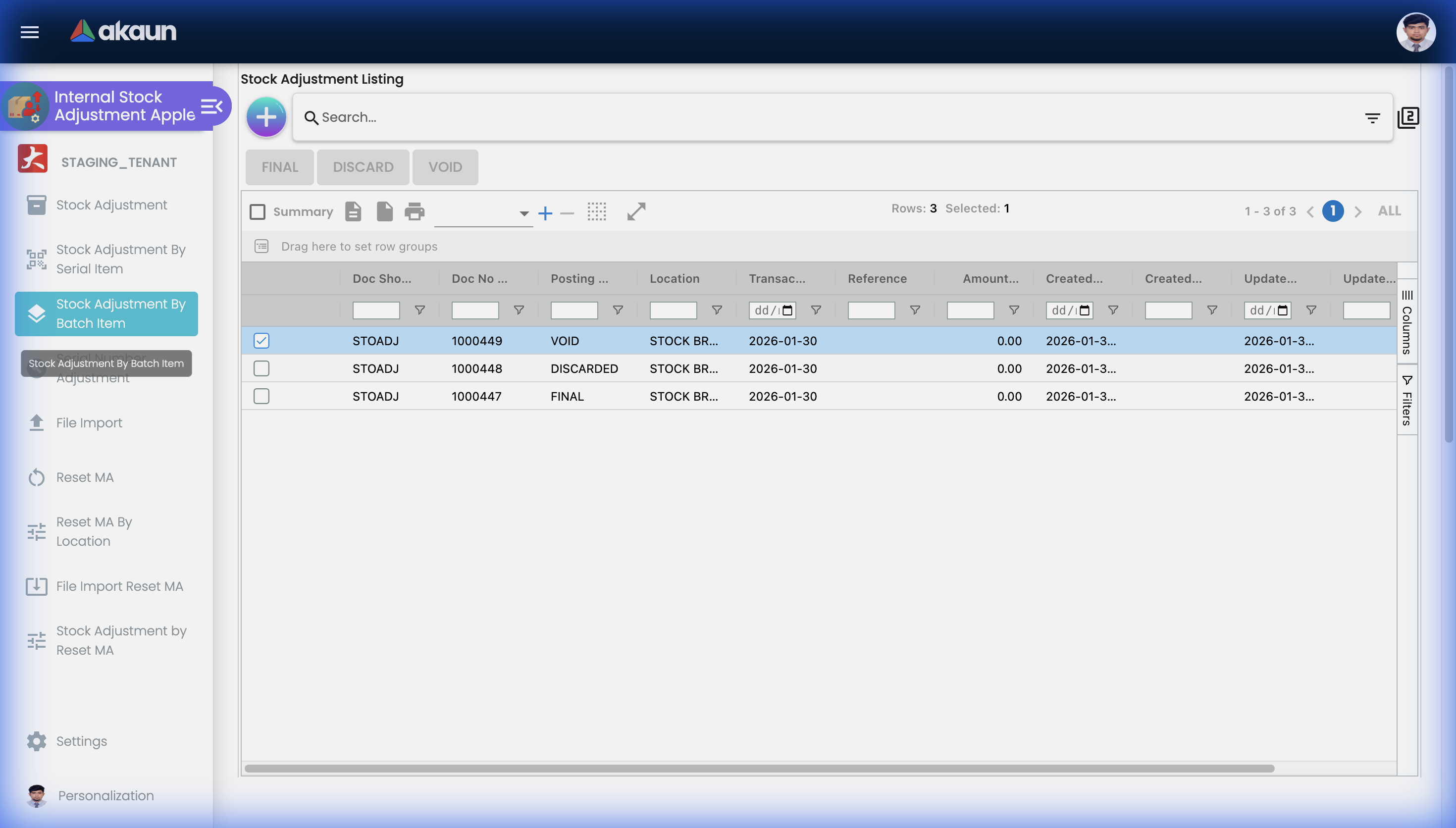
Select the item and location, list the batches to add and the batches to remove, SAVE. This screen does not create a document: it posts inventory transaction lines of type BATCH_ADJ straight to the inventory endpoint. See What it will not do before relying on it.
Serial Number Adjustment
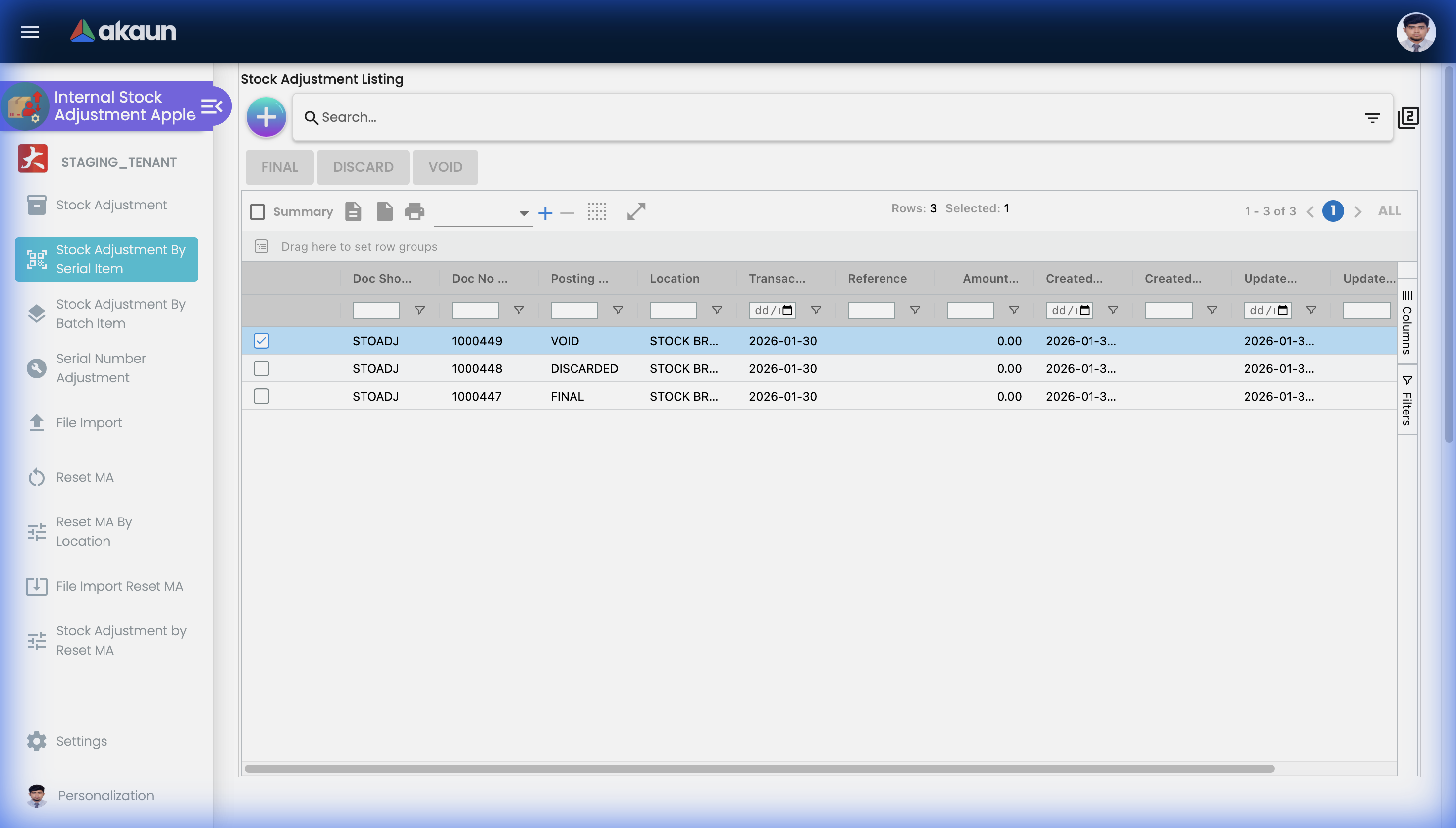
Select the item and location, enter or scan the serials to add (Adjust-In) or remove (Adjust-Out), and SAVE. This adjusts the serial register, not the stock. Each serial’s own balance moves by one and a history row is written; the location’s quantity, the moving average and the journal are untouched. Use it to repair a serial that is on the shelf but not in the register (or the reverse) after the quantity is already right — if the quantity is also wrong, raise a Stock Adjustment document for the serial item instead, which does both.
File Import
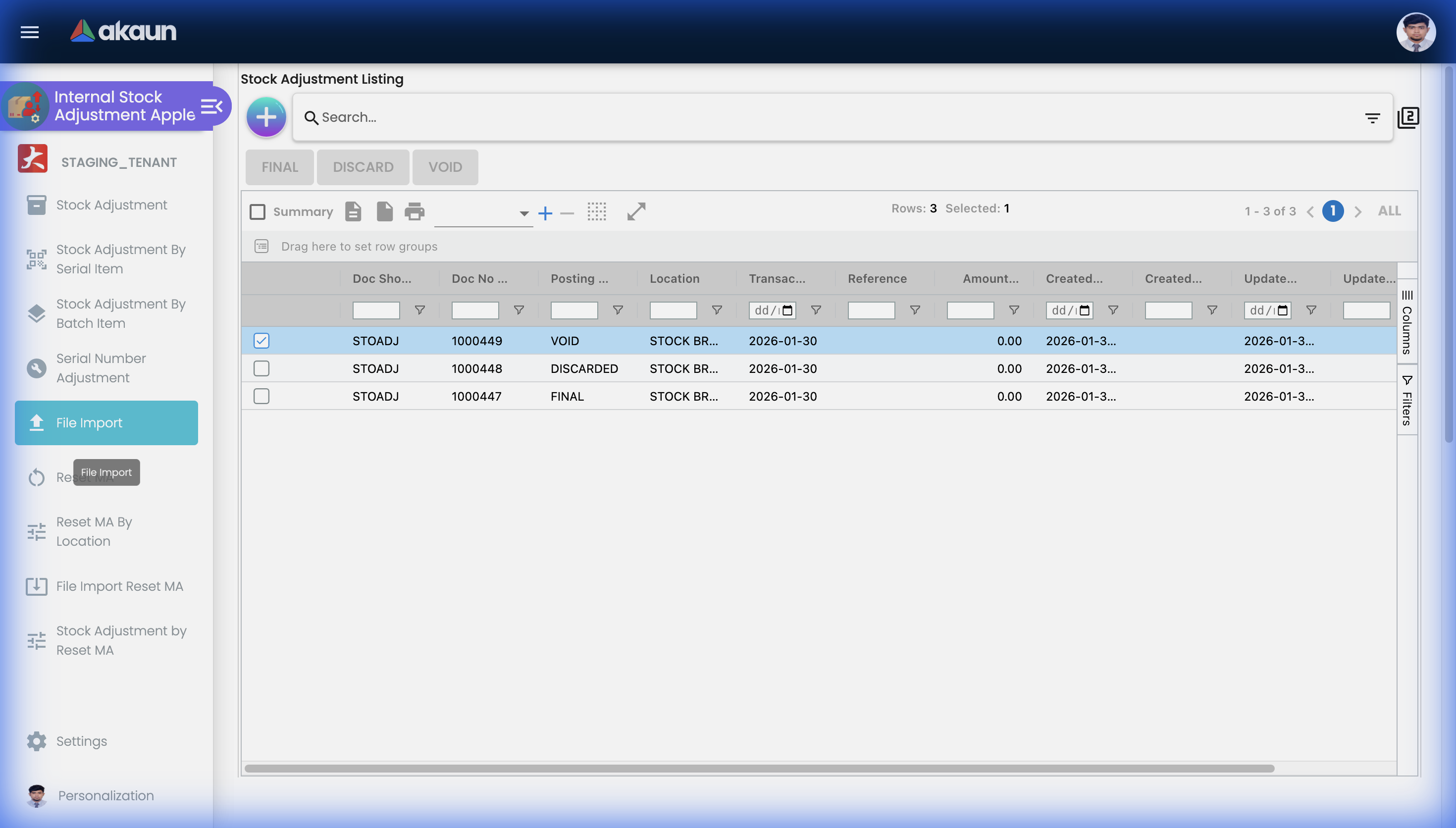
Download either template (pipe- or comma-delimited), fill it, upload the .csv, and process. One document is created per HDR_REF_NO; POSTING_STATUS is read from each document’s first row and must be exactly FINAL to post — anything else, including blank, leaves a DRAFT. The columns that decide what gets posted are in Fields.
Reset Moving Average
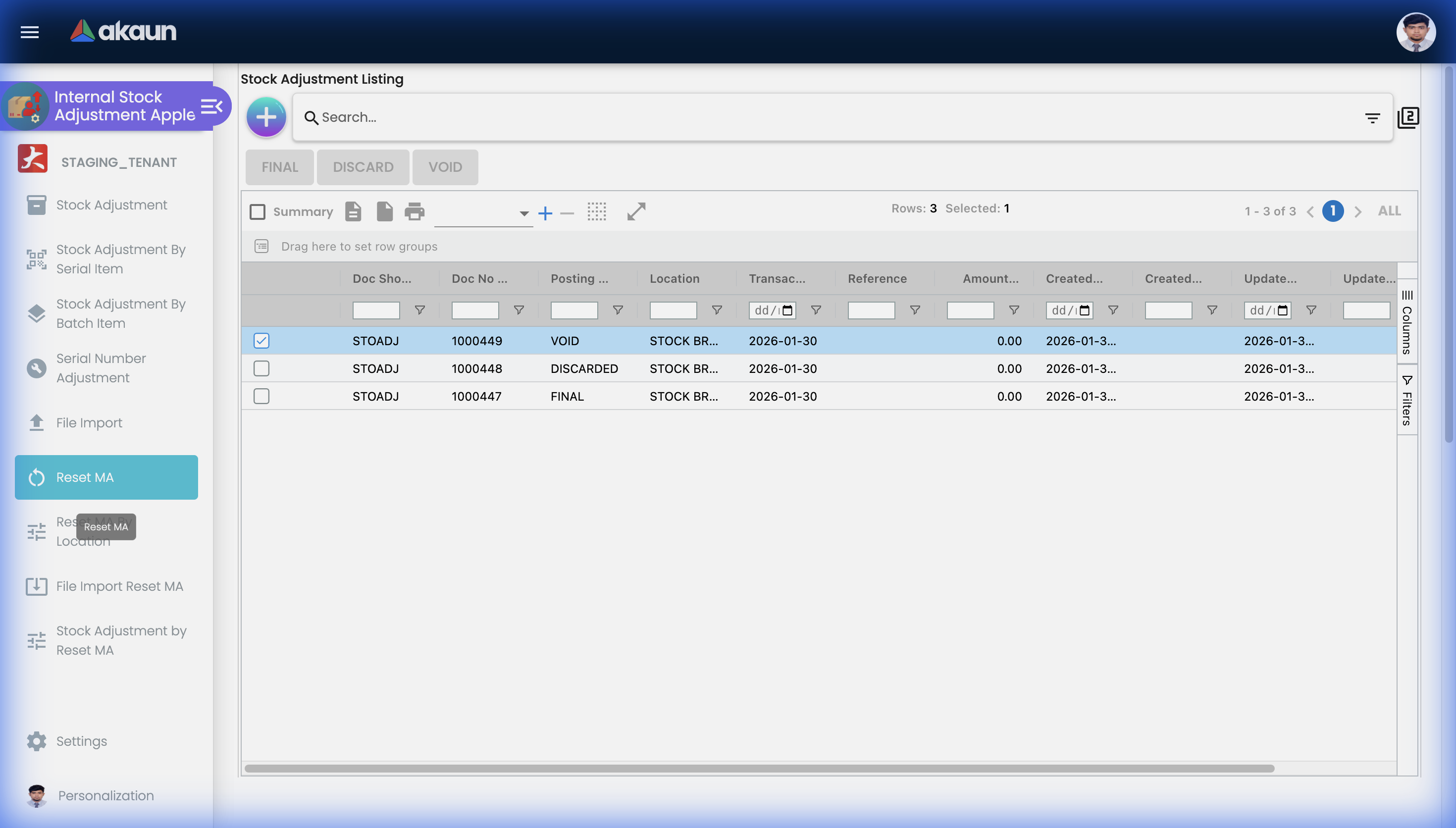
Select the company and item, and the screen fetches the company-wide quantity and moving average as at the date you entered. Type any one of New Unit Cost, New Total Cost, Adjustment per Unit or Adjustment Total and the other three fill in. There is no quantity to enter — a Reset MA never changes quantity. CREATE saves a draft; FINAL (here, or in bulk from the listing) resets the cost and posts the journal.
STOCK_BALANCE against the company default RESET_MA (or the GL code on the record), with the period-end closing-stock journal in the Financial Report applet reading the new cost as its closing value. The reset journal itself does not post to cost of goods sold; since 2026-09-24 the period-end cost-of-goods-sold journal folds the month’s Reset MA and stock-adjustment journals into its figure, so the reset reaches the profit and loss at month end. Restrict it to finance. The date can be locked to today with RESET_MA_DATE_NOT_EDITABLE.Configuration
Before you can use it
| Prerequisite | Where | Why |
|---|---|---|
| Company, branches, locations | Organisation | Every document is for one location; the company it belongs to owns the default GL codes |
| Items with the right tracking type | Doc Item Maintenance — the Sub Item Type, chosen when the item is created and locked at its first save | Serial / batch / bin tabs appear only for tracked items |
Company default GL codes STOCK_ADJUSTMENT and STOCK_BALANCE (and RESET_MA for the reset tools) | Chart of Account > Companies > Default GL Codes | Without them FINAL still succeeds, the stock still moves, and the journal job fails afterwards — see Troubleshooting |
| An open fiscal period for the transaction date | Chart of Account > Fiscal Year | LOCK_TXN / LOCK_ALL periods reject FINAL |
| The inventory and journal posting subscriptions switched on for the tenant | Tenant job-template configuration | FINAL queues one primary job; whether it fans out to the stock and journal jobs is a per-tenant subscription (see Lifecycle) |
Applet settings
Application Settings on the gear menu is the platform’s shared Field Configuration screen, rendering the controls for this applet code. Everything the applet reads is set there, except the three DEFAULT_* selections, which have their own Default Selection screen (tenant-wide) and a per-user twin under Personalisation. Of those, only the personal default location does anything you will see: it pre-fills Location on a new adjustment, so each clerk can have their own store pre-selected. The tenant-wide Default Selection is read only by a create screen that no button opens, and the default branch and company feed only the shared session. Settings are tenant-wide; who may open the screen is decided by the applet’s permission sets.
| Setting | What it changes | Default | What to know |
|---|---|---|---|
Cost basis for new linesBASE_ON_COST | Which of the item’s company-level costs pre-fills Unit Price on a new line | Moving average | The screen offers the same seven costs as the line’s own Base On box — moving average, replacement, FIFO, LIFO, weighted average, manual and last purchase. The choice matters: an Adjust-Out priced at anything but the current moving average changes the moving average of what is left (see Lifecycle) |
Hide unit price and amount on linesHIDE_UNIT_PRICE_TXN | Removes Base On, the current MA cost, and Unit Price from the line form and the line grid | Off | The line is still valued — at the moving average, silently — and the journal still posts. Holders of SHOW_UNIT_PRICE_TXN see the boxes regardless. Pair with HIDE_AMOUNT_TXN_MAIN_LISTING (override SHOW_AMOUNT_TXN_MAIN_LISTING) to keep values off the listing too |
Pre-select the directionDEFAULT_ADJUSTMENT_METHOD | The Adjust box on a new line starts as this value | Adjust-Out | Set it to Adjust-In for a receiving-heavy site; the direction is also the sign of the journal, so a wrong default is a wrong debit |
Show a GL code on the headerSHOW_GL_CODE | Adds a GL Code box to Main Details, pre-filled from the company’s STOCK_ADJUSTMENT default when a location is chosen | Off | The header code takes precedence over the item-company link and the company default for every line. It is how a write-off goes to a damage account instead of the general adjustment account. It is also sticky: it cannot be cleared once saved. Off does not mean “no header code”: choosing a location fetches the company default into the form whether or not the box is showing, and the next change to the reference, date or remarks saves it as the header code. Because the header outranks the item-company link, a tenant that relies on item-level GL links can see those lines land on the company default instead (read, not run). Open one finalised adjustment in Trace Document before relying on item-level codes |
Lock the Reset MA date to todayRESET_MA_DATE_NOT_EDITABLE | Disables the date on the Reset MA form | Off | The balance and MA the form shows are read as at the date; locking the date also locks that read to today |
Narrow the listing’s default date rangeDEFAULT_TRANSACTION_DATE | The listing’s opening filter: one month (unset), one week (1_week) or today (1_day) | One month | This is a listing filter, not a document default. DEFAULT_STATUS and DEFAULT_POSTING_STATUS are the same kind of thing: what the listing shows when it opens (ALL for everything) |
Do not load the item list until searchedDISABLE_ITEM_LISTING | The item picker on a new line opens empty until you type | Off | For catalogues large enough that the first page is noise. DISABLE_GEN_DOC_LISTING does the same for the document listing |
Hide SAVE or FINALHIDE_GENDOC_SAVE_BUTTON, HIDE_GENDOC_FINAL_BUTTON | Remove SAVE or FINAL — HIDE_GENDOC_FINAL_BUTTON removes FINAL from the editor and the listing | Off | Hiding FINAL hides it from everyone, approvers included. The listing would honour an override, SHOW_GENDOC_FINAL_BUTTON, but that code is not among the eleven that can be granted for this applet, so nobody can hold it, and a tenant that hides FINAL cannot post adjustments from this applet until it switches the setting off again. A separation of duties therefore has to be by who is given this applet, not by hiding FINAL. Hiding SAVE is riskier than it looks: FINAL appears only on a document that has been saved, and the automatic first save the applet attempts is keyed on a header re-emission that adding a line in the editor does not produce. Test it in your tenant before rolling it out |
Seven HIDE_*_MENU keys hide the other menu entries, each overridden by the permission named beside it under Who can change what. HIDE_GENDOC_DISCARD_BUTTON and HIDE_GENDOC_VOID_BUTTON hide the listing’s DISCARD and VOID; HIDE_CLONE_BUTTON would hide CLONE, but its toggle is not offered for this applet, so CLONE cannot be hidden from the settings screen; HIDE_CREATED_BY_DETAILS hides the audit fields on Main Details; PRINTABLE is the printable format chosen on Printable Format Settings; DEFAULT_TOGGLE_COLUMN, DEFAULT_ORIENTATION and VERTICAL_ORIENTATION are layout.
On the screen and doing nothing
VALIDATE_STOCK_ON_FINALIZEhas no toggle for this applet (the settings screen offers it to the Sales Invoice applet only), and it would do nothing for adjustments if it were set. The backend’s stock check does not apply to adjustments in any case — see What it will not do.HIDE_SERIAL_NUMBER_ADJUSTMENT_MENUand its overrideSHOW_SERIAL_ADJUSTMENT_MENUact on the “Stock Adjustment By Serial Item” entry, which is no longer on the menu. The live serial screen is Serial Number Adjustment, hidden byHIDE_SERIAL_DATA_FIX_MENU.- The six dimension and tax include flags (segment, dimension, profit centre, project, SST, WHT) have no control on any settings screen and do nothing in this applet. The editor has no field for an analysis dimension, but File Import does: its template’s
SEGMENT_CODE,GL_DIMENSION_CODE,PROFIT_CENTRE_CODEandPROJECT_CODEcolumns set the dimension on each imported line. The journal’s item lines carry a line’s own dimension, falling back to the header’s; the header’s dimension columns, which nothing in this applet sets, are what the balancing stock line carries. So to cut adjustments by profit centre or project, import them rather than keying them.
Who can change what
Eleven client-side permissions can be granted for this applet. Each SHOW_*_MENU code restores the matching hidden menu for its holder; SHOW_SERIAL_NUMBER_ADJUSTMENT_TAB — not SHOW_SERIAL_DATA_FIX_MENU — is the one that restores Serial Number Adjustment. SHOW_SERIAL_DATA_FIX_MENU can be granted and does nothing. The ones that change behaviour rather than visibility:
| Permission | What its holder can do that others cannot |
|---|---|
SHOW_TRANSACTION_DATE | Edit the transaction date — without it the box is disabled and every adjustment is dated the moment it was first saved |
SHOW_UNIT_PRICE_TXN | See and override the unit price when HIDE_UNIT_PRICE_TXN is on |
SHOW_AMOUNT_TXN_MAIN_LISTING | See the amount column on the listing when HIDE_AMOUNT_TXN_MAIN_LISTING is on |
The listing also checks SHOW_GENDOC_FINAL_BUTTON, SHOW_GENDOC_DISCARD_BUTTON and SHOW_GENDOC_VOID_BUTTON, but none of the three is registered for this applet, so none can be granted: a FINAL, DISCARD or VOID hidden by its HIDE_GENDOC_* setting is hidden for everyone.
Recommended: hide the Serial Number Adjustment and Reset MA menus tenant-wide and grant the SHOW_* permissions to administrators and finance only; grant SHOW_TRANSACTION_DATE to whoever posts month-end counts.
Fields
Main Details
Location, reference, transaction date, remarks, an optional header GL code, and the read-only document numbers and audit fields. The three that behave in ways worth knowing — the date, the sticky text fields, and the GL code — are in the table under Screens and menus above.
Line item
The line form shows Adjust, Current Location Stock Balance, Quantity and Remarks, plus Base On, Current Moving Average Unit Cost and Unit Price when unit prices are visible to you. (Company balance, system balance and a “reflected” after-balance exist in the code and are not rendered.)
| Field | What the screen does not tell you |
|---|---|
| Adjust | Sets the sign of the quantity and therefore the side of the journal: Adjust-Out debits the adjustment account, Adjust-In credits it. It also decides which serial rule applies at FINAL (out: the serial must exist at this location; in: it must not exist anywhere in the company) |
| Current Location Stock Balance | The location’s ledger quantity at the moment the line was opened. It is not re-read on save, and it is not a validation: an Adjust-Out larger than it is accepted |
| Base On | Picks which of the item’s company-wide costs (moving average, replacement, FIFO, LIFO, weighted average, manual, last purchase) becomes the unit price. Company-wide, not the location’s — on a multi-location group the line is valued at the group average for that company |
| Quantity | Minimum 1; the direction comes from Adjust. For serial items it is the number of serials listed and cannot be typed. A decimal quantity is fine for a decimal-UOM item: the line that is saved and posted uses the full quantity × unit price. Only the Amount box on the line form is worked out from the whole-number part, so for 2.5 it shows the amount for 2 — trust the posted line and its journal, not that box |
| Unit Price | Editable; the journal amount is quantity × this, and this is also the amount the moving average absorbs. An Adjust-In at 0.00 dilutes the item’s cost; an Adjust-Out at a price above the current average lowers the average of what remains |
| Remarks | Becomes the description on the journal line — and journal lines are merged by GL code, sub-ledger, dimensions and description, so two lines of the same item with the same remark net into one journal line |
| Serial / Batch / Bin tabs | Serials are validated on FINAL (count must equal the quantity, no duplicates, the in/out rules above). Editing an existing line rewrites its serial and batch lists from the tabs, so open the tab before saving an edit |
File Import columns
The import accepts the platform’s full generic-document heading set; four headings are mandatory — TXN_DATE, HDR_REF_NO, SETTLEMENT_OR_ITEM_CODE, QTY — and BRANCH_CODE is optional (the company is resolved from the branch or the location). Serial, batch (with issue and expiry dates) and bin columns carry tracking detail and are validated at FINAL exactly like a keyed line. The columns that decide value are not the obvious ones:
| Column | What it becomes |
|---|---|
TXN_DATE | The document’s transaction date, read from one row of each document (a document is one location and one HDR_REF_NO). It dates the stock movement and the journal alike, so give every row of a document the same date |
QTY | The signed quantity: positive is an adjust-in, negative an adjust-out. There is no direction column, so a write-off keyed as a positive number is silently a write-on; for a serial item the number of serials listed must equal it or FINAL is rejected |
STL_AMOUNT | The journal amount (amount_net). Leave it blank and the line posts nothing to the ledger, and the whole document’s journal fails with NO_JOURNAL_CREATED |
COST_PRICE | The amount the moving average absorbs (amount_txn), a line total, not a unit price. It can disagree with STL_AMOUNT, and then the ledger and the MA disagree |
UNIT_COST | Stored as the standard unit price for display; the imported line’s net unit price is written as zero |
POSTING_STATUS | Read from the first row of each document; FINAL posts, anything else stays DRAFT |
GL_CODE, SEGMENT_CODE, GL_DIMENSION_CODE, PROFIT_CENTRE_CODE, PROJECT_CODE | The one place a per-line GL code and analysis dimensions can be put on an adjustment; the screen cannot |
Reset MA
Date, company, item; the read-only company quantity, current unit cost and current total cost as at that date; the four linked cost boxes; a GL code pre-filled from the company RESET_MA default; remarks. The journal amount is Adjustment Total — new total cost minus current total cost — debited to STOCK_BALANCE when positive. At FINAL the backend also writes one Reset MA By Location line per location holding the item, which is what that listing shows.
Lifecycle and effects
| Status | Meaning | Allowed next |
|---|---|---|
TEMP (no posting status) | Created by +, never saved; no numbers | SAVE → DRAFT |
DRAFT | Saved, not posted; fully editable | FINAL, DISCARDED |
FINAL | Posted: stock, moving average and journal; not editable | VOID, or CLONE into a new draft |
VOID | Reversed: the inventory lines are negated, the journal reversed, the balance refreshed | — |
DISCARDED | Abandoned draft | — |
What FINAL does, and the two buttons that do it
Both FINAL buttons end on the same endpoint. The button inside the document first saves the document (a whole-document PUT) and then puts posting_status: FINAL to update-posting-status/{guid}; the listing’s FINAL puts the status only, on each selected DRAFT, after a client-side check that every serial line lists at least one serial. The applet never sends validate_serial_signum_zero or validate_stock_balance, so the server runs with its defaults.
On the server, FINAL:
- Validates: the fiscal period is not
LOCK_TXN/LOCK_ALLfor the header date; serial counts match quantities, no duplicates, out-serials exist at the location, in-serials do not exist in the company; batch and bin quantities reconcile. The stock-balance check is skipped — it looks only at lines that take stock out, and an adjustment line never counts as one, so an Adjust-Out can take a location below zero. - Saves the document as FINAL with its finalised date, assigns the running numbers, and queues one posting job to run at once.
- Returns. The stock movement and the journal have not happened yet; “Posting Successfully” means the job is queued.
That job fans out to the jobs your tenant is subscribed to, filtered by the company’s posting settings. For an adjustment two of them matter, and each is a per-tenant subscription — a tenant without one gets a FINAL document that moves nothing:
- The inventory job writes one inventory transaction line per document line, dated by the line’s own date, then moves the location and company balances and recomputes the moving average. It is the likeliest on this page to fail, and it does not tell the screen.
- The journal job builds and posts the journal below. Its commonest failure by a distance is the missing-GL-code one under Troubleshooting.
When a FINAL adjustment moved nothing, the posting job’s failure history is where to look. VOID queues its own jobs, which negate the inventory lines, refresh the balances and reverse the journal. Each is a separate subscription from its posting twin, so a tenant can have one and not the other — and the VOID then leaves the inventory line or the journal standing. Reset MA writes a reset line that appears in stock movement reports as an adjustment, and refreshes the balances.
None of these runs on a clock: each is queued by FINAL or by VOID.
The date that dates the stock movement
The applet stamps today’s date on every line when it is added and again whenever it is edited, and the inventory line takes the line’s date. But the server sets every line’s date to the header’s on each save and again at FINAL, so by the time the stock movement is written its line date is the header’s. The journal takes the header’s date too. Stock movement and journal therefore always share one date: the document’s Transaction Date. It is filled in at the first save, and only a SHOW_TRANSACTION_DATE holder can change it. A month-end count keyed on the 3rd lands in the new month, stock and journal together, unless that holder sets the date back before FINAL. The file import sets the date from TXN_DATE. Both routes are refused at FINAL if the date falls in a LOCK_TXN or LOCK_ALL period.
The journal
Every line is journalled, and the document type maps to two sub-ledgers only: STOCK_ADJUSTMENT for the lines and STOCK_BALANCE for the balancing entry. There is no tax line.
| Line | Dr | Cr | Amount |
|---|---|---|---|
| Adjust-Out (quantity below zero) | STOCK_ADJUSTMENT (or the header GL code, or the item-company STOCK_ADJUSTMENT link) | — | net amount = quantity × unit price |
| Adjust-In (quantity above zero) | — | same | same |
| Balancing entry, once per journal | STOCK_BALANCE when the lines net to a credit | STOCK_BALANCE when the lines net to a debit | the net of the lines |
GL precedence for each line: a GL code on the line (only a file import can put one there) → the header GL code (SHOW_GL_CODE) → the item’s company GL link with transaction code STOCK_ADJUSTMENT → the company default STOCK_ADJUSTMENT. The balancing entry comes from the company default STOCK_BALANCE and nothing else. A line that resolves no sub-ledger is dropped without a message. The STOCK_BALANCE entry is built from the lines that remain, so if other lines resolved, the journal balances and posts short with no error — the adjustment account and stock balance account are both off by the dropped lines’ value. The job fails only when every line is dropped (empty) or STOCK_BALANCE itself is missing (unbalanced) — and then the document is FINAL and the stock has moved regardless. Journal lines are merged by GL code, sub-ledger, the four analysis dimensions and description before the balance check.
What FINAL does to the cost
INTERNAL_STOCK_ADJUSTMENT is one of the document types that feeds the moving average rather than merely consuming it: the line’s amount_txn (signed quantity × unit price) is added to the item’s MA amount and the price is re-divided by the new quantity. Consequences the screen does not show:
- An Adjust-Out priced at the current moving average — the default — leaves the average unchanged. Priced at anything else, it changes the average of every unit left.
- An Adjust-In at 0.00 (the unit price is hidden, or nobody looked) adds quantity and no value, and the average falls. Nothing on the screen objects to a blank price, so this is easy to do by accident and invisible afterwards.
- Under FIFO/LIFO costing an Adjust-In is a new purchase layer at that price and an Adjust-Out consumes layers.
- A Reset MA changes the price without touching quantity; at a zero balance it pins the price to the new unit cost so the next receipt starts from it.
VOID, DISCARD, CLONE
VOID (listing only, FINAL rows) writes VOID and a reason, queues the void primary, and the two void secondaries negate the inventory lines and reverse the journal — so a wrong adjustment is voided, not counter-adjusted. The inventory reversal is written one line at a time with nothing to roll it back, so if one line is refused the void stops there: the lines before it are reversed, the lines after it are not, and the document’s inventory posting never reaches VOID, while the listing already says VOID. The line that does this is one with a quantity of 0. The line form will not let you key one, but the server does not refuse it, so a line that arrives another way (a file import, an API call) can carry 0 and FINAL posts it; its reversal is then identical to the original, and the stock ledger refuses a duplicate. See Troubleshooting for the symptom and what to do. DISCARD (DRAFT rows) writes DISCARDED. CLONE copies any saved document into a new DRAFT dated today with the serials cleared, so a cloned serial adjustment has to be re-scanned.
Serial Number Adjustment and batch adjustment are not documents
Serial Number Adjustment posts to the serial data-fix endpoint. For each serial it finds the serial header at that item and location, moves its balance by one in the chosen direction, and writes a before/after history row. No inventory transaction line, no balance change, no journal, nothing to void; the history is the only trace. A serial the register does not know is created with a balance of one whichever direction you chose — an Adjust-Out of a mistyped serial adds a phantom unit to the register rather than failing.
Stock Adjustment By Batch Item posts BATCH_ADJ inventory lines to the inventory transaction endpoint, which writes them and queues the balance processor — no document, no journal. See What it will not do.
Reset MA
FINAL on a Reset MA writes the record FINAL, queues its processor, and then posts the journal in the same request. If the journal fails, the record is already FINAL and the cost reset already queued: the cost changes, the ledger does not, and posting_journal stays unset on the record. Do not wait for an error message — often there is none. When the company has its other defaults but no RESET_MA or STOCK_BALANCE code, the journal is refused inside the posting step, that refusal is swallowed, and FINAL reports success. Only the earlier failures reach the screen — the company has no default GL codes at all, or no primary ledger — and in those cases the per-location reset lines are not written either. After every Reset MA, confirm in Ledger And Journal that its journal exists (read, not run). There is no re-post button for a Reset MA; the record can be found by its posting_journal column and the journal keyed by hand.
What it will not do
- Stop you below zero. No adjustment line is ever stock-checked at FINAL. If a negative balance must be impossible, it has to be a procedure.
- Date the stock movement to the document date from the screen. See above; import instead.
- Put an analysis dimension or a per-line GL code on an adjustment from the screen. The import can.
- Adjust by batch. As read at these commits, the batch screen sends lines with no
quantity_base, and the endpoint multiplies the signum by the quantity before any defaults are filled, so the request cannot complete and noBATCH_ADJinventory line is ever written. Use a Stock Adjustment document for a batch item, whose Batch Number tab carries quantities, until this is corrected. - Re-post a failed journal. Financial Report › Error Checking › Trace Document › Resolve re-runs the document job; there is no equivalent for a Reset MA (see Reset MA above).
Related applets
- Stock Availability — find the discrepancy and, afterwards, confirm the corrected balance and cost.
- Stock Balance — the ledger the adjustment writes to.
- Stock Take — counted variances that become adjustments.
- Inventory Item Maintenance and Doc Item Maintenance — item tracking type and the item-company GL code link.
- Chart of Account — default GL codes and fiscal period locks.
- Ledger And Journal — the posted journal.
- Financial Report — Trace Document to re-run a failed posting; the closing-stock journal that reads the moving average.
- Organisation — branches and locations.
Troubleshooting
| Symptom | Cause | Fix |
|---|---|---|
| FINAL is refused for a locked fiscal period and the document stays in draft | The header transaction date falls in a LOCK_ALL / LOCK_TXN fiscal period | Change the date (needs SHOW_TRANSACTION_DATE) or unlock the period, then FINAL again |
Document is FINAL, stock has moved, Trace Document → Journal Txn is empty; the reason BigLedger support reads is TOTAL_DEBITS_AND_TOTAL_CREDITS_NOT_BALANCES or NO_JOURNAL_CREATED, and Resolve, pressed before the fix, shows Total Debits: …, Total Credits: … | A company default is missing: no STOCK_BALANCE drops the balancing entry (unbalanced); no STOCK_ADJUSTMENT and no header/item code drops every line (empty). An imported document with blank STL_AMOUNT fails the same way. FINAL never sees this — the job does | Map the defaults in Chart of Account, then Financial Report › Error Checking › Trace Document → Missing Journal → Resolve. A GL code chosen on the header does not need a pre-existing sub-ledger; posting creates one. If Month End Processing has already run for that month, run it again after the journal is created. It had already brought the stock account to the stock ledger and put the adjustment’s value into cost of sales, so the new journal counts the value a second time, and leaves the stock account off, until the re-run. A re-run deletes and rewrites its own journal (inventory module, what a stock movement sets off) |
| Document is FINAL and the stock balance has not moved | The tenant has no subscription row for the inventory transaction line processor, or the job failed — the error table is the only place it says so | Check the tenant’s job-template configuration and the job errors; a document already FINAL cannot be re-finalised, so Resolve the job |
| The adjustment is missing from the listing | The listing opens filtered to the last month (or less, under DEFAULT_TRANSACTION_DATE) by transaction date | Widen the date filter |
| A count adjustment landed in the new month, stock and journal both | The header date was left at the day the document was first saved; the server copies it onto every line | VOID it and key it again with the count day as Transaction Date (needs SHOW_TRANSACTION_DATE), or import it with that TXN_DATE |
FINAL rejected with SERIAL_NUMBER_ALREADY_EXISTS_FOR_COMPANY on an Adjust-In | The serial is already in the company’s register (perhaps at another location, perhaps with balance 0 after a sale) | Use Serial Number Adjustment to fix the register entry, or adjust the location the serial is registered at |
FINAL rejected with SERIAL_NUMBER_DOES_NOT_EXIST_AT_LOCATION on an Adjust-Out | The register has the serial elsewhere or not at all | Trace Serial No in Stock Availability; adjust out where it is registered, or register it first |
| FINAL rejected with The generic doc line quantity base and batch number quantity does not match | On a batch-tracked line the quantities on the Batch Number tab do not add up to the line’s quantity — a batch row left at 0, a line quantity edited after the batches were keyed, or an import template whose batch quantities disagree with the line. Stock is not consulted for this check; it is arithmetic on the line | Open the line’s Batch Number tab and make the batch quantities sum to the line quantity (or set the line quantity to their sum), then FINAL again |
| Cost after an adjustment looks wrong | The line was priced at something other than the current moving average (or at 0.00 with the price hidden), and the MA absorbed it | Check the line’s Unit Price in the posted document; correct with Reset MA (finance) |
| Reset MA is FINAL and there is no journal, and no error was shown | The ledger entry was refused inside the background step (usually no RESET_MA or STOCK_BALANCE default) and the refusal was not passed back; FINAL still reported success | Map the defaults; post the journal manually from the record’s Adjustment Total. posting_journal on the record stays unset, which is how to find the others |
| A serial that was mistyped in Serial Number Adjustment (Adjust-Out) now appears in the register with balance 1 | An unknown serial is created rather than rejected | Adjust it out again by the same screen, then verify with Trace Serial No |
| Batch adjustment saves nothing and shows no error | The request fails on the server; the screen’s error handler is silent | Use a Stock Adjustment document for the batch item |
| Users cannot see unit price or amount | HIDE_UNIT_PRICE_TXN / HIDE_AMOUNT_TXN_MAIN_LISTING on | Grant SHOW_UNIT_PRICE_TXN / SHOW_AMOUNT_TXN_MAIN_LISTING |
| Need to undo a finalised adjustment | — | Select it on the listing and VOID; the inventory lines are negated and the journal reversed. A counter-adjustment also works but leaves both documents in the reports |
| The adjustment says VOID on the listing, but Stock Movement still shows some of its lines at their original quantities | The void stopped part-way at a line with a quantity of 0: that line’s reversal duplicates the original and is refused, the lines before it were reversed and the rest were not, and nothing on screen reports it | Do not counter-adjust, and do not count on that document’s stock figures yet: VOID cannot be pressed again on a VOID row, so send the document number to BigLedger support, who remove the partial reversal and run the void again. Before you import adjustment lines, take out any row with a zero quantity |
| An unrelated expense code carries a debit equal to a stock write-down | The header GL Code box held that code, and whatever is in the box takes the opposite side of the stock entry | VOID the adjustment and key it again with the right code, or move the amount to the right code with a journal entry |
| VOID reports N/M documents failed to void (or Document voiding failed) and says no more | The toast carries no reason. One cause the server checks: another document was made from this adjustment, and a document others are linked from cannot be voided; the server’s message, which names them, is only in the browser console | Deal with the linked document first, or make a counter-adjustment |
Related documentation
- Inventory module — core concepts, configuration, best practices.
- Inventory guides.
- Settings and permissions — how tenant settings and client-side permissions combine.