Stock Availability Applet
Purpose and Overview
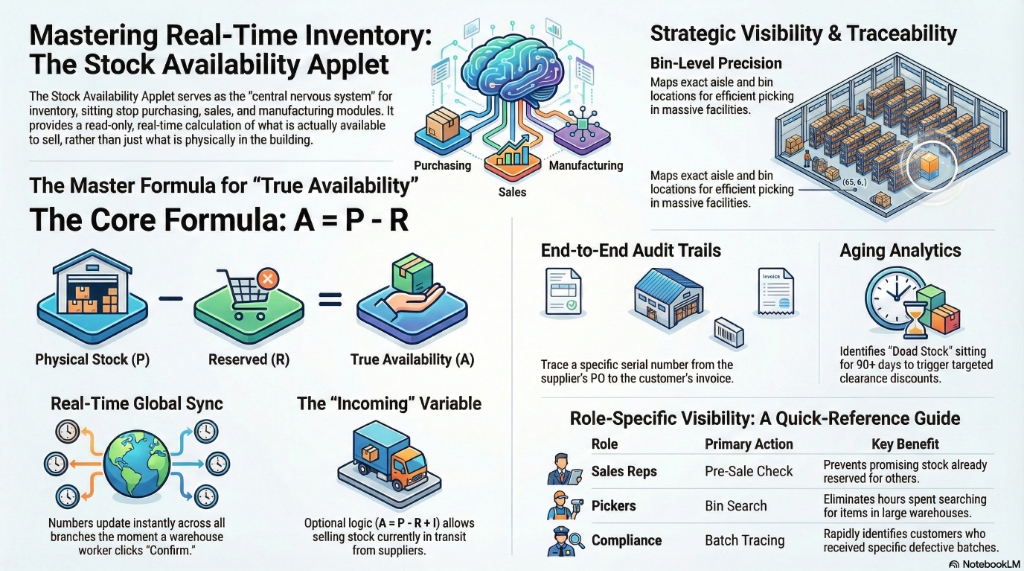
The Stock Availability Applet is the central nervous system for your inventory. It sits on top of all other supply chain modules (Purchasing, Sales, Manufacturing, Warehouse) to provide a single, unified view of exactly what you have, where it is, and what its status is.
It is a read-only applet. You do not make changes here (you make changes in Goods Receipt or Delivery applets). You look here to make critical business decisions.
Who Benefits from This Applet?
| Role | How they use it |
|---|---|
| Sales Reps | Checking if a product is in stock before committing to a customer order. |
| Warehouse Pickers | Finding the exact aisle and Bin location of specific items. |
| Procurement | Checking running low stock to know what needs to be reordered. |
| Quality/Compliance | Tracing a defective Serial Number back to its original supplier. |
What Problems Does This Solve?
Without Stock Availability Tracking:
- Sales reps sell items that are already promised to other customers, causing fulfillment failures.
- Warehouse staff spend hours searching for items because they don’t know the specific bin location.
- Expired medical supplies or food items cannot be easily traced.
- Recalling a specific defective batch takes days of manual paperwork auditing.
With Stock Availability Applet:
- ✓ Real-time Formulas - Instantly calculate Physical - Reserved = Available
- ✓ Bin-Level Precision - Know exactly which shelf an item is sitting on.
- ✓ End-to-End Traceability - Trace a Serial Number from the Supplier PO all the way to the Customer Invoice.
- ✓ Aging Analytics - Spot dead stock before it loses complete value.
The Master Inventory Formula
To use this applet effectively, you must understand the four pillars of inventory calculation:
- Physical Quantity (
P): The actual, physical number of items sitting in your warehouse right now. - Reserved Quantity (
R): Items that are physically in the warehouse, but have been booked by confirmed Sales Orders. You cannot sell these. - Incoming Quantity (
I): Items that are not in the warehouse yet, but have been ordered from suppliers via confirmed Purchase Orders. - Available Quantity (
A): The true amount you can currently sell to a new customer.
The Formula:
Available (A) = Physical (P) - Reserved (R)
Note: Some businesses configure their setup to include Incoming stock in their Availability calculation (A = P - R + I), allowing sales reps to sell stock that is currently in transit.
Role-Based Quick Start Guides
For Sales Reps: The Pre-Sale Check
Your goal is to ensure you don’t sell stock you don’t have.
- Go to Stock Availability Listing.
- Search for the Item Code (e.g., LAPTOP-PRO).
- Look at the Available column. Do not look at the Physical column.
- If Available is 0, double-click the item and go to the SO/PO Availability View.
- Check the Incoming column to tell the customer when the next shipment from the supplier is arriving.
For Warehouse Pickers: Finding an Item
Your goal is to find where 5 specific mice are located in a massive warehouse.
- Go to Bin Availability Listing.
- Search for the Item Code.
- The system will show you the exact breakdown:
- Aisle 2, Bin A: 3 units
- Aisle 4, Bin C: 2 units
- Use this precise location map to pick the items efficiently.
For Compliance Officers: Tracing a Defect
A customer reported a defect with Serial Number SN-998877. Your goal is to find out which supplier gave it to you.
- Go to Serial / Batch Trace Listing.
- Type in the Serial Number
SN-998877. - The system maps the entire lifecycle:
- Received from Supplier X on Jan 5th (Goods Receipt #102)
- Moved from Bin A to Bin B on Jan 10th (Stock Transfer #44)
- Sold to Customer Y on Jan 15th (Delivery Order #88)
Deep-Dive: The UI Workspaces
1. Stock Availability Listing (The Global View)
This is the highest-level view. It aggregates stock across all your locations.
- Multi-Branch View: If you have warehouses in KL, Penang, and Johor, you can see the total company-wide stock, or filter down to a specific branch to see local availability.
- Color Indicators: Configurable warning colors (e.g., Red) highlight items that have fallen below their required Minimum Stock levels.
2. Bin Availability Listing (The Micro View)
While the main listing tells you if you have stock, this listing tells you exactly where it is.
3. SO/PO View (Sales/Purchasing Breakdown)
This tab answers the “Why?” When a sales rep complains, “It says we physically have 50 items, but 0 available. Why?”
- Open the SO/PO View for that item.
- The grid will list the exact Sales Orders that are currently “Holding” (Reserving) the 50 items.
- The grid will also list the exact Purchase Orders that are “Incoming”, so you know which supplier is bringing more, and when.
4. Serial / Batch Tracing (The Audit Trail)
Crucial for electronics (Serial Numbers) and food/pharma (Batch Numbers).
- Forward Tracing: “We just realized Batch #XYZ of flour is contaminated. Which customers did we sell bread to using this flour?”
- Backward Tracing: “Customer brought back a broken TV. Which container did this specific TV arrive in, so we can claim warranty from the manufacturer?”
5. Aging Report
Identifies “Dead Stock.”
- Groups inventory by how long it has been sitting in your warehouse (e.g., 0-30 days, 31-60 days, 90+ days).
- Allows Procurement and Sales to run targeted discounts to clear out 90+ day old stock before it becomes obsolete.
Applet Configuration (For Admins)
To tailor the Stock Availability Applet for your company, navigate to Settings in the sidebar.
Application Settings
Control the global calculation logic.
INCLUDE_INCOMING_STOCK: If checked, the Available formula becomesA = P - R + I. Ideal for fast-moving consumer goods where you sell items while they are still on the delivery truck.NEGATIVE_STOCK_WARNING: Configure whether to show hard stops or just warnings if the system detects negative availability (which usually indicates a process error).
Field Settings & Visibility
- Hide the Cost columns from standard Sales Reps (so they don’t see your profit margins), while keeping it visible for Finance.
- Hide the Aging Report from warehouse pickers to simplify their UI.
Permission Mapping
Enforce strict access controls.
- Setup: Sales Team can only
Viewthe Stock Availability listing. Menu items for Settings are completely hidden. - Setup: Branch Managers can only see the Stock Availability for their own specific branch, preventing them from seeing another branch’s inventory.
Common Real-World Scenarios
Scenario 1: The Urgent Sales Order Committment
The Situation: A major client wants 50 “Enterprise Servers” delivered tomorrow. The Workflow:
- Sales Rep opens Stock Availability Listing and searches for the server.
- The UI shows: Physical: 60, Reserved: 20, Available: 40.
- The Rep cannot fulfill the order of 50.
- The Rep opens the SO/PO View.
- They see an Incoming PO for 30 servers expected today at 3:00 PM.
- The Rep confidently tells the client, “Yes, we can deliver tomorrow,” knowing the stock will arrive today.
Scenario 2: The Expiring Medicine (Batch Tracing)
The Situation: A pharmacy warehouse realizes a specific batch of insulin (BATCH-NOV24) expires next month.
The Workflow:
- Warehouse Manager opens Serial / Batch Availability.
- Filters by Expiry Date = “Next Month”.
- Identifies that 500 units of
BATCH-NOV24are sitting in BinCOLD-STORAGE-A. - Manager immediately issues a priority transfer to move them to the front-of-store shelves with a 50% discount to clear them before expiry.
Scenario 3: Investigating Missing Stock in Bins
The Situation: The system says there are 5 laptops in Bin A-1, but the picker says the shelf is empty.
The Workflow:
- Operations opens the Bin Availability Listing and clicks on the laptop item in Bin
A-1. - They view the transaction history for that specific interaction.
- The log shows that earlier that morning, a different picker did a Stock Transfer from
A-1to the QA/Testing Bin, but the original picker didn’t know. - The original picker goes to the QA bin and finds the laptops.
FAQs
Q: Can I manually change the Available quantity here? A: No. The Stock Availability Applet is uniquely a read-only module. To change physical stock, you must use operational applets (Goods Receipt, Delivery Order, Stock Adjustment). This strict rule prevents inventory manipulation.
Q: Why does my Available stock show a negative number? A: This happens if your organization allows “Negative Inventory” in the backend settings. It usually means a Sales Order was fulfilled (deducting stock) before the warehouse processed the incoming Goods Receipt for that item.
Q: I just created a Sales Order. Why didn’t the Physical stock decrease? A: Creating a standard Sales Order only decreases the Available stock (by increasing Reserved items). The Physical stock is only deducted when the product leaves the building via a Delivery Order / Goods Issue.
Q: How frequently does the data update? A: In absolute real-time. The moment a warehouse worker clicks “Confirm” on a Goods Receipt on their scanner, the availability numbers update globally for all users.