Stock Availability
Check here before you promise stock to a customer. Available Qty is what a new order can still take, not what is on the shelf: open sales orders lower it and goods received but not yet invoiced raise it, and the Details screen names the documents behind every gap. Nothing on this screen changes a balance.
Overview
The Stock Availability applet is the read-only window onto inventory: what you physically hold, what open documents have already claimed or promised, and therefore what you can still sell — by company, location and bin, down to individual serial and batch numbers. It sits on top of the stock ledger written by purchasing, sales, transfers, adjustments and stock takes; nothing is created here.
Sales staff open it before promising stock, warehouse staff to find where an item sits, purchasing to see what is on order, and finance for the cost columns (which can be hidden from everyone else by setting and re-opened per user by permission).
How availability is calculated
Available Qty is the physical balance, plus a signed adjustment for open documents, minus what Stock Reservation holds there — and the adjustment can be positive:
    flowchart LR
  SB["Stock Balance<br/>ledger quantity at this company and location,<br/>from finalised stock documents"]
  SO["Sales orders not yet invoiced<br/>signum -1"]
  GRN["Goods received notes not yet invoiced<br/>signum +1"]
  ADJ["Adj Qty<br/>signed sum of the open-document pairs"]
  RES["Reserved quantity<br/>from stock reservations at this location"]
  AV["Available Qty<br/>Stock Balance + Adj Qty - reserved"]
  SO --> ADJ
  GRN --> ADJ
  SB --> AV
  ADJ --> AV
  RES --> AV
Those two pairs are the server’s default when a screen sends no list of its own, as the main listing does. The Details view tabs each ask for their own pairs — purchase orders, delivery orders, quotations, the draft sections — and the Details listing uses no pairs at all; it works from fixed per-document figures the server computes for it, added up with a different formula (below).
A location at zero or below is never a row of its own. The request behind the listing and the Stock Transfer Queue always asks for balance rows with a ledger quantity above zero — a filter no screen sends and none can switch off — so a location whose balance has gone to 0 or negative drops out, and reappears only if an open document names it, with Stock Balance empty. The one place in this applet that shows a negative location balance is the Details listing, whose query carries no such filter.
| Column | Meaning |
|---|---|
| Stock Balance (physical) | The ledger quantity at that company / location, from finalised stock documents |
| Adj Qty | The open-document quantity: against you for sales orders, for you for uninvoiced receipts. The main listing shows it unsigned |
| Available Qty | Stock Balance + signed Adj Qty − reserved quantity — what a new order can still take |
| Min / Max level | The item’s minimum and maximum stock levels for the location, returned by the backend and shown as columns when the Optional filter includes SHOW_MIN_QTY / SHOW_MAX_QTY |
The Details screen lists open documents per type (Sales Order, Purchase Order, GRN, GRN draft, GRN stock-in draft, Delivery Order, Sales Invoice draft, Sales Quotation). Each view tab asks for its own pairs, so it shows more than the listing counts: an open Purchase Order, a delivery order or a quotation appears there and is not in the listing’s Adj Qty, which is the two default pairs above. “50 physical but 0 available” on the main listing is traceable to the Sales Order and GRN tabs and to Stock Reservation; the other tabs are context, not part of that sum.
The Details listing adds up differently. Its per-location figure is balance + GRN + PO − (sales orders + reserved) − DO − sales invoice draft + GRN draft + GRN stock-in draft, each term switched off by the matching HIDE_…_BALANCE entry in the Optional filter (so with the default filter it shows the bare balance), and its Total SO column is sales orders plus reservations. So on Details an open purchase order and a reservation both count; on the main listing neither does. When the two screens disagree for one item and location, that difference in terms is usually the whole explanation.
Where it fits
| Direction | Applet / document | Why |
|---|---|---|
| Upstream | Stock Balance | The ledger balances this applet reads |
| Upstream | Inventory Item Maintenance, Doc Item Maintenance | Item master, category levels, pricing schemes and prices shown as columns |
| Upstream | Organisation | Companies, branches, locations and bins |
| Upstream | Sales Order, Purchase Order, Purchase GRN and other stock documents | Open documents that make up Adj Qty and appear in Details |
| Sibling | Stock Reservation | Reserved and locked quantities shown on Stock Card & Planning |
| Sibling | Stock Take, Stock Adjustment | Correct the balance this applet displays |
| Sibling | Warehouse Management | Bins shown in Bin Availability |
Modules: Inventory, Purchasing, POS.
Screens and menus
| Menu | What it shows | Visible by default |
|---|---|---|
| Stock Availability | Item × company × location grid: stock balance, adj qty, available qty, costs (moving-average at location and company, last purchase, FIFO, LIFO); drill-down opens the item view with its bins, categories, images, NSTI, pricing schemes and serial numbers | yes |
| Stock Availability Details | One item at a time with the documents behind each quantity, per location, plus the price columns per pricing scheme | yes |
| Stock Aging Report | Balance grouped by age bucket (months, or days when the tenant setting AGING_PERIOD_TYPE is DAY); how the age is found, and the fixed 2022 start, are under Stock Aging Report below | yes |
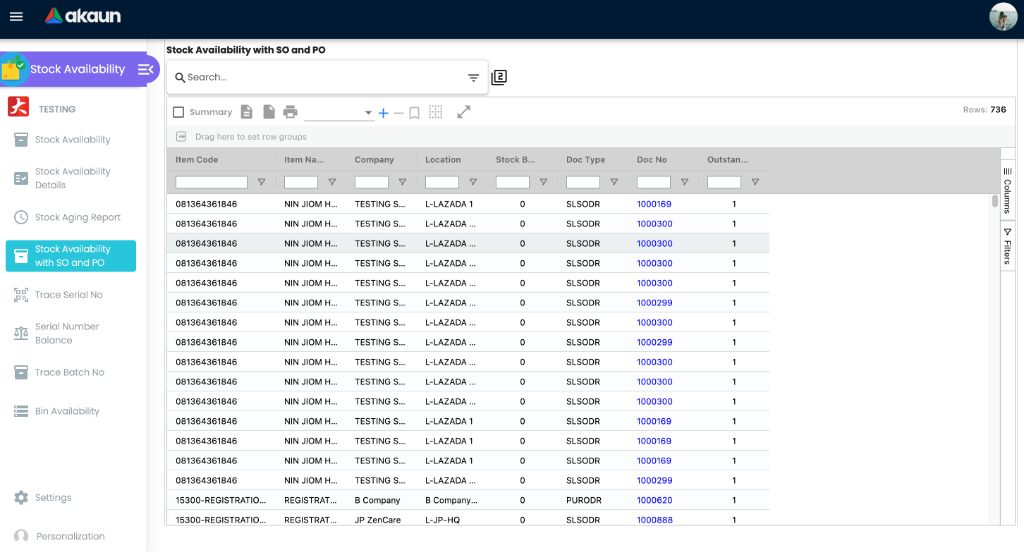
| Stock Availability with SO and PO | Only the sales-order and purchase-order commitments | yes |
| Trace Serial No | Movement history of one serial number | yes |
| Serial Number Balance | Serial numbers currently in stock, by location | yes |
| Trace Batch No | Movement history of one batch number | yes |
| Bin Availability | Quantity per bin, with bin code and name | yes |
| Stock Card & Planning | Per item: total, reserved (and by whom), locked, packed, ad-hoc and available quantity with bin, UOM, job order, completion date and status | no — hidden by default; switch HIDE_STOCK_CARD_PLANNING_MENU off to show it |
| Audit Trail | Change history | yes |
A Stock Transfer Queue route also exists (stock-transfer) but its menu entry is commented out, so it is reachable only by URL.
Gear (Settings) menu: Application Settings, Default Selection, plus the shared permission, webhook, release-notes and applet-log screens. Personalisation: per-user Default Selection. A field-settings route exists but is not in the menu and its template contains no controls.
Stock Availability listing
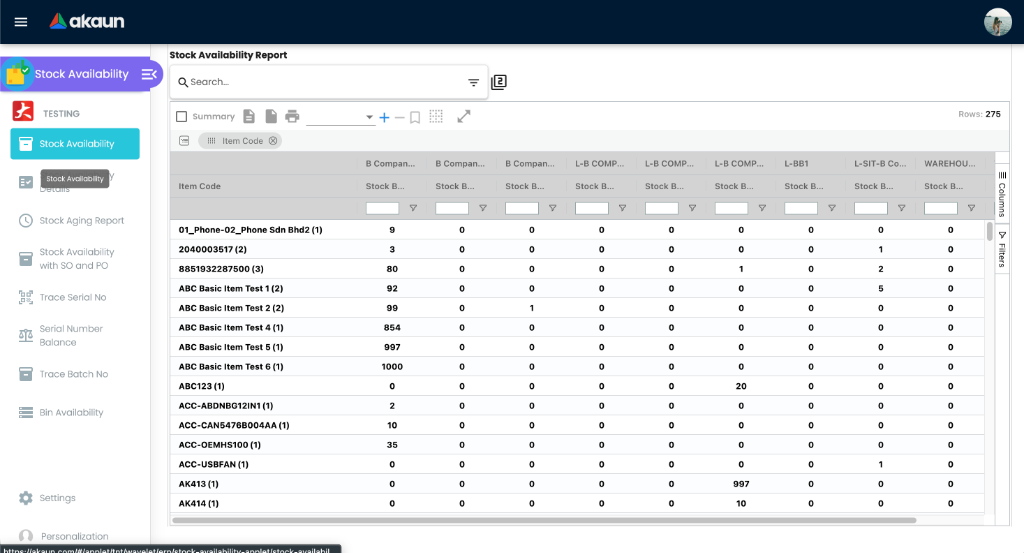
Filter by company, branch, location, item and category levels; the same item can be seen company-wide or per location. Rows are merged per item × location × company and Available Qty is recomputed on every load. Every cost and quantity column has a tenant-wide hide switch and a matching permission (see Configuration).
Stock Availability Details
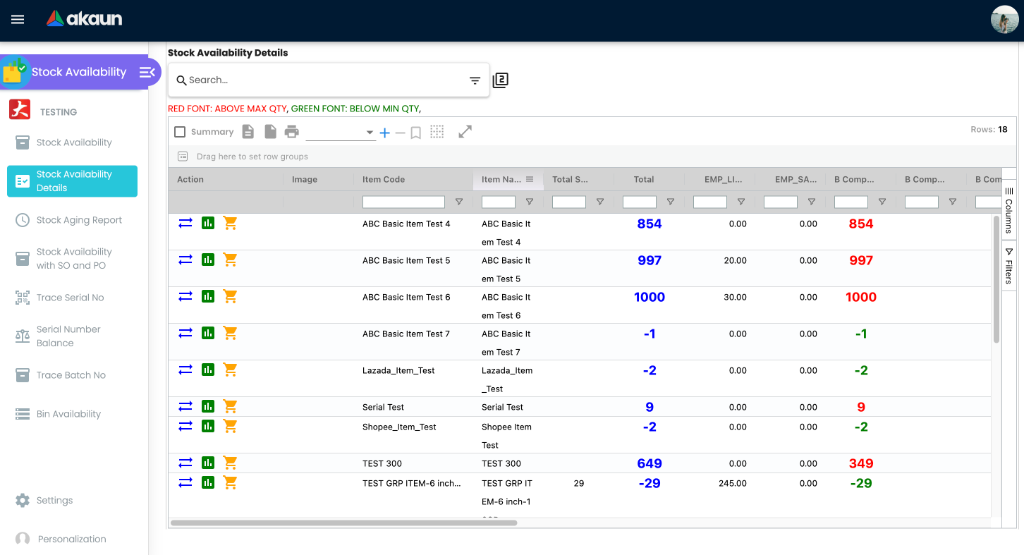
The advanced search has an Optional multi-select that, by default, hides zero balances and the document-balance sections — HIDE_ZERO_BALANCE, HIDE_GOODS_RECEIVE_NOTE_BALANCE, HIDE_PURCHASE_ORDER_BALANCE, HIDE_SALES_ORDER_BALANCE, HIDE_DELIVERY_ORDER_BALANCE, HIDE_SALES_INVOICE_DRAFT_BALANCE, HIDE_GOODS_RECEIVE_NOTE_DRAFT_BALANCE, HIDE_GRN_STOCK_IN_DRAFT_BALANCE. Untick one to open that section; SHOW_MIN_QTY, SHOW_MAX_QTY and SHOW_OTHER_IMAGES_1..3 / _ALL add the level columns and item images. These are per-search options, not settings. Each document tab (GRN, PO, SO, DO, Sales Invoice draft, GRN draft, GRN stock-in draft, Sales Quotation) can also be hidden tenant-wide, and the item row opens a Stock Movement pop-up.
Stock Aging Report
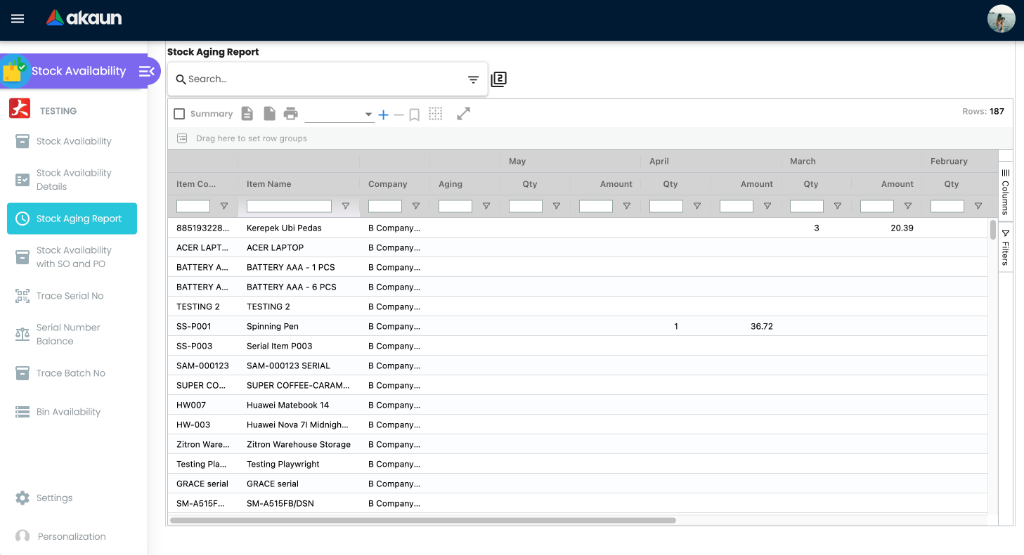
How the age is found. Nothing stores an age. On every search the server fetches the stock ledger lines for the items in scope between the start date and today and replays them oldest first: each receipt joins a queue, each issue consumes from the oldest receipt still in the queue, and an issue that finds the queue empty is remembered as a shortage that the next receipt clears before any of it counts as stock. What is left in the queue is your stock, grouped by the month the receipt was posted — in Days mode the age is counted from the first day of that month, because the figures reach the screen by month only. Two things follow. The age is the age of the oldest receipts still unconsumed, not of any particular unit: a return or a transfer in is a fresh receipt, and a sale always takes from the oldest, whatever left the shelf. And the replay starts on 1 January 2022 — the screen sends that date on every search, and so does the aging tab on the Details view. Stock received before 2022 is never aged (it is not in the queue), and sales since then consume only receipts since then, so a group that went live earlier, or holds slow-moving stock older than that, sees less aged stock than it holds, with nothing on the screen to say so. Before planning a clearance from this report, compare its total for the item with Stock Balance.
Stock Availability with SO and PO
Trace Serial No, Serial Number Balance, Trace Batch No
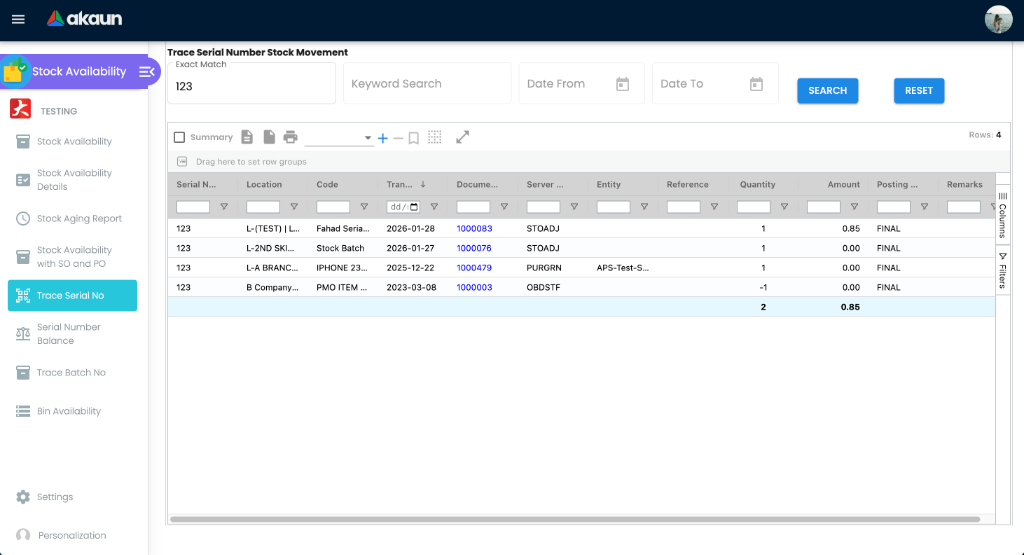
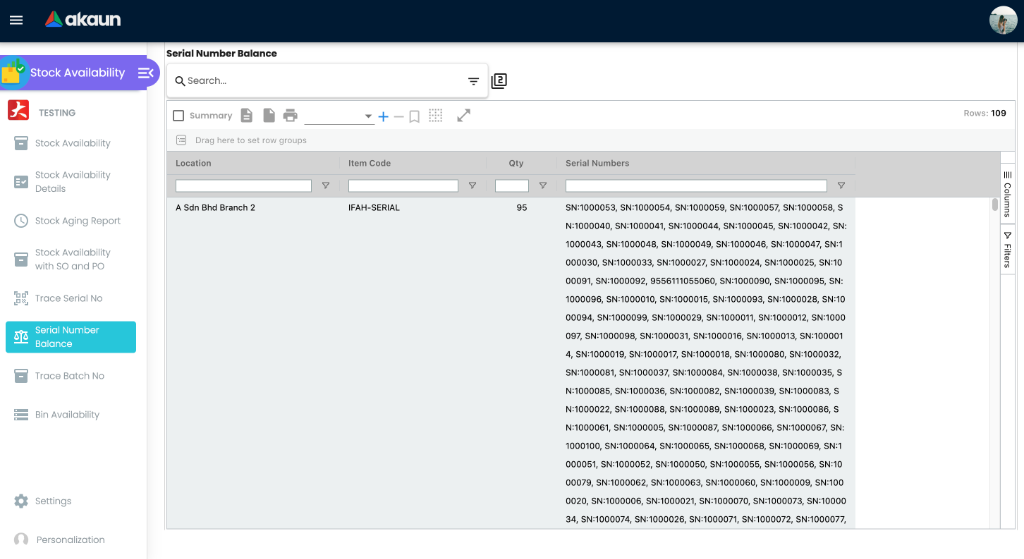
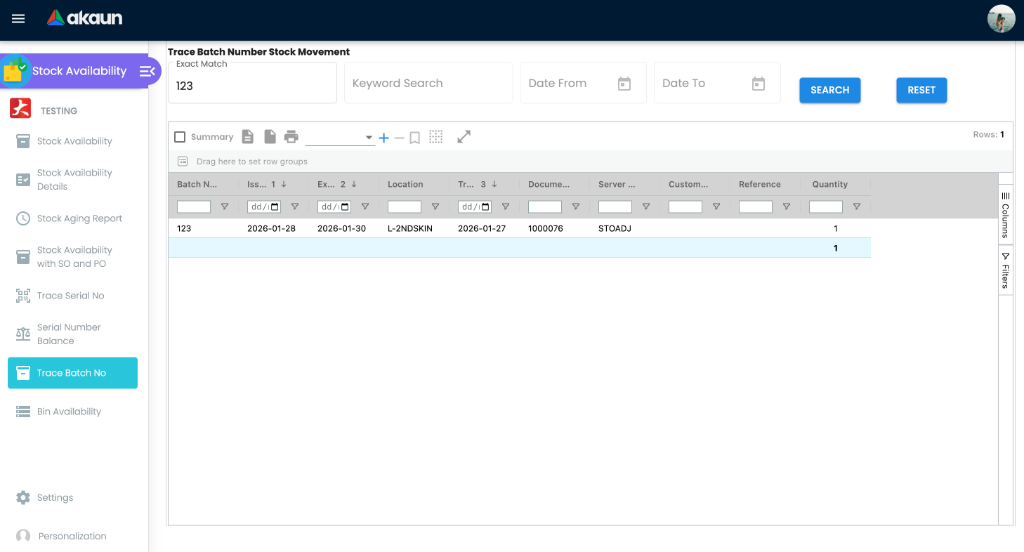
Search by exact serial or batch number, keyword or date range. On Trace Batch No, sales invoice lines are shown as negative quantities so the running balance reads correctly. Trace Serial No asks for draft documents too, so a serial locked by an unposted sales invoice already appears on that invoice’s line before anything has posted. Serial tracing works forwards (which customer received this unit) and backwards (which GRN and supplier it came from); batch tracing lists every document a batch passed through.
Bin Availability
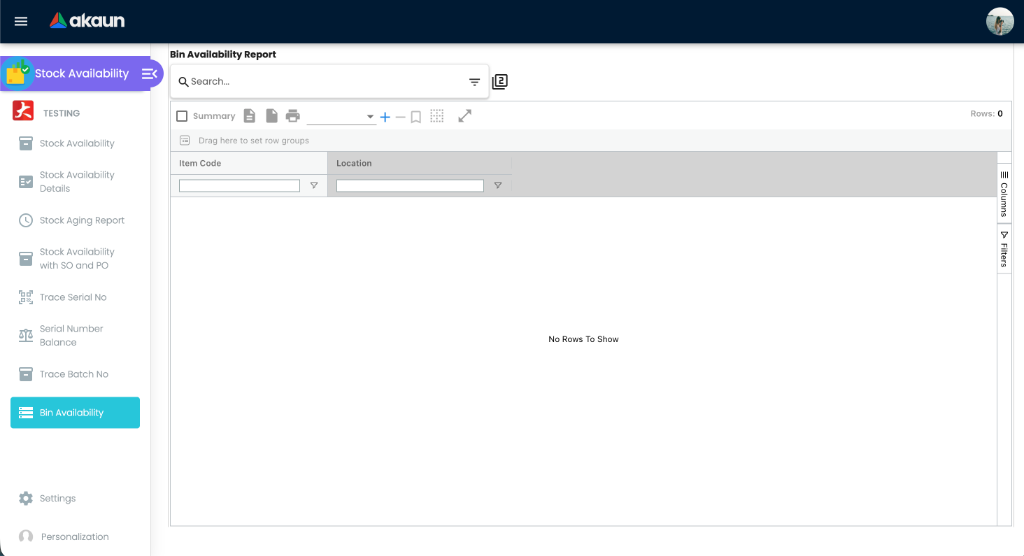
The figure per bin is what a picker can take: the bin’s quantity less what stock reservations and locks hold in it. Bins with nothing left are not listed.
Configuration
Before you can use it
| Prerequisite | Where | Why |
|---|---|---|
| Items with an inventory record | Inventory Item Maintenance / Doc Item Maintenance | Only stock-tracked items have balances |
| Companies, branches, locations, bins | Organisation, Warehouse Management | The dimensions of every screen |
| Pricing schemes | Doc Item Maintenance > Pricing Schemes | PRICING_SCHEMES picks which schemes become price columns on the Details screen |
| Finalised stock documents | GRN, sales, transfers, adjustments, stock take | Without them every balance is zero |
| Backend read permissions | Permission assignment | The applet requests API_TNT_DM_ERP_INV_STOCK_AVAILABILITY_READ, …_AVG_COST_READ, …_SALES_REPORT_READ, API_TNT_DM_ERP_STOCK_AGING_REPORT_READ, API_TNT_DM_ERP_STOCK_REPORT_READ, API_TNT_DM_ERP_INV_BATCH_READ, TNT_API_BIN_READ — but several menus need more than that list: Trace Serial No and Trace Batch No need TNT_API_INVENTORY_TRANSACTION_SUB_LINE_READ, Serial Number Balance TNT_API_SERIAL_NUMBER_READ, Stock Availability with SO and PO and the Details draft tabs API_TNT_DM_ERP_STOCK_REPORT_READ, the Details Sales Report and Purchase Report tabs API_TNT_DM_ERP_SALES_REPORT_BY_DOCUMENT_READ and API_TNT_DM_ERP_PURCHASE_REPORT_BY_DOCUMENT_READ, and Stock Card & Planning’s expand the MRP job-order read API_TNT_DM_MRP_JOB_ORDER_HDR_READ. A user granted only what the applet names opens those menus and gets not authorised |
Applet settings
Settings are on this applet’s own screens, not the shared settings screen. Application Settings and Default Selection apply to every user of the applet; Personalisation > Default Selection saves per user. Anyone who can open the gear menu can change them — no permission guards the settings screens.
Settings > Application Settings — six tabs. Each row takes effect where Effect says; rows marked rendered but not consumed are saved and do nothing.
| Setting (tab) | What it controls | Default | Effect when changed |
|---|---|---|---|
HIDE_STOCK_AVAILABILITY_MENU, HIDE_STOCK_AVAILABILITY_DETAILS_MENU, HIDE_STOCK_AGING_REPORT_MENU, HIDE_STOCK_AVAILABILITY_SO_PO_MENU, HIDE_TRACE_SERIAL_NO_LISTING_MENU, HIDE_SERIAL_NUMBER_BALANCE_MENU, HIDE_TRACE_BATCH_NO_LISTING_MENU, HIDE_BIN_AVAILABILITY_MENU, HIDE_STOCK_CARD_PLANNING_MENU, HIDE_AUDIT_TRAIL_MENU (Sidebar Menu) | Menu visibility | off, except HIDE_STOCK_CARD_PLANNING_MENU = on; an unset key falls back to that default | Hidden when the user lacks SHOW_<KEY>_MENU and the switch (or its default) is on; the applet opens on the first visible menu, and a hidden menu opened by its address or by refreshing the page is redirected to the first visible one |
HIDE_LISTING_AVG_COST, HIDE_LISTING_LAST_PURCHASE_COST, HIDE_LISTING_FIFO_COST, HIDE_LISTING_LIFO_COST (Stock Availability Listing) | Cost columns | off (no value; unset = shown) | Column removed on the listing, Bin Availability, Stock Card & Planning, the Details listing, the item view, Trace Serial No, the Stock Transfer Queue and the cost tooltip unless the user holds the matching SHOW_LISTING_* permission |
HIDE_LISTING_COMPANY, HIDE_LISTING_LOCATION, HIDE_LISTING_STOCK_BALANCE, HIDE_LISTING_ADJ_QTY, HIDE_LISTING_AVAILABLE_QTY (Listing) | Structural and quantity columns | off | Listing, Bin Availability and Stock Card & Planning |
HIDE_LISTING_PURCHASE_PRICE, HIDE_LISTING_SALES_PRICE, HIDE_LISTING_SALES_MAX_PRICE, HIDE_LISTING_SALES_MIN_PRICE, HIDE_LISTING_REPLACEMENT_PRICE, HIDE_LISTING_REF_PRICE_1..3, HIDE_LISTING_DELTA_PRICE_1..3, HIDE_LISTING_REBATE_PRICE_1..3 (Listing) | Price columns and the pricing tooltip | off | Details listing and its pricing-scheme tooltip (the main listing has no price columns) |
PRICING_SCHEMES (multi-select), PRICE_METRICS (multi-select: PURCHASE_UNIT_PRICE, SALES_UNIT_PRICE, SALES_MAX_PRICE, SALES_MIN_PRICE, REPLACEMENT_UNIT_PRICE_EXCL_TAX, DELTA_PRICE1..3_EXCL_TAX, REF_PRICE1..3_EXCL_TAX, REBATE_PRICE1..3_EXCL_TAX) (Listing) | One column per selected scheme per selected metric on the Details listing | none (no metric chosen = sales unit price) | Adding a scheme adds its column(s); choosing two metrics — say purchase unit price and sales unit price — puts two columns per scheme side by side, headed Scheme (Metric), so a buyer and a seller read the same row without a second screen. A metric saved before the control became multi-select is kept as the single choice |
| Enable filter by today’s transactions (Listing) | — | off | Rendered but not consumed |
HIDE_REPORT_DOC_SHORT_CODE, HIDE_REPORT_UNIT_PRICE, HIDE_REPORT_UNIT_COST, HIDE_REPORT_INVENTORY_VALUE, HIDE_REPORT_AMOUNT_STD, HIDE_REPORT_AMOUNT_DISC, HIDE_REPORT_AMOUNT_NET, HIDE_REPORT_AMOUNT_TAX, HIDE_REPORT_AMOUNT_TXN (Listing) | Columns of the Stock Movement pop-up on the Details screen | off | Column hidden unless the user holds SHOW_REPORT_* (not the aging or trace reports) |
HIDE_STOCK_MOVEMENT, HIDE_PURCHASE_DOCUMENTS_IN_STOCK_MOVEMENT, HIDE_INTERNAL_STOCK_ADJUSTMENT, HIDE_TOOLTIP_PRICING_DETAILS, INCREASE_ITEM_IMAGE_SIZE (Stock Availability Details) | Stock Movement pop-up; which document families it lists (supplier-side documents, internal stock adjustments); the pricing tooltip; larger thumbnails | off — on a tenant that has never saved this screen the toggles show OFF and a save stores nothing for them, so nothing is hidden by an incidental save. Only a tenant whose stored settings hold an explicit null for a key sees it come up ON | stock-availability-details-view (=== true), …-view-movement (=== true), Details listing. If a switch you set ON does not take effect, reopen the screen and check it stayed ON before looking elsewhere (read from the code, not tried) |
HIDE_PURCHASE_DOCUMENTS (Stock Availability Details) | — | off | Saved and read by nothing. The switch that hides purchase documents on the Details view is a different key, HIDE_PURCHASE_ORDER_DOCUMENTS, which has no control — see Keys read at runtime without a control |
| Hide purchase GRN purchase price, Hide purchase GRN supplier name (Details) | — | off (same as the row above) | Rendered but not consumed: the GRN tab does not read them |
HIDE_GOODS_RECEIVED_NOTE_TAB, HIDE_PURCHASE_ORDER_TAB, HIDE_SALES_ORDER_TAB, HIDE_DELIVERY_ORDER_TAB, HIDE_SALES_QUOTATION_TAB, HIDE_SALES_INVOICE_TAB, HIDE_GRN_DRAFT_TAB, HIDE_GRN_STOCK_IN_DRAFT_TAB (Details) | Document tabs on the Details screen | off (false; patched === true) | Tab removed for everyone (no permission override) |
ITEM_CATEGORY_GROUP_0..20, HIDE_ITEM_CATEGORY_GROUP_0..20 (Item Category Group) | — | empty / off | Rendered but not consumed: no screen in this applet reads them; the category filters and columns come from the item master’s category levels |
HIDE_UNIT_COST_AMOUNT (Trace Serial Number) | The amount column on Trace Serial No | off (shows OFF until deliberately set and saved; an explicit stored null reads as ON) | Hidden unless the user holds SHOW_UNIT_COST_AMOUNT |
HIDE_DOC_POPUP_COST_AMOUNT, HIDE_DOC_POPUP_GP (Miscellaneous) | The Cost Amount and GP line columns of the document pop-up — the shared document viewer that opens when you click a document number on Trace Serial No, on Stock Availability with SO and PO, on any Details tab or in the Stock Movement pop-up | off | Column hidden unless the user holds SHOW_DOC_POPUP_COST_AMOUNT / SHOW_DOC_POPUP_GP; this is how a branch user can trace a serial without seeing what the unit cost |
HIDE_UNIT_COST_AMOUNT show OFF on a tenant that has never saved the screen, and a save leaves them unset. To hide the Stock Movement pop-up, supplier-side documents, internal stock adjustments, the pricing tooltip or the serial-trace amount from users without the matching SHOW_* permission, switch each one ON deliberately and save — then reopen the screen once to confirm it stayed ON.Keys read at runtime without a control (set by other screens or only by hand in the master settings record):
| Key | Read by | Effect |
|---|---|---|
HIDE_UOM, HIDE_STOCK_BALANCE, HIDE_ADJ_QTY, HIDE_AVAILABLE_QTY, HIDE_AVG_COST, HIDE_LAST_PURCHASE_COST | The item view opened from the listing (stock-availability-view-main) and the Stock Transfer Queue view | Field hidden unless the user holds SHOW_UOM / SHOW_STOCK_BALANCE / SHOW_ADJ_QTY / SHOW_AVAILABLE_QTY / SHOW_AVG_COST / SHOW_LAST_PURCHASE_COST |
HIDE_PURCHASE_ORDER_DOCUMENTS | Details view | Purchase documents hidden unless the user holds SHOW_PURCHASE_DOCUMENTS. The Application Settings switch labelled HIDE_PURCHASE_DOCUMENTS does not set this key |
HIDE_UNIT_COST, HIDE_MA_COST, HIDE_GP, HIDE_GP_PERCENTAGE, HIDE_DELTA_UNIT_COST, HIDE_DELTA_COST, HIDE_DELTA_GP, HIDE_DELTA_GP_PERCENTAGE | The Sales Report and Purchase Report tabs of the Details view | Column hidden unless the user holds the matching SHOW_* — none of which is seeded, so a hidden column is hidden for everyone |
AGING_PERIOD_TYPE | Stock Aging Report | DAY ages by days; anything else by months |
PRINTABLE | Document export from the Details view | The fallback printable format — the branch’s default printable format wins when one is set |
DISABLE_STOCK_AVAILABILITY_LISTING | Stock Transfer Queue screen | Read into a flag nothing uses; the listing loads whatever it is set to |
Settings > Default Selection — DEFAULT_BRANCH, DEFAULT_LOCATION (saved, but no screen in this applet pre-selects anything from them — the search filters open empty whatever is stored), DEFAULT_TOGGLE_COLUMN (SINGLE / DOUBLE form layout, read by the Details listing) and side bar Ordering — drag the menu names into order, saved as SIDE_BAR_ORDER; RESET restores the built-in order. New menu items added in a later build are appended to a saved order.
Personalisation > Default Selection — the same branch, location and toggle-column values per user.
Document behaviour settings
Not applicable — the applet creates no documents.
Feature visibility / permissions
Forty-nine client-side permissions can be granted for this applet. Each re-enables one hidden column, pop-up or menu for its holder:
| Permission group | Codes |
|---|---|
| Menus | SHOW_STOCK_AVAILABILITY_MENU, SHOW_STOCK_AVAILABILITY_DETAILS_MENU, SHOW_STOCK_AGING_REPORT_MENU, SHOW_STOCK_AVAILABILITY_SO_PO_MENU, SHOW_TRACE_SERIAL_NO_LISTING_MENU, SHOW_SERIAL_NUMBER_BALANCE_MENU, SHOW_TRACE_BATCH_NO_LISTING_MENU, SHOW_BIN_AVAILABILITY_MENU |
| Listing columns | SHOW_LISTING_AVG_COST, SHOW_LISTING_LAST_PURCHASE_COST, SHOW_LISTING_FIFO_COST, SHOW_LISTING_LIFO_COST, SHOW_LISTING_PURCHASE_PRICE, SHOW_LISTING_REPLACEMENT_PRICE, SHOW_LISTING_SALES_PRICE, SHOW_LISTING_SALES_MAX_PRICE, SHOW_LISTING_SALES_MIN_PRICE, SHOW_LISTING_REF_PRICE_1..3, SHOW_LISTING_DELTA_PRICE_1..3, SHOW_LISTING_REBATE_PRICE_1..3, SHOW_LISTING_COMPANY, SHOW_LISTING_LOCATION, SHOW_LISTING_STOCK_BALANCE, SHOW_LISTING_ADJ_QTY, SHOW_LISTING_AVAILABLE_QTY |
| Item view and pop-ups | SHOW_AVG_COST, SHOW_LAST_PURCHASE_COST, SHOW_UNIT_COST_AMOUNT, SHOW_TOOLTIP_PRICING_DETAILS, SHOW_STOCK_MOVEMENT, SHOW_PURCHASE_DOCUMENTS, SHOW_PURCHASE_DOCUMENTS_IN_STOCK_MOVEMENT, SHOW_INTERNAL_STOCK_ADJUSTMENT |
| Stock Movement columns | SHOW_REPORT_DOC_SHORT_CODE, SHOW_REPORT_UNIT_PRICE, SHOW_REPORT_UNIT_COST, SHOW_REPORT_AMOUNT_STD, SHOW_REPORT_AMOUNT_DISC, SHOW_REPORT_AMOUNT_NET, SHOW_REPORT_AMOUNT_TAX, SHOW_REPORT_AMOUNT_TXN |
| Document pop-up columns | SHOW_DOC_POPUP_COST_AMOUNT, SHOW_DOC_POPUP_GP (re-enable the Cost Amount and GP columns of the document viewer opened from any document number in this applet) |
Checked in code but not seeded (the feature can only be hidden for everyone until they are added): SHOW_STOCK_CARD_PLANNING_MENU, SHOW_AUDIT_TRAIL_MENU, SHOW_LISTING_COMPANY_AVG_COST, SHOW_UOM, SHOW_STOCK_BALANCE, SHOW_ADJ_QTY, SHOW_AVAILABLE_QTY, SHOW_REPORT_INVENTORY_VALUE, and the eight the Details Sales Report / Purchase Report tabs read — SHOW_UNIT_COST, SHOW_MA_COST, SHOW_GP, SHOW_GP_PERCENTAGE, SHOW_DELTA_UNIT_COST, SHOW_DELTA_COST, SHOW_DELTA_GP, SHOW_DELTA_GP_PERCENTAGE.
Fields
No create or edit forms; item, location, bin, serial, batch, category and date columns are what they say. What the listing does not tell you:
- Grouped items never appear — a bundle’s availability is its components’; check them one by one.
- A location can appear for an item it has never held — an open document naming it is enough, with Stock Balance empty.
- A location holding zero or less never appears on its own — the listing asks only for balances above zero. A negative balance shows on the Details listing, or in Stock Report’s Stock Movement.
| Column | What it hides |
|---|---|
| Stock Balance, Adj Qty, Available Qty | See How availability is calculated. Adj Qty shows unsigned — 3 units on open sales orders show as 3, not −3 — and the sign appears only in Available Qty. For an item with both kinds of open document, see the first row of Troubleshooting. |
| Qty, Base Qty, Container Qty / Ctn Qty, Container Measure | Quantity in the item’s UOM and base UOM, and per container for batch / bin items |
| Company Avg Cost, Location Avg Cost, Last Purchase Cost, FIFO Cost, LIFO Cost, Amount | Two levels side by side. Location Avg Cost and Last Purchase Cost are the location’s; Company Avg Cost, FIFO and LIFO are the company’s and repeat on every location. Compare Location Avg Cost across branches to see which bought dearer. On the item view opened from a row, Company Avg Cost is read from the newest stock ledger line for the item and company rather than from the company balance — the same figure once the balance processors have run, and the older of the two if they have not |
| NSTI Code / Name | Non-stock trade-in items. Both average-cost columns show a figure from the trade-in prices paid at that location, tax included; Last Purchase, FIFO and LIFO are zero. |
Details listing adds one column per pricing scheme selected in PRICING_SCHEMES for each price metric selected in PRICE_METRICS (sales unit price when none is chosen), plus Min / Max Qty and item images when chosen in the Optional filter.
Stock Card & Planning columns: Total Qty, Reserved Qty, Reserved By, Locked Qty, Packed Qty, Ad Hoc Qty, Available Qty, Bin Code, UOM, Job Order, Completion Date, Status.
Lifecycle and effects
Read-only — the applet writes nothing. Balances change only when stock documents are finalised elsewhere. On every load the listing merges the backend rows per item × location × company (see the first row of Troubleshooting). The backend returns the ledger balance, the open-document quantities for each requested document-type pair, stock in transit, min / max levels and the four cost bases; when a caller sends no pairs, or an incomplete one, it substitutes the defaults sales order → sales invoice (−1) and goods received note → purchase invoice (+1).
Related applets
- Stock Balance — the ledger this applet summarises.
- Inventory Item Maintenance and Doc Item Maintenance — item master, categories, pricing schemes; the item’s own Stock Availability and Stock Card tabs show the same data for one item.
- Stock Reservation — reserved and locked quantities on Stock Card & Planning.
- Stock Take and Stock Adjustment — fix a balance that disagrees with the shelf.
- Warehouse Management — bins.
- Sales Order, Purchase Order, Purchase GRN — the documents that make up Adj Qty.
- Organisation — companies, branches, locations.
Troubleshooting
| Symptom | Cause | Fix |
|---|---|---|
| Available Qty on the listing is higher than Details for the same item and location | Both an open sales order and an uninvoiced receipt exist there; the listing merges their two rows, leaving the first unsigned and dropping the reservation, in no fixed order. 10 on the shelf, SO 3, receipt 5: right answer 12, listing shows 12 or 18 | Read that item on Details |
| Physical shows 50, Available shows 0 | Open sales orders have committed the stock; on this listing only orders not yet invoiced count (delivery orders count only on the Details listing). A balance left on an order that was voided, or on a line removed from an order, also counts: the sum reads each stored balance without asking whether its order is still live | Open Stock Availability Details, untick HIDE_SALES_ORDER_BALANCE in the Optional filter to see which orders. For a voided order still listed, run Missing Reversal Queue on Trace Document; for a removed line, close it on SO Line with SI KO (how) |
| Item is out of stock but a colleague says it is on order | Incoming documents are hidden by the default Optional filter | Untick HIDE_PURCHASE_ORDER_BALANCE / HIDE_GOODS_RECEIVE_NOTE_BALANCE |
| Cost columns missing for a user | Hidden by HIDE_LISTING_*_COST and the user lacks the SHOW_LISTING_* permission | Grant the permission or clear the setting |
Stock Movement pop-up, supplier documents or the serial-trace amount are missing for users without a SHOW_* permission | The matching Details-tab switch or HIDE_UNIT_COST_AMOUNT is stored ON — someone set it and saved, or an older save left a null that the screen reads as ON | Open Application Settings, switch it off, save, and reopen the screen to confirm |
| A Details-tab switch I set ON and saved is not hiding anything | The stored value did not take (read from the code, not tried) | Reopen Application Settings; if the switch shows OFF, set it again and save; if it shows ON and the feature is still visible, the user holds the matching SHOW_* permission |
| Stock Card & Planning is not in the menu | Hidden by default (defaultHidden: true) and its SHOW_STOCK_CARD_PLANNING_MENU permission is not seeded | Set HIDE_STOCK_CARD_PLANNING_MENU off in Application Settings |
| Pricing scheme columns appear only on Details, or show one price type when two are wanted | Scheme columns exist only on the Details listing, and each selected metric adds its own column per scheme | Select every metric you need in PRICE_METRICS — the columns are headed Scheme (Metric) when more than one is chosen |
| A location I know has gone negative is not on the listing | The listing asks only for balances above zero; the location drops out until a document brings it back above zero or an open document names it | Open the item on Stock Availability Details, which shows the negative figure, or Stock Report > Stock Movement for the document that overshot |
| Not authorised on Trace Serial No, Trace Batch No, Serial Number Balance, Stock Availability with SO and PO or a Details report tab, although the listing works | Those menus need permissions beyond the ones the applet names — see Before you can use it | Grant the sub-line, serial-number, stock-report or sales / purchase report-by-document read permission |
| The Stock Aging Report shows less stock, or younger stock, than Stock Balance | The report replays receipts from 1 January 2022 only; stock received before that is not aged, and a shortage carried from before the start absorbs the first receipts after it | Treat the report as the age of post-2021 receipts; for older stock use Stock Report by date range |
| Category filter returns different items here and in Doc Item Maintenance | The two applets filtered on different category levels for “category 2” | Update both builds; use the same level in both searches |
| Trade-in stock missing from the historical balance | Trade-in (NSTI) stock is not included there | Use the NSTI columns on the listing |
| Serial trace shows negative quantities | Sales invoice lines are shown negative by design so the running balance is correct | No action |