Stock Balance
A read-only grid of what stock is where: quantity on hand, moving-average cost and last purchase cost, per item, company and location. Only locations holding more than zero of an item get a figure here — a location at zero or below has no balance column in this grid, whatever the search panel says. Nothing here changes a balance — if a number is wrong, the fix is always a document (usually a Stock Adjustment), never this screen. When you doubt a figure, the thirty-second check below tells you whether the grid, the stock ledger and Stock Availability agree, and what it means when they do not.
Your job, and the screen for it
| The job | Screen or tab | Read |
|---|---|---|
| See what each branch holds of an item now — a location at zero or below has no figure here | Stock Balance listing, in Pivot Mode: one Bal column per location | Stock Balance Listing |
| Find one item at one location — a panel search replaces the keyword in the search box rather than adding to it | Advanced Search panel, or Pivot Mode off and a column filter; a user scoped to locations must pick a Location | Advanced Search |
| Check a disputed figure against the stock ledger and the sibling screen | This grid, then Stock Movement Report in the Stock Report applet and Details in the Stock Availability applet | The thirty-second check |
| Trace a location that has gone negative — this grid cannot show it | Stock Movement in the Stock Report applet, or Details in the Stock Availability applet | What this grid does not do, and who does it instead |
| Correct a wrong balance — never on this screen; a row that drifted from its ledger is rebuilt, not adjusted | A document, usually in the Stock Adjustment applet; a drifted row in the Data Fix applet’s Stock › Location Stock (an administrator’s screen) | What this grid does not do, and who does it instead |
| Give a user access to the grid | Settings › Permission Wizard: the stock-availability read permission, with the locations or companies they may see | Before you can use it |
Overview
The Stock Balance applet is the enquiry screen over BigLedger’s current stock balance: one grid of item x company x location rows showing the ledger quantity on hand, the location’s moving-average cost and the company’s last purchase cost. Warehouse staff open it to see what is where; inventory controllers pivot it by location to compare branches; finance exports it for a quick reconciliation.
It reads only. Nothing in it creates, edits or posts a document, and it has no applet settings of its own. The balance it shows is written by the finalised stock-moving documents and background processors described on Related Applets - Stock Balance; if a number here is wrong, the fix is always a document (usually a Stock Adjustment), never this screen.
Under the hood the grid is fed by the same backend query as the Stock Availability applet, which is why the two agree on the ledger quantity but not on “available” — see Lifecycle and effects.
Stored or worked out: the figure behind each column
Nobody types a balance in, and none of the figures here is added up from the stock ledger while you wait. Each one is either a stored row that a background job rewrites after every stock-moving FINAL, or a sum worked out at request time from rows that other jobs keep. The difference decides what can lag, what can drift, and what the screen means when two figures disagree.
| Figure | Stored or live | Kept on | Written by | After FINAL of |
|---|---|---|---|---|
| Bal | Stored running balance | the item x location balance row, as its ledger quantity | the balance job, once per stock ledger line, after the stock job has written that line | every document with a non-zero quantity signum: sales invoice, cash bill, purchase invoice, GRN Stock In, sales and purchase returns, transfers, adjustments — the full list is on the hub. An order, a plain GRN, a delivery order and a credit note write no ledger line and never touch this figure |
| MA Price | Stored | the same row, as its moving-average price | the same job | the purchase-side documents add their cost into the average: purchase invoice, GRN Stock In, purchase return, consignment GRN and GIN, stock adjustment, purchase trade-in. A sales invoice or a sales return moves the value in proportion to the quantity and leaves the price exactly where it was — selling never changes your average, buying does |
| Last Purchase Company | Stored | the item x company balance row, as its last purchase cost | the same job, from the line’s net unit price | a purchase invoice only. A GRN Stock In puts goods on the shelf and into the average without touching this column, so the two cost columns legitimately disagree |
| Reserved quantity (returned, not shown) | Stored | the same rows, as their reserved quantity | Stock Reservation when a reservation becomes reserved or is released | a reservation, not a document |
| Open-order quantity (returned, not shown) | Live sum when you search | open-queue rows at the item and location, one per order line and downstream type | a follow-on job of FINAL, only when the company holds an enabled Knock Off Configuration for the pair; a knock-off rewrites the row and deletes it at zero | a sales order (counts against you) and a plain GRN (counts for you) — the two pairs the server assumes when a screen names none |
| Available (returned, not shown) | Arithmetic at request time | nowhere — the column that exists for it on the balance table is never filled | — | Bal + signed open quantity − reserved |
Two consequences follow. A stored row can lag. The balance job runs after the FINAL you pressed, not inside it, so for the seconds (or, on a busy queue, minutes) between the two the ledger line exists and the grid still shows the old figure; the thirty-second check is built to tell that case from a real difference. A stored row that has drifted is rebuilt from the ledger, never typed over. Every ledger line is applied to the row exactly once (a marker table refuses a second application), and the row is projected from the last line in the item’s chain at that location — so a repair reads the chain again rather than editing the row. The screen that finds and repairs such rows is in the Data Fix applet, not here; see Lifecycle and effects.
Where it fits
| Direction | Applet / document | Why |
|---|---|---|
| Upstream | Every stock-moving document — see the signum list on Related Applets - Stock Balance | Each FINAL appends signed lines to the stock ledger; the balance processor rolls them into the row this grid shows |
| Upstream | Stock Adjustment, Stock Transfer, Stock Take | The correction path: count, compare with this grid, adjust |
| Upstream | Inventory Item Maintenance / Doc Item Maintenance | Item code, EAN (scan code), item type and sub-item type used as columns and filters; grouped items are excluded from the query |
| Upstream | Organisation | Companies and locations — the grid’s Company column and Location pivot, and the targets on the read permission |
| Upstream | Non Stock and Trade In | Trade-in stock is added to the same query and appears as rows of its own |
| Sibling | Stock Availability | Same query, but shows balance plus open sales / purchase order quantities |
| Sibling | Stock Report | Balances as at a date — Historical Stock Balance re-reads the stock ledger up to the date you give, when you run it — and the other by-date reports; this applet shows only “now” |
| Downstream | None | The applet writes nothing |
Modules: Inventory, Purchasing, POS and Manufacturing all list it as the “what do we have” screen.
What must exist first. A balance row is created by the first stock-moving FINAL for that item at that location. Until then the pair has no row, and this grid shows nothing for it — not a zero. So a new branch, or a model newly ranged at a branch, is absent from the pivot until the first GRN Stock In, purchase invoice or Transfer In lands there; absence is not a shortage.
Three siblings, one question each. Use this grid for what is on the shelf now, by location: it is the only one of the three that pivots every branch into one row per item. Use Stock Availability for what can I still promise, because it is the only one that subtracts open orders and reservations. Use Stock Report for what was it on a date, which document moved it, and what is it worth: Historical Stock Balance, Stock Movement Report and Stock Value by Level respectively. A reader who takes an “available” question to this grid will over-promise; one who takes an “as at” question here will get today’s figure whatever date they had in mind.
What breaks elsewhere if this row is wrong. Every screen that shows a stock figure reads the same balance row: the item search on a sales invoice, the refusal not enough stock when the sales applet’s stock check is on, the balance column on the till, Stock Availability, and this grid. A row that has drifted is therefore wrong everywhere at once and consistently — which is why two screens agreeing proves nothing about the shelf, and why the check below goes to the ledger lines rather than to another screen. The stock quantity shows zero and there is stock on the shelf covers the sales-side symptoms.
What it pairs with in practice. The pivot is the comparison that precedes a decision: twelve Klang Valley columns side by side is how a controller sees that GS-KV-03 holds nine of a flagship handset and GS-KV-07 none, and raises a Stock Transfer. Select the twelve GS-KV- columns in the grid and the status bar sums them — the quantity the region can move between its own branches without touching the fulfilment centre. After a count, the grid is what the Stock Take figure is compared with, and a Stock Adjustment is what closes the gap. Nothing on this screen records the decision, the count or the transfer; those are the controller’s documents.
Screens and menus
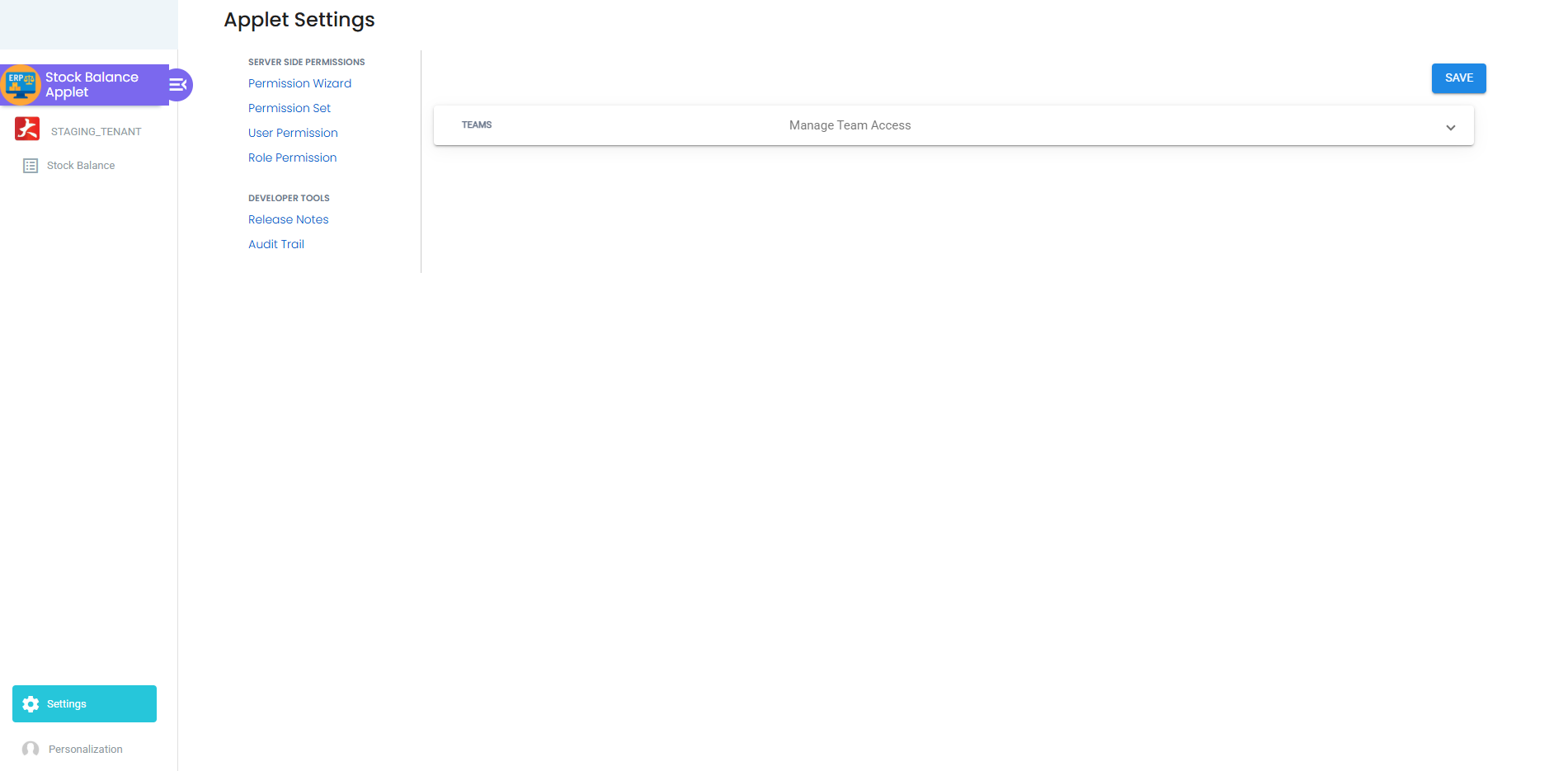
The applet has a single menu item, Stock Balance, which opens the listing. Settings opens on the shared Feature Visibility panel (a Teams list with a SAVE that does nothing for this applet) and lists the shared server-side permission screens (Permission Wizard, Permission Set, User Permission, Role Permission) and, under developer tools, a Release Notes link that has no page behind it in this applet — it lands on not found. There is no Field Settings, Default Selection or Audit Trail entry, because the applet has no settings pages of its own. Personalization has only the Sidebar page.
Stock Balance Listing
An ag-grid enterprise grid that opens in Pivot Mode with Item Code as the row group, Location as the pivot column and Bal (sum) as the value, so the default view is one row per item with one balance column per location and a total footer. EAN Code is visible; Company, MA Price and Last Purchase Company are hidden until you tick them in the Columns tool panel. The status bar shows total / filtered row count, selected rows and the aggregation of a selected range. Grouping, pivoting, range selection and charts are the grid’s own features; export (CSV / Excel) is on the right-click context menu.
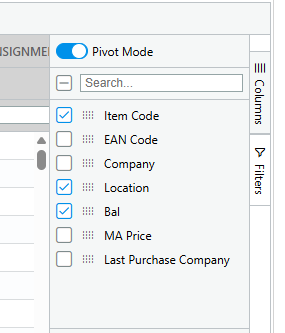
Switching Pivot Mode off gives a flat list of item x location rows (Item Code, EAN Code, Location, Bal), which is the easier view for filtering and export. Charts (Pivot Chart, Chart Range) are only offered while Pivot Mode is on.
The whole result arrives in one request with no paging: the grid’s own paging is switched off and the server streams every row it finds. An empty search on a group of GadgetSphere’s size pulls every item x active location that holds stock (plus the open-order rows described under Lifecycle) into the browser in one go, so on a slow connection narrow the search by Location or Item Type before pressing search rather than filtering afterwards.
A column you did not create. Goods that left a branch on a Transfer Out and have not yet been received on the Transfer In sit on the company’s stock-in-transit location — one per company, created when the company is created (or, for a company that has none, the first time a transfer needs it), with a code of L-SIT followed by the company code. It is a location like any other to this grid, so when it holds stock it is a pivot column of its own: read it as on the lorry, and if it carries a figure for weeks, a Transfer In was never finalised.
Advanced Search
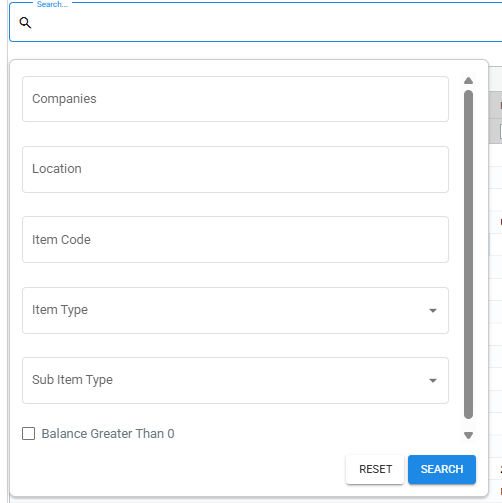
The search panel above the grid offers Companies, Location, Item Code, Item Type, Sub Item Type and a Balance Greater Than 0 checkbox; the plain search box is a keyword search. Which of these actually reach the server is listed under Fields — the Companies selector is shown but ignored by this applet, and the checkbox changes nothing because the filter it names is always on.
The search box and the panel are two different requests, not one search with two parts. The box keeps the list of active locations the applet loaded on open and adds your keyword; the panel replaces that location list with your Location picks (or with none) and, if you fill Item Code, overwrites any keyword. Typing a word in the box and then searching from the panel does not combine the two — the panel search wins, and the word is dropped.
Screens that exist in code but cannot be reached
The applet also contains a Stock Balance View (tabs Main, Bin, Scrap Bins) and a Batch No History page. No row click or button on the listing navigates to them, the Bin and Scrap Bins grids are always empty, and Batch No History shows item master data rather than any history. Earlier versions of this page and its infographics described bin / scrap-bin drill-downs and movement history; those do not exist in the current build.
Configuration
Before you can use it
| Prerequisite | Where | Why |
|---|---|---|
| Companies and locations | Organisation | Rows are keyed by company and location; the read permission is targeted at them |
| Inventory items with a type and sub-type | Inventory Item Maintenance | Item Type / Sub Item Type filters match the item’s type and sub-item type; GROUPED_ITEM never appears |
| At least one finalised stock-moving document, or a Stock Adjustment for the stock you start with | Related Applets - Stock Balance | The grid has no import or starting-balance entry of its own |
| Read permission on stock availability with location / company targets | Settings > Permission Wizard (this applet) | The grid is served by the stock-availability query, which requires API_TNT_DM_ERP_INV_STOCK_AVAILABILITY_READ (or _ADMIN / _OWNER) and filters the requested locations and companies against the permission’s targets |
Applet settings
There are none. The Settings menu carries only the shared permission, webhook and feature-visibility screens, none of which read or write an applet setting. The applet declares the usual document-applet keys (DEFAULT_BRANCH, DEFAULT_LOCATION, HIDE_*, ENABLE_CUSTOM_STATUS_* and so on) but nothing renders, saves or reads them, so none of those keys are documented here.
Keys read without a control. A column tooltip reads HIDE_LISTING_AVG_COST, HIDE_LISTING_LAST_PURCHASE_COST, HIDE_LISTING_FIFO_COST and HIDE_LISTING_LIFO_COST and pairs each with a SHOW_LISTING_* client-side permission, but no column uses that tooltip, so the keys have no effect in the current build even if they were set.
Document behaviour settings
Not a document applet — there is no status flow, posting, printable or approval toggle.
Settings in other applets that control this applet
| Setting | Where it is set | Effect here |
|---|---|---|
| Item type and sub-item type | Inventory Item Maintenance | Filter membership; GROUPED_ITEM is excluded by the query |
| Location status | Organisation > Location | Consulted only by the location list the applet loads on open, which holds active locations. The default view and the keyword search send that list, so a deactivated location’s column is absent even when stock was left in it; the query itself has no status filter, so the column reappears on a panel search that picks no Location (which sends no location list at all — see Troubleshooting) |
| Min / max levels | Inventory Item Maintenance > Location tab | Not shown here; they are read by the min/max e-mail job and Stock Availability, not by this grid |
| Knock Off Configuration | Organisation > Company | Decides whether a FINAL order or plain GRN writes an open-queue row at all. With no enabled row for the pair, no open quantity exists, Stock Availability’s Available equals Bal, and this grid never shows the Bal 0 rows described under Lifecycle |
Nothing behind the grid reads an applet setting, a company setting or the knock-off configuration directly; the knock-off configuration reaches it only through the rows it causes to exist.
Feature visibility / permissions
Server-side (what actually gates the grid). The stock-availability query behind the grid requires API_TNT_DM_ERP_INV_STOCK_AVAILABILITY_READ, _ADMIN or _OWNER. READ carries company / location targets: the requested locations and companies are intersected with the assignee’s targets and the request is refused as not authorised when nothing survives. The location drop-down the applet loads on open is not permission-filtered, so an empty search or a keyword search asks for every active location and the backend trims the list to the user’s targets.
The panel search behaves differently for a target-scoped user. It sends only the Locations you picked — and when you picked none (say you filtered by Item Type alone) it sends an empty list, and no companies. The backend has nothing to intersect with the targets, nothing survives, and the request is refused; the applet logs the refusal and shows an empty grid with no message. So a user whose read permission is scoped to locations must pick at least one Location in the panel for any panel search to return rows (read from the code, not tried). A user with _ADMIN or _OWNER is not affected.
Client-side. The code checks SHOW_LISTING_AVG_COST, SHOW_LISTING_LAST_PURCHASE_COST, SHOW_LISTING_FIFO_COST and SHOW_LISTING_LIFO_COST (in the unused tooltip, see above). None of them is seeded, so the Client Side Permission screen has nothing to assign. Cost columns (MA Price, Last Purchase Company) are therefore visible to anyone who can open the grid — hide them per role with server-side permissions on the underlying data only, or by not granting the read permission.
Fields
The applet has no create / edit form. The two things a user fills in are the search panel and the grid’s column choices.
Advanced Search
| Field | Matching | Notes |
|---|---|---|
| Search box (keyword) | Each space-separated word must match part of one of item code, name, description, scan code, alternate item codes 1–2, remarks, additional remarks 1–4 | Runs together with every active location the drop-down returned. Dropped the moment you search from the panel instead |
| Companies | Ignored | The selector is shown, but this applet never uses its value |
| Location | Exact, multi-select | Empty = every active location the drop-down returned (then trimmed by permission targets) on the default and keyword searches; on a panel search, empty sends no location list at all — fine for an unscoped user, an empty grid for a target-scoped one (see Feature visibility) |
| Item Code | Same fuzzy match as the search box | Not an exact-code filter; SM- returns every code containing SM- |
| Item Type | Exact, one value | BASIC_ITEM, GROUPED_ITEM, BUNDLE, COUPON, SERVICE, WARRANTY, BATCH_EXPIRY, DOC_HEADER_ADJUSTMENT; only BASIC_ITEM and BATCH_EXPIRY normally have balance rows |
| Sub Item Type | Exact, one value | BASIC_QTY, BATCH_NUMBER, SERIAL_NUMBER, BIN_NUMBER |
| Balance Greater Than 0 | Nothing — the filter it names is always on | The query behind this grid carries a fixed ledger quantity greater than 0 condition on the balance row that the screen never clears: ticked or unticked, the request says the same thing (read from the code, not tried). So a location with a zero or negative balance never has a figure in this grid. Whether ticked or not, it still lets through an item that has no balance row at a location but an open sales or purchase order line there — it shows with Bal 0. To drop those rows, switch Pivot Mode off and set the Bal column’s filter (a text filter) to Not equal 0 |
Listing columns
| Column | What it shows | Default |
|---|---|---|
| Item Code | The item’s code | Row group, hidden as a column |
| EAN Code | The single scan code on the item record; alternate item codes 1–2 are matched by the keyword search but never shown. On a row that exists only because an open sales or purchase order line sits at that location (Bal 0), this column shows the item’s unit of measure instead, because the query fills that slot with the UOM | Visible in the flat list; can be dragged to a row group |
| Company | Company code | Hidden |
| Location | One pivot column per location code present in the result. A location with no balance row above zero and no open order line for the items you searched gets no column at all, not a column of zeros, so a branch missing from the grid may simply hold none of those items, hold them at zero or below, be deactivated — or sit outside your permission targets | Pivot column |
| Bal | The ledger quantity on hand at that location (trade-in rows: the trade-in quantity, summed) | Value, sum |
| MA Price | The location’s moving-average cost (trade-in rows: the average purchase price incl. tax) | Hidden |
| Last Purchase Company | The company’s last purchase cost for the item | Hidden |
The query also returns the reserved quantity, the open-document quantity, the available quantity, the company-level balance, FIFO and LIFO cost, item name, UOM, type and sub-type; the listing defines no columns for them, so they are not reachable through the Columns panel.
Lifecycle and effects
Reads only. The applet’s single request is the stock-availability query with the search you entered. It writes nothing and creates no journal, queue row or ledger line.
What the query returns:
- The current location stock balance rows with a ledger quantity above zero joined to company, location and item (grouped items excluded), full-outer-joined to the open sales / purchase order lines on item and store. The greater than 0 condition is fixed in the request whatever the search panel’s checkbox says, so a balance row at 0 or below is dropped before the join. A row therefore exists for every item x location that has a positive balance row or an open sales / purchase order line, which is why an item with no stock can appear with a Bal of 0 — and why one that has gone negative does not appear at all.
- Because the applet sends no document-type list, the backend uses its default pairs Sales Order → Sales Invoice (−1) and GRN → Purchase Invoice (+1) for the open-order side. The resulting available quantity is computed but not displayed.
- Trade-in stock (items of type
NSTI) is added as rows of its own, with the average purchase price incl. tax in the MA Price slot and a company balance that is always 0. - The applet then merges rows that share item, location and company and drops rows with no location.
Balance definition. Bal is the running tip of the signed stock ledger, updated after each FINAL and re-projected after a VOID or backdated line. Which document types carry a non-zero quantity signum, how VOID negates lines, and the refresh / snapshot jobs are documented once on Related Applets - Stock Balance and are not repeated here.
No posting proof block applies — there is no server document type, signum, journal or stock processor for this applet.
One laptop model at one branch, step by step
GadgetSphere ranges an ultraportable laptop, item code LAP-ULTRA-14, at GS-KV-01 for the first time. GS holds an enabled Knock Off Configuration for Sales Order → Sales Invoice and for GRN → Purchase Invoice. The table reads this grid, Stock Availability and the ledger after each FINAL, so you can see which figure each document moves and which it leaves alone.
| Step | Document, FINAL | Bal here | MA Price | Last Purchase Company | Available on Stock Availability | Stock ledger and journal |
|---|---|---|---|---|---|---|
| 0 | — | no row, no figure | — | — | — | Nothing exists for the pair yet |
| 1 | Plain Purchase GRN, 10 units from a regional distributor | 0, and the row shows UNIT in the EAN column | — | — | 10 | No ledger line (signum 0). An open-queue row of 10 for GRN → Purchase Invoice exists at GS-KV-01; it is why the item appears here with Bal 0 |
| 2 | Purchase invoice, 10 × RM 2,800, knocking off the GRN | 10 | RM 2,800 | RM 2,800 | 10 | Ledger line +10. The open row falls to 0 and is deleted. The journal debits Purchases RM 28,000 and credits the creditor; the stock account is not touched |
| 3 | Sales order, 3 units for a corporate customer | 10 | RM 2,800 | RM 2,800 | 7 | No ledger line. An open row of 3 for Sales Order → Sales Invoice lowers Available only |
| 4 | Sales invoice, 3 × RM 3,499, knocking off the order | 7 | RM 2,800 | RM 2,800 | 7 | Ledger line −3. The average is relieved in proportion: value RM 28,000 → RM 19,600, price unchanged. RM 2,800 per unit is written back onto each invoice line as its cost. The journal posts the debtor, sales and SST and no cost line |
| 5 | Second purchase invoice, 5 × RM 3,000, no GRN this time | 12 | RM 2,883.33 | RM 3,000 | 12 | Ledger line +5. Value RM 19,600 + RM 15,000 = RM 34,600 over 12 units. The two cost columns now differ, and both are right |
| 6 | Sales return, 1 unit | 13 | RM 2,883.33 | RM 3,000 | 13 | Ledger line +1. A return comes back at the standing average (value RM 37,483.33), so the price does not move and Last Purchase ignores it. The journal posts sales return and the debtor, again with no cost line |
| 7 | The return is voided — it was keyed on the wrong branch | 12 | RM 2,883.33 | RM 3,000 | 12 | An opposite ledger line −1 marked VOID is written; nothing is deleted, and Stock Movement shows both lines. The row is re-projected from the chain |
Three things the table shows that the screen does not. The stock account on the balance sheet has not moved once in those seven steps: BigLedger keeps stock periodically in the ledger, and the account moves by the change in closing stock from one month end to the next when Month End Processing runs — for this item, 12 units at the company average of RM 2,883.33, RM 34,600, company-wide and at the month end. Available moved three times when Bal did not (steps 1, 3 and 4 against 2); every one of those gaps is an open-queue row you can see on Stock Availability’s Details view, and if GS had no enabled Knock Off Configuration none of them would exist. The cost that reached the invoice lines in step 4 was the average standing at that second: a purchase keyed late and dated before the sale re-costs those lines afterwards, which is the subject of the margin report and the Profit and Loss do not agree.
The thirty-second check
Pick one item at one location — the one you are arguing about. For GadgetSphere that is LAP-ULTRA-14 at GS-KV-01, and the figure to expect after step 7 is 12.
- Here. Switch Pivot Mode off, filter Item Code, read Bal on the
GS-KV-01row. Expect 12. - The ledger. Stock Report › Stock Movement Report for the same item and location, every date: read Balance Qty on the last line. Expect 12. This grid’s Bal is projected from exactly that line, so the two are one number by construction. If they differ, either the balance job has not applied the last line yet (look again in a minute) or a backdated line is still being re-projected; if they still differ, the row has drifted and the fix is a rebuild from the ledger on the Data Fix applet’s Stock › Location Stock screen, below — not an adjustment, which would move the ledger to match a wrong row.
- The sibling. Stock Availability › Details for the item: Stock Balance at
GS-KV-01reads the same 12, and Available differs from it by nothing more than the Sales Order and GRN tabs and any reservation show. A gap bigger than those tabs explain is a stale open row — an order that was voided or a line that was removed is still being counted — and the order still shows a quantity outstanding says how to clear it. - The value. Bal × MA Price (12 × RM 2,883.33 = RM 34,600) is the figure the month-end close will read for this item. It is on no journal until Month End Processing runs, and afterwards it agrees with the stock account only in total, company-wide, on the close’s basis — which is the accountant’s monthly tie, set out on Stock report versus the stock account.
You pass when steps 1, 2 and 3 read one number. Step 4 is not a pass or fail today; it is the number you carry into the month-end tie. Who runs this: the stock controller, for one item, the moment a figure is disputed; the accountant, for the company, once a month before the period is locked.
What this grid does not do, and who does it instead
- It shows no zero or negative balance. The ledger adds the signed quantity with no floor, so a location goes negative when an outbound document overshoots, and this grid simply drops the location. Finding the document is the controller’s job, in Stock Movement Report for that item and location, and the fix is the missing receipt keyed with its real date — the full case is on the stock quantity shows zero. Zero rows are the commonest kind of balance row there is, and negative ones are not rare.
- It shows no date but today. A balance as at the month end, or on the day of a count, is Historical Stock Balance in Stock Report; nothing here can be rolled back.
- It shows no value. Bal × MA Price is yours to compute — export the flat list and multiply, which is what a controller does for a quick branch figure. The valuation the books use is Historical Stock Balance run on the close’s basis, and that is the accountant’s at month end (Closing the Month on Stock, Step 5).
- It shows no reserved, available, FIFO or LIFO figure, although the query returns them. Those are Stock Availability’s columns.
- It blocks nothing. The refusal to finalise a sale for stock a location does not have is a setting on the sales document applet, not a property of this grid (the stock quantity shows zero); the grid reads the same row that check reads, and no more.
- It rebuilds nothing. This applet calls one query and nothing else. The repair for a row that has drifted from its ledger lines is a back-office refresh that re-sums the row from the ledger for one item at one location, and the screen for it is the Data Fix applet’s Stock › Location Stock: it lists every item x location whose stored balance differs from the sum of its ledger lines (the two columns are headed Stock Movement Balance and Stock Availabiliy Balance, the second spelt that way on the screen), and DATA FIX rebuilds the rows you select. It is an administrator’s applet behind its own permission, so for most readers the request still goes to whoever administers the tenant, or to BigLedger support, with the item, the location and the two figures from steps 1 and 2 above. Nobody types a number in: the row is rebuilt from the lines, and if the lines are wrong the fix is still a document.
Related applets
- Related Applets - Stock Balance — the hub: which documents move the number in this grid, how a FINAL reaches it, and the background jobs.
- Stock Availability — the same query with the open-order side displayed; use it for “can I promise this”.
- Stock Report — Historical Stock Balance (the stock ledger re-read up to the date you give, each time you run it) and the other by-date reports when you need “as at”.
- Stock Take and Stock Adjustment — count against this grid, then correct through an adjustment.
- Stock Transfer — moves a balance between the location columns shown here.
- Stock Reservation — writes the reserved quantity, which the query returns but this grid does not show.
- Non Stock and Trade In — the source of the trade-in rows unioned into the grid.
- Inventory Item Maintenance, Doc Item Maintenance — item code, EAN, type and sub-type.
- Organisation — companies and locations; permission targets.
Troubleshooting
| Symptom | Cause | Fix |
|---|---|---|
| Grid stays empty or the request returns not authorised as soon as the applet opens | The empty search asks for every active location; the backend intersects that list with the assignee’s location / company targets on API_TNT_DM_ERP_INV_STOCK_AVAILABILITY_READ and rejects when nothing survives | In Settings > Permission Wizard grant the read permission with the locations (or companies) the user may see, or _ADMIN / _OWNER |
| The grid empties, with no message, after a panel search by Item Type, Sub Item Type or Item Code with no Location picked | The panel sends only the Locations you picked — none — and no companies; for a user whose read permission is scoped to locations or companies the backend has nothing to match the targets against and refuses the request. The refusal reaches the browser console only (read from the code, not tried) | Pick at least one Location in the panel before searching, or run the search as a user with _ADMIN / _OWNER |
| An item appears with a 0 balance although nothing was ever received, often with its unit of measure in the EAN Code column | The full outer join adds rows for items with open sales / purchase order lines at that store | Expected. Balance Greater Than 0 does not remove these rows (the filter it names is always on and applies to balance rows only); switch Pivot Mode off and filter the Bal column Not equal 0 instead |
| A deactivated location is missing from the grid although stock was left in it | The default view and the keyword search send only the active locations the applet loaded on open, so the column is not requested; the stock is still on the balance row | To see it, search from the panel with no Location picked (the panel sends no location list, so the query falls back to every location; for a target-scoped user that search fails instead — see the row above). To make it go away for good, transfer or adjust the stock out |
| Balance differs from Stock Availability for the same item and location | Stock Availability displays balance ± open order quantities; this grid displays the ledger quantity only | Compare the Balance column in Stock Availability, not Available |
| Available on Stock Availability is lower than Bal here by more than the open sales orders explain | The open-order sum reads each stored row on its own status and the item’s, never the order’s posting status or the line’s, so a row on an order that was voided, or on a line that was removed, goes on being subtracted. A void removes the voided order’s rows in a follow-on job of its own, and where that job did not run the rows survive | Open the item on Stock Availability › Details and list the Sales Order tab. For a voided order run Missing Reversal Queue on Trace Document; for a removed line close it on SO Line with SI KO — both on the order still shows a quantity outstanding |
| Bal differs from Stock Report’s Historical Stock Balance run with today as Date As | Both come from the same stock ledger: the report re-reads each item’s last admitted ledger line up to the date when you run it, and Bal is the stored row the balance job projected from that same last line. They part only when the stored row has drifted from the ledger — a re-projection still queued after a back-dated line or a VOID, or a row the rebuild has not yet corrected — or when a ledger line is dated after today. For a past Date As the report is simply the older figure | Run the thirty-second check: the Stock Movement Report’s last Balance Qty against Bal. A gap that outlives the job window is a Data Fix rebuild (what this grid does not do) |
| Bal × MA Price does not equal the stock account on the Trial Balance | Expected during the month: a purchase invoice posts to Purchases and a sale posts no cost line, so the stock account moves only when Month End Processing writes the month’s cost of sales — and then company-wide, by the month’s change in closing stock | Nothing to fix here. The monthly tie between Historical Stock Balance and the stock account is on Stock report versus the stock account |
| Companies filter changes nothing | The applet never reads the Companies selection | Reveal the Company column and use the column filter instead |
| Item Code filter returns many codes | Item Code is sent as the fuzzy keyword, split on spaces and matched across code, name, description, EAN, alternate codes and remarks | Group by Item Code (default) and use the row-group filter for an exact code |
| MA Price is 0 for a trade-in row, or shows a value that is not a moving average | Trade-in (NSTI) rows return the average purchase price incl. tax in that slot; their last purchase cost is always 0 | Expected; trade-in stock is not costed by the inventory ledger — see Non Stock and Trade In |
| MA Price and Last Purchase Company disagree for an item you have only ever bought at one price | A GRN Stock In carries its cost into the average but never into Last Purchase Company, which only a purchase invoice writes; a stock adjustment or a consignment GRN does the same | Expected. Read the two columns as the average of what is on the shelf and the last purchase invoice price, not as two estimates of one number |
| A document is FINAL but the balance did not move | Either the document type has a zero quantity signum (credit / debit notes, plain GRN / GIN, invoice No Stock In / Out), or the ledger / balance processors did not run for it. Stock Movement Report tells the two apart: no line for the document means the stock job never wrote one; a line whose Balance Qty disagrees with Bal here means the balance job has not applied it | Check the signum list on the hub page; for a line that exists and is not applied, wait a minute and look again, then have the row rebuilt from the ledger on the Data Fix applet’s Stock › Location Stock screen (an administrator’s screen — see what this grid does not do), or send support the item, location and both figures |
| A location you know has gone negative shows nothing here, or the item has no column for that location | The ledger allows negative quantities, but this grid cannot show them: the request behind it always asks for balance rows above zero, so a zero or negative balance row is dropped and the location simply has no figure. Unticking Balance Greater Than 0 does not change that | Use Stock Report > Stock Movement for the item and location, which lists the outbound document that overshot, or open the item on Stock Availability Details, whose per-location figures carry no such filter; then correct by document |
A column headed L-SIT- and a company code holds stock | Goods on a Transfer Out whose Transfer In has not been finalised sit on the company’s stock-in-transit location | Finalise the Transfer In at the receiving branch; the column empties on its own |
| Nothing happens when you click a row; no bin, scrap-bin or history view | Those pages are unreachable scaffolding in the current build | Use Stock Report (batch / serial reports) for sub-balances |
Related documentation
- Related Applets - Stock Balance — the index of everything that writes to and reads from the balance
- Inventory module — where the applet sits among the inventory applets
- Stock Availability and Stock Report — the two sibling enquiry screens
- The stock quantity shows zero and there is stock on the shelf — the sales-side symptoms of the same row, and the permission narrowing that makes a total too small
- The order still shows a quantity outstanding — stale open rows, and the two screens that clear them
- Closing the Month on Stock and Inventory reports — the month-end tie between the stock figure and the stock account