Stock Conversion Applet
Purpose and Overview
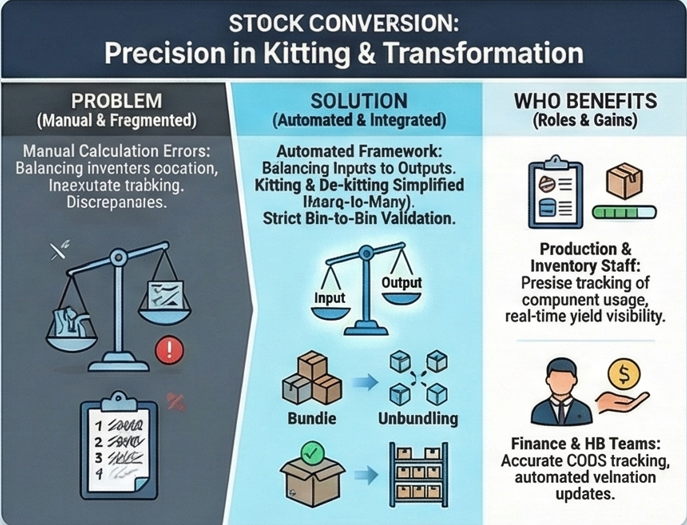
The Stock Conversion Applet is a specialized tool designed to manage the transformation of inventory items. Whether you are bundling multiple components into a single kit (Kitting) or breaking down a bulk item into individual parts (De-kitting), this applet provides the structured framework to track these changes accurately.
Key Features Overview
Who Benefits from This Applet?
Inventory Managers:
- Precise tracking of stock transformations
- Real-time visibility into component usage and product yield
- Maintain accurate stock levels for both parts and finished goods
Production Supervisors:
- Streamline kitting and assembly workflows
- Monitor production efficiency
- Manage material requirements for conversions
Finance & HR Teams:
- Accurate cost of goods (COGS) tracking through transformations
- Automated valuation updates based on input/output ratios
- Complete audit trail for inventory adjustments
What Problems Does This Solve?
The Transformation Tracking Problem: Manual kitting processes often lead to inventory discrepancies. Common issues include:
- Inaccurate stock levels when items are bundled/unbundled
- Lack of visibility into which components were used for which output
- Manual calculation errors in item valuations
- Difficult audit trails for stock adjustments
The Stock Conversion Applet Solution:
- Structured Workflows - Guided process for input and output selection
- Real-time Updates - Instant inventory adjustments upon finalization
- Digital History - Full traceability of every conversion transaction
- Advanced Filtering - Easily find conversions by date range, item, or status
- Printable Documentation - Professional formats for internal records and reporting
The Transformation Framework
To effectively manage stock conversions, it is crucial to understand how Input Items, Output Items, and Stock Finalization work together.
| Component | Analogy | Definition | Example |
|---|---|---|---|
| Input Items | The “Ingredients” | The items being consumed or removed from stock. | Flour, Sugar, Eggs |
| Output Items | The “Product” | The new item being created or added to stock. | Cake |
| Finalization | The “Cooking” | The action that updates the inventory levels permanently. | Finalizing the conversion |
How they link:
- You select Input Items and specify their quantities and bin locations.
- You select Output Items that will be created from the inputs.
- The system calculates the total value of inputs and assigns it to the outputs.
- Upon Finalization, stock is deducted from inputs and added to outputs.
Key Features
Key Concepts
Understanding Stock Transformation
Every stock conversion involves moving value from one set of items to another. The applet handles this through a dual-tab system:
| Aspect | Component | Practical Example |
|---|---|---|
| What is consumed? | Input Items | 4 chair legs, 1 seat, 1 backrest |
| What is produced? | Output Items | 1 Office Chair |
| How is it finalized? | Settlement/Finalization | Inventory is deducted from inputs and added to outputs |
Conversion Hierarchy
Think of the conversion process as a balanced equation:
Stock Conversion Header
│
├── Input Items (Components) ──→ WHAT is being used?
│   └── Quantities & Bins ──→ WHERE are they coming from?
│
├── Output Items (Products) ──→ WHAT is being produced?
│   └── Quantities & Bins ──→ WHERE are they being stored?
│
└── Finalization ──→ WHEN is the inventory updated?
Quick Start Guide
Get up and running quickly with these essential workflows.
For Inventory Staff: Record a Conversion
Goal: Create a transformation record in 5 simple steps.
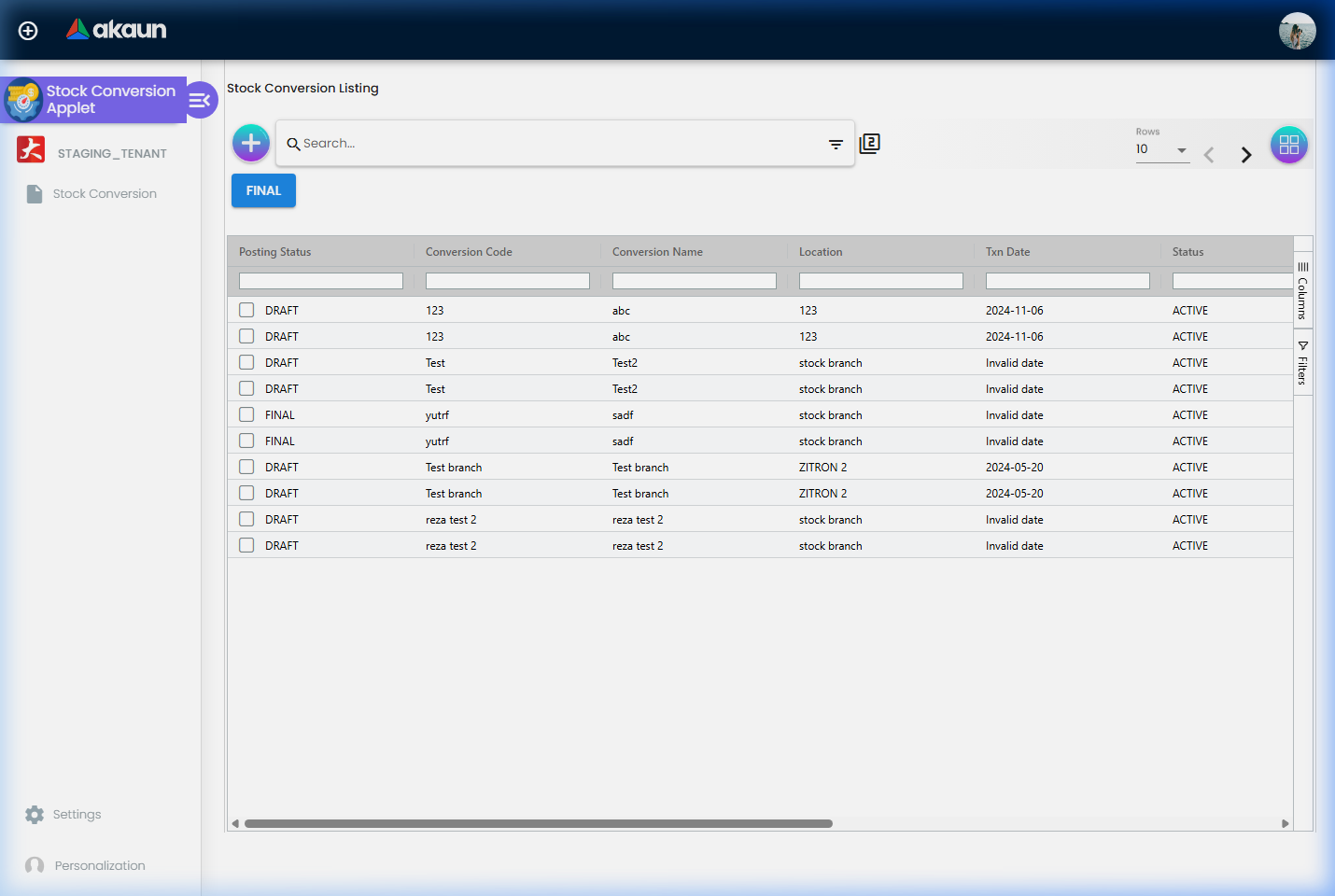
- Navigate: Go to Stock Conversion Listing
- Initialize: Click "+" (Create) icon
- Set Main Details: Enter Reference No. and select the Branch
- Define Items:
- Input Tab: Add items being consumed (e.g., raw materials)
- Output Tab: Add items being produced (e.g., finished kit)
- Save: Click SAVE to record the draft
For Supervisors: Finalize transformations
Goal: Review and settle stock changes.
- Review: Find the draft conversion in the listing
- Verify: Check quantities and bin locations match physical stock
- Finalize: Select the record and click FINAL
- Check Result: Verify that input stock has decreased and output stock has increased
For Admins: Initial Applet Setup
Goal: Configure the applet for organizational standards.
Step 1: Set Default Selections (Settings > Default Selection)
- Define default branches or locations to save time during entry.
Step 2: Configure Field Visibility (Settings > Field Settings)
- Hide unnecessary columns (e.g., “Alternative Reference”) to keep the UI clean.
Step 3: Setup Printable Formats (Settings > Printable Format Settings)
- Upload company logo and set header/footer for conversion reports.
Step 4: Manage Permissions (Settings > User/Role Permission)
- Assign roles for “Creator” vs “Finalizer” to ensure proper internal controls.
Pro Tips for Efficiency
✓ Batch Processing: Use the listing checkboxes to finalize multiple conversions at once. ✓ Search by Component: Use Advanced Search to find all conversions that used a specific input item. ✓ Drafting: Use the SAVE button frequently when working on complex Many-to-Many conversions.
Feature Sections
Stock Conversion Listing
The listing view is your central dashboard for all transformation history.
Listing Columns Explained:
| Column | Description | Example |
|---|---|---|
| Posting Status | Internal status for stock updating | DRAFT, FINAL |
| Conversion Code | Unique identifier for the transaction | SC-2024-001 |
| Conversion Name | Brief title or description of the conversion | Laptop Bundle A |
| Location | The branch where the conversion occurs | Head Office |
| Txn Date | Date the conversion was recorded | 2024-11-20 |
| Status | Record lifecycle status | ACTIVE, VOID |
- Status Tracking: Identify which conversions are Draft vs Finalized
- Advanced Search: Filter by Date Range, Item Code, or Document Number
- Batch Actions: Select multiple records for finalization or printing
Conversion Edit Form
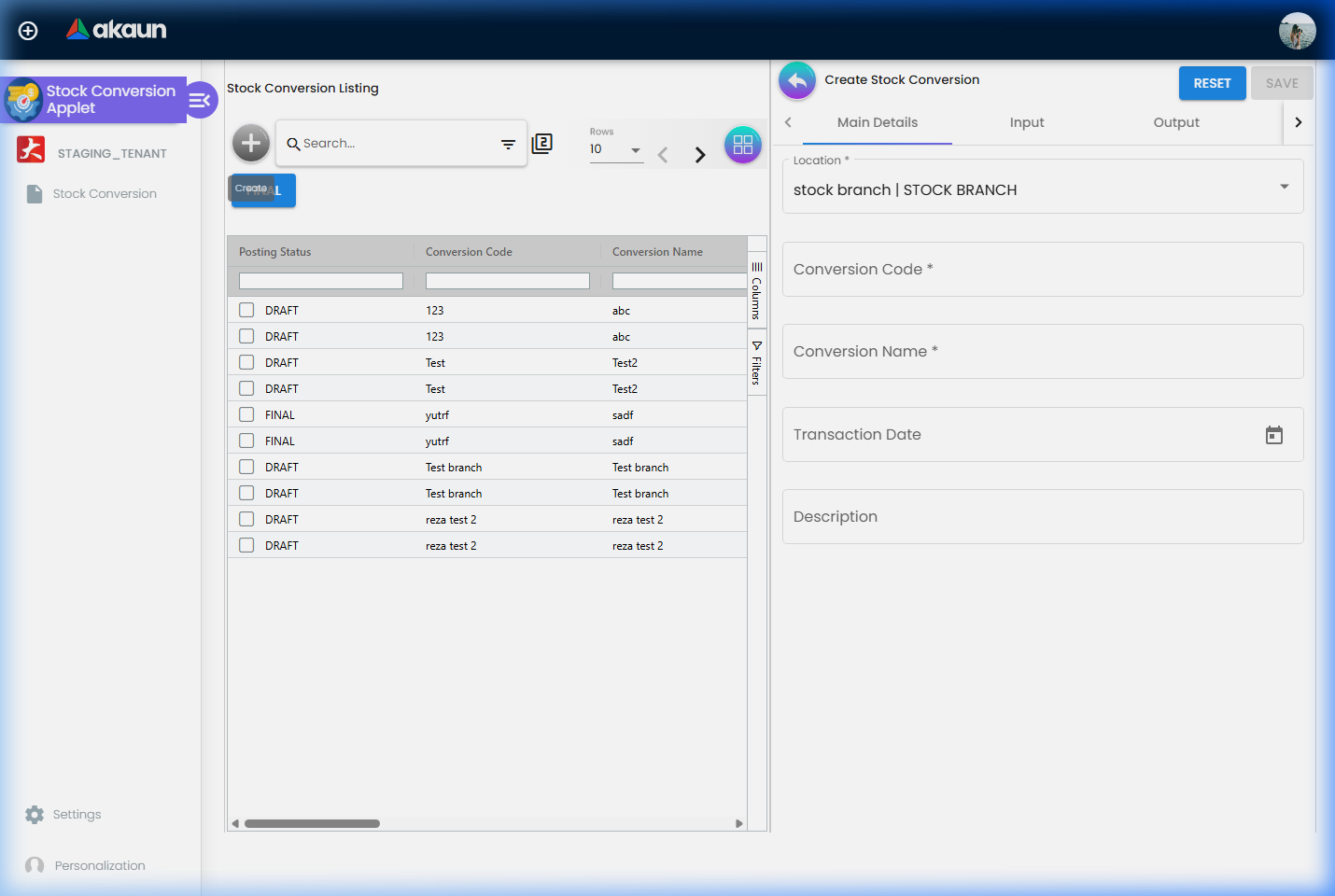
The conversion form is split into three primary tabs:
1. Main Details Tab
Focuses on the metadata of the transaction.
| Field | Purpose | Example |
|---|---|---|
| Location | The branch where stock is moved | HQ Warehouse |
| Conversion Code | System identifier (auto-generated) | SC-10023 |
| Conversion Name | User-defined title | Christmas Gift Set Assembly |
| Transaction Date | Date of physical conversion | 2024-12-01 |
| Description | Internal notes/reason | Assembly of promotion kits for Dec |
2. Input Items Tab
Lists all items being removed from stock to perform the conversion.
- Item Code: Select the item to consume.
- Quantity: Amount to deduct.
- Bin: Specific location within the warehouse.
- Unit Price: Auto-populated based on current valuation.
3. Output Items Tab
Lists all items being added to stock as a result of the conversion.
- Item Code: Select the item produced.
- Quantity: Amount to add.
- Bin: Where to store the new stock.
- Total Value: Automatically calculated from the sum of all input items.
Real-World Scenarios
Scenario 1: Kitting (One-to-Many Bundle) A retail store creates a “Gamer Starter Pack”.
- Inputs: 1x Keyboard (RM 100), 1x Mouse (RM 50), 1x Headset (RM 150).
- Output: 1x Gamer Pack (Total Value: RM 300).
- Result: Individual stock decreases; 1 new kit item is added.
Scenario 2: De-kitting (Breaking down bulk) A wholesaler breaks a “Bulk Box of 100 Pens” into individual units.
- Input: 1x Case of 100 Pens (RM 200).
- Outputs: 100x Standard Blue Pens (Value: RM 2.00 each).
- Result: Bulk unit removed; 100 individual units added.
Scenario 3: Unit Conversion (Repackaging) Converting 10kg bulk rice into 10x 1kg bags.
- Input: 1x 10kg Rice Sack.
- Output: 10x 1kg Rice Bags.
- Result: Bulk stock transformed into retail-ready packaging.
Configuration & Settings
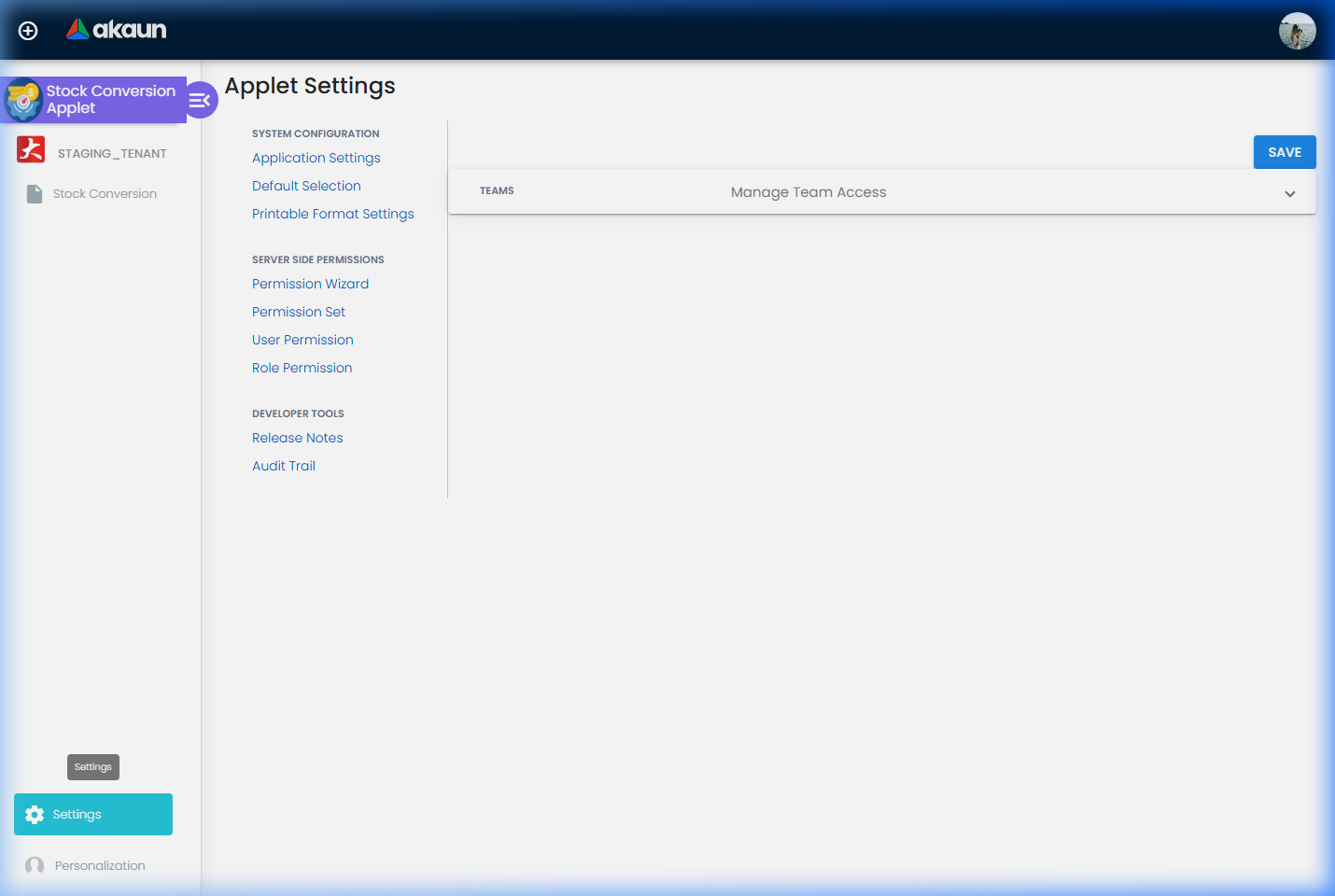
Application Settings
Control the core behavior of the applet.
- Enable Auto-Reference: Automatically generate conversion codes.
- Strict Bin Validation: Prevent finalization if items are not in the selected Bin.
Default Selection
Set default values for commonly used fields to speed up data entry for your team.
| Setting | Purpose |
|---|---|
| Default Location | Auto-fills the Branch/Location in new conversions |
| Default Bin | Sets the preferred Bin for input/output items |
Field Settings
Control the level of detail visible in the listing and edit grids. Simplify the UI by hiding unused fields like secondary unit descriptions or alternative references.
Developer Tools & Audit
Audit Trail (Settings > Audit Trail)
The Audit Trail is a comprehensive log of every action taken within the applet.
- Traceability: See who created, edited, or finalized a conversion.
- Timestamps: Exact time and date of every modification.
- Change Logs: Detailed breakdown of before/after values for sensitive fields.
Release Notes
View the latest updates and bug fixes for the Stock Conversion Applet to stay informed about new features.
FAQ
Q: Can I convert one input item into multiple different output items? A: Yes. The applet supports “One-to-Many” and “Many-to-Many” conversions. You can add as many rows as needed in both Input and Output tabs.
Q: What happens if an input item is out of stock? A: The system will prevent finalization if the required quantity is unavailable in the specified Bin. You will receive an “Insufficient Stock” error.
Q: What happens if I make a mistake after finalization? A: Finalization is a permanent inventory action. To correct a mistake, you must create a “Reverse Conversion” (using the original outputs as inputs) to move the stock back to its original state.
Q: Does the applet support Bin locations? A: Yes. You can specify exactly which Bin stock is deducted from and which Bin the new items are placed into. This is essential for accurate Warehouse Management (WMS).
Q: Is there a limit to how many items I can include in a single conversion? A: There is no hard limit, but for system performance and easier auditing, we recommend grouping related items into logical transformation batches.
Q: Can I use this for manufacturing wastage? A: While primarily for conversion, you can account for wastage by ensuring the total value/quantity of output items reflects the actual yield from the inputs. Any discrepancy in value is handled during the inventory valuation calculation.
Q: Can I save a conversion and come back to it later? A: Yes. Use the SAVE button to keep your work in DRAFT status. It will not affect inventory until you or a supervisor clicks FINAL.