Stock Conversion
Re-label, re-pack or kit stock at one location without a bill of materials or a production order: Input lines and Output lines on one header, saved as a draft and then finalised. It is not a generic document, so no knock-off queue and no journal; finalising is built to write one signed line per item to the stock ledger, but nothing is connected to that posting run, so a FINAL marks the document and moves no stock. Read the tabs as Input = into stock, Output = out of stock, and note that nothing here checks what is on hand before an Output line takes it out.
Overview
The Stock Conversion applet records a conversion of stock at one location: a set of Input lines and a set of Output lines on one header, saved as a draft and then posted with FINAL. It is the tool for re-labelling, re-packing and simple kitting when no bill of materials or production order is wanted — for example turning ten single-pack accessories into one retail bundle item, or splitting a master carton into sellable units at branch GS-KV-01.
It is not a generic document: it has its own records, its own posting step and its own processing chain. Nothing about it passes through the sales/purchase document engine, the knock-off queue or the GL journal. What a FINAL is built to do is append one signed line per item line to the stock ledger. That step is built but not connected: FINAL queues the conversion’s posting run, and the run passes the work only to jobs subscribed to it — and none is, for any tenant. The document says FINAL and Stock Balance does not move. Check the balance after your first FINAL rather than assuming it. When the chain is connected, the direction of each line is fixed by the tab it was entered on — see Lifecycle and effects, because the direction is the opposite of what the tab names suggest to most readers.
Where it fits
| Direction | Applet / document | Why |
|---|---|---|
| Upstream | Inventory Item Maintenance / Doc Item Maintenance | Every line is a financial item with an inventory link; sub-item type (serial / batch / bin) decides which extra tab the line form shows |
| Upstream | Organisation | Location (header field) and its branch, which the form takes from the location you pick (Default Selection only supplies the starting value); the branch’s main location is the fallback store |
| Upstream | Stock Balance / Stock Availability | What is on hand before you convert; nothing in this applet blocks on it — the one place it looks is the Input line’s bin picker, which shows each bin’s live available quantity and outlines a desired quantity above it in red without stopping you |
| Upstream (optional) | MRP job orders | The edit form’s Job Order Link tab links an existing conversion to job orders |
| Downstream | Related Applets - Stock Balance | FINAL is built to write ledger lines that roll into the location stock balance; the chain is not connected, so nothing arrives there |
| Downstream | Stock Report | Conversion lines appear in movement reports under server document type Stock Conversion Applet |
| Sibling | Stock Adjustment | The generic-document way to add or remove stock with a reason; use it when only one item changes |
| Sibling | Packing Order (Internal) | The production-side way to build kits from a packing list |
Modules: Inventory (the applet’s home) and Manufacturing (light kitting without a production order).
Screens and menus
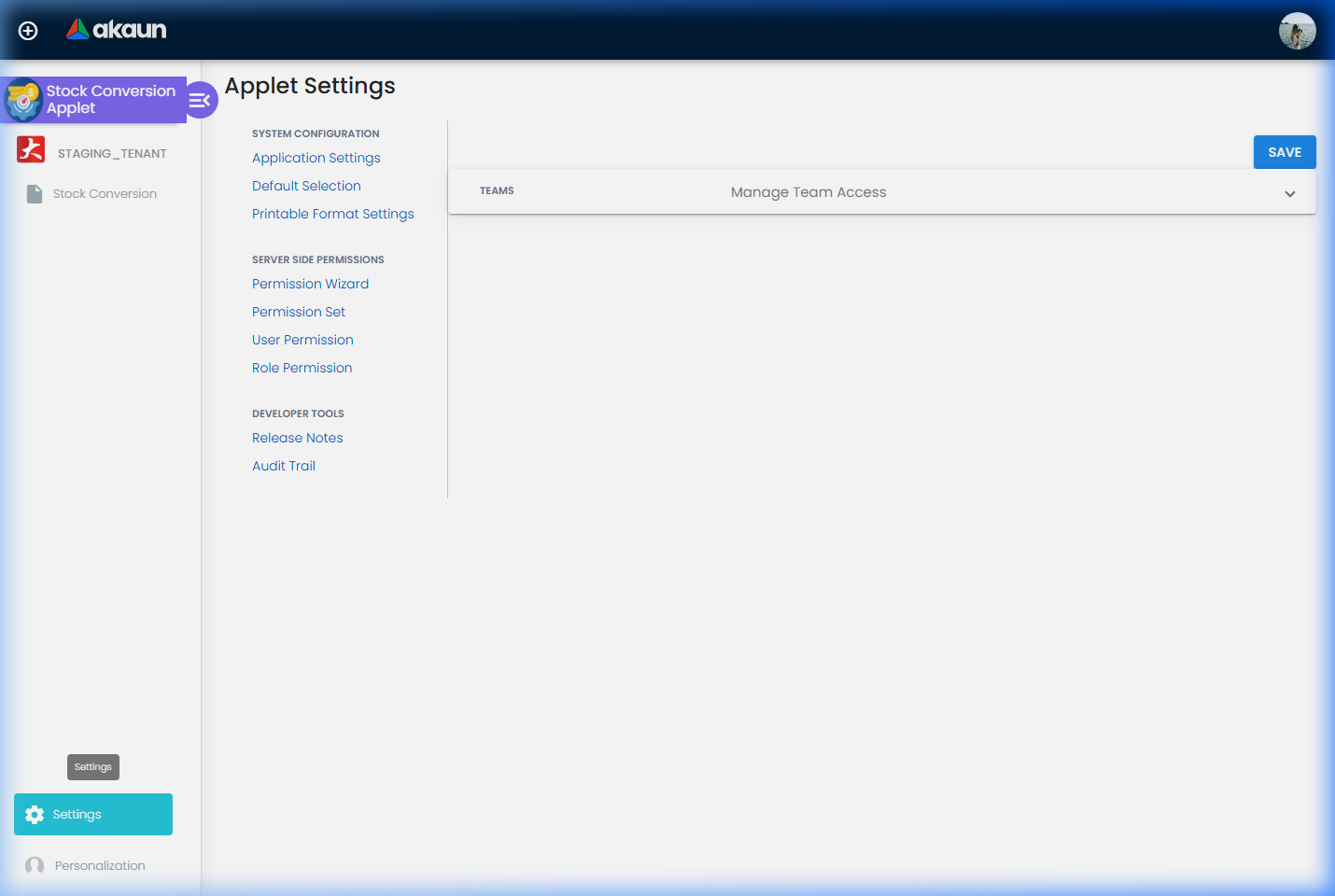
One menu item, Stock Conversion, opens the listing. Settings has Application Settings, Default Selection and Printable Format Settings under System Configuration, then the shared server-side permission screens (Permission Wizard, Permission Set, User Permission, Role Permission), Team access and the developer tools. A shared Webhook screen is also routed under Settings but is not in the menu; it can be opened by typing its address, and nothing on it touches this applet’s own settings. Personalization has Default Selection and Sidebar.
Stock Conversion Listing
Listing with columns Posting Status (blank shown as DRAFT), Conversion Code, Conversion Name, Location, Txn Date, Status, Created By, Date Created, Updated By, Date Updated. A FINAL button above the grid posts every ticked row that is not yet FINAL and has status ACTIVE, one at a time. The + button opens the create form; clicking a row opens the edit form. The search box filters: what you type is matched anywhere inside the Conversion Code, the Conversion Name or the internal running number (a contains-match, case-insensitive), so bundle finds Accessory bundle 03 and BUNDLE-KV01 alike. The advanced search panel (Code, Name, Description, Created Date and Updated Date ranges) does not: the panel builds a query the listing never sends, so searching from it simply reloads the full list. For a date range, use the grid’s own column filters and sorting on Date Created / Date Updated. There is no print, void, discard or delete action on the listing or the forms.
Create / Edit form
Tabs Main Details, Input, Output; the edit form adds Job Order Link. Header buttons: RESET, SAVE, and on the edit form FINAL (shown while the document is not FINAL and its status is ACTIVE). SAVE is disabled until Main Details is valid and both the Input and the Output tab have at least one line. After FINAL every Main Details control is disabled and SAVE / RESET stay disabled.
Each line is added through a three-step side panel — Search Item → Item Details (Item Code, Item Name, UOM, Quantity Base, Remarks) → extra tabs by sub-item type: Serial Number (scan / import), Batch Number (batch no., quantity, issue and expiry dates) or Bin Number (bin list with container quantity and base quantity). Input and Output lines use the same panel; only the sign applied to the quantity differs.
The two listing captures that used to sit here were removed (test data with people’s names); a recapture from a demo tenant is on the lane’s list.
Configuration
Before you can use it
| Prerequisite | Where | Why |
|---|---|---|
| A location that belongs to a branch | Organisation | Location is a required header field, and the form has no branch control: the hidden branch is set to the chosen location’s branch the moment you pick the location. A location with no branch leaves the branch empty and SAVE greyed. A Default Branch in Settings › Default Selection only supplies the starting value before a location is picked — it is not required |
| Items with an inventory link | Inventory Item Maintenance | A basic item with no inventory link is linked for you when the conversion posts. A line whose item is neither a basic item nor a package item with links (an alias included) produces no ledger line — the conversion posts but stock does not move |
| Stock on hand for the Output lines | Stock Balance | Output lines subtract from the ledger; nothing here blocks a negative balance |
| Server-side permissions on the stock-conversion header | Settings › Permission Wizard (this applet) | CREATE to save, UPDATE to edit, READ (or _ADMIN / _OWNER) to open and to FINAL — see Feature visibility / permissions |
| A running-number counter (optional) | Server side | BigLedger fills an internal running number when none is given; the applet never shows it — the user-visible Conversion Code is free text |
Applet settings
Settings are applet-local. Anyone who can open Settings can change them (no permission check).
| Setting | Screen | What it controls | Default | Effect when changed |
|---|---|---|---|---|
DEFAULT_BRANCH | Settings › Default Selection › Default Branch | The branch a new conversion starts with, until a location is picked (the form has no branch control; the chosen location’s branch overwrites this) | null (control starts empty) | Only matters when the header is saved with the pre-filled location untouched; a clerk converting at several locations needs no Default Branch at all |
DEFAULT_LOCATION | Settings › Default Selection › Default Location | Pre-selects the header Location on a new conversion | null; auto-filled with the branch’s main location when a branch is picked | New conversions open with this location selected; the user can still change it |
PRINTABLE | Settings › Printable Format Settings › set default | Stored default printable format | null | Saved, but the applet has no print action, so it has no effect in the current build |
DEFAULT_COMPANY is saved alongside the two defaults (from the selected branch’s company), but nothing uses the value.
Personalization › Default Selection renders the same Default Branch / Default Location pair and saves them as personal settings, but the personal values are stored and never applied. Only the applet-level defaults take effect.
Application Settings opens the shared Field Settings screen — the same multi-tab screen the document applets use, with its generic document tabs (Unit Discount, SST/VAT/GST, WHT, Blanket Order and the rest). Two toggles on its Lines tab act on this applet: Hide unit price (standard pricing scheme) hides the UOM selector on the line panel, and Hide quantity base hides Quantity Base. Everything else on the screen saves and changes nothing here — the twenty-odd other price and amount toggles on the Lines tab have no control on this applet’s line panel to hide, and the other tabs describe documents this applet does not raise. (The applet also carries its own eight-toggle Field Settings stub in code, but nothing routes to it.)
Key honoured without a control. HIDE_BIN set to true hides the Bin Number tab on the line panel. No screen sets it; ask support if you need it applied to your tenant.
Document behaviour settings
None exposed. Posting status is driven by the FINAL button; there is no custom-status, approval, e-Invoice or numbering toggle in the applet.
Settings in other applets that control this applet
| Setting | Where it is set | Effect here |
|---|---|---|
| Item type and item links | Inventory Item Maintenance | A basic item with an inventory link → one ledger line; a package item → one ledger line per linked inventory item, quantity × link ratio; a basic item with no link → linked at posting, then one ledger line; any other type, an alias included → no ledger line |
| Item sub-item type | Inventory Item Maintenance | Serial Number, Batch Number and Bin Number add the matching tab to the line panel; Basic Quantity shows none |
| Branch main location | Organisation › Branch | Fallback store when the header has no location; also what Default Selection copies into Default Location |
| Job-processor subscriptions | Platform configuration, not a tenant setting | The posting run finds its follow-on jobs in a list BigLedger keeps for every tenant. That list has no entry for Stock Conversion, so a FINAL does not reach the balance. Only BigLedger can add it |
Feature visibility / permissions
Server-side. Saving needs API_TNT_DM_ERP_INVENTORY_STOCK_CONVERSION_HDR_CREATE; editing needs _UPDATE; deleting needs _DELETE; opening, listing and FINAL need _READ; discard needs _UPDATE; _OWNER and _ADMIN cover everything. Lines (read-only) use the ..._LINE_* codes; job-order links use ..._JOB_ORDER_LINK_*. None of the header permissions is targeted (no branch / location scoping).
Client-side. The line components honour SHOW_QTY_BASE, SHOW_UNIT_PRICE_STD_PRICING_SCHEME and the rest of the SHOW_UNIT_PRICE_* / SHOW_AMOUNT_* / SHOW_*_CONFIG_SELECTION family as the re-enable half of the HIDE_* pairs (SHOW_COSTING_DETAILS is read too, but its only consumer is a tab that is commented out). None exists for this applet, so the Client Side Permission screen has nothing to assign and the HIDE_* keys, if ever set, cannot be reopened per role.
Fields
Main Details tab
| Field | Meaning | Required | Notes / validation |
|---|---|---|---|
| Location | Store the conversion happens in; copied to every line on save | Yes (form) | Pre-filled from DEFAULT_LOCATION. Disabled after FINAL |
| Conversion Code | Free text; shown as Conversion Code in the listing | Yes (form) | Not checked for uniqueness (two conversions can share a code). Distinct from the internal running number, which is never displayed |
| Transaction Date | The Txn Date column | No | Date picker only; ledger lines take their own date from the line (set to now when the line is added), not from this field |
| (hidden) Branch | The chosen Location’s branch; DEFAULT_BRANCH until a location is picked | Yes (form) | No control is rendered — see Before you can use it |
Conversion Name (required on the form) and Description (optional) are free text; the listing shows the name and the search box matches inside it (Description is matched by nothing — see Stock Conversion Listing). Neither is copied onto the stock ledger lines the posting writes; those carry only a link back to the conversion, so put anything a stock reader needs to see in the line Remarks.
The header also has job-order, process, machine, duration, process type (sequential / parallel / cyclic / conditional), start / end date and void-reason fields; none is rendered by the form.
Input and Output tabs — line panel
| Field | Meaning | Required | Notes / validation |
|---|---|---|---|
| Item (search) | Financial item chosen from the shared item search | Yes | Item code and name are copied to the line, with the item type and sub-type |
| UOM | Unit selector | No | Hidden when HIDE_UNIT_PRICE_STD_PRICING_SCHEME is true |
| Quantity Base | Quantity in base units | Yes | Minimum 1 — zero and negatives are rejected. Stored positive on Input lines and negative on Output lines |
| Serial Number tab | Scan or import serial numbers | When sub-type is Serial Number | The panel does not check that the count matches Quantity Base |
| Batch Number tab | Batch no., quantity (min 1), issue date, expiry date | When sub-type is Batch Number | Issue date after expiry is flagged; a running total of batch quantities is shown but not enforced against Quantity Base |
| Bin Number tab | Bin list with container quantity and base quantity | When sub-type is Bin Number | Hidden when HIDE_BIN is true |
Item Name is a copy of the item’s name that you can overwrite, and Remarks is free text. Both are carried onto the stock ledger line the posting writes, so an overwritten name is what the ledger line records for that movement, while the item master keeps its own name.
There is no price or amount control on the line panel (Item Code, Item Name, UOM, Quantity Base, Remarks only). Prices and amounts are saved empty or zero. Line grids on the Input / Output tabs show Item Code, Item Name, UOM, Qty (signed) and Last Updated.
Job Order Link tab (edit form only)
Links the saved conversion to MRP job orders (columns Job Order No, Item Code, Container Measure, Container Qty, Priority, Remarks). BigLedger validates only that the header and job order exist; nothing in the posting chain reads the link.
Lifecycle and effects
Statuses. Posting Status is blank (shown DRAFT) → FINAL → VOID; DISCARDED also exists. Status is ACTIVE and is never changed by the applet.
| Transition | Who | Rule |
|---|---|---|
| Save (create / edit) | SAVE button | Structural checks only: linked job order, process and machine must exist if given; an internal running number is generated when blank. No line-level validation (no quantity, item or duplicate-code check) |
| FINAL | FINAL button (listing batch or edit form) | Rejected with “Inventory Stock has already been posted to FINAL” if already FINAL; otherwise the header is marked FINAL and the posting run is queued immediately. FINAL posts the saved document, not the form. The edit form’s FINAL sends only the new status; the server re-reads the stored header and lines, so a line added or a header edited without pressing SAVE first is not in what posts — and after FINAL, SAVE is disabled, so the edit is lost. SAVE, then FINAL |
| VOID | No button in the applet | Rejected with “Internal Stock Conversion cannot be void!” unless posting status is FINAL; then the document is marked VOID with the reason given and the reversal is queued |
| Discard | No button in the applet | Rejected with “Internal Stock Conversion cannot be discarded!” if posting status is FINAL or VOID, or status not ACTIVE / DRAFT; otherwise the document is marked DISCARDED |
| Delete | No button in the applet | Exists server-side; nothing in the applet calls it |
Posting proof block.
- Server document type: the lines carry the literal
Stock Conversion Applet; it is not one of the standard generic document types. - Quantity signum:
1on every line. Direction lives in the sign of the quantity: Input lines are stored+qty, Output lines−qty. - Amount signum:
0— no value moves; the applet has no journal. - Balance equation: new ledger quantity = previous ledger quantity + signed quantity. An Input line therefore increases the location balance and an Output line decreases it. Serial numbers follow the same arithmetic: each serial on a line has its own balance, an Input line adds one to it and an Output line takes one off — nothing is deleted, and a serial the tenant has never seen is created first on either tab, so an Output line naming an unknown serial creates it and leaves it at −1. Bins likewise. Read the tabs as Input = into stock, Output = out of stock.
- Which balance moves (once the chain runs): the location balance only. The screens stamp a line with its store and header only — no company, no branch — and the server fills neither, so the processor that keeps the company-level balance and company moving average has nothing to update. Stock Balance’s per-location figure would move; the company total and the company average cost on Stock Availability would not (read from the code, not tried).
- Moving-average cost (once the chain runs): the line’s amount is ignored, because
Stock Conversion Appletis not one of the document types whose amount enters the average. An Input line comes in at the price that item last carried at that location — zero if the location has never held it — and an Output line leaves at the running average. Neither item’s unit average moves. What also does not move is value between them: the components’ cost leaves inventory, and the new item arrives at its own history, never at the cost of what went into it. Weighted average reads only the amount-bearing types too, so it ignores the conversion the same way. A backdated rebuild treats the line the same way. - GL precedence: not applicable — no journal is posted.
- Stock processor chain (as built; not connected on 2026-10-01): FINAL queues the posting run, which skips the whole document if its stock has already been posted, builds one ledger line per item line whose item resolves, with the store = header location → line branch’s main location → header branch’s main location, marks the document’s stock as posted, then updates the location balance per line. No knock-off queue, no open-queue row, no tax, no e-Invoice.
- What VOID reverses: the reversal rebuilds the same lines, negates them, marks them as VOID lines, creates them only if the stock had been posted, marks the document’s stock as voided, and per line re-runs the backdated recalculation, future brought-forward / carried-forward balances and the balance / serial / bin / batch records. Nothing is deleted.
Printing. A batch PDF print exists server-side and printable formats can be uploaded under Settings › Printable Format Settings, but no screen in the applet triggers a print.
Related applets
- Related Applets - Stock Balance — where conversion lines join the other 25 stock-moving document types and the processor chain.
- Stock Balance — see the result of a FINAL per item and location; conversions do not show as documents there.
- Stock Availability — same balance with open orders; a draft conversion is invisible to it (no open-queue rows).
- Stock Report — movement reports list conversion lines under server document type
Stock Conversion Applet. - Stock Adjustment — the generic-document alternative with a reason code and, unlike this applet, a journal.
- Stock Take — count after a conversion to confirm the on-hand figures.
- Packing Order (Internal) — production-side kitting from a packing list.
- Inventory Item Maintenance, Doc Item Maintenance — item links, package ratios and sub-item types that decide what a line posts.
- Organisation — branches, locations and the branch main location.
Troubleshooting
| Symptom | Cause | Fix |
|---|---|---|
| SAVE stays greyed out on a new conversion although Location, Code and Name are filled and both tabs have lines | The hidden branch is required and is set from the chosen location; the location you picked has no branch in Organisation, or the pre-filled location was never re-picked and no Default Branch exists | Pick the Location again (or pick another); if the location has no branch, give it one in Organisation |
| The branch on a saved conversion is not the Default Branch | Picking a location replaces the default with that location’s branch | Expected — the branch always follows the location |
| SAVE greyed out with one tab empty | SAVE requires at least one Input and one Output line | Add a line on the empty tab; a one-sided movement belongs in Stock Adjustment |
| After FINAL the item I put on the Input tab went up and the Output item went down | By design: Input lines are stored with a positive quantity, Output lines with a negative one, and the ledger adds the signed quantity | Enter the item being removed from stock on Output and the item being created on Input; if the document is already FINAL, ask support to void it (there is no button) or post a reversing conversion |
| Toast “Inventory Stock has already been posted to FINAL” | FINAL sent twice — the listing’s batch FINAL includes rows whose grid data is stale, or the edit form’s FINAL was clicked after a listing FINAL | Refresh the listing; the document is already posted |
| FINAL succeeded but Stock Balance did not change | Every time, while the chain is not connected: no job is connected to the conversion’s posting run (see Overview). Once it is, the causes left are an item that is neither a basic item nor a package item with links (no ledger line is built) or a document whose stock was already marked posted by an earlier run | Record the movement with Stock Adjustment instead, and ask BigLedger when the conversion chain will be connected. Leave the FINAL conversion as the record of what you meant to do |
| The kit’s cost does not reflect its components (once the chain runs) | A conversion carries no value from one item to another. The kit enters at its own last price at that location, zero if it has none | If the kit must carry its components’ cost, use Stock Adjustment, whose line amount does enter the moving average, or set the kit’s cost afterwards with Reset Moving Average (see the hub page) |
| Serial-number balances wrong after a conversion | A serial on an Input line gains one, on an Output line loses one, and a serial unknown to the tenant is created on either tab; the line panel does not check that the serials exist or that their count equals Quantity Base | Put the serials being removed on Output and the new ones on Input, with counts equal to Quantity Base; correct an already-posted mismatch through Stock Adjustment |
| Two conversions with the same Conversion Code | The code is free text and not checked for uniqueness | Tell them apart by the Date Created column (sort or filter the grid on it); agree a numbering convention — the applet does not enforce one |
| Lines I added just before pressing FINAL are not on the posted document | FINAL posts what was last saved; the edit form’s FINAL does not save first, and SAVE is disabled once the document is FINAL | Press SAVE before FINAL. For a document already FINAL, record the missing movement with a second conversion or a Stock Adjustment |
| Cannot find a VOID, Discard, Delete or Print button | None exists in the applet, although the actions exist server-side (see Lifecycle) | Ask support, or leave the document and post a reversing conversion |
| Form unusable on a phone | Mobile layout was reworked in 2026-08 | Update to the current build |
Related documentation
- Related Applets - Stock Balance — the processor chain this applet feeds and the refresh / recalculation jobs
- Inventory module and Manufacturing module — where the applet is listed
- Stock Adjustment — when a single-item correction is the better tool