Stock Reservation Applet
Purpose and Overview
The Stock Reservation Applet is a sophisticated inventory control tool designed to bridge the gap between “physical stock” and “available stock.” In a high-volume trading or manufacturing environment, knowing what is physically in the warehouse is only half the battle; knowing what is already promised to other customers is critical for operational integrity.
Key Features Overview
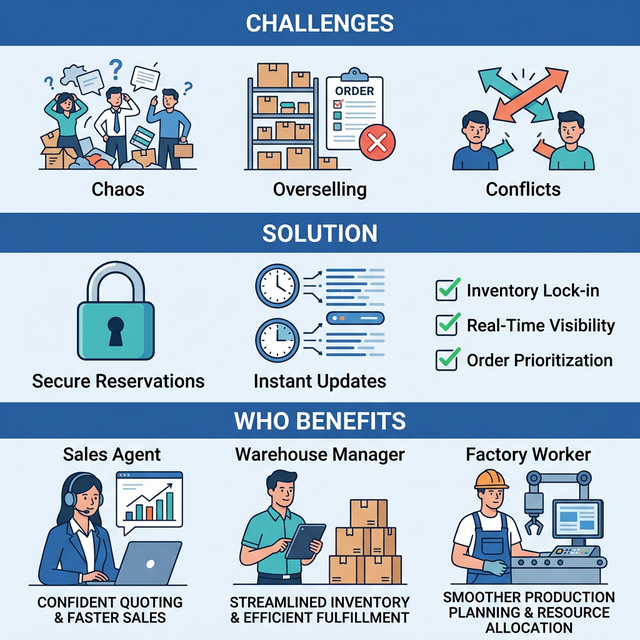
Who Benefits from This Applet?
Sales & Customer Service Teams:
- Promised Delivery: Confidently commit to delivery dates knowing the system has “guarded” the stock for their customer.
- Real-time Visibility: See exactly how much stock is free to sell vs. reserved for others.
- Priority Customer Handling: Manually hold stock for VIP clients during price negotiations.
Warehouse & Fulfillment Managers:
- Picking Accuracy: Generate pick lists only for reserved items, ensuring staff don’t “poach” stock meant for high-priority orders.
- Stock Integrity: Maintain a clear audit trail of why certain items are sitting in the warehouse but cannot be shipped to new callers.
- Bin Management: Optimize warehouse space by identifying stock that is “stale” in its reservation status.
Production & Operations Teams:
- Material Readiness: Reserve raw materials for upcoming production runs to avoid manufacturing downtime.
- Shortage Tracking: Identify components that are “over-reserved” to trigger urgent purchasing.
- Batch/Serial Precision: Reserve specific high-value units (e.g., specific IMEI numbers or chemical batches) for specialized clients.
What Problems Does This Solve?
The “Over-Sellers” Nightmare Problem:
Traditional inventory management relies on physical counts. Common issues include:
- Multiple sales reps sell the same 10 units simultaneously
- Order cancellations and brand damage due to unfulfilled promises
- High-priority orders delayed because stock was poached for low-priority orders
- Unclear visibility into actual available stock
The Stock Reservation Applet Solution:
- Instant stock deduction - Reserved quantities are deducted from “Available Stock” instantly
- Document-linked reservations - Ensures stock is allocated to the right Sales Order
- Auto-Expiry Logics - Automatically releases stock back into the available pool if unused
- Complete traceability - Full audit history for every reserved item
- Flexible reporting - Analyze shortages by department, customer, or urgency
Key Features at a Glance

Key Concepts
Understanding the Reservation Framework
Every reservation system must address three fundamental aspects. The Stock Reservation Applet provides structured handling:
| Aspect | Component | Practical Example |
|---|---|---|
| Who is it for? | Entity/Customer | Corporate Client A, Production Dept |
| What is reserved? | Item & Quantity | 50 Units of Laptop X86 |
| How is it locked? | Reservation Type | Manual Hold, Sales Order Link, Batch Specific |
The Stock Hierarchy Structure
Think of your inventory as a structured flow of availability:
Warehouse
│
├── Physical Stock ──→ What is physically in the bin?
│   │
│   └── Reserved Stock ──→ What is promised to others?
│       │
│       ├── Sales Order Reservations ──→ Committed to specific orders
│       ├── Production Reservations ──→ Committed to manufacturing
│       └── Manual Holds ──→ VIP or pending sales holds
│
└── Available Stock ──→ What is free to sell?
    │
    └── Incoming POs ──→ What is arriving soon?
Flow Through the Hierarchy:
- Physical Stock: Total units in the warehouse
- Reserved Stock: Units locked for a purpose
- Available Stock: The remaining “Free” stock that can still be sold
This structure enables:
- Precise control over stock commitments
- Flexible reporting by any dimension
- Clear accountability for stock holds
- Period-based processing for fulfillment
The “Golden Triangle” of Stock Logic
To effectively manage the system, it is crucial to understand how Physical, Reserved, and Available balances interact.
| Component | Analogy | Definition | Example |
|---|---|---|---|
| Physical Stock | The Warehouse Bin | The total units physically present in the warehouse. | 100 Units On-Hand |
| Reserved Stock | The Post-It Note | The “promise” of stock to a specific entity or document. | 40 Units Reserved to SO |
| Available Stock | The Catalog Price | The remaining “Free” stock that can still be sold. | 60 Units Available to Sell |
How they link:
- You have 100 units of Physical Stock in the warehouse.
- The sales team creates a Reserved Stock hold of 40 units for an upcoming order.
- The system calculates the Available Stock by deducting the Reserved quantity from Physical (100 - 40 = 60).
- E-commerce platforms and reps only see 60 units available for new orders.
Quick Start Guide
Get up and running quickly with these essential workflows.

For Sales Team: Create Your First Manual Hold
Goal: Lock 10 units for a VIP customer to prevent others from taking the stock in 4 simple steps.
- Navigate: Go to Stock Reservation from the sidebar
- Create Header:
- Click "+" (Add New)
- Select the Customer
- Choose your Branch/Location
- Set an Expiry Date (e.g., 48 hours from now)
- Add Items:
- Click “Add Line”
- Select the Item Code
- Enter the Reserved Quantity (e.g., 10)
- Enter Reason Code/Remarks (“VIP Hold for 48hrs”)
- Finalize: Click Active to save
What happens next? The Available count for this item drops immediately across the entire system. No one else can sell those 10 units.
Pro Tip: Convert this reservation straight into a Sales Order once the customer confirms the purchase.
For Warehouse Managers: Check Commitments
Goal: Understand why items are in the warehouse but “Out of Stock” in the system in 3 steps.
- Navigate: Go to Reservation Listing
- Review Details:
- Filter by Item Code or Location
- See which customers are holding the stock
- Check the Link Document (Sales Order or Manual Hold)
- Decide/Manage:
- If a reservation is expired, click Release to restore “Available” balance
- Use this view to plan pick lists for actual confirmed orders
For Admins: Initial System Setup
Goal: Configure the reservation rules for your organization in 4 steps.
Step 1: Enable Engine (Settings > Applet Settings)
- Toggle Reservation Logic to enable system-wide stock locking
Step 2: Set Expiry Defaults (Settings > Default Selection)
- Define the default hold period (e.g., 7 days) to prevent stale reservations
Step 3: Define Priority (Settings > Field Settings)
- Set up Reservation Types and ensure Reason Codes are mandatory
Step 4: Configure Permissions
- Assign “Reservation Manager” to Team Leads who need manual release override rights
Ongoing: Monitor the Shortage Analysis to ensure operational smoothness.
Reservation Logic Deep Dive
Monitor your commitments and unfulfilled demand in real-time.
Reservation Expiry Logic
Reservation Expiry ensures that your inventory doesn’t stay “stagnant.” Think of it as an automatic cleanup rule.
How it Works:
- Every manual reservation has an Expiry Date.
- At midnight of that date, the system status changes from Active to Expired.
- The quantity is automatically restored to the Available pool without user intervention.
Visual Example:
Laptop Dell XPS
━━━━━━━━━━━━━━━━━━━━━━━━━━━━━━━━━━━━━━━
Physical: 50 | Reserved: 10 (Expiring Today) | Available: 40

[Tomorrow Morning - After Expiry]
Physical: 50 | Reserved: 0 | Available: 50
For Requesters (Sales/Production)
This section is your personal guide to submitting and tracking your stock promises.
My Reservations - Your Personal Commitment Hub
What is My Reservations?
This is YOUR workspace—where you track every “promise” you have made to your clients. It allows you to manage your own pipeline without bothering the warehouse team. Think of it as your personal locked inventory diary.
What You Can Do:
- ✓ Extend hold dates for priority clients
- ✓ Convert Manual Holds into Sales Orders
- ✓ Cancel holds if a deal falls through
- ✓ Add notes/remarks for the fulfillment team
How to Convert a Hold to a Sales Order (The Complete Journey)
- Create Hold: You create a 48-hour Manual Hold for 10 units.
- Customer Confirms: The customer says “Yes, bill me.”
- Open SO: Navigate to the Sales Order Applet to draft their invoice.
- Link Reservation: In the “Allocation” tab of the SO, select the existing Manual Reservation ID.
- Transfer: The system “consumes” the manual reservation and turns it into a Document Reservation.
Reservation Statuses Explained:
| Status | What It Means | What You Should Do |
|---|---|---|
| Draft | Not yet active | Finish and activate to lock stock |
| Active | Stock is successfully locked | Convert to Sales Order before expiry |
| Expired | Hold is past due | Stock is returned to Available; create a new hold if needed |
| Fulfilled | Transferred to an order | Nothing—wait for warehouse to pick it |
| Voided | Cancelled manually | Nothing |
Real-World Sales Scenarios:
Scenario 1: The VIP Client Hold
Client: Alpha Corp (Priority A)
Request: Need 50 servers, but approval takes 3 days.
Current Available: 60 units.

Your Action:
1. Create Manual Hold for 50 units.
2. Set Expiry Date to 4 days from now.
3. Reason: "Pending PO from Alpha Corp."
Result: Other reps only see 10 units available. Your deal is safe.
Scenario 2: The Stalled Deal
Client: Beta Retail
Request: Held 20 units, but they went silent on expiry day.
Current Status: Active (Expiring Today)

Your Action:
1. Check My Reservations -> Expiring Soon.
2. Call Beta Retail for an update.
3. If they need more time, click "Extend Expiry".
4. If the deal is dead, click "Void".
Result: The stock immediately becomes Available to Sell again.
Best Practices for Sales & Requesters:
✓ Review Expiring Holds Daily: Check your “Expiring Soon” widget every morning so you don’t lose locked stock. ✓ Always Add Reason Codes: A descriptive reason (e.g., “Awaiting 50% downpayment”) prevents supervisors from manually releasing your hold. ✓ Don’t Over-Reserve: Holding “just in case” hurts the overall company sales. Only hold stock for real opportunities. ✓ Convert Early: The moment the client confirms, convert the hold to a Sales Order.
Deep Dive: Stock vs. Bin Reservations
The Applet splits reservations into two distinct categories to handle both general holds and highly specific warehouse controls.
Stock Reservation
This is used when you need to hold a generic quantity of an item at a specific location, without caring exactly which shelf it sits on.
- Best for: Sales teams locking in inventory for pending deals.
- Required Fields: Branch, Location, Item Name, Reserve Qty, Expiry Date.
Bin Reservation
This is used when your warehouse utilizes Bin Management (BIN_NUMBER sub-items). It locks stock at the most granular level—the exact bin line code on the warehouse floor.
- Best for: Warehouse operators prepping specific shelves for fulfillment or quarantine.
- Required Fields: Bin Header Code, Bin Line Code.
Configuration & Settings
Default Selection (Settings > Default Selection)
Default Selection streamlines data entry by pre-populating commonly used values, reducing repetitive selections and minimizing user error.
- Default Branch: Pre-fills the operating branch for new reservations.
- Default Location: Sets the default source warehouse for reserved stock.
Field Settings (Settings > Field Settings)
Field Settings control which fields are visible, required, or hidden based on user roles and business requirements.
- Dimensions & Tracking: Toggle
ENABLE_DIMENSION,ENABLE_PROFIT_CENTER,ENABLE_PROJECT,ENABLE_SEGMENT - Pricing Visibility: Hide specific price fields like
HIDE_UNIT_PRICE_STD_EXCL_TAX,HIDE_AMOUNT_NET_EXCL_TAXto restrict sales reps from seeing profit margins. - Custom Statuses: Enable up to 5 custom statuses at the header and line levels (
ENABLE_CUSTOM_STATUS_HDR_1).
Advanced Configuration (Settings)
- Printable Format Settings: Configure standard templates for exporting or printing your reservation records.
- Webhook: Trigger external notification systems (like Slack or email) when a reservation changes status (e.g., from
DRAFTtoRESERVED). - Feature Visibility: Show/hide specific sections of the UI based on organizational needs.
- Permission Listing: Granularly control access via User, Team, Role, or Client-Side Permission Sets.
FAQ
Q1: Can I reserve more than my Physical On-Hand stock? A: By default, no. However, “Pre-order” configurations allow you to reserve against Incoming POs, effectively “promising” stock that is still in transit.
Q2: What happens if a Sales Order is cancelled? A: The linked reservation is automatically released instantly, and the balance is immediately restored to the Available pool for other representatives to sell.
Q3: Can I “steal” stock from a low-priority reservation for a high-priority order? A: Standard users cannot transfer reservations. Only users with designated Reservation Admin/Manager permissions can manually “Release” or “Transfer” an active reservation from one entity to another.
Q4: Does creating a reservation affect the General Ledger (GL)? A: No. Reservations are purely logistical placeholders. Financial entries (COGS, Inventory Value reduction) are only generated during physical movement (Delivery Order) or invoicing.
Summary
The Stock Reservation Applet is the “integrity layer” of your inventory management. By strictly separating physical presence from sellable availability, BigLedger ensures that your sales team never makes promises your warehouse can’t keep, and your warehouse never ships priority items to generic orders.