Stock Reservation Applet
Hold units of an item at a location for a customer until a date, so they stop counting as available to sell. Nothing checks a hold against the stock on hand, and where the expiry job runs, an expired reservation is deleted without being released: it vanishes from the listing but keeps lowering availability, so release a reservation before it expires.
Overview
The Stock Reservation applet records a promise: this many units of this item, at this location, are held for this customer until this date. A reservation does not move stock and posts nothing to the ledger; when it is set to RESERVED it adds its quantity to the reserved column of the stock balance, and the Stock Availability screens subtract that column from what can still be sold. It is opened by sales or warehouse staff who need to hold stock ahead of a sales order, and it is also written to by the Sales Order, Job Order and Packing Order applets when they reserve stock or bins for a document.
For items tracked by warehouse bin, a reservation can be pinned to specific bin lines, and the applet’s second menu, Bin Reservation, lets you create a bin-level hold against a sales order line on its own.
Check your own tenant before you build a process on it. The two background jobs that tidy reservations up are not installed for you (see Expiry and temporary reservations). Two quick checks tell you where you stand. Open this listing: whatever the Sales Order, Job Order or Packing Order applets reserved through a header appears here too, so an empty listing means nothing on your tenant currently holds stock this way. Then compare it with the reserved figure in Stock Availability. If the listing is empty but a reserved figure is not zero, that figure was left by reservations no longer on the list — one deleted without being released (by the expiry job or through the API), or a bin-pinned one released after a reserve that never added to the figure (see Lifecycle). No reservation on screen will explain it, and the cure is a correction from support, not a new reservation.
Where it fits
| Position | Applet / object | Why |
|---|---|---|
| Master data | Inventory Item Maintenance | The item picker lists only inventory items that have stock at the chosen location. |
| Master data | Customer Maintenance | Every reservation must name a customer entity (Account tab). |
| Master data | Organization | Company, branch and location the stock is held at. |
| Master data | Warehouse Management | Bin headers and lines that a bin reservation points at. |
| Upstream (writers) | Sales Order, Job Order (no wiki page yet), Packing Order | Create, reserve and release reservations and bin links through the same backend endpoints. |
| Downstream (readers) | Stock Availability, Stock Balance, Stock Replenishment | Read the reserved quantity from the balance row or sum the RESERVED headers. |
| Background | Scheduler crontab | The expiry job only runs if a crontab entry for it exists (see Lifecycle). |
See Related applets: stock balance for the full map of what writes and reads the balance tables.
Screens and menus
Sidebar: Stock Reservation (default screen) and Bin Reservation. The route is applet/tnt/wavelet/erp/stock-reservation-applet. A Sales Group menu exists in the source but is commented out.
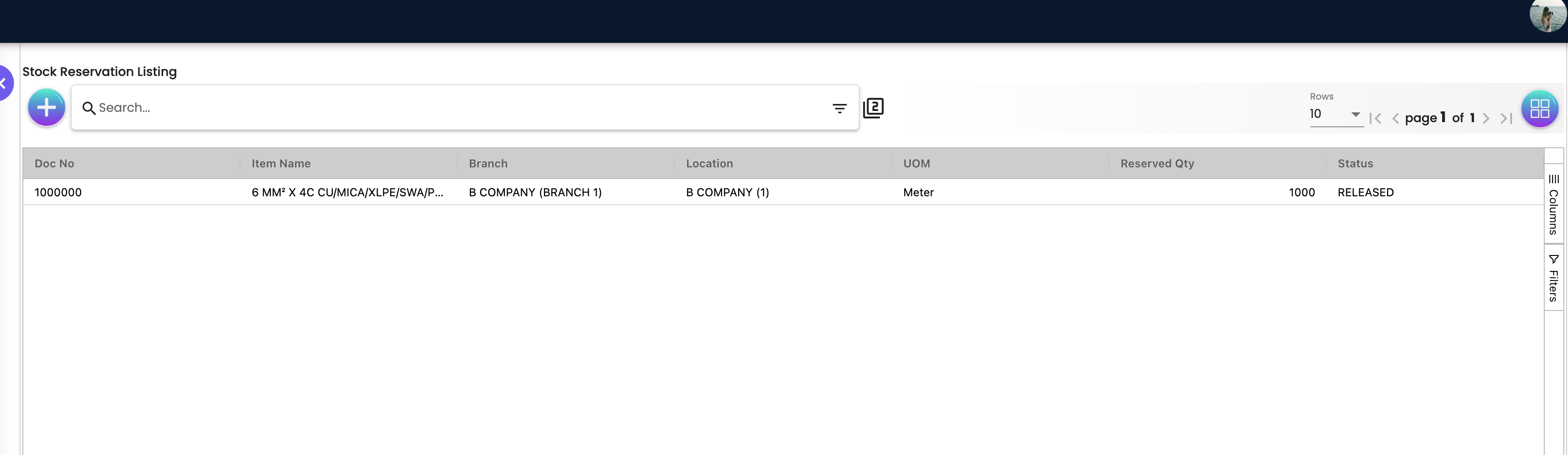
Stock Reservation Listing — columns Doc No, Item Name, Branch, Location, UOM, Reserved Qty, Status, newest first. Click a row to open it in Edit Stock Reservation; the + button opens Create Stock Reservation.
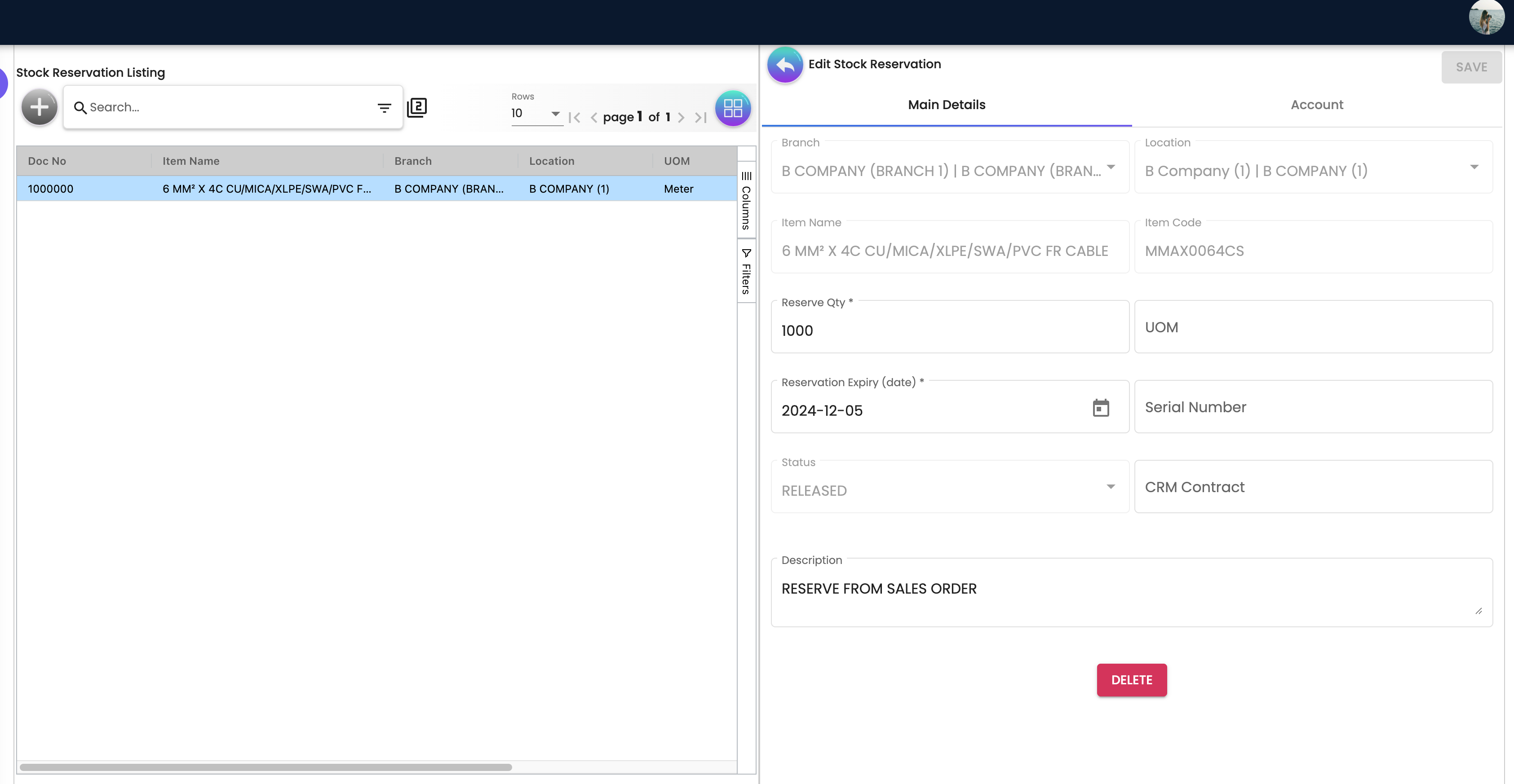
Create / Edit Stock Reservation — three tabs:
- Main Details — Branch, Location, Item Name (opens the Select Item column), Item Code, Reserve Qty, UOM, Reservation Expiry (date), Serial Number, Status, CRM Contract, Description.
- Account — sub-tabs Entity Details (Entity Id opens Select Customer, which also lets you create a customer without leaving the applet), Bill To and Ship To.
- Bin Number — only shown when the selected item’s sub-type is
BIN_NUMBER; a grid of bin lines with + (opens Select Bin No) and a delete button.
The header buttons are CREATE (create), and on edit RESERVE (TMP or DRAFT), RELEASE (RESERVED) and SAVE; a DELETE button sits under the Main Details tab unless the reservation is RESERVED. Reserve, Release and Delete are two-click confirmations (“CLICK AGAIN TO …”, reset after 3 seconds).
Bin Reservation Listing / Create / Edit — a single Main Details tab: Sales Order Number (picker over sales-order lines showing their MRP statuses), Customer, Branch, Location, Item Code (picker), Item Name, Bin Hdr Code / Bin Line Code (picker, enabled once item and location are set), Container Measure, UOM, Reserved Container Qty, Reserved Base Qty, Reservation Type, Start Date, Expiry Date, Remarks.
Settings (gear): Application Settings, Default Selection, Printable Format Settings, plus the shared Triggers (webhook), Permission Set / User / Role permission and Applet Access screens. Personalization: Field Settings and Default Selection.
Configuration
Before you can use it
- Company, branch and location exist in Organization. The backend rejects a reservation whose company or location is missing or does not exist; branch is optional but must exist if given.
- Inventory items with stock at that location. The Select Item column queries the item-pricing-stock-balance endpoint with
txn_class = PNS,txn_types = BASIC_ITEM, BUNDLE,basic_qty_ledger_greater_than = 0andstock_location_guid= the chosen location, so an item whose ledger quantity at that location is zero or below today — sold out as well as never stocked — is not offered and cannot be reserved from this screen. Set items up in Inventory Item Maintenance. - A customer entity — the create form’s
entity_guidcontrol is required, so CREATE stays disabled until a customer is chosen on the Account tab (Customer Maintenance). - Bins (only for bin-tracked items) — bin headers and lines for the item at the location, maintained in Warehouse Management.
- Server-side permissions — see Feature visibility / permissions below.
- A Scheduler entry for
EXPIRED_STOCK_RESERVATION_REMOVAL_PROCESSORif you want expiry dates to do anything (see Lifecycle). Nothing schedules it for you, and a new tenant is not given it. Assume expiry dates do nothing until you schedule it yourself in the Scheduler — an expired reservation goes on holding stock out of the available figure, indefinitely, and nothing on the screen says so.
No GL code, tax code, cashbook or document-numbering setup is needed: a reservation posts no journal, and its Doc No comes from the platform’s own counter for reservations, not from the document-numbering configuration.
Applet settings
Where settings live: Application Settings is the shared settings screen; Default Selection and the personal Default Selection are this applet’s own; there is no branch-level settings screen. Anyone who can open the applet’s Settings menu can change them; the applet has no client-side permission gating of its own.
No applet setting is used by this applet. The screens below show and save values that nothing in this applet reads back.
| Screen | What it renders | Saved to | Read by |
|---|---|---|---|
| Settings → Application Settings | The whole shared document-settings form — some two to three hundred controls, because nothing limits it to what a reservation has. Examples: HIDE_UNIT_PRICE_STD_EXCL_TAX, DEFAULT_POSTING_STATUS, WORKFLOW_PROCESS_GUID, EMAIL_SENDER. | Applet settings | Nothing in this applet. The reservation form has no line grid, pricing, workflow, e-mail or printing. |
| Settings → Default Selection | Default Branch, Default Location (auto-filled from the branch’s main location when a branch is picked); DEFAULT_COMPANY is set silently from the branch. | Applet settings | Nothing. The create form always starts empty, as a DRAFT with quantity 0. |
| Settings → Printable Format Settings | Upload / star printable formats. | Applet settings | Nothing — the applet has no print or export button. |
| Personalization → Default Selection | Same two drop-downs, labelled “This will override Applet Default Settings”. | Personal settings | Nothing. |
| Personalization → Field Settings | Menu entry only: the link lands on the applet’s 404 page. | — | — |
Document behaviour settings
None are configurable in the applet. The behaviour is fixed in code:
- New reservations start as DRAFT; the Status drop-down also offers TEMP (
TMP). RESERVED and RELEASED are shown read-only once reached. - A reservation created through the API without a status is saved as
TMP. - Reserve Qty must be at least 1 on the screen; the server does not check it.
- Bin-pinned reservations are validated against bin availability on RESERVE; plain reservations are not validated against the stock balance (see Lifecycle).
Background job settings
The two removal jobs are set up, if at all, in the Scheduler applet by picking the job and giving it a JSON property block:
| Job (queue code) | Properties | What it does |
|---|---|---|
EXPIRED_STOCK_RESERVATION_REMOVAL_PROCESSOR | limit (default 10), by_exact_date (does nothing) | Deletes up to limit reservations whose expiry date has passed (and their active bin lines), whatever their status. Also discards MRP job-order temporary reservations. |
TEMPORARY_RESERVED_STOCK_REMOVAL_PROCESSOR | limit, time_to_live (minutes) | Loads up to limit TMP reservations and, for those still inside their time-to-live, takes their quantity off the reserved figure (see Lifecycle for why this is unsafe). |
Settings in other applets that control this applet
None found. Reservations created from other applets carry their own defaults (for example the Job Order’s stock-planning screen sets the bin link’s expiry to start + 24 hours); those are documented on the calling applet’s page.
Feature visibility / permissions
- Client-side: the applet has no permission checks of its own and no client-side permissions are defined for it. The Applet Access screen is the shared one.
- Server-side (reservation header):
API_TNT_DM_ERP_INVENTORY_STOCK_RESERVATION_HDR_OWNER / ADMIN / MEMBER / CREATE / UPDATE / DELETE / READ. Each action accepts OWNER, ADMIN or the matching verb: READ for listing and query, CREATE for create and automatic bin reservation, UPDATE for edit, reserve and release, DELETE for delete. There is no separate “reserve” or “release” permission — whoever can edit can reserve and release. - Server-side (bin lines):
API_TNT_DM_INV_BIN_RESERVATION_GEN_DOC_LINK_OWNER / ADMIN / CREATE / UPDATE / DELETE / READ. - The permission-set screen’s target picker offers Company, Branch, Location, Entity, Customer, Supplier, Employee, Team, Applet, Tenant, financial item, Dimension, Segment, Project, Profit Center, Printable Format, Batch, Client Side Permission, Pricing Scheme and Membership Card targets.
Fields
Stock Reservation — Main Details
| Field | Meaning | Required | Notes / validation |
|---|---|---|---|
| Branch | Branch holding the stock; sets the company silently. | Yes | Read-only on edit. |
| Location | Location (store) holding the stock; filtered by branch. | Yes | Read-only on edit. Must be chosen before Item Name (hint “Please select Location first”). |
| Item Name | Opens Select Item; the list shows Item Code, Item Name, UOM and System Stock Balance (ledger qty at the location, rounded). | Yes | Only PNS-class basic items and bundles with ledger qty > 0 at the location. Read-only on edit. |
| Item Code | Filled from the selected item. | Yes | Read-only. |
| Reserve Qty | Quantity in base UOM (quantity_base). | Yes | Minimum 1. Read-only and equal to the sum of the Bin Number tab when the item sub-type is BIN_NUMBER. |
| UOM | Filled from the item; editable text. | No | Stored in uom_json.uom. |
| Reservation Expiry (date) | Date after which the expiry job soft-deletes the reservation. | Yes | Date picker; stored as expiry_date. |
| Serial Number | Free text. | No | Stored as serial_number; not validated against serial-number records. |
| Status | TEMP or DRAFT on create. | Yes | Default DRAFT. Disabled once RESERVED or RELEASED. |
| CRM Contract | Free text. | No | Not saved — the form control has no mapping in the draft reducer. |
| Description | Free text. | No | Stored as description. |
Stock Reservation — Account
| Field | Meaning | Required | Notes / validation |
|---|---|---|---|
| Entity Id (Entity Details) | Customer entity the stock is held for; opens Select Customer. | Yes | Stored as entity_fi_item_link_guid. The create button is disabled until it is set. |
| Entity Name, Status, Entity Type, Identity Type, ID Number, Currency, Email, Description, Phone Number | Read-only details of the chosen entity. | No | Display only. |
| Bill To / Ship To | Address pickers. | No | Displayed but not saved with the reservation — the create and edit screens do not bind the address outputs and the header has no address columns. |
Stock Reservation — Bin Number (bin-tracked items only)
| Field | Meaning | Required | Notes / validation |
|---|---|---|---|
| Bin Hdr Code / Bin Line Code | Bin chosen in Select Bin No (bins for the item at the location). | Yes per line | Select Bin No shows Ctn Measure, Ctn Qty, Base Qty and an editable Reservation Ctn Qty. |
| Container Measure, Container Qty, Base Quantity | The container measure, the containers reserved and the base quantity. | — | Base = Reservation Ctn Qty × Container Measure. On the screen, Reservation Ctn Qty must be > 0 and ≤ the bin’s Ctn Qty. |
Each line is saved as a bin reservation of type PARTIAL on the header, starting now and expiring on the header’s expiry date. Lines are created and updated with the header; deleting an existing line marks it DELETED.
Bin Reservation (standalone)
| Field | Meaning | Required | Notes / validation |
|---|---|---|---|
| Sales Order Number | Sales-order line picker (PNS lines; columns include production / schedule / existing-stock MRP statuses, order qty, customer, sales agent). | No | Fills customer, company, branch, location and gen_doc_guid. |
| Bin Hdr Code / Bin Line Code | Bin picker, enabled once item and location are set (“Please select item and location first”). | Yes | |
| Container Measure, UOM, Reserved Container Qty | From the bin line. | — | Read-only. |
| Reserved Base Qty | reserved_qty. | Yes | Read-only; computed from the bin picker. |
| Reservation Type | FULL or PARTIAL. | No | A label only: nothing in the backend reads it, so a FULL hold and a PARTIAL hold of the same quantity behave the same. |
| Start Date | When the hold begins. | Yes | Defaults to now. Nothing in the backend reads it: wherever bin availability counts a hold, it counts it whatever its start date, so a start date next week does not delay it. |
| Expiry Date | When the hold should end. | No | Nothing acts on it for a standalone hold. The expiry job works from reservation headers, and a standalone hold has none, so it is never removed on that date — it stays until you delete it. Put a reminder in your own diary rather than relying on this date. |
The hold is also given a Customer (required; filled for you when you pick a sales-order line), a Branch and Location (required), the Item (required, from a picker) and free-text Remarks.
A standalone bin reservation writes only the link table; it creates no stock reservation header and therefore never touches the reserved column of the stock balance — it only reduces the bin’s available quantity.
Lifecycle and effects
Statuses
Posting status: TMP → DRAFT → RESERVED → RELEASED, plus the record’s own status ACTIVE / DELETED.
| From | Action (UI) | To |
|---|---|---|
| — | CREATE (with its bin lines) | TMP or DRAFT (as chosen) |
| TMP / DRAFT | SAVE | unchanged |
| TMP / DRAFT, no bin lines | RESERVE (click twice) — saves, then reserves | RESERVED |
| TMP / DRAFT, with bin lines | RESERVE (click twice) — saves, then checks the bins and reserves | RESERVED, header and active bin lines |
| RESERVED | RELEASE (click twice) — saves, releases, then releases each bin line | RELEASED |
| RELEASED | — Any further status change is refused as not authorised (HTTP 403) — RELEASED is final. SAVE is disabled on the screen. | — |
| TMP / DRAFT / RELEASED | DELETE (click twice) — deletes the bin lines, then the reservation | DELETED |
The screen hides DELETE while RESERVED and disables SAVE and the bin add/delete buttons while RESERVED or RELEASED. Those rules belong to the screen; the server’s own rule is the RELEASED one above. The difference matters to an integration. The delete call removes only the reservation header, not its bin lines (the screen deletes those first, one call each). It is a soft delete: the record’s status becomes DELETED while its posting status stays where it was. And it accepts a RESERVED reservation without releasing it, so the quantity stays on the reserved figure. Release before you delete.
What reserving does
- Not a document: a reservation is its own record, not a document, and posts nothing to the general ledger. Its Doc No comes from the platform’s own counter.
- Stock: no stock moves and the ledger quantity never changes. Setting a reservation to RESERVED or RELEASED starts a job that adjusts the reserved figure on the item’s location and company stock balances:
- RESERVED → reserved quantity up by the reservation’s quantity;
- RELEASED → reserved quantity down by the same. Both do nothing if the item has no stock balance at that company / location — nothing is written and nothing is reported. The order matters when something goes wrong. The new posting status is saved first, and the adjustment job is queued afterwards. If the job fails, or cannot be queued, the reservation still says RESERVED (or RELEASED) and the reserved figure has not moved. A failure to queue is written only to the server log (read from the code, not tried). When a RESERVED reservation shows in this listing but Stock Availability shows no reserved quantity for it, this is one of the causes to check.
- No availability check for plain reservations: nothing compares the reservation with the stock on hand or available; a reservation larger than the stock is accepted and drives availability negative.
- Bin-pinned reservations take a different path: RESERVE requires the item to be bin-tracked, the reservation to be DRAFT (“Stock Is Already Reserved” otherwise), at least one bin line, and for every bin line enough available bin quantity (“Reserved Qty is Bigger than Available Qty For Bin Code: …”). When a check fails, the server refuses the call with one of those sentences, but the screen does not show it: its error handler reads an empty variable, so you get neither an error nor a success message (read from the code, not tried). Reopen the reservation: if its posting status still says DRAFT, the bins were refused, and the reason is one of the troubleshooting rows below. The same silence applies when a plain RESERVE is refused. When every check passes, it sets the reservation and its bin lines to RESERVED without adjusting the stock balance’s reserved figure — only bin availability (available − reserved − locked) reflects the hold. Releasing such a reservation later does adjust the stock balance, so it takes off a quantity that was never added.
- What VOID reverses: there is no VOID. RELEASE is the reversal; DELETE removes the reservation without touching the stock balance. It is a soft delete: the row is kept with the record status DELETED, and it no longer appears in the listing or in the availability details.
Who reads the reservation
- Stock availability (used by Stock Availability, Stock Balance and the document applets’ stock checks): location available = ledger quantity + open quantity − reserved figure on the stock balance. Its details view instead adds up the RESERVED, non-deleted reservations per item and location. The two agree only while every RESERVED reservation has been added to the stock balance and nothing has been deleted without a RELEASE.
- The sales-order stock summary takes the company-level reserved figure off the job quantity.
- Stock Replenishment snapshots the company reserved figure onto its order-quantity lines (it does not change the reorder quantity).
- The Sales Order applet’s availability by job dialog, the Job Order’s production-request stock planning (creates a DRAFT reservation linked to the sales-order line, sets it RESERVED, and adds bin lines that expire 24 hours after the start time) and the Packing Order’s pick queue (loads RESERVED bin lines for the location and item and releases both when it consumes them) all work through the same reservations.
Expiry and temporary reservations
- Expiry is a scheduled job, not a status.
EXPIRED_STOCK_RESERVATION_REMOVAL_PROCESSORruns only if it is scheduled. Each run takes up tolimit(default 10) reservations whose expiry date has passed and deletes them and their active bin lines — whatever their status. It does not release them and does not take their quantity off the reserved figure. An expired RESERVED reservation therefore disappears from the listing and from the availability details, but keeps reducing availability until someone corrects the reserved figure. Release reservations before they expire if you rely on availability. - TMP is a status you can pick on create (TEMP) and what a reservation made through the API without a status gets.
TEMPORARY_RESERVED_STOCK_REMOVAL_PROCESSOR(if scheduled, withlimitandtime_to_liveminutes) takes TMP reservations still inside their time-to-live — not the expired ones — and takes their quantity off the reserved figure although a TMP reservation never added to it, leaving the status at TMP. Do not schedule this job until it is fixed.
Related applets
- Stock Availability — shows reserved and available quantities; the reason reservations exist.
- Stock Balance and Related applets: stock balance — this applet is the only thing that changes the stock balance’s reserved figure.
- Warehouse Management — bin headers and lines that bin reservations point at; bin availability nets off reserved and locked quantities.
- Sales Order — the usual source of a reservation; open orders also reduce availability in their own right.
- Packing Order and the Job Order applet (no wiki page yet) — release and reserve stock and bins for picking and production through the same reservations.
- Stock Replenishment — reads the reserved quantity when it snapshots stock positions.
- Inventory Item Maintenance, Customer Maintenance, Organization — the master data a reservation is made of.
Troubleshooting
| Symptom | Cause | Fix |
|---|---|---|
| RESERVE succeeds but Stock Availability shows no reserved quantity | The item has no stock balance at that company / location, so nothing is adjusted; or the reservation is bin-pinned (the bin path never adjusts the stock balance). | Check the item has a stock balance at the location; for bin-pinned holds use the bin availability view, not the stock balance. |
| Reserved quantity is larger than stock on hand; available goes negative | No backend check compares the reservation with the balance (plain reservations). | Release or delete the excess reservation; check quantities before reserving. |
| A reservation vanished from the listing on its expiry date but availability is still reduced | The expiry job deletes the reservation without releasing it; the reserved figure on the stock balance keeps the old value. | Release reservations before expiry. For reservations already deleted, the reserved figure needs a data fix from support. |
| Expired reservations never disappear | EXPIRED_STOCK_RESERVATION_REMOVAL_PROCESSOR is not scheduled, or the backlog exceeds limit (default 10) per run. | Schedule it, or raise limit, in the Scheduler applet. |
| RELEASE of a bin-pinned reservation makes the reserved figure negative | Bin reservations reach RESERVED without adding to the stock balance, but RELEASE takes the quantity off it. | Have support correct the reserved figure; treat bin holds as bin-level only. |
| RESERVE is clicked twice and nothing happens, with no success or error message | The server refused the reserve, but the screen’s error handler drops the message (read from the code, not tried). The rows below give the sentences the server sends, which an API caller sees. | Reopen the reservation. If it still says DRAFT or TMP, work through the rows below (the bin rows first, for a bin-tracked item). |
| “Stock Is Already Reserved” from the bin reserve call (an API caller sees it; the screen shows nothing) | The bin path requires the header to be DRAFT; a TMP header, or one already RESERVED, is rejected. | Save the header as DRAFT first, or open the existing RESERVED reservation. |
| “Selected Stock Is Not A Bin Item” | The item is not bin-tracked but bin lines were attached. | Remove the bin lines or use a bin-tracked item. |
| “No Bin Reservation Gen Doc Link To Reserve” | The Bin Number tab is empty for a bin-tracked item, or the links failed to save (toast “n/m bin reservations failed”). | Add bin lines, save, then reserve. |
| “No Available Bin For Bin Code: …” / “Reserved Qty is Bigger than Available Qty For Bin Code: …” | The bin line no longer has enough available quantity (available − reserved − locked). | Pick another bin or reduce the container quantity. |
| A status change refused as not authorised (HTTP 403) | The reservation is RELEASED; RELEASED is terminal. | Create a new reservation. |
| Reserve / release refused because the reservation does not exist | The header was deleted (for example by the expiry job) between opening and clicking. | Reload the listing. |
| The item is not in Select Item | Location not chosen yet, ledger quantity at that location is 0 or negative, or the item is not a PNS basic item / bundle. | Choose the location first; receive stock at that location. |
| CREATE stays disabled | Customer not selected on the Account tab, expiry date empty, or Reserve Qty below 1. | Fill the three. |
| Default Branch / Location from Settings do not pre-fill the form | The defaults are saved but never read by the form. | Pick branch and location on each reservation. |
| Personalization → Field Settings shows the 404 page | The menu entry has no route. | Use Settings → Application Settings (which this applet does not consume either). |
| CRM Contract or Bill To / Ship To entries are lost after CREATE | Not mapped to the header; display only. | Record the contract in Description. |
| Advanced search on the listing returns the same rows | The listing’s onSearch handler is empty and the search model is a copy from a receipt-voucher applet (labels “Reservation Code / Name”, conditions on customer and branch name and INTERNAL_RECEIPT_VOUCHER). | Use the grid’s column filters instead. |
| Old page text: “at midnight the status changes to Expired and the quantity is restored” | No such status or restore exists (see Expiry above). | — |
The applet repository has one GitHub issue (#1, the Angular 14 migration, closed); no user-reported failure modes exist there yet.
Related documentation
- Inventory module and its related applets.
- Manufacturing module — job-order and packing-order reservations.
- Standard sales workflow — where reserving stock sits in the order-to-cash flow.