Stock Take
Count what is physically on the shelf at one location and compare it with what the stock ledger says: the session report puts the counted quantity beside the system balance and costs the difference. A stock take never changes a balance itself; the variance becomes a ledger movement only when someone raises a Stock Adjustment for it — keyed by hand, or loaded through the adjustment applet’s CSV File Import. There is no button here that creates one.
Your job, and the screen for it
| The job | Screen or tab | Read |
|---|---|---|
| Open a count for one location | Stock Take Session › + (Create Session) | Session — Create Session / Details tab |
| Attach the devices that will count | Devices (the master); the session’s Devices tab | Screens and menus |
| Record what is on the shelf | Edit Device Session › Records; the scan form when ENABLE_AUTO_SCAN is on | Record — Create Record Session; Record — Scan Form |
| Compare the count with the system and cost the difference — recomputed on every GENERATE | The session’s Report tab (GENERATE, REGENERATE, UPLOAD REASON) | Report line; There is no snapshot |
| Correct the balance — a stock take never changes it | A Stock Adjustment, keyed by hand or loaded from a file in its own applet | Stock Adjustment; What it will not do |
Overview
The Stock Take applet is where you count what is physically on the shelf and compare it with what the stock ledger says. You open a session for one location, attach the devices that will do the counting, capture records (item, quantity, unit of measure, serial or batch number) by scanning or by typing, and then generate the session report: for every item the counted quantity beside the system balance, a tolerance band that allows for movements during the count, the serial numbers that are missing or unexpected, and the cost of the difference.
It is used by store and warehouse staff to count, by supervisors to run and close sessions, and by finance or audit to review variances and record reasons. It comes after the stock ledger has been built up by purchasing, sales and transfers, and before a Stock Adjustment — the stock take never changes a balance itself; it only measures the gap.
An Android companion app (repository akn-kotlin-mobile-stocktake) writes to the same sessions and records through the same endpoints and adds an offline mode; this page documents the web applet. The offline mode downloads the item list through a separate endpoint of its own, which asks for the inventory item read permission rather than a stock-take one — so a counter whose role holds only the stock-take permissions can count online but cannot prepare a handset for an offline count (read from the code, not tried).
Which stock take you are looking at. The registry holds three ACTIVE stock-take applets — StockTakev2 (this one, the wavelet-erp build), a customer-specific variant, and stockTakehq — each serving a different bundle, and two of them point their documentation link here. If your screens do not match this page, check the applet code in Tenant Admin before assuming the page is stale. Everything below was read against the build actually being served for StockTakev2 (see sources_read_at), which at the time of writing is four commits behind the repository: a listing refactor merged on 2026-09-18 has not been published, so the grids described here are the ones in front of you, not the ones in the source tree.
Where it fits
| Position | Applet / document | Why |
|---|---|---|
| Module | Inventory | Physical audit of one location at a time |
| Upstream | Organisation (locations and their company), Inventory Item Maintenance (scan codes, multi-UOM barcodes, serial / batch type) | A session is keyed by location; records are keyed by item scan code |
| Upstream | Finalised stock documents — GRN, sales, transfers, adjustments | They build the ledger the report compares against; without them every system balance is 0 |
| Sibling | Stock Balance, Stock Availability, Stock Report | Read the same ledger; the Stock Balance With Serial report doubles as a count sheet |
| Downstream | Stock Adjustment | The only way a counted variance becomes a ledger movement — raised manually, not by this applet |
| Optional | Workflow Design | Supplies the Workflow Status / Resolution values shown on a session |
| Optional | Warehouse Management System | Bundles this applet’s build for counting inside the WMS |
Screens and menus
The applet’s own menu has three entries plus the standard Settings and Personalization.
Stock Take Session — the session listing (Session Name, Session Code, Location, Company, Status, Start Date, Modified Date; 100 rows per page). + opens Create Session. Clicking a row opens Edit Session with four tabs:
- Details — the session header (see Fields).
- Devices — the counting devices attached to this session. + opens Create Device Session; clicking a row opens Edit Device Session, which has its own Details tab (device, brand, model, status, Remove) and Records tab. The device’s Records tab is where counting happens: with Automatically Scan Item To The Listing on it is the Scan Form; off it is a plain record listing whose + opens Add Item (an item search) and then Create Record Session (the structured entry form).
- Records — every record in the session across all devices (Item Name, Item Code, Device Name, Quantity, UOM, Modified Date). Clicking a row opens Edit Record Session (quantity and serial number editable; Remove).
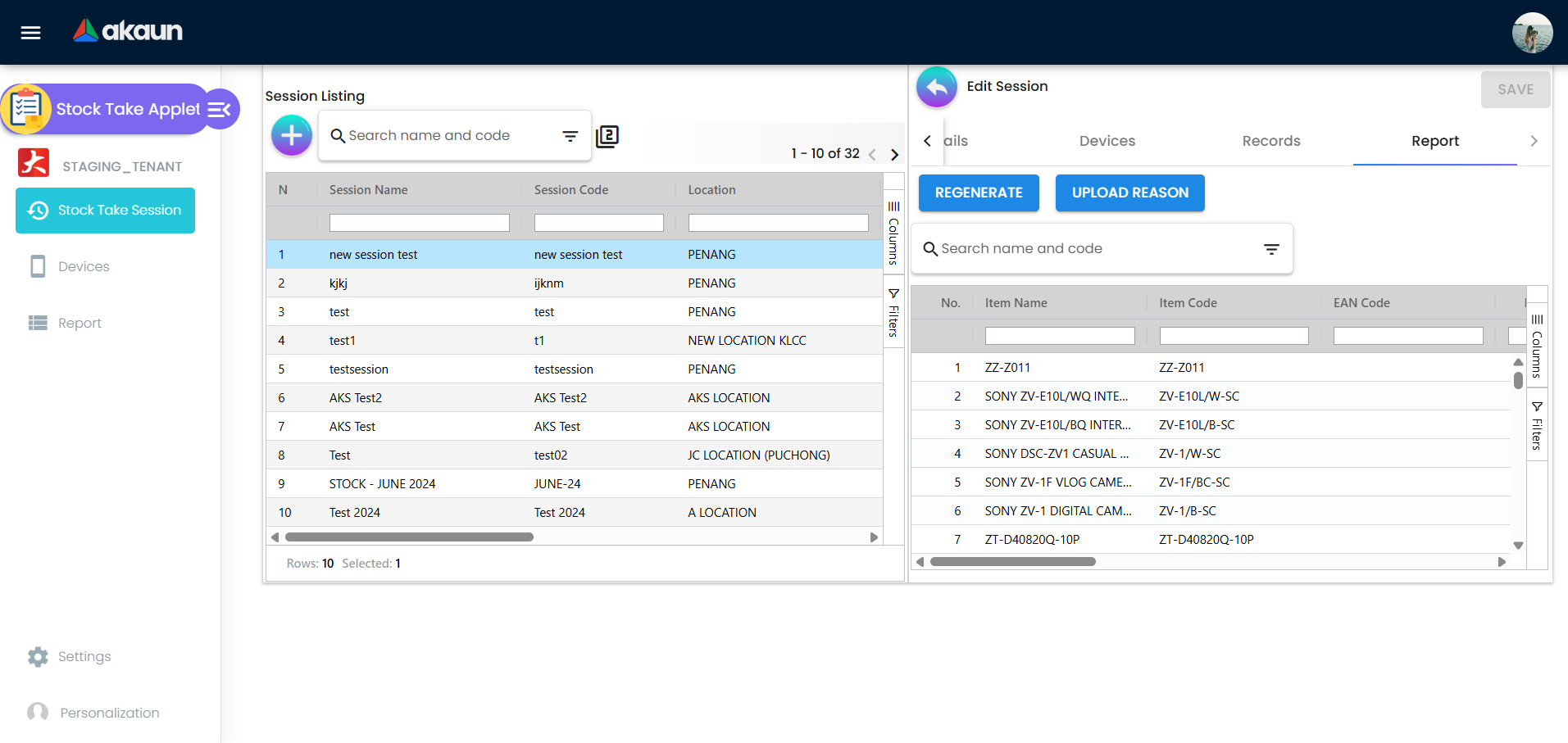
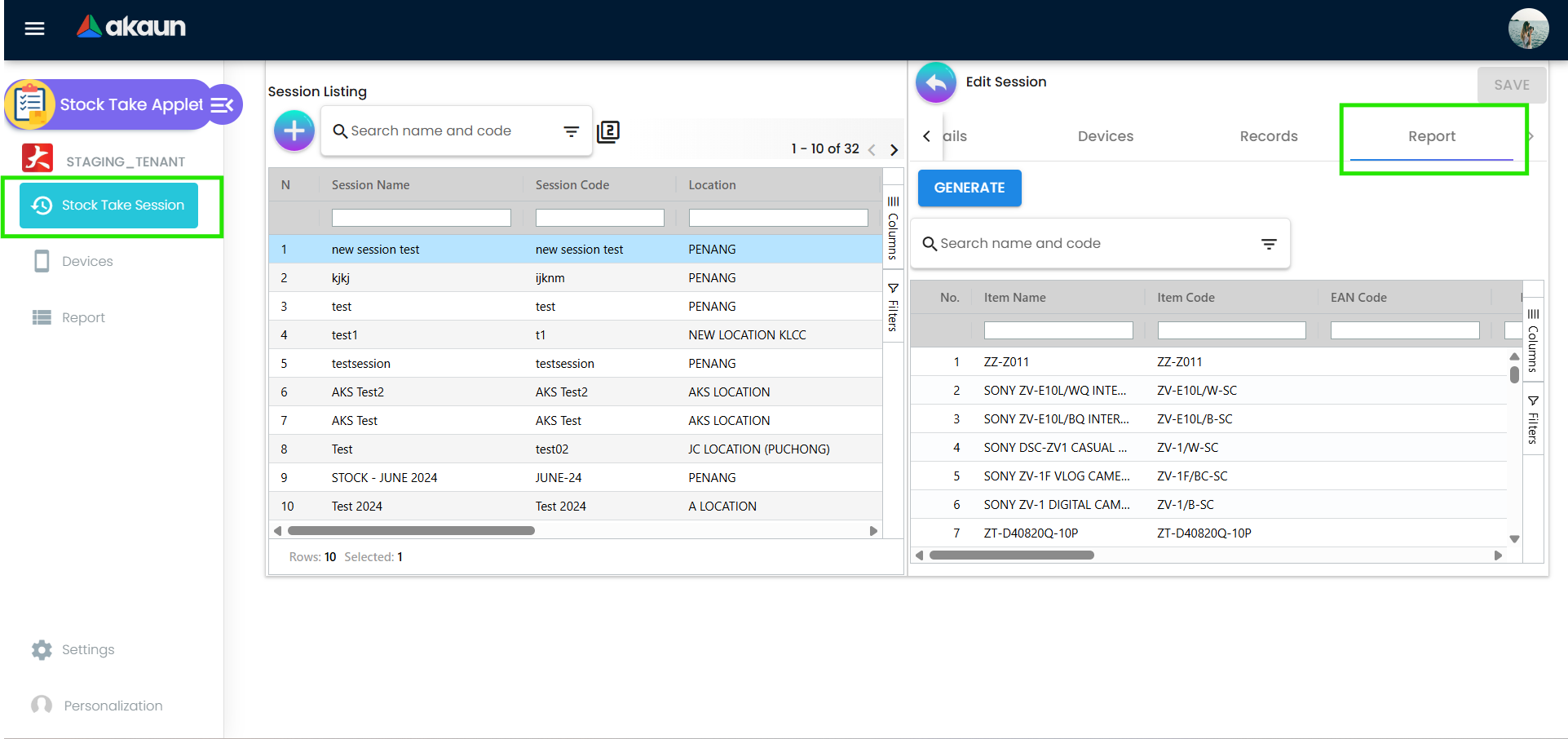
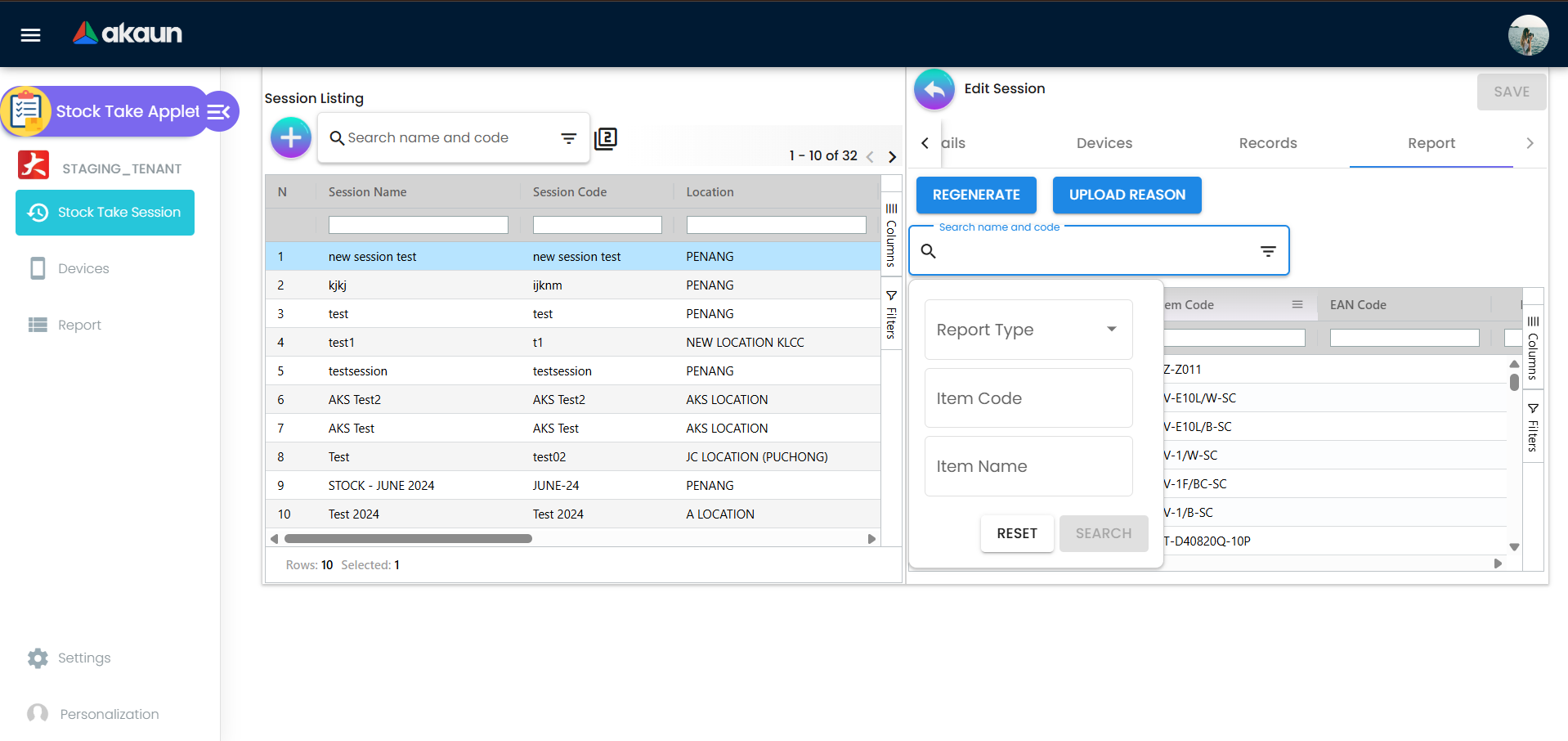
- Report — GENERATE (first time) / REGENERATE, UPLOAD REASON, a search with a Report Type filter, and the variance grid with an inline-editable Reason column. Edits to Reason are saved by the session’s SAVE button.
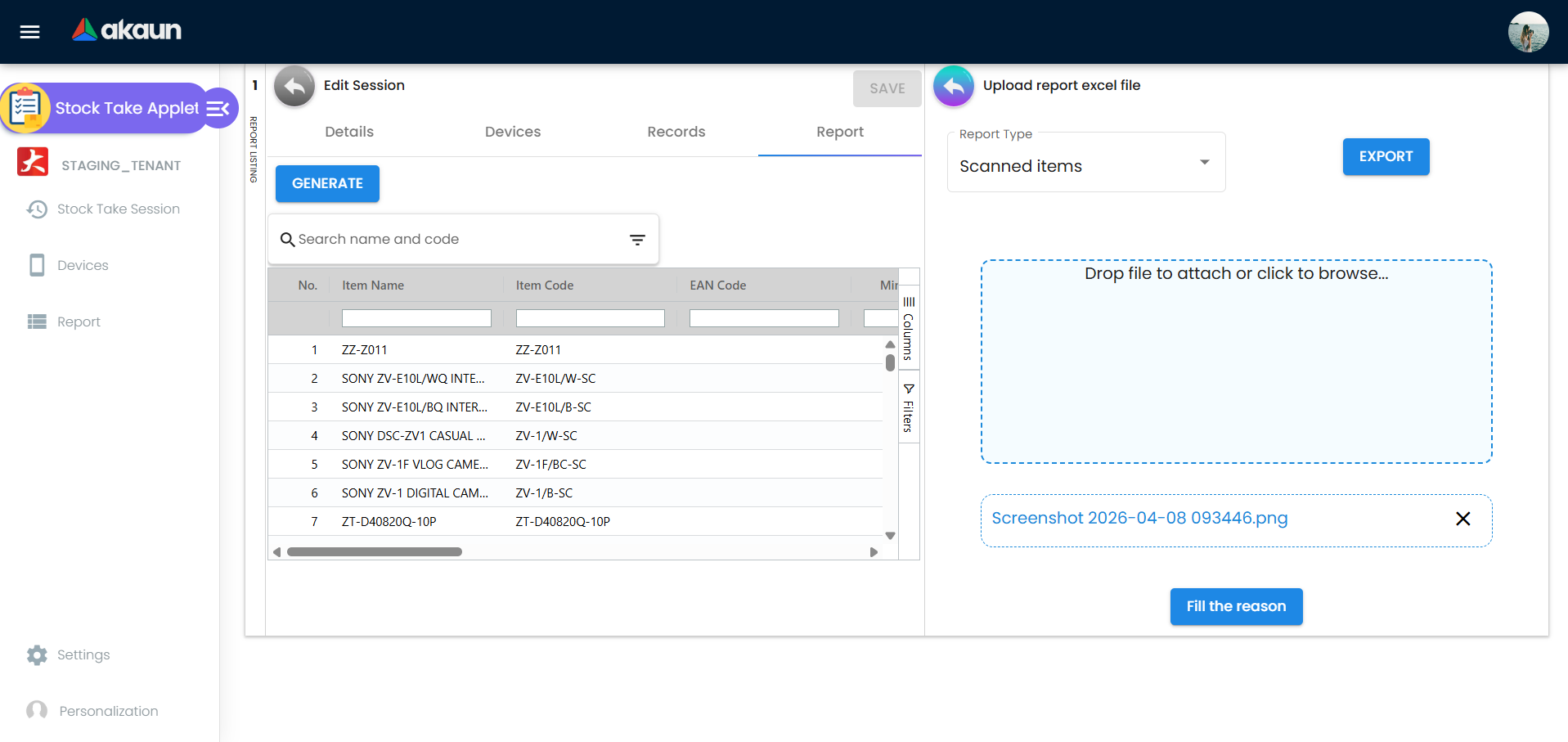
UPLOAD REASON opens Upload report excel file: choose a Report Type, EXPORT the variance report to .xlsx, fill in TotalQty and reason, drop the file back and press Fill the reason.
Devices — the device master (Device Name, Device Code, Brand, Model, Status, Modified Date). + opens Create Device; a row opens Edit Device (same fields plus audit fields and a Delete button). Only ACTIVE devices can be attached to a session.
Report — a cross-session listing grouped by location (Date, Session Name, Status, Status Variance) with Download, which exports the grid to Excel. Clicking a row opens the same Edit Session screen.
Settings — Field Settings and Default Selection under System Configuration, then the shared Permission Wizard, Permission Set, User Permission, Role Permission, Team Permission, Client-Side Permission, Feature Visibility and Webhook screens, and the Release Notes / Audit Trail developer tools.
Personalization — shows a Default Selection entry; see Configuration for why it does not open.
Configuration
Before you can use it
| Prerequisite | Where | Why it matters |
|---|---|---|
| A location, linked to a company | Organisation | A session is created against one location; the company is read from the location and cannot be typed. Branch is never set by this applet. |
| Items with scan codes | Inventory Item Maintenance | A scanned code is matched against the item’s scan code and its MULTI_UOM line barcodes; an unmatched code is rejected as Code invalid. Serialised items need sub-item type SERIAL_NUMBER; batch items need batch numbers registered. |
| A stock ledger at that location | Finalised GRN, sales, transfer and adjustment documents | The report’s opening balance, movements and closing balance come from the stock ledger at the session location; an item with no lines reports a system balance of 0. |
| Serial numbers with a positive balance | Purchase / adjustment documents that registered them | With Validate Serial Numbers on, a typed or scanned serial must exist with quantity balance above 0 or the record is rejected. |
| At least one ACTIVE device | This applet › Devices | A session with no attached device cannot receive records; the mobile app registers its own device on first login. |
| A workflow process (optional) | Workflow Design | Needed only if you want the Workflow Status / Resolution fields on a session to hold values. |
| Field Settings saved at least once | This applet › Settings › Field Settings | Closing a session makes the backend read the Do The Stock During Opening Store setting from the stored applet settings; if the key has never been saved the close returns Applet Settings Not Found! (see Lifecycle). |
| Server-side permissions | Settings › Permission Wizard | Session, record, device and report-line endpoints check their own API_TNT_DM_STOCK_TAKE_* families (see Feature visibility / permissions). |
Applet settings
Settings live in an applet-local Field Settings screen (Settings › Field Settings), not on the shared Application Settings screen used by the document applets. The screen is one form; SAVE saves the whole form as the applet’s settings, so all settings are tenant-wide and apply to every user. Anyone who can open the applet’s Settings menu can change them; there is no per-setting permission.
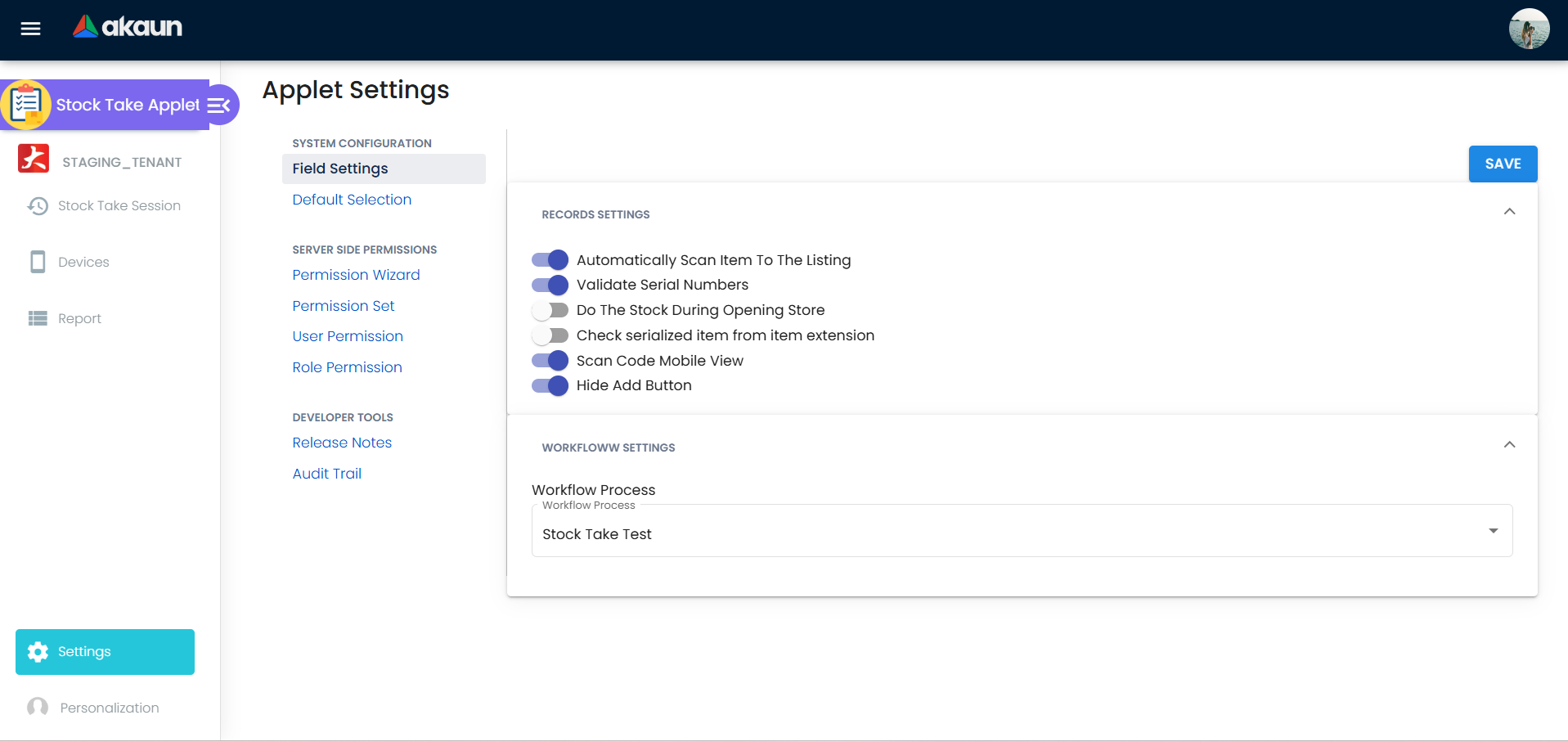
Every control starts with no value, so on a fresh tenant each toggle is off until the first SAVE.
| Setting (label · key) | What it controls | Default | Effect when changed |
|---|---|---|---|
Automatically Scan Item To The Listing · ENABLE_AUTO_SCAN | Which counting screen a device’s Records tab shows. On: the Scan Form (scan code → validate → add). Off: the plain record listing whose + leads to Add Item → Create Record Session. | off | Takes effect the next time a device’s Records tab is opened. Existing records are unaffected. |
Validate Serial Numbers · ENABLE_VALIDATE_SERIAL | Whether a serial number typed or scanned into a record must exist in the serial-number register with a positive balance. Structured entry marks the field invalid serial; the Scan Form marks the row INVALID and, for a serialised item scanned without a serial, adds the remark Serialized item but no serial number provided; a serial already in the list is Serial number already exist. Also read by the Excel upload screen (stored, not acted on there). | off | Immediate for new records. Off means any string is accepted as a serial. |
| Do The Stock During Opening Store | Read by the server, not the applet. When a session is saved as Closed, the server reads this key: on — the session’s Status Variance is YES if the counted quantity falls outside the report’s Min–Max band; off — YES if counted quantity differs from the system closing balance (EMP Quantity). | off (unset — see Lifecycle for the error when the key is absent) | Only affects sessions closed after the change. |
Scan Code Mobile View · SCAN_CODE_MOBILE_VIEW | Shows the camera scanner block (Barcode Type drop-down, SCAN / STOP) on the Scan Form, using the browser camera. | off | Immediate. Needs the Scan Form (ENABLE_AUTO_SCAN on). |
Hide Add Button · HIDE_ADD_BUTTON | On the Scan Form, hides ADD and adds the scanned item automatically as soon as it validates. | off | Immediate. With it off, each scan must be confirmed with ADD. |
Workflow Process · WORKFLOW_PROCESS_GUID | The Workflow Design process whose default status and resolution are stamped on every new session; the session’s Workflow Status drop-down then offers that process’s available transitions. | none | New sessions only. Sessions created before the change keep whatever process (or none) they were created with. Nothing in the applet or backend enforces the workflow status (see Lifecycle). |
Stored but read by nothing. Check serialized item from item extension is rendered and saved, but nothing uses it — both entry screens decide “serialised” from the item’s sub-item type SERIAL_NUMBER regardless of the toggle.
Declared but not rendered. The quantity delimiter is in the settings model and form but its input is commented out of the template; the Scan Form always splits quantity*code on a hard-coded *.
Default Selection (Settings) shows Default Branch and Default Location drop-downs, but the component is routed without the container that supplies the applet record: choosing a value throws on an undefined container and SAVE emits to no listener. Nothing in this applet reads DEFAULT_BRANCH / DEFAULT_LOCATION, and neither key has a backend reader. Personalization › Default Selection has no route at all — the link falls through to the wildcard redirect and reopens the session listing.
Session behaviour settings
This applet is not a generic document: there are no posting, printable, e-Invoice or approval toggles. The only behaviour switches are the WORKFLOW_PROCESS_GUID and Do The Stock During Opening Store rows above.
Settings in other applets that control this applet
| Setting | Where it is set | Effect here |
|---|---|---|
Item scan code and MULTI_UOM line barcodes / ratios | Inventory Item Maintenance › item › UOM lines | A scan is matched against the item code, the item scan code and every UOM barcode; the UOM drop-down on both entry screens lists the base UOM plus each MULTI_UOM line, and the record quantity is stored in base units (count × ratio). The report divides all quantities by the largest conversion so the grid shows pack counts. |
Sub-item type SERIAL_NUMBER / batch numbers | Inventory Item Maintenance | Decides whether the serial / batch fields are required and validated. |
| Item EMP status | Inventory Item Maintenance | The Active Items report type keeps only items whose EMP status is ACTIVE. |
| Moving-average unit cost | Written by finalised stock documents | The report’s Cost Value is the moving-average cost on the last movement at that location before the session’s start date — not the current cost. An item with no movement there before the count values at zero, and a FIFO tenant sees the moving-average cost regardless. Total Cost = (counted − system balance) × that price, in base units. |
| Location → company link | Organisation | Fills the read-only Company field on a session. |
| Workflow process, statuses, resolutions | Workflow Design | Populate the Workflow Status / Resolution fields when WORKFLOW_PROCESS_GUID is set. |
Feature visibility / permissions
Client-side permission. Exactly one is defined for this applet: COST_COLUMN_VIEW (Cost Column View, ACTIVE). Granting or withholding it changes nothing — so the Cost Value and Total Cost columns render for everyone who can open the Report tab, including the people you would have used this permission to keep away from cost. If cost has to be hidden, it has to be done by not granting the report-line read permission at all. No HIDE_* / SHOW_* pairs exist in this applet.
Server-side permissions (Settings › Permission Wizard / Permission Set / User, Role, Team Permission). Each object has its own OWNER / ADMIN / MEMBER / CREATE / UPDATE / DELETE / READ family; a tenant owner or admin passes every check.
| Family | Guards | Target of the check |
|---|---|---|
API_TNT_DM_STOCK_TAKE_SESSION_HDR_* | Create, update, delete, read sessions | The session’s company, branch and location. The three targets are OR-ed, not AND-ed, so the grant passes if it is held against the session’s location, or its company, or with no target at all — a company-level grant covers every location in that company. A grant held only for location A does not cover a session at location B. Branch never participates, because this applet writes the branch as null. |
API_TNT_DM_STOCK_TAKE_SESSION_RECORD_* | Create / update (multi endpoints) and delete records | Create and update are checked without a target; delete and single read are targeted at the record |
API_TNT_DM_STOCK_TAKE_SESSION_DEVICE_* | Attaching devices to a session | Session device row |
API_TNT_DM_STOCKTAKE_DEVICE_* | The device master | Device row |
API_TNT_DM_STOCK_TAKE_SESSION_REPORT_LINE_* | Editing report lines (Reason, Excel upload) | Report line |
API_TNT_DM_ERP_STOCK_TAKE_PROCESS_INSTANCE_* | The workflow process-instance endpoints | Not called by the web applet |
The applet shell asks the permission inquiry endpoint for API_TNT_DM_STOCK_TAKE_SESSION_HDR_READ, …_CREATE, TNT_TENANT_ADMIN and TNT_TENANT_OWNER at start-up; the results are loaded into the store but no screen or button in this applet is gated by them — denial surfaces as a backend error when the call is made. The report-line read permission decides what the Report tab shows; it hides the figures from the screen, and is not a lock on them.
Fields
Session — Create Session / Details tab
The form asks for a name, a code, a location and an optional description; everything else on the tab is filled in for you. Four of those fields carry a consequence you cannot see while you are typing.
| Field | What it decides, beyond the obvious |
|---|---|
| Session Code | Nothing checks it for uniqueness — not the form, not the data-consistency object, not a database index. Two sessions can carry the same code, and the Report listing identifies a row by Session Name and date, so a duplicated code is only ever a problem for whoever reads the export. |
| Location | This is the only dimension the report compares against, and it is editable after the fact. Change it on a session that already has counted records and the next REGENERATE rebuilds every line against the new location’s ledger while keeping the counts taken at the old one. |
| Company | Read-only, taken from the location — and it is one of the three targets the server permission check uses (see Feature visibility / permissions), so which company a location belongs to decides who can open the session. |
| Status | Nothing in the applet stops you setting Closed at any moment, including before a single item has been counted. Closing is what triggers the Status Variance calculation, and that is the only thing Closed does on the server. |
Workflow Status and Workflow Resolution are read-only on create — they show the linked process’s default status — and on edit the status becomes a drop-down of the transitions available from where it currently is. Both are empty when no WORKFLOW_PROCESS_GUID is set, and nothing anywhere enforces them.
Session Start Date and Session End Date are disabled controls maintained from record timestamps; they are the window the report measures over, and Lifecycle and effects explains why that matters more than any other field on this screen. Created By and Modified By show the subject GUID rather than a name.
A worry you can put down. The two date controls hold their value as a bare YYYY-MM-DD string, with the time of day dropped, and SAVE reads them back — which looks exactly like a screen that flattens your count window to midnight every time you press SAVE. It does not. The update effect re-fetches the session from the server and copies only nine fields from the form onto it — code, name, location, company, branch, description, status, workflow status, workflow resolution — so the dates on the wire are always the server’s own. The form’s value never reaches the database, and sessions do not end up flattened to midnight.
The same nine-field copy is why every session SAVE writes the branch back as null: this applet never sets a branch, and a branch set through the API is cleared the first time anyone presses SAVE on the screen.
Device master — Create Device / Edit Device
A device is a name, a code and an optional brand / model. The code is the field that matters: the Android companion app registers its own hardware id there on first login, so the device list in a tenant that uses the app is part inventory of scanners and part audit trail of handsets.
| Field | What it decides, beyond the obvious |
|---|---|
| Status | Defaults to ACTIVE. Only ACTIVE devices appear in a session’s device picker, and the Scan Form refuses to scan on one that has been switched off — This Device is Inactive, Cannot scan items. Setting a device INACTIVE mid-count therefore stops that handset without touching anything it has already recorded. |
Session device — Create Device Session / Edit Device Session
Attaching a device to a session is a pick from the ACTIVE master devices; brand and model come across read-only, the per-session status defaults to ACTIVE, and Remove detaches the device and is disabled once the session is Closed.
The session device records who is logged in, and every record created through it carries that device — which is how the Records tab groups a count by who took it. A record saved without one is invisible on that tab and still counted by the report; see Troubleshooting.
Record — Create Record Session (structured entry; ENABLE_AUTO_SCAN off)
| Field | Meaning | Required | Notes / validation |
|---|---|---|---|
| Scan Code | Item code, item scan code or a UOM barcode | Yes | Looked up on Enter or the search icon. Errors: invalid_item_code, session_unavailable, device_unavailable. |
| UOM | Unit the count is in | Yes | Base UOM plus each MULTI_UOM line; the stored quantity is count × ratio |
| Quantity Count | The quantity to record | Yes | Filled from Quantity Scan (number of serials entered) or Quantity Manual depending on the radio button |
| Quantity Scan / Quantity Manual | Radio choice of which quantity applies | Yes | Quantity Manual must be at least 1 |
| Serial Number | One serial, or several separated by commas | For serialised items | Upper-cased; duplicates ignored; with Validate Serial Numbers on each must exist with balance above 0 (invalid_serial / invalid_serial_multi) |
| List of added serial numbers | Chips of accepted serials | — | The number of chips must equal Quantity Count or the form shows serial_number_qty_imbalance and cannot be saved |
Item Name, Item Code and EAN Code are filled by the lookup and cannot be edited. The form saves two ways — SAVE & CONTINUE keeps the item on screen so you can add another serial or correct the quantity, SAVE & NEW clears it for the next item; both write immediately, so there is no draft to lose and no way to undo a record except to delete it from the Records tab.
Record — Scan Form (ENABLE_AUTO_SCAN on)
| Field | Meaning | Required | Notes / validation |
|---|---|---|---|
| Barcode Type + SCAN / STOP | Browser-camera scanner | — | Only with Scan Code Mobile View. Readers: Code 128, EAN, EAN-8, Code 39, Code 39 VIN, Codabar, UPC, UPC-E, I2of5, standard 2 of 5, Code 93. |
| Scan code | Item code, scan code or UOM barcode; 3*CODE records quantity 3 | Yes | Validated in the background; the row is orange while VALIDATION IN PROGRESS, red when INVALID (Code invalid) |
| UOM | Unit of the quantity | No | Defaults to the matched UOM |
| Quantity | Count | — | Defaults to 1; multiplied by the UOM ratio when stored |
| Batch/Serial Number | Serial or batch, validated on Enter | For serialised / batch items | Invalid serial number / Invalid batch number when not found; Item is not serialized or batch & expiry type when a value is given for a plain item |
| ADD | Confirms the row | — | Hidden by Hide Add Button, in which case a validated scan is added automatically |
Remarks is free text on the form and stays editable inline in the grid afterwards — it is the only field on a record you can correct without opening the record — but it travels no further than the record: the Reason column on the variance report is a different field on a different table, and nothing copies one to the other.
Grid columns: Quantity (in the selected UOM), Record Status (IN PROGRESS, VALIDATION IN PROGRESS, VALID, INVALID, CREATED), Remarks, SN# / Batch #.
Record — Edit Record Session
Item Name, Item Code, EAN Code and audit fields are read-only. Quantity is editable for non-serialised items; for serialised items the Serial Number field is edited instead and the quantity is recomputed as the number of comma-separated serials. UOM can be changed from the item’s UOM list. SAVE and Remove are disabled once the session is Closed.
Report line — where each number on the Report tab comes from
This is the grid an auditor reads, and it is the one screen in the applet whose numbers you cannot check by looking at anything else. Every column is one of three things: a value the report generator stored, a value the browser derives from two stored values, or — in two cases — both, computed in different units.
| Column | Where the number comes from | What you cannot see from the screen |
|---|---|---|
| Item Name / Item Code | Copied from the item master at the first generation | The upsert does not refresh them, so an item renamed or recoded after the first GENERATE keeps its old name and code on this report for the life of the session |
| EAN Code | The barcode of the item’s first MULTI_UOM line, whichever that happens to be | The quantities beside it are converted using the largest conversion, not this one. The two need not be the same line, and nothing makes them agree |
| Min Quantity | Opening balance plus the outbound movements inside the count window | The bottom of the tolerance band — what the shelf could hold if every sale in the window had already left |
| Max Quantity | Opening balance plus the inbound movements inside the count window | The top of the band. Min and Max are equal when nothing moved during the count, which collapses the band to a single number and makes the tolerance meaningless |
| Total Quantity | Sum of every non-deleted record for the item in this session, across all devices | It is not what the Records tab shows you. That tab lists records by device, so a record saved with no session device is in this number and not on that screen |
| EMP Quantity | Opening balance plus every movement in the window — the ledger’s closing balance as at the end of the count | Not today’s stock. A sale posted after the last record was captured is in neither this number nor the ledger figure you see in Stock Balance, and the two will not agree |
| Variance | Min − Total when below Min, Max − Total when above Max, otherwise 0 | Zero means inside the tolerance band, not correct. On an item where nothing moved during the count this is the same number as Variance 2 |
| Variance 2 | Total − EMP Quantity | The plain difference, ignoring the band. Positive means more on the shelf than in the ledger |
| System Serial No · ST Serial Number · SN Variance | Computed in the browser as the set difference between the counted serials and the serials the ledger holds | The ledger side has no date filter at all — it is every serial with a positive balance at the location now, not as at the end of the count, so it does not line up with the quantity columns beside it. And the counted side is frozen after the first GENERATE (below) |
| Cost Value | The moving-average unit price on the last stock movement at this location before the session started | Not today’s cost, not the cost at the end of the count, and never a FIFO cost. An item with no movement at that location before the count — including anything first received during it — values at zero. Since a session generates a line for every item in the catalogue, a great many lines carry a zero cost for exactly that reason, and a zero here means no prior movement, not free |
| Total Cost | (Total − EMP) × Cost Value, in base units | It is the only number on the grid that is not divided by the pack conversion, so on a multi-UOM item Total Cost is not Variance 2 × Cost Value — it is that, multiplied by the conversion factor. On a single-UOM item the two agree, which is why this is easy to miss |
| Reason | The report line’s own remarks | Nothing to do with the Remarks you typed on a record. Edited inline here and written only when you press the session SAVE, or by the Excel upload |
All quantity columns — and only the quantity columns — are divided by the item’s largest MULTI_UOM conversion factor, so they read as pack counts while the stored line stays in base units.
What a regeneration does not refresh
GENERATE and REGENERATE run the same statement; the second time it upserts on (session, item). The update half of that upsert names fourteen columns, and three of the columns it inserted are not among them:
- The serials you counted. Refreshed never. The ledger’s serials are refreshed. So all three serial columns are a comparison between a live ledger and a frozen count, and a serial added, removed or corrected after the first GENERATE will not change SN Variance no matter how many times you regenerate. The only way to rebuild it is to delete the report lines through the API.
- Item code and item name, as above.
Counted quantities, both balances, the band, the cost and the UOM columns are refreshed, and remarks is deliberately left alone so reasons survive a regeneration.
The Excel round trip does not close
Export writes no, itemCode, eanCode, itemName, TotalQty, MaxQty, MinQty, EMPQty, systemSerialNumber, STSerialNumber, SNVariance, variance1, variance2, costValue, totalCost, reason to a sheet named data. Import reads three of them — itemCode, TotalQty and reason — and writes the quantity and the reason onto the matching report line in batches of 1,000.
For an item with no MULTI_UOM lines that works exactly as it looks. For an item that has them, the two halves key on different things and the round trip cannot complete:
- the export writes the item code into
itemCode; - the import builds its list of acceptable keys from the largest UOM’s barcode for any item with conversions, and rejects the whole file on the first key it does not recognise, with this item code X is not exist.
So exporting the variance report, changing nothing, and importing it back fails on the first multi-UOM item in the sheet. To use the upload at all you have to replace the itemCode column with each item’s largest-UOM barcode by hand, and then TotalQty is read as a pack count and multiplied back by the conversion before it is stored. Two further consequences worth knowing before you plan around this screen: an uploaded TotalQty replaces the counted quantity on the report line without touching a single record, so the report and the records it was built from no longer agree; and the next REGENERATE overwrites it from the records again, silently. Reasons survive that; uploaded quantities do not.
A count sheet produced outside BigLedger and keyed on pack barcodes imports cleanly — which is the shape the import was plainly written for. It is the export from the button immediately above it that does not fit.
One more thing to check before you sign an exported sheet. For a multi-UOM item the export’s variance1 column is not the Variance you see on screen. The grid decides which side of the band the count falls on using pack counts throughout; the export makes the same decision by comparing the base-unit counted quantity against the pack-unit Min and Max. Above a handful of units that test always takes the over maximum branch, so the exported Variance reads Max − Counted whether or not the count is inside the band — an item comfortably within tolerance can leave the building with a variance printed against it. variance2, TotalQty, MinQty, MaxQty and EMPQty in the same file are all correct; it is the one column. Single-UOM items are unaffected.
Lifecycle and effects
Statuses. A session is OPEN or CLOSED (the two values the Status drop-down offers). The backend accepts any string and its report generator additionally recognises COMPLETED; there is no state machine — Closed is chosen from the drop-down and saved.
What Closed does.
- In the web applet: the session SAVE button, device Remove, record SAVE / Remove, the + on record listings and GENERATE / REGENERATE / UPLOAD REASON are disabled. The lock is the screen’s: the server checks that a record’s session, item and device exist, not whether the session is Closed, so the API (and the mobile app) can still write records to a Closed session. Closing therefore stops counting on this screen only; tell anyone counting on a handset that the session is closed.
- On the server: when a session is saved as
CLOSEDfrom the web applet, the server reads the Do The Stock During Opening Store setting from the applet’s stored settings — failing withApplet Settings Not Found!if the key was never saved, after the status change has already been saved — and sets the session’s Status Variance:YESorNOby the rule in the settings table,NAfor any save that is not Closed. The key is not written unless somebody has opened this applet’s Settings screen and saved it, so a tenant that never has gets that error on every close and the session is left with no verdict at all. Save the setting once, before your first count. - Treat Status Variance as a flag, not a finding. Three things narrow what it can tell you. It evaluates one report line — whichever comes back first, in no particular order. And with the toggle off the comparison treats an exact match as a difference whenever the stored figure carries trailing decimal places, which it always does. A session whose first line balances to the penny can still be reported
YES. Read the Report tab’s Variance columns instead. - Reopening: the web applet offers no way back from Closed (SAVE is disabled); the API accepts a status of
OPENon the same endpoint.
There is no snapshot — the expected quantity is recomputed every time you press GENERATE
This is the question a stock take exists to answer and the one the screen cannot: what was the system expecting, and as at when?
Nothing is taken at the moment you open the session. Creating a session stores a name, a code and a location and reads no stock at all. The expected quantity is worked out from scratch, from the stock ledger, at the moment you press GENERATE or REGENERATE — so two generations minutes apart can legitimately produce different expected quantities for an item nobody counted, because the ledger moved in between.
And the window it measures over is derived from your counting, not from your intent. The start and end dates are disabled fields the applet maintains: the first record created in the session stamps the start date, every later record create or edit moves the end date forward, and deleting records recomputes both from whatever records remain. No screen lets you set them by hand. Three consequences a reader has to know before they defend a number:
- Edit one record tomorrow and the whole report changes. Moving
date_endextends the movement window, so the next REGENERATE re-bands Min, Max and EMP Quantity for every item in the report, including items you never touched. - A count that runs overnight measures the whole night. Everything that posts at that location between the first scan and the last edit is inside the band.
- Movements dated exactly on the boundary are counted nowhere. The opening balance takes movements dated before the start, and the in-window sums take movements dated after the start and before the end — both strictly. A line whose timestamp equals either boundary falls into neither.
Report generation. GENERATE / REGENERATE require the session to be OPEN, CLOSED or COMPLETED (otherwise STOCKTAKE STATUS SHOULD BE CLOSED OR COMPLETED!), a location, and both a start and an end date (refused if either is missing). They then write one report line for every non-deleted item in the tenant — not the items at that location, and not the items you counted:
- opening balance = the stock ledger at the location strictly before the start date, from the latest brought-forward figure;
- inbound / outbound = movements in and out dated strictly between the start and end dates;
- Min = opening + outbound, Max = opening + inbound, system closing balance = opening + both;
- counted quantity = sum of the session’s non-deleted records for the item; counted serials = their serials; system serials = every serial with a positive balance at the location, with no date filter;
- unit cost = the moving-average cost on the most recent movement at that location before the start date, defaulting to 0; the cost method is always moving average.
Plan for the volume. One line per item in the catalogue means a 5,000-SKU retailer writes 5,000 report lines per session and rewrites all of them on every REGENERATE, however few items were counted. The report-line table is by a wide margin the largest thing this applet writes, and the great majority of its lines are items with no count, no movement and a zero cost. The Report tab pages 100 rows at a time, so use the Scanned Items report type — it shows only items with a count — rather than paging through the catalogue.
A regeneration overwrites counted quantities, balances, the band and cost on existing lines but keeps the remarks, so reasons survive a REGENERATE; quantities uploaded through the Excel screen do not, and neither the counted serials nor the item’s name and code are refreshed at all (see What a regeneration does not refresh).
Reason upload validates every itemCode against the current report (this item code X is not exist stops the whole import; Some fields(Phy qty or item code) are empty lists blank rows), then updates the report lines in batches of 1000, setting the counted quantity and the remarks. It changes the report line only — the records are untouched.
What posting does: nothing. Sessions, devices, records and report lines are not documents. There is no journal and no stock movement — nothing here writes to the stock ledger; the report only reads it. There is no VOID; a session can be deleted only through the API (the Edit Session screen has no Delete button). The report line and the session header both carry a family of planned-adjustment columns that nothing reads or writes — see What it will not do. Converting a variance into a stock movement is a manual Stock Adjustment, and that document is where the moving average is actually corrected.
Backend validation that can reject a save: a session is refused if its company, branch or location does not exist, or if its workflow process, process status or resolution does not exist; a record is refused if its session, item or bin does not exist, if its device does not exist (checked only when a device is supplied), if its item code is empty, or if the same record appears twice in a multi-create. Nothing on the server checks that a quantity is positive, that serial count equals quantity, or that the device belongs to the session.
Nothing runs in the background
Most applets in the platform hand work to a job processor: finalising a document queues a primary processor that fans out to secondaries, and the queue is what makes the consequences happen. This applet has none. No background job belongs to stock take; nothing runs after you save, and nothing waits to.
That is the reason for several things the screen never tells you: no overnight job recalculates a report, nothing sweeps sessions left Open, nothing warns that a session has been counted and never closed, nothing notifies an approver, and no variance ever becomes a movement on its own. Every figure on this page is computed by the request that asked for it.
What it will not do
- It will not change a stock balance. Not on close, not on approval, not ever. The report line even carries fields for a planned adjustment — adjust type, quantity, status, reference, remarks and the adjusting document, and an adjustment status on the session — and nothing uses any of them. They are carried on what the API returns, so an integration can set and read them — but no BigLedger behaviour acts on the value.
- It will not tell you which items to count. There is no count sheet, no cycle-count schedule, no ABC selection and no blind-count mode: the Report tab shows the system quantity next to the counted one from the first generation onward.
- It will not stop someone counting into a Closed session. The record and device validators check existence and references, not the parent session’s status, so the API and the mobile app can still write.
- It will not check a quantity is positive, that the serial count matches the quantity, or that the device belongs to the session. Those rules live in the two web entry forms only.
Related applets
- Stock Adjustment (Internal) — the document you raise, by hand, for each variance you decide to write on or off; the stock take itself moves nothing.
- Stock Balance and Stock Availability — the live view of the ledger the report compares against; use them to investigate a variance line.
- Stock Report — the Stock Balance With Serial report is a printable count sheet for a location.
- Inventory Item Maintenance — scan codes, UOM barcodes and serial / batch types decide whether a scan is recognised and how it is validated.
- Organisation — locations and their companies; the permission targets for sessions.
- Workflow Design — the optional process behind Workflow Status / Resolution.
- Warehouse Management System — bundles this applet for counting inside the WMS.
Troubleshooting
| Symptom | Cause | Fix |
|---|---|---|
| Report Total Quantity is higher than the records you can see in the Records tab, or the variance does not match what was scanned | Records exist with no session-device GUID (created by the mobile app before its device row was loaded). The report sums every non-deleted record for the item; the Records tab lists records by device, so orphans are counted but invisible. The backend does not reject a record without a device. | Ask BigLedger support to find the session’s records with no device and delete or re-attach them, then REGENERATE. Update the mobile app to a build that waits for the device row. |
| Scanning an EAN fails with Code invalid, typing the full item code works | The item’s inventory scan code differs from its financial scan code (the two are stored separately) or the barcode is not on a MULTI_UOM line. | Correct the scan code in Inventory Item Maintenance (or run the scan-code sync data fix) and rescan. |
| Items scanned on the mobile app never appear in the web Records tab, or only the first few do | The app discarded records whose POST failed (fixed in later app builds, which reconcile local records against stocktake-record/query). | Update the app; re-sync; check the Records tab count before closing. |
| Cost Value is 0 or does not match your FIFO cost | The report takes the latest moving-average price at the location; items with no MA history show 0, and FIFO tenants never see FIFO cost here. | Value the variance from the Stock Report / FIFO endpoints; treat Total Cost as indicative. |
| GENERATE is refused because the session has no start date | The session has no records, or the records were created by a client that did not stamp date_start (older mobile builds). | Add or edit one record from the web applet — every create / edit refreshes the dates — then GENERATE. |
| Saving a session as Closed shows an error, yet the status is now Closed | Applet Settings Not Found! — Field Settings were never saved, so the backend cannot read the Do The Stock During Opening Store setting. The status update was already committed. | Open Settings › Field Settings and press SAVE once; the Status Variance for that session stays NA unless it is reopened and closed through the API. |
| Status Variance says NO although several lines show a variance | The close-time check evaluates only the first report line. | Use the Report tab’s Variance / Variance 2 columns or the Excel export, not the Status Variance column. |
| Serialized item but no serial number provided / Serial number already exist / Invalid serial number on the Scan Form | Validate Serial Numbers is on: the item is serialised and the code scanned was the item code, the serial is already in this device’s list, or the serial has no positive balance. | Scan the serial itself; remove the duplicate; register the serial through a stock document before counting it — or turn the toggle off for an unvalidated count. |
| Item is not serialized or batch & expiry type | A Batch/Serial Number was entered for an item whose sub-item type is neither serial nor batch. | Clear the field; count the item by quantity. |
| This Device is Inactive, Cannot scan items | The session device (or its master device) is INACTIVE. | Set it to ACTIVE in Devices or in the session’s Devices tab. |
| Cannot add or remove records; SAVE greyed out | The session is Closed. | There is no reopen control in the web applet; reopen through the API or leave the session as a record and open a new one. |
| Records tab shows at most 100 rows; session listing pages by 100 | The Records tab requests 100 rows per page; the device Records tab 1000. | Use the pager or the search box; exports are not limited. |
| Fill the reason reports this item code X is not exist, and the whole file is rejected | For an item with MULTI_UOM lines the import expects that item’s largest UOM barcode in the itemCode column, and the export writes the item code. Re-exporting and re-importing therefore cannot work; it fails on the first multi-UOM item in the sheet. (A single-UOM-only catalogue round-trips normally.) The other cause is a Scanned-Items export re-imported after a REGENERATE changed the set. | Replace the itemCode column with each item’s largest-UOM barcode, and remember that TotalQty is then read as a pack count and multiplied back by the conversion. If that is not practical, type the reasons into the grid and press the session SAVE instead — the inline Reason column has neither problem. |
| Reasons disappeared after REGENERATE | Reasons survive regeneration; uploaded quantities do not. If reasons are missing they were never saved — the inline edit needs the session SAVE. | Press SAVE after editing Reason cells. |
| Personalization › Default Selection reopens the session listing; Settings › Default Selection does nothing | Neither screen is wired (no route / no container). | Ignore both; the applet has no default branch or location. |
| Workflow Status changes but nothing is enforced | The workflow fields are stored on the session only; no code freezes a session by workflow status. | Use Status = Closed to lock a session in the UI. |
Related documentation
- Inventory module — where stock takes sit in the receive → move → count → adjust cycle.
- Stock Adjustment (Internal) — posting the variances you accept.
- Stock Availability — investigating a variance line before adjusting.