Stock Transfer
Move stock between two locations of the same company in two steps. Finalising the outbound document puts the quantity into the company’s stock-in-transit location, and only the inbound document at the receiving end takes it out again. A transfer carries no value and posts no journal, and the receiving location does not inherit the sending location’s cost.
Overview
A stock transfer moves quantity between two locations of the same company, in two documents and — this is the part that is easy to miss — two hops.
The sending location raises an Outbound Stock Transfer (INTERNAL_OUTBOUND_STOCK_TRANSFER, short
code OBDSTF). Finalising it takes the quantity out of the sending location and puts it into the
company’s stock-in-transit location. The receiving location then raises an Inbound Stock
Transfer (INTERNAL_INBOUND_STOCK_TRANSFER, IBNSTF), usually by knocking lines off the transfer
queue. Finalising that takes the quantity out of stock-in-transit and puts it into the receiving
location.
So the goods are never nowhere. Between the two documents they are at a real location with a real balance — one you can put on a stock report — and that is what makes a transfer auditable rather than a gap. The queue is the list of what is still to be received; the in-transit location is where the quantity is meanwhile.
Two things follow that surprise people, and both have their own section below. A transfer carries no value and posts no journal — the document’s amount signum is forced to zero by the server, so there is nothing for the ledger to take. And the receiving location does not inherit the sending location’s cost; company-level cost is untouched by construction, but the per-location number is computed from the receiving location’s own history.
The applet is the tool of multi-branch and warehouse-and-branch groups. A single-site business has nowhere to transfer to, and will never need it.
Where it fits
| Direction | Applet / document | Why |
|---|---|---|
| Upstream | Stock Requisition | A branch’s request for stock. An outbound transfer can be raised against it, and the entity-and-branch check that other knock-offs enforce is deliberately skipped for this pair |
| Upstream | Purchase GRN | Goods received centrally can be pushed out to branches. Read Pulling lines from another document below before relying on it — it copies, it does not consume |
| Upstream | Stock Replenishment | Replenishment runs raise outbound transfers for you |
| Upstream | Warehouse Management | A packing list can construct an outbound transfer directly |
| Upstream | Inventory Item Maintenance / Doc Item Maintenance | The item’s tracking type decides whether you must key serials, batches or bins on every line |
| Upstream | Organisation | Branches, locations and document numbering. The in-transit location is created here by the platform, not by you |
| Downstream | Stock Balance, Stock Availability, Stock Report | Where the movement shows — including the in-transit leg, which is the one people cannot find |
| Sibling | Consignee Stock Transfer | Moves stock you still own to and from consignee locations — but as one document per direction with no queue and no in-transit leg: finalising takes the quantity out of one location and puts it into the other in the same posting |
Modules: Inventory.
Screens and menus
| Menu | What it is for, beyond its name |
|---|---|
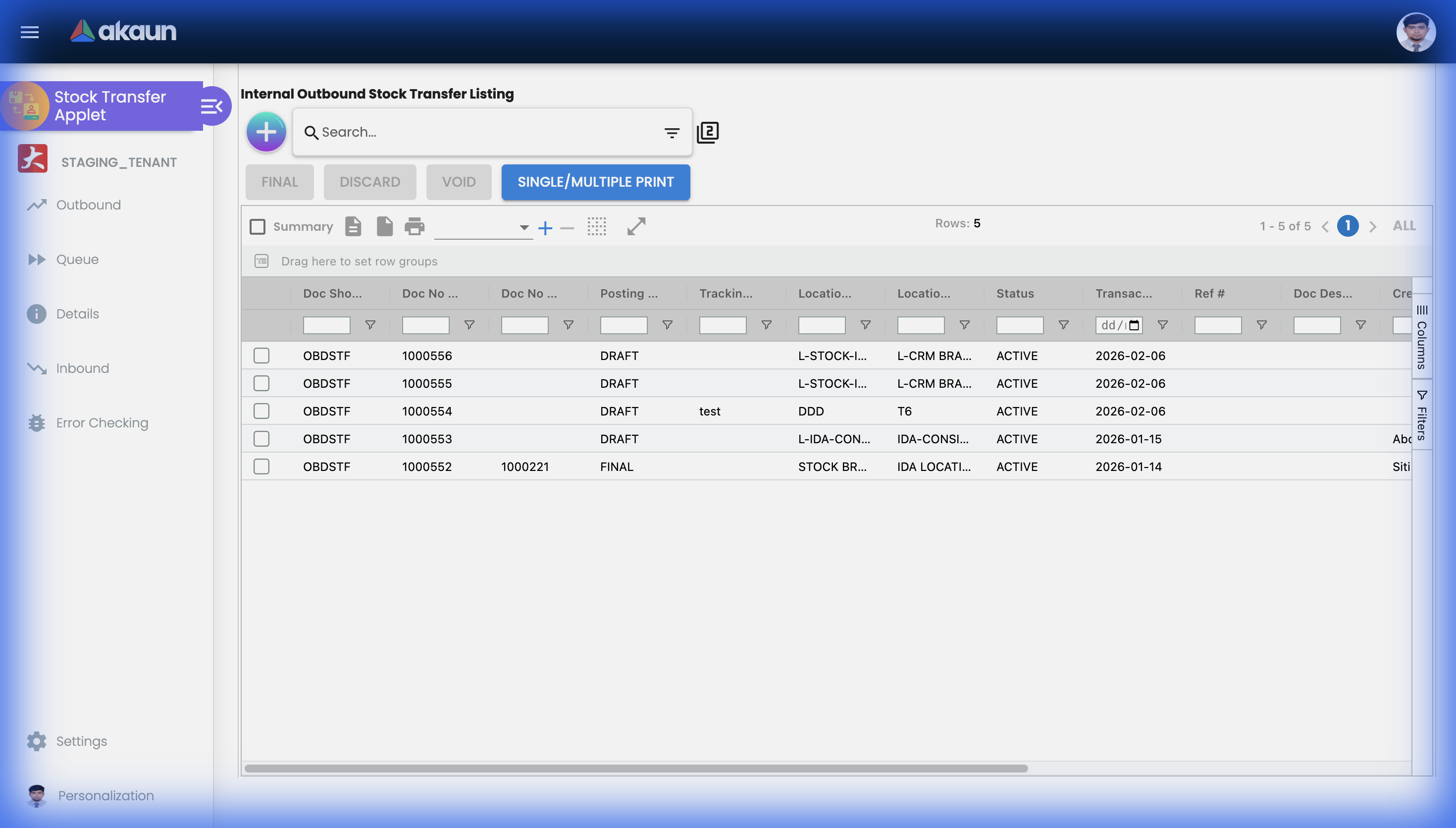
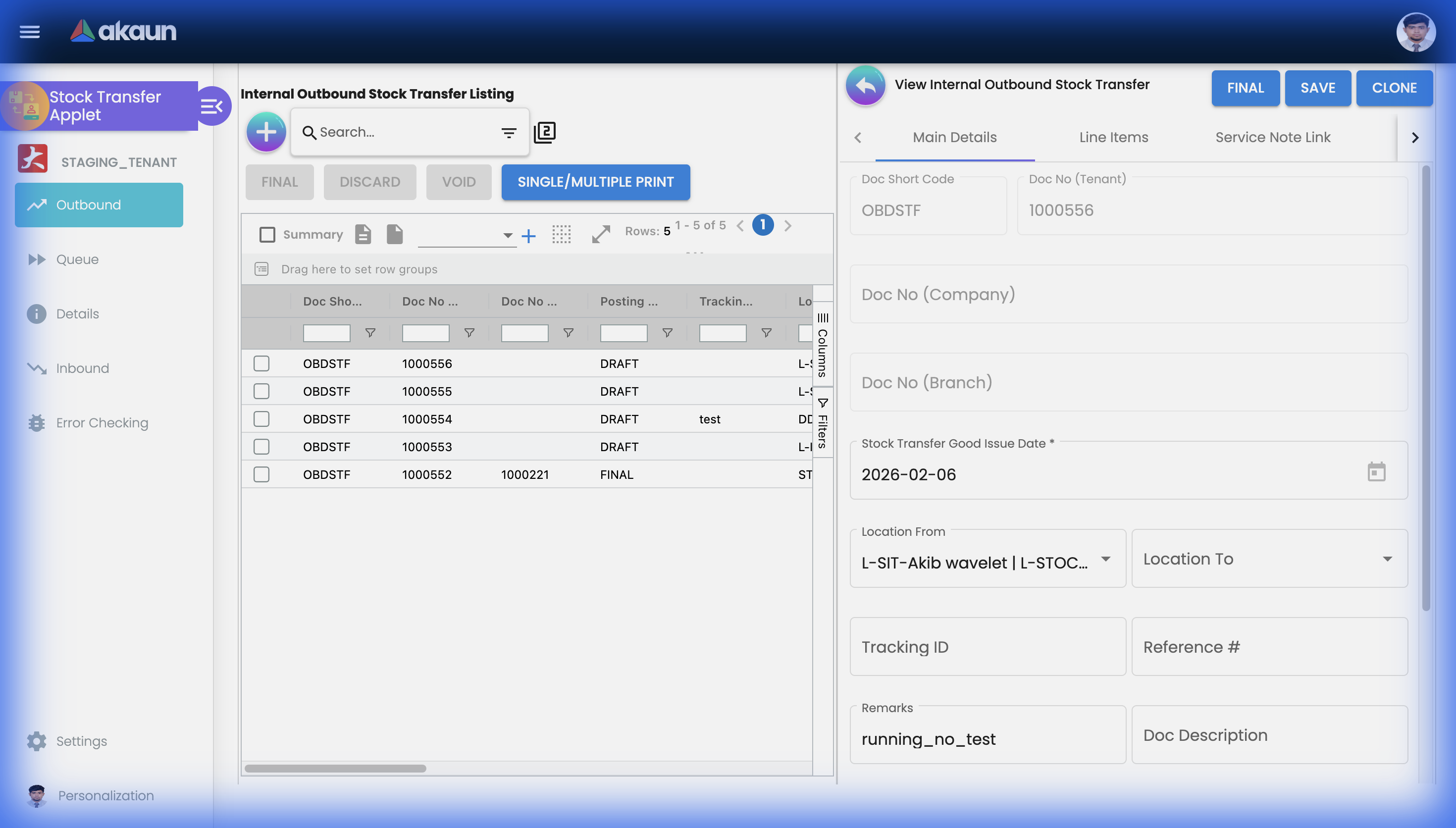
| Outbound | Raising and finalising the issue. The only screen with a VOID button on the document itself |
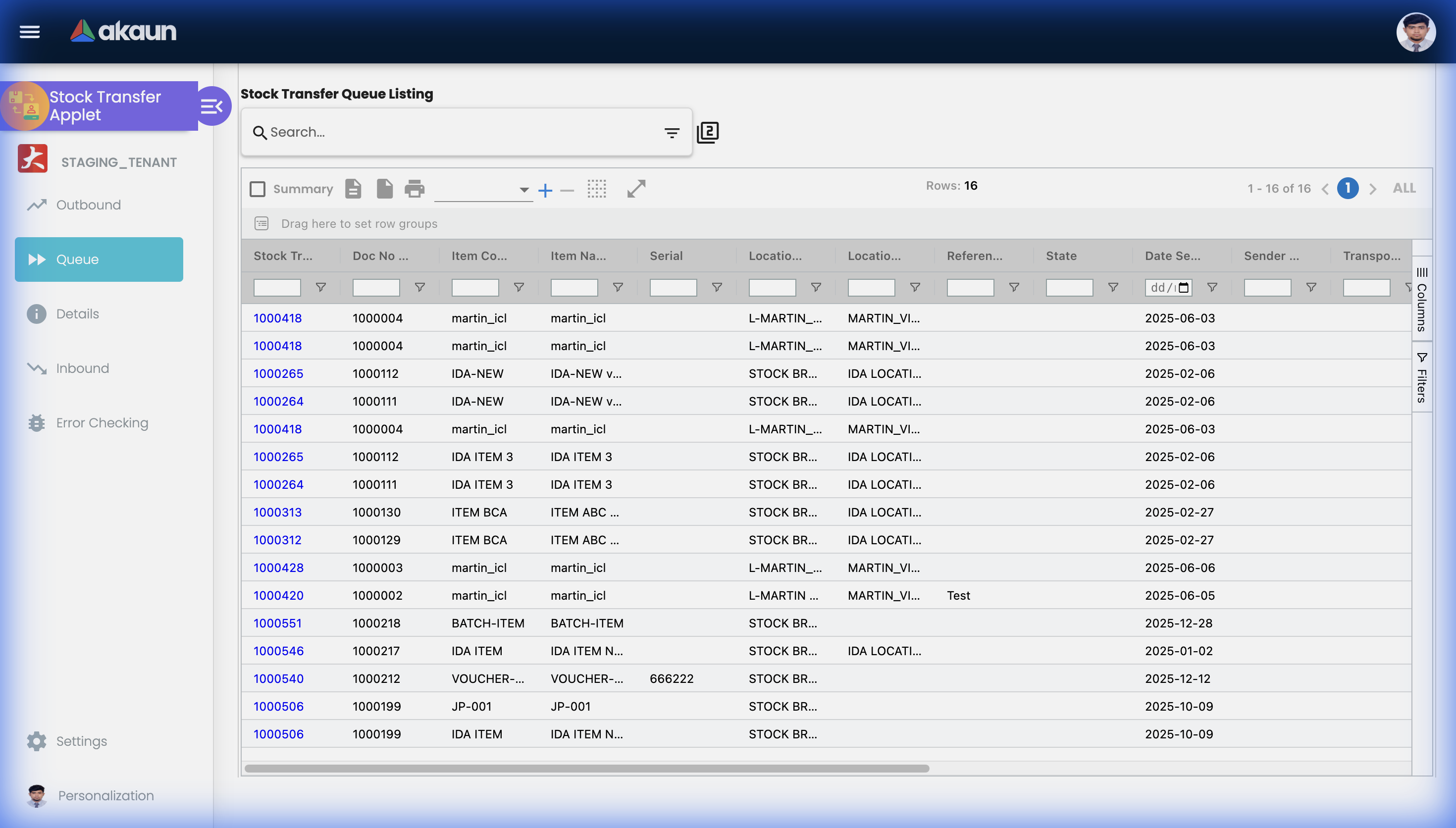
| Queue | Every finalised outbound line not yet fully received. Its search panel narrows the list by sending and receiving location |
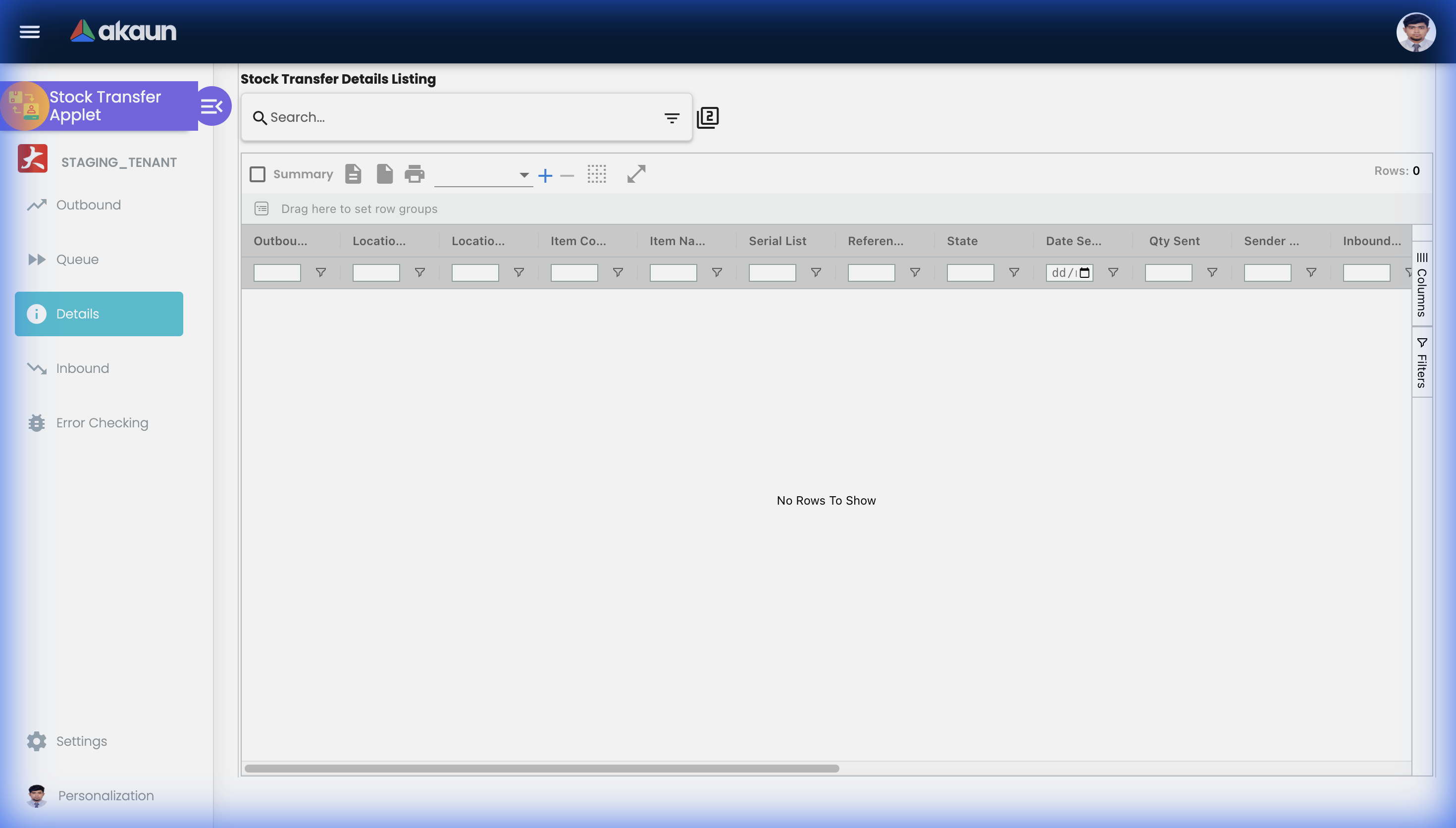
| Details | The same rows plus the inbound that received them — quantity sent, received and outstanding. This is the screen for “was it received short?” |
| Inbound | Raising and finalising the receipt. VOID lives on this listing, not inside the document |
| Outbound File Import | Bulk creation from a delimited file, one document set per file, with a per-row error report. The sidebar lists it twice; both entries open the same screen |
| Error Checking | One tab, Missing Queue: finalised outbound documents that never produced their transfer-queue rows, with a CREATE button that writes the missing rows for the documents you tick — a repair you can run yourself (see What sits in transit) |
Gear (Settings): Application Settings, Default Selection, Outbound / Inbound Printable Format, Custom Status, Custom Field Placement, Custom Resource Bundle Configuration (relabelling), Spreadsheet View configuration, and the platform pages (Webhook, Feature Visibility, permission listings, Release Notes, Applet Log). Default Selection also exists per user, and the personal value wins.
Routes for a Multi-Stock Transfer / Replenishment menu — templates, events, runs — are still in the applet with their menu entries commented out. Replenishment is documented under Stock Replenishment.
What pressing FINAL actually does
FINAL is not a save. It is a separate call that queues the document on the generic document primary processor, which fans out to the secondaries subscribed to it — thirty-two of them, most with an empty trigger constraint, so they all receive every finalised document and each decides for itself whether this one is any of its business.
The two documents reach that queue by different calls, and the difference decides whether the stock
balance is checked. FINAL on an outbound document goes through the applet’s own update and
finalise call, whose stock-balance check is off unless you ask for it — and the applet asks only
when SHOW_ITEM_STOCK_BALANCE is on (see Settings that carry a consequence).
FINAL on an inbound document, and FINAL pressed on several selected rows of either listing, goes
through the generic posting-status call, where the check is on unless the caller switches it off —
and the applet never does. So with the setting off, an outbound opened and finalised on its own can
take a location negative, while the same outbound finalised from the listing is refused. Before the
outbound call the screen also saves any document links you edited; if that save is refused, FINAL does
not run.
If an outbound line carries a manufacturing job order, pressing FINAL also writes that job order’s transferred quantity — from your browser, before the document is finalised. It writes the line’s quantity as the transferred quantity rather than adding it to what was already there, and it does so even if the FINAL that follows is refused. A job order fed by two transfers therefore shows only the later one’s quantity. Until that changes, read the total transferred to a job order from the transfer documents themselves, not from that one figure (read from the code, not tried).
For a stock transfer, four of those thirty-two do something:
| Processor | What it does with a transfer |
|---|---|
INVENTORY_TRANSACTION_LINE_PROCESSOR | Turns each PNS document line into inventory ledger lines — and creates the in-transit mirror described below. Lines with a zero quantity signum, and items with no transaction type, are skipped silently |
GENERIC_DOC_LINE_OPEN_QUEUE_PROCESSOR | Writes the transfer queue row for an outbound, and reduces it when an inbound knocks it off |
GENERIC_DOCUMENT_CONVERSION_PROCESSOR | Can create the matching inbound for you — see Can the inbound create itself? |
GENERIC_DOC_UNLOCK_SN_BATCH_BIN_PROCESSOR | Releases the serial, batch and bin reservations the document held while it was a draft |
JOURNAL_POSTING_JOB_PROCESSOR is subscribed too and produces nothing, because neither stock-transfer
type is registered in the journal posting handler. That is not an omission to work around: the
outbound data-consistency object forces the document’s amount signum to zero and rejects any other
value, so a transfer cannot carry an
amount for a journal to post.
Below INVENTORY_TRANSACTION_LINE_PROCESSOR there is a further two-level chain, and it is why the
cost columns on a freshly finalised transfer can still be empty when you look:
FINAL → generic document primary
          → INVENTORY_TRANSACTION_LINE_PROCESSOR          (ledger lines + in-transit mirrors)
              → INVENTORY_TXN_LINE_TO_CURRENT_STOCK_BALANCE_PROCESSOR   (balances, moving average)
                  → INVENTORY_FIFO_LIFO_COSTING_PROCESSOR              (FIFO cost)
Three asynchronous hops separate the FINAL you pressed from the FIFO cost on the line. Quantity is right immediately; cost settles a moment later.
The in-transit mirror
For every transfer line, the stock job writes a mirror of the stock line and changes six things:
- the location becomes the company’s stock-in-transit location;
- the quantity signum is negated, so the mirror is the opposite leg of the same movement;
- it is marked
SIT(stock in transit), which is how the platform recognises a mirror; - the document type is flipped — an outbound document’s mirror is stamped
INTERNAL_INBOUND_STOCK_TRANSFER, and an inbound’s mirror is stampedINTERNAL_OUTBOUND_STOCK_TRANSFER; - the transaction date is shifted by a tenth of a second — later for an outbound’s mirror, earlier for an inbound’s — so the four legs sort into the right order in the balance chain;
- every cost and balance figure is cleared, to be recomputed from the running balance the mirror is about to join.
The flipped document type is the one that catches people out. If you report on the in-transit location filtered by document type, an issue from a branch appears there as an inbound and a receipt appears as an outbound — correct from the in-transit location’s point of view, and the exact opposite of what the document says. Filter by location and date, not by document type.
The mirror keeps the original line’s branch, so the in-transit leg is stamped with the sending branch on the way out and the receiving branch on the way in.
Where the cost comes from
This is the question a transfer raises more than any other, and the answer has two halves that people routinely merge.
The company’s unit cost does not move, and that is by construction
Moving average is recalculated on every inventory line from the previous line in the chain. Whether a
line adds value or merely moves quantity is decided by one list —
StockBalanceHelper.MA_WA_SERVER_DOC_TYPES, which holds nine document types: purchase
invoice, purchase return, stock adjustment, the stock-balance calibration, the two purchase GRN/GIN
types, the two consignment types and purchase trade-in. Neither stock-transfer type is in it.
For a document outside that list the calculation is a cost-neutral relieve: the cost amount changes in the same proportion as the quantity, so the amount divided by the balance — the unit cost — comes out unchanged. A transfer therefore cannot change what your stock is worth per unit at company level, no matter what anyone types on the line.
Which means: the unit price field on a transfer line feeds nothing. It is not read by the moving average, there is no journal for it to reach, and the document’s amount signum is zero. It is a note to the person at the other end.
The per-location number is a different number
Every inventory line carries two sets of cost columns: company-level (cost_ma_price_company and
friends) and location-level (cost_ma_price). They are computed by two different calculators walking
two different chains — prev_company_txn_guid and prev_location_txn_guid.
The location calculator seeds each calculation from the previous line at that location. So when goods arrive at the receiving location, the arrival is still cost-neutral — and “neutral” is relative to the receiving location’s own history, not the sender’s:
- if the receiving location already holds the item, its unit cost stays exactly where it was and the amount grows at that price;
- if it holds none but has held some before, the amount is re-seeded from its own last unit price — a deliberate “sticky” price;
- if it has never held the item at all, there is no previous line, so the seed is zero — and the arrival is valued at zero at that location.
Company-level value remains correct throughout. A per-location valuation after a transfer into a new location is not a number to hand an auditor without understanding which of the three cases it is.
What lands on the document line
Costing is written back onto the document line too — but deliberately from the inbound leg of each
hop, never the outbound. Hop one is LOC-1 [outbound] → [inbound] in-transit, hop two is
in-transit [outbound] → [inbound] LOC-2. So the cost recorded on an outbound document’s line is
the cost at the moment the goods reached in-transit, and the cost on the inbound document’s line
is the cost at the moment they reached the destination.
FIFO, LIFO and landed cost
FIFO costing treats both transfer types specially: the FIFO amount for the transaction is the company’s current FIFO cost price multiplied by the absolute quantity, rather than the cost of the layers a sale would consume. Same principle — a move does not revalue.
LIFO is not computed. For transfers the LIFO, manual, replacement and last-purchase cost figures are left empty. If a page or a proposal offers you LIFO stock valuation, that is not what is running. Landed cost has its own pair of calculators and follows the same cost-neutral rule for transfers.
What sits in transit, and how to see it
The in-transit location is created by the platform, once per company, the first time it is needed. Its code is L-SIT-<company code> and
its name is L-STOCK-IN-TRANSIT-<company code>. The company record points at it, and that link — not the code — is what the stock job uses.
To see what is on the road: open Stock Balance or Stock Availability, and look at the L-SIT…
location for the company. The quantity there is everything issued and not yet received. It should
agree with the Queue, and the two disagreeing is the symptom that something did not finish.
The in-transit location is selectable, and it should not be. Both location drop-downs on the create screens are meant to leave it out, and they look for it by the wrong attribute, so they never find it: the in-transit location appears in both lists like any other, and you can raise a transfer into or out of one with nothing to stop you.
If you pick it, nothing warns you and the document finalises normally — but the in-transit balance
stops meaning “goods on the road”, and every reconciliation that compares it with the Queue breaks.
Until the guard is fixed, treat L-SIT… as reserved and, if you can, keep it out of the location sets
your transfer users are granted.
The ST-GIN knock-off screen uses a third drop-down, which does not even try.
BigLedger support can repair transfers whose in-transit mirrors were never written — the lines without a matching mirror can be found and fixed. The repair exists because it has happened. The queue side you can repair yourself: Error Checking > Missing Queue lists finalised outbound documents (by document number or date range) whose queue rows were never written; tick them and press CREATE, and the rows are written. The Remarks column shows the result per document. It is the first place to look when a location’s in-transit balance and its queue disagree.
The queue: received short, or never received
Finalising an outbound opens each line for receipt, and the Queue and Details screens show the open, non-deleted lines of outbound transfers.
The open quantity on that row is not decremented. It is recomputed from the line quantity plus the signed total of every knock-off link on that line, and the row is deleted permanently when the result reaches zero. Completeness is therefore recorded by an absence: a line that has been fully received has no queue row at all, not a row showing zero. Delete the knock-off link and the row comes back.
That gives you three states and they behave differently:
- Received in full — the queue row is gone. Details still shows the pairing, because Details reads the documents and their links, not only the queue.
- Received short — the queue row survives with the remainder. Raise another inbound against it whenever the rest arrives; there is no limit on how many receipts one outbound line may have.
- Never received — the queue row stays indefinitely. Nothing sweeps it and nobody is told. The quantity sits at the in-transit location for as long as it takes. Company-level stock is still correct; the two branch balances are both understated by that quantity, which is exactly the situation that produces “head office says we have it and we can’t find it.”
Three things about that queue are easy to get wrong, and each one has sent a branch looking for stock that was never missing:
- It is reduced when the inbound is saved, not when it is finalised. The link from an inbound to its outbound is written at save, and the queue row is reduced then. A DRAFT inbound that imported the whole quantity therefore hides the outbound from the next receiver — KO For no longer lists it — until that draft is finalised, reduced or discarded. When a branch says the transfer “has gone”, look for a draft inbound before anything else.
- Without the outbound-to-inbound document-flow configuration there is no queue row at all. The outbound saves and finalises normally, but KO For lists nothing for it, because the list is the queue filtered to that pair of document types. Configure the flow before the first transfer.
- An inbound keyed by hand, without KO For, leaves the row untouched. The stock arrives, the outbound stays listed with its full quantity, and the next person can receive it again. Receive through KO For, or expect the outbound to sit in the queue indefinitely.
A discarded inbound draft releases what it had knocked off. A voided outbound reverses the stock movement; if some of its lines have already been received, do not void — receive the goods back with a transfer in the other direction, or you will be reversing a movement whose second half has already happened.
Two columns on the Queue that are not fields
Neither is stored anywhere — both are put together when the Queue is read — so searching for them behaves oddly:
- Sender Remarks is four fields joined with commas — the document’s remarks, its internal remarks, its external remarks, and the line’s tracking ID. Anything typed into the internal remarks box is visible to everyone who can read the queue.
- Reference is nine fields joined the same way: the line’s reference number and tracking ID, the header’s document reference and tracking ID, and all five client document numbers.
Who sees which rows
The Queue’s search panel takes a sending location and a receiving location; with neither picked, the screen asks for every open line. A receiving clerk who wants only the lines coming to them picks their own location as the receiving one. If the Queue is empty, check those two filters and that the outbound is FINAL before looking for a missing document.
Pulling lines from another document is a copy, not a knock-off
The outbound document’s Search Document panel pulls lines from a Stock Requisition, a GRN, a Purchase Invoice or an ST-GRN. It looks like the knock-off that the rest of the platform does. It is not: when the target is an outbound stock transfer, the remaining quantity is reset to the full line quantity, every time.
So a GRN line pulled into two different outbound transfers contributes its whole quantity to each. The link is still written, so the trace from transfer back to GRN is intact; what does not happen is the source being consumed. Treat the panel as “copy these lines”, and check quantities yourself.
Two related behaviours, both deliberate and both invisible:
- The entity-and-branch consistency check that every other knock-off enforces is skipped for the two transfer types and for stock requisitions. It has to be: the receiving branch is by definition a different branch, and a transfer has no counterparty for the check to match.
- Delivery branch and delivery location are cleared on the header and on any transfer line built from a link, and the from/to locations are swapped when the target is an inbound.
Branch, location and profit centre
Stock lives at a location, and a location belongs to a company. Branch is a separate dimension that travels on the document and on every inventory line, but there is no branch chain and no branch balance: the running balances are kept per location and per company only. You can report movement by branch; you cannot ask for a branch’s stock balance except by asking for its locations'.
Profit centre is a third, independent dimension. The applet carries twelve settings for segment, dimension, profit centre, project, SST and withholding
tax (INCLUDE_* and ENABLE_*) and not one of them does anything here. They are live settings in
other document applets, which is why they are here at all. On a transfer they do nothing, and there is no field on any tab to tag a
transfer with a profit centre.
The counterparty slots on a document that has none
Every generic document carries the entity snapshot block that the platform writes when a customer or supplier is chosen — see the entity snapshot on a document. A transfer has no customer and no supplier, so the column is written but left as the empty object. An integration or a printable that reads the buyer’s code or name off a transfer will find nothing there, and that is correct rather than broken.
The entity slots, though, are repurposed. The Queue’s Sender name and e-mail come from the document’s entity, and Transporter name and e-mail from its delivery entity. So on a transfer those two fields mean the person who sent it and the haulier who is carrying it — not a trading counterparty.
Can the inbound create itself?
Yes — but only if somebody has configured it, and nothing configures it for you.
The automatic conversion builds the receipt from the issue: it swaps the from and to locations on the
header and on every line, makes the lines stock-in, links each back to its outbound line, and takes the
new document’s posting status from the company’s document-flow configuration (its second posting
status, default DRAFT). Configure it as FINAL and the receipt raises and finalises itself — the
running numbers are assigned and the new document posts. The two-step becomes one step.
What a self-finalised receipt skips. A receipt finalised this way is queued straight for posting
without the checks a FINAL pressed on the screen runs first — no serial, batch, bin or stock-balance
validation. Its posting status is FINAL and its inventory-posting flag is already marked posted when
it is created, before the stock job has run. So a serial that is not where the outbound said it was, or
a bin that does not exist at the receiving location, is not caught at the receipt. If you switch this
on, reconcile the in-transit location and the receiving location’s serial list after the first few
transfers rather than relying on a refusal to tell you (read from the code, not tried).
The conversion acts only on flow configurations that are mode AUTO, type KO_DOC and enabled. This is the trap: an outbound-to-inbound flow-configuration row in mode MANUAL is what drives the knock-off queue, and it looks identical in the listing to the one that would drive the converter. If you have a row and the receipt is still not creating itself, check the mode before anything else. If a document does not pass the configuration’s validation it is parked for the automatic-conversion retry job to try again.
A cross-company path also exists — intercompany processing recognises the outbound-to-inbound pair, driven by branch intercompany settings — so the “same company” rule stated at the top is the rule for the applet’s own two-step, not an absolute limit of the platform. The configuration for it does not live in this applet; ask BigLedger if you need it.
Configuration
Before you can use it
| Prerequisite | Where | Why it bites |
|---|---|---|
Company, branches and ACTIVE locations | Organisation | The create screens list active locations only. Deactivate old locations rather than deleting them, or their history loses its name |
| Items with the right tracking type | Doc Item Maintenance — the Sub Item Type, chosen when the item is created and locked at its first save | Serial, batch and bin sub-tabs appear only for tracked items, and a bin line that does not exist at the location fails FINAL rather than the save |
Document numbering for OBDSTF and IBNSTF | Organisation > document numbering | Missing numbering is found at FINAL, not at create |
| Printable formats | Settings > Outbound / Inbound Printable Format | Only needed if ENABLE_AUTO_POPUP is on — with it on and no format set, pressing FINAL shows a red No Default Printable Selected message, and the document finalises anyway |
No GL codes, tax codes or cashbooks are needed, because nothing posts.
Settings that carry a consequence
Settings > Application Settings opens the shared field-configuration screen. Roughly seventy
HIDE_* and EXPAND_* keys switch individual fields, tabs, buttons, columns and menus off or open —
flip one and you see the result immediately, so they are not listed here. The screen offers more for
this applet than that: about thirty listing-column switches, the per-tab switches of the two document
screens, and since September 2026 one that hides the KO For (ST-GIN) button on the inbound listing.
A hidden listing column or bulk button comes back for anyone whose role holds the matching client-side
permission — the rule is setting off, or permission held — but most of those column permissions are
not defined, so for columns the setting is in practice the whole of the control. The mechanism, its scope and
the difference between a setting and a permission are described once, in
applet settings and permissions. These are the ones whose effect you cannot see:
| Setting | What it actually decides |
|---|---|
SHOW_ITEM_STOCK_BALANCE | Labelled Disallow negative stock for basic item. Shows the balance on the line and asks for the stock-balance check when you press FINAL on an open outbound, so with it on the server refuses to issue more than the sending location holds. Off, an outbound finalised from inside the document goes through and the location goes negative. It governs only that one path: FINAL on an inbound, and FINAL on rows selected in either listing, checks the balance whatever this says (see What pressing FINAL actually does) |
ENABLE_DRAFT_LOCK_SERIAL_NUMBER_CHECKING | When you key a serial on a line, also refuse one that another draft document has already claimed. Off, two clerks drafting transfers at the same time can both put the same unit on their lines. Worth switching on wherever several people issue serialised stock from one location |
HIDE_GENDOC_FINAL_BUTTON / HIDE_GENDOC_SAVE_BUTTON | Separating drafting from finalising, or forcing immediate finalising, is the only approval control there is — there is no approval workflow for transfers |
HIDE_GENDOC_VOID_BUTTON | The only thing standing between a user and reversing a finalised issue whose goods have already been received elsewhere |
HIDE_GRN_TAB, HIDE_ST_GRN_TAB | Hide the line-level KO By GRN Item and KO By ST-GRN Item tabs on the line editor. They do not control the document-level Search Document panel — see below |
PRINTABLE, PRINTABLE_INBOUND, ENABLE_AUTO_POPUP | Auto pop-up opens the configured printable once FINAL succeeds. With no format configured, pressing FINAL shows a red No Default Printable Selected message — and the document still finalises, so the message is not a failure |
DEFAULT_LOCATION | Pre-fills the location on a new document. Set it per user, under Personalization > Default Selection: the tenant-wide Default Selection screen here saves only the tab order of the two document screens and the language, so there is no screen that sets a tenant default location for this applet. Two people creating “the same” transfer can therefore start from different locations. A branch default seeds nothing on a transfer |
| Custom Status | Up to five client statuses with named values, for the header only. Enabled header statuses appear on the inbound document’s Status tab and as columns on the inbound listing — the only place a transfer can carry a workflow state of your own. The line statuses on the same screen are saved and used by nothing, and the outbound shows none of them |
The Search Document tabs are gated by permission, not by a setting. The document-level panel reads
three keys — HIDE_PURCHASE_INVOICE, HIDE_GRN, HIDE_ST_GRN — and requires the matching
client-side permission to be held. Two consequences:
- With no permission granted, the tab is hidden whatever the settings say. If a user cannot find
the GRN tab on an outbound transfer, grant
SHOW_GRN_TAB; changing a setting will not help. - Those three keys are not on the Application Settings screen at all — the shared field-configuration form does not declare them — so they can only be set through the API.
On the screen and doing nothing
| Key | Status |
|---|---|
| Hide purchase invoice tab (misspelt in the model) | Declared in the model with a form control on the shared screen but no toggle rendered for it, and read by nothing. The Purchase Invoice tab is governed by HIDE_PURCHASE_INVOICE plus the permission |
| The six dimension and tax include flags and their six enable twins | Declared in the model with no control on any screen; they do nothing here. They are genuinely live in other document applets, so a reader who has seen one work elsewhere will reasonably expect it here. On a transfer there is no field for them to govern |
SHOW_STOCK_TRANSFER_DETAILS_MENU, SHOW_ERROR_CHECKING_MENU | Checked by the applet and not defined as permissions. Granting them is impossible, so the Details and Error Checking menus can only be hidden for everyone or shown to everyone |
Who can change what
| Layer | Scope | Who |
|---|---|---|
| Application Settings | The whole tenant, this applet | Whoever can open the settings screen — one change moves every user |
Client-side permissions (the eleven SHOW_* above) | Per role — granted to a role, never to a user directly | Permission administration. These add a button or a tab back, or gate it outright in the Search Document case |
API permissions TNT_API_DOC_INTERNAL_{OUT,IN}BOUND_STOCK_TRANSFER_* | Per user, server-enforced | The only layer that stops an integration. Hiding a button hides a button |
| Location permissions | Per user, per location | Which locations a user can act on |
The eleven registered client-side permissions are SHOW_QUEUE_MENU, SHOW_OUTBOUND_FILE_IMPORT_MENU,
SHOW_GENDOC_FINAL_BUTTON, SHOW_GENDOC_DISCARD_BUTTON, SHOW_GENDOC_VOID_BUTTON,
SHOW_CLONE_BUTTON, SHOW_GRN_TAB, SHOW_ST_GRN_TAB, SHOW_PURCHASE_INVOICE_TAB,
SHOW_TRANSACTION_DATE and SHOW_UNIT_PRICE_STD_PRICING_SCHEME. SHOW_TRANSACTION_DATE is the one
with a business consequence: without it the transfer date on an inbound is read-only, so the
receipt is dated when it is keyed.
Fields
Main Details takes Location From and Location To, the transfer date, Reference #, Remarks,
Tracking ID and — with SHOW_DELIVERY_DRIVER_CODE — a Driver Code, alongside the three generated
document numbers and the audit fields. Location To must differ from Location From, both dropdowns
list active locations, and Location From defaults from your personal Default Selection (see
DEFAULT_LOCATION above).
Line Items comes in two forms, chosen by a setting: a Standard View that edits one line at a time with Item Details, Serial Number, Batch Number, Bin Number and Grouped Item sub-tabs, and a Spreadsheet View for grid entry whose columns are configured under Settings. A Scan Serial No or Item Code box adds lines from a scanner. Quantity is in base unit of measure. Serial-tracked lines must name serials that exist at the sending location; on the inbound, the “already exists in this company” check is skipped, because by then the serial is the company’s.
Quantity and serial count are not held in step for you. On a serial-tracked item, entering serials
in the line editor sets the quantity to their count as you go — but nothing stops you changing the
quantity afterwards, or keying a different one in the Spreadsheet View. The screen then shows a red
hint, the FINAL button stays available, and it is the server that refuses the FINAL with The generic doc line
quantity base and serial number quantity does not match. Match the quantity to the serials before
pressing FINAL. An item tracked by quantity that happens to carry serials on the line is not checked at
all. (Dated note, 2026-10-06: the applet’s source since 2026-09-25 sets the quantity to the serial count
when you add or save the line, with a message saying so, and keeps FINAL disabled while the two
differ; the build served on 2026-10-06 does not yet include it.) Bin lines must exist at the
location — a bin that does not is reported as Bin Line Guid Does Not Exist for STOCK_TRANSFER.
The remaining tabs are Search Document (new documents only, and see the section above), Delivery Details, Doc Link, Service Note Link, Attachments, Export, and on the inbound a Status tab for custom statuses.
Buttons: SAVE, FINAL, DISCARD on a draft; VOID on a finalised outbound; CLONE; and DELETE when
SHOW_DOCUMENT_DELETE_BUTTON is on and the document is not final. VOID on the inbound is on the
listing, not in the document — select finalised rows and press it there.
Lifecycle and effects
| Posting status | What it means for stock | What can follow |
|---|---|---|
DRAFT | Nothing has moved; serials, batches and bins are reserved | FINAL, DISCARDED, or deletion if that button is enabled |
FINAL | The movement has happened and the queue has been written or reduced | VOID |
VOID | The movement is reversed. Do not use it on an outbound whose lines have already been received | — |
DISCARDED | An abandoned draft. On an inbound this releases the queue quantity it had knocked off | — |
There is a fifth state as well: a transfer document can have no posting status at all when it was created by a path that does not set one, and a listing filtered by status will not show it. If a document you know exists is missing from the listing, clear the status filter before concluding it was deleted.
Stock transfers are exempt from the fiscal-period lock. LOCK_TXN and LOCK_ALL periods reject
every other document type, and make an exception for both transfer types — so closing a period does not stop branch movements. That is a deliberate and useful
asymmetry: a locked period must not strand goods on a lorry.
What it will not do
- No journal, no value, no tax. No ledger entry, no SST or withholding tax, no e-Invoice. If your group needs an inter-branch transfer to produce accounting entries, that is a sale-and-purchase pair between companies, not a stock transfer.
- No approval workflow. Taking the FINAL button away is the whole of the control.
- No LIFO valuation, and no manual, replacement or last-purchase cost on the line — those columns are explicitly not calculated.
- No branch stock balance. Balances exist per location and per company only.
- No profit centre, segment, project or dimension tagging on the document.
- No partial edit after FINAL. Correct by voiding, or by a transfer in the opposite direction.
- No warning when a transfer is never received. The queue is a list, not an alert.
For integrations
Both document types are registered exactly once in GenericDocumentTypeHandler, each with
four permissions in the constructor’s declared order, and each reachable by exactly one slug —
internal-outbound-stock-transfers and internal-inbound-stock-transfers. There is no
second registration and no alternative spelling, so the permission that governs a call does not depend
on which URL you chose. That is worth stating because it is not true of every document type on this
platform.
Post the outbound with a header amount signum of zero and line quantity signum −1; the server fills both if you omit them and rejects any other amount signum. The inbound is the mirror: quantity signum +1.
Related applets
Where it fits says which applet comes before and after. This says which one to open when something is wrong, because three of these are routinely opened instead of the right one.
| Applet | Why you end up there, and what it is not |
|---|---|
| Consignee Stock Transfer | The applet most often confused with this one, and it differs in both ownership and mechanism. This applet moves stock between locations of one company in two hops — outbound, a queue, then an inbound you raise at the other end. That one moves stock you still own to a consignee location in a single document with no queue: finalising it posts the quantity out of one location and into the other at once, so there is nothing to receive and nothing waits in transit. If the receiving side is a consignee rather than one of your own locations, you are on the wrong page. |
| Stock Requisition | Where a branch asks. A requisition moves nothing; only the outbound transfer raised against it does. The entity-and-branch check that other knock-offs enforce is deliberately skipped for this pair, which is why the requisition can come from a branch the transfer does not name. |
| Purchase GRN | Where centrally received goods arrive before they are pushed out. Pulling GRN lines onto an outbound is a copy, not a knock-off — see Pulling lines from another document — so the GRN’s quantity is not consumed and can be taken again. |
| Stock Replenishment | Raises outbound transfers for you on a rule rather than a request. The Multi-Stock Transfer / Replenishment routes still sitting in this applet with their menu entries commented out belong there, not here. |
| Warehouse Management | Packing lists, which can construct an outbound transfer directly, and bins — the only place a bin named on a transfer line can be created. Bin Line Guid Does Not Exist for STOCK_TRANSFER is always fixed there. |
| Stock Balance · Stock Availability · Stock Report | The three places the movement shows, and they answer different questions. Availability is what you can sell now at a location and is where a rejected quantity or a missing serial is traced. Balance and Report are where the in-transit leg is visible — the leg nobody can find when goods are between two branches. |
| Inventory Item Maintenance · Doc Item Maintenance | The item’s tracking type is set there and decides whether every line needs serials, batches or bins. A transfer that will not finalise on a serial check is an item-configuration fact, not a transfer fact. |
| Organisation | Branches, locations and document numbering. The stock-in-transit location is created by the platform rather than by you — when the company is created, or the first time a transfer needs one — and no screen points a company at a different one. |
This applet raises no journal and touches no customer, supplier or tax record, so no finance or e-invoice applet is a neighbour of it — a point worth making, because a group that expects an inter-branch movement to produce accounting entries needs a sale-and-purchase pair between companies instead, not this document.
Troubleshooting
| Symptom | Cause | What to do |
|---|---|---|
| The Queue is empty | The outbound is not FINAL, or the search panel’s sending / receiving location filters exclude it | Check the outbound’s posting status; clear the location filters |
| A line is still in the queue after it was received | The inbound was keyed by hand, without KO For, so it carries no link to this outbound; or the inbound or its knock-off link was deleted, which gives the quantity back. Not a draft: the queue row is reduced when the inbound is saved, before FINAL (see The queue) | Open the inbound and check that it was raised through KO For against this outbound; use Details to compare quantity sent with quantity received. If the goods arrived on a hand-keyed inbound, do not receive them a second time |
| The in-transit balance and the queue disagree | Some transfer lines never produced a queue row, or never produced an in-transit mirror | Error Checking > Missing Queue: tick the documents and press CREATE to write the missing rows; the mirror side needs a repair by BigLedger support |
| Stock is at neither branch and nobody can find it | The outbound was finalised and no inbound ever followed | Check the L-SIT… location’s balance, then raise the inbound |
| A branch’s stock valuation looks wrong after a transfer | The receiving location had never held that item, so the per-location moving average seeded at zero | Compare with the company-level figure, which is the one that is right |
| The in-transit location appears in a location dropdown | The exclusion guard tests the code and the backend puts the marker in the name — see the warning above | Do not select it; restrict the location set granted to transfer users |
| An outbound line was rejected on quantity | The sending location holds less than the line, and either SHOW_ITEM_STOCK_BALANCE is on or you finalised from the listing (which always checks) | Check Stock Availability at the sending location |
| An outbound finalised from the listing is refused for stock, though the same kind finalises from inside the document | The listing’s FINAL always checks the stock balance; inside the document the check runs only with SHOW_ITEM_STOCK_BALANCE on | Expected. Decide which you want: turn the setting on so both paths refuse, or get the stock into the sending location first |
| FINAL refused with quantity base and serial number quantity does not match | A serial-tracked line’s quantity differs from the number of serials on it | Make the quantity equal to the serial count, then FINAL |
| A job order’s transferred quantity is lower than what was sent | FINAL on an outbound writes the line’s quantity as the job order’s transferred quantity, replacing what an earlier transfer wrote | Add up the transfers raised against the job order from the documents themselves |
SERIAL_NUMBER_DOES_NOT_EXIST_AT_LOCATION | The serial is somewhere else | Trace it in Stock Availability and transfer it from where it is |
Bin Line Guid Does Not Exist for STOCK_TRANSFER | The bin on the line is not set up at that location | Create the bin in Warehouse Management |
| Pressing FINAL shows No Default Printable Selected | ENABLE_AUTO_POPUP is on with no printable format for that direction. The document still finalises | Set the format under Outbound / Inbound Printable Format, or turn auto pop-up off |
| New transfers do not start from the location you set as the tenant default | The tenant Default Selection screen has no location field; only the personal one sets it | Set Default Location under Personalization > Default Selection, per user |
| FINAL shows an error and the document finalises anyway | A custom-field validation failed and the posting went ahead | Fix the custom field; check Custom Field Placement |
| A GRN’s quantity was taken twice | Search Document on an outbound copies the full line quantity every time — it does not consume the source | Check quantities on the transfer; the link back to the GRN is still correct |
| The GRN tab is missing from Search Document | The user does not hold SHOW_GRN_TAB | Grant the permission. No setting will bring it back |
| A document is missing from the listing | It may carry no posting status at all | Clear the status filter |
Related documentation
- Inventory module — core concepts, configuration, related applets.
- Inventory guides.
- Stock Balance and Stock Report — where the in-transit leg shows.
- Consignee Stock Transfer — stock to a consignee location, in one document with no queue.