Warehouse Management System Applet
Overview
The Warehouse Management System applet is the physical-fulfilment layer that sits between a customer order and the document that actually moves stock. It records goods arriving at a warehouse (Receiving Doc), works out which container and which shelf they go to (Processing Queue and Putaway), keeps the map of what is stored where (Space Container Allocation), and drives picking and packing for orders that have been pushed to the warehouse from the Sales Order (Internal) applet.
It is opened by warehouse staff, supervisors and the administrator who sets up the warehouse structure. Nothing in this applet posts a journal or writes an inventory transaction line. The last step of the outbound flow converts a Packing List into a generic document — an Delivery Order (Internal) or an outbound Stock Transfer — and that document is finalised in its own applet. Stock only moves there.
The applet keeps its own records, its own warehouse/layout/node hierarchy and its own WMS item register. These are separate from the company/branch/location tree owned by the Organisation applet and from the stock balances owned by Stock Balance.
This is the heavier of two ways to run fulfilment in BigLedger. The lighter one needs none of this: a generic document can carry its own delivery and packing state in its own columns, and many businesses never model a warehouse at all. Read Which queue am I looking at? before you conclude that a screen or a column somebody has described to you is one of these.
Where it fits
| Direction | Applet / document | Relationship |
|---|---|---|
| Upstream (outbound flow) | Sales Order (Internal) | Its Pick Pack Queue screen pushes order lines into this applet’s Picking Queue. Nothing else fills that queue. |
| Upstream (inbound flow) | Purchase GRN (Internal), purchase orders, sales returns | Receiving lines can be linked to a generic document line for traceability, on the External Generic Document tab. |
| Upstream (master data) | Inventory Item Maintenance | Financial/inventory items that receiving lines, picking lines and containers point at. |
| Upstream (master data) | Organisation | Company, branch and location used by the Packing List → Stock Transfer conversion. |
| Upstream (master data) | Employee | Entities registered as Pickers and as the Receiving Doc person-in-charge. |
| Upstream (master data) | Pricebook | The pricing scheme used when a Packing List is batch-converted into a Delivery Order. |
| Downstream | Delivery Order (Internal) | Created in DRAFT from a Packing List. |
| Downstream | Stock Transfer | Created in DRAFT from a Packing List’s Doc Conversion tab. |
| Sibling | Stock Availability, Stock Balance | The Picking Queue shows the location and company ledger quantity alongside each queued line. |
Screens and menus
The applet’s sidebar is:
| Menu | Route | What it lists |
|---|---|---|
| Warehouses | warehouse-listing | Warehouse register; opening one gives Details, Node Setting and Layout tabs. |
| Inbound Process › Receiving Doc | receiving-doc | Receiving document headers, with a FINAL button on the listing. |
| Inbound Process › Receiving Line | line-items | Flat list of every receiving line across all headers. Editing a line gives Item Details, Serial Number, Batch Number and Bin Number tabs. |
| Inbound Process › Processing Queue | processing-queue | Queue rows created when a Receiving Doc is finalised; where containers are allocated. |
| Inbound Process › Putaway List | putaway-list | Putaway instructions with a process status. |
| Inbound Process › Putaway Processing | putaway-processing-queue | Open putaway tasks; a row disappears when its container is slotted. |
| Inbound Process › Scan Session | scan-session | Barcode scan session over containers and spaces (uses the browser camera through Quagga). |
| Container Allocation › Listing | space-container-allocation | Container ↔ layout-node links; create by scanning a container code and a space code. |
| Outbound Process › Picking Queue | picking-queue | Order lines pushed in from the Sales Order applet. |
| Outbound Process › Picking List | picking-list | Per-picker task lists. Tabs: Main Details, Lines, Picking Sequence, Add to Cart, Add to Cart Scan, Discarded Carts, Outstanding Product. |
| Outbound Process › Packing List | packing-list | Packing headers. Tabs: Main Details, Account, Lines, Packed Product, Discarded Product, Doc Conversion, Doc Link. |
| Containers | warehouse-container | Physical container register (pallets, totes, cages). |
| Pickers | warehouse-picker | Entities registered as pickers for a warehouse. |
| Settings | settings | See Configuration below. |
| Personalization | personalization | Personal Default Selection and the shared sidebar-appearance screen. |
Two routes exist with no menu entry: space-container-allocation-report (the Report item under
Container Allocation is not shown in the menu) and everything under settings that the
shared settings sidebar does not link (below).
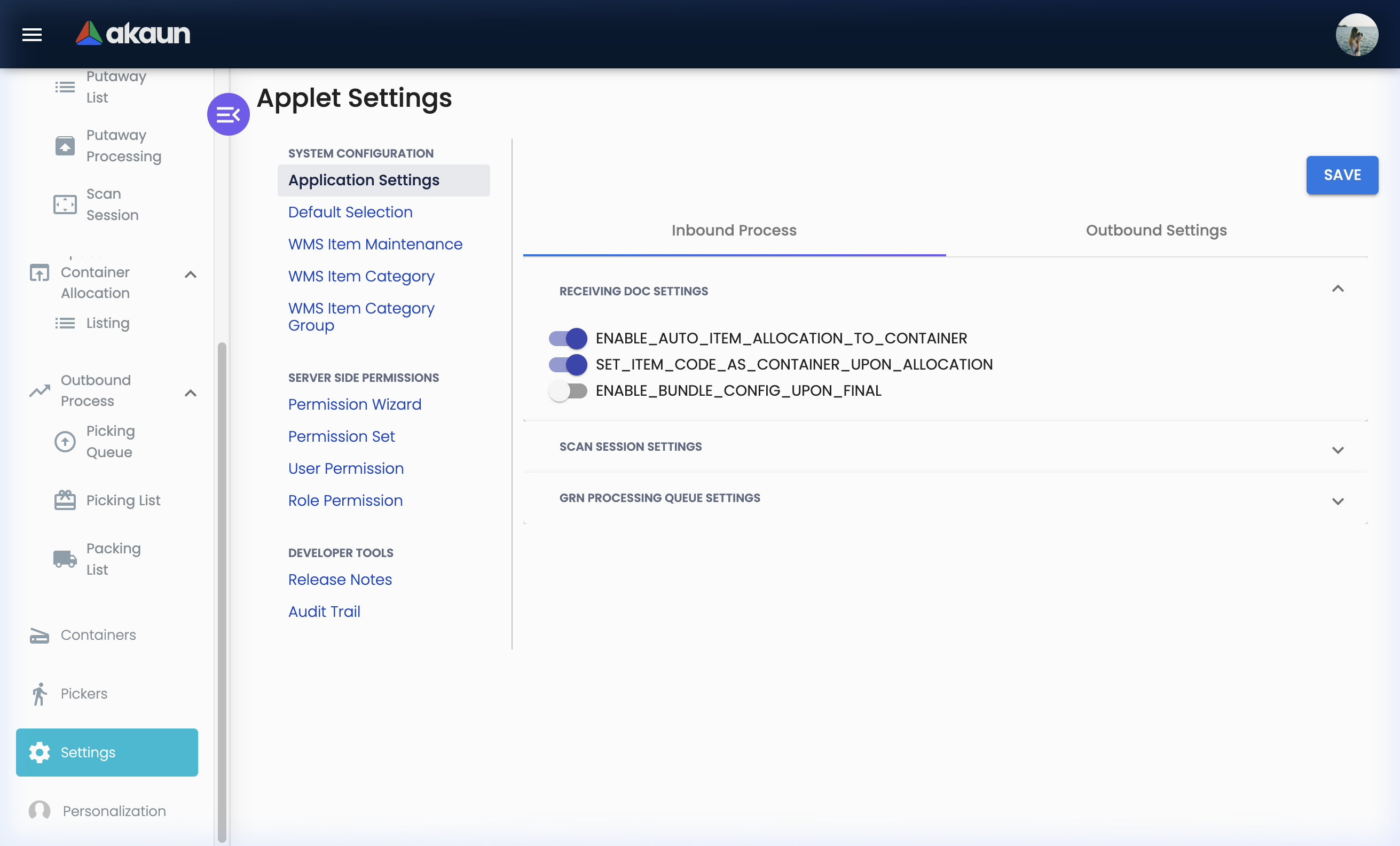
The Settings area shows the applet’s own System Configuration group plus fixed Server Side Permissions and Developer Tools groups:
| Group | Items shown |
|---|---|
| System Configuration | Application Settings · Default Selection · WMS Item Maintenance · WMS Item Category · WMS Item Category Group |
| Server Side Permissions | Permission Wizard · Permission Set · User Permission · Role Permission |
| Developer Tools | Release Notes · Audit Trail |
Configuration
Before you can use it
| Prerequisite | Where you set it | Why |
|---|---|---|
| At least one warehouse | Warehouses in this applet | Every receiving, putaway, picking and packing record is keyed to a warehouse. Warehouse Code, Title, Status and Type are all required. |
| A layout and layout nodes per warehouse | Warehouses › Layout / Node Setting | Putaway rows can only be planned against a layout node. Without one, every putaway row is created as PENDING_ALLOCATION. |
| Containers with a scan code | Containers | Container allocation, the picking cart and the packed-list scan all look the container up by its scan code; a container with no scan code cannot be scanned. |
| Registered pickers and packers | Pickers in this applet, over entities from Employee | Picker is required on a Picking List and Packer on a Packing List. |
| Company, branch and locations | Organisation | The Packing List → Stock Transfer form requires company, branch, from-location, to-location and transaction date. |
| A pricing scheme | Pricebook | Only for the Batch Process DO path, which sends DEFAULT_PRICING_SCHEME to the conversion. |
| Orders pushed from the sales side | Sales Order (Internal) → Pick Pack Queue → Send to Warehouse Picking Queue | The Picking Queue is fed only by that button. See Troubleshooting. |
| A decision about how receiving lines are created | This applet, Receiving Doc | Only a line built from a source document line carries a Split Qty, and only lines with a Split Qty survive auto-allocation. Decide before you turn ENABLE_AUTO_ITEM_ALLOCATION_TO_CONTAINER on, not after. |
Applet settings
Settings are applet-local — this applet has a settings screen of its own rather than the shared one — and the screen is labelled Application Settings in the sidebar.
All eighteen controls are written together by one SAVE button and stored as one applet-settings record. Every control starts empty, so the default for every row below is off / unset until the tenant saves the screen once.
Anyone who can open Settings can change them; they are tenant-wide, not per branch and not per user.
Inbound Process tab
| Setting | What it controls | Default | Effect when changed |
|---|---|---|---|
ENABLE_AUTO_ITEM_ALLOCATION_TO_CONTAINER | Which path the FINAL button on the Receiving Doc listing takes | Off | On: FINAL auto-allocates, creating containers for the received lines as well as the processing-queue rows. Off: FINAL creates the processing-queue rows only, and containers are allocated by hand in the Processing Queue. |
SET_ITEM_CODE_AS_CONTAINER_UPON_ALLOCATION | How auto-created containers are named | Off | On: auto-created containers are named after the item code instead of a generated code. |
| Enable bundle config upon final | Nothing in this applet | Off | No effect. The setting is saved, but nothing in the applet or the backend reads it. |
| Enable camera scanner | Nothing | Off | No effect. Not read anywhere in the applet or the backend. The Scan Session screen initialises the camera unconditionally. Turning it on only forces Enable scan code search off in the form. |
| Enable scan code search | Nothing | Off | No effect, same as above. Turning it on forces Enable camera scanner off in the form. |
ENABLE_PUTAWAY_ALLOCATION | The putaway-allocation control on the Processing Queue container listing | Off | On: the control appears, letting the operator push the container into the putaway list from that screen. |
ENABLE_BULK_CONTAINER_UPDATE | The bulk container-update block on the same screen | Off | On: the bulk update panel is rendered, so several queue rows can be allocated to one container in a single action. |
Outbound Settings tab
| Setting | What it controls | Default | Effect when changed |
|---|---|---|---|
ENABLE_CONSOLIDATED_PACKING_LIST | The Consolidated Packing List button on the Picking List listing | Off | On: the button appears. Note the toggle’s label in the template reads ENABLE_CONSOLIDATED_PACKING_LIST_CONVERSION, but the control it is bound to is ENABLE_CONSOLIDATED_PACKING_LIST; the longer name is not a setting. |
ENABLE_MULTI_PACKING_LIST_CONVERSION | The Send to Packing List button on the Picking List listing — the ordinary route from a picking list to a packing list | Off, except on a tenant that has never saved this screen | On: the button appears. Off: it does not, and the only way out of a picking list is Consolidated Packing List. The exception is the trap: while both outbound toggles are unset, the listing forces this one on, so a fresh tenant sees Send to Packing List and loses it the first time somebody saves Application Settings with only the consolidated toggle ticked. The symptom is a button that disappeared and no setting that obviously governs it. |
ENABLE_MANUAL_CART_SCAN | Whether the Add to Cart tab is rendered on the Picking List editor | Off | On: the Add to Cart tab is hidden, leaving only Add to Cart Scan. Off: both tabs are shown. |
ENABLE_CART_SCAN_BY_CONTAINER | Cart scan mode: container only | Off | On: scanning a container code creates the picking-cart rows for everything in that container. Mutually exclusive with the next row — the settings form clears one when you set the other. |
ENABLE_CART_SCAN_BY_CONTAINER_AND_ITEM_CODE | Cart scan mode: container and item code | Off | On: the item scan-code field takes focus and a cart row is created only when every field on the form is filled. |
ENABLE_PACKED_LIST_SCAN_BY_CONTAINER | Packed-product scan mode: container only | Off | On: scanning a container packs everything in it; the per-item block on the create form is hidden. Mutually exclusive with the next row. |
ENABLE_PACKED_LIST_SCAN_BY_CONTAINER_AND_ITEM_CODE | Packed-product scan mode: container and item code | Off | On: a packed line is created per scanned item, only when every field is filled. |
ENABLE_PACKED_LIST_LINE_DELETE_BUTTON | The delete column on the packed-list scan grid | Off | On: the delete column is made visible so a mis-scanned packed line can be removed. |
DEFAULT_PRICING_SCHEME | Pricing scheme sent to Batch Process DO on the Packing List listing | Unset | Set: the generated Delivery Order lines are priced from that scheme. Unset: the source document’s prices are copied. |
DEFAULT_COMPANY | Company pre-filled on the Packing List → Stock Transfer form | Unset | Set: the company is pre-filled. Unset: the operator must pick a company; the field is required. |
DEFAULT_BRANCH | Branch pre-filled on the same form; also merged into the applet-settings object read by the Receiving Doc create screen and the Space Container Allocation create/edit screens | Unset | Set: the branch is pre-filled. Unset: the required branch field stays empty. |
Two keys are read at runtime without a control on this screen:
DEFAULT_LOCATION— read by the Receiving Doc create screen and by Space Container Allocation create/edit, which merge the personal value over the applet value. The only screens that write it are the two Default Selection screens described below, and neither works.ENABLE_BRANCH_FILTER— a name that exists in the applet but is not shown, saved or read. Not a setting.
Default Selection (applet and personal)
Settings › Default Selection and Personalization › Default Selection render Default Branch and
Default Location drop-downs.
DEFAULT_BRANCH from
Application Settings instead; DEFAULT_LOCATION currently has no working control anywhere in
the applet.Settings in other applets that control this applet
| Setting | Where it is set | Effect here |
|---|---|---|
| Pick/pack queue push | Sales Order (Internal) — Pick Pack Queue listing, Send to Warehouse Picking Queue | Moves the queued rows from the sales-side queue into this applet’s Picking Queue and removes them from the sales side. Until this is done, the Picking Queue here is empty. |
| Pricing scheme definition | Pricebook | Supplies the scheme referenced by DEFAULT_PRICING_SCHEME. |
| Company / branch / location records | Organisation | Supply the values DEFAULT_COMPANY and DEFAULT_BRANCH point at, and the from/to locations on the stock-transfer conversion. |
| Delivery Order and Stock Transfer document settings | Delivery Order (Internal), Stock Transfer | Govern what happens when the document this applet created in DRAFT is finalised. |
Feature visibility and permissions
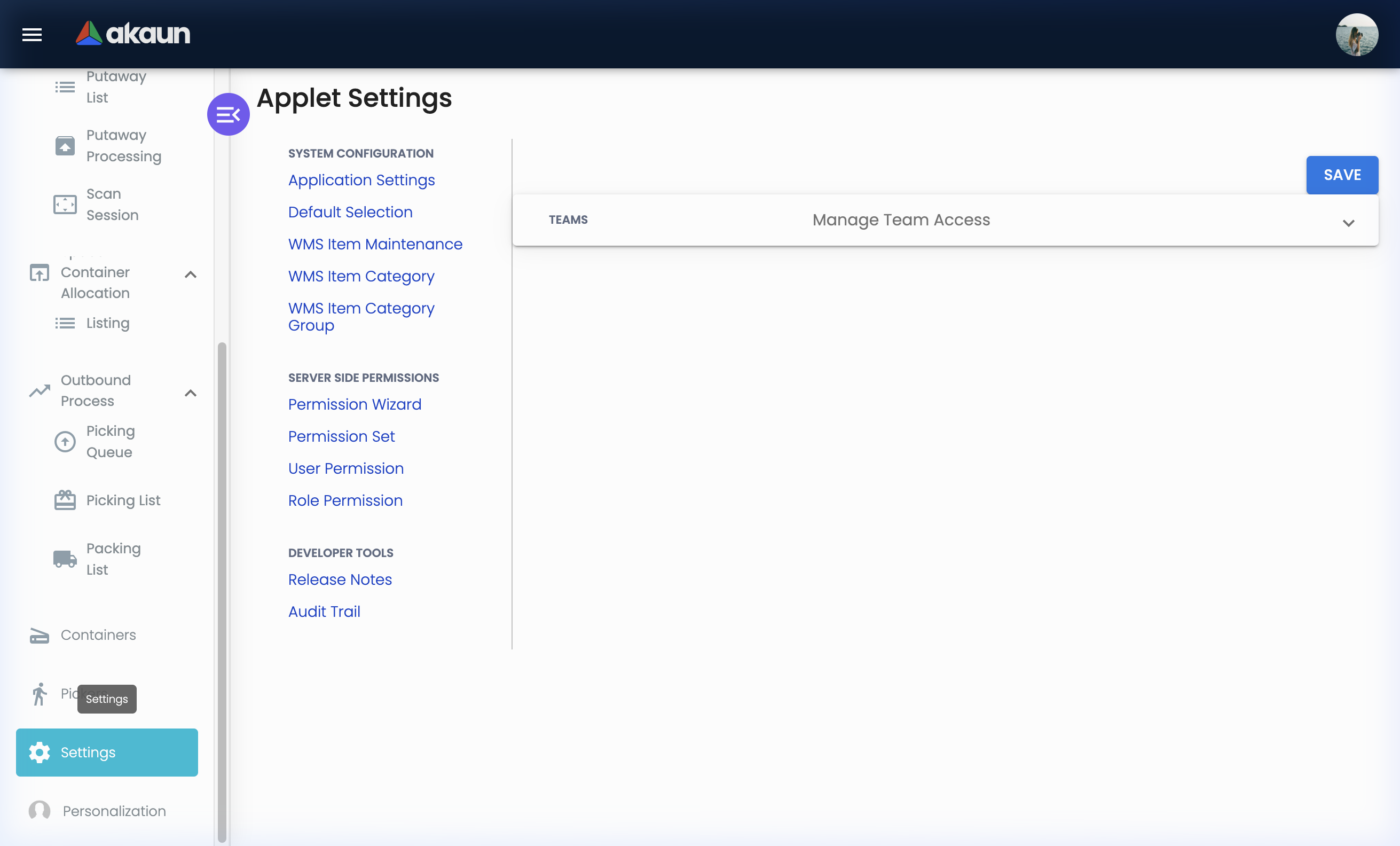
- Feature Visibility is a stub. The screen shows one Teams panel with three placeholder options
(
Team 1,Team 2,Team 3), an add button and a SAVE button, none of which does anything. Nothing it shows is saved, and nothing in this applet reads a feature-visibility value. - No client-side permission codes exist for this applet. Menu items and buttons are therefore not gated per role from inside the applet, and Applet Access has nothing to grant.
- Server-side permissions are the standard shared screens (Permission Wizard, Permission Set, User Permission, Role Permission). This applet additionally offers the Warehouse target view, so a permission can be scoped to specific warehouses, listed by Warehouse Code and Warehouse Title.
Fields
Nearly every form in this applet asks for a code, a name, a description, a status and a date, and does with them what you would expect. This section names what each screen captures — so you can tell at a glance whether it holds the thing you need — and tables only the fields that behave in a way the screen does not show.
Warehouse, layout and node
A Warehouse captures code, title, description, status and type; all but description are required. A Layout belongs to one warehouse and captures name, code, floor, description and status. A Layout Node — your zone, rack, shelf or bin — captures node name, node type, status, a scan code, a parent node, and a position, a size and a maximum weight.
| Field | What the screen does not tell you |
|---|---|
| Layout › Floor | Required on the create form and not on the edit form. A layout can therefore be edited into a state the create form would have refused. |
| Node › Scan code | Container allocation and the scan session look a node up by an exact match on the scan code and take the first row returned. A node saved without one can never be scanned; two nodes sharing one code are indistinguishable, and the first always wins. |
| Node › Parent node | Nodes form a tree of any depth through the parent node. Nothing enforces a zone → rack → shelf → bin shape, or any depth limit — that convention is yours to keep, and nothing will tell you when somebody breaks it. |
| Node › Max weight | Recorded, and searchable on the node-type register. No putaway or slotting step compares a container against it, so stating a maximum weight does not stop you slotting a pallet into a shelf that cannot hold it. |
Receiving Doc and its lines
The Receiving Doc header captures Doc No (disabled — the tenant numbering fills it), Warehouse, Transaction Date, PIC, Reference, Description, Tracking ID and a record Status. A Receiving Line captures the item, quantity, UOM and a tracking ID, with Serial Number, Batch Number and Bin Number sub-tabs. Editing an existing header adds Account, Lines, Generic Document, External Generic Document and Attachments; the create screen has only Main Details, Lines and GenDoc.
| Field | What the screen does not tell you |
|---|---|
| Header › Warehouse | Nothing on this header is validated — including this. A Receiving Doc saves with no warehouse, and every processing-queue row it later creates copies the header’s warehouse, so those rows arrive with none. They are then invisible to any warehouse filter. |
| Header › Status | This is the record status (ACTIVE / INACTIVE), not the posting status. Posting status is DRAFT or FINAL and is changed only by the FINAL button. |
| Line › Item | One line points at one of a financial item, an inventory item or a WMS item. Which one it is decides what the rest of the flow can do with it — see What it will not do. |
| Line › Qty | Required, minimum 1, and truncated to a whole number the moment auto-allocation reads it. Receive 10.5 and ten are containerised; the half is not carried, and nothing reports it. |
| Line › Split Qty | Exists only on the line-link form — the path that creates a receiving line from a source document line, where it is required and defaults to 1. The plain Receiving Line form has no Split Qty control at all, so a line typed in by hand has none. That single fact decides whether auto-allocation sees the line; see Inbound below. |
| Bin Number tab | The form validates and then dispatches nothing. Nothing is stored, and it does not write the bin tables used by Stock Reservation. |
Serial numbers may be typed, scanned, or imported with a delimiter (required on the import dialog). Batch Number wants Batch No, Qty, Issue Date and Expiry Date, all required.
Container, picker, picking list and packing list
A Container captures a code, a name, a split quantity, a type, four dimensions, a scan code and a description — and validates none of them. A Picker links a warehouse to an entity from Employee, with the contact details shown for convenience. A Picking List wants a picking date, a picker and a warehouse; a Packing List wants a packing date, a packer and a warehouse, plus free-text reference, tracking, description and remarks, and its Account tab will not save without a customer entity.
| Field | What the screen does not tell you |
|---|---|
| Container › Scan Code | Matched exactly by every scan-based flow — container allocation, the picking cart, the packed-list scan. A container with no scan code is unreachable from all three, and the form will happily save one. |
| Picking List › Picker and Warehouse | Required on this form — and a picking list created from the Picking Queue sets neither. Those lists arrive blank in both columns and no warehouse filter finds them. See Outbound below. |
| Packing List › Packer | The drop-down is the Picker register. There is no separate packer register; a person must be registered as a picker for the warehouse before they can be named as its packer. |
Packing List → Stock Transfer (Doc Conversion tab)
Company, Branch, From Location, To Location and Transaction Date are all required; Tracking ID and Description are copied onto the document as its tracking ID and remarks.
| Field | What the screen does not tell you |
|---|---|
| Company, Branch | Pre-filled from DEFAULT_COMPANY and DEFAULT_BRANCH in Application Settings. Unset, the operator picks them by hand every time — and DEFAULT_LOCATION, which would pre-fill the locations, has no working control anywhere in the applet. |
| From Location / To Location | Become the from and to locations on the generated Stock Transfer. This is the only conversion in the applet that moves stock when finalised, and these two fields are where it moves it — a transposed pair is a stock movement in the wrong direction, posted from a different applet by somebody else. |
Space Container Allocation and the WMS item register
Space Container Allocation has a scratch Scan Code box that searches containers and spaces by their scan codes and fills the rest of the form; the container and space fields it fills are required. The WMS item register captures warehouse, item code, name, type, UOM, description and status, none of them validated, with read-only audit fields. WMS Item Category and WMS Item Category Group both require a category code and name, and the group form additionally requires a parameter code and parameter name.
A WMS item is a separate record from an inventory item and from a financial item. Receiving lines can point at any of the three, which is the flexibility the register exists for — a pallet of shop fittings that no one sells has a place to live — and also the reason the outbound scan behaves differently depending on which one a line used.
Lifecycle and effects
Which queue am I looking at?
BigLedger has several queues that all describe “work waiting to be done to a document”, and they are different tables with different writers and different logic — not one queue seen from different screens. Getting this wrong is the commonest way to read a warehouse question and answer a manufacturing one. The whole set, so the index is complete:
| Queue | Written by | Where you see it |
|---|---|---|
| Receiving / processing queue | The FINAL button on a Receiving Doc | Inbound Process › Processing Queue, this applet |
| Putaway queue | Pushing a container into the putaway list | Inbound Process › Putaway Processing, this applet |
| Pick/pack queue, finance side | The sales side, and the Delivery & Installation job service | Pick Pack Queue in Sales Order (Internal) |
| Pick/pack queue, warehouse side | Send to Warehouse Picking Queue, which moves rows off the finance side | Outbound Process › Picking Queue, this applet |
| Pick/pack queue, manufacturing side | The MRP flow | The manufacturing applets |
| Delivery & Installation jobs | The job service, which also adjusts the finance-side queue as jobs are created and cancelled | The Delivery and Installation applet |
| Simplified delivery — the delivery and packing state held on the document itself | The document applets | The document’s own delivery details screen |
Three consequences of that table are worth stating plainly, because none of them is visible from any screen.
The finance-side queue and this applet are not the same product decision. Queueing work for picking on the document — its own pick/pack flag, packing status and delivery-tracking fields — is the lighter of the two paths, and it needs none of the warehouses, layouts, nodes and containers below. This applet is the heavier option you move to when you want the physical warehouse modelled. If you are comparing notes with another BigLedger user about “the pick pack queue”, check which of the two you are each looking at before you conclude anything.
A warehouse-side queue row is a pointer, not a copy. A Picking Queue row holds a reference to the document and the line, a document type, a base quantity, a balance, a priority, a running number and a customer branch — and no item, no company, no branch, no location and no warehouse. Everything else on the Picking Queue is joined back from the generic document at display time. That is why the listing can only show one document type, why nothing filters the queue by warehouse, and why a picking list built from it has no warehouse on it. It also means the push moves work by document: every queued line of a selected document goes across, not only the lines that were ticked.
The balance is held as text on the warehouse side. Nothing in the applet is harmed by that, but a
report that sorts or compares this column sorts it as text, where "10" comes before "9".
The sales-side queue carries a queue type whose two values are MRP and WMS — apparently the
discriminator that says which downstream queue a row is destined for. Nothing in the backend decides
anything from it, nothing sets it and no query filters on it, so it is not populated. Your own
integration can read it, but do not filter or report on it.
Posting proof
| Aspect | Value |
|---|---|
| Server document type | None. Receiving docs, picking lists and packing lists are not generic documents and carry no document validation. |
| Amount signum | Not applicable — no amount is posted by any WMS record. |
| Quantity signum | Not applicable — no inventory transaction line is written by any WMS record. |
| Dr/Cr equation | None. No journal posting is defined for any warehouse record. |
| GL precedence | Not applicable. |
| Stock processor | None inside the applet. Stock moves only through the generic document the Packing List is converted into. |
| What VOID reverses | The applet has no VOID. Voiding the source Sales Order runs a queue clean-up job (below). |
The two documents this applet creates carry the signums of their own types:
| Created document | Amount signum | Quantity signum | Created with |
|---|---|---|---|
| Delivery Order (Internal) | 0 | 0 | Created as DRAFT — moves no stock even when finalised. |
| Stock Transfer (outbound) | 0 | -1 | Created as DRAFT — removes stock from the from location when finalised in the Stock Transfer applet. |
Inbound
- Receiving Doc is created as
DRAFT(the only two posting statuses areDRAFTandFINAL). The FINAL button on the editor is disabled while the header has no lines. - FINAL sets the header to
FINALand creates the processing-queue rows — but which rows depends on where you pressed it and on one setting. See the callout below; this is the single most consequential thing on the page. - Processing Queue. Allocating a container updates the queue row and the container. The remaining balance is calculated by the screen and sent to the server, which stores whatever it is given; when it arrives at zero or below, the queue row is permanently deleted — not soft-deleted, not archived — and only the container is updated. Once it has gone there is no record in this applet of what was allocated against that receiving line.
- Putaway. Pushing a container into the putaway list creates a putaway row plus a putaway
processing-queue row. Process status is
PLANNED_ALLOCATIONwhen the container already has a layout node, andPENDING_ALLOCATIONwhen it does not. - Slotting a container creates the container ↔ node link, sets the
putaway row to
COMPLETED_ALLOCATION, and deletes the putaway processing-queue row.
Space Container Allocation writes the same link row directly, without going through putaway.
FINAL takes two different paths, and one of them silently drops lines.
On the listing, FINAL honours ENABLE_AUTO_ITEM_ALLOCATION_TO_CONTAINER. Off, it calls the
plain insert, which creates one queue row per receiving line, carrying the received quantity as
the balance to allocate. On, it calls auto-allocation instead.
Inside the Receiving Doc editor, FINAL ignores the setting and always calls auto-allocation.
Auto-allocation processes only the lines that carry a Split Qty, and Split Qty exists only on the
line-link form. A Receiving Doc whose lines were typed in by hand has no Split Qty on any of them,
so auto-allocation creates nothing — no containers, no queue rows — sets the header to FINAL
anyway, and reports “Processing Queue Posting Successful”. The goods are received, the document
looks posted, and the Processing Queue is empty.
The symptom is “we finalised the receiving doc and nothing arrived in the Processing Queue”, and the fix is to finalise from the listing with the setting off, which takes every line regardless.
Auto-allocation also creates its queue rows with a zero balance by construction. That is correct — the containers already exist, so there is nothing left to allocate — but it means a Processing Queue row created this way is a record, not a task, and the next update of it deletes it.
Outbound
- Order lines arrive in the Picking Queue only when someone presses Send to Warehouse Picking Queue in the Sales Order (Internal) applet. That call copies each queued row for the selected documents and removes the sales-side row, so the same work is never in both queues and the sales side stops showing it. The deletion is conditional on the copy having succeeded, which is worth knowing because the next step is not.
- Picking Queue lists those rows joined to their generic document, with the ledger quantity from the
location and company stock balances beside each line. Two things about this listing are not
visible on it:
- It only ever asks for sales orders, so only sales orders are shown regardless of what else was pushed in.
- It is not filtered by document permission. The equivalent listing on the sales side joins each row to the user’s document permissions and hides what they may not see; the warehouse listing applies no such filter, so everyone who can open this screen sees every queued line. For a picker that is arguably the point — you pick what is in the building, not what is on your accounts — but if your sales-side permissions exist to keep branches or reps apart, they stop at this screen.
- Create Picking List groups the selected queue rows by source document header and creates one
picking list per header. Three things it does that the screen does not say:
- It walks every line of that document, not only the lines you selected, and sets the quantity to pick from the line’s full ordered quantity — the queue’s remaining balance is never consulted. A partly shipped order is re-picked in full.
- Quantity to pick and quantity picked are whole numbers, so a fractional quantity is truncated.
- It sets neither the picker nor the warehouse on the new header, though the Create form requires both. Lists made this way arrive blank in both columns, and a warehouse filter will not find them.
- Picking happens through the cart screens; discrepancies are recorded and discarded carts can be restored.
- Send to packing creates the Packing List and sets the picking list’s packing
status to
IN_PACKING_STATION. Packing list lines startUNPACKEDand becomePACKEDas they are scanned or converted in bulk. - Conversion. From the Packing List listing, Create DO consolidates the selected
DRAFTpacking lists into one Delivery Order and requires every selected header to name the same customer; Batch Process DO creates one per packing list usingDEFAULT_PRICING_SCHEME. Only lines whose packing status isPACKEDare carried over. From the Doc Conversion tab, a Packing List becomes an outbound Stock Transfer. Both are written asDRAFTand linked back to the packing list.
Create Picking List deletes the queue rows whether or not it created anything.
The four writes it makes — the picking list, the picking sequence, the document links, and the deletion of the selected queue rows — run in one transaction, but a failure in any of the first three is written to the server log and swallowed. Nothing is rethrown, so the transaction commits and the deletion stands. The endpoint then returns “Successfully created picking list from queue.” either way.
There is no undo and no re-drive: the queue rows are hard-deleted, the finance-side rows they came from were deleted when they were pushed across, and nothing sweeps for orders that have left both queues without a picking list. If a document disappears from the Picking Queue and no picking list appears, it has to be pushed again from the sales side.
Where the numbers on the generated Delivery Order come from
This is the question the finance team asks first, and the answer is that the quantity and the money come from different documents.
- The base quantity is the packed quantity, from the packing-list line.
- The UOM quantity, the standard, net and discount amounts, the tax amounts and the transaction amount are copied unchanged from the source order line.
So a short shipment produces a Delivery Order whose base quantity says eight and whose UOM quantity
and every amount column still say the ten that were ordered. It does not misstate your accounts —
the document is created in DRAFT with quantity signum zero and posts nothing until somebody
finalises it in the Delivery Order applet —
but it does mean the draft is not a short-shipment document until somebody edits it, and the
person who edits it is not the person who packed it. When DEFAULT_PRICING_SCHEME is set, the unit
prices are re-resolved from that scheme; when it is unset, the source order’s prices ride along.
If the packing-list line has no source order line behind it — which is what a manual container scan produces — the copy does not happen at all, and the Delivery Order line is created with the packed quantity and no amounts.
What the source order’s packing status does — and does not — do
A sales order and each of its lines carry a packing status
(IN_QUEUE, PLANNED, IN_PROGRESS, ON_HOLD, COMPLETED, PENDING_APPROVAL, APPROVED,
REJECTED, INCOMPLETE, PENDING_STOCK). Nothing in the warehouse flow writes it.
The only path that would is one that no screen in any applet uses. If it were used, it would still
not do what it appears to: the “is everything packed yet” check it relies on reads the
manufacturing queue rather than the warehouse one, so on a
tenant that does not use MRP the check tests an empty set, which counts as all packed, and the
order would flip to COMPLETED on the first line rather than the last.
Take the packing status on a sales order as not maintained by this applet. Use the picking list’s
own packing status (PENDING_PICKING → IN_PACKING_STATION) and the packing-list lines'
UNPACKED / PACKED for where the work has actually reached.
VOID of the source order
Voiding an Internal Sales Order queues a clean-up job. It deletes the order’s remaining sales-side
queue rows and its picking list — but only while the picking
list is still PENDING_PICKING. Once the list has reached IN_PACKING_STATION the job does nothing,
and the picking list, the packing list and any converted document survive the void. The job also
never touches the warehouse Picking Queue, so rows already pulled into it are left behind.
The window this job can act in is narrower than it looks: if your operation sends lists to packing promptly, the clean-up removes almost nothing, and cancelling an order is a manual job in the warehouse.
What it will not do
- It does not move stock and it does not post. No WMS record writes an inventory transaction line or a journal. Receiving ten pallets and slotting them changes no stock balance anywhere; the balance you see beside a Picking Queue line is the financial stock balance, maintained by the documents, and it will not agree with what is physically in your racks unless a document has been finalised for every movement.
- It does not reserve, and it does not check availability. Building a picking list places no reservation and consults no stock balance: two orders for the last unit produce two picking lists, and neither screen objects. Stock Reservation is a separate mechanism and this applet writes none of its records.
- It does not work non-sales documents. The Picking Queue shows only sales orders.
- It does not handle fractional quantities. Picking quantities are integers; auto-allocation truncates the received quantity. Put items that are genuinely fractional through a base UOM whose quantities are whole numbers before they reach this applet.
- It has no VOID, no reopen and no audit screen. Processing-queue rows and warehouse queue rows are hard-deleted on completion, and Settings › Audit Trail is a dead link.
- It does not maintain the source order’s packing status — see above.
Related applets
- Sales Order (Internal) — the only source of Picking Queue rows, and the document whose packing status this applet updates.
- Delivery Order (Internal) — receives the draft document that Create DO / Batch Process DO produces.
- Stock Transfer — receives the draft outbound transfer produced by the Doc Conversion tab; that is the only path in this flow that moves stock.
- Stock Balance and Stock Availability — supply the location and company ledger quantity columns shown on the Picking Queue.
- Stock Reservation — separate mechanism; the bin tables it reserves against are not written by this applet.
- Inventory Item Maintenance — the items that receiving lines, containers and picking lines point at.
- Organisation — companies, branches and stock locations used by the conversions. Warehouses here are a separate hierarchy, not stock locations.
- Employee — the entities registered as pickers.
- Pricebook — the scheme referenced by
DEFAULT_PRICING_SCHEME.
Troubleshooting
| Symptom | Cause | Fix |
|---|---|---|
A Receiving Doc is FINAL and the Processing Queue is empty for it | Auto-allocation processes only the lines that carry a Split Qty, and Split Qty exists only on the line-link form — a hand-typed line has none. FINAL inside the editor always auto-allocates, whatever the setting says, and still reports “Processing Queue Posting Successful”. | Finalise from the Receiving Doc listing with ENABLE_AUTO_ITEM_ALLOCATION_TO_CONTAINER off — the plain path takes every line. Or build receiving lines from a source document line, which gives each one a Split Qty. |
| A document vanished from the Picking Queue and no picking list appeared | Create Picking List deletes the selected queue rows in the same transaction that writes the list, and a failure in the write is logged on the server and swallowed. The endpoint reports “Successfully created picking list from queue.” either way. | Push the order again from the Sales Order applet’s Pick Pack Queue. Nothing re-drives it, and the finance-side rows were deleted when it was first pushed. |
| A picking list created from the queue has no picker and no warehouse | Create Picking List from the queue sets neither, although the Create form requires both. | Open the list and set them. Until you do, warehouse filters and picker filters will not find it. |
| Scanning a container into Packed Product reports success and packs nothing | The scan matches the container’s lines against the container header’s item. A container created on the Containers screen is saved with an empty line list, so nothing matches — and the endpoint still returns “Packing List Line Scan Successful”. | Pack from containers that allocation built from a receiving line; those carry a line. A hand-made container is for holding a physical thing, not for packing against. |
| A packed line shows the container’s name in the item code column | When a scan creates a packed line from scratch, the item code columns are filled from the container’s name, not the item’s code. | Cosmetic on the packing list, but do not report from that column. The item GUID beside it is correct. |
| A shipped order still shows a blank or stale packing status | Nothing in the warehouse flow writes the packing status on the sales order. | Read the picking list’s own packing status and the packing-list lines’ UNPACKED / PACKED instead. |
| The Send to Packing List button disappeared after settings were saved | While both outbound toggles are unset the listing forces the button on. Saving Application Settings with only ENABLE_CONSOLIDATED_PACKING_LIST ticked leaves ENABLE_MULTI_PACKING_LIST_CONVERSION off, and the button goes. | Tick ENABLE_MULTI_PACKING_LIST_CONVERSION in Application Settings. |
| The Picking Queue is empty even though sales orders are finalised | Nothing in this applet fills the queue. Rows only appear after Send to Warehouse Picking Queue is pressed on the Sales Order (Internal) applet’s Pick Pack Queue screen. | Push the orders from the sales side. |
| A queued document that is not a sales order never appears | The Picking Queue listing only ever asks for sales orders. | Only sales orders can be worked in this queue today. |
| A picking list contains lines nobody selected, with the full ordered quantity | Create Picking List groups by source document and copies every line of it, using the full ordered quantity rather than the queue balance. | Select whole documents, and treat partial picking as a picking-list edit rather than a queue selection. |
| Partly-shipped orders show a picking quantity that is too high | Same cause — the outstanding balance in the queue is ignored when the list is built. | Adjust the quantity to pick on the picking list lines. |
| Fractional quantities are rounded down on a picking list | Picking quantities are whole numbers; the value is truncated. | Use a base UOM whose quantities are whole numbers for items that go through picking. |
Turning ENABLE_AUTO_ITEM_ALLOCATION_TO_CONTAINER off does not stop auto-allocation | Only the FINAL button on the Receiving Doc listing honours the setting. The FINAL button inside the Receiving Doc editor always auto-allocates. | Finalise from the listing when you want the setting respected. |
Every putaway row sits at PENDING_ALLOCATION | The container has no layout node, so none could be planned. | Allocate the container to a layout node first (Space Container Allocation), or create the layout nodes the warehouse is missing. |
| Scanning a container or a space finds nothing | The lookups match the container’s and the node’s scan code exactly and take the first result. A container or node saved without a scan code can never be found. | Populate the scan code on the container and on the node. |
| Duplicate container/space links | The create screen checks for an existing link and an existing allocation before saving. | Review the existing link rather than creating a second one. |
| “Customers are not the same for consolidated DO” | Create DO consolidates several packing lists into one Delivery Order and requires every selected header to have the same customer entity. | Select packing lists for one customer, or use Batch Process DO. |
| A consolidated Delivery Order is missing lines | Only packing list lines whose packing status is PACKED are carried into the conversion. | Scan the remaining lines into the packed list first. |
| “Financial Item not found.” / “Inventory Item not found.” / “WMS Item not found.” on a cart scan | The scanned container line points at an item GUID that no longer resolves. | Check the container’s contents; re-create the container allocation for the correct item. |
| Voiding a sales order leaves an orphan picking list | The void processor only cleans up while the picking list is PENDING_PICKING; after it is sent to packing nothing is removed, and it never touches the warehouse Picking Queue. | Delete the picking or packing list manually, and clear the stale warehouse queue row. |
| Changing branch or location under Settings › Default Selection has no effect | Both Default Selection screens are unwired (see Configuration). | Set DEFAULT_BRANCH under Application Settings. There is no working control for DEFAULT_LOCATION. |
| Feature Visibility saves nothing | The screen is a stub with hard-coded team options and no save handler. | Use the server-side permission screens instead. |
| Settings › Release Notes or Audit Trail shows the 404 screen | This applet has no screen behind either link. | Expected; there is no applet log screen here. |
| Bin numbers entered on a receiving line disappear | The Bin Number tab validates but has no save handler. | Record bin placement through containers and layout nodes instead. |
Related documentation
- Inventory module — where this applet sits.
- Stock Transfer and Delivery Order (Internal) — the applets that finalise what this one drafts.
- Sales Order (Internal) — the upstream applet that feeds the Picking Queue.