Manufacturing Operations Applet
Purpose and Overview
The Manufacturing Operations Applet is your shop floor execution hub where production actually happens. It takes the Job Orders created in the Production Planning & Monitoring (PPM) Applet and turns them into finished goods through structured work logging, material tracking, and supervisor approval.
Who Uses This Applet
Machine Operators:
- Claim and execute assigned jobs
- Record time, materials, and measurements
- Enter production quantities
- Report discrepancies
Production Supervisors:
- Set job priorities
- Review and approve work logs
- Manage process status
- Ensure quality compliance
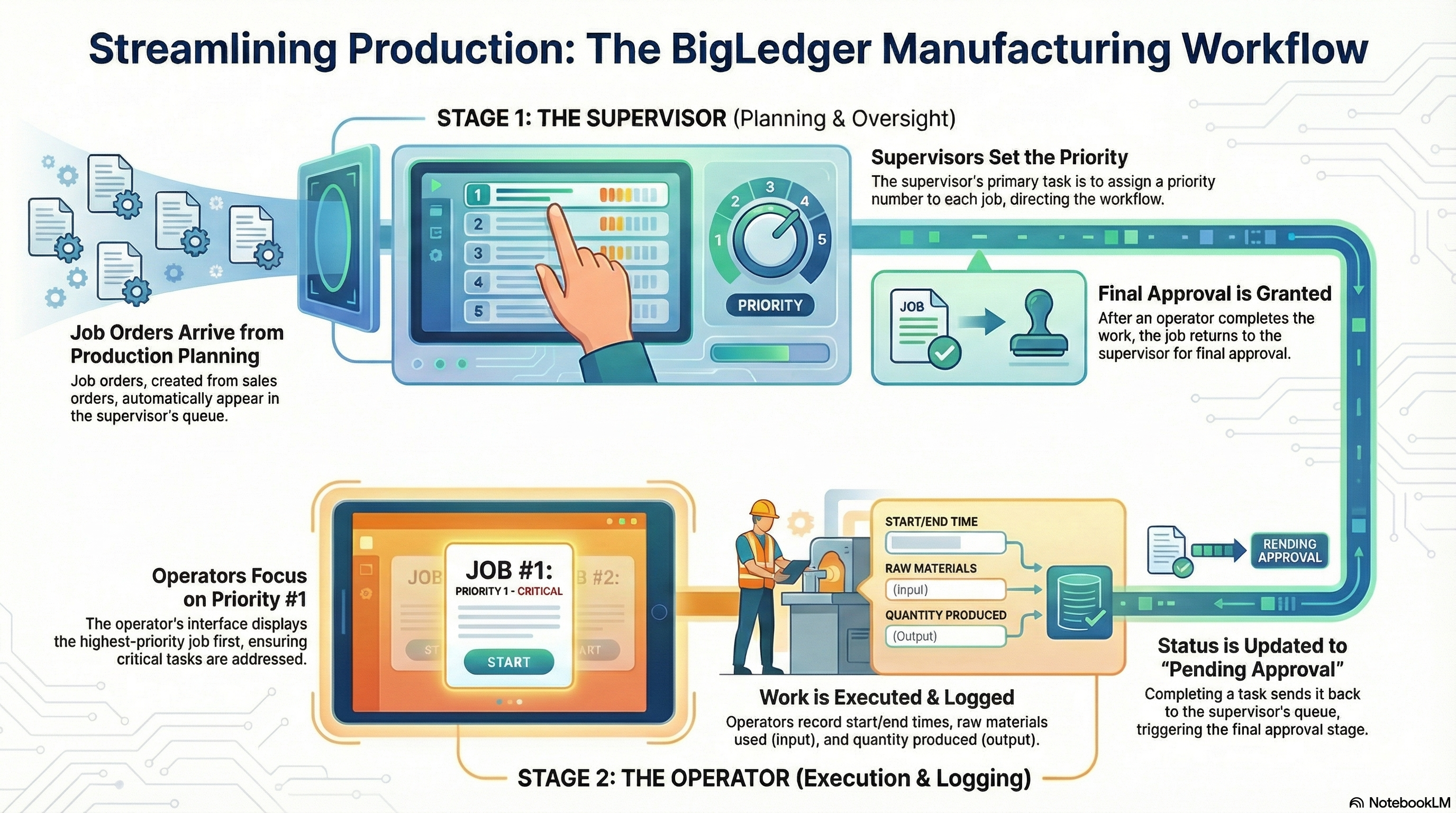
Key Features Overview
How It Works: The Execution Flow
Job Order (From PPM Applet)
    ↓
Supervisor Sets Priority (Supervisor PI)
    ↓
Operator Claims Job (Operator PMC)
    ↓
Work Log Created (Time, Materials, Measurements)
    ↓
Production Completed (Output Recorded)
    ↓
Supervisor Approves (Quality Gate)
    ↓
Transfer to Internal Packing
Key Concepts
| Concept | What It Means | Example |
|---|---|---|
| Process Instance | Individual manufacturing step from Job Order | “Armoring” step for JO-2024-001 |
| Work Log | Record of production activity | Time spent, bins used, quantity produced |
| Bin | Specific inventory container/location | BIN-RAW-001 containing steel wire |
| Priority Number | Job sequence ranking | 1 = highest priority, larger = lower |
| Discrepancy | Difference between planned and actual output | Planned 1000, produced 800 = 200 discrepancy |
| Ready Status | Supervisor-approved, ready for next stage | Process complete, transfer to packing |
Prerequisites: From Planning to Execution
| Required Setup | Where It Happens | What It Provides |
|---|---|---|
| Job Orders | PPM Applet | Manufacturing instructions |
| Process Instances | PPM Applet (Generate) | Individual steps to execute |
| Material Availability | Inventory | Bins with raw materials |
| User Permissions | User Management | Operator and Supervisor access |
Checklist Before Execution:
- Planner has created Job Order in PPM
- Process Instances have been generated
- Required materials are available in bins
- Operators have system access
- Supervisors have “MRP supervisor” permission
Applet Structure: Two Role-Based Menus
| Menu | Role | Purpose |
|---|---|---|
| Supervisor PI | Production Supervisor | Set priorities, review logs, approve processes |
| Operator PMC | Machine Operator | Claim jobs, record work, enter production data |
1. Supervisor PI: Managing the Production Queue
The Supervisor PI (Process Instance) menu is your command center for controlling what gets produced and when, and for ensuring quality through work log approval.
Setting Job Priorities
Operators see jobs ordered by the priority you set here. This is how you control the production sequence.
Steps:
- Open Supervisor PI
- Select an active Job Order
- Enter a Priority Number
Priority Logic:
| Priority | Meaning | When to Use |
|---|---|---|
| 1 | Highest priority | Rush orders, customer escalations |
| 2-10 | High priority | Important deadlines |
| 11-50 | Normal priority | Standard production |
| 51+ | Low priority | Fill-in work, no deadline |
Reviewing and Approving Work Logs
When an operator completes a task, it appears as Pending Approval. This is your quality gate.
Review Checklist:
- Verify time entries are reasonable
- Check correct bins were selected
- Confirm measurements are within spec
- Validate output quantity
Status Actions:
| Action | When to Use | Result |
|---|---|---|
| Ready / Completed | Work log is accurate and complete | Process moves to next stage or packing |
| On Hold | Issue needs resolution | Pauses production (machine issue, QA check) |
| Cancelled | Process should not continue | Terminates the process instance |
Handling Corrections
If an operator made an error in a saved Work Log:
Before marking Ready:
- Supervisor can edit the log directly, OR
- Revert status to In Progress for operator correction
After marking Ready:
- Contact system administrator
- May require inventory adjustment
2. Operator PMC: Executing Production
The Operator PMC (Production Management Console) is where you translate physical production into digital records. Accuracy here drives inventory, costing, and traceability.
Viewing Your Work Queue
Navigate to Operator PMC to see jobs assigned to you or your machine.
Queue Organization:
- Jobs appear in priority order (lowest number = highest priority)
- Filter by Machine Code if needed
- Status shows current state of each process
Status Indicators:
| Status | Meaning | Your Action |
|---|---|---|
| Available | Ready to claim | Claim and start work |
| In Progress | Currently being worked | Continue or complete |
| Pending Approval | Waiting for supervisor | Wait for approval |
| Ready | Approved, moving forward | No action needed |
Claiming a Job
Before you can record work, you must claim the job.
Steps:
- Open Operator PMC
- Locate your job (highest priority at top)
- Change status from Claim → In Progress
Creating a Work Log
Click the "+" icon to create a Work Log. This is the most critical step for production accuracy.
Required Inputs:
Time Tracking
| Field | Action | System Behavior |
|---|---|---|
| Start | Click when work begins | Records start timestamp |
| End | Click when work stops | Records end timestamp |
| Total Time | Automatic | Calculates End - Start |
Material Input (Bin Selection)
Select the exact bins used for raw materials. This creates traceability from raw material to finished good.
Steps:
- View required input materials
- Select specific bin(s) containing those materials
- Confirm quantities consumed
Measurements
Enter required specifications for quality control.
Common Measurements:
- OD (Outer Diameter) - Start, Mid, End
- Length measurements
- Weight specifications
- Visual inspection results
All measurements should follow defined standards (e.g., OD in millimeters).
Quantity Produced
Enter the final produced quantity.
Options:
- Single entry for one output container
- Bulk Add if output is split across multiple reels or bins
Discrepancy Handling:
The system automatically calculates discrepancy:
Discrepancy = Planned Quantity - Actual Quantity| Scenario | Example | System Records |
|---|---|---|
| On Target | Planned 1000, Produced 1000 | No discrepancy |
| Under Production | Planned 1000, Produced 800 | 200 unit discrepancy |
| Over Production (Surplus) | Planned 1000, Produced 1050 | 50 unit surplus |
Surplus remains in stock for future orders.
3. Work Log Best Practices
Data Quality Standards
| Data Element | Standard | Example |
|---|---|---|
| Job Order | Format: Year/Month/Day sequence | JO-2024-0115 |
| Measurements | All in millimeters | OD: 12.5mm |
| Time | Actual work time only | Exclude breaks |
| Bins | Exact bin codes | BIN-RAW-001 |
Common Mistakes to Avoid
Time Recording:
- ❌ Clicking Start when claiming job (inflates time)
- ✅ Clicking Start when production actually begins
Bin Selection:
- ❌ Selecting any available bin
- ✅ Selecting the exact bin you’re physically using
Quantity Entry:
- ❌ Entering planned quantity instead of actual
- ✅ Counting/measuring actual output
Measurements:
- ❌ Skipping measurements or entering estimates
- ✅ Taking actual measurements at specified points
4. Process Status Lifecycle
| Status | Set By | Meaning | Next Step |
|---|---|---|---|
| Available | System | Ready for operator | Operator claims |
| In Progress | Operator | Work underway | Complete work log |
| Pending Approval | Operator | Work log submitted | Supervisor reviews |
| Ready | Supervisor | Approved | Transfer to packing |
| On Hold | Supervisor | Paused for issue | Resolve and resume |
| Cancelled | Supervisor | Terminated | Document reason |
Status Flow:
Available → In Progress → Pending Approval → Ready → Packing
                              ↓
                           On Hold → Resume → Pending Approval
5. Integration with Other Applets
From PPM Applet (Upstream)
| What Comes In | How It’s Used |
|---|---|
| Job Orders | Defines what to produce |
| Process Instances | Individual steps to execute |
| Material Requirements | What bins to select |
| Priority Flags | Initial priority guidance |
To Internal Packing (Downstream)
| What Goes Out | When It Transfers |
|---|---|
| Completed Process | After supervisor marks Ready |
| Output Quantity | Recorded in work log |
| Quality Data | Measurements and approvals |
Inventory Updates
| Action | Inventory Effect |
|---|---|
| Bin Selection | Reserves/consumes raw materials |
| Output Recording | Creates finished/semi-finished goods |
| Discrepancy | Adjusts expected vs actual |
6. Settings and Permissions
User Permissions
| Permission | Role | Grants Access To |
|---|---|---|
| Default | Operator | Operator PMC menu |
| MRP supervisor | Supervisor | Supervisor PI menu |
Machine Code Configuration
Each Work Log is tied to a specific Machine Code.
Rule: One Work Log per Machine Code per process instance.
This ensures accurate machine-hour reporting and maintenance tracking.
7. Common Issues
Job Order not visible in Operator list?
- Check if Process Instances were generated in PPM
- Verify correct Machine Code filter
- Confirm job has been released
Can’t create Work Log?
- Job must be in “In Progress” status
- Claim the job first
Wrong quantity entered in saved Work Log?
- If not yet “Ready”: Supervisor can edit or revert to In Progress
- If already “Ready”: Contact administrator
Supervisor PI menu not visible?
- Enable “MRP supervisor” permission in user profile
- Re-login after permission change
Time calculation seems wrong?
- Verify Start and End times are correct
- Check for accidental double-clicks
- Supervisor can edit before approval
Bin not appearing in selection?
- Verify bin has available stock
- Check bin is for correct item
- Confirm bin is active in inventory
8. Quick Reference
Supervisor Daily Routine
Start of Shift:
- Review incoming Process Instances from PPM
- Set priorities based on deadlines and urgency
- Communicate priorities to operators
During Shift:
- Monitor work queue progress
- Review and approve completed work logs
- Handle On Hold situations
- Adjust priorities as needed
End of Shift:
- Approve all pending work logs
- Review discrepancies
- Update PPM on completion status
- Prepare handover notes
Operator Daily Routine
Start of Shift:
- Check work queue in Operator PMC
- Review priority order
- Gather materials for first job
For Each Job:
- Claim job → In Progress
- Click Start when beginning work
- Select correct input bins
- Perform production
- Enter measurements
- Click End when complete
- Enter quantity produced
- Submit for approval
End of Shift:
- Complete current work log
- Do not leave jobs “In Progress” without work log
- Report any issues to supervisor
Key Actions Summary
| Task | Role | Where | How |
|---|---|---|---|
| Set job priority | Supervisor | Supervisor PI | Enter priority number |
| Approve work log | Supervisor | Supervisor PI | Review and mark Ready |
| Claim job | Operator | Operator PMC | Change to In Progress |
| Record time | Operator | Work Log | Click Start/End |
| Select materials | Operator | Work Log | Choose bins |
| Enter output | Operator | Work Log | Enter quantity, Bulk Add if needed |
| Submit for approval | Operator | Work Log | Save and submit |
Related Documentation
Manufacturing Ecosystem
- Production Planning & Monitoring Applet - Job Order creation and planning
- Process Maintenance Applet - Process templates and machine setup
- Manufacturing Module - Complete module overview
Supporting Applets
- Stock Balance Applet - Inventory visibility
- Internal Stock Adjustment Applet - Inventory corrections